
Introduced in Studio One 4, the Pattern Editor makes rhythm programming more efficient with step-based note entry. Combined with the enhanced Impact XT, it lets you work with up to 128 samples and edit sounds using reverse, normalize, and slicing functions. The Pattern Editor offers intuitive control over velocity, swing, gate, and accents. You can create multiple pattern variations to speed up song production, making beat creation and drum programming much more efficient.
Powerful Features for Rhythm Editing
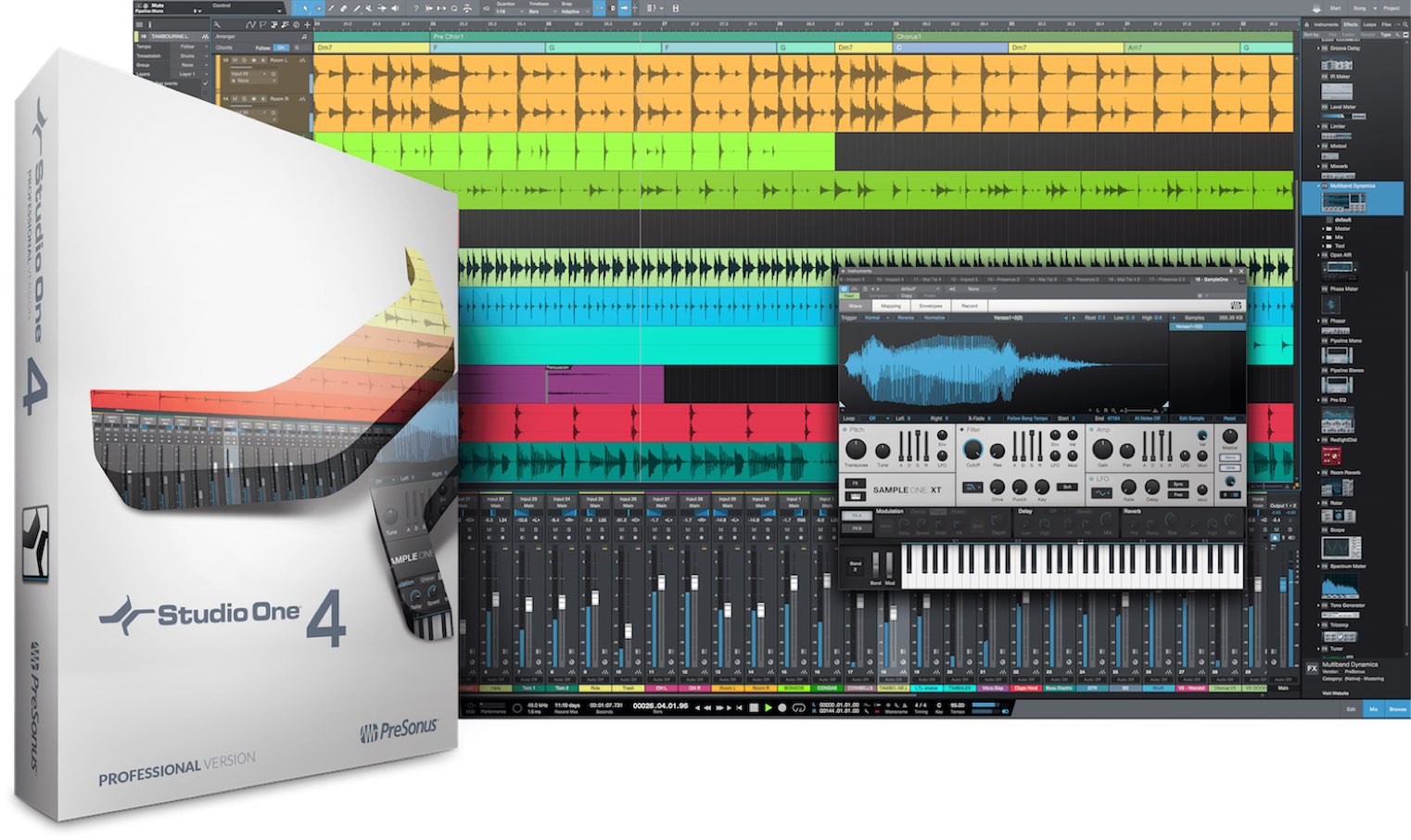
This is the second and final installment of our guide to the new features in Studio One 4.
Here, we will focus on the newly introduced Pattern Editor.
The Pattern Editor lets you enter notes efficiently in a step-based format and is particularly suited to rhythm programming.
We will also look at the newly enhanced Impact XT.
Video: How to Use the Studio One 4 Pattern Editor
Selected Questions and Answers from the YouTube Video

This is unrelated to the video, but I use Cubase and everything sounds fine while I am working in it. When I listen after exporting, though, there is a constant hissing sound from beginning to end. What should I do? Sorry for the off-topic question.

Are you using any plug-ins, such as Waves plug-ins, in your song project?
How to Use Impact XT
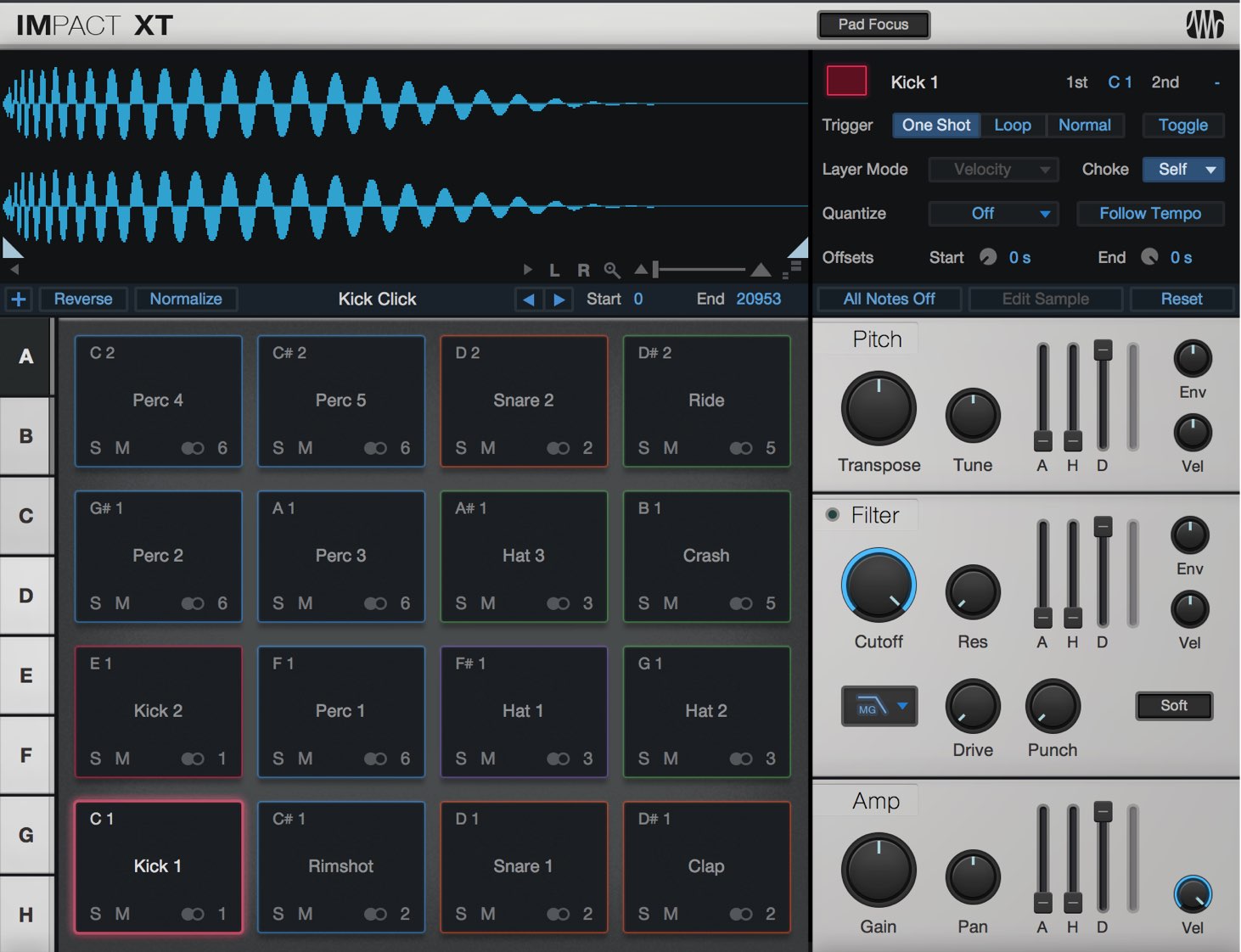
Impact XT brings improvements to the interface and features of the previous version.
Let’s look at what has changed and how to make use of it.
More Pads for More Samples
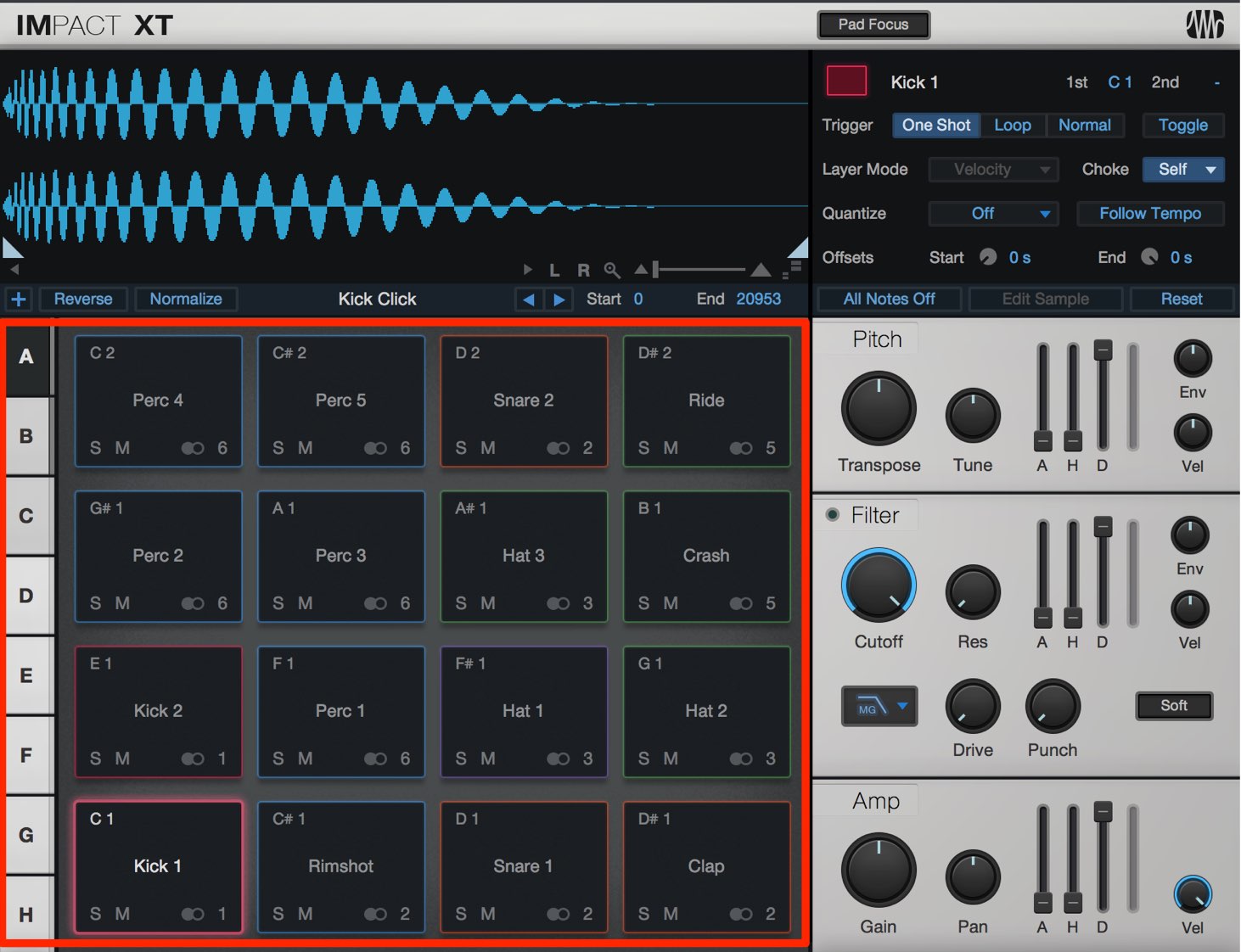
Switching between the A–H tabs lets you work with up to 128 samples.
The note that triggers each sample is shown at the upper left of its pad.
New Reverse and Normalize Functions
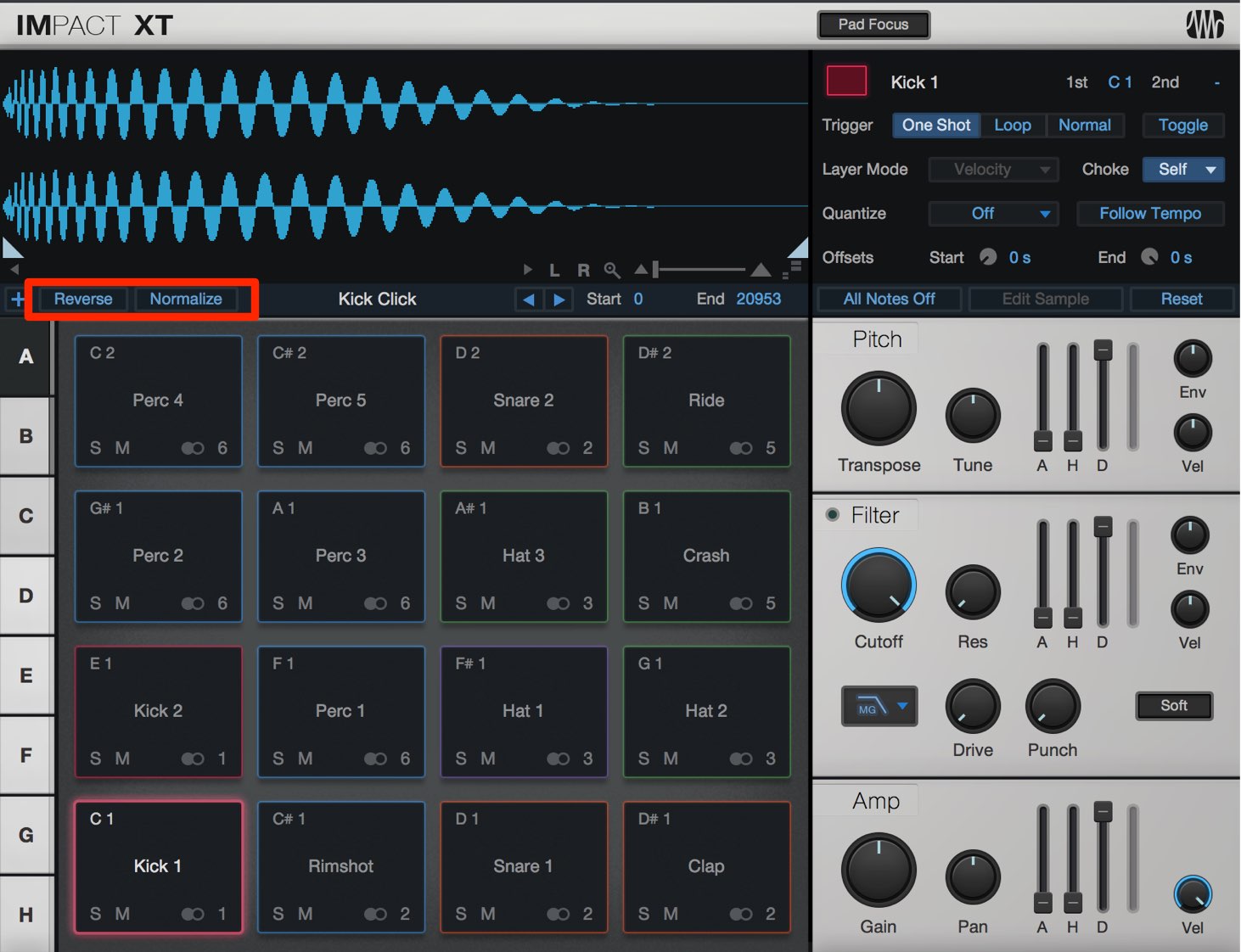
Use the buttons shown here to apply reverse and normalization to each sample.
- Reverse: Plays the sample backward.
- Normalize: Maximizes the sample’s playback level.
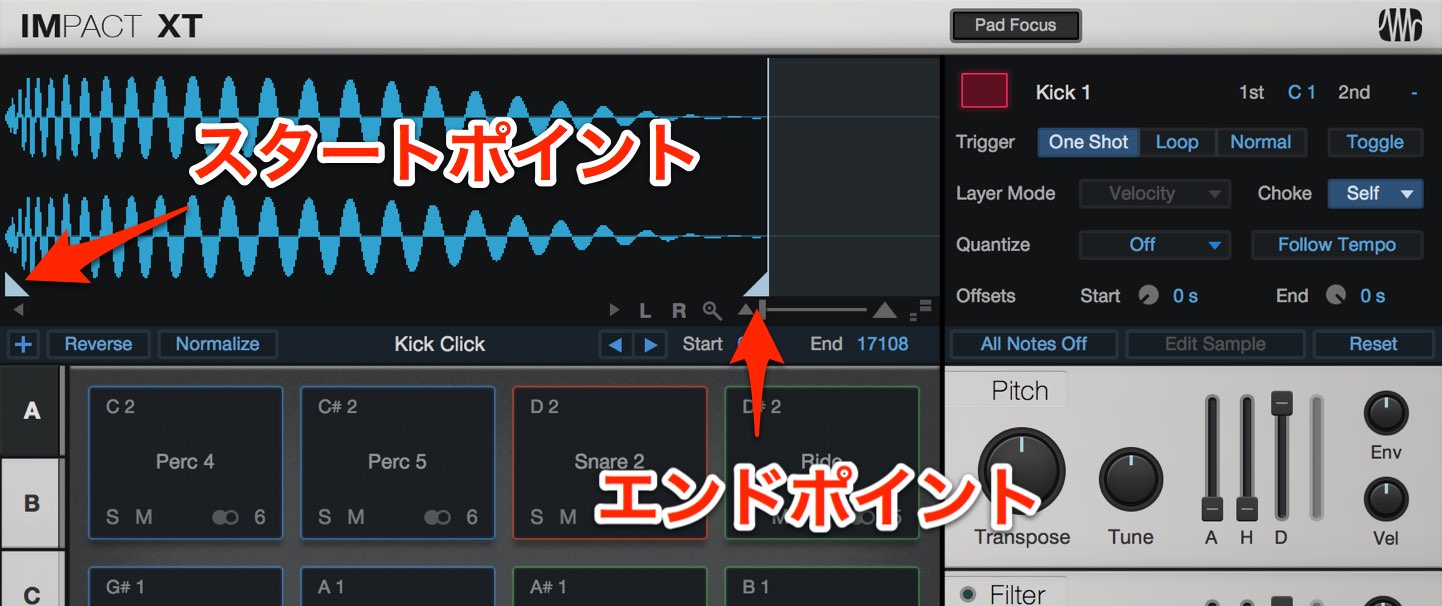
Setting the start and end points lets you specify the playback range of a sample. This is also useful for fine-tuning reversed sounds.
Slicing Samples
You can slice a loop and assign the slices to individual pads.
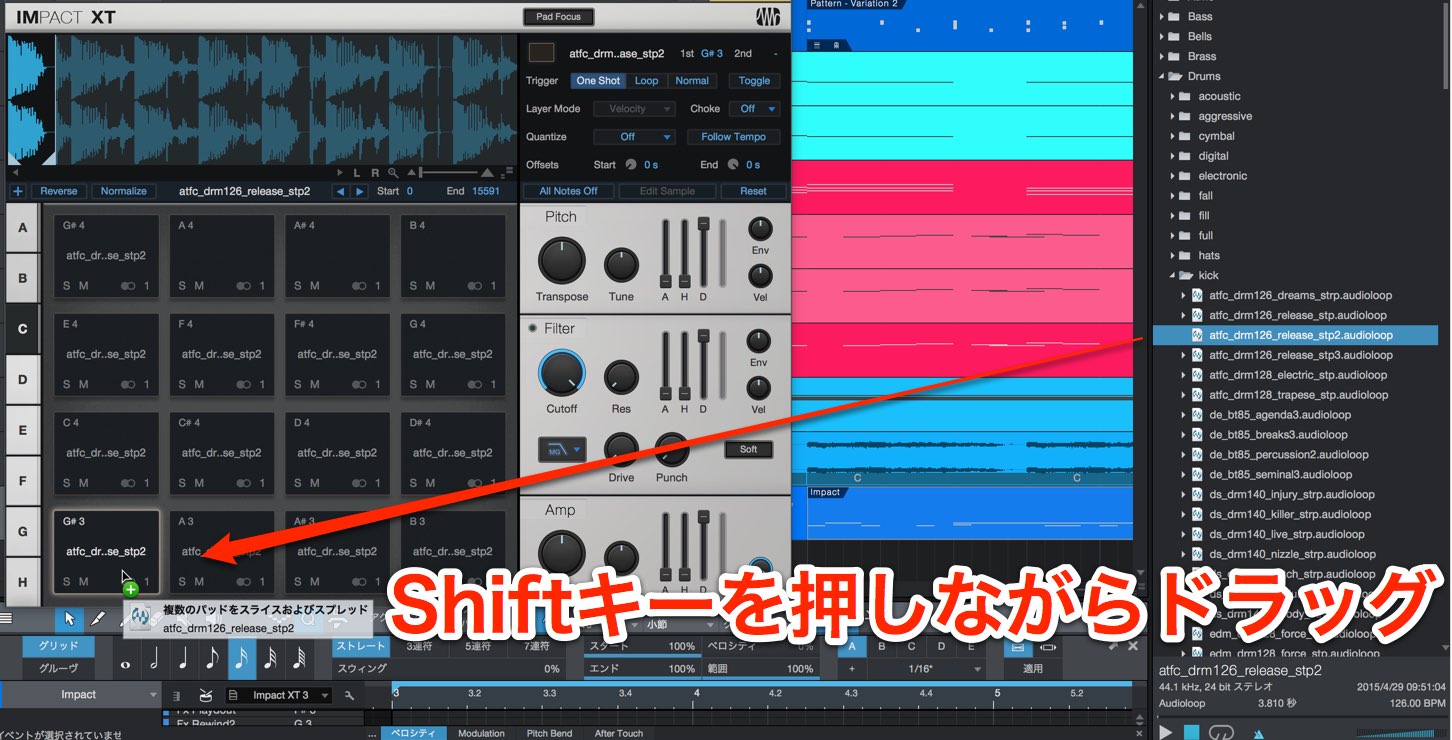
Simply hold Shift while dragging in the sample.
This is especially useful when sampling loops.
How to Use the Pattern Editor
Let’s take a look at the new Pattern Editor.
Adding Events and Entering Notes
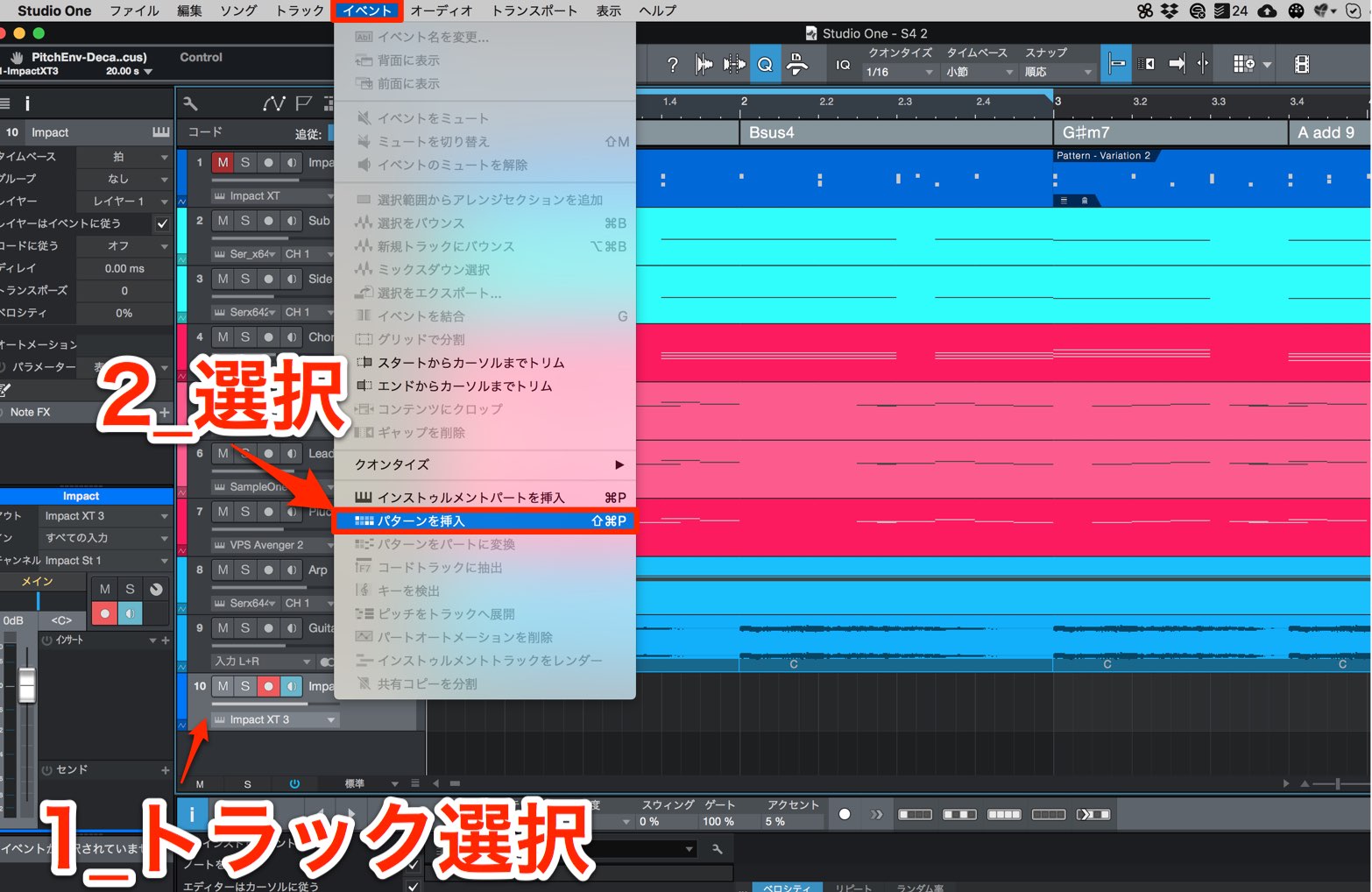
Select the track you want to use, then choose Event → Insert Pattern from the top menu.
If you prefer not to use the menu, the following keyboard shortcuts do the same thing.
- Mac: Command + Shift + P
- Windows: Control + Shift + P
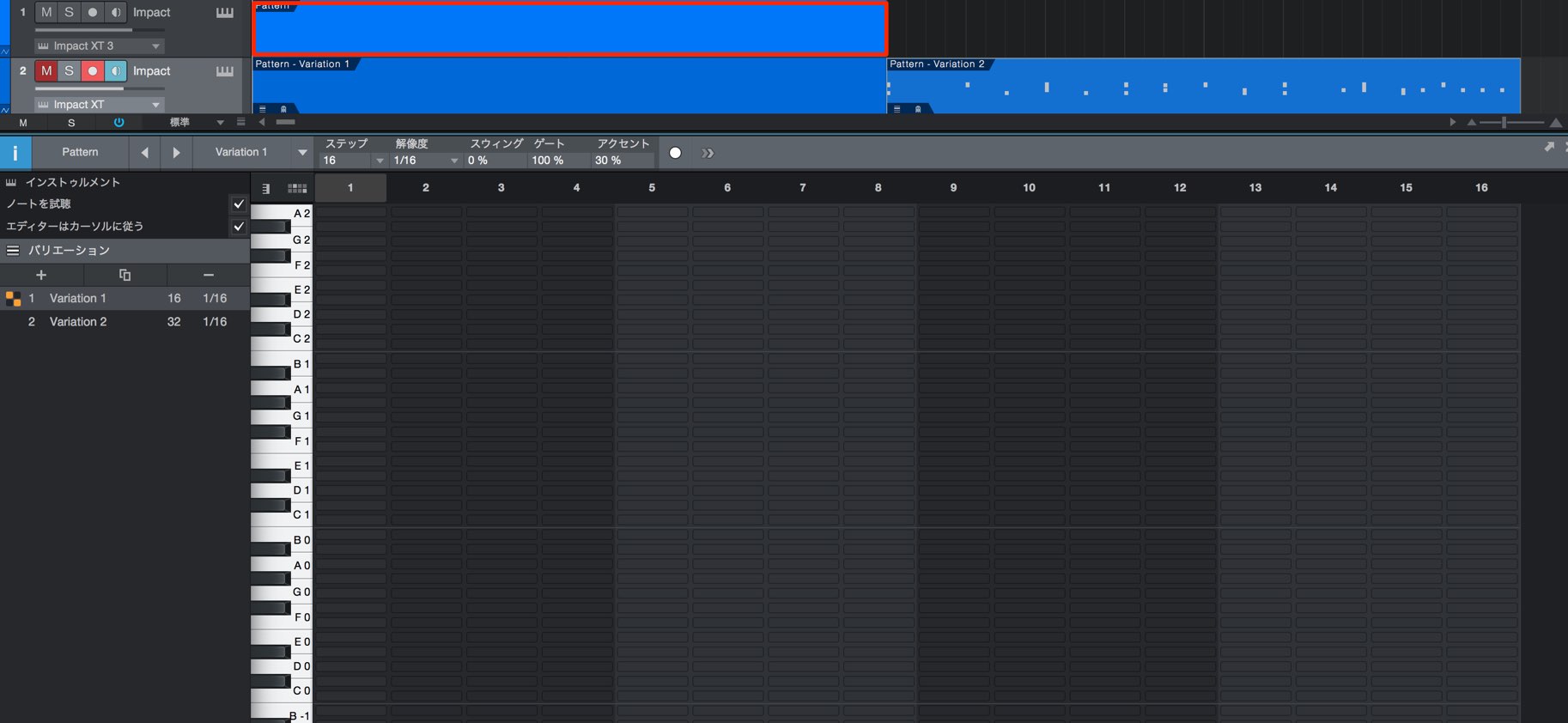
The Pattern Editor opens as shown here.
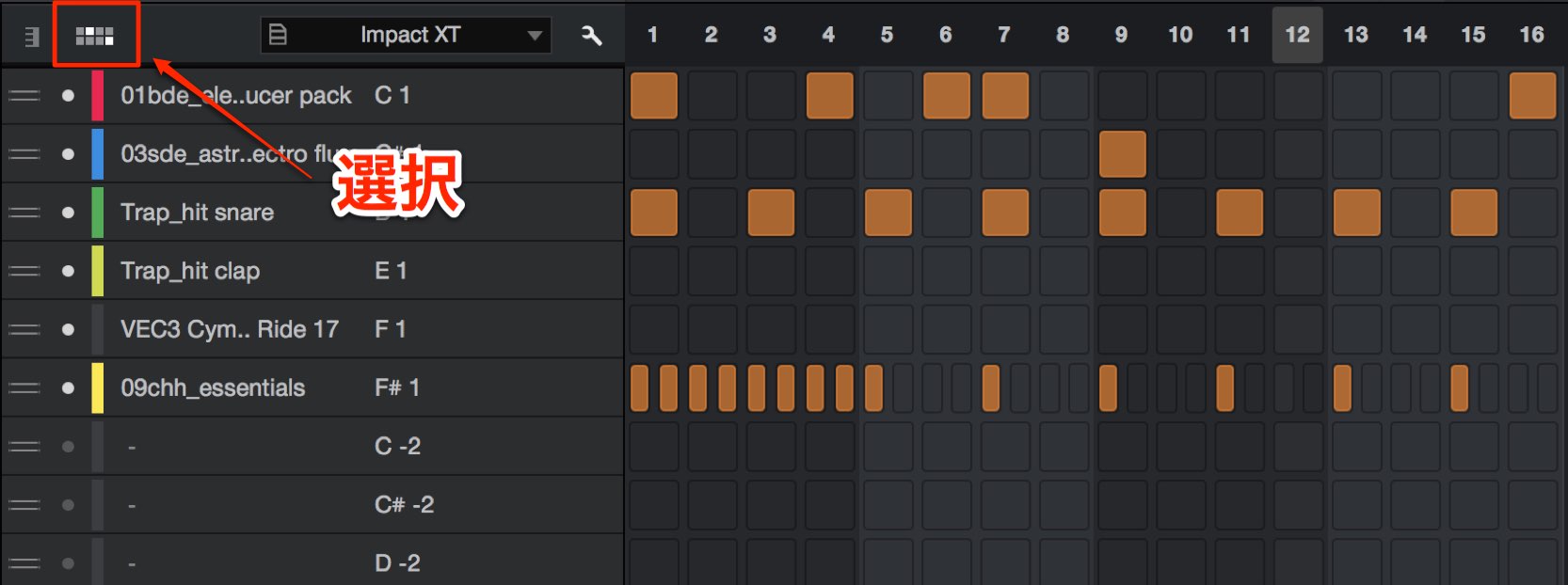
If the editor does not look like the one in the image, click the highlighted area to switch the view.
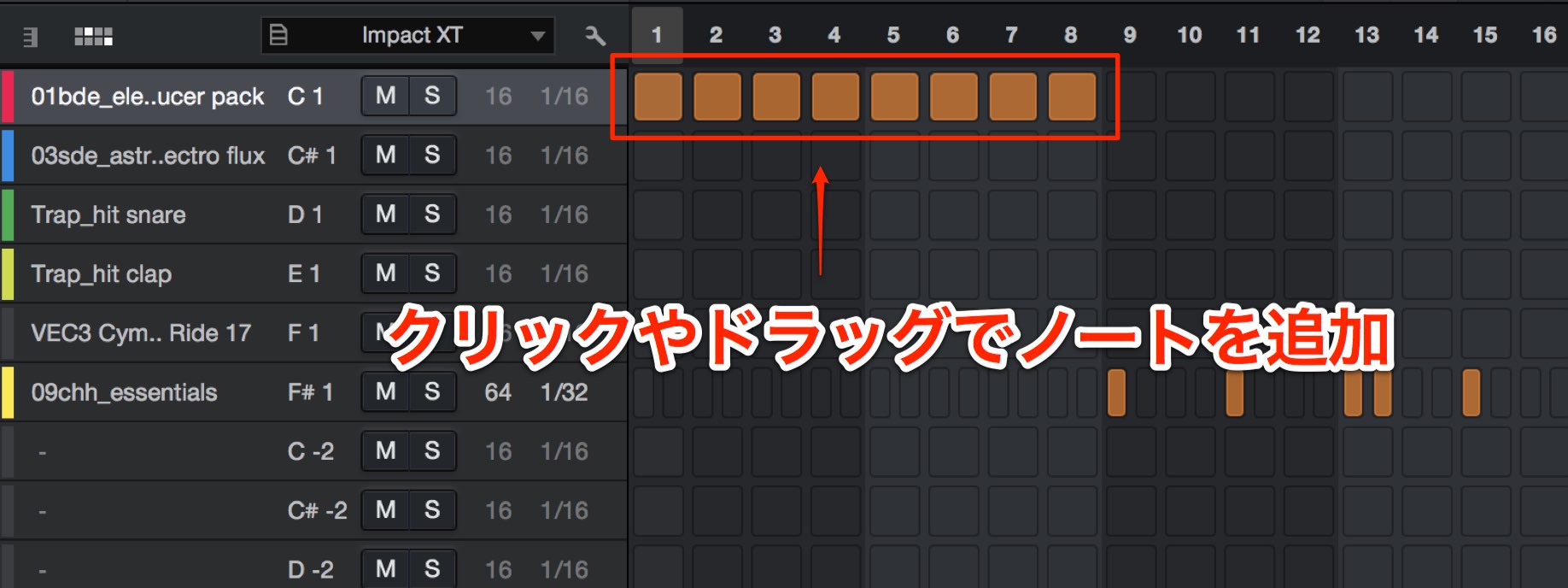
Click or drag to add notes, and click an existing note to delete it.
You can also hold Shift while dragging to add or remove notes in a vertical column.
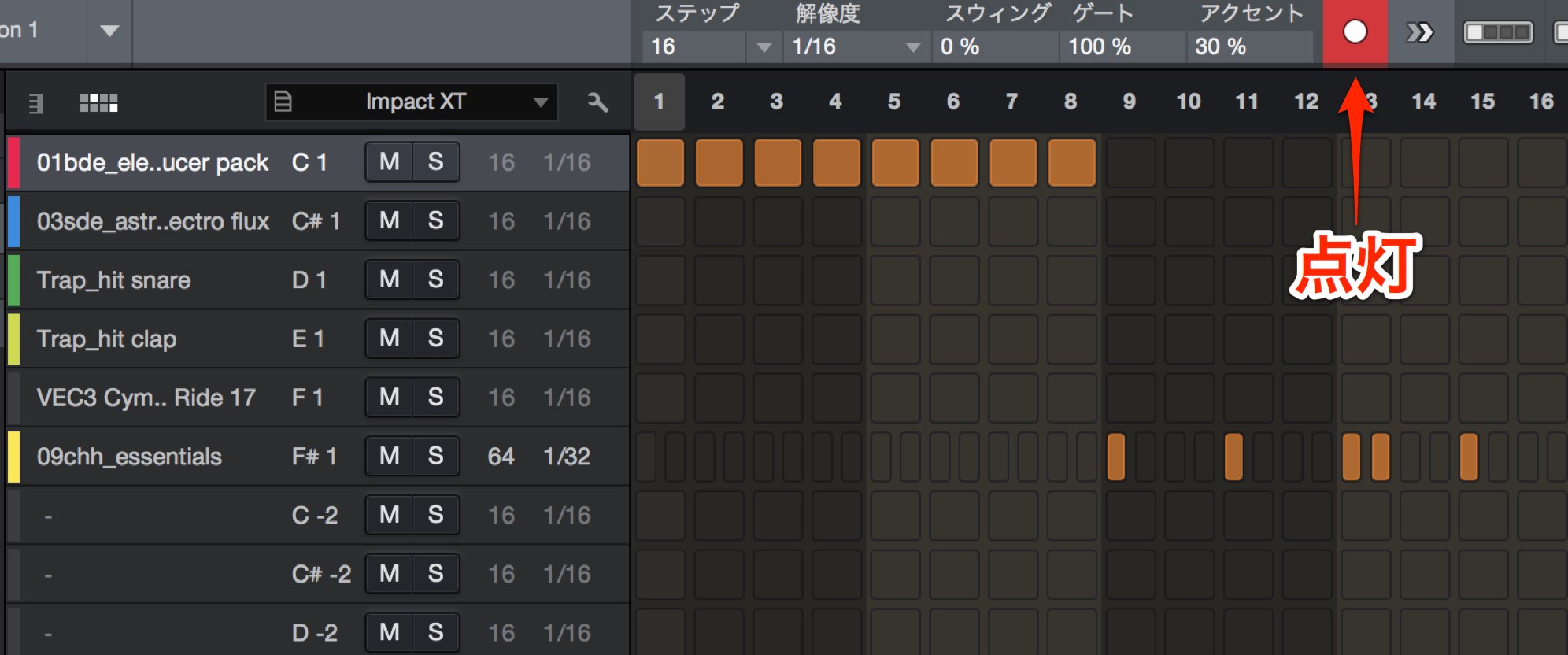
Enable the Record button to enter notes from a MIDI keyboard.
Each entry advances by one step. The arrow on the right lets you skip a step to insert a rest.
Step Resolution (Note Value) and Pattern Length
By default, each step has a sixteenth-note value.
You can change this setting.
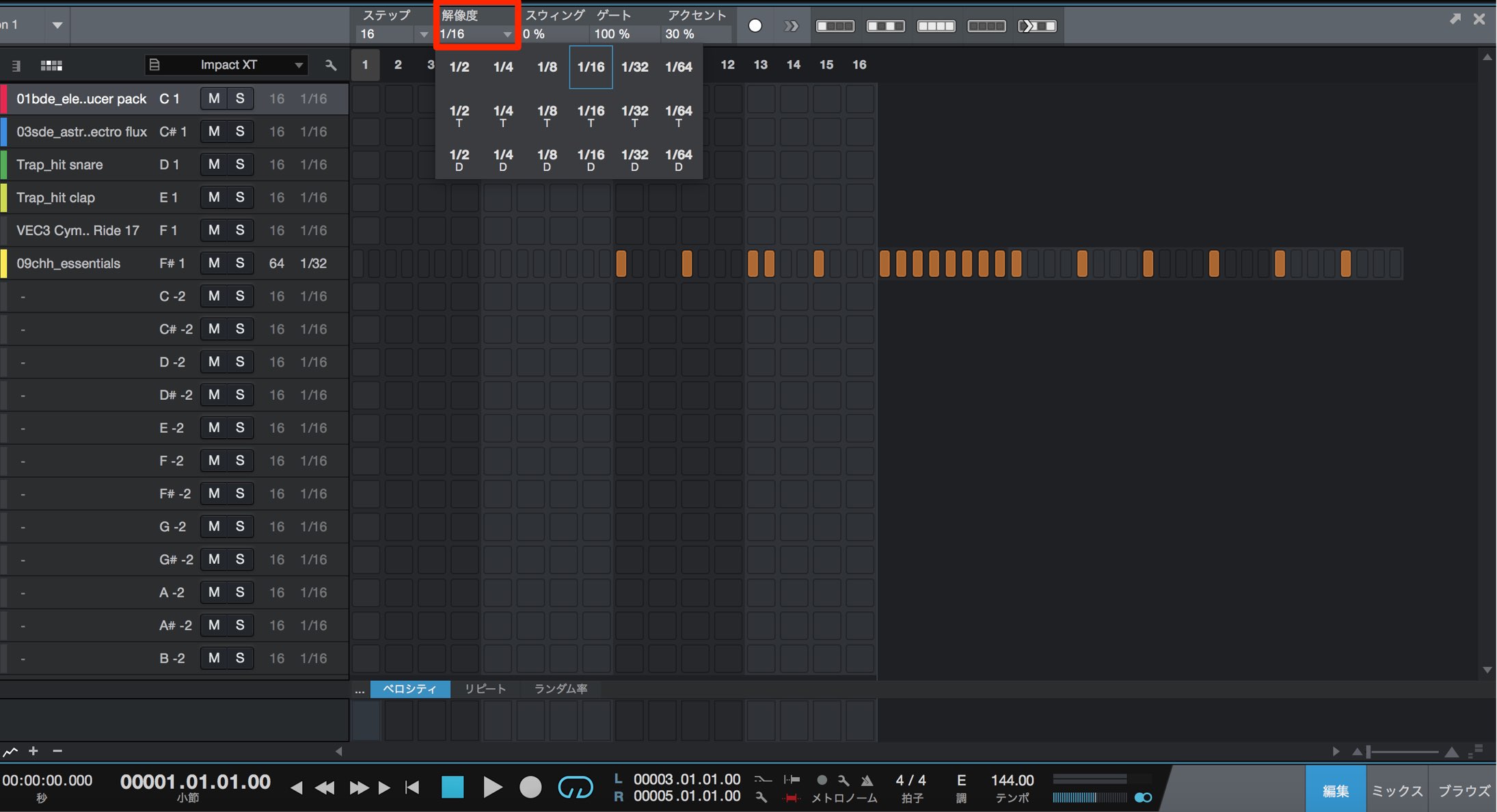
Simply change the note value of each step using Resolution.
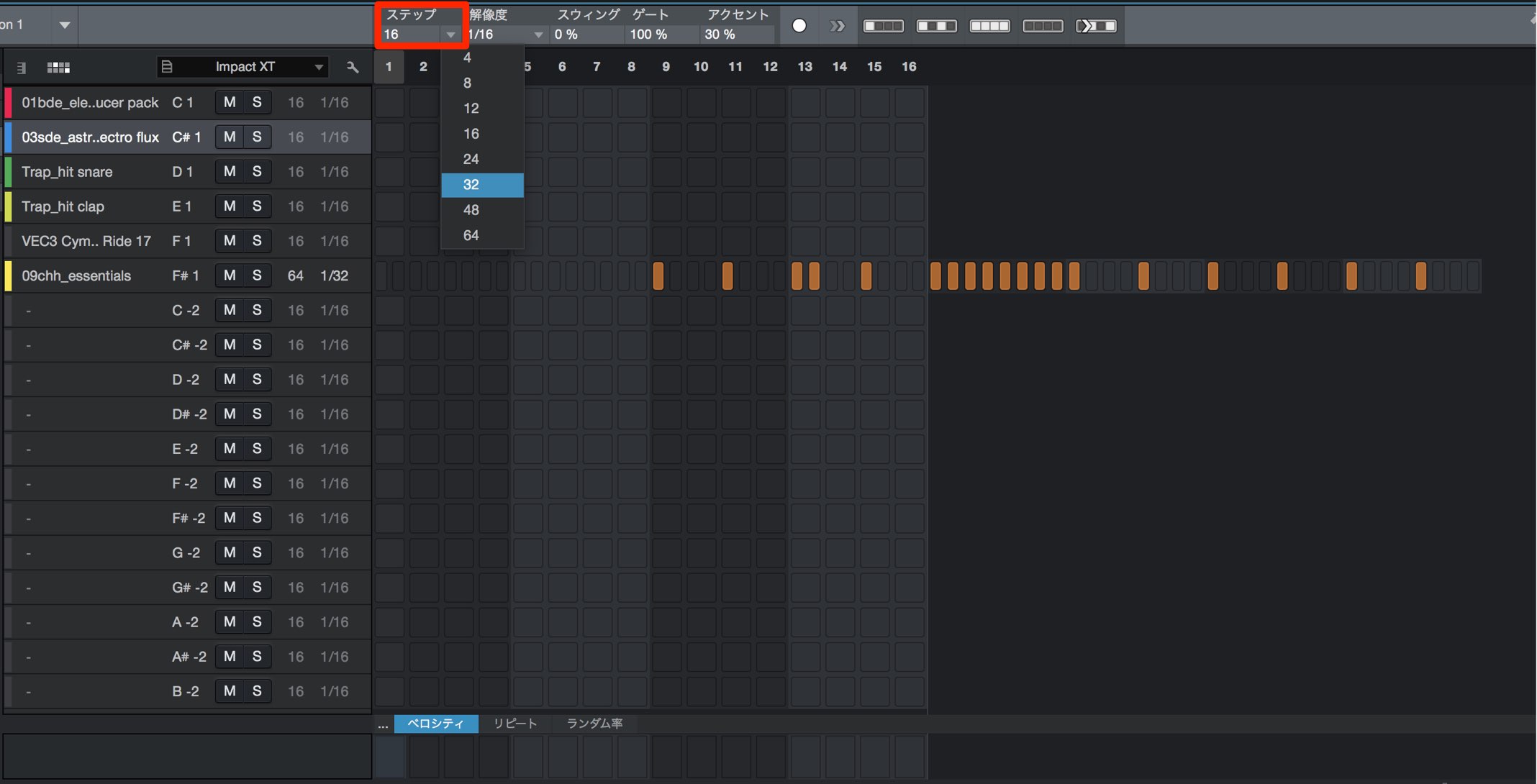
Use Steps to change the length of the pattern itself.
Keep in mind that the resulting length depends on the Resolution setting described above.
For example, at a sixteenth-note resolution, 16 steps make one bar.
To make a two-bar pattern, change Steps to 32.
At a thirty-second-note resolution, 32 steps make one bar.
For two bars, set the number of steps to 64.
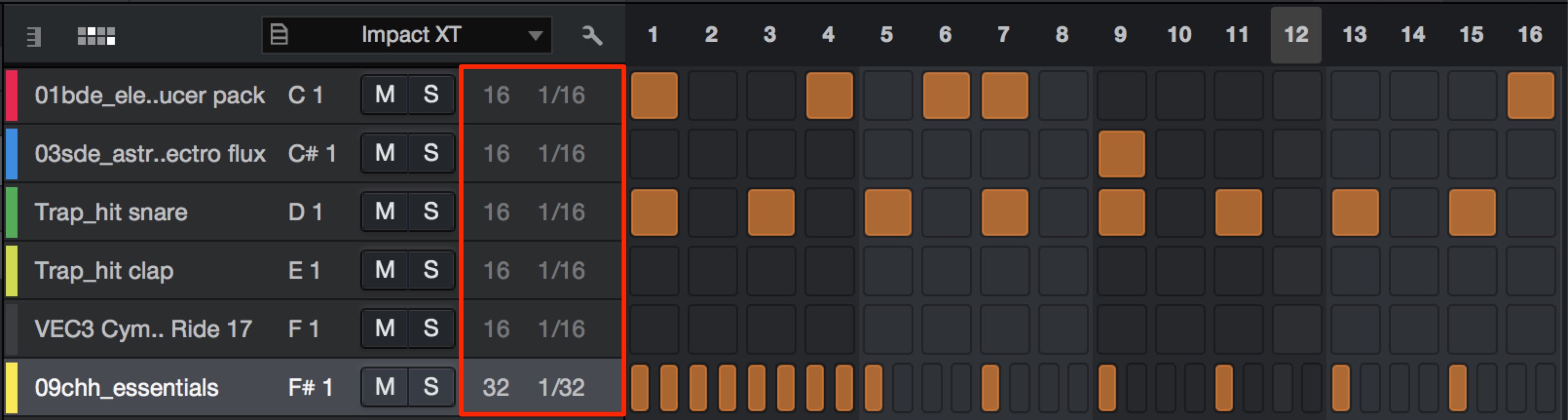
One useful feature is that you can set the resolution and number of steps independently for each drum lane.
Customizing Drum Lane Visibility and Layout
You can customize the visibility, names, and order of individual drum lanes to make the editor easier to use.
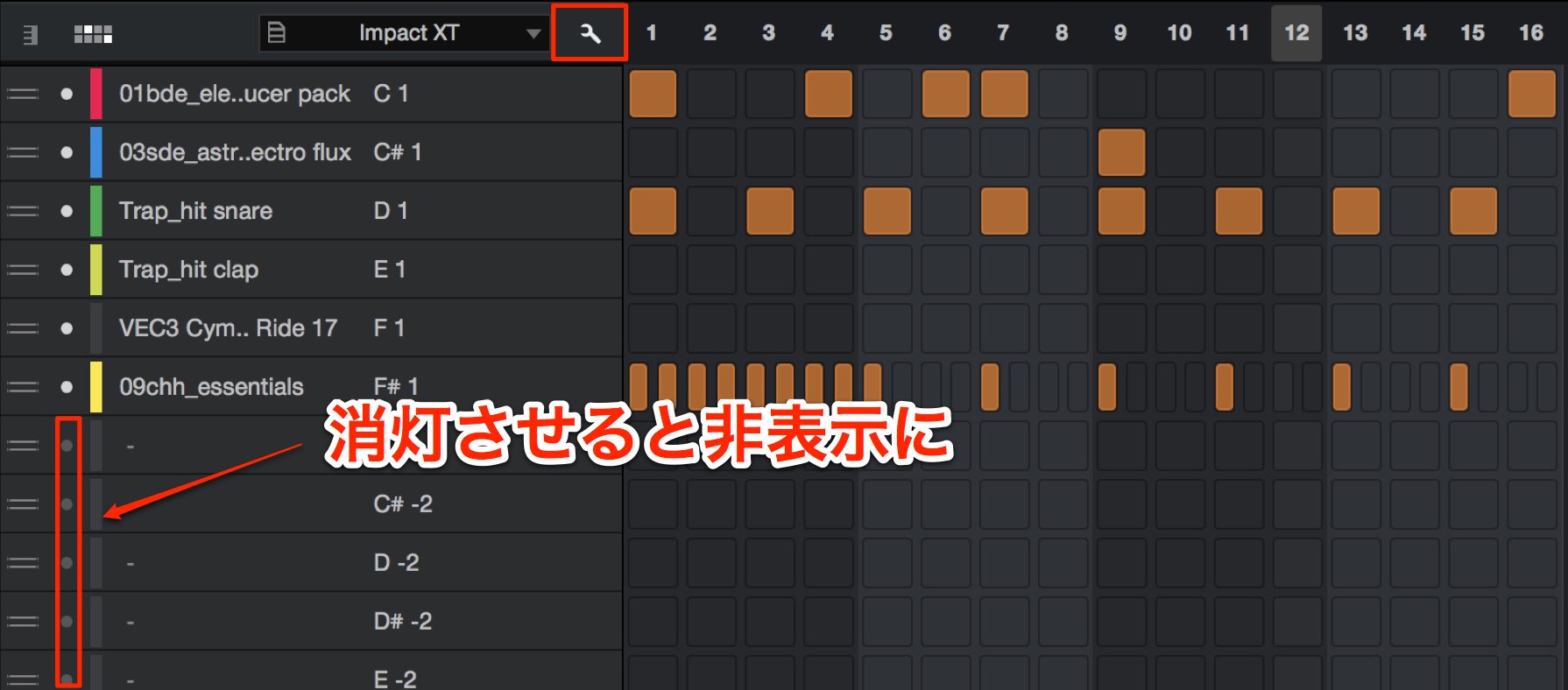
Click the wrench icon, then turn off the drum lanes you do not need.
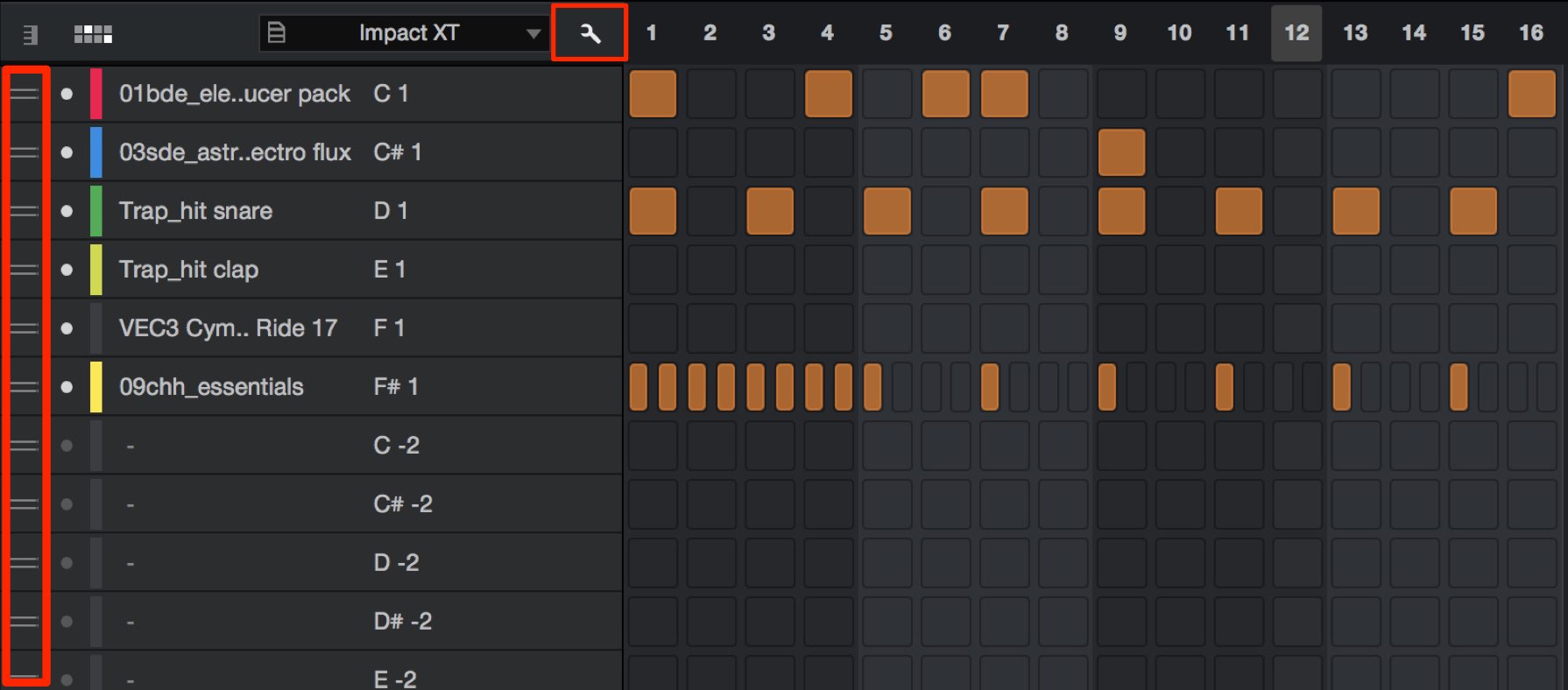
Drag the highlighted area up or down to reorder the drum lanes.
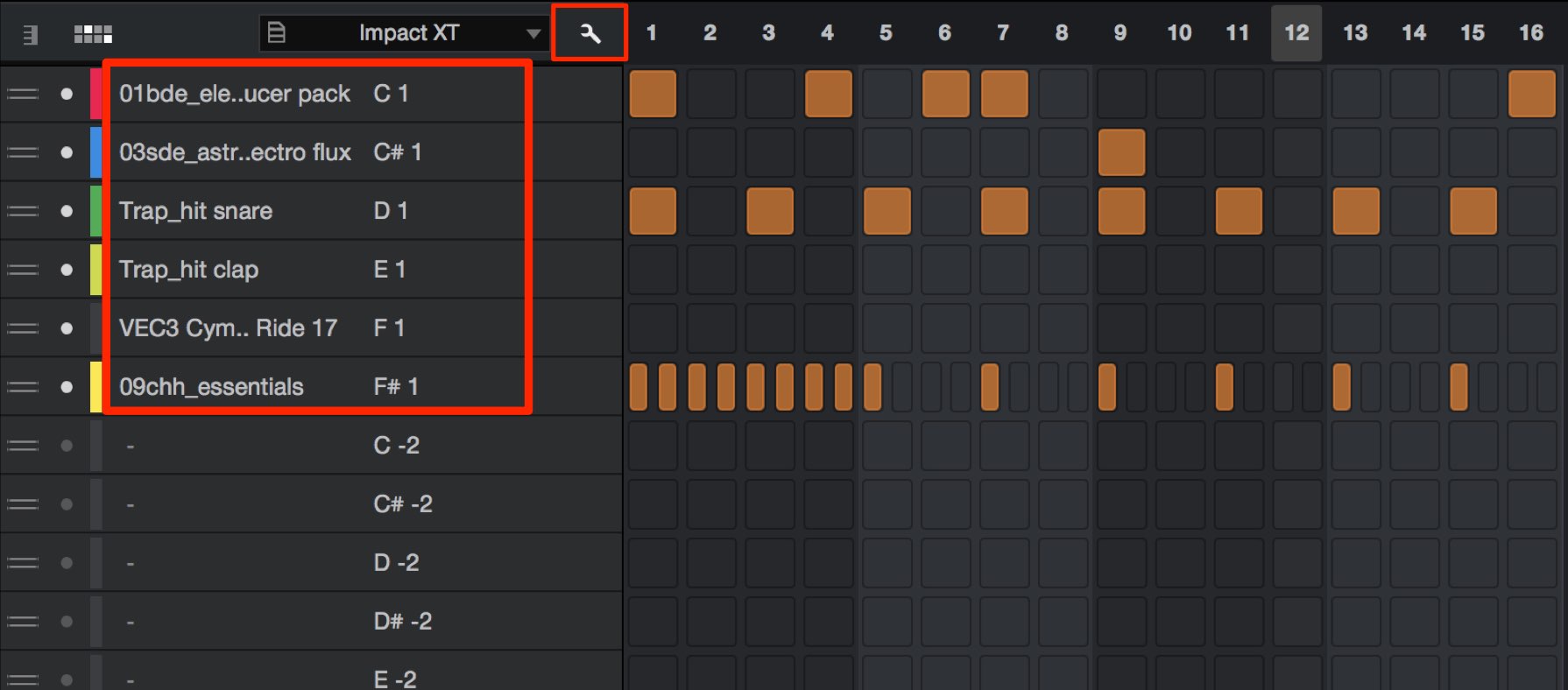
Double-click a name to rename it.
After making these changes, click the wrench icon again to leave customization mode.
Editing Velocity and Other Performance Details
Changing velocity is very intuitive.
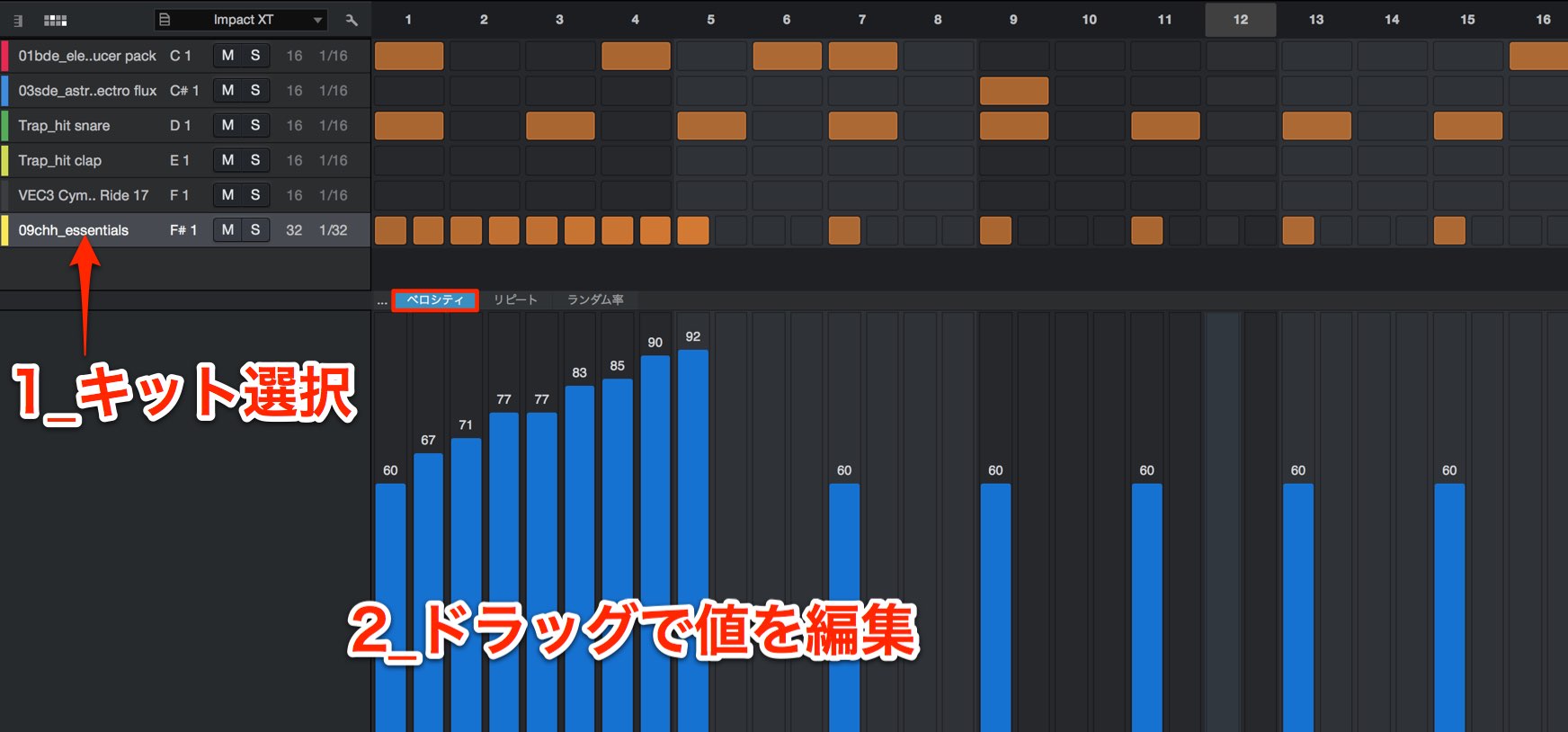
Select the drum lane you want and drag in the Velocity area.
You can use the same procedure to edit Repeat, for stutter effects such as repeated hits, and randomization.
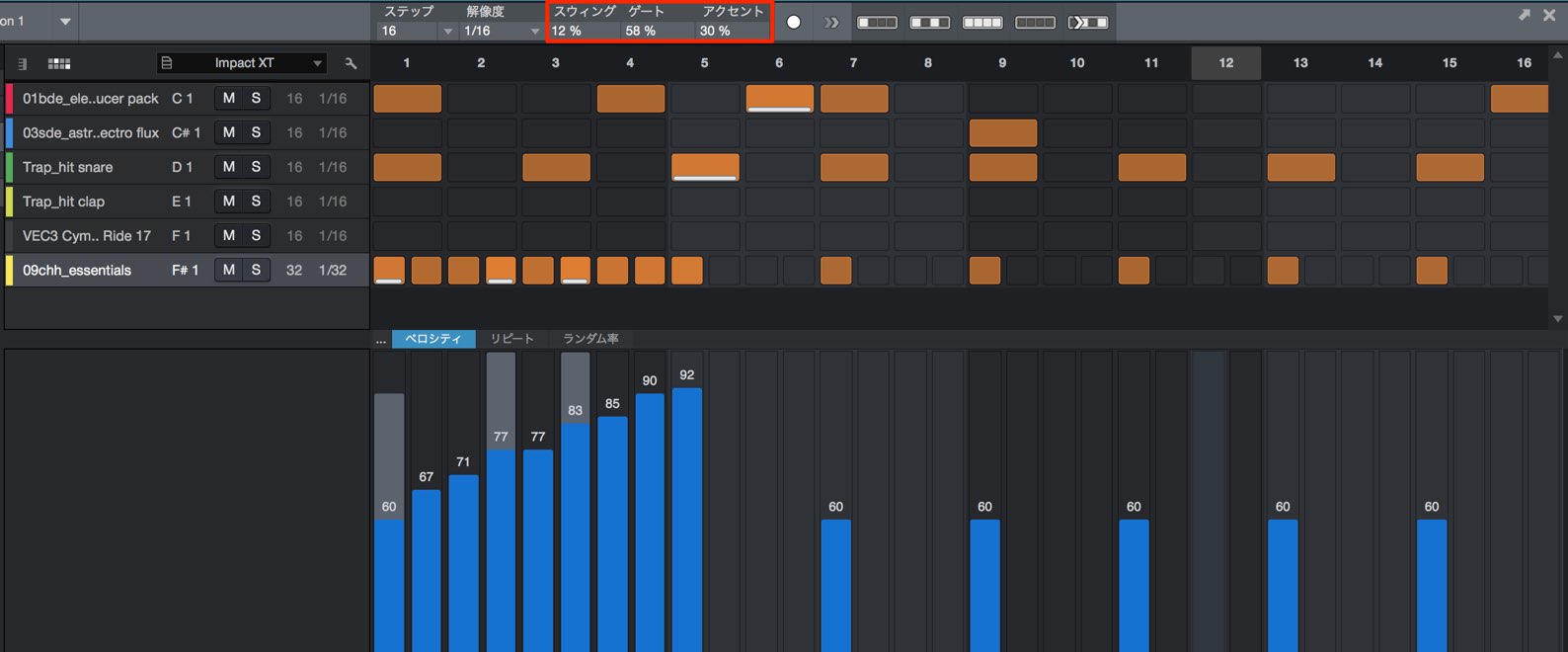
- Swing: Delays the offbeats at the current resolution to give the rhythm a swinging feel.
- Gate: Changes the length of the sound to adjust its feel.
- Accent: Adds a volume accent to selected notes.
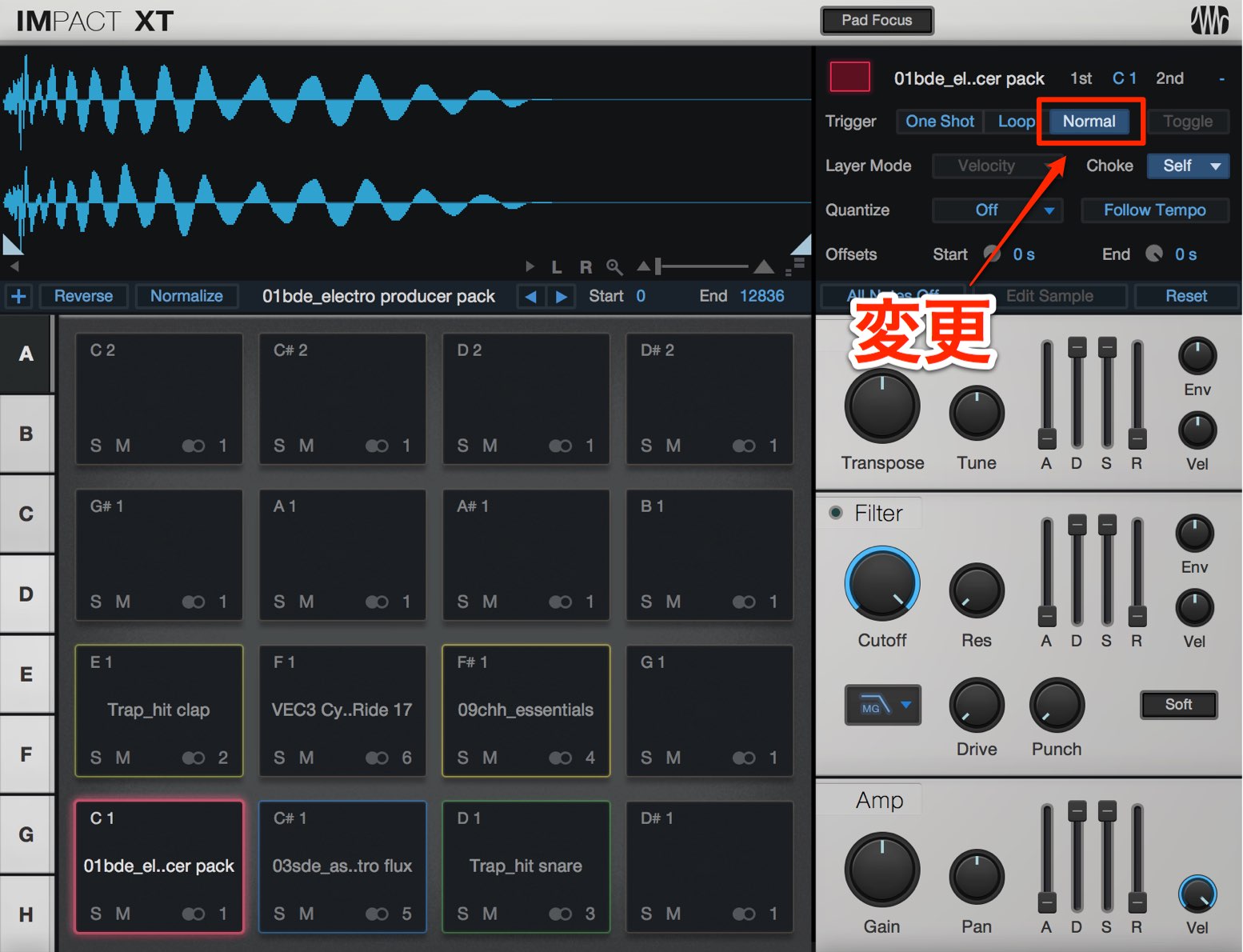
To use Gate, you need to switch the instrument from One Shot to the ADSR-based Normal mode.
Gate has no effect in One Shot mode.
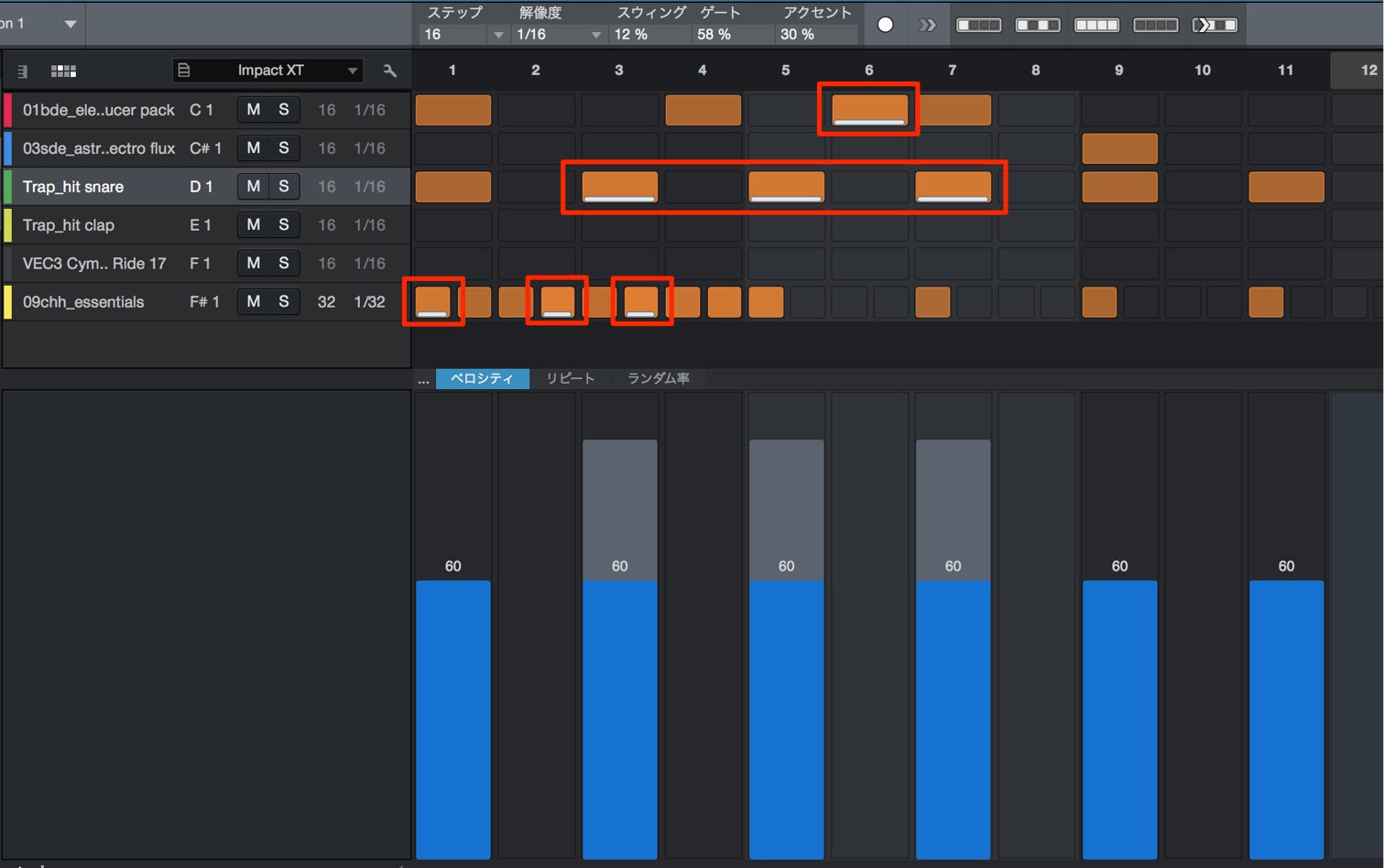
To add an accent, click the desired note while holding the appropriate key:
- Mac: Command
- Windows: Control
Hold the key as you click the note.
Creating Pattern Variations
A major strength of the Pattern Editor is that you can create multiple pattern variations and switch between them easily.
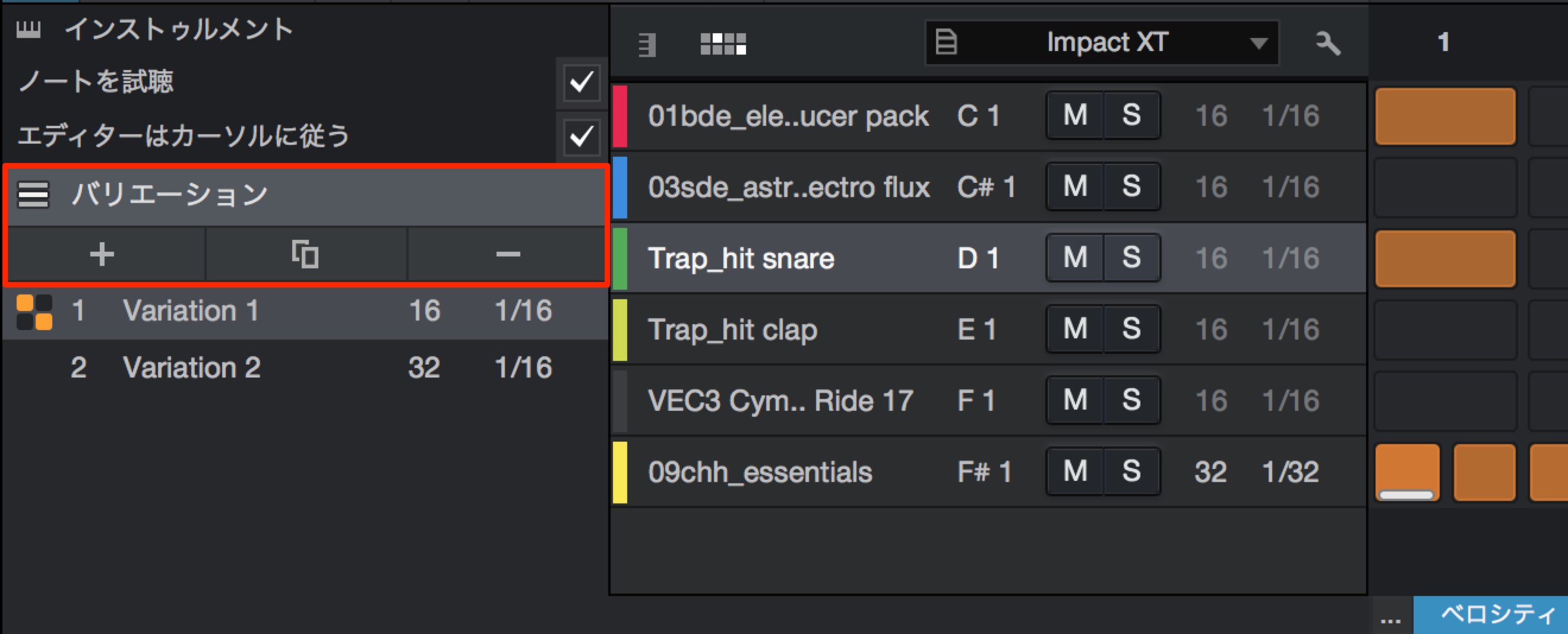
Manage variations from the area shown in the image.
From left to right, the buttons do the following:
- The plus button adds an empty pattern.
- The copy button creates a copy of the currently selected pattern.
- The delete button removes the selected pattern.
These are the three variation-management controls.
In addition to the notes or phrase, each variation can have its own resolution, step count, velocity, swing, gate, and accents. This makes it easy to compare patterns with different feels or adapt them to different sections of a song.
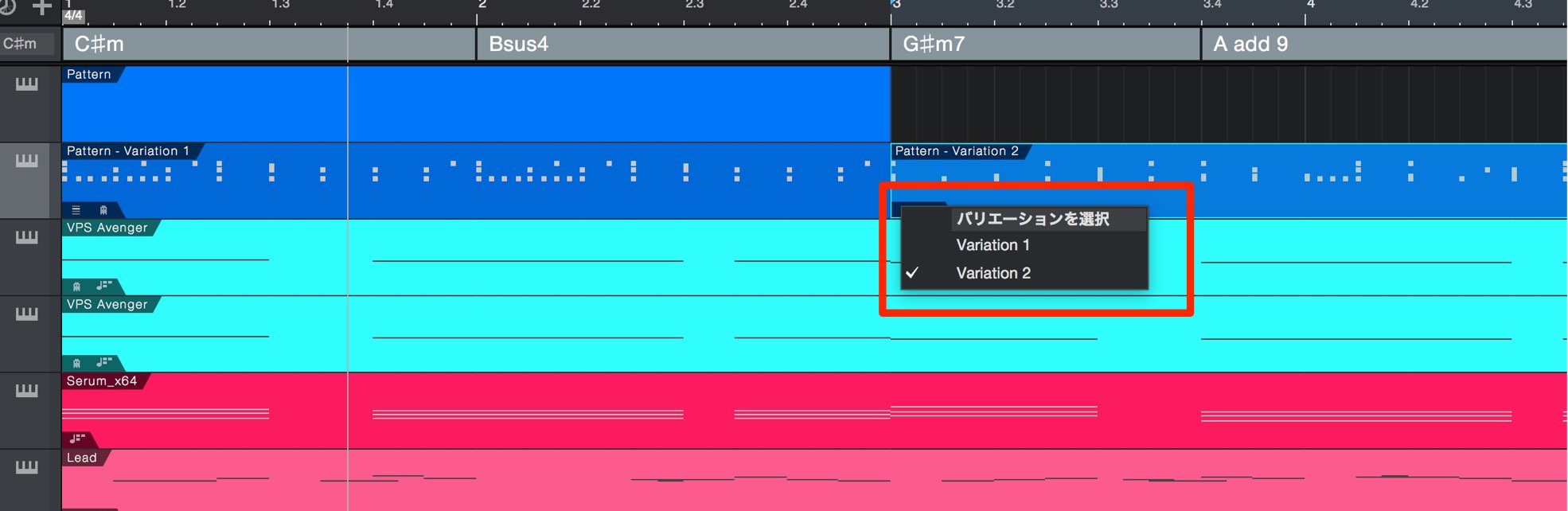
Click the lower-left corner of a duplicated pattern event to choose one of the variations you have created for that event.

Frequently Asked Questions
Q1. What is the Pattern Editor in Studio One 4?
The Pattern Editor is a rhythm-programming feature that uses step-based note entry. You can efficiently create drum patterns by clicking and dragging, and it also supports real-time note input from a MIDI keyboard.
Q2. How many samples can Impact XT handle?
You can work with up to 128 samples by switching between the A–H tabs. Place samples on individual pads and edit them with the reverse, normalize, and slicing functions.
Q3. What are the benefits of creating pattern variations?
You can create multiple variations and switch between them easily. Each variation can have independent settings for resolution, velocity, swing, and more, so you can quickly adapt patterns to different sections of a song.
Q4. How do I edit velocity and swing?
Select a drum lane and drag in the relevant control area for intuitive editing. To apply an accent, hold the appropriate Mac or Windows modifier key while clicking a note.
Q5. What happens when I change the step resolution (note value)?
The duration of each step changes. For example, 16 steps make one bar at a sixteenth-note resolution, whereas 32 steps make one bar at a thirty-second-note resolution. Keep this in mind when calculating pattern length.
NEW ARTICLES
Latest English Articles











































































































































































































































































































