
This article explains how to use Ableton Live's MIDI effects to program chords for keyboard tracks more efficiently. Even guitarists who are not confident keyboard players can combine the Probability Arp and Scale devices to generate chords automatically from single MIDI notes. We also cover techniques that can greatly speed up production, including transposing multiple chains together with a Macro and converting guitar audio to MIDI.
Make Chord Programming Easier and More Enjoyable with MIDI Effects
In Part 4, we focus on MIDI effects that make it easier to program keyboard chords.
We will put Ableton Live's flexible MIDI routing to work, showing you how to play chords from single MIDI notes and how to build on this approach with even more useful techniques.
Ableton Live for Guitarists, Part 4: Video Tutorial
- 1A Workflow for Creating Drum Tracks
- 2A Workflow for Recording MIDI and Audio with a Guitar
- 3Creating Lead Sounds with Instrument Rack and External Instrument
- 4Programming Keyboard Chords with MIDI Effects
- 5Building a Song with Session View
- 6Exploring Live's Mixing Features
- 7Download the Tutorial Project
Setting Up MIDI Effects for Chords
Here, we will use MIDI effects to generate chords from single MIDI notes.
This makes programming easy even if you are not confident playing the keyboard.
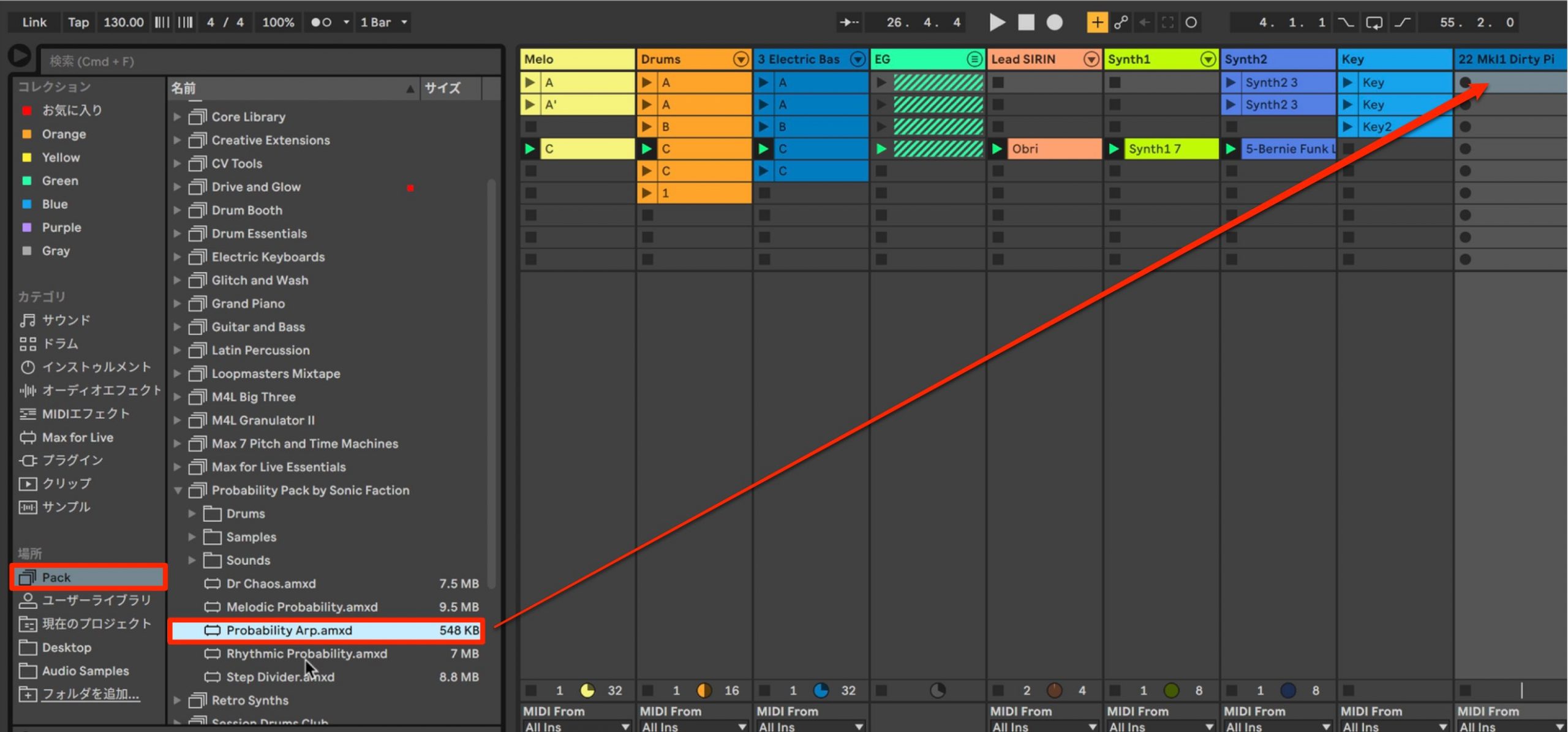
On the MIDI track you want to use for chords, add Probability Arp from Packs.
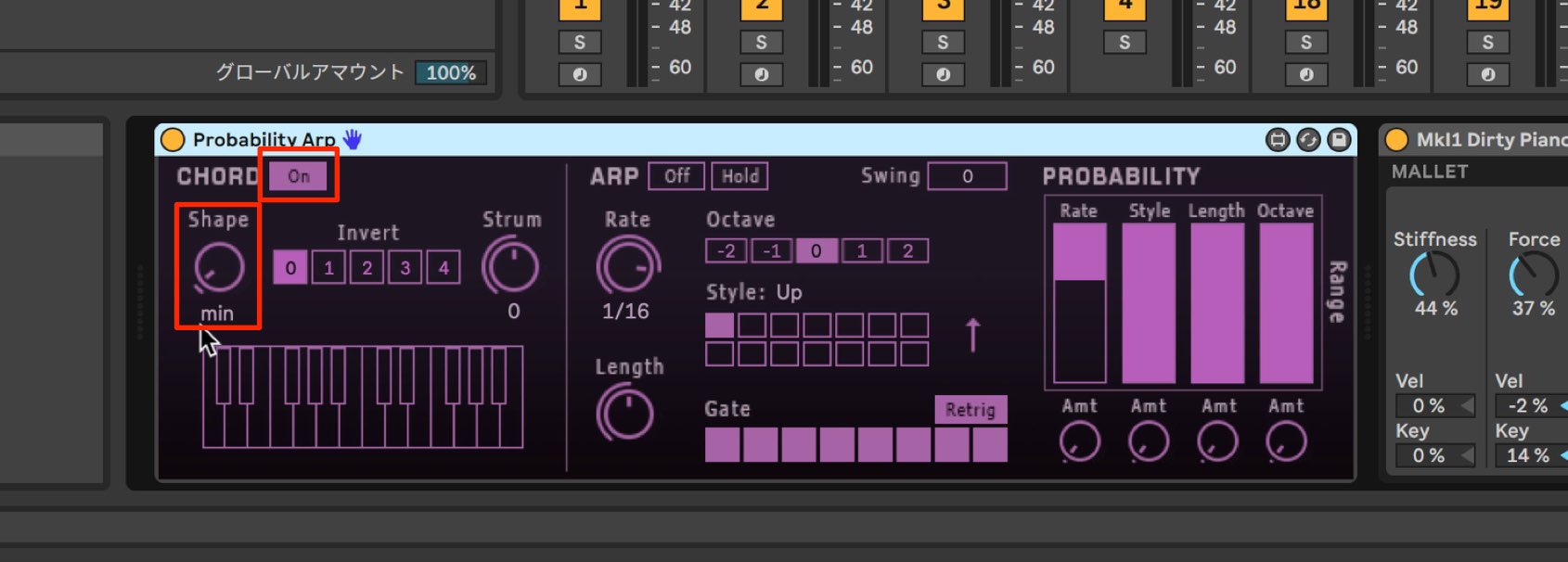
Simply switch CHORD at the top to On, then choose the chord type you want to play under Shape.
The incoming single MIDI note will now act as the root of the chord.
However, with this setup, every note produces the same chord type.
For example: C7, F7, A7, and so on.
We will therefore set up different chord types according to the pitch of the MIDI note you play.
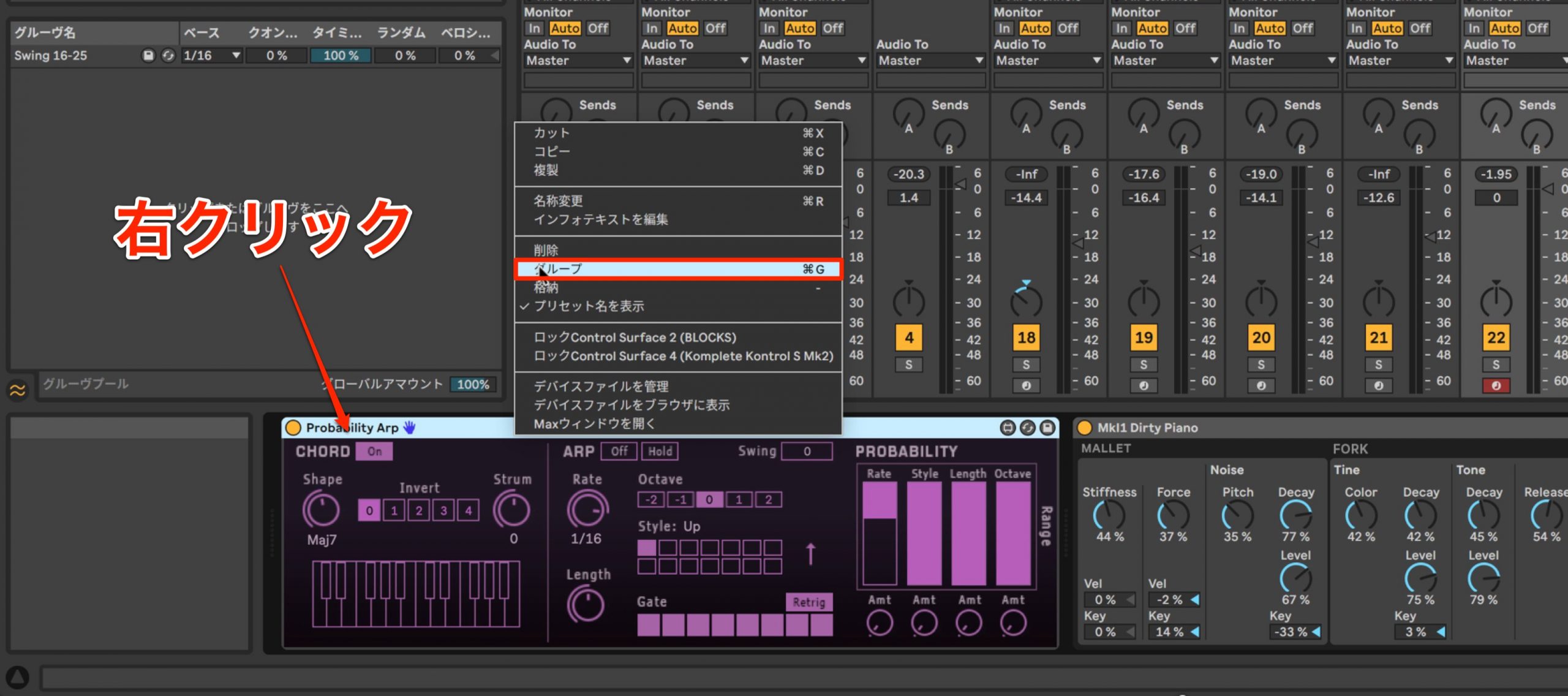
Right-click the MIDI device (Probability Arp) and select Group.
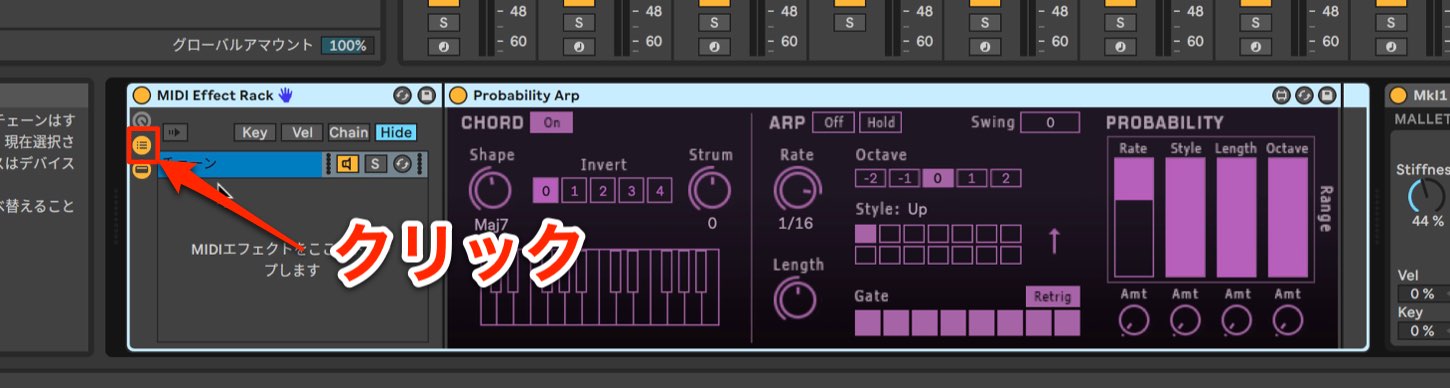
In the rack you have created, click the area outlined in red to display the chains.
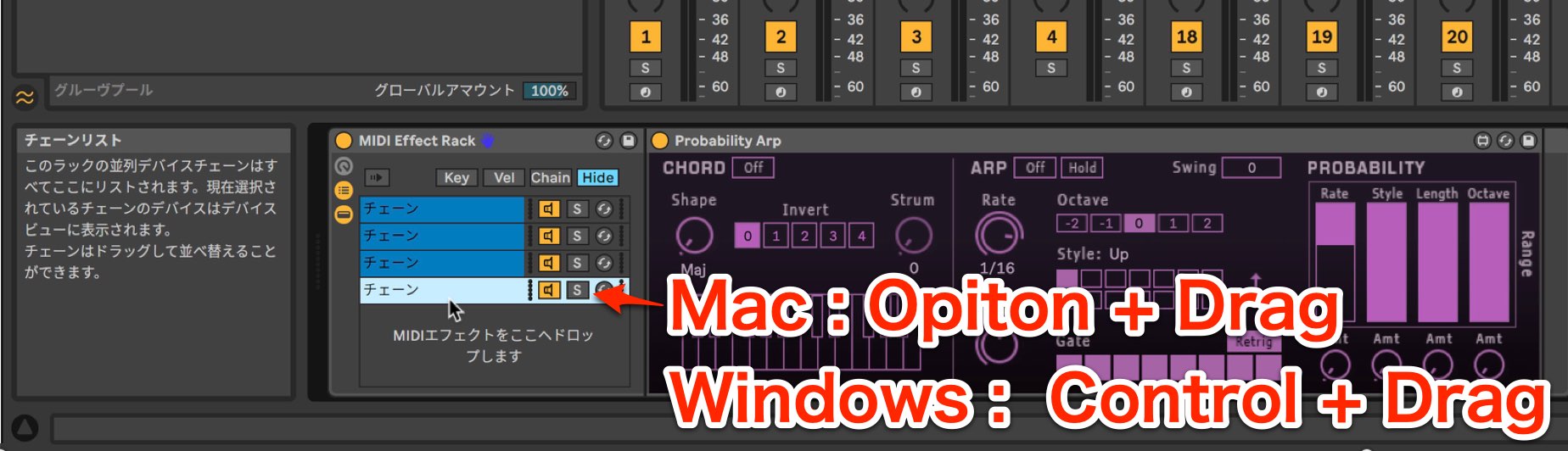
Duplicate the chain until you have one for each chord type you want to play.
- Mac: Option + drag
- Windows: Control + drag
Use these shortcuts to duplicate chains quickly.
Then set the desired chord in the Probability Arp device on each chain.
Next, specify which MIDI note will trigger each chord.
This is where the Scale device comes in.
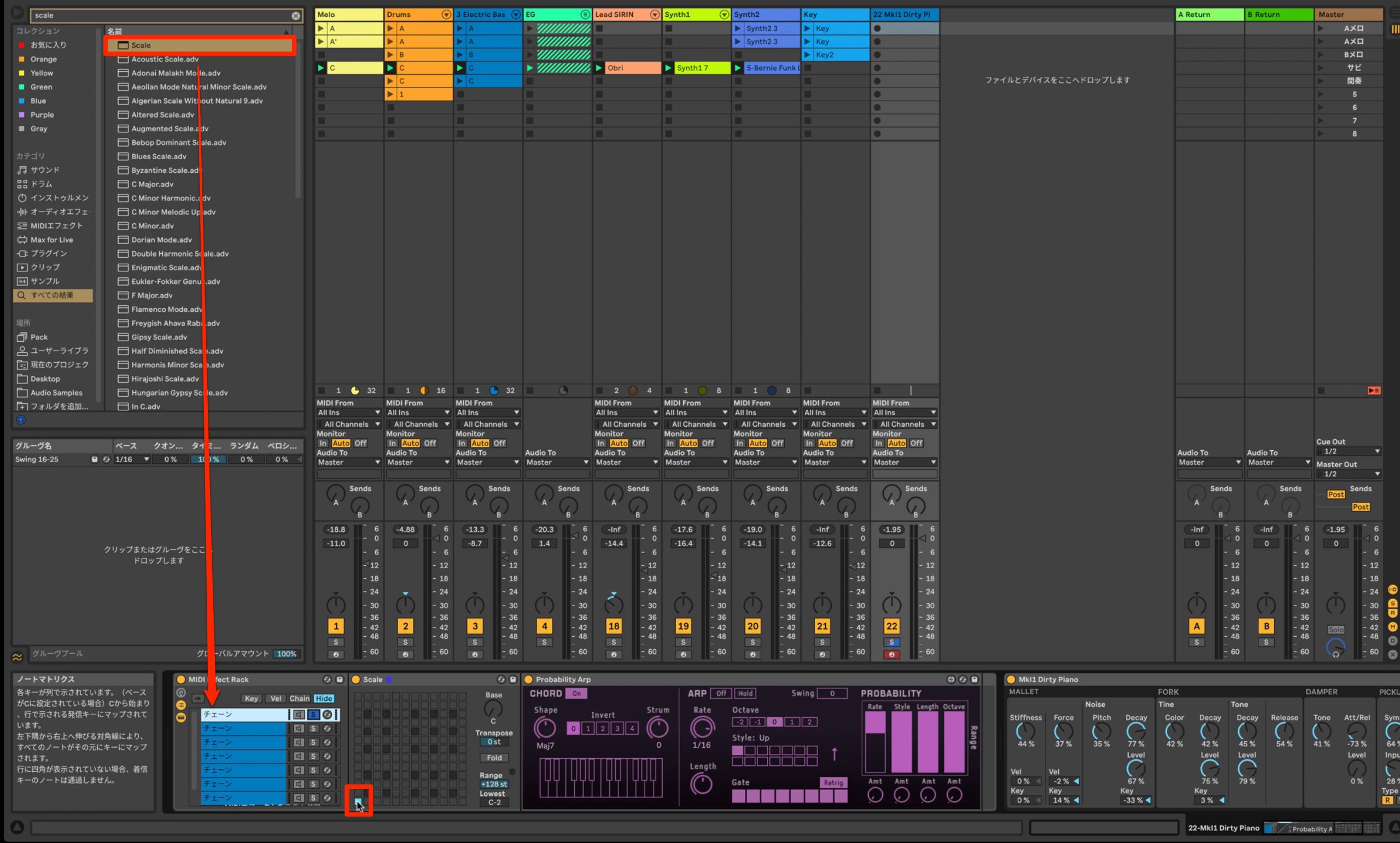
Drag Scale into each chain, placing it before Probability Arp.
Use Scale's matrix to specify which incoming MIDI notes will trigger Probability Arp.
Setting this up for each chain lets you trigger a different Probability Arp configuration with each MIDI note pitch.
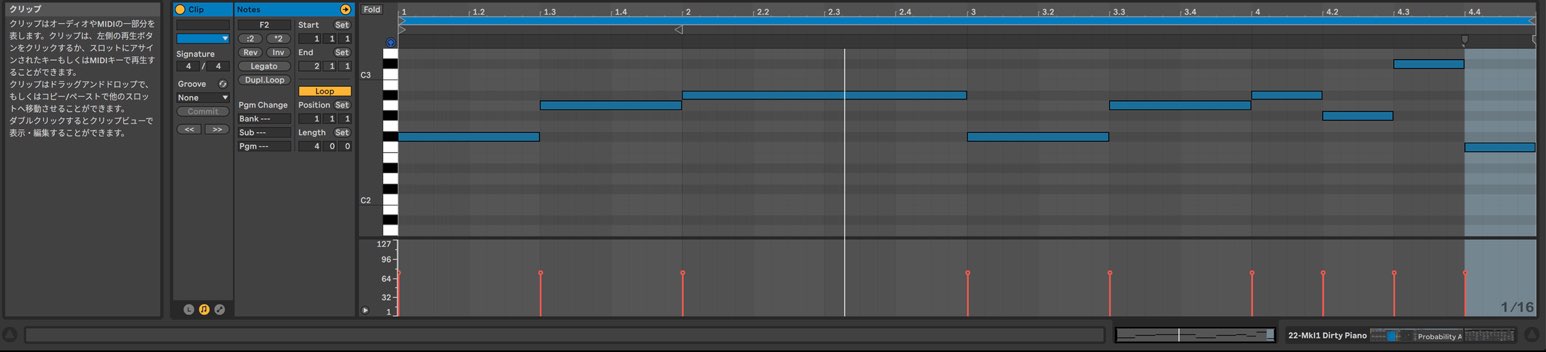
You can now play your chosen chords using single MIDI notes.
Easily Transpose Your Chords to Fit a Song
Here is a convenient way to transpose the chord setup you have created.
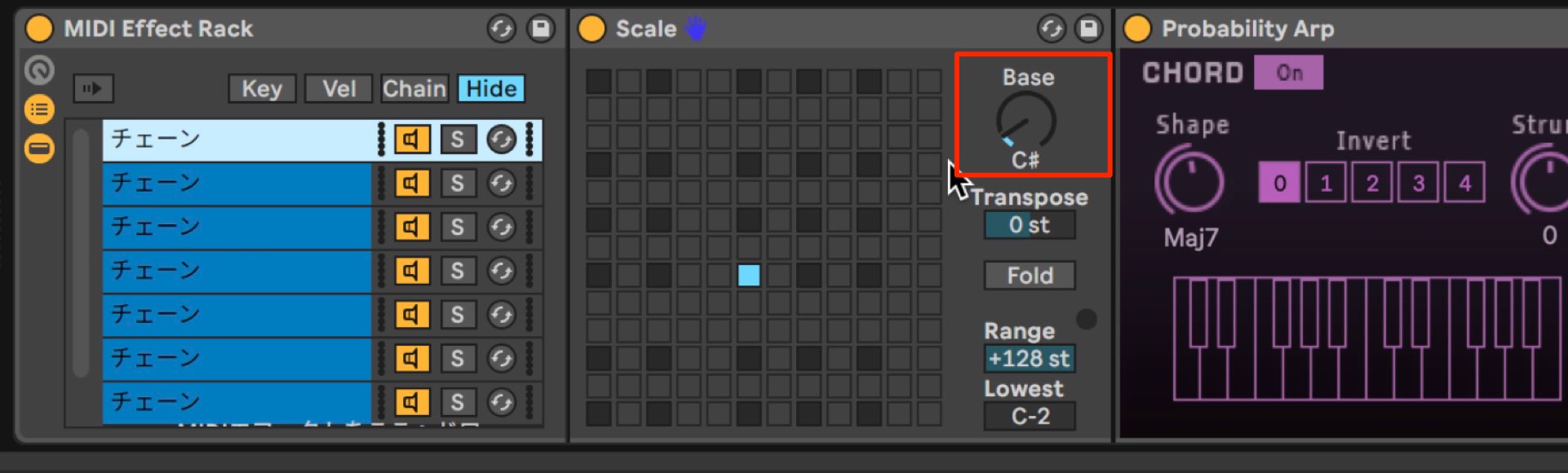
Turning the Base knob in Scale lets you transpose in semitone steps, but adjusting every chain individually can be tedious.
Using a Macro lets you transpose all the chains together.
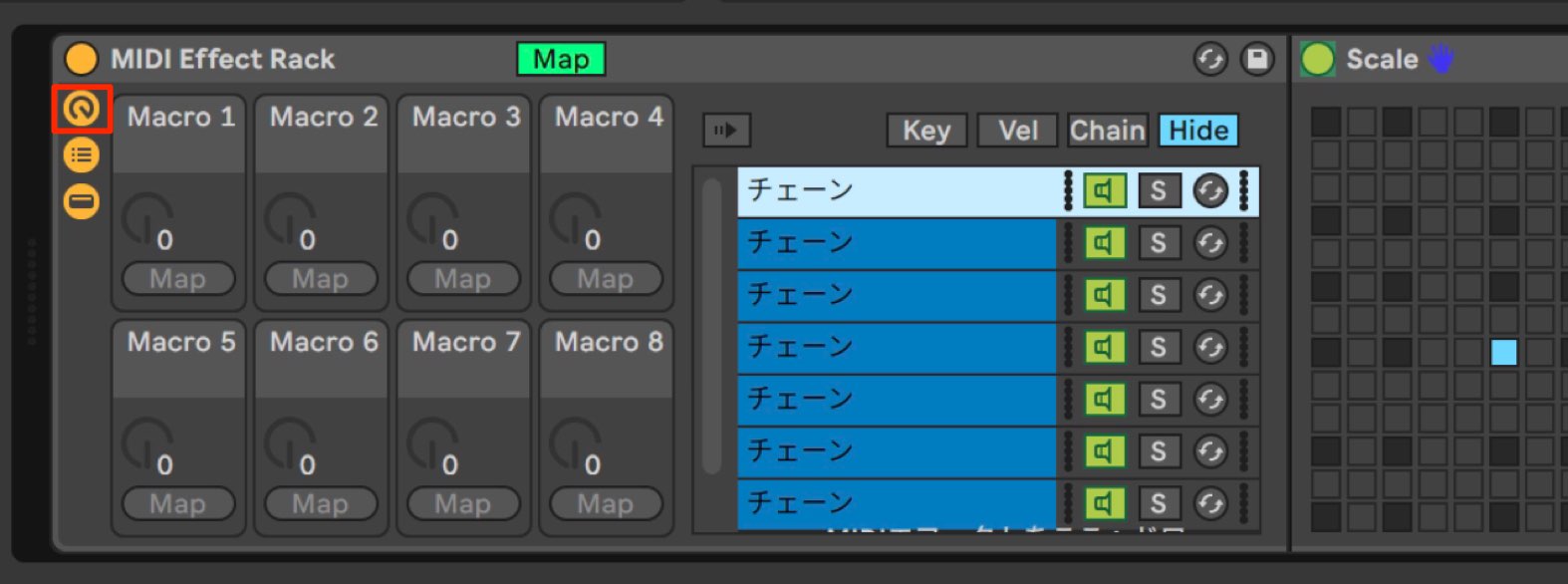
Click the Macro button in the rack to enter Macro editing mode.
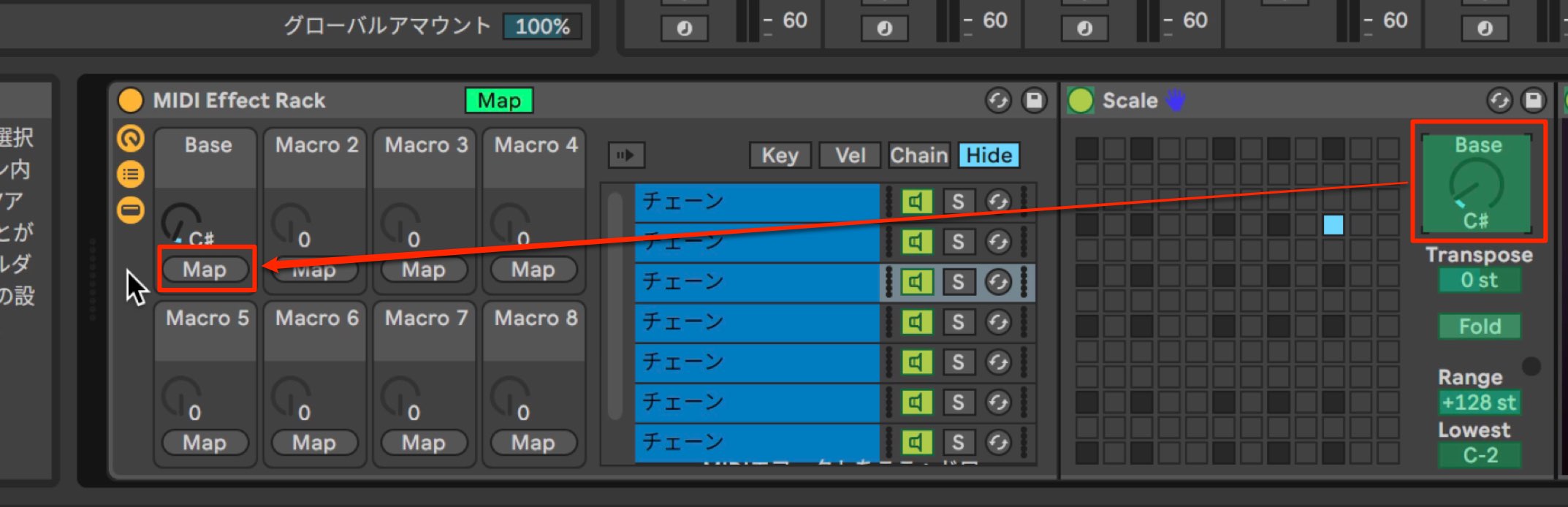
Click the knob or parameter you want to assign to the Macro (Base in this example), then click the Macro's Map button.
Repeat this for every chain you want to transpose.
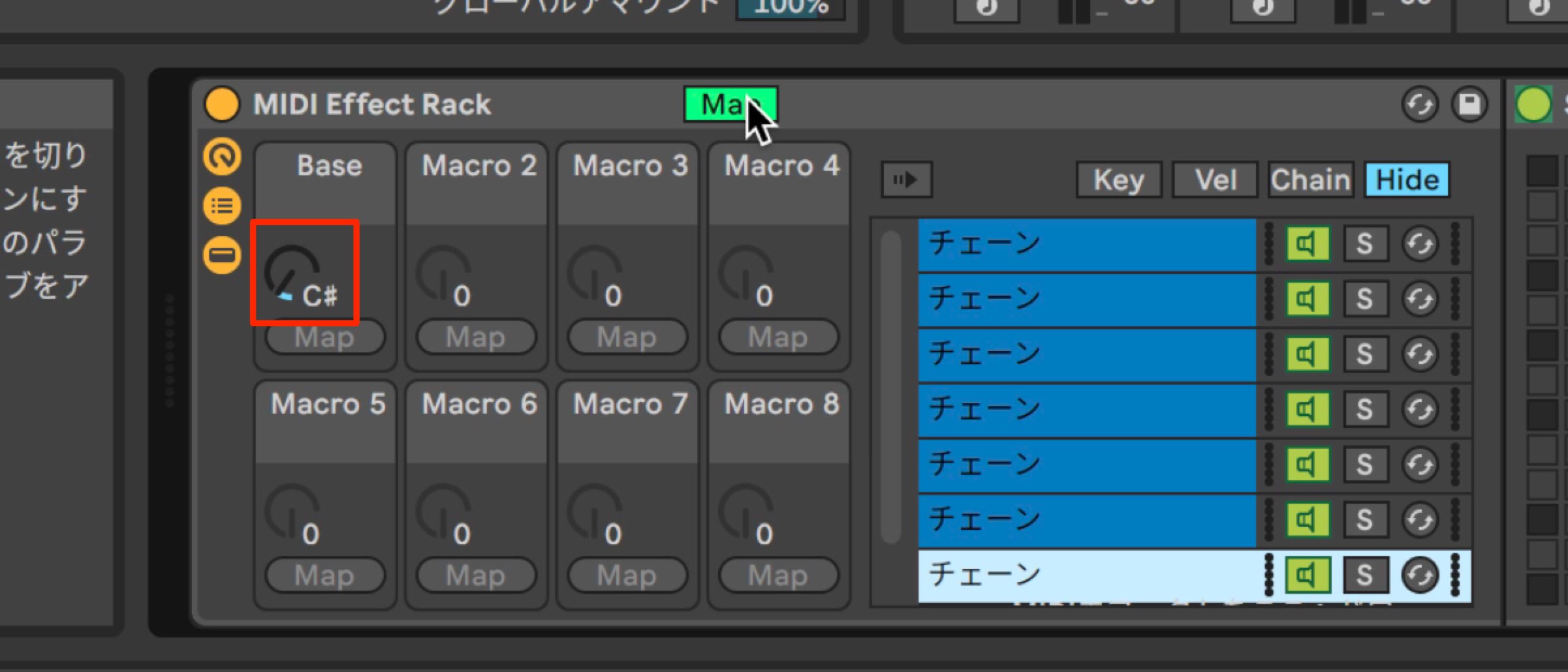
Once the mapping is complete, you can transpose all the chains together with a single Macro.
This is also useful for live performance.
Saving Your MIDI Effect Setup
If you want to use your MIDI effects or rack in another situation or song, it is useful to save the setup.
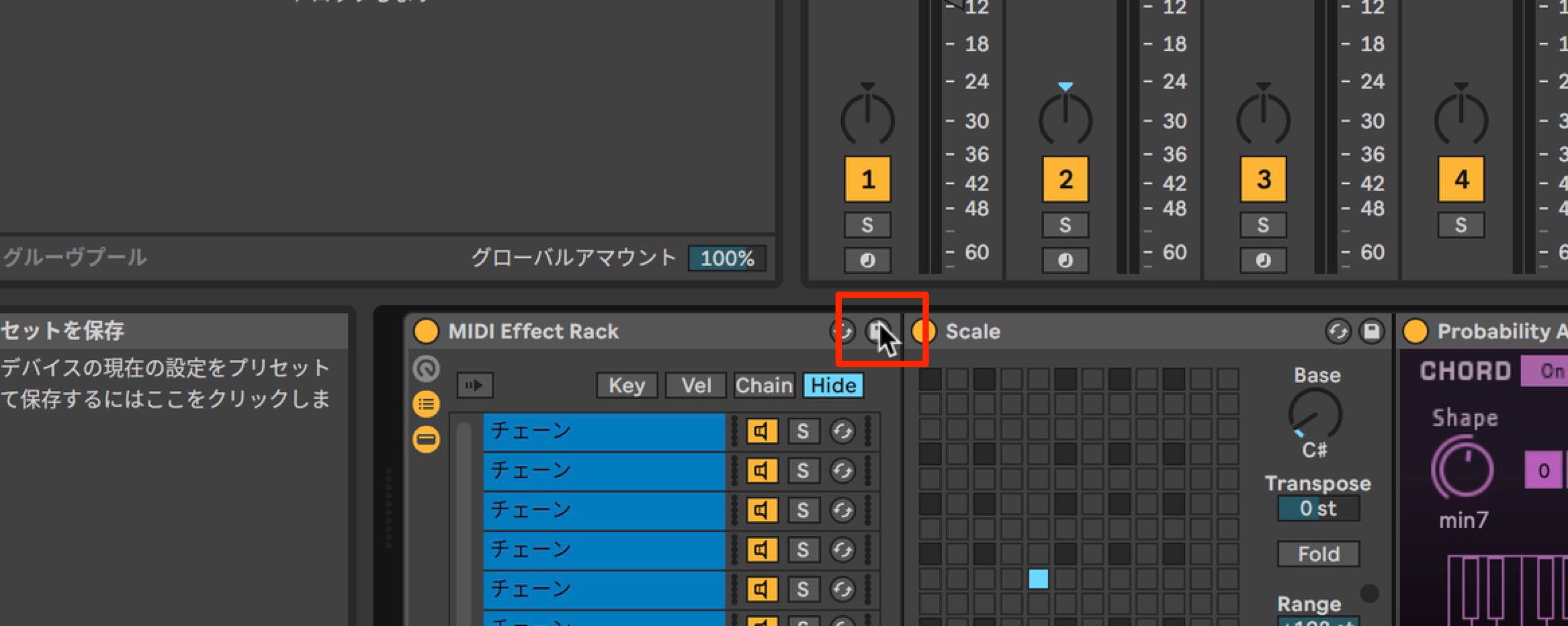
Click the Save button at the top of the rack.
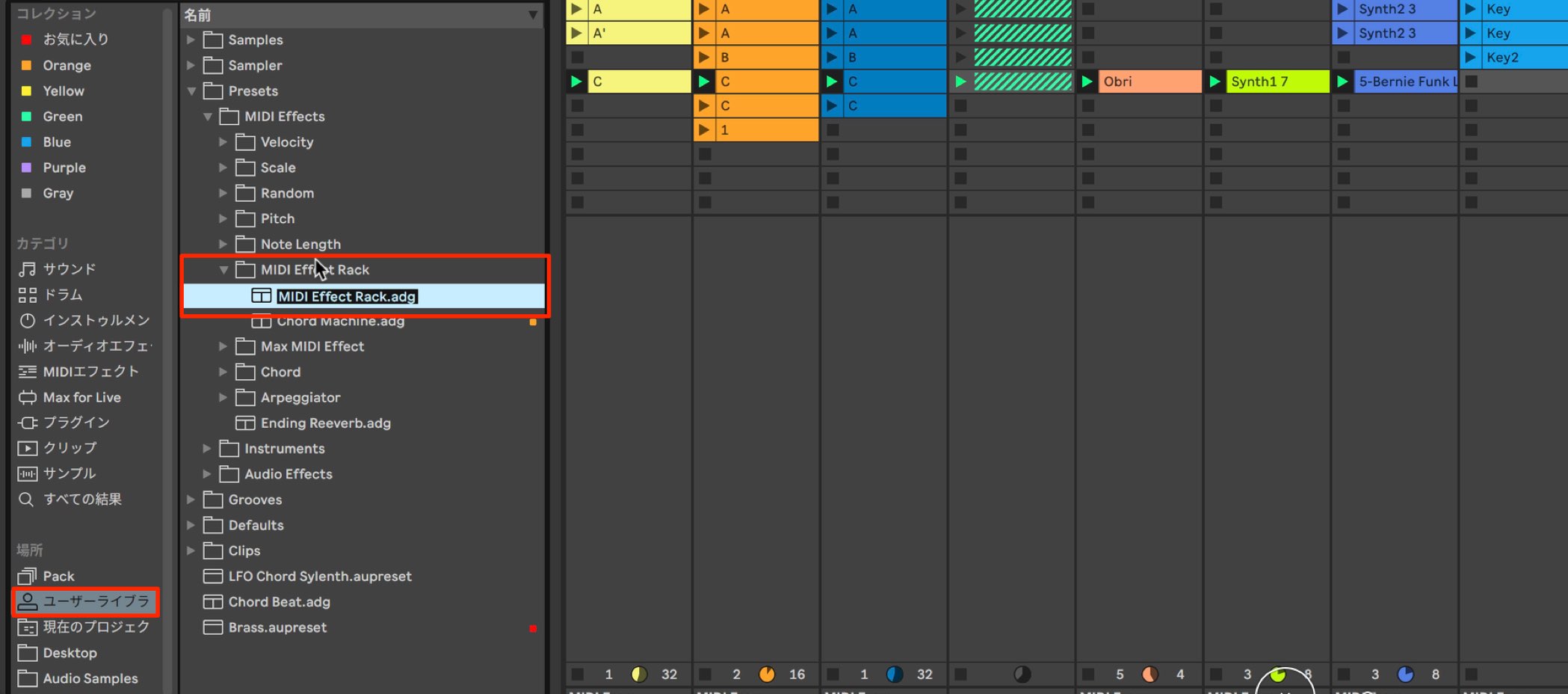
The setup is saved as a preset under User Library → MIDI Effect Rack, so you can recall it immediately.
Recording the Generated Chords as MIDI
You may often want to arrange other tracks around the chords you have set up above.
In that case, it is useful to turn the chord tones triggered by single notes into individual MIDI notes.
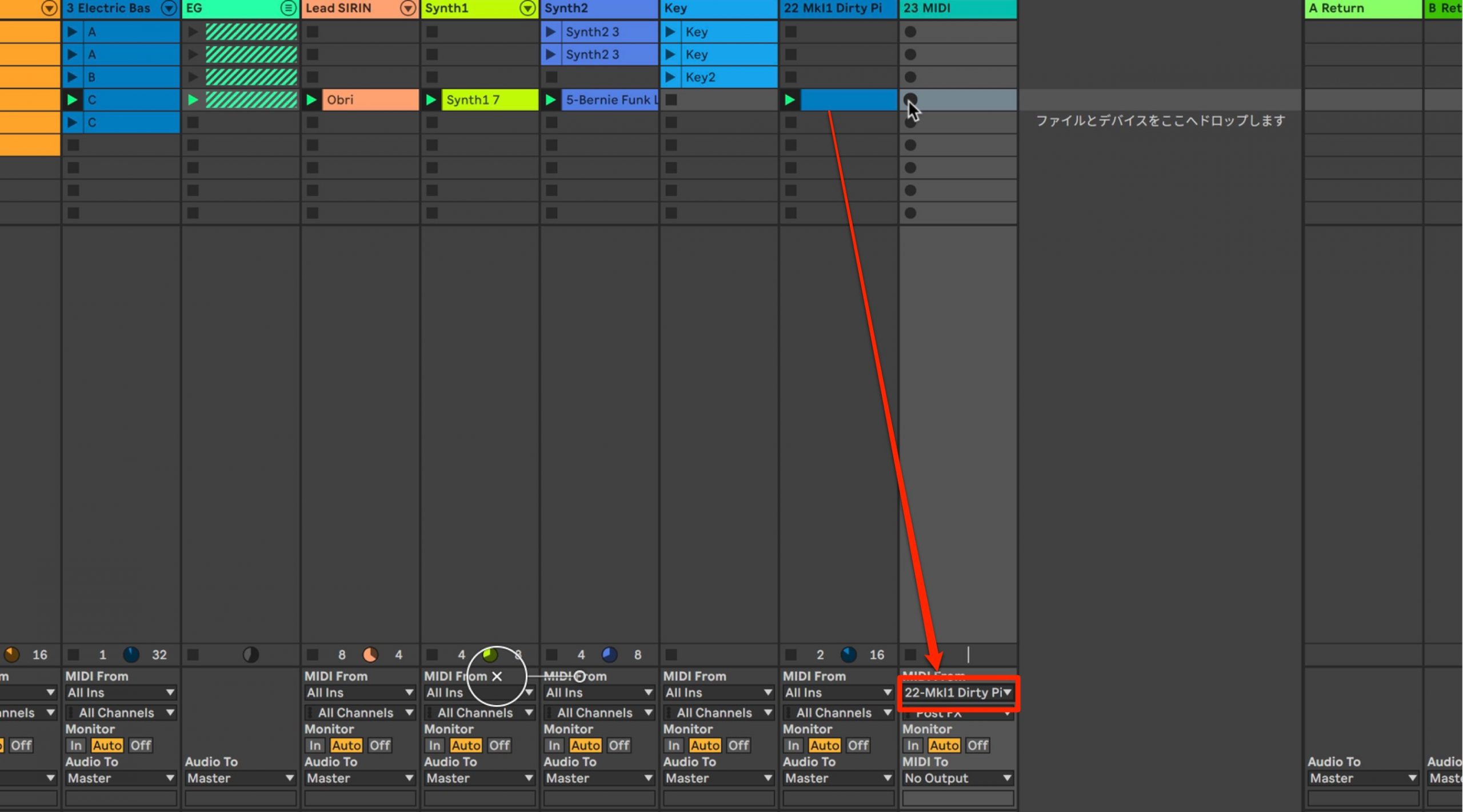
Create a new MIDI track and set its MIDI input to the track playing Probability Arp.
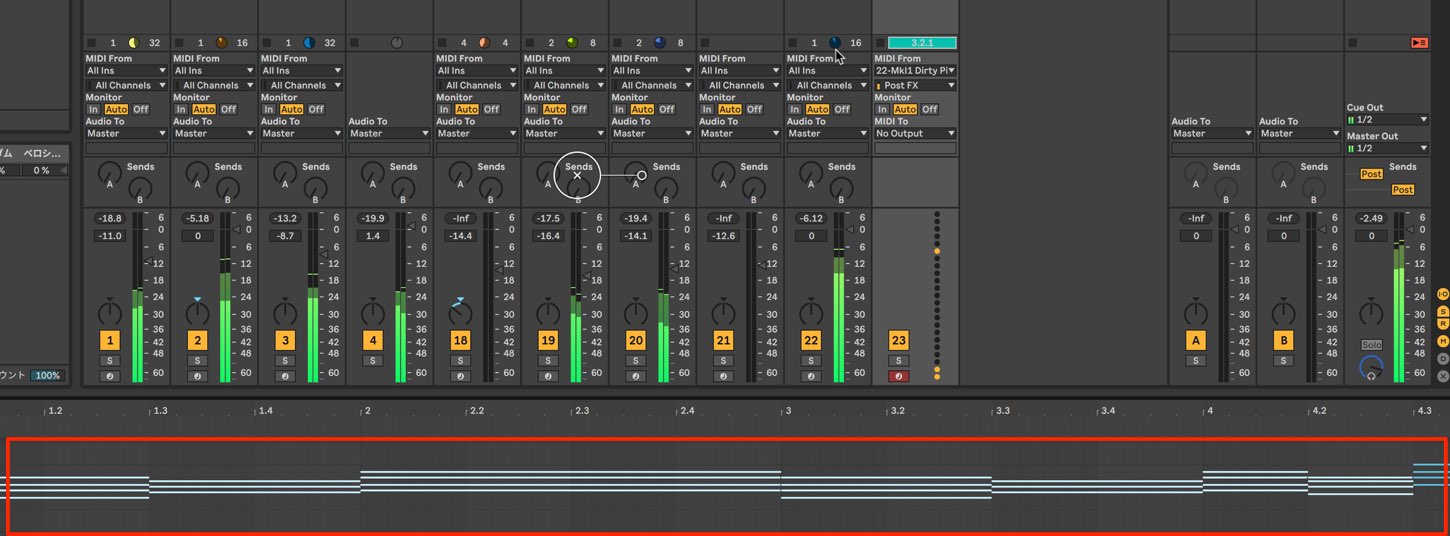
After setting this up, record onto the new track to capture all the MIDI notes generated by Probability Arp.
Converting Guitar Chords to MIDI Notes
Another chord-entry feature we recommend for guitarists is audio-to-MIDI conversion.
You can quickly convert a recorded guitar phrase to MIDI, greatly speeding up production.
The process is very simple.
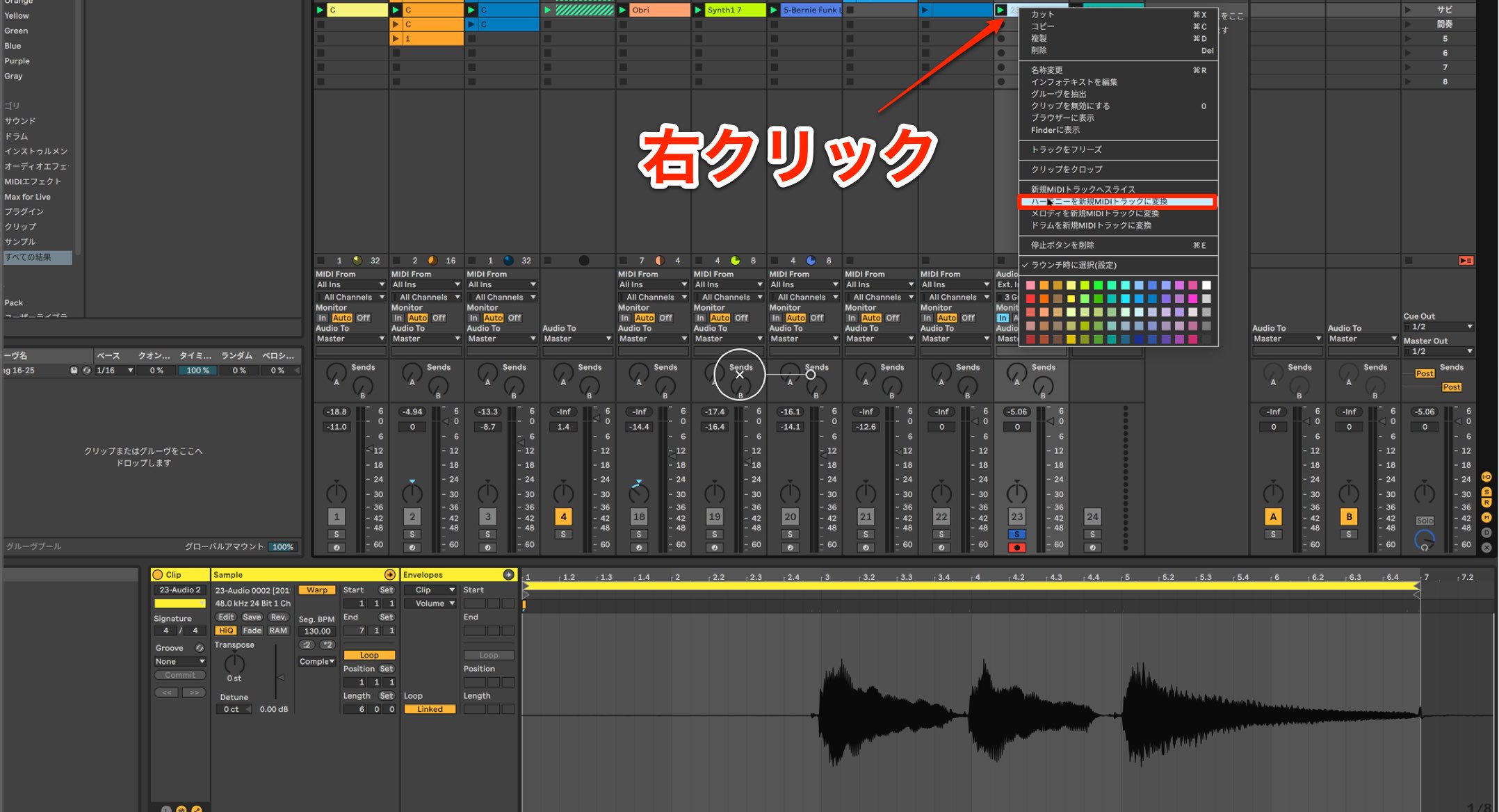
Drag the recorded audio clip onto the desired MIDI instrument, or right-click the audio clip and choose Convert Harmony to New MIDI Track.
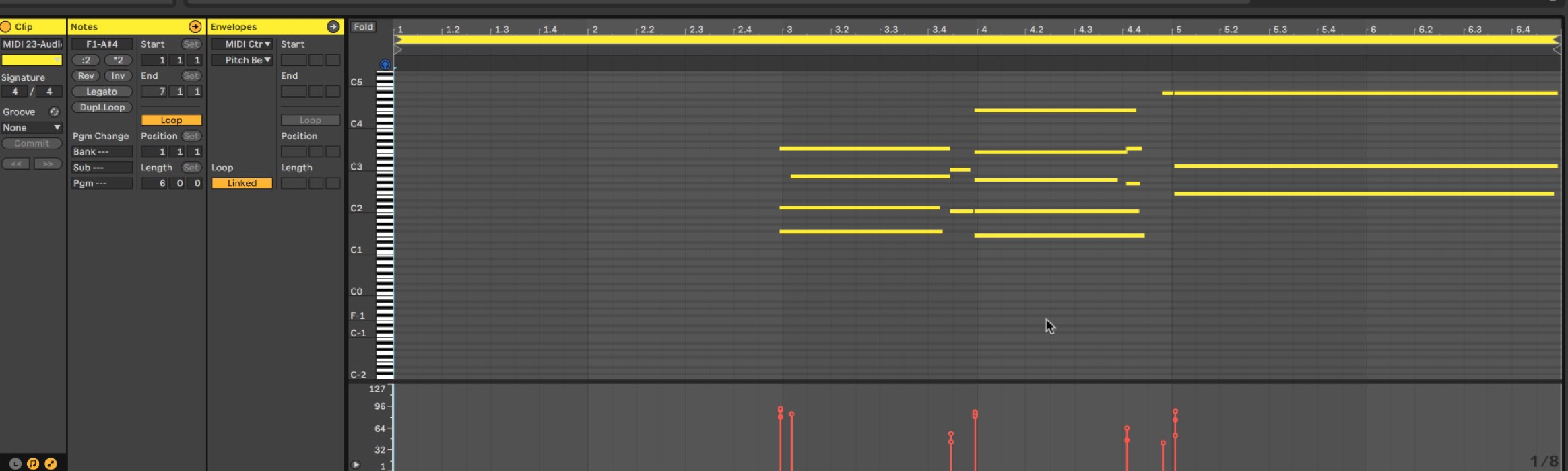
The audio is converted to MIDI events as shown here.
Recording your guitar with a clean sound and no effects can improve the accuracy of the analysis.
How did you find these techniques?
Live's flexible MIDI routing lets you control chords with single notes.
Together with features such as converting guitar audio clips to MIDI, it offers plenty of useful tools for guitarists.
Try incorporating them into your workflow to make music production more comfortable and efficient!
https://www.ableton.com/ja/trial
Here is how to use MIDI effects to program chords with one finger, even if you are not confident playing the keyboard.
> Ableton Live for Guitarists, Part 4: Programming Keyboard Chords with MIDI Effects
📝 Article: https://t.co/0Nb6KZUIJp
🎥 YouTube: https://t.co/O2hiAw03Mb pic.twitter.com/Cd4ENt6Rct
— SLEEP FREAKS (@SLEEPFREAKS_DTM) December 22, 2019
Frequently Asked Questions
Q1. Can I play chords using only single notes in Ableton Live?
Yes. Combining Probability Arp and Scale lets you play chords rooted in the single MIDI notes you enter. Chords are generated automatically from one-finger input, making this especially useful if you are not confident playing the keyboard.
Q2. Do I need to set everything up again each time I use my chord setup in another song?
No. You can save the MIDI Effect Rack you have created under MIDI Effect Rack in the User Library and instantly recall it as a preset in another song. This can save a great deal of time.
Q3. Can I automatically convert a phrase played on guitar to MIDI?
Yes. Simply drag the audio clip onto the desired MIDI instrument, or choose Convert Harmony to New MIDI Track from the right-click menu, to convert the guitar phrase to MIDI events.
NEW ARTICLES
Latest English Articles































































































































































































































