
Cubase 13, released in November 2023, brought substantial workflow improvements to this popular DAW in Japan. Its new Channel tab provides MixConsole-style controls in the Project window, while the Inspector gains clearer Volume and Pan labels and direct output routing. Higher-resolution MIDI editing, improved key-command settings and migration of earlier projects and preferences round out the update. Compatibility observations below describe our tests rather than a guarantee for every system or project. Edition availability and platform support refer to the launch period.
An update that makes Cubase much easier to use
Widely used in Japan, the popular DAW Cubase was announced and released in version 13 in November 2023.

This version puts a strong emphasis on making Cubase easier to use. Existing users in particular will appreciate the many thoughtful workflow improvements.
It also introduces higher-resolution MIDI features associated with MIDI 2.0 and an excellent selection of new effects.
There are plenty of headline features to explore.
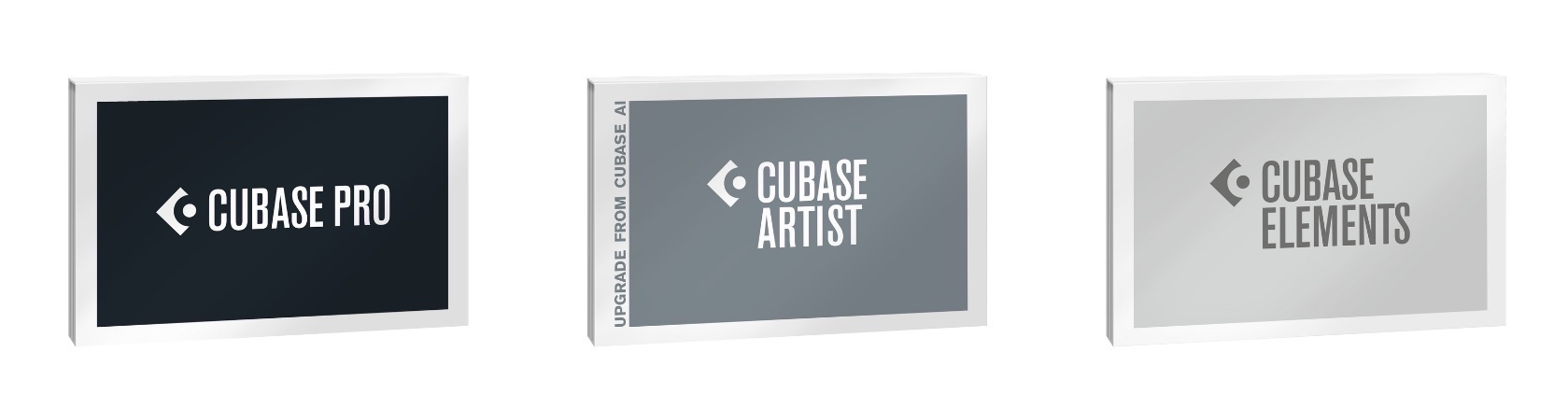
As before, the three main editions are PRO, ARTIST and ELEMENTS.
AI and LE editions were also announced; at the time of writing, we expected them to be bundled with eligible audio interfaces and other music-production products.
We will demonstrate the new features using the top-tier PRO edition. Edition labels throughout this article refer to Cubase 13.
Update: November 3, 2023
Cubase 13 also introduced Windows support for 12th-generation and later Intel CPUs. Check the applicable operating-system and hardware requirements for your particular setup.
Cubase 13: New Features Video
Selected questions and answers from YouTube

I am thinking of returning to Cubase after more than ten years, but I cannot find LoopMash. Was it discontinued?

We checked and found that LoopMash, Prologue, Mystic and Spector were discontinued as of Cubase 12. See the following Yamaha FAQ for details (Japanese).https://faq.yamaha.com/jp/s/article/J0012011
Can I use a MacBook Pro purchased in 2018 to compose Vocaloid songs?
Cubase 13 worked without problems on our 2018 model. This is an observation about our machine, rather than confirmation for every 2018 MacBook Pro or vocal-synthesis setup.
Does it now support 12th-generation and later Intel CPUs?
Yes. Support was reported for Cubase 13; your operating system and other system requirements still need to be compatible.
Livestream: Celebrating the Cubase 13 Release — November 2, 2023
Migrating projects and settings from earlier Cubase versions
When an update like this arrives, existing users will naturally wonder: Can I continue using my projects and settings from version 12 and earlier? That is an important question.
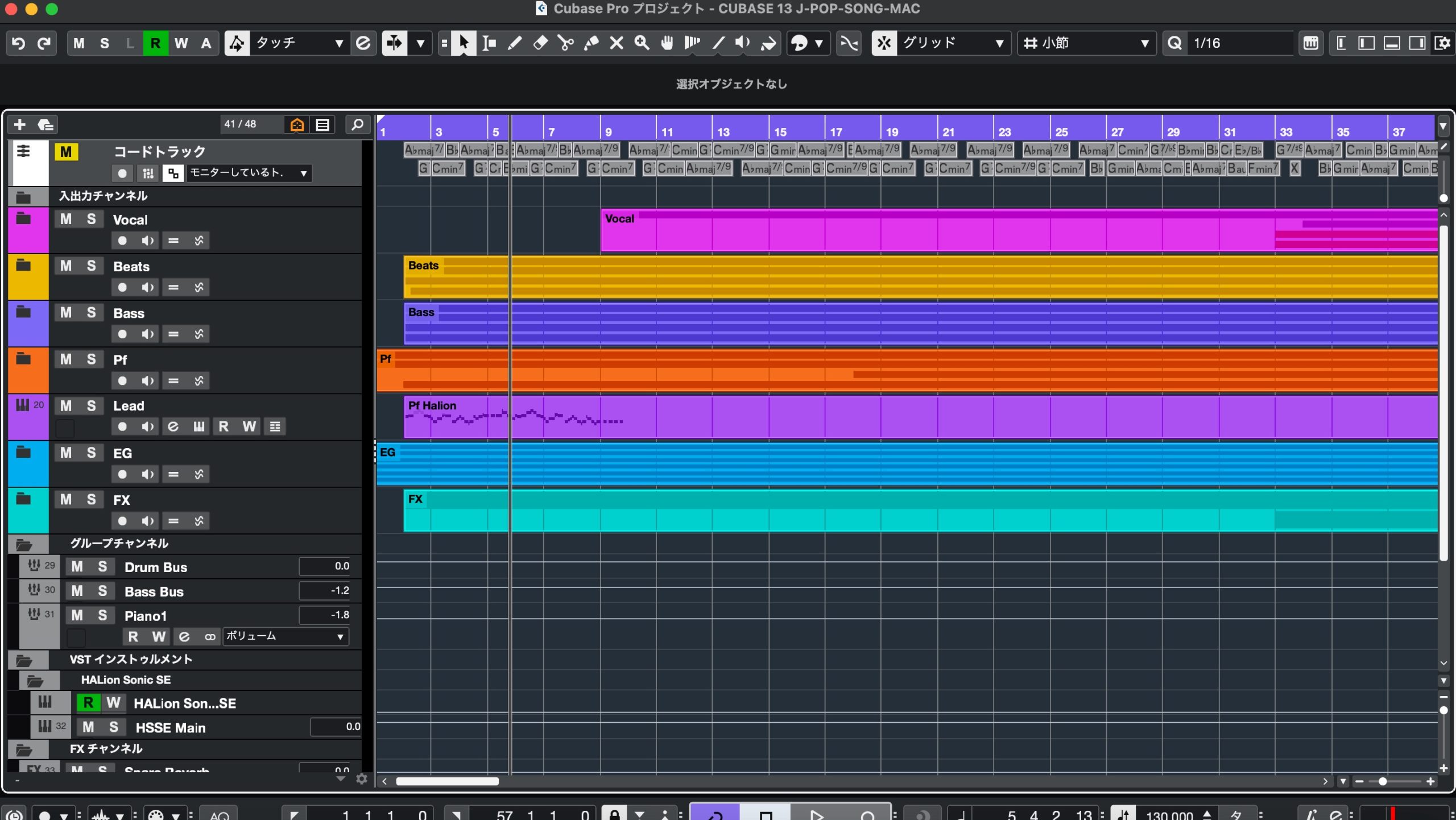
We opened a project created in version 11 that had also worked in version 12, and confirmed that it opened in version 13 without problems in our test.
Important settings, including key commands and preferences from versions 11 and 12, were carried over as well.
With the many additions and changes to windows and displays, we cannot make a blanket guarantee, but migration to version 13 appeared straightforward in our experience.
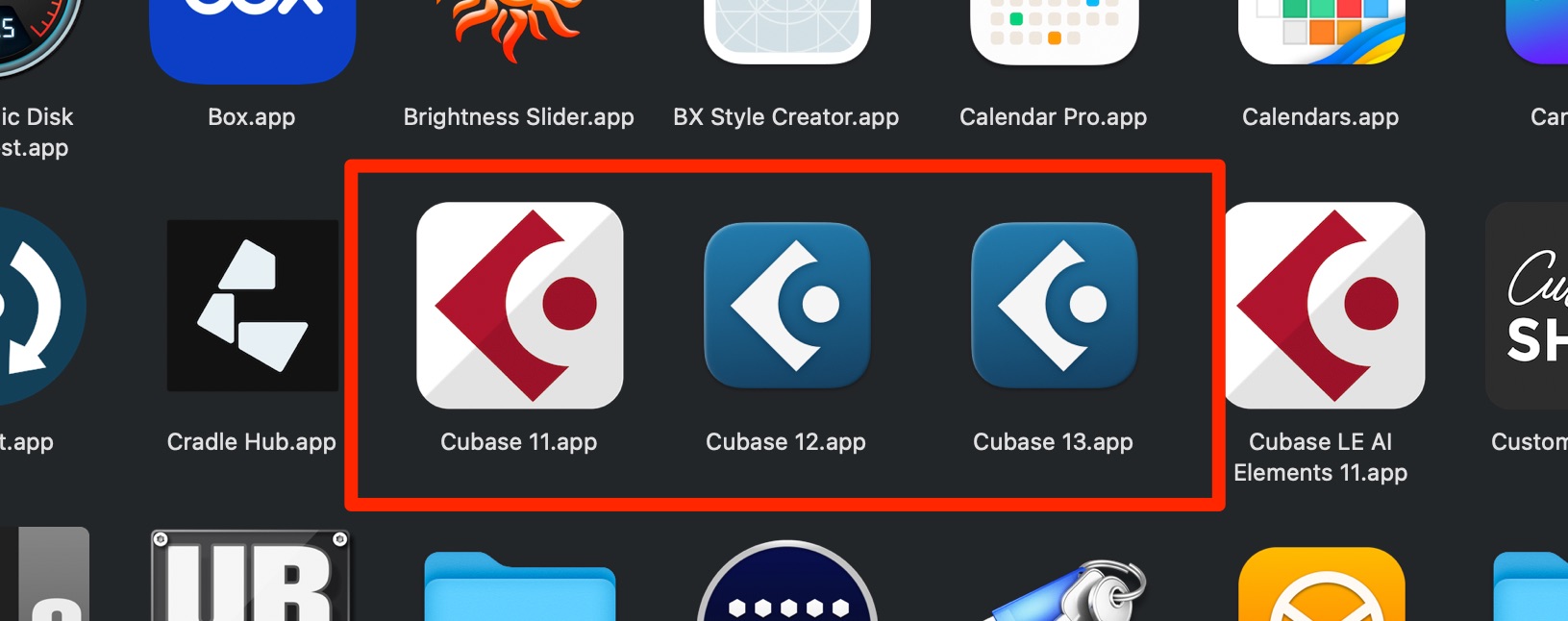
Also, installing version 13 leaves earlier installed versions available
. If you encounter a problem, having the earlier version available makes it easier to return to your previous workflow.
Now let us look at the new features.
The Left Zone
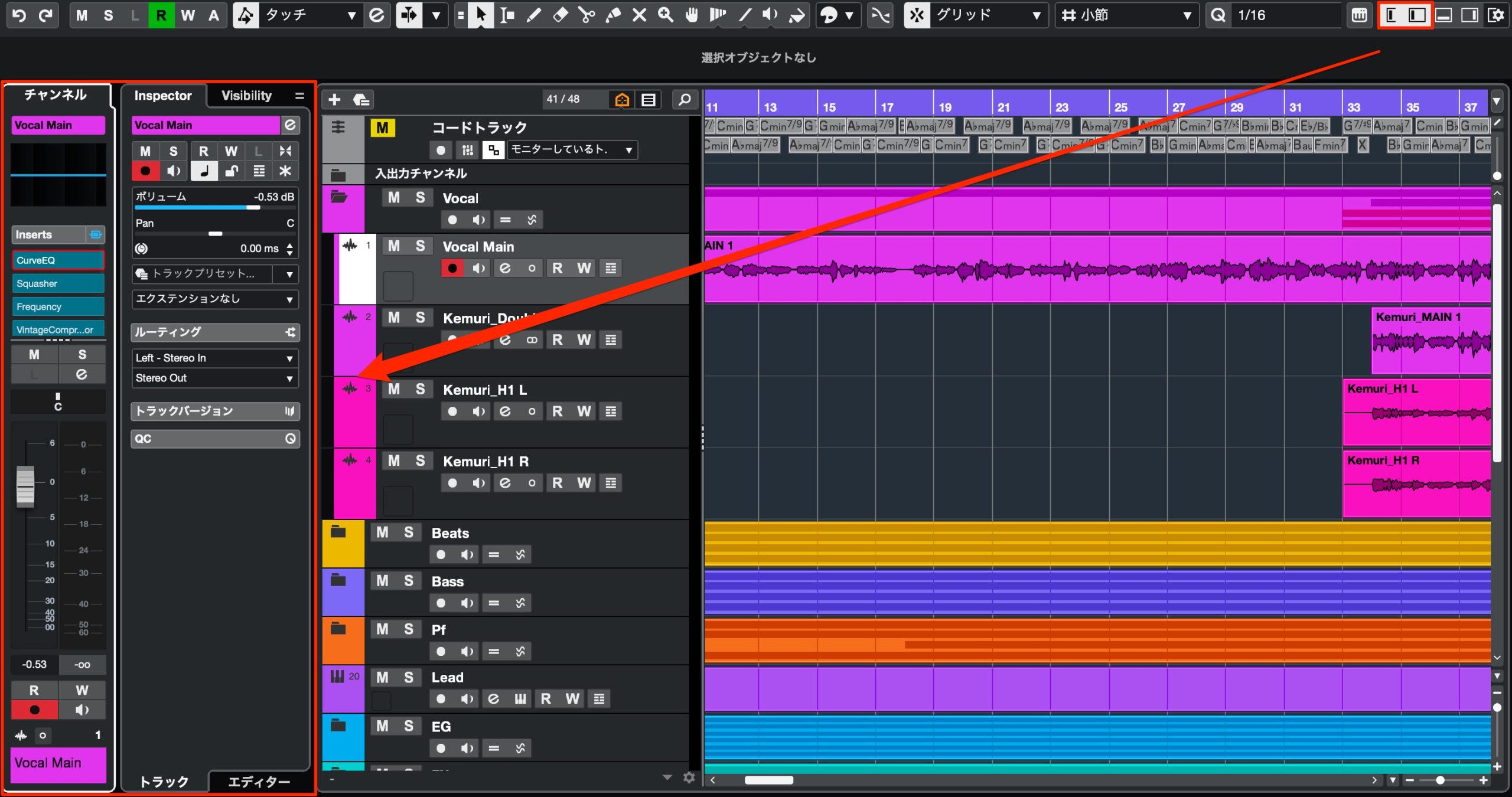
The left zone, where you inspect and control tracks, has received major improvements.
New Channel tab — All editions
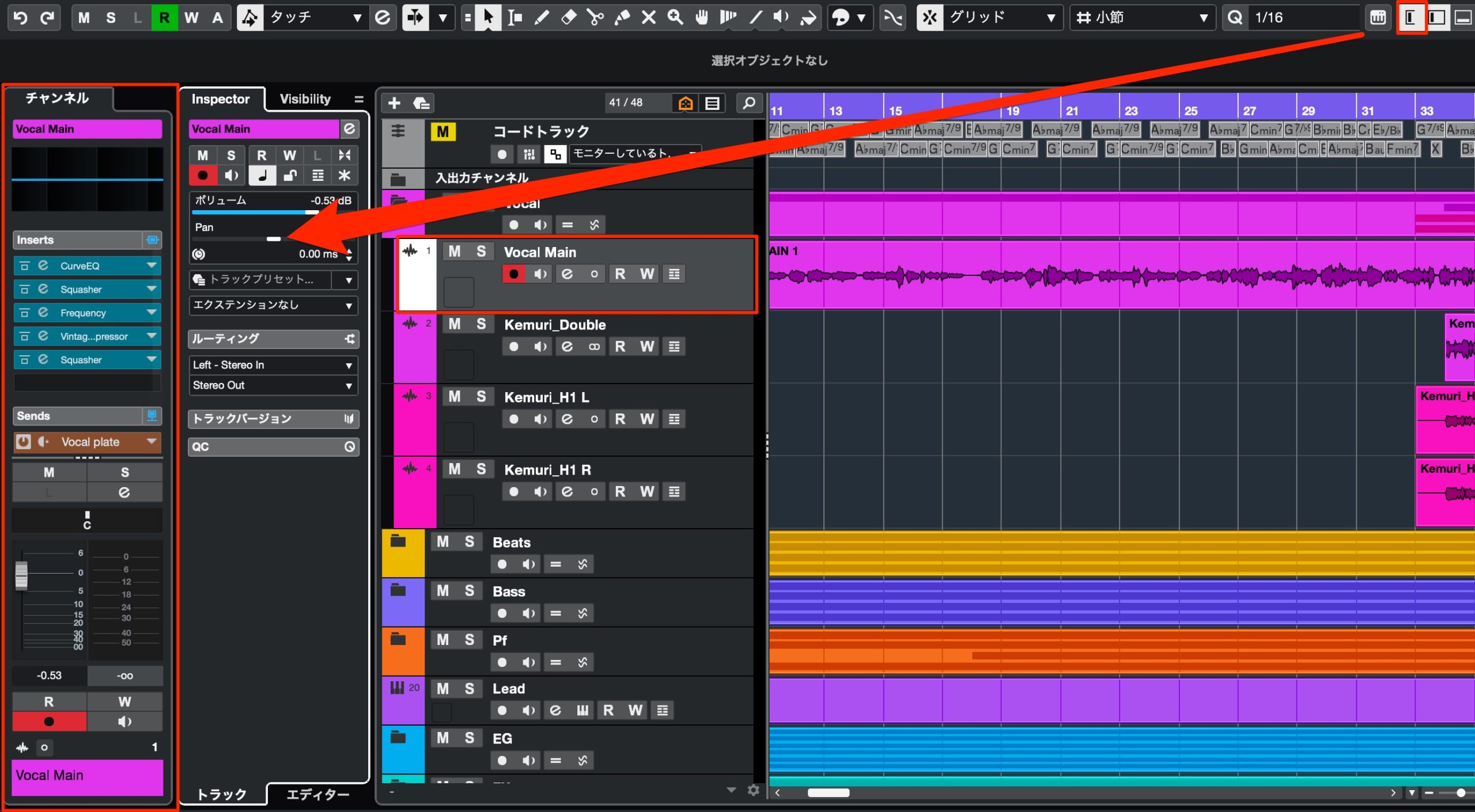
Cubase 13 adds a new Channel tab.
It lets you view the selected track with controls comparable to those in MixConsole.
This makes it convenient to check and edit track settings as you work.
It should also be useful for mixing primarily within the Project window.
Customize the displayed sections — All editions
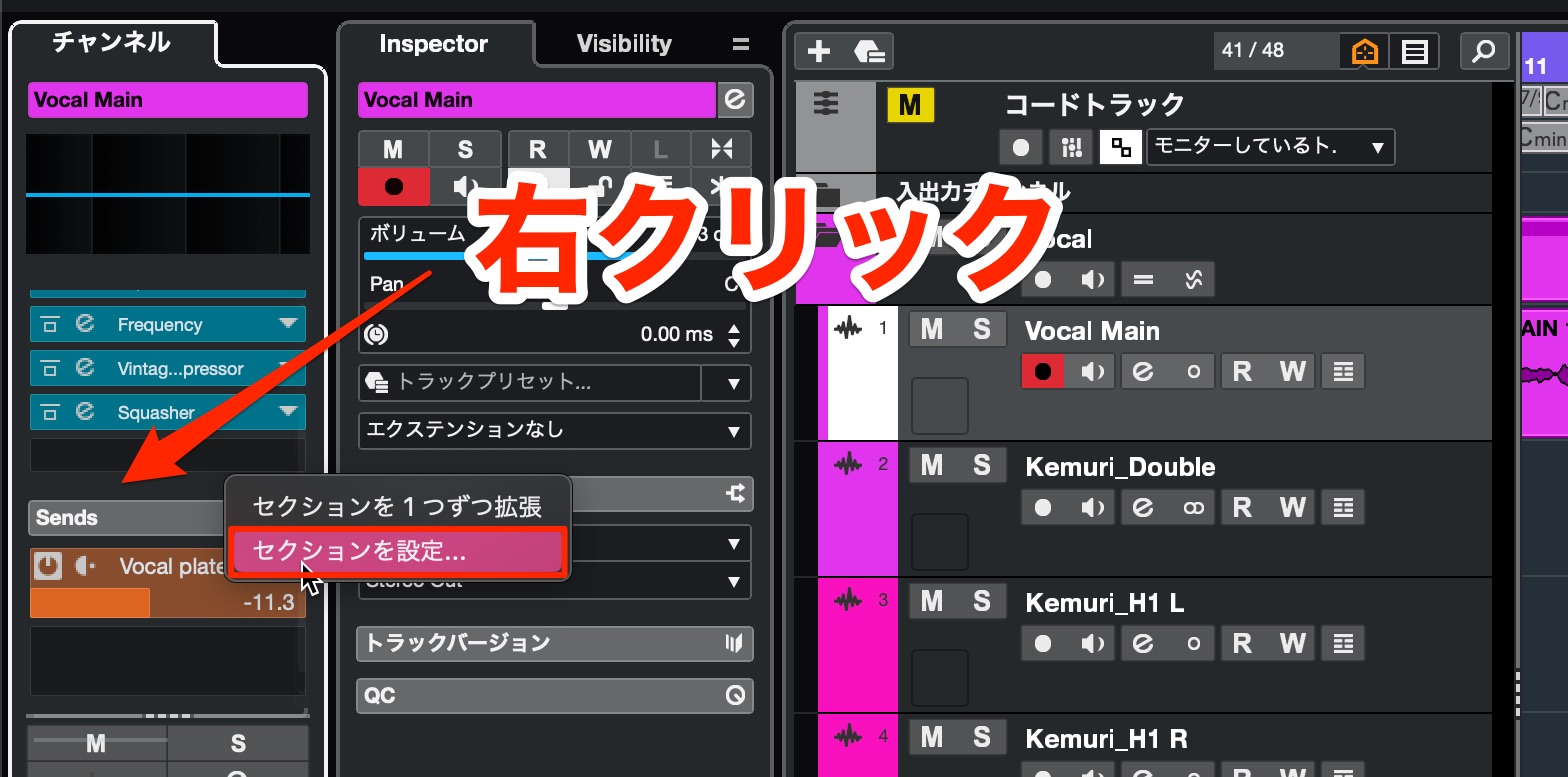
Right-click an empty area and choose Set up Sections.
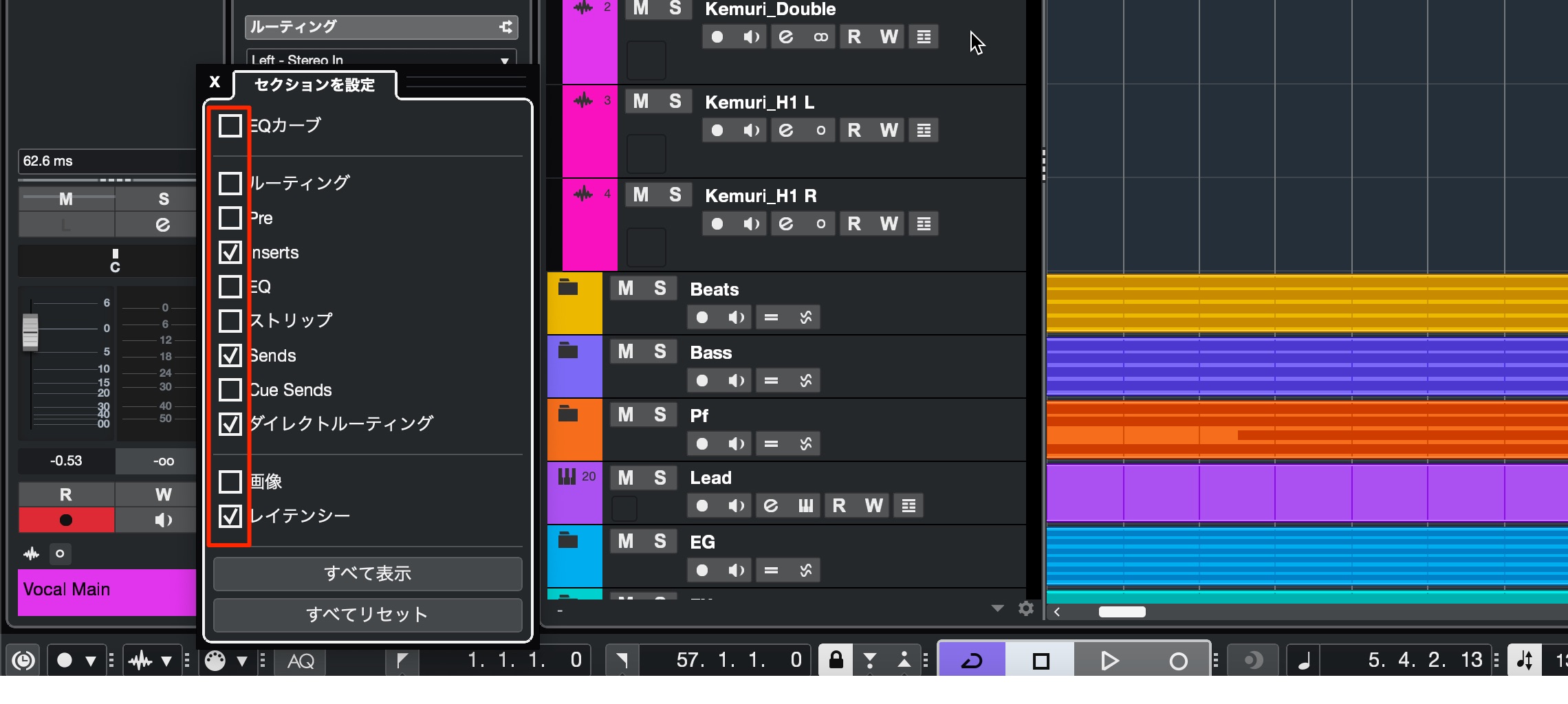
Check the sections you want to display.
Uncheck any sections you do not need.
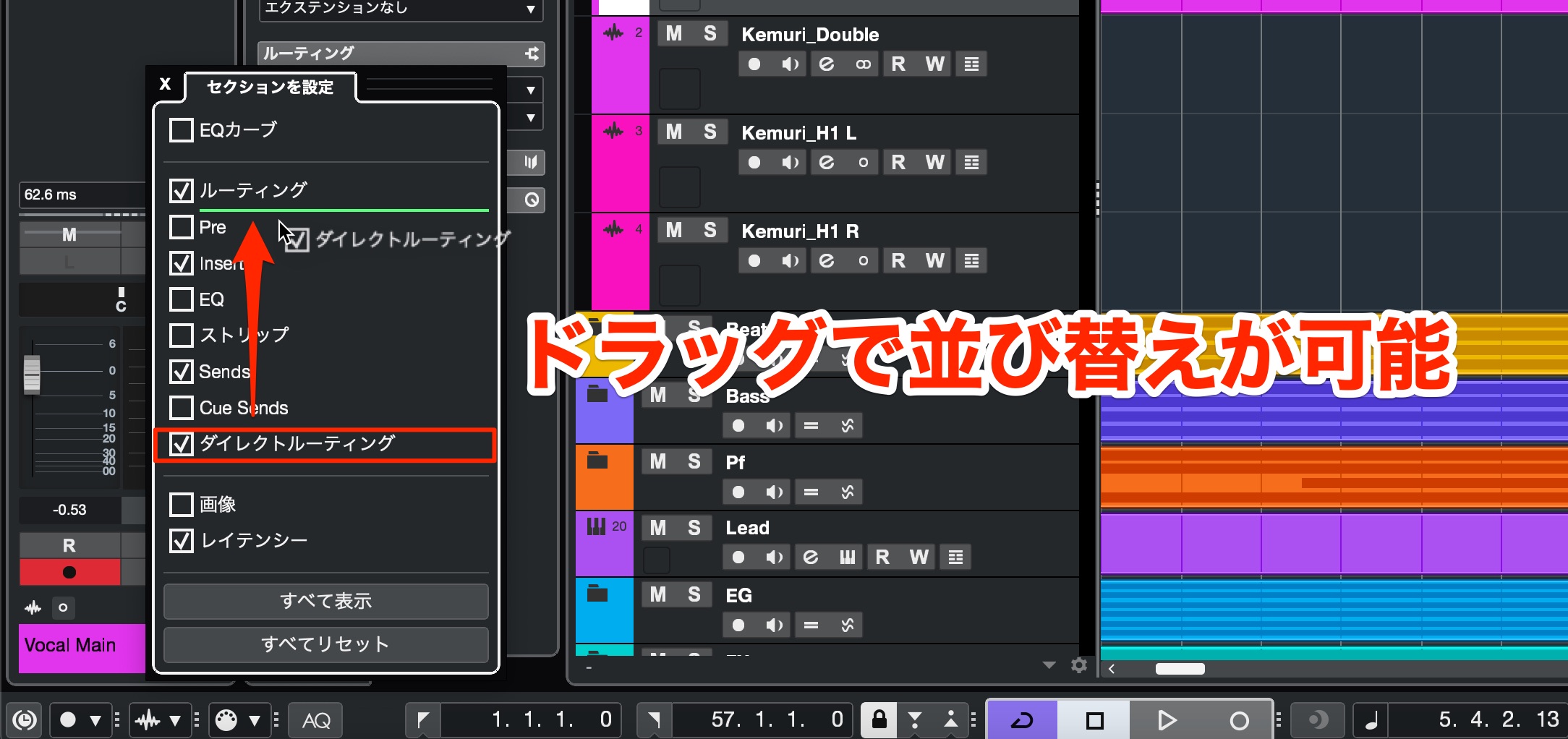
You can also rearrange the order in which the sections appear.
This is a welcome improvement.
Inspector tab improvements and new functions — All editions

The familiar Inspector tab in the left zone has also changed.
Text labels for Volume and Pan — All editions
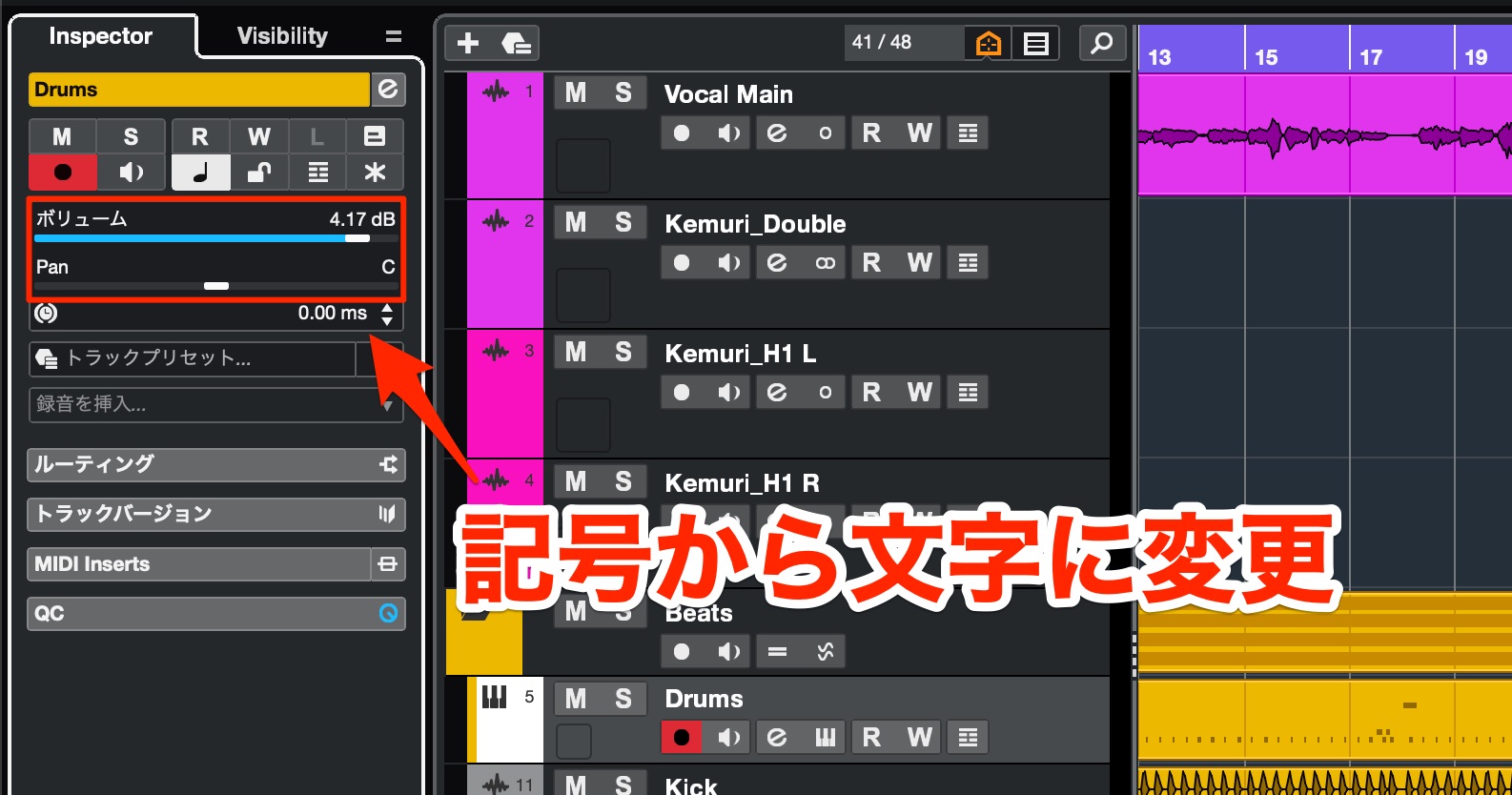
Volume and Pan, previously represented by symbols, now have text labels.
Experienced Cubase users may consider this a small change, but it makes the controls much clearer for newcomers and people still learning the program.
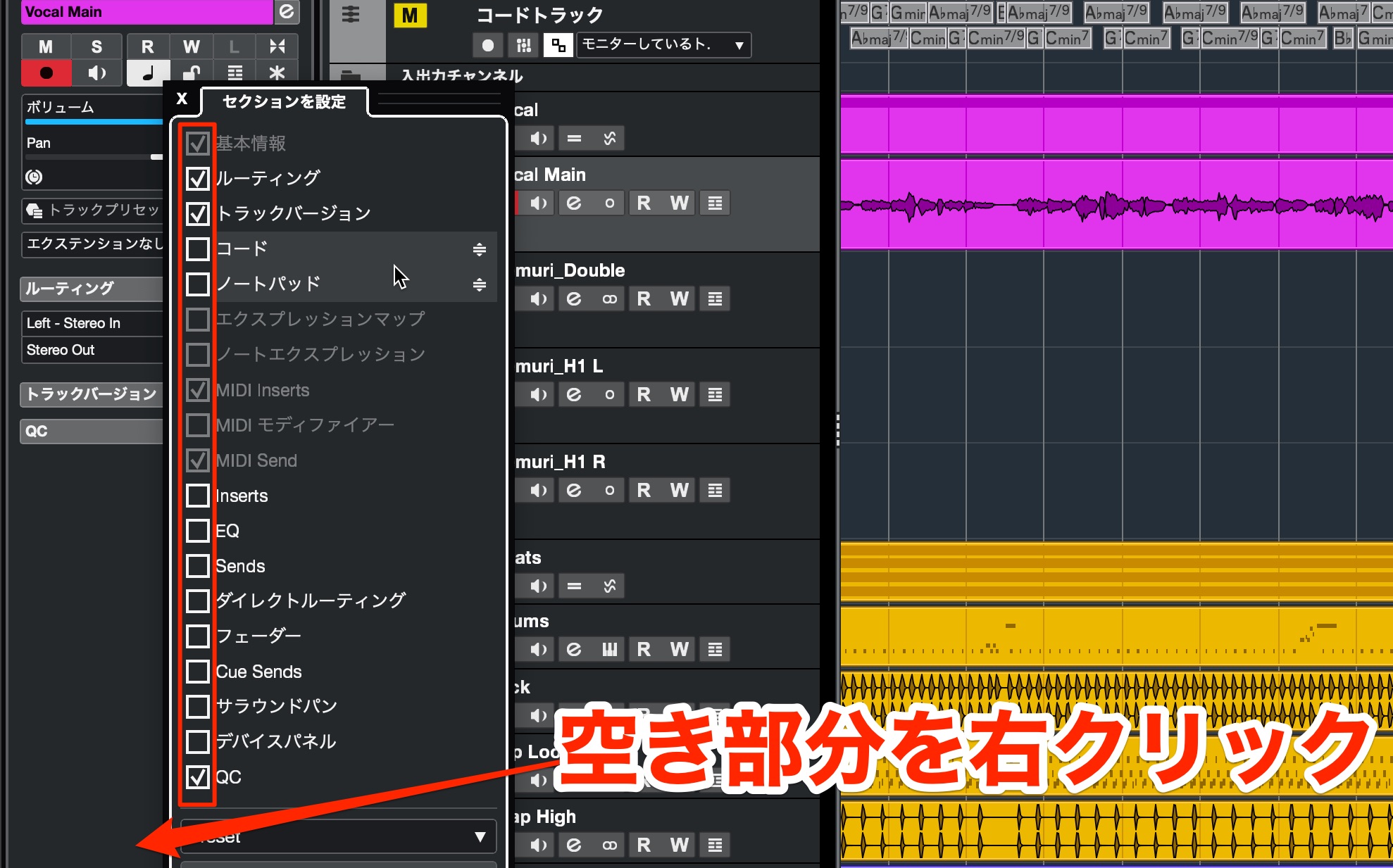
As with the Channel tab described above, you can show, hide and rearrange the sections.
Instrument and sampler track output routing — All editions
You can now change instrument and sampler track audio outputs directly from the Inspector.
Sampler tracks are not available in the AI or LE editions.
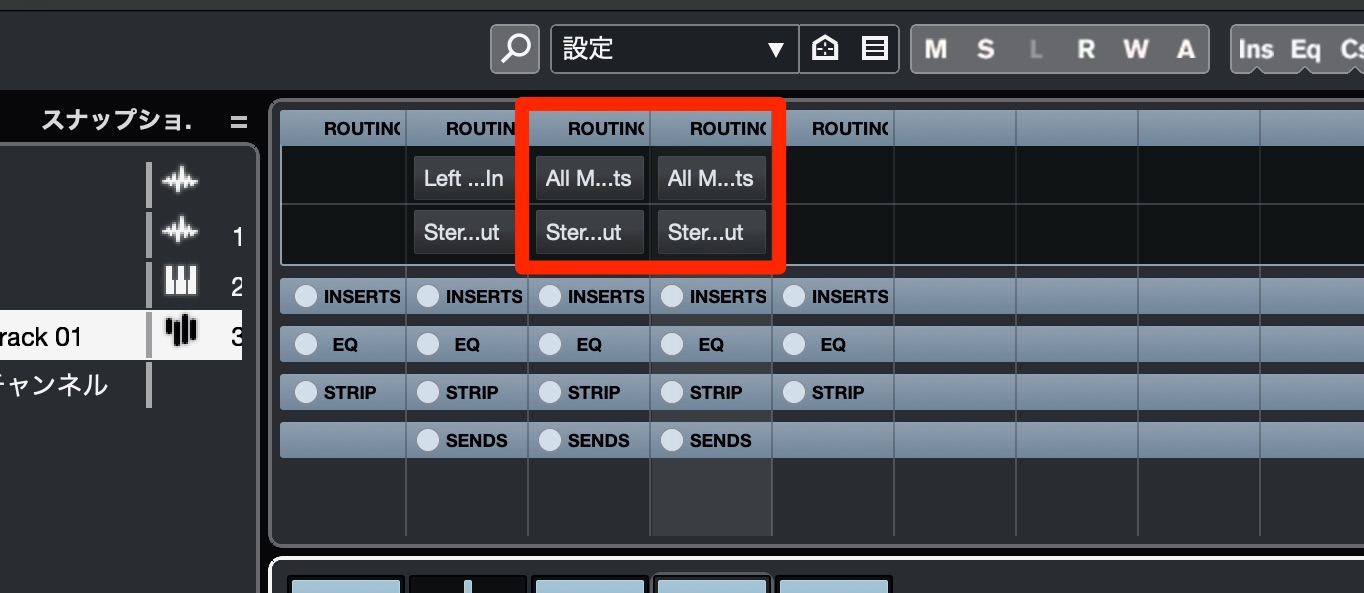
Up to version 12, you had to open MixConsole and use its ROUTING section, as shown here.
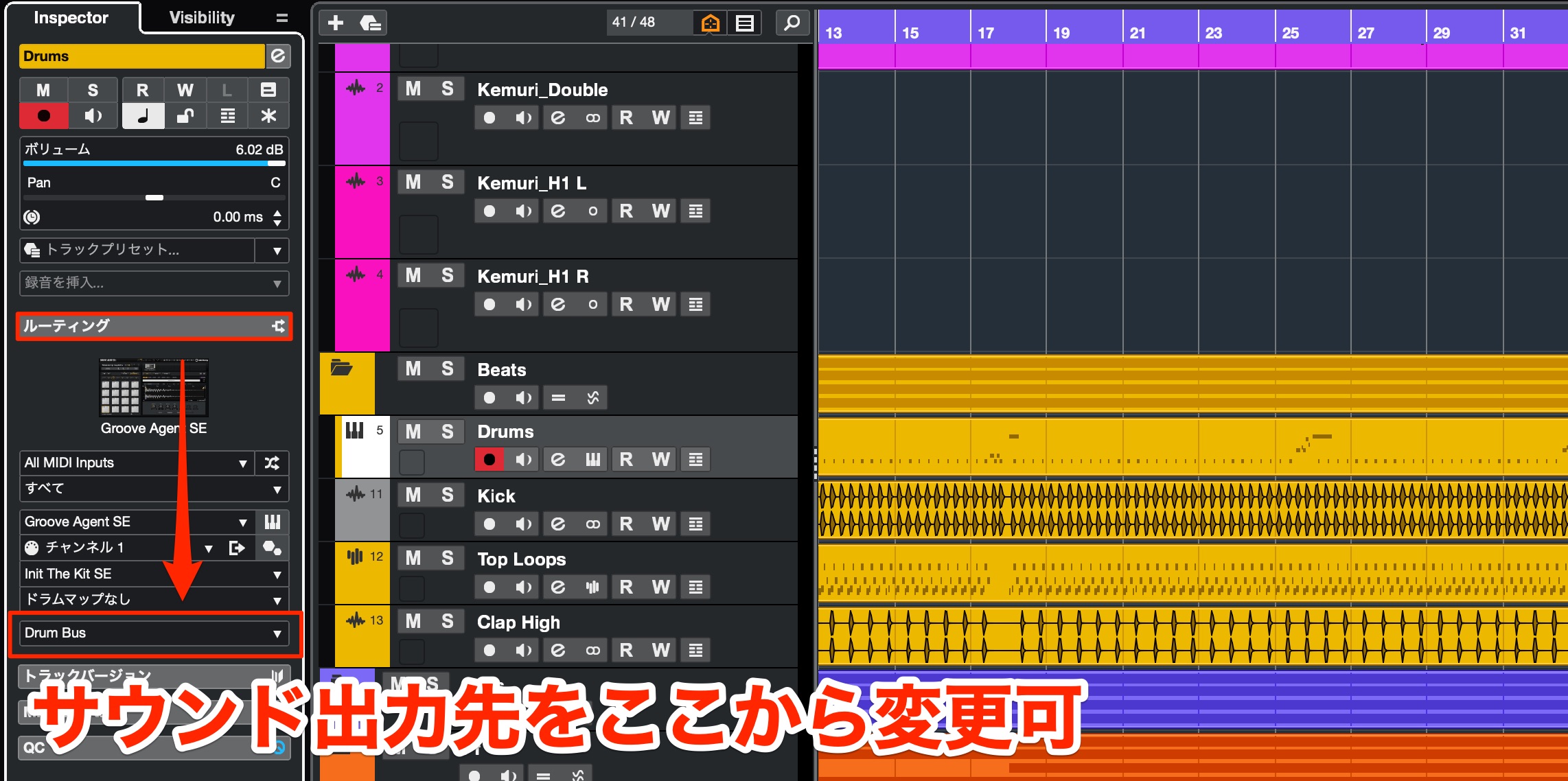
In version 13, you can change the output destination from Routing in the Inspector.
Many users will have been waiting for this.
Changes to opening instrument interfaces — All editions
The location used to open an instrument interface has changed too.
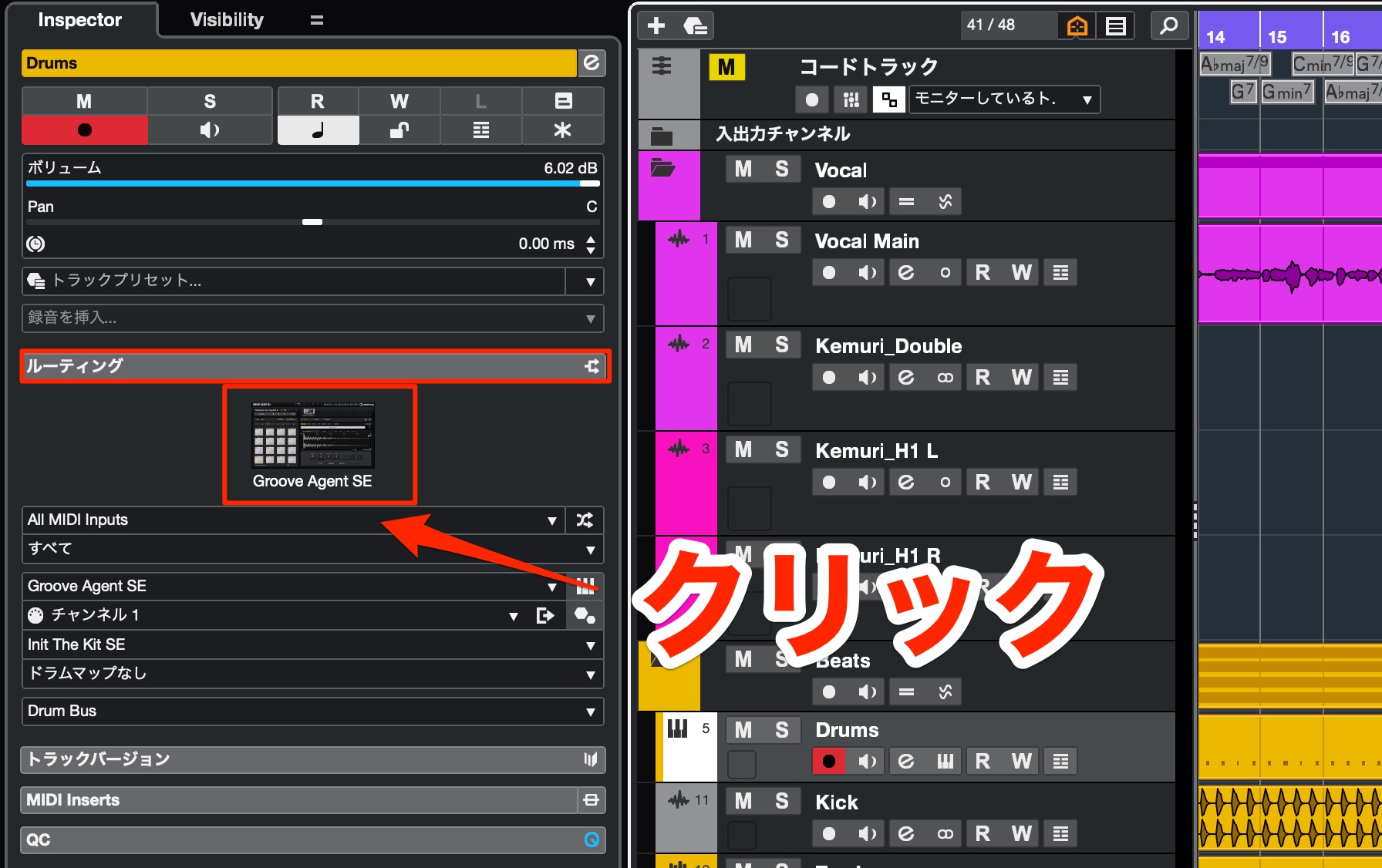
For instruments bundled with Cubase, open Routing and click the instrument.
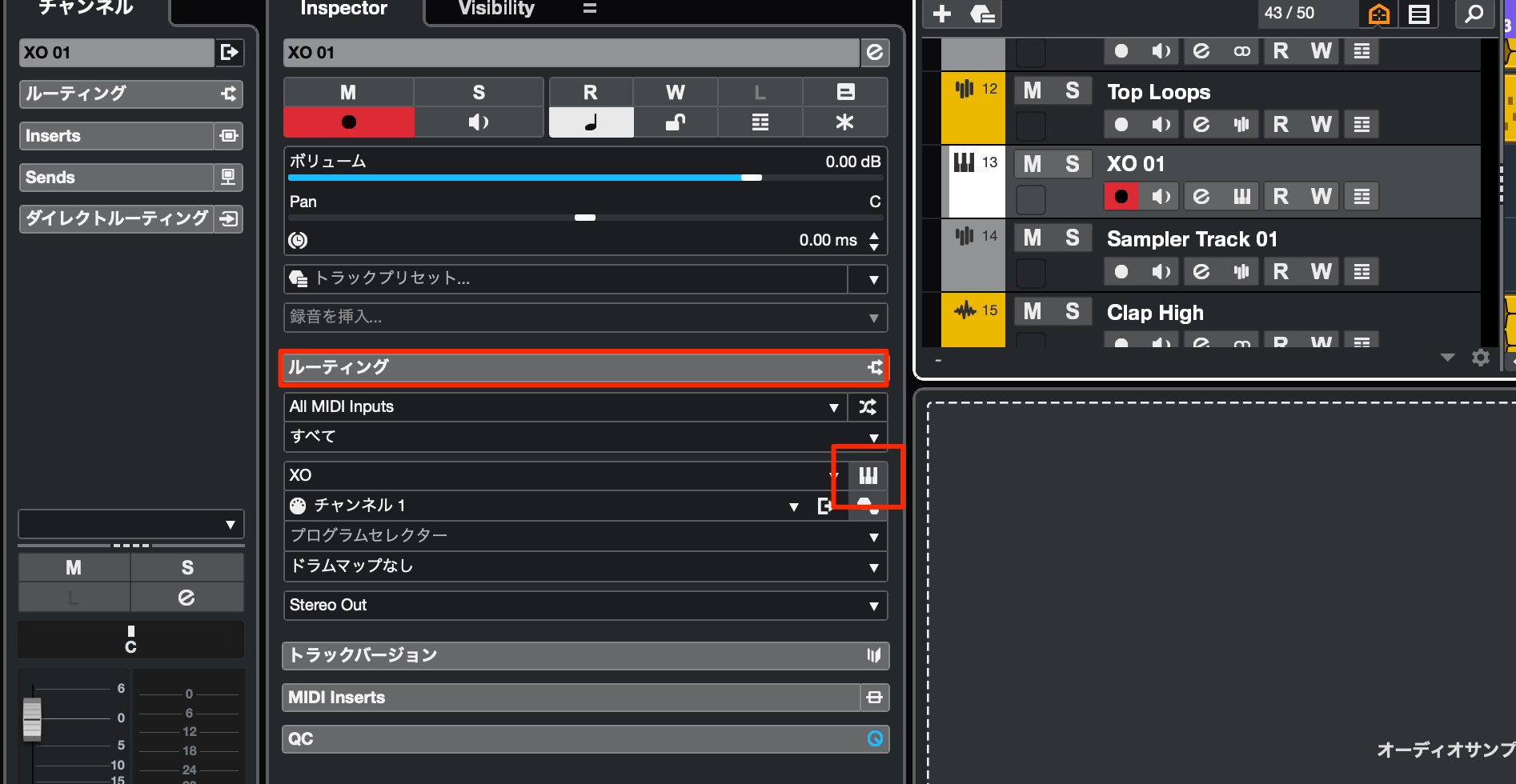
Third-party instruments are also accessed from Routing.
You can click the keyboard icon as before, but you can also display a graphical preview, just as with the bundled instruments.
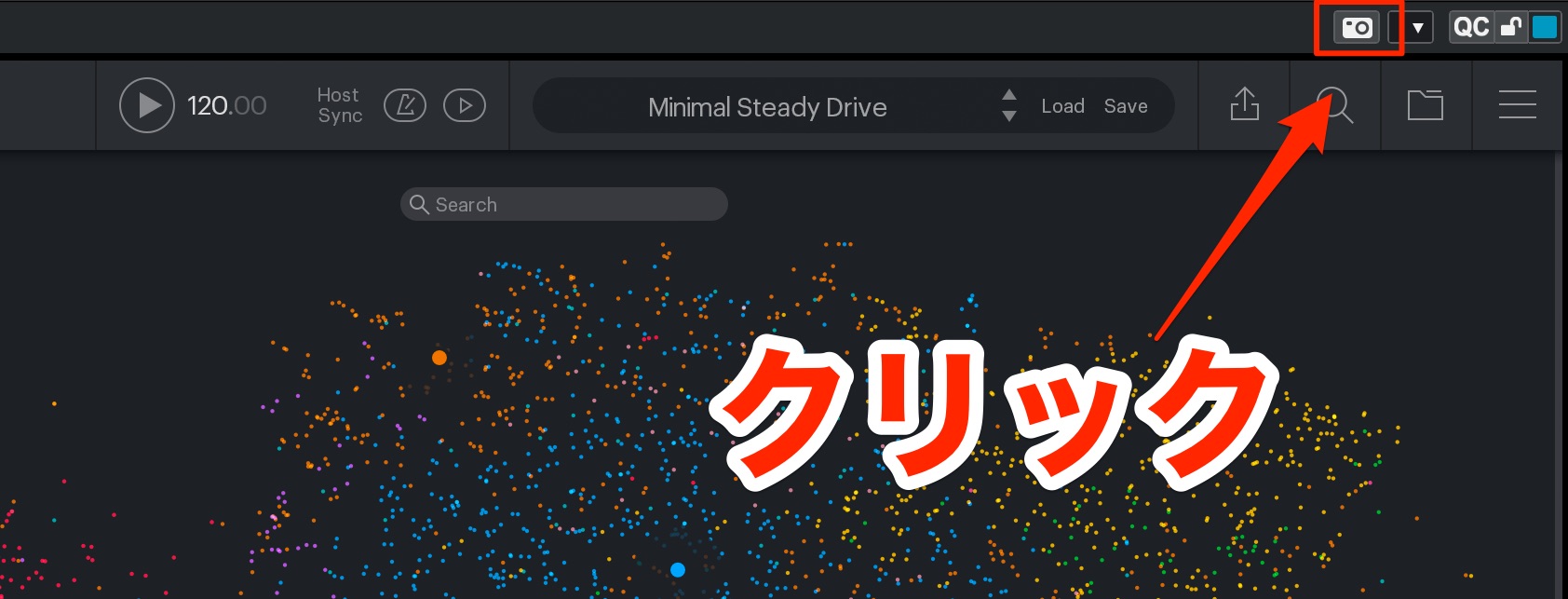
Simply click the capture icon at the upper right of the instrument window.
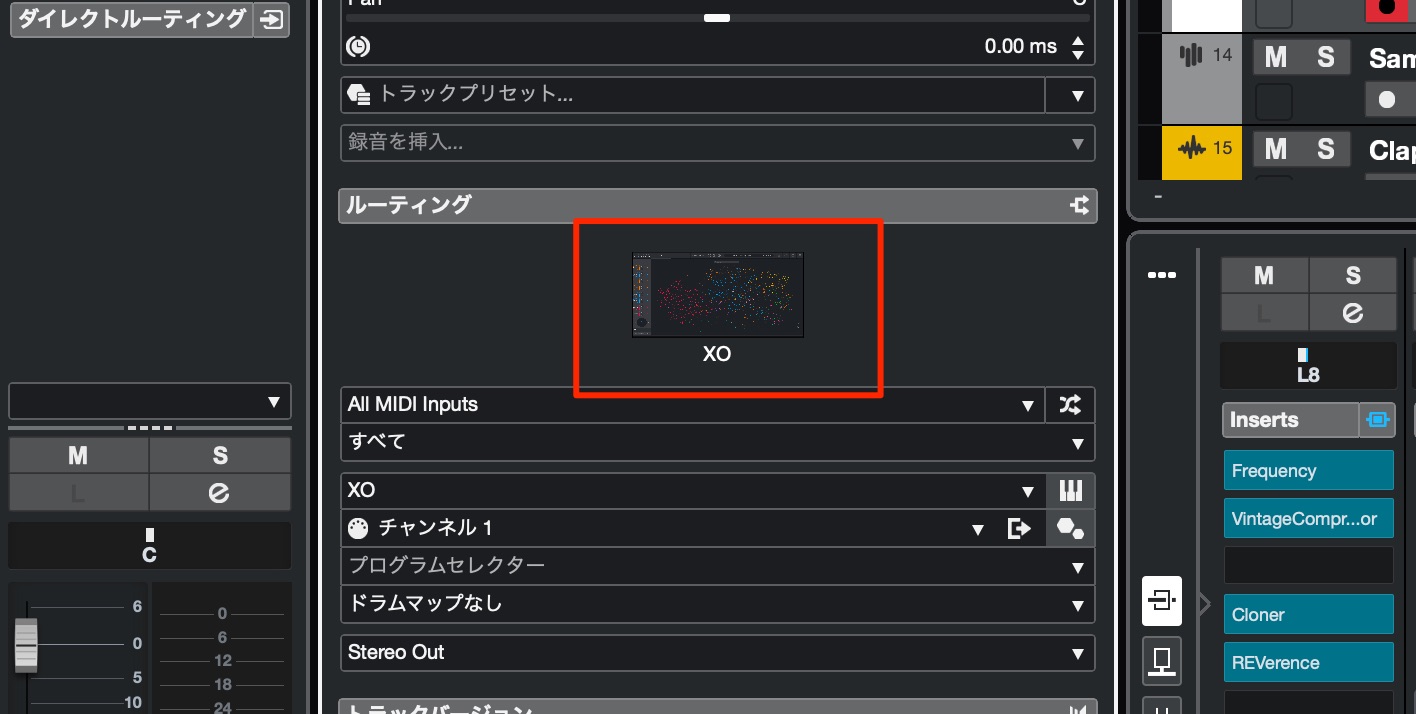
This changes its display to the graphical preview.
You can also open the instrument in the following ways:
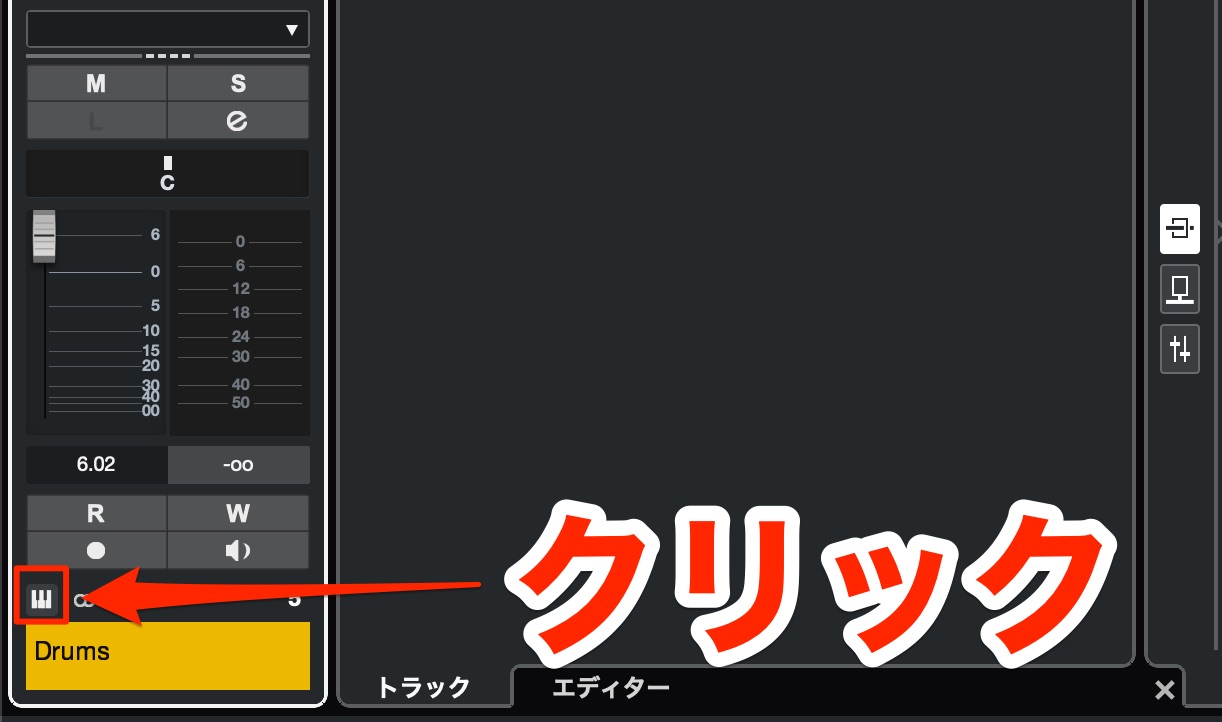
From the track-name area in the Channel Inspector.
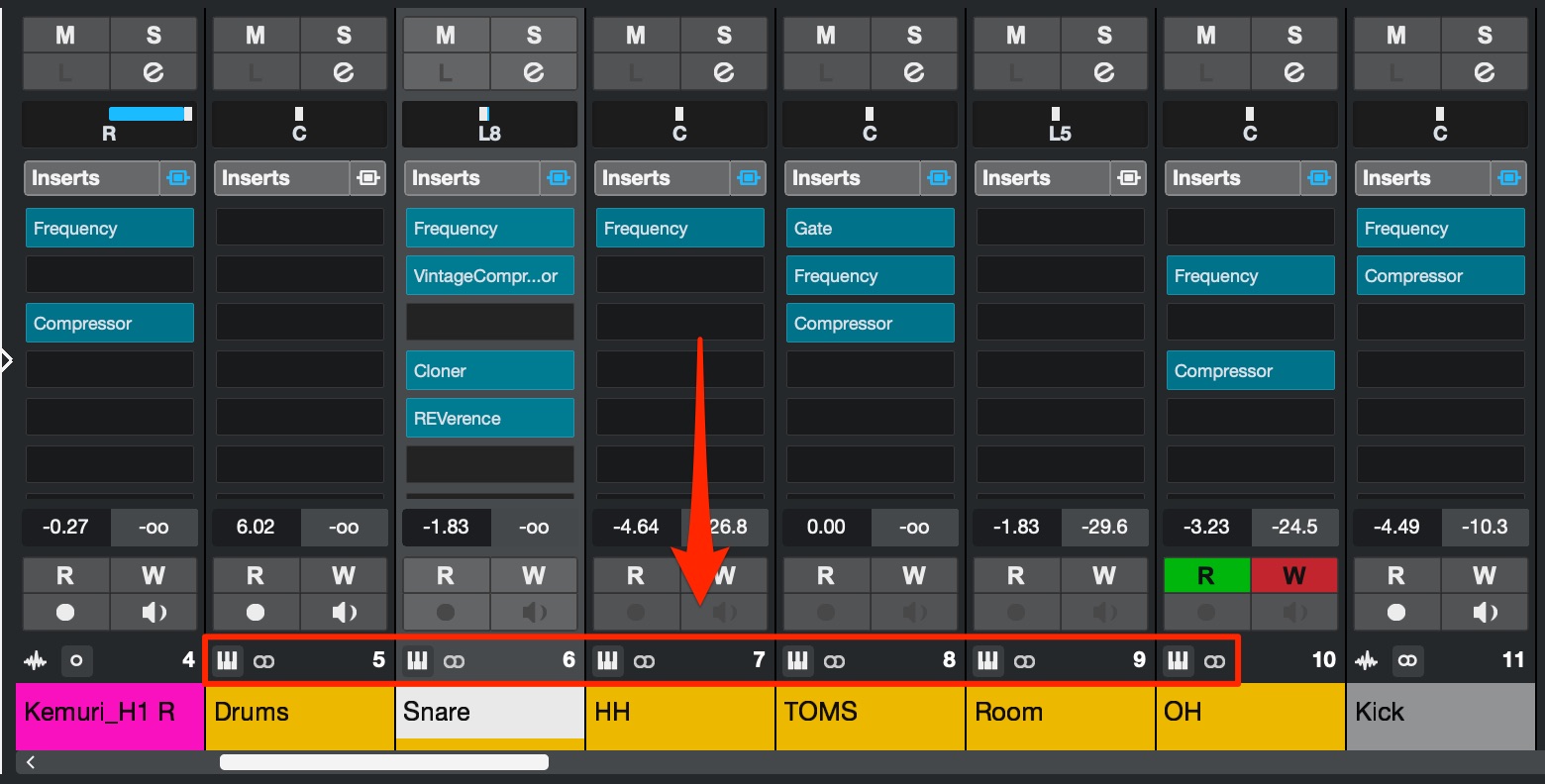
From the keyboard icon in MixConsole.
Assign a key command for opening instruments — All editions
Opening an instrument interface is something you do frequently during production.
For this task, assigning a shortcut, or key command, makes working much more comfortable.
Cubase 13 also changes the key-command setup process, so we will cover that here.
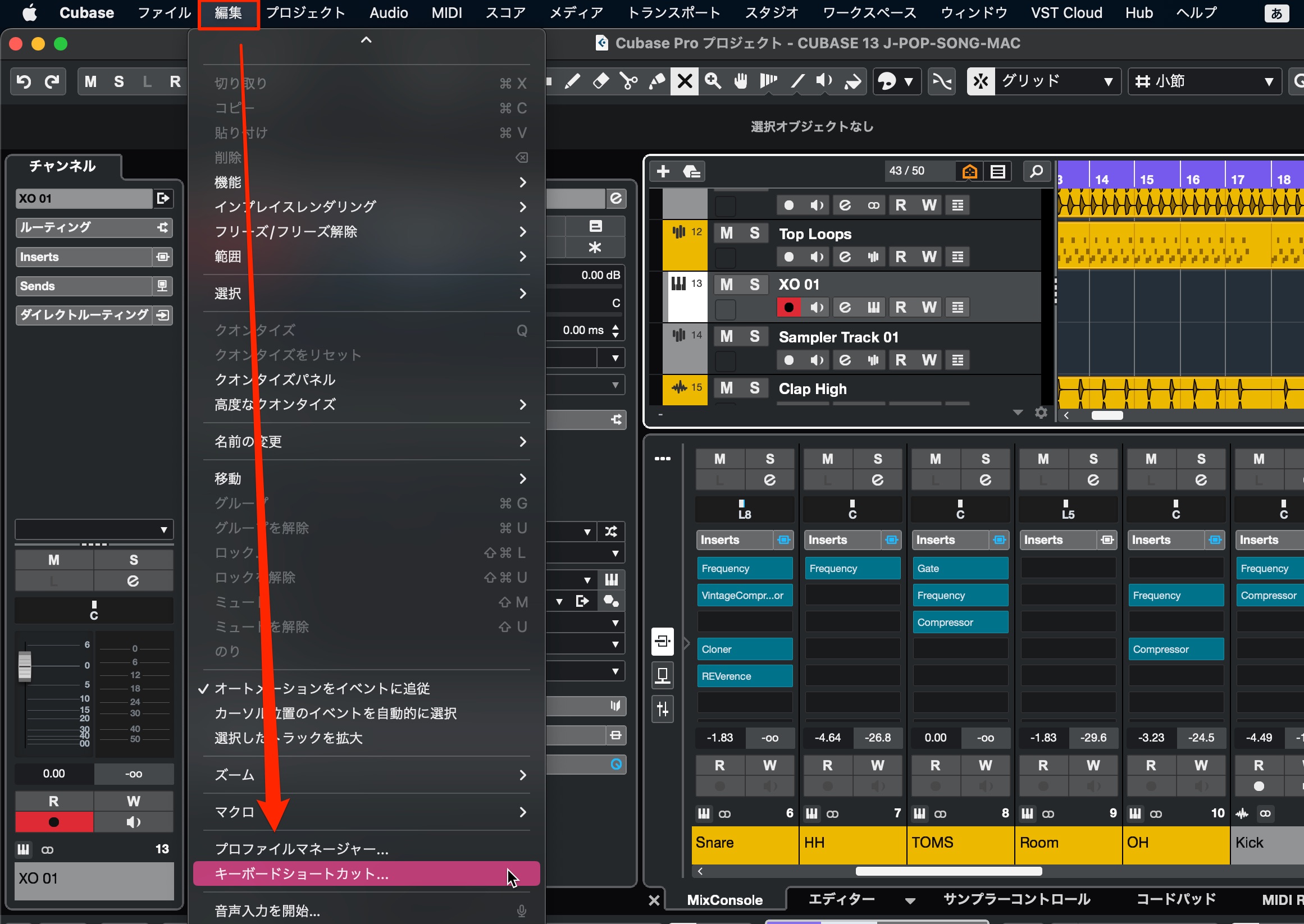
From the top menu, choose Edit > Key Commands to open the settings dialog.
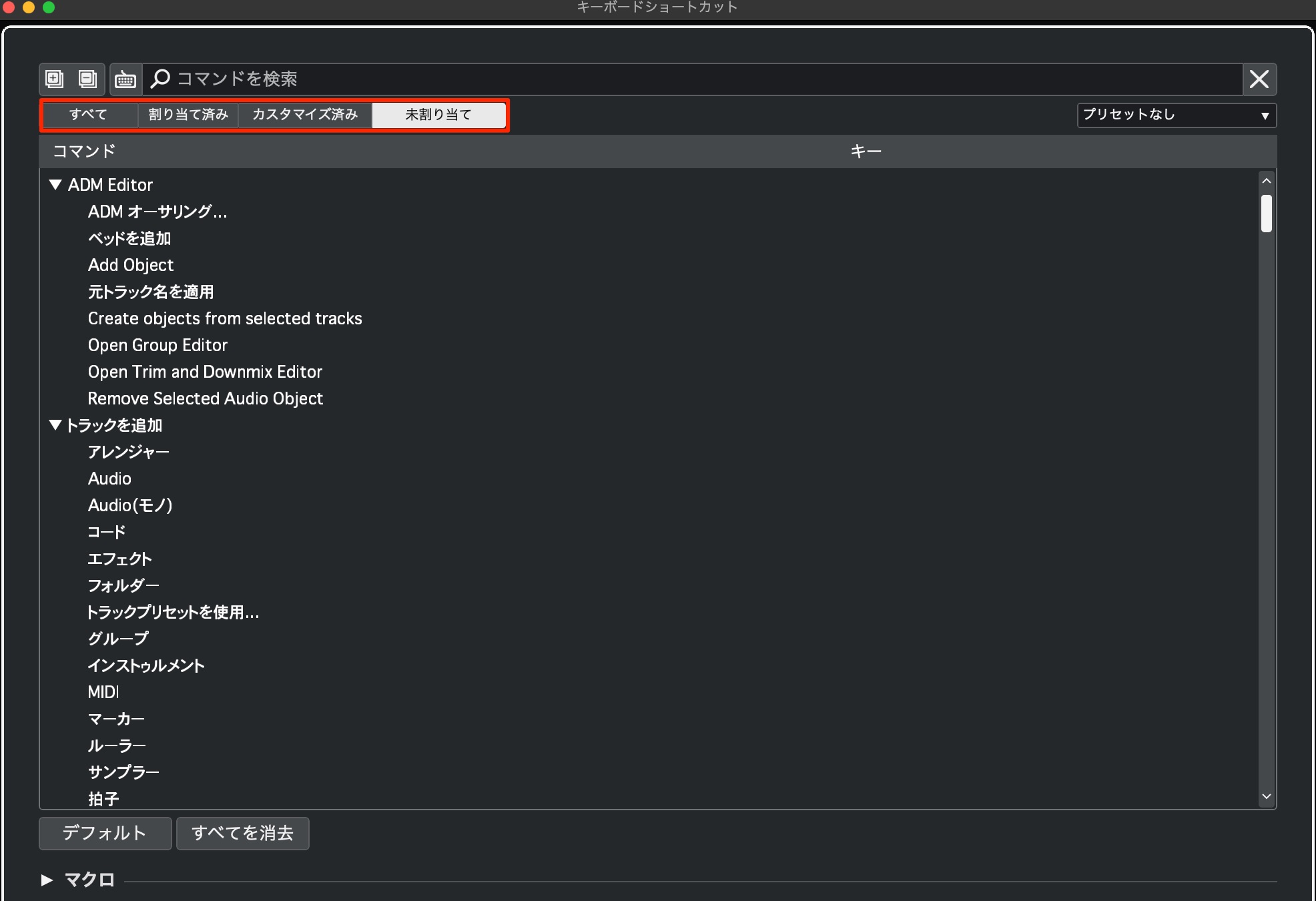
Commands are now organized into clear categories:
- All: Every operation that can be assigned a key command.
- Assigned: Operations with an existing assignment, whether a default or one you created yourself.
- Customized: Operations to which you have assigned your own key commands.
- Unassigned: Operations without a key-command assignment.
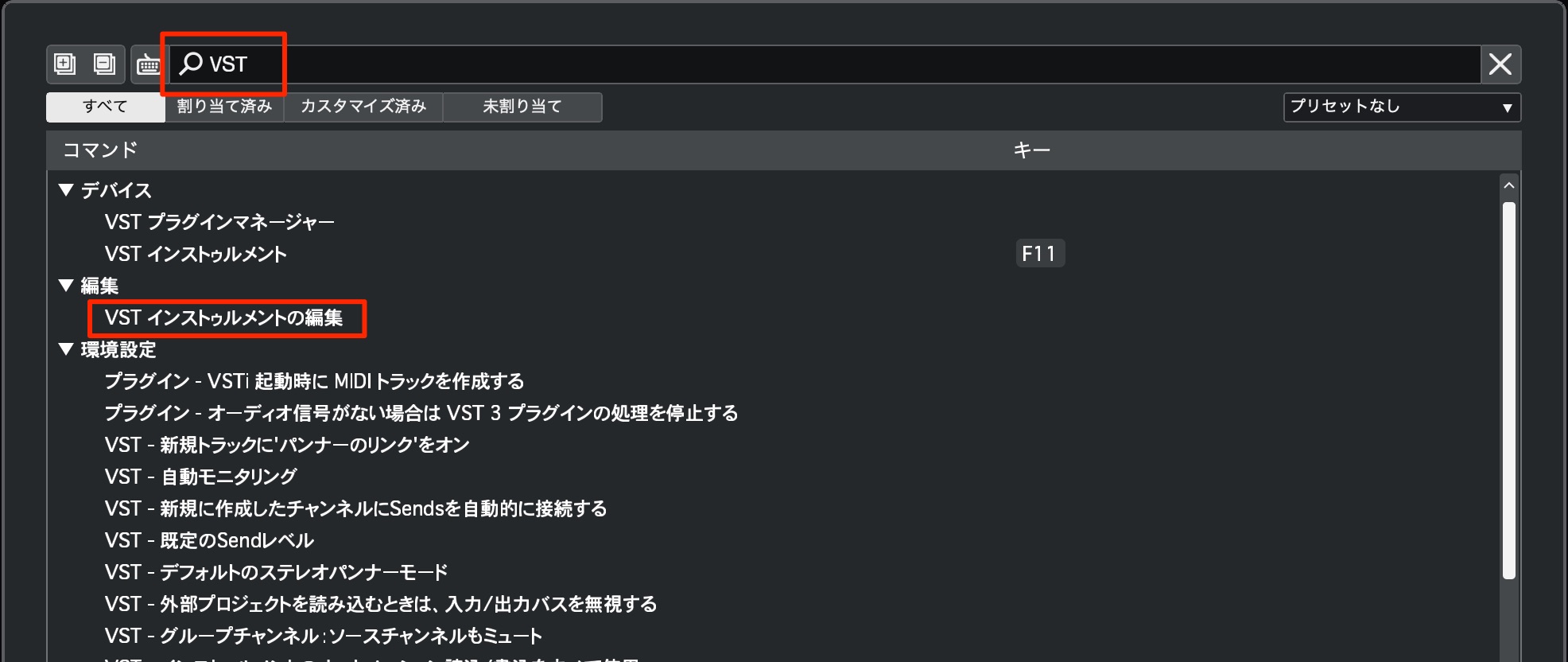
Search results now update quickly as you type, showing commands that match your input.
Let us assign a key command to Edit VST Instrument, which opens the instrument interface.
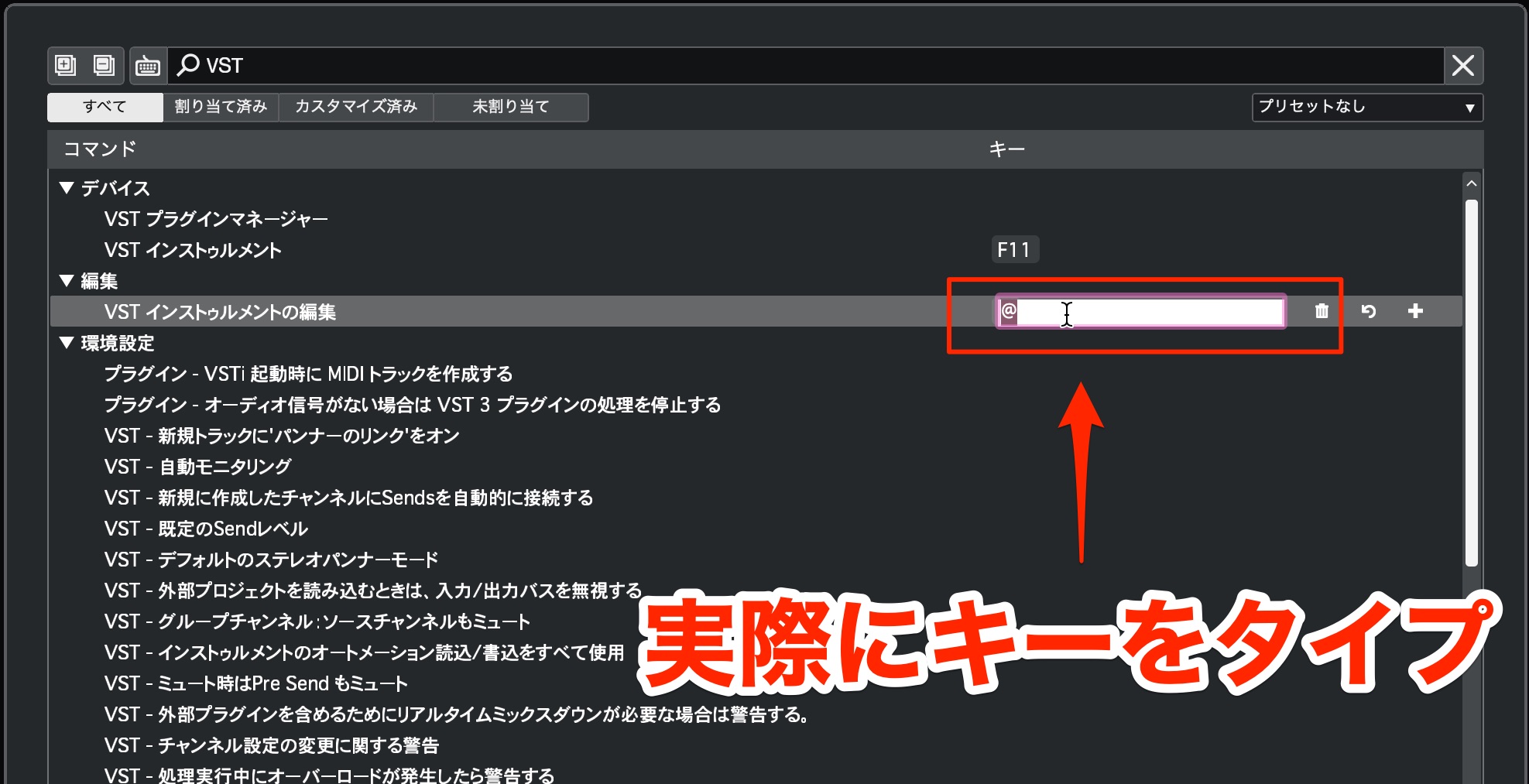
Click the area to the right of the command and press the keys you want to assign.
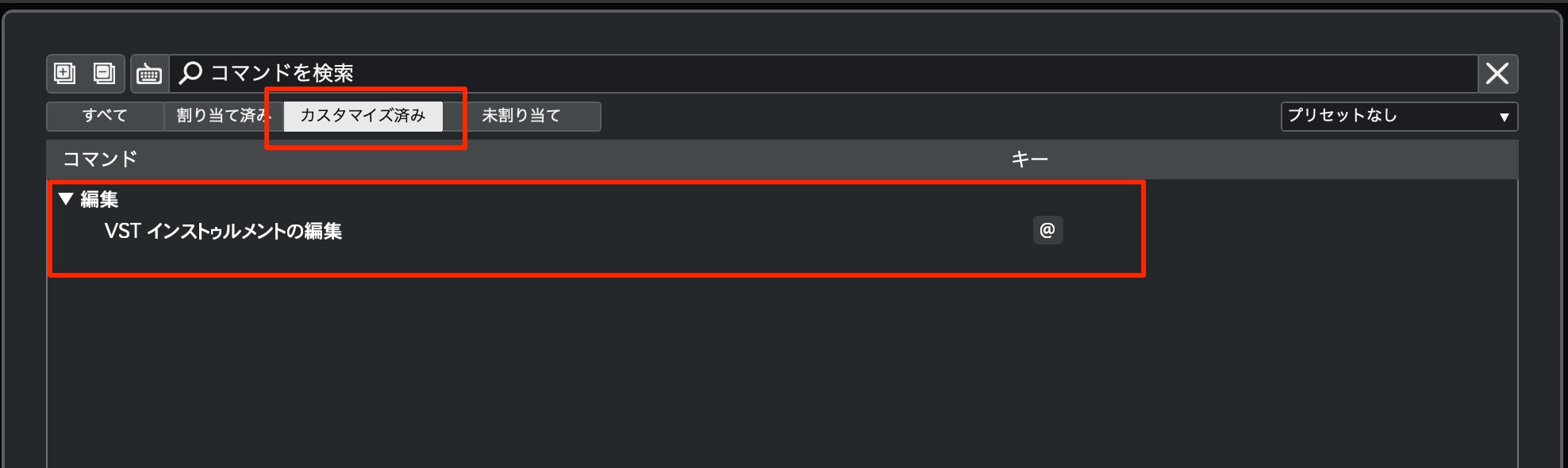
The assignment also appears under Customized.
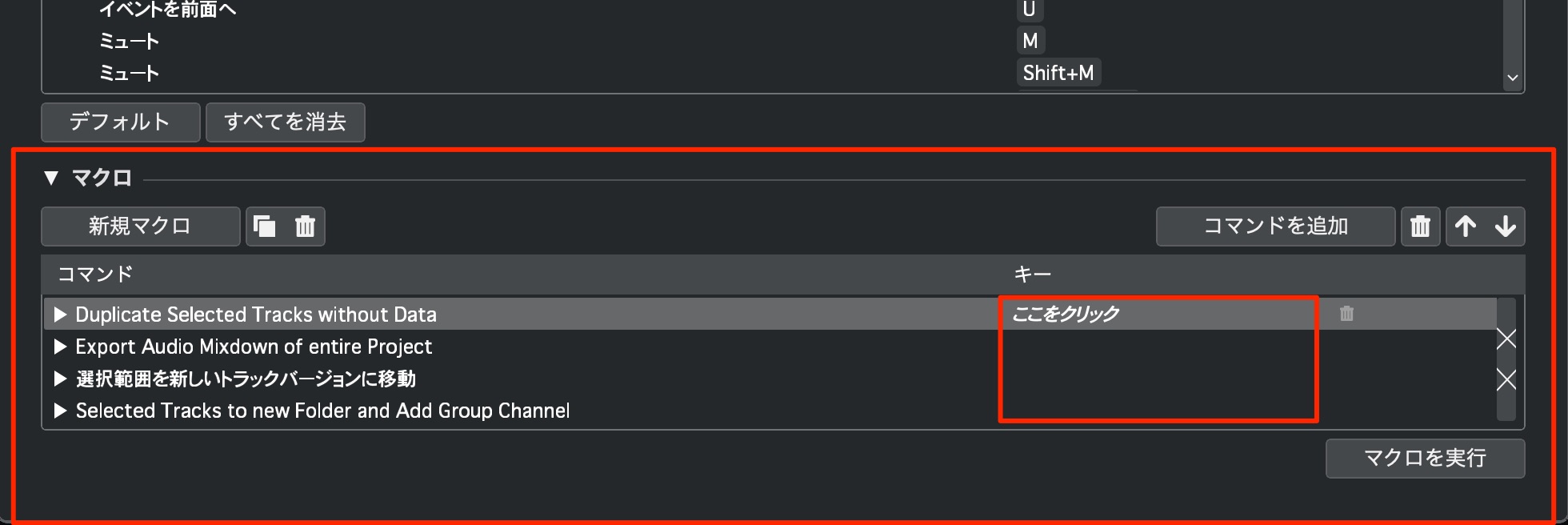
You can now assign shortcuts directly to macros, which carry out multiple commands together.
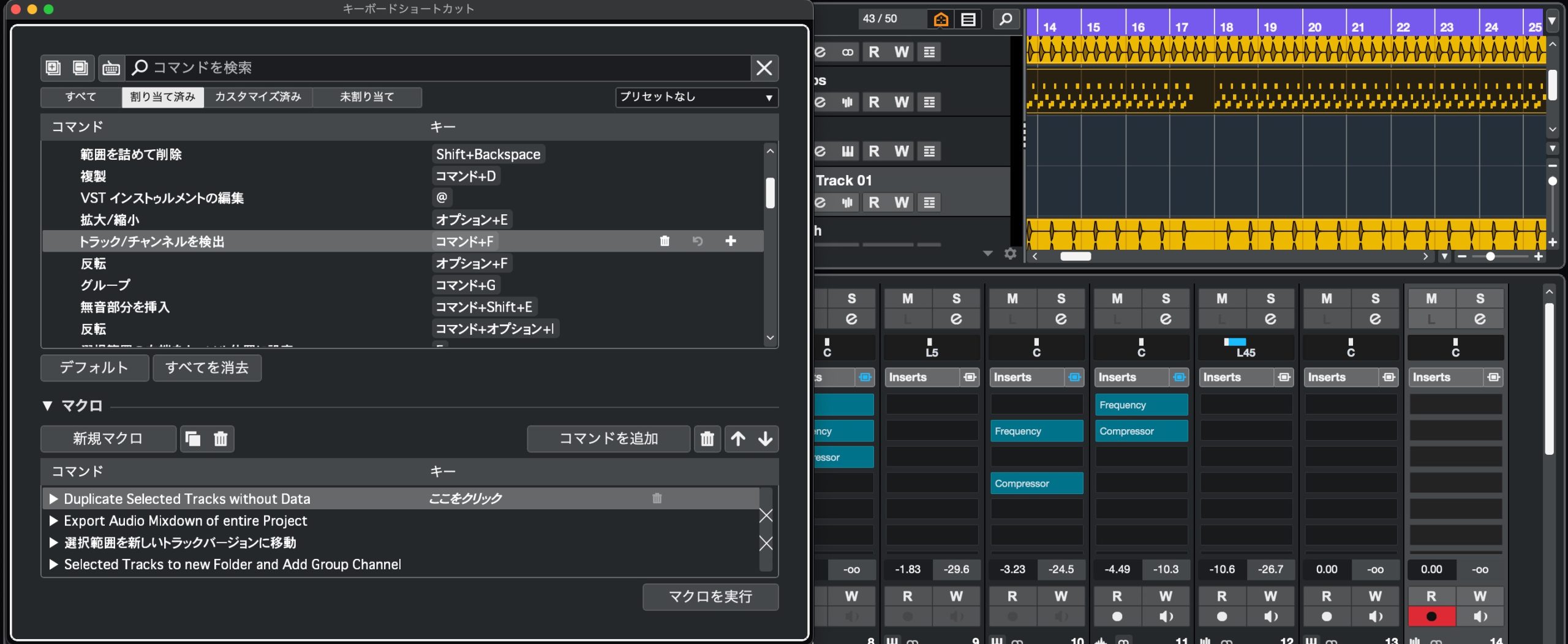
Another welcome improvement is that you can operate Cubase while leaving the Key Commands dialog open
. This lets you check whether your new assignments work correctly as you configure them.
The following article introduces some useful shortcuts to try.

A cleaner Inspector without duplicated track information — All editions
In version 12 and earlier, instrument, sampler and MIDI tracks in the Inspector
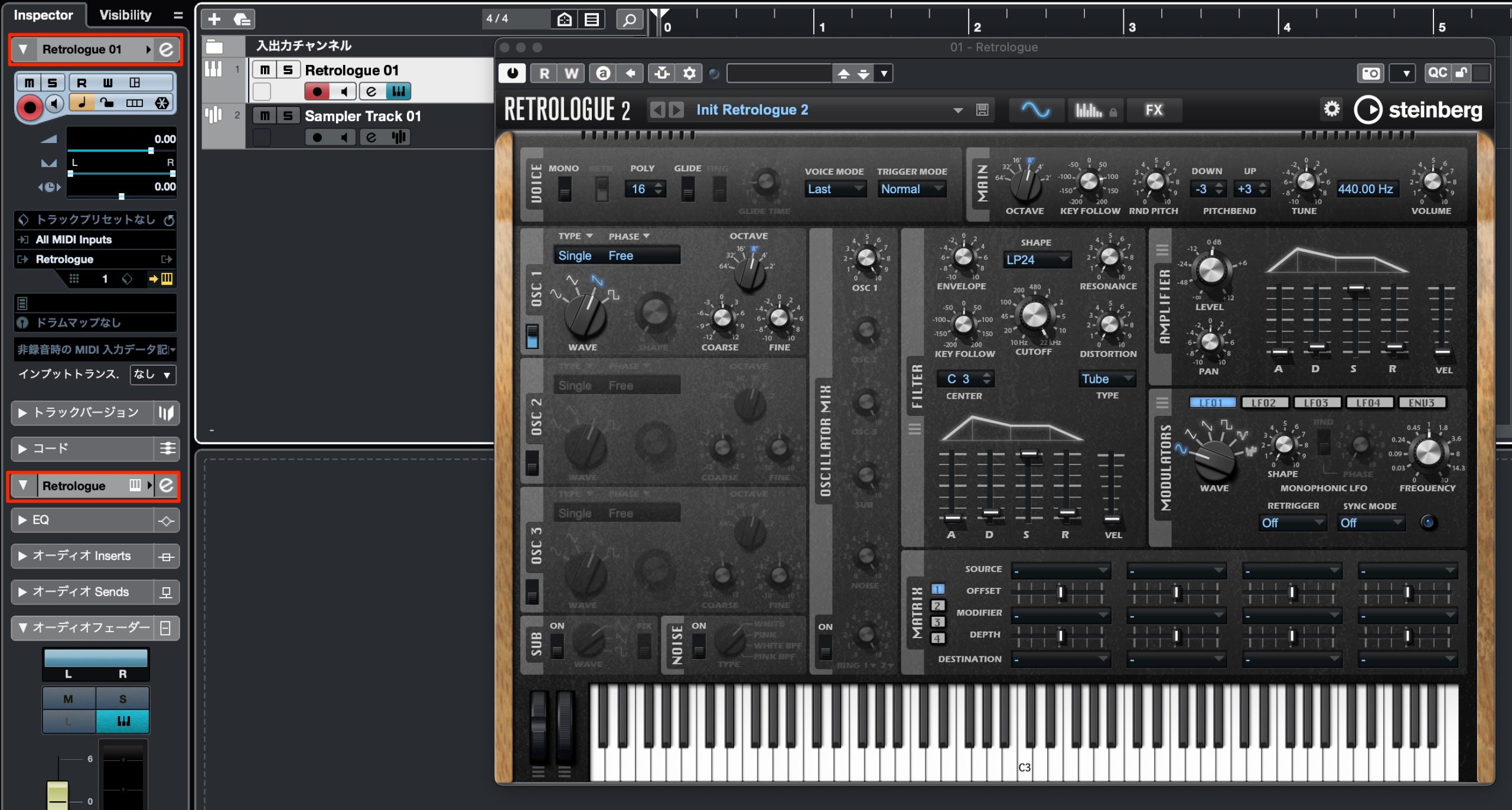
could show duplicated instrument names and other fields
. This reflected Cubase's instrument-plus-MIDI-track structure, but version 13 improves the presentation.
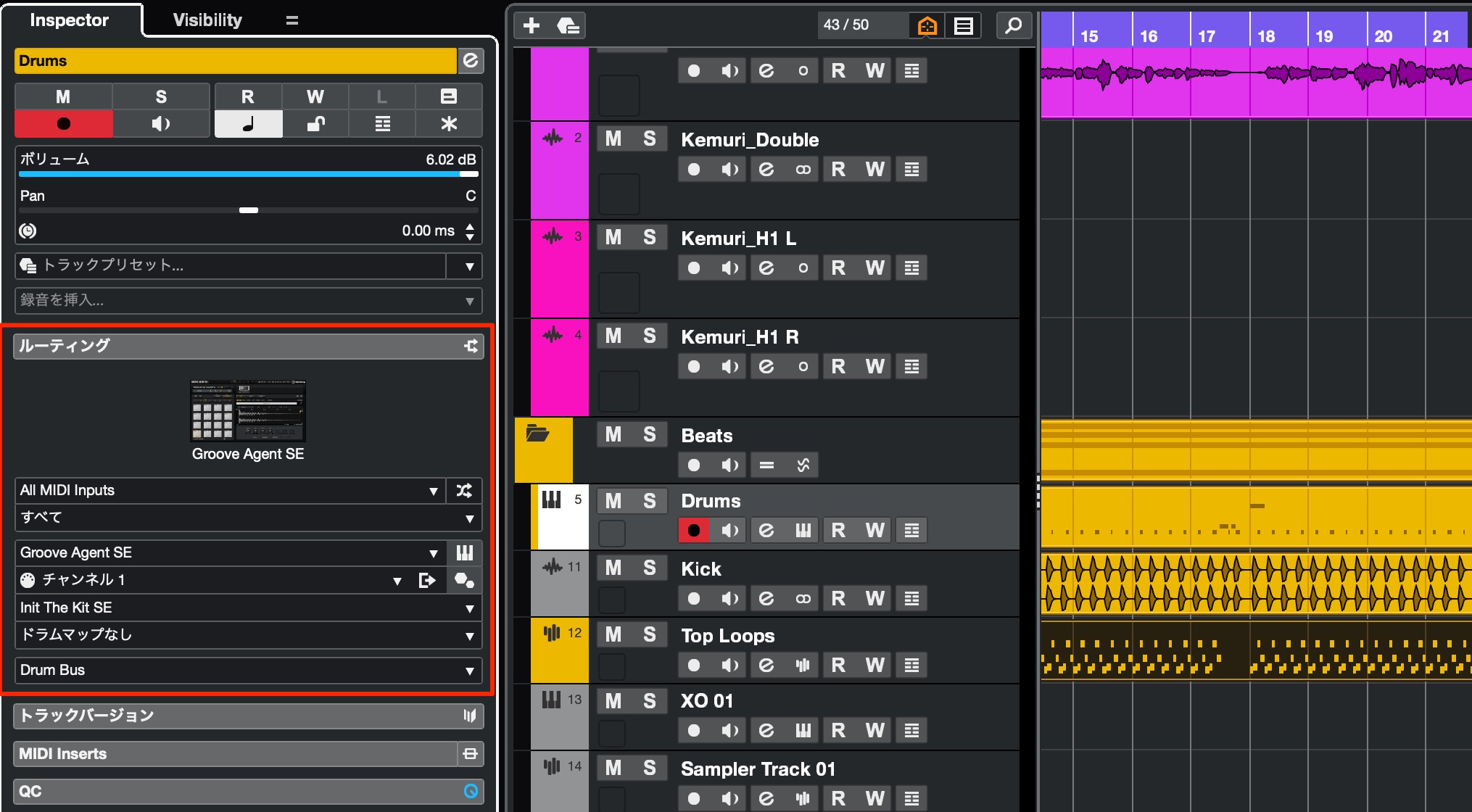
MIDI connections and related settings are grouped under Routing for a simpler layout.
Resize the Channel Inspector and left zone — All editions
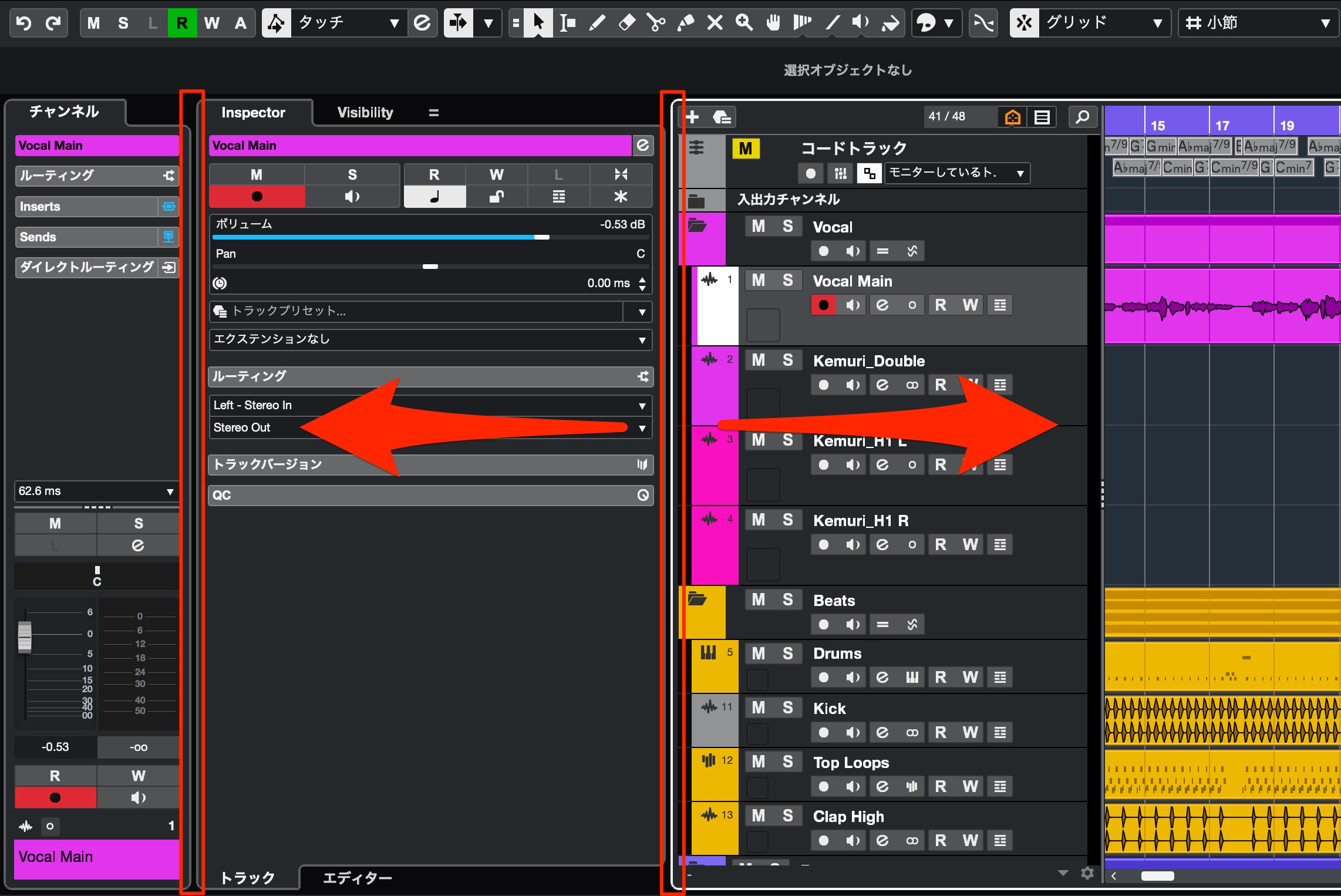
You can now drag to change the width of these sections.
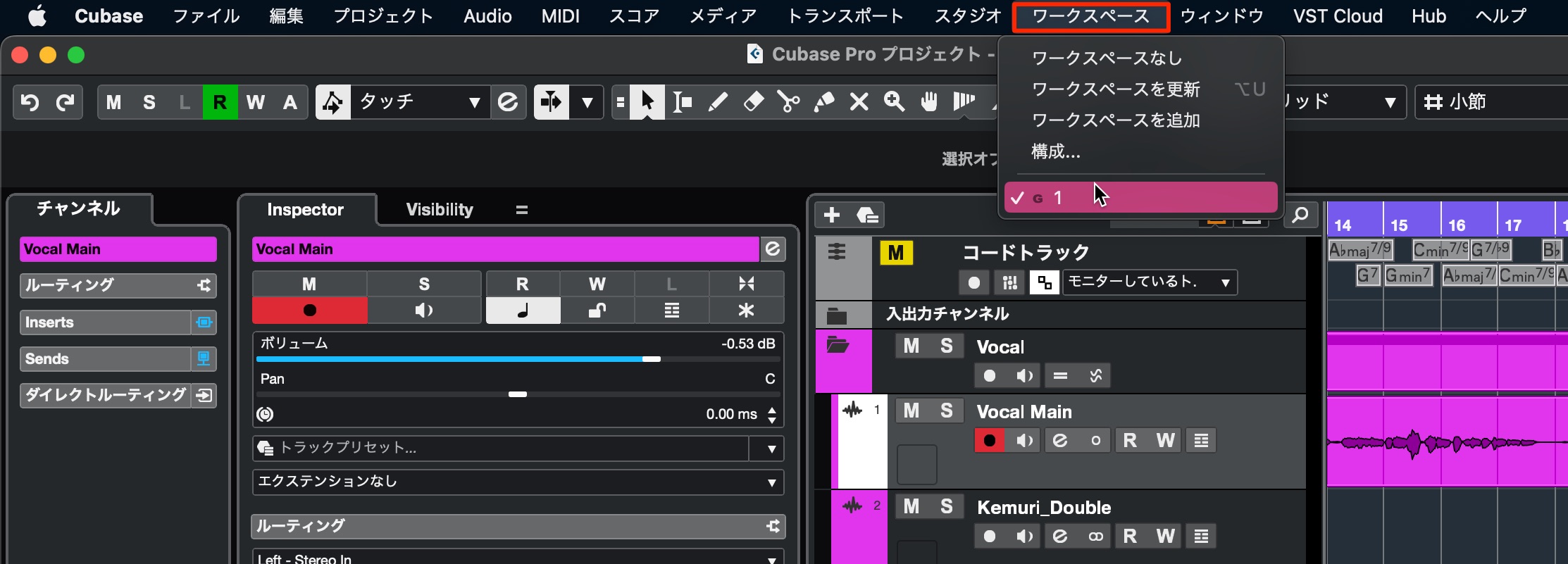
These layouts can be saved as Workspaces, making it much easier to switch between arrangements suited to different tasks.
The following older article explains how to set up Workspaces.

A “plus one” layout for insert and send effects — All editions
Cubase lets you load many plug-ins on a track.
The number of available slots depends on the edition.
However, you often do not need every slot.
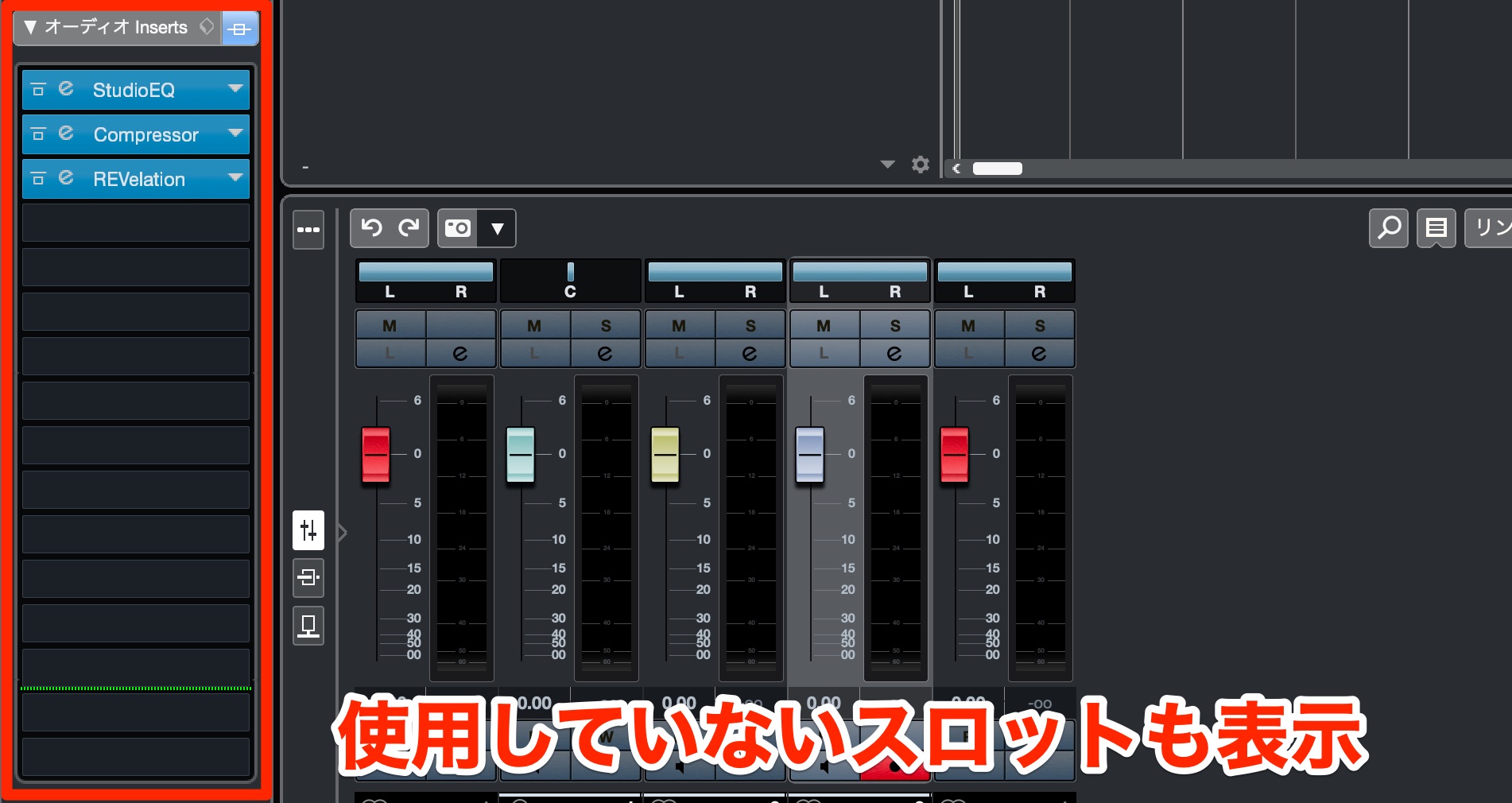
Unused slots previously occupied space, as shown here.
Version 13 adopts a “plus one” layout:
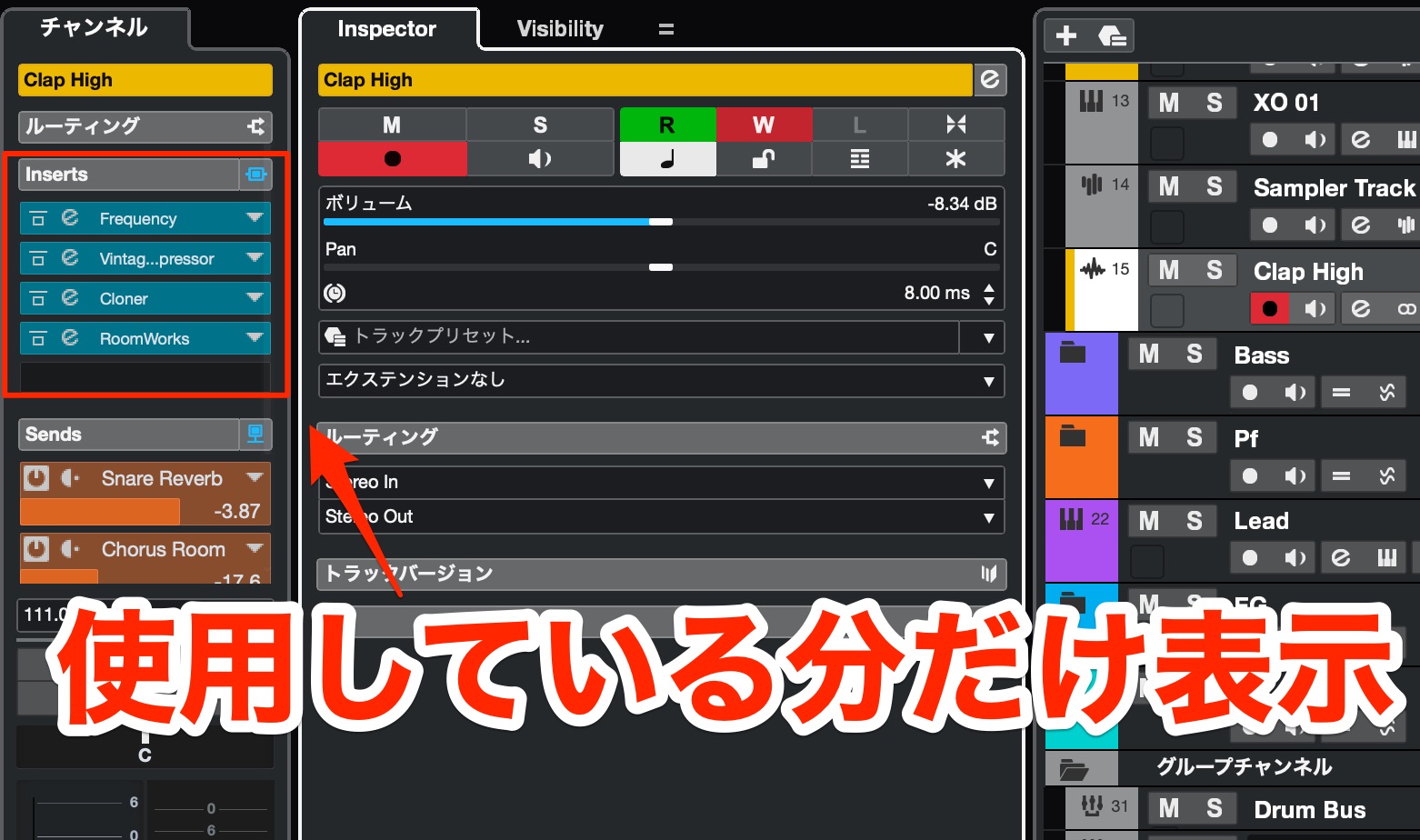
the plug-ins in use, plus one empty slot are displayed.
This is an excellent improvement to visual clarity.
MixConsole
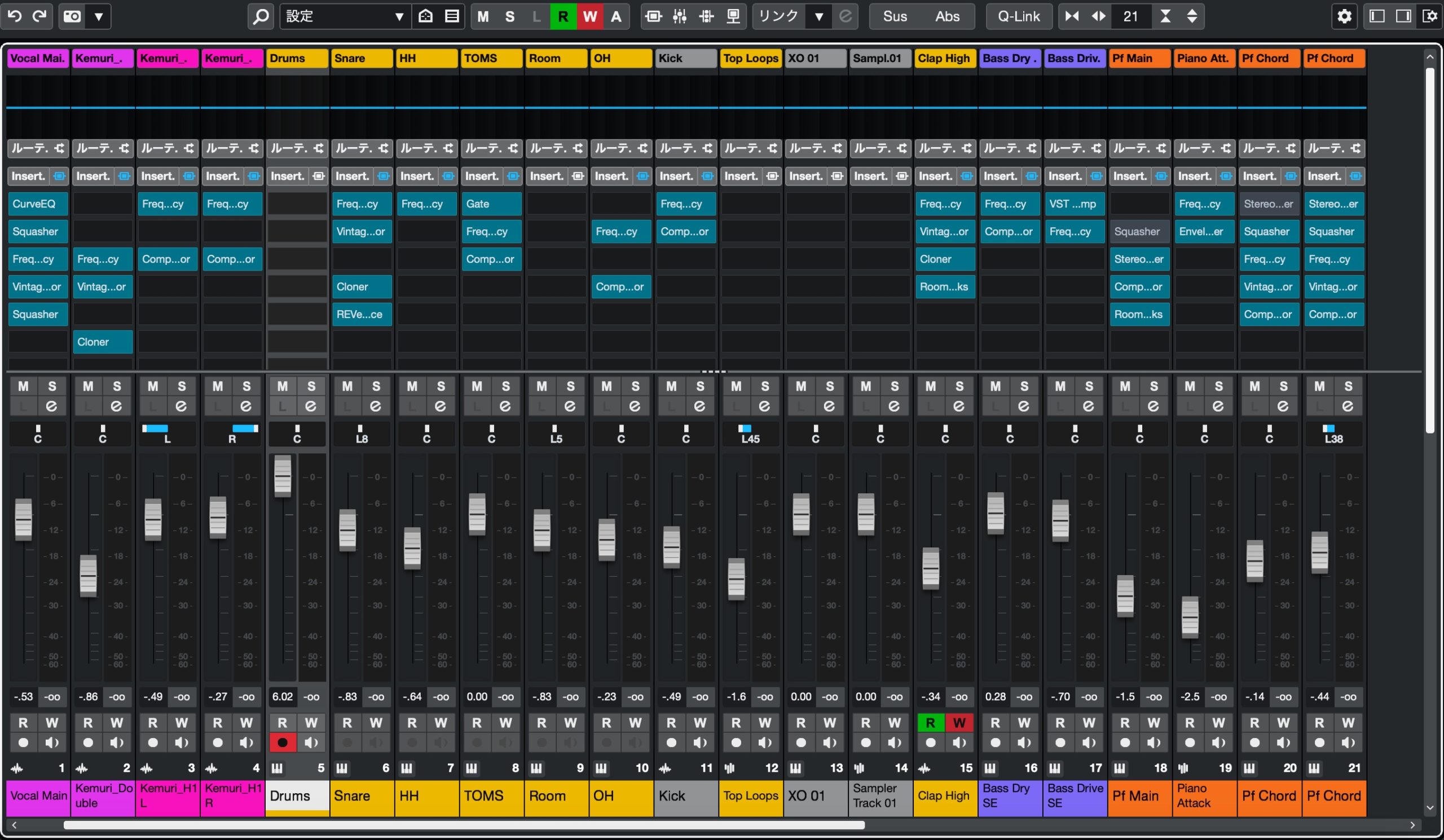
MixConsole has a refreshed design with a more vivid appearance.
Track labels at the top — All editions
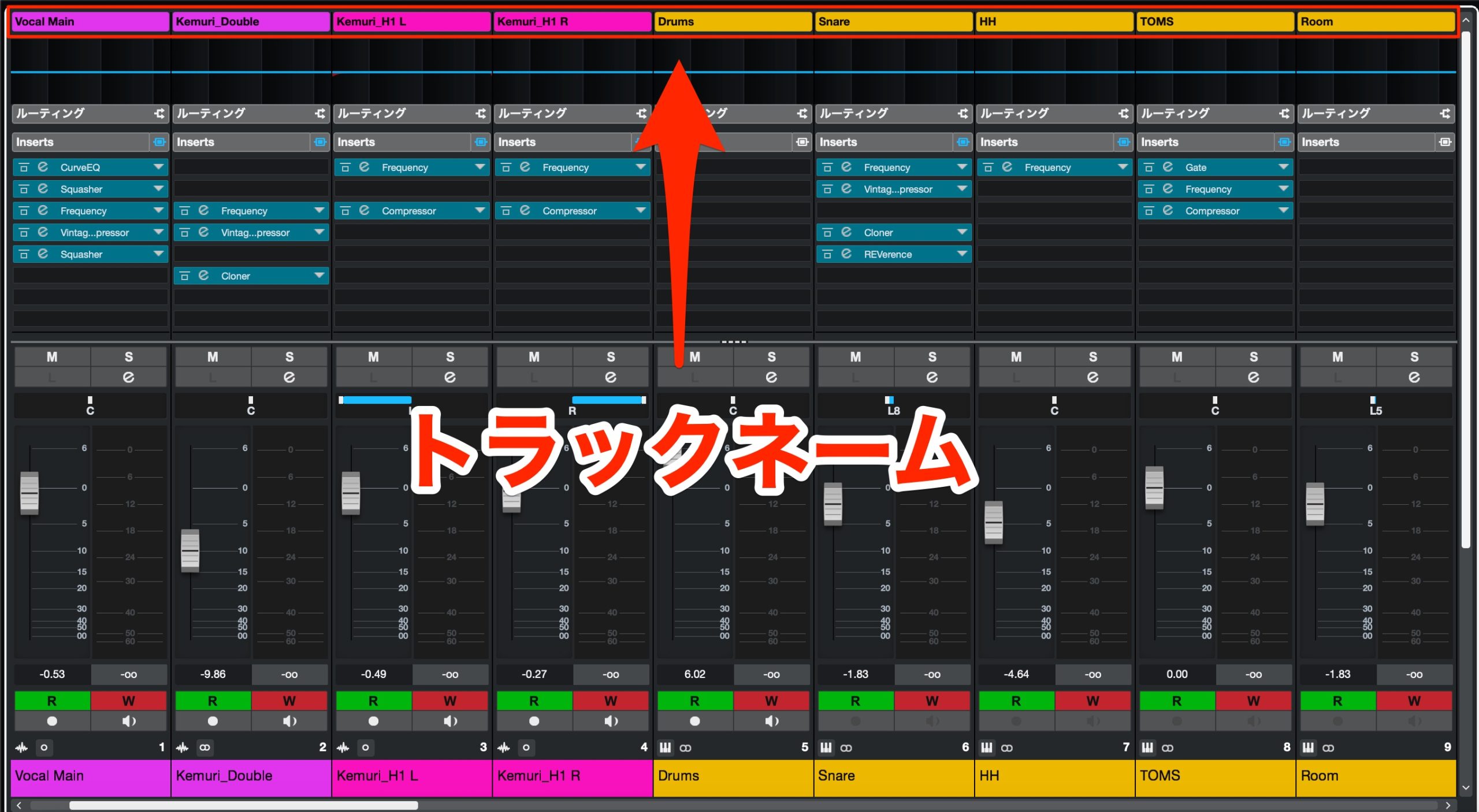
Track names now appear at the top, making tracks quicker to identify.
Pre section in the EQ display — All editions
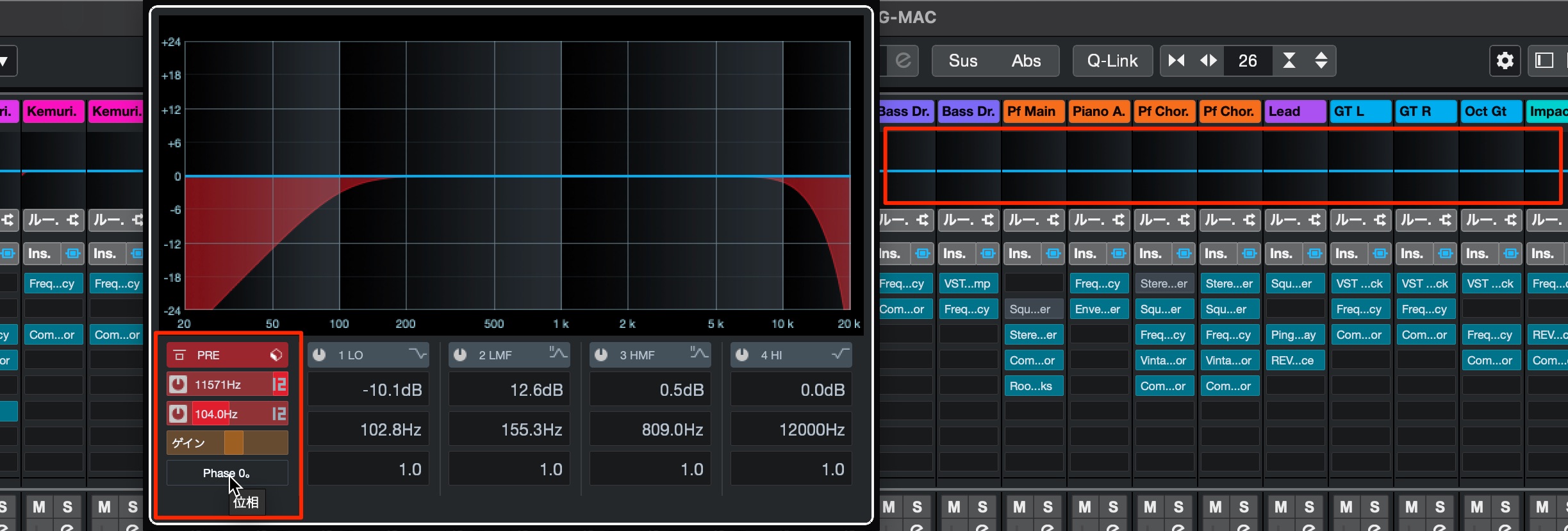
A Pre section is now available alongside the equalizer controls, allowing quick sound adjustments.
Show and rearrange sections — All editions
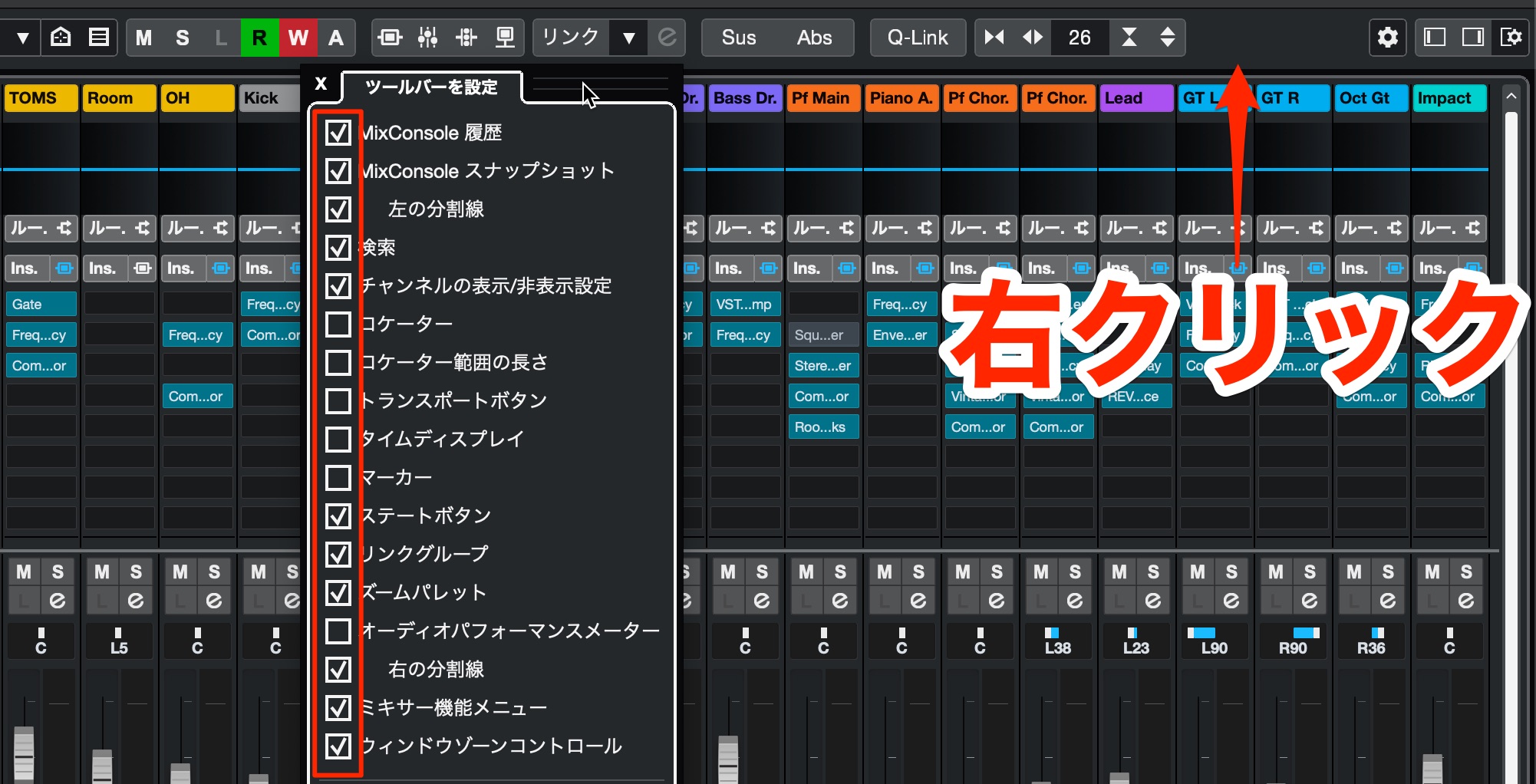
As in the Inspector, you can rearrange the displayed sections.
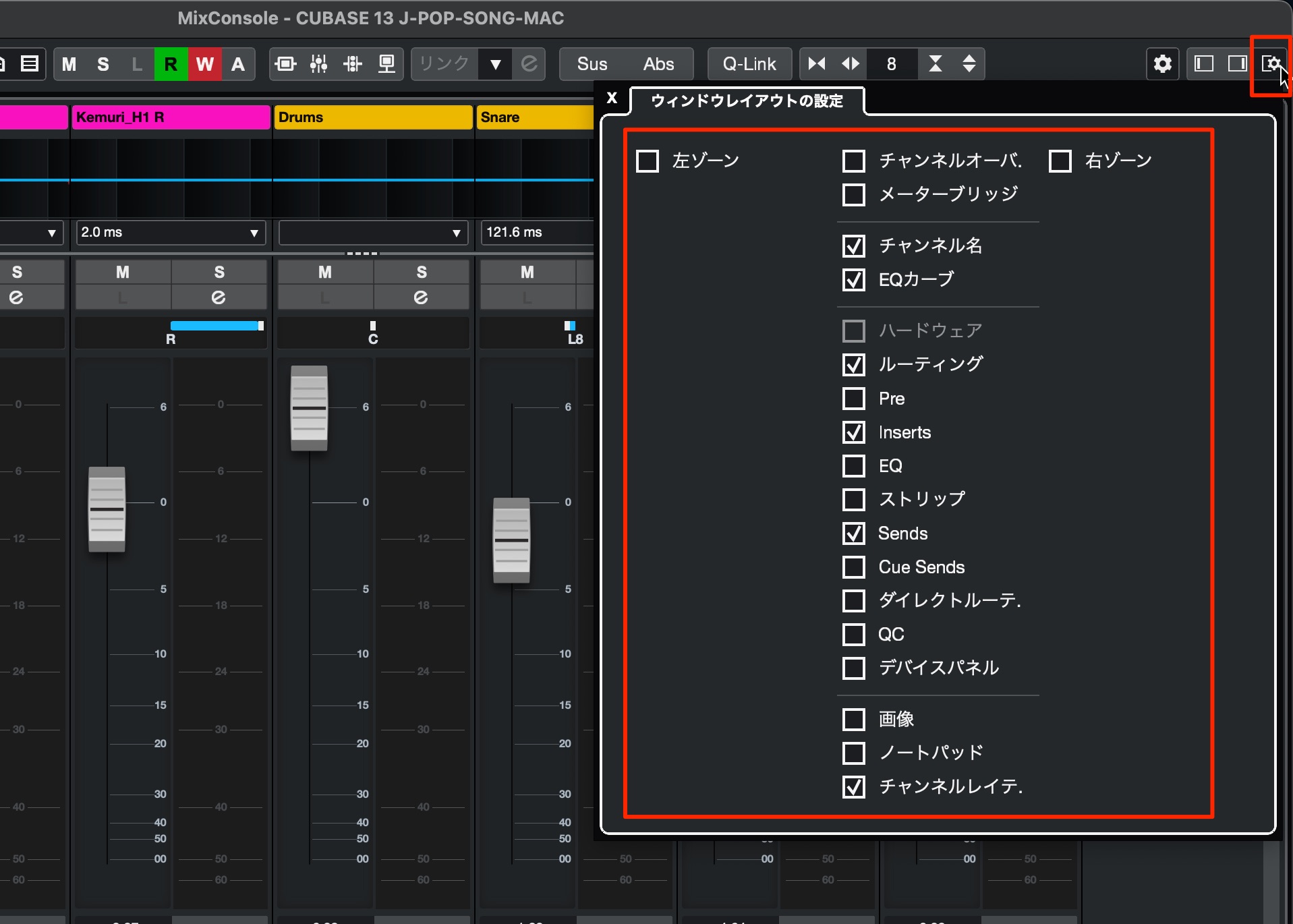
Window Layout also provides more detailed control over what appears.
New Chord Features
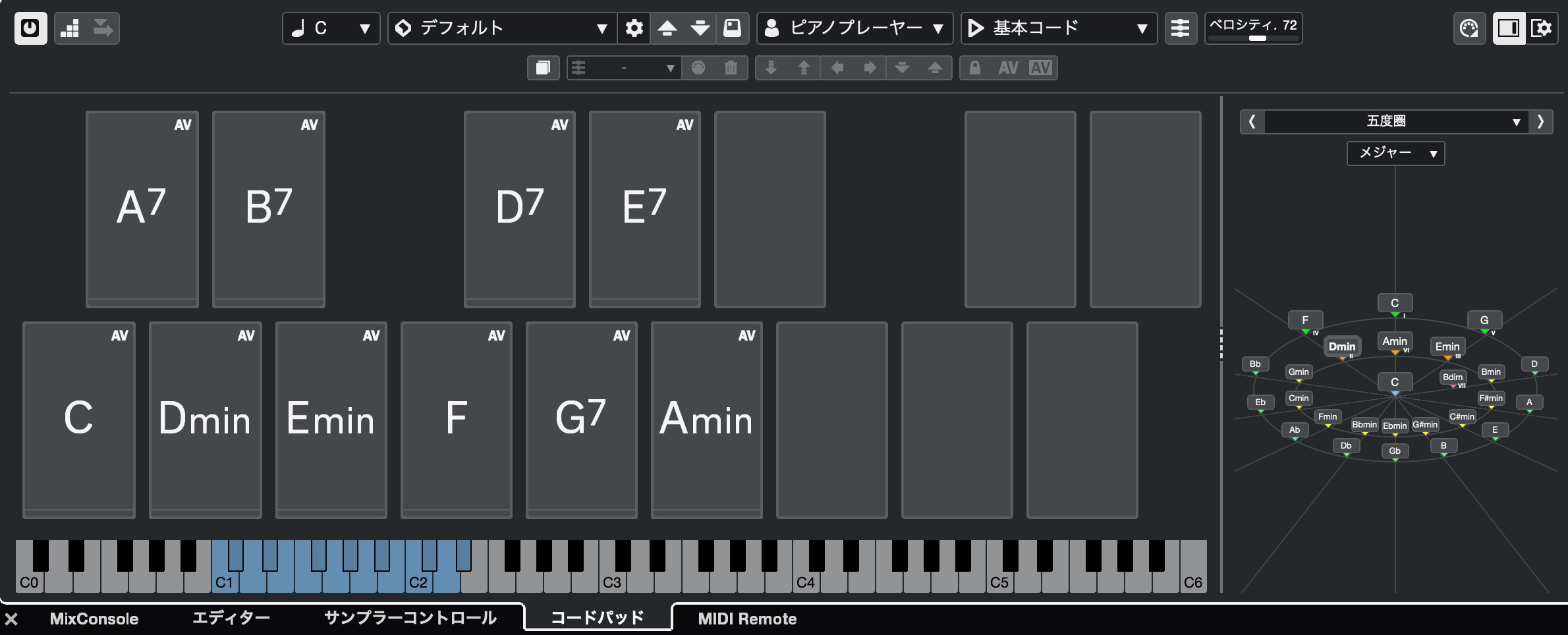
Chord features were introduced in Cubase 7.
They have continued to evolve and have become an essential part of Cubase for many users.
Version 13 refreshes their graphics and adds useful production functions.
Redesigned Chord Pads — All editions
An editor and assistant panel has been added to the right of the Chord Pads.
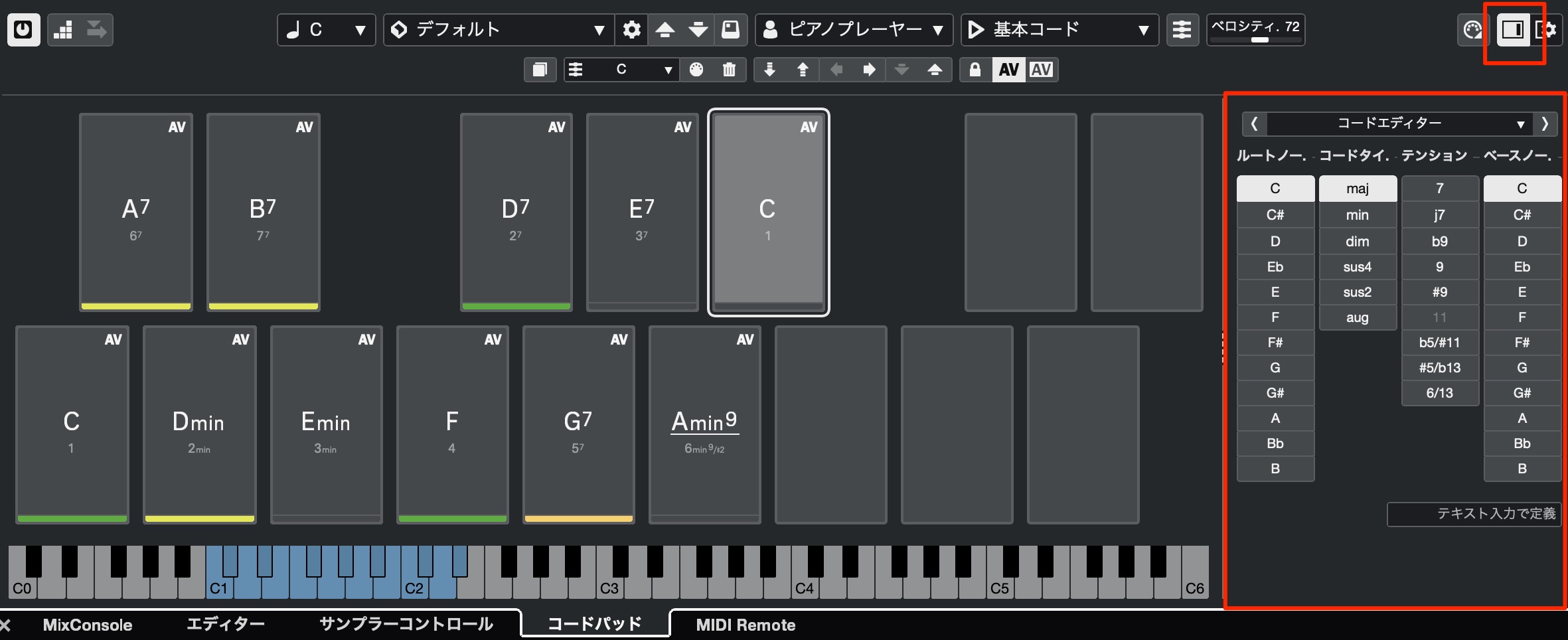
Having the information in one view makes it much easier to follow.
The design is more stylish too.
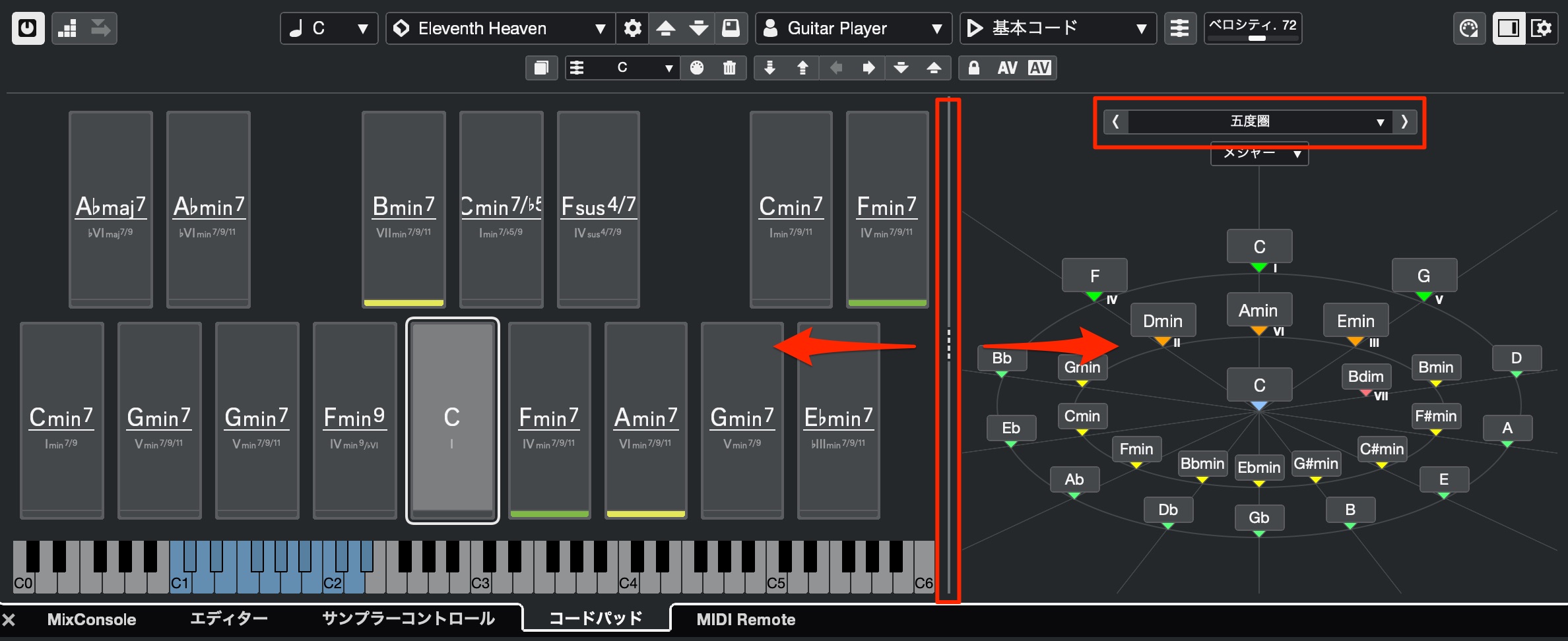
You can display the Chord Editor, a list or the Circle of Fifths, and adjust the panel width.
Display scale-degree names — All editions
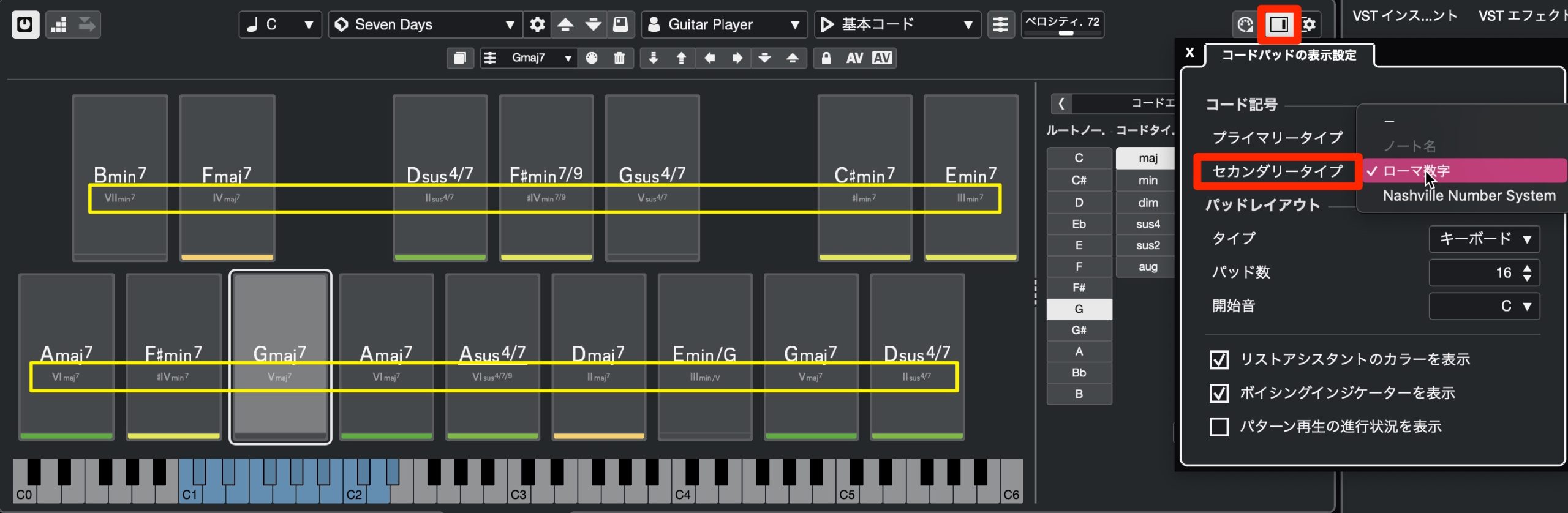
Use Secondary Type in the display settings to show scale-degree names below the chord names.
Choose major or minor keys in the Circle of Fifths — All editions
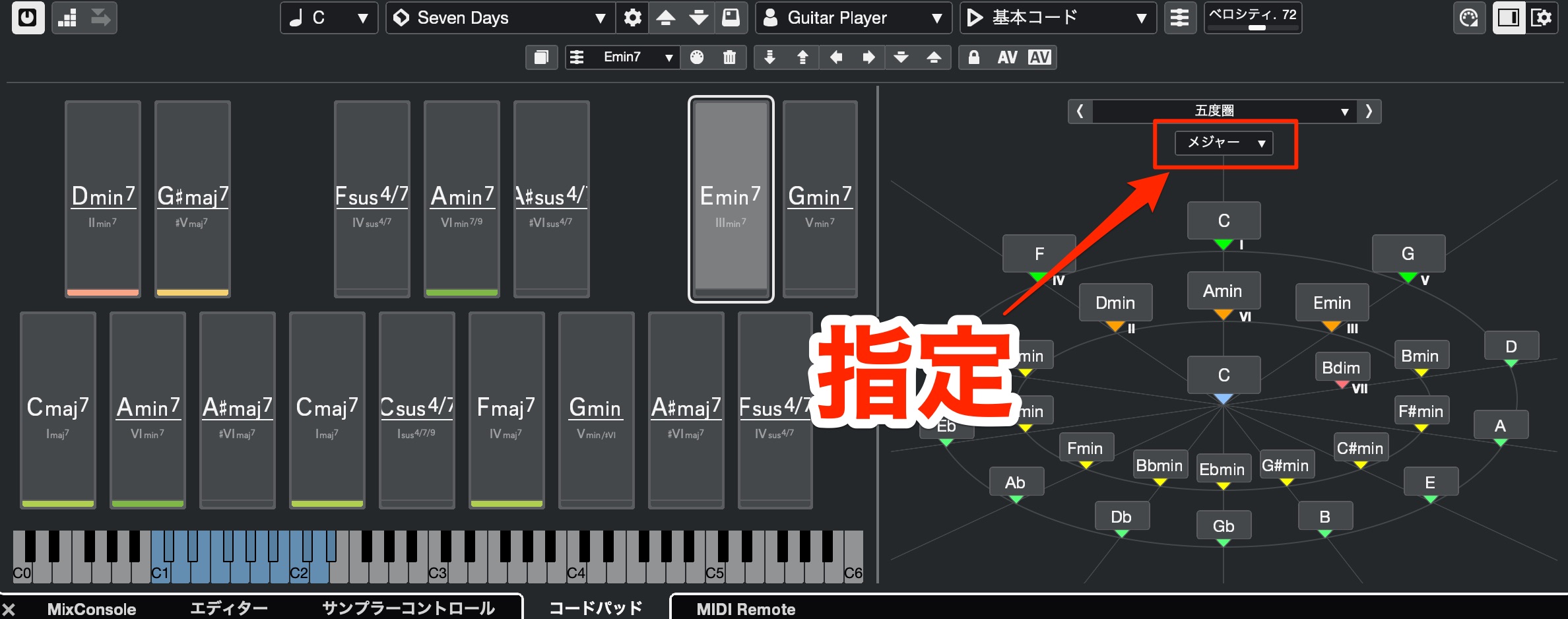
The Circle of Fifths menu now lets you specify a major or minor key.
Its contents change according to the major/minor selection.
Transpose Chord Pads — All editions
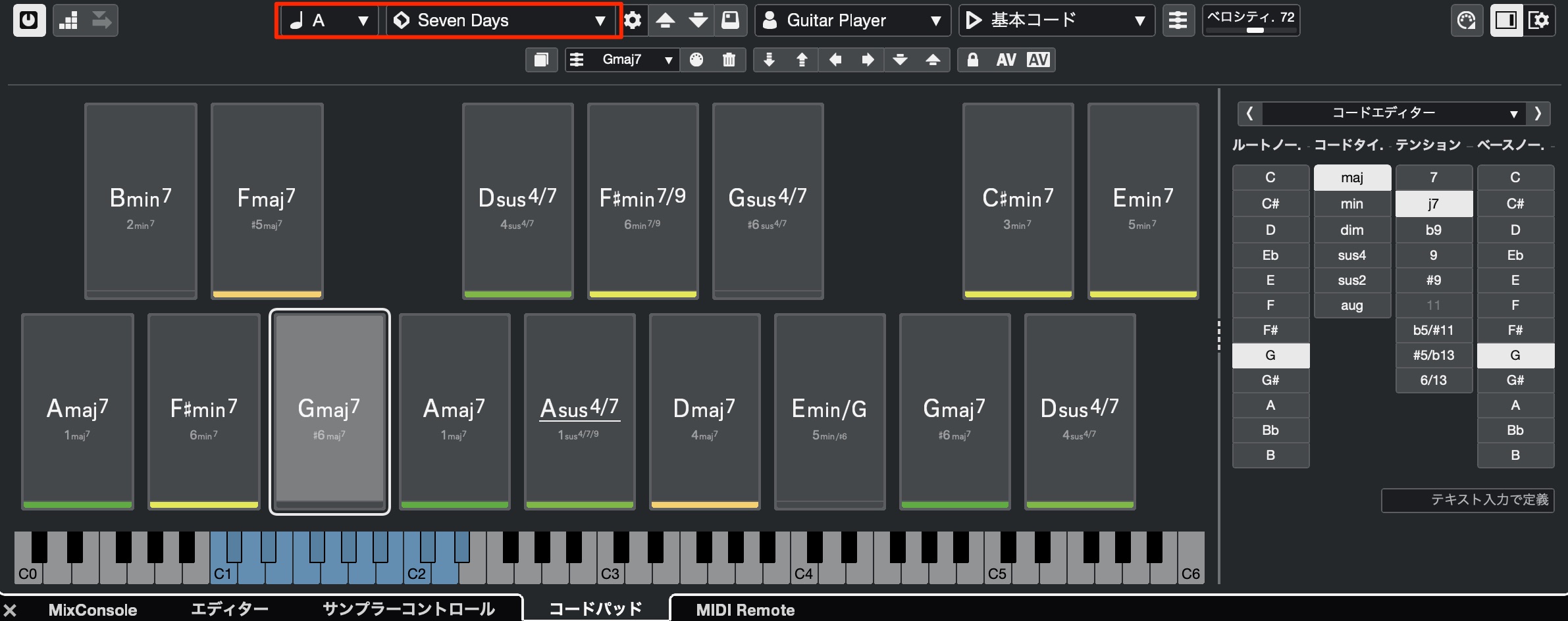
When you specify a key, the chords on the pads change automatically.
Chord presets have also moved to the right of the root setting, making them easier to access.
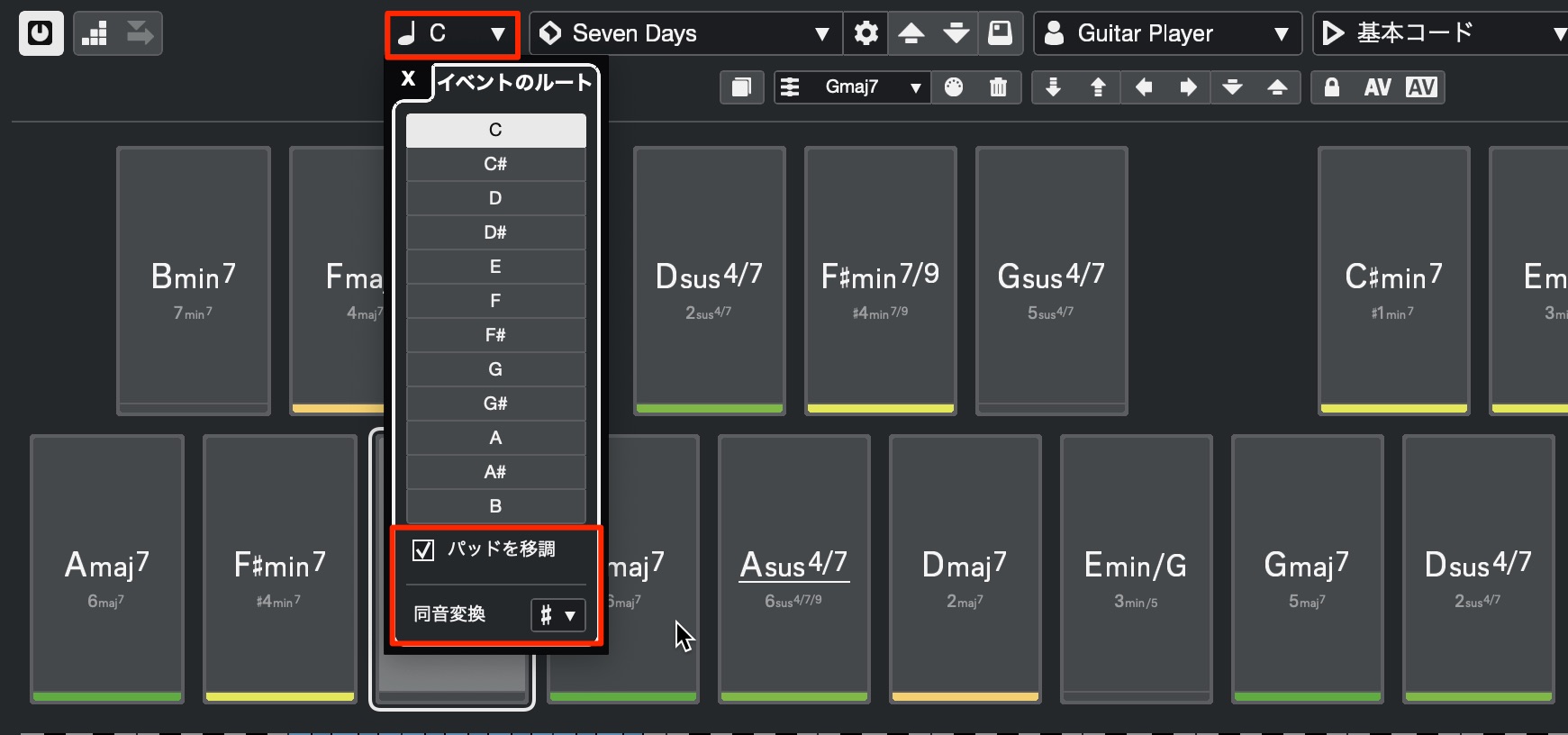
By default, changing the root transposes the pads. Uncheck Transpose Pads if you want to prevent the actual chords from changing.
The scale-degree labels beneath the chord names will still follow the selected root.
Control chords with the vertical mouse wheel — All editions
Move the mouse wheel vertically while pointing at a chord to change its settings.
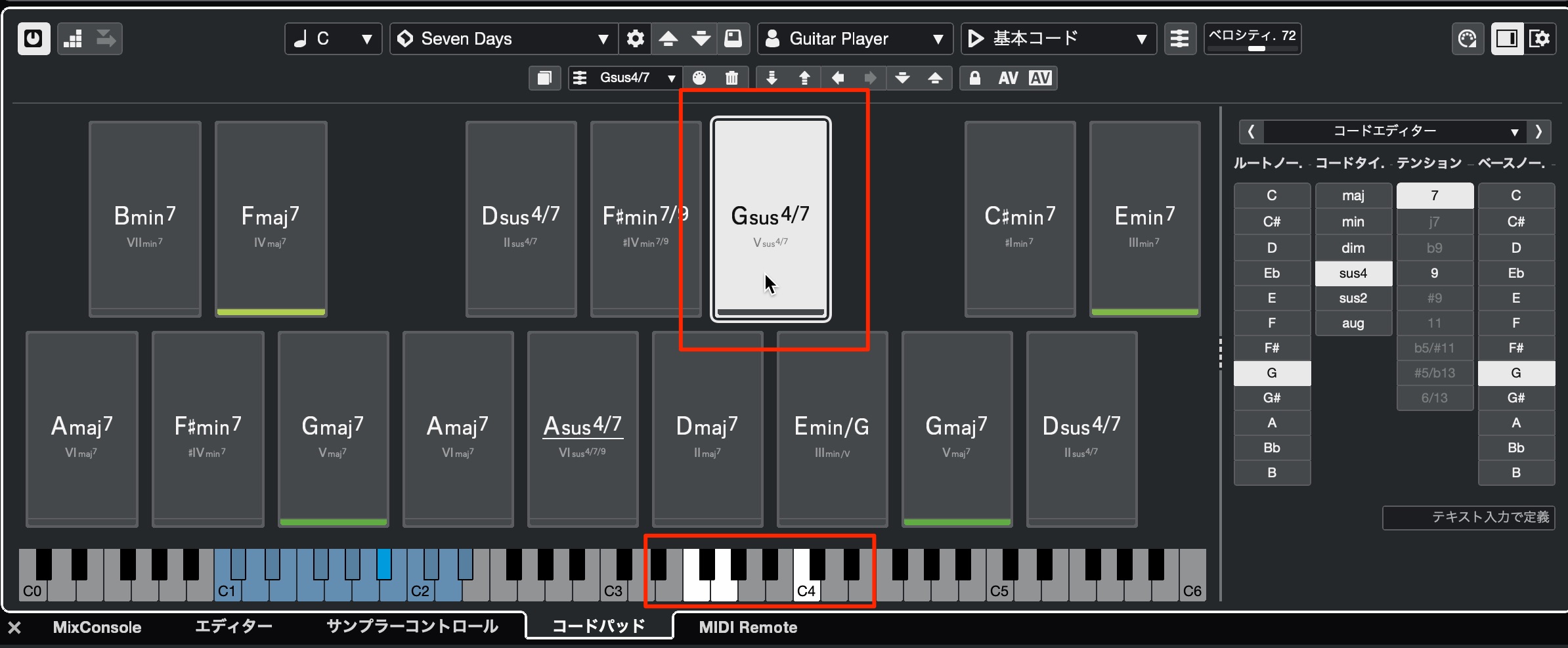
- Vertical mouse wheel: Change the chord voicing.
- Option (Alt) + vertical mouse wheel: Change the chord symbol.
- Shift + vertical mouse wheel: Transpose the chord.
Pad colors — All editions
Colors now appear beneath the Chord Pads.
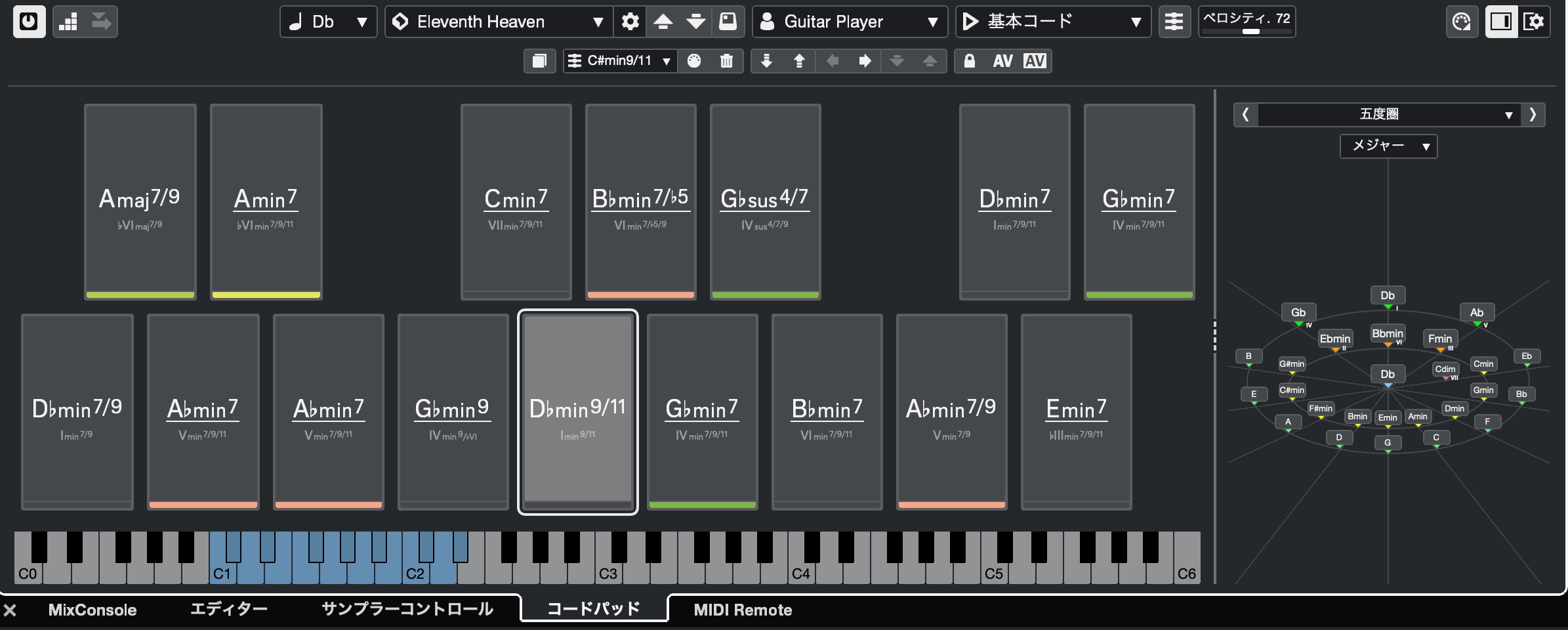
The colors change in relation to the selected pad to suggest how well other chords may fit.
The guide runs from red through orange and yellow to green, with green suggesting a closer musical fit. Treat this as an aid to exploration rather than a rule about which chords you can use.
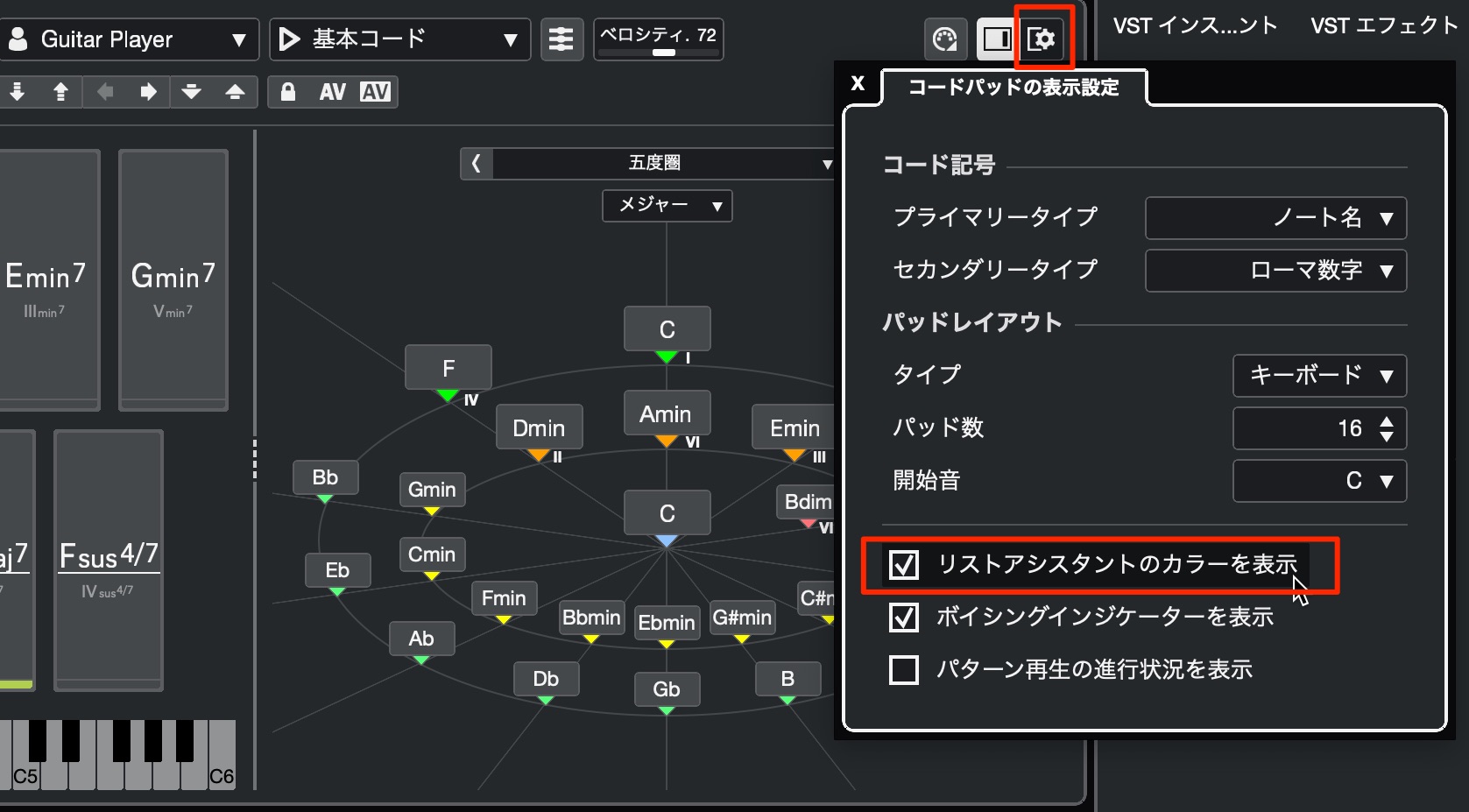
To enable or disable these colors, use the chord display settings.
Step input to the Chord Track — All editions
You can now enter chord names on the Chord Track from the pads.
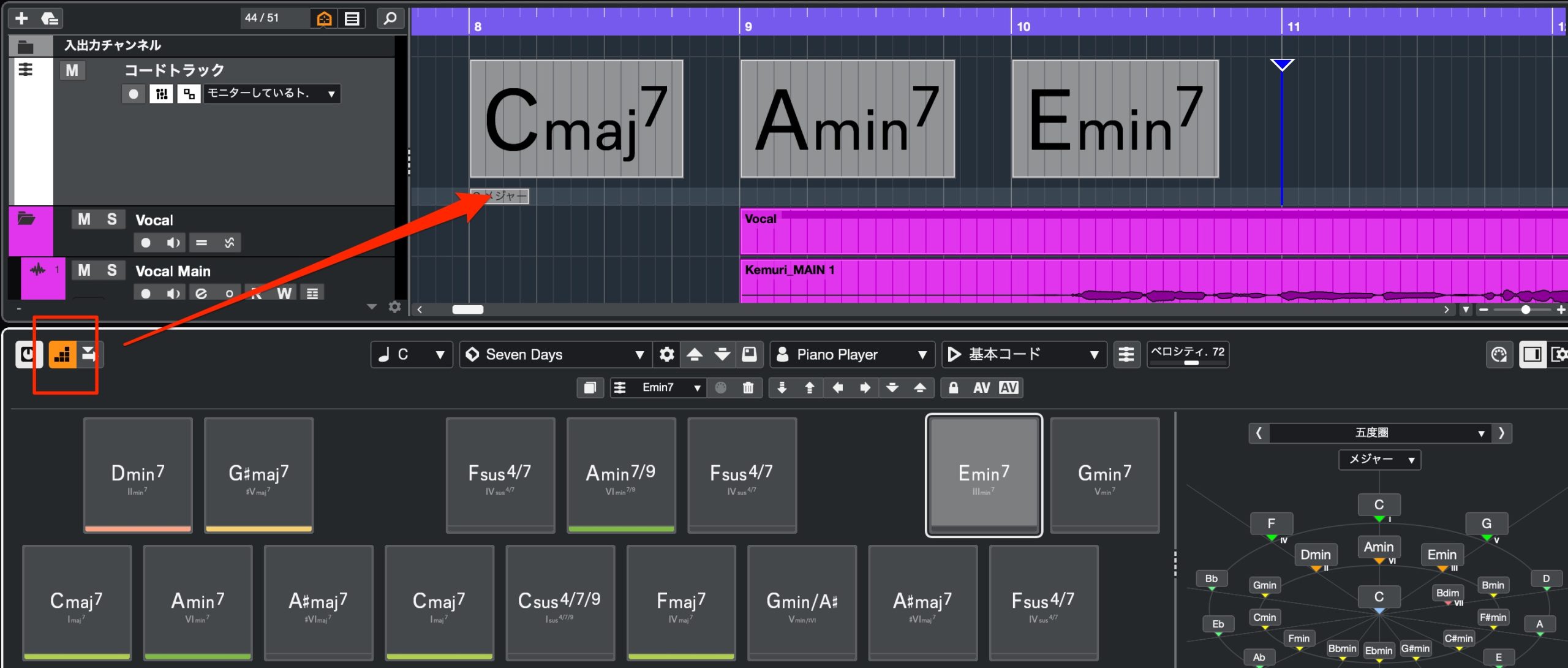
Enable the step-input button and press the pads to enter the chords.
MIDI Step Input
MIDI step input has also received improvements.
Input position linked to the playback cursor — All editions
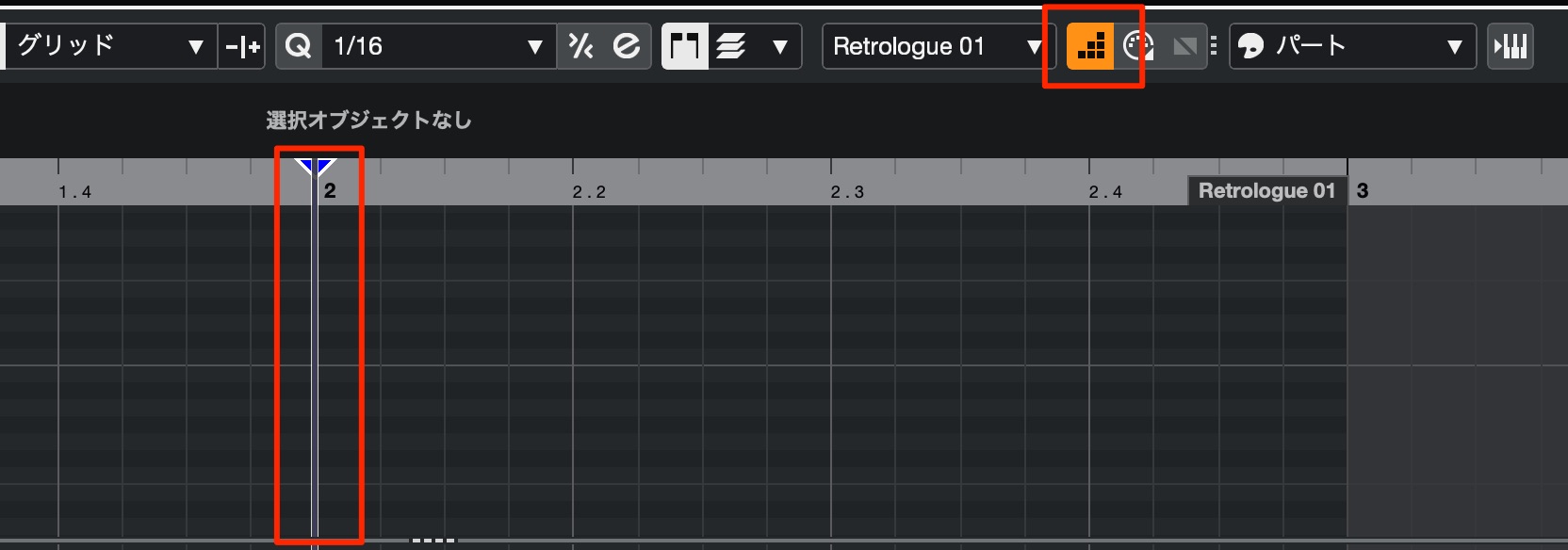
The starting position for MIDI step input now follows the playback cursor.
This applies when positioning it with the mouse; it does not follow when using key commands.
After entering a note, Undo also moves the step-input position back.
This should make note entry more intuitive.
Change note length during input — All editions
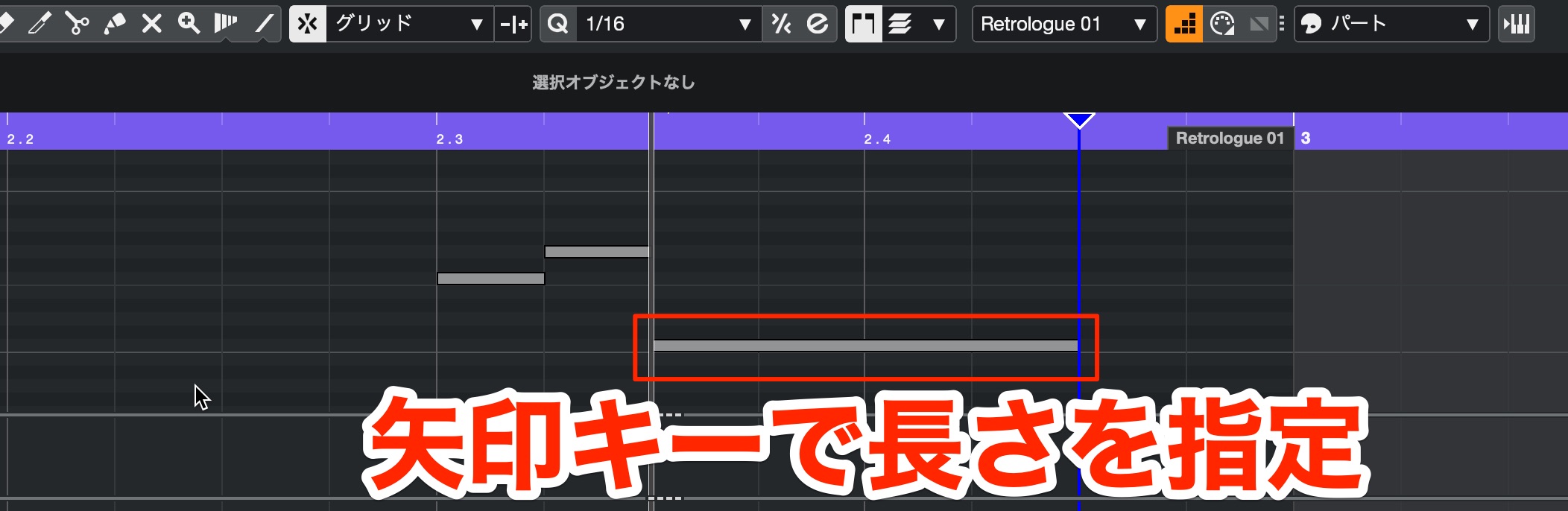
While holding down notes on your MIDI keyboard, press the left or right arrow key on your computer keyboard to change their length before completing entry.
The length increment depends on the quantize value.
—
Polyphonic input — All editions
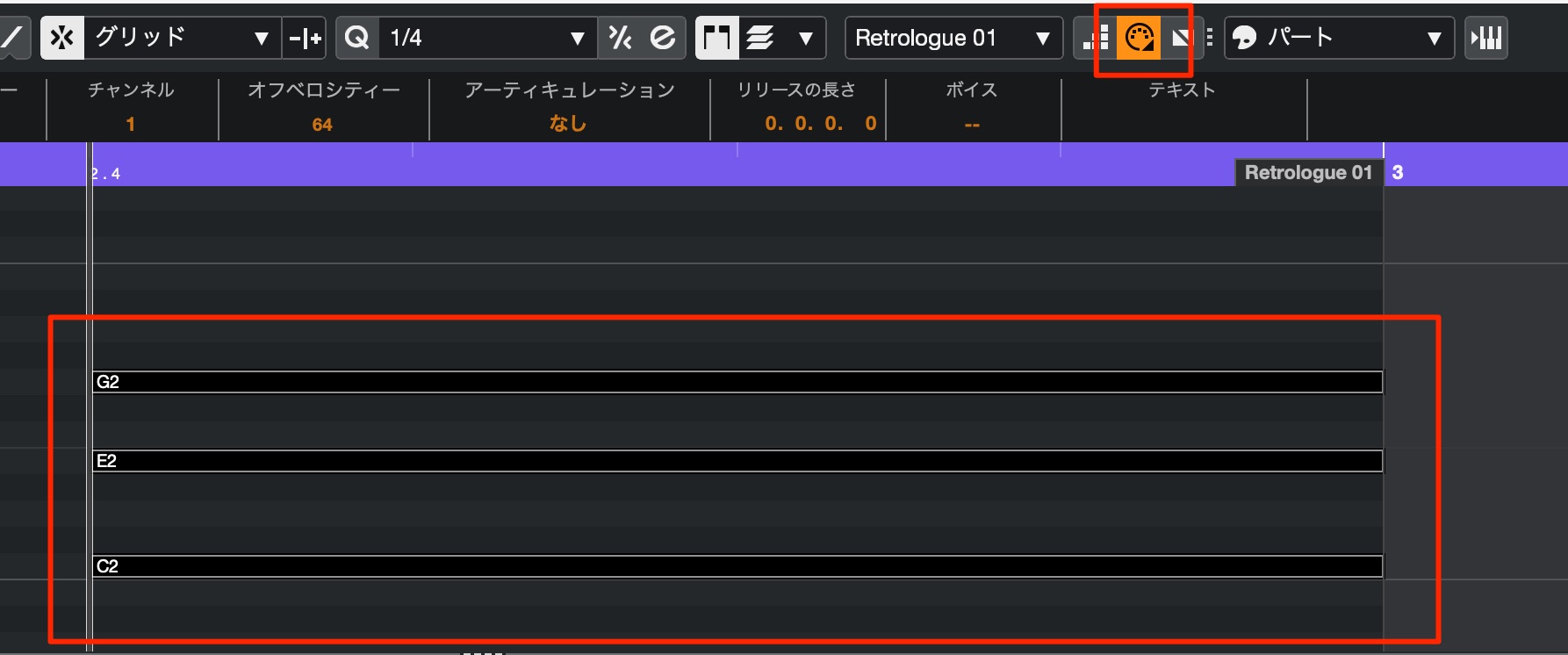
Changing the pitches of existing notes now also supports chords.
Notes are entered when you release all the keys.
You can therefore keep the keys held down while checking how the chord sounds.
MIDI Editing
Alongside the step-input improvements, MIDI editing has been expanded.
Range Selection tool in the Key Editor — All editions
The Range Selection tool, previously available in the Project window, can now be used in the Key Editor and Drum Editor.
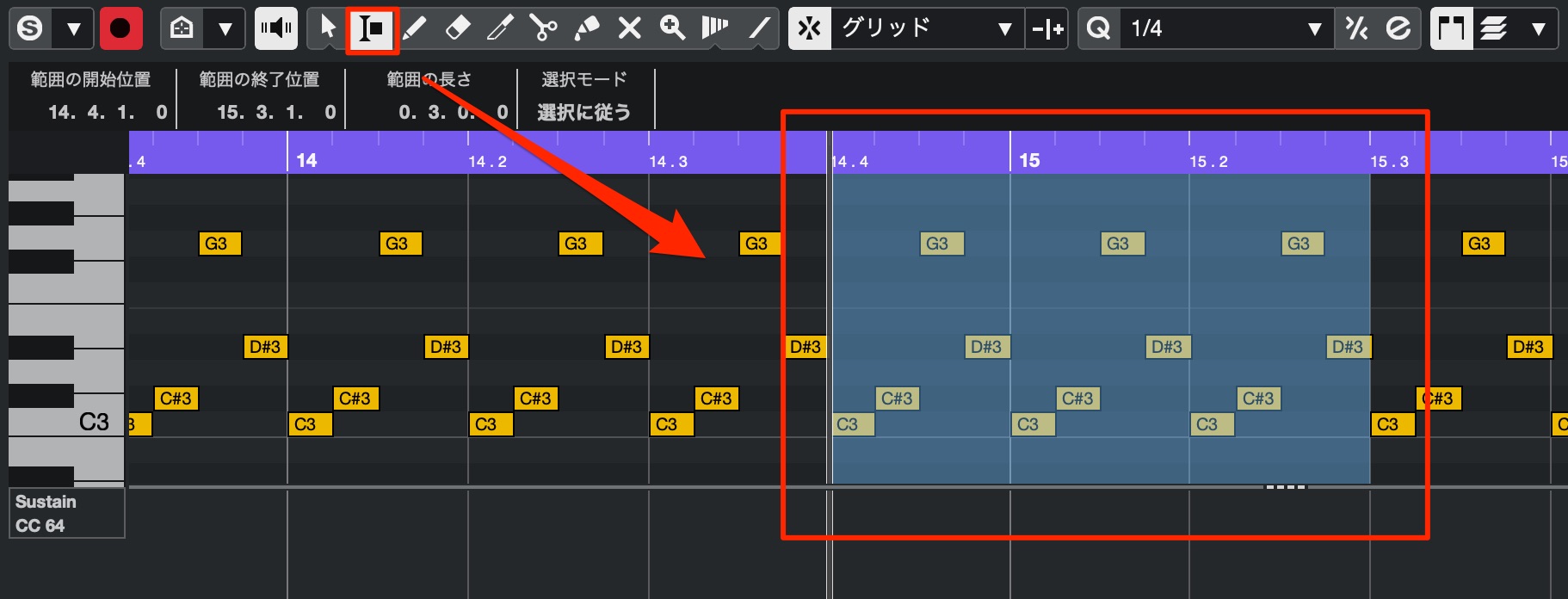
It makes editing groups of notes faster and more efficient.
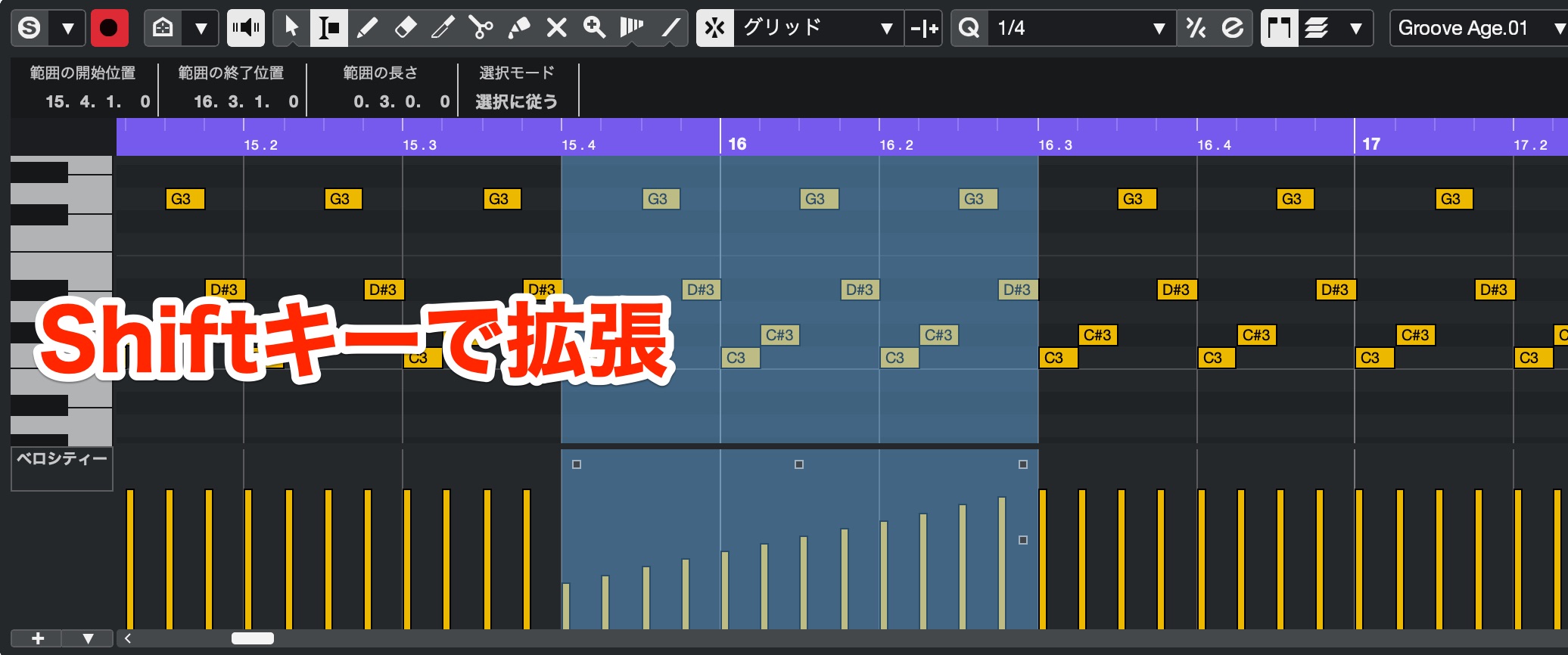
You can also select ranges in controller lanes.
Hold Shift while selecting to extend a selection.
Command + Shift also lets you select the full vertical range of notes and controllers in the demonstrated Mac workflow.
Expanded multi-part editing — PRO only
The Key and Drum Editors have been expanded for editing multiple parts.
This is useful when arranging strings, for example, where you need to see several tracks together.
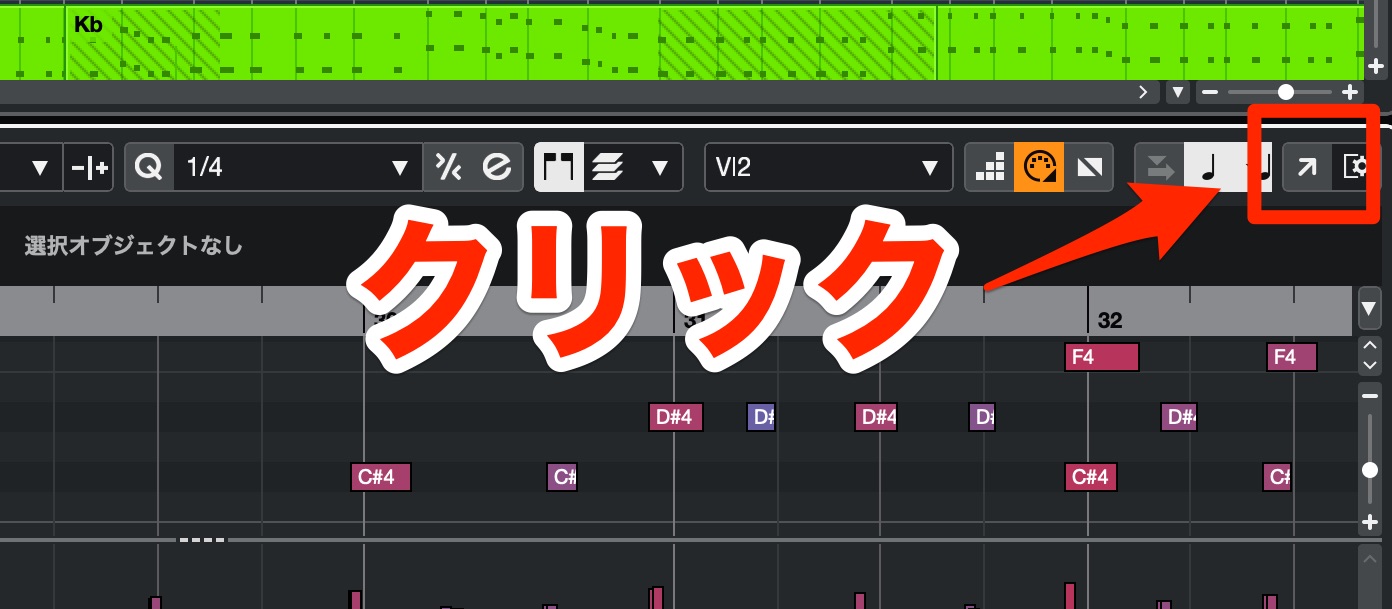
Click the arrow icon at the top of the Key Editor to expand the display.
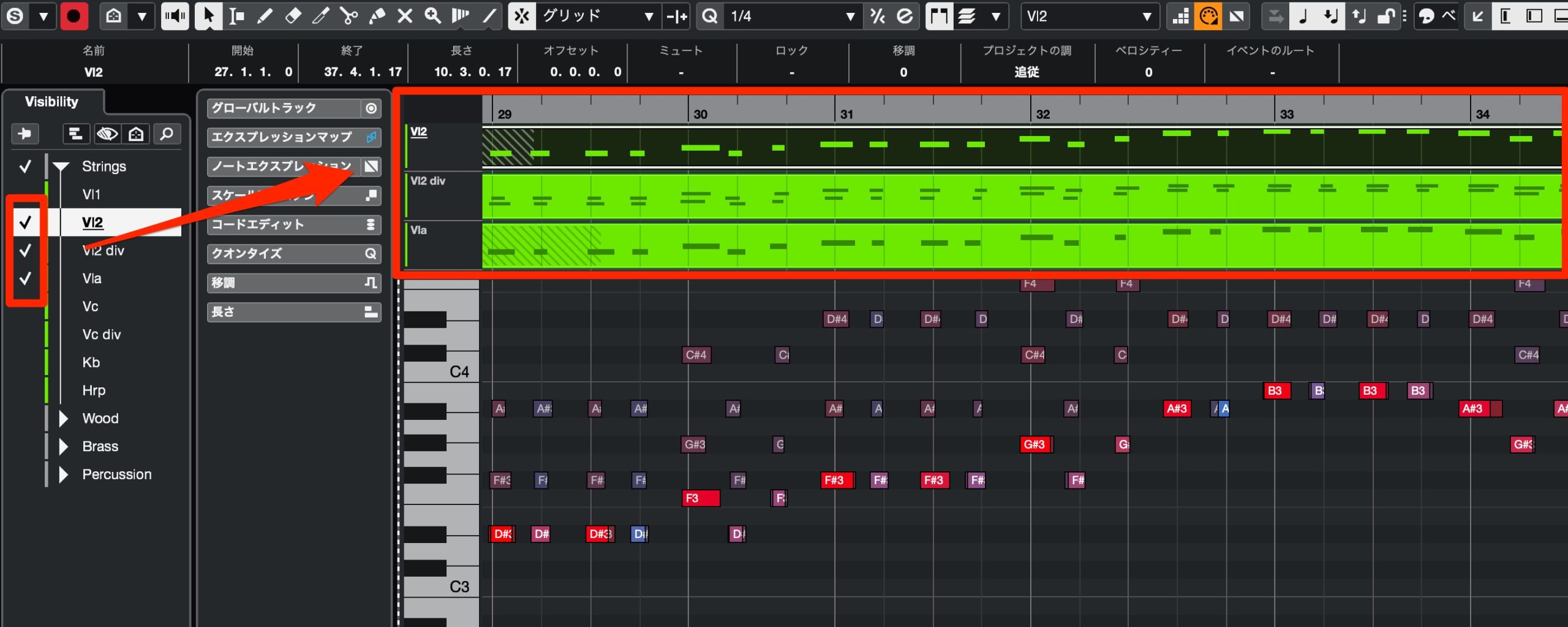
Check the tracks you want to view and edit to show their MIDI notes in the Key Editor.
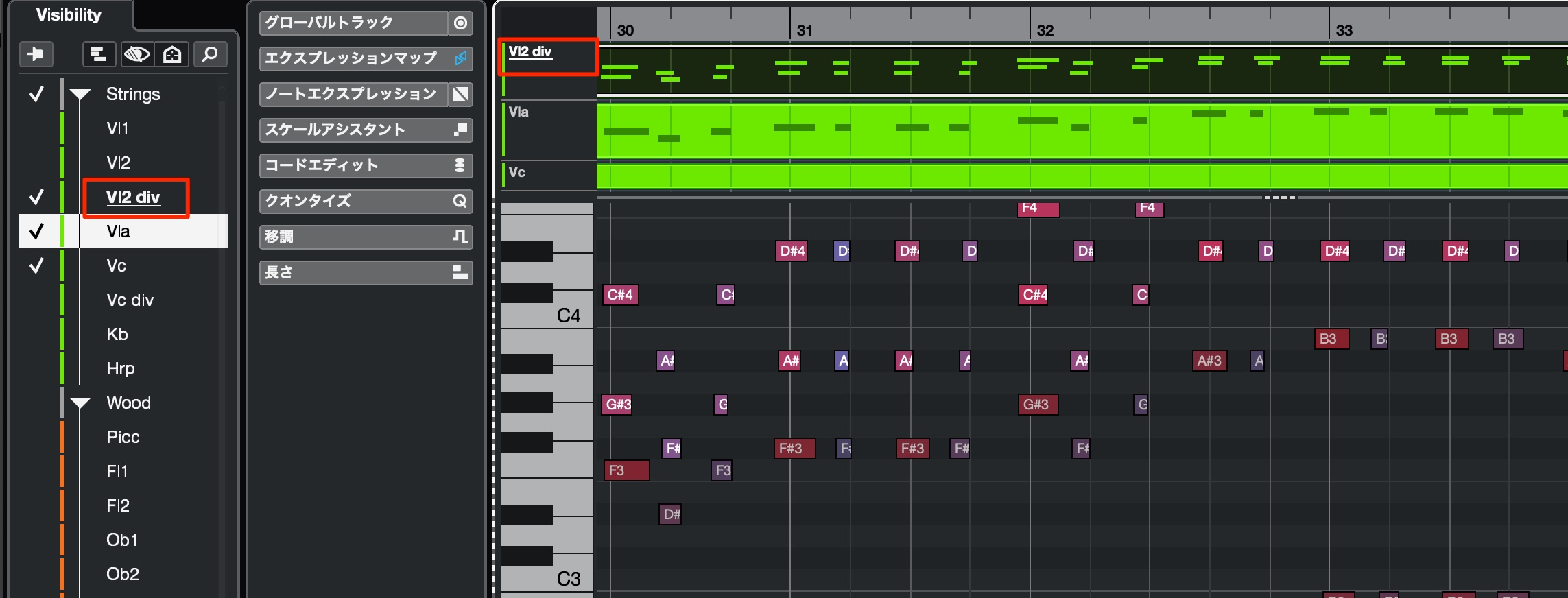
Select a track to make it the editing target.
A line below its name identifies the active track.
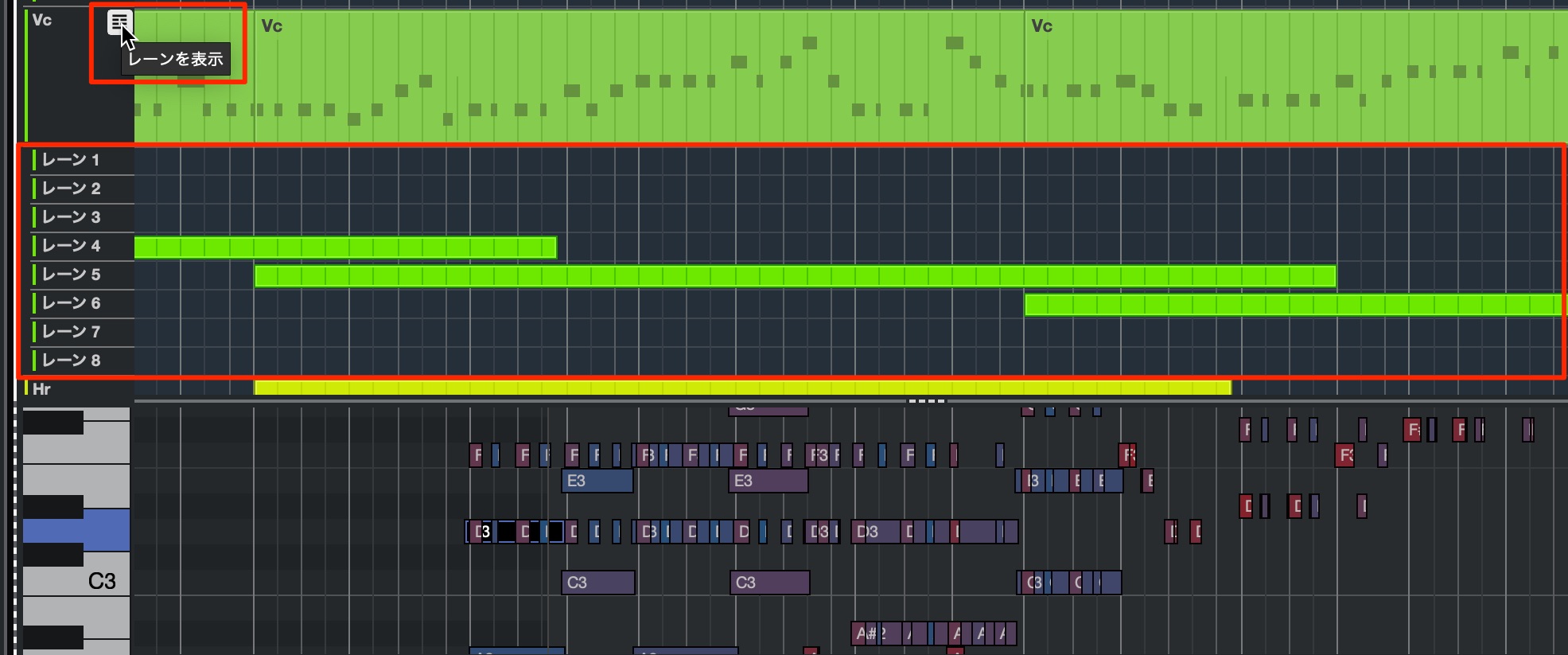
You can also display the parts contained in the lanes and switch between them.
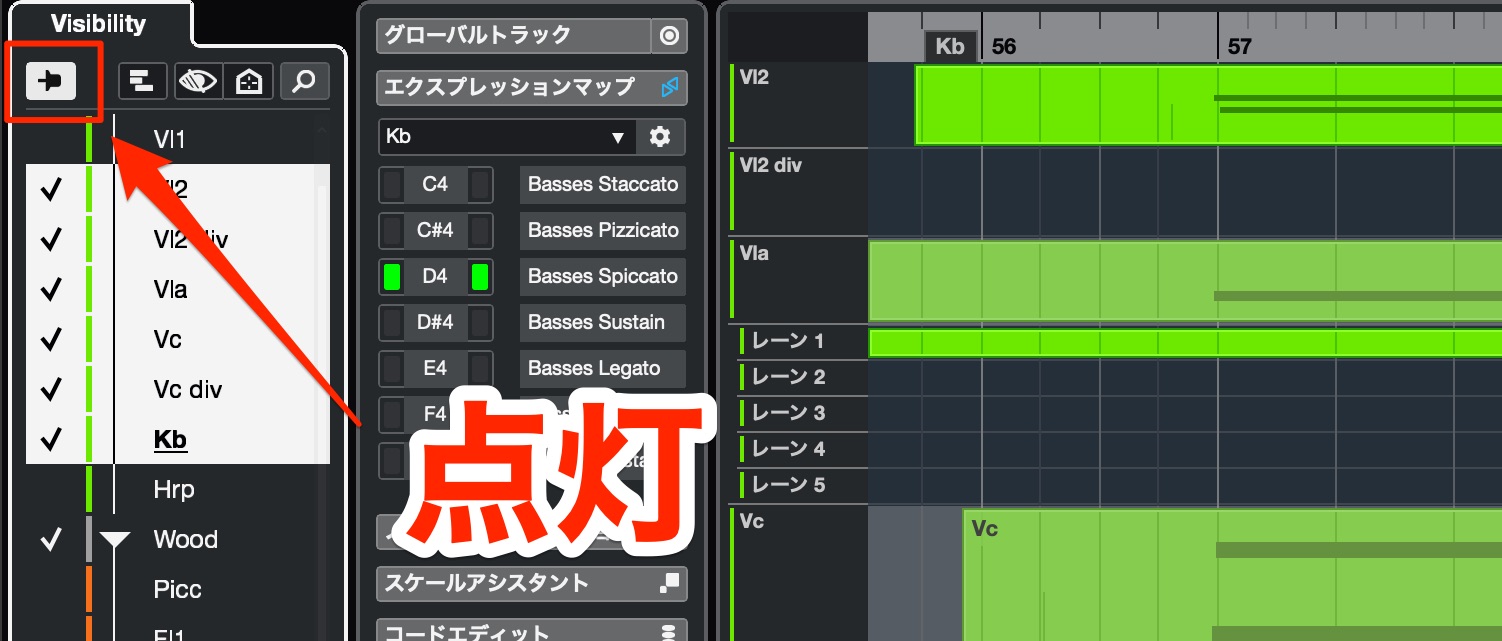
Enable the pin to keep each track visible independently of track and event selection in the Project window.
Higher-resolution MIDI and MIDI 2.0 — All editions
With this version, Cubase introduced higher-resolution MIDI editing in preparation for MIDI 2.0 workflows.
MIDI 2.0 provides for higher-resolution velocity, CC, aftertouch, pitch-bend and polyphonic-pressure data.
For example, velocity can offer 65,536 steps rather than 128, allowing much finer control of expression when the relevant software and devices support it.
Cubase 13 can handle higher-resolution values such as those shown below.
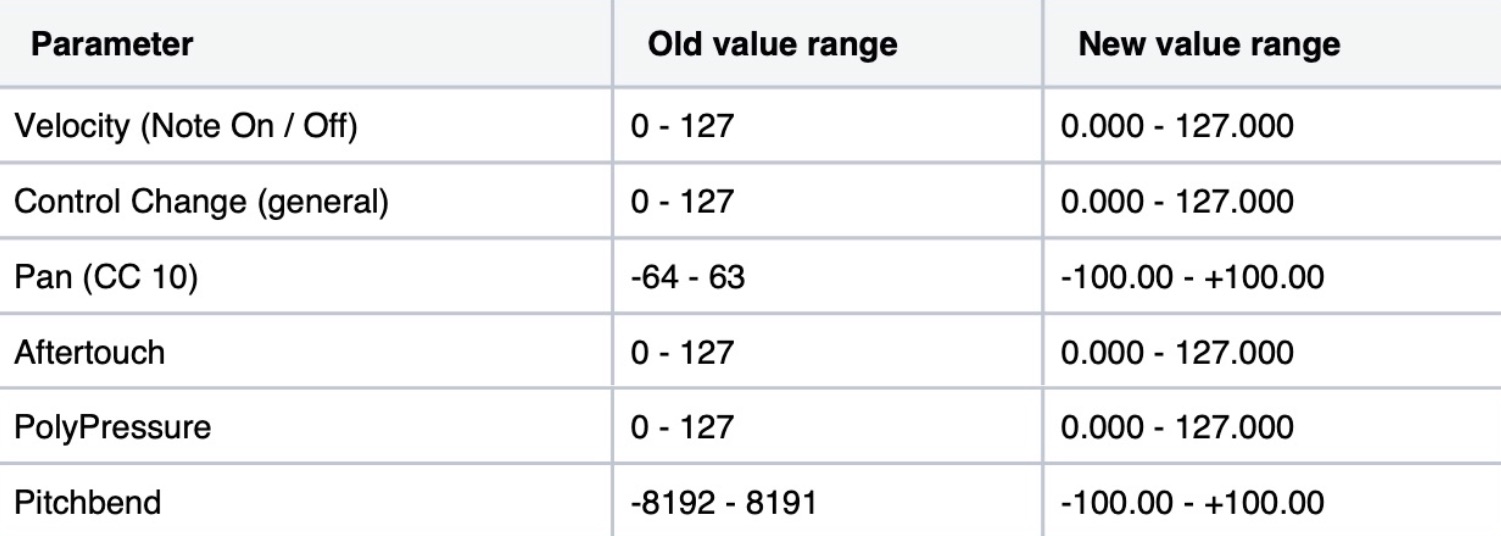
At the article's November 2023 publication, compatible MIDI keyboards and software instruments were still scarce, and Windows MIDI 2.0 support was not yet available. This describes the launch-period situation, not current platform support.
We looked forward to further developments; Steinberg's investment in higher-resolution editing was encouraging.
Here is the preference used to display the higher-resolution MIDI values.
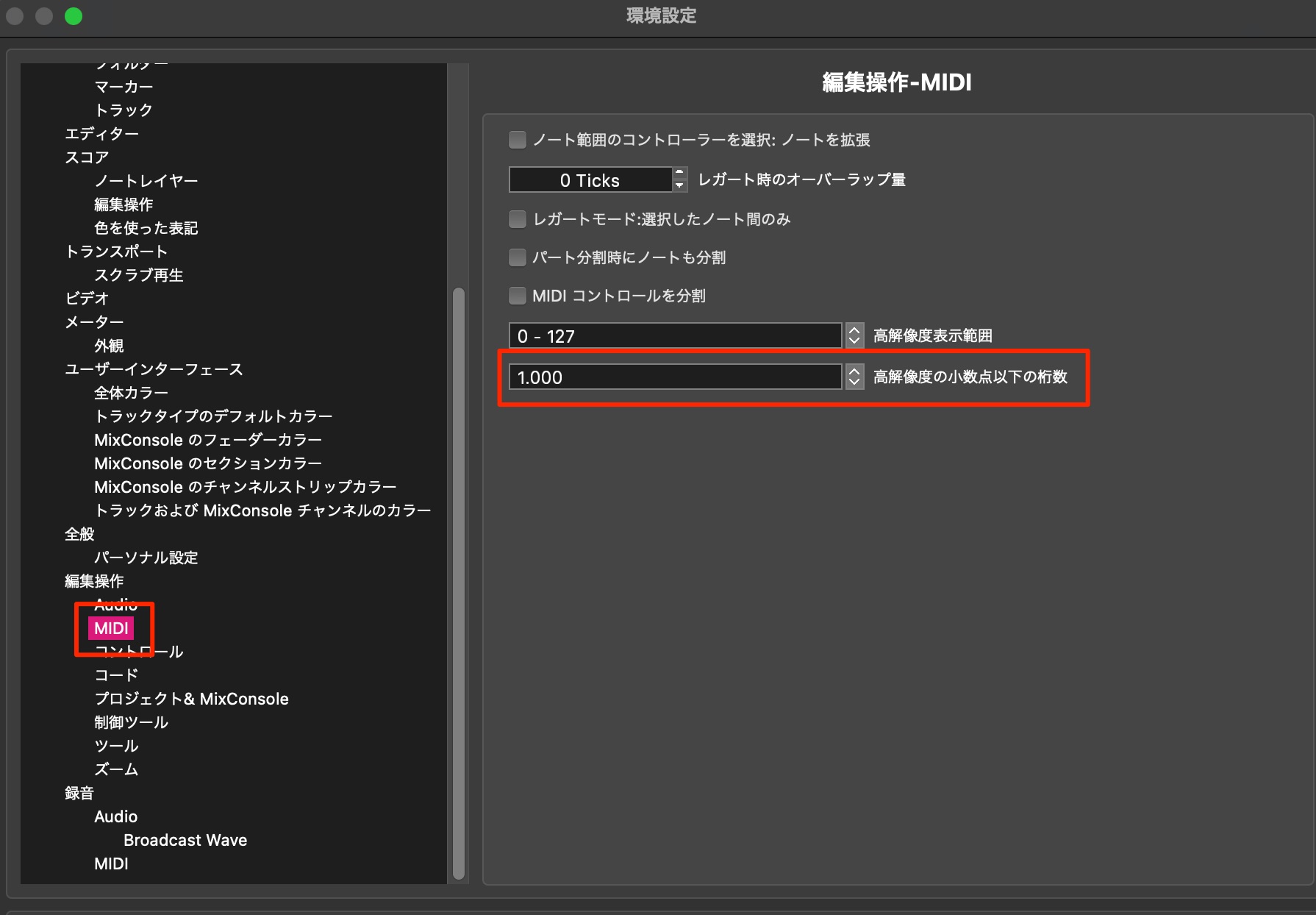
Open MIDI in Preferences.
Increase the High Resolution Decimal Places setting beyond its initial value, as illustrated.
The example displays the value “1.000”.
This completes the display-precision setup.
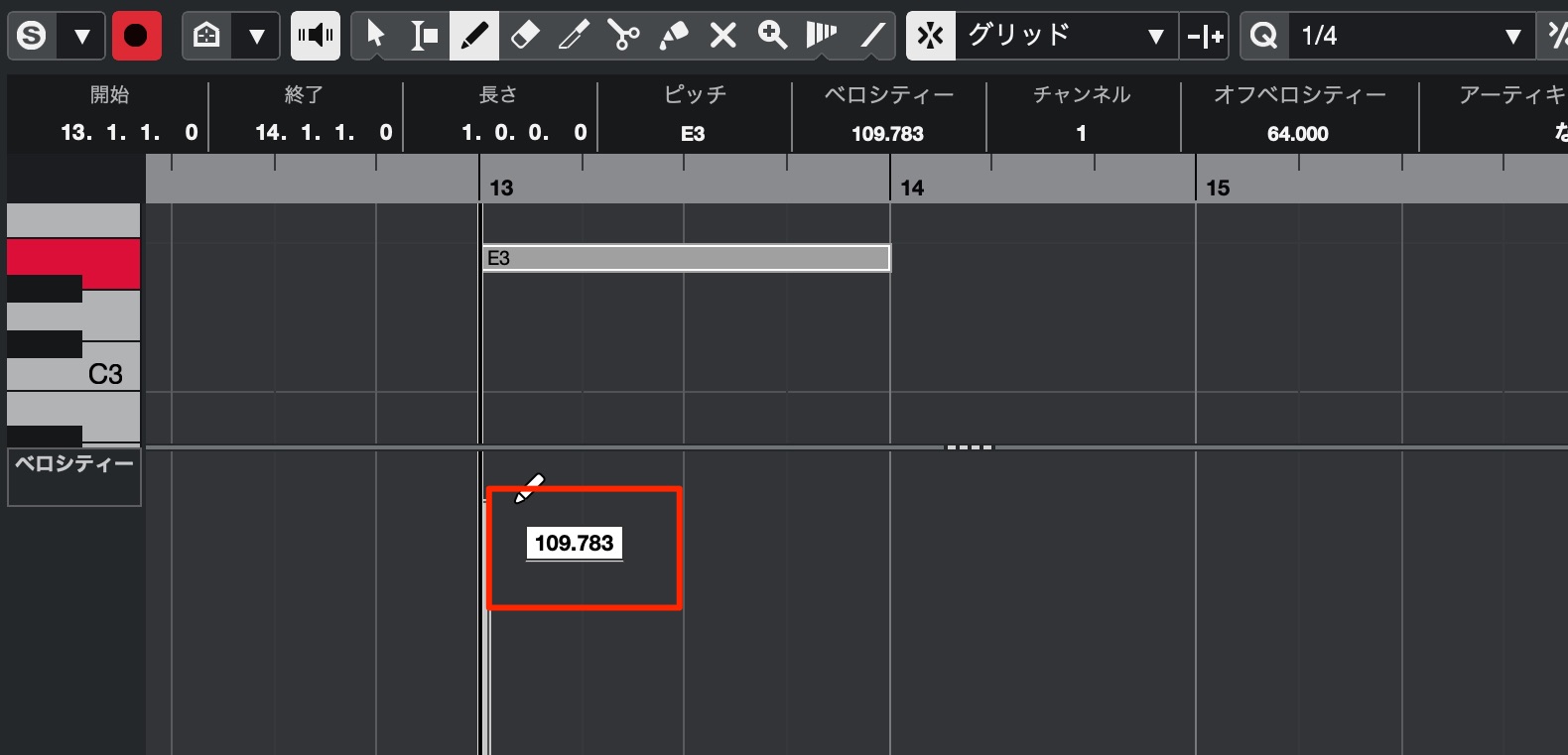
You can now work with the finer MIDI values shown here. This preference controls their display precision; it does not itself enable MIDI 2.0 communication with external hardware.
At launch, the List Editor, Logical Editor and Key Editor supported these values, while MIDI plug-ins, MIDI Modifiers and velocity in the info line did not yet do so.
We looked forward to more products adopting MIDI 2.0.
Sampler Track
Sampler Track, which lets you turn audio material into a playable instrument, also gains new features.
Additional modes for different source material — PRO/ARTIST/ELEMENTS only
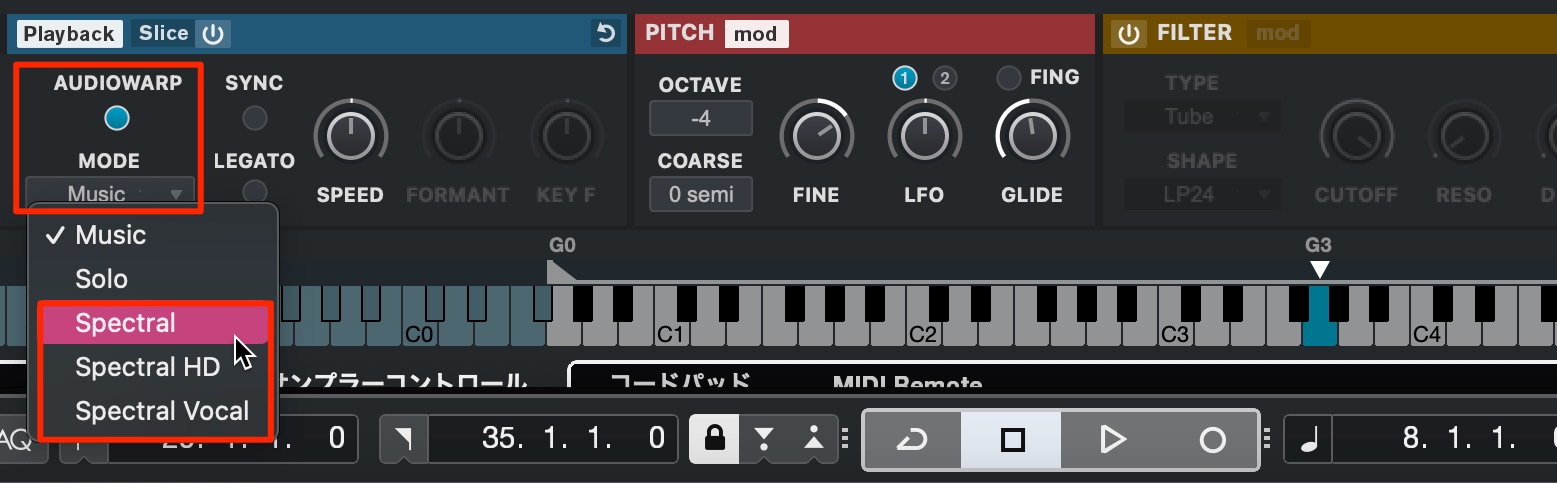
Three modes have been added to AudioWarp, which controls the playback speed of imported audio.
Choosing an appropriate mode for the source helps preserve sound quality when changing playback speed.
- Spectral: A versatile mode for solo instruments, vocal loops and similar material.
- Spectral HD: Suited to low-frequency or spectrally dense material.
- Spectral Vocal: Suited to processing vocals.
—
Envelope Toolbar — PRO/ARTIST/ELEMENTS only
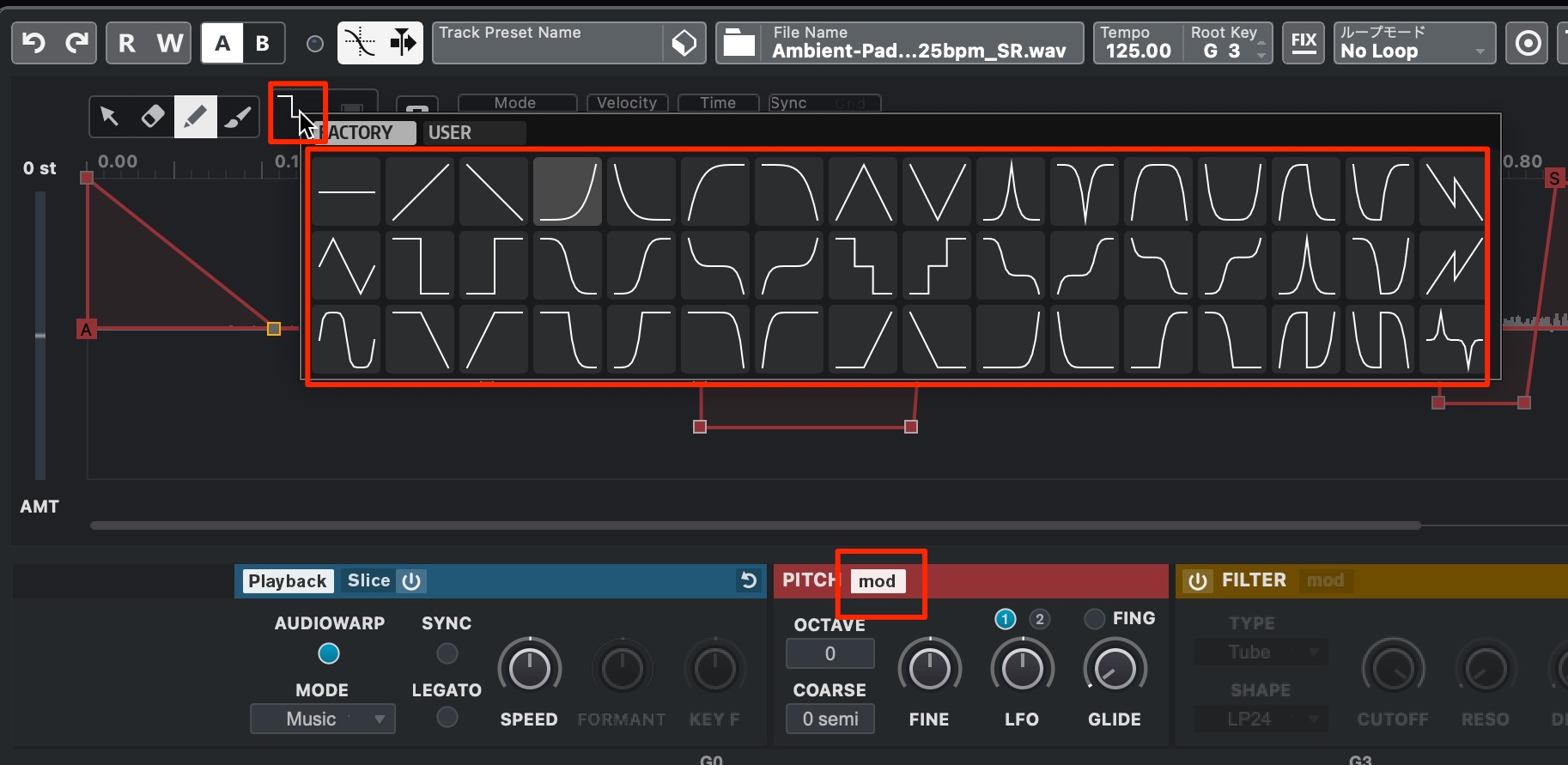
A range of curve shapes is now available for adjusting modulation envelopes.
Choose a shape and draw it in.
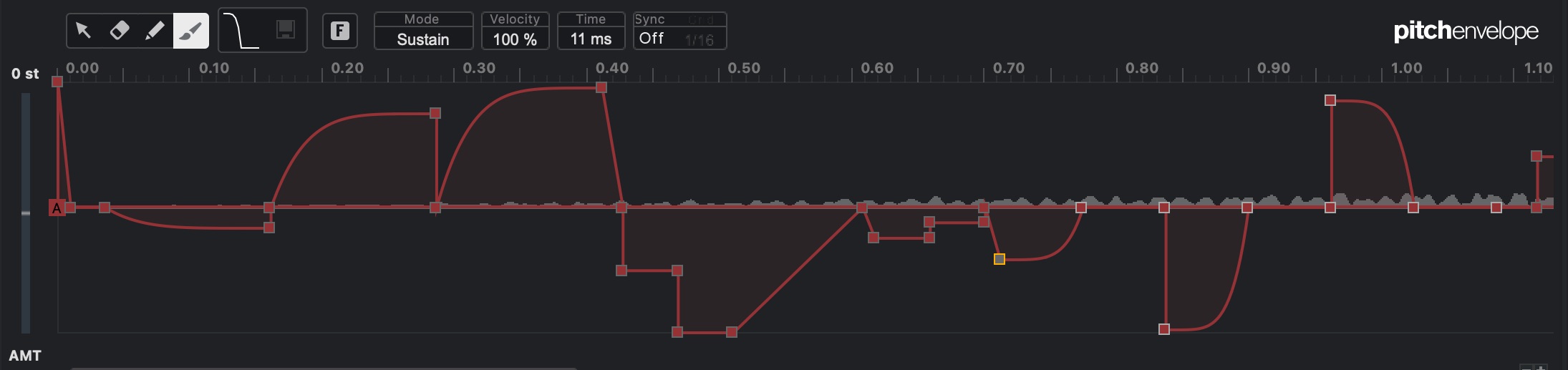
This makes complex curves easy to create.
We also found it useful for designing sound effects.
Tracks and Routing
More flexible audio routing — All editions
You can now use the output of an instrument or sampler track as the input to an audio track.
Sampler tracks are not available in AI or LE.
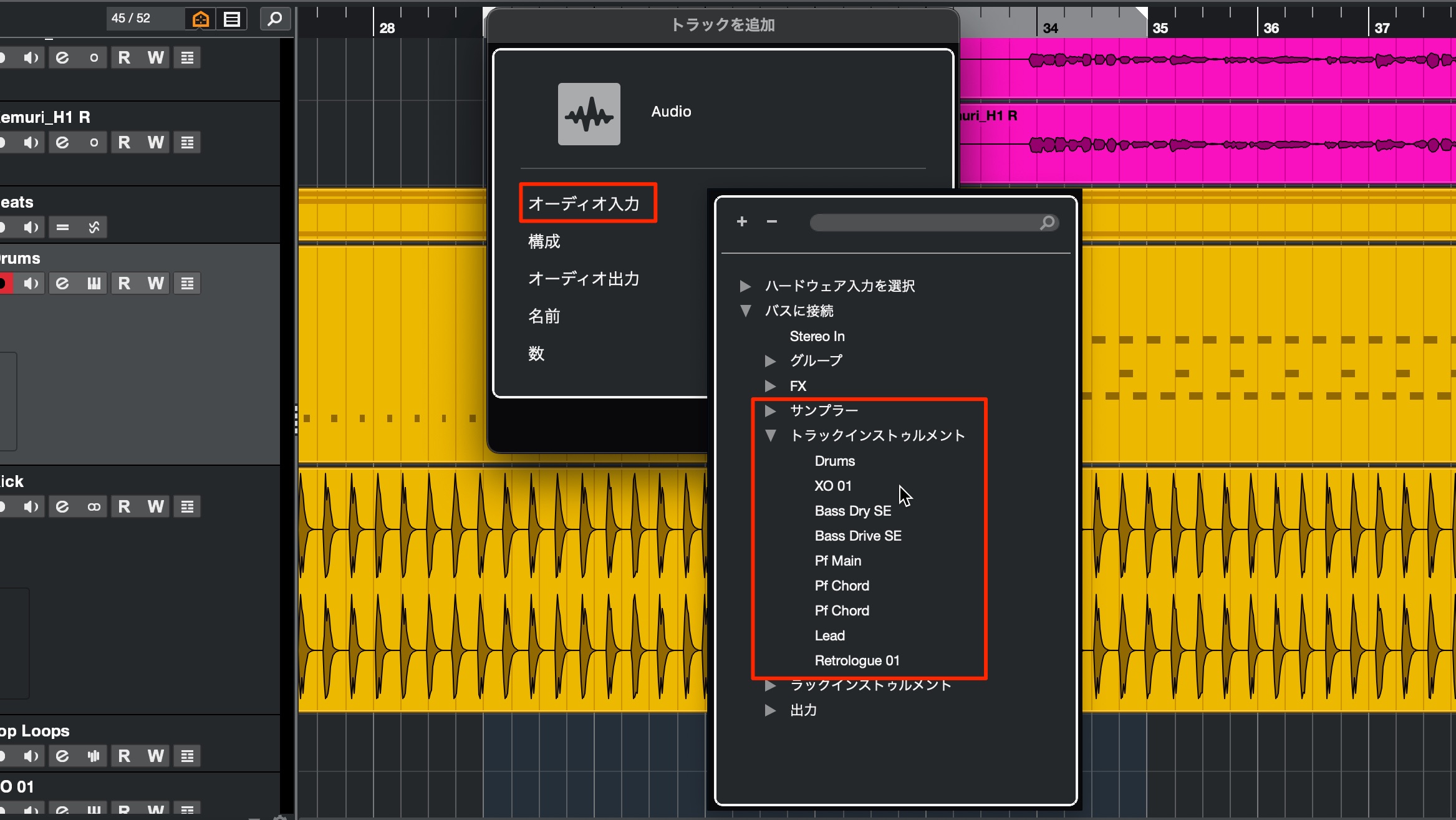
All eligible tracks appear among the available audio inputs, as shown here.
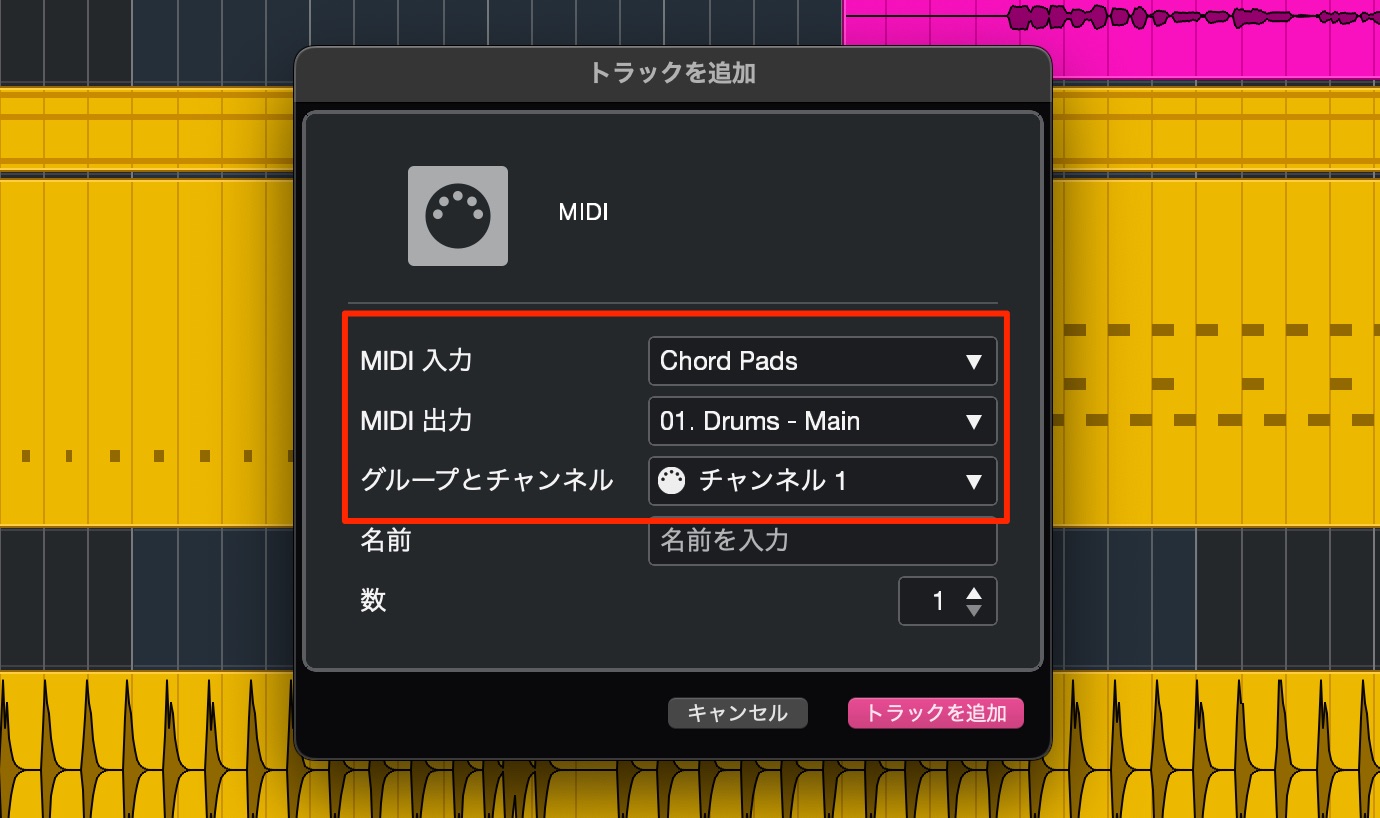
You can also specify MIDI input and output when creating a MIDI track.
Switch between mono and stereo — All editions
Tracks can now be switched between mono and stereo.
This applies to audio tracks, group channels and FX channel tracks.
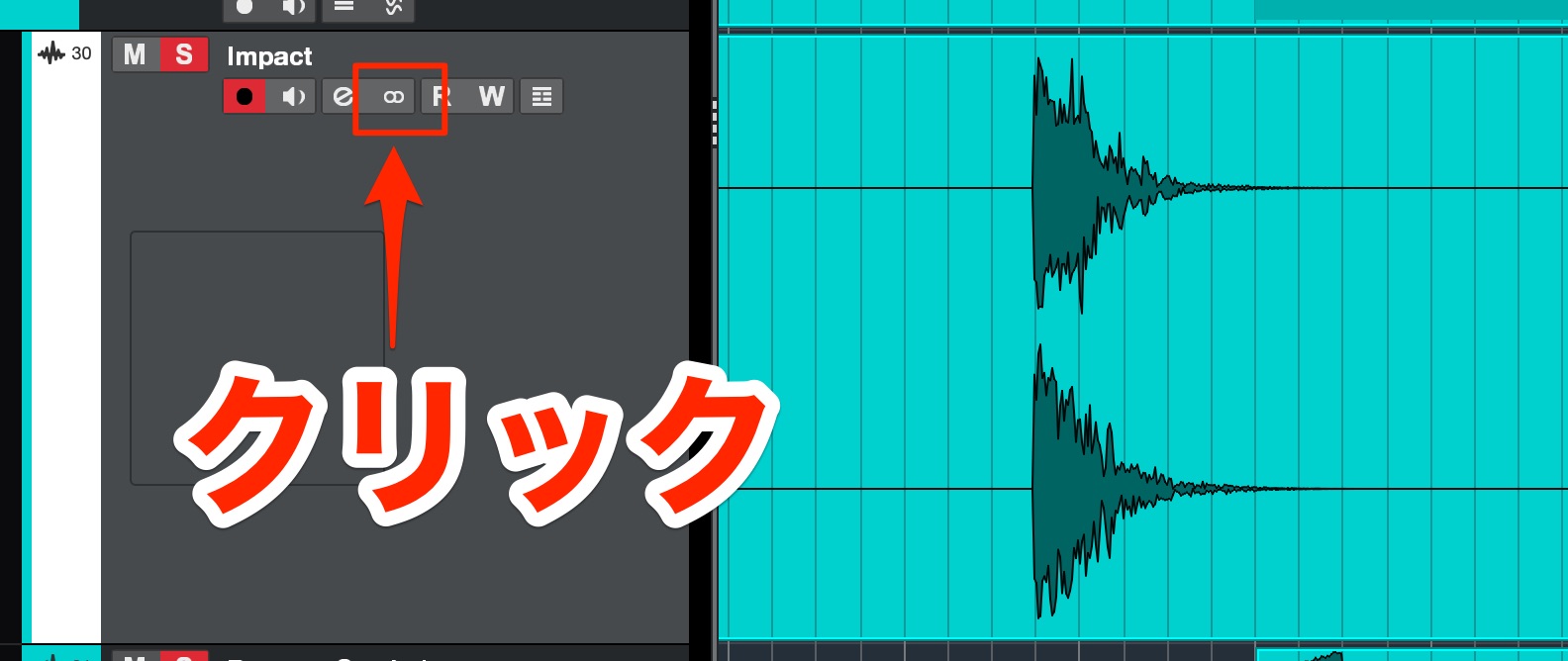
Click this control to change from mono (one circle) to stereo (two circles), or back again.
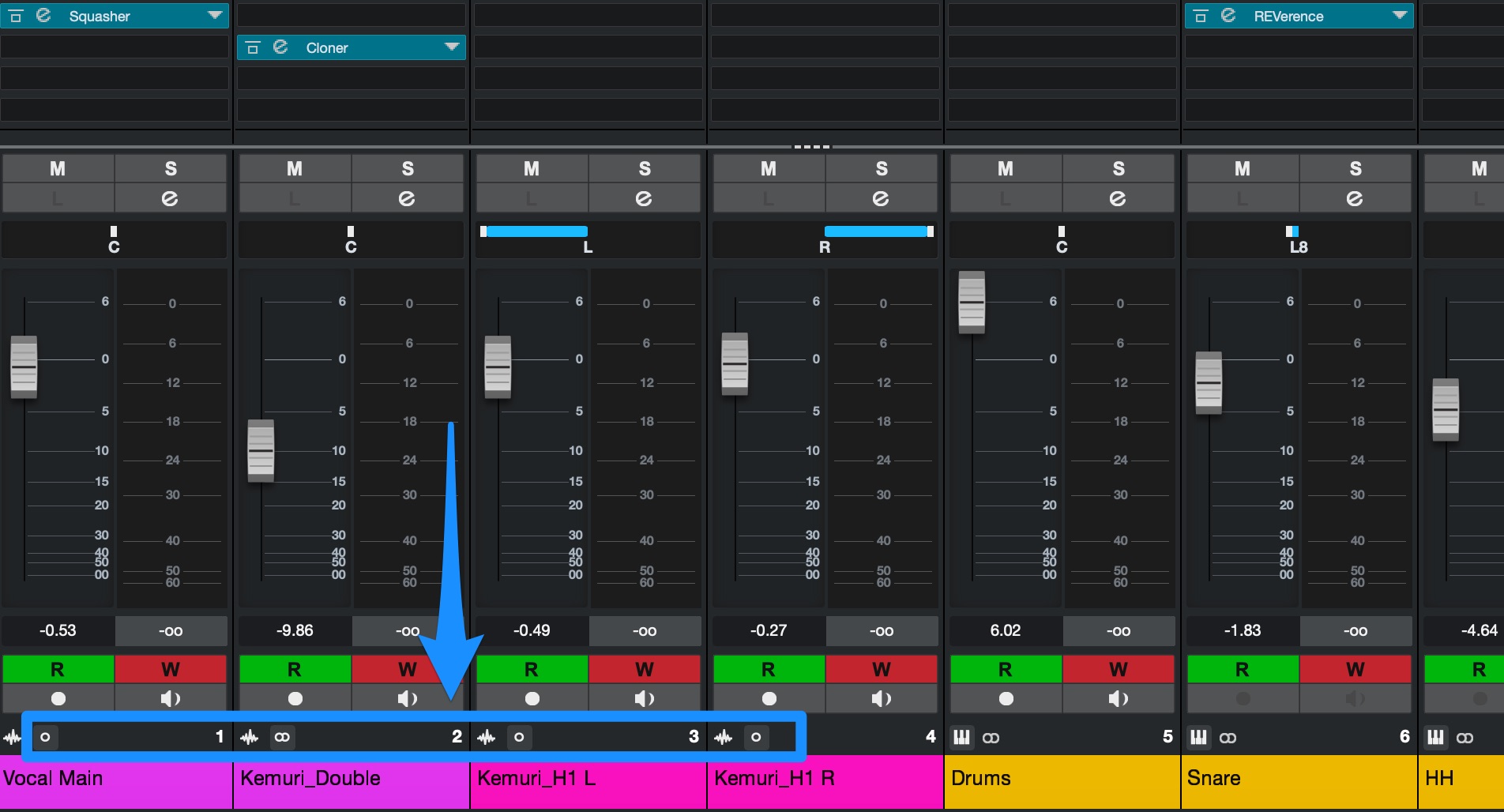
You can do this from MixConsole as well.
Previously, you needed a plug-in or a conversion step; this makes the process much more convenient.
New Plug-ins
The new plug-ins in this version are a generous addition.
The analog-inspired processors in particular should be useful across many kinds of tracks.
VocalChain — PRO/ARTIST only
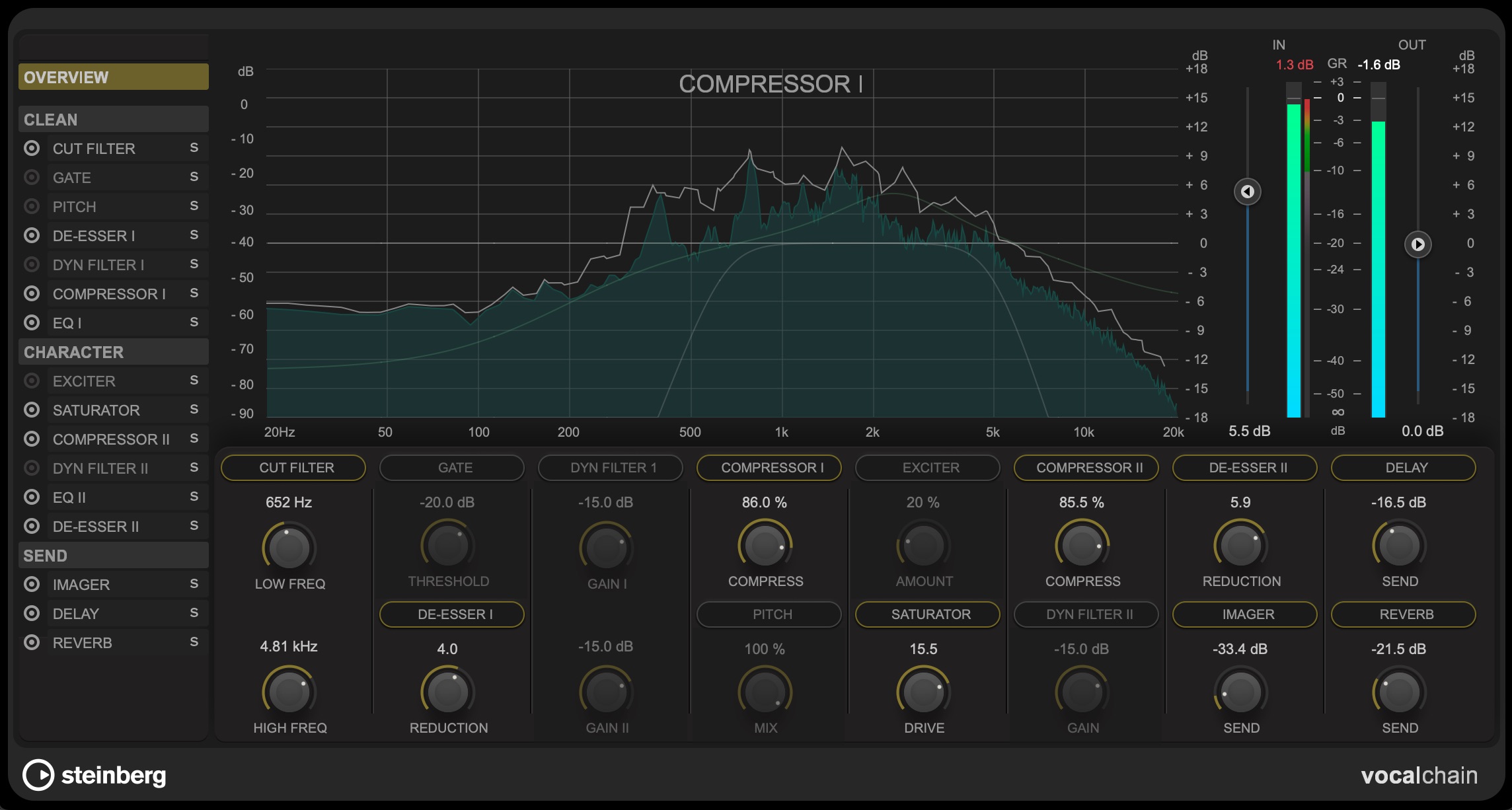
First, we should introduce VocalChain.
As its name suggests, it is designed for vocals and brings the effects processing needed for a vocal track into one plug-in
. A wide selection of presets also helps beginners get started with polished vocal processing.
BlackValve Compressor — PRO only
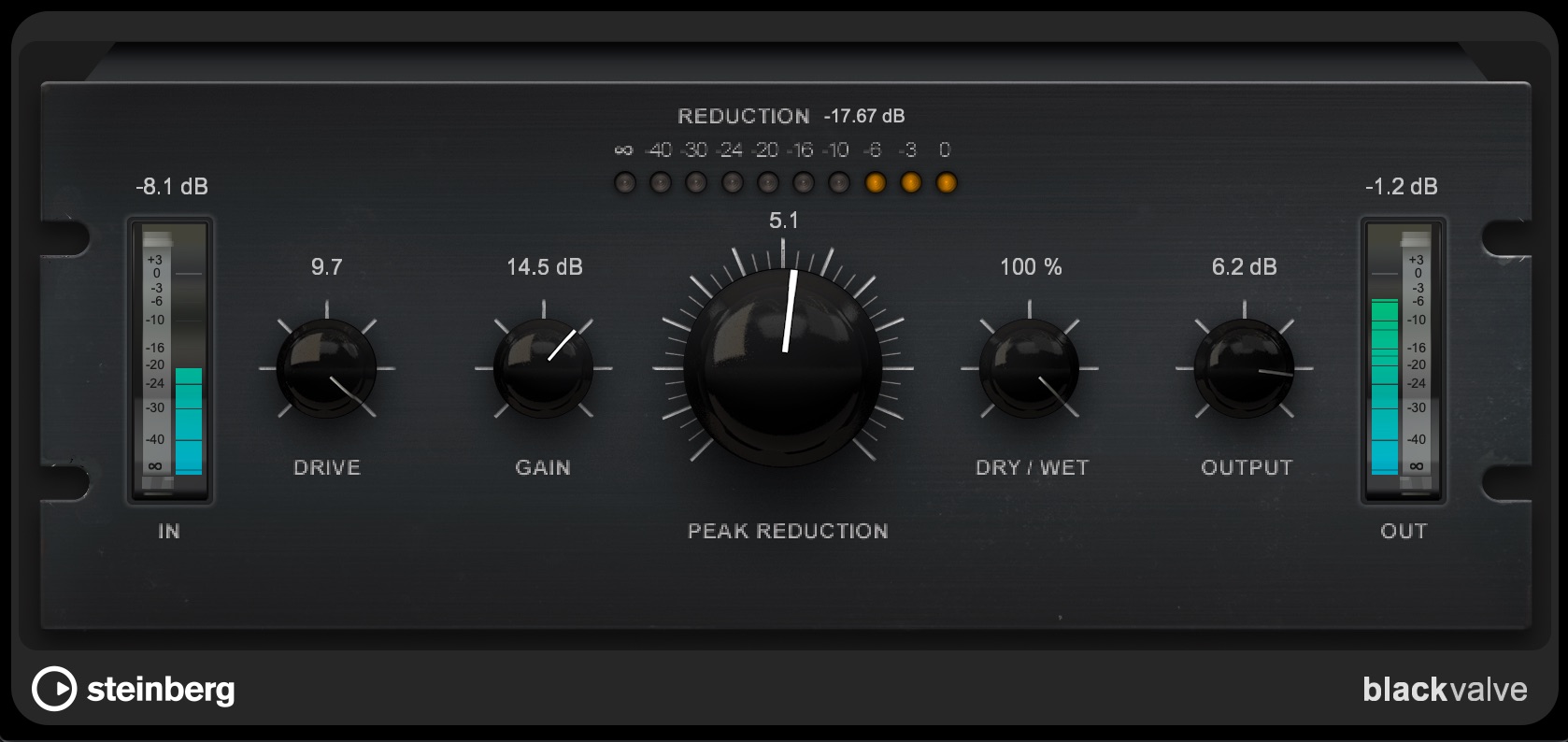
This plug-in combines a tube-style preamp with a natural-sounding compressor.
Its quality made us think, “This is exactly what we wanted.”
Drive adds rich harmonics and a warm sound that can help a part sit in the mix.
The compressor works very naturally too, making it easy to bring a sound together.
VoxComp Compressor — PRO/ARTIST only
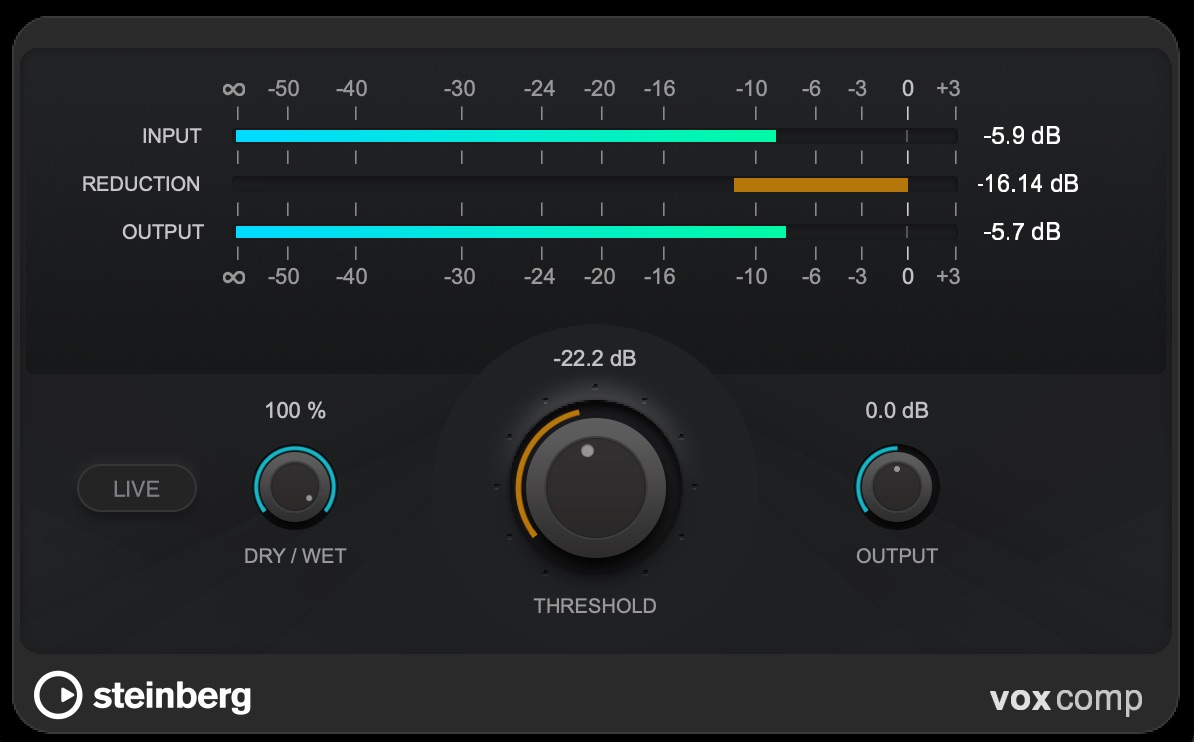
A compressor developed for vocal tracks.
Turn the central THRESHOLD control to quickly shape the sound.
Its character is smooth and pleasing.
EQ-P1A / EQ-PM5 — PRO only
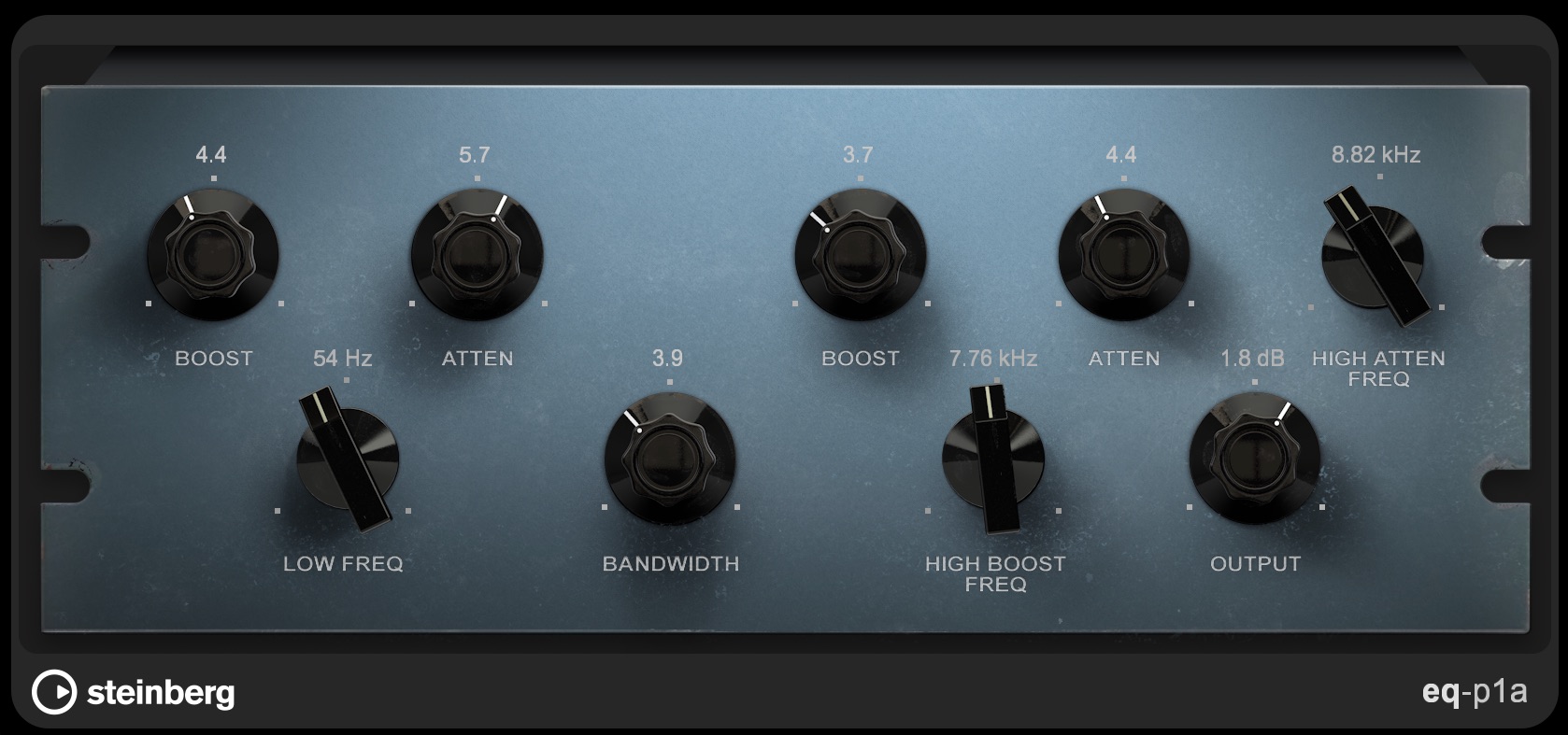
These equalizer plug-ins take inspiration from the renowned Pultec EQs.
Two models, P1A and PM5, are included.
Their distinctive character and clear high end can add a more refined quality to a sound.
It is impressive to find equalizers of this quality bundled with a DAW.
Vocoder — PRO/ARTIST only
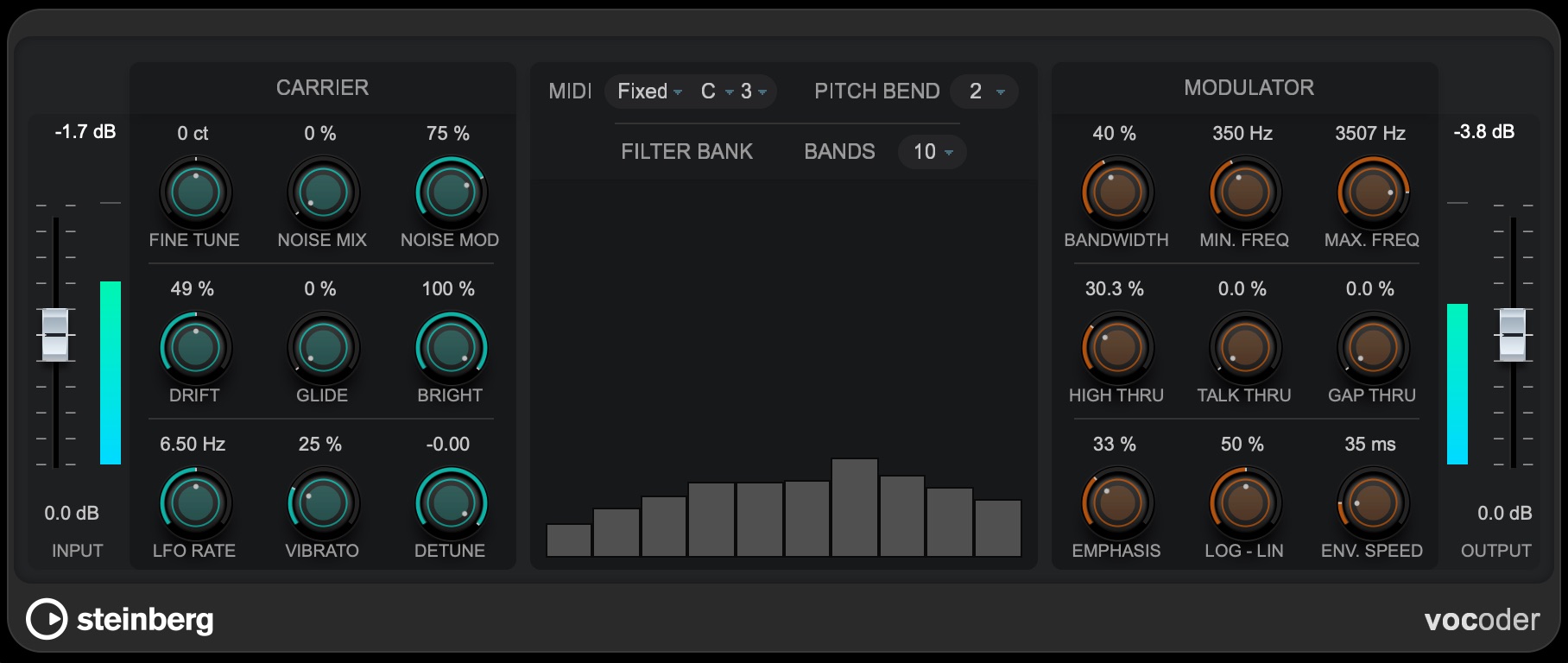
A vintage-style vocoder with up to 24 bands.
Its parameters let you create a wide variety of tonal nuances.
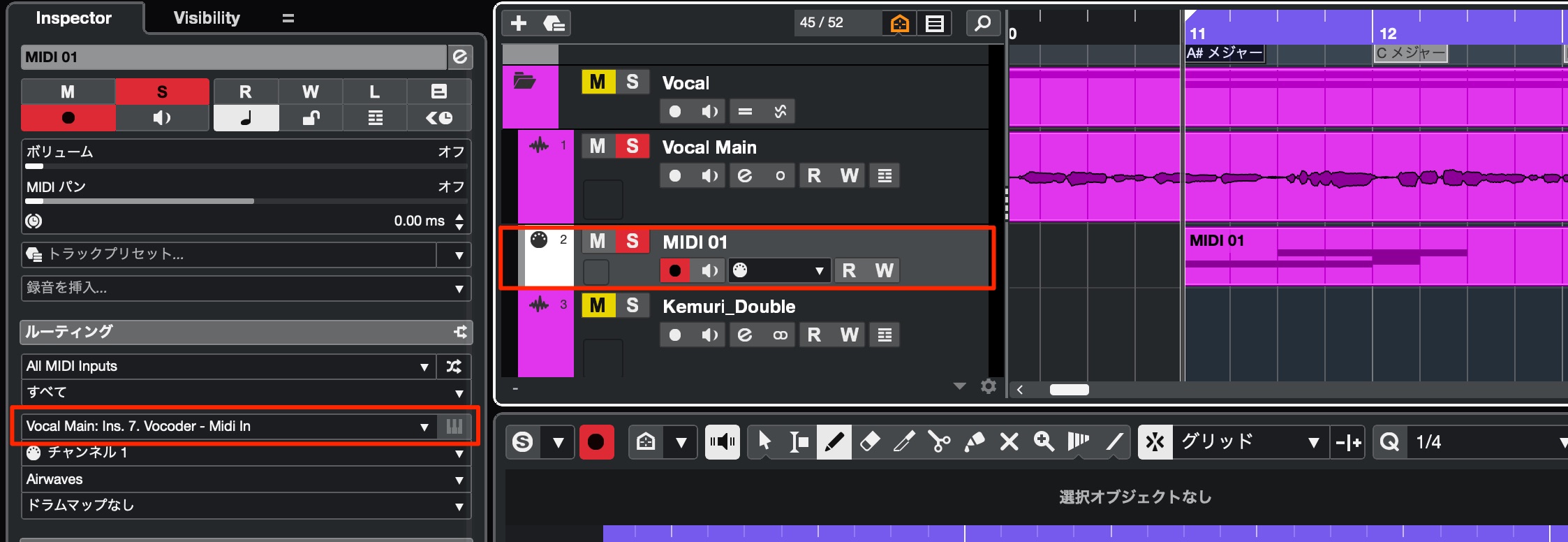
You can also control pitch using MIDI notes for familiar vocoder performances.
Iconica Sketch — PRO/ARTIST/ELEMENTS only
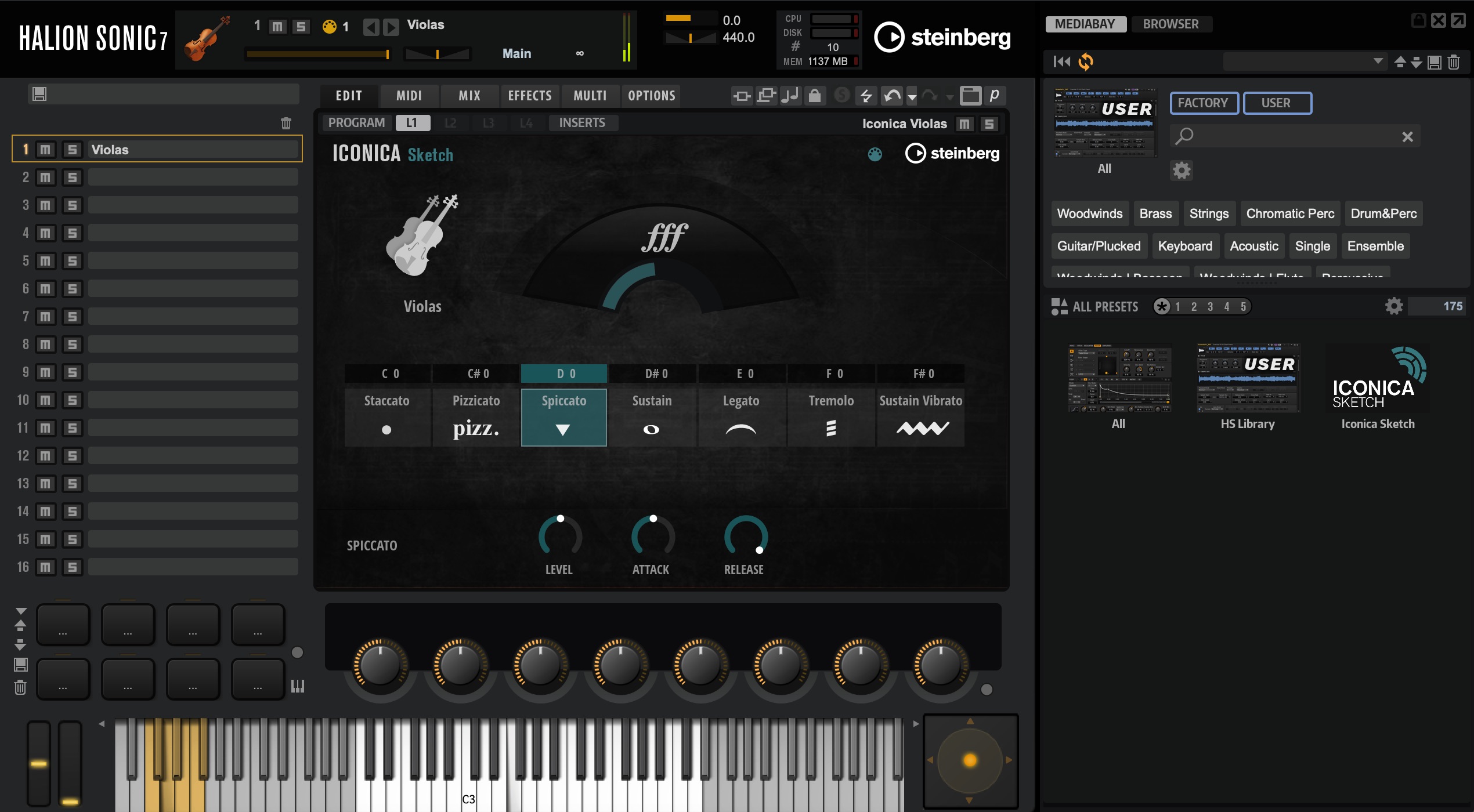
Iconica Sketch lets beginners and experienced composers create full orchestral arrangements with 34 instruments and 140 articulations in a compact 5 GB library.
Other Features
Expanded sample packs — All editions
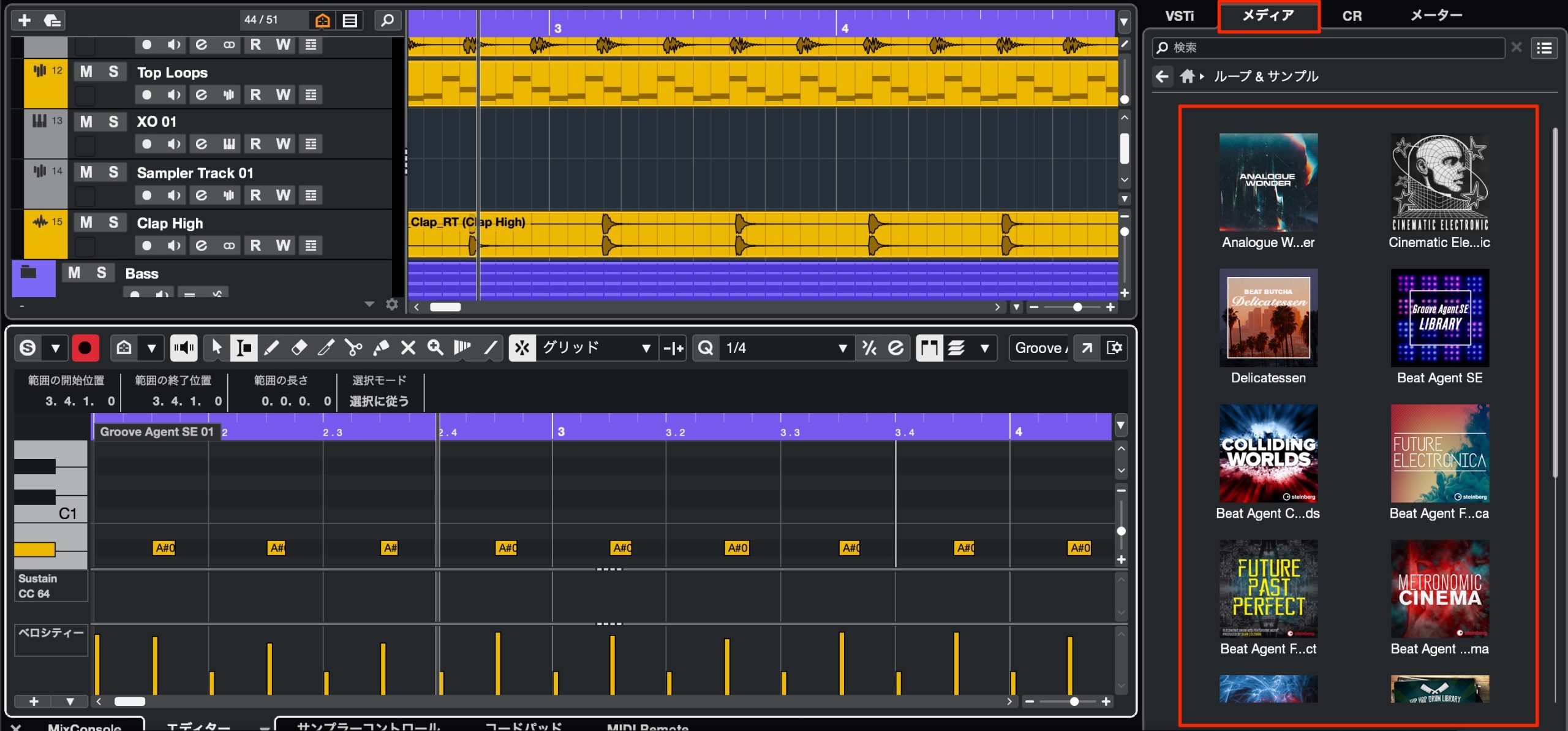
Five new packs join the existing sample content.
They offer modern sounds that you can incorporate into your tracks, so take a listen.
Redesigned MIDI plug-ins — PRO/ARTIST only
The useful MIDI plug-ins have also been updated.
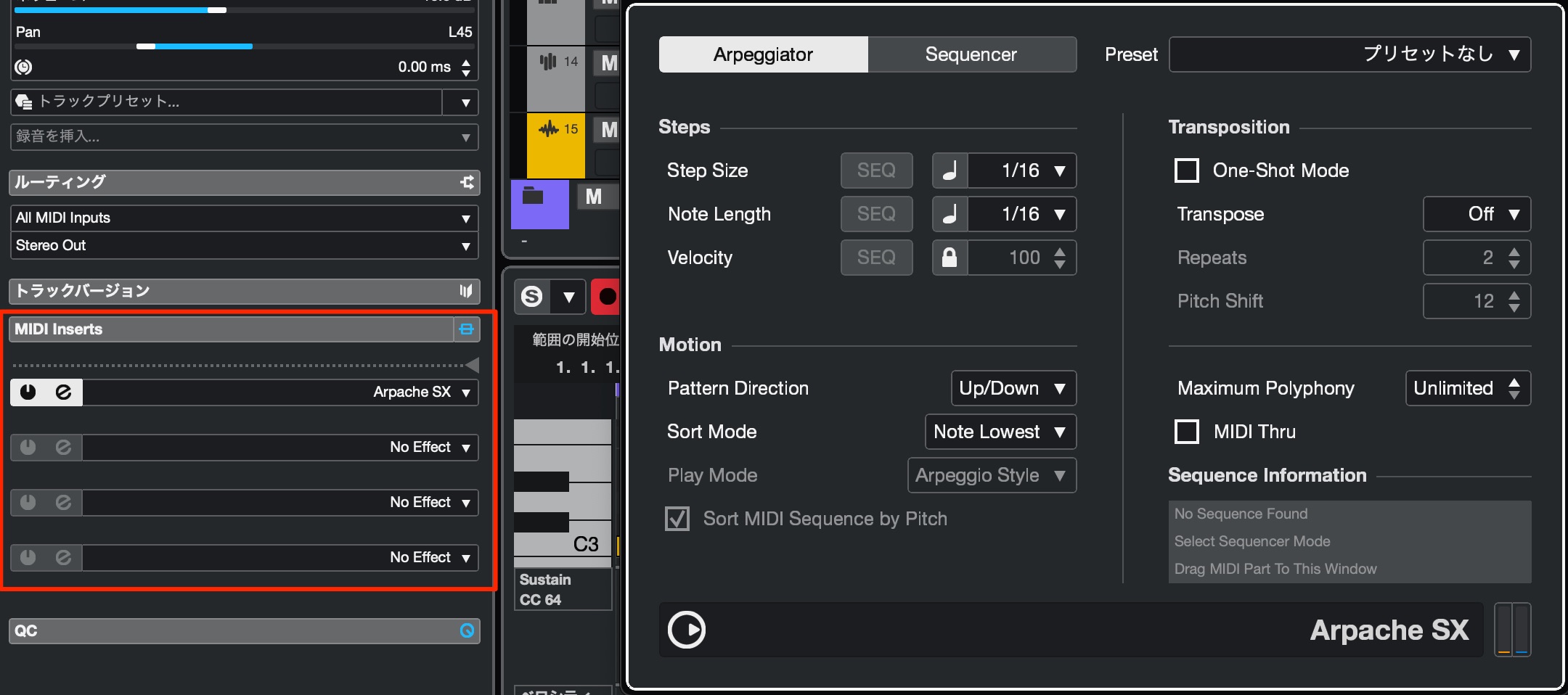
Each device has a refreshed design that makes it easier to use.
Plug-in windows also open with Always on Top enabled by default, helping prevent them from disappearing behind other windows while you work.
Additional transport modes — All editions
You can now choose the reference position from which project playback starts.
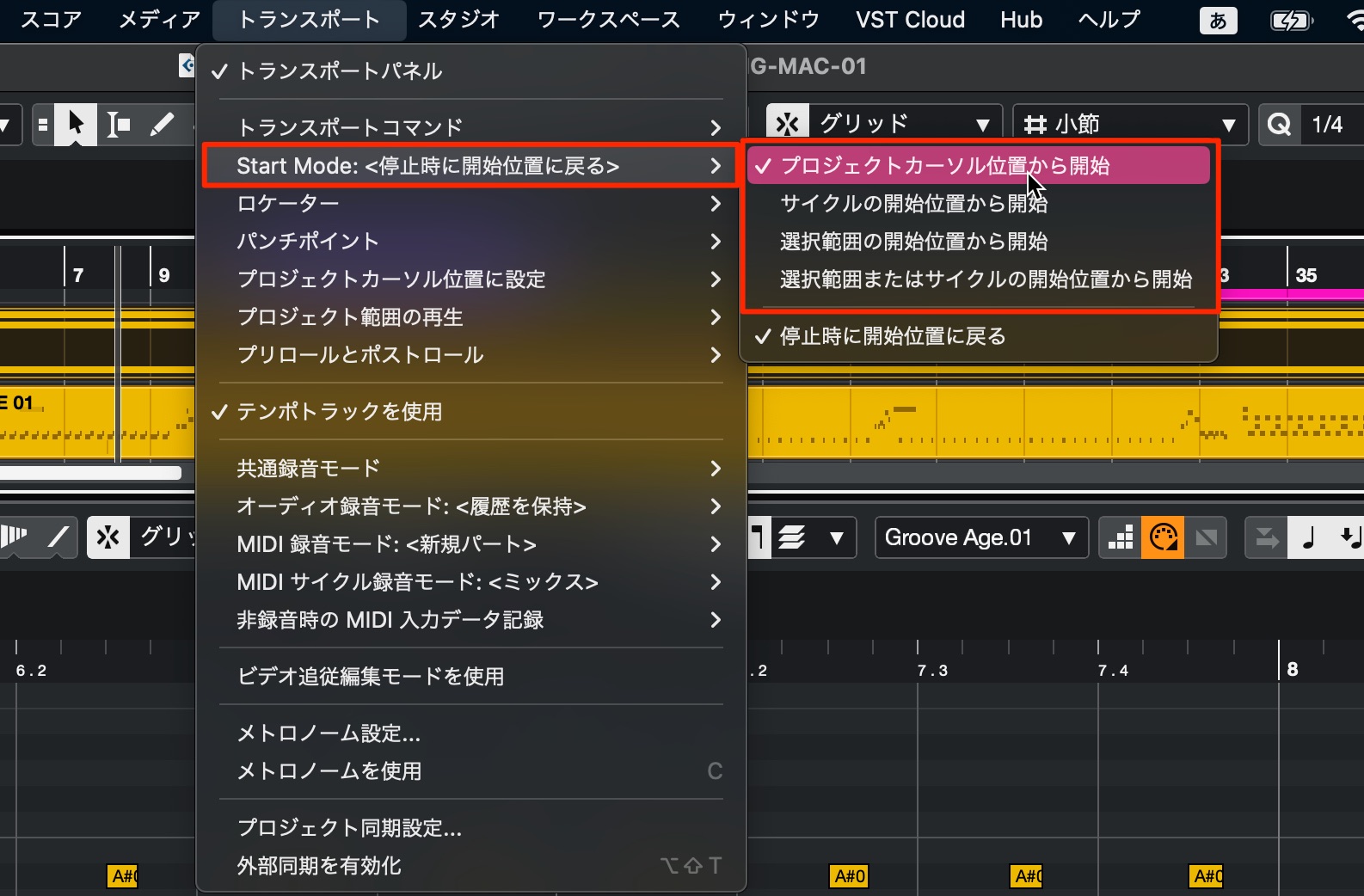
- Project Cursor Position: The usual behavior, starting from the playback cursor.
- Cycle Start: Start from the beginning of the loop, or cycle, range.
- Selection Start: Start from the range selection or selected event.
- Selection or Cycle Start: Use the selection first, then the cycle start, then the playback cursor, in that order of priority.
These options cover playback behaviors familiar from several other DAWs and can help users moving to Cubase.
Vertical zoom with the mouse wheel — All editions
The frequently used zoom functions gain a new option.
In the Project window and editors, you can now zoom vertically using the mouse wheel.
The mouse-pointer position determines the focus of the zoom.
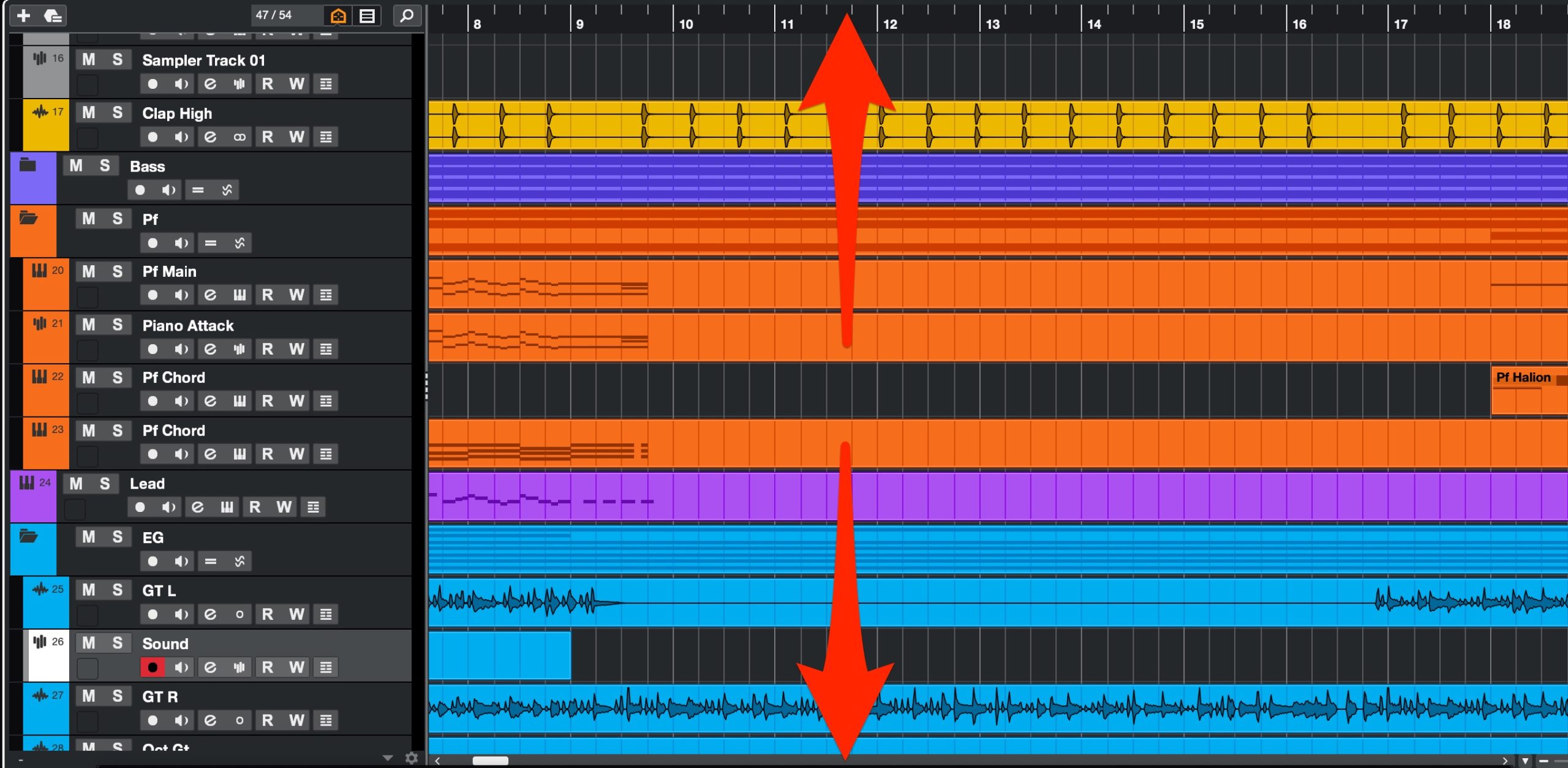
- Mac: Command + Shift + mouse wheel.
- Windows: Control + Shift + mouse wheel.
This is likely to become a frequently used operation, so learning it can make a real difference.
The mouse wheel also provides these existing zoom functions:
Horizontal zoom
- Mac: Command + mouse wheel.
- Windows: Control + mouse wheel.
Waveform zoom
- Mac: Command + Option + mouse wheel.
- Windows: Control + Alt + mouse wheel.
Try using these together.
Tap Tempo in the transport — All editions
Tap Tempo, which lets you set the tempo intuitively by clicking, is now available in the transport.
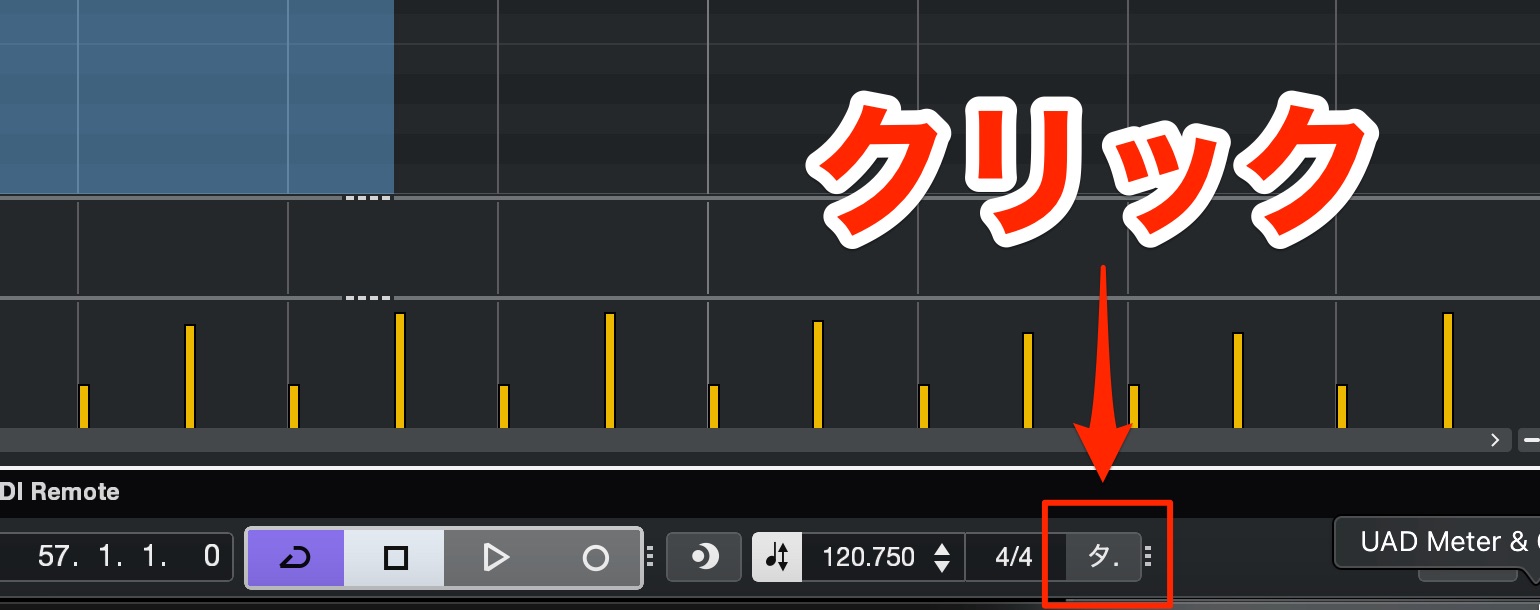
Only part of the Tap label is visible in the screenshot, but clicking in time with your desired beat changes the project tempo.
Multi-window improvements on Windows — All editions
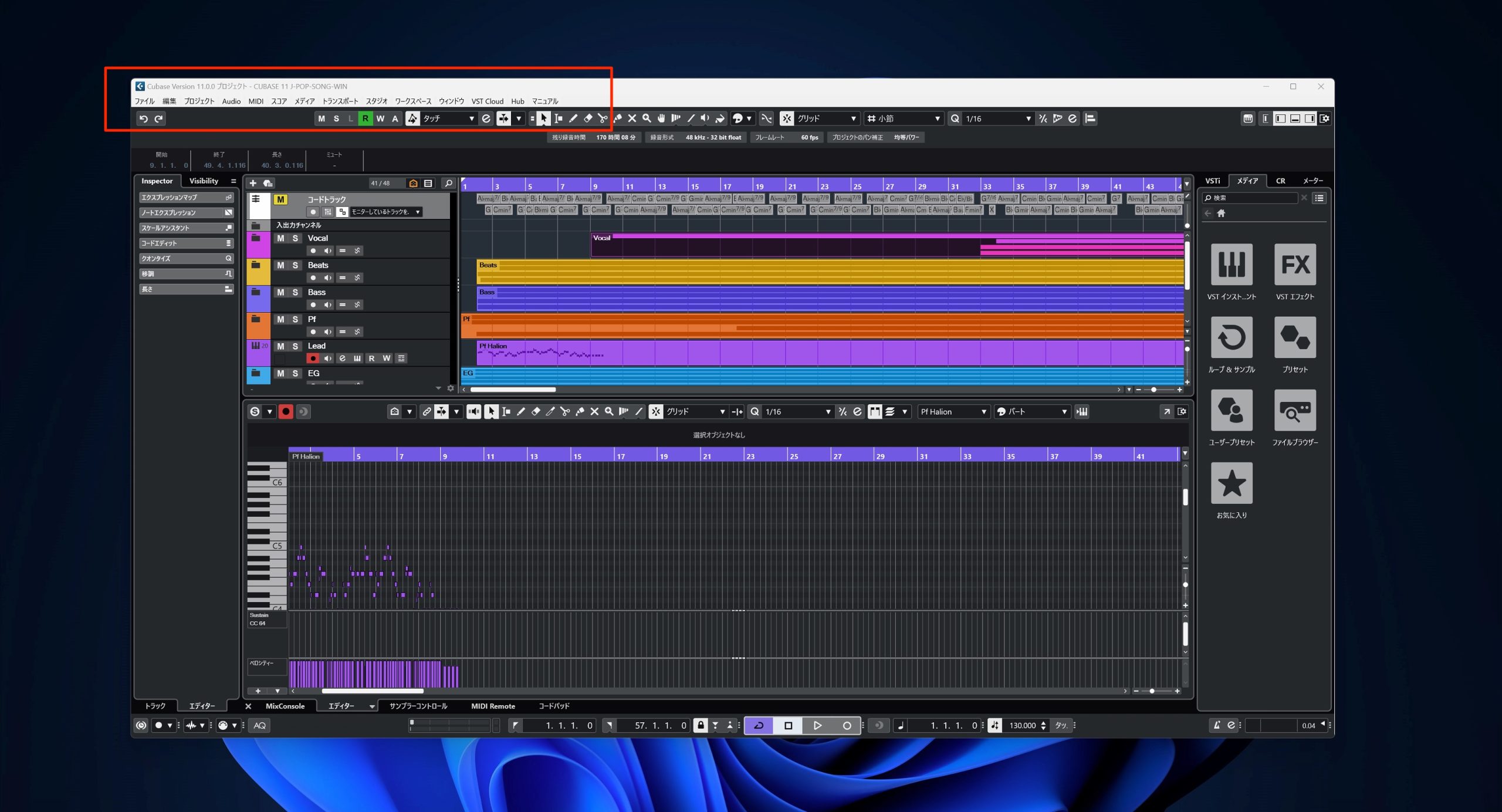
Menus now appear within and follow each window, as shown here.
This feels closer to the Mac workflow.
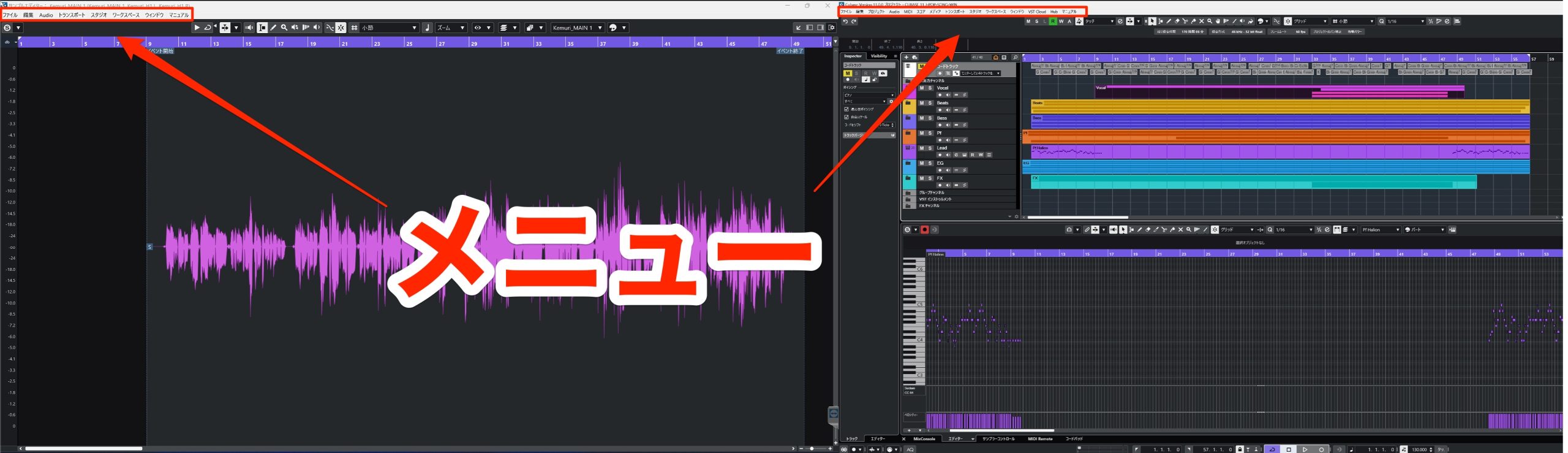
When two windows are maximized across dual displays, each display can have its own window's menu.
This is much easier to use than the previous arrangement.
Graphics-card optimization and other improvements are included too.
What do you think of the new features in Cubase 13?
The update includes many long-requested features as well as improvements whose usefulness becomes obvious once you try them.
There is plenty here for intermediate and advanced producers to appreciate.
This launch-period overview gives you a starting point for exploring the changes introduced in Cubase 13.
—
Frequently Asked Questions
Q1. Can Cubase 13 open projects created in earlier versions?
In our test, a project created in version 11 that also worked in version 12 opened successfully in version 13, and key commands and preferences were carried over. This does not guarantee compatibility with every project, plug-in or system. Earlier installed versions remain available if you need to return to them.
Q2. Can I customize the sections displayed in the Channel tab?
Yes. Right-click an empty area in the left zone and choose Set up Sections to show, hide and reorder the sections.
Q3. Can instrument output destinations now be changed from the Inspector?
Yes. This is one of Cubase 13's useful improvements. Instead of opening ROUTING in MixConsole, you can change the output directly from Routing in the Inspector.
Q4. How has the key-command setup dialog improved?
Commands are organized under All, Assigned, Customized and Unassigned, and the search helps you find them quickly. You can also leave the dialog open while operating Cubase to test your assignments.
NEW ARTICLES
Latest English Articles























































































