
Superior Drummer 3 is a feature-rich drum instrument with more than 200 GB of drum sounds. This guide covers the basics, from loading kit presets to customizing them: choosing presets, using the cache to manage memory, replacing individual drums and layering sounds. These workflows help you bring detailed, realistic programmed drums into your music.
An extensive drum sound library exceeding 200 GB
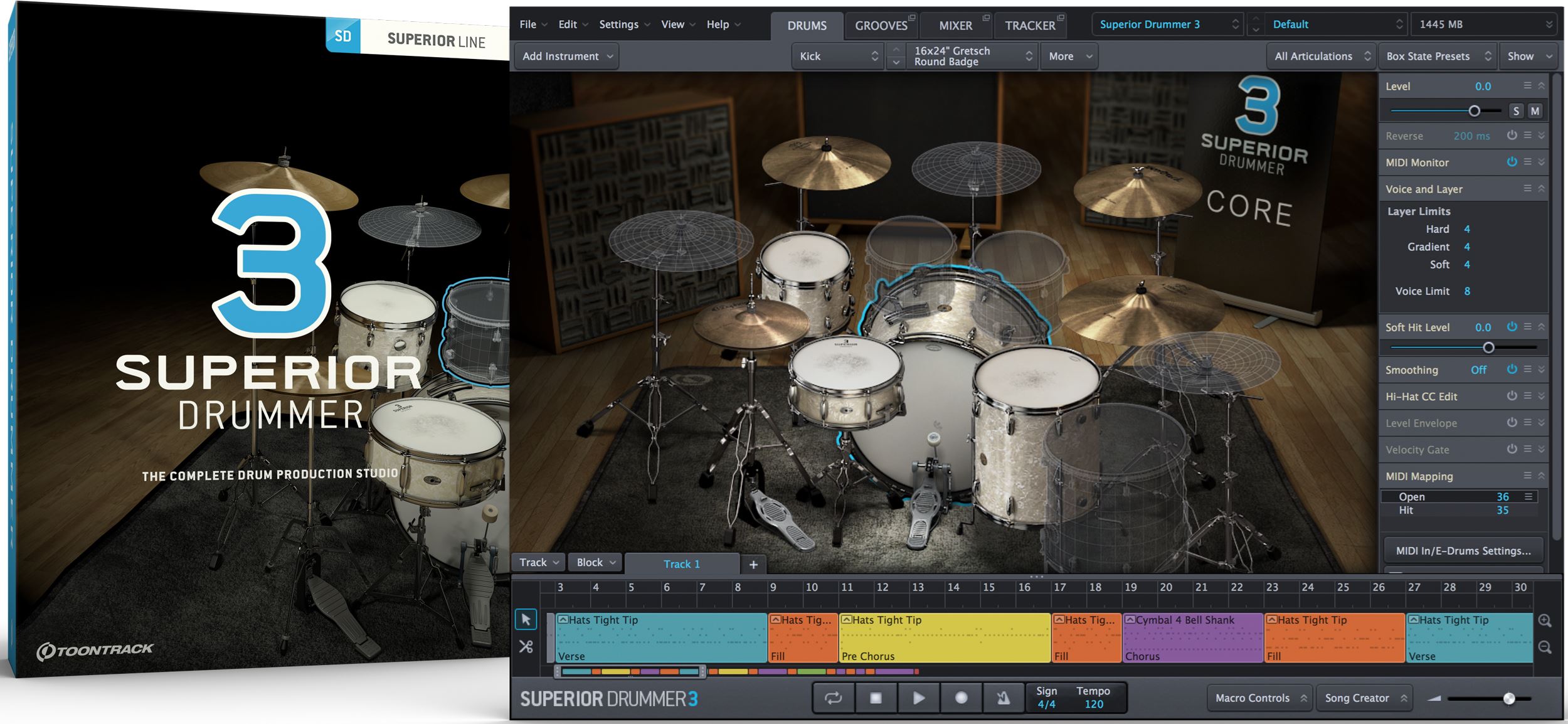
Toontrack has released the long-awaited Superior Drummer 3 drum instrument.
The included drum kits take up more than 200 GB.
The sounds offer impressive quality, and the software includes numerous features to help you make the most of them.
This makes it possible to quickly add high-quality drum sounds to a song that do not sound obviously programmed.
In this first installment, we will explore kit presets and their associated features.
These are fundamental to using the software, so let’s get a firm grasp of the basics.
Video: Superior Drummer 3 kit presets and features
Purchase the product
Questions and answers from the YouTube video

Thank you for the clear explanation. I have a question about multi-output routing. When I select Apply Multichannel Outputs in the Mixer tab and enable the outputs in Cubase, I get multiple outputs, but the channel names change, making it inconvenient to export separate mono and stereo files. What is the most efficient way to deliver the data to a mix engineer after composing, for example?

We posted a video answer on our secondary channel: https://youtu.be/T9QSU4cMGW8 Please subscribe to our secondary channel as well as the main channel!
Loading kits and managing sounds efficiently
There are several ways to load drum kits in Superior Drummer 3.
First, let’s look at how to load a kit.
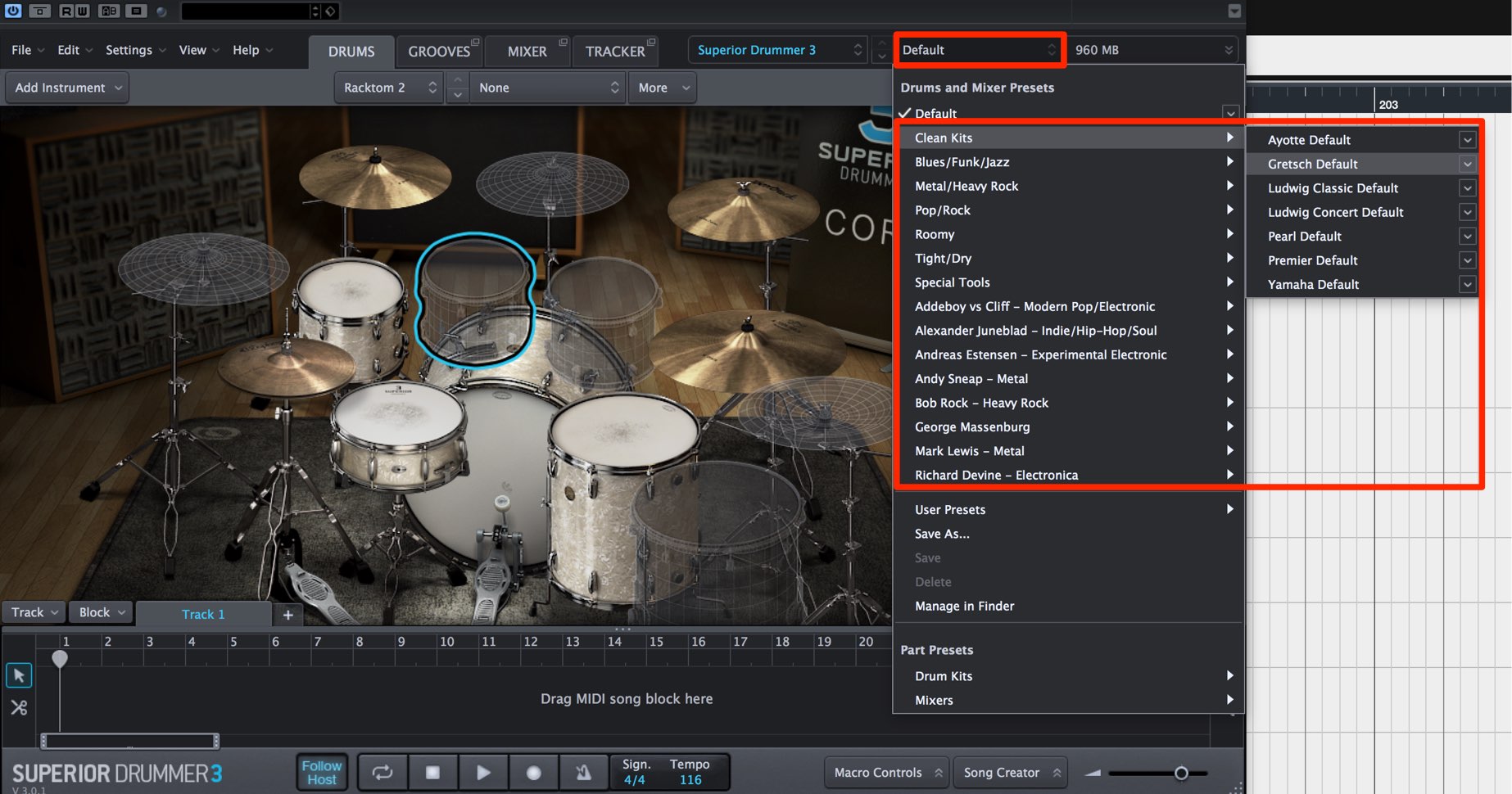
Standard presets combine a drum kit with mixer settings.
They make it easy to use high-quality sounds even if you are not confident about designing your own.
Click the window at the top of the software to choose a preset.
Presets are organized by kit characteristics, genre, sound producer and other criteria.
Click the desired preset name to start loading it.
Using the cache to reduce memory use and speed up loading
One drawback of large sound libraries is that loading can take time.
The cache feature helps address this.
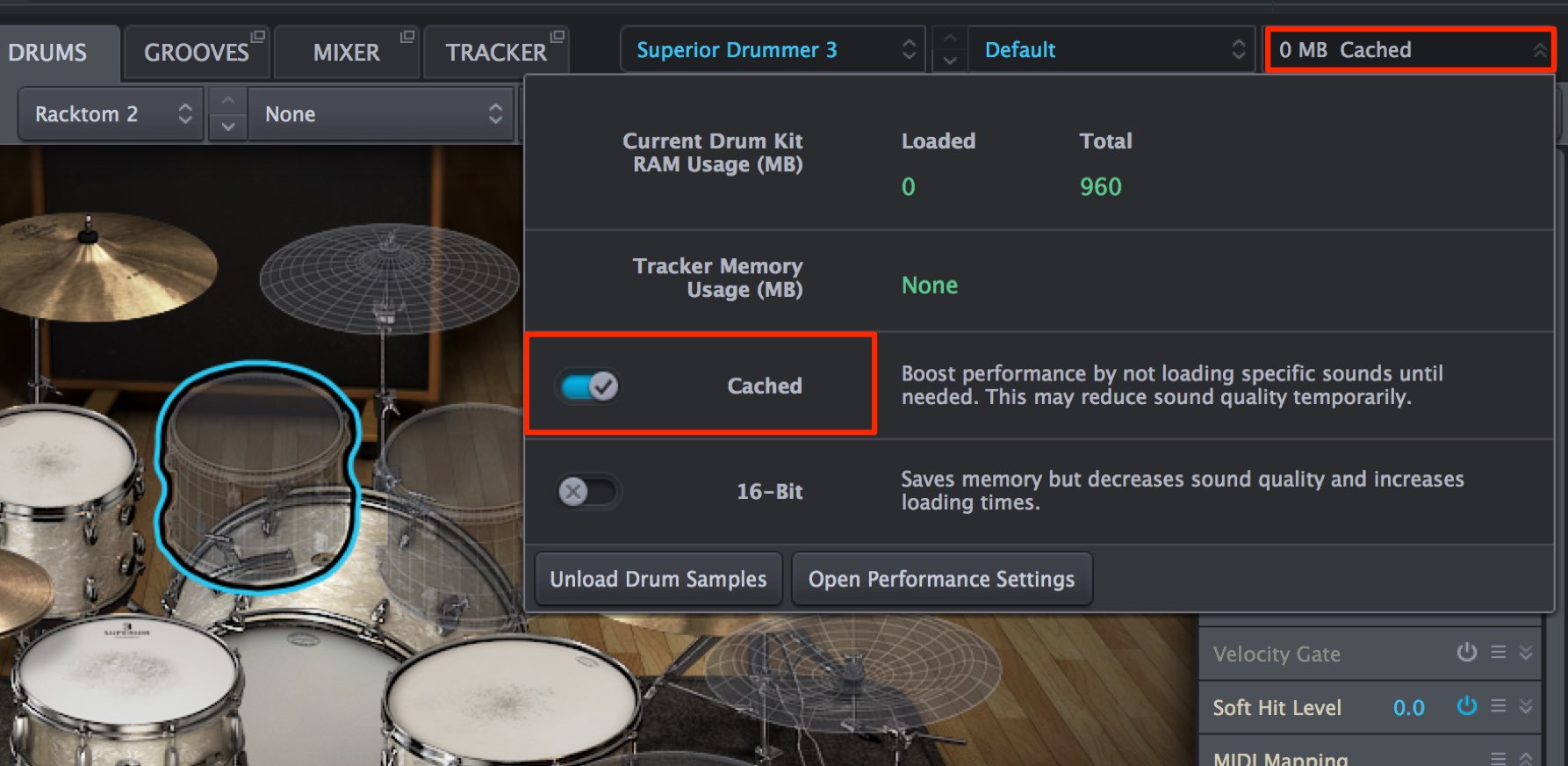
Click the loading progress bar to open its window.
Turn on Cached in that window to enable the feature.
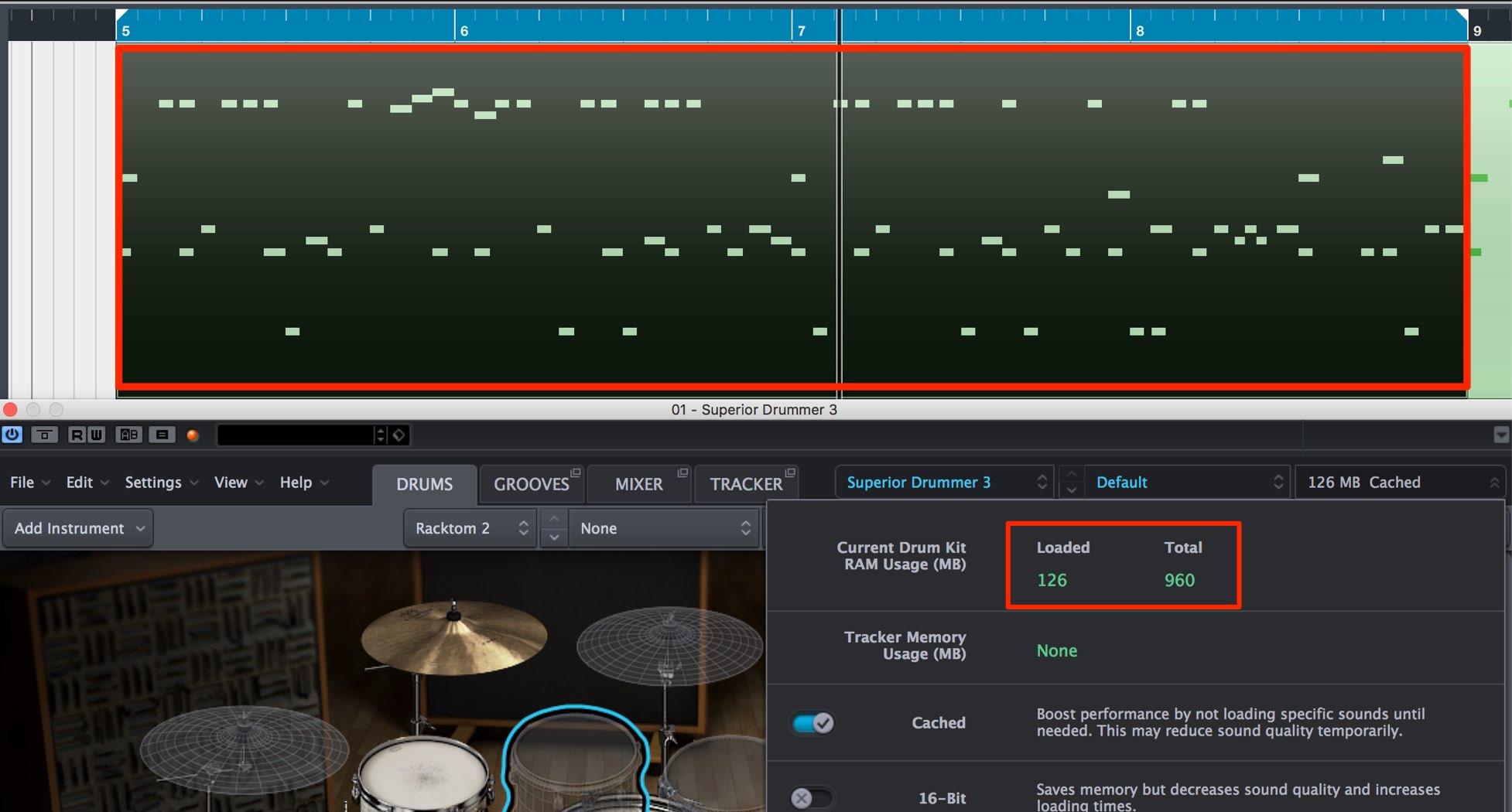
When enabled, only the minimum kit sounds needed to play the MIDI notes are loaded.
Playing MIDI notes automatically loads the required sounds.
In the example, the kit totals 960 MB, while 126 MB of sounds needed for playback are loaded.
This reduces memory use and speeds up sound previews.
Note: Sounds load when first played, so noise or interruptions may occur. Once you have chosen a kit, we recommend turning this feature off and loading all the sounds.
Replacing the kit while keeping mixer settings
The kit you choose is important, but mixer settings such as volume balance and effects also make a major difference to the character of the sound.
You can replace only the kit while retaining the current mixer settings.
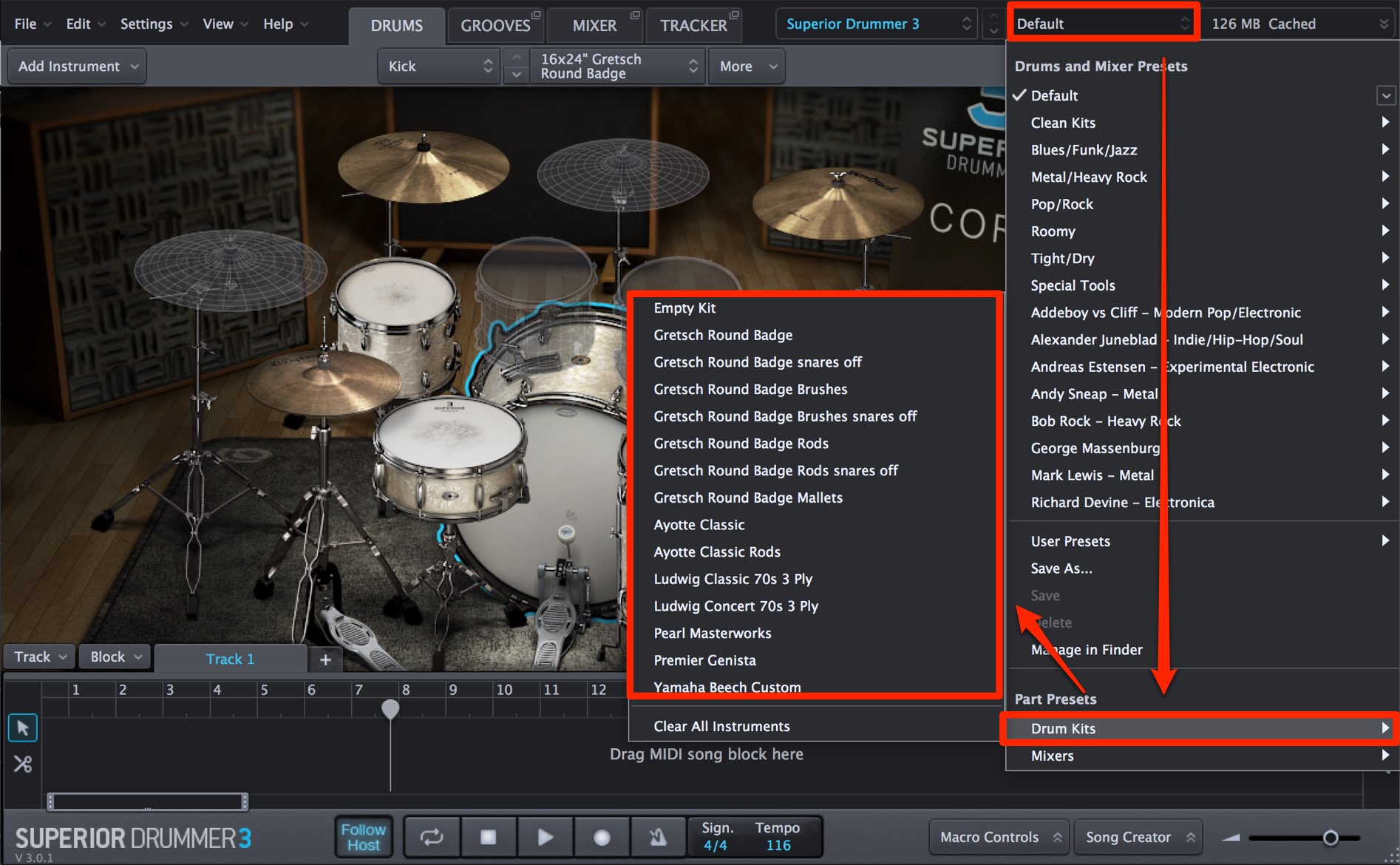
Open the preset window and select a kit under Drum Kits.
This changes the drum kit without changing the mixer settings.
Replacing an individual drum
You might like the overall sound but dislike just the kick.
In that case, you can replace that particular drum.
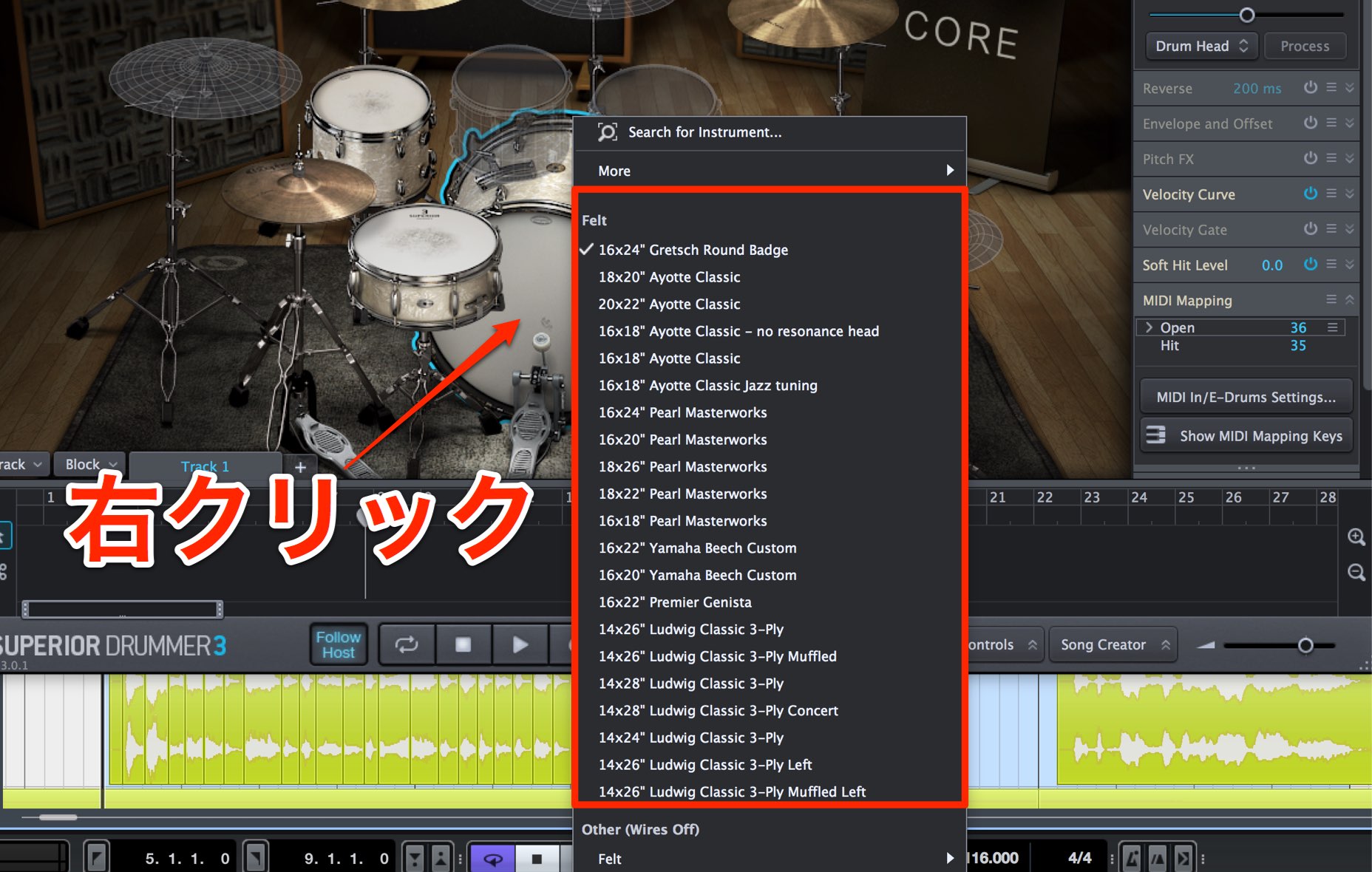
Right-click the drum you want to replace to display a list of instruments.
Simply choose the replacement from the list.
You can also audition a sound before replacing the drum.
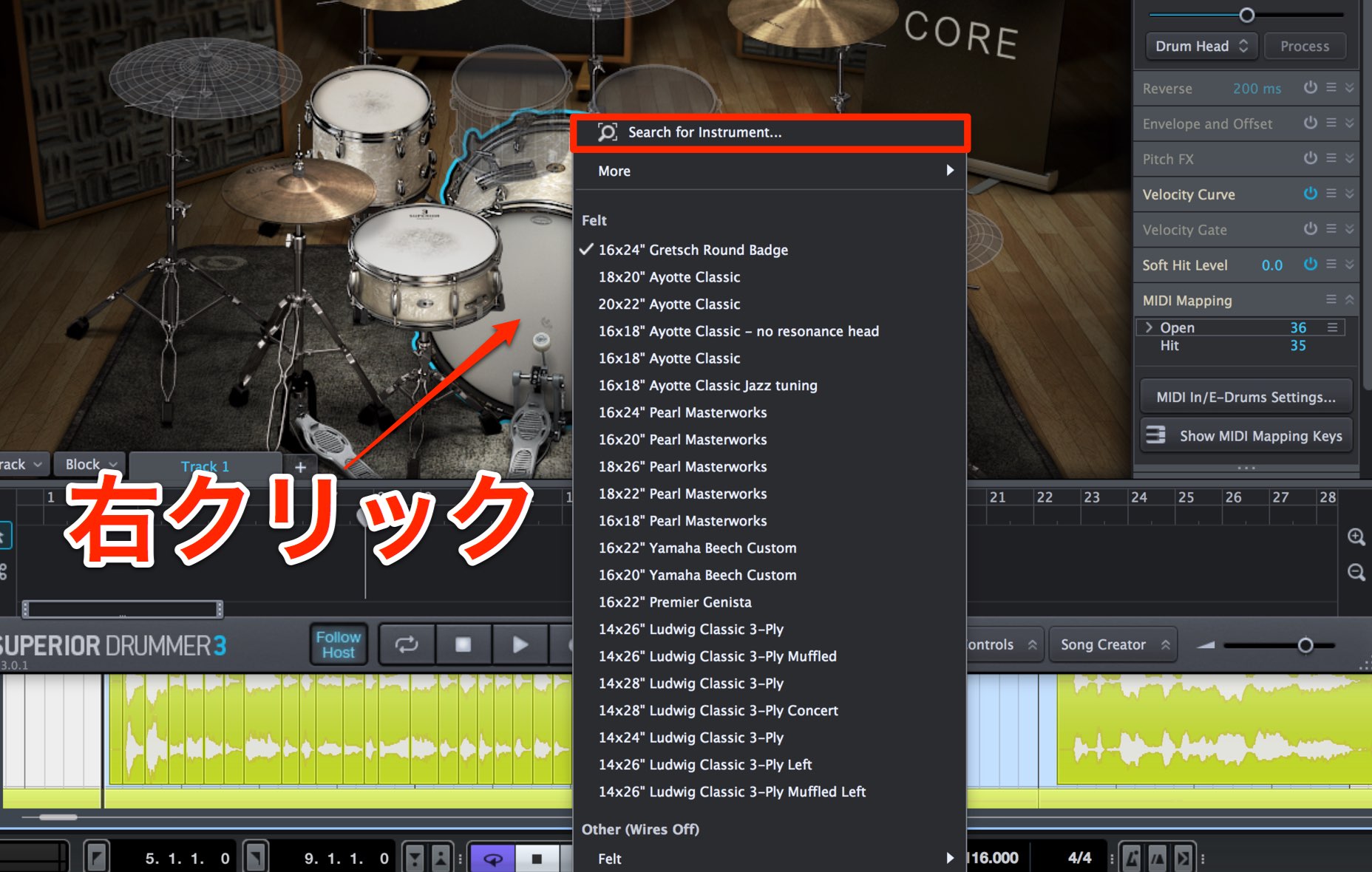
As above, right-click the drum you want to replace and choose Search for Instrument.
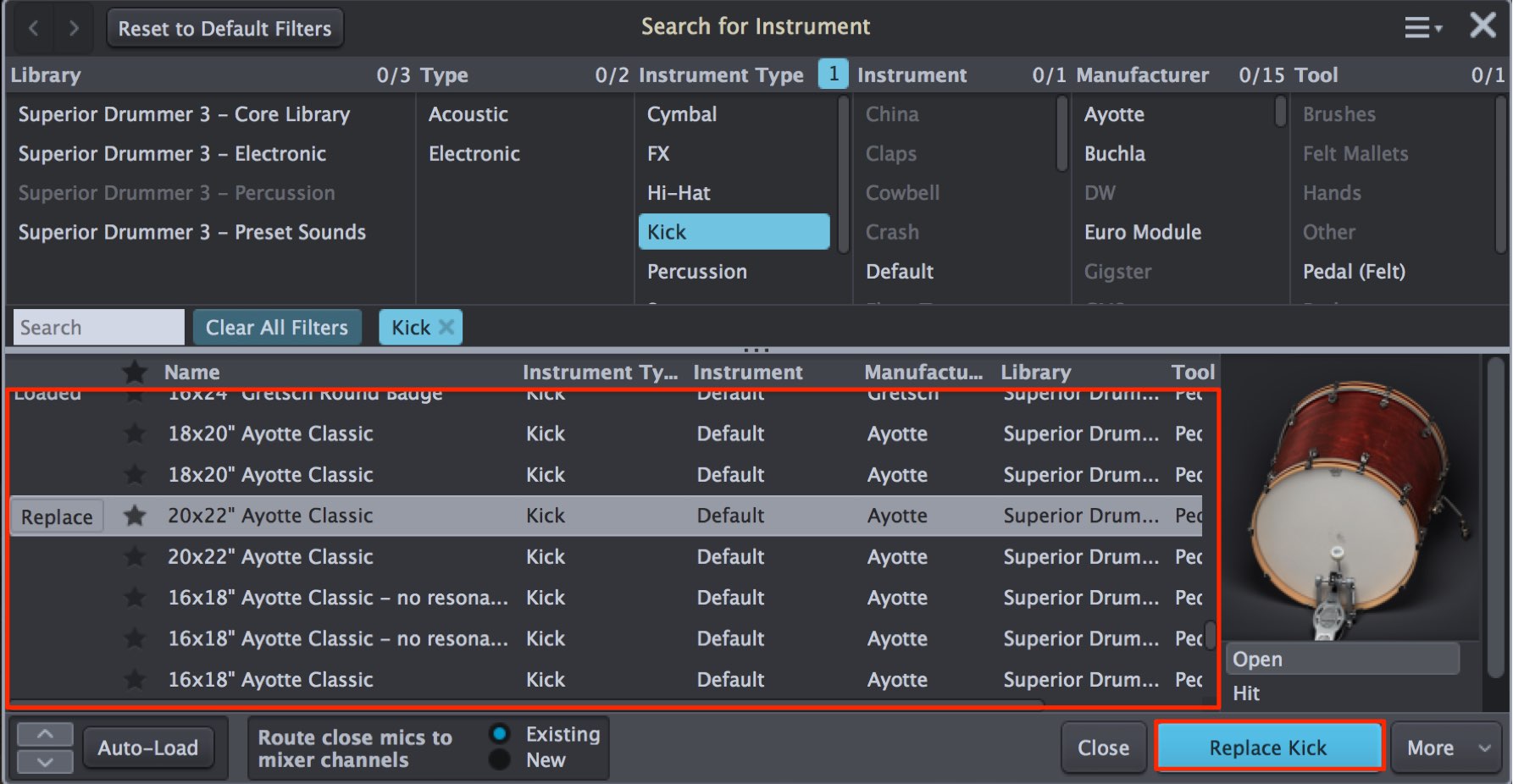
A search window opens.
Clicking an instrument name plays its sound, making it easy to find the one you want.
When you find a sound you like, select Replace.
Layering sounds on a drum
A common production technique is to reinforce a kick or snare by layering several sounds.
Superior Drummer 3 also supports layering kit sounds.
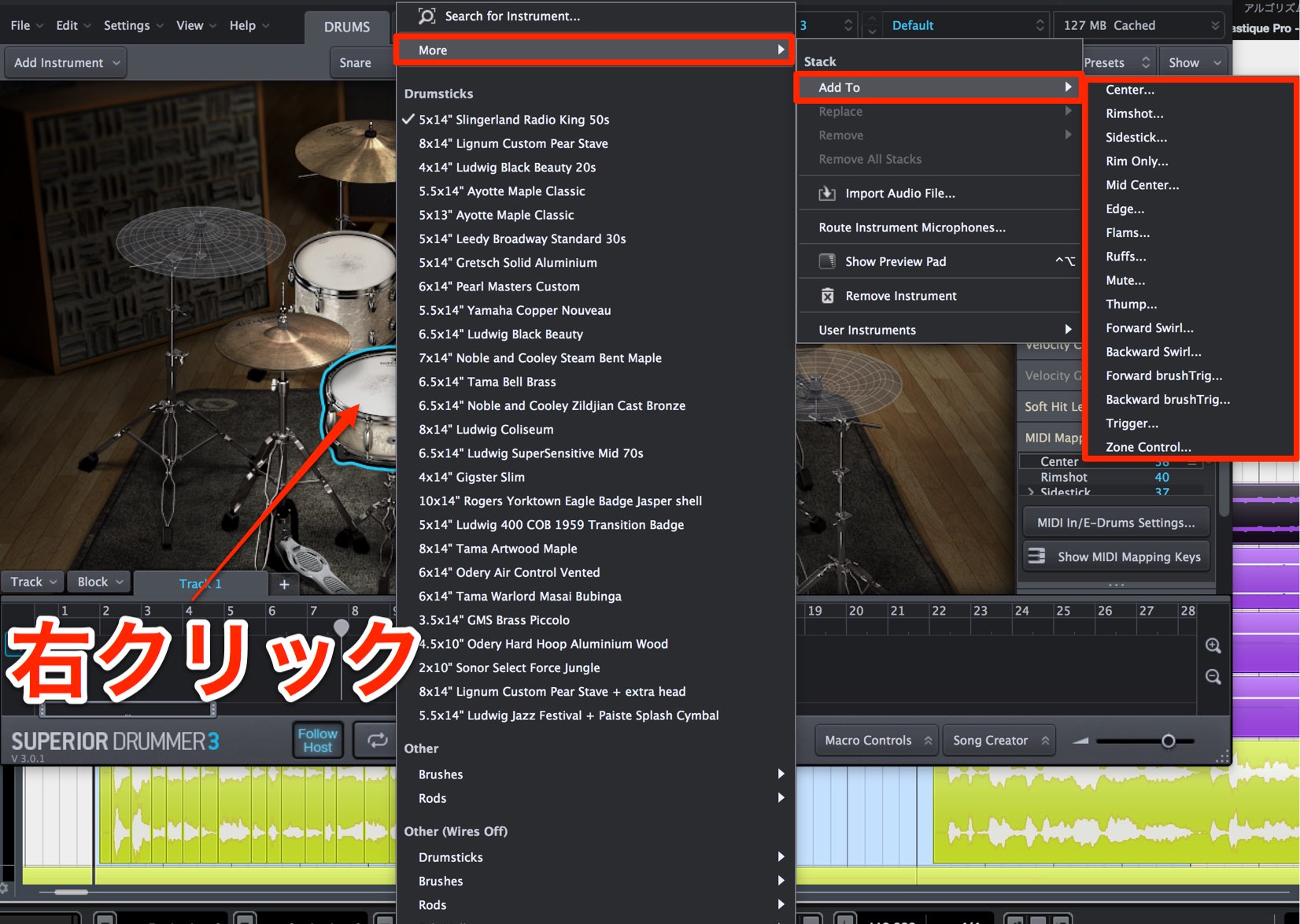
Right-click the drum you want to layer.
Choose More → Add To, then select the articulation you want to layer.
You may not immediately know which articulation corresponds to the programmed notes.
Let’s check that first.
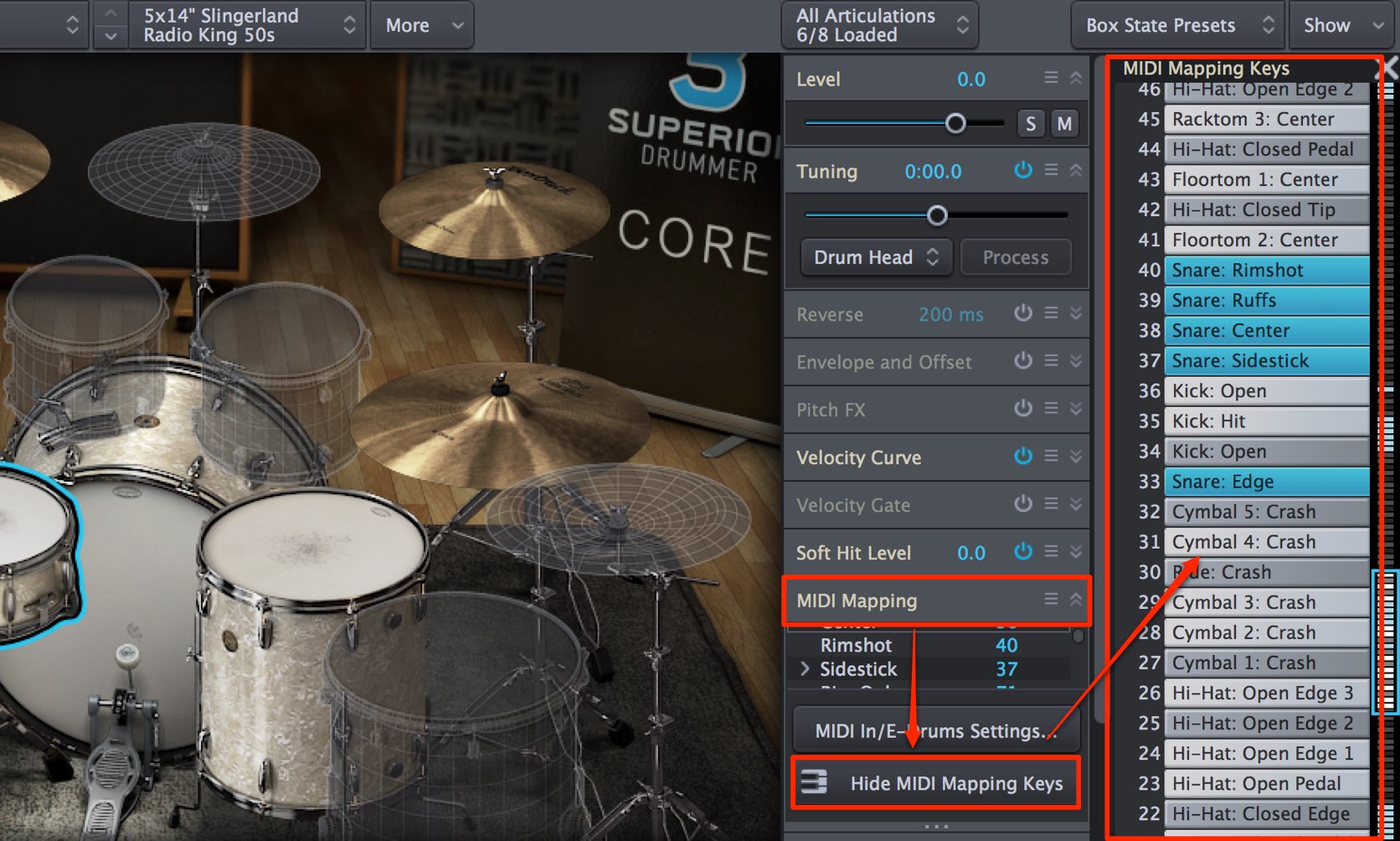
We will use the snare, which has many articulations, as an example.
Select the drum you want to inspect and expand MIDI Mapping on the right.
Select Show MIDI Mapping Keys to expand the window further.
The mapping window shows where drums and articulations are assigned on the MIDI keyboard; articulations for the selected drum appear in blue.
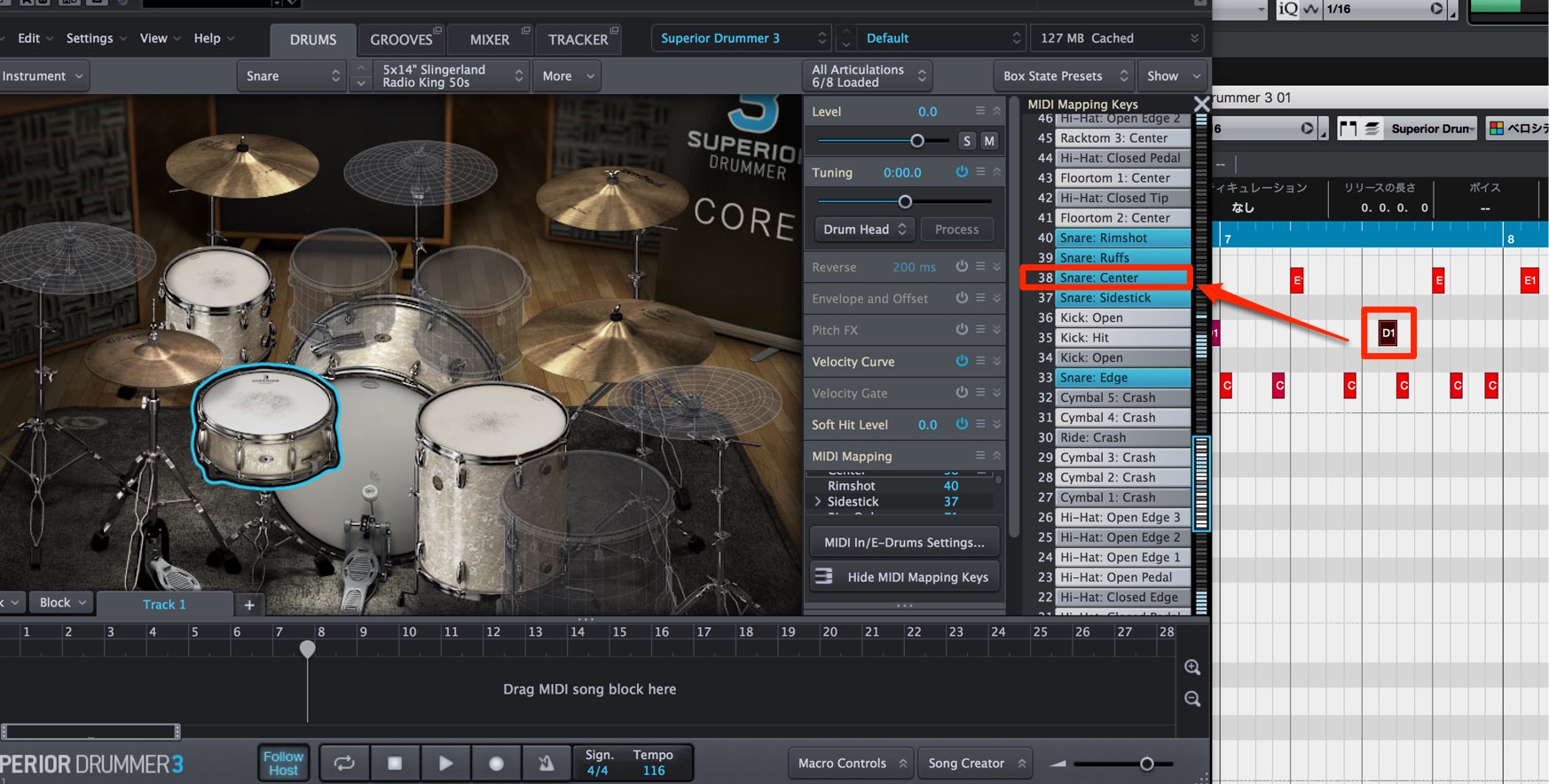
When a MIDI note plays, its assigned articulation lights up, making it easy to identify.
Now let’s layer a sound onto the kick.
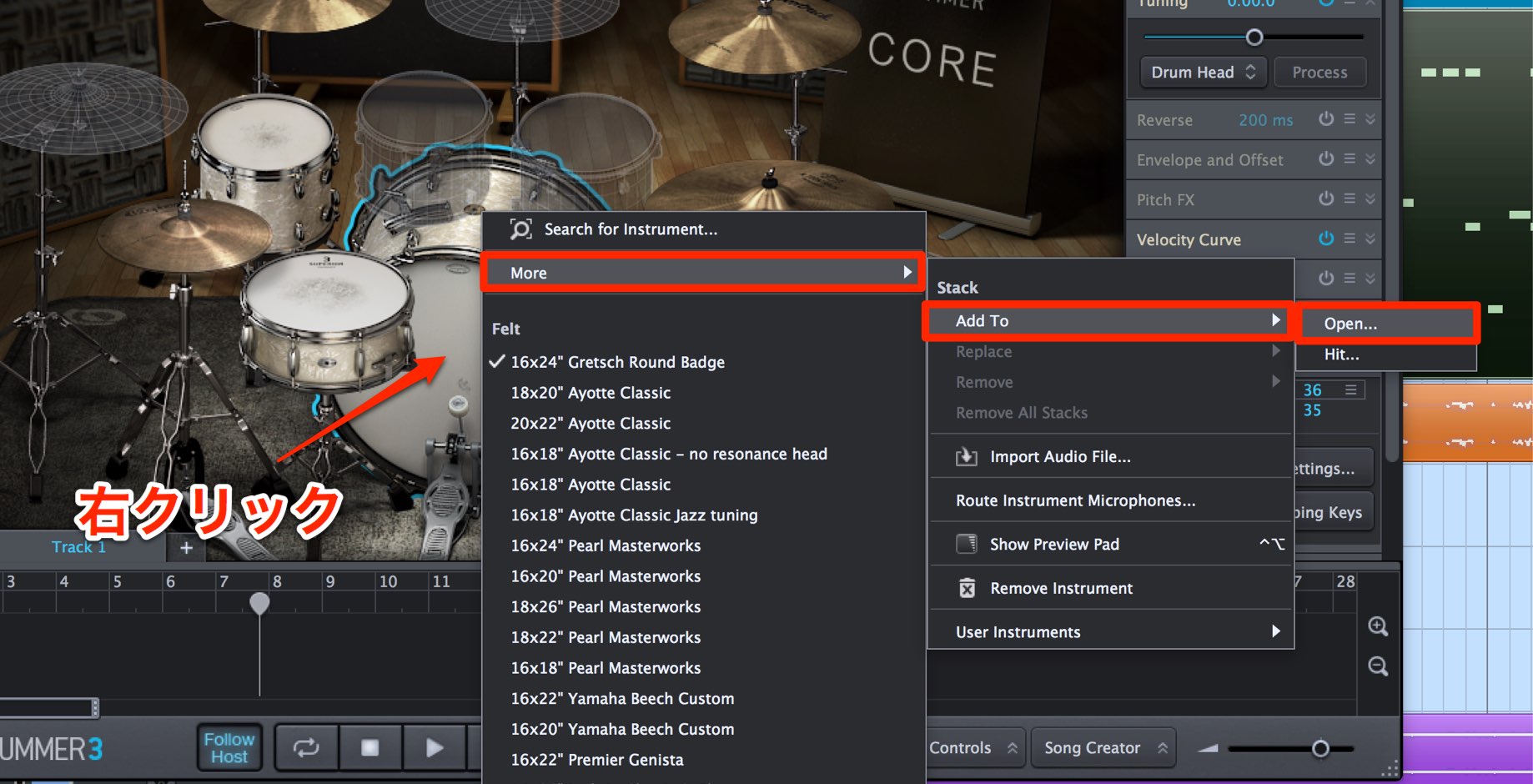
Right-click the kick and choose More → Add To.
Using the method above, we identified the played articulation as Open, so select it.
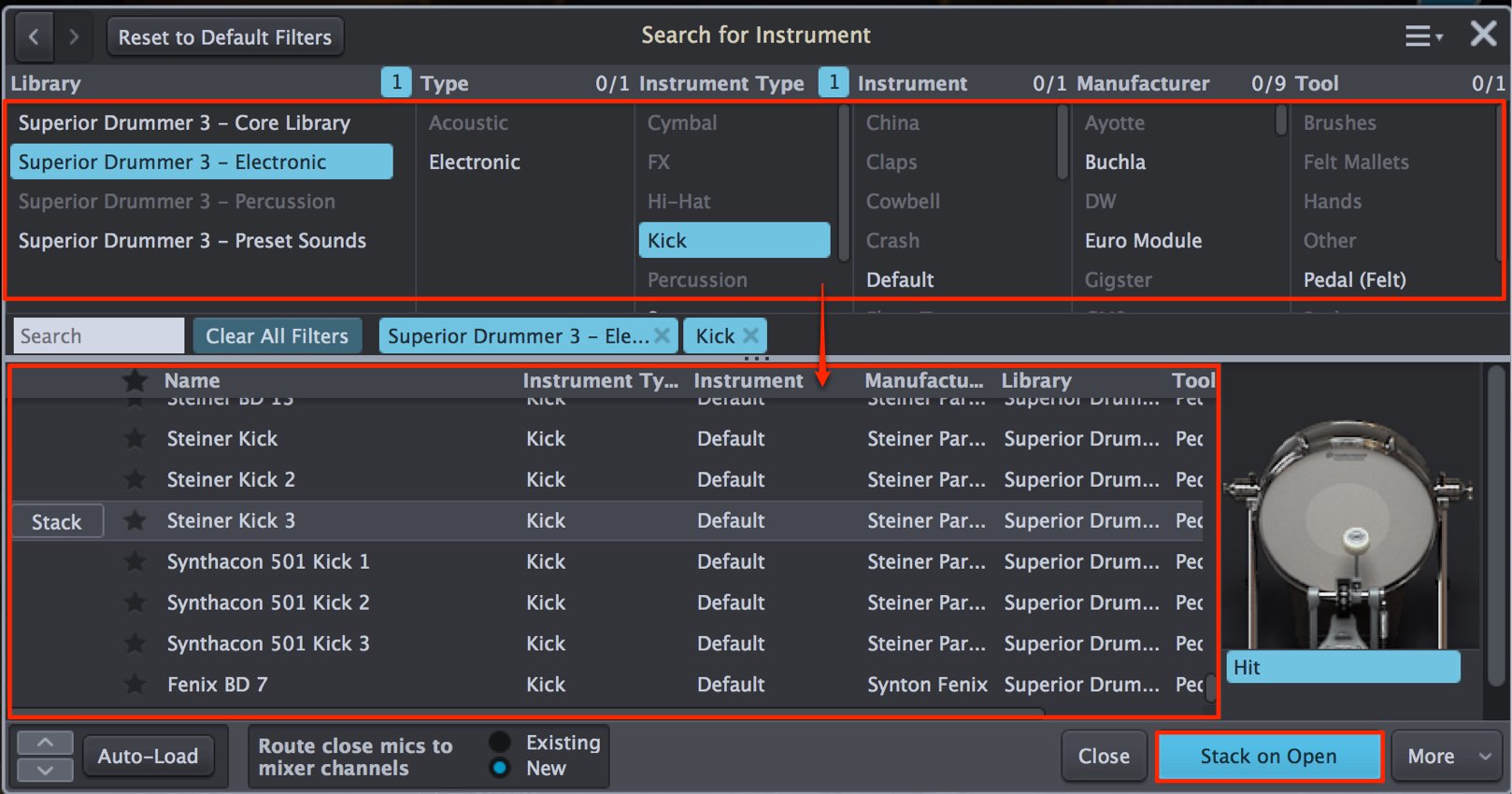
The Search for Instrument window opens.
Choose the instrument to layer here.
Superior Drummer 3 also includes electronic kits, which can be effective when layered with acoustic drums.
Use the window at the top to filter sound types; the results appear below.
Click instrument names to audition them, then load one you like.
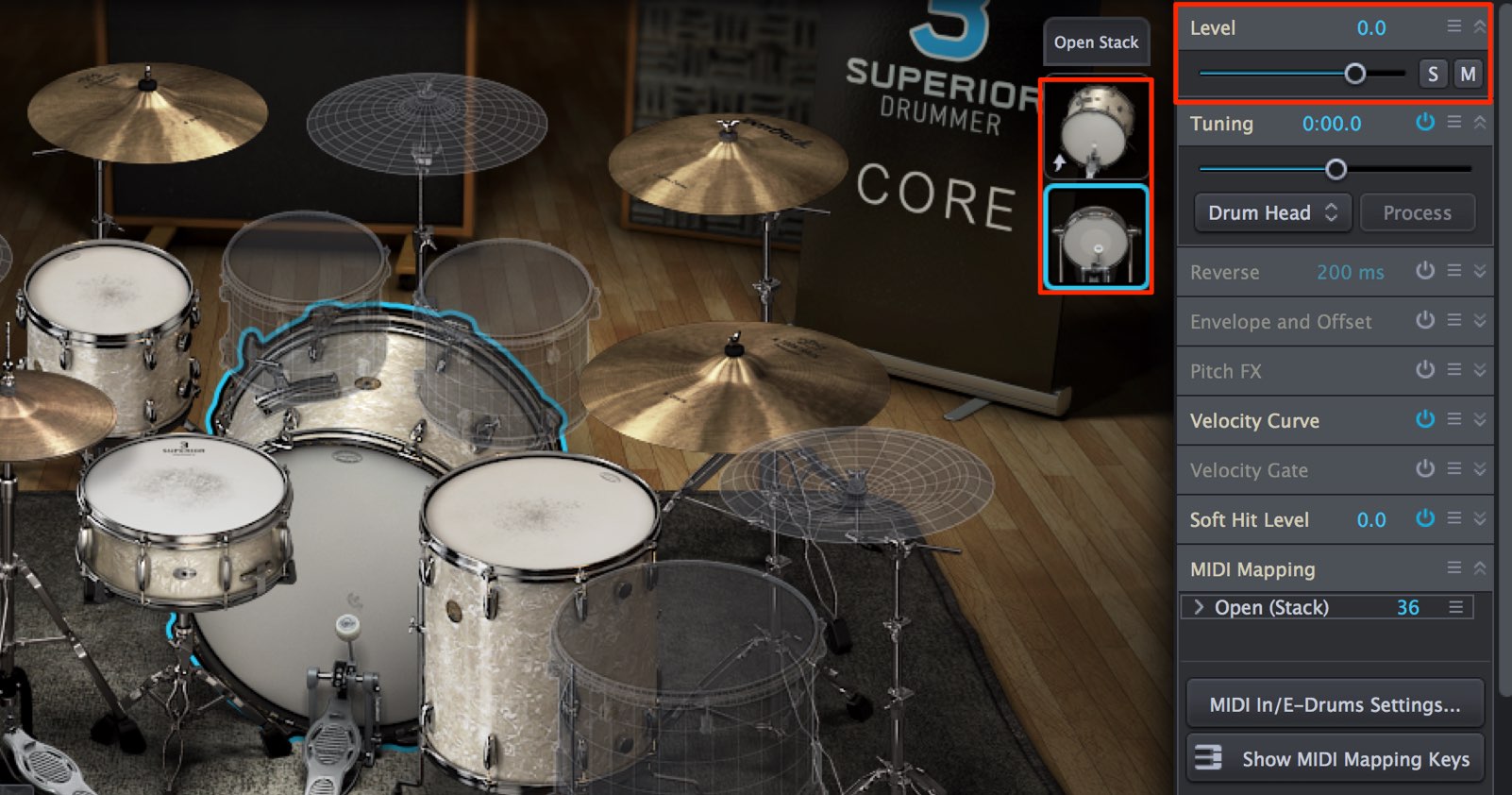
The selected instrument is added and plays at the same time as the original.
You can select each instrument and quickly adjust their volume balance.
Saving a kit
After creating a kit you like, save it.
You can then restore it if you accidentally change a sound and recall the same settings in other songs.
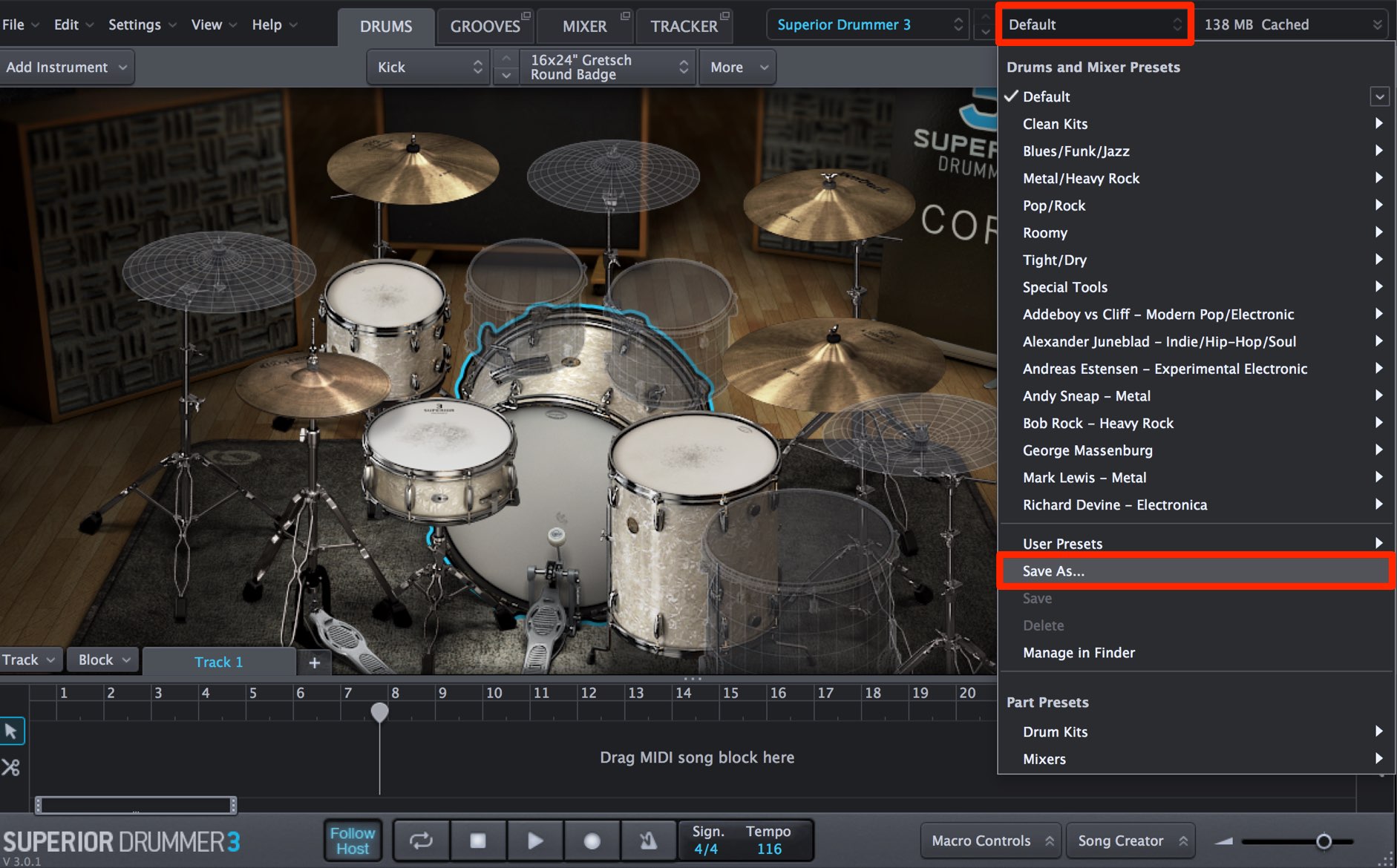
Select Save As from the preset menu.
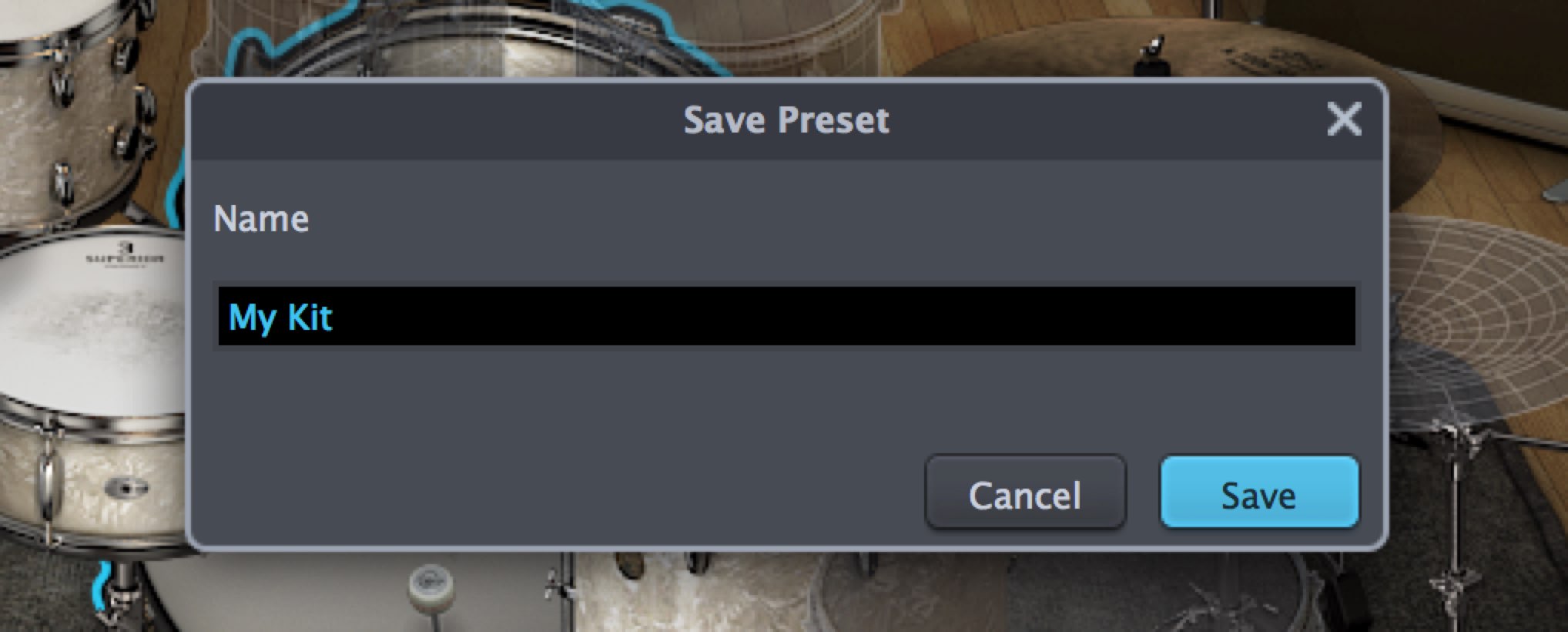
Enter a name and click Save to save the settings.
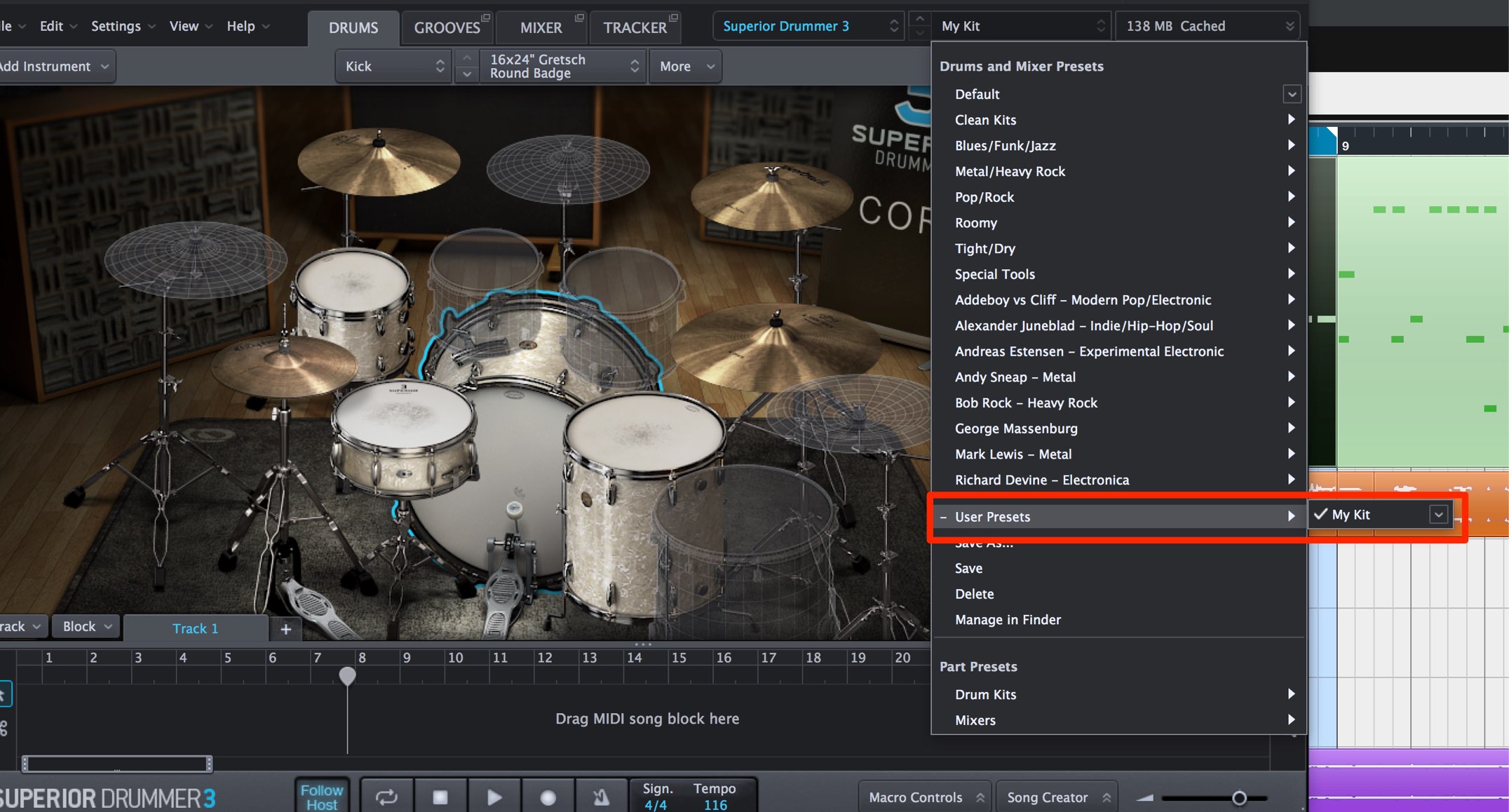
The saved preset appears under User Preset; click it to recall it.
What did you think?
Even the basic task of loading a kit offers a variety of features and useful techniques.
Next time, we will continue with kit customization and explore the many available performance patterns.
Purchase the product
Frequently asked questions
Q1. What is the cache feature in Superior Drummer 3?
The cache speeds up working with the library by loading only the sounds needed for MIDI playback into memory. This reduces memory use and speeds previews. Noise or interruptions can occur on first playback while sounds load, so we recommend turning it off and loading all sounds once you have chosen a kit.
Q2. Can I change kits while keeping the mixer settings?
Yes. Open Drum Kits in the preset window and select the desired kit. The kit changes while mixer settings such as volume balance and effects remain in place.
Q3. Can I layer multiple sounds on a kick or snare?
Yes. Right-click the drum, choose More → Add To, select the articulation and then choose a sound in the search window. The layered sounds will play together.
Q4. Can I save a kit I created?
Yes. Choose Save As from the preset menu and save it under a name of your choice. The preset appears under User Preset and can be recalled for use in other songs.
NEW ARTICLES
Latest English Articles






















































































































































































































































































































































