
Vocal chopping is a music production technique that slices audio such as vocals, guitars or synths and rearranges it with MIDI to create new phrases. In Native Instruments Kontakt, you can import material, set slice markers, assign the slices to MIDI keys and adjust individual levels, panning and pitch. This guide walks through the workflow, a useful technique for remixes and creative track processing.
Slice and rearrange audio to create new phrases
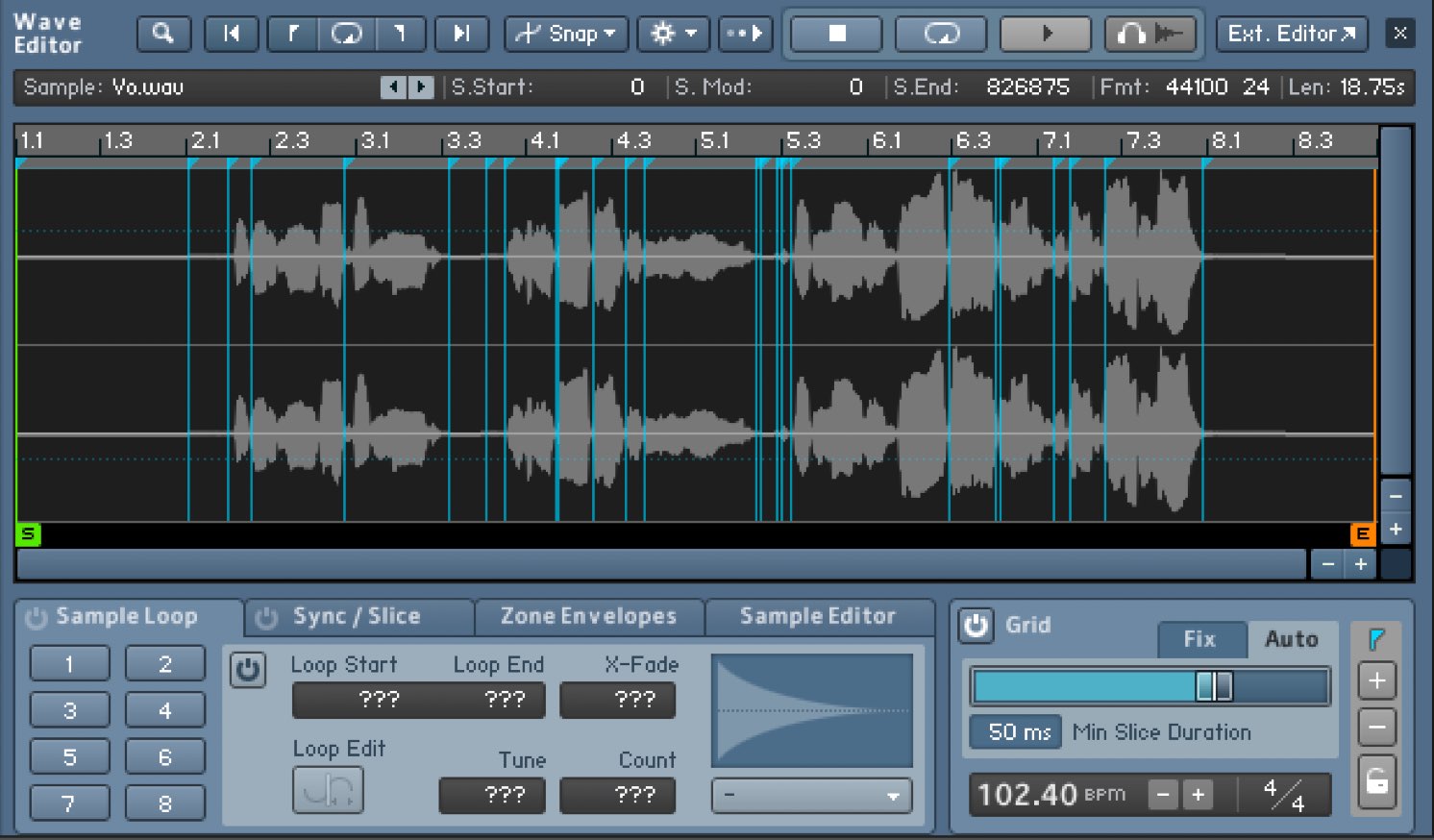
Here we will create a much-requested vocal chop using Native Instruments’ Kontakt sampler.
By chopping up a vocal and rearranging the pieces with MIDI, you can create new phrases and effects that fit your song.
This technique is also common when remixing an existing track, so let’s learn the procedure.
Video: Creating a vocal chop in Kontakt
Importing material
First, import the material you want to use into Kontakt.
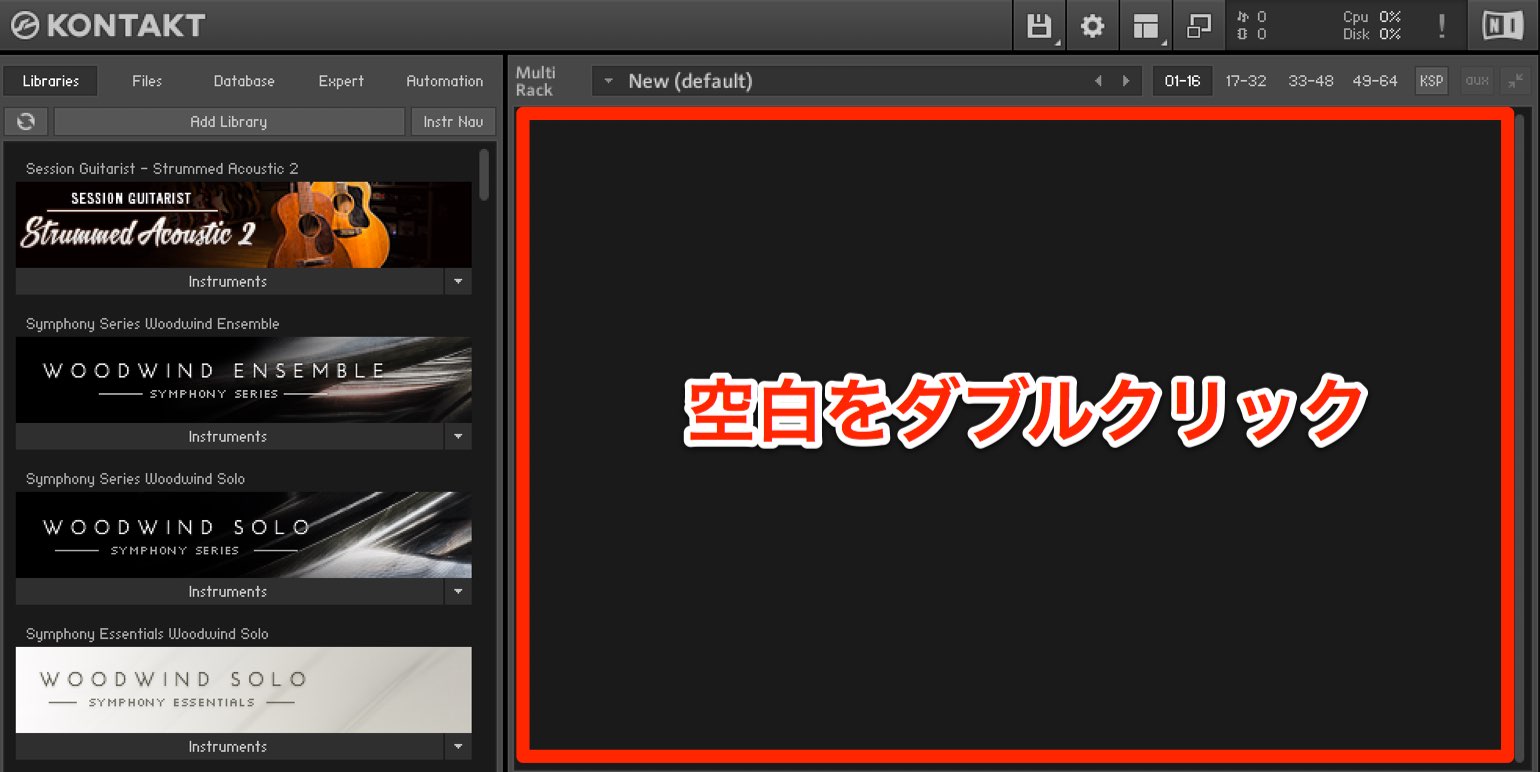
Double-click an empty area in the instrument display to create an instrument.
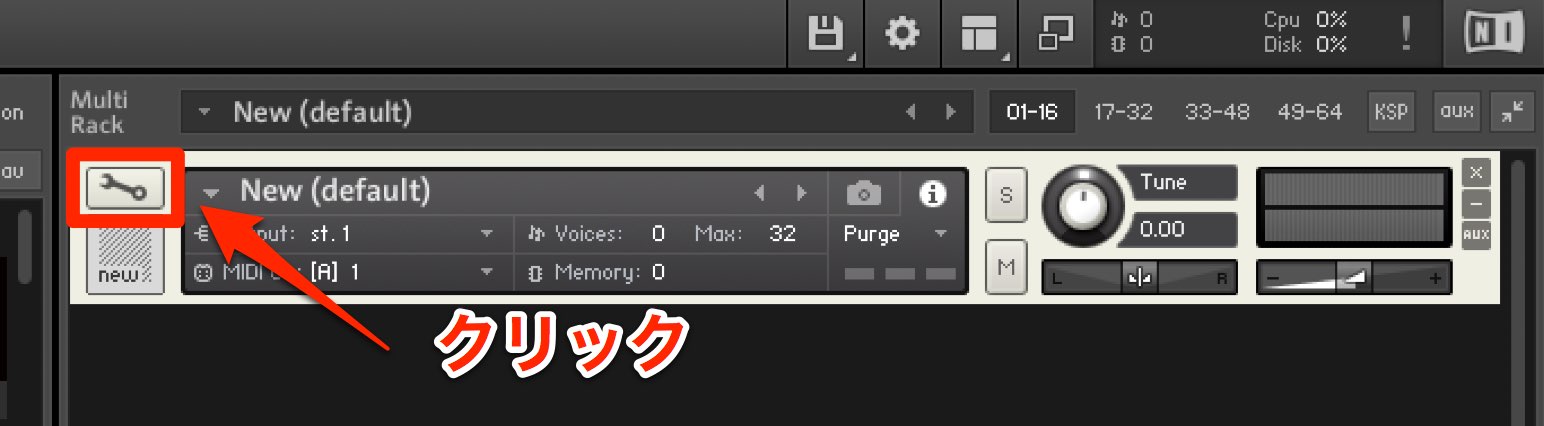
Click the instrument’s edit icon.
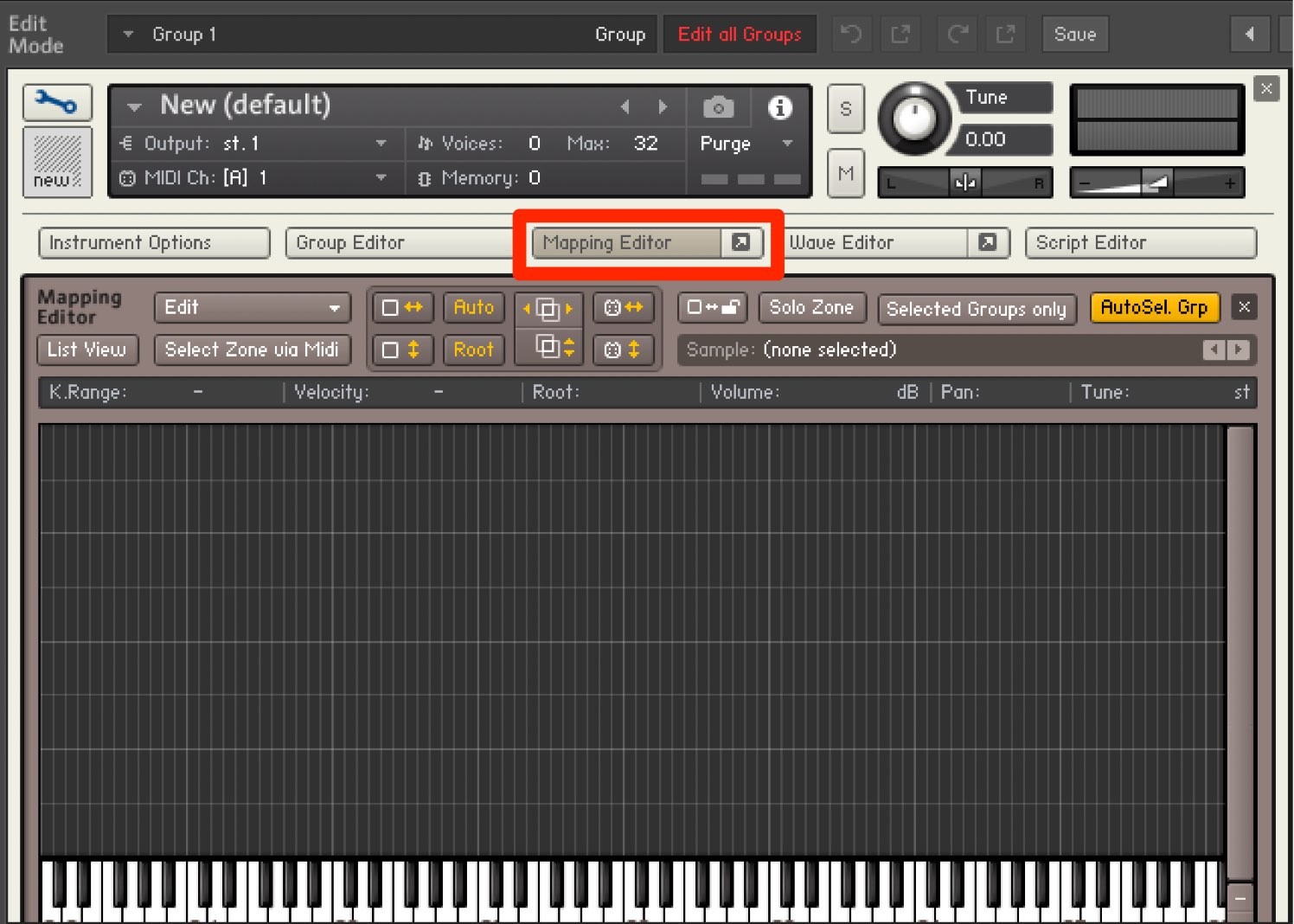
Click Mapping Editor to open it.
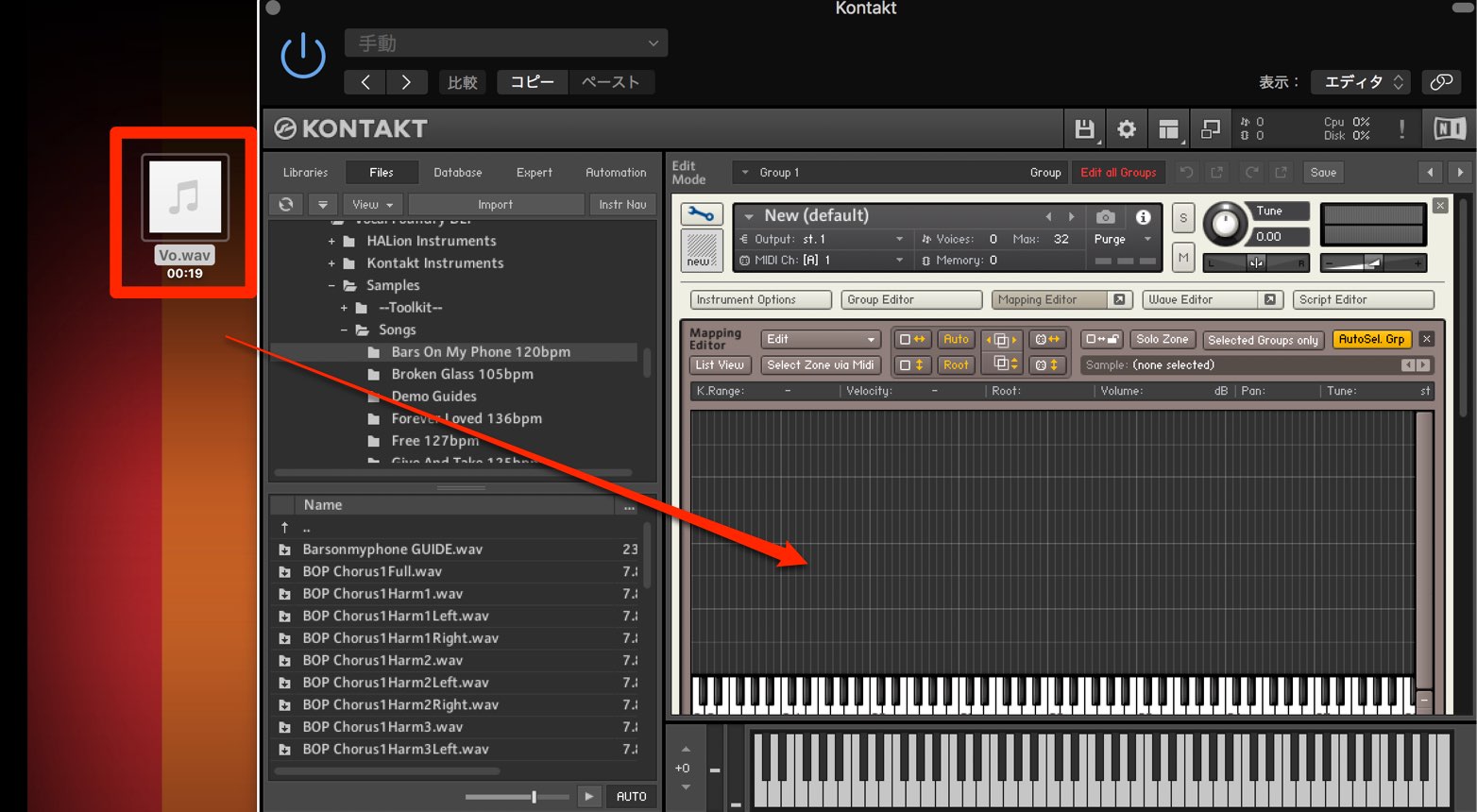
Drag and drop your audio file (WAV or AIFF) into the empty area.
You can select material from a drive using the Files tab or add it directly from a location or folder.
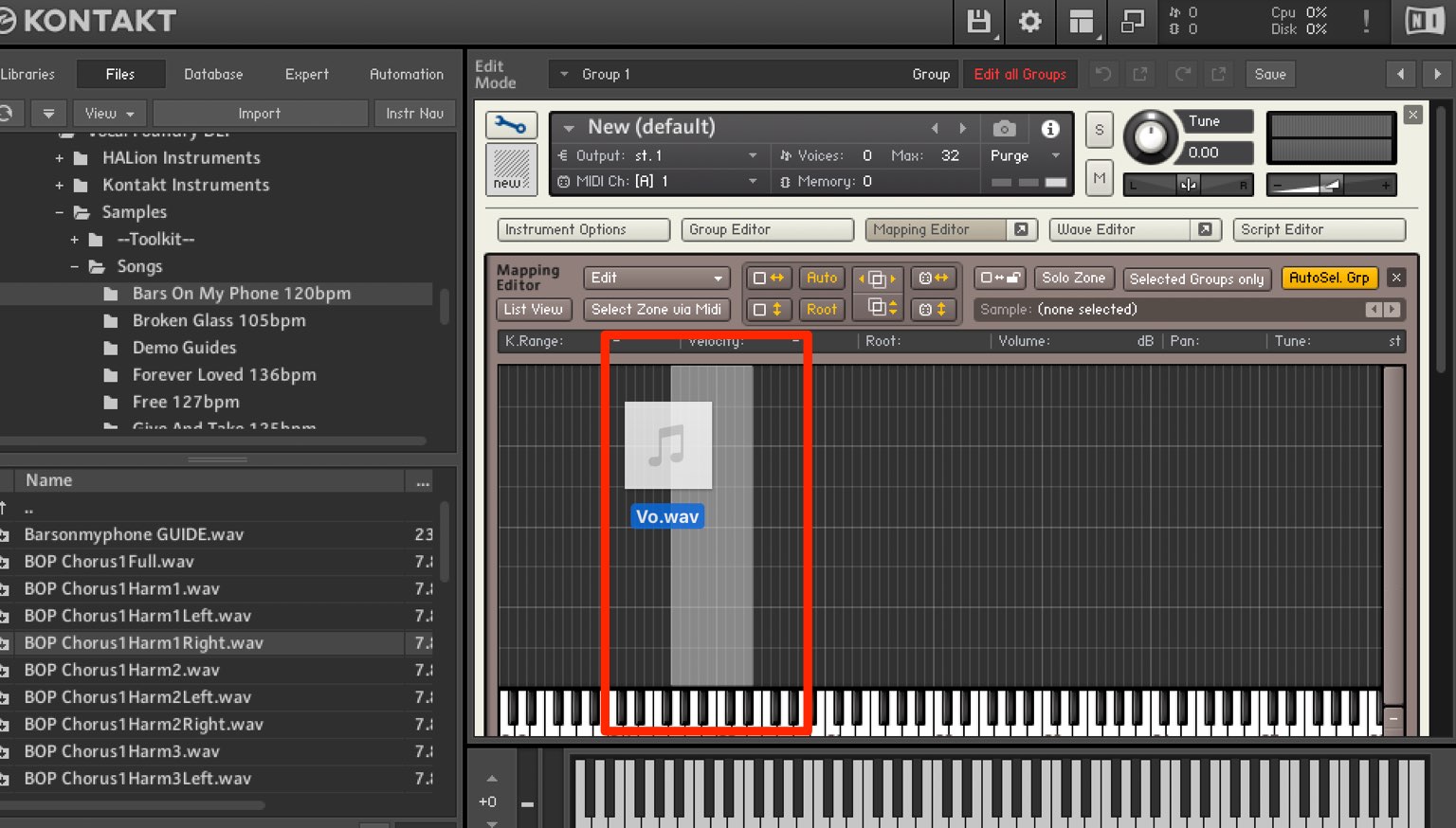
The white shading shown while you drag indicates the range over which the sample will be mapped.
Drag upward to expand that range or downward to narrow it.
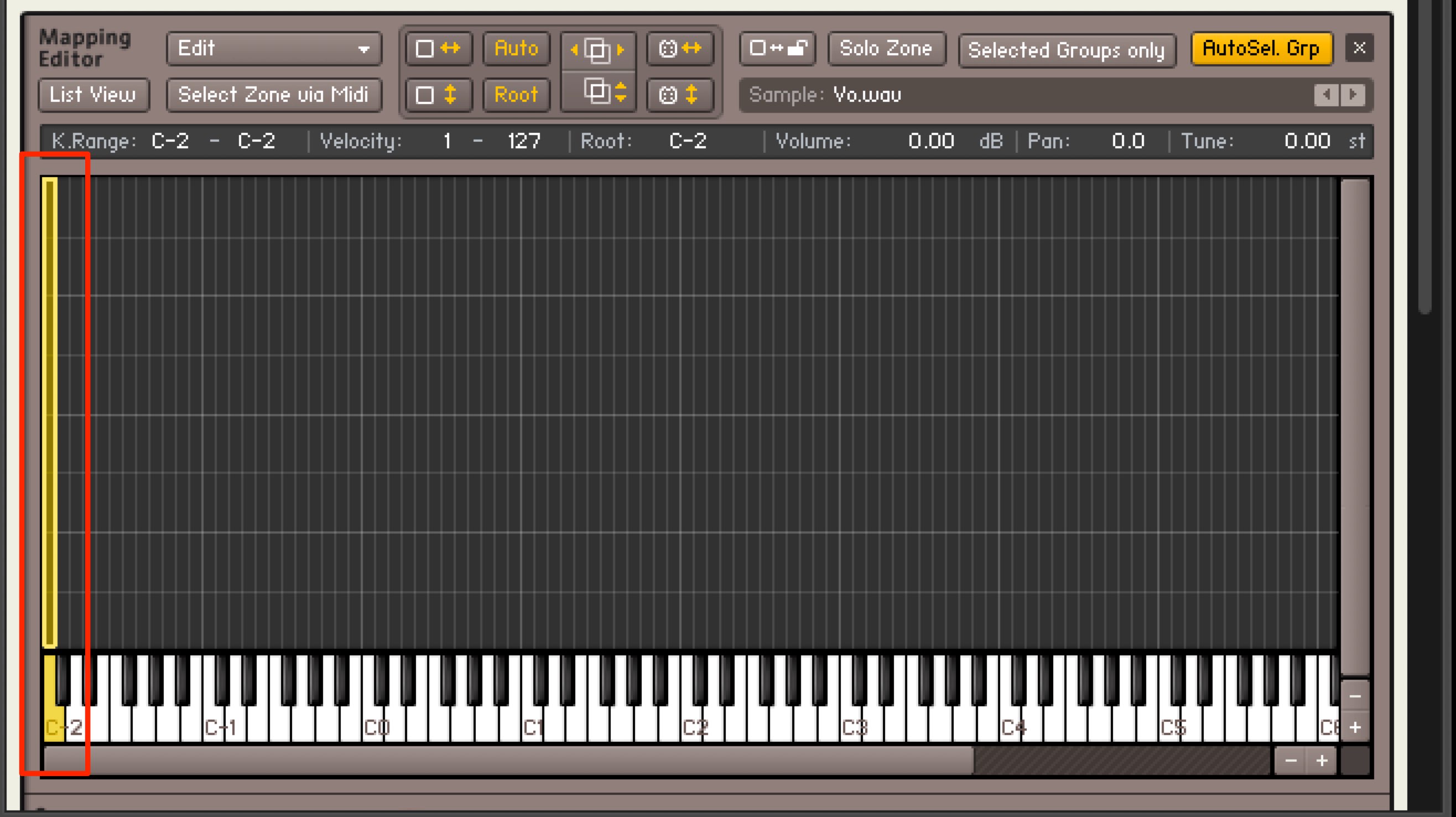
Here we mapped it to one location because we only need to slice it.
The material is now loaded.
Slicing and setup
Next, let’s slice the imported material.
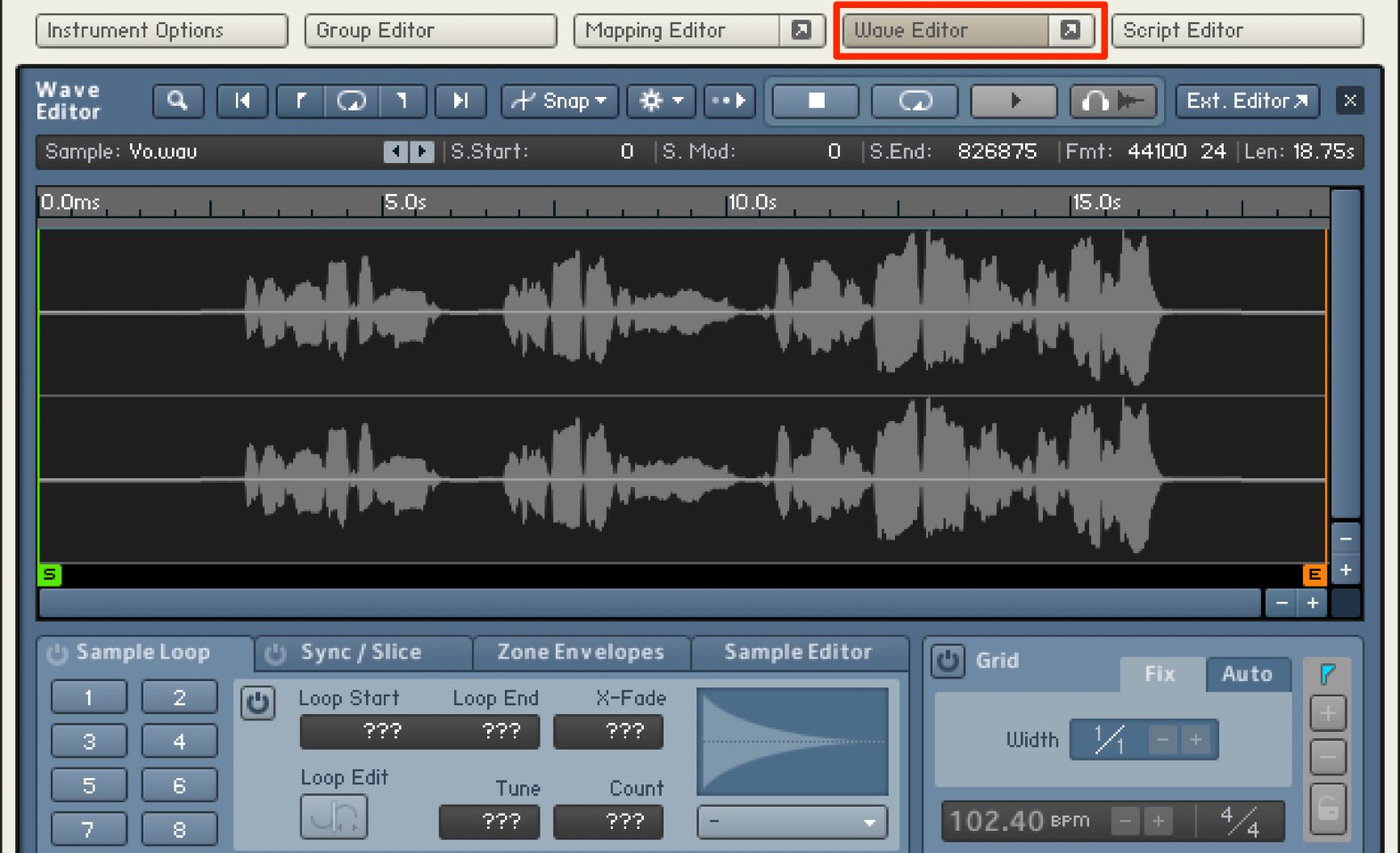
Click Wave Editor to open it.
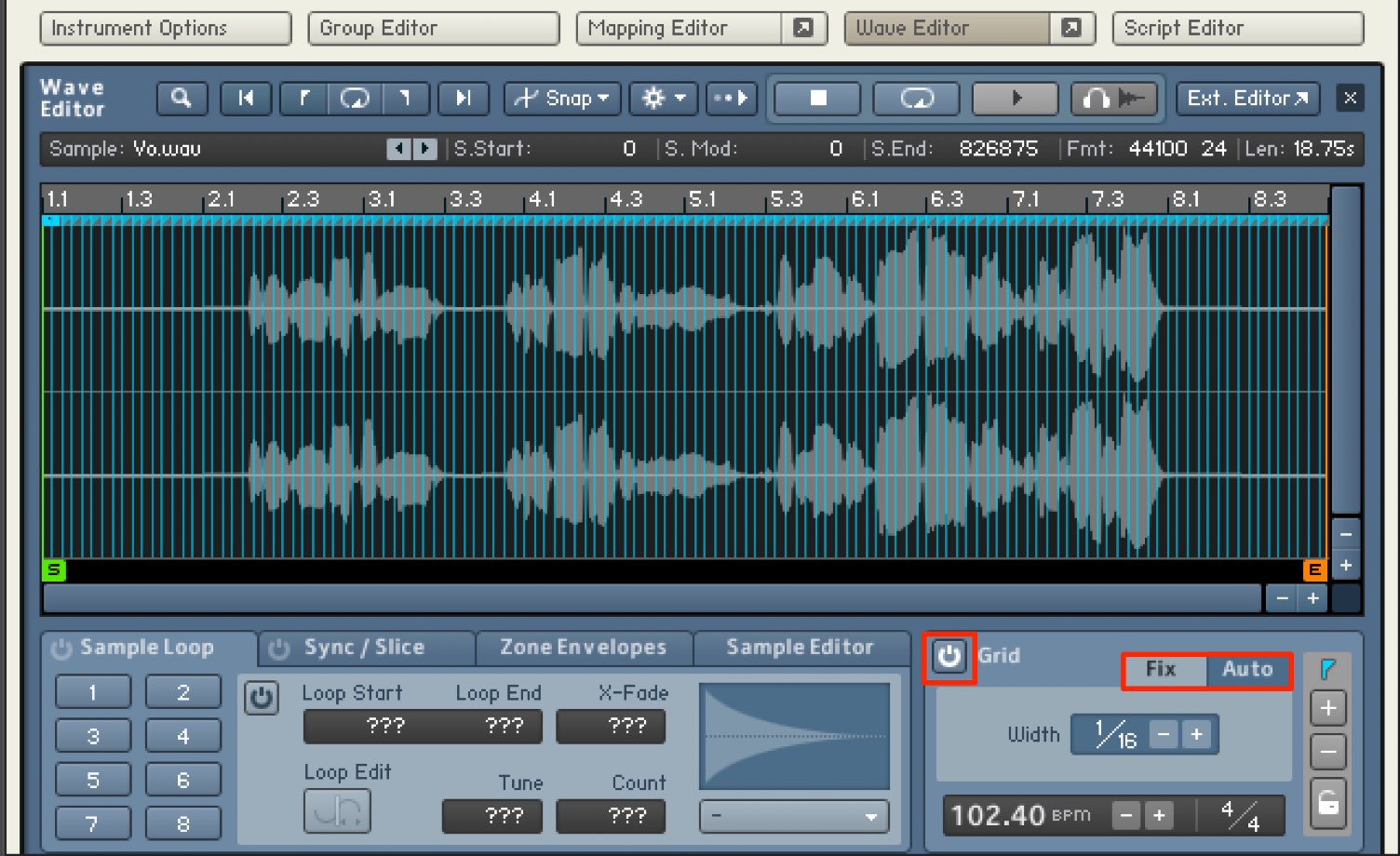
Enable Grid at the lower right to display slice markers.
There are two modes:
- Fix: creates slice markers at the selected note intervals.
- Auto: detects attacks in the material and creates slice markers.
We recommend trying Auto to follow the material.
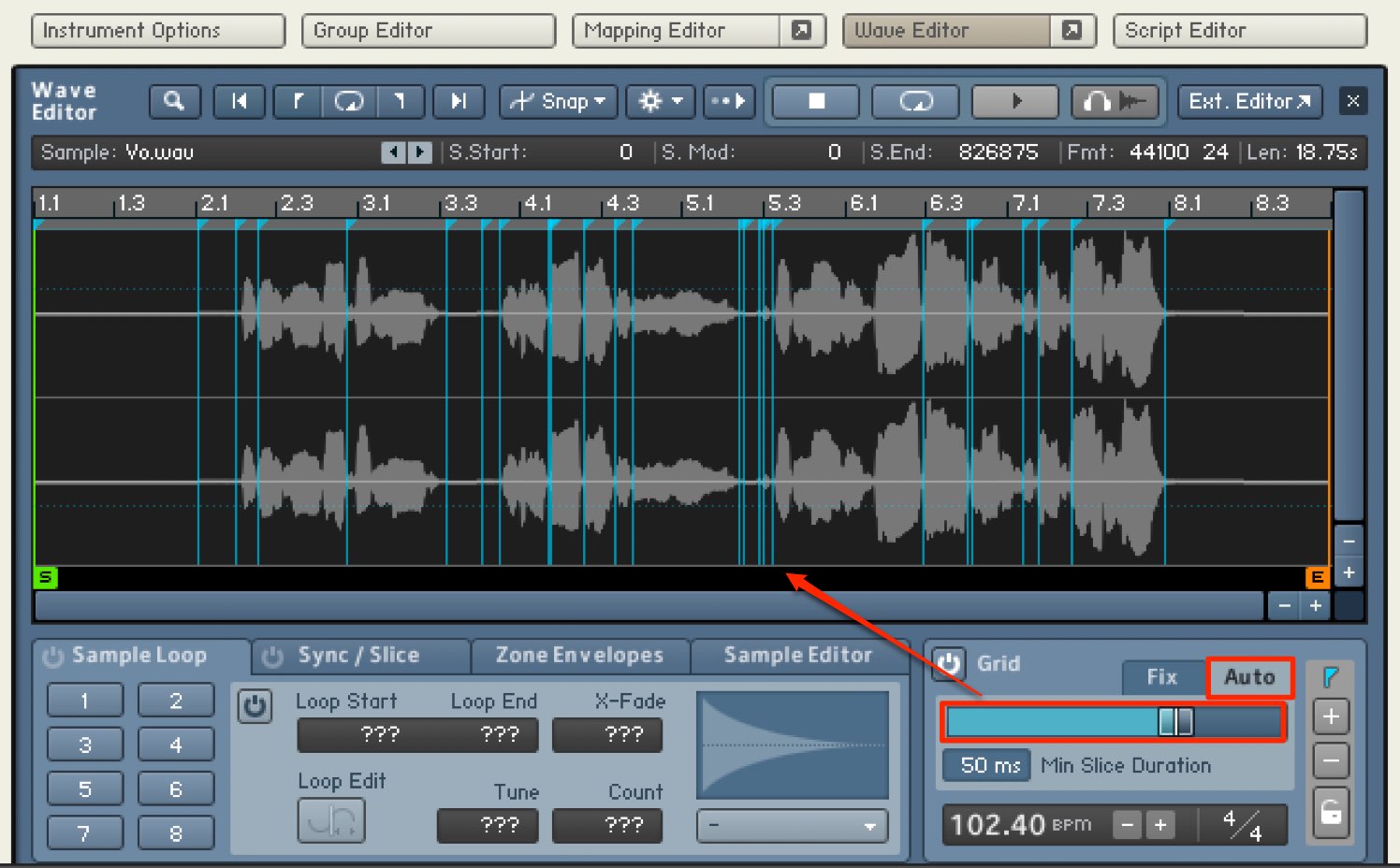
Adjust the attack sensitivity with the slider to set the number of slice markers.
The slider alone will rarely give ideal results, so set an approximate sensitivity first and then fine-tune the markers.
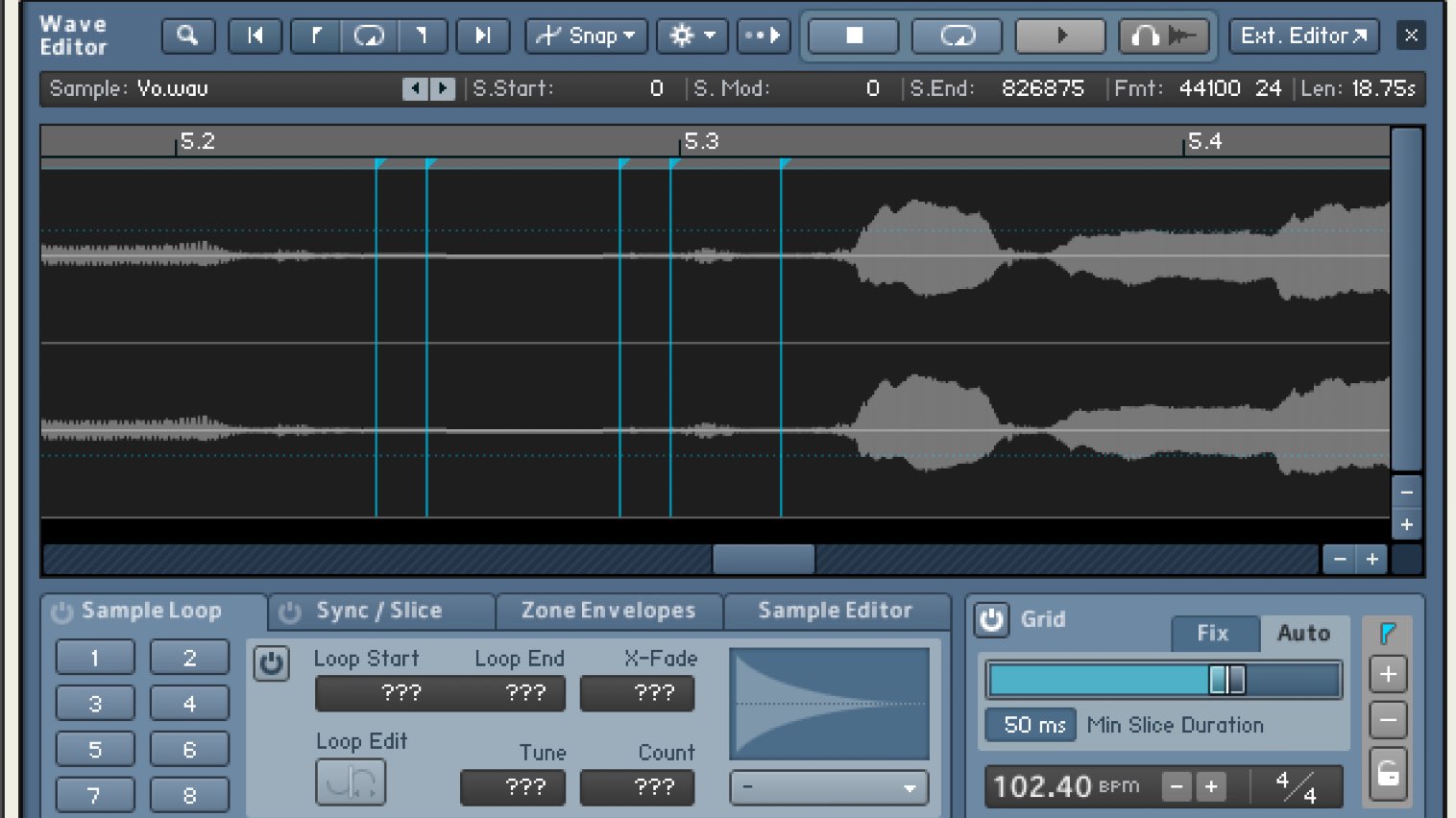
Zoom in on a specific range to position slice markers precisely.
- Mac: Option + drag
- Windows: Alt + drag
Use these shortcuts to select the range to enlarge.
To return from the zoomed view, use:
- Mac: Option + double-click
- Windows: Alt + double-click
This restores the view.
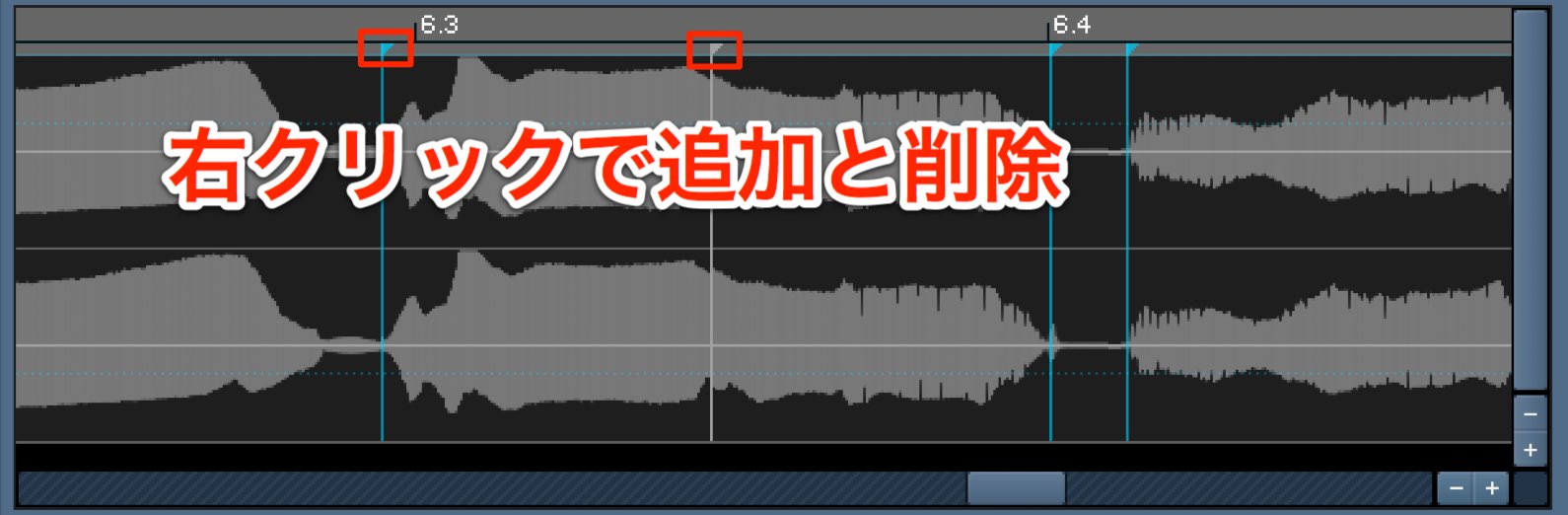
Right-click to add or remove slice markers.
- Right-click a position where you want to add a marker.
- Right-click an existing marker to remove it.
After setting the markers, assign the sliced samples to keys.
Select the Sync/Slice tab and click Drag MIDI to Host to assign them. There are different assignment modes.
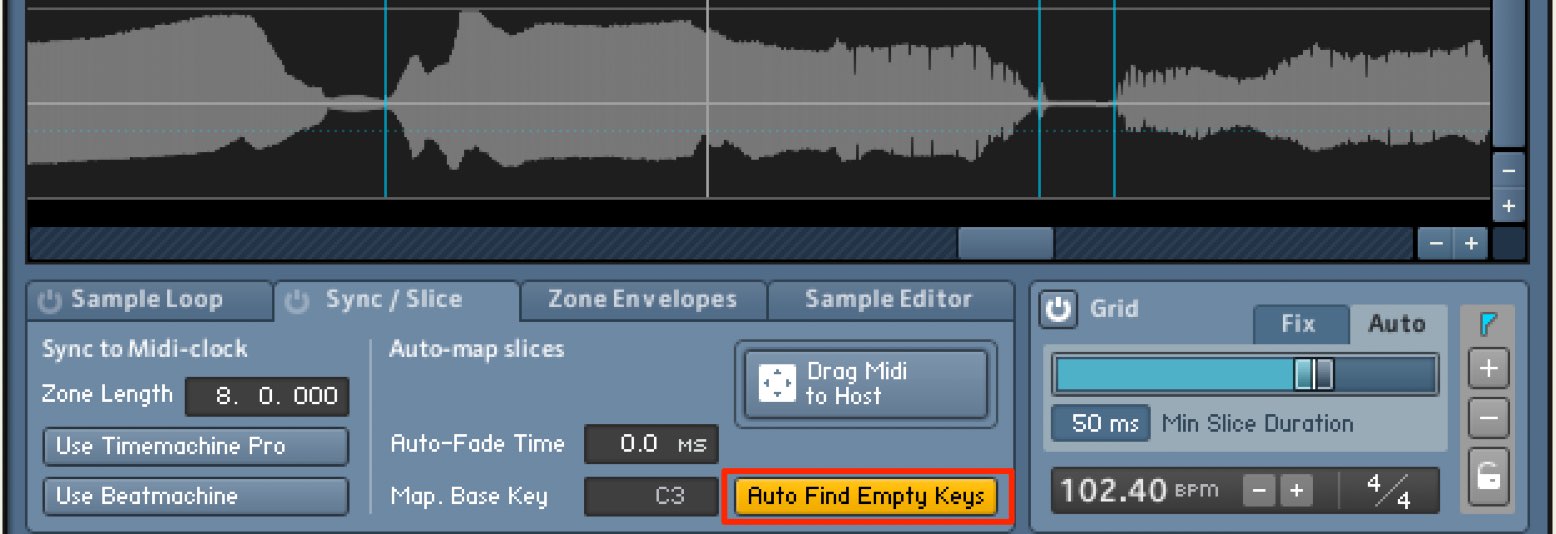
When Auto Find Empty Keys is lit, samples are assigned to unoccupied keys.
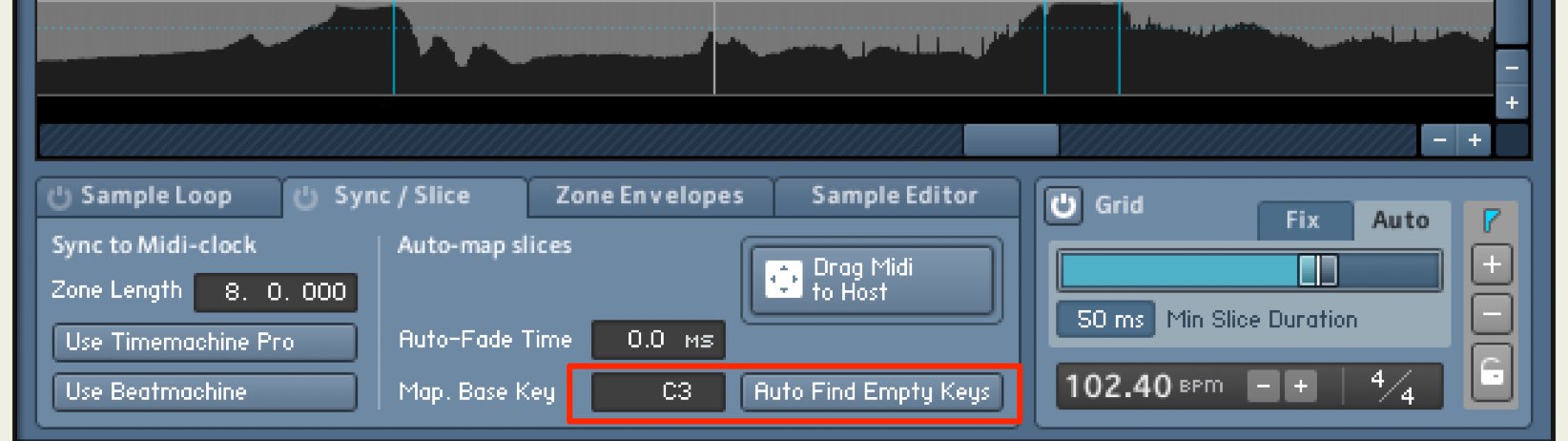
When it is off, slices are assigned starting at the note specified on the left.
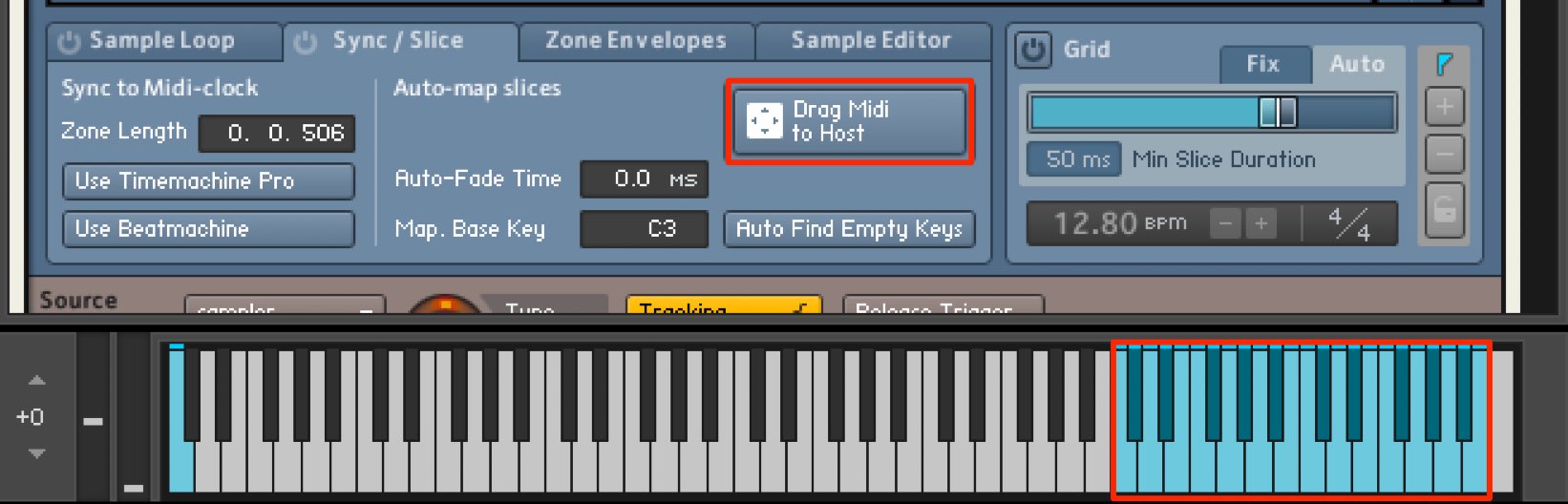
Click Drag MIDI to Host to complete the assignment.
You can now play the slices using MIDI notes.
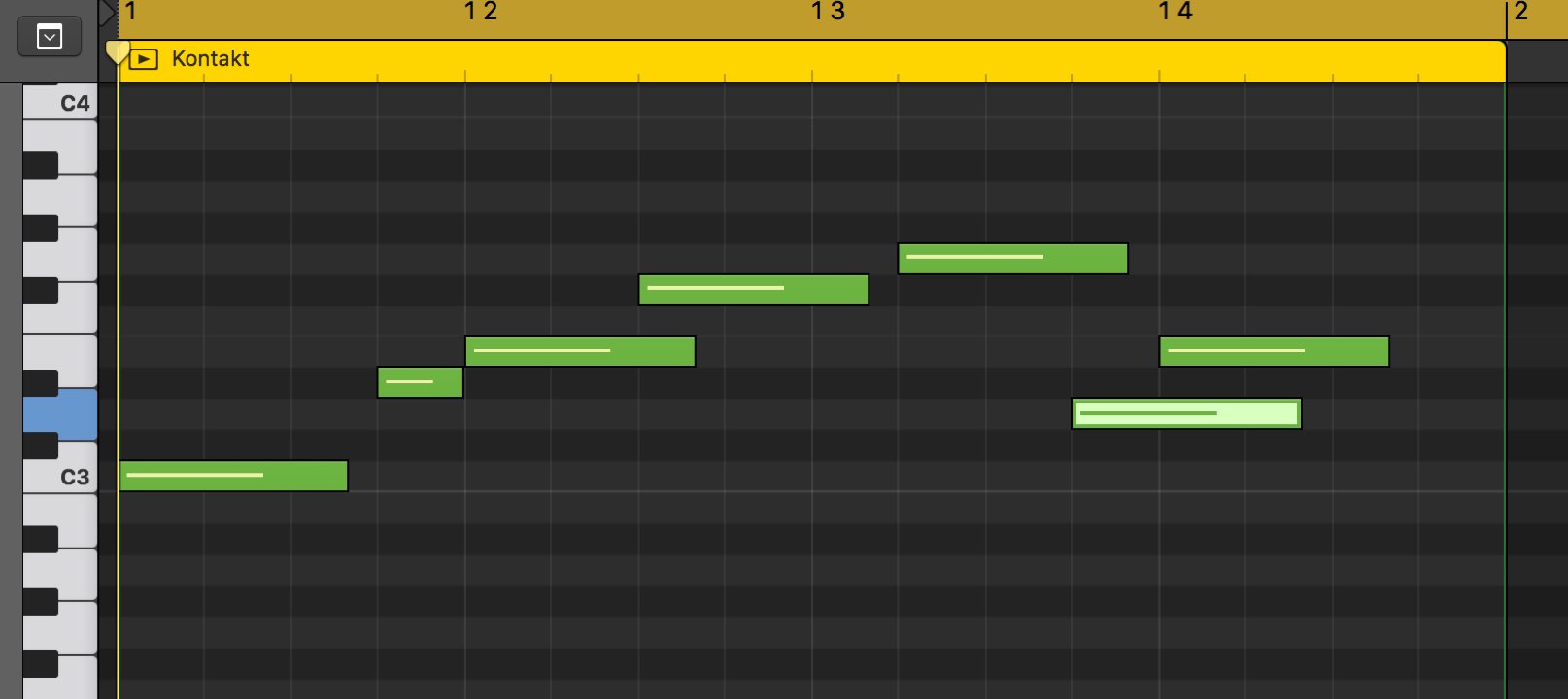
When programming a part, you may find the samples are not in tune with the song.
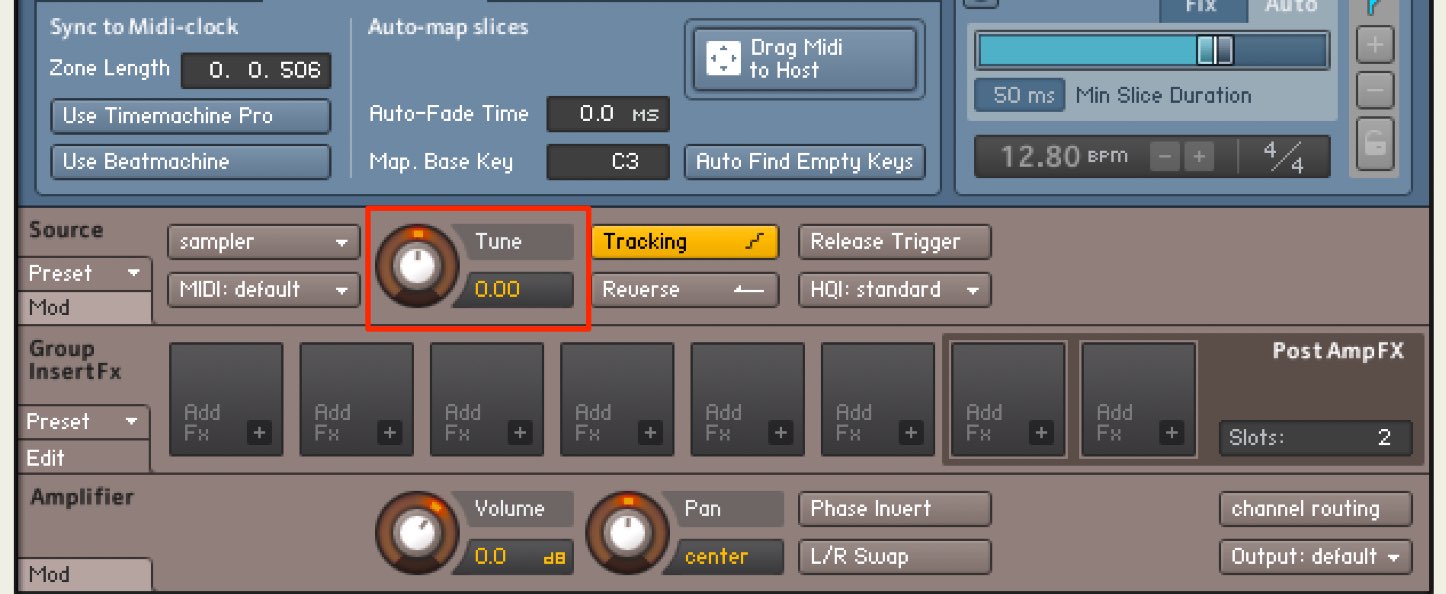
Use Tune in the Source section to change the pitch of all slices together in semitone steps.
Knowing the key of the song and the source material makes this adjustment easier.
Editing and processing your material
Kontakt also lets you make detailed edits to individual slice samples.
Depending on the slices and the programmed part, multiple sounds may overlap during playback.
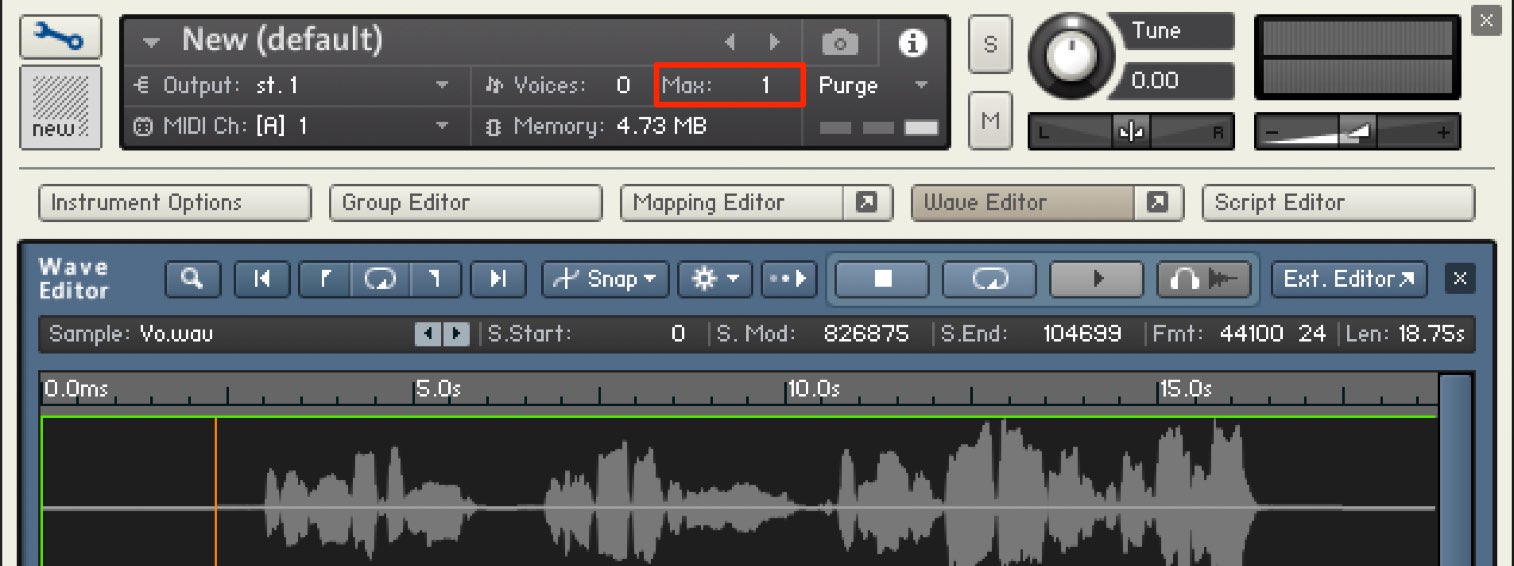
Set Voice Max at the top of the instrument to 1 to limit the number of simultaneous voices to one.
The next note silences the previous one, preventing overlap.
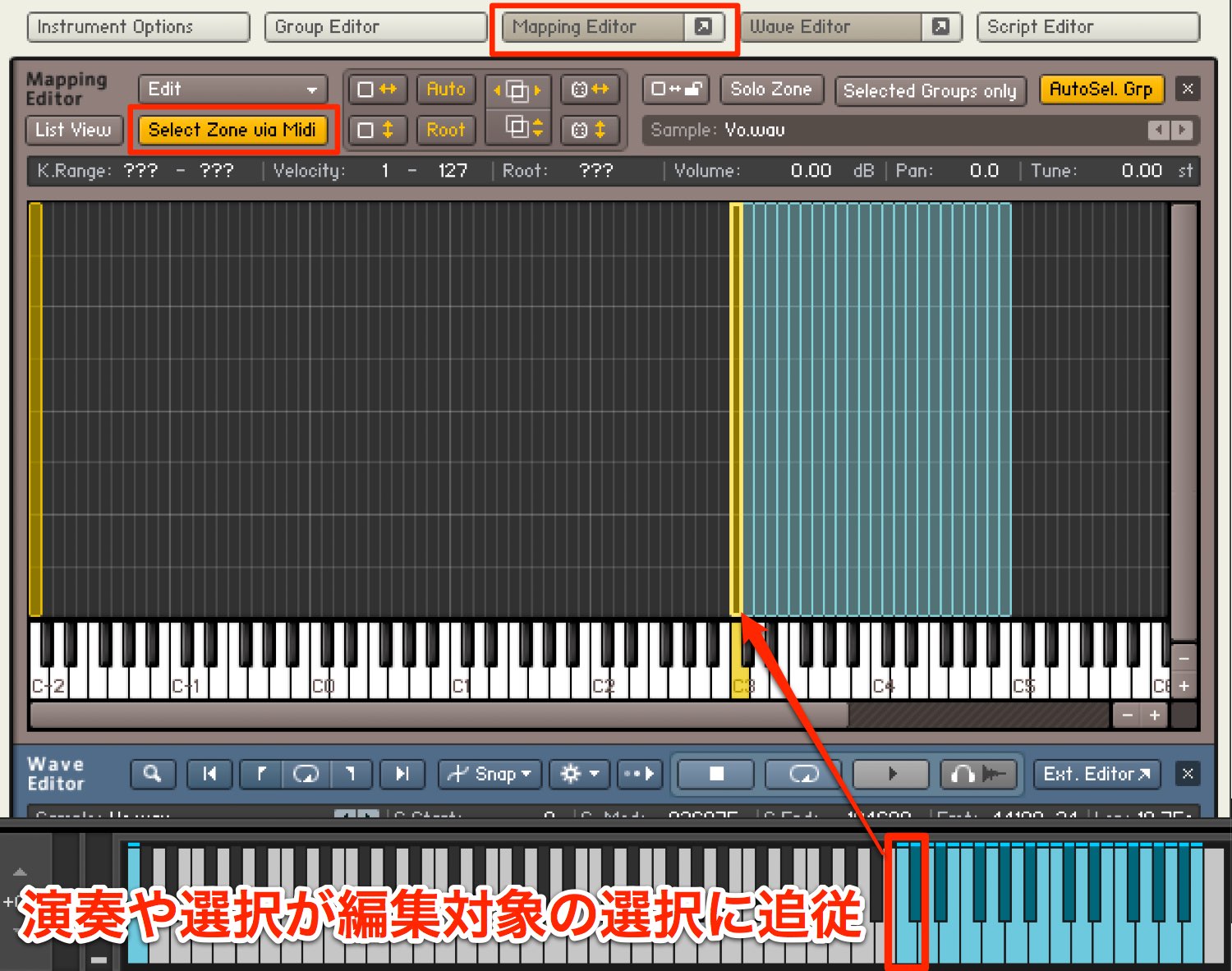
A useful editing feature is Select Zone via MIDI in the Mapping Editor.
The displayed parameters follow the sample you click or the note played via MIDI.
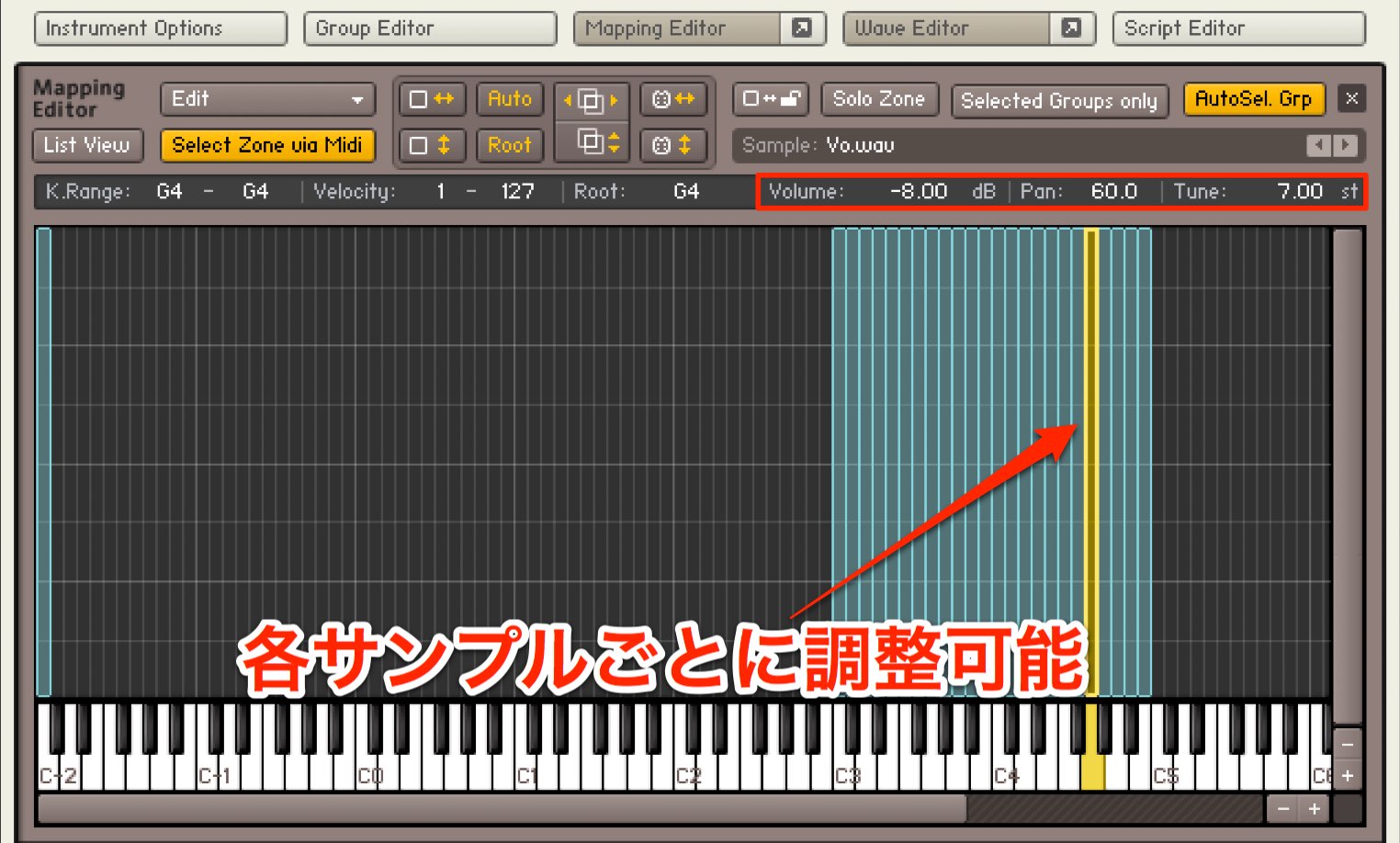
At the upper right of each sample, you can adjust its level, pan and pitch separately.
Select the desired sample and change its values.
Pitch is measured in semitones: 1 represents one semitone.
The decimal portion represents cents, allowing adjustments in hundredths of a semitone.
What did you think?
This example uses a vocal track, but the technique can also be used with pitched instruments such as guitar and synthesizer.
Try different source materials and incorporate them into your own music.
Frequently asked questions
Q1. Do I need Kontakt to create vocal chops?
Kontakt is a powerful sampler, but similar vocal chops can be made with samplers included in other DAWs. Kontakt offers detailed editing of individual sample level, pan and pitch, which can make the workflow efficient.
Q2. When should I use Auto or Fix for slice markers?
Auto detects attacks in the material and can work well for sounds with clear onsets, such as vocals and guitar. Fix slices at selected note intervals and is useful for even, rhythmic divisions. Try Auto and choose according to the material.
Q3. My slices are out of tune with the song. What can I do?
Use Tune in Kontakt’s Source section to adjust all slice pitches together in semitone steps. Knowing the keys of the song and source material makes pitch adjustments easier.
Q4. Multiple slices overlap when played. How can I stop this?
Set the instrument’s Voice Max to 1 to limit simultaneous voices. The next note silences the previous note, preventing overlapping sounds.
NEW ARTICLES
Latest English Articles
























































































































































































































































































































































