
This article explains a workflow for creating drum tracks in Ableton Live from a guitarist's perspective. Choose sounds from Packs and customize them in Drum Rack, then use the Push MIDI controller to play drum patterns into Session View in real time. Live's powerful Capture feature also lets you retrieve a performance afterward. By converting audio loops to MIDI, you can adapt existing samples to your current drum kit and use them in your songs, greatly improving both your production speed and creative possibilities.
An Ableton Live Songwriting Workflow for Guitarists
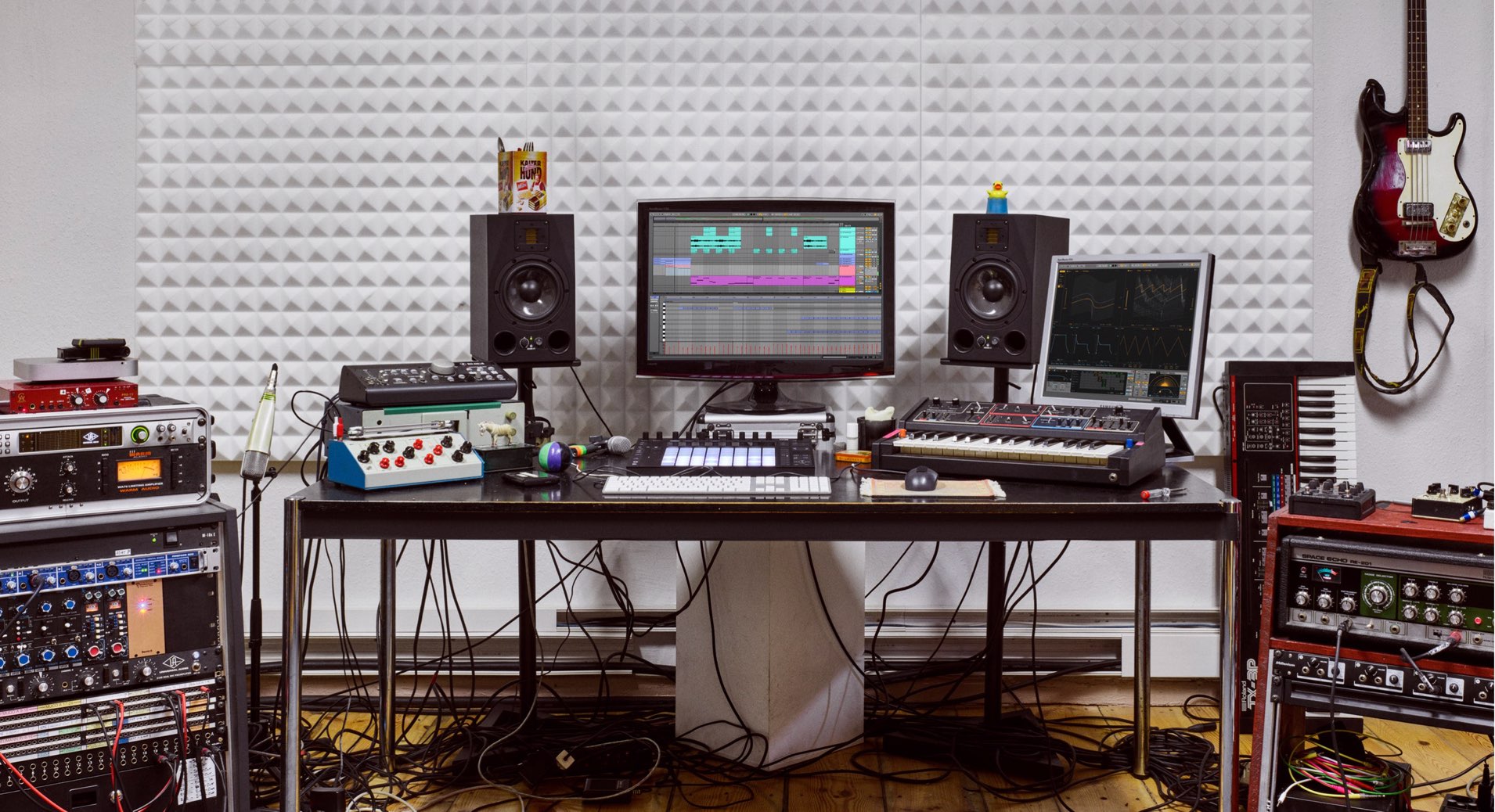
In this series, we will explore a songwriting workflow from a guitarist's perspective, using a variety of features in Ableton Live Suite.
You may think of Ableton Live as a DAW designed primarily for loop-based electronic and club music.
However, as we will demonstrate in this series, it is also highly effective for writing and arranging band-oriented music built around live instruments.
Let's explore a production workflow that makes use of the features that set Live apart from other DAWs.
First, listen to the finished version of the song we will be working on throughout this series.
Finished Song
In Part 1, we will look at a drum-track creation workflow that makes the most of Ableton Live.
Drum-Track Creation Workflow: Video Tutorial
- 1Drum-Track Creation Workflow
- 2Recording MIDI and Audio with a Guitar
- 3Creating Lead Sounds with Instrument Rack and External Instrument
- 4Programming Chords for a Keyboard Track with MIDI Effects
- 5Building a Song in Session View
- 6Exploring Live's Mixing Features
- 7Download the Tutorial Project
Selected Questions and Answers from YouTube

Is this file available for purchase?

You can download it using the “Download the Tutorial Project” link, which is also listed in the video description. https://bit.ly/32ex7G6
Choosing Sounds from Packs
We will create the chorus drums to go with the demo melody and chord tracks we have prepared in advance.
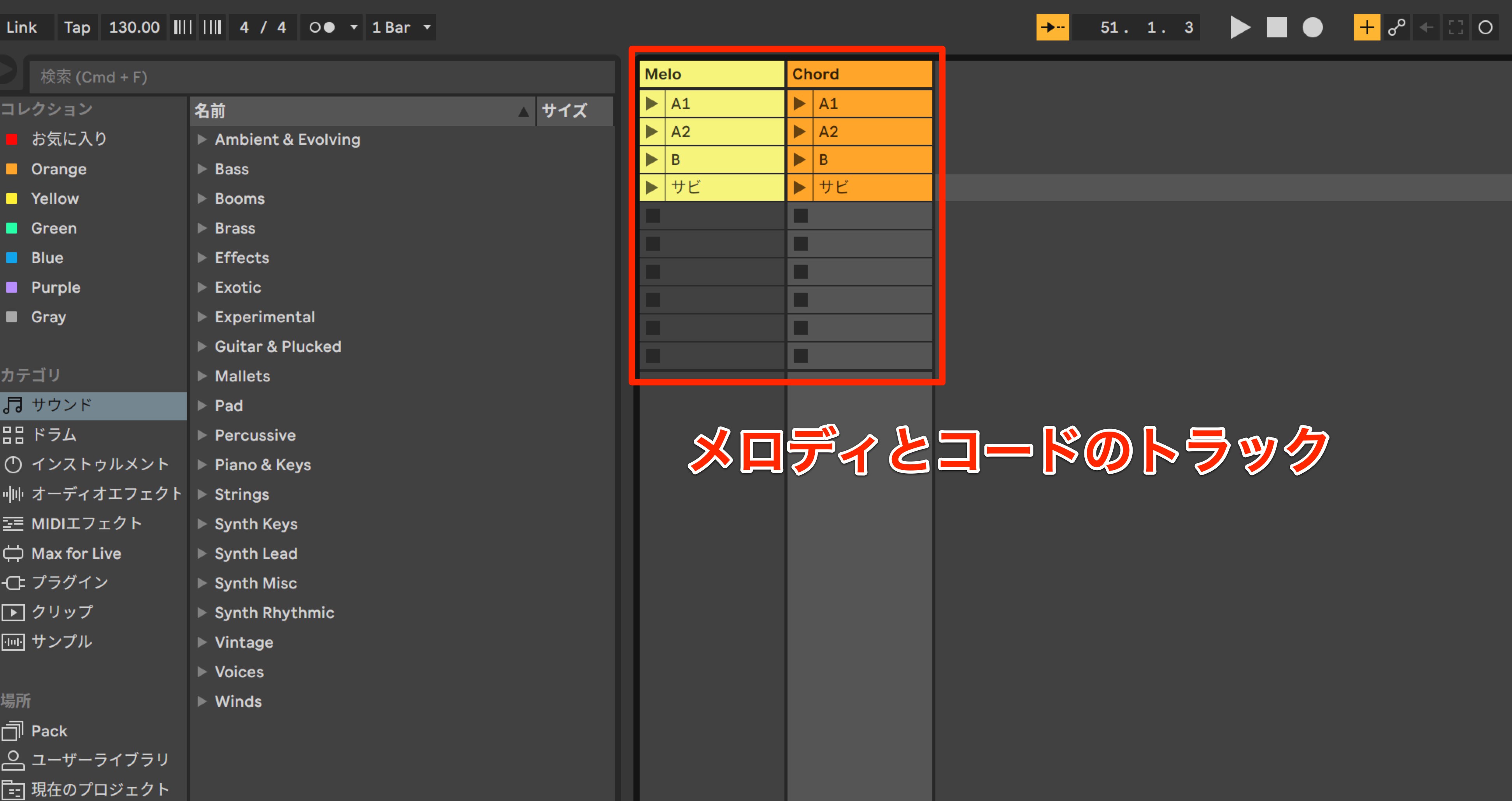
Let's start by choosing our drum sounds. Ableton Live comes with sound collections called Packs.
Packs include a variety of instruments and audio samples, such as drum beats, one-shots, and vocal phrases.
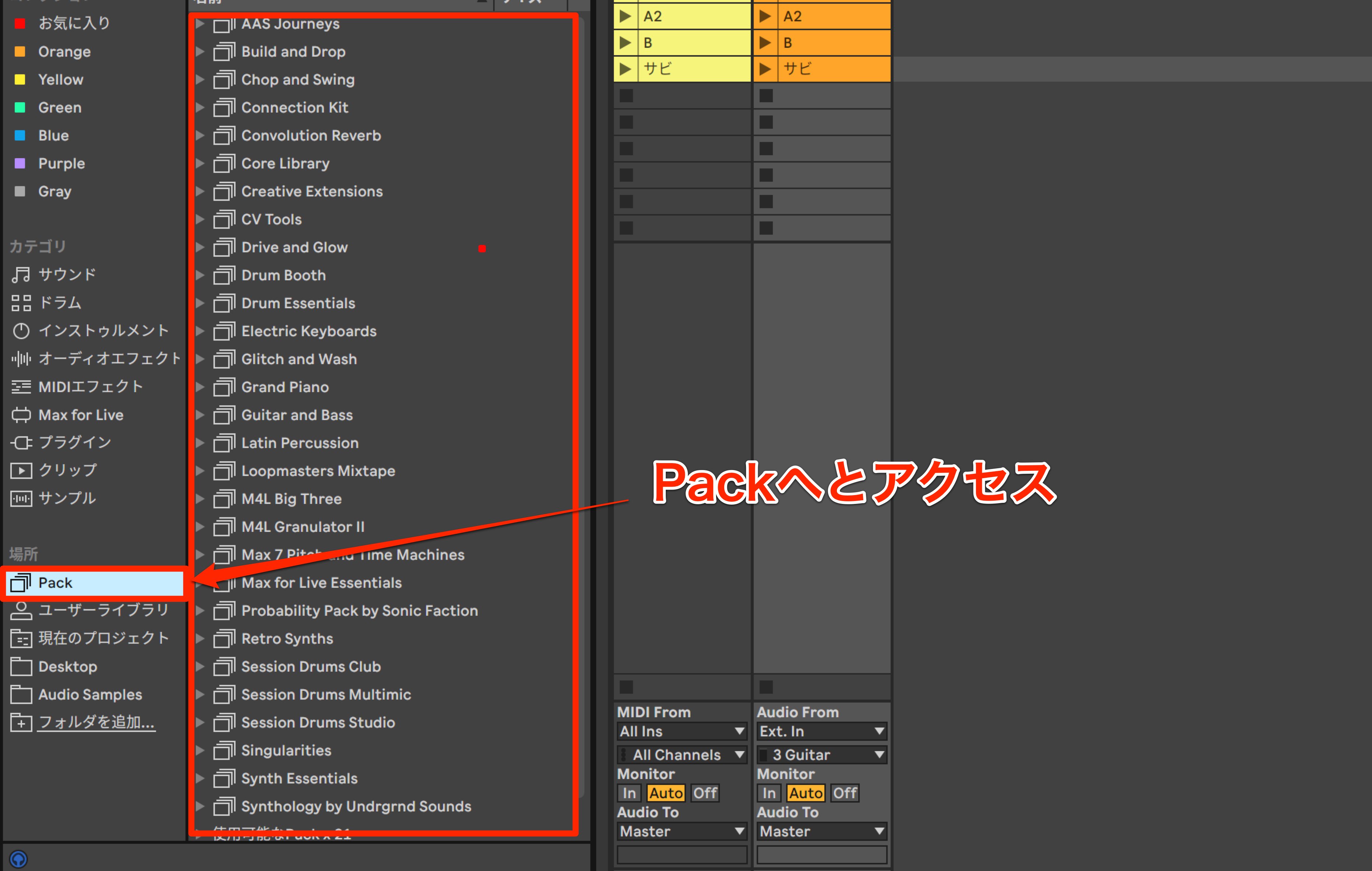
Acoustic drum sounds are available too.
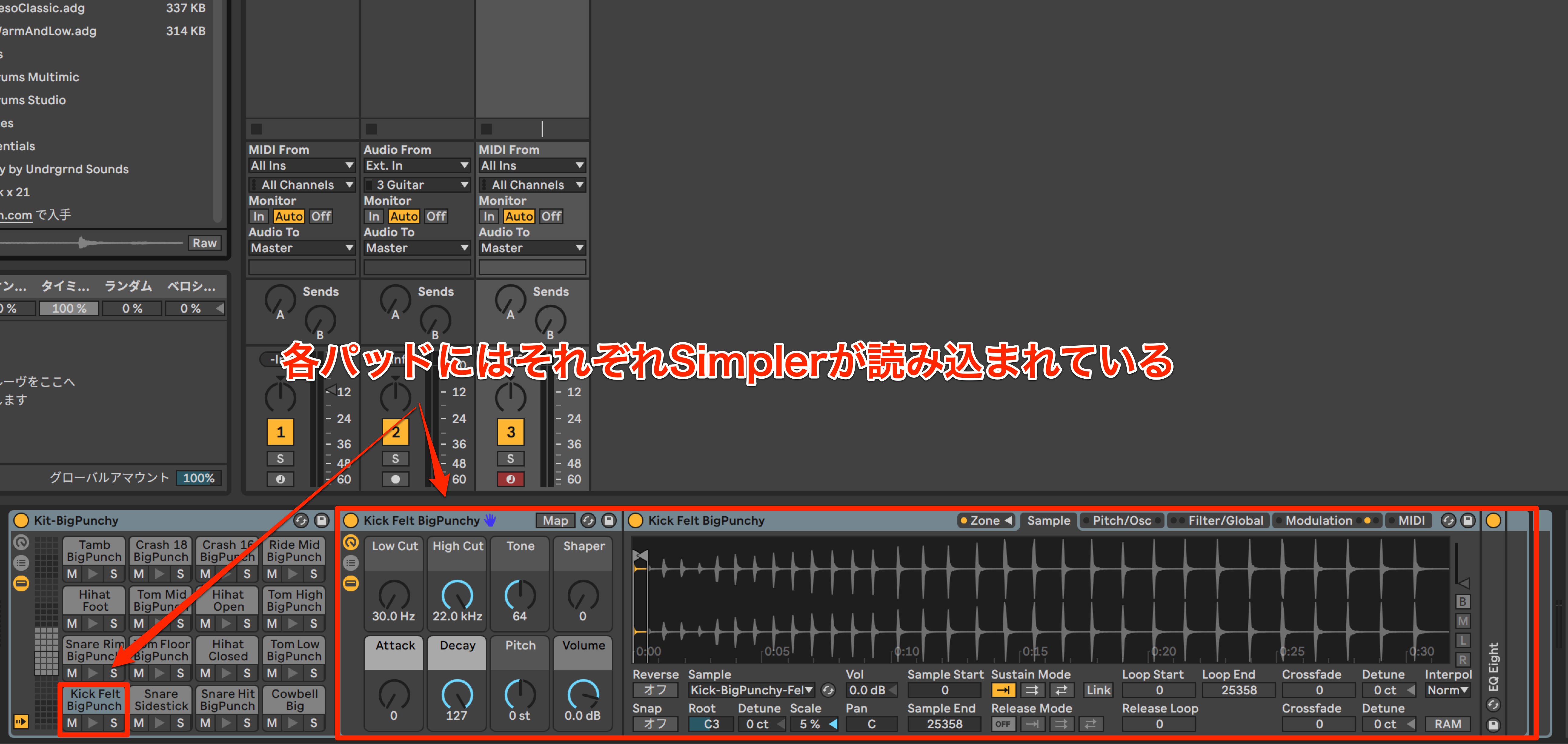
Here, we have selected Kit-BigPunchy from the Session Drum Club Pack.
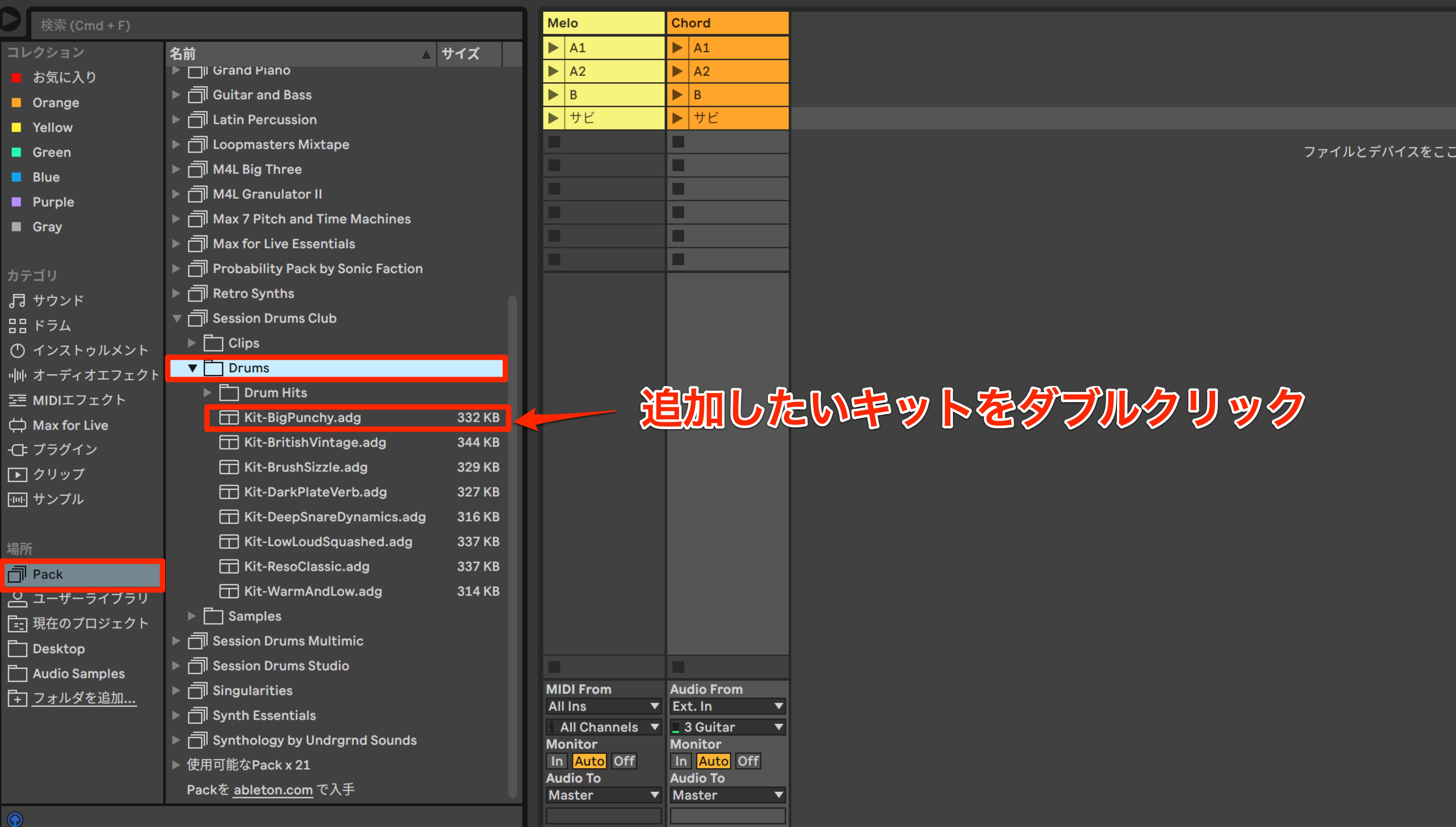
Simply double-click the kit to create a new instrument track.
Replacing Drum Sounds
After playing the loaded kit, the toms sound a little too bright.
We will replace them with different sounds.
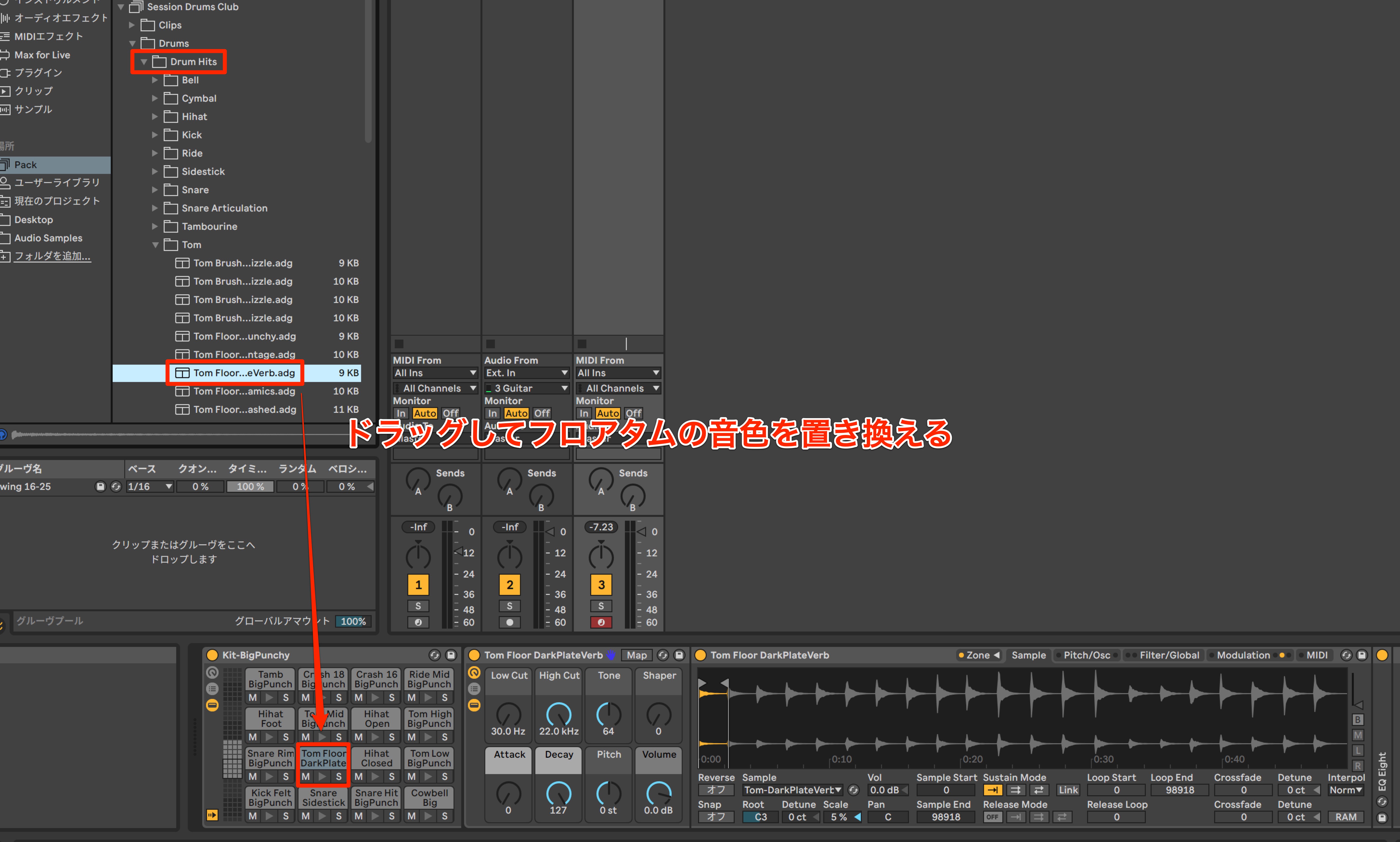
You can freely replace the individual sounds in the Drum Rack that holds the kit to suit your preferences.
Here, we choose toms we like from Drum Hits in the same Pack and use them to replace the existing high tom, floor tom, and other tom sounds.
The process is very simple: just drag the desired sound onto its slot.
Playing Drums with a MIDI Controller and Using Capture
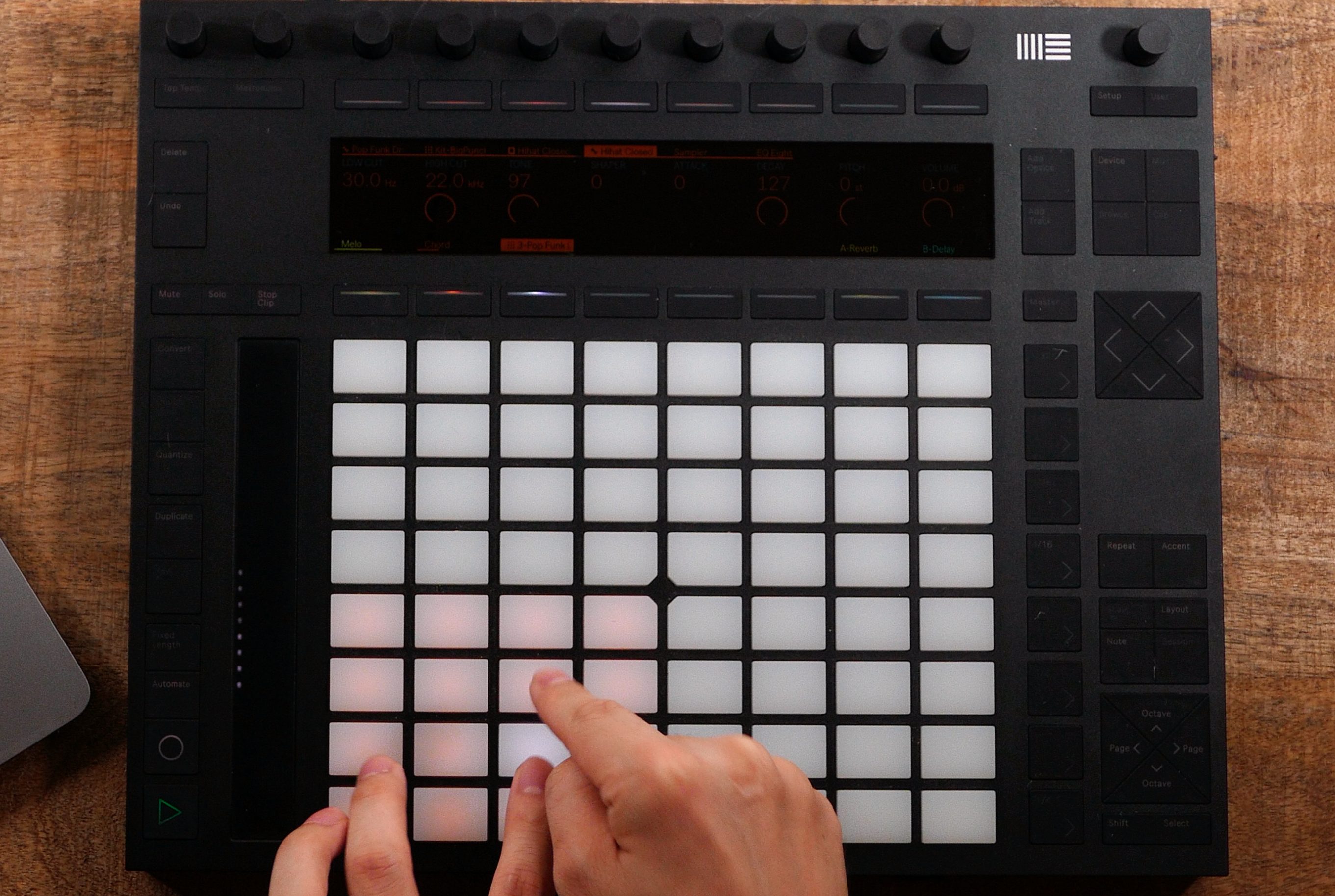
Next, we will use Ableton's Push controller to create drum patterns by playing its pads in real time.
We are using Push here, but you can enter notes in the same way with a third-party MIDI controller.
We will record our drums in Session View, one of Live's standout features.
Session View lets you record different performance patterns into individual clips and try different combinations across tracks.
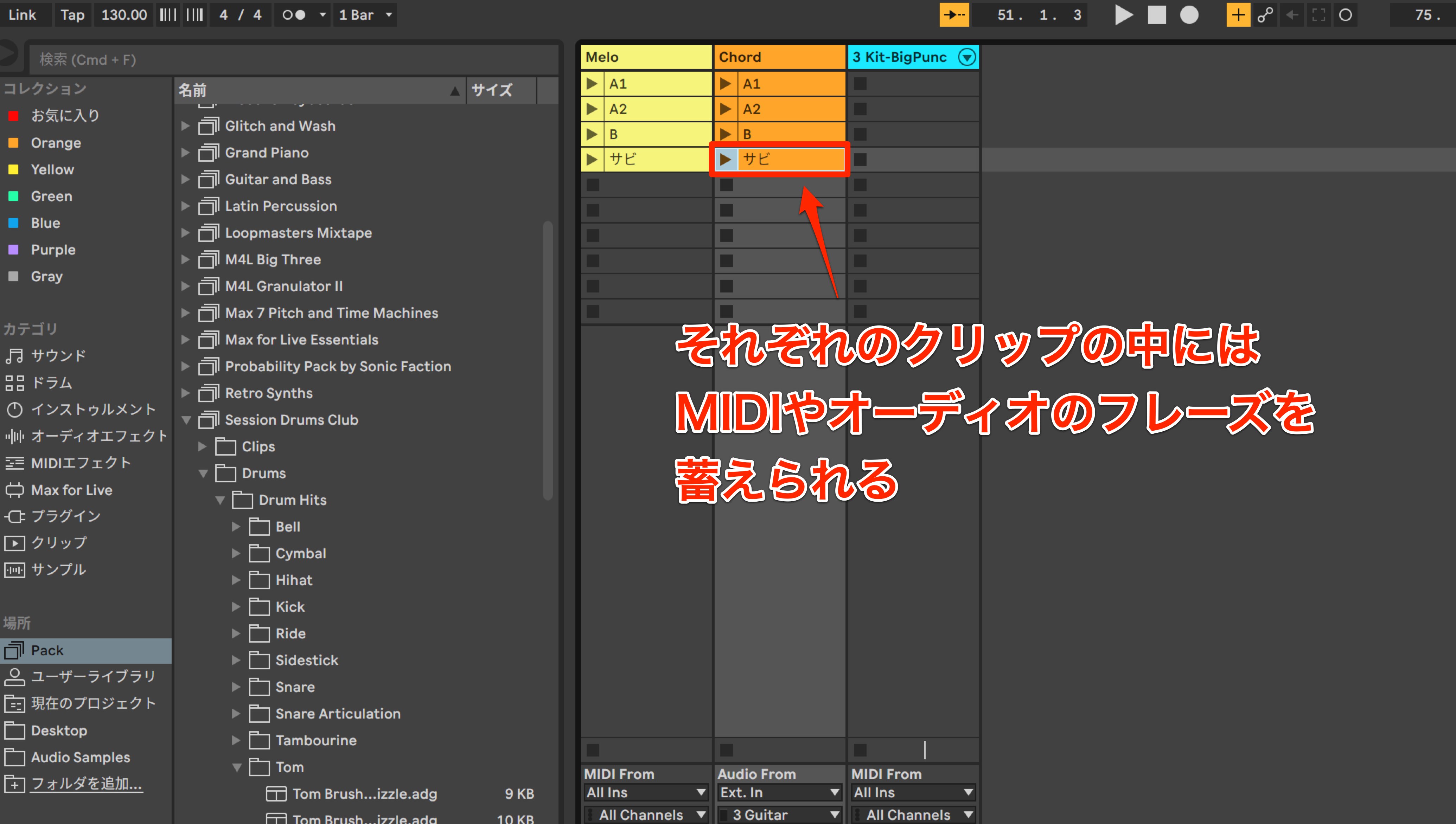
We have already prepared rough melody and chord tracks.
There are separate clips for the verse, pre-chorus, and chorus. Use the play button on the left of each clip to control its playback.
Another key feature is the Loop button: enable it to make a clip play repeatedly.
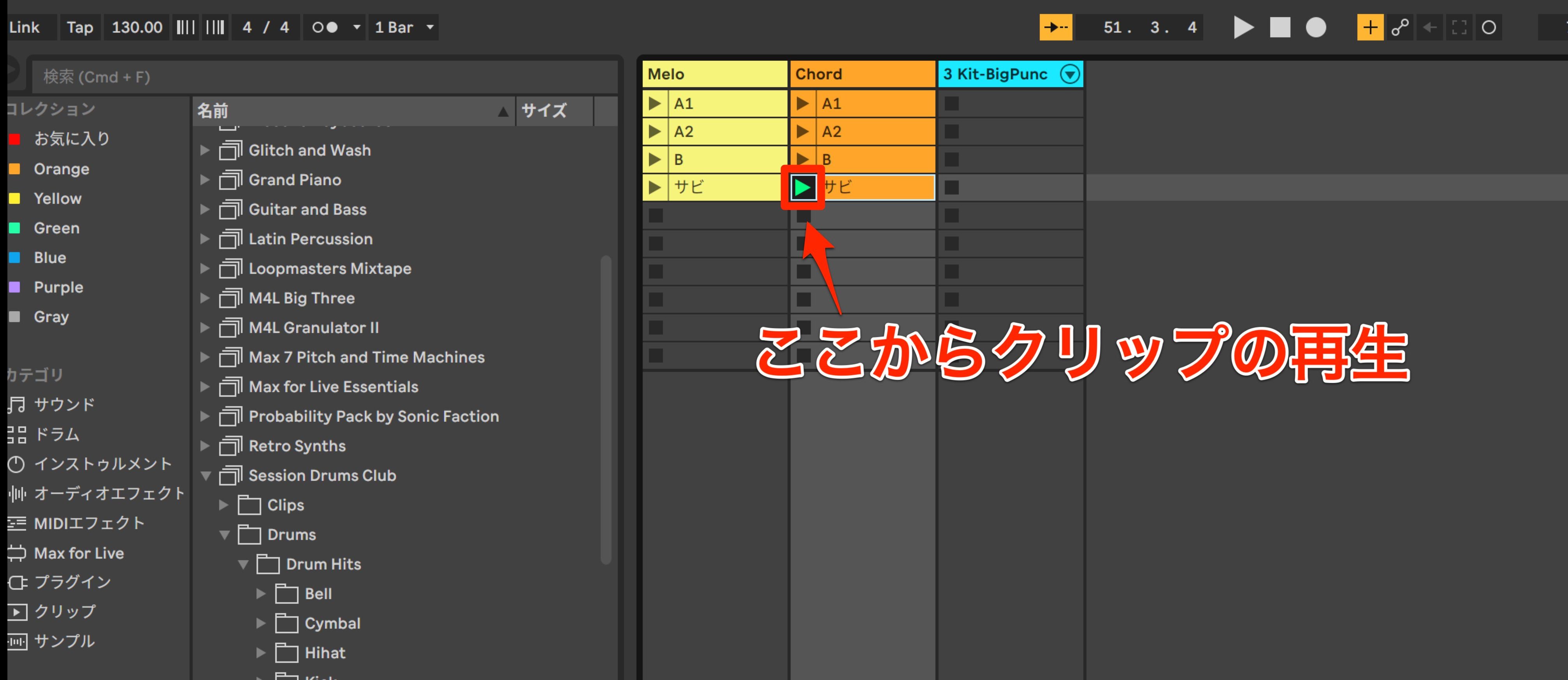
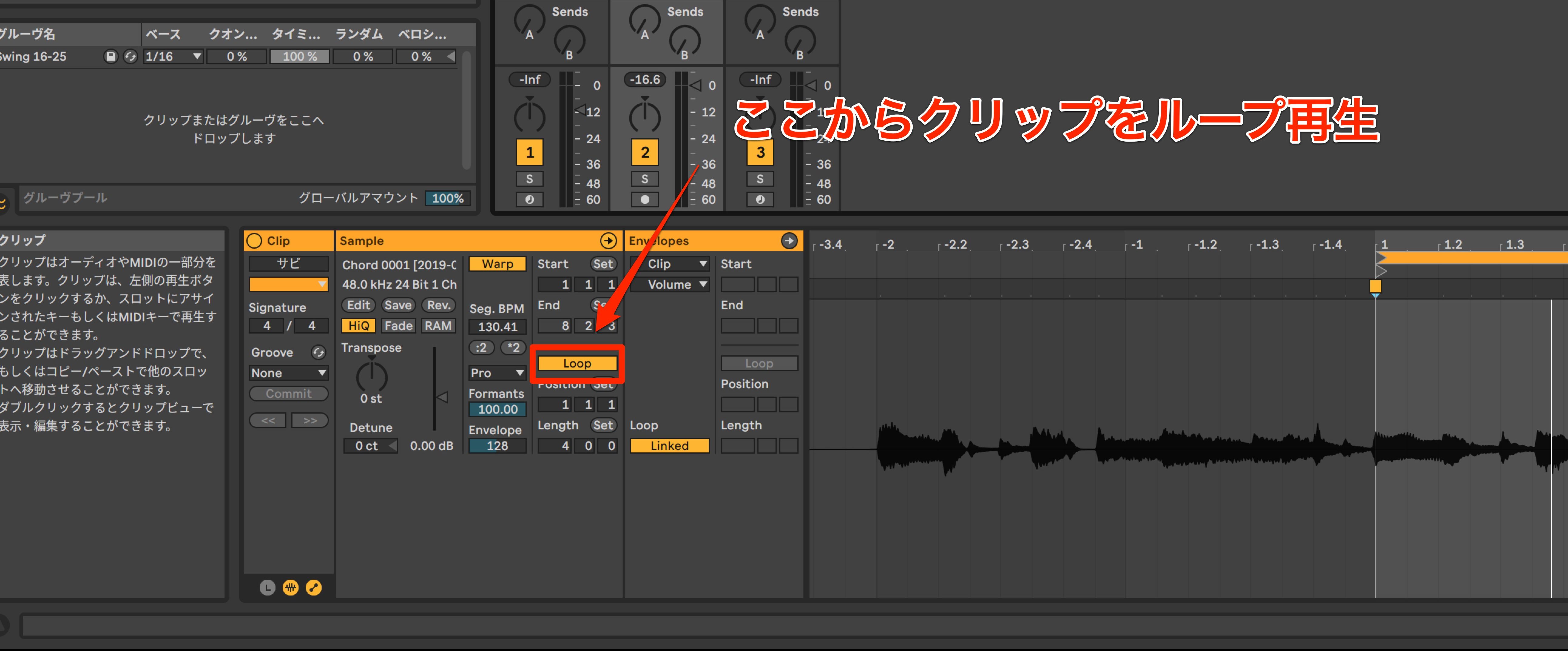
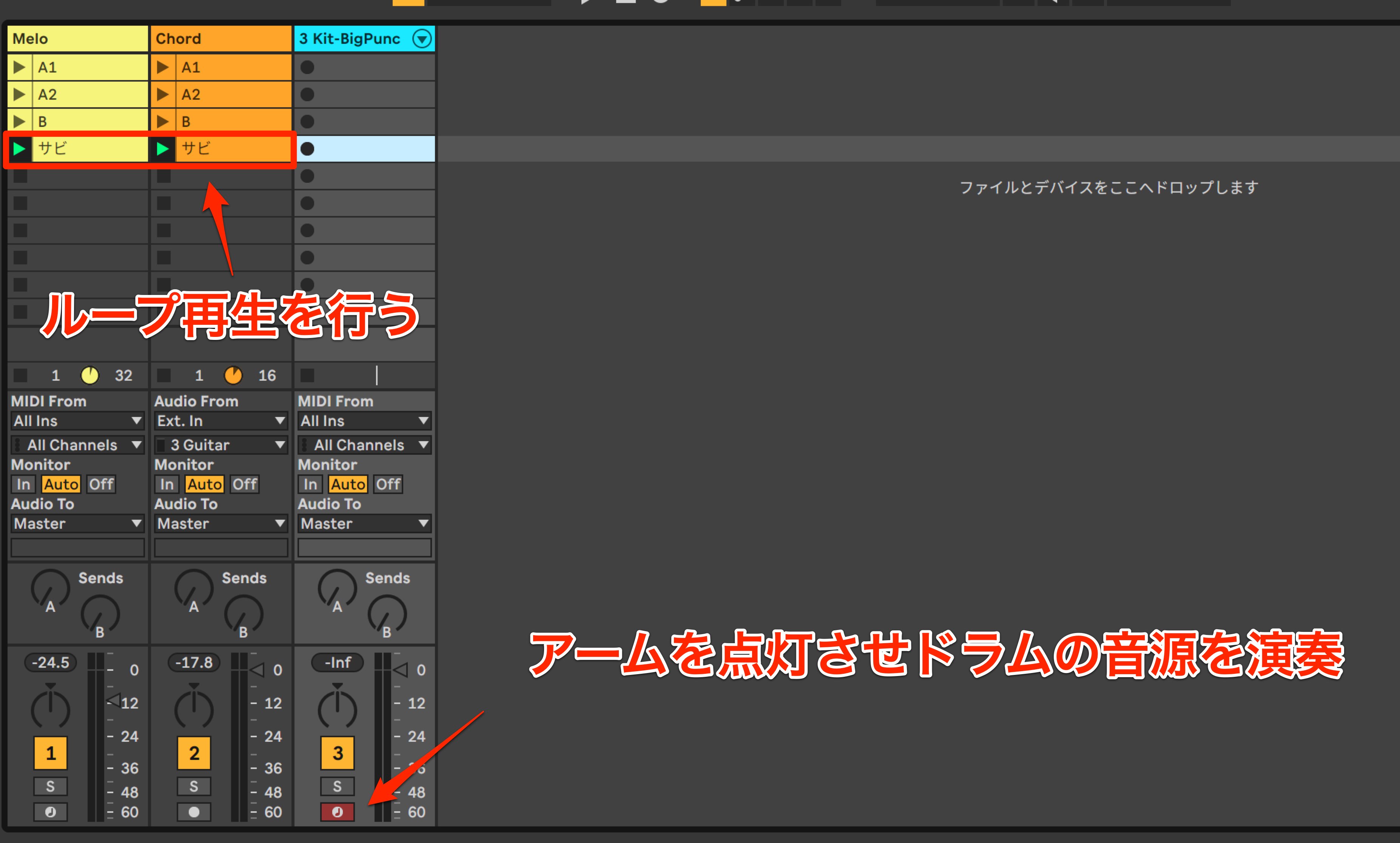
While creating a drum part, you can keep the melody and chord clips looping and focus on trying patterns until you find one you like.
Let's start by creating the chorus drums.
Loop the chorus melody and chord clips, arm the drum track, and try playing a few drum patterns.
There is no need to start recording at this point.
Suppose you played a good phrase while experimenting, but have now forgotten it.
This happens often, but Ableton Live keeps a buffer of your MIDI performance.
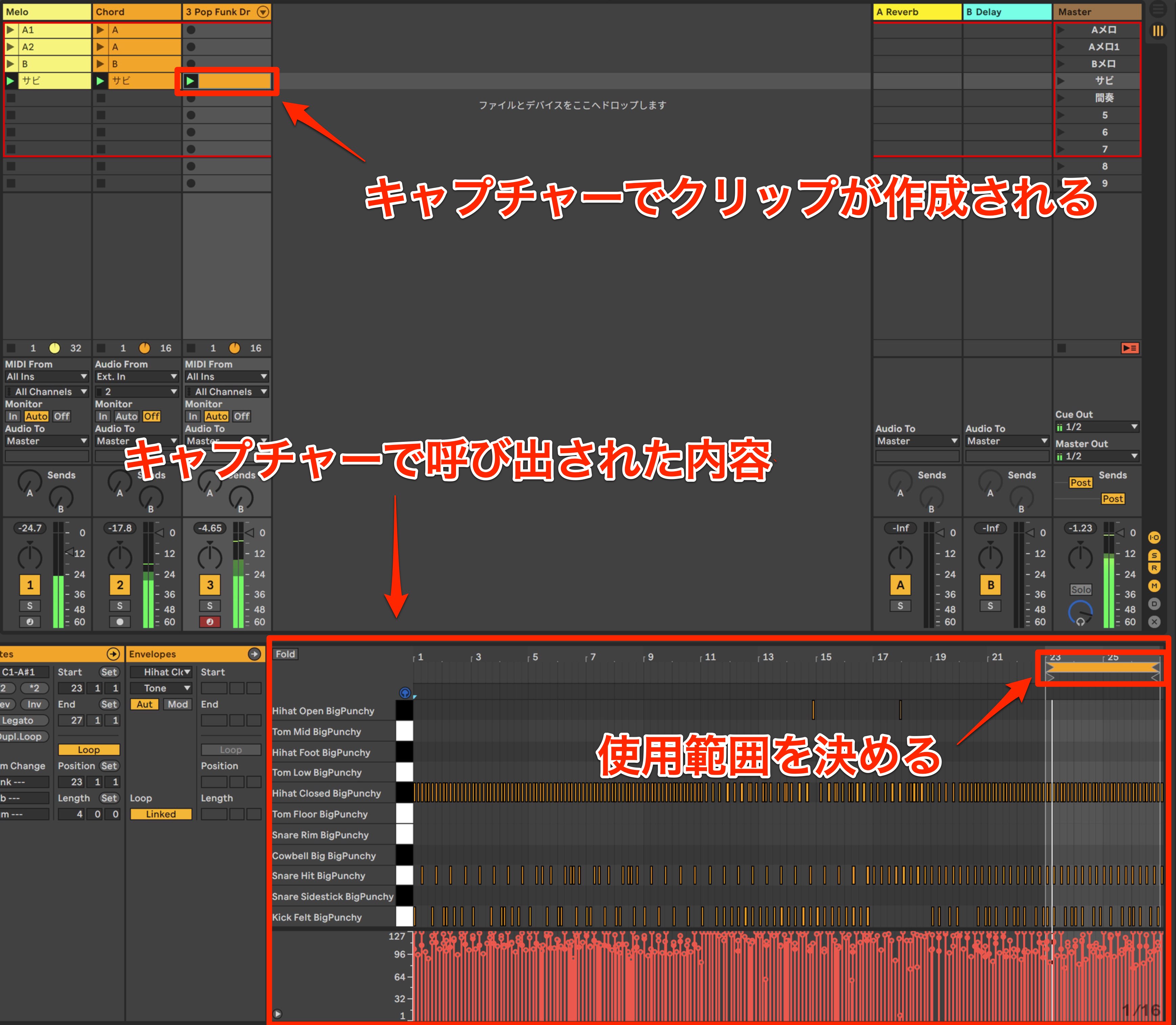
Even if you were not recording, you can retrieve what you played with Capture.
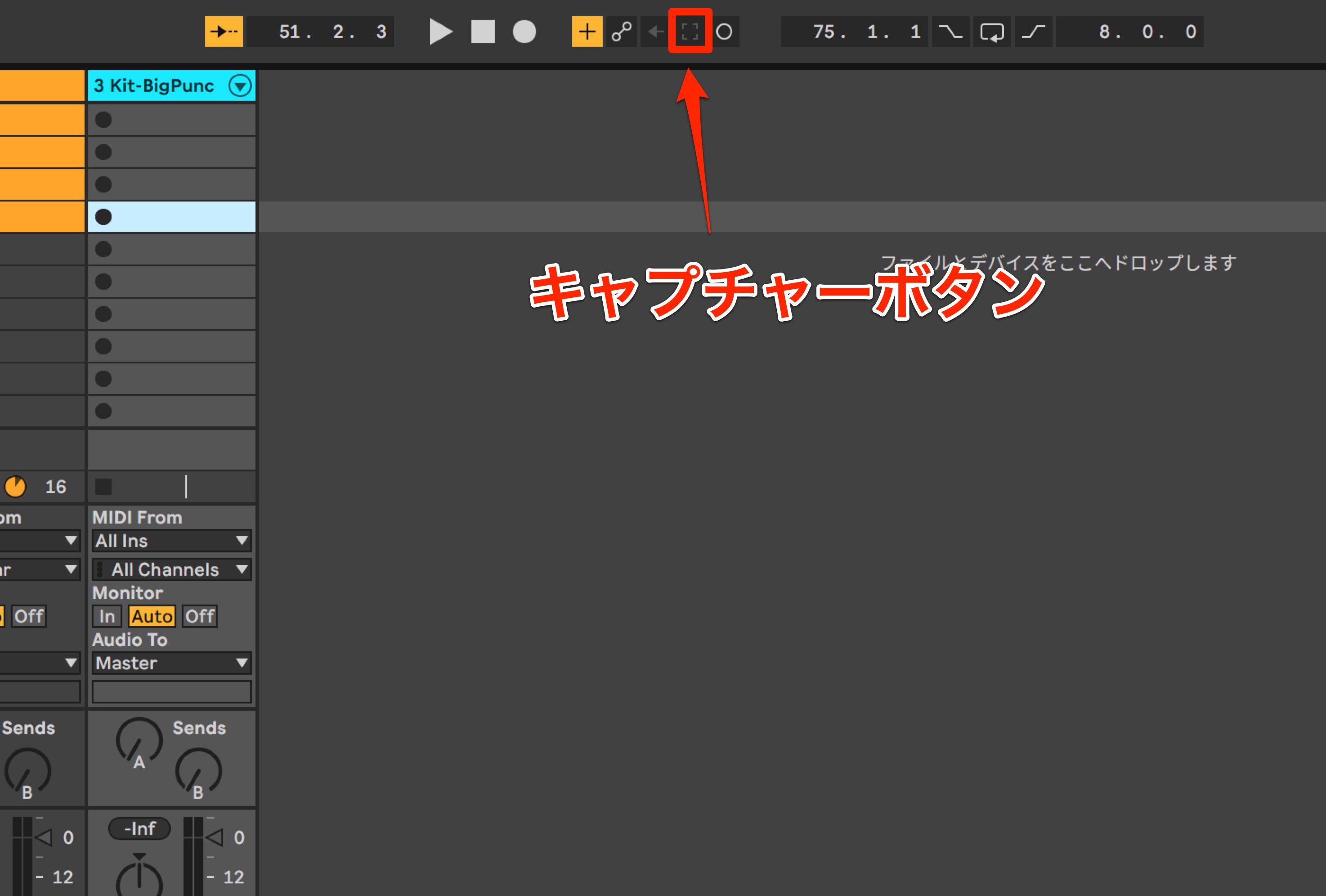
Once you have chosen the section you want to keep, set the loop range so that only that section is used in the clip.
Reusing Drum Patterns with Audio-to-MIDI Conversion
With the chorus drum pattern decided, we move on to the pre-chorus, but ideas for this section are proving harder to come by.
In a situation like this, you can make use of an existing audio loop.
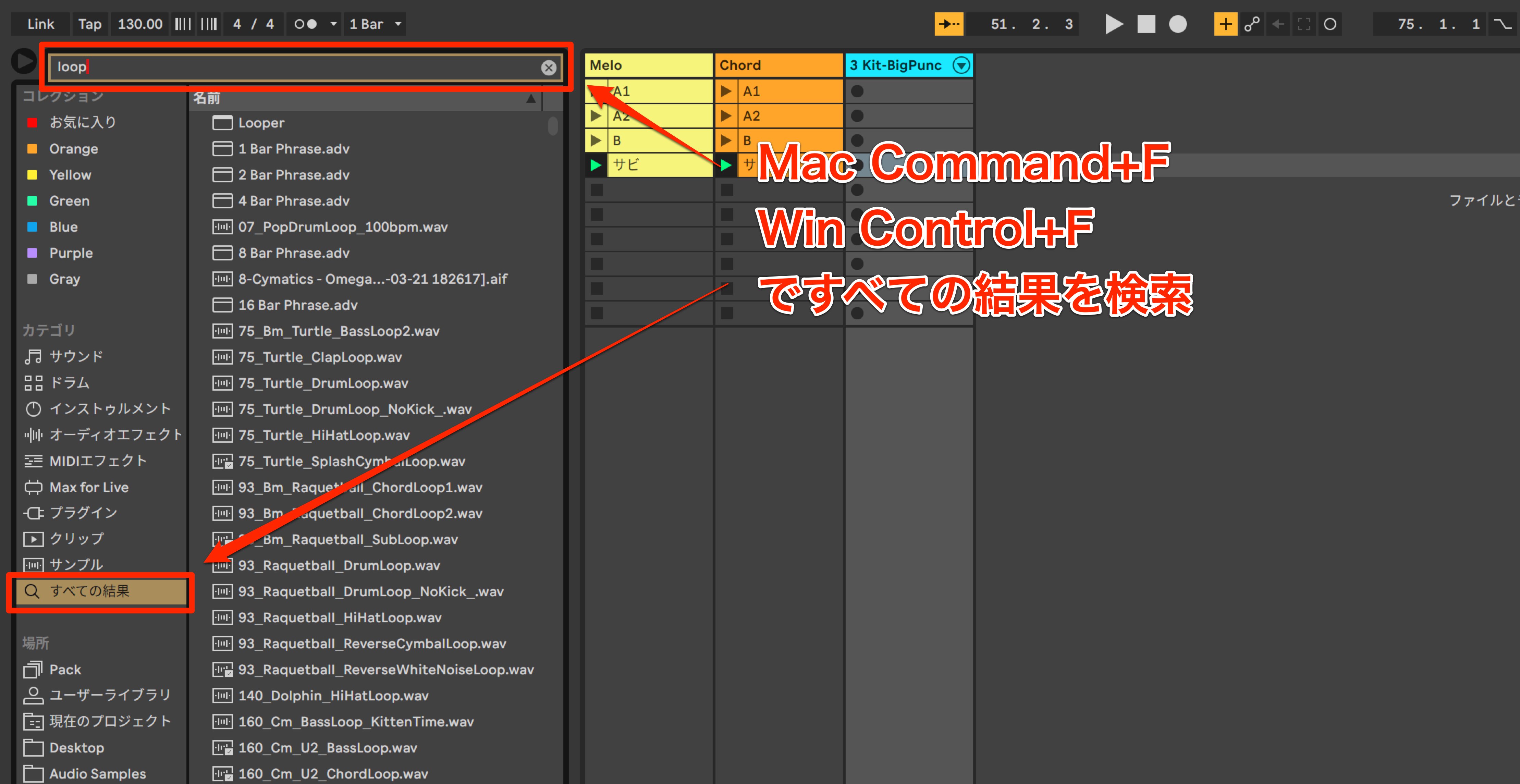
To find audio loops, use these search shortcuts:
- Mac: Command+F
- Windows: Ctrl+F
They make it easy to start searching.
Here, we enter “Loop” in the search field and audition the results to find a sample we like.
We have found an audio sample we like, but its sound differs from our current drum kit, making it difficult to use in the song as it is.
This is where audio-to-MIDI conversion comes in.
Drag the file onto the drum track, and Live asks what kind of material it contains.
Choose the appropriate option: Harmony, Melody, or Drums.
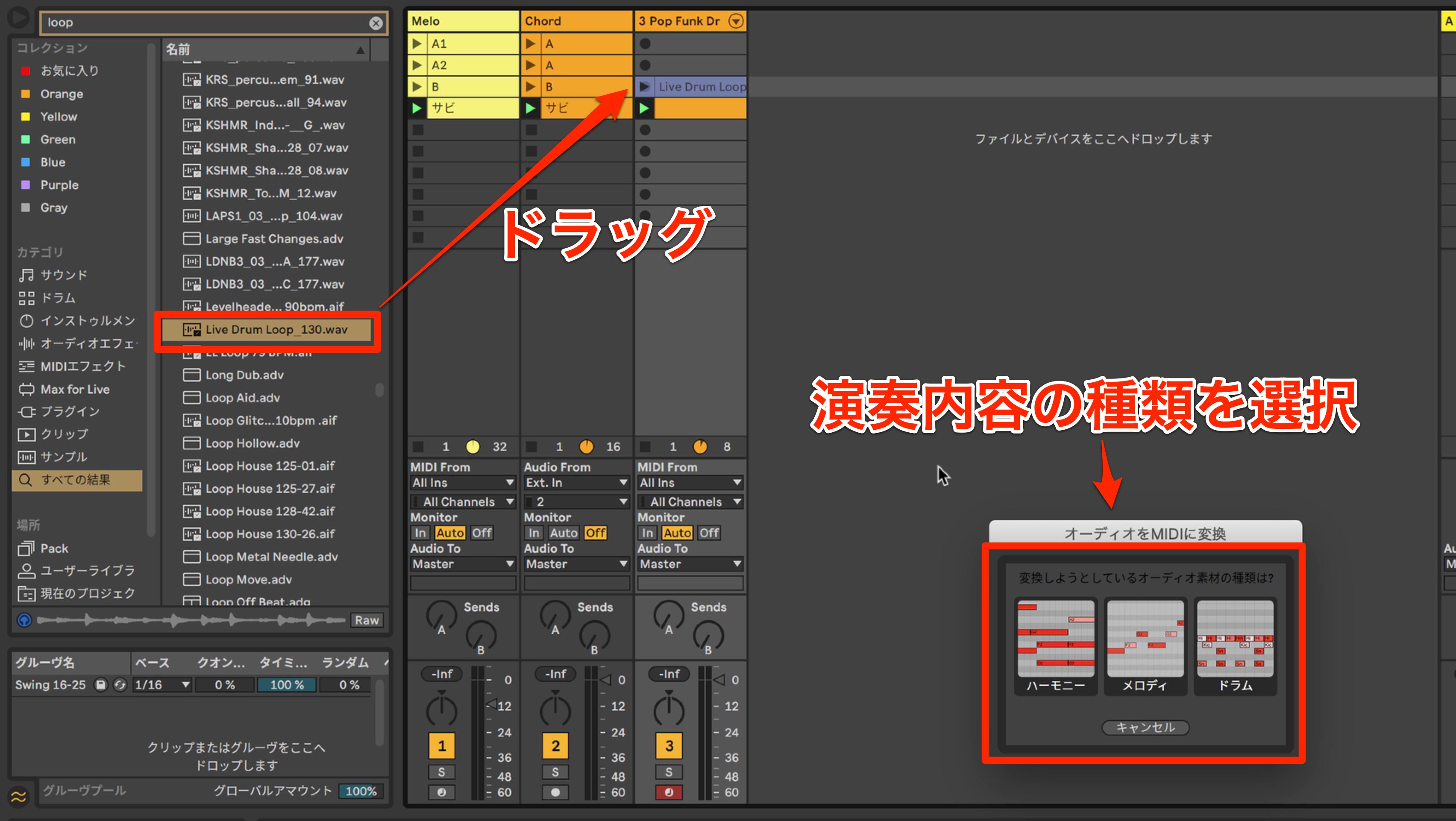
We select Drums, and a clip is added as shown.
Let's examine the contents of the clip.
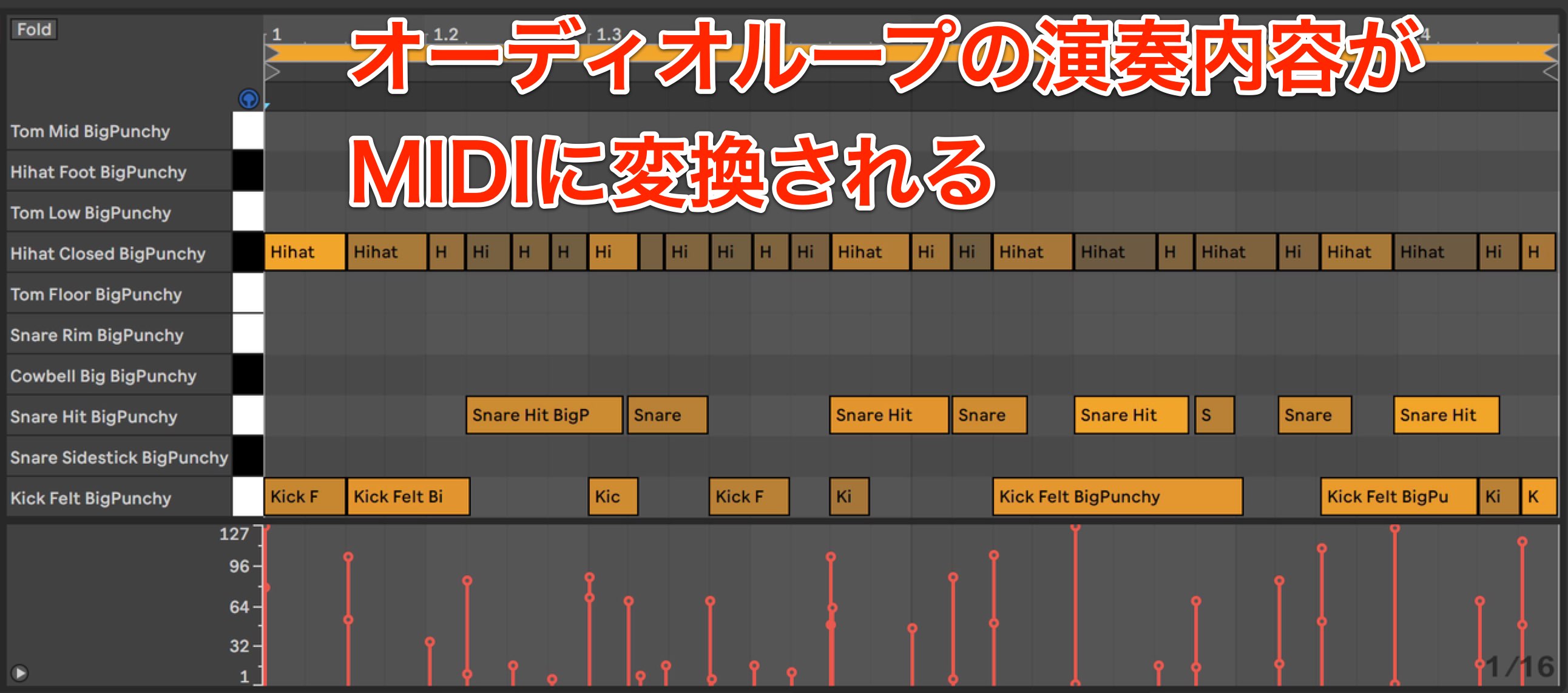
Although some nuances differ slightly, the audio has been converted into MIDI data and can now play the sounds in our current kit.
Make a few adjustments to bring the performance closer to the original audio loop, and the part is ready.
Because converting audio to a MIDI clip is so easy, this feature can also provide a starting point for creating your own phrases.
What did you think?
Live's built-in audio-to-MIDI conversion makes it easy to incorporate audio loops into your songwriting.
Capture is another valuable feature for musicians, letting you quickly turn ideas into something you can work with.
Using these distinctive Live features can make your production workflow smoother, so try incorporating them into your own music-making.
Next time, we will record a bass part over the drum patterns we have created.
We will also explain how to create MIDI clips with a guitar, so be sure to check it out.
At the time of this article, Ableton Live offered a free 30-day trial with access to all features.
If you are interested, visit the trial page.
https://www.ableton.com/ja/trial
If you write songs on guitar, which DAW do you use? Cubase? Logic? Pro Tools?
Ableton Live is often associated with electronic and dance music, but its ability to turn ideas into music quickly also makes it effective for band-oriented production.Ableton Live for Guitarists — Part 1
📝 Article: https://t.co/u94bPonqEY pic.twitter.com/c9NJBzp4Tp— SLEEP FREAKS (@SLEEPFREAKS_DTM) November 3, 2019
Frequently Asked Questions
Q1. Isn't Ableton Live less suited to rock and band music than to EDM?
Ableton Live is also excellent for producing band-oriented music centered on live instruments. Features such as Session View, Capture, and audio-to-MIDI conversion make song construction much more efficient, so you can use it regardless of genre.
Q2. Can I create drum patterns without a MIDI controller?
Yes. This article uses Push, but you can enter notes in the same way with a third-party MIDI controller. You can also create MIDI parts using keyboard input.
Q3. Is audio-to-MIDI conversion completely accurate?
Drum conversion can introduce slight differences in nuance, but you can adjust the result afterward to bring it closer to the original audio. Patterns with more complex nuances will require more adjustment.
NEW ARTICLES
Latest English Articles










































































































































































































































