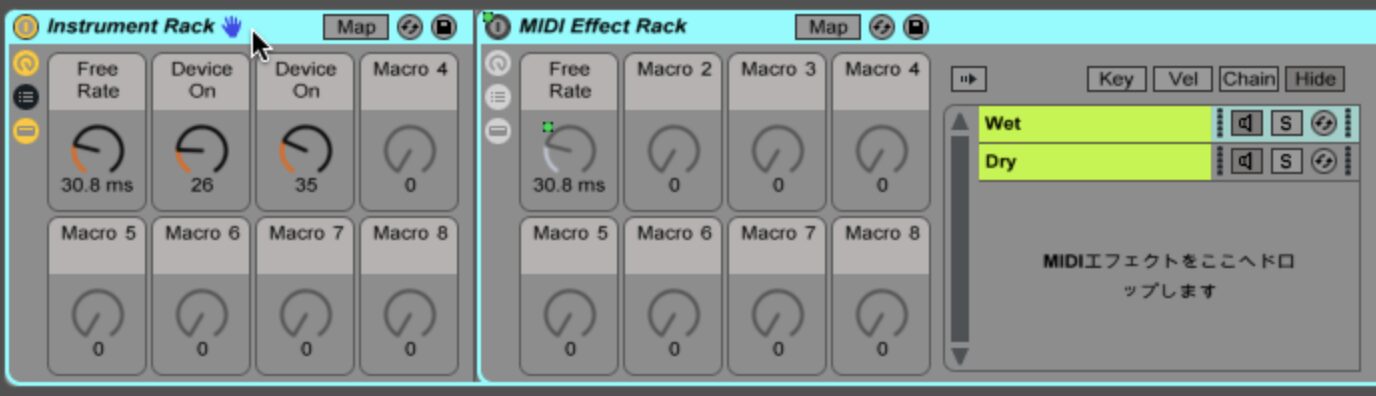
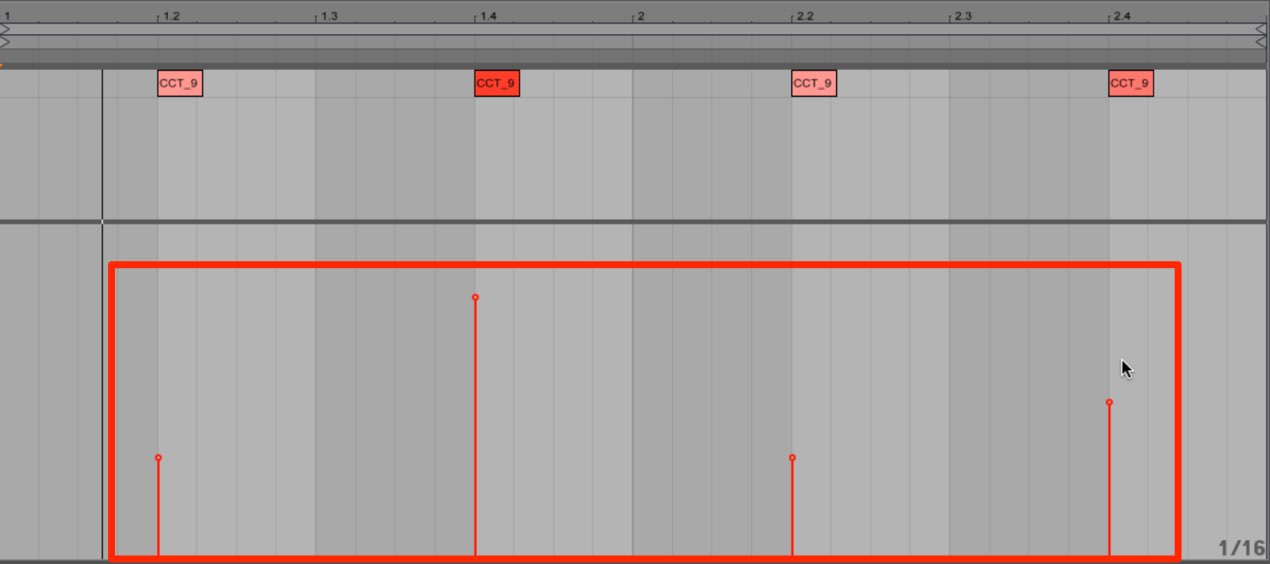
This 2016 Ableton Live tip describes an option for showing devices across tracks in Session View while mixing. In the version shown, placing a text file in a specific folder exposed a device display button at the lower right. The original article also describes an initial display bug and workarounds. Compatibility with current Live versions has not been verified. Ableton describes Options.txt features as experimental and unsupported, and says options can change or disappear without notice; see its official Options.txt guide before making changes.
Show Effects Across Session View for Easier Mixing
When mixing in Ableton Live, you may mainly use Session View,
but having to select each track to see its effects can be inconvenient.
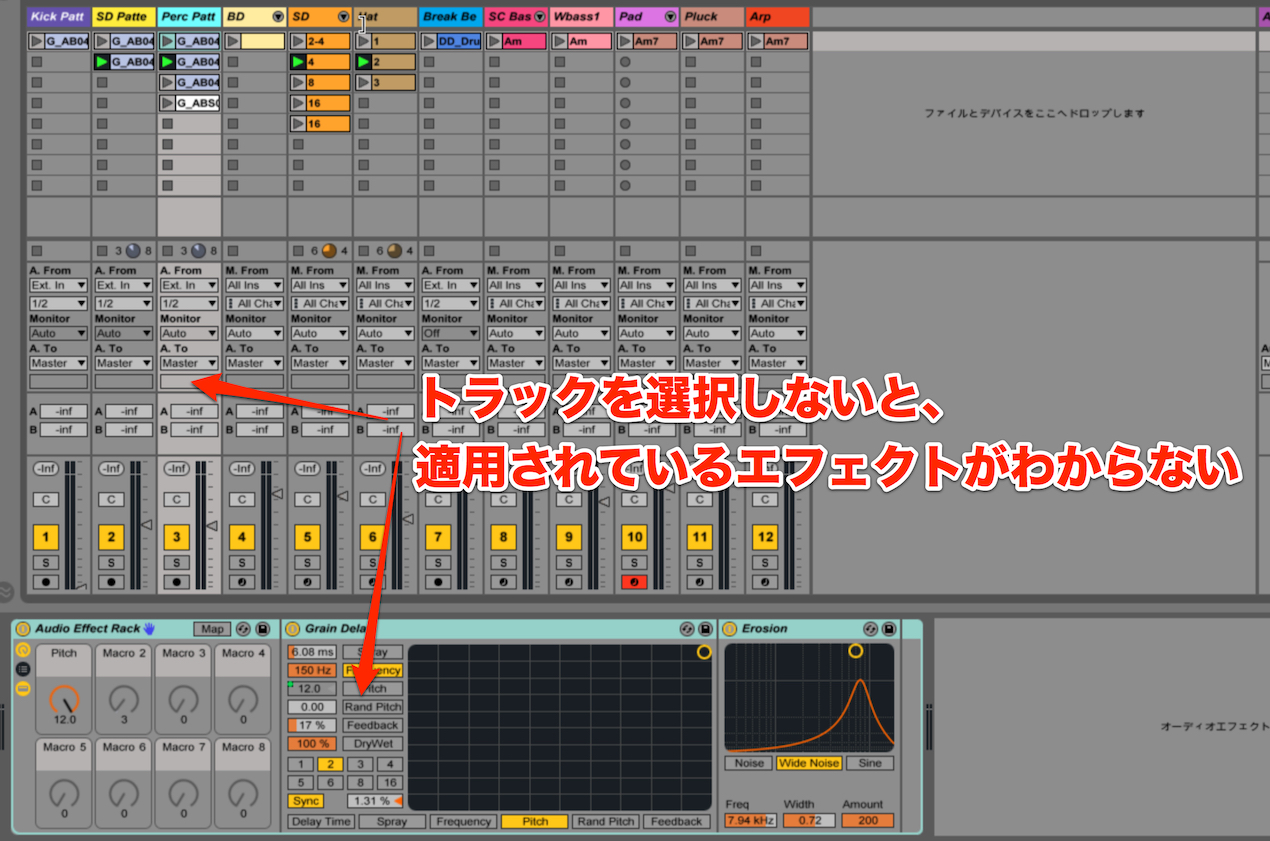
This article presents a little-known way to display effects across Session View in the version
shown in the original tutorial.
Video Tutorial
View product details

Step 1: Create a Configuration Text File
First, use a text editor such as the one included with your operating system to create a plain-text configuration file.
On a Mac, TextEdit is in the Applications folder.
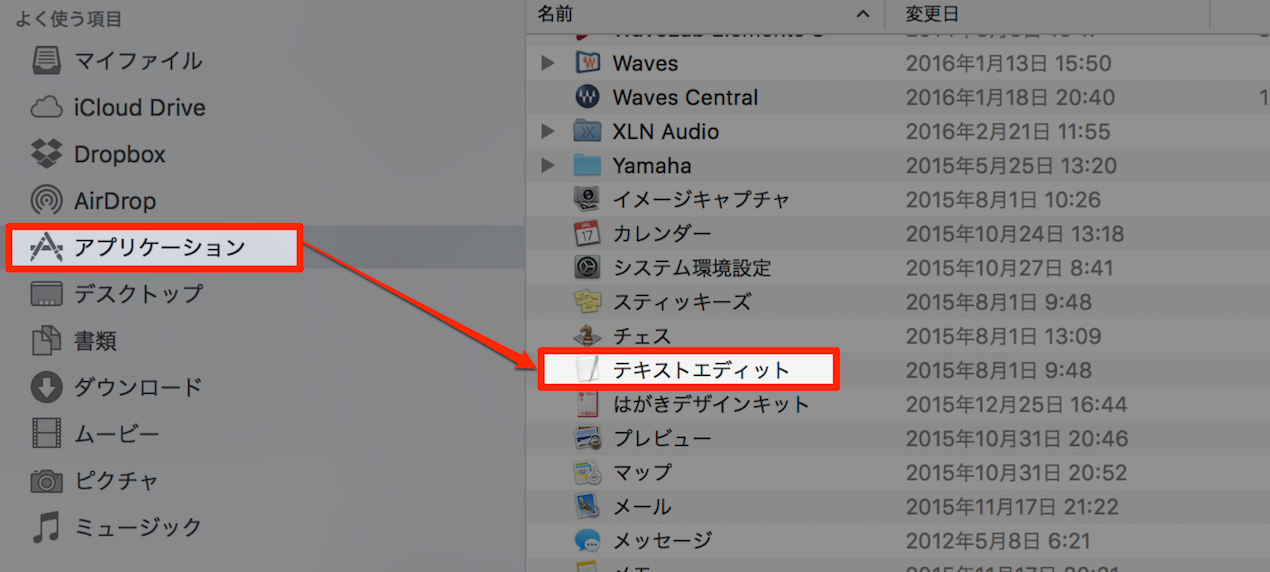
Open TextEdit and type “-ShowDeviceSlots”.
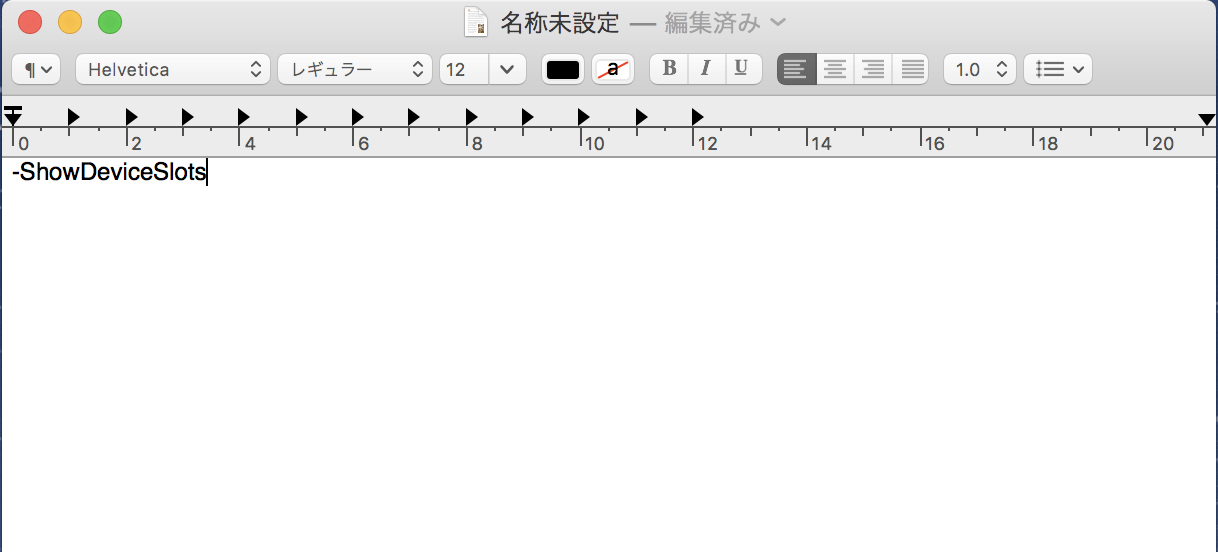
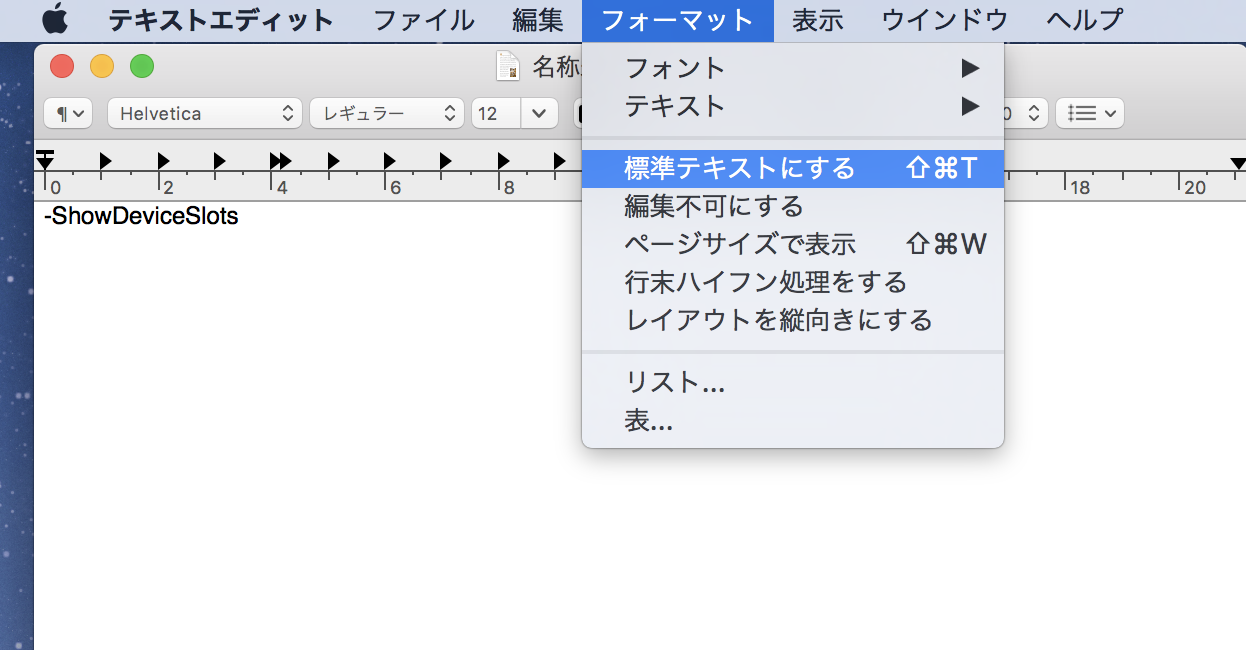
If the file is in rich text format,
choose “Make Plain Text” from the Format menu.
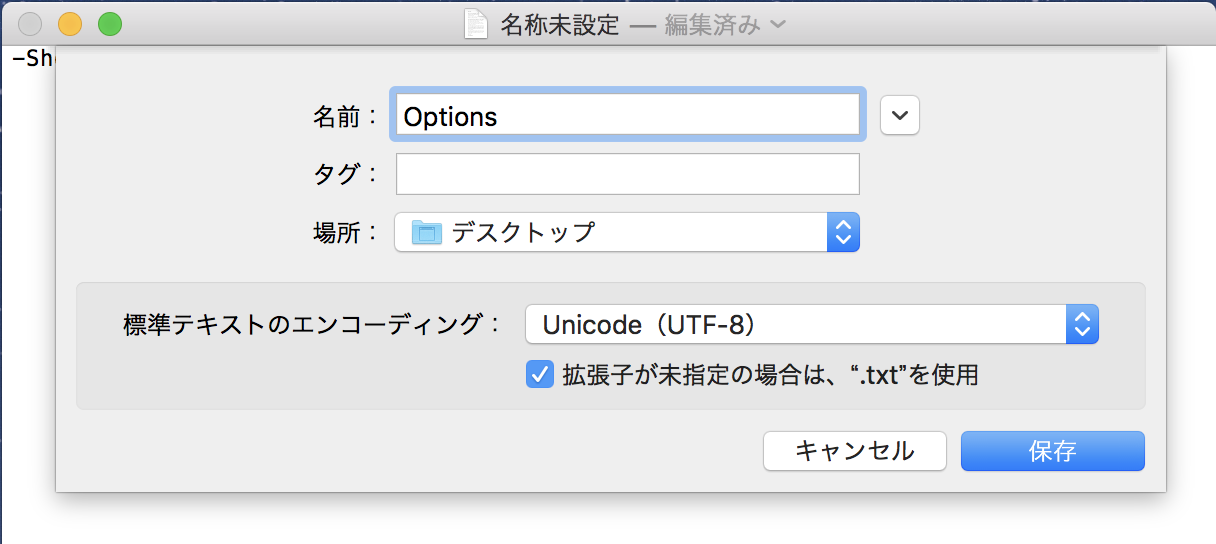
When saving, use “Options” as the filename, with the .txt extension (Options.txt). If an Options.txt file already exists, retain its existing entries and add the option on a separate line instead of replacing the file.
Step 2: Move the Text File to the Correct Location
Move the text file created in step 1 to the appropriate folder for your Live version.
- Mac
- Windows
Macintosh HD/Users/<username>/Library/Preferences/Ableton/Live [version number]
To reveal the user Library, hold Option while opening the Go menu in Finder.
[drive]:/Users/[username]/AppData/Roaming/Ableton/Live [version number]/Preferences
Step 3: Check in Live
After completing these steps, start Live. In the version demonstrated,
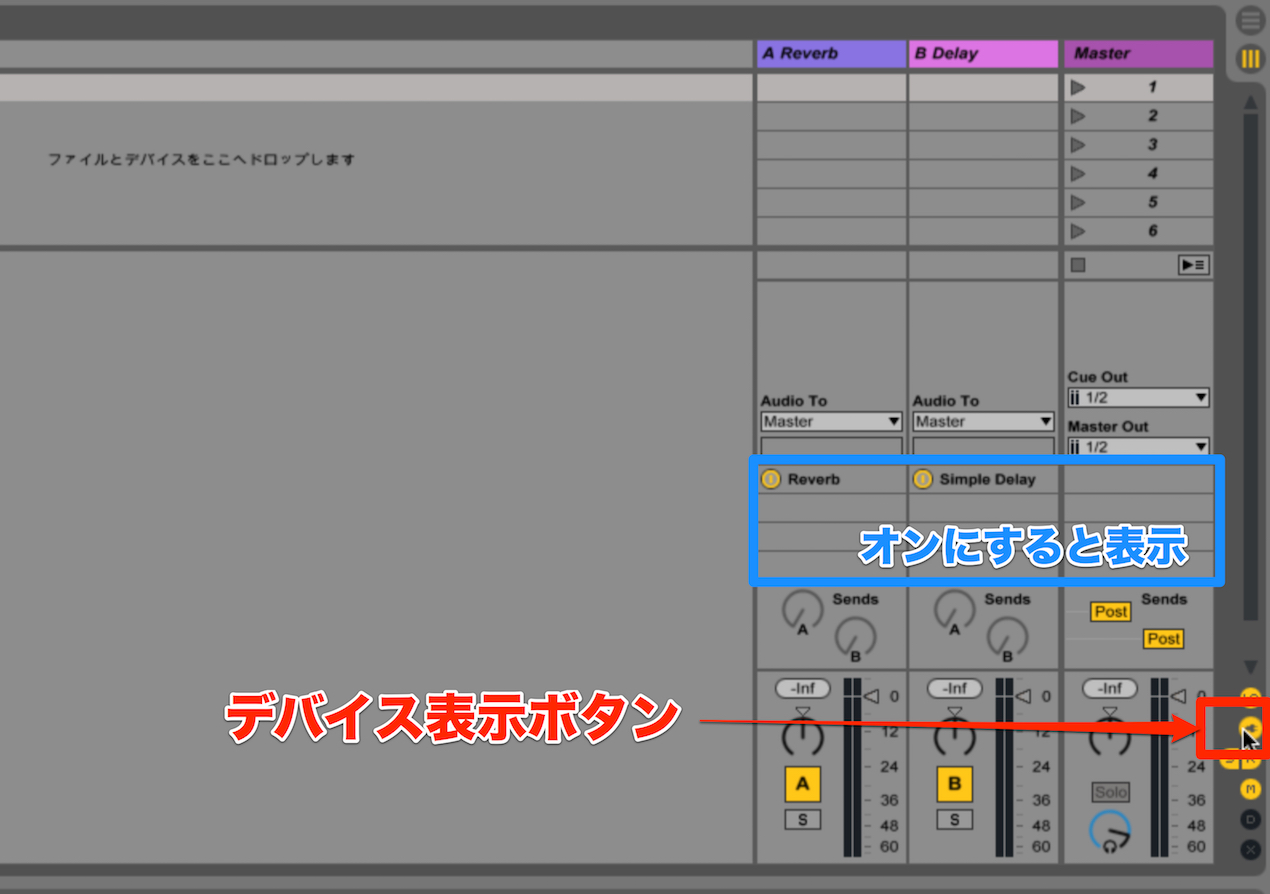
a device display button should appear at the bottom right of Session View.
Turn it on to display the device slots
and see the effects applied across tracks. Availability of this option in newer versions has not been verified.
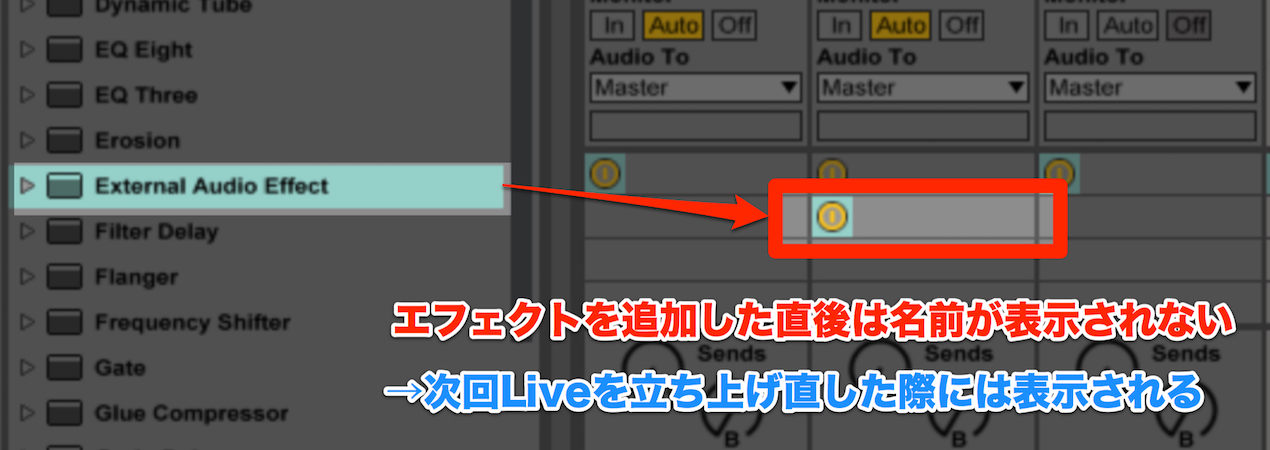
The original article notes one bug: effect names do not appear immediately after an effect is added.
They appear when Live is started again.
Update:
A reader also pointed out that changing the track width once can make the effect names appear.
Even with this limitation, the feature was useful in the version demonstrated. We hope it continues to improve.
View product details
Frequently Asked Questions
Q1. What preparation is needed to show effects in Session View?
The original tutorial uses a plain-text Options.txt file containing “-ShowDeviceSlots” in Live’s Preferences folder. The Mac and Windows paths differ. This is an experimental, unsupported option and its availability in current versions is unverified. Preserve any existing Options.txt entries.
Q2. What if effect names do not appear?
In the version shown, the original article reports that names may not appear immediately after adding an effect. Restarting Live or changing the track width may make them appear.
Q3. Does this device display work on both Mac and Windows?
The original tutorial provides instructions for both operating systems, with different Preferences paths. Support for the option can vary by Live version and has not been verified for current releases.
NEW ARTICLES
Latest English Articles