
Cubase recording routing lets you capture several different sound settings at the same time. By combining group channels and sends, setting the sends to pre-fader and the group outputs to No Bus, you can record both dry and effects-processed tracks in one take. This gives you more choices later, such as recording different levels for vocal sections or keeping an unprocessed safety track while testing compression or limiting.
Record Multiple Sounds at the Same Time

Here we will build on the recording with effects technique covered in the previous article.
This method offers several benefits:
you can record both processed and dry tracks,
or record the same performance at different levels.
Here is how to set it up.
This article provides helpful background

Video: Advanced Recording with Effects
Recording Setup
We will use a guitar in this example,
but the setup is the same for a microphone or keyboard.
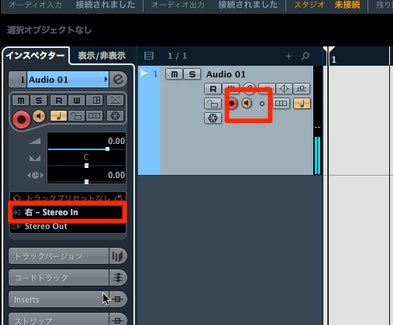
As with a normal recording setup,
create an audio track and select the appropriate input channel.
Turn on input monitoring for this track.
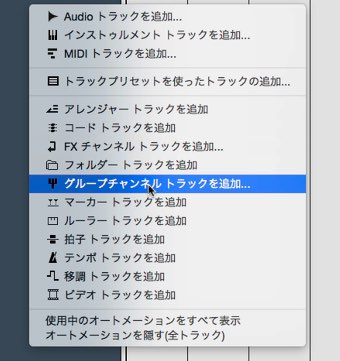

Create one group channel for each different recording setup you want.
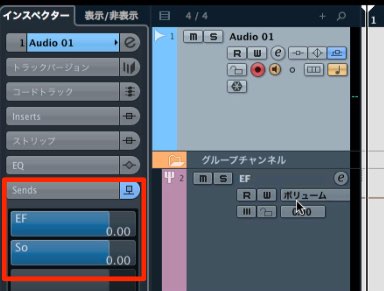
On the audio track receiving the instrument, use the sends
to route the signal to the group channels.
At this point, however, the sounds will overlap.
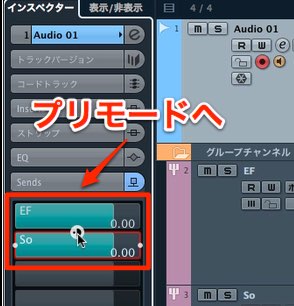
Set the sends to pre-fader, then
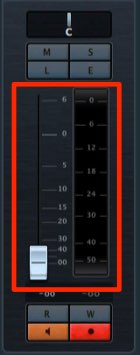
turn the audio track fader down to zero.
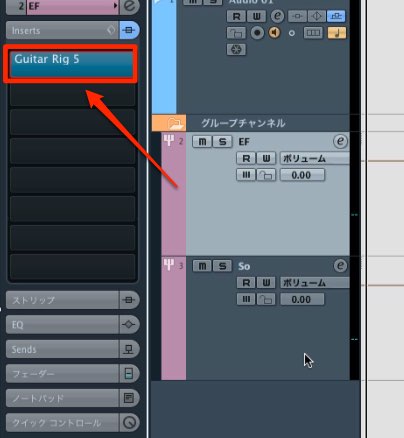
On each group channel,
apply effects, adjust the level, and make any other settings you want.
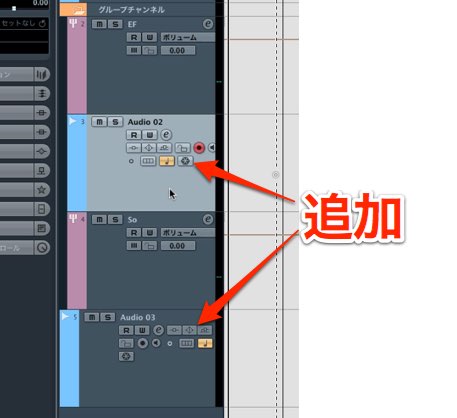
To record the sound of each group channel,
create the same number of audio tracks.
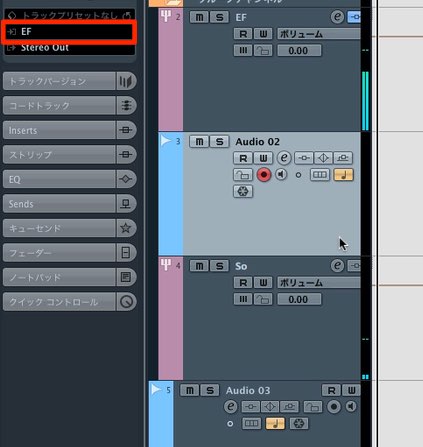
Set the input of each audio track to its corresponding group channel.
You can now record the sound from each group.
However, the group channels and audio tracks
will now play back on top of each other.
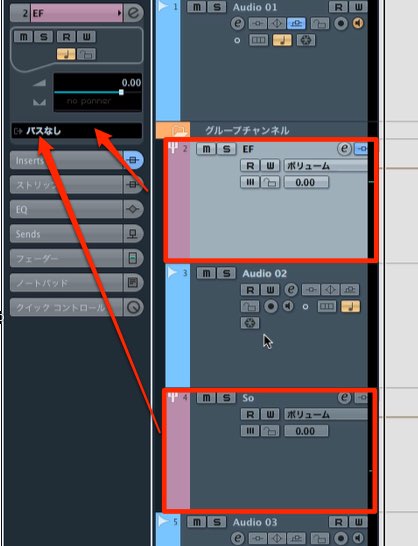
Set each group channel output to No Bus to prevent this.
The setup is now complete.
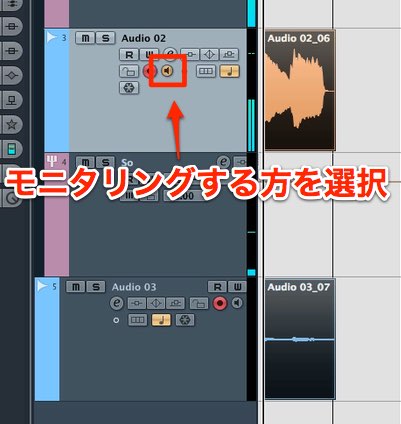
Enable input monitoring on the track you want to listen to,
then record the audio tracks simultaneously to capture the waveforms for each setting.
For vocals, you can set different levels for the verse and chorus
and capture both levels in a single take for later selection.
You can apply compression or use a limiter to prevent clipping.
In either case, you can also keep the dry performance as a safety track.
There are many ways to use this technique, depending on your ideas.
Frequently Asked Questions
Q1. How can I prevent overlapping sound when recording multiple routed signals at once?
Set the sends to pre-fader and turn the source audio track fader down to zero. Then set the group channel outputs to No Bus to avoid doubled playback while recording each signal separately.
Q2. How can I capture different vocal levels for a verse and chorus?
Adjust the group channel levels for each section so you can record several levels simultaneously in one session and choose between them later.
Q3. How does this help when recording with compression?
Record the processed signal and the dry performance at the same time. You can review the effect afterward and retain the original as a backup if clipping occurs.
NEW ARTICLES
Latest English Articles










































































































































































































































































































































































































































































































































