
A Professional Assistant in Your DAW: Streamline Vocal Editing
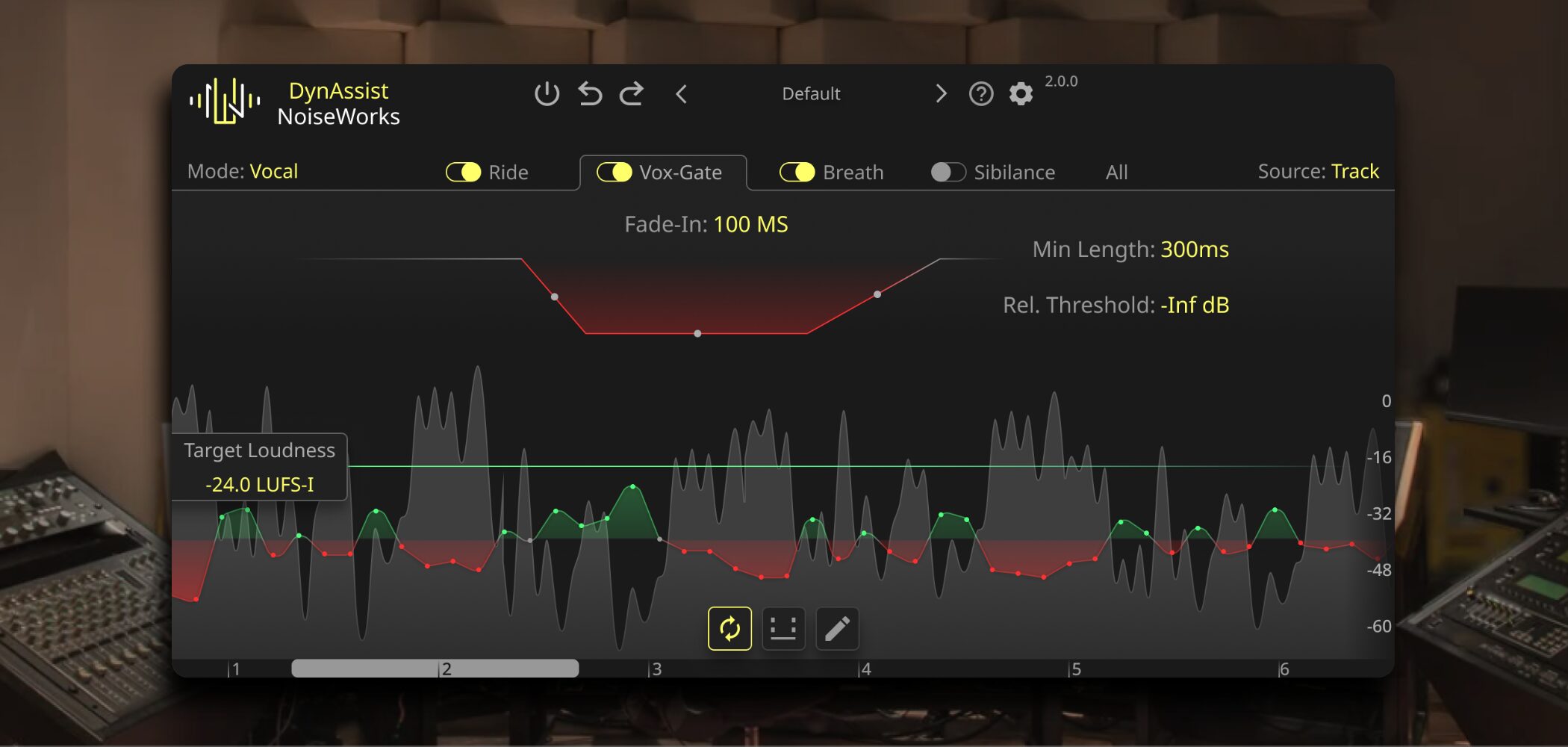
Editing a vocal track involves detailed, time-consuming work such as adjusting levels, removing breaths, and controlling sibilance.
With conventional plug-ins, naturally evening out a singer's dynamics requires careful adjustment while monitoring how the parameters respond. Many producers find this challenging.
Here, we introduce DynAssist, an innovative plug-in developed by NoiseWorks that uses AI to automatically optimize the initial stages of vocal editing with the precision of a professional studio assistant.
Selected Questions and Answers from the YouTube Video

In Cubase, if I use DynAssist via ARA and then want to use Melodyne via ARA, do I need to render the audio first and put it on a separate track? Can two ARA plug-ins be applied to the same event on the same track?

Thank you for your comment! Cubase does not allow two ARA extensions to run simultaneously on one event. After processing with DynAssist, first render the audio using Make Extension Permanent, then apply Melodyne.
In DAWs without ARA support, such as FL Studio or Ableton Live, does this plug-in offer much less of an advantage over Vocal Rider?
Even without ARA, the processing itself is the same once you have transferred the audio, so we can still recommend it.
When I open DynAssist as an extension in Cubase, the sound stops playing. Could this be a bug? 😢
In the video, we opened it through Extensions in the Audio menu. Loading it as a track extension is also supported, so could you try both methods?
?si=EUPYjlUMvr_kVBK4
Before-and-After Audio Samples
First, listen to these audio samples recorded before and after using DynAssist.
Before processing
After processing
In the unprocessed sample, uneven levels and breaths stand out. After applying DynAssist, the levels become more consistent and the breaths are handled naturally, making the result easier to listen to.
DynAssist can also be used for narration.
Here are some samples of that as well.
Before processing
After processing
To make DynAssist's effect easier to hear, we deliberately exaggerated the level differences and breath sounds in the recording. You can hear how the processed version makes these easier to listen to.
How to Apply DynAssist
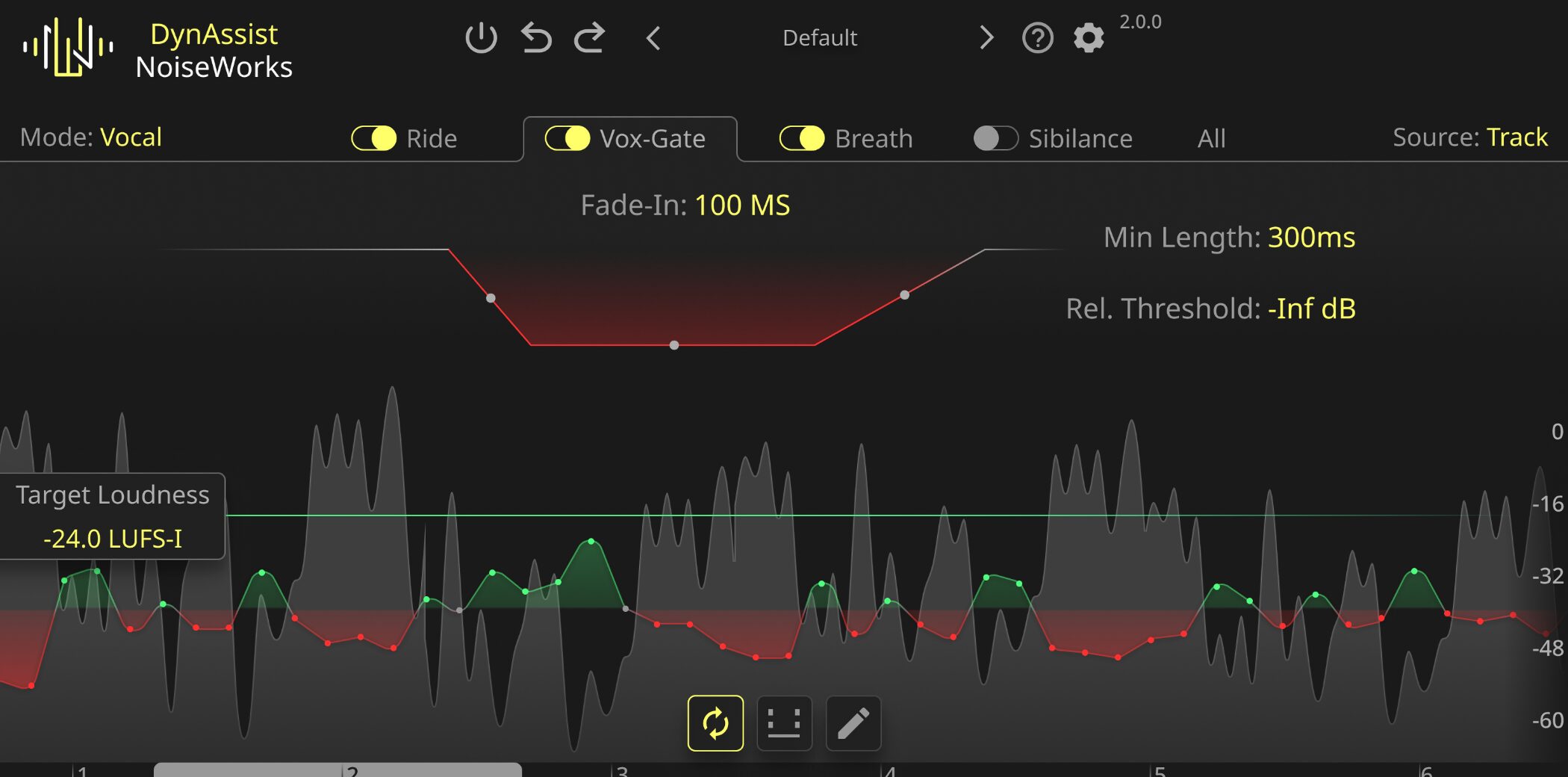
DynAssist is simple to use, but the way you apply it varies slightly depending on whether your DAW supports ARA integration.
In a DAW That Supports ARA
In an ARA-compatible DAW, you can work in sync with the DAW's timeline and other controls, making DynAssist more efficient to use.
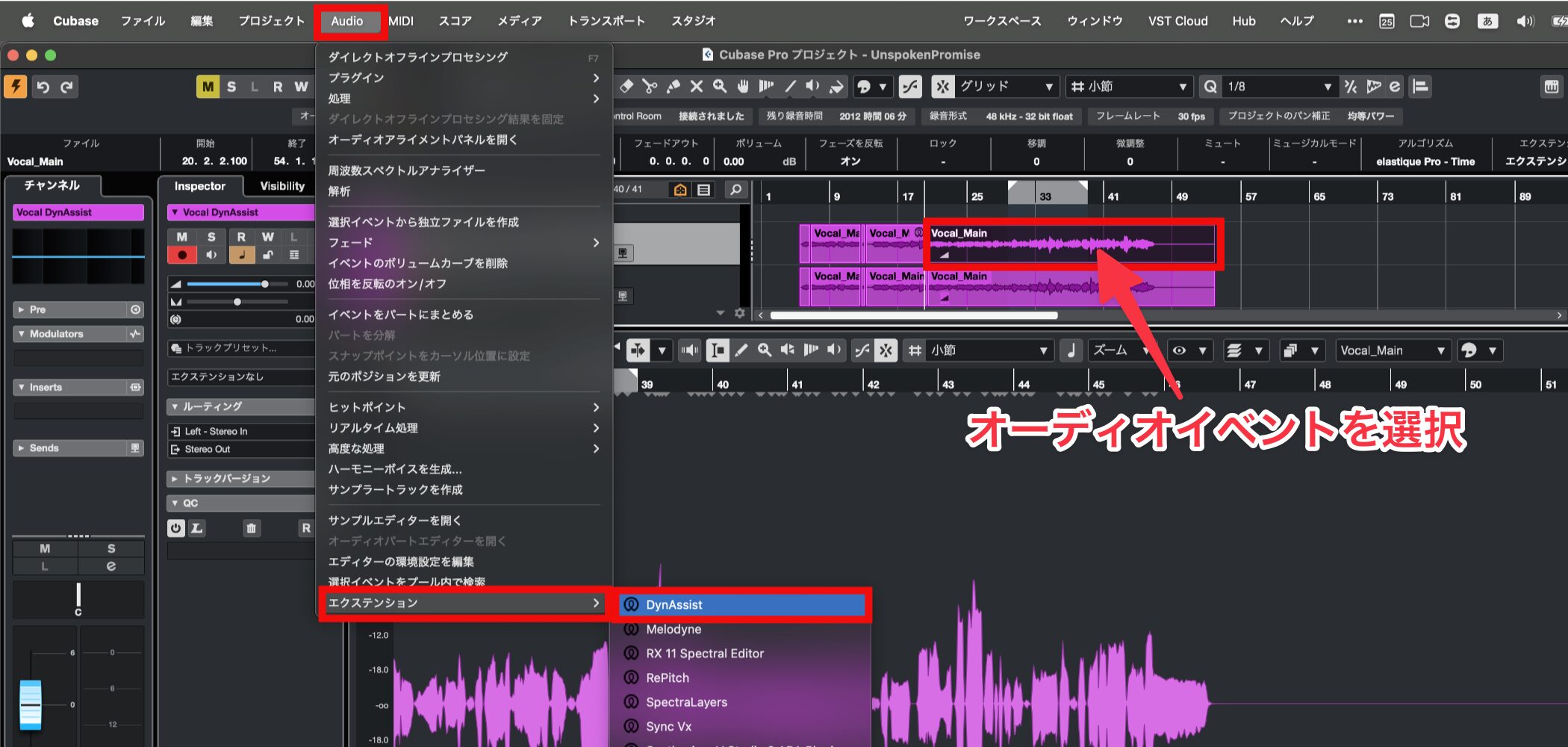
For example, in Cubase, select the audio event you want to process, then choose DynAssist under Extensions in the Audio menu.
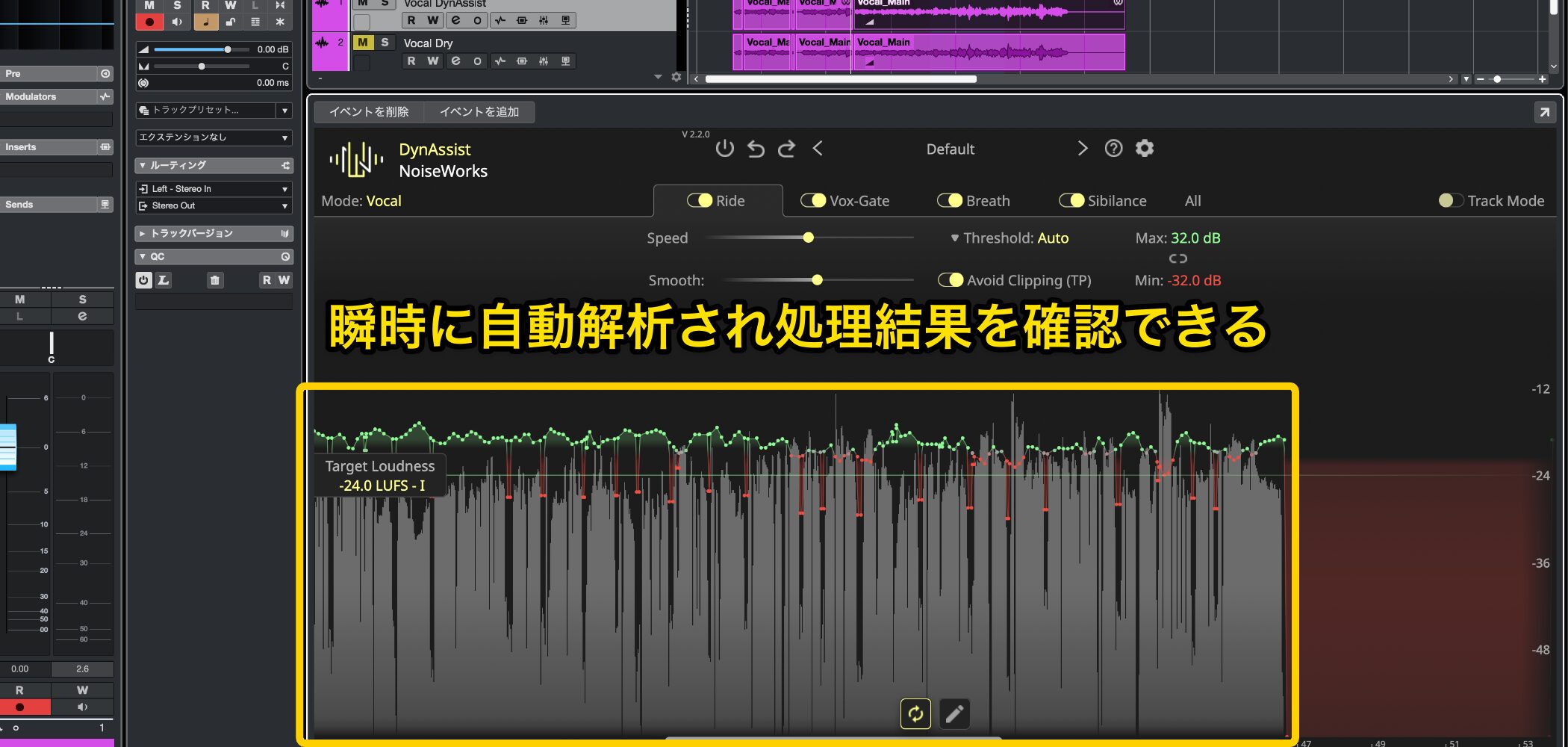
The entire audio event is automatically analyzed almost instantly, letting you check the processing results right away.
Rather than processing in real time, it analyzes the audio offline in advance, making it easy to check the waveform visually, with very little latency or CPU load.
In a DAW Without ARA Support
DynAssist can also be used in DAWs that do not support ARA.
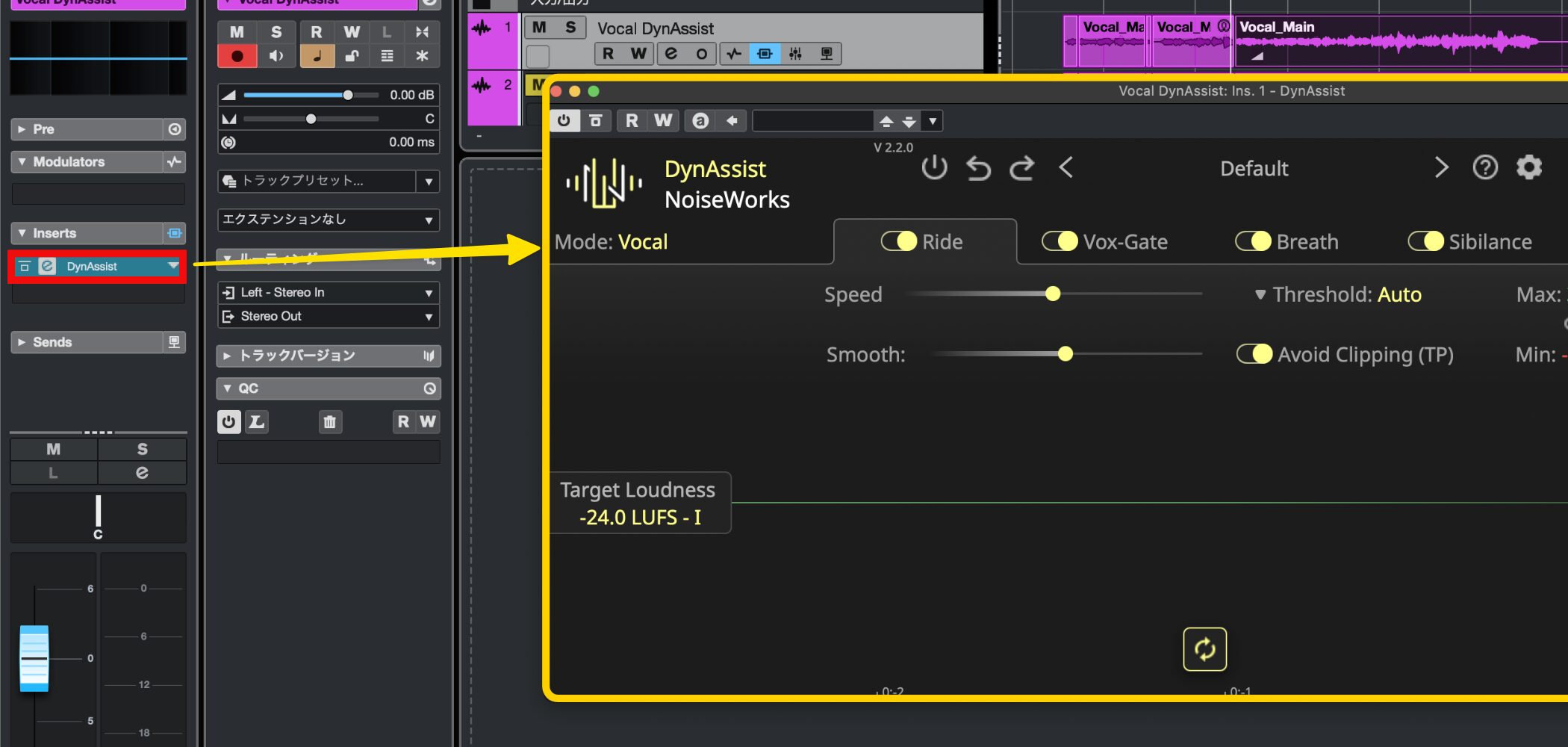
Load DynAssist in the same place as a conventional effect plug-in, such as an Inserts slot in Cubase.
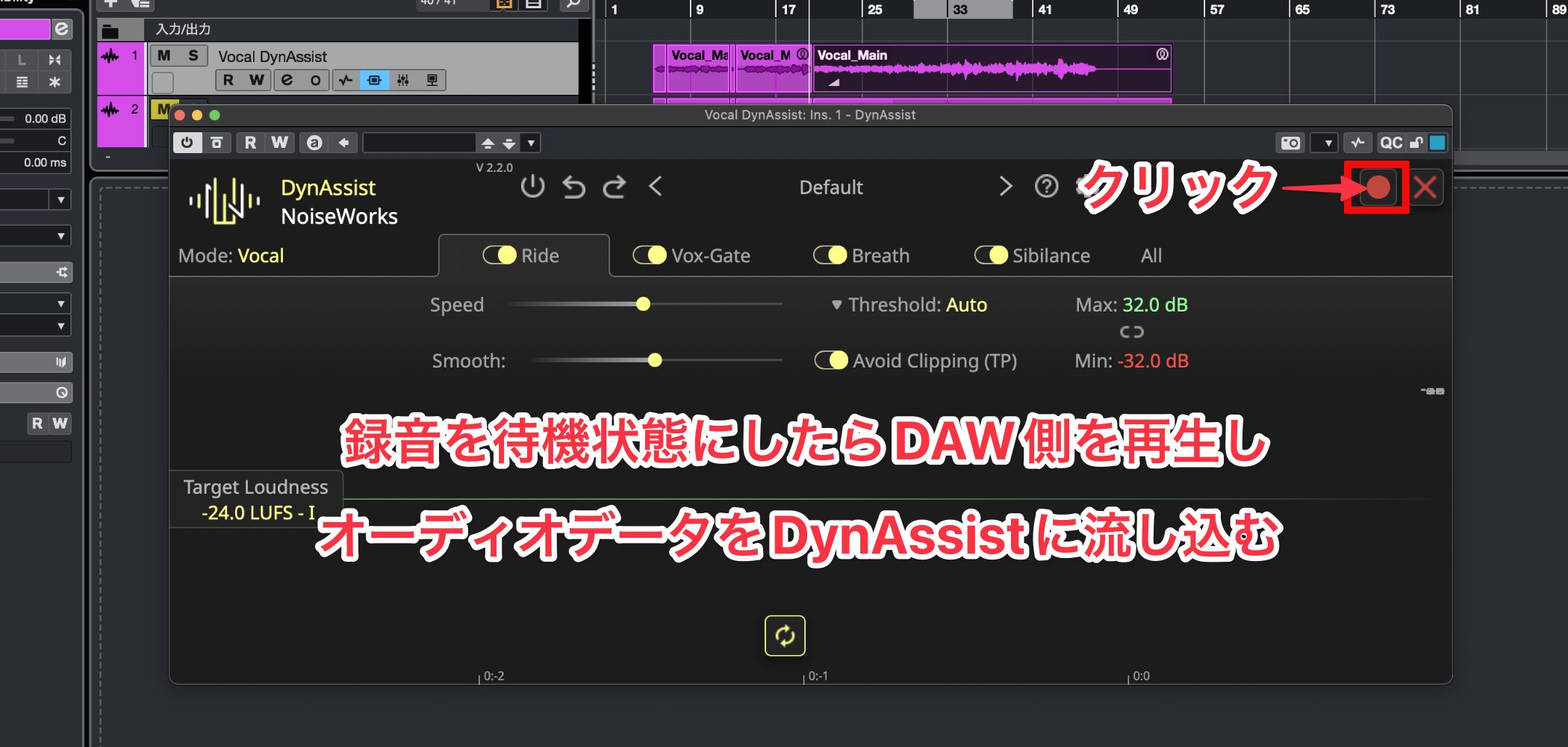
Unlike the ARA workflow, you need to transfer the audio into DynAssist for analysis, as you would with a plug-in such as Melodyne.
Track Mode
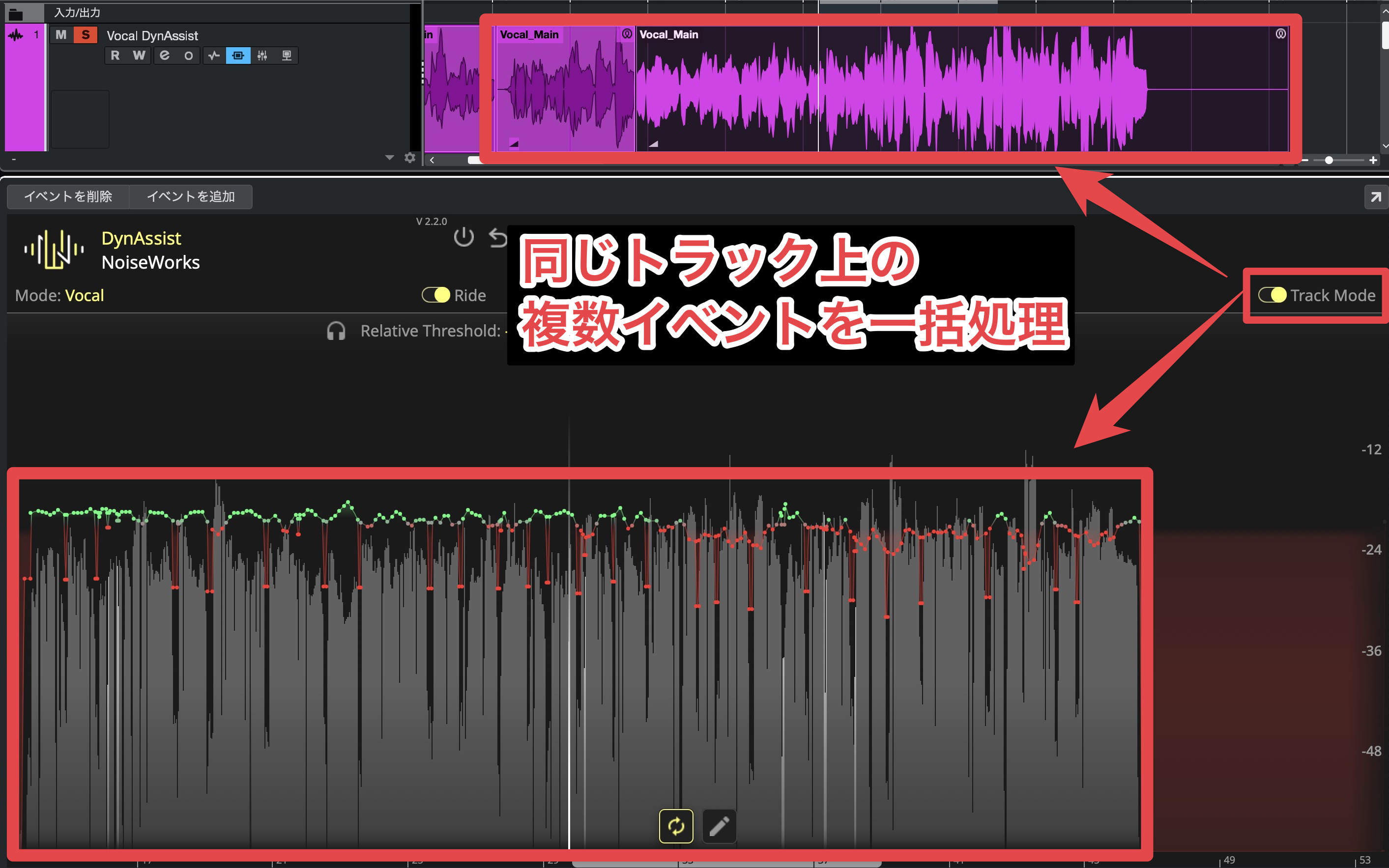
If a DAW track contains multiple audio events, such as a vocal take split into smaller sections, Track Mode displays them together in DynAssist so you can edit them as a group.
Track Mode is enabled by default when DynAssist opens.
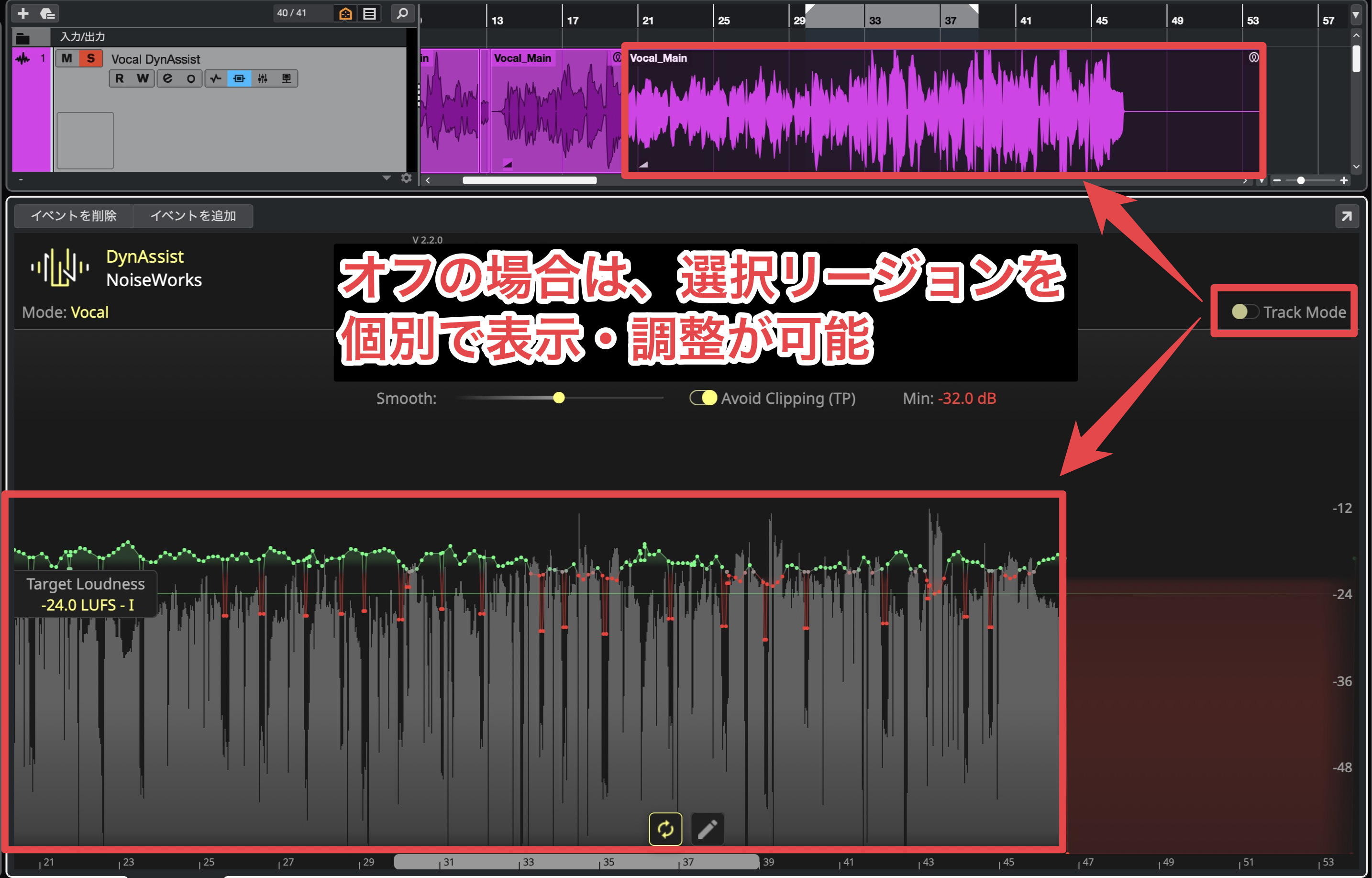
Turning it off lets you process the selected event individually, so this is useful when you want to keep a verse a little more restrained, for example.
If you turn it back on after making individual adjustments, the settings are unified across all events. Turning it off again lets you return to the individual settings.
Analyzing the Audio Again
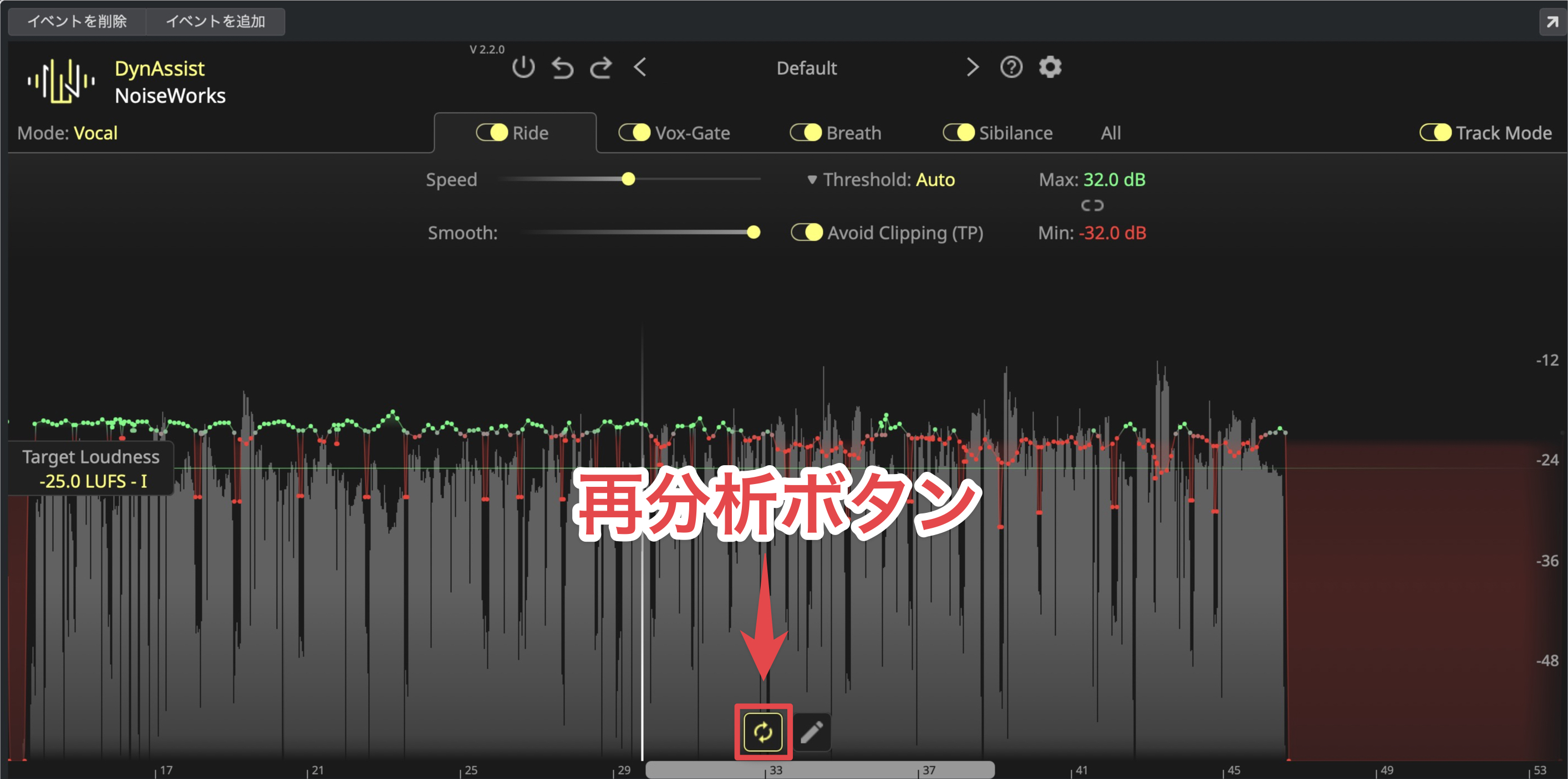
Occasionally, a long audio file may not be analyzed automatically.
If this happens, click Analyse to run the analysis manually.
The Main Automatic Adjustments
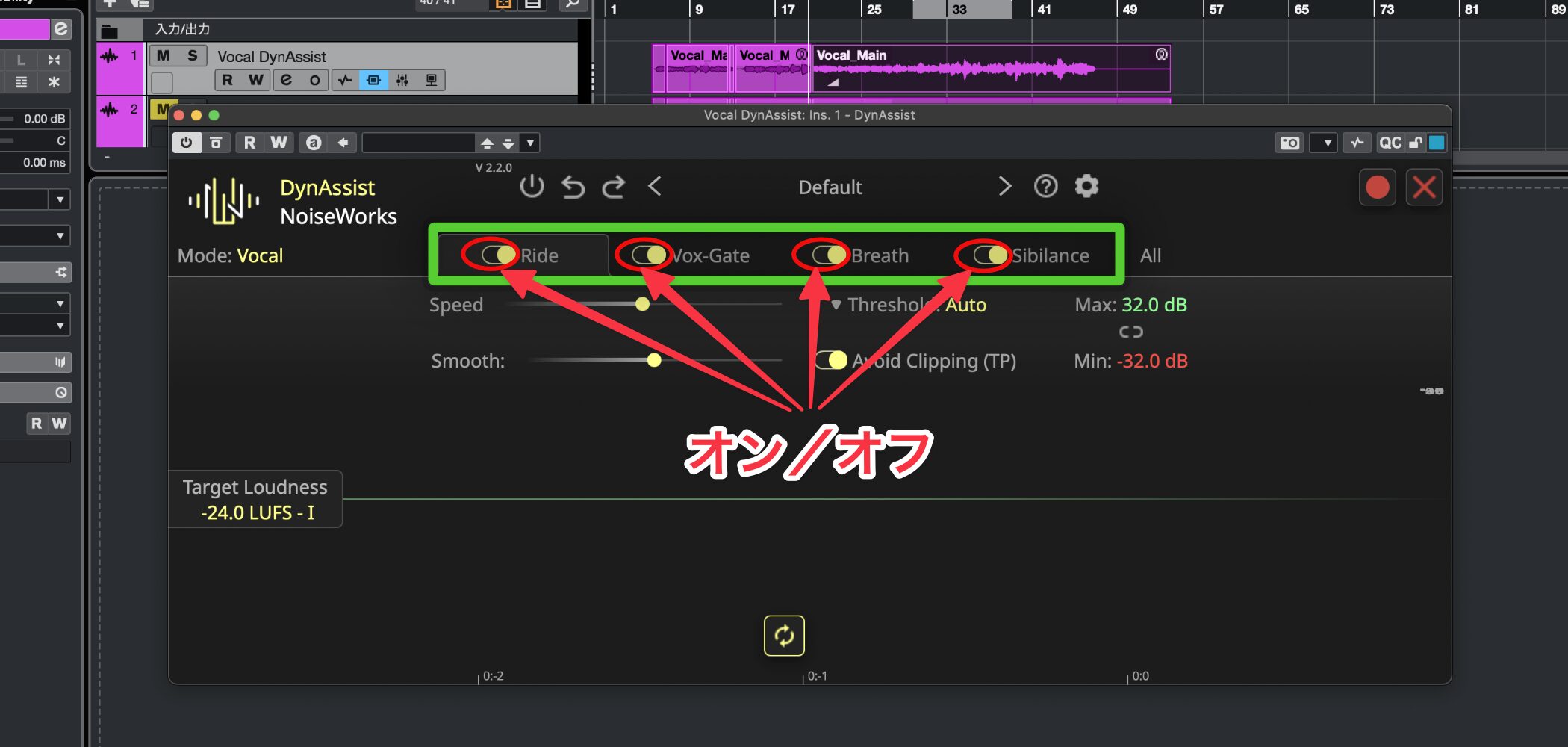
DynAssist uses AI to make four main types of adjustment, each of which can be switched on or off independently.
- Level control (Ride)
- Muting unwanted sections (Vox-Gate)
- Breath reduction (Breath)
- Sibilance control (Sibilance)
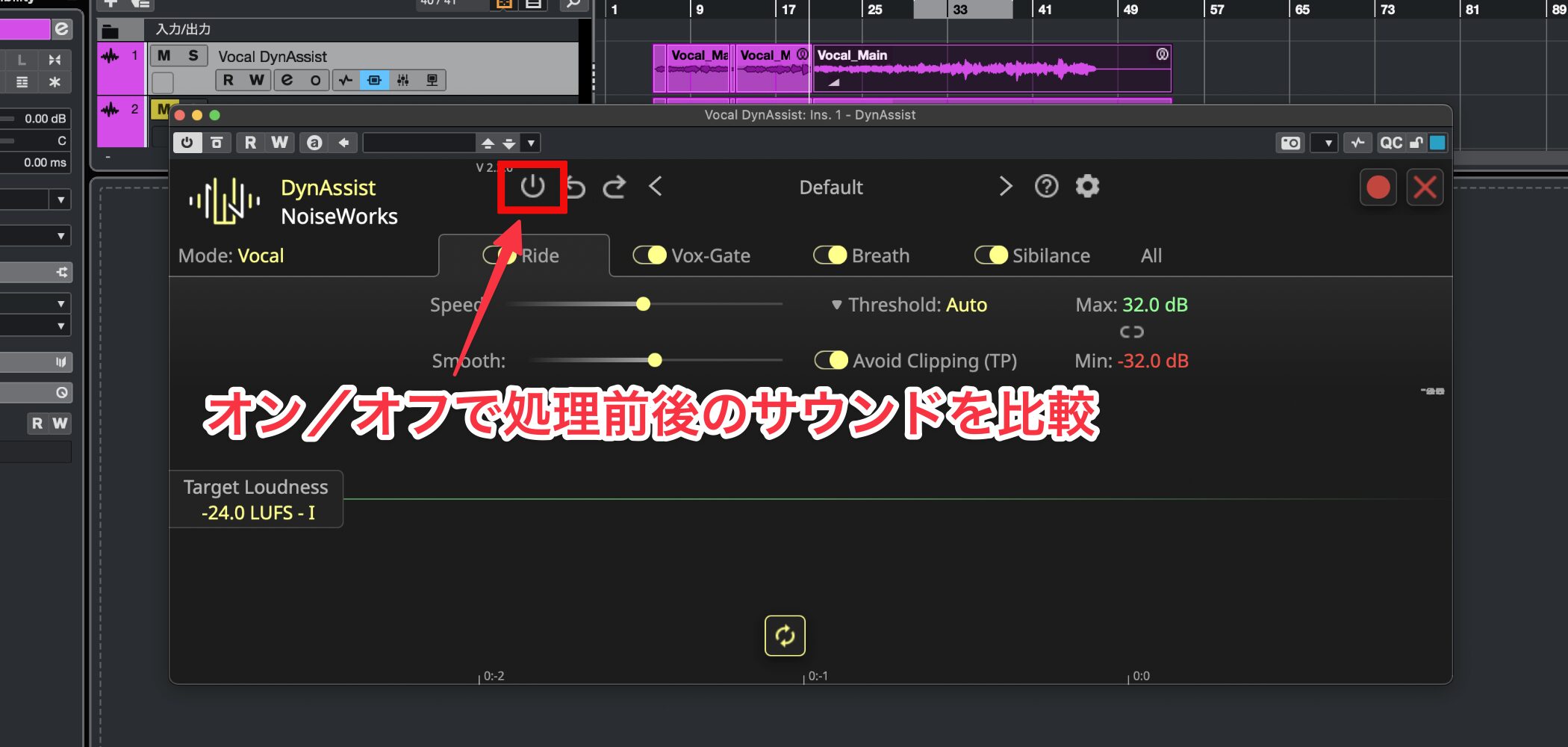
After processing, use the bypass button to compare the sound before and after.
You can also fine-tune these functions manually after applying them.
We will look at each one in detail below.
An Intuitive Interface for Efficient Editing
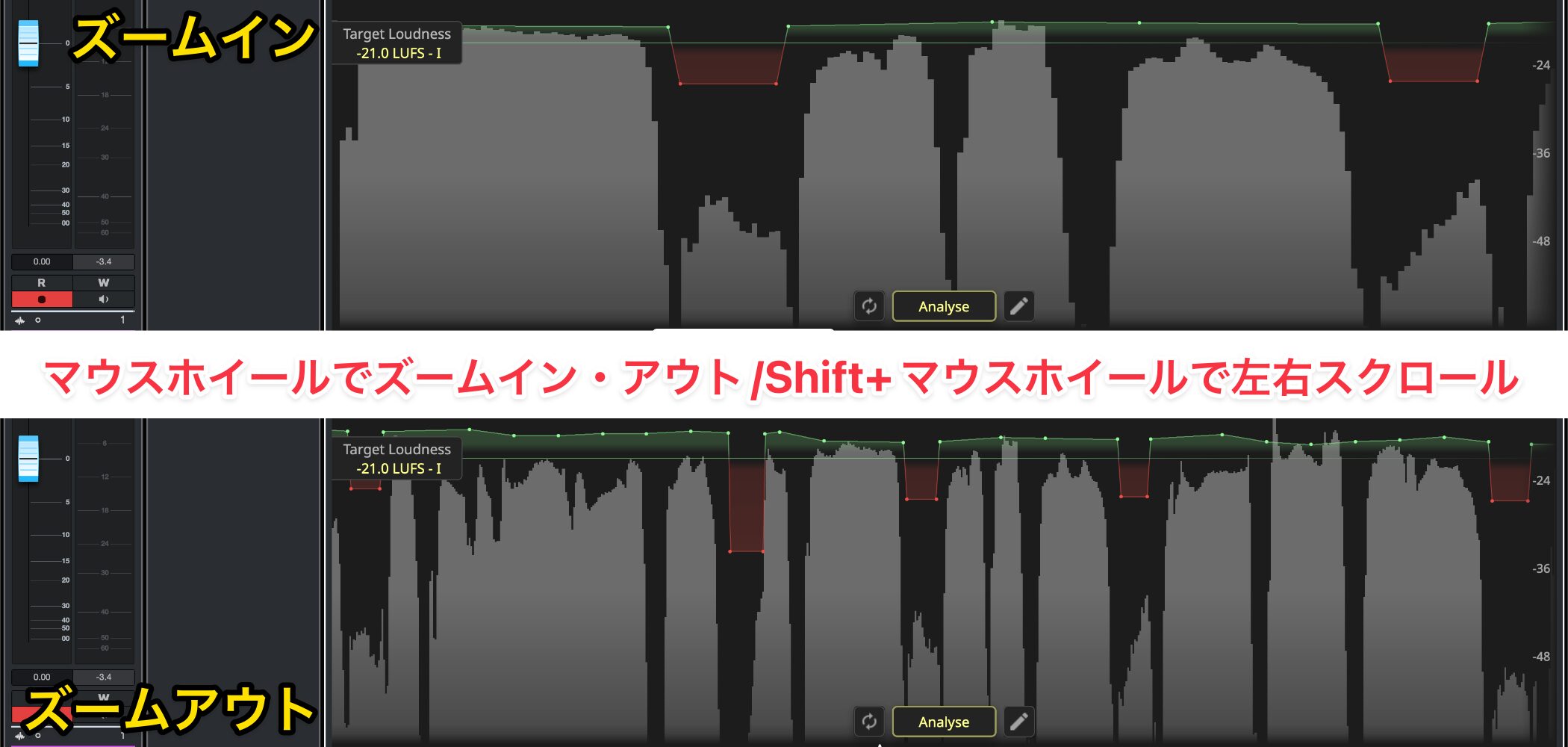
Use the mouse wheel to zoom in or out on the waveform, and Shift + mouse wheel to scroll horizontally.
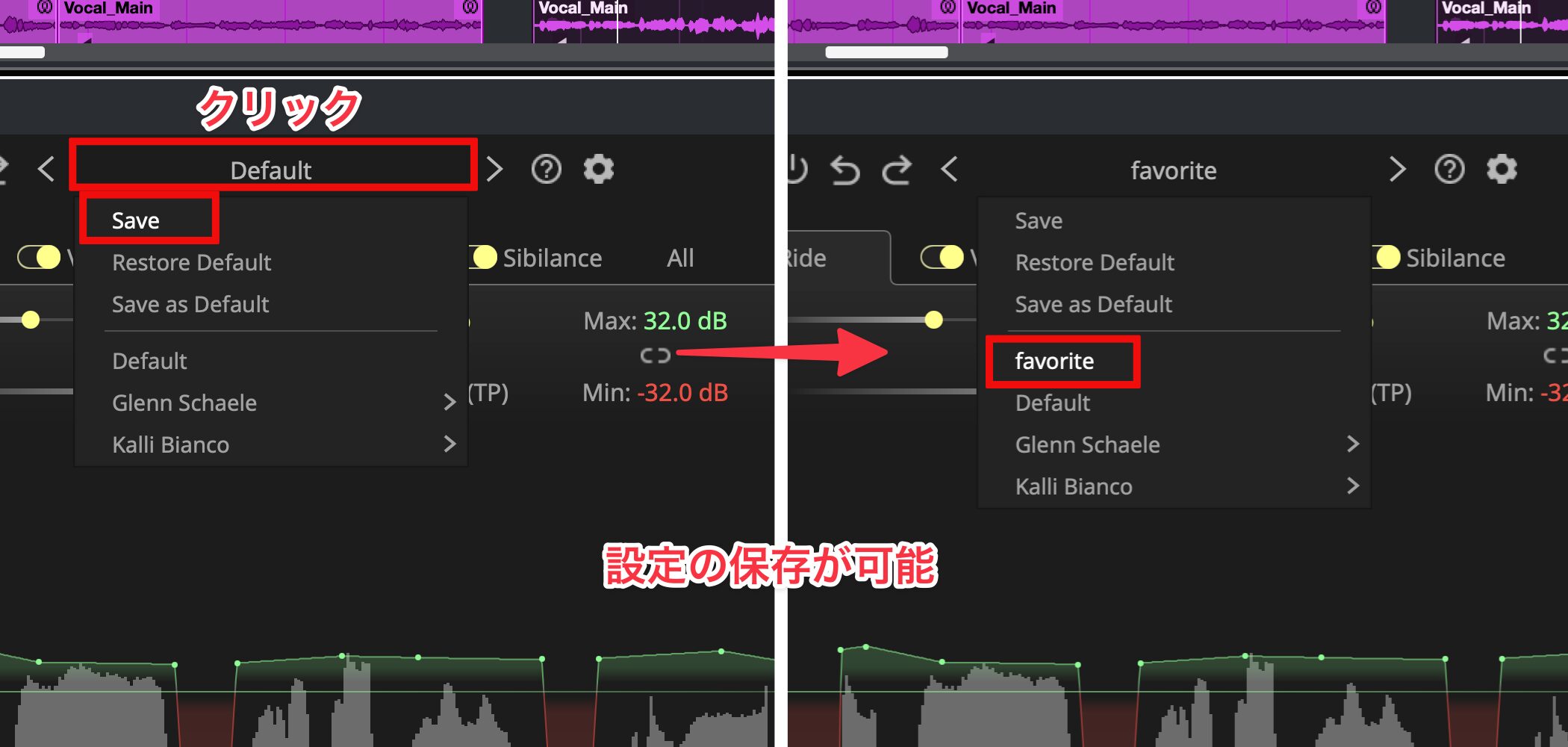
You can also save and recall frequently used settings, making it easy to maintain a consistent sound across multiple projects.
Ride: Automatically Adjust Vocal Dynamics
Ride's key advantage is its advance analysis of the entire audio signal through ARA.
This lets DynAssist understand the overall flow and deliver precise, natural level adjustments beyond what is possible with manual editing.
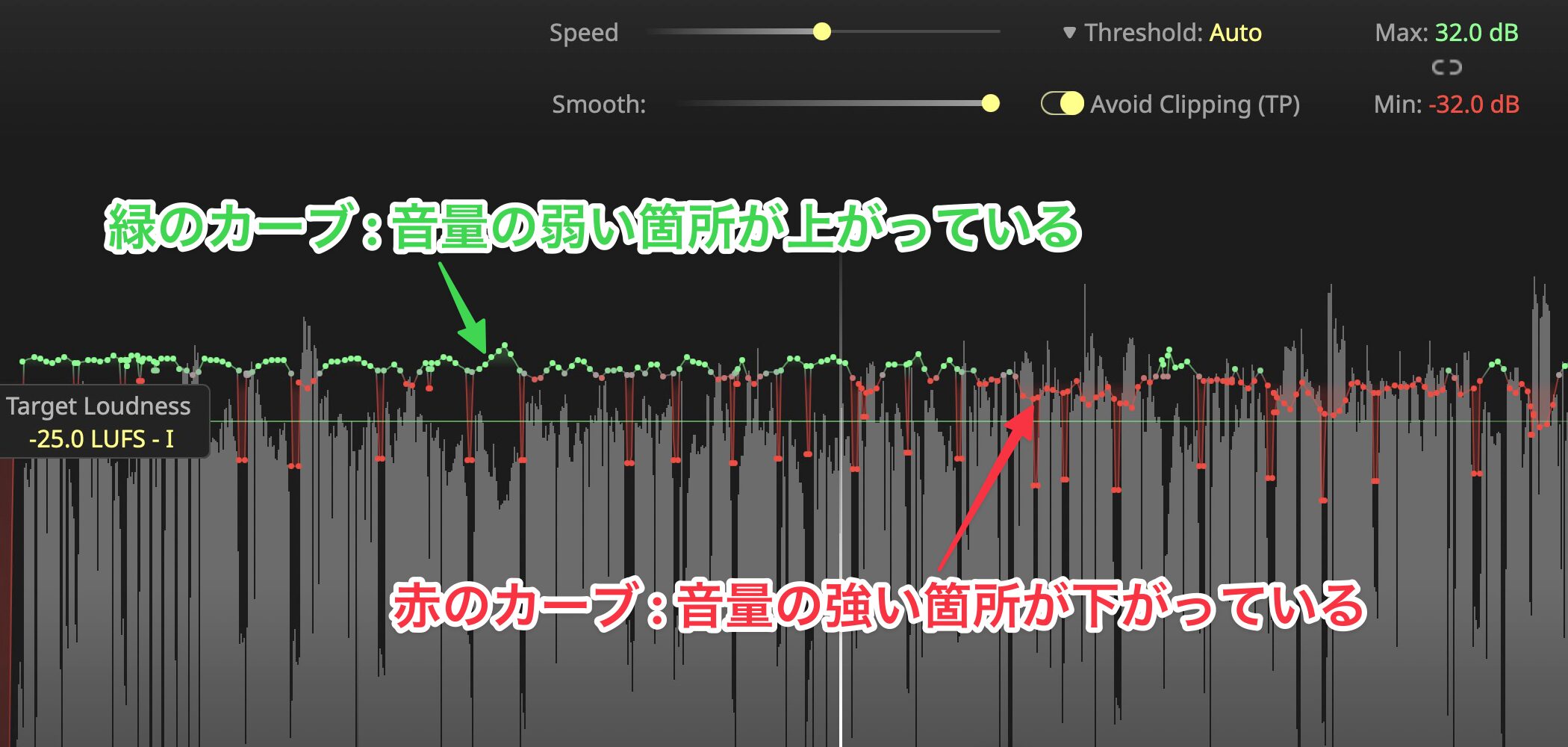
In the interface, green curves show quiet sections being boosted, while red curves show loud sections being reduced.
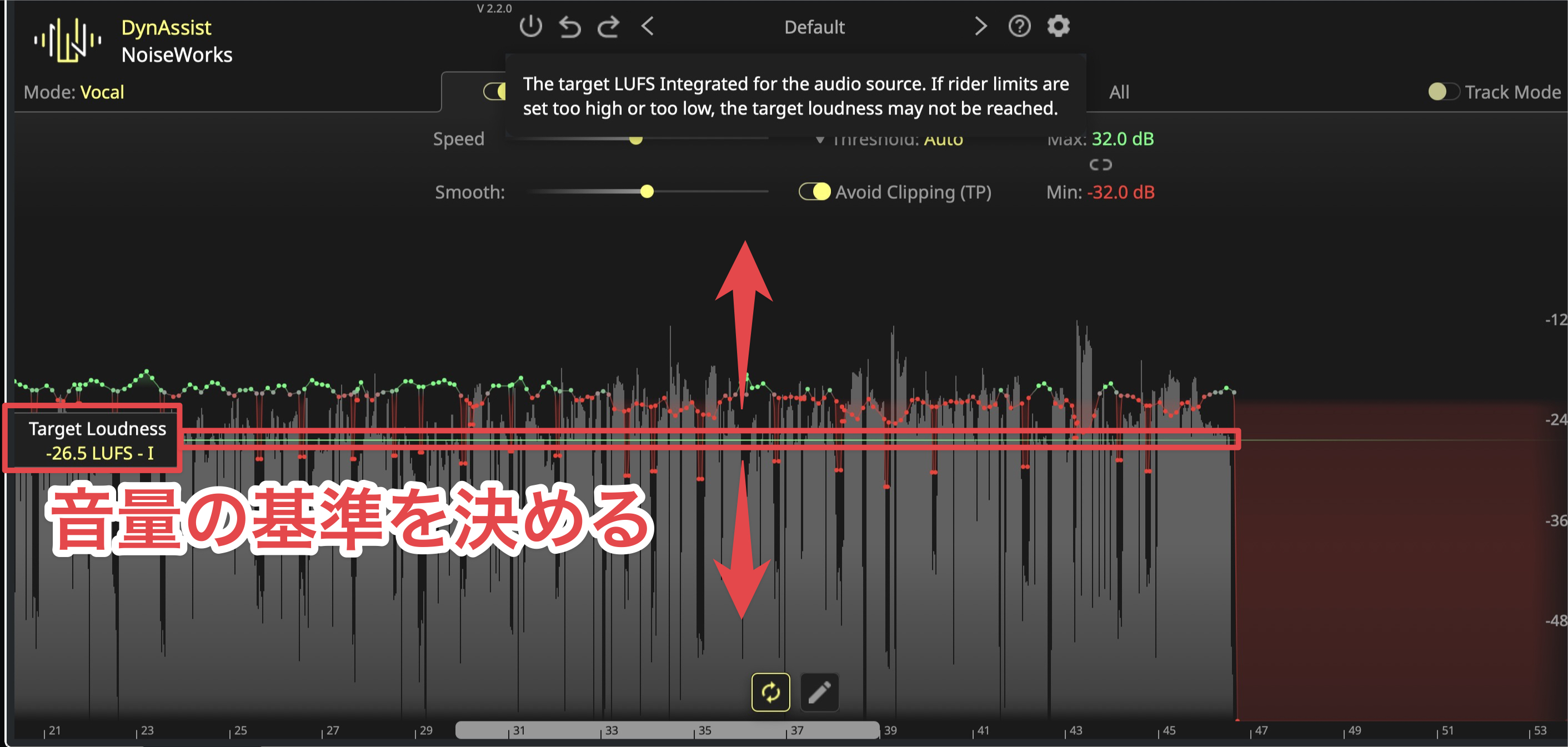
Drag Target Loudness up or down to change the reference level. The green and red volume curves update immediately.
This is useful when you want the generated curve to suit the song better or when the result differs from what you had in mind.
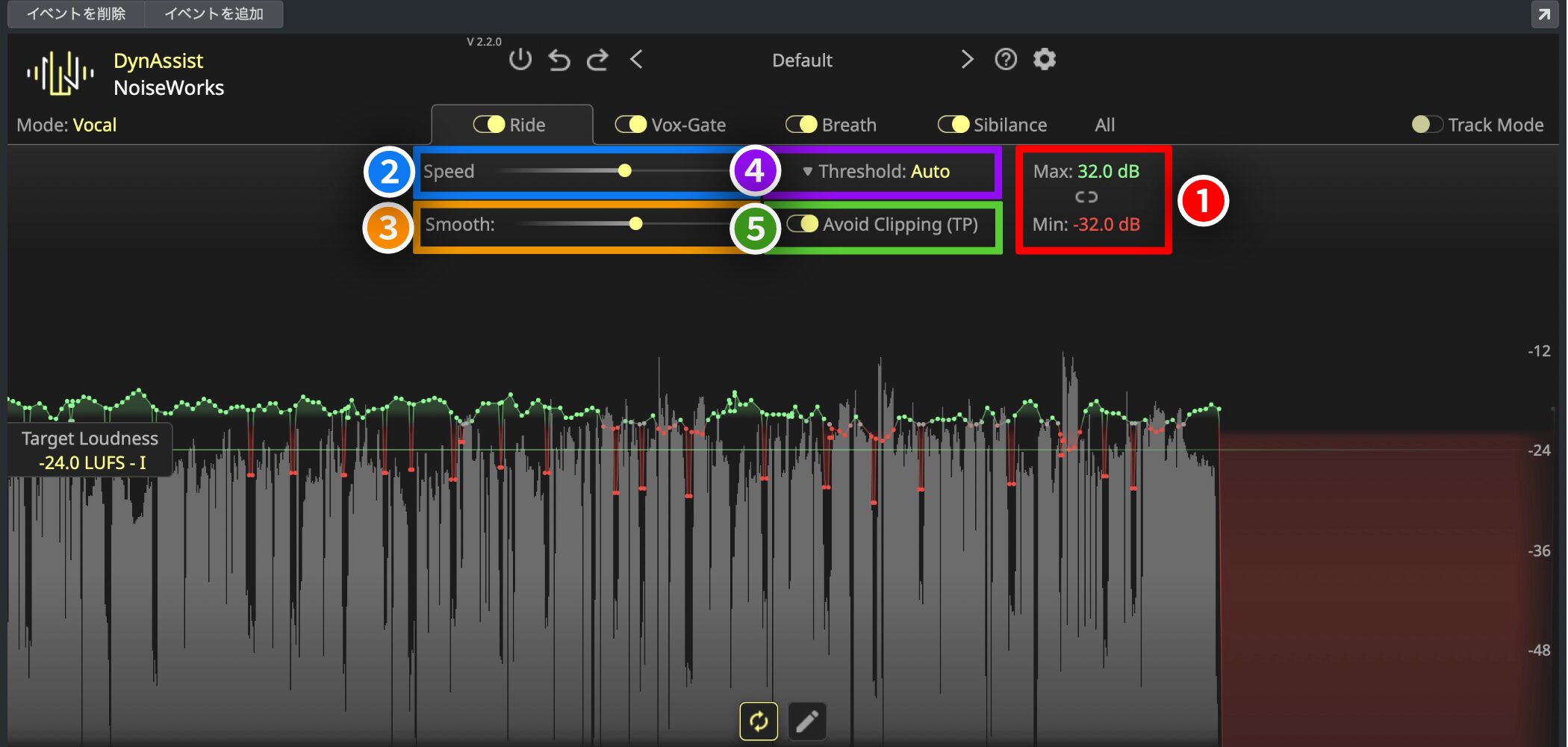
The other controls work as follows.
①(Red) Max / Min: Set upper and lower level limits to prevent extreme changes.
②(Blue) Speed: Adjust how quickly the volume follows the signal, according to the detail in the phrasing.
③(Orange) Smooth: Adjust the smoothness of level changes to correct unnatural fluctuations.
④(Purple) Threshold: Set the minimum level to be corrected, either automatically or manually.
⑤(Green) Avoid Clipping (TP): Prevent true-peak clipping. This is an essential setting.
Manually Adjusting the Volume Curve
You can manually fine-tune the volume curve created by the automatic processing.
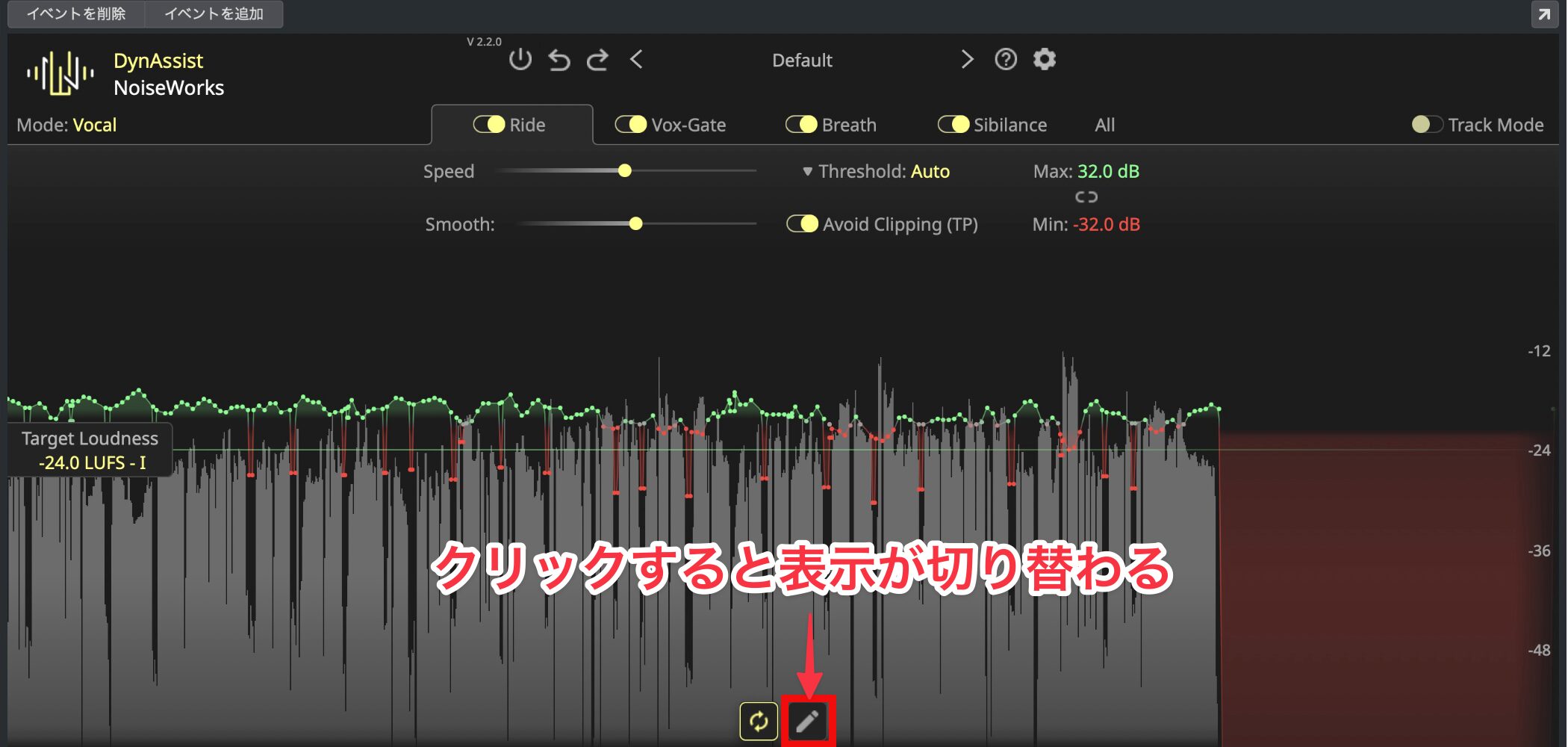
Click Edit, shown as a pencil icon, to change the display.
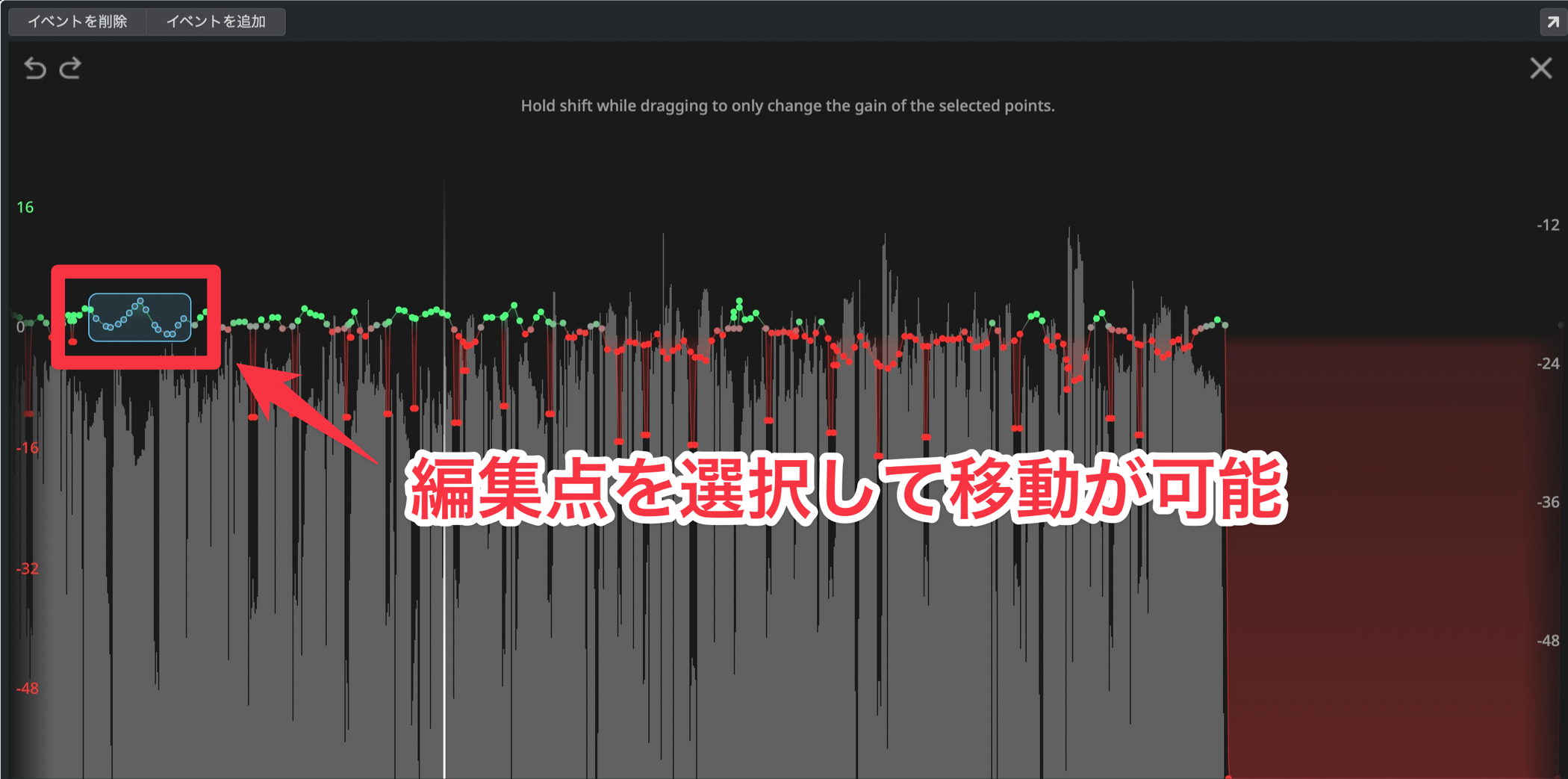
Drag the points on the waveform to change the volume curve.
Ride's Instrument Mode
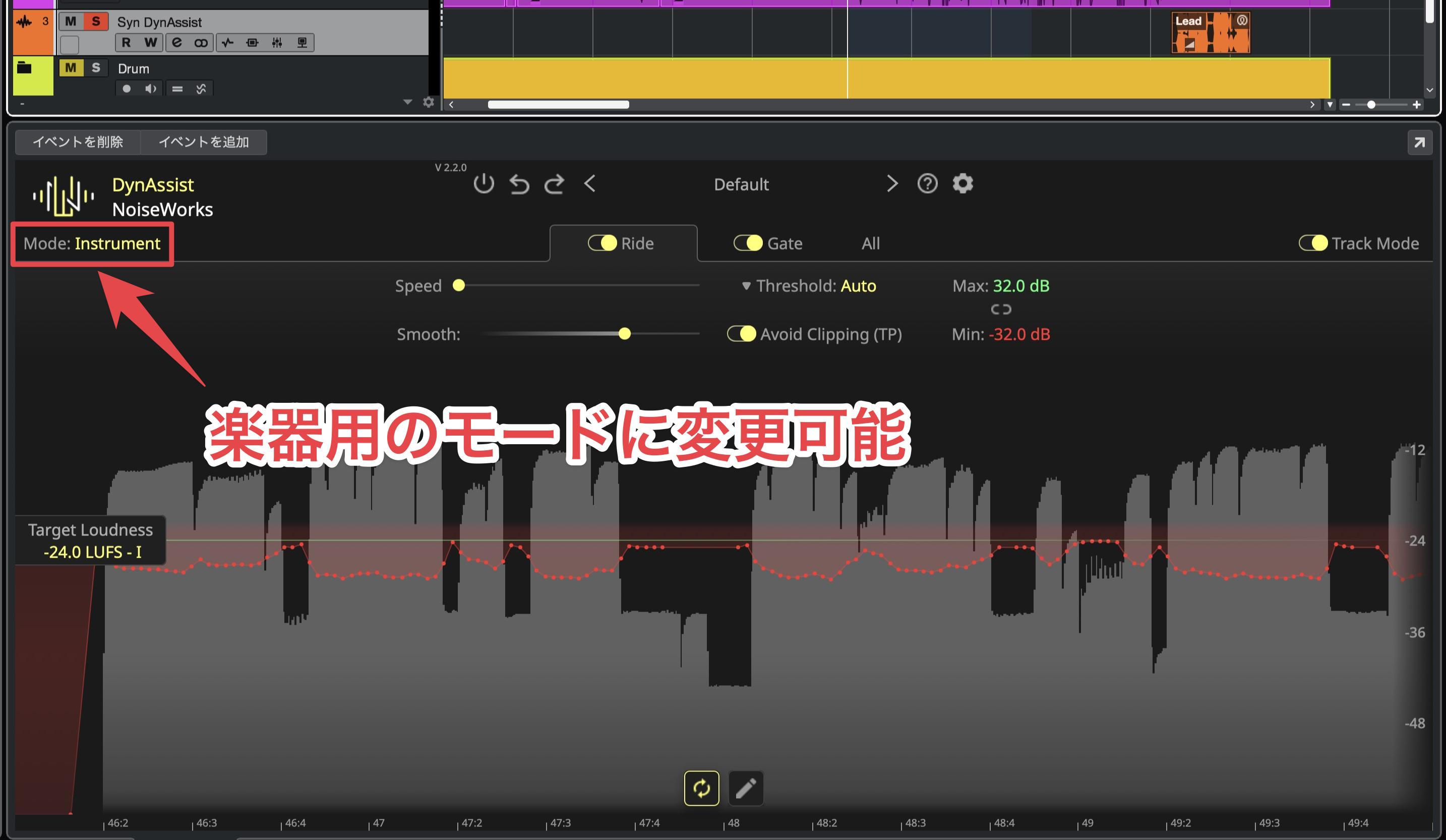
DynAssist's Ride function can be used on instruments as well as vocals.
However, instrument mode does not use AI analysis, so you set Threshold manually.
Even without AI analysis, Ride's level controls are easy to understand and use, making it practical for instruments too.
Before processing
After processing
Vox-Gate: Intelligently Clean Up Unwanted Gaps
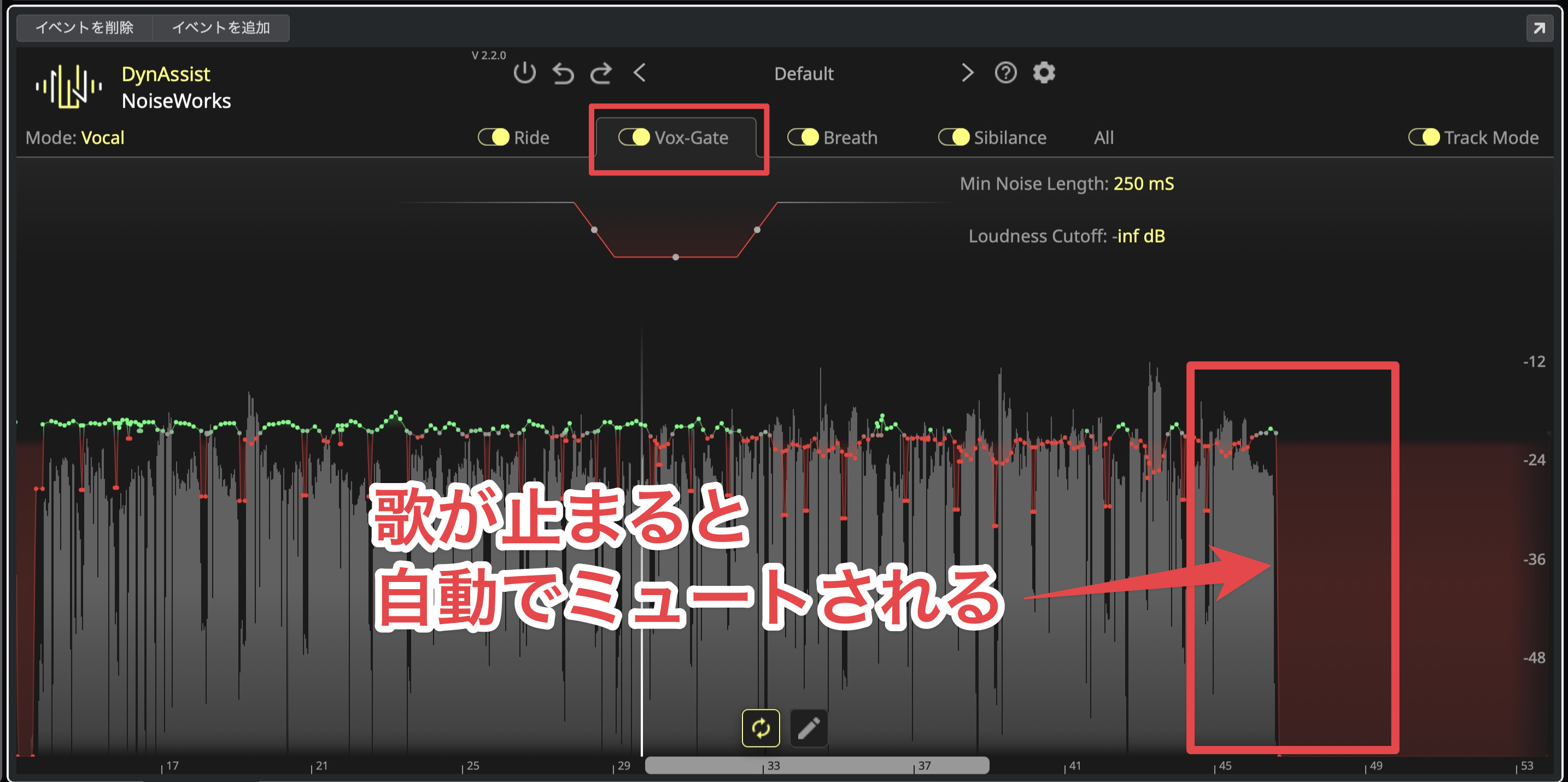
With Vox-Gate, AI identifies the content of the audio and accurately detects where the voice is present.
Conventional gates can accidentally remove parts you want to keep, such as the start or end of a sung phrase. DynAssist can clean up unwanted gaps and silent sections without requiring a threshold setting.
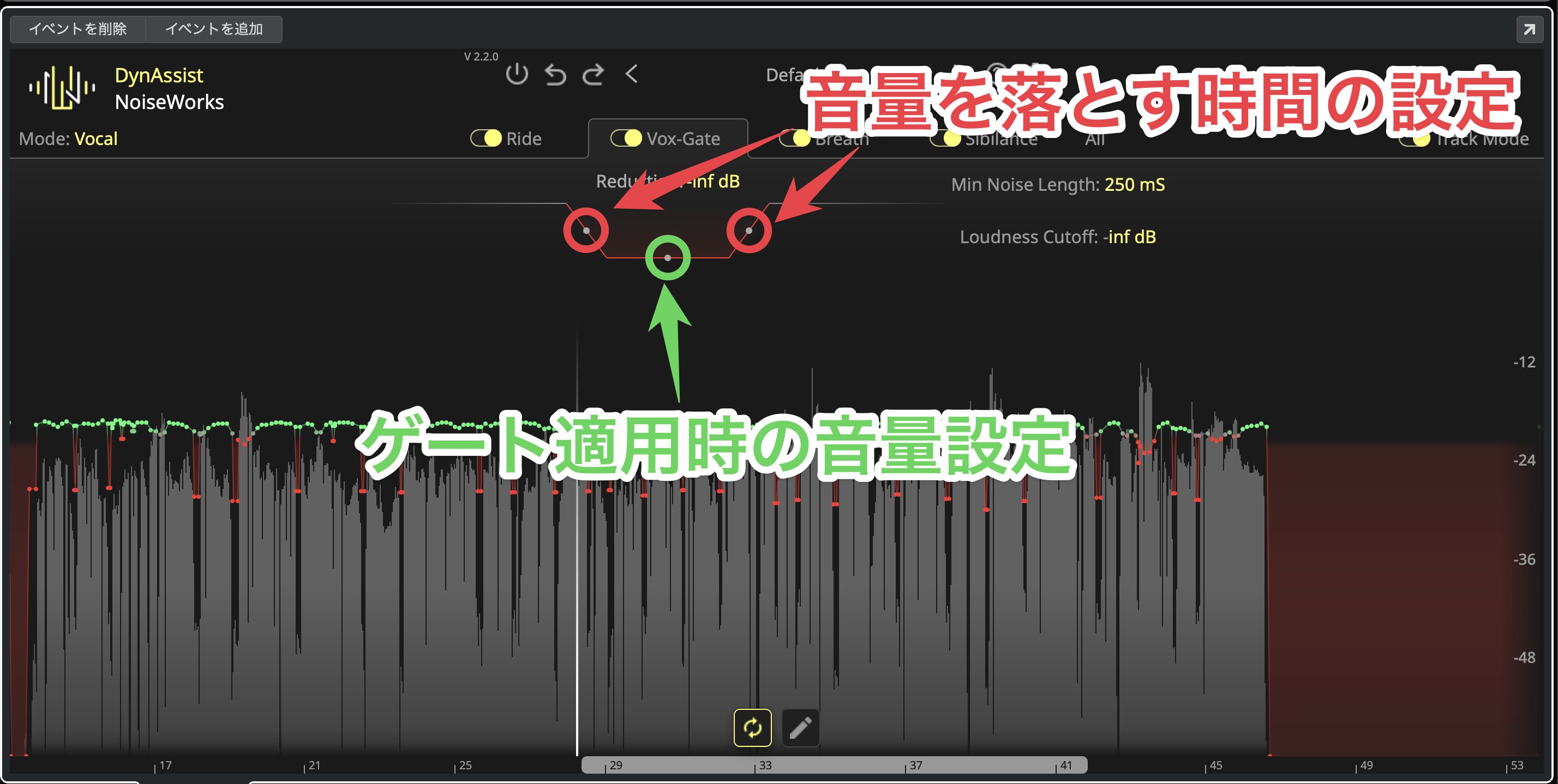
For manual adjustment, Gate Timing controls how long the level is reduced, while Floor Level sets the level used when the gate is applied.
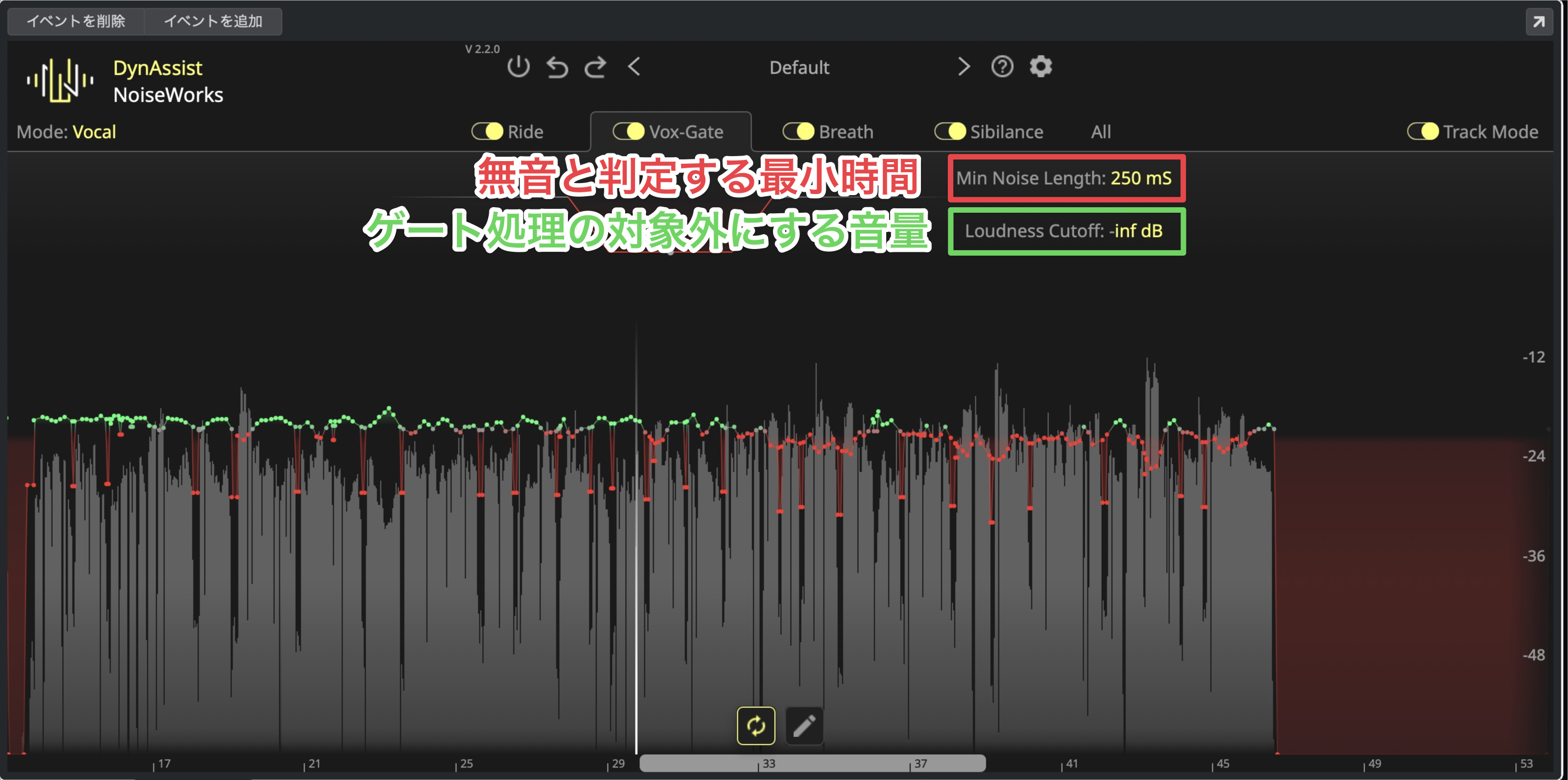
Minimum Noise Length sets the minimum duration recognized as a silent section. Loudness Cutoff lets you exclude sounds below the specified level from gating.
Breath: Subtle Control for Natural-Sounding Breaths
Handling breaths is one of the most delicate parts of vocal editing.
Removing them completely can sound mechanical and unnatural, while leaving too much can distract the listener.
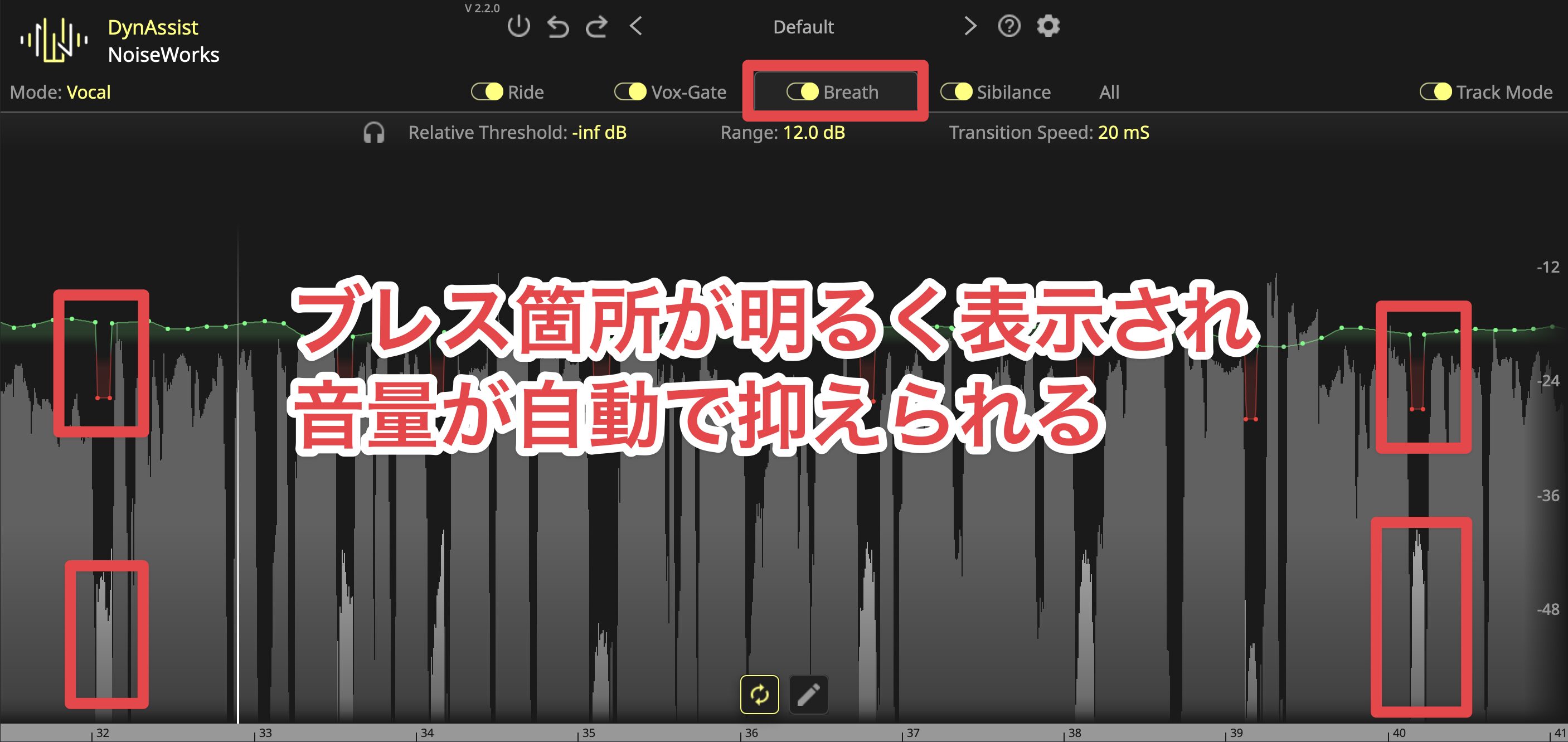
The breath detection function uses AI to automatically identify breaths.
Detected breaths appear highlighted on the waveform, so you can identify them visually without listening to the audio.
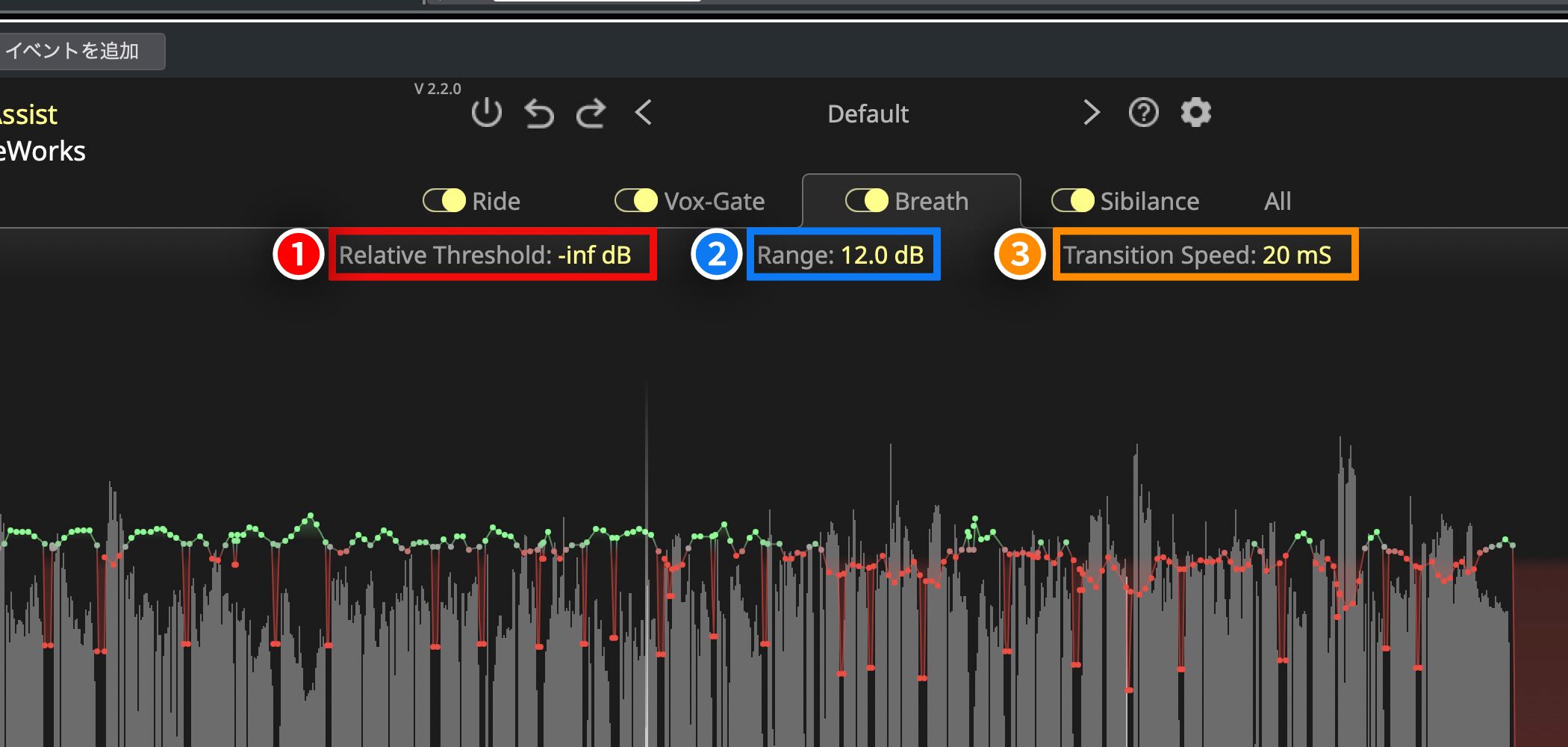
You can manually adjust breaths using the following controls.
①(Red) Relative Threshold: Breaths below the set value are left unprocessed. Set it to −∞ to process all breaths.
②(Blue) Range: Adjust the amount of reduction. Around 50–80% is recommended for a natural result.
③(Orange) Transition Speed: Set how quickly breath levels are reduced, choosing a fast or gradual reduction for a natural sound.
Sibilance: Clear, Comfortable-Sounding Sibilants
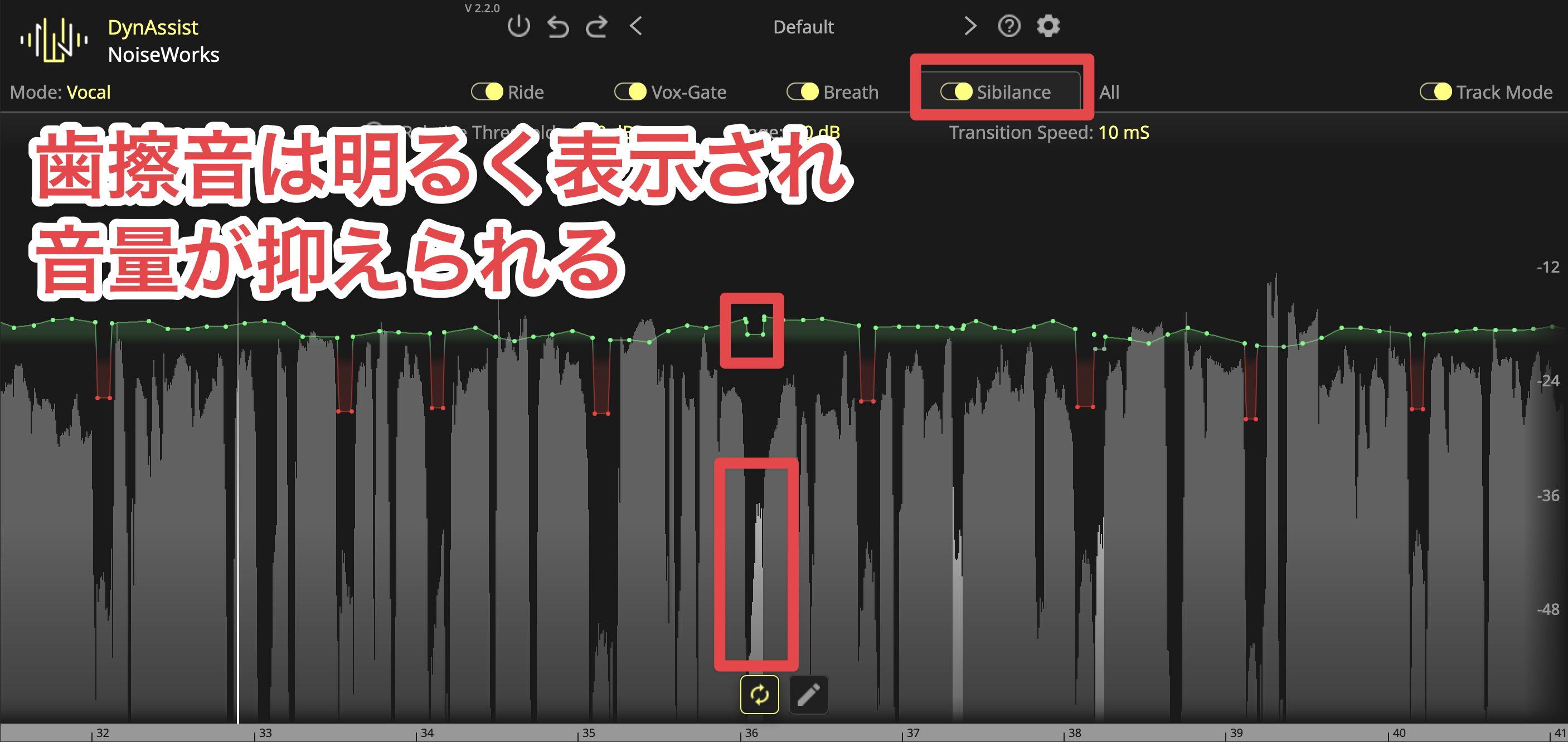
The Sibilance function uses AI to automatically find sibilant sounds, such as "s" and "sh," and adjust them to an appropriate level.
Detected sibilants are highlighted on the waveform, just as detected breaths are.
The available adjustment controls are also the same as those for breath detection.
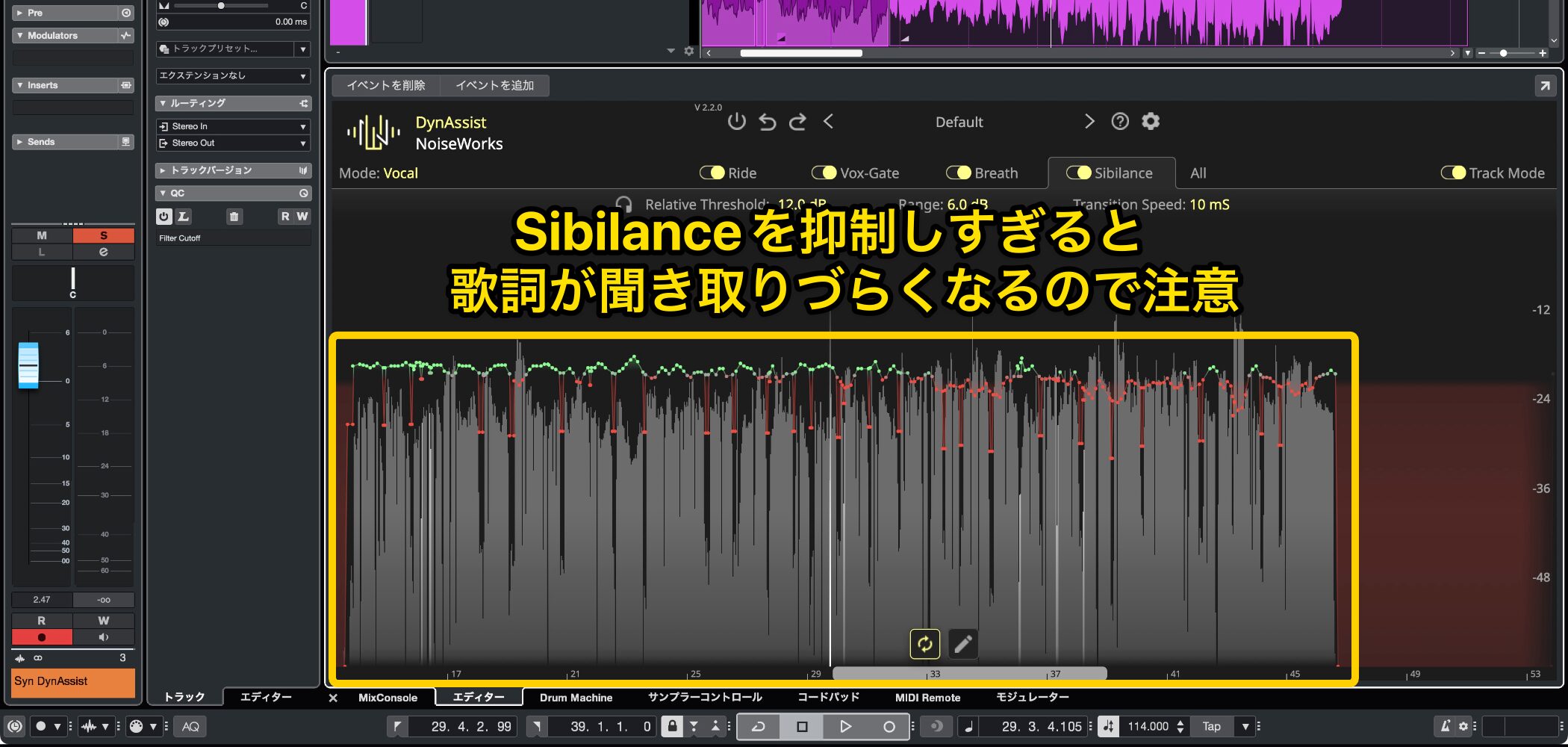
However, reducing sibilance too much can make the lyrics harder to understand, so take care when adjusting it.
System Requirements
Mac
CPU: Intel or Apple M1/M2/M3 (native support)
OS: macOS 12.0 or later
Windows
CPU: 4th-generation Intel Core i5/i7 or later
OS: 64-bit Windows 10 v1909 or later
Free Trial

The official website offers a 14-day free trial of DynAssist so you can try its features before purchasing.
Download the trial and experience its innovative vocal editing features for yourself!
Frequently Asked Questions
When I open DynAssist as an extension in Cubase, the sound stops playing. Could this be a bug?
In the video, we opened it through Extensions in the Audio menu. Loading it as a track extension is also supported, so please try both methods.
In DAWs without ARA support, such as FL Studio or Ableton Live, does this plug-in offer much less of an advantage over Vocal Rider?
Even without ARA, the processing itself is the same once you have transferred the audio, so we can still recommend it.
NEW ARTICLES
Latest English Articles




































