Cubase 7’s Harmony Voices feature automatically creates harmonies for vocals and lead instruments. Used with a chord track, it can generate harmonies that follow the song’s chord progression. Basic generation takes just a few steps, and VariAudio can then be used to fine-tune pitch for a polished harmony part. It is a useful tool for producers at any level who want to work efficiently and improve their productions.
Generate Harmonies Automatically
In this first look at Cubase 7 features,
we introduce
Harmony Voices, which automatically adds harmonies to a vocal or lead instrument.
By combining it with a chord track,
you can create harmonies that follow the song’s chord progression.
Cubase 7 Harmony Voices Video
Harmony Voices (this page)
Chord Assistant
MixConsole: Setup
MixConsole: Reverb and Pan Techniques
MixConsole: Inserts and Channel Strip
MixConsole: Vocal Processing and Routing
Loudness and the RMS Meter
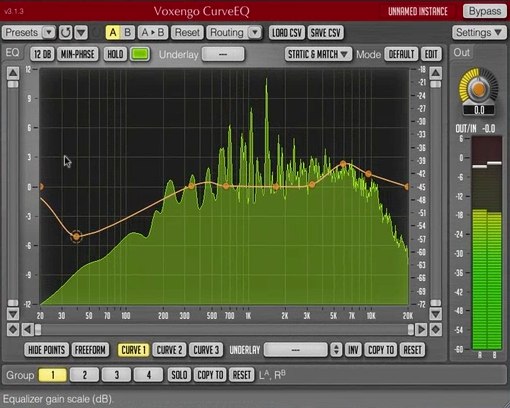
CurveEQ
Questions and Answers from the YouTube Video

Can this feature be used in Cubase Elements 7?

Cubase Elements 7 does not include Harmony Voices. The comparison table at the following link shows other differences between editions: http://japan.steinberg.net/jp/products/cubase/lineup.html
Can I make harmonies without knowing the chords? For example, could I move the main part up three semitones and raise only the notes outside the scale by another semitone?
Yes, that approach is also possible.
Are these specifications insufficient for the top edition of Cubase 7? Would proper work be possible? CPU: Celeron Dual-Core B830, 1.8 GHz, 2 cores; HDD: 320 GB; RAM: 4 GB; Windows 8.
For music production, the number of instruments or instrument tracks you use may matter more than running Cubase 7 itself. High-quality instruments and effects can make the system unstable even if Cubase runs without problems. Please tell us the number of tracks and a reference song representing your goal.
Why does the pitch return to its original value when I try to correct it?
Double-click the event and make sure VariAudio is enabled in the menu on the left.
Video Focus: Creating Harmony Voices
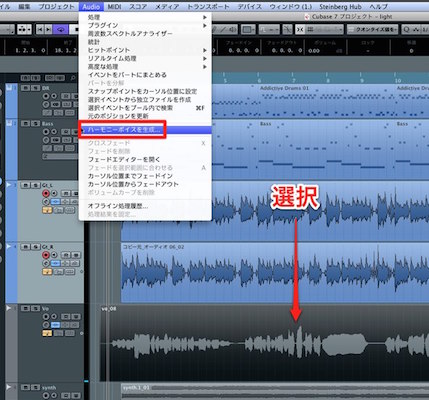
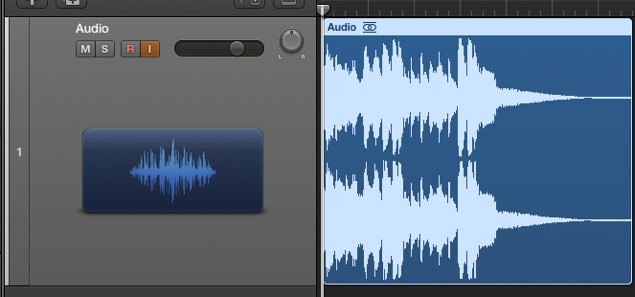
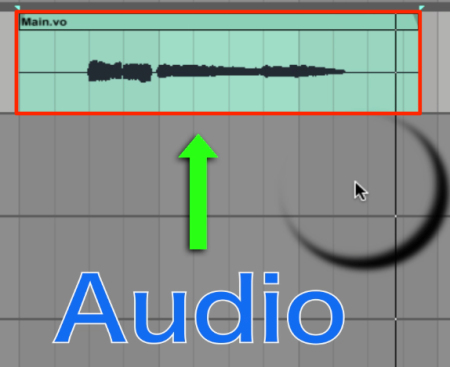
Creating a harmony is very simple.
Select the event,
then choose Audio → Generate Harmony Voices from the top menu.
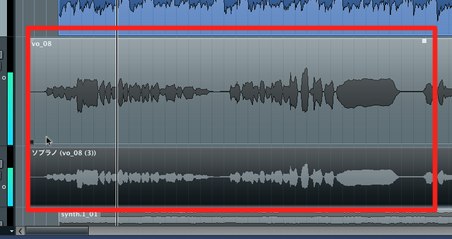
A harmony is created automatically,
but it may not quite fit the song.
The next section explains how to address this.
Video Focus: The Chord Track
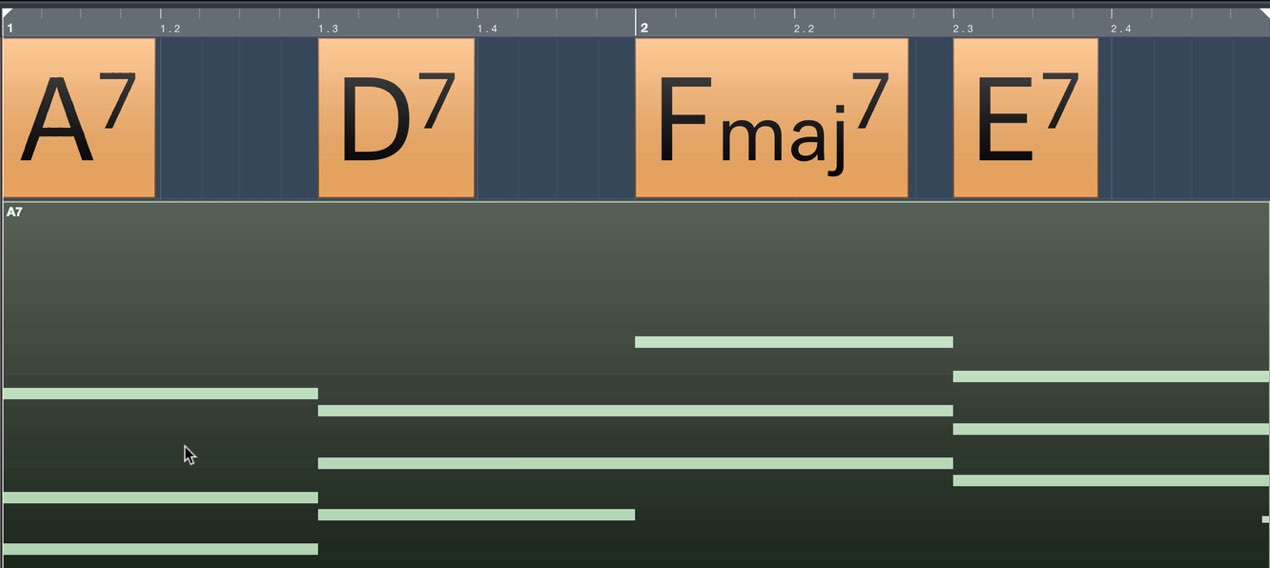
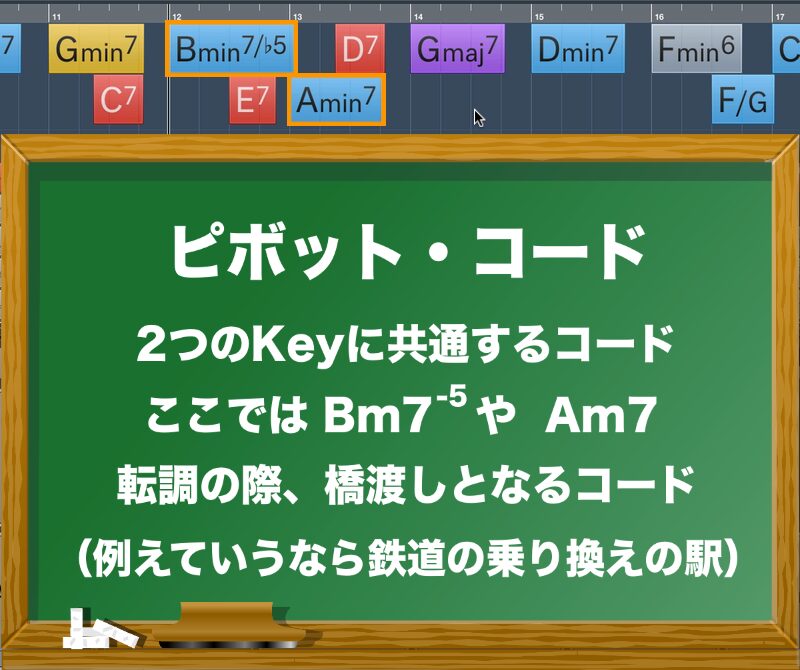
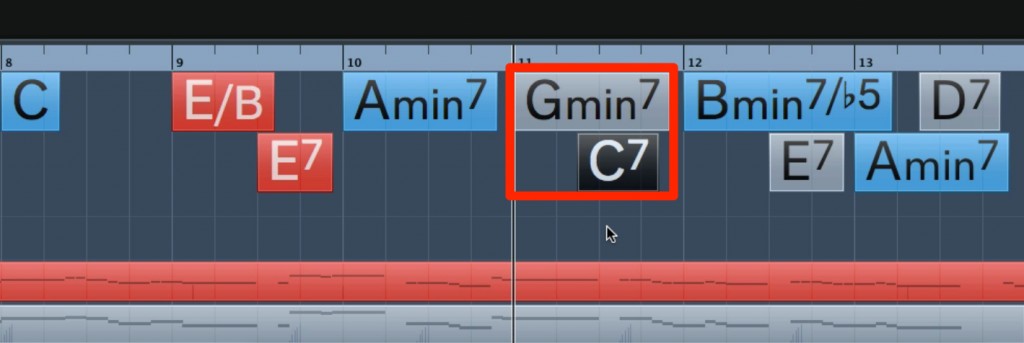
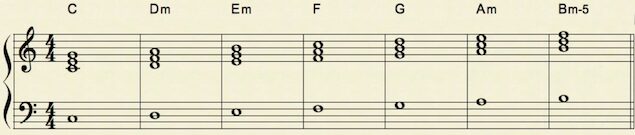
Simply create a chord track and specify the chords
to make a chord guide that can be used in many situations.
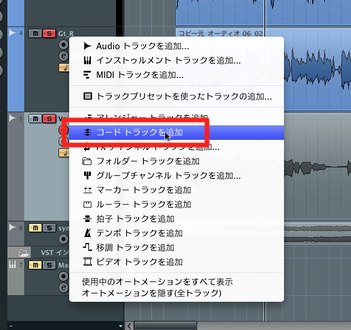
In the track creation menu (right-click the track list),
select Add Chord Track.
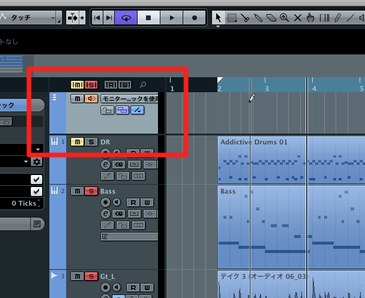
A chord track is added.
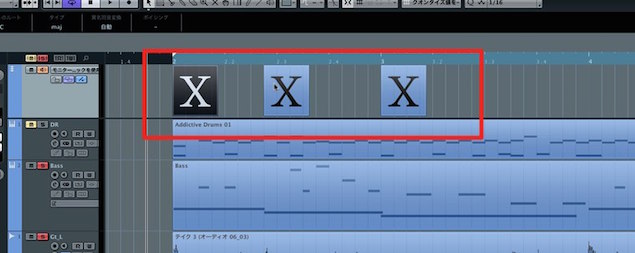
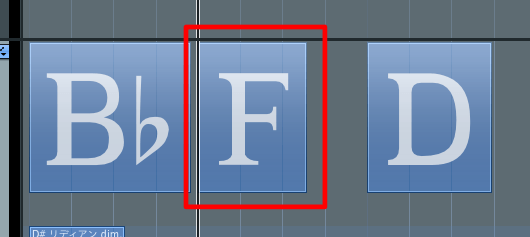
Use the pencil tool to click each chord change and add a chord.
X indicates that no chord has been specified yet.
Next, assign chords to these X events.
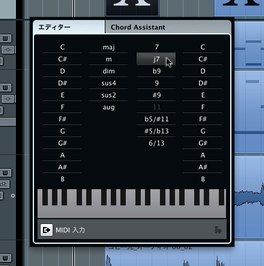
Switch to the arrow (Object Selection tool), then
double-click a chord.
A chord entry dialog appears;
select the chord for the song.

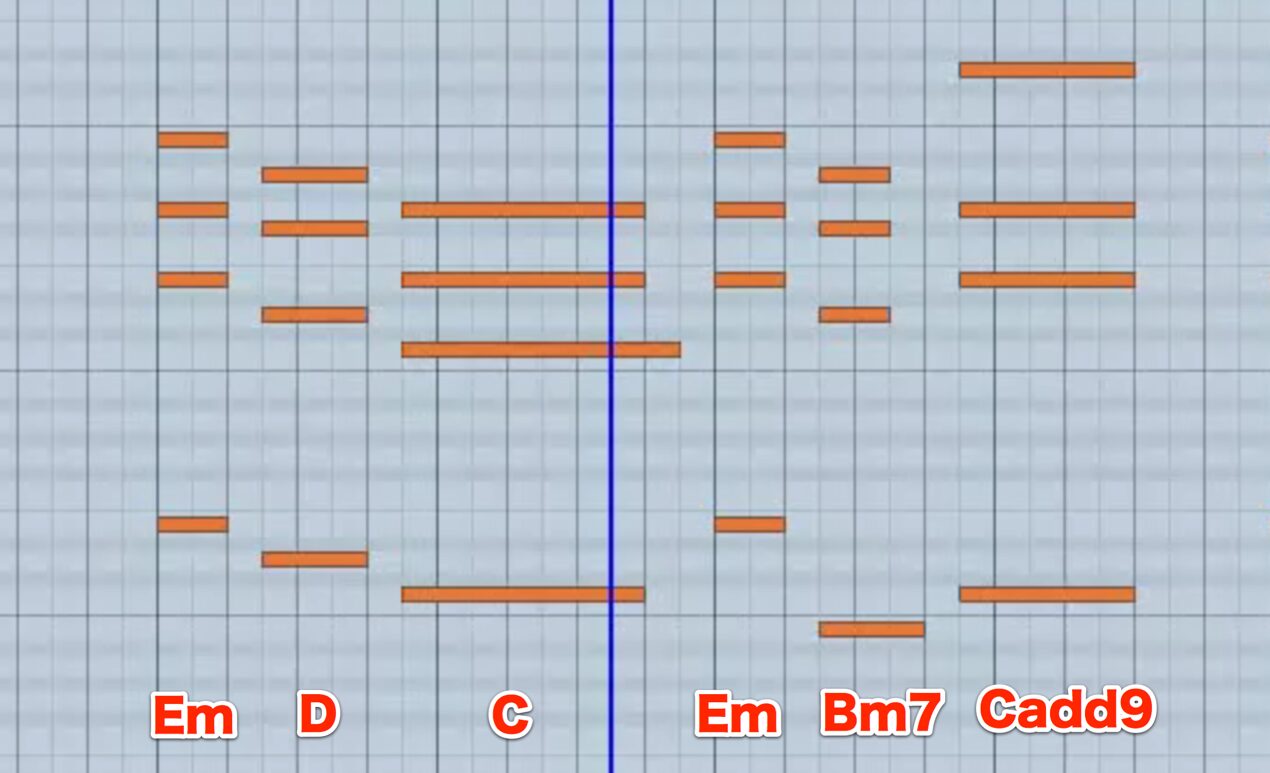
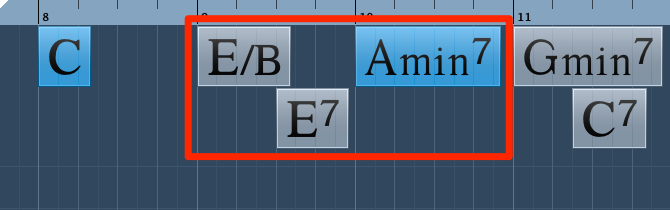
Here we have entered chords to match the song, as shown above.
Then,
use the previously described Generate Harmony Voices command
to create harmony parts that follow the chords.
Video Focus: Adjusting Harmony Voices
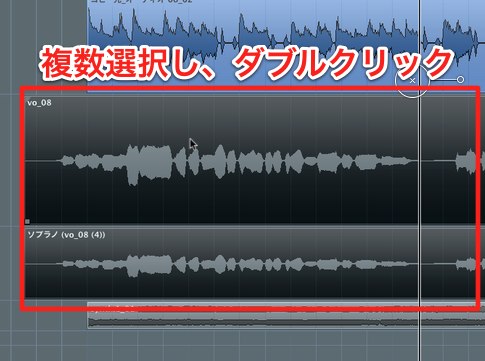
Select both the original material and the generated harmony event,
then double-click.
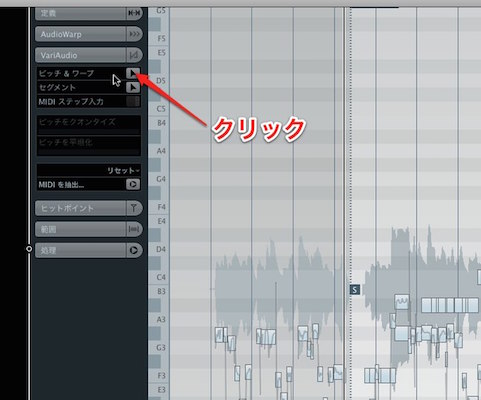
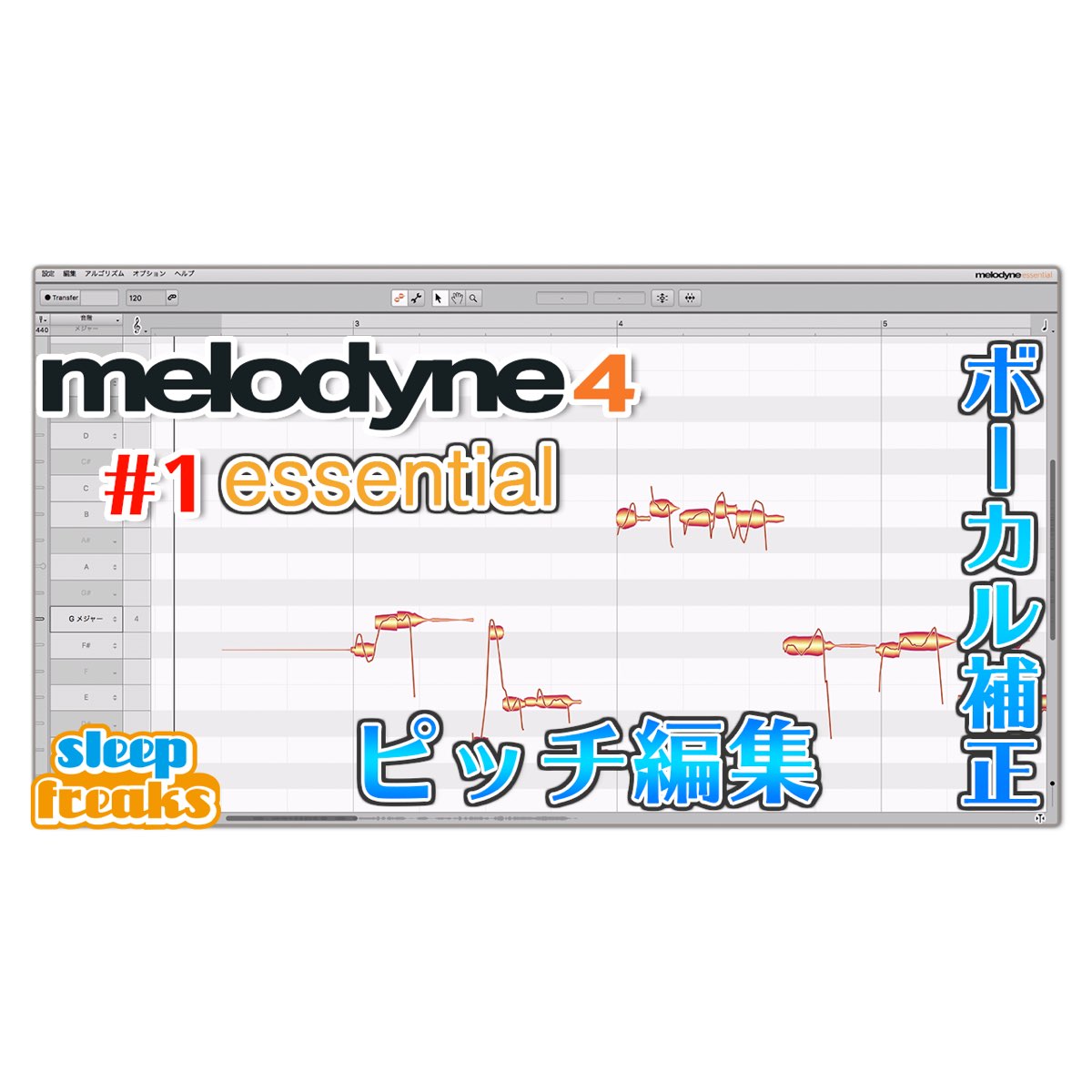
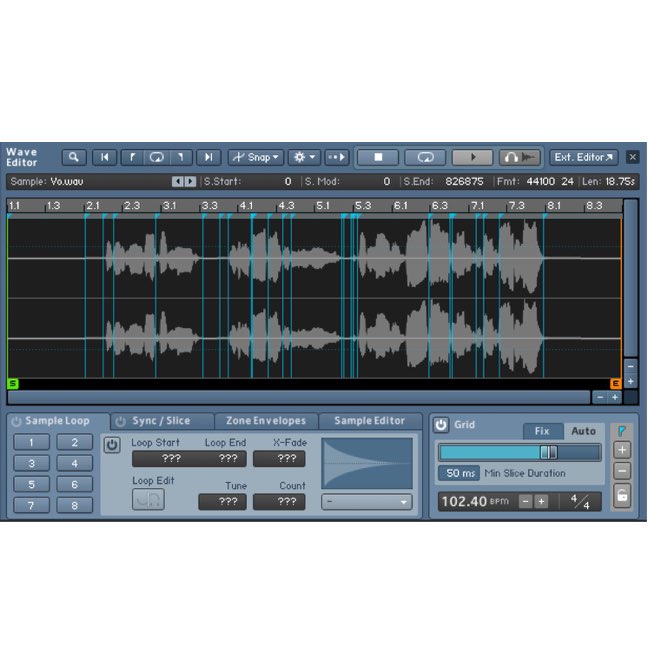
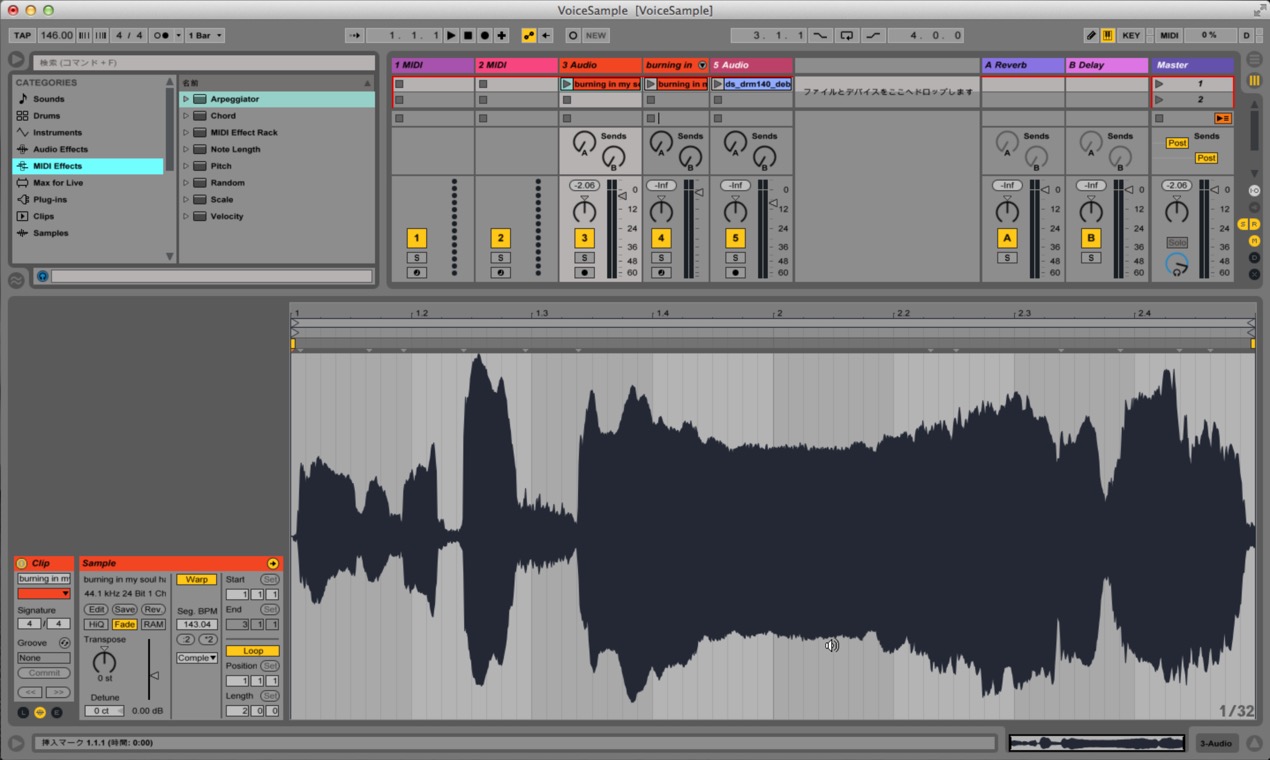
In the Sample Editor, choose VariAudio → Pitch & Warp.
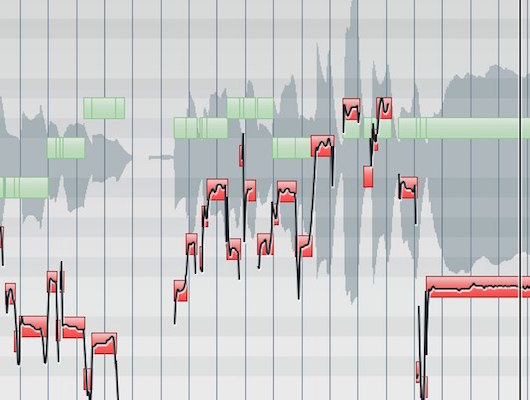
Analysis begins,
and the original material and harmony event appear in different colors.
Click the event you want to edit to switch the active target.
Now adjust the harmony notes while checking the pitches of the original material.
Make adjustments until you achieve the harmony you want.
VariAudio Tutorial Videos
VariAudio 1: Pitch Correction
VariAudio 2: MIDI Step Input and MIDI Extraction
Frequently Asked Questions
Q1. Do I need to prepare anything before using Harmony Voices?
You can perform basic generation with an audio event containing a vocal or lead instrument. To create harmonies that follow a chord progression, first create a chord track and specify the chords.
Q2. What if the automatically generated harmony does not fit the song?
Use VariAudio’s Pitch & Warp to adjust individual harmony notes. Check the original pitch while fine-tuning the harmony event to move closer to the result you want.
Q3. Can Harmony Voices be used on material other than vocals?
Yes, it can be used on monophonic audio events such as lead instruments. It cannot be applied to material containing multiple simultaneous notes.
NEW ARTICLES
Latest English Articles