
Native Instruments' EAST ASIA recreates 38 traditional instruments from Japan, China, and Korea with high-quality sound. It includes melodic instruments such as shamisen and koto, as well as percussion such as taiko drums. Its intuitive interface makes it easy to customize scales and rhythms. A wide selection of preset phrases, expressive MIDI CC control, and a built-in mixer and effects let you incorporate East Asian instruments into your productions even without detailed knowledge of them, making it a library well suited to modern music production.
NI's Long-Awaited East Asian Instrument Library

With its excellent sound and extensive customization, Native Instruments' EAST ASIA has attracted considerable attention.
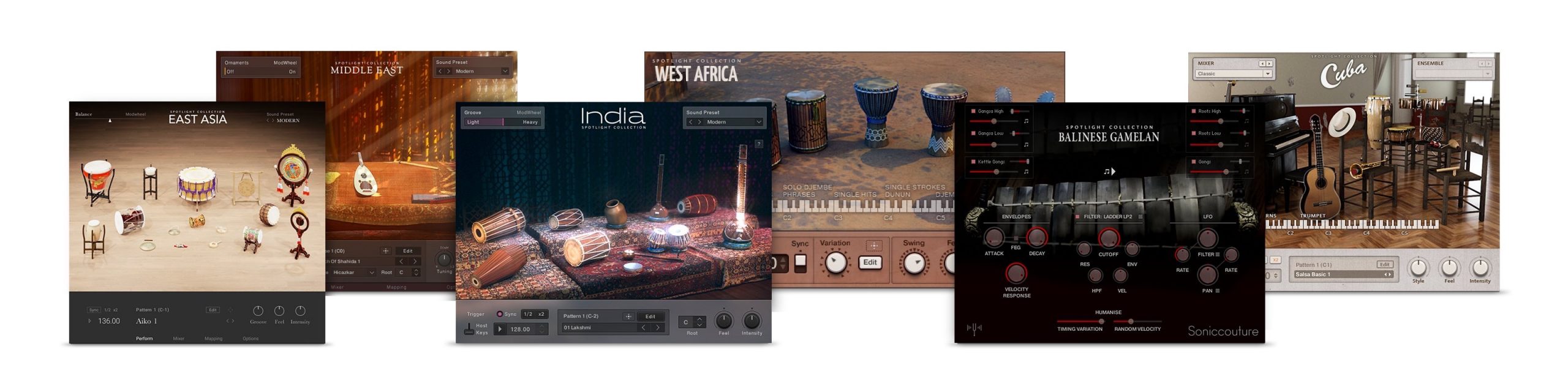
The product was released as part of the company's world-instrument collection.
- 38 melodic and percussion instruments from Japan, China, and Korea
- Intuitive controls for customizing rhythms and scales
- Built-in mixer and studio effects
Together, these features make this an instrument library optimized for modern music production.
Let's explore how it works and hear its sounds.
Video Walkthrough
Selected Questions and Answers from YouTube

Can the icon you used to paste a koto phrase also be used with the shamisen? It is not lit up, so I cannot use it. 😭

That icon exports a phrase or pattern as MIDI (Export / MIDI Drag). It stays gray and unavailable if no phrase or pattern has been selected and loaded. On the Perform page, select a phrase under Phrase/Pattern using the purple keys or arrows, or load one from the Browser. Then drag Export, to the right of Edit, into your DAW. Please give that a try.
Product URL: https://bit.ly/3wqYkmB
How to Use EAST ASIA
Load EAST ASIA in Kontakt or Komplete Kontrol.
Instrument Types
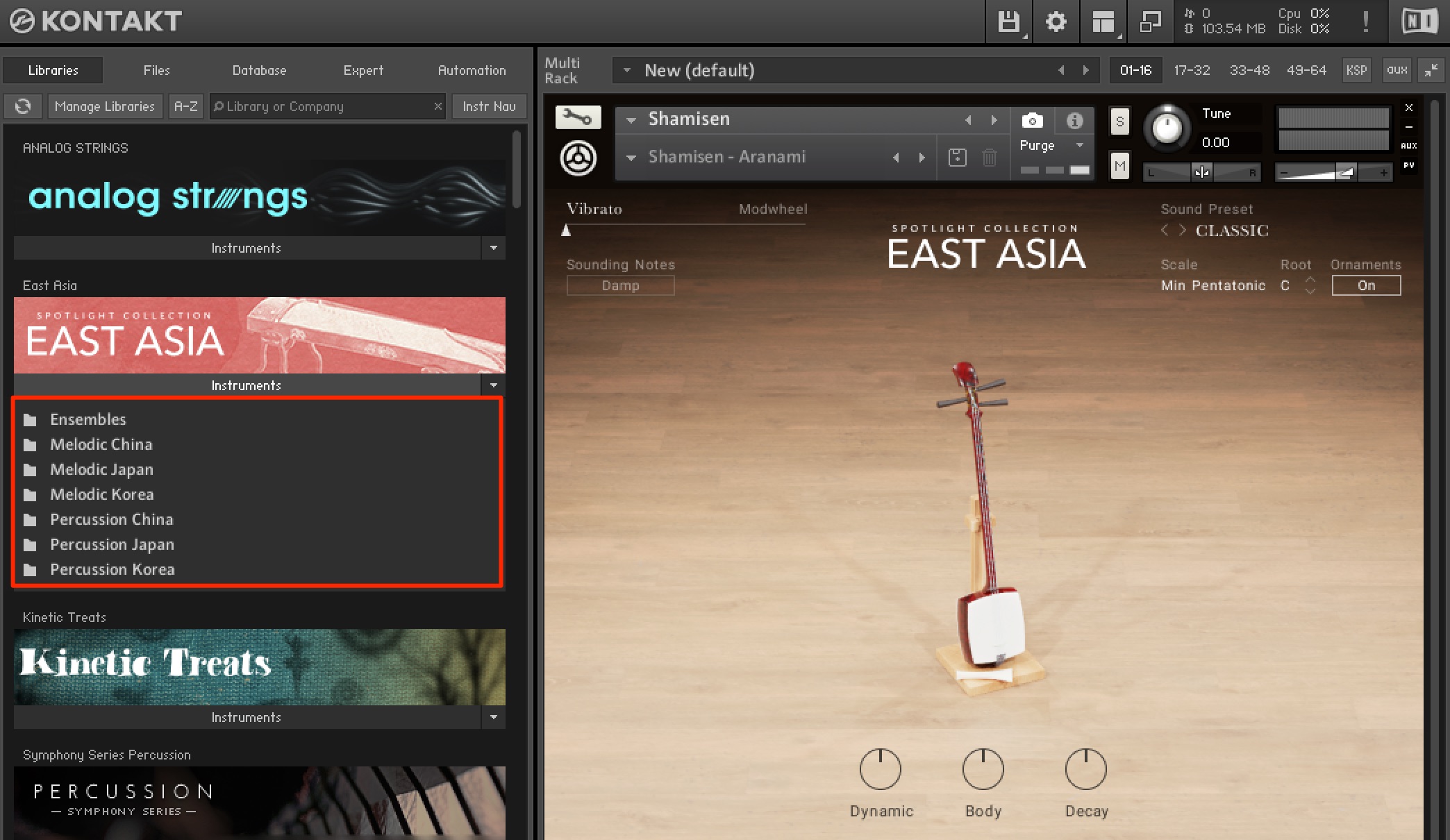
As shown here, the melodic instruments and percussion from Japan, China, and Korea are organized into separate categories.
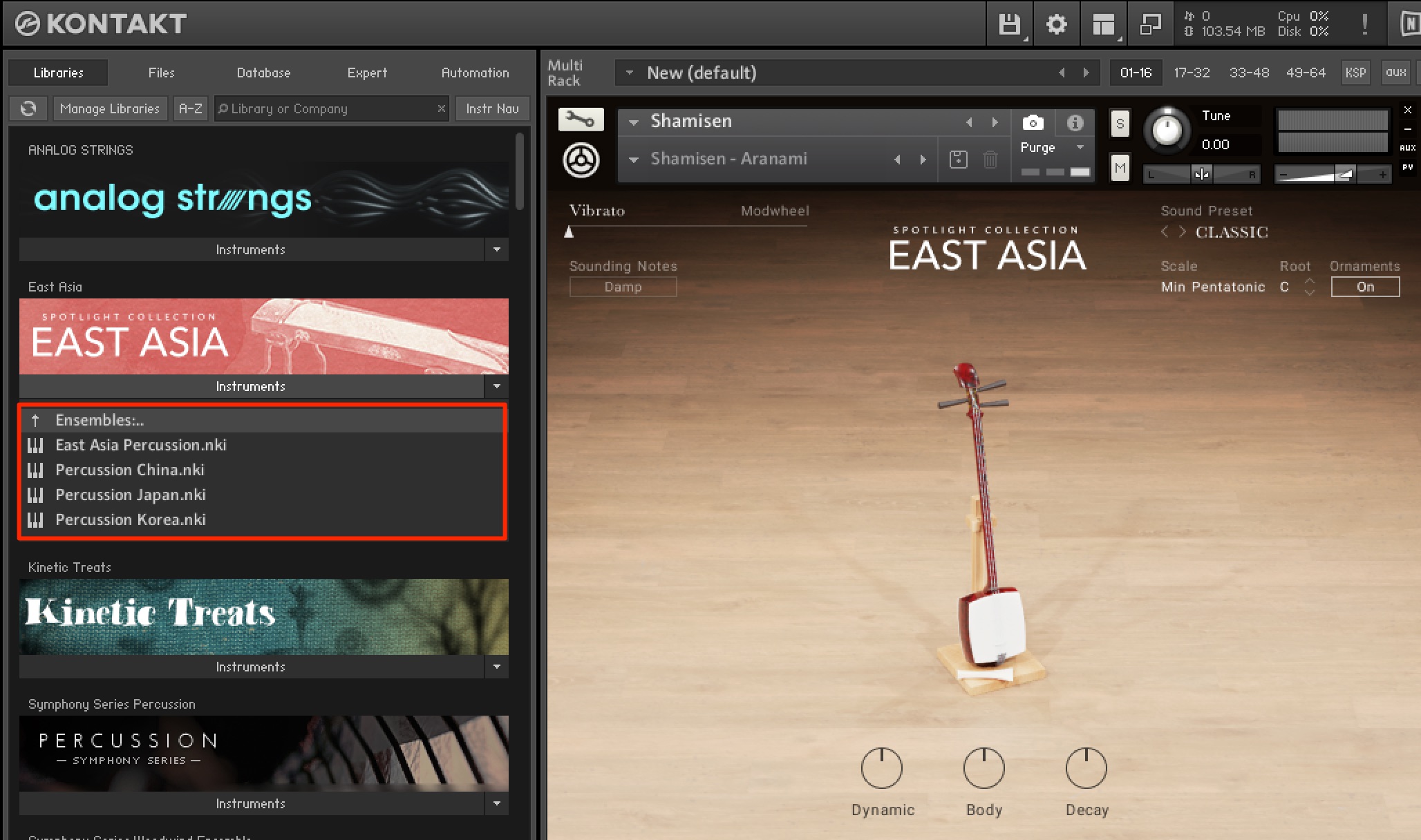
The Ensembles category includes presets with percussion from each country, as well as presets combining percussion from all three countries.

Controlling Melodic Instruments
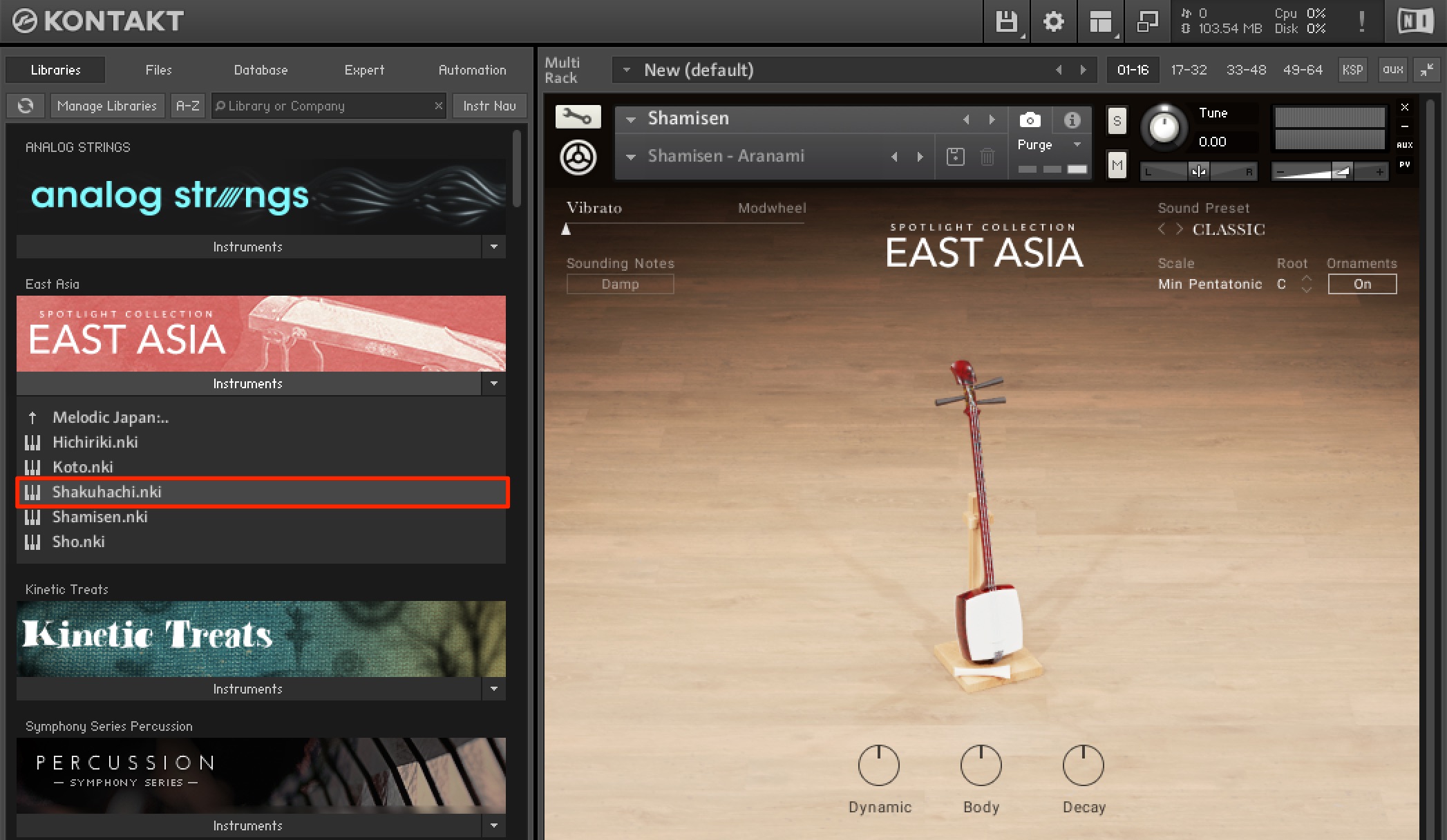
We will use the Japanese shamisen as our example.
The basic parameters and controls for melodic instruments are shared by the other instruments as well.
Understanding the Keyboard Mapping
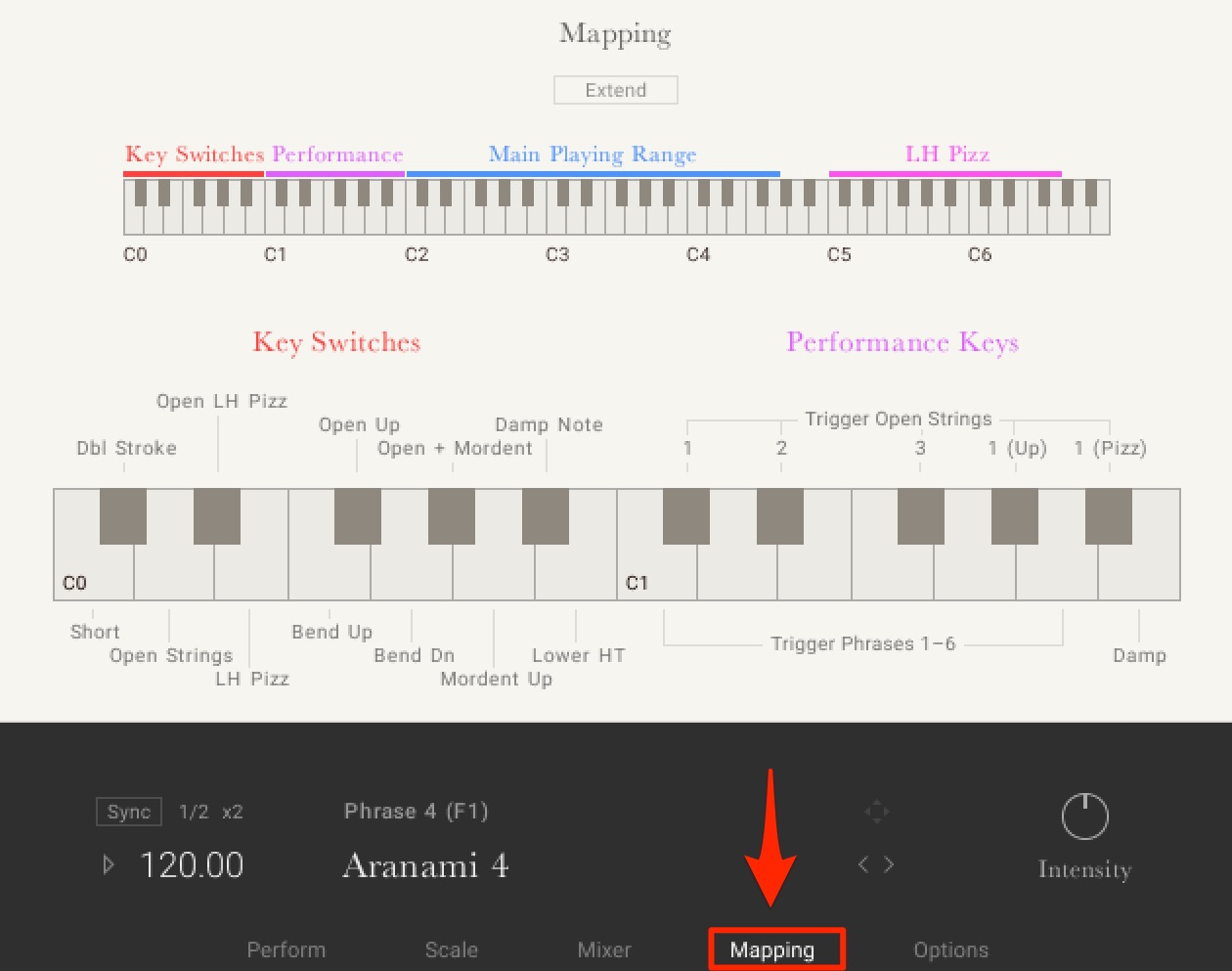
Click the Mapping tab at the bottom of the instrument to see the articulations, notes, and functions assigned to each key.
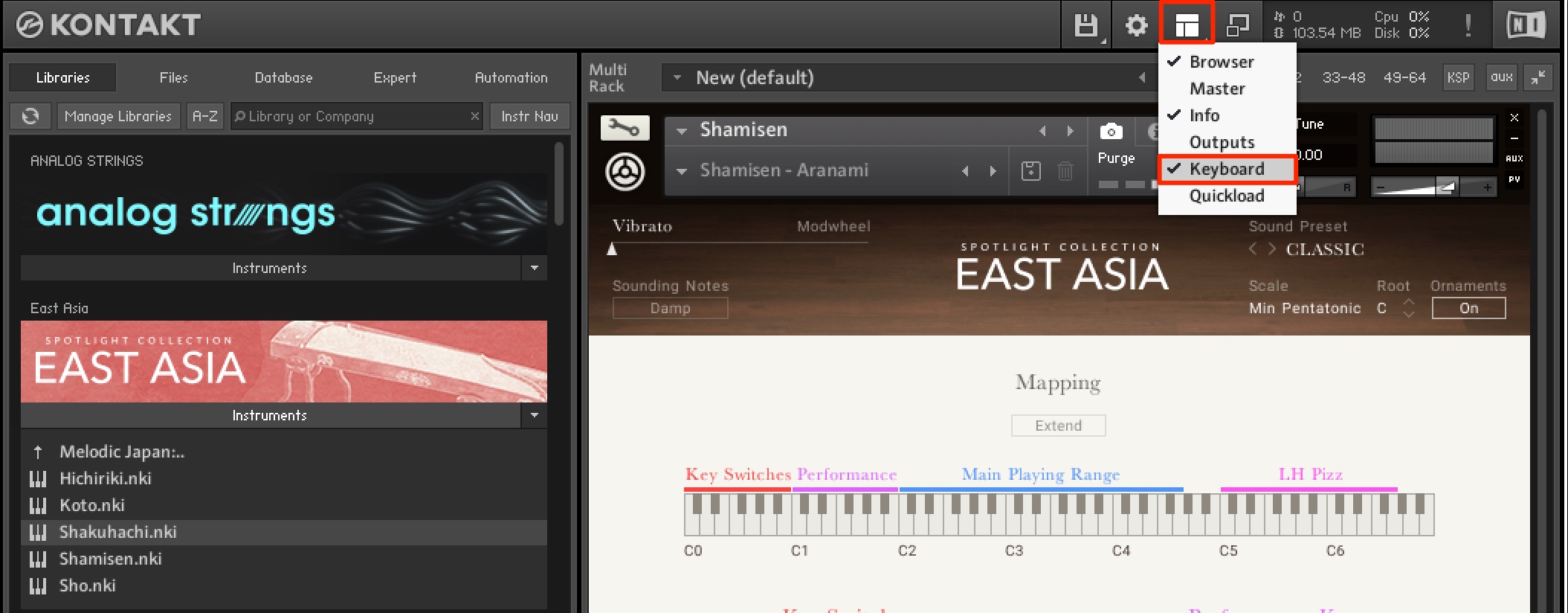
At this point, select Keyboard from the window menu at the top.
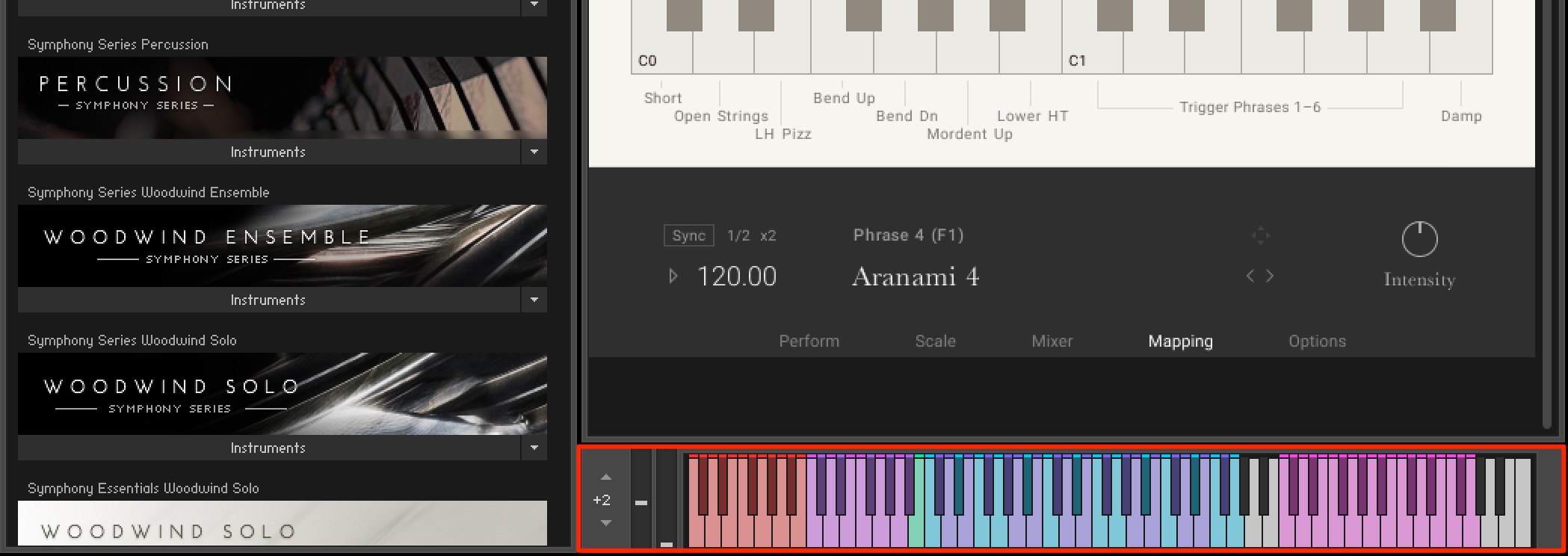
This displays a handy color-coded keyboard.
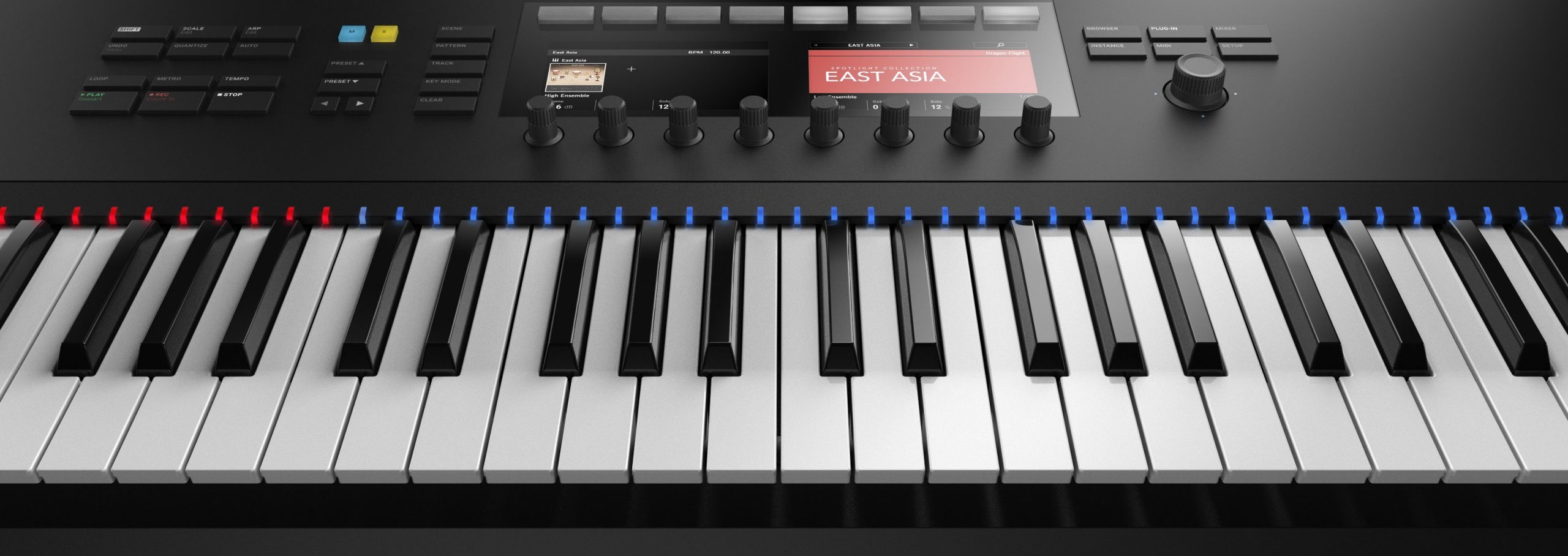
If you use a Komplete Kontrol S-Series keyboard with the Komplete Kontrol plug-in, the colors also appear on its Light Guide, as shown here.
Each color has the following function:
- Red: Keyswitches for changing articulations
- Purple: Phrase playback that reflects the character of the instrument
- Blue: Regular notes
- Pink: Left-hand pizzicato (the articulation and function vary with the selected instrument)
Editing Phrases
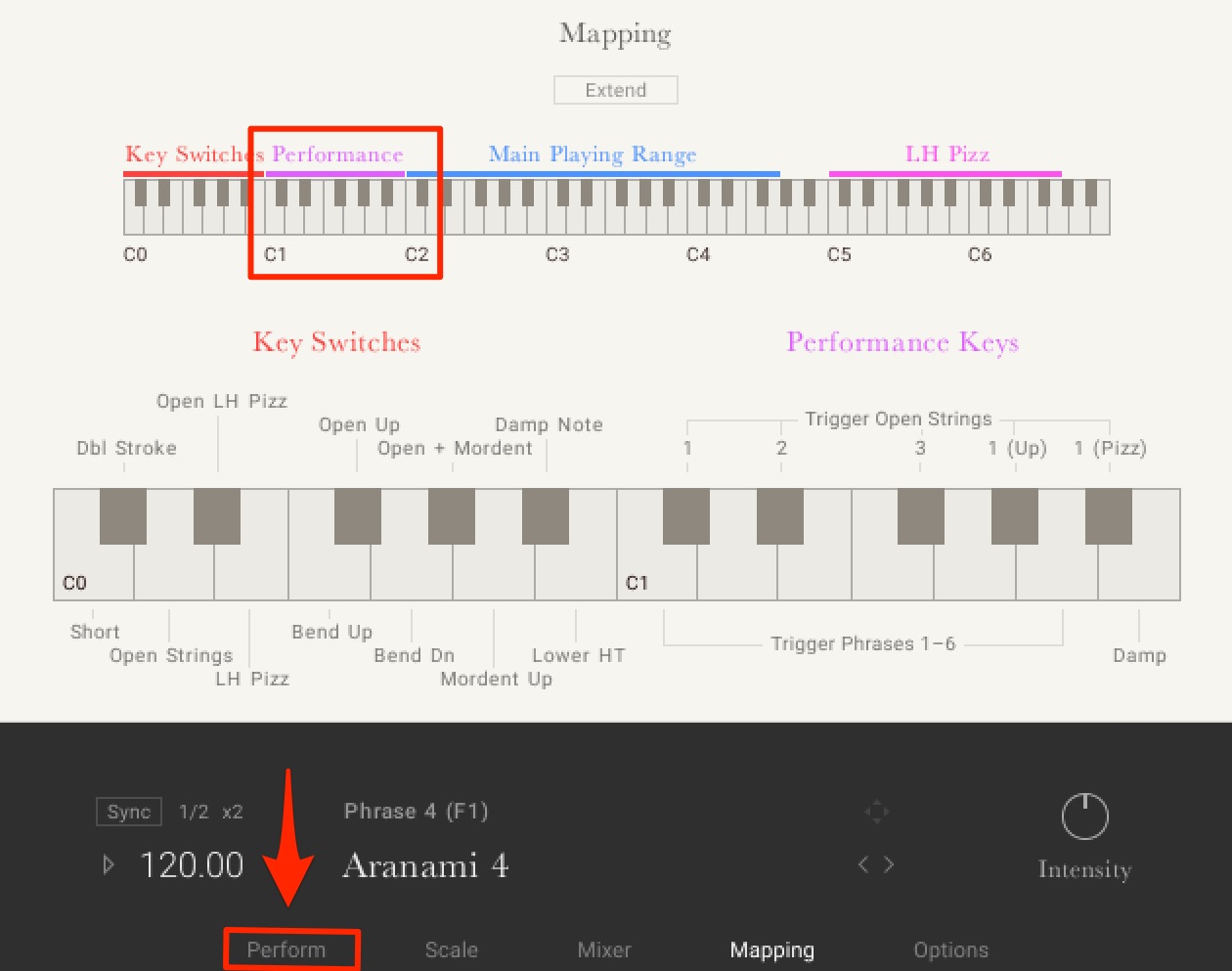
The purple Performance section comes with excellent phrases already assigned, but you can customize them too.
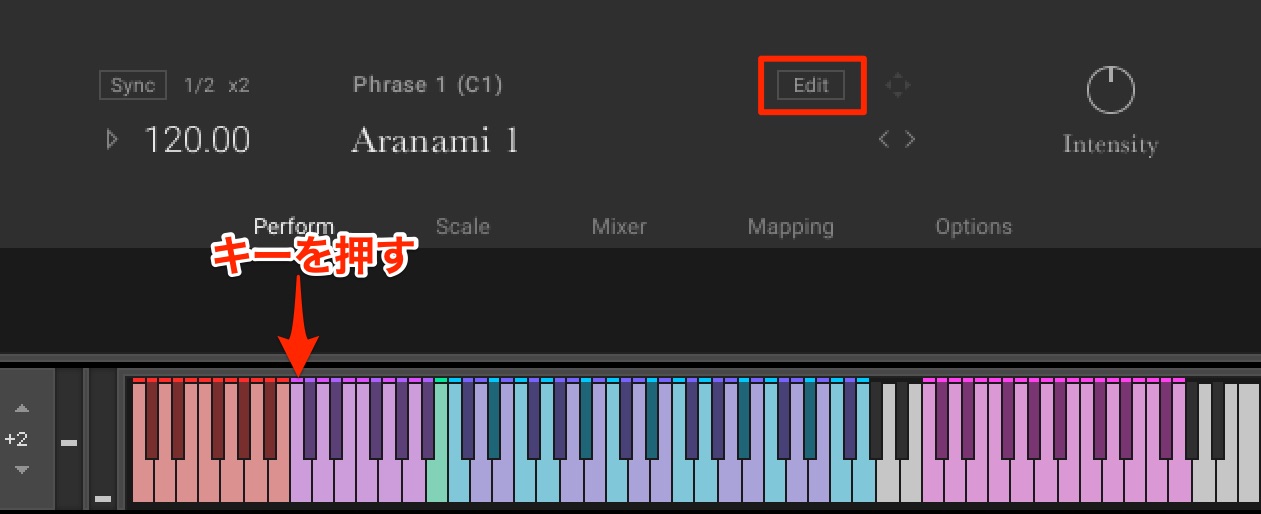
Click the key whose phrase you want to change, then click Edit.
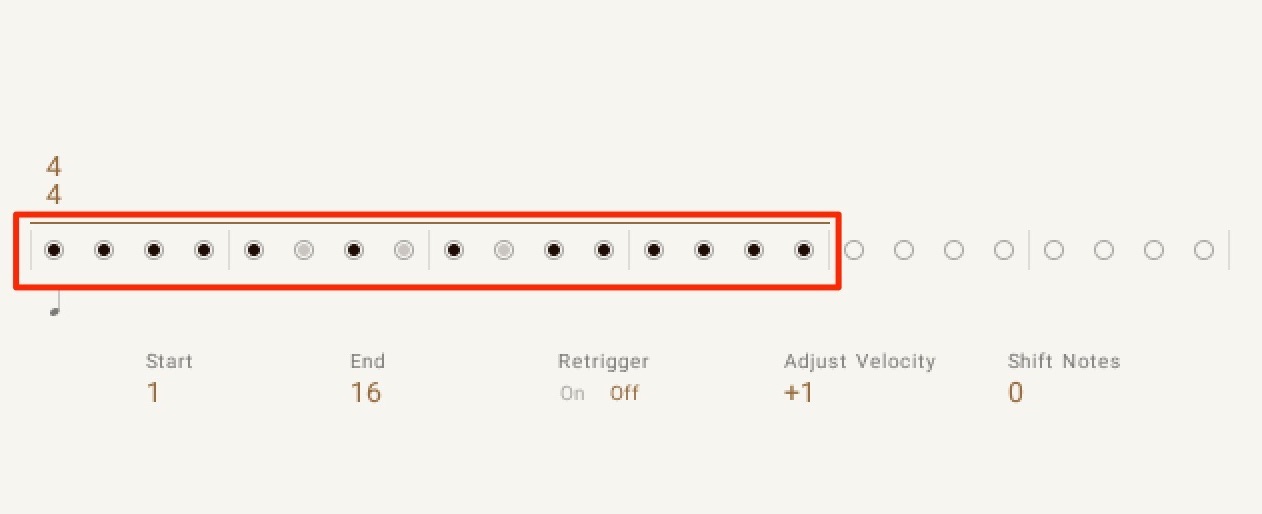
Here you can determine which parts of the phrase are included.
Click a position to switch it on or off and change the phrase.
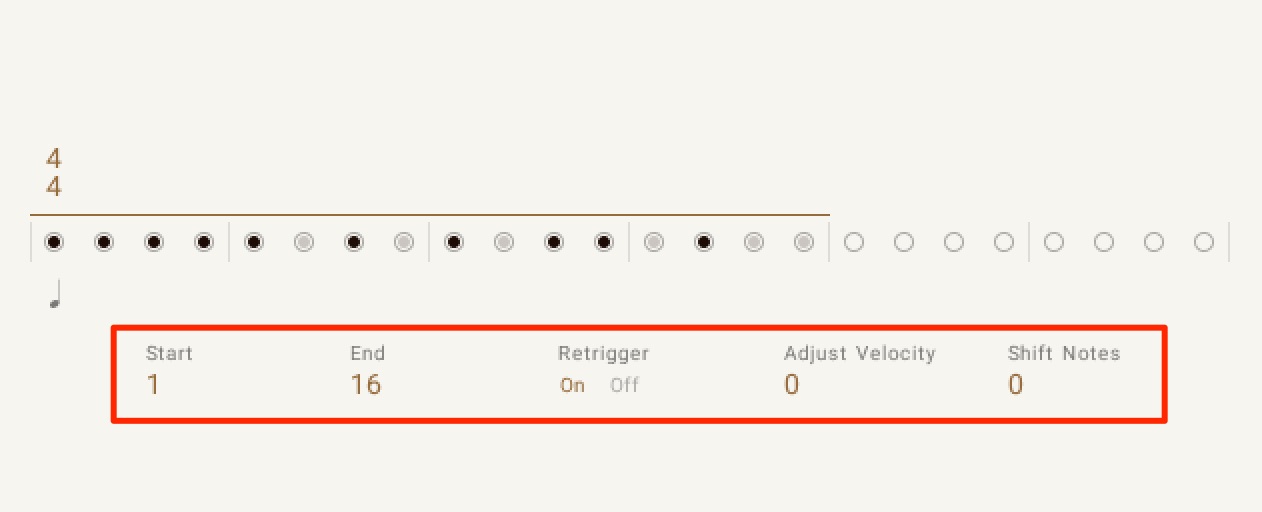
Other parameters let you adjust the phrase in more detail.
- Start: Sets the phrase's starting position
- End: Sets the phrase's ending position
- Retrigger: Determines whether playback retains its current position when you trigger a phrase on a different key while a phrase is playing
On: Plays the phrase from the beginning / Off: Continues from the current phrase position - Adjust Velocity: Adjusts the performance dynamics from -64 to +64, letting you tailor the phrase's expression to your track
- Shift Notes: Adjusts the pitch in semitone steps from -5 to +5
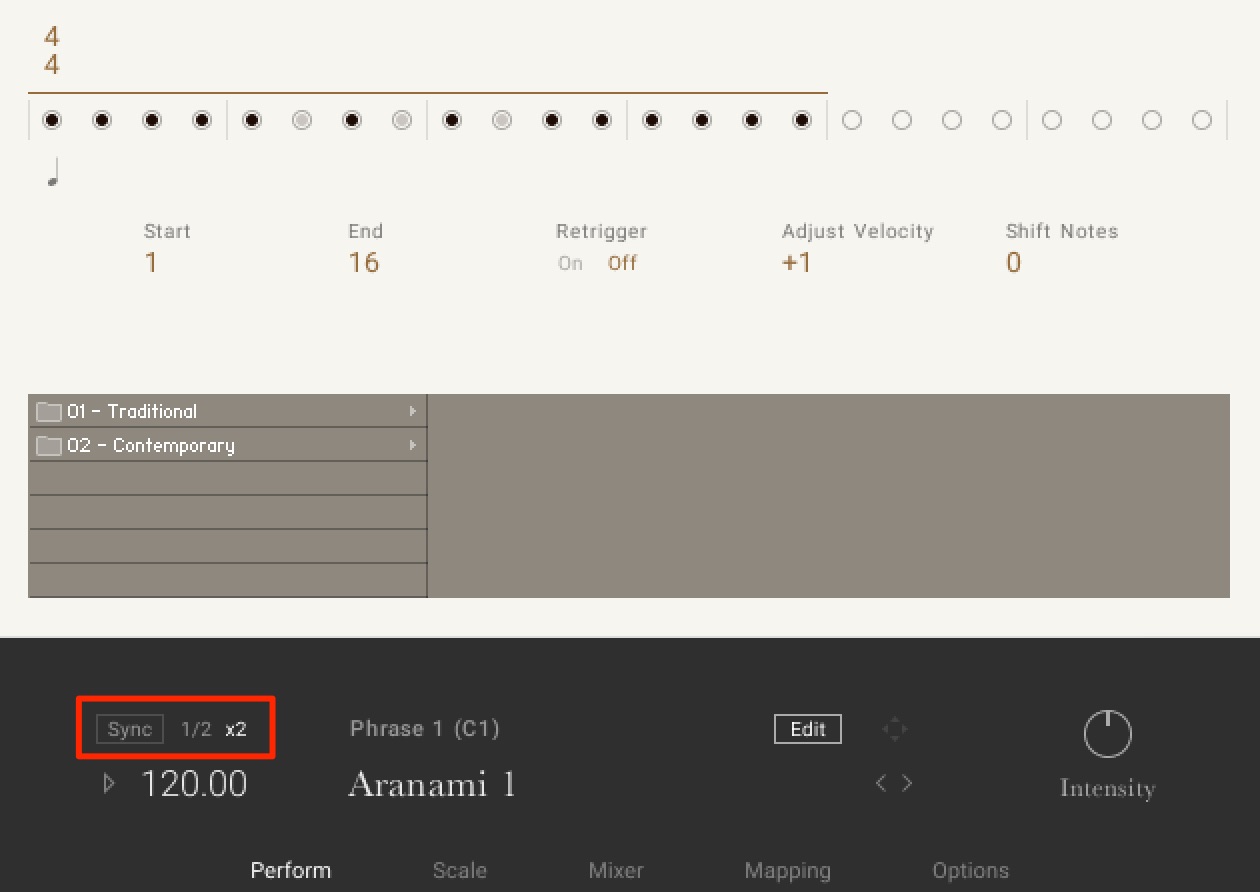
You can also halve or double the phrase speed, making it suitable for a variety of musical situations and genres.
Enable Sync to make the phrase follow the tempo set in your DAW.
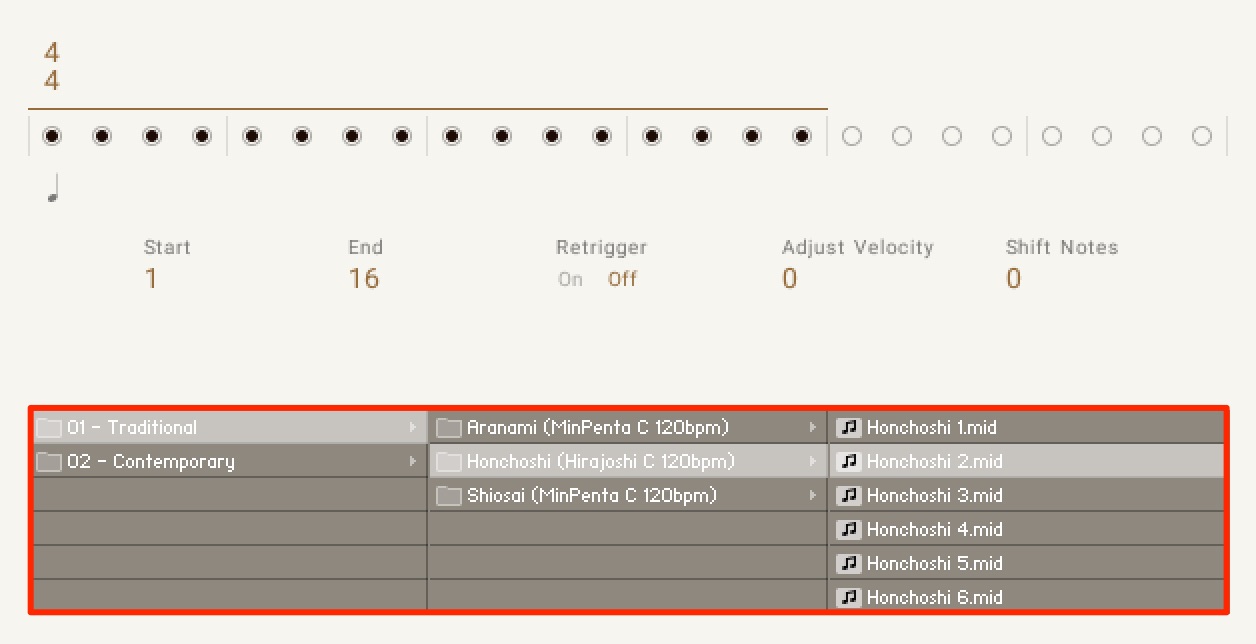
A wide range of phrase presets is available, so you can incorporate suitable phrases into your track even without detailed knowledge of the instrument.
Combining the features covered so far gives you plenty of sonic variety.
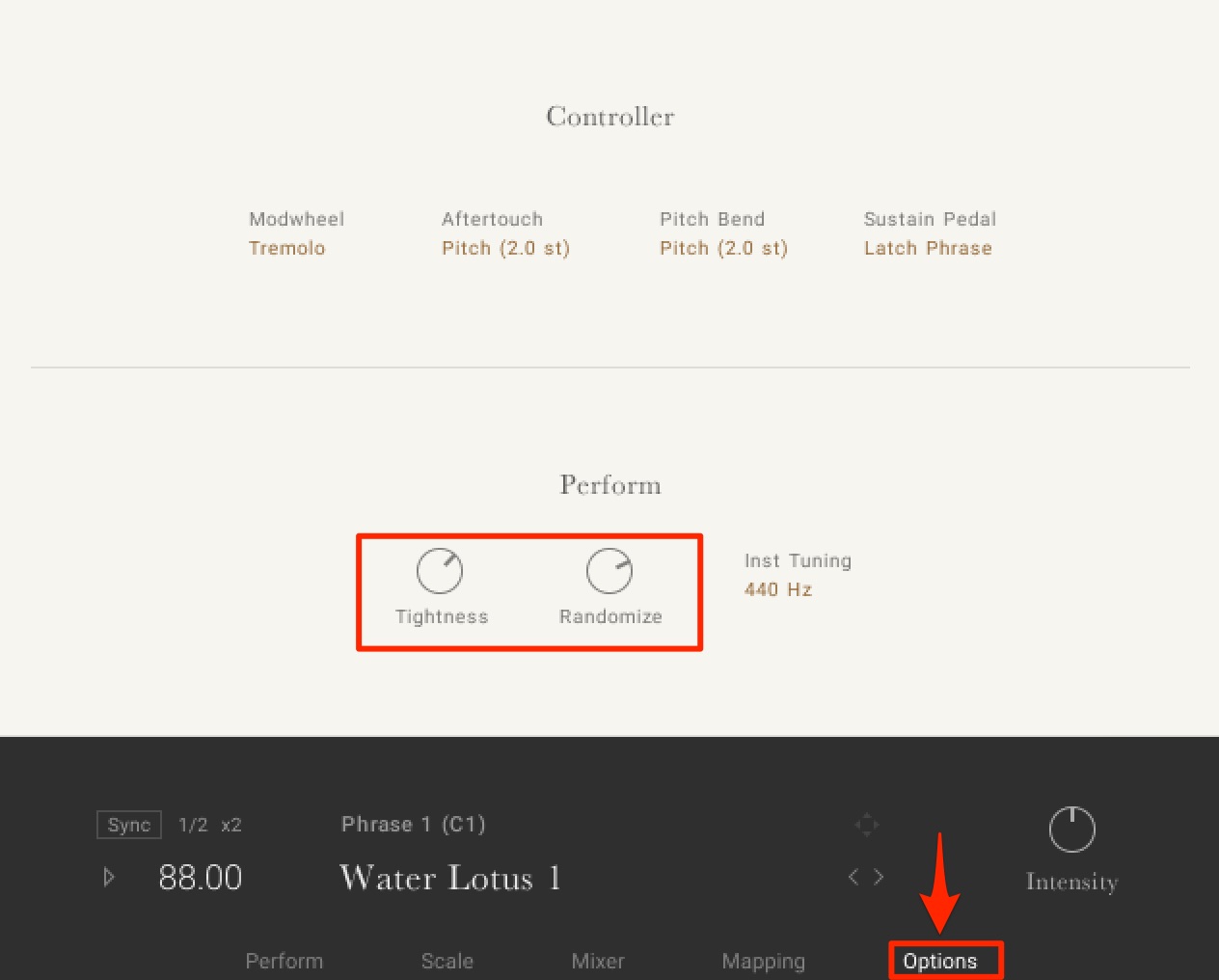
Under Perform on the Option tab, you can adjust the precision and variation of phrases to add a more human feel.
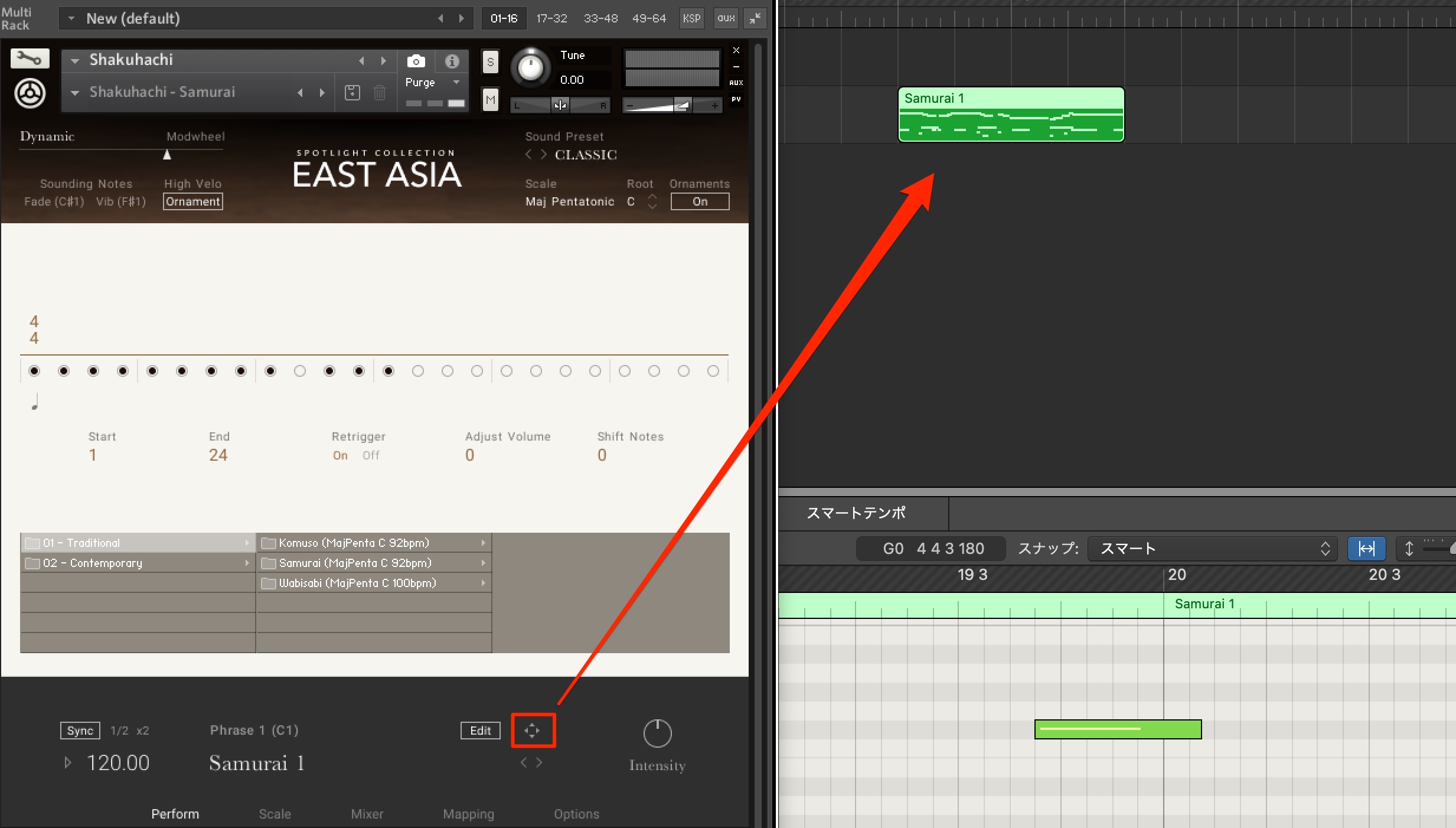
You can export a phrase as a MIDI file by dragging and dropping it onto your DAW's timeline.
This is also useful when you want to refine a phrase in greater detail.
Note: In our original test, we could not export the shamisen presets. The YouTube Q&A above provides additional guidance on selecting and loading a phrase before using Export.
Editing Scales
You can also customize the scale played by the instrument.
This makes it easy to create phrases closer to the sound you have in mind.
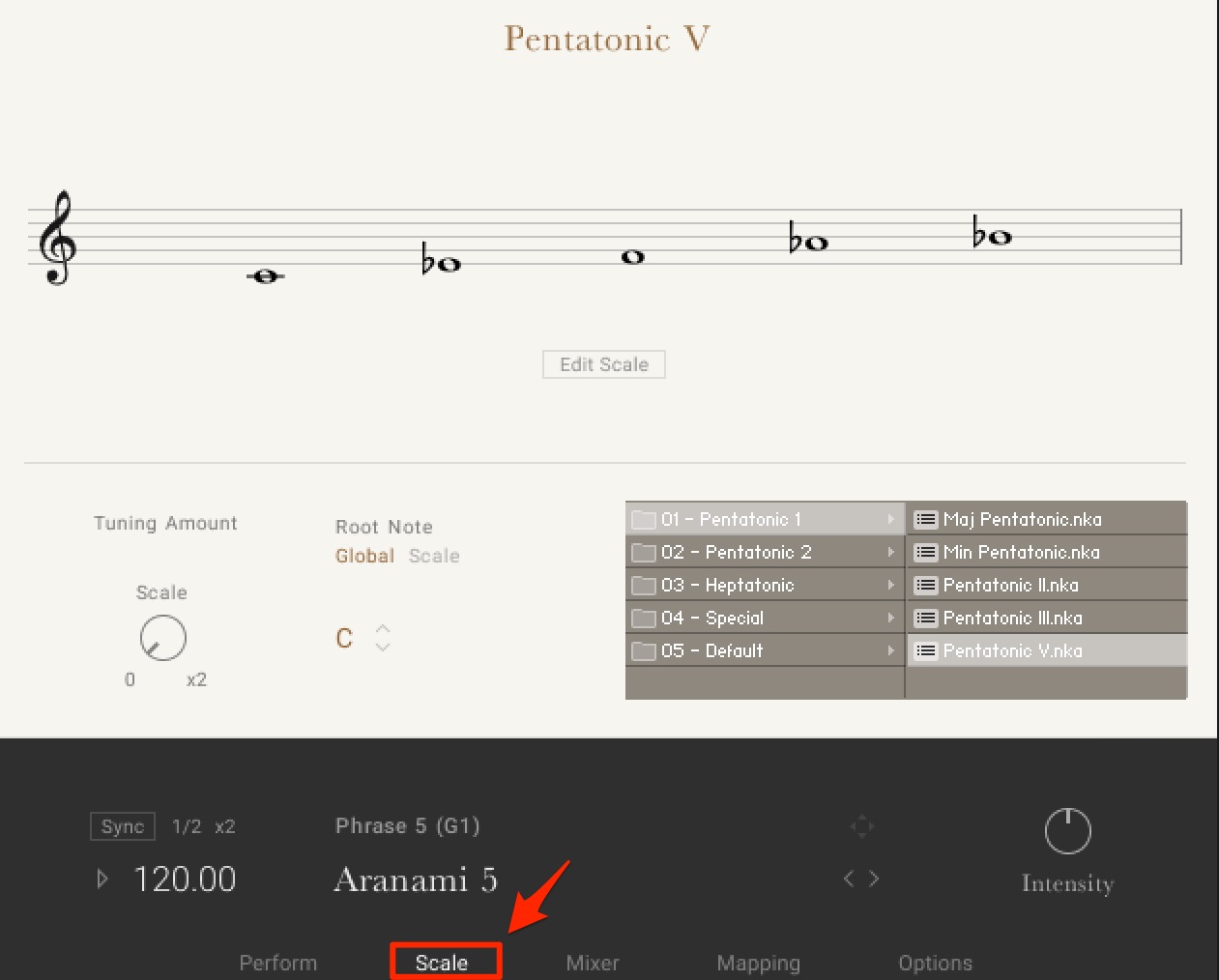
Open the Scale tab.
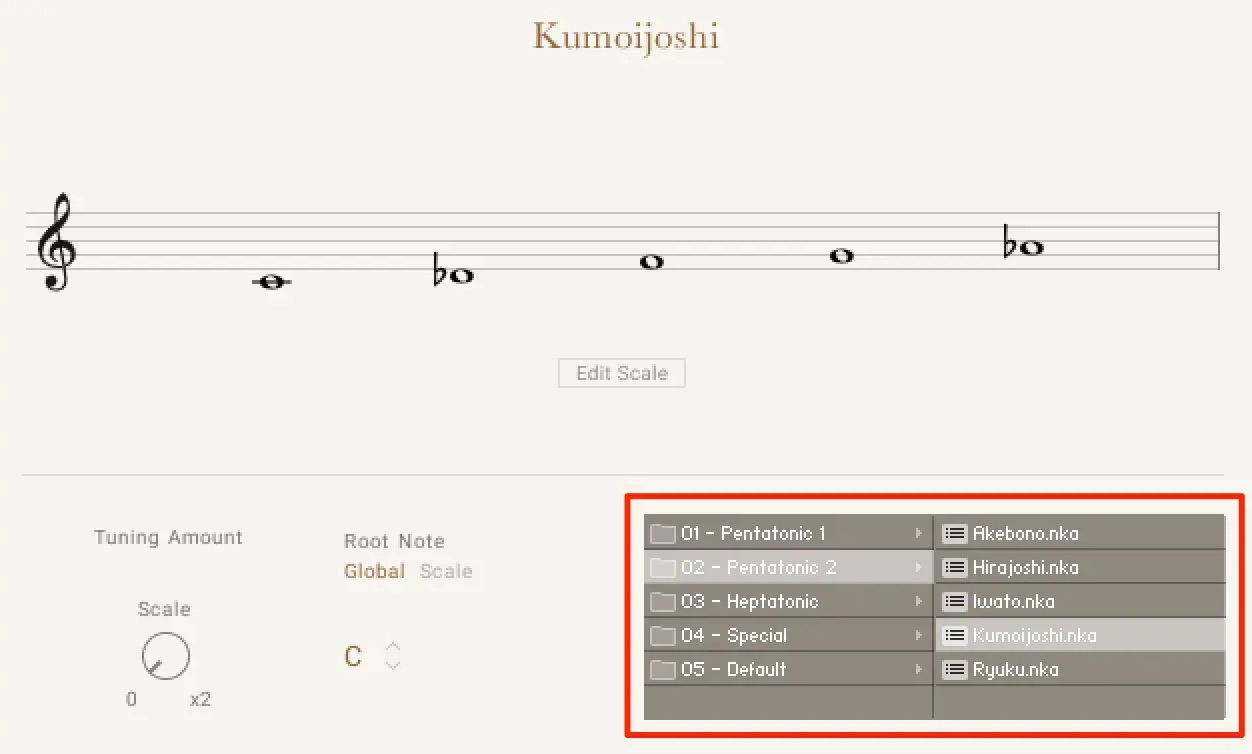
Simply select the scale you want in this section.
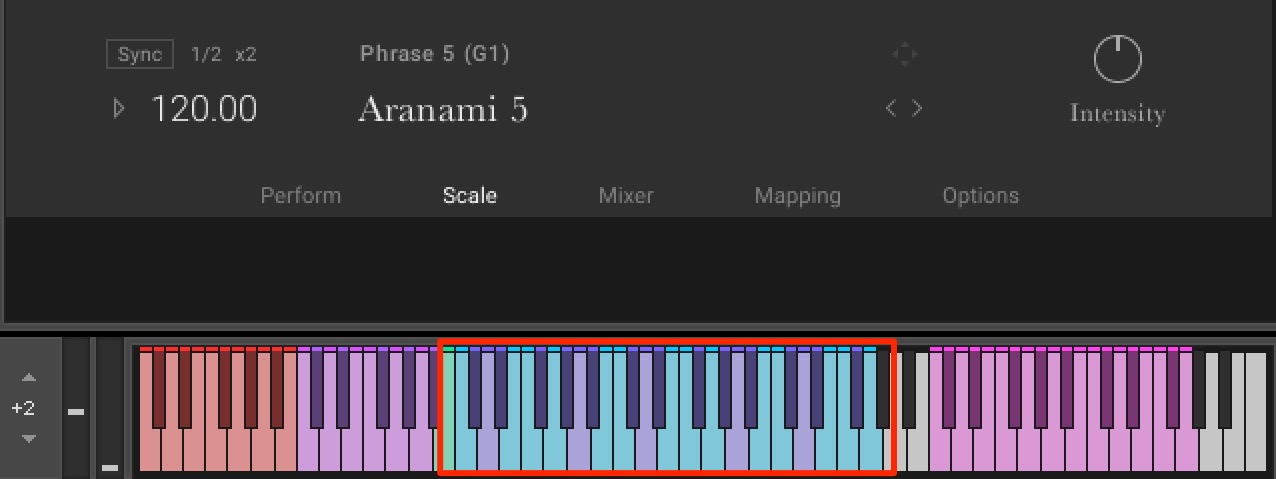
The selected scale applies not only to the regular notes shown in blue, but also to the Performance phrases described above.
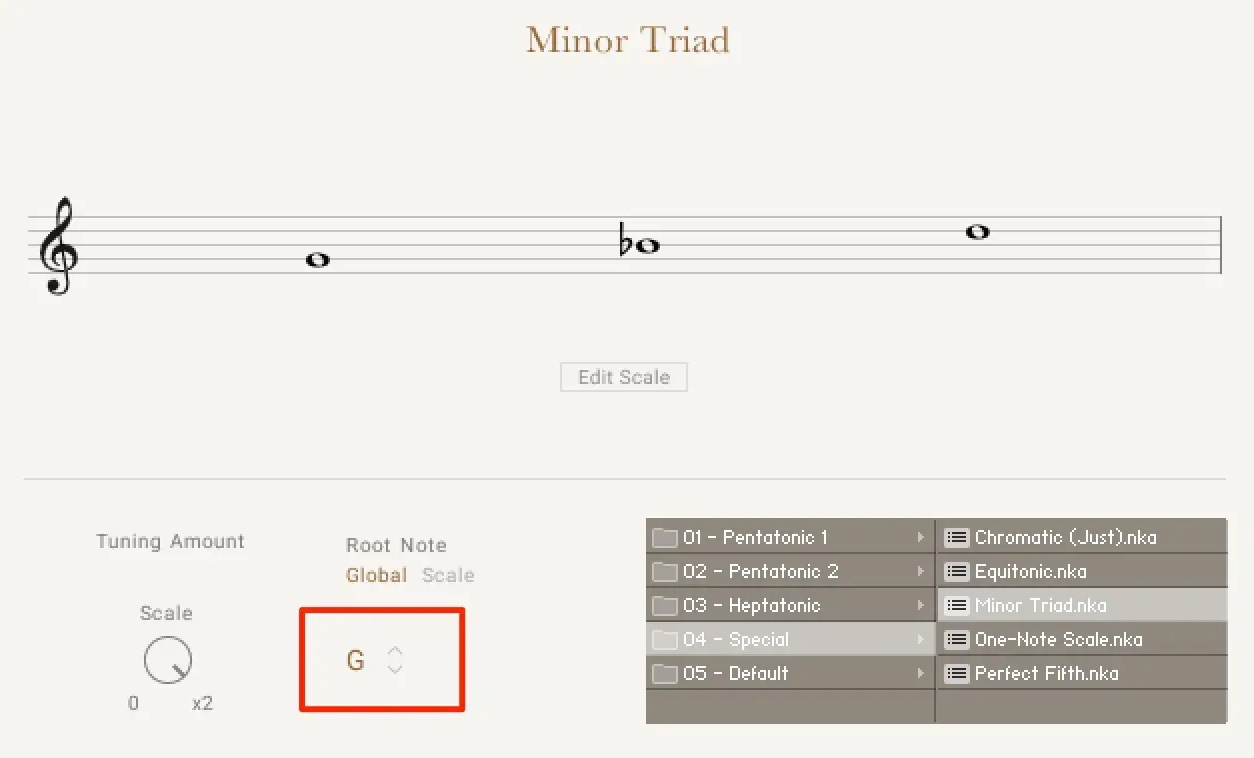
Root Note lets you quickly change the key of the scale.
MIDI CC Controls
MIDI CC performance controls are also well implemented, giving you more ways to shape expression in real time.
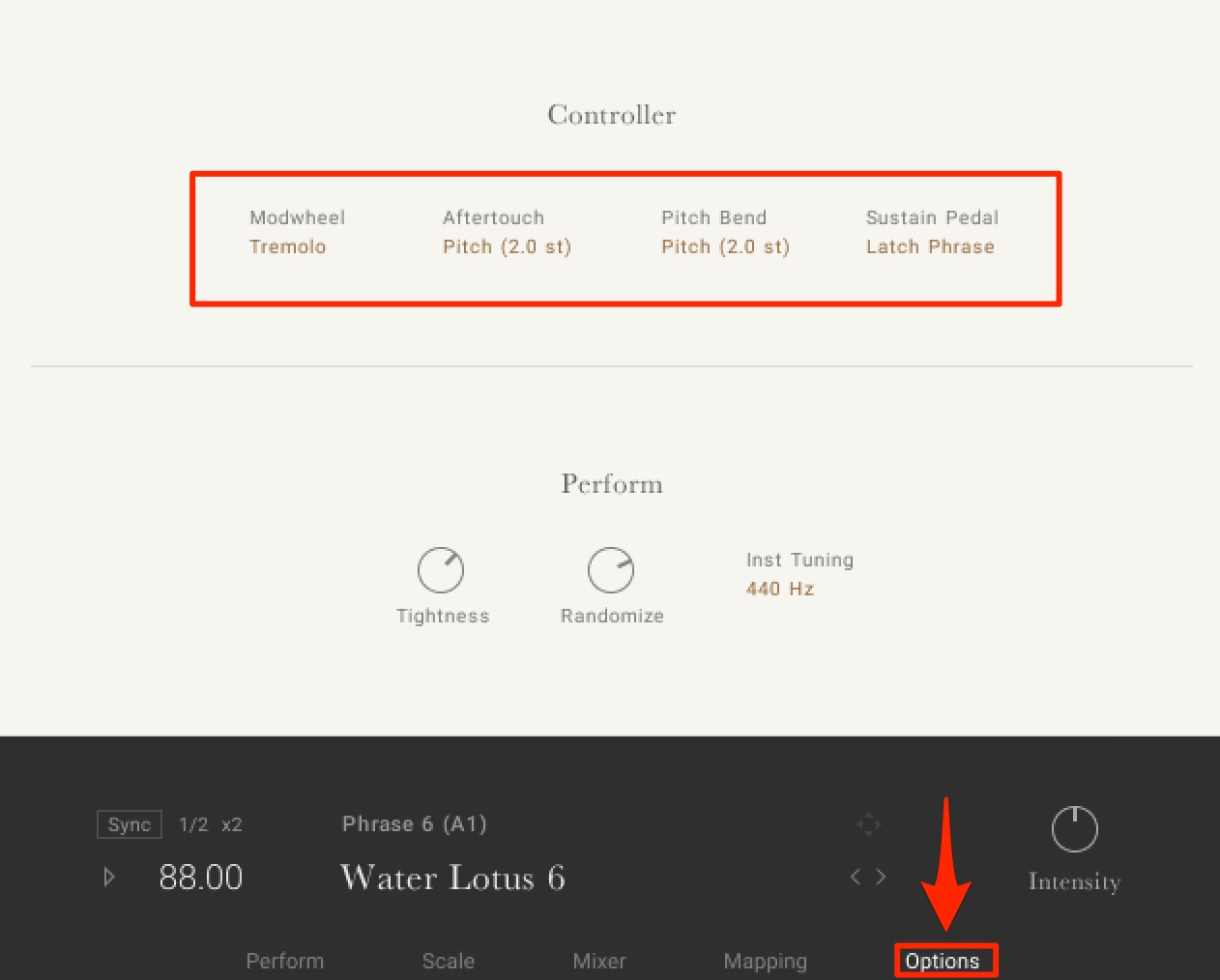
You can check these settings on the Option tab.
- Modwheel: The articulation controlled by the modulation wheel (this varies by instrument)
- Aftertouch: The amount of pitch change when you apply pressure to a held key
- Pitch Bend: The pitch range controlled by the pitch-bend wheel
- Sustain Pedal: The behavior when you press the sustain pedal
Controlling Percussion
Next, let's look at the percussion instruments.
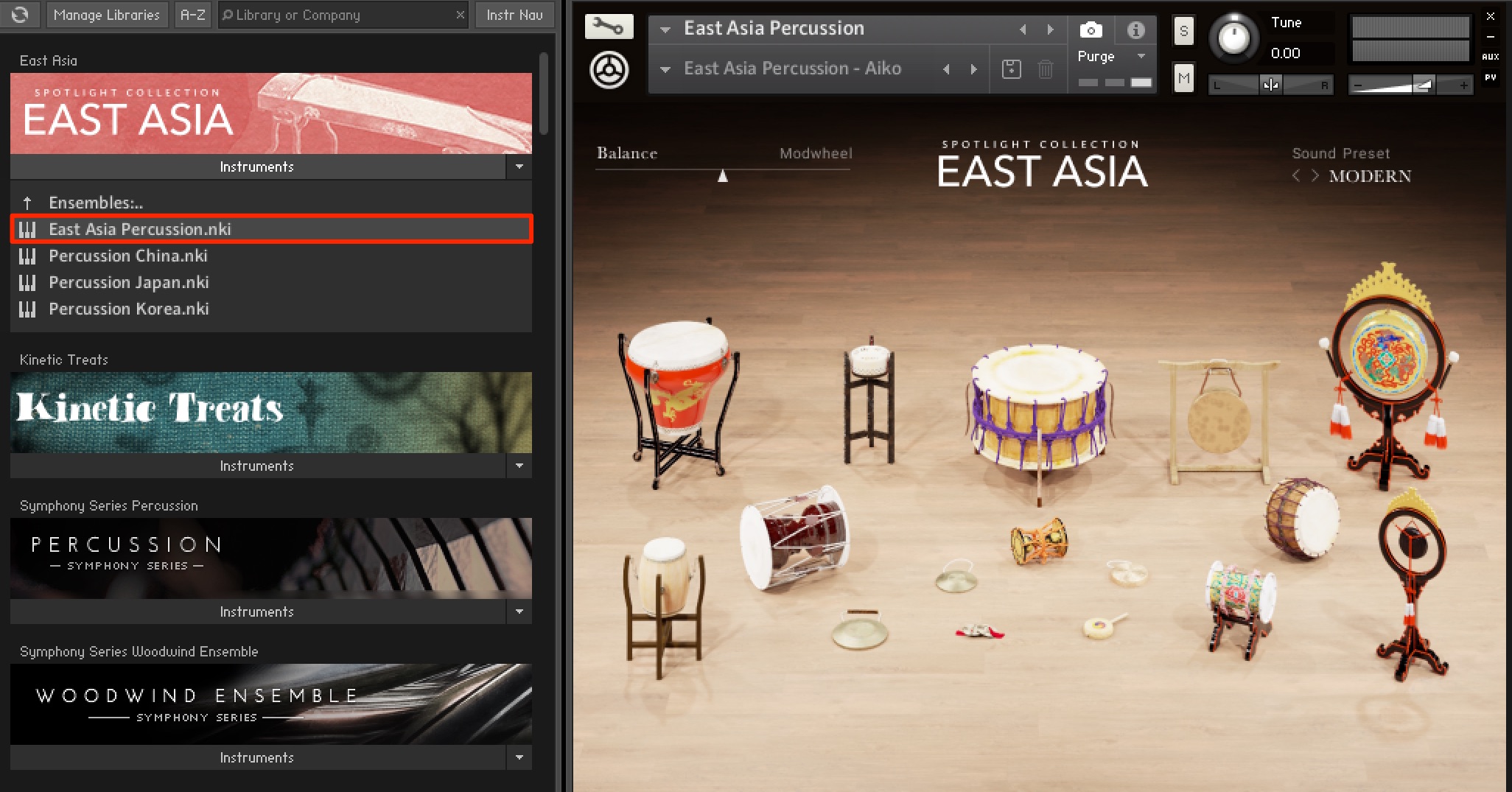
Here we have selected the East_Asia_Percussion preset, which contains all the percussion instruments.
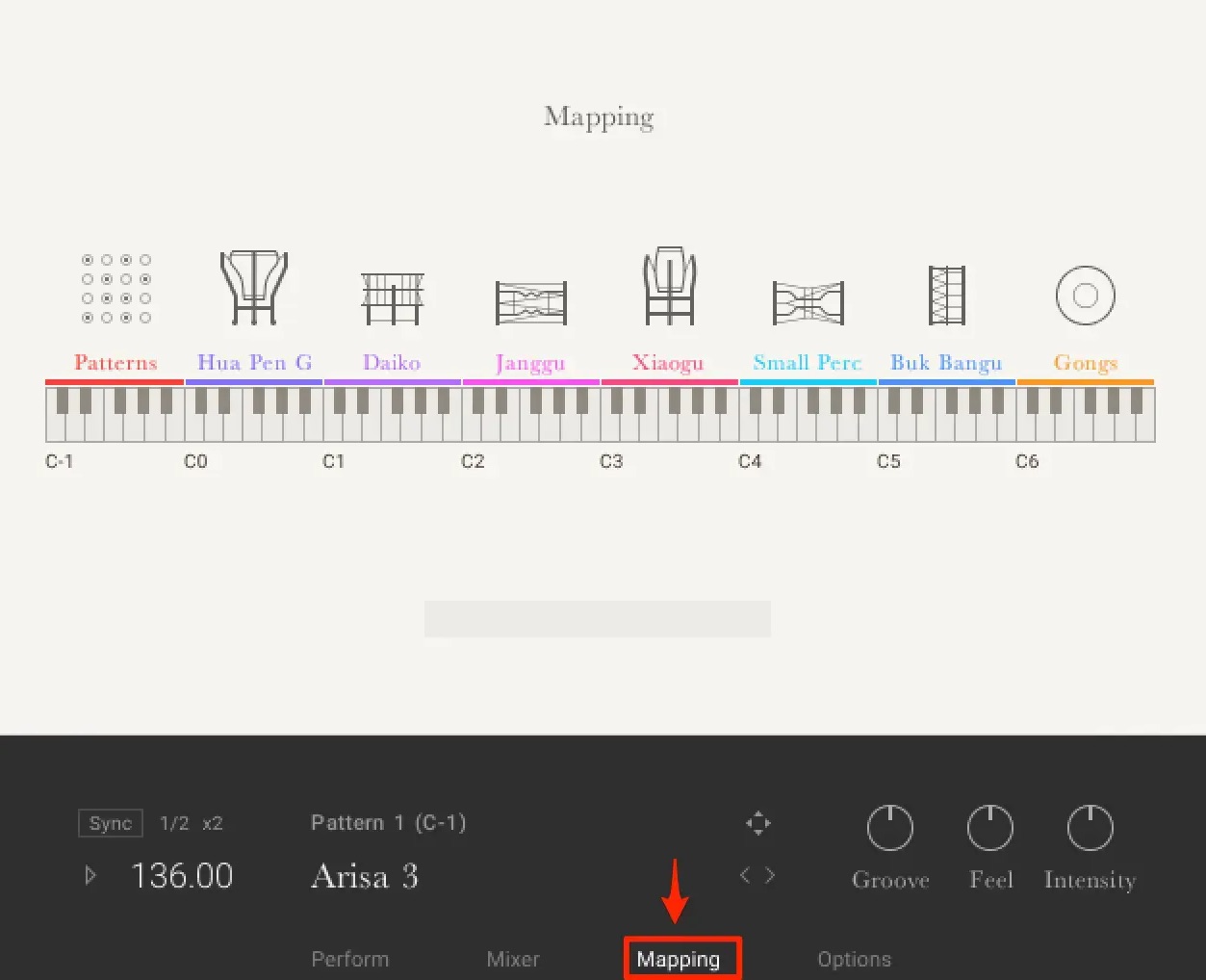
Unlike the melodic instruments, the colors distinguish the different instrument types.
Note that the Performance phrases are assigned to the red keys at the far left.
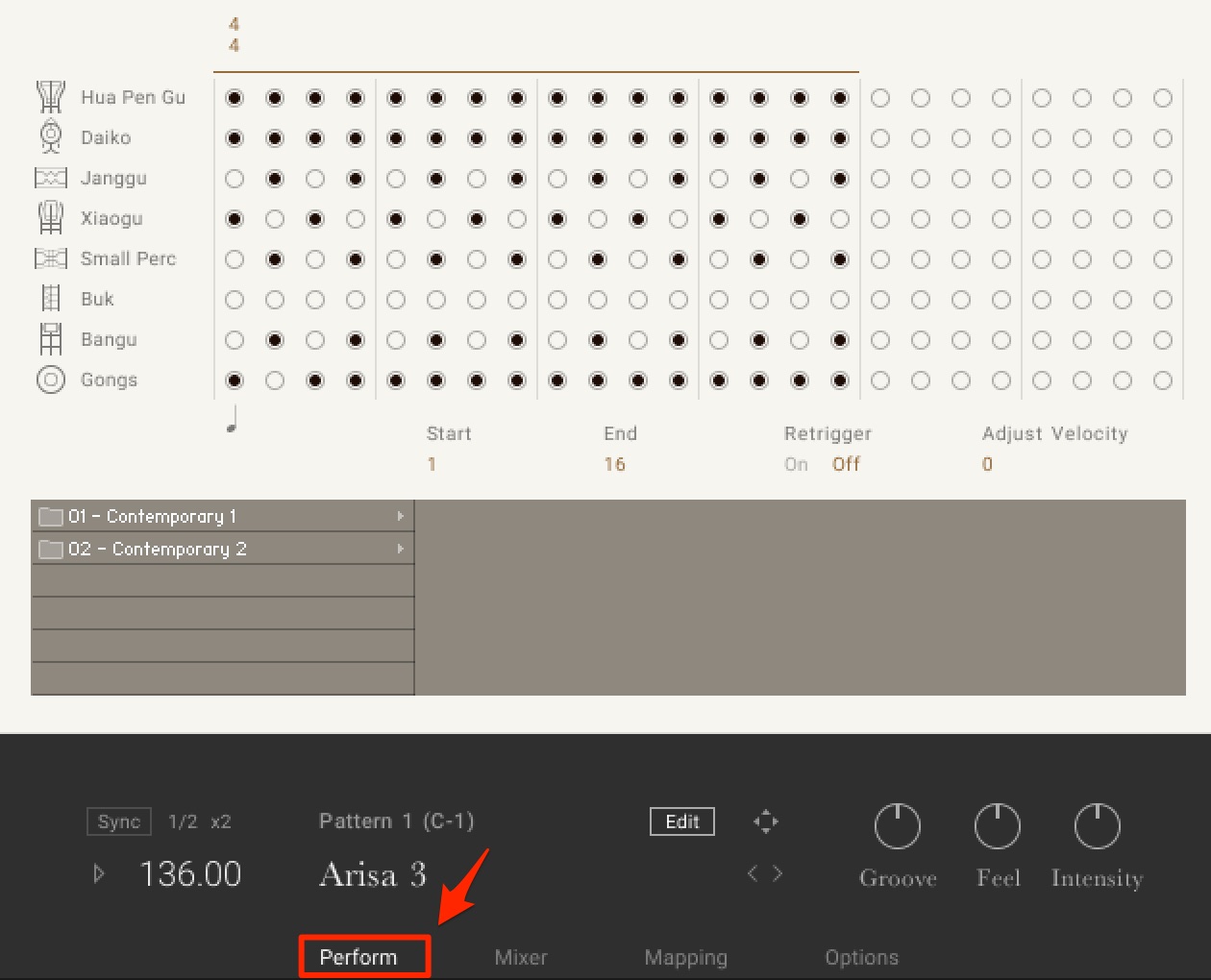
As with the melodic instruments, excellent phrases are provided.
Mixer Controls (Also Available for Melodic Instruments)
The library also includes a mixer.
The melodic instruments described above have this feature too.
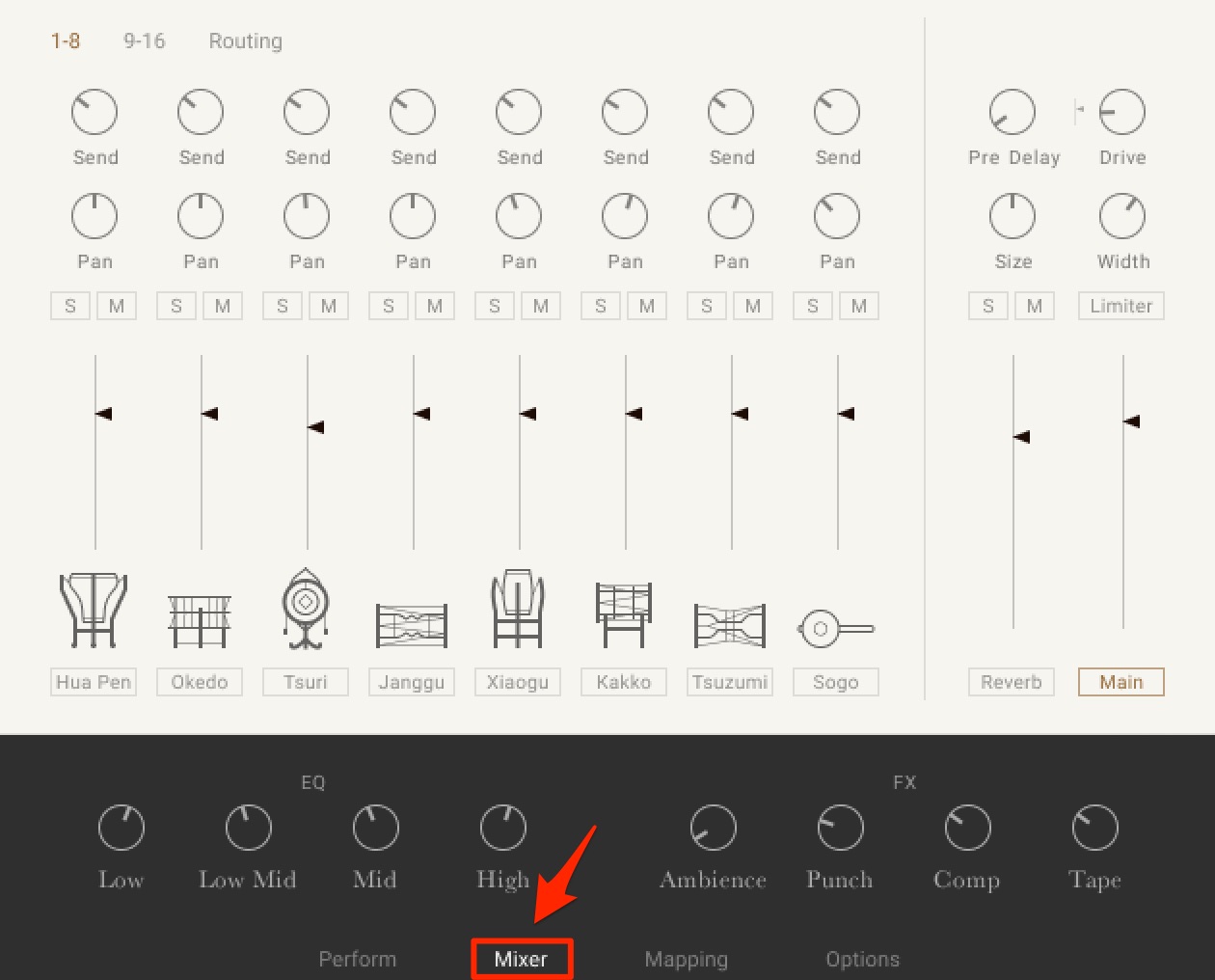
You can adjust each instrument's volume balance and panning.
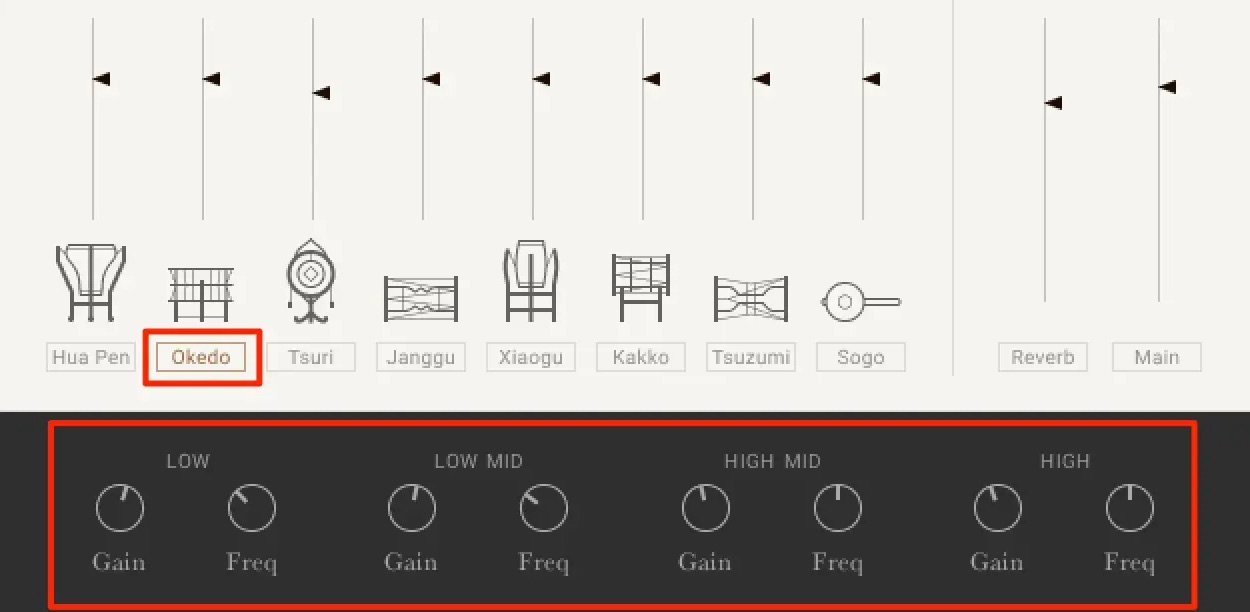
Click an instrument to display its EQ panel as well.
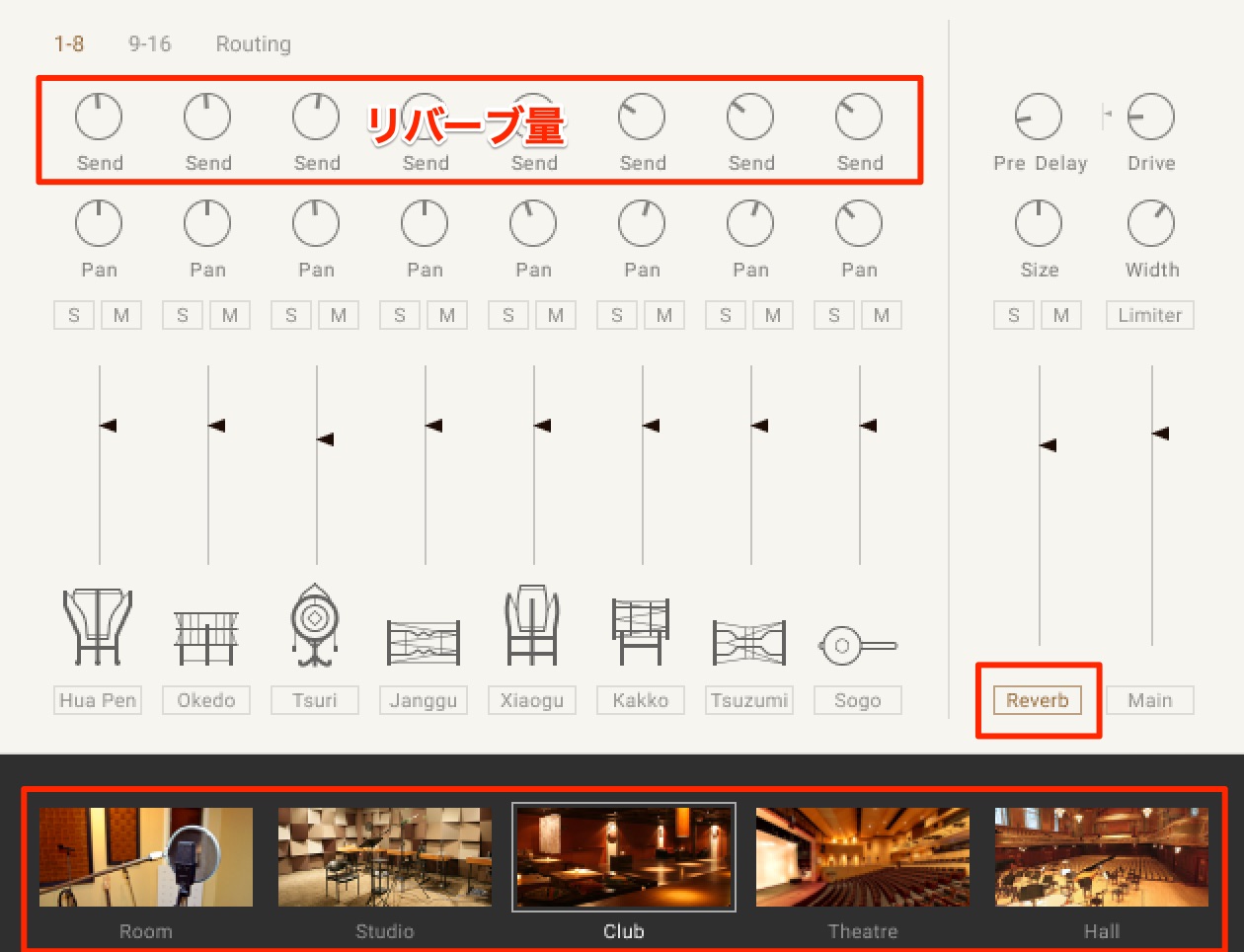
The mixer includes a high-quality reverb, and each instrument's Send control determines how much of it is applied.
Turning the Send all the way down to the left removes the reverb send and brings the instrument's sound closer to the listener.
Routing Instruments to Separate Outputs
The mixer lets you route each instrument's sound to a separate track in your DAW.
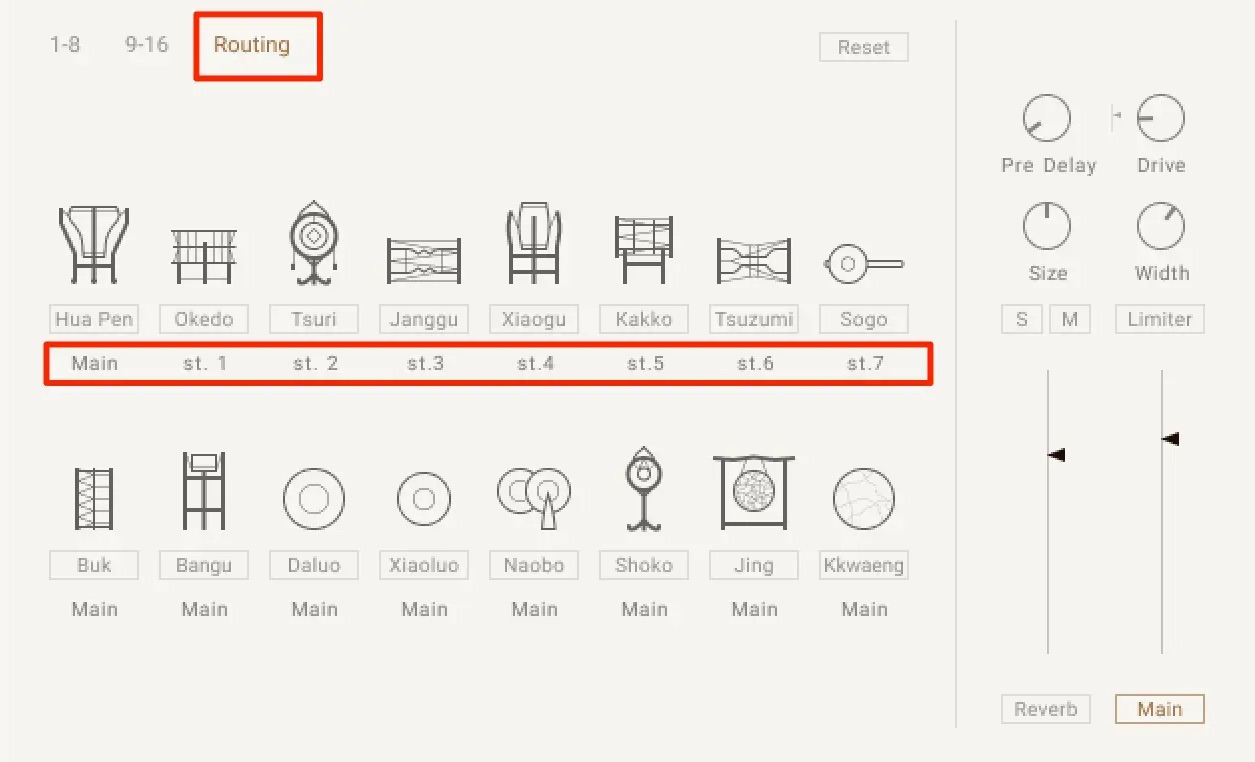
Simply click Routing in the mixer and change the output number shown below each instrument.
See the article below for details on setting up separate outputs in Kontakt and different DAWs.
What did you think?
At the time of our original review, world-instrument libraries tended to offer limited choices, complex controls, and relatively high prices. We felt that this product challenged all three of those expectations.
We also considered its sound quality among the best available at the time. If you have been looking for an East Asian instrument library, be sure to take a look.
Product URL: https://bit.ly/3wqYkmB
A software instrument library featuring a wide range of East Asian instruments
Native Instruments EAST ASIA: Overview and How to Use It38 melodic and percussion instruments from Japan, China, and Korea
Libraries of these instruments are relatively uncommon, so take a look if you are interested.
Read more: https://t.co/EgXbmbb2sx #DTM @Tokyo_NI pic.twitter.com/zK0HxLWjHv— SLEEP FREAKS (@SLEEPFREAKS_DTM) August 13, 2021
Frequently Asked Questions
Q1. What software do I need to use EAST ASIA?
Load it in Kontakt or Komplete Kontrol. If you have a compatible Komplete Kontrol S-Series keyboard, its Light Guide also provides intuitive visual feedback.
Q2. Can I use it without detailed knowledge of the instruments?
Yes. A wide selection of preset phrases is available, and you can easily customize them by choosing scales and adjusting parameters. The color-coded on-screen keyboard helps beginners navigate each instrument intuitively.
Q3. Can I edit the phrases in my DAW?
Yes. You can drag and drop phrases onto your DAW's timeline as MIDI files for detailed editing. See the note in the phrase-editing section about the shamisen presets in our original test, and the additional Export guidance in the YouTube Q&A above.
Q4. Can I route each instrument to a separate output?
Yes. Change each instrument's output number using Routing in the mixer to send instruments to separate tracks in your DAW.
NEW ARTICLES
Latest English Articles















































































































































