
This collection of Ableton Live automation tips covers precise breakpoint adjustments, copying and deleting envelopes, and a Macro-based workaround for third-party plug-in automation in the version shown. Learn the practical steps and points to watch for when editing automation.
Getting More from Live Automation
One of Ableton Live’s strengths is how easily you can write automation.
There are also a few tips and things to watch for when editing it.
The tips in this article can help you edit more efficiently.
Let’s go through them one at a time.
Ableton Live Tips: Automation Editing Tips and Cautions
View product details

Fine-Tuning Breakpoints

Dragging an envelope breakpoint normally may produce only an approximate value.
- Mac: Command + drag
- Windows: Ctrl + drag
Use these shortcuts for finer adjustments.
Copying an Envelope
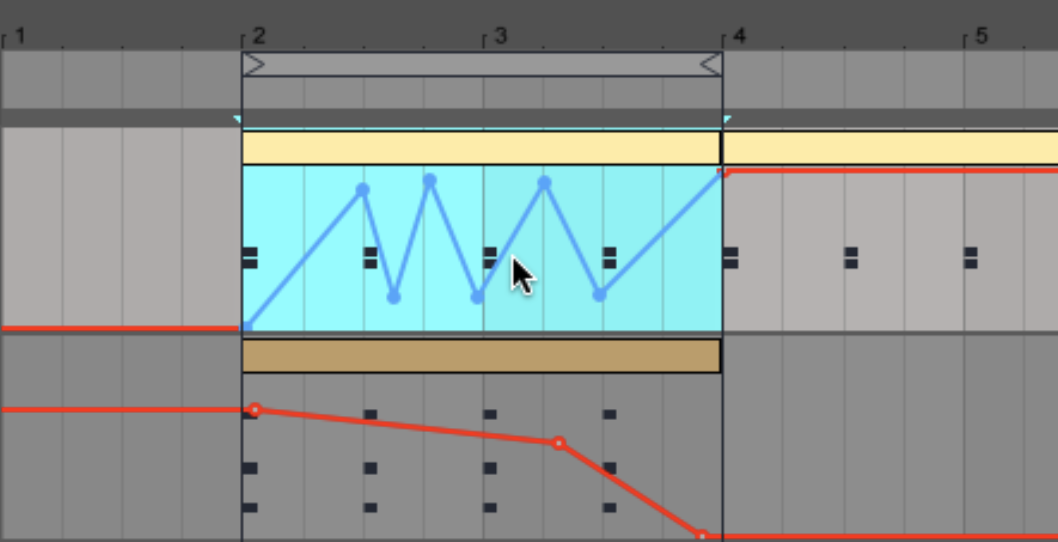
To copy an envelope, first select the section you want to copy,
then move the cursor over the line. The envelope will be highlighted in blue.
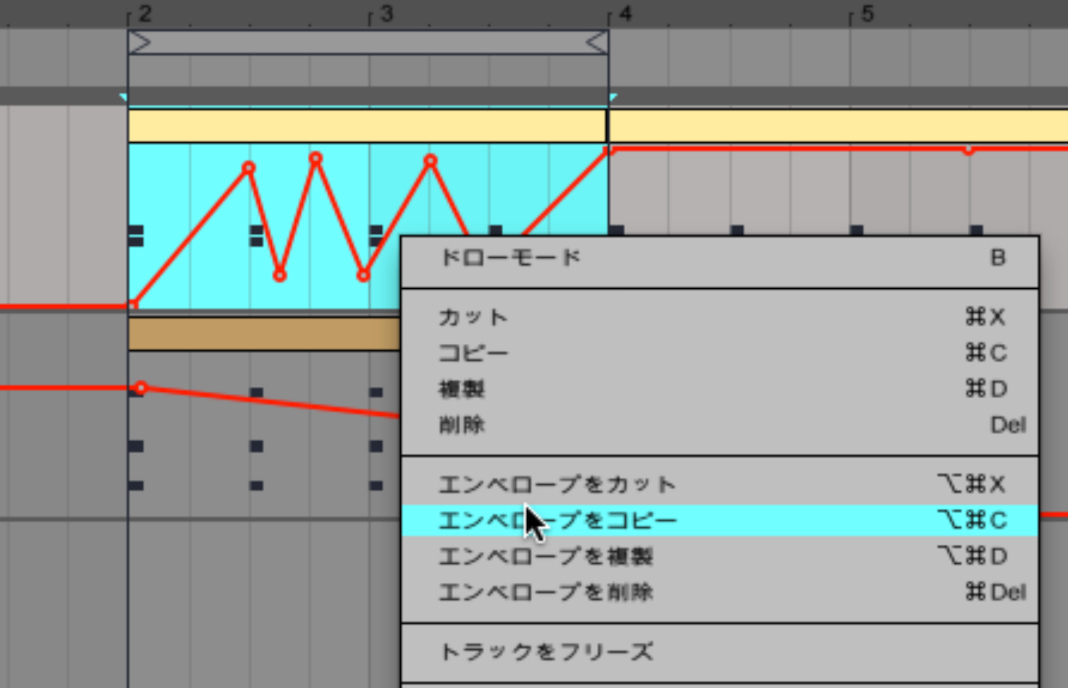
Right-click and select “Copy Envelope.”
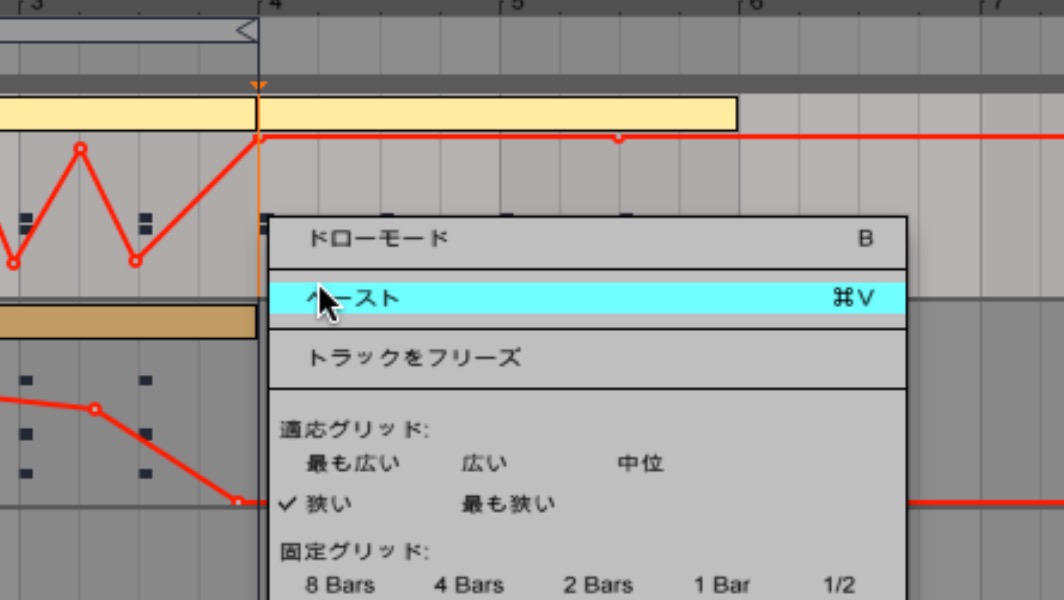
Next, click the beginning of the destination to display the orange line,
then right-click and choose “Paste.”
You can use the same steps to paste onto another automation line.
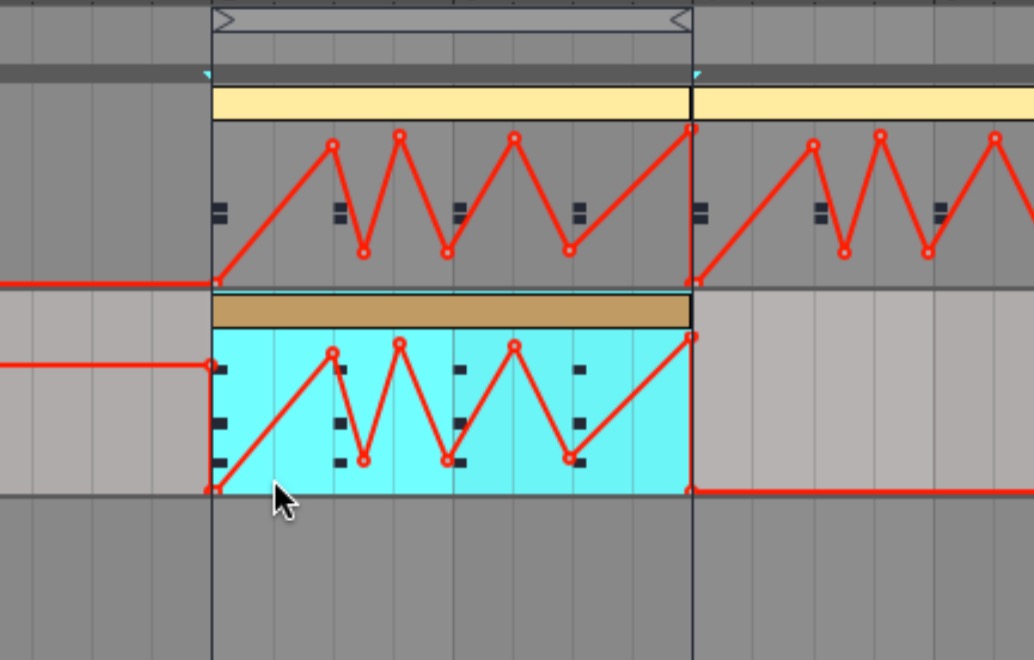
Deleting an Envelope
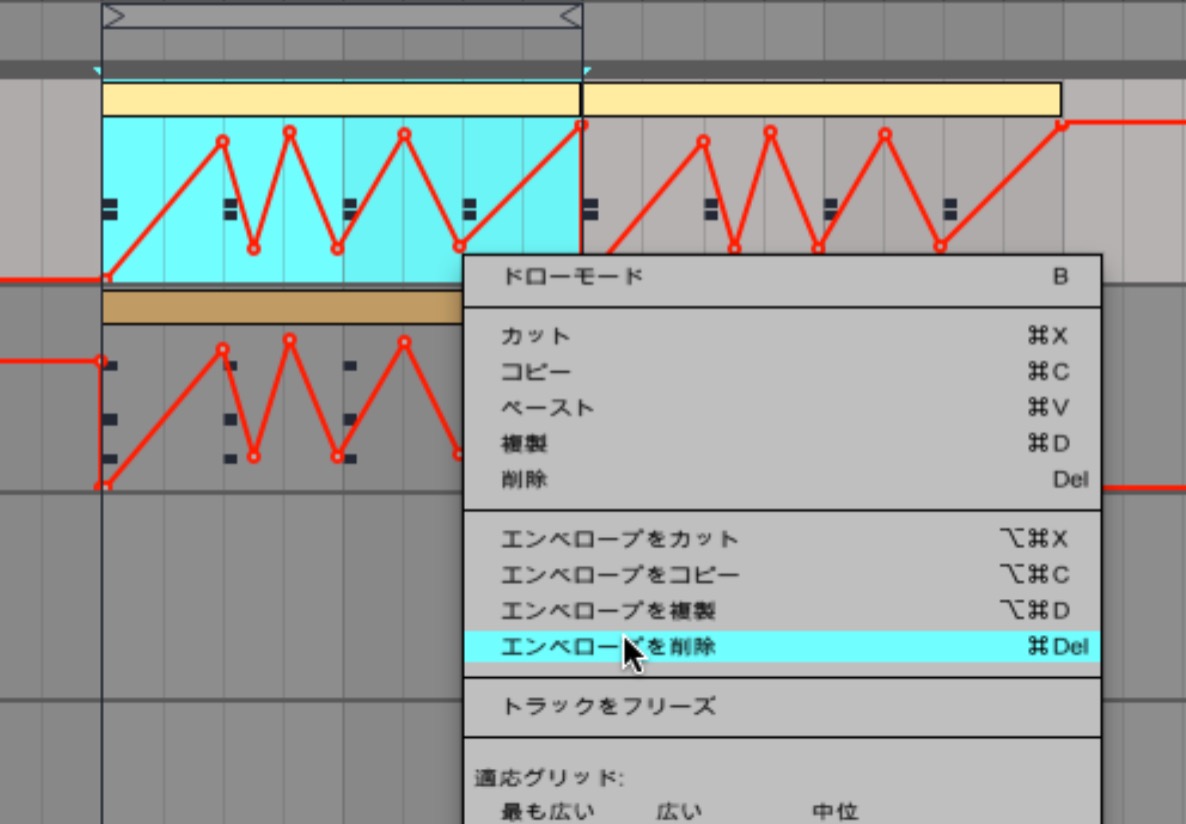
To delete an envelope, select the section as you did when copying,
then right-click and choose “Delete Envelope.” There is another method as well:
- Mac: Command + Delete
- Windows: Ctrl + Delete
This deletes only the envelope.
Be careful: pressing Delete alone removes the clip as well.
Deleting All Automation on a Line
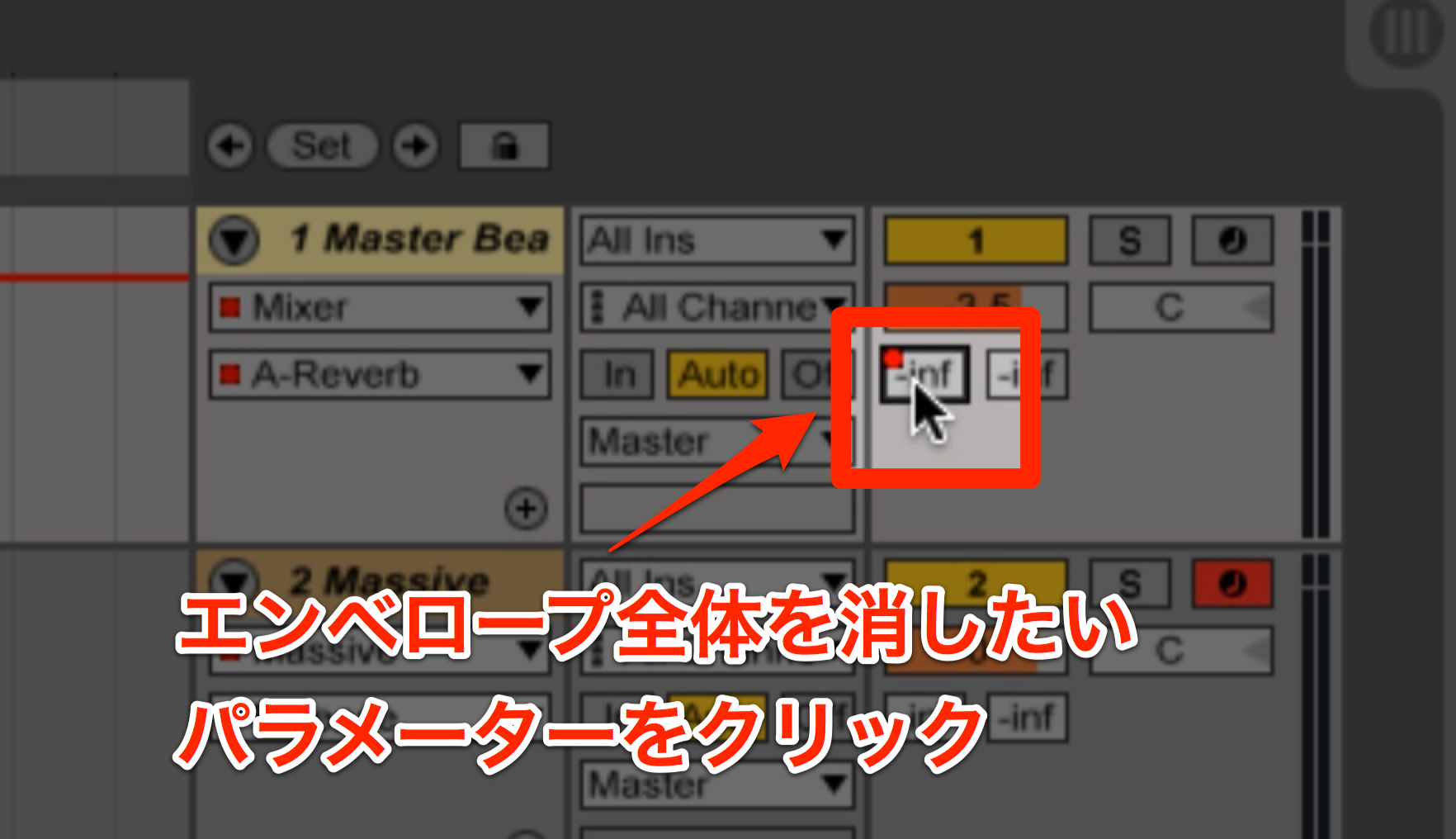
To delete the entire envelope on a line, first click the parameter whose envelope you want to remove.
A red indicator appears when the parameter has an envelope.
Then use:
- Mac: Command + Delete
- Windows: Ctrl + Delete
This clears the entire envelope.
Editing Automation for Third-Party Plug-ins
In the version and workflow shown in this tutorial, an envelope for a third-party plug-in
may become inactive after the project is saved and reopened.
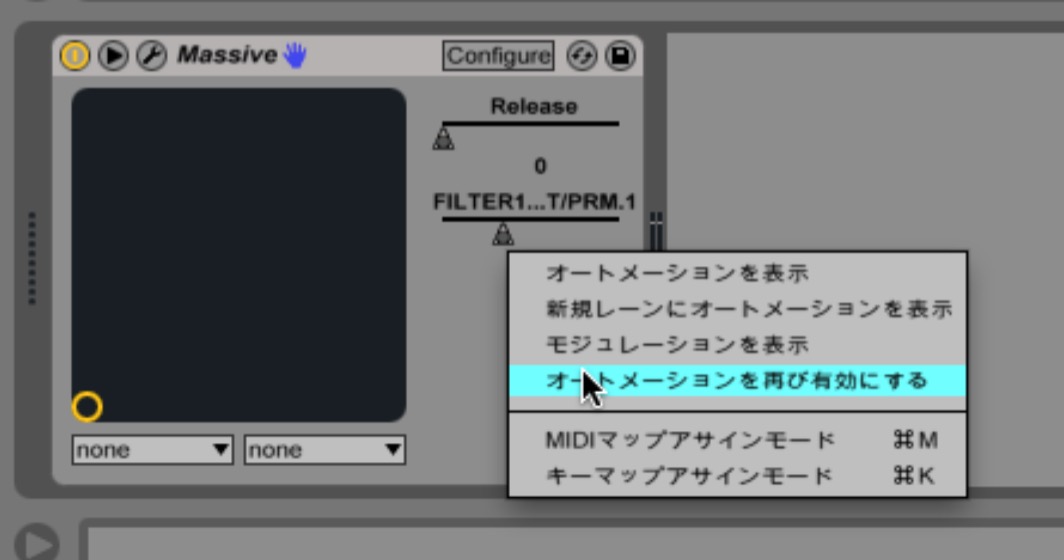
If that happens, right-click the parameter shown beside the device
to re-enable it.
Doing this every time is inconvenient.
One workaround is to write the envelope using Live’s Macro controls.
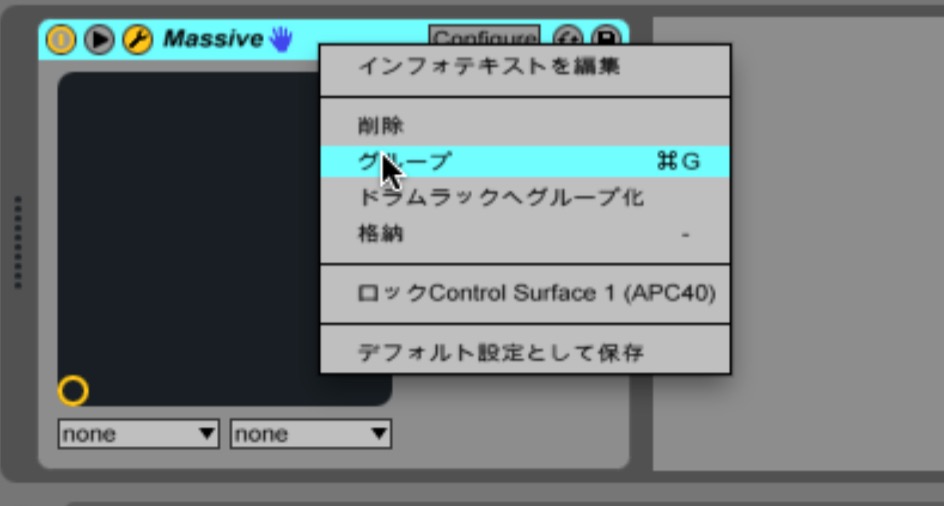
First, create a group from the device’s title bar and show the Macros.
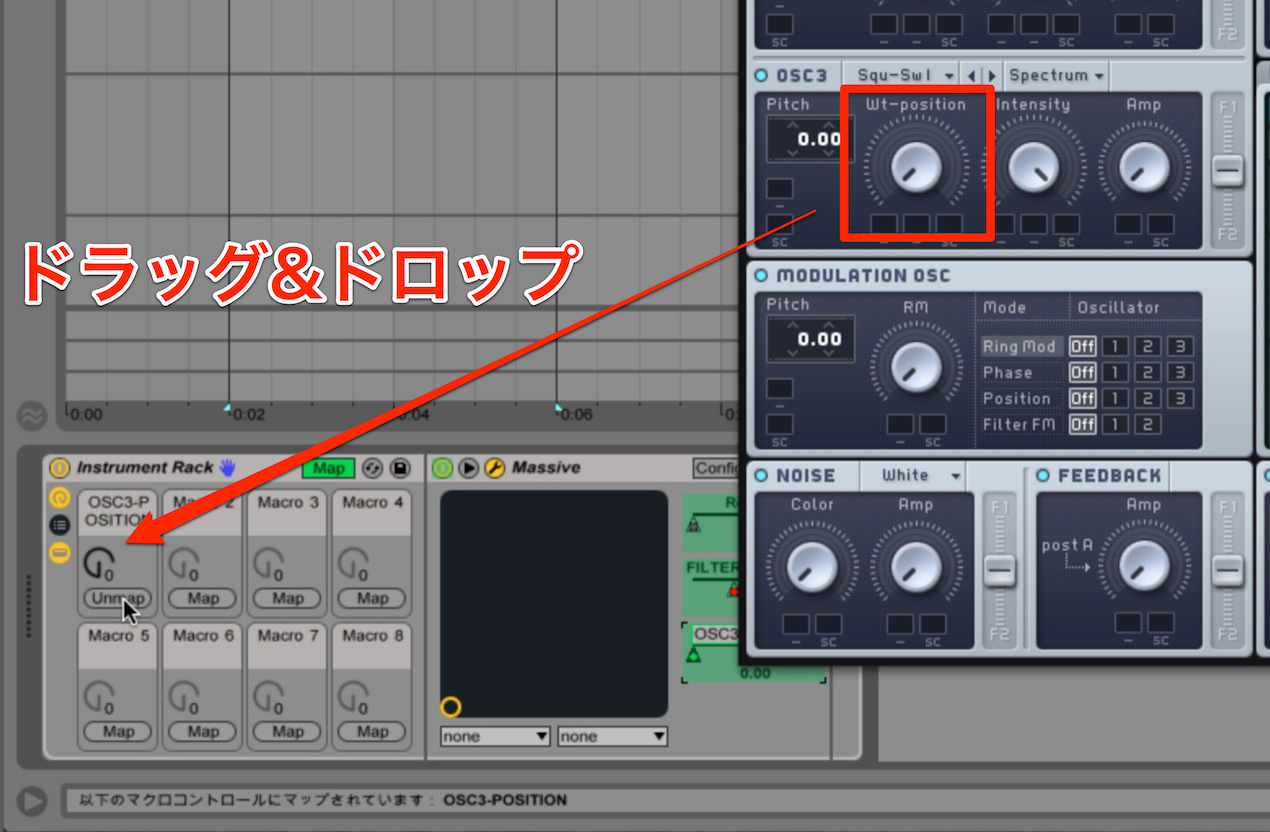
Next, drag the parameter you want to automate onto a Macro to map it.
Writing the envelope using that Macro can keep it active in the workflow demonstrated.
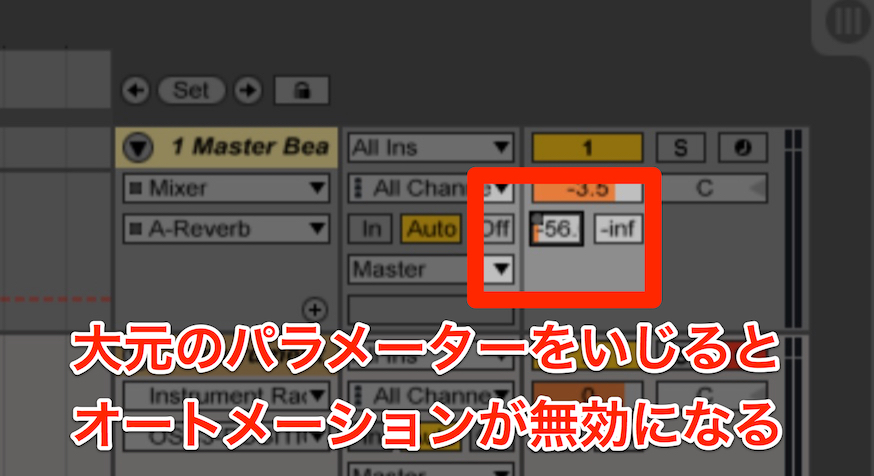
Changing the Original Parameter Can Disable Automation
Whether you use a third-party or a built-in plug-in, changing the original parameter
can disable its automation, so keep this in mind.
View product details
Frequently Asked Questions
Q1. How can I set automation breakpoints precisely in Ableton Live?
Hold Command on Mac or Ctrl on Windows while dragging to make finer adjustments. Normal dragging gives a coarser adjustment.
Q2. What can I do if third-party plug-in automation becomes inactive after saving?
In the workflow shown, you can group the device, show its Macros, and drag the parameter onto a Macro to map it. Writing automation through the Macro can keep it active; behavior may differ in other Live or plug-in versions.
Q3. Can I reuse an automation envelope on another parameter?
Yes. Select the section, right-click the envelope, and choose “Copy Envelope,” then paste it at another location. The same automation can be applied to multiple lines.
NEW ARTICLES
Latest English Articles



































































































































































































































































































































































































































