Cubase Pro 8.5 introduced practical features for more efficient editing: setting outputs while creating tracks, importing tracks from another project, defining independent punch-in and punch-out ranges, scaling the tempo track, and improved automation editing. This guide explains how to use them in everyday production.
Cubase 8.5: More Efficient Editing

The then-new Cubase 8.5
update added many features that make editing more convenient.
Here are some of our recommended additions.
Cubase 8.5 New Features Videos
Cubase Pro 8.5 New Features, Part 1 (this article)
Cubase Pro 8.5 New Features, Part 2
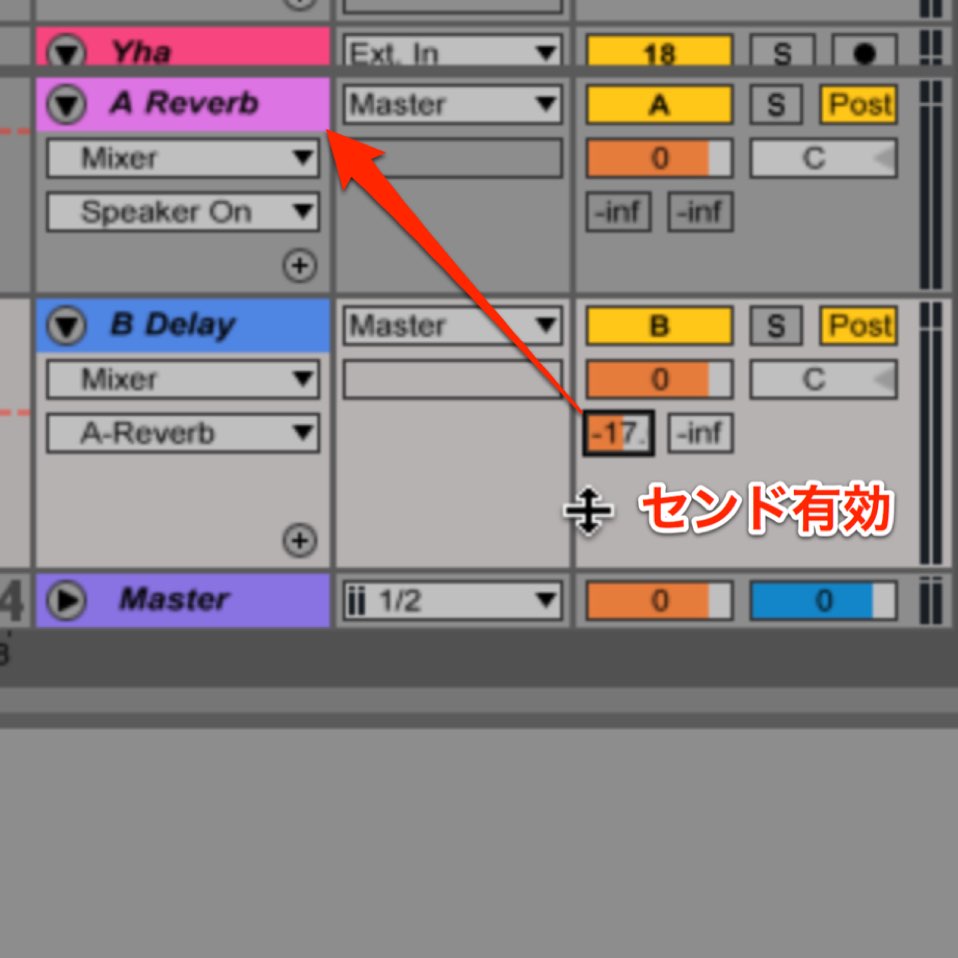
Set Outputs When Creating Tracks

You can set the output when creating a track.
The track can be created with its routing already set
to a group channel, sidechain, FX track or another destination.
Import Tracks from Another Project
Audio, MIDI, tempo, marker and other tracks
can be imported from a different project.
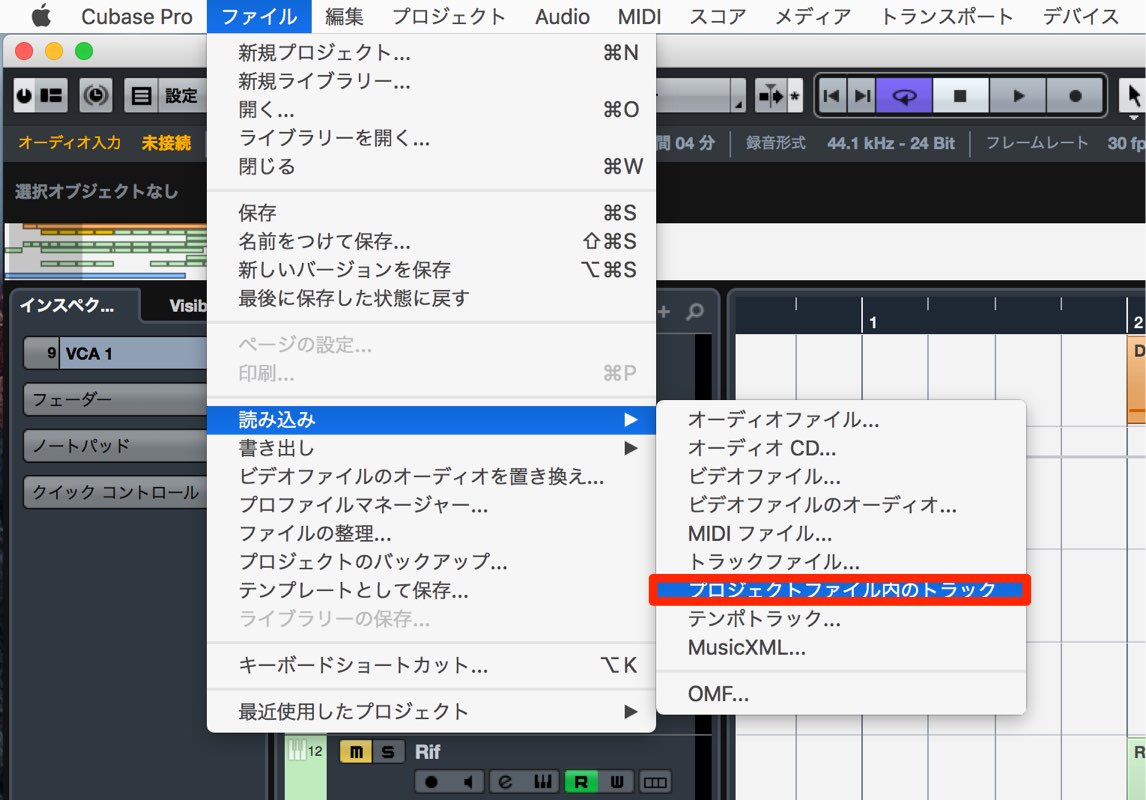
From the menu, choose File → Import → Tracks from Project.
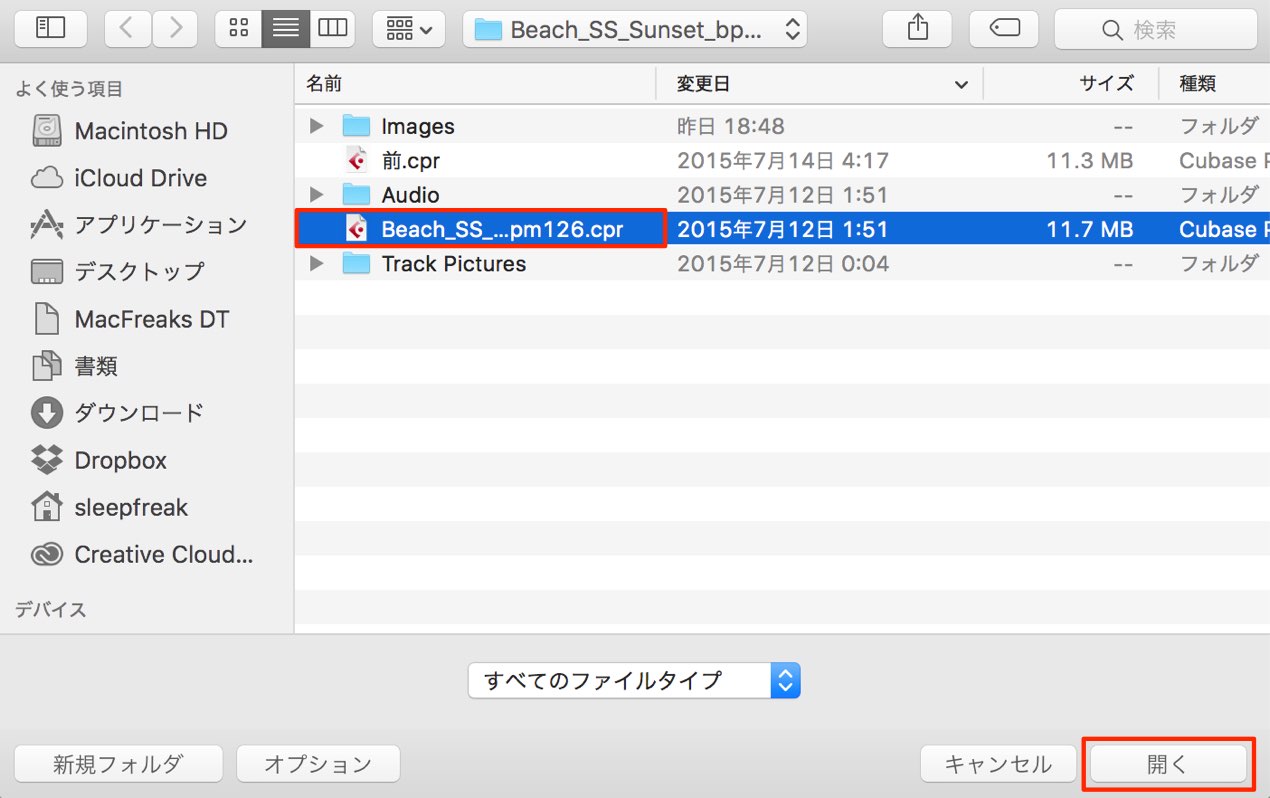
Select the project and click Open.
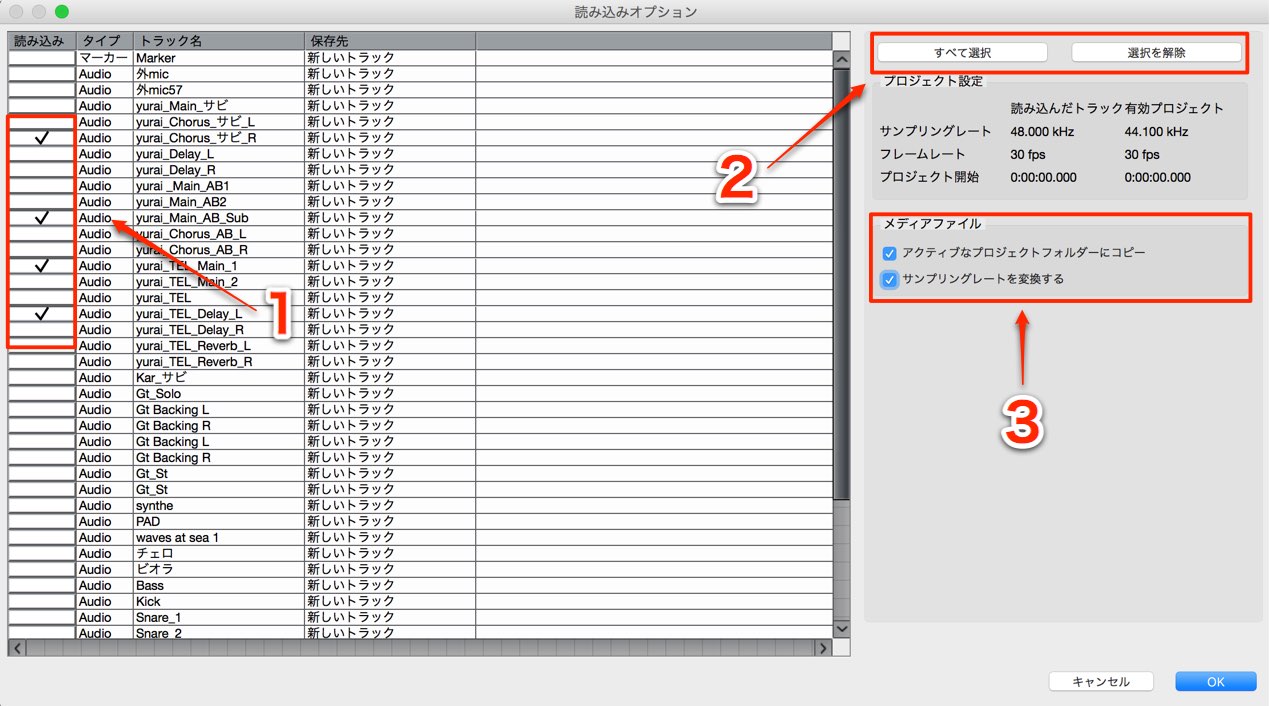
- 1. Check the tracks you want to import.
- 2. Select or deselect all tracks at once.
- 3. Copy the media to the current project.
With a copy in the project, moving or deleting the original media will not affect it.
When projects have different sample rates, select the appropriate conversion option to maintain compatibility.
Click OK to import the selected material.
Set Punch-In and Punch-Out Ranges Independently
The range for
punch-in and punch-out, which lets you re-record a specific section, can be set independently.
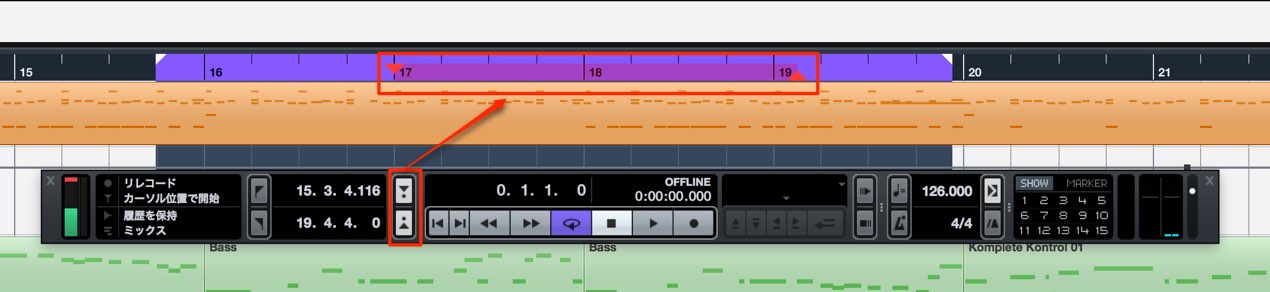
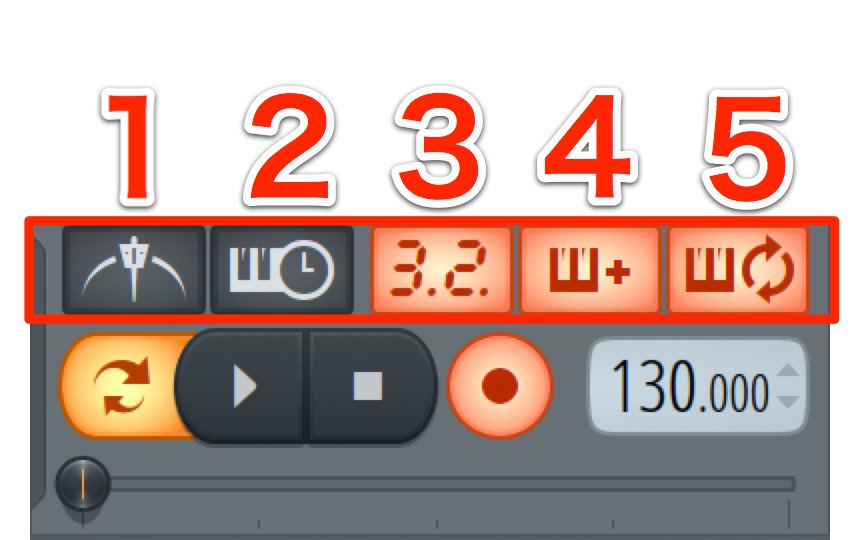
Click the area outlined in red in the transport to enable it.
Drag to set the recording range.
In the image, the punch range is inside the loop range.
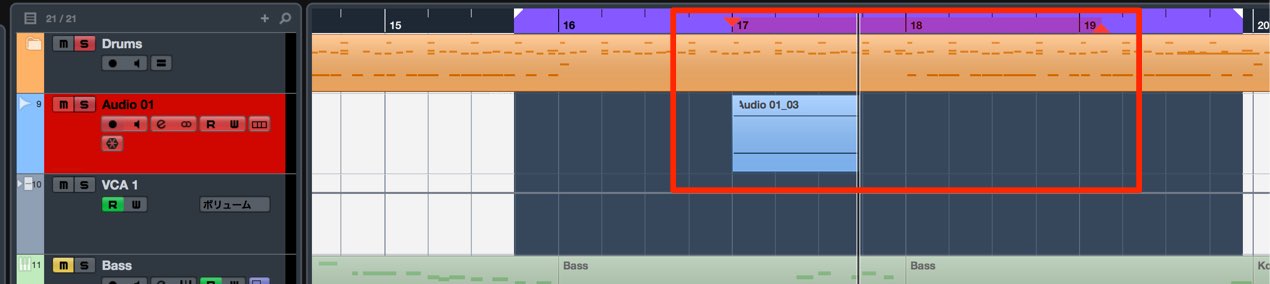
After record-enabling the track,
start playback and the specified range will be recorded automatically.
What if Punch-In Is Not Visible in the Transport?
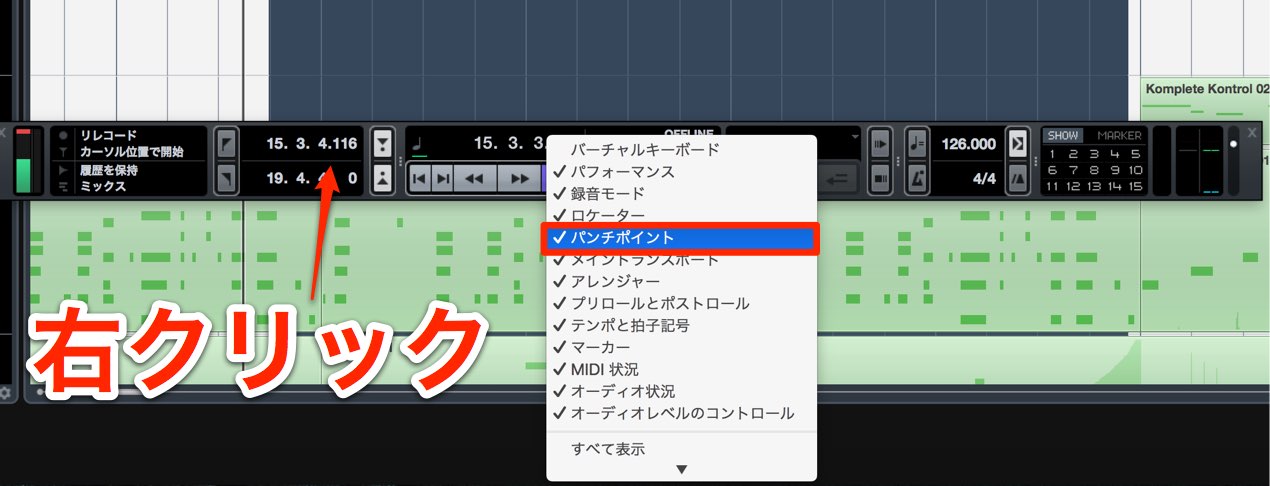
Right-click the transport area and select Punch Points.
Tempo Track Scaling
A scaling feature was added to the tempo track,
making tempo changes more intuitive and smooth.
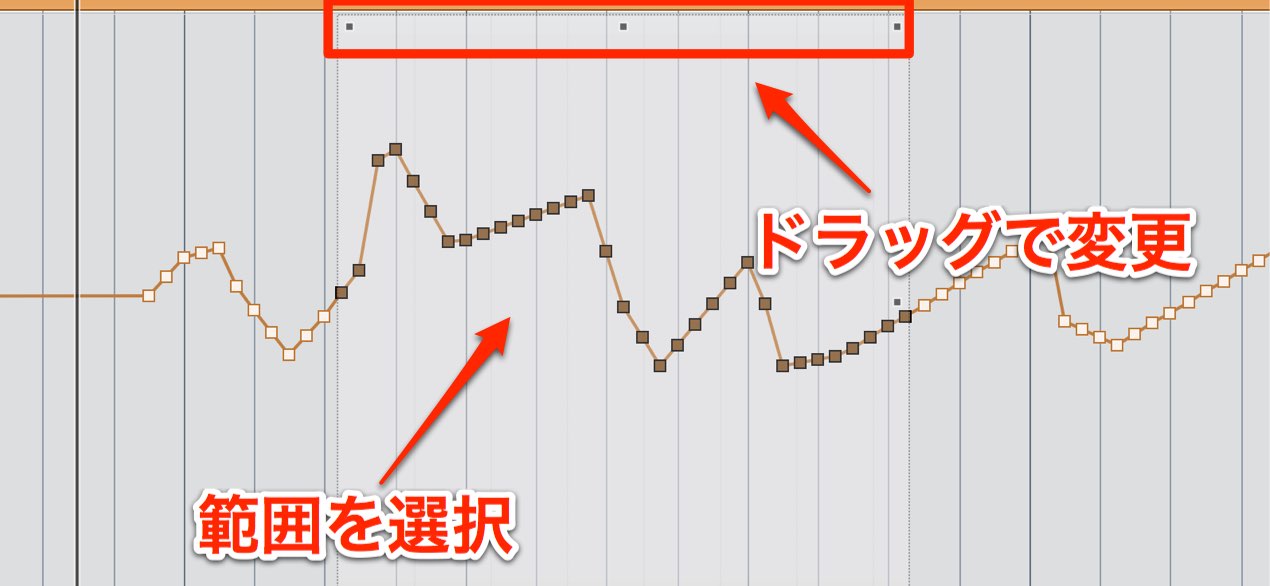
Select the points you want to change to display the scaling controls.
Drag the upper handle up or down to change their values.
Improved Automation Editing
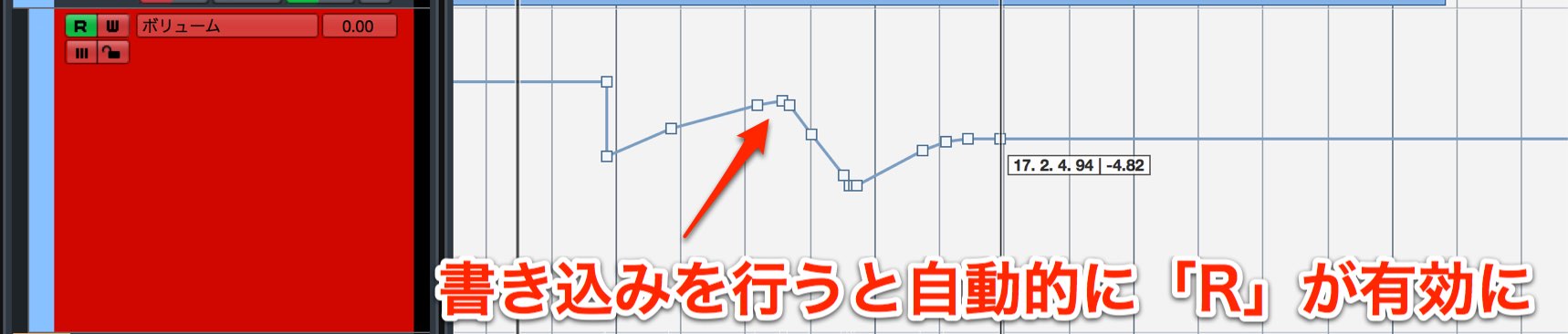
When you draw automation with the pencil tool, Read (R) is enabled automatically.
This is a useful improvement for a frequently used operation.
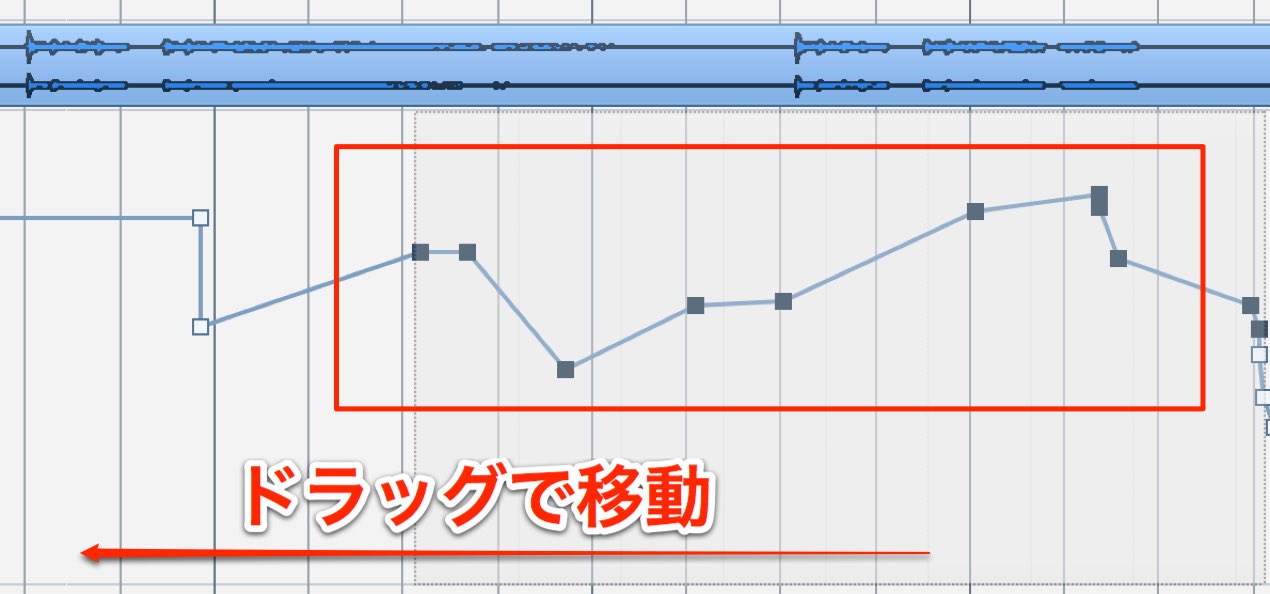
You can move a range of automation.
Select the points to move and drag them to the desired location.
Hold Command on Mac or Alt on Windows while dragging
to copy the automation curve.
Frequently Asked Questions
Q1. How do I import tracks from another Cubase project?
Choose File → Import → Tracks from Project and open the project. Select the tracks you want and click OK. Select the option to copy media into the current project if you want it to remain independent of the original files.
Q2. What is punch-in and punch-out?
It lets you re-record only a selected section. Cubase 8.5 allows the punch range to be set independently of the loop range. Enable the controls in the transport and drag to define the range.
Q3. What changed in automation editing?
Drawing automation with the pencil automatically enables Read, and points can be moved or copied more easily. Hold Command on Mac or Alt on Windows while dragging to copy the automation curve.
NEW ARTICLES
Latest English Articles