The Cubase 7 MixConsole offers major improvements in the efficiency and ease of effect processing. This article explains how to apply effects using INSERTS slots, new Studio-EQ features such as the frequency display and one-click EQ point creation, and how the new Strip makes it easy to apply Gate, Comp, EQ, and Saturation. Saving and reusing track presets can greatly reduce the time spent processing multiple tracks and streamline professional mixdowns.
Applying Effects in the MixConsole
Here we explain the MixConsole using a sample song
and explore its greatly improved appearance and functionality.
So far we have focused on preparation;
this time we will finally start applying effects.
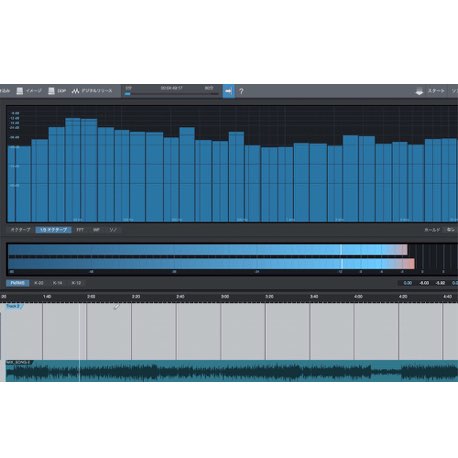
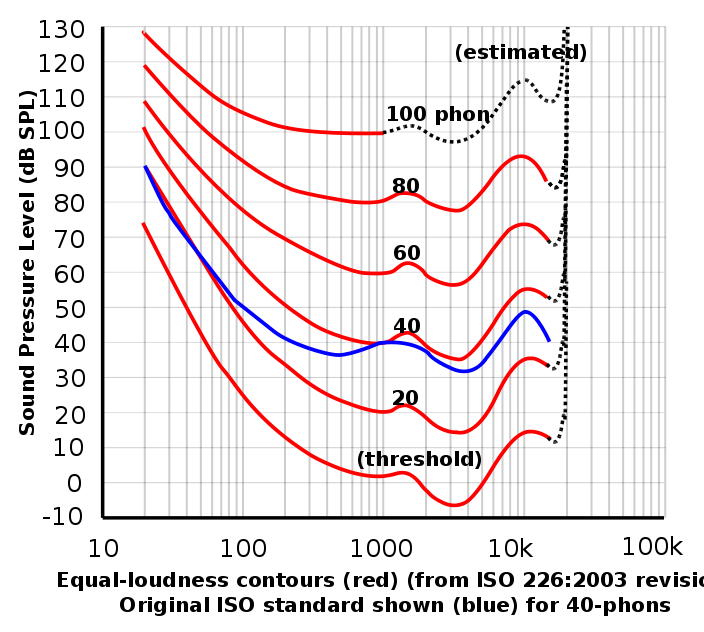
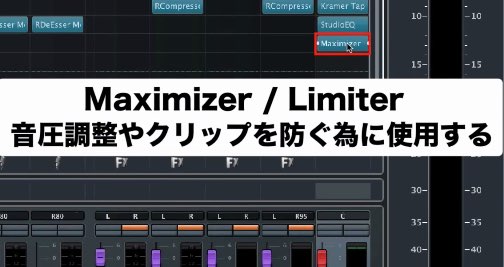
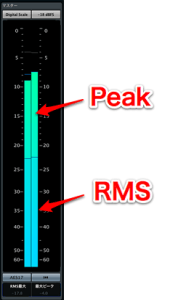
We also discuss loudness alongside the new Saturation feature.
Enjoy the tutorial!
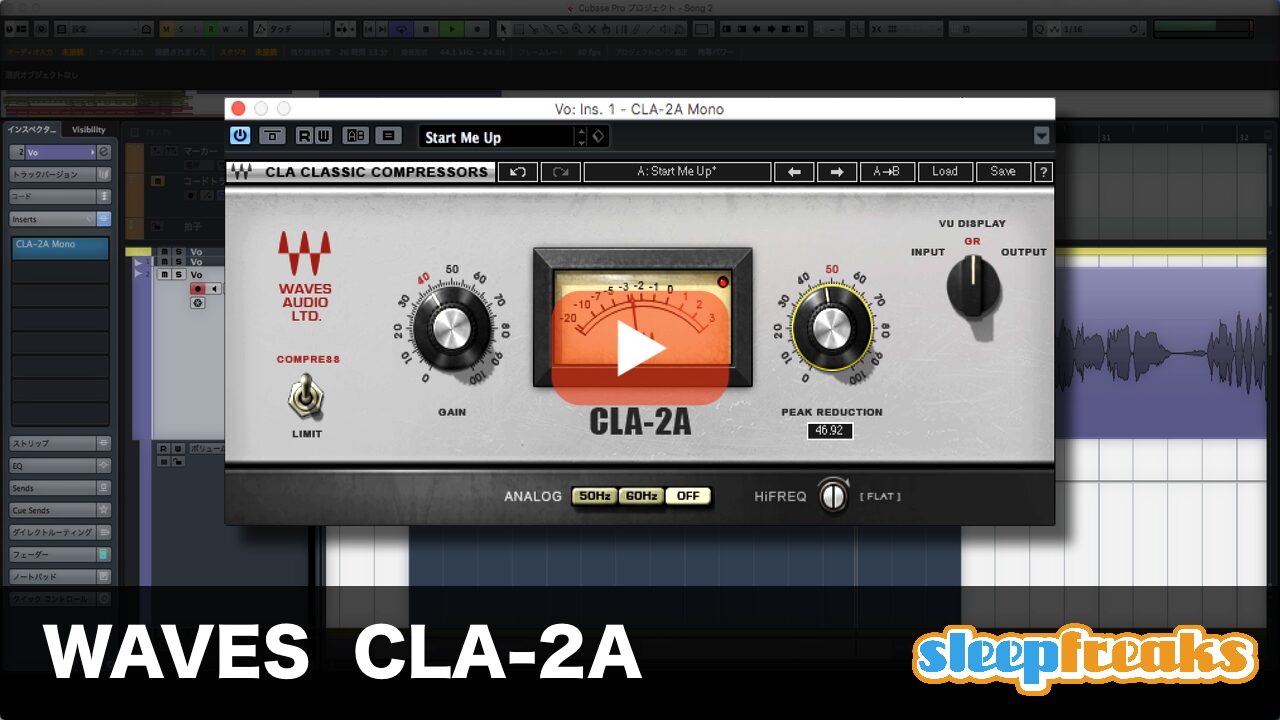
Cubase 7 MixConsole: Inserts and Strip Video
Harmony Voice
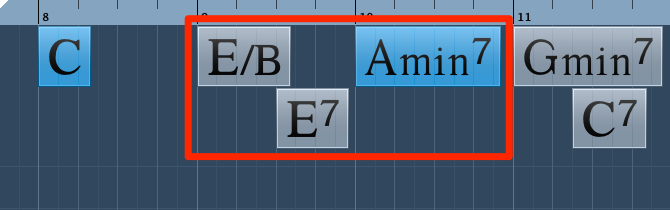
Chord Assistant
MixConsole: Setup
MixConsole: Reverb and Pan Techniques
MixConsole: Inserts and Strip (this page)
MixConsole: Vocal Processing and Routing
Loudness and the RMS Meter
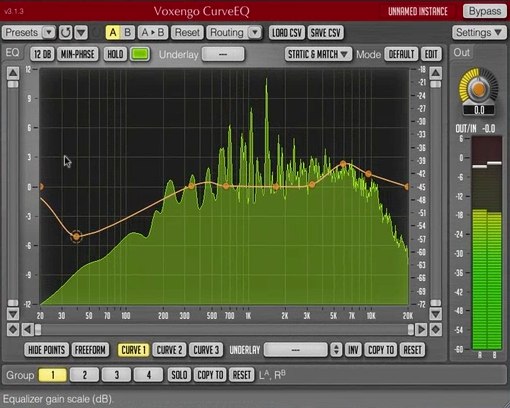
CurveEQ
Video Focus: Applying Insert Effects
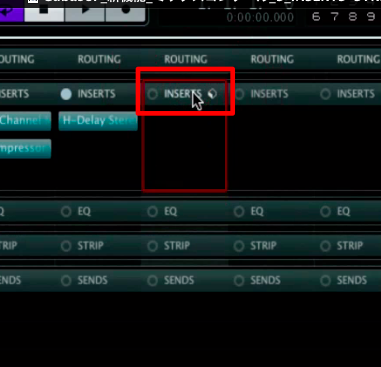
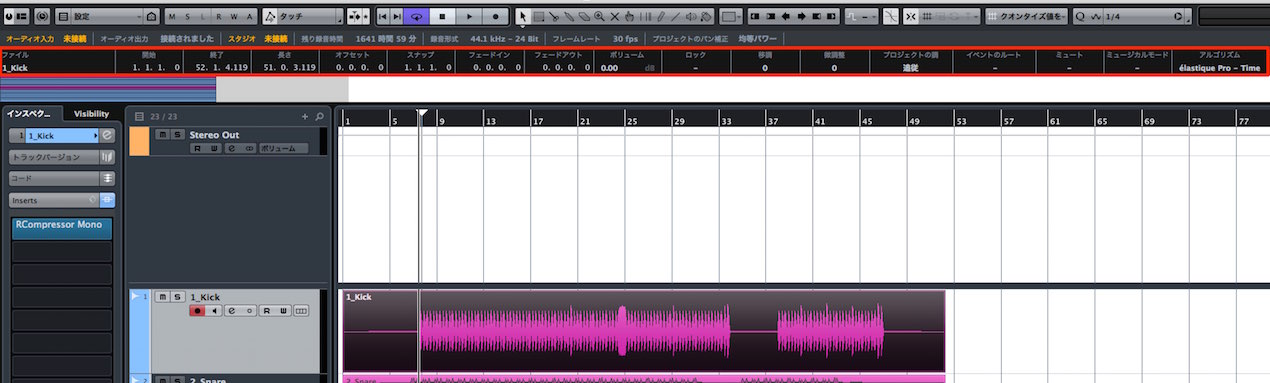
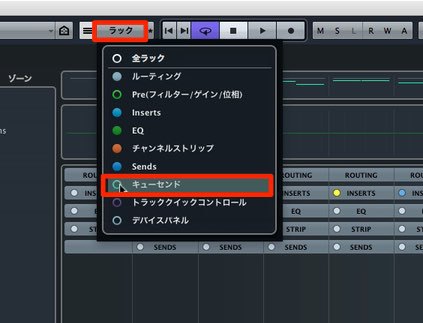
Click INSERTS at the top of the mixer to display the slots,
then click an empty slot and select an effect.
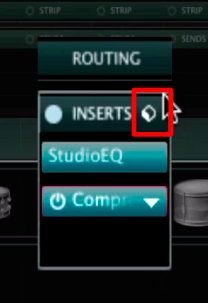
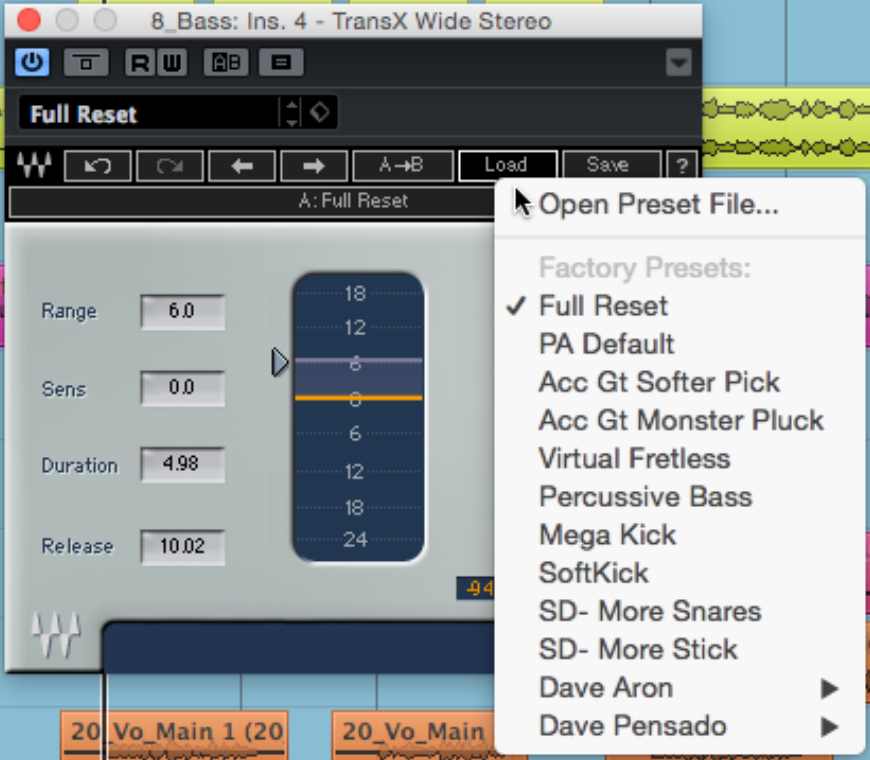
The controls to the right of INSERTS also let you
save effect combinations and settings and easily apply them to other tracks.
This can save a great deal of time.
More about track presets:
Track preset guide
Video Focus: New Studio-EQ Features
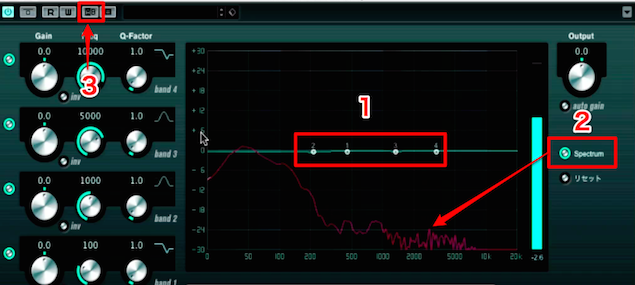
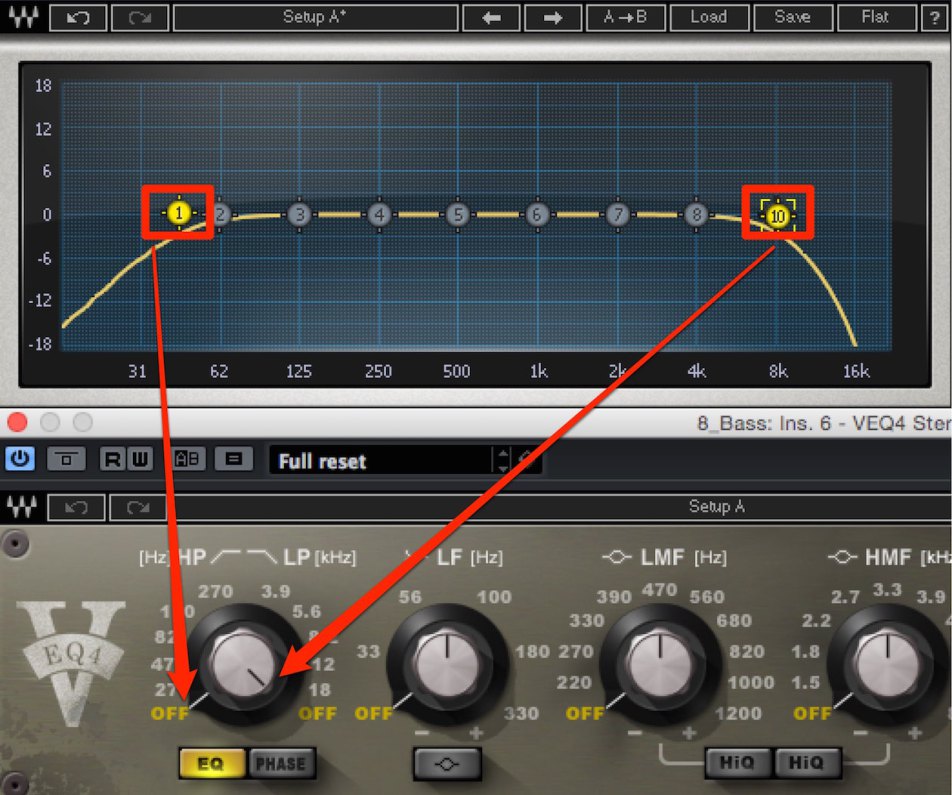
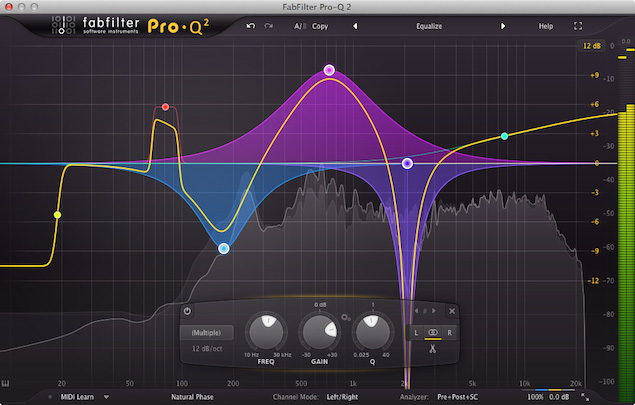
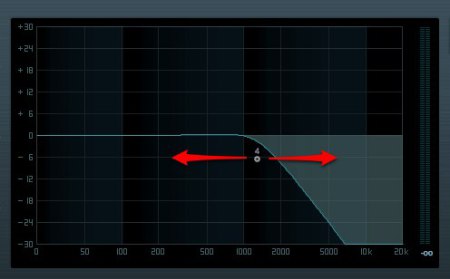
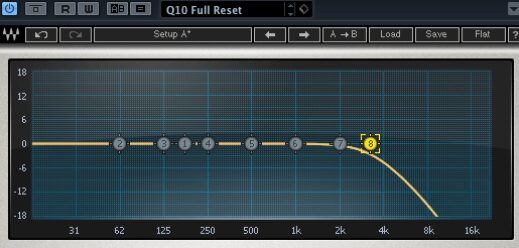
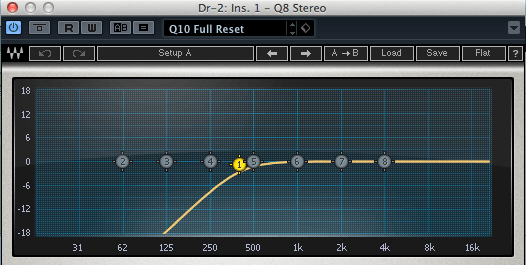
- 1. You can add EQ points with a single click.
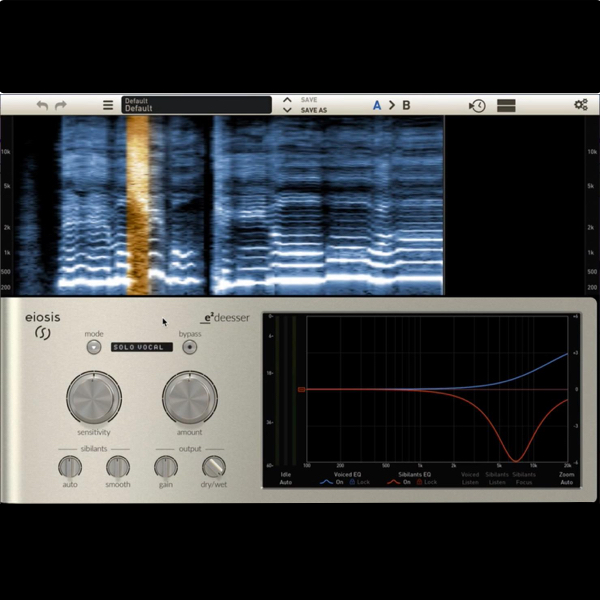
- 2. Click Spectrum
to display the sound’s frequency content. - 3. In effects and software synths, not just EQ,
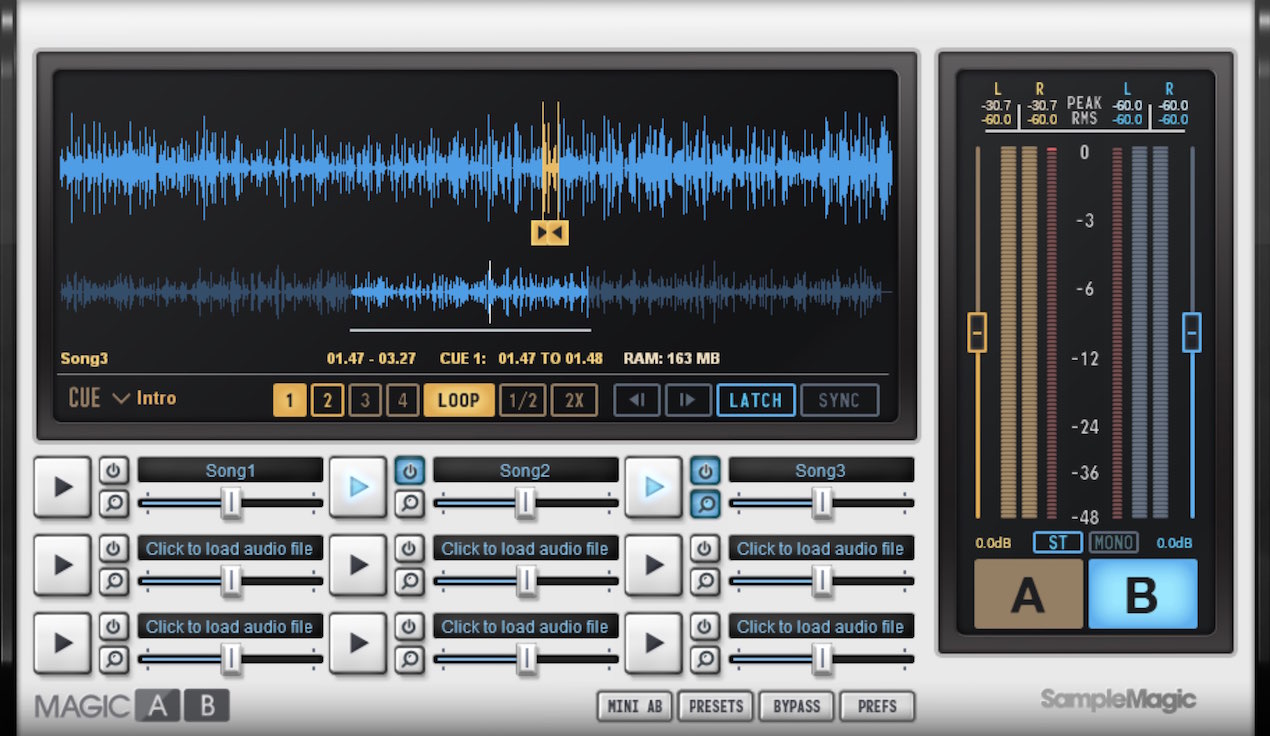
you can switch between two sets of settings using A/B.
Video Focus: The New Strip
A Strip has been added to each track.
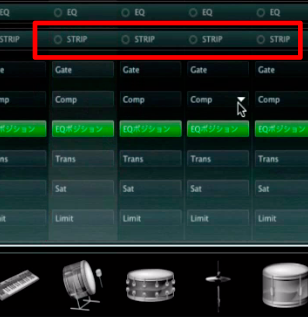
Click the track’s Strip section
to open it.
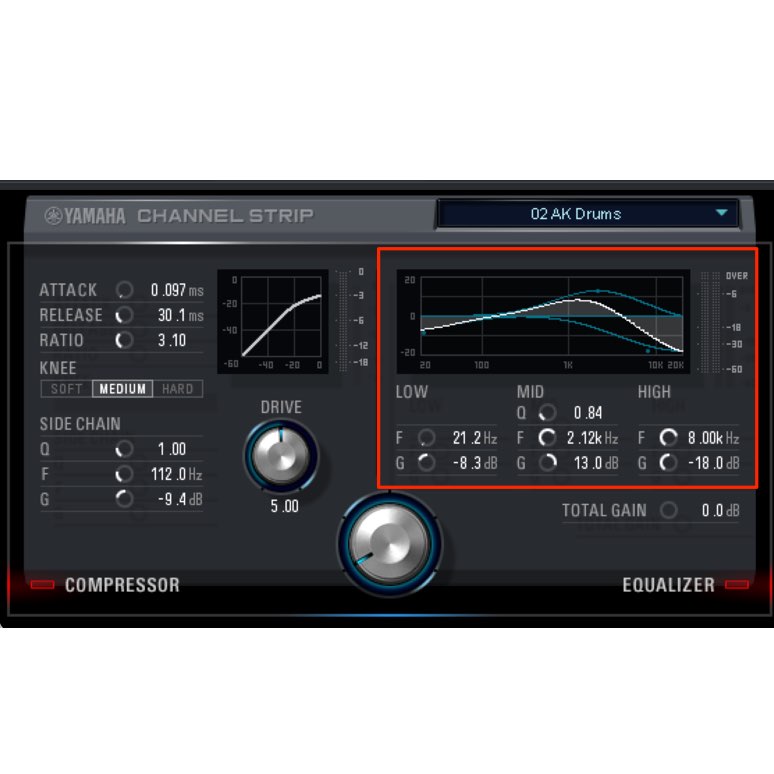
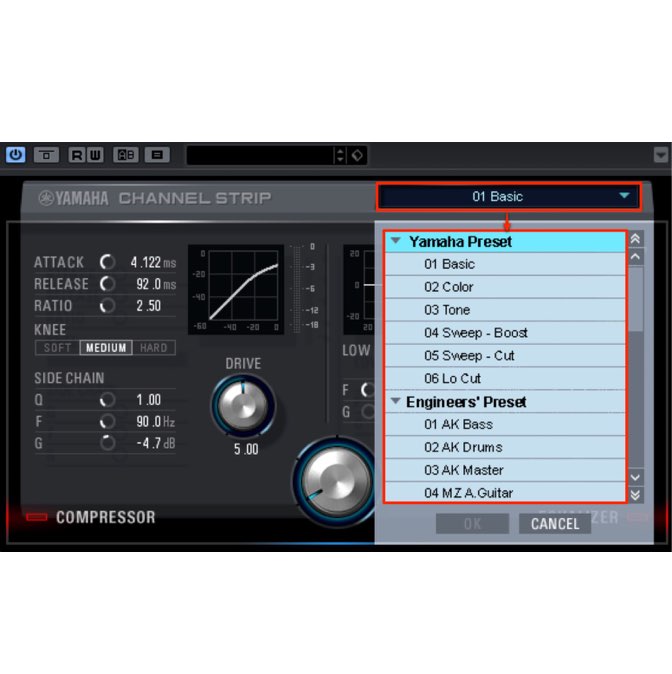
You can easily apply Gate, Comp, EQ, and other processing.
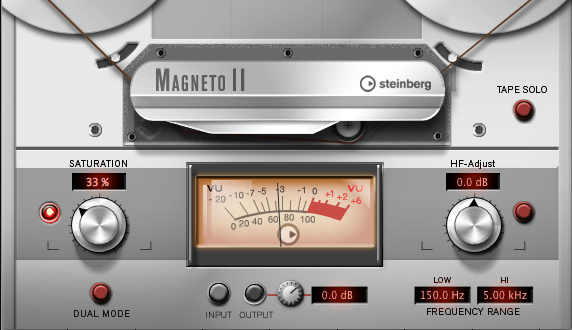
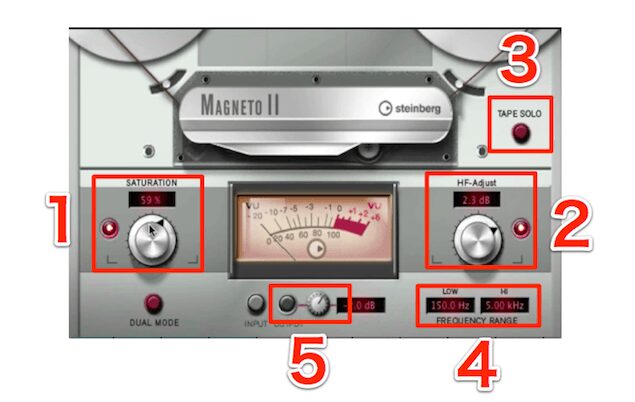
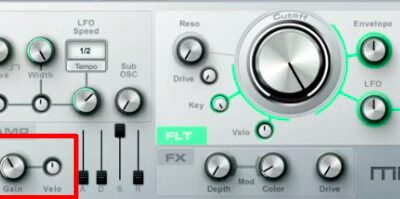
In the video, we use Saturation to explain sound peaks.
Frequently Asked Questions
Q1. How do I insert an effect in the Cubase 7 MixConsole?
Click INSERTS at the top of the mixer to display the slots, then click an empty slot and choose the desired effect. Once configured, the settings can also be applied to other tracks as a preset.
Q2. What improvements are included in Studio-EQ?
You can add EQ points with one click and use the Spectrum button to display the sound’s frequency content. The A/B function also lets you switch between and compare two settings.
Q3. What can I do with the Strip?
Click a track’s Strip section to easily apply processing such as Gate, Comp, EQ, and Saturation. This lets you process audio quickly without complex setup.
NEW ARTICLES
Latest English Articles