
ORB COMPOSER is an AI-assisted composition tool that automatically generates chord progressions and phrases. This article walks through setup and basic use, including choosing a genre template, assigning instruments in a DAW, setting MIDI ports and channels, and selecting block items and chord progressions. Its ability to generate new patterns with one click can help streamline the creative process and speed up professional music production.
AI suggests chords and phrases for your music
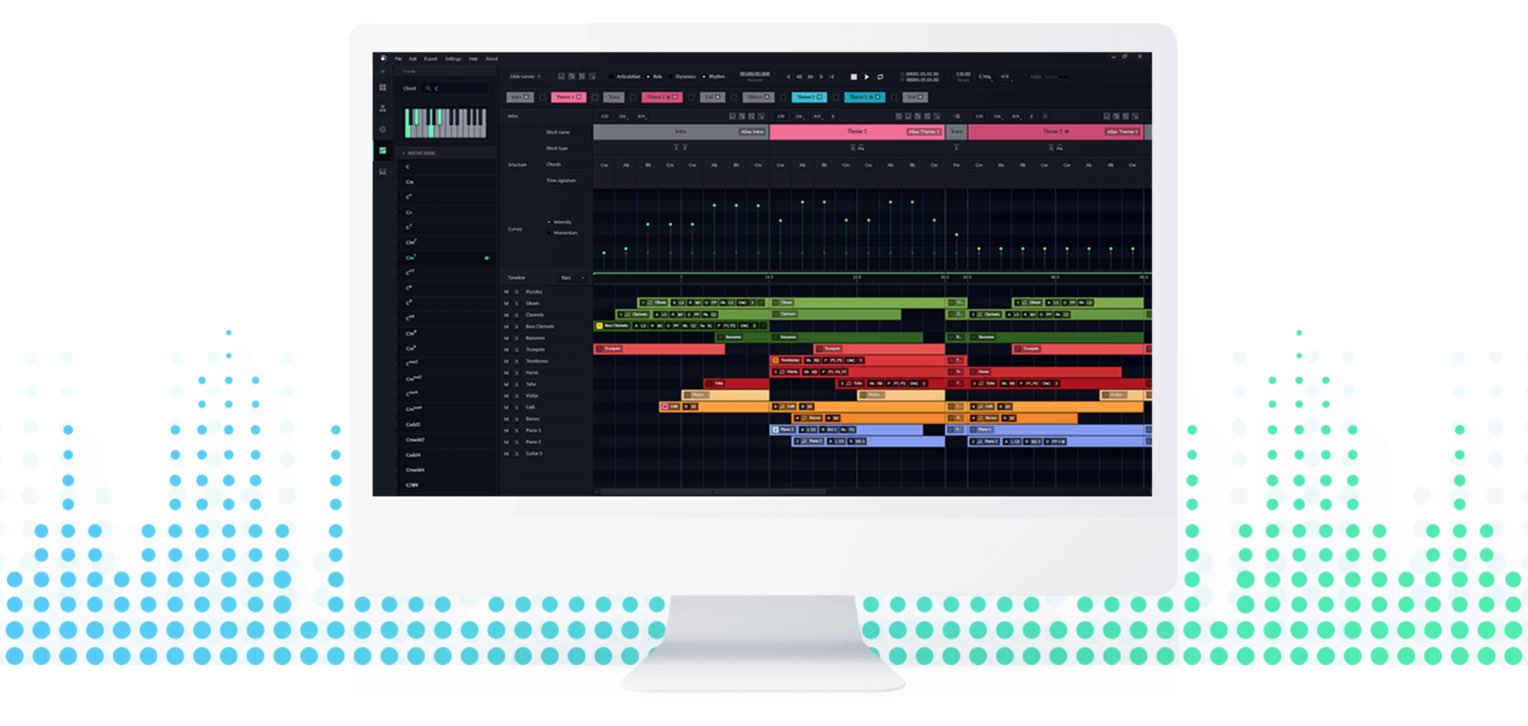
The AI-assisted composition software ORB COMPOSER, which we introduced in an earlier article, has finally been released.
ORB COMPOSER is an innovative AI-assisted composition tool that suggests chords and phrases as MIDI files to suit your music.
The product does not include sound sources; you use it together with instruments loaded in your DAW.
With the settings described below, each click of the button generated new phrases and patterns like these.
First, let’s look at setup and the basics.
How to use the AI-assisted composition software Orb Composer
ORB COMPOSER website: https://www.orb-composer.com
Setting up ORB COMPOSER
First, launch the application.
Double-click it as you would any other application.
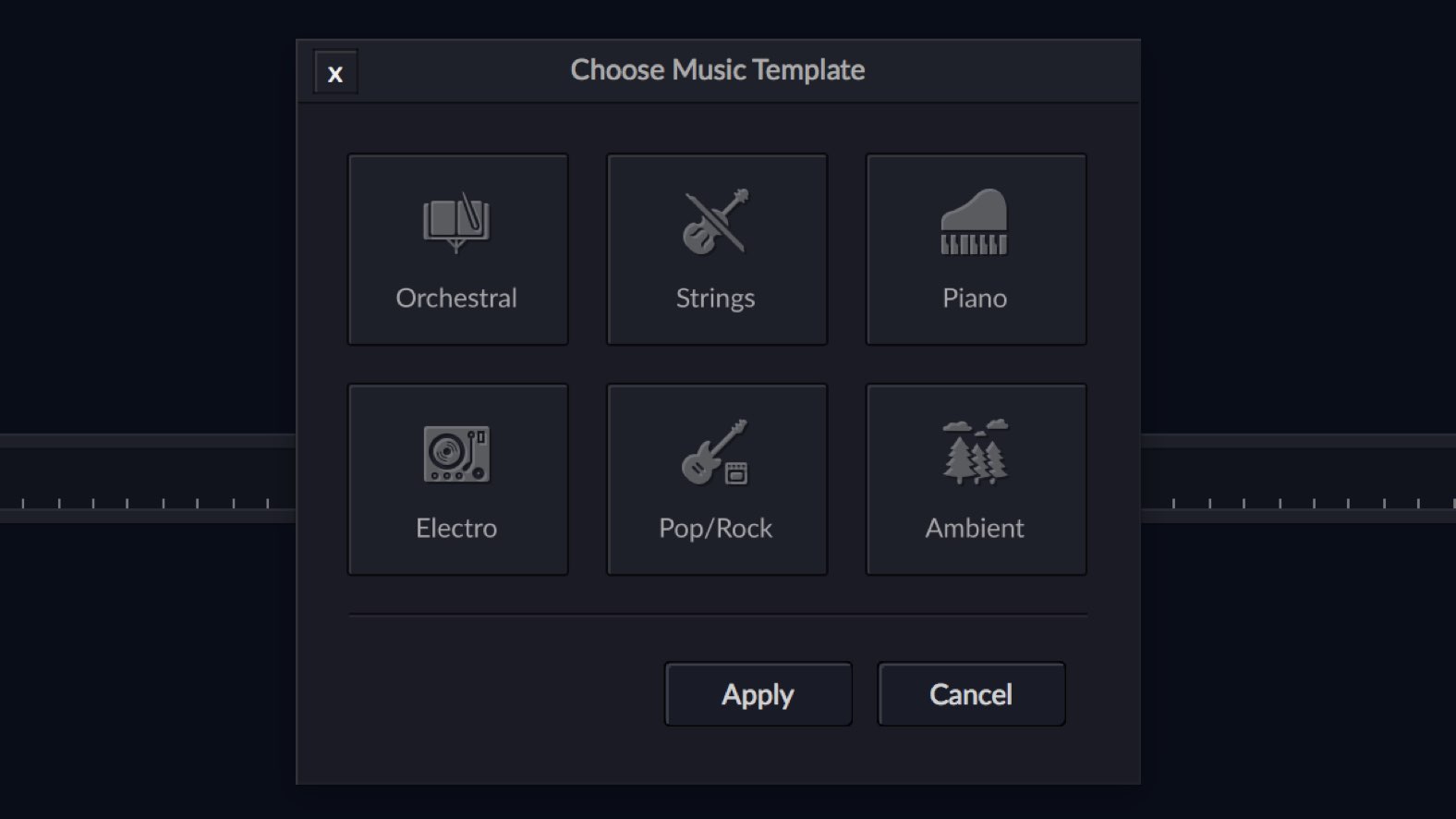
A template selection window opens; choose the genre you want.
Here we chose “Orchestral.”
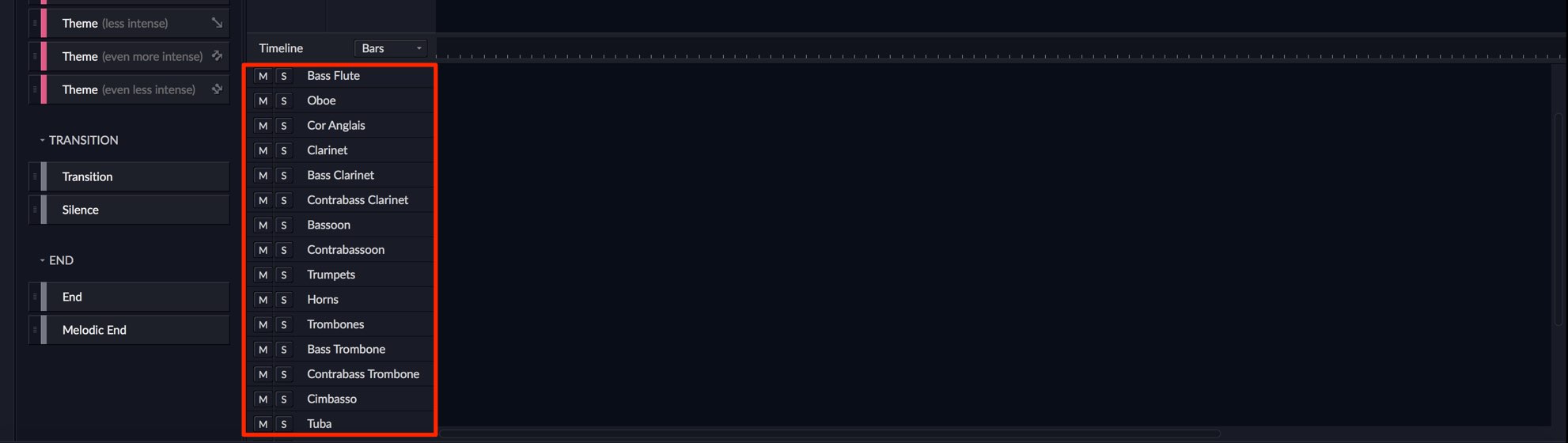
An assortment of orchestral instruments is now available.
Each instrument has a MIDI port assigned to it.
To check the ports,
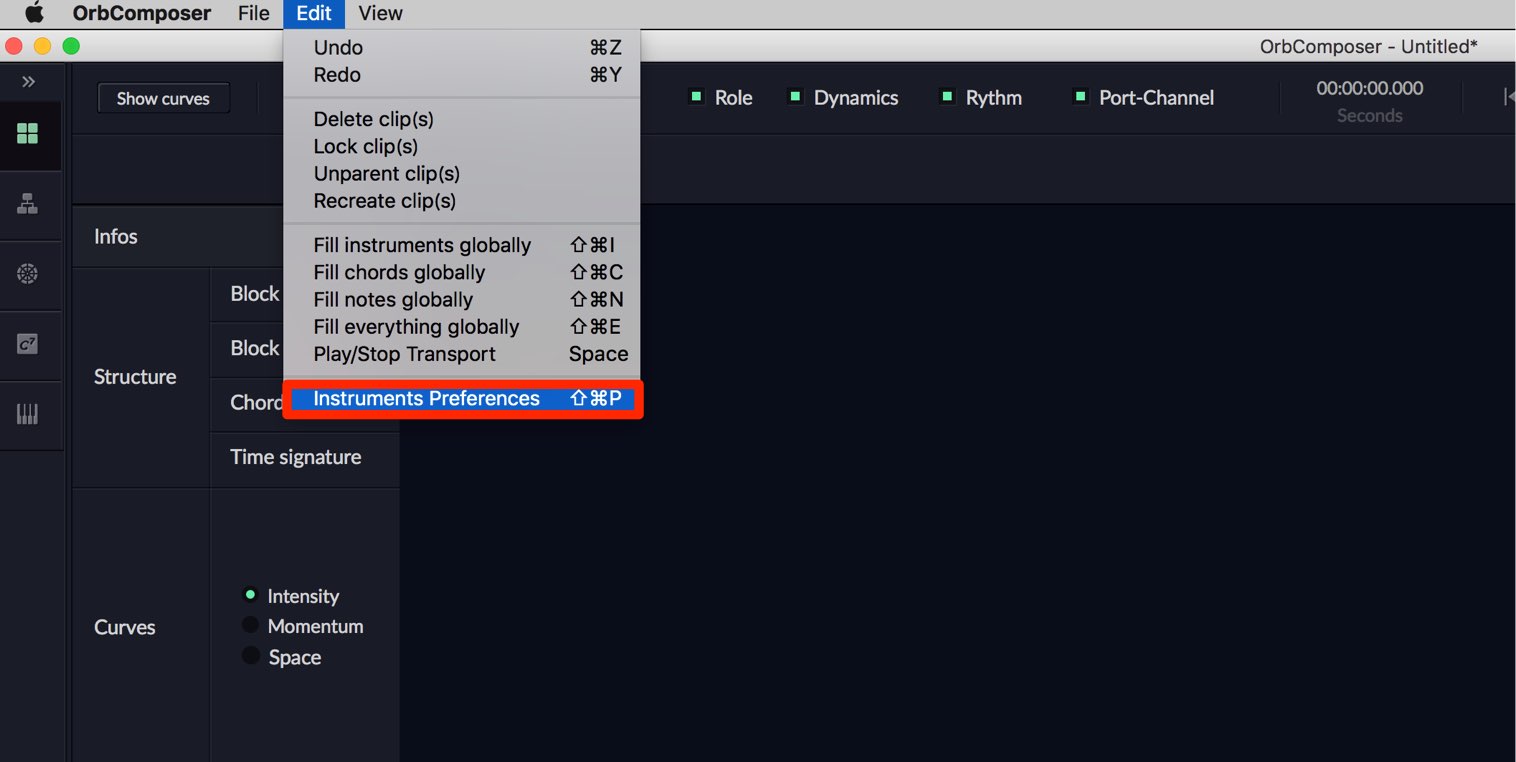
choose “Instruments Preference” from the “Edit” menu at the top.
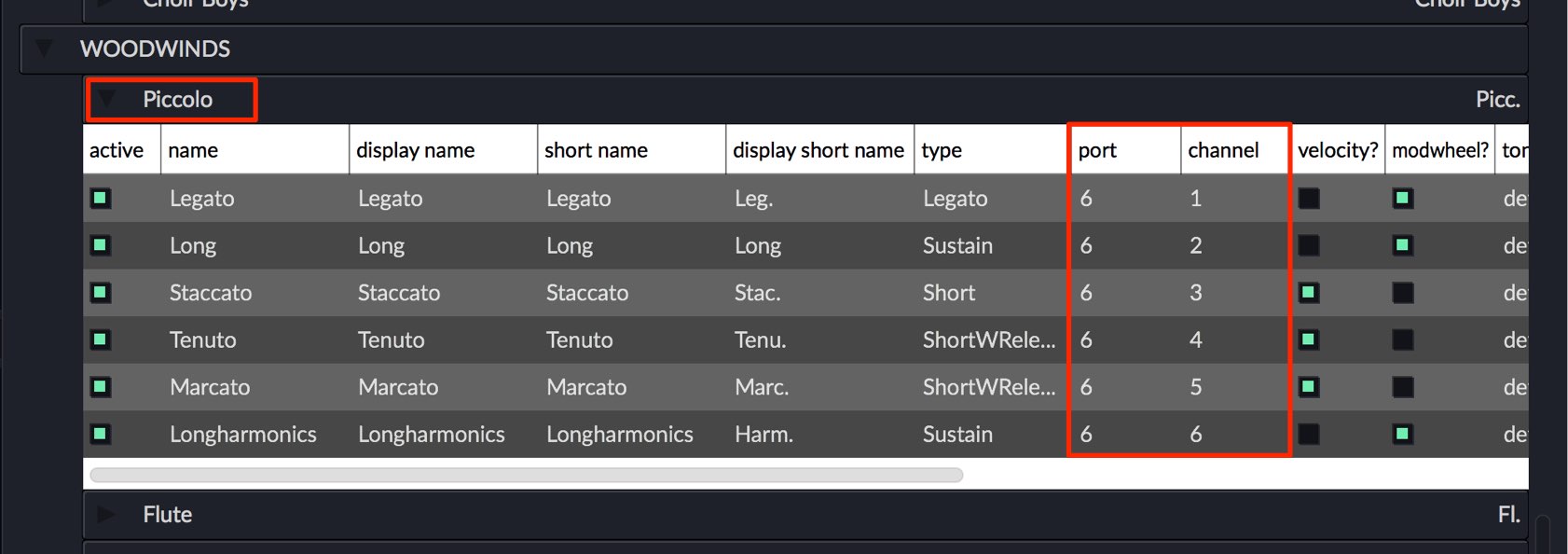
All instruments supported by the product are displayed.
Click an instrument to check its MIDI port and articulations (MIDI channels).
These need to match the instruments in your DAW.
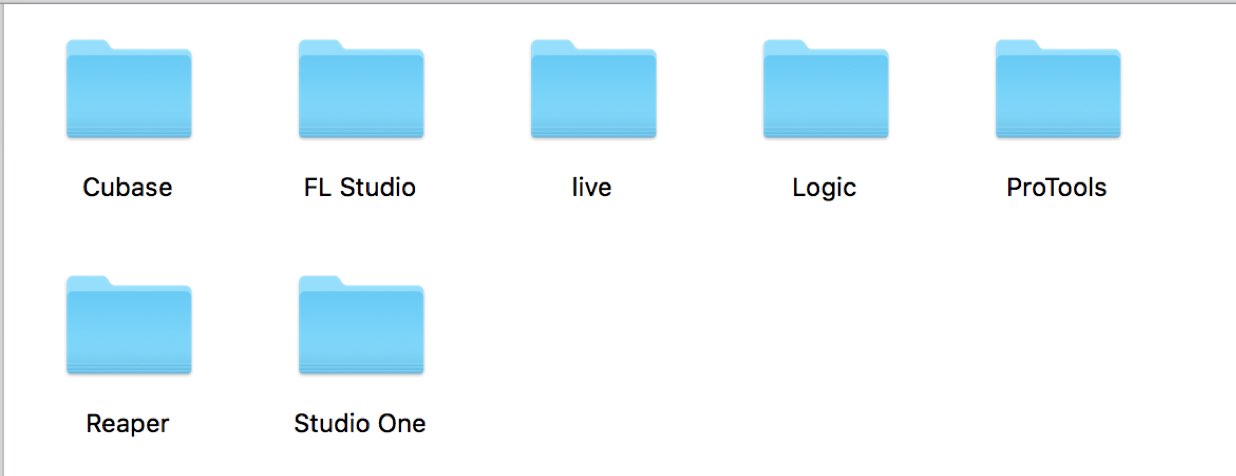
The product includes a “daw templates” folder containing setup templates for different DAWs.
We will use Cubase for this example.
Note: Be sure to launch ORB COMPOSER before starting your DAW.
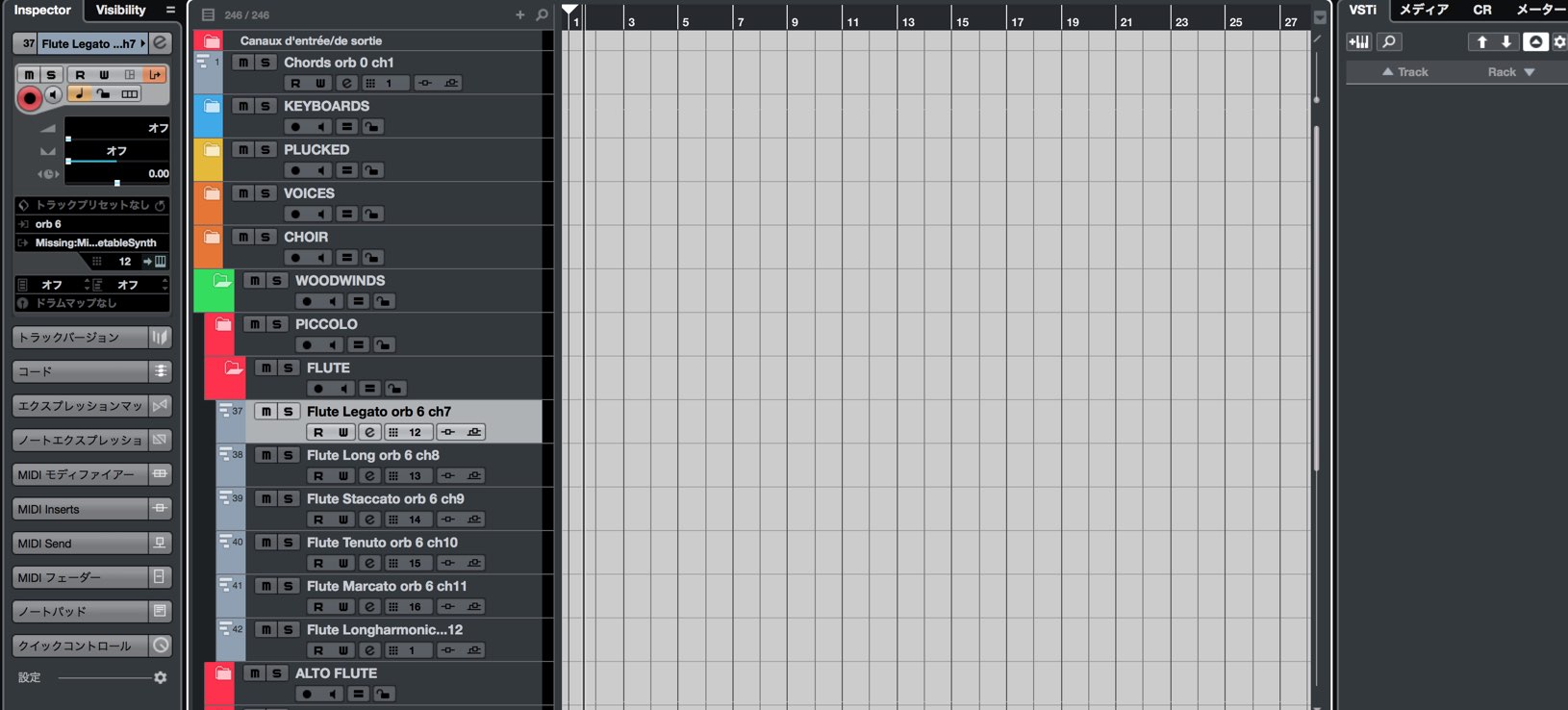
The template opens with tracks for each instrument and their MIDI ports and channels assigned.
No sound sources are assigned to the tracks yet, so we will load and assign them.
We will use a Kontakt instrument on the flute track as an example.
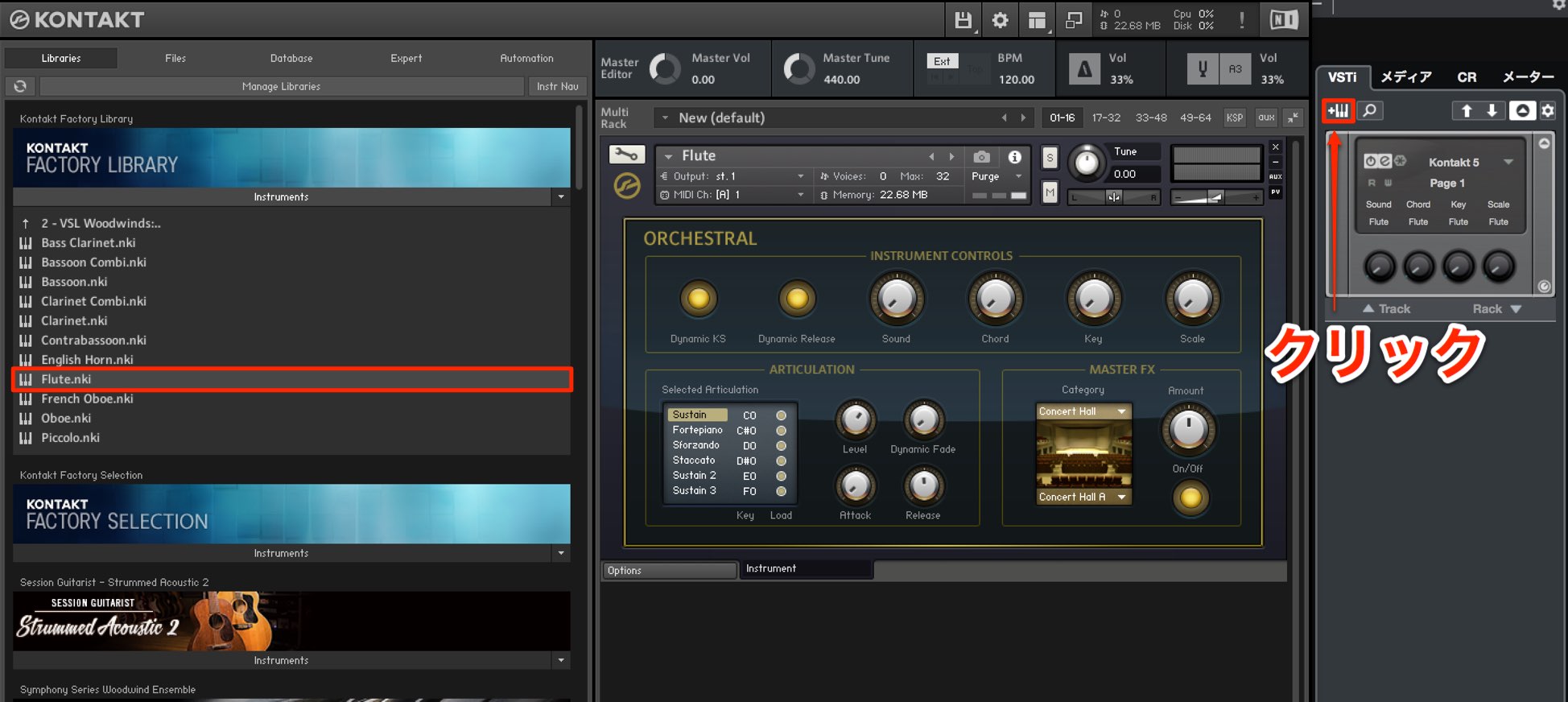
Click “+” in the rack to load Kontakt, then select a flute sound.
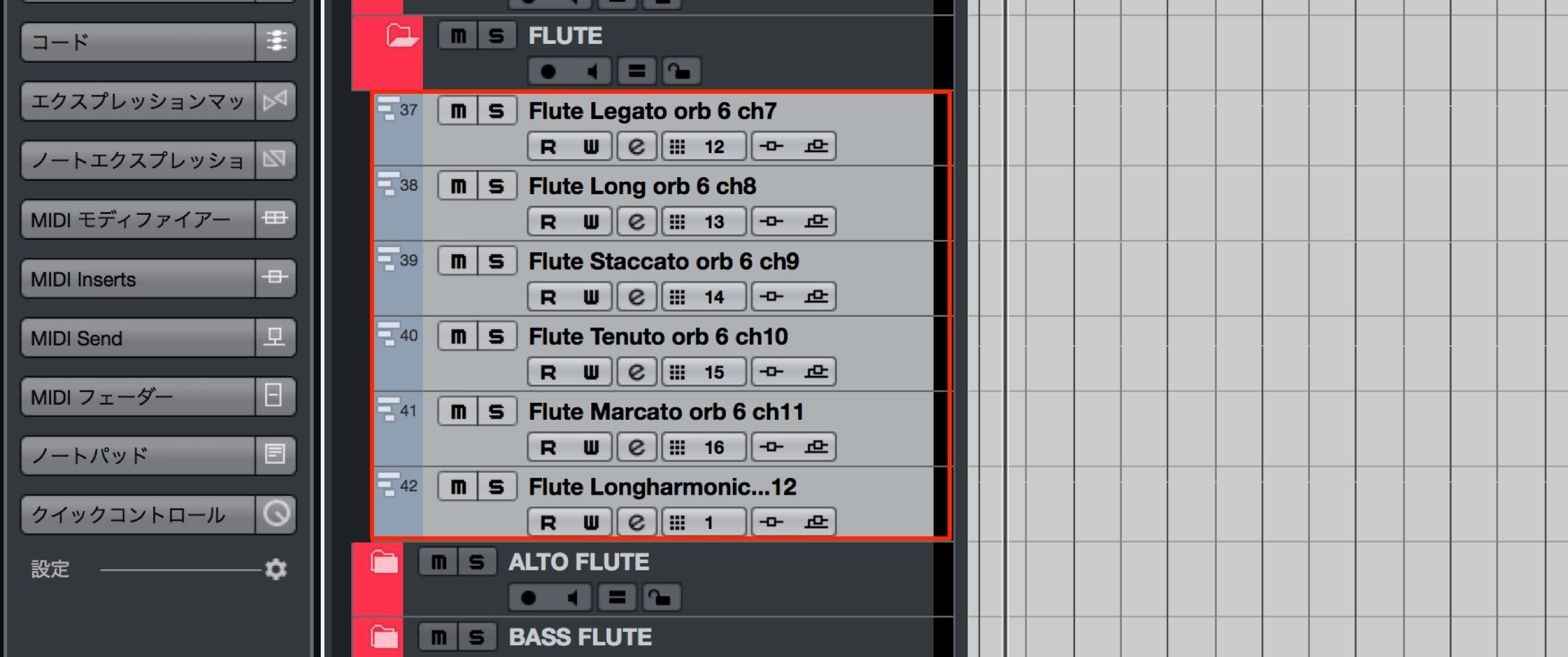
ORB COMPOSER also provides multiple articulations.
To reproduce them, prepare a separate instrument for each articulation.
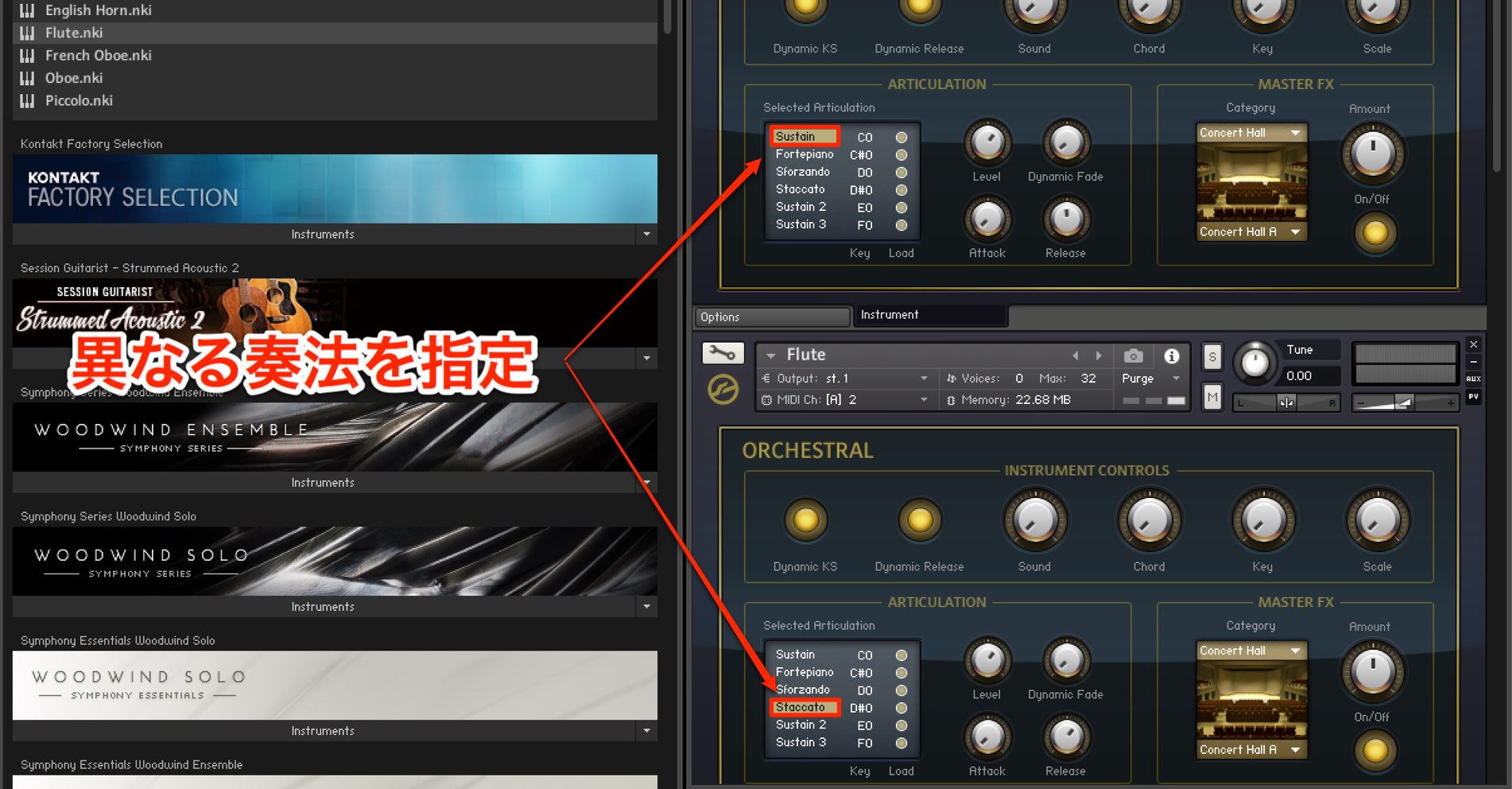
Load the same instrument multiple times in Kontakt and change the articulation for each instance.
Not all ORB COMPOSER articulations will necessarily be available in Kontakt or your chosen instrument.
In that case, substitute a similar articulation.
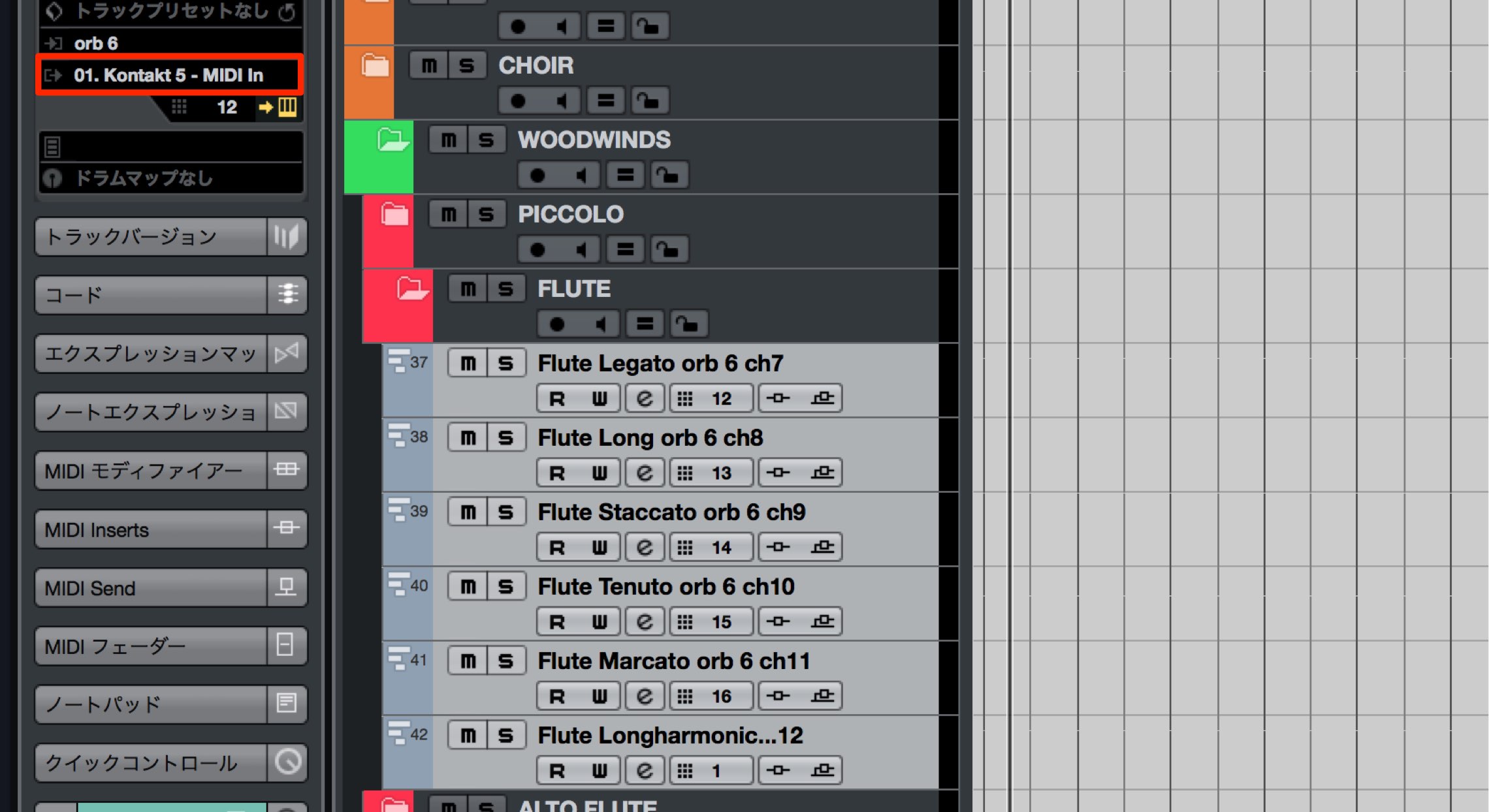
Assign the MIDI output of each track to the Kontakt instance you created.
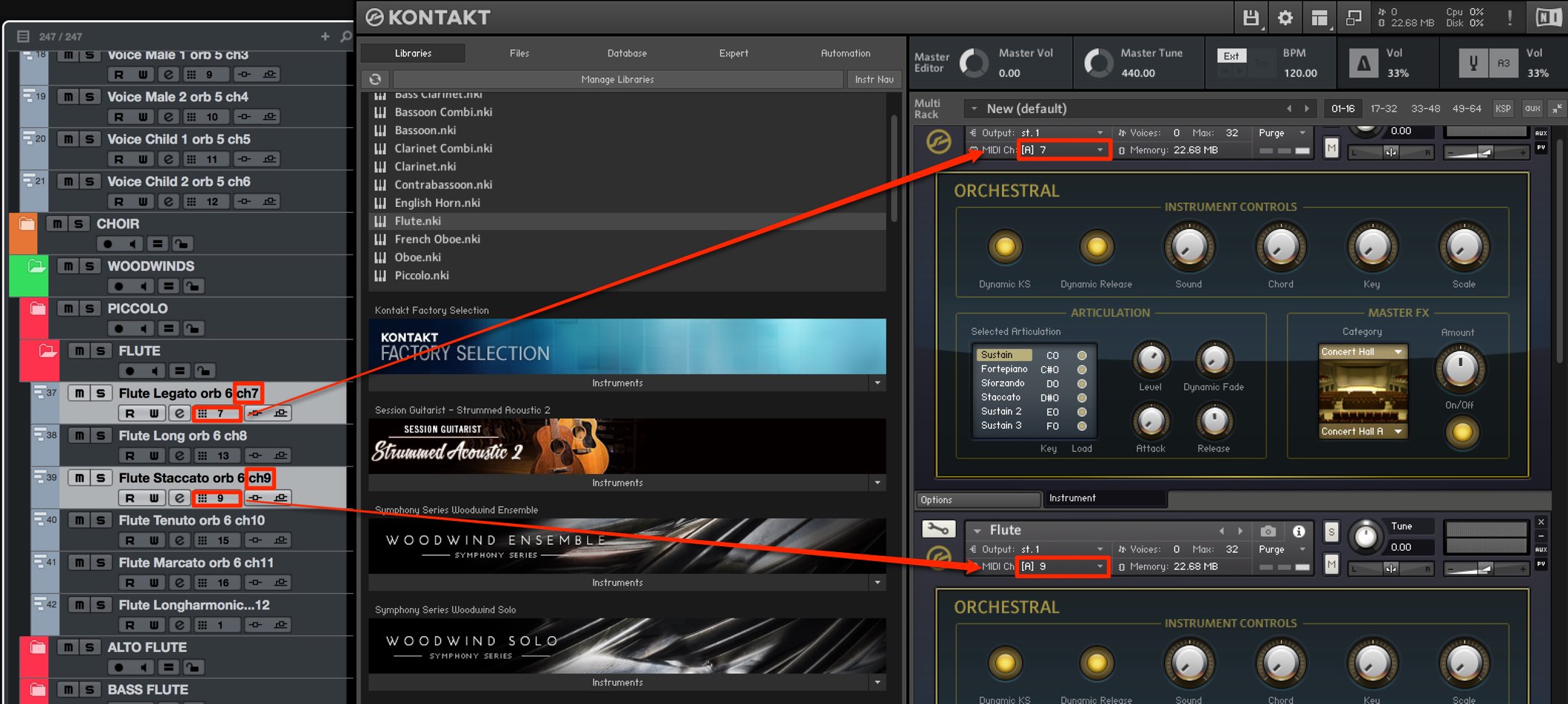
The channel for each articulation is shown in the track name, so set each track’s MIDI channel to match.
Set the corresponding MIDI channel for each instrument in Kontakt as well.
The flute track setup is now complete.
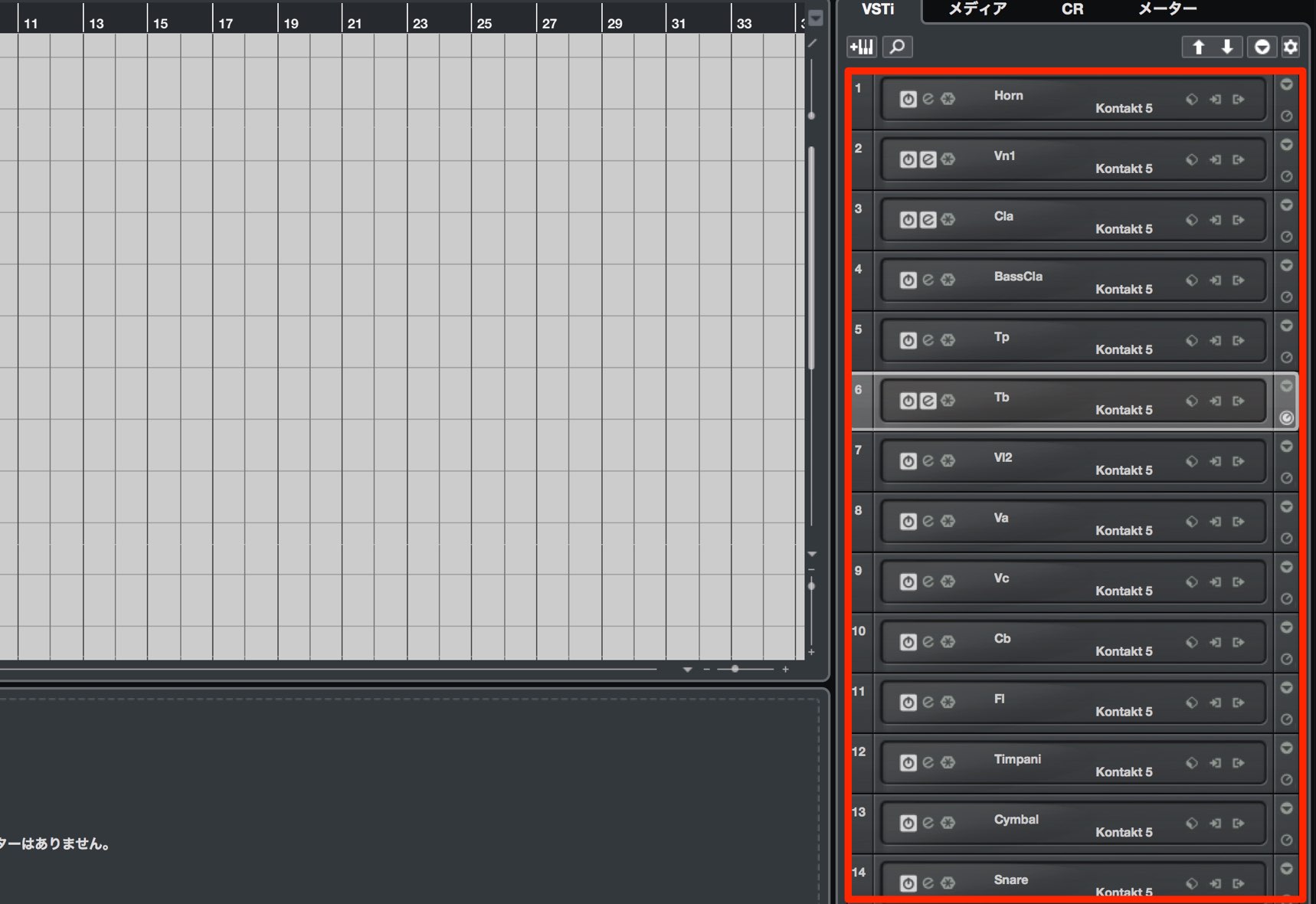
Repeat the instrument assignments for each instrument you need.
This can take considerable work, so we recommend saving the project as a template once the assignments are complete.
Using ORB COMPOSER
Once the instrument setup above is complete, the parts created by ORB COMPOSER will play through the instruments in your DAW.
Let’s look at the basic operation.
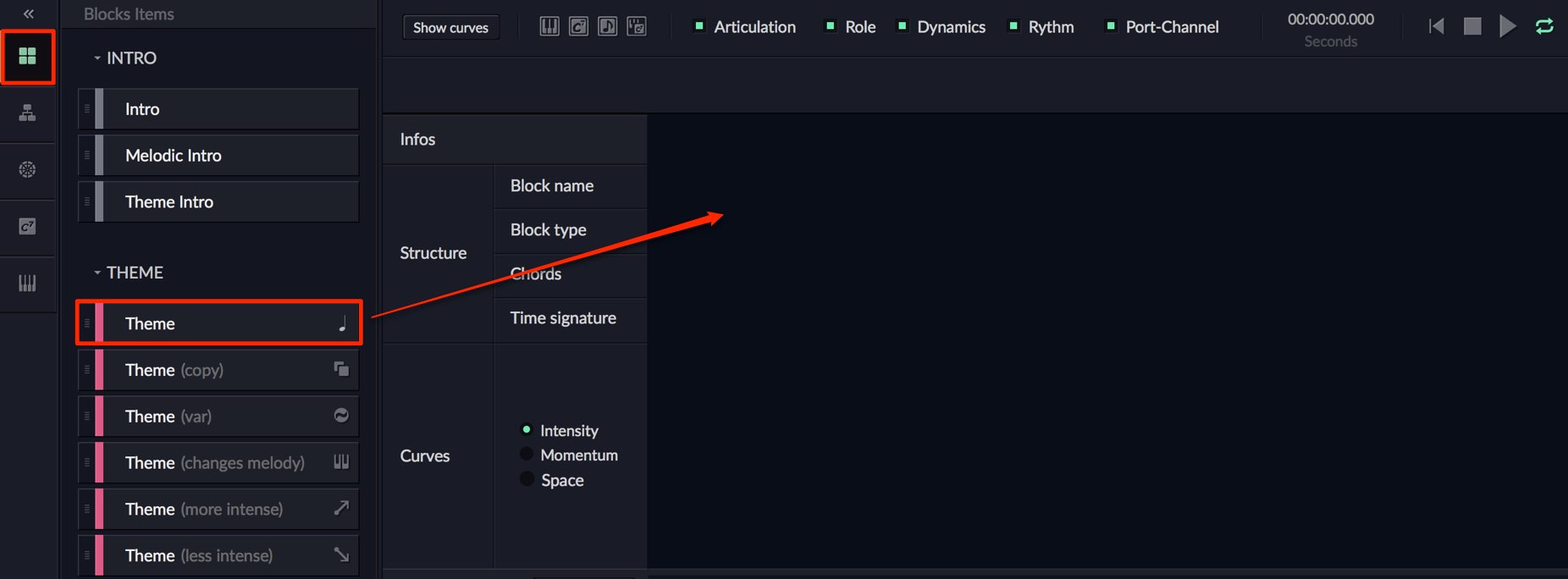
First, decide on the direction of the performance and composition.
Click “Block Items” and drag the structure you need.
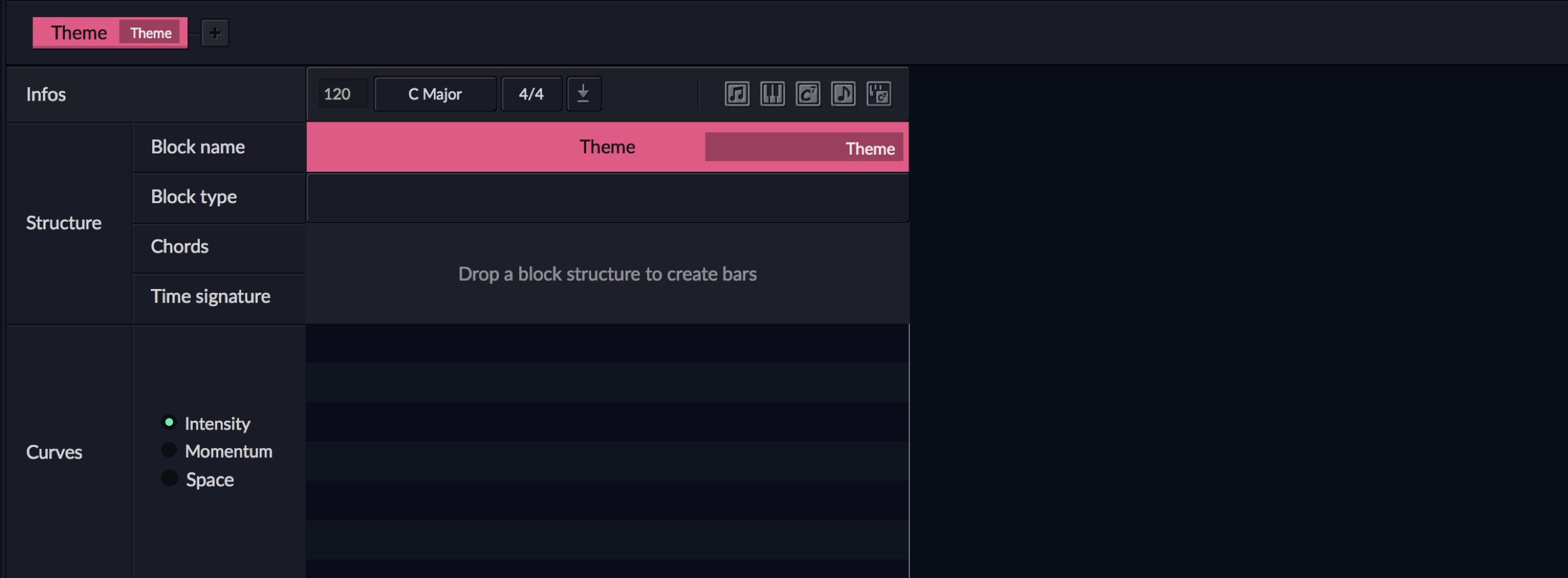
A theme has now been created.
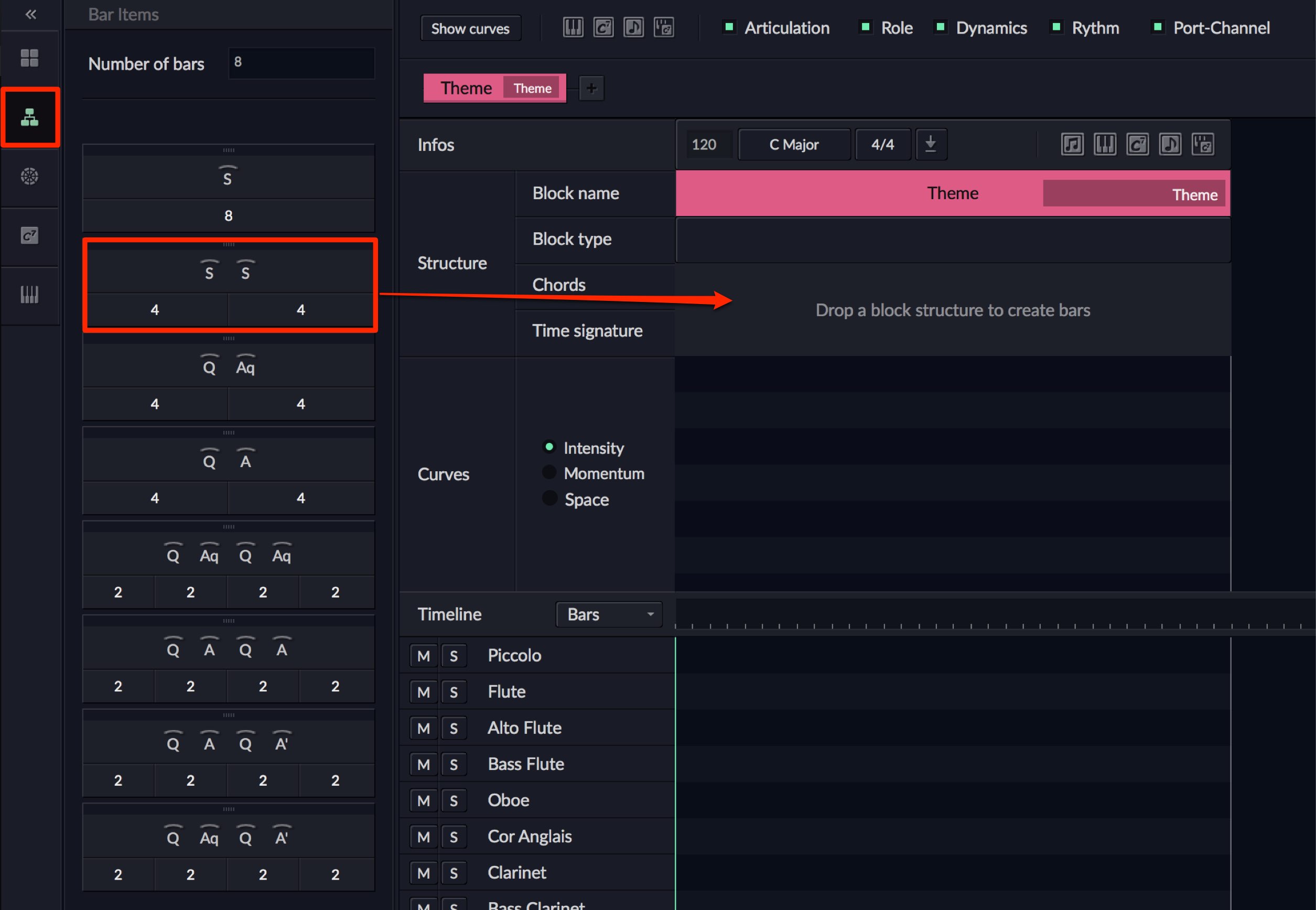
Use “Bar Items” to specify the number of bars in the theme.
Each option develops the arrangement differently.
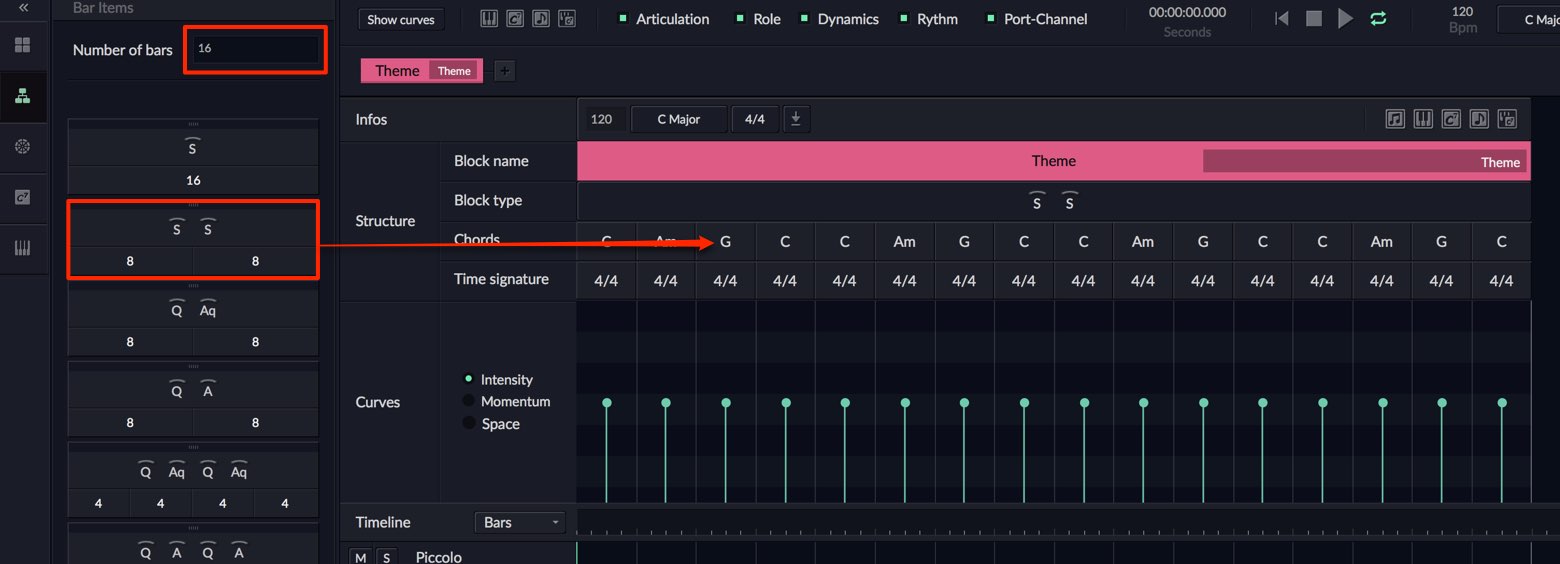
You can also specify the number of bars in the upper section.
A chord progression is generated automatically as well.
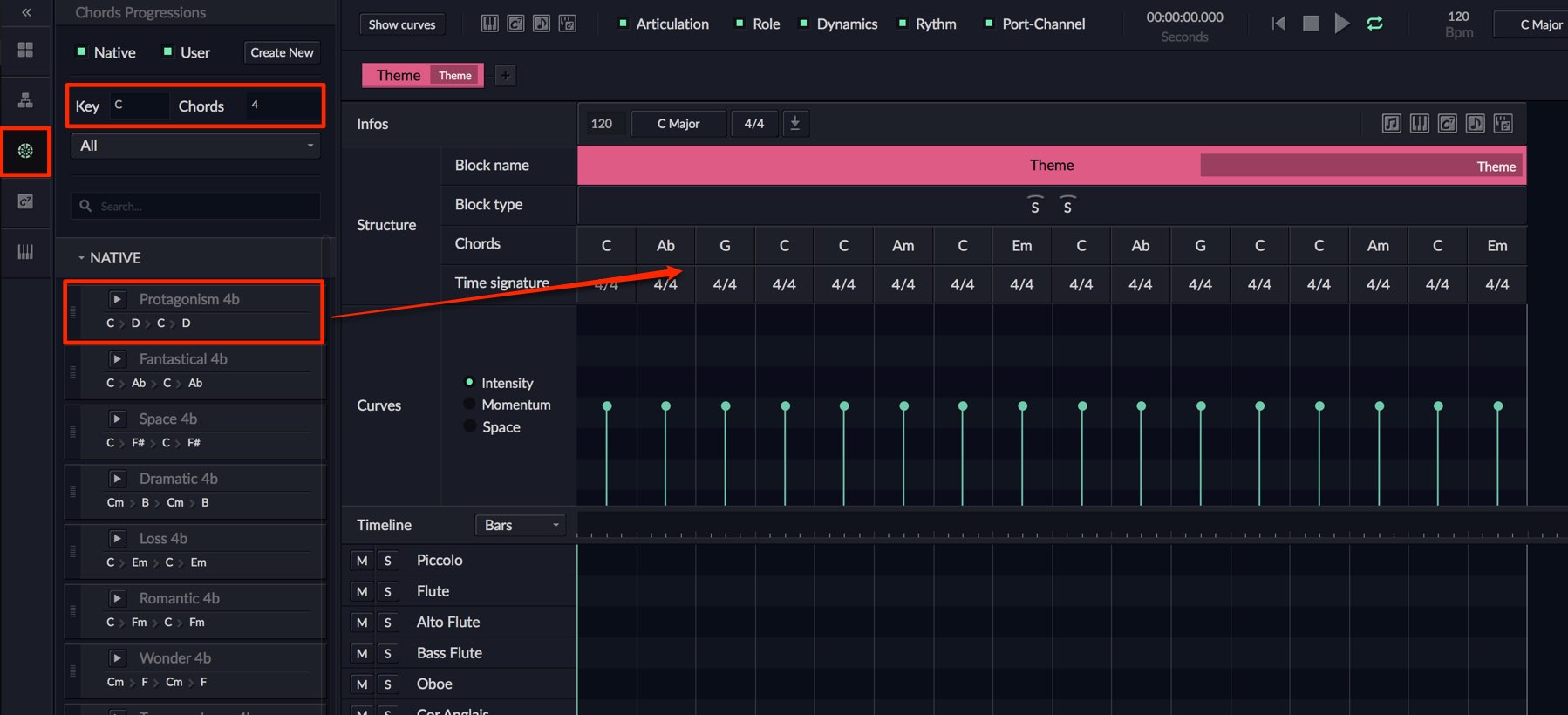
Under “Chords Progressions,” you can specify a chord progression for the theme.
You can also specify the key and number of chords, allowing a flexible range of variations.
Drag the desired chord onto the theme to replace the original chord.
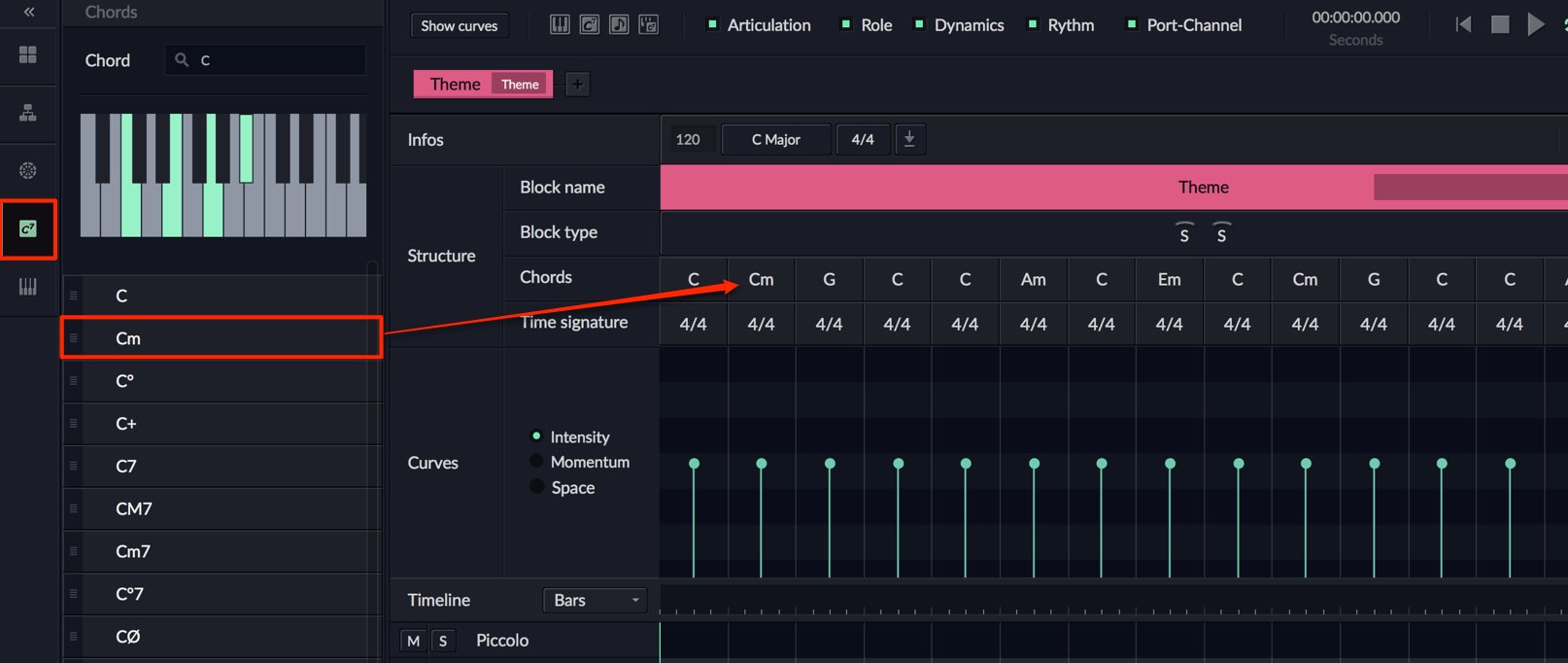
Under “Chord,” you can select and replace an individual chord.
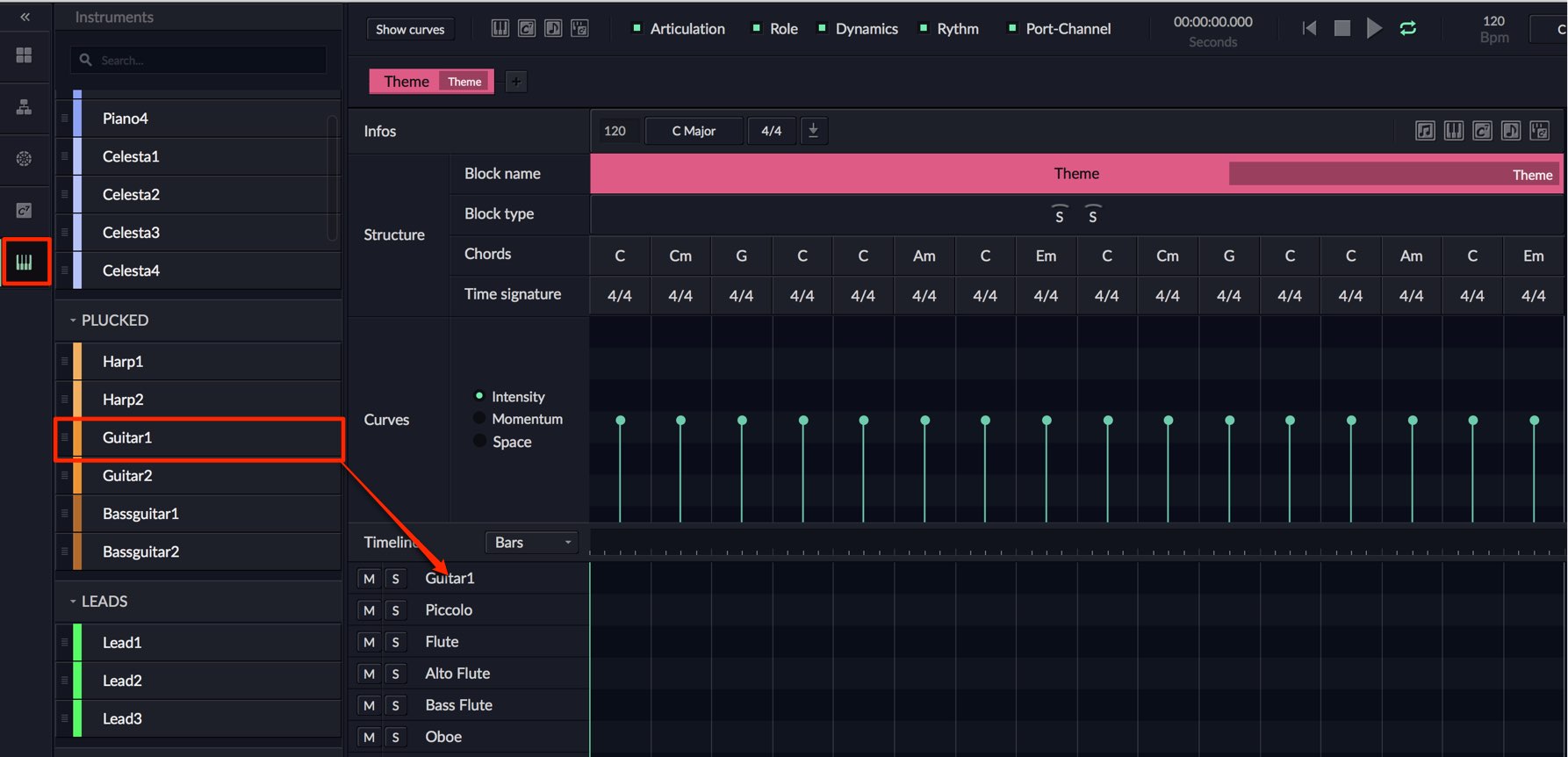
Under “Instruments,” you can load instruments beyond those in the template.
To play an added instrument, assign a sound source as explained above.
Once these settings are complete,
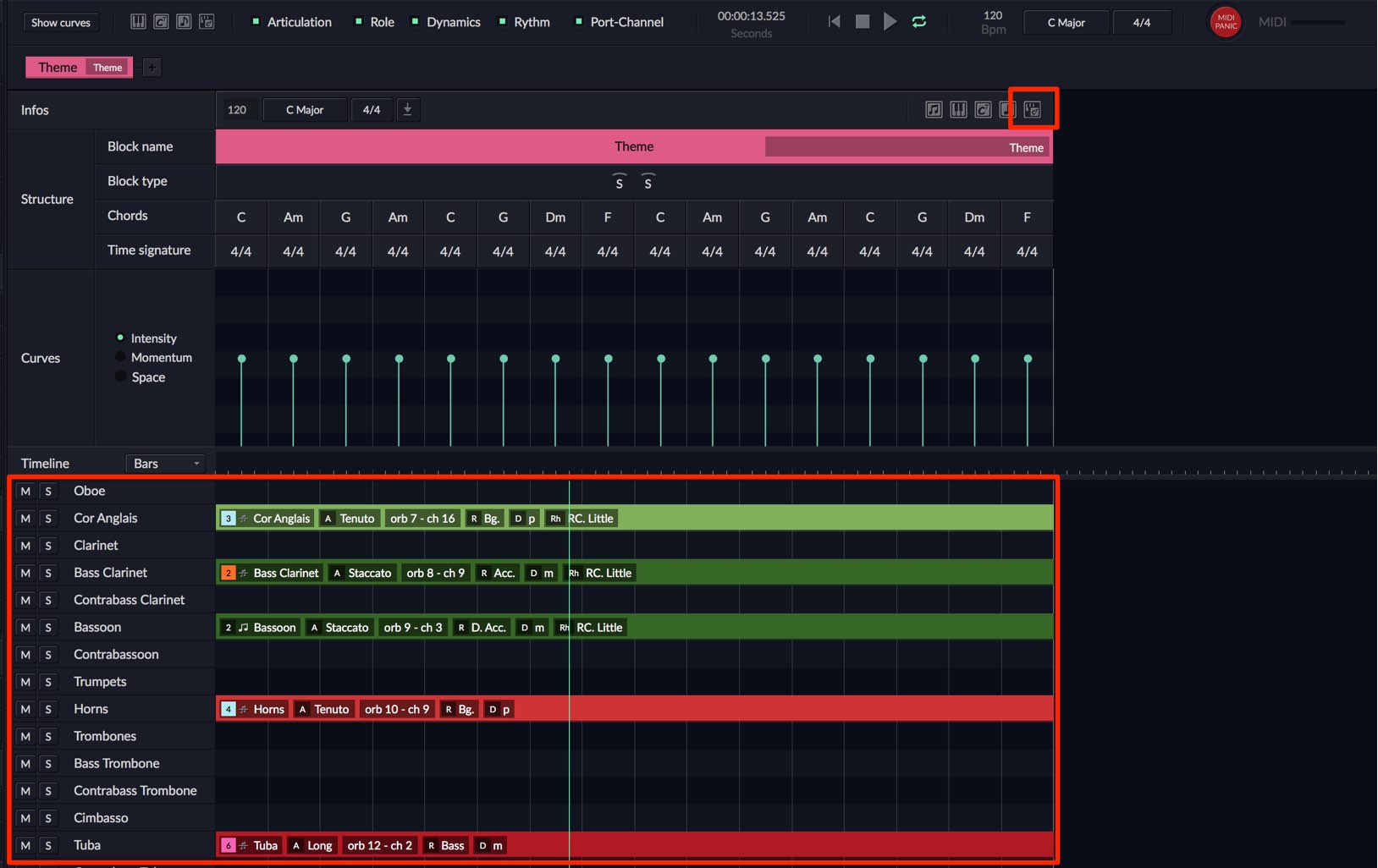
try pressing the button outlined in red.
Parts are automatically added for each instrument and the composition plays.
Every time you press the button, the AI generates a new pattern.
Of course, you can also change the chord progression after generating a performance.
Next time, we will explore this composition section.
ORB COMPOSER website: https://www.orb-composer.com
Frequently Asked Questions
Q1. Does ORB COMPOSER include sound sources?
No. ORB COMPOSER is composition assistance software and does not include sound sources. Load an external instrument such as Kontakt in your DAW and connect it, matching the MIDI ports and channels.
Q2. Can I start my DAW before ORB COMPOSER?
No. Start ORB COMPOSER before your DAW. If you do not follow this order, MIDI communication may not work properly.
Q3. How do I use multiple articulations?
Prepare a sound source for each articulation. Load the same instrument multiple times in Kontakt, change each articulation, and match the MIDI channels on the corresponding tracks.
Q4. Can I change an automatically generated chord progression later?
Yes. After generation, you can choose a new chord in the “Chord Progressions” section and drag it to replace the original.
Q5. Which DAWs does ORB COMPOSER support?
This article demonstrates setup with Cubase, but the product includes setup templates for multiple DAWs in its “daw templates” folder.
NEW ARTICLES
Latest English Articles






















































































































































































































































































































