
When creating vocals with VOCALOID, editing the performance after entering the melody and lyrics is an important step. This article explains how to use velocity and dynamics to move beyond flat, mechanically entered notes and create a more human-sounding performance. Adjust articulation and rhythm with velocity, add detailed changes over time with dynamics, and reinforce consonants with an additional track. A practice file is also provided, making these techniques useful for beginners and experienced users alike.
Making VOCALOID Sing More Naturally
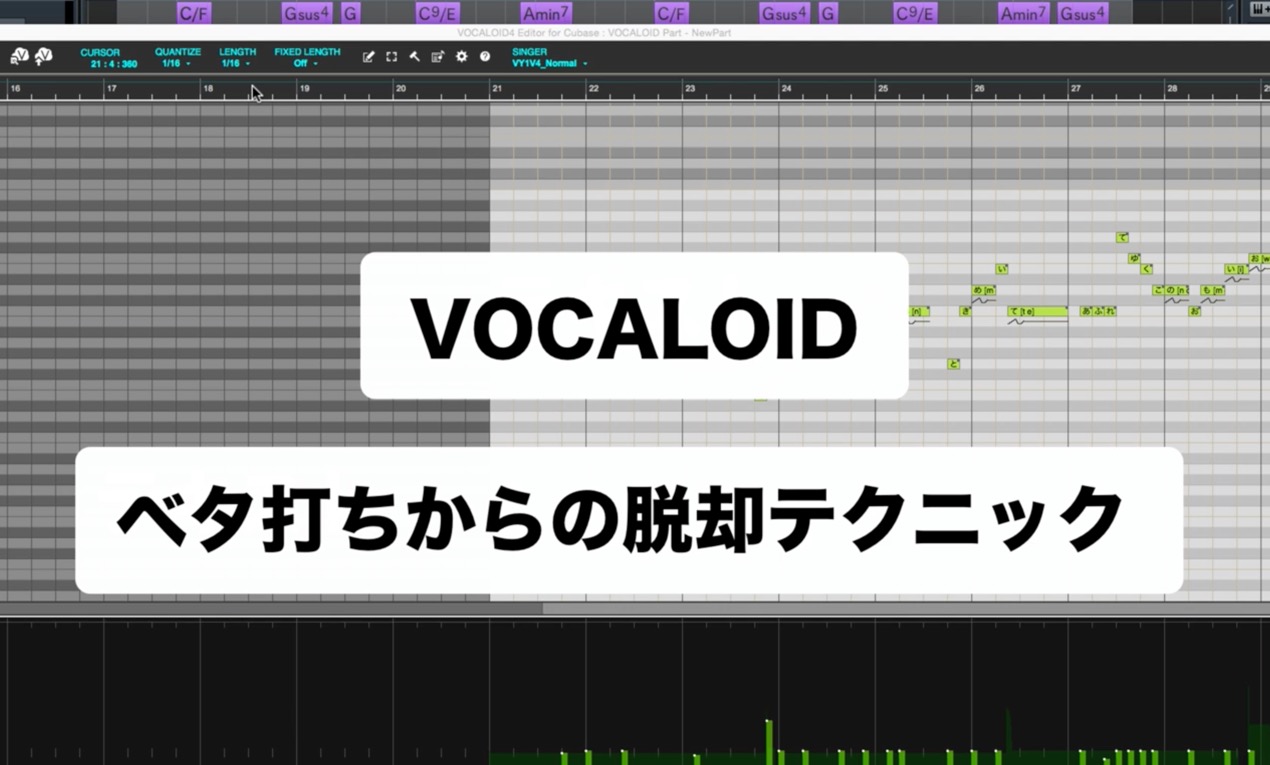
As VOCALOID has become more capable and easier to use,
more people may be trying it for the first time.
In this two-part series, we’ll cover the basic steps for moving beyond the flat sound of mechanically entered notes.
Let’s explore them.
These editing techniques are often referred to as “tuning” the vocal.
A file for Vocaloid Editor is included at the end of the article, so please make use of it.
VOCALOID Tips Part 1: Velocity and Dynamics — Video
1. Velocity and Dynamics (this article)
2. Pitch
Purchase the product
Selected Questions and Answers from the YouTube Video

I currently use Piapro, but lately I’ve been interested in VOCALOID5. What do you at Sleepfreaks think? I’d like to know what is good about it and how its features differ.

I have not used Piapro very much, so please consult other sources as well before deciding. I noticed that Piapro takes a little time before playback and that, when playback is started from Piapro, only its notes play rather than the DAW’s sound. For those reasons, I personally feel that VOCALOID5 may be easier to use.
Adjusting Articulation and Rhythm with Velocity
After entering the melody and lyrics, the first parameter to adjust is velocity.
Unlike a typical instrument, VOCALOID handles velocity as follows:
- Increase velocity
- Decrease velocity
The preceding note becomes longer, while the consonant of the note whose velocity was raised becomes shorter.
The preceding note becomes shorter, while the consonant of the note whose velocity was lowered becomes longer.
Use this behavior to control articulation and rhythm.
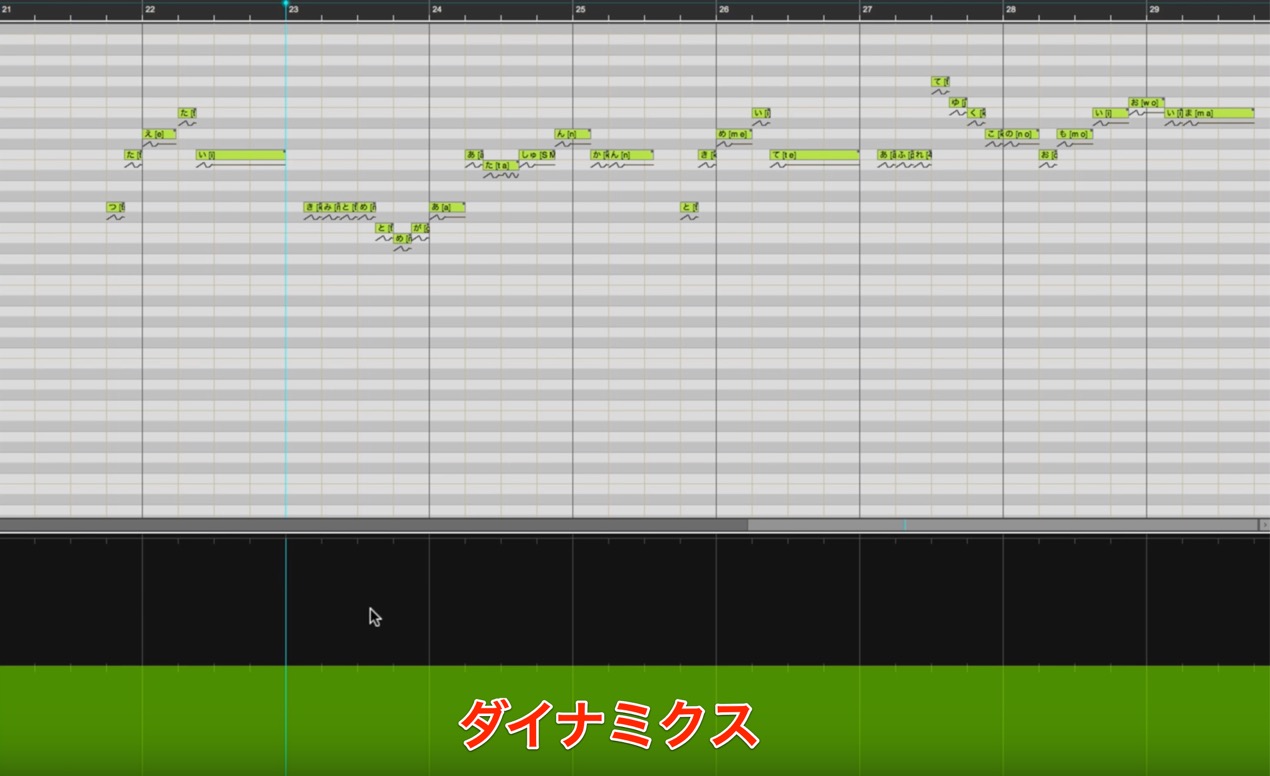
For example, when a phrase consists of short notes with lyrics distributed across them as shown below,
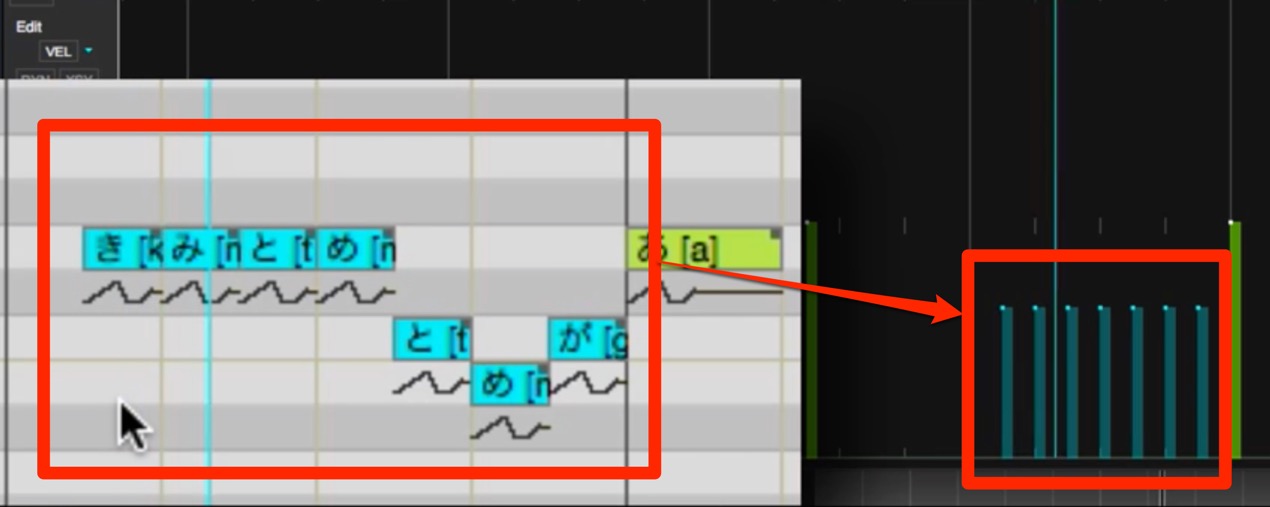
lowering velocity makes each note clearer and the singing more lively.
Make Finer Adjustments with Dynamics
Another important parameter for adjusting articulation and rhythm is dynamics.
Dynamics lets you make detailed volume adjustments over time, allowing you to shape
subtle nuances that velocity alone cannot achieve.
For example, if you want to adjust a standalone vowel note and the note before it,
velocity cannot make that adjustment, so use dynamics instead.
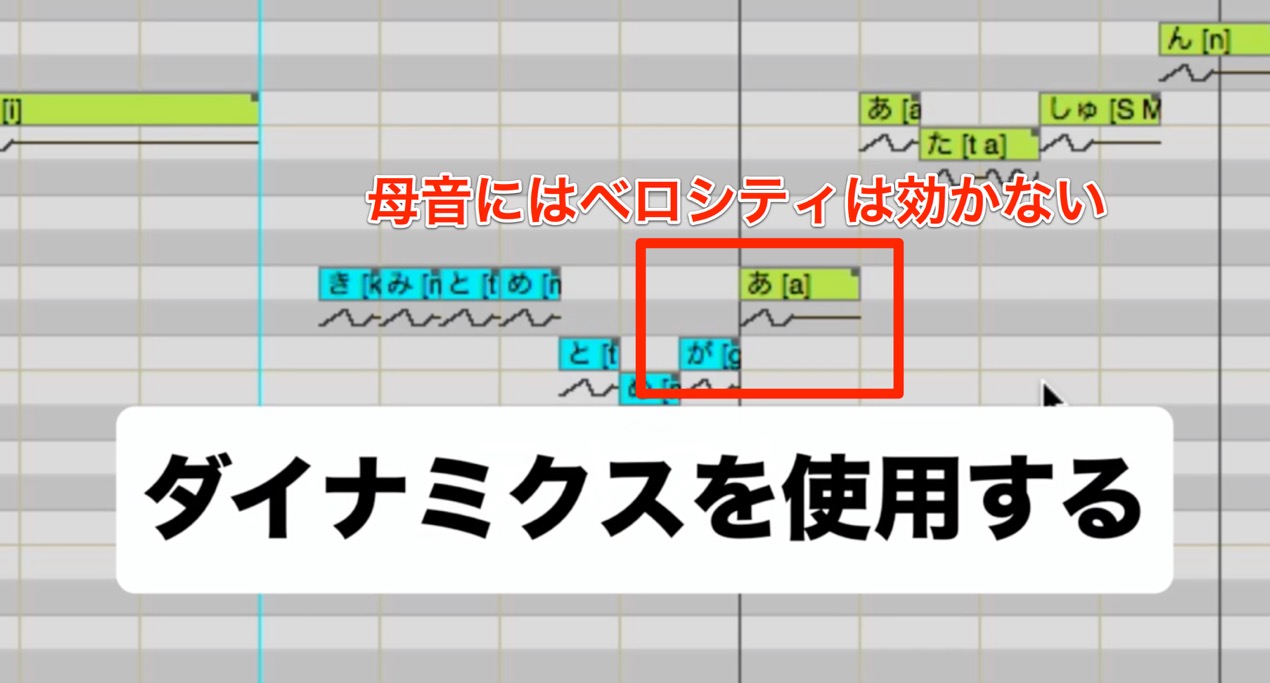
Editing Dynamics
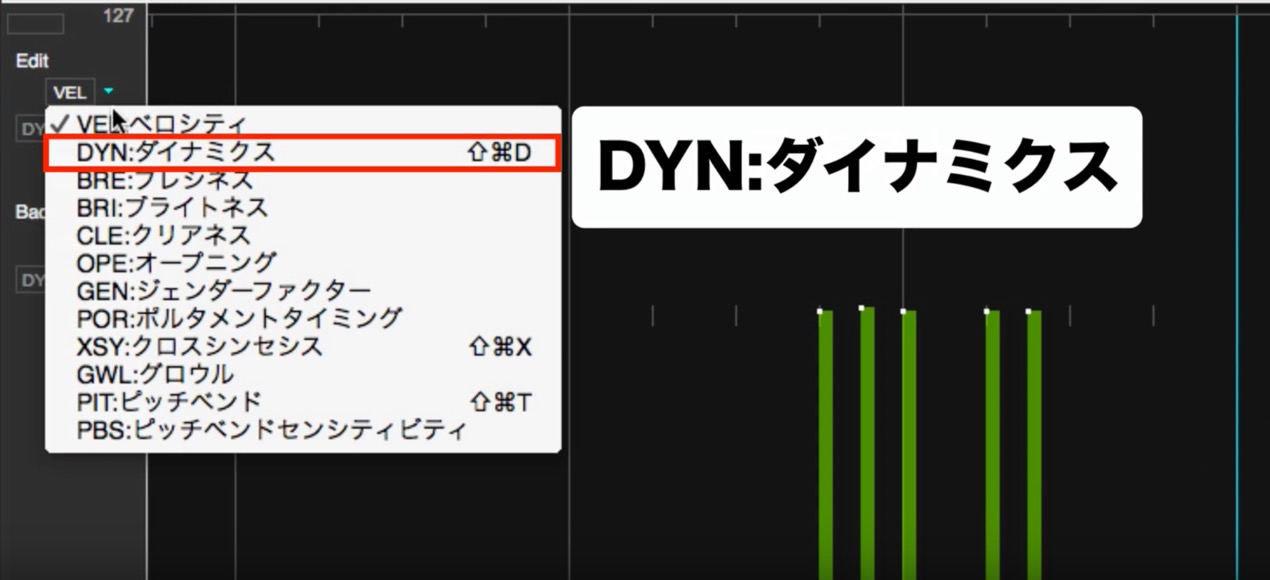
Change the controller lane, which defaults to velocity, to “DYN: Dynamics.”
The green area shown in the lane represents dynamics.
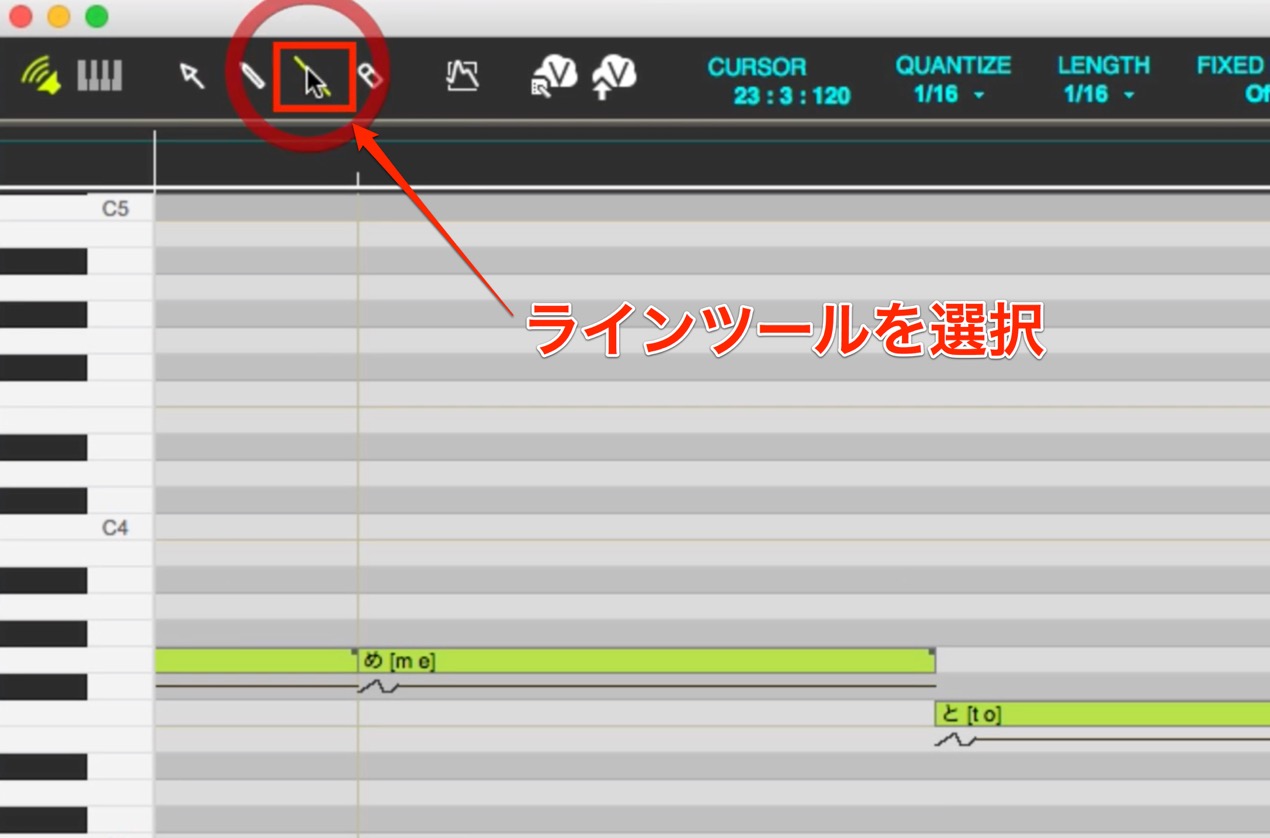
Select an editing tool from the upper-left menu. For this example, let’s use the line tool.
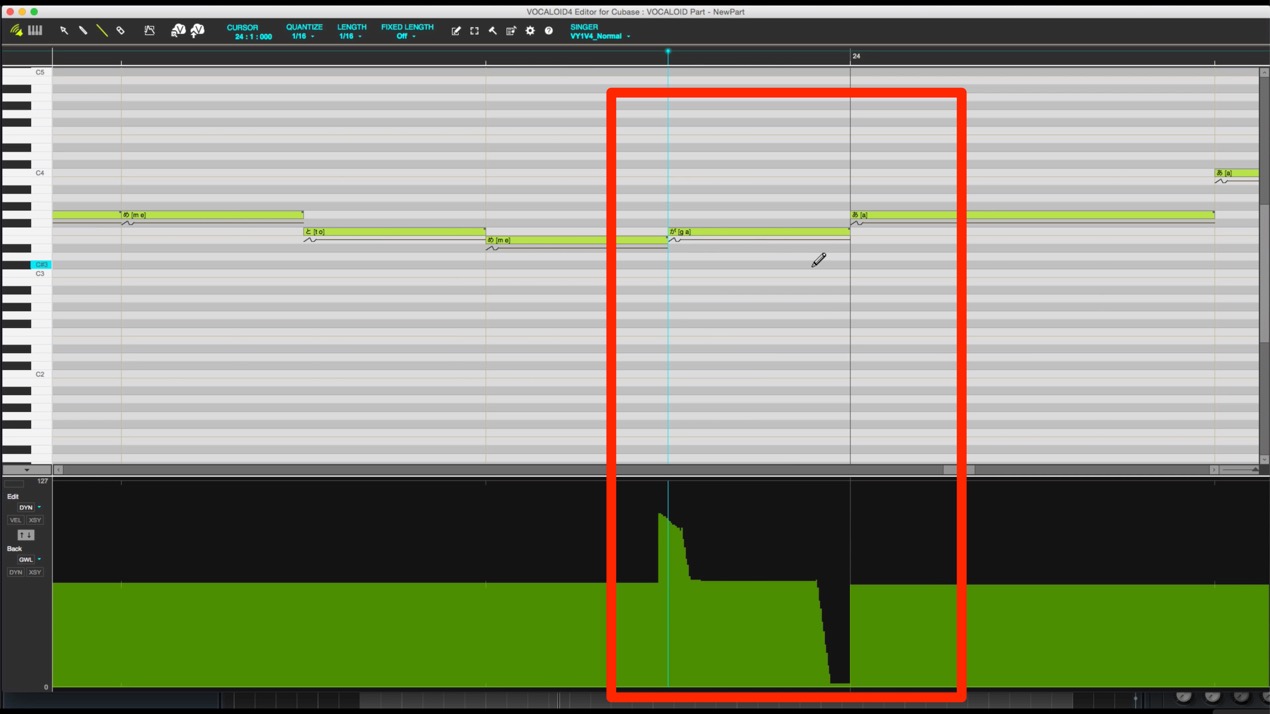
To make the rhythm from “ga” to “a” more lively, we lowered the volume after the vowel in “ga,”
shortening its effective duration. Plosive consonants such as the one in “ga” also tend to be particularly weak in VOCALOID.
We raised the volume of the consonant portion to improve articulation.
The key is to start entering the parameter slightly before the note.
Reinforce Consonants on an Additional Track
Even after adjusting dynamics as above, articulation may still sound weak or unnatural.
In that case, an effective technique is to create another VOCALOID part to reinforce the consonants
.
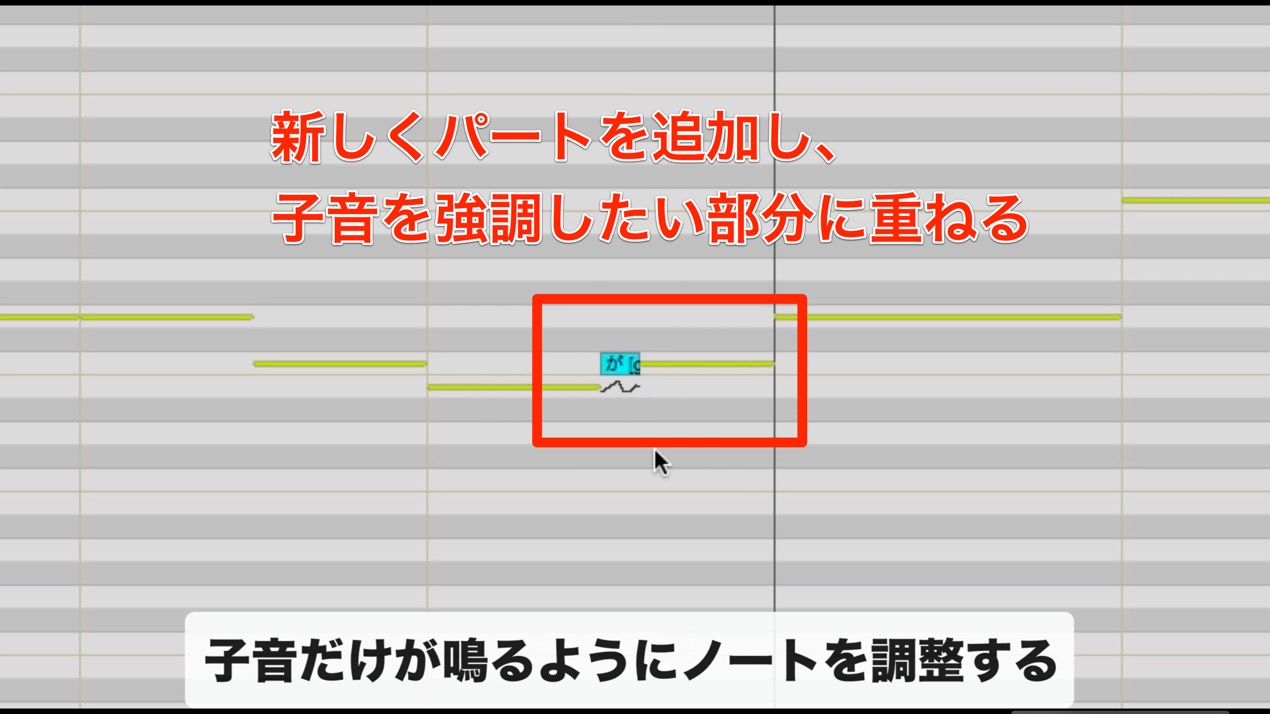
In the additional part, shorten the notes so that only the consonants are pronounced.
With both parts sounding together, the words come through more clearly.
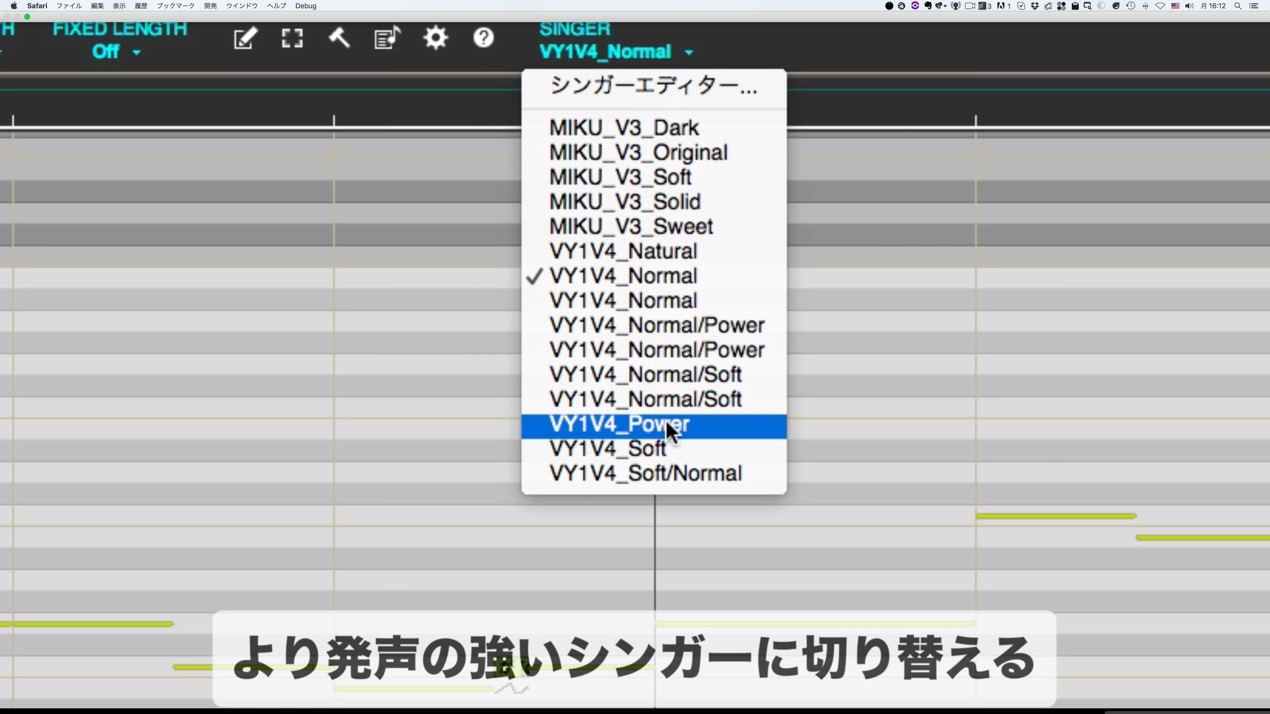
If that is still not enough, you can also change the singer only on the additional part.
Summary and What’s Next
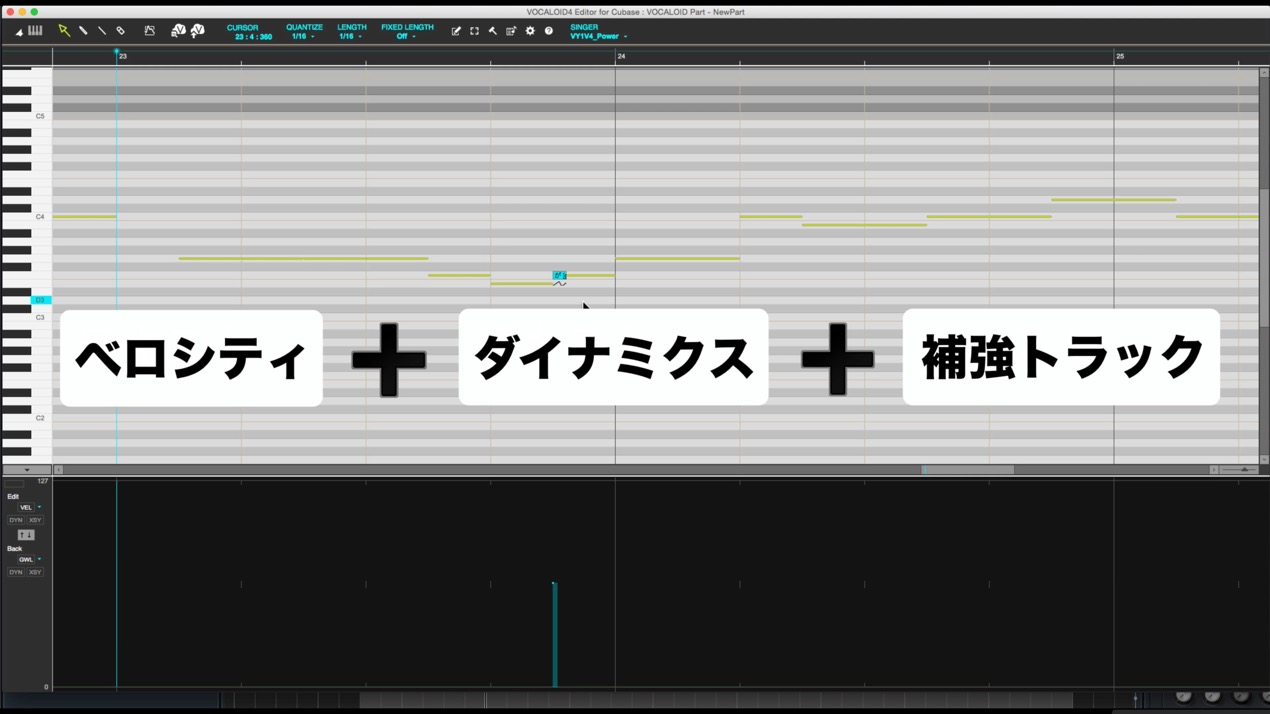
By combining velocity, dynamics, and a reinforcing track,
you can make VOCALOID sing with more life.
You can download a VSQX file with the work from this tutorial applied here.
If you have Vocaloid Editor, open it and try it out.
Next time, we’ll look at techniques for adding more vocal expression by editing pitch.
Stay tuned.
Purchase the product
Frequently Asked Questions
Q1. Does VOCALOID velocity work the same way as it does with a MIDI instrument?
No. In VOCALOID, increasing velocity lengthens the preceding note and shortens the consonant; decreasing it has the opposite effect. Understanding this behavior and using it to control articulation and rhythm is a basic part of vocal editing.
Q2. When should I use dynamics instead of velocity?
Use velocity for broad adjustments to rhythm and articulation, and dynamics when you want detailed volume changes over time. Dynamics is especially useful for subtler expression, such as adjusting standalone vowels.
Q3. What can I do if plosive consonants are unclear?
You can raise the volume of the consonant with dynamics and add a separate reinforcing part that sounds only the same consonant. Playing the two parts together makes the articulation clearer.
NEW ARTICLES
Latest English Articles


































































































































































































































































































































































































































