
The Chord Track in PreSonus Studio One 4 is an innovative feature that makes music production much more efficient. Setting up chord progressions, automatically analyzing MIDI and audio, and transposing with ease can greatly reduce the time spent composing and arranging. You can also make performances automatically follow a specified chord progression, hear the musical effect of chord changes in real time, and choose different modes to suit different types of tracks. It is a practical tool for beginners and advanced users alike, useful throughout the music-production process.
Practical Chord Assistance for Music Production
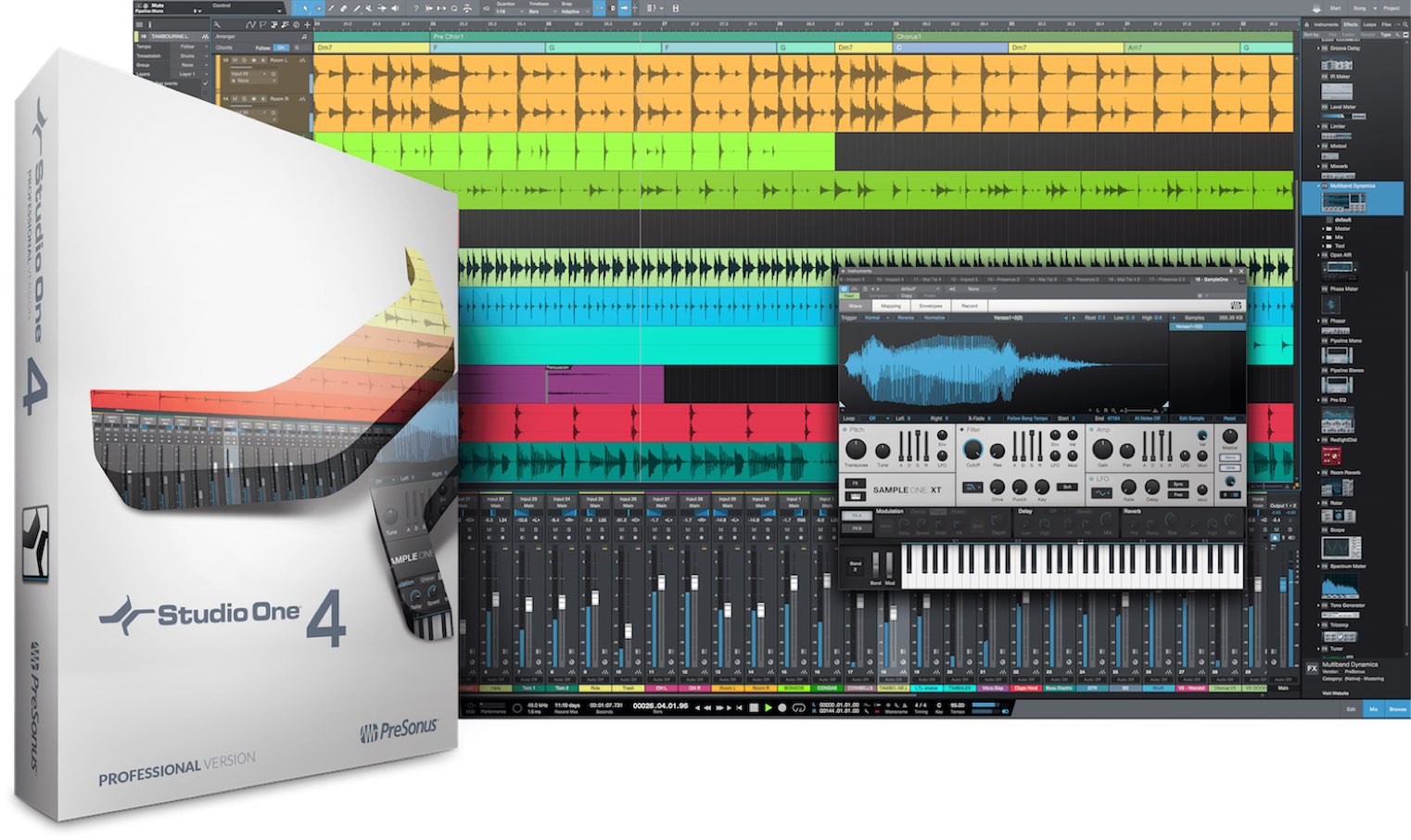
PreSonus Studio One 4 had just been released at the time of this article.
It introduced many powerful new features.
In this article, we will focus on the Chord Track, which uses new technology to help you build chords.
This innovative feature lets MIDI and audio follow a specified chord progression and can analyze chords in audio material, making it extremely useful in real-world production.
Studio One 4’s Innovative Chord Track: Video Tutorial
Selected Questions and Answers from the YouTube Video

I do not see a Chord Track button. How can I make it appear?

The Chord Track is available only in Studio One Professional. If it does not appear, you may be using a different edition.
When extracting chords from an audio file to the Chord Track, is it possible for the overall key of the song not to be displayed?
We have encountered this with material that has little harmonic content or consists mainly of rhythmic elements.
May I ask a question? In this video, a track is already set up before you open the Chord Selector. Can I create just a Chord Track first and hear the notes I enter in the Chord Selector? In other words, can the Chord Track make sound on its own? Sorry if that is unclear!
Yes. This became possible in version 4.5, which had recently been released when this reply was written. https://sleepfreaks-dtm.com/for-advance-studioone/studio-one-4-5-new/
Hello, and thank you for your help. I am a complete beginner and have just started using Studio One. For some reason, I cannot see the Chord Track button. Could you explain how to display it?
It is difficult to identify the cause from the comment alone. First, are you using Studio One 4 rather than version 3, and specifically the top edition, Studio One 4 Professional? At the time, there were three editions: Prime (free), Artist, and Professional (the top edition). Available features depend on the edition. There are limitations beyond the Chord Track as well, so please check the distributor’s comparison page below. https://www.mi7.co.jp/products/presonus/studioone/compare/
Is this free?
This feature is available only in Studio One Professional.
After MIDI notes have been rearranged using Follow Chords, can I edit the resulting phrase and then detach it from the Chord Track so it stays independent? When I copy the edited phrase to another location, the Chord Track changes the note arrangement again.
Right-click the track event you want to use and choose “Freeze Pitch” from the Musical Functions menu. https://app.box.com/s/lvsgaawp9wfsvlubamzzd1cwqqb74fj4 Then turn off Follow Chords for that track. The edited phrase will no longer be affected by the Chord Track.
I would like the instrument called Pluck. Where can I get it?
Many third-party virtual instruments include pluck sounds. Here are a few products we recommend that we have covered in our tutorials. Serum https://sleepfreaks-dtm.com/softsynth/xfer-records-serum-1/ Avenger https://sleepfreaks-dtm.com/softsynth/avenger_preset/ Spire https://sleepfreaks-dtm.com/softsynth/reveal-sound-spire/ Omnisphere https://sleepfreaks-dtm.com/softsynth/omnisphere-1/ We think these offer some very good sounds.
Is this a free update from Studio One 3 to 4?
The upgrade was paid. Pricing was listed on the following page. https://www.mi7.co.jp/products/presonus/studioone/buy/
I am using the demo version, but there are no presets at all. What should I do?
Can you download them using the method in the following article? https://sleepfreaks-dtm.com/dtm-trouble/download-content/ Please give it a try.
Building a Song with the Chord Track
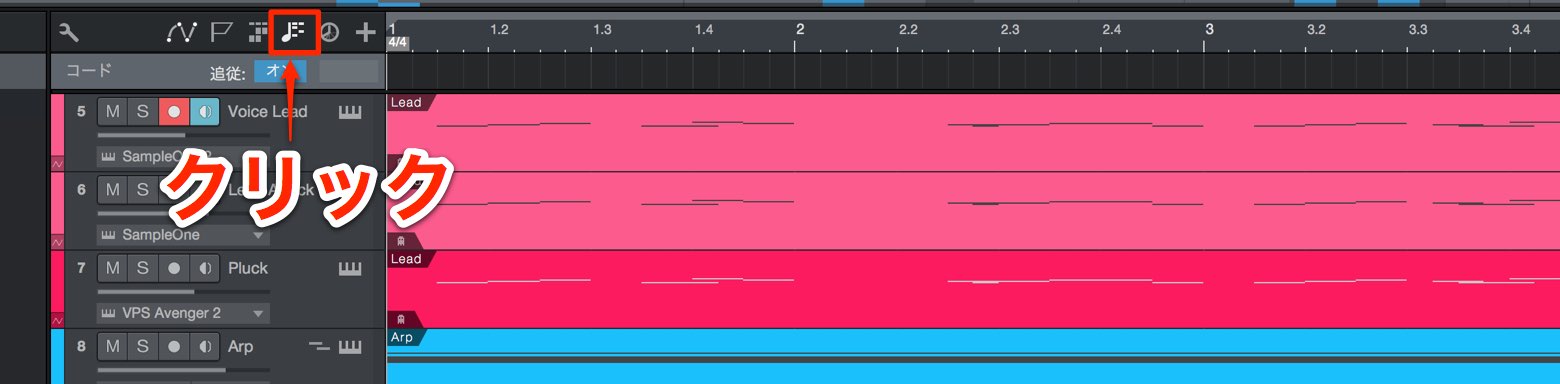
To use the Chord Track, click the Chord Track button at the top of the window.
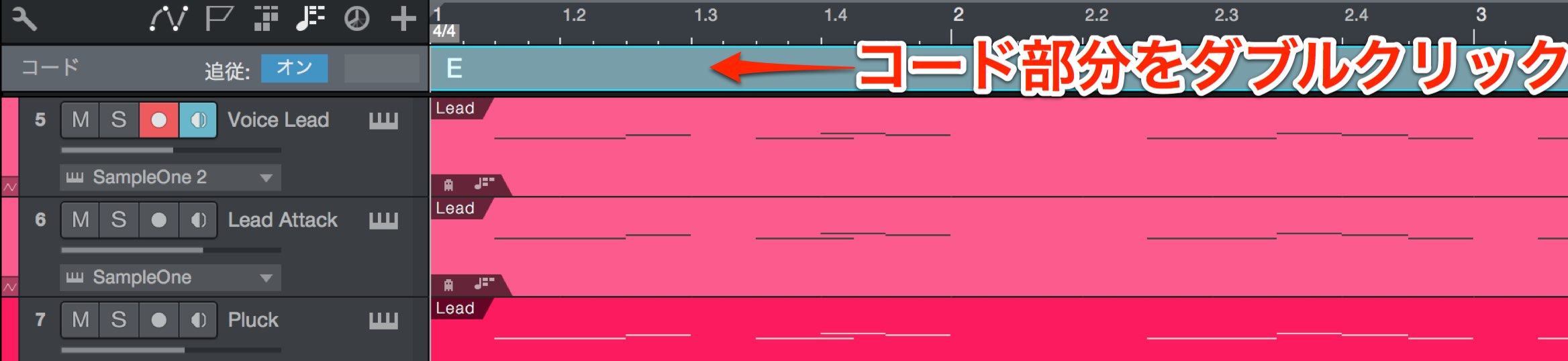
Double-click in the chord lane at the desired bar to enter a chord.
You can drag a chord to move it or change its length, giving you flexibility to adapt the progression to your song.
Entering Chord Names
Let’s assign the desired chord names to the chords you have created.
Double-click the chord you want to change.
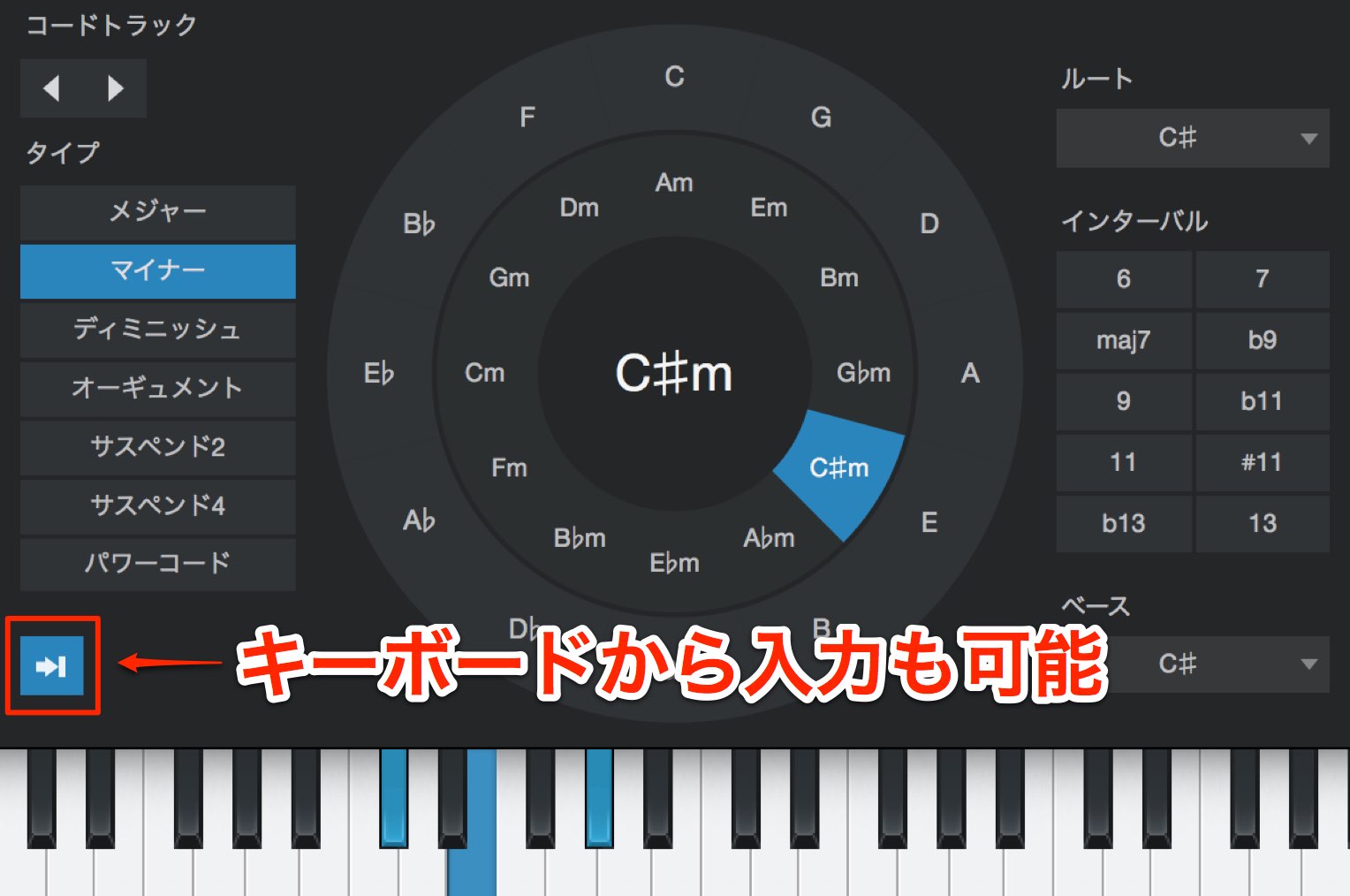
Choose a chord name in the Chord Selector that opens.
You can also enable “Instrument Input” at the lower left and play a MIDI keyboard to specify a chord.

For this example, we assigned the chords shown here.
There is another useful way to specify chords besides the Chord Selector.
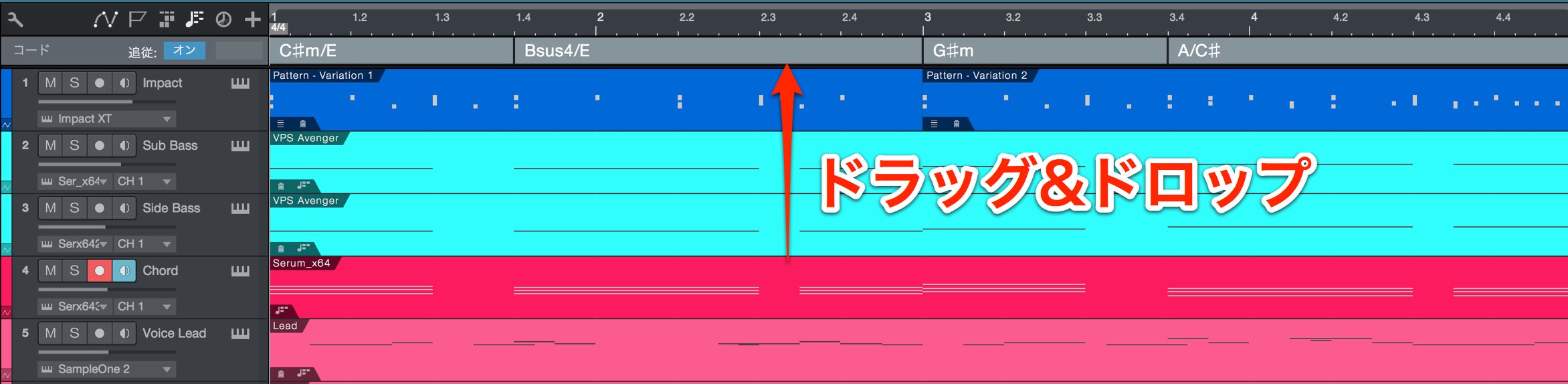
Drag and drop an event containing a recorded performance onto the Chord Track. Studio One analyzes the performance and automatically displays the chord names.
You can select multiple events to derive a chord progression from their combined musical content, and you can also analyze audio events.
Transposing and Setting the Key
You can also transpose easily using the information in the Chord Track.
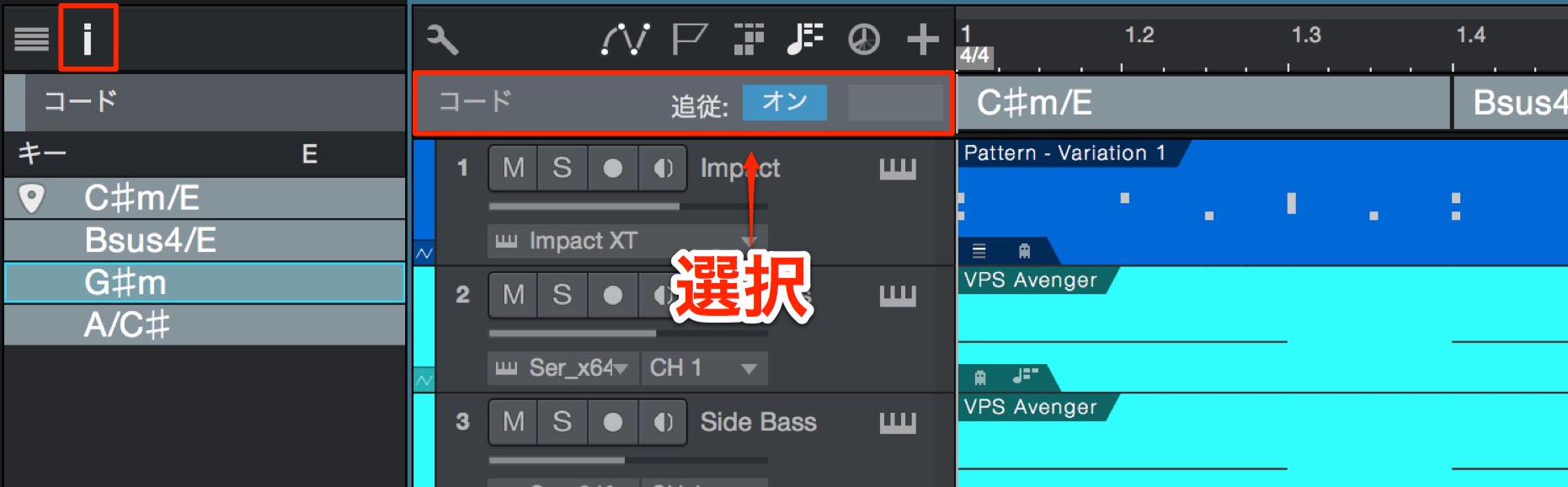
Click “I” to open the Inspector and select the Chord Track.
The chords assigned to the Chord Track appear as a list.
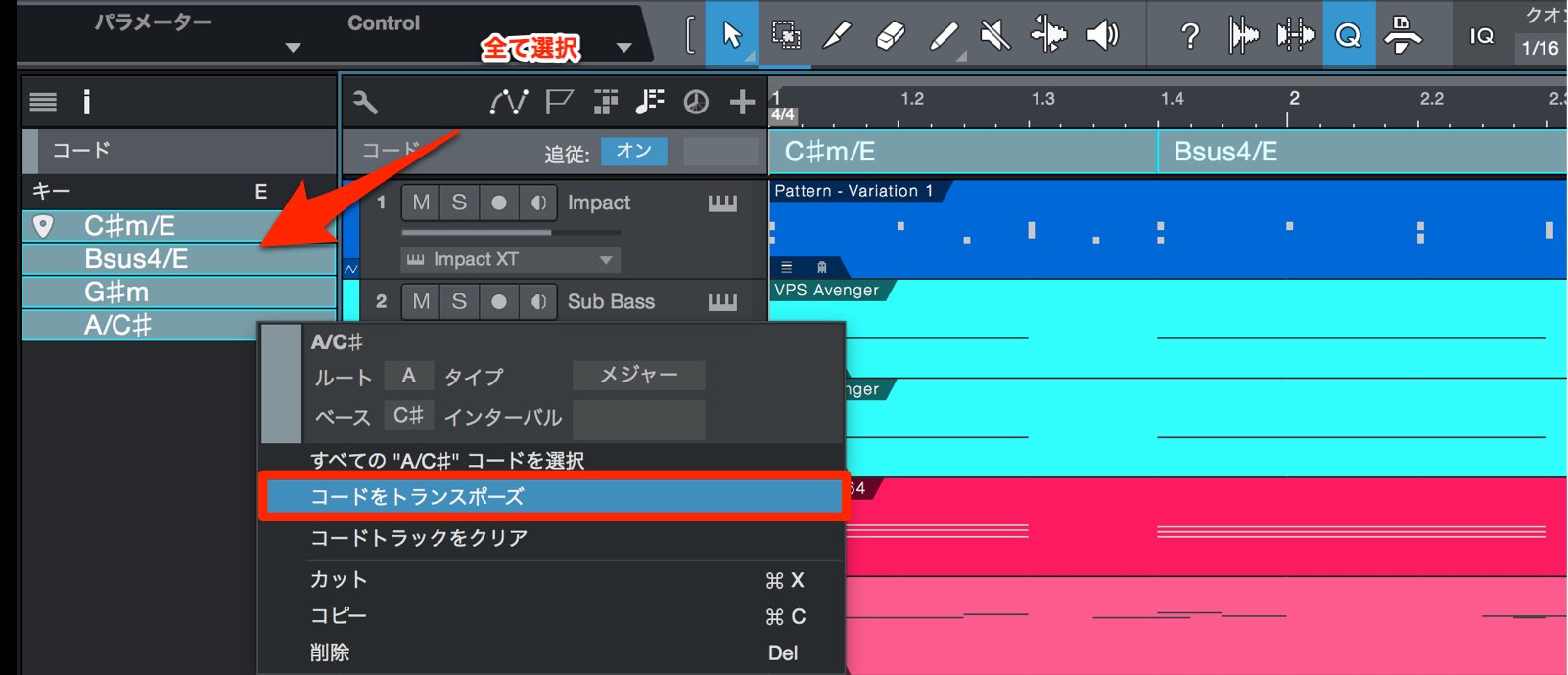
Select all the chords and right-click.
Choose “Transpose Chords” from the menu.
The following shortcuts are useful for selecting all the chords at once.
- Mac: Command + A
- Windows: Control + A
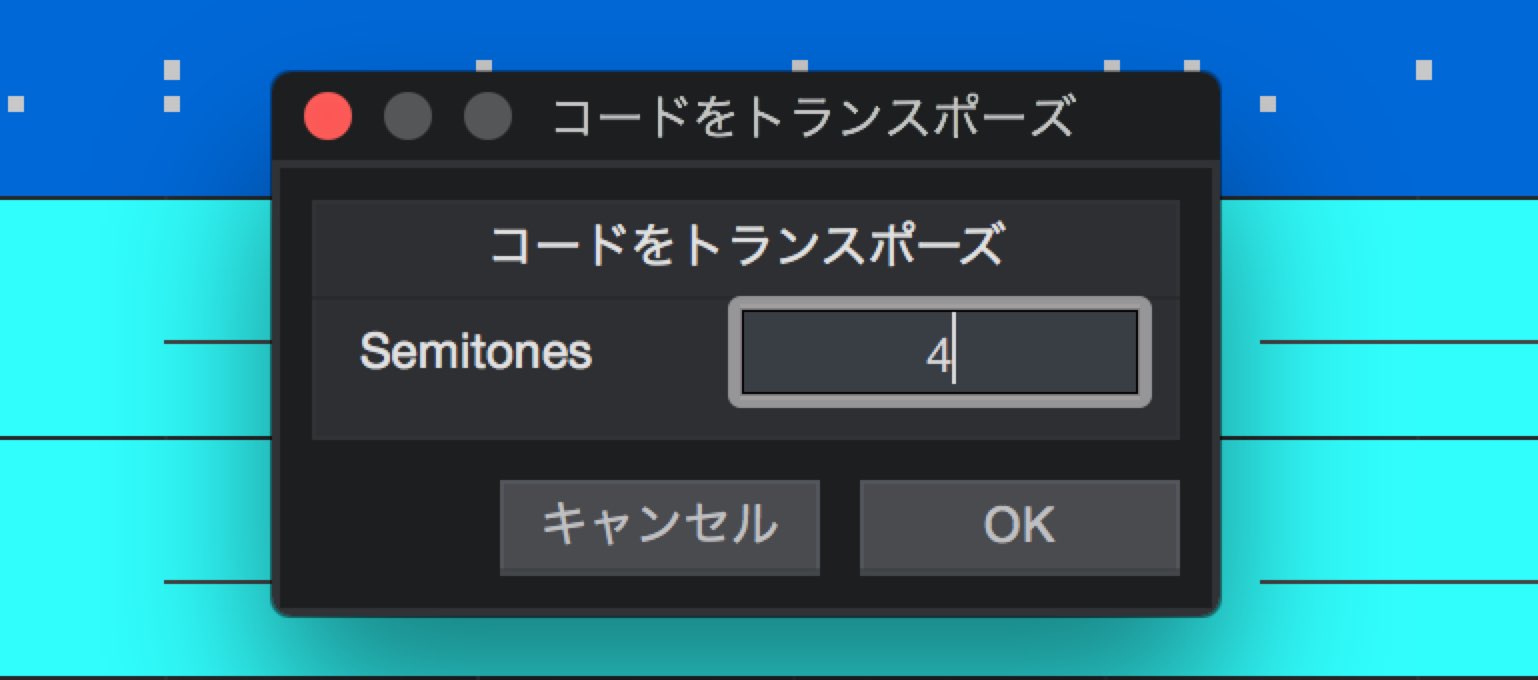
In the window that opens, specify the transposition in semitones.
To lower the key, enter a minus sign (-) before the number.
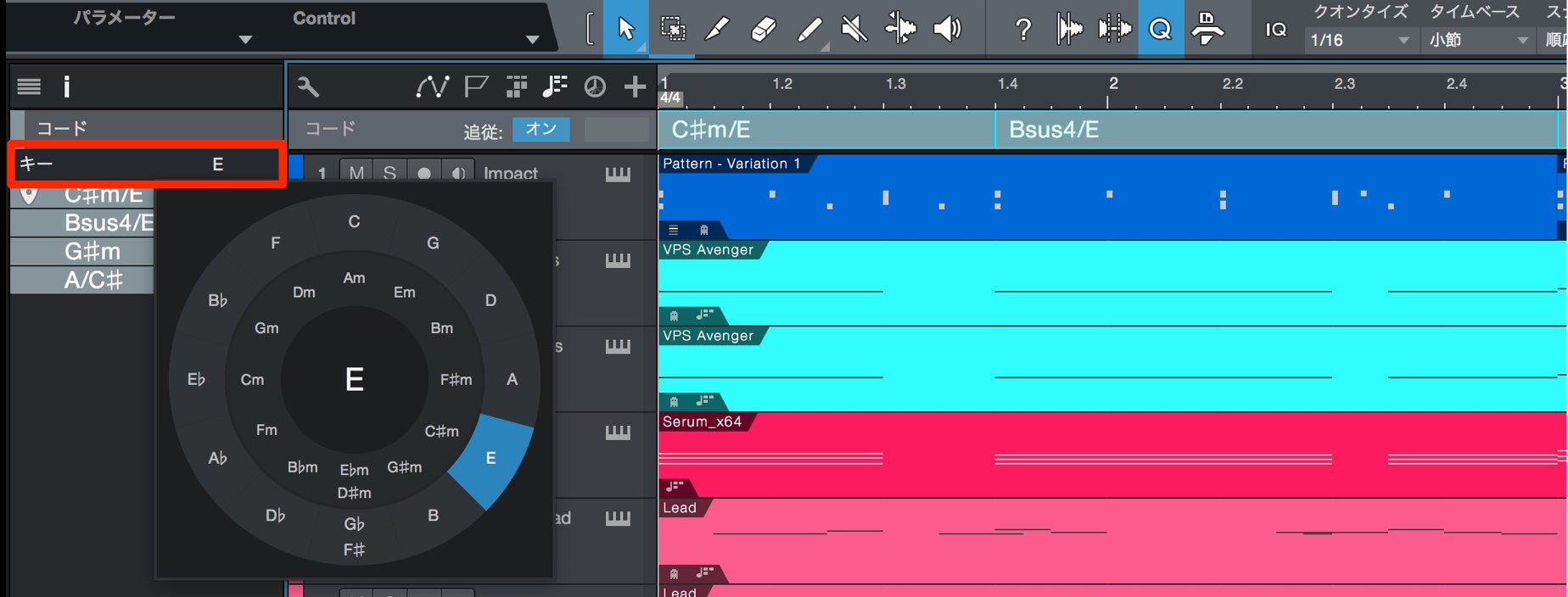
Setting the song’s key optimizes pitch analysis and notation throughout Studio One.
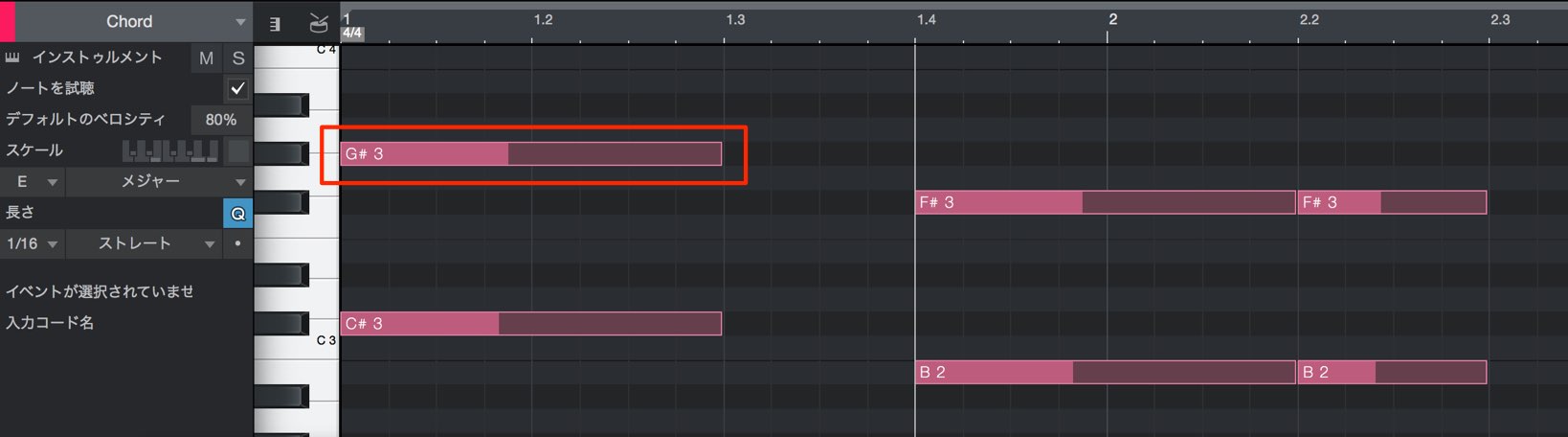
This affects not only chord names but also the spelling of MIDI note names in the editor, such as G♯ or A♭, which is adjusted to match the selected key. It is a very useful feature.
Making Performances Follow the Chord Progression
This innovative feature lets phrases follow the Chord Track’s progression, whether they are audio or MIDI.
It makes it quick and easy to hear the results of changing the chord progression.
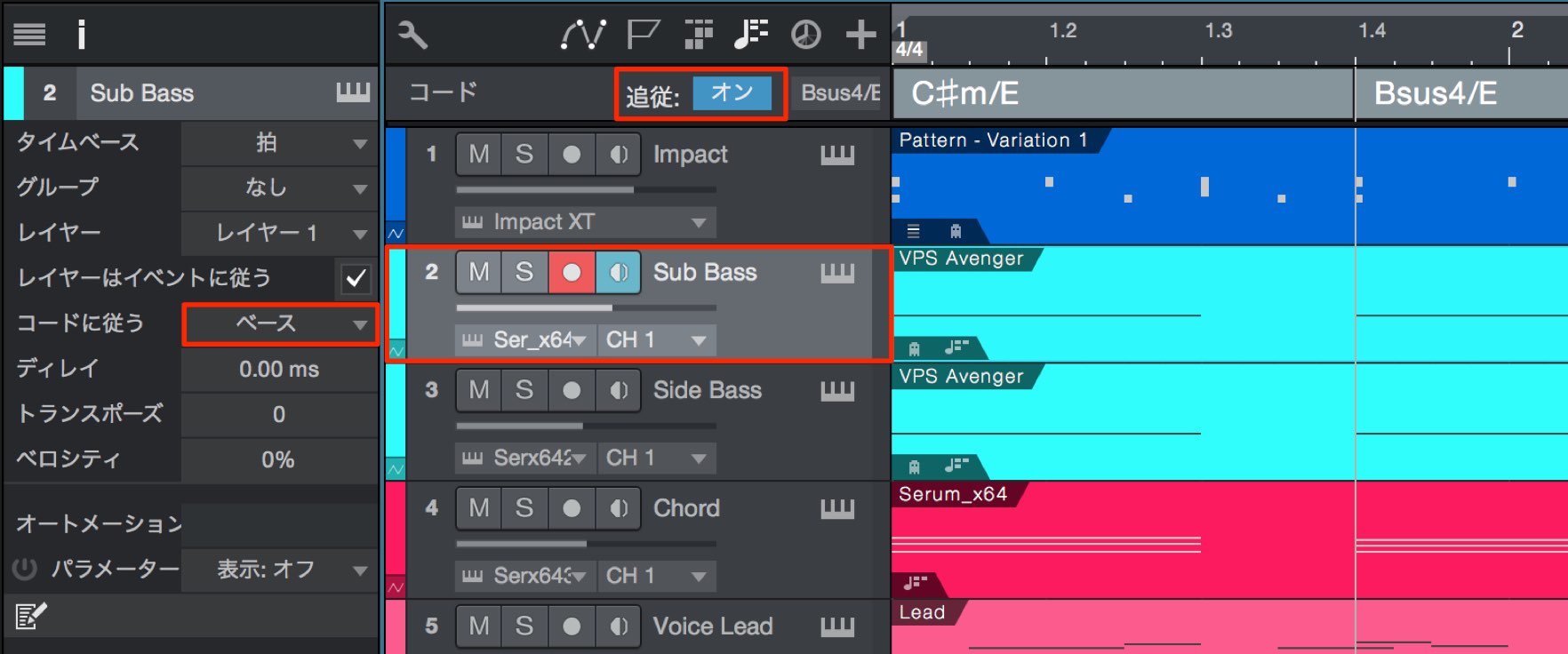
Turn on “Follow” for the Chord Track.
Select the track you want to follow the progression and enable “Follow Chords” in its Inspector.
For rhythm tracks such as drums, we recommend leaving chord following off, because it can change which kit pieces are triggered.
You can also select multiple tracks and apply these settings to all of them at once.
Several chord-following modes are available.
- Parallel: Changes notes to fit the chord while prioritizing the spacing between the chord tones.
- Narrow: Changes notes to chord tones while keeping them as close as possible to their original pitches.
- Bass: Plays the root of the chord. This is suitable for bass tracks and similar parts.
Once you have made these settings, play the song. The phrases change musically to fit the specified chord progression.
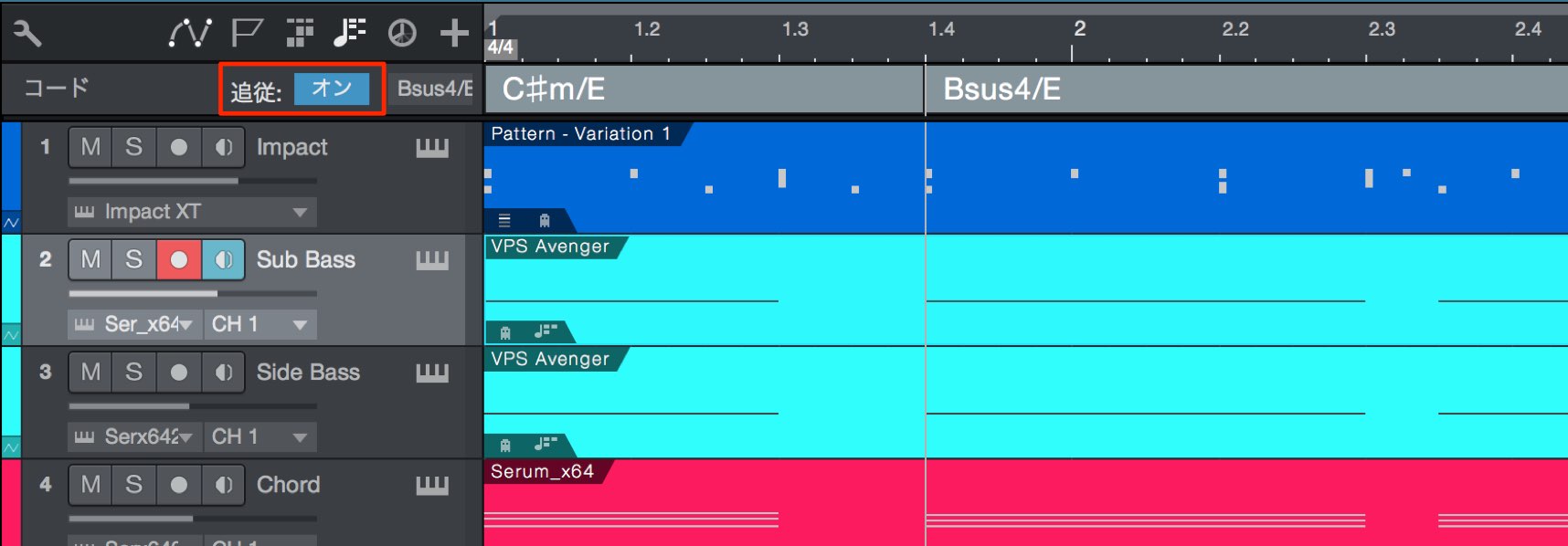
You can easily turn chord following on or off to compare the result with the original performance.

Frequently Asked Questions
Q1. When is Studio One 4’s Chord Track useful?
It is useful at almost every stage of production, including designing chord progressions while composing, analyzing chords in existing performances, transposing a song, and hearing the results of chord changes. It is particularly efficient for trying different keys and adjusting multiple tracks at once.
Q2. Is automatic chord analysis of audio tracks accurate?
Dragging and dropping multiple audio or MIDI events lets the analysis take their combined musical content into account. Using several events together can improve accuracy compared with analyzing a single event.
Q3. Why should I avoid using chord following on drum tracks?
Drums depend on the kit’s note assignments. Pitch changes caused by chord following can disrupt those assignments, so we recommend leaving it off for drum tracks.
Q4. How should I choose a chord-following mode?
Parallel prioritizes chord-tone spacing, Narrow keeps changes close to the original pitches, and Bass plays the root note. Narrow is best suited to melody tracks, while Bass mode suits bass tracks.
NEW ARTICLES
Latest English Articles













































































































































































































































































































