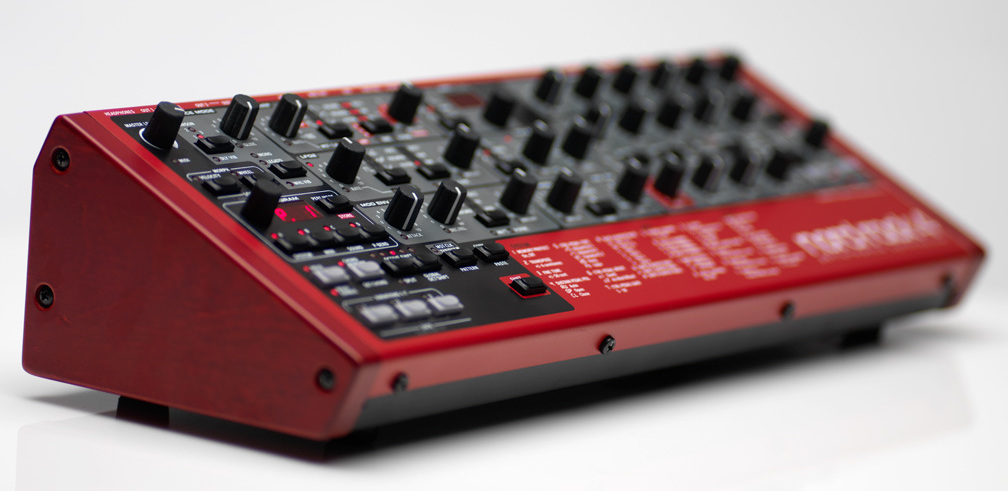
This final installment of the original KOMPLETE KONTROL series covers automation and MIDI mode. Automation records parameter movements in a DAW, allowing sounds and nuances to change during a song. MIDI mode lets the keyboard act as a MIDI controller for DAW parameters. We also look at pitch bend and modulation controls on the hardware shown in the tutorial.
Taking Control of Parameters
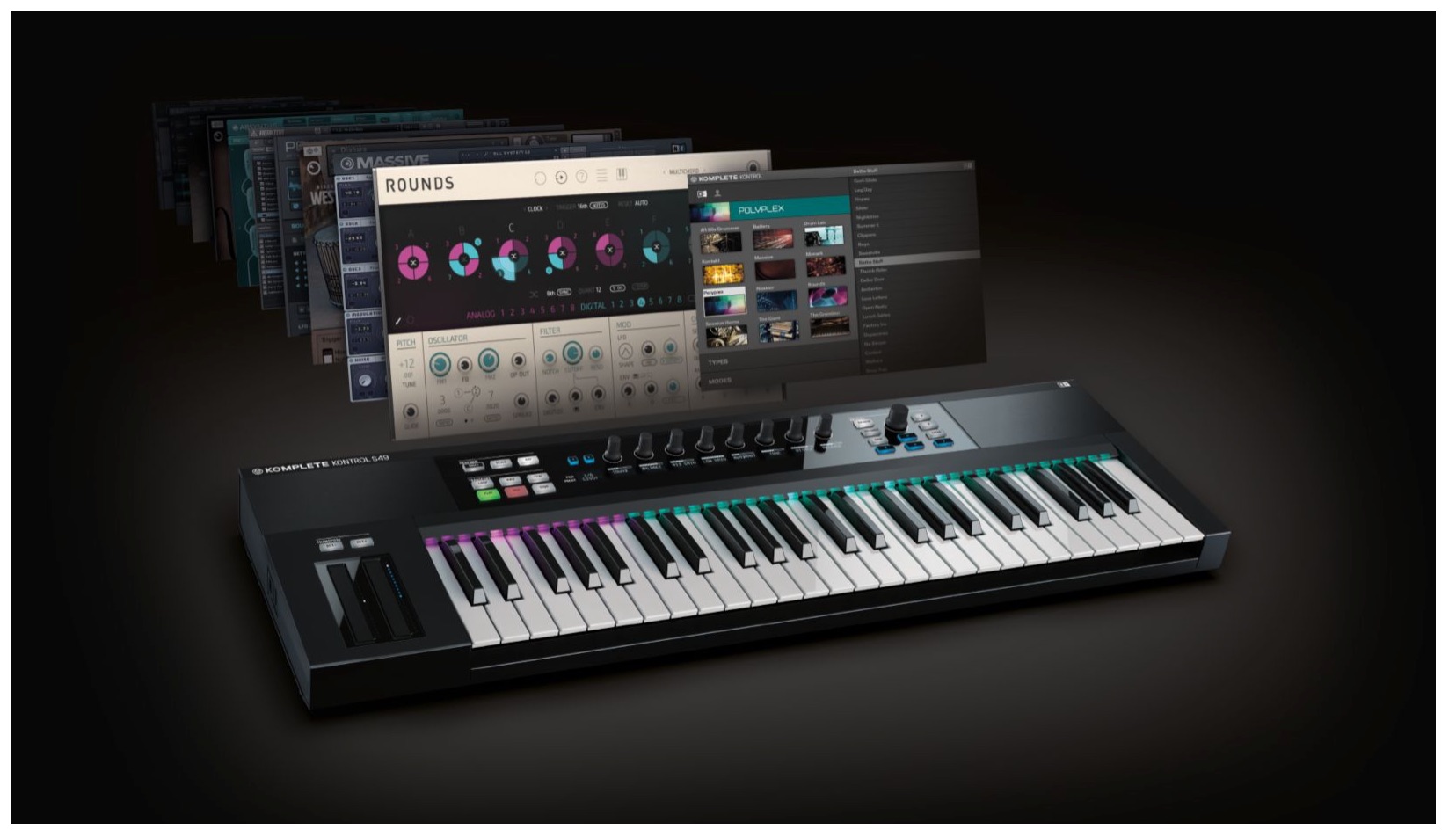
This is the final installment of our original Komplete Kontrol tutorial series.
Here we will explore automation for controlling parameters
and MIDI mode for using the keyboard as a MIDI device.
With automation, you can write instructions for
the parameters covered so far.
This lets you change sounds and adjust nuances during a song.
Let’s get started.
Komplete Kontrol Tutorial Videos
- 1Product Overview
- 2Browsing
- 3Light Guide and Clear View Display
- 4Scale Mode
- 5Chord Mode
- 6Arpeggiator
- 7Automation and MIDI Mode
- 8Komplete Kontrol 1.1: New Features
- 9KOMPLETE KONTROL 1.5: New Features
- 10KOMPLETE KONTROL 1.6.2: New Features
- 11KOMPLETE KONTROL 1.9.3: DAW Control
- 12Komplete Kontrol 1.9.3: Host Integration with Cubase
- 13KOMPLETE KONTROL 2.0: NKS FX
- 14Maschine and Komplete Kontrol: Favorites
Questions and Answers from the YouTube Video

Q: Thank you for your clear and enjoyable explanations. My Komplete Kontrol Preferences look different: they show Library, Plug-ins, and Hardware, but Hardware has no Pitch Strip or Modulation Strip. I contacted NI but have not received a reply. I use an S25. How can I display the settings shown here?

A: The interface changed after the version used for filming. The original response recommended updating Komplete Kontrol through Service Center, then installing Device Updater for Komplete Kontrol S-Series 1.1.2 from the following page. These instructions refer to the software and hardware available at the time: http://www.native-instruments.com/en/support/downloads/drivers-other-files/ Then click the note icon at the top of the software and adjust the settings under TOUCHSTRIP.
At the time of the original article, purchasing KOMPLETE KONTROL included
a free bundle of 10 products called KOMPLETE SELECT; bundle contents and availability may have changed.
Recording Automation in Your DAW
Recording automation is straightforward.
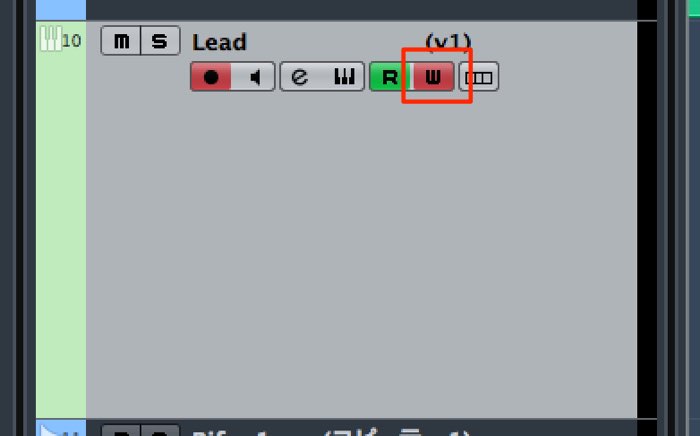
Enable automation writing in your DAW,
start playback, and move the desired knob.
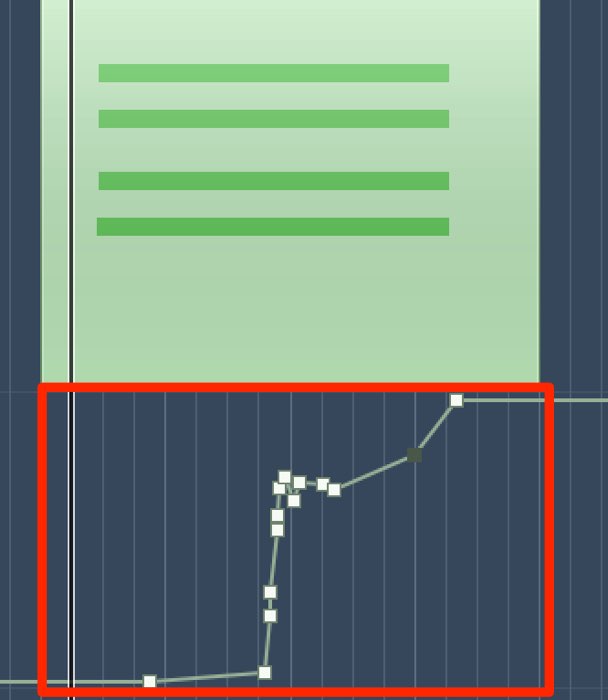
The knob movements can then be recorded.
You can also enable or disable features such as Chord and Arpeggiator
and change notes, keys, and other settings.
Automation in Different DAWs

 Logic
Logic GarageBand
 Cubase
 Ableton Live
 Studio One
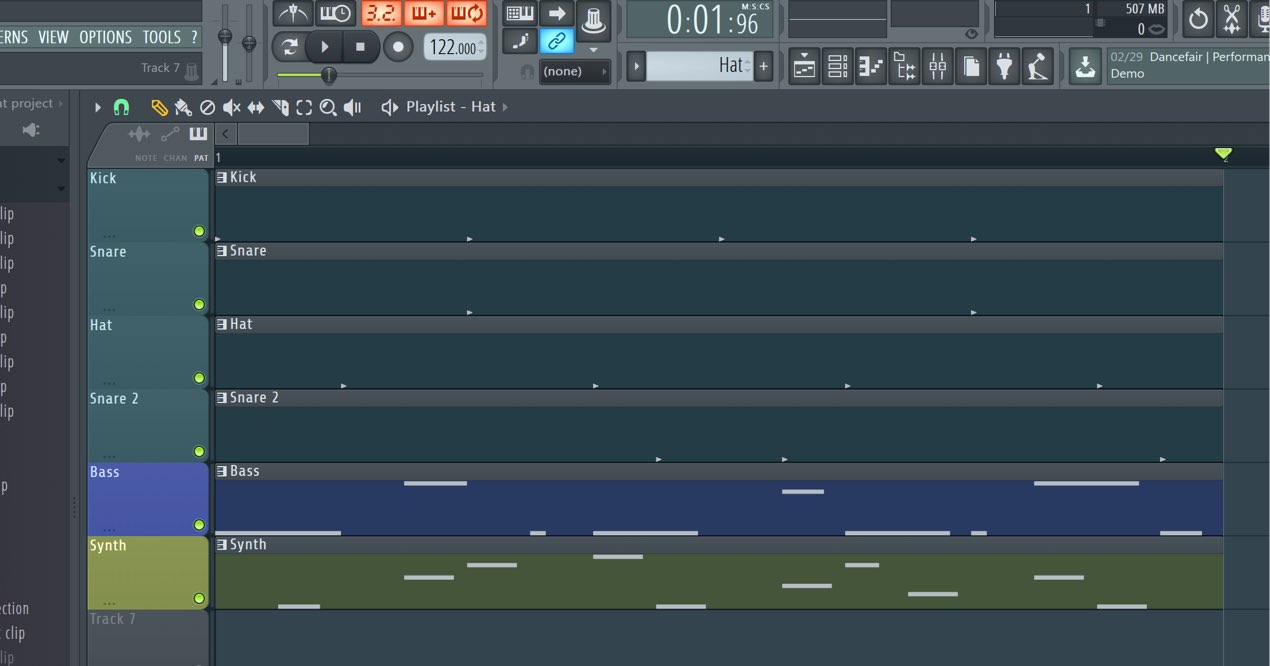
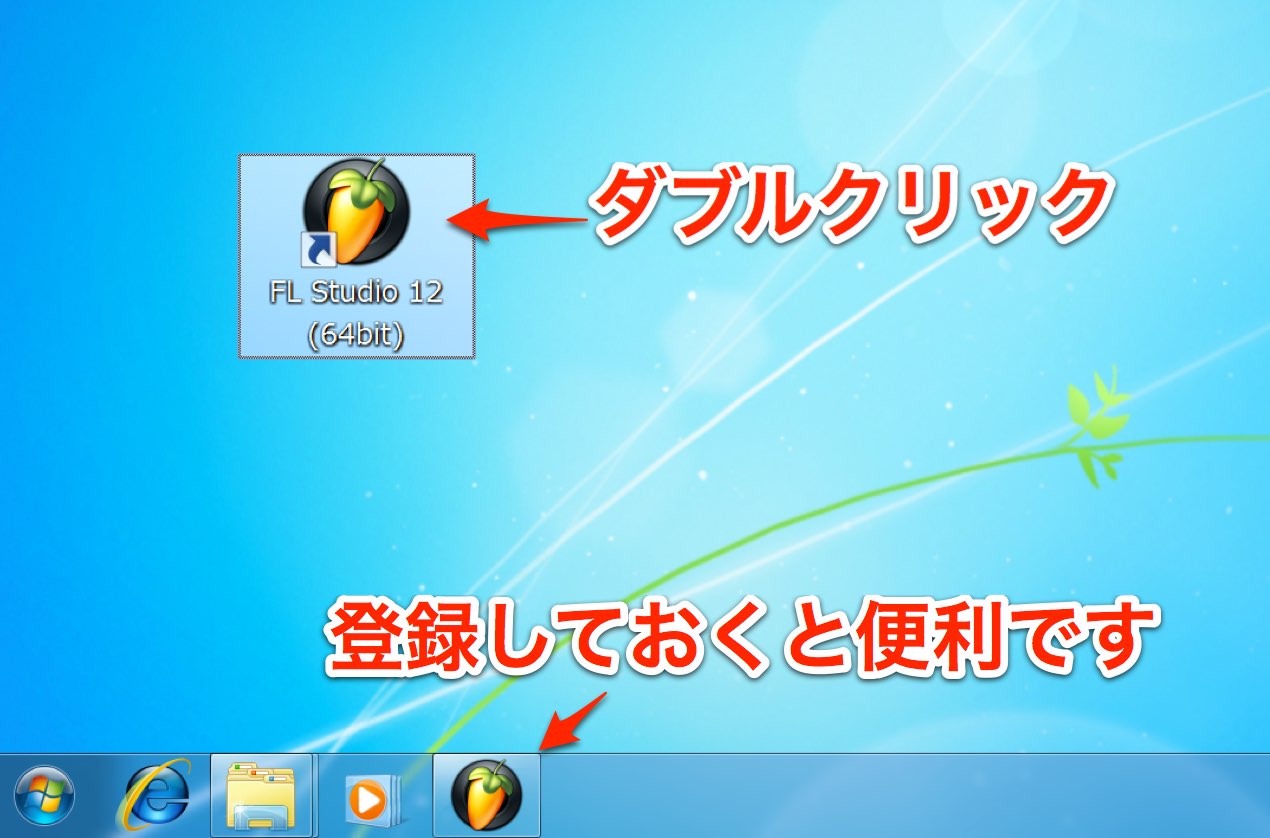
 FL Studio
Pitch Bend and Modulation
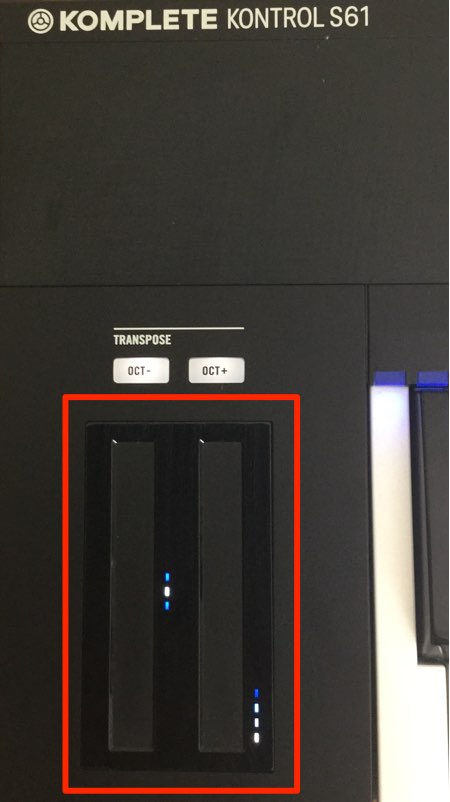
The pitch bend and modulation controls found on many MIDI keyboards
have some interesting behavior on the hardware shown here.
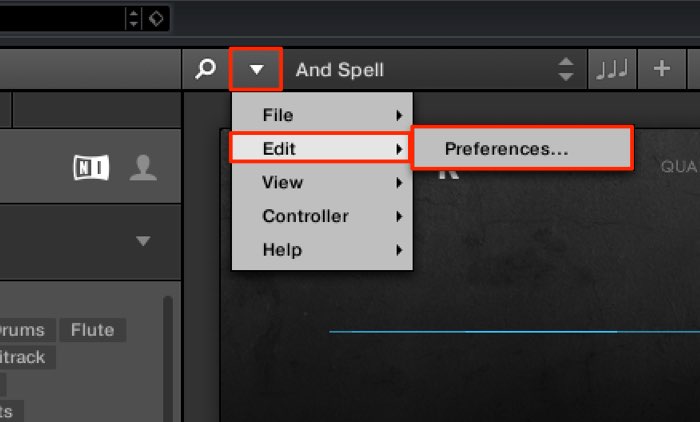
Use this section to adjust their behavior.
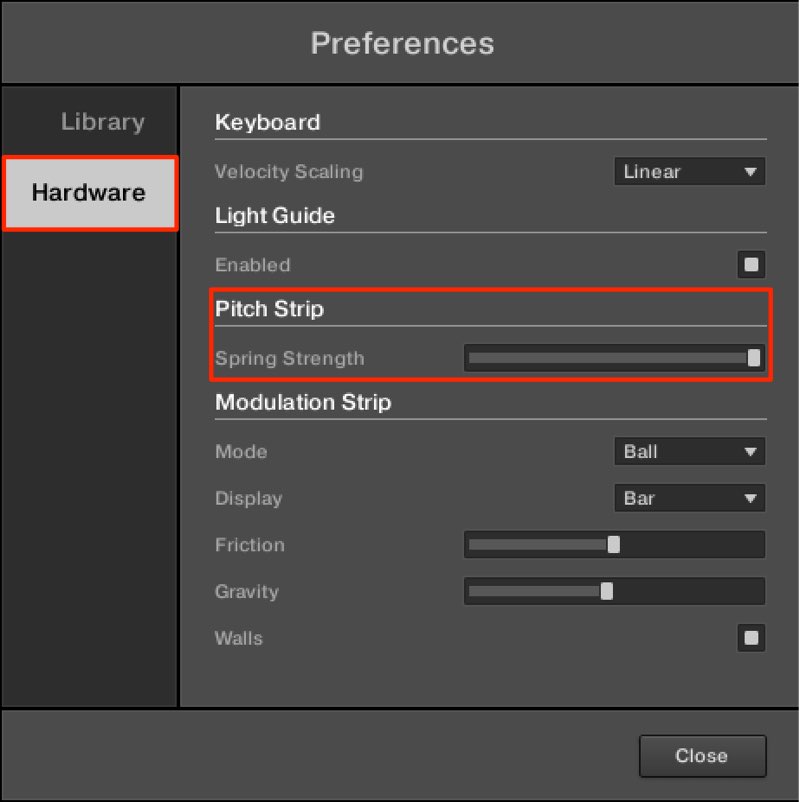
First, let’s look at pitch bend.
This slider sets how long it takes to return to the original pitch.
Moving it farther right makes the return faster.
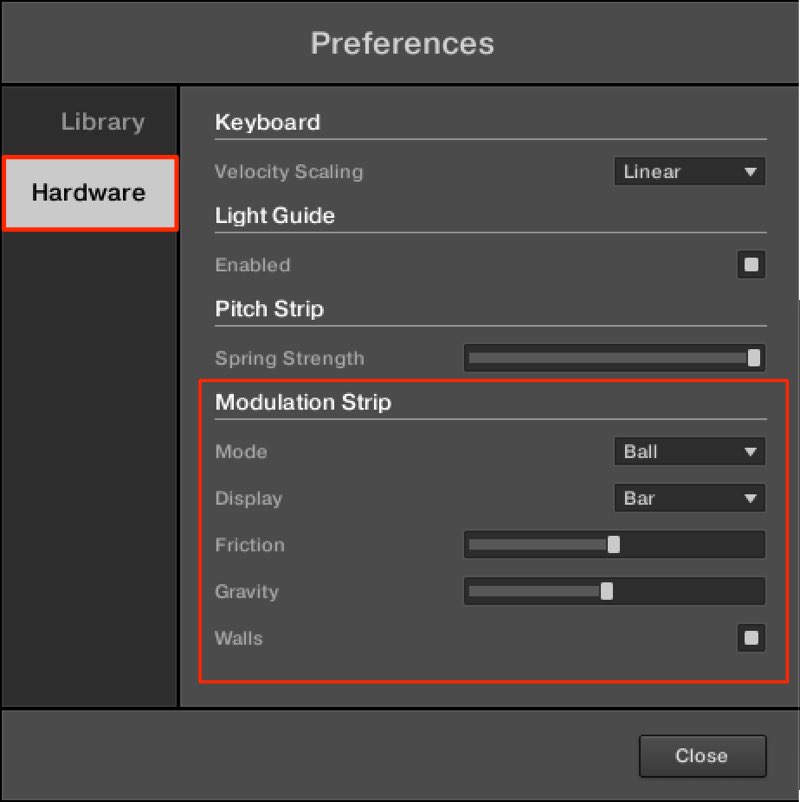
Next is the modulation control.
- Mode: Choose a standard wheel or Ball mode.
- Display: Shows the current value.
Bar resembles a volume fader; Dot represents the value with a dot. - Friction: Sets the time over which the wheel’s movement slows down.
At the far left, it keeps moving without slowing. - Gravity: Sets the response speed when you place your finger on the control.
- Walls: Choose whether the ball (value) bounces back and forth
or moves in one direction.
Using MIDI Mode
Komplete Kontrol can be used as a MIDI device,
allowing it to control DAW parameters.
Note: In this mode, you cannot control the Komplete Kontrol software in the DAW.
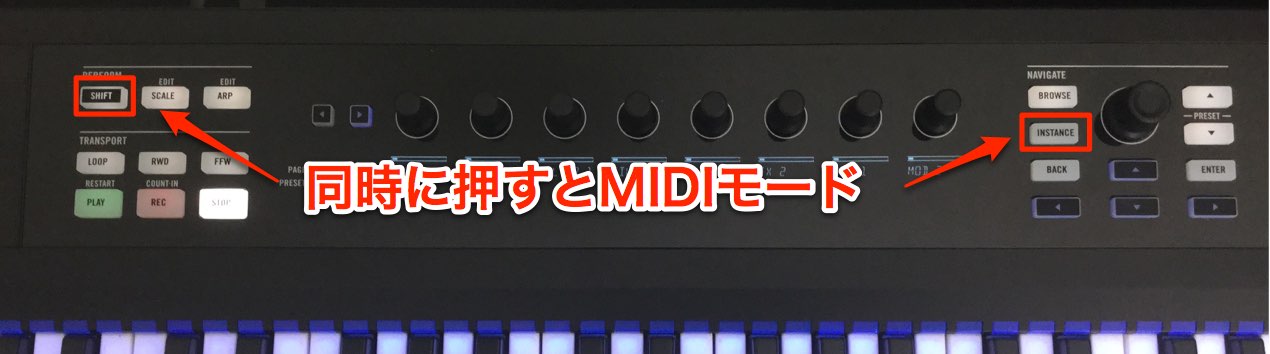
To switch to MIDI mode, press Shift + Instance.
The keyboard’s knobs then act as MIDI CC controllers.

You can change their CC assignments in Controller Editor.
The original article gives these partial locations for the software; the final folder names are missing:
- Mac: Applications → [folder not specified in the original article]
- Windows: C drive → Program Files → [folder not specified in the original article]
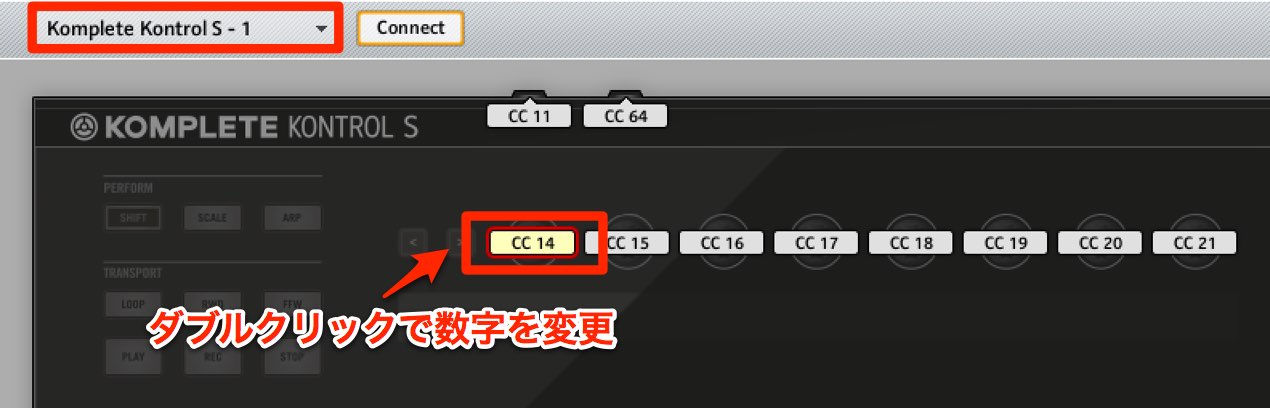
Make sure Komplete Kontrol is selected,
then double-click the knob.
Enter the desired CC number
to assign that CC.
Frequently Asked Questions
Q1. Which DAWs support KOMPLETE KONTROL automation?
The article links to automation guides for Pro Tools, Logic, GarageBand, Cubase, Ableton Live, Studio One, and FL Studio. Enable automation writing in your DAW and move a control to record it; exact support and steps depend on the versions used.
Q2. How do I switch to MIDI mode?
On the keyboard shown in this tutorial, press Shift and Instance together. The knobs then function as MIDI CC controllers.
Q3. Can I adjust the modulation control’s response?
Yes. Gravity adjusts its response when you touch it, and Friction adjusts how its movement slows down. Walls controls how the value bounces, allowing more detailed customization.
NEW ARTICLES
Latest English Articles