
This article explains how to create tracks in Cubase 11 and introduces two fundamental track types. Instrument tracks use MIDI data to play software instruments, giving you flexibility to edit pitch and timing. Audio tracks record live performances directly through a microphone or line input; you choose Mono or Stereo according to the number of microphones you use. By using these two track types appropriately, you can combine programmed parts with live performances and start producing full-fledged music even as a beginner.
In this tutorial, we will learn about the basic track types and how to create them.
Creating tracks lets you record vocals and instruments or program musical parts.
Basic Track Types and How to Create Them — Video
How to Create a Track
There are three ways to create a track.
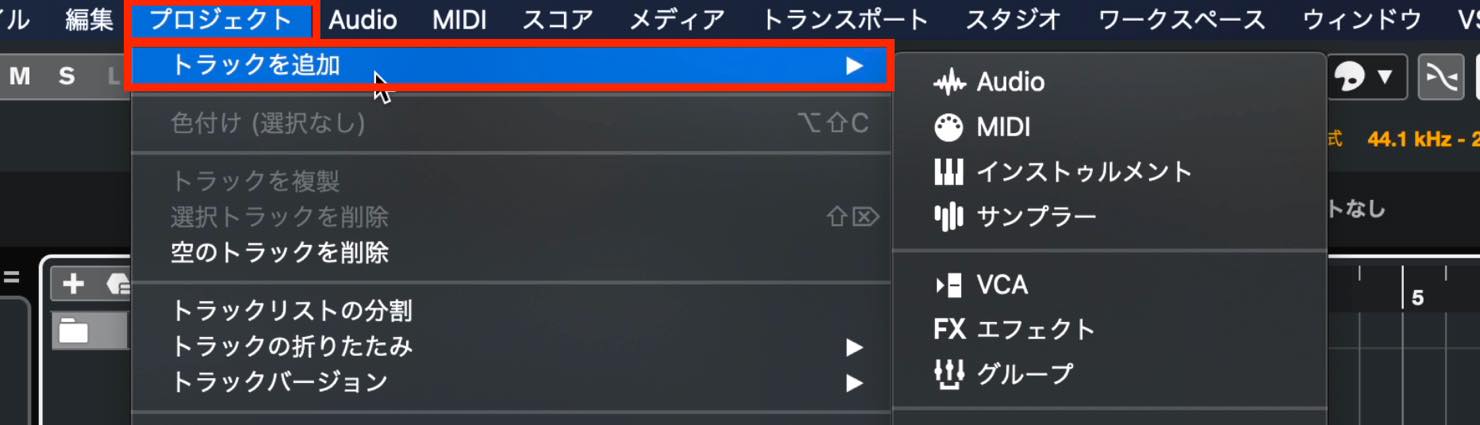
1. From the menu at the top, choose Project > Add Track.
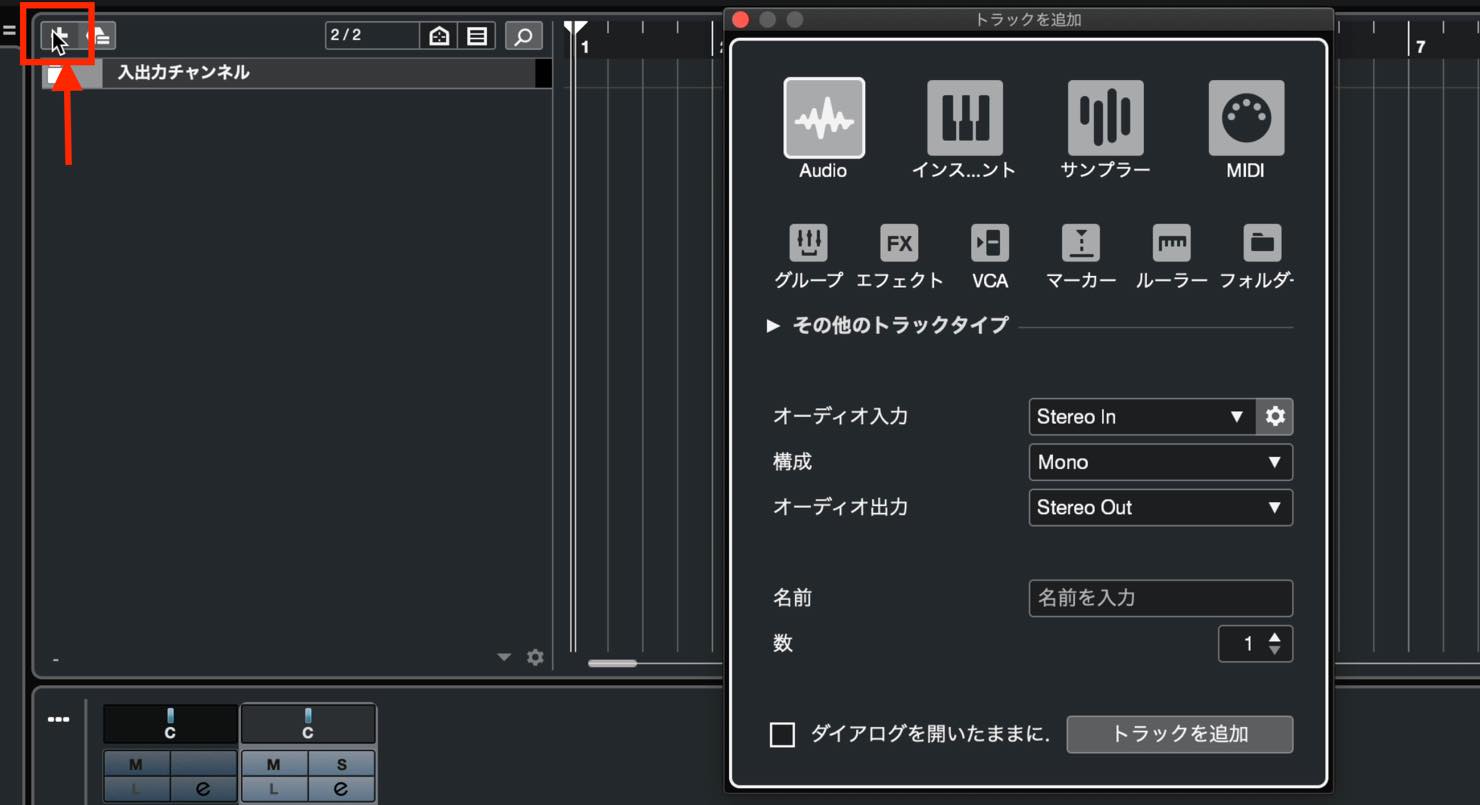
2. Click the “+” button above the track list.
3. Right-click an empty area of the track list.
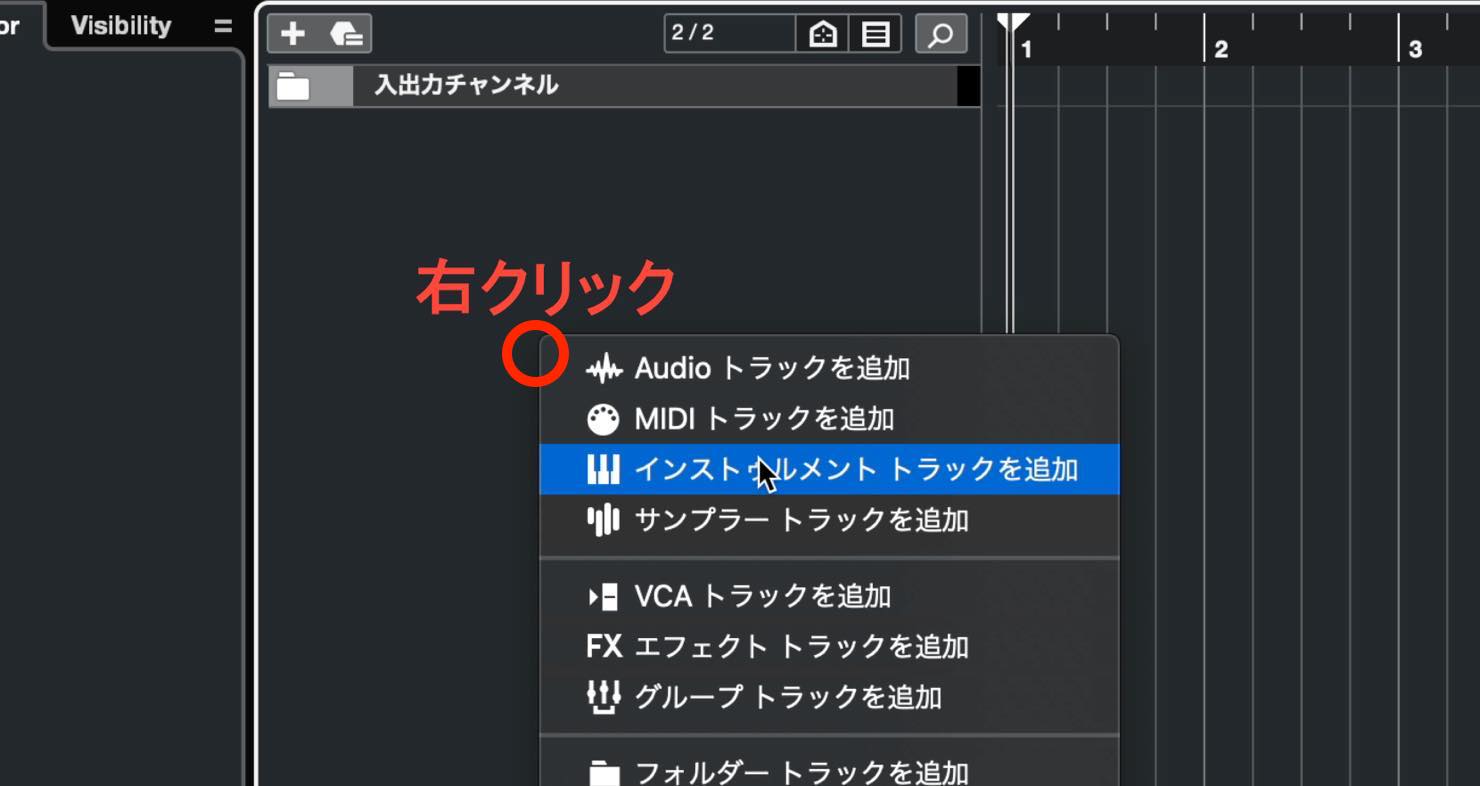
For this tutorial, we will use the right-click method.
You will see many different track types, but start by learning these two: Instrument tracks and Audio tracks.
Instrument Tracks
An Instrument track lets you load a virtual instrument, or software synthesizer, in Cubase and program musical parts. These parts use performance data called MIDI.
The software instrument produces sound when you enter MIDI data on screen or play a MIDI keyboard.
MIDI is more flexible than audio: you can freely edit pitch, timing, and other details at any time.
When you choose Instrument using one of the track-creation methods above, this window appears.
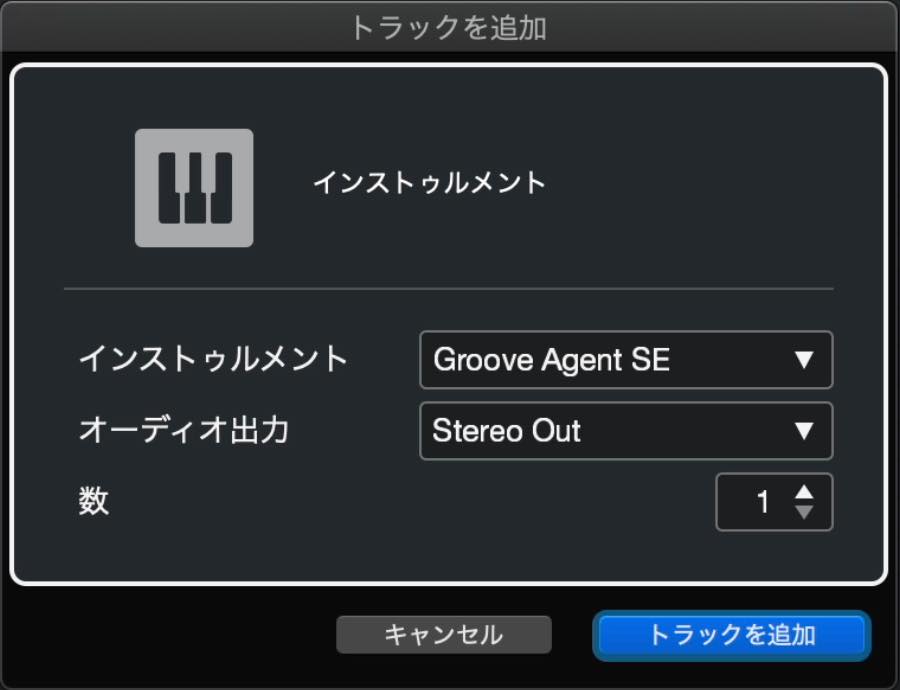
Open the Instrument list to choose which software instrument to load.
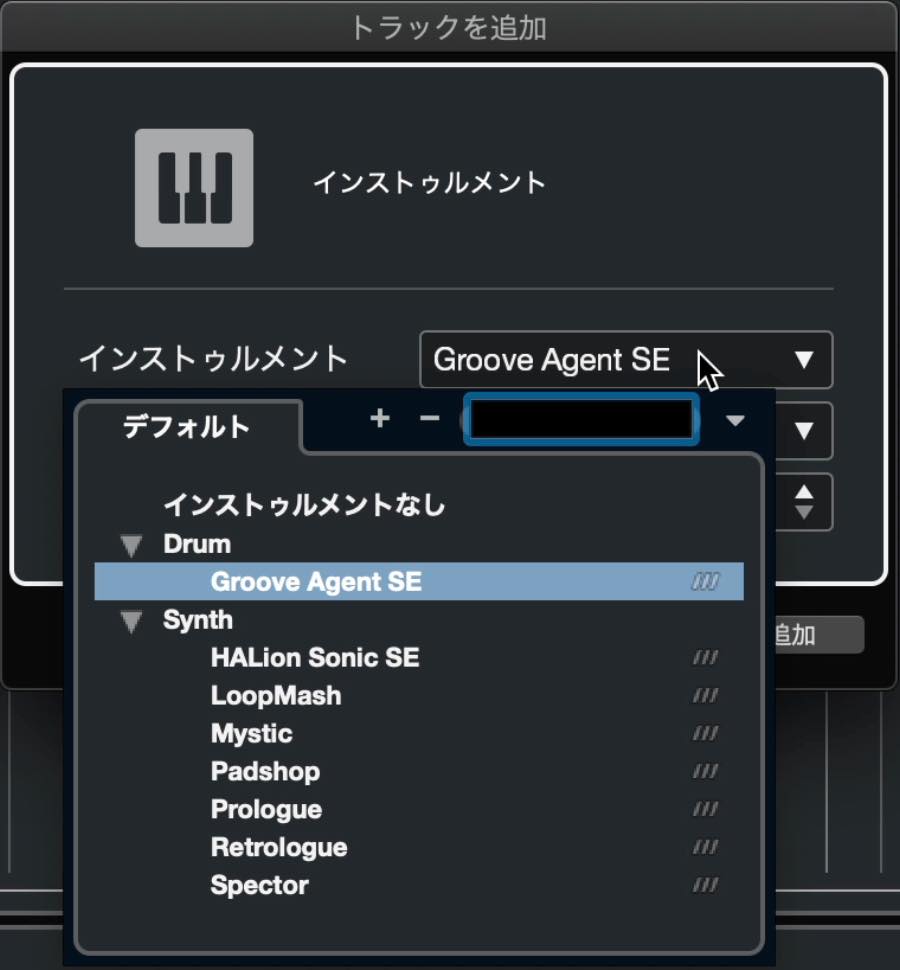
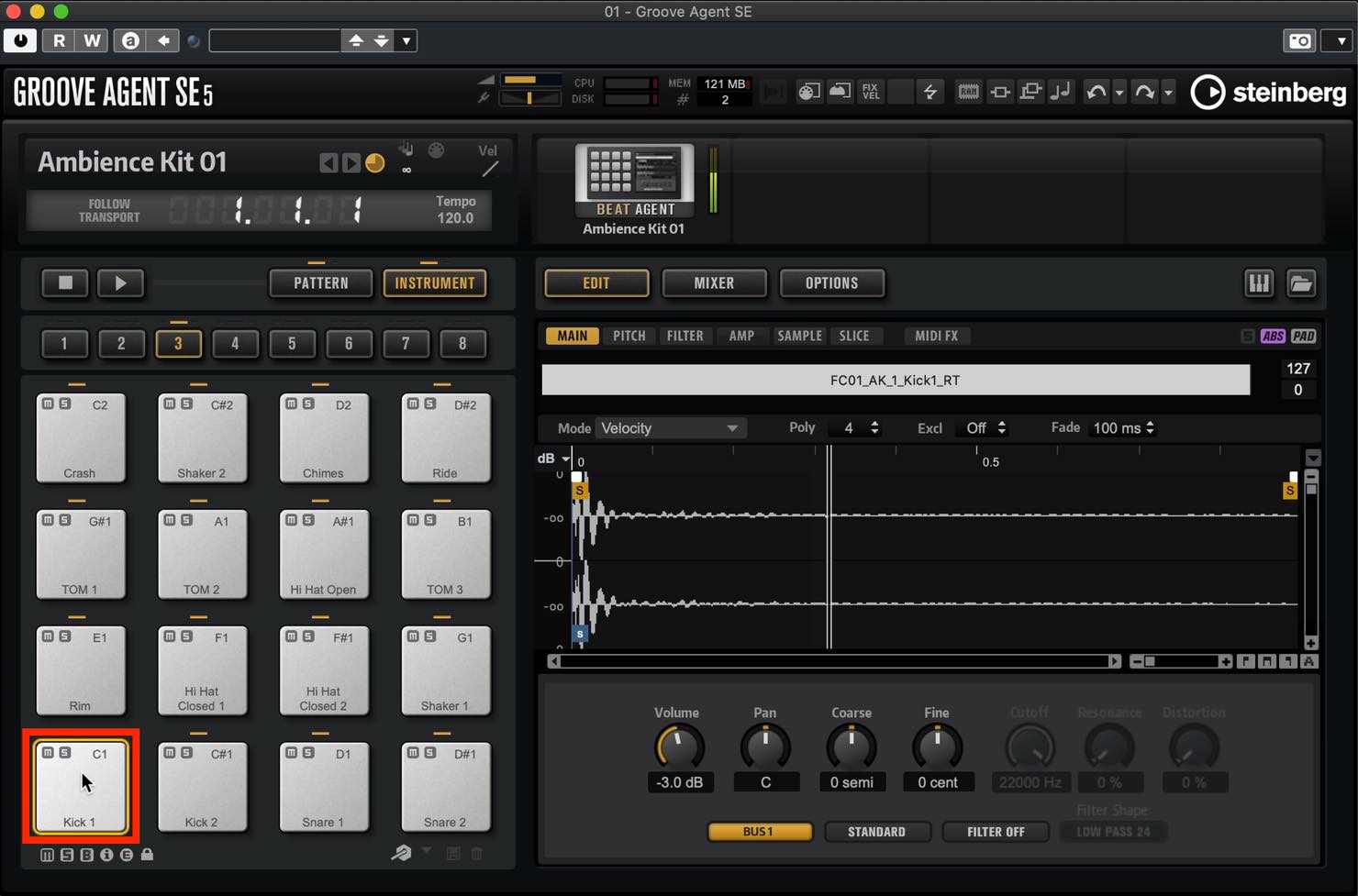
For now, select Groove Agent SE, the drum instrument included with Cubase.
Click Add Track to create the track and open Groove Agent SE.
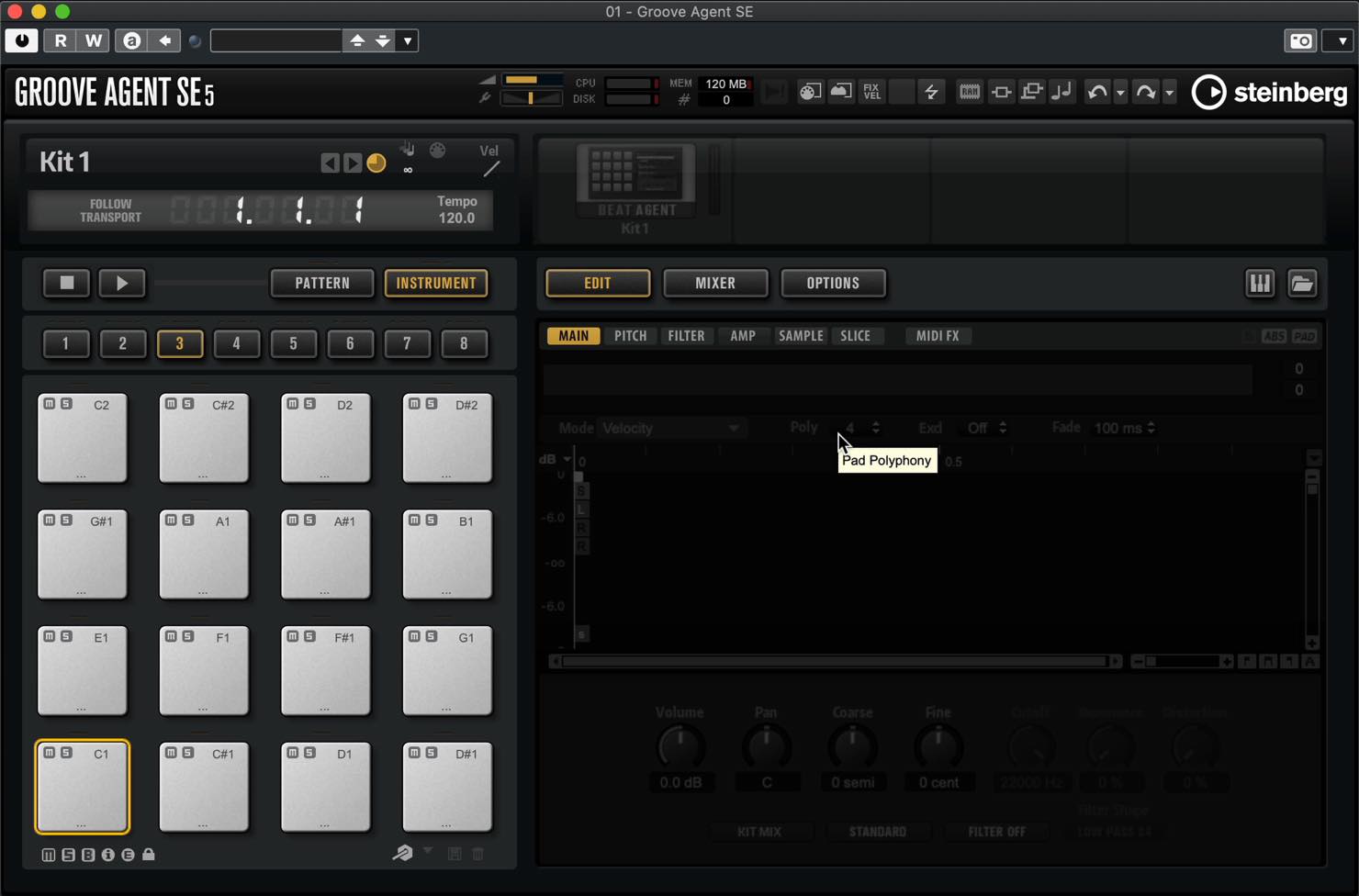
It starts empty, as shown here, so select a preset to get some sound.
Click the area labeled “Kit 1” in the upper left.
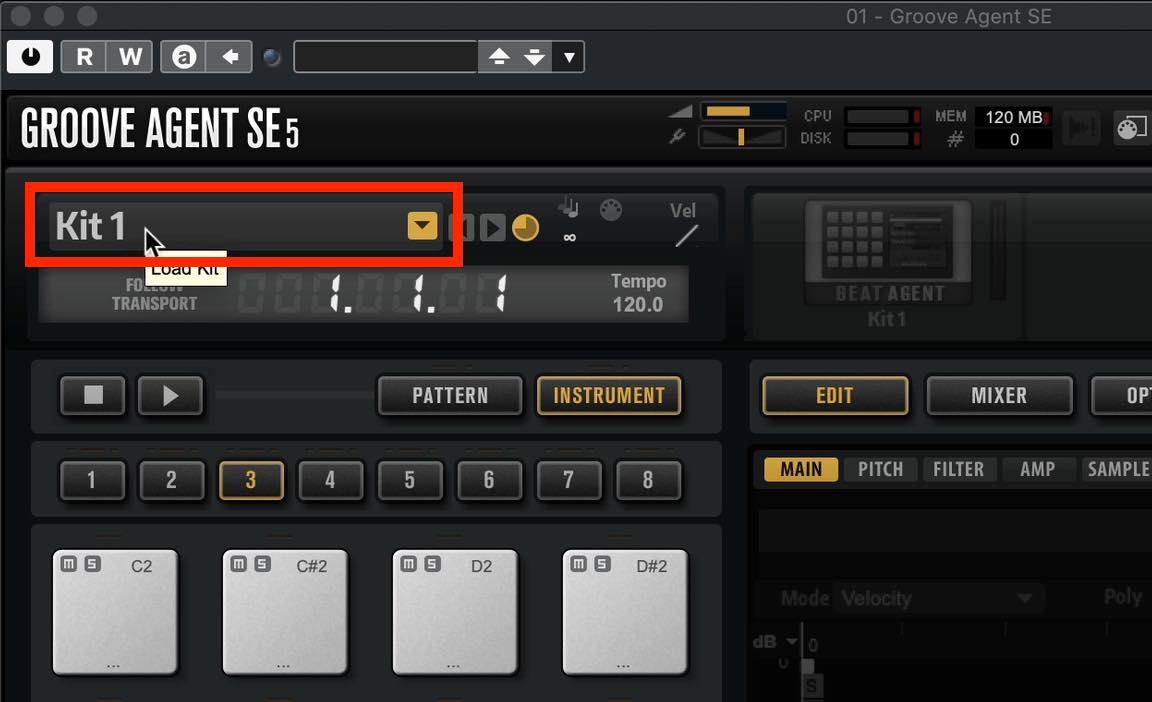
A browser appears. Double-click a preset you like.
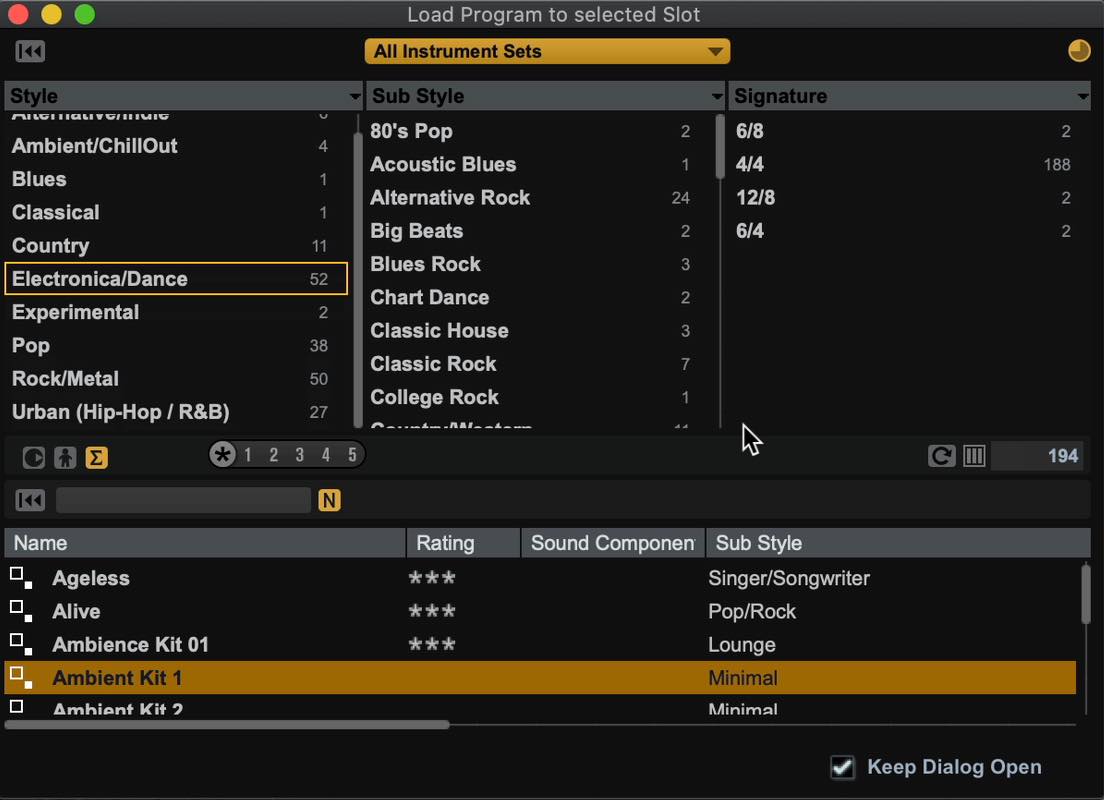
Once it has loaded, click the on-screen pads or play your MIDI keyboard to check that you can hear sound.
Audio Tracks
An Audio track lets you record and edit live performances, such as vocals or guitar, through a microphone or line input, adding expression that only a live performance can bring to a song. However, mistakes and pitch inaccuracies are recorded as they happen, so you may need another take if they bother you.
Cubase has features for correcting pitch and timing to some extent, which we will cover later, but audio is less flexible than MIDI.
On the other hand, audio has its own editing techniques that are not available with MIDI. We will introduce these in later tutorials.
When you choose Audio using one of the track-creation methods described earlier, this window appears.
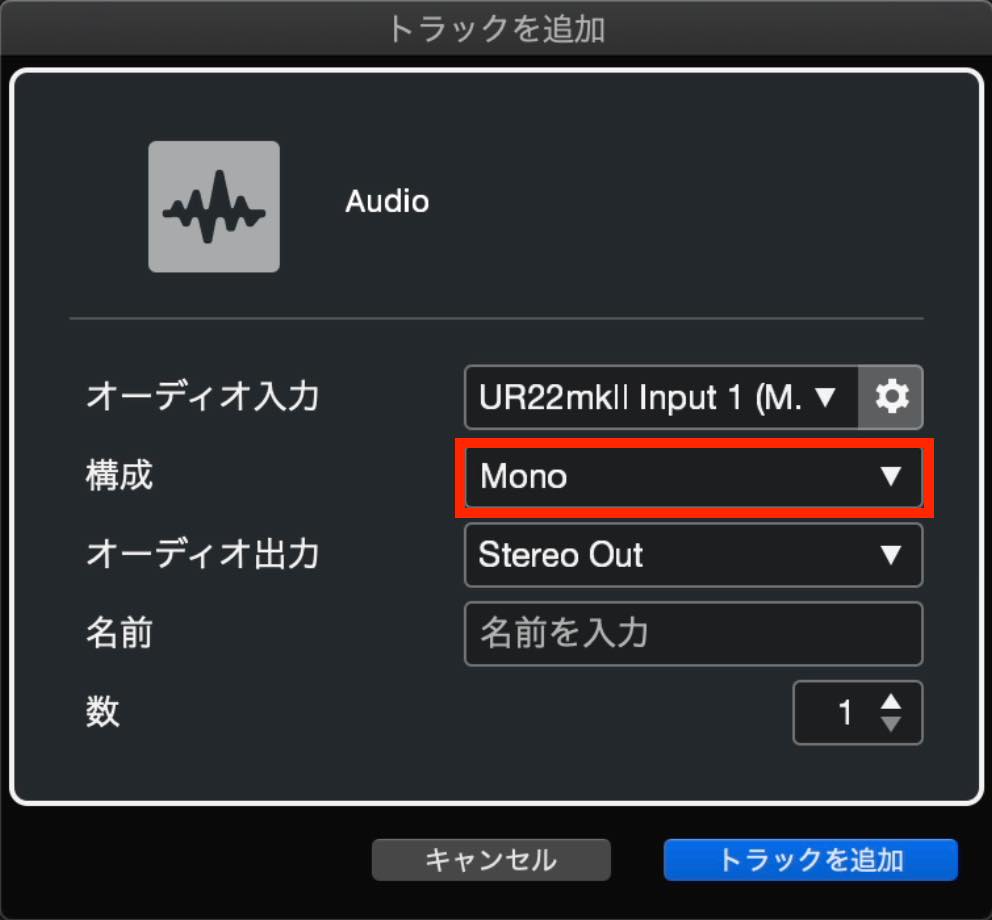
There are several settings, but for now, focus on just one: Configuration. Open this list and you will see Mono and Stereo at the top.
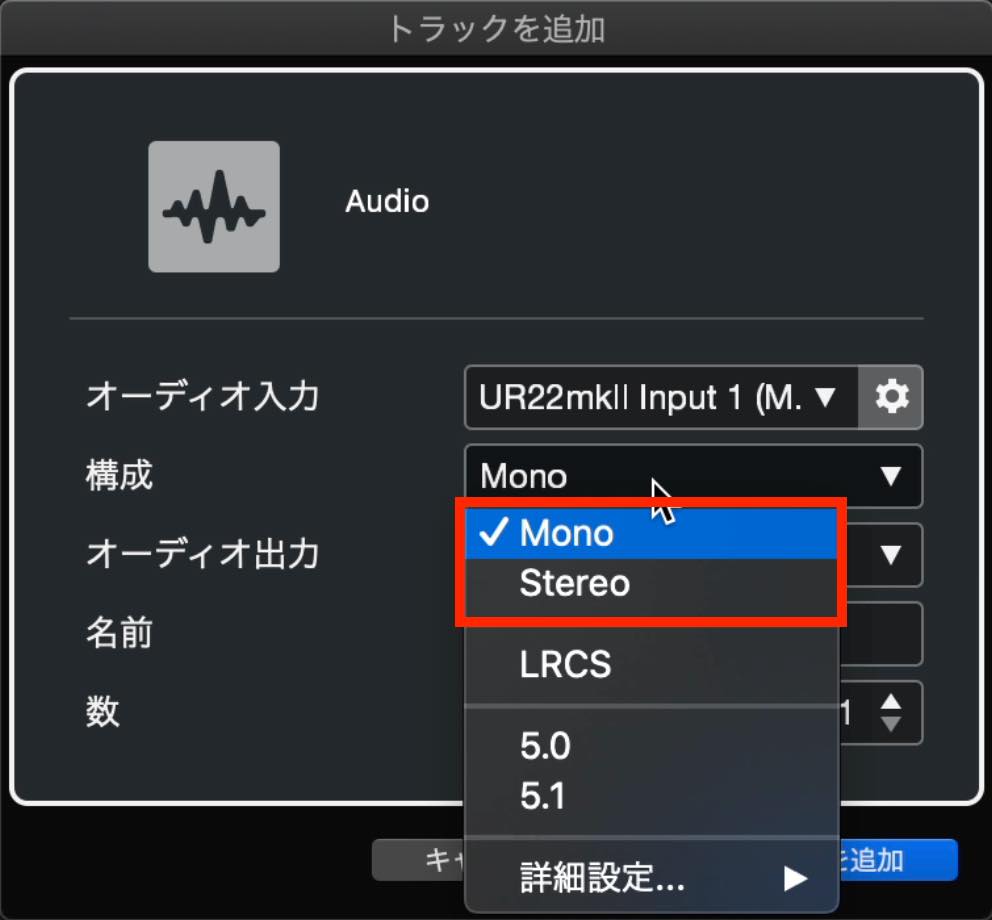
Choose Mono when recording with one microphone or one line input. Choose Stereo when using two inputs assigned to the left and right channels.
You can change the other settings later, so leave them as they are for now.
Click Add Track to create the Audio track.
Once these tracks contain data, they look like this.
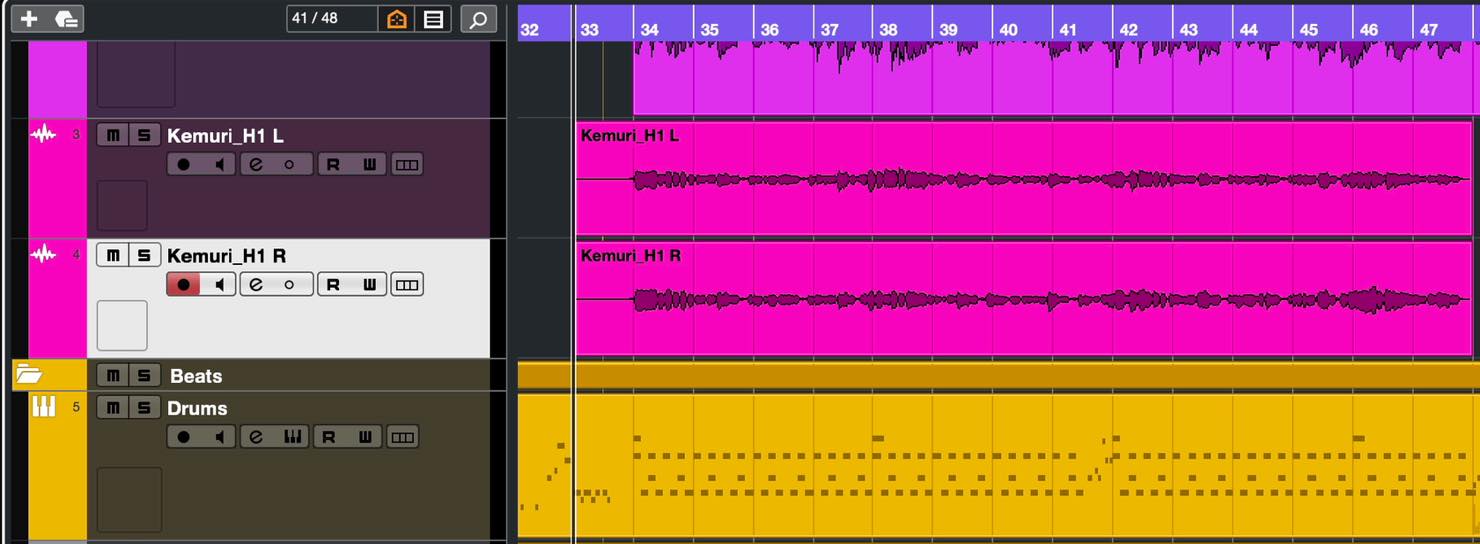
Audio tracks display waveforms, while Instrument tracks display an overview of the MIDI data.
Tracks representing different instrument parts are arranged vertically, and time runs horizontally from left to right.
That covers the basic track types and how to create them.
In the next tutorial, we will look at how to program a musical part, using drums as our example.
In Part 3 of our Cubase beginner series, we will learn about basic track types and how to create them.
This tutorial covers Instrument tracks and Audio tracks. Creating tracks lets you record vocals and instruments or program musical parts.https://t.co/wUNpJH0fAM#DTM— SLEEP FREAKS (@SLEEPFREAKS_DTM) March 14, 2021
Frequently Asked Questions
Q1. What is the difference between an Instrument track and an Audio track in Cubase?
An Instrument track uses MIDI data to generate sound with a software instrument, letting you freely edit pitch and timing. An Audio track records a live performance through a microphone, capturing natural expression but offering less editing flexibility than MIDI.
Q2. Which track type should a beginner start with?
Choose an Instrument track to program drums, bass, or synthesizer parts. Choose an Audio track to add live performances such as vocals or guitar. Combining both can give you a richer sound.
Q3. How should I choose between Mono and Stereo when creating an Audio track?
Choose Mono for one microphone or cable, and Stereo when using two or more to record separate left and right channels. You can change the configuration later.
NEW ARTICLES
Latest English Articles


























































