When starting out in a DAW, it is easy to program a song at twice or half the intended tempo. This guide explains how to compare a clap with the metronome and rescale MIDI events to match a chosen tempo. A useful tempo grid can make collaboration, loop use, and tempo-synced effects easier.
Optimize your project for a smoother workflow
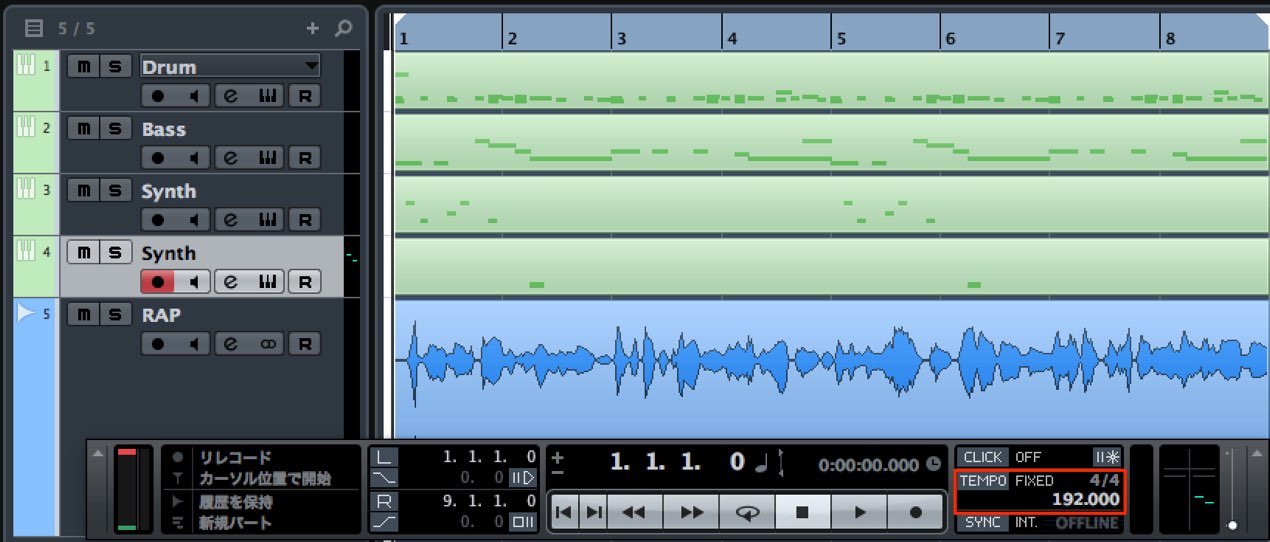
If you are new to programming music, pay attention to
setting an appropriate song tempo.
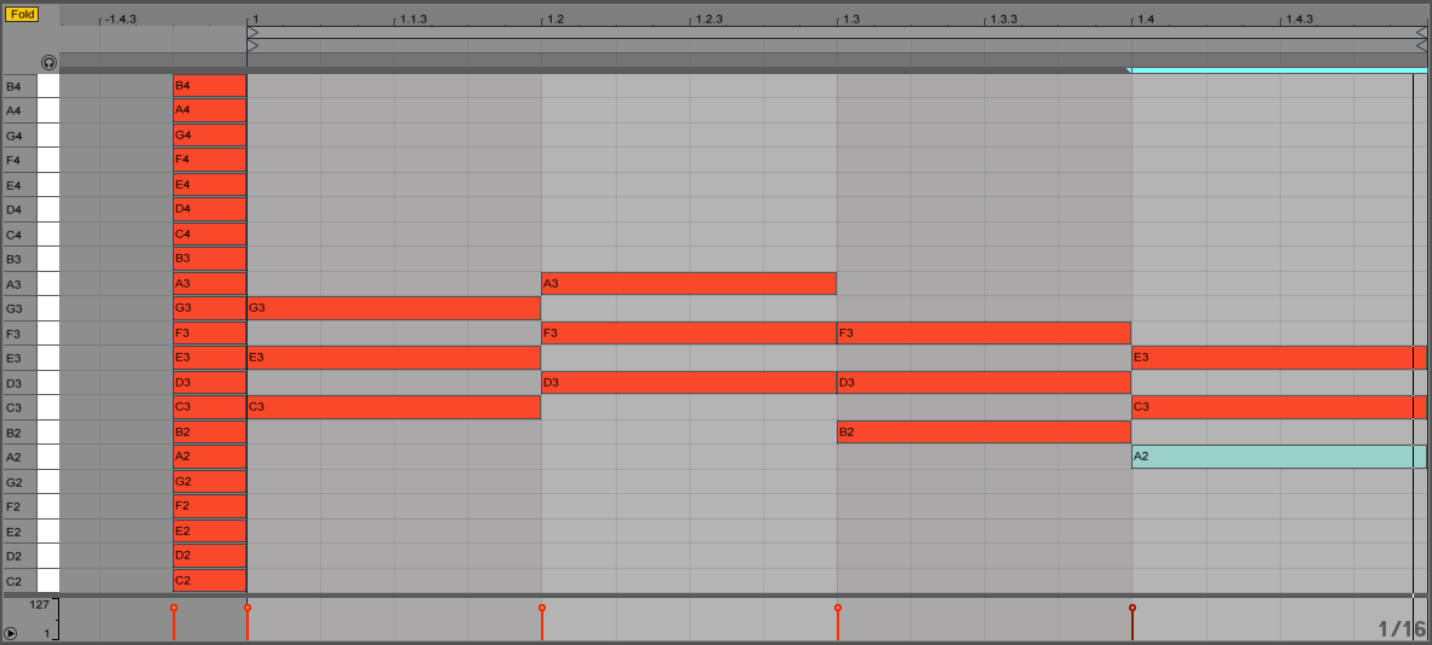
For example, a song intended at 96 BPM might be programmed at twice that value, 192 BPM.
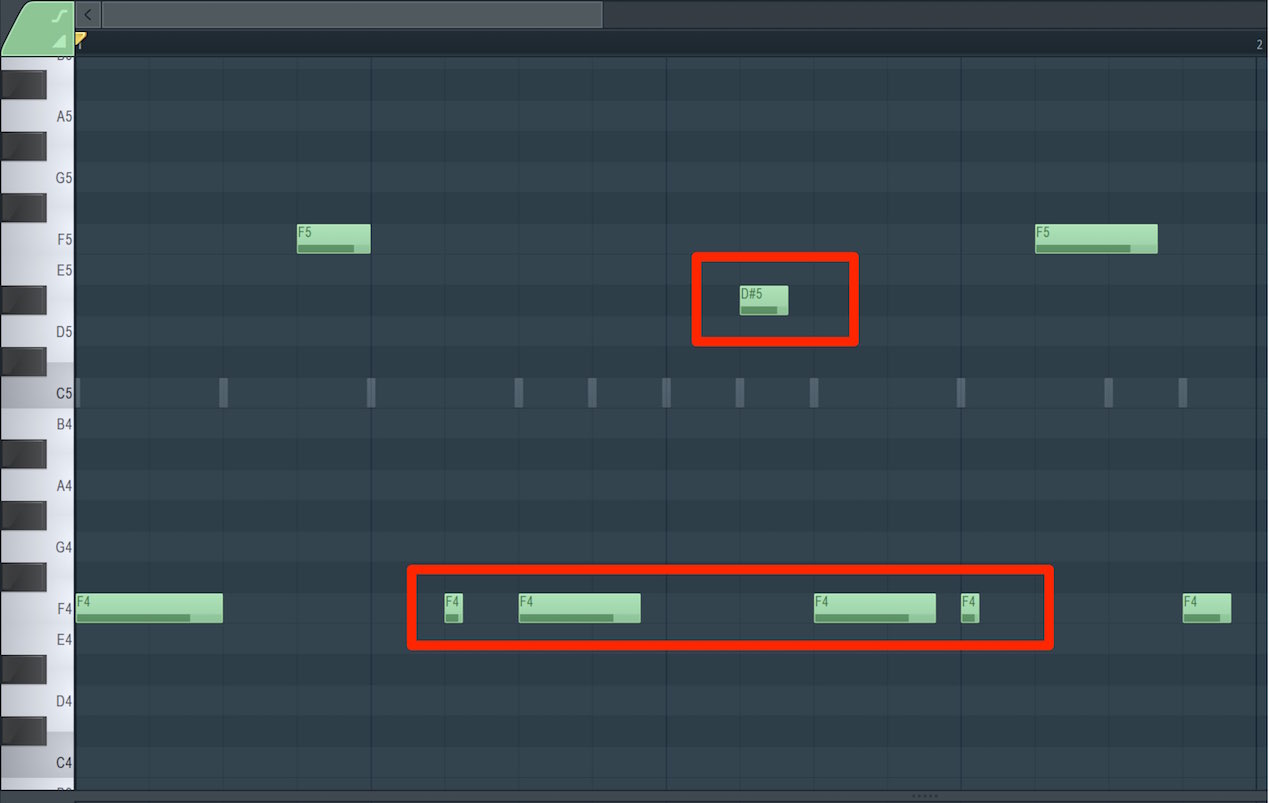
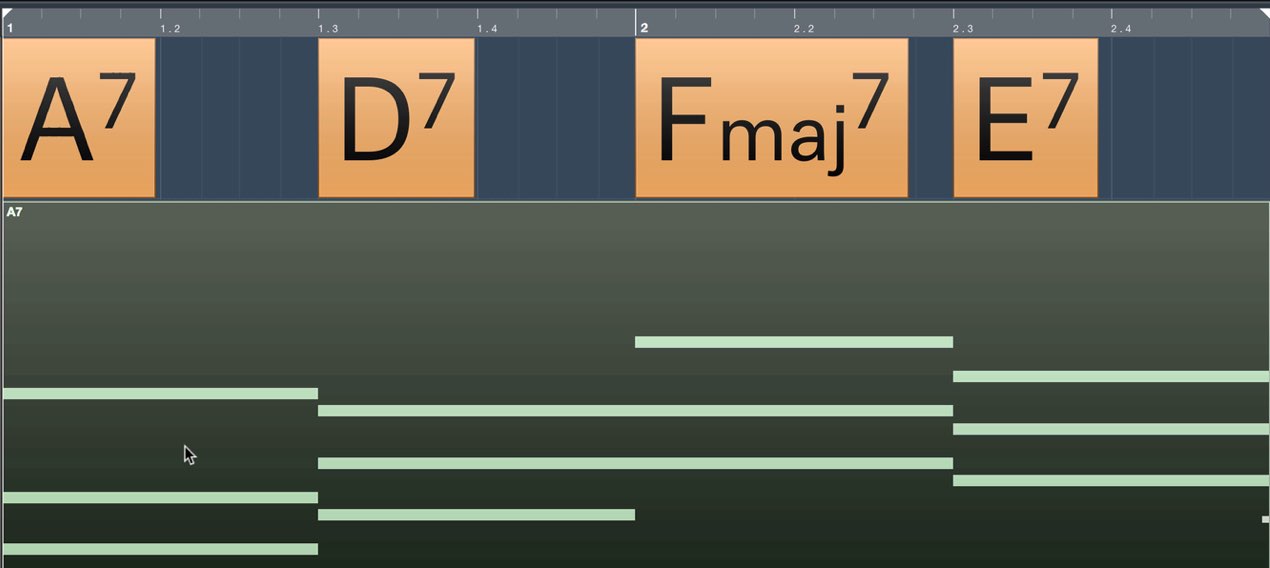
If all note positions are entered at twice the beat count, the performance can still sound correct.
You might be tempted to continue as is, but it can cause difficulties when:
- Collaborating with someone else
- Using loops
- Using tempo-synchronized effects or synthesizer functions
These situations can be affected.
It can also be harder to program
and may get in the way of developing your production skills.
Here we will look at how to check a song’s tempo
and adjust MIDI that has already been programmed.
How to address it
Identify the beat you want to use
This is a simple method.
Clap along with the music.
In many cases, the clapping rate will give you a useful tempo.

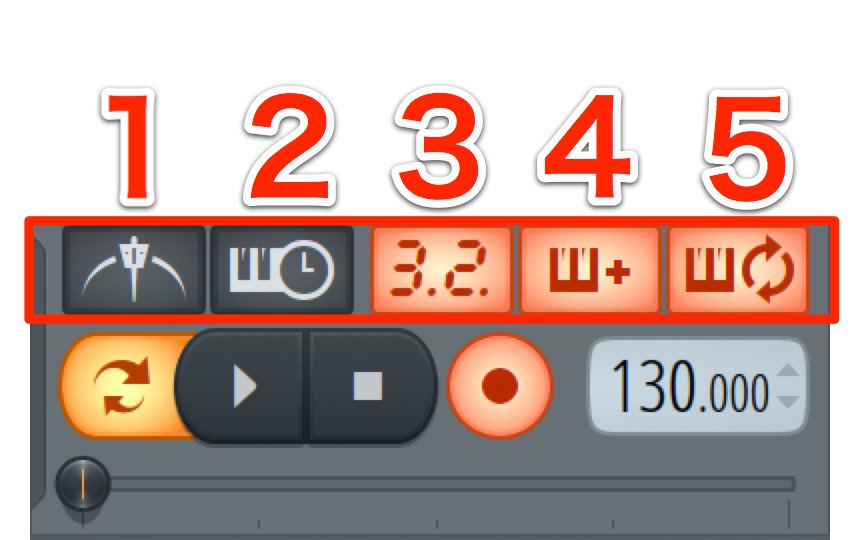
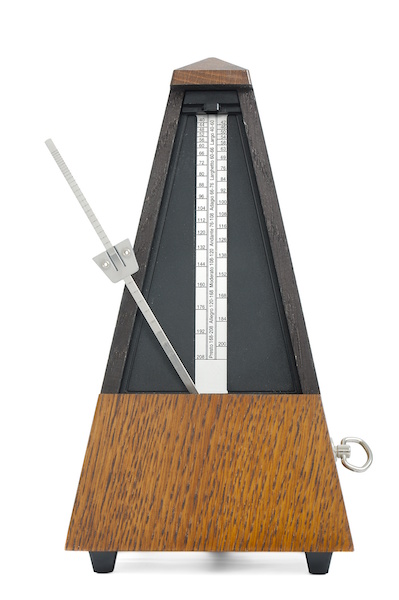
Next, turn on the metronome.
If it matches your clapping, the tempo grid matches the beat you chose.
If it is much slower or faster,
your project may be set to half or double the intended tempo. Beat interpretation can vary, so choose the grid that suits the music and workflow.
Correct the tempo
Halve the current tempo if the metronome was too fast,
or double it if the metronome was too slow.
The programmed MIDI will now likely be out of alignment.
Let’s correct it.
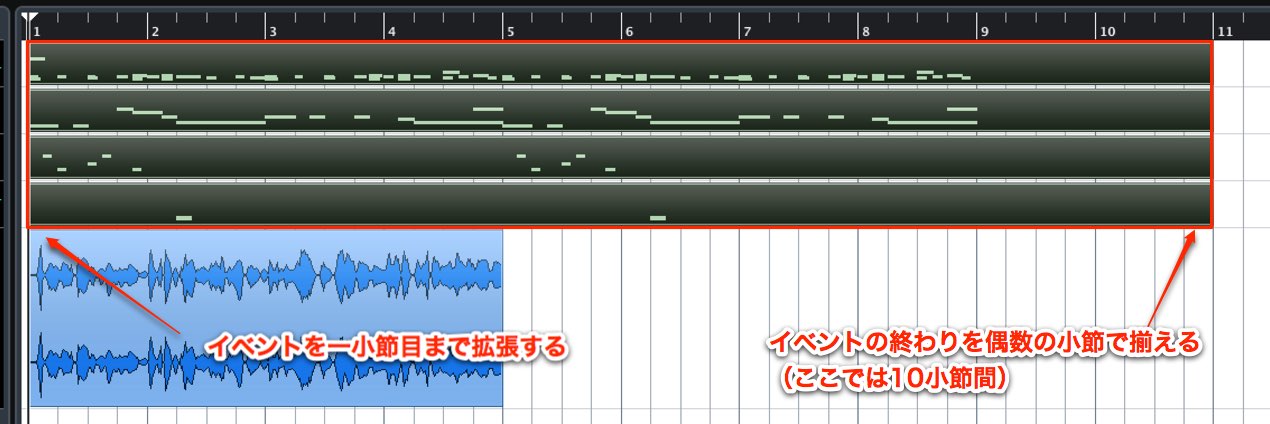
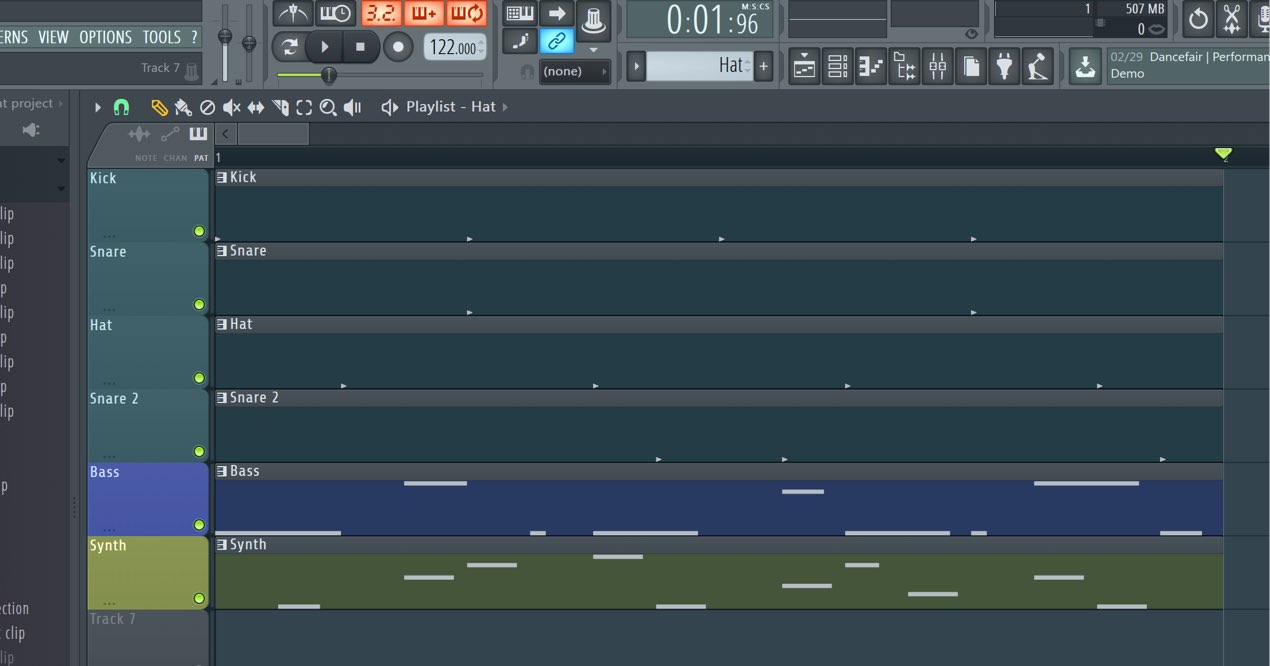
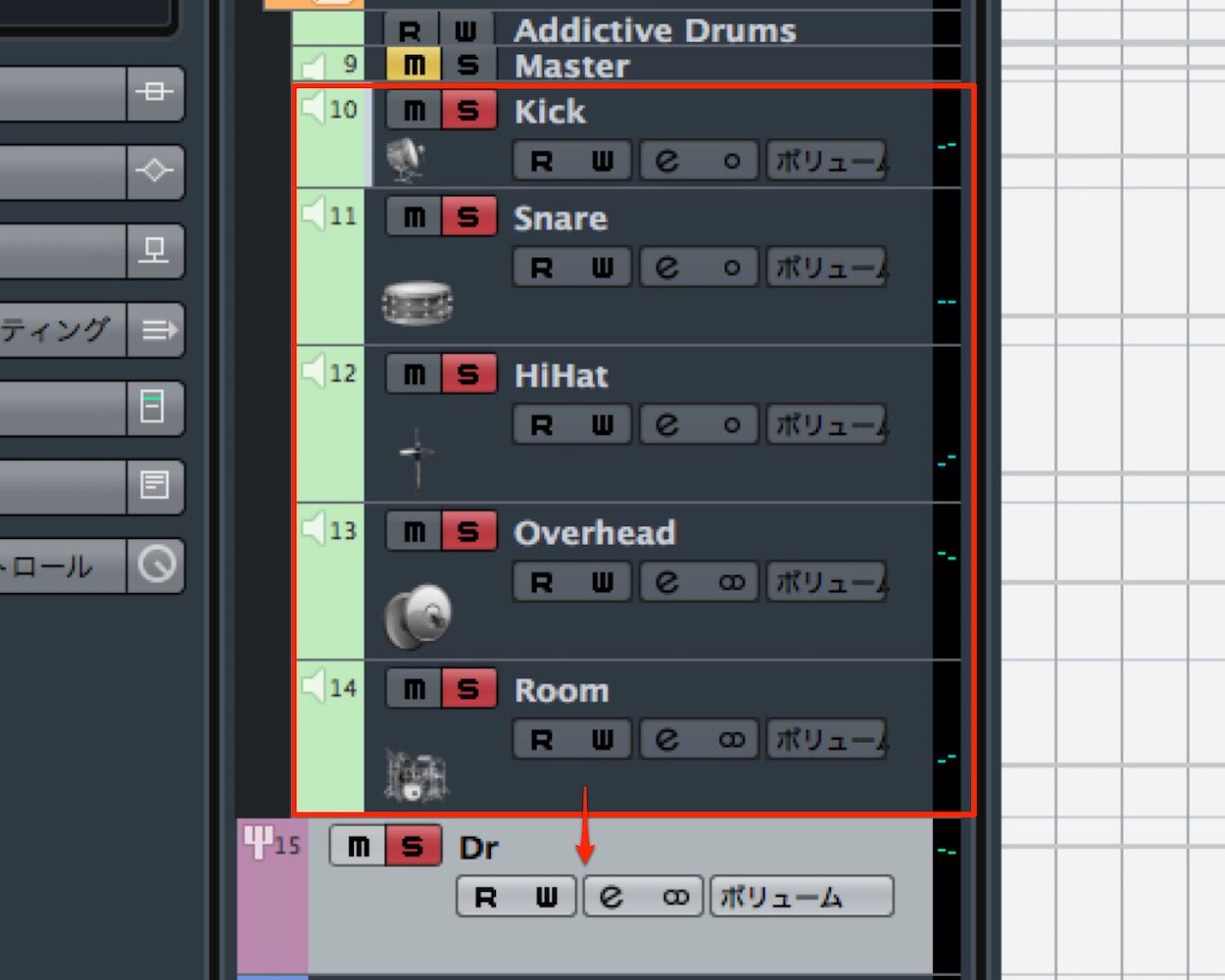
First, join the events on each track.
Extend them to the beginning and make the tracks the same length, covering all the MIDI data in the song.
Then apply time stretching.
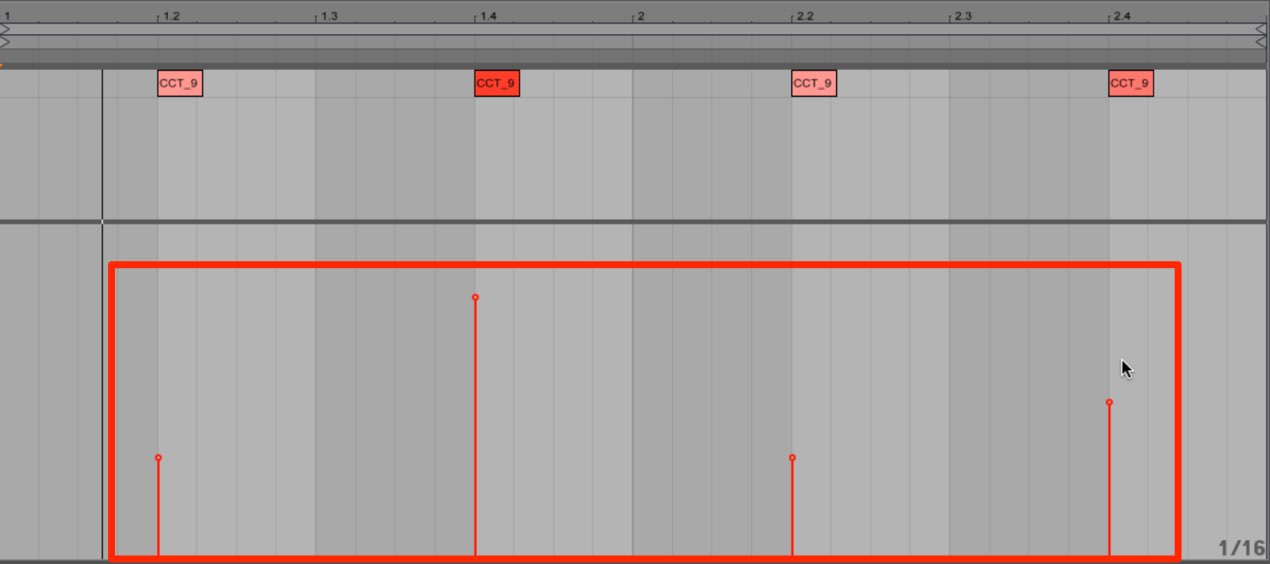
- If you halved the tempo: time-stretch the events to half their length in the musical grid.
- If you doubled the tempo: time-stretch the events to twice their length in the musical grid.
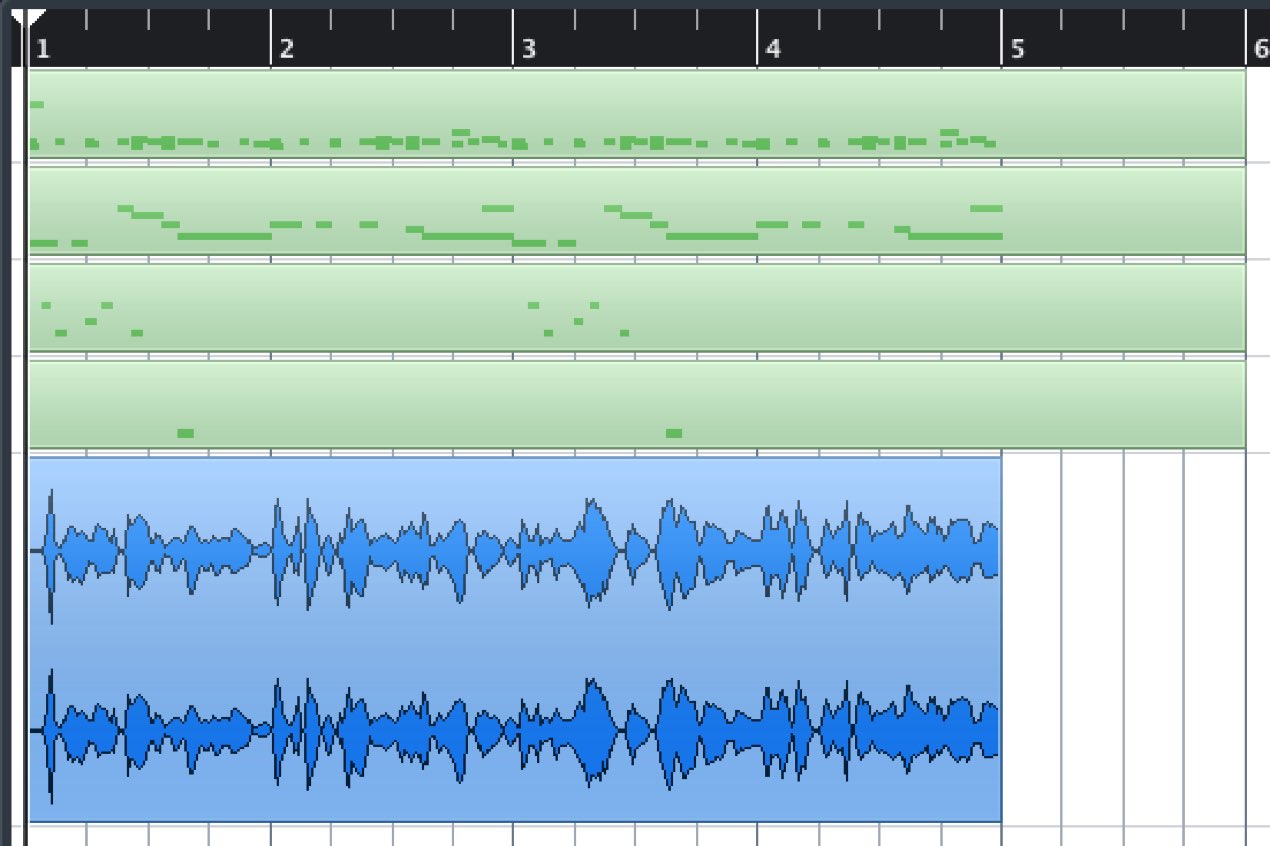
The performances should now match the chosen tempo.
The original guide says audio files need no change; check each audio track’s timebase and tempo-sync settings, since behavior varies by DAW.
Time-stretching in each DAW

 Logic
Logic Cubase
 Ableton Live
 Studio One
 FL Studio
Frequently Asked Questions
Q1. How can I tell whether a song’s tempo is correct?
Clap along with the music and compare that rate with the metronome. If they match, the grid matches your chosen beat. If they differ substantially, the project may be set to double or half the intended tempo; more than one beat interpretation can be valid.
Q2. Can I correct MIDI already programmed at the wrong tempo?
Yes. Change the tempo to the desired value, then time-stretch the MIDI on each track to preserve the original performance timing. Check the result in your DAW.
Q3. Do I also need to time-stretch audio files?
The original example does not require changing audio files. Check your DAW’s audio timebase and tempo-sync settings: audio can move or stretch when the tempo changes, depending on those settings.
Q4. Which way should I stretch MIDI when halving the tempo?
Halve the length of the MIDI events in the musical grid when you halve the tempo. Conversely, double their grid length when you double the tempo.
NEW ARTICLES
Latest English Articles