
TBProAudio’s free ISOL8 is a five-band frequency monitoring plug-in that helps you quickly identify problem areas while mixing or mastering. It has a relatively light processing load and lets you monitor mid and side components separately, making it easier to find issues in stereo audio. You can solo or mute individual bands and freely set crossover frequencies. It can also help you identify where EQ is needed or be used as a filter. As a monitoring tool, it assists detailed analysis and professional mastering without directly processing the sound.
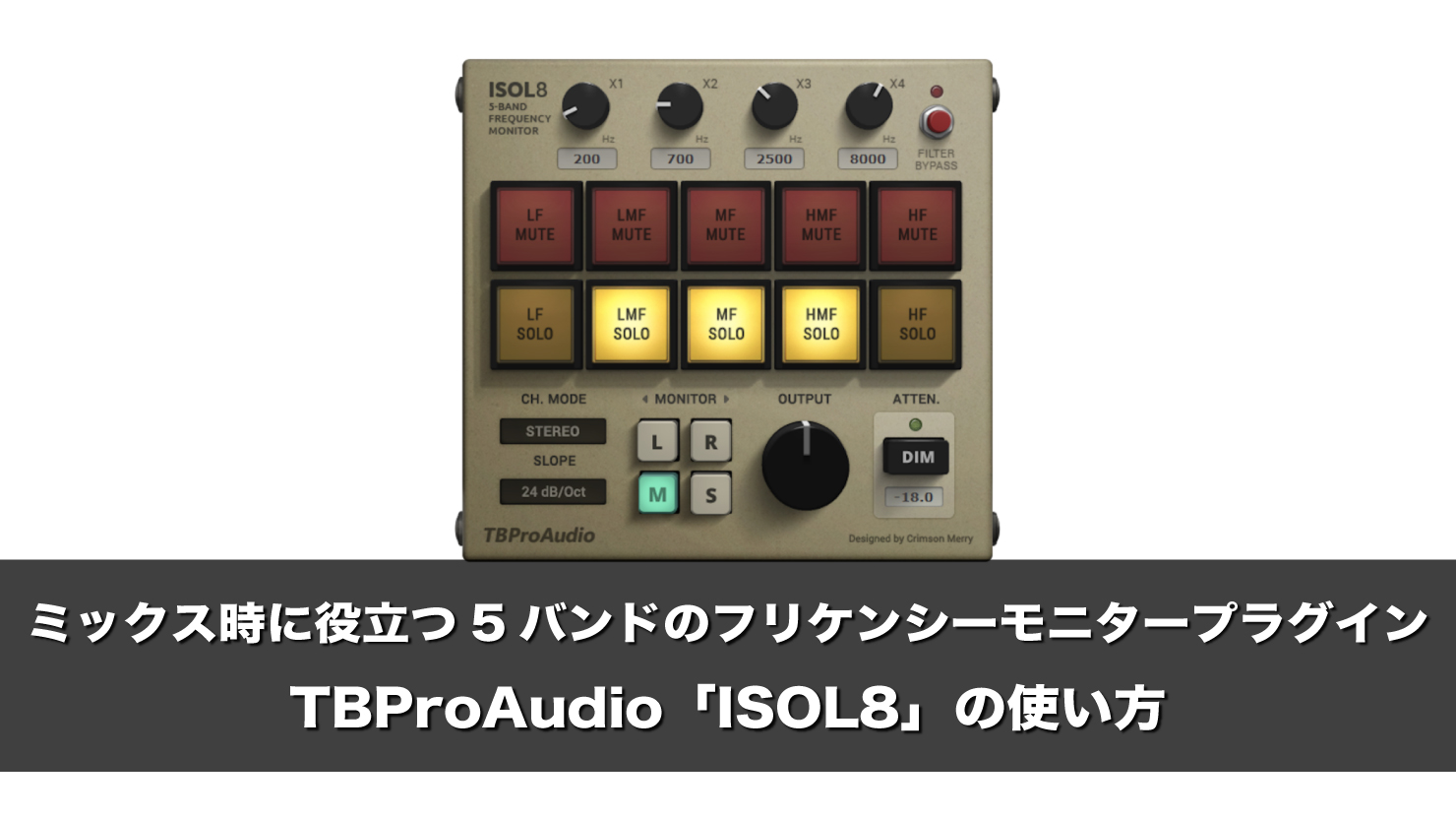
This time, we introduce ISOL8, a free plug-in from TBProAudio.
It is a five-band frequency monitor that lets you monitor or mute individual frequency ranges.
Many multiband compressors offer similar functions, but ISOL8 is relatively light on resources and can monitor the mid or side signal as well as individual bands.
This makes it easier to locate problems that arise during mixing and mastering.
First, let’s look at the role of each control.
Video: How to use TBProAudio ISOL8

What the controls do
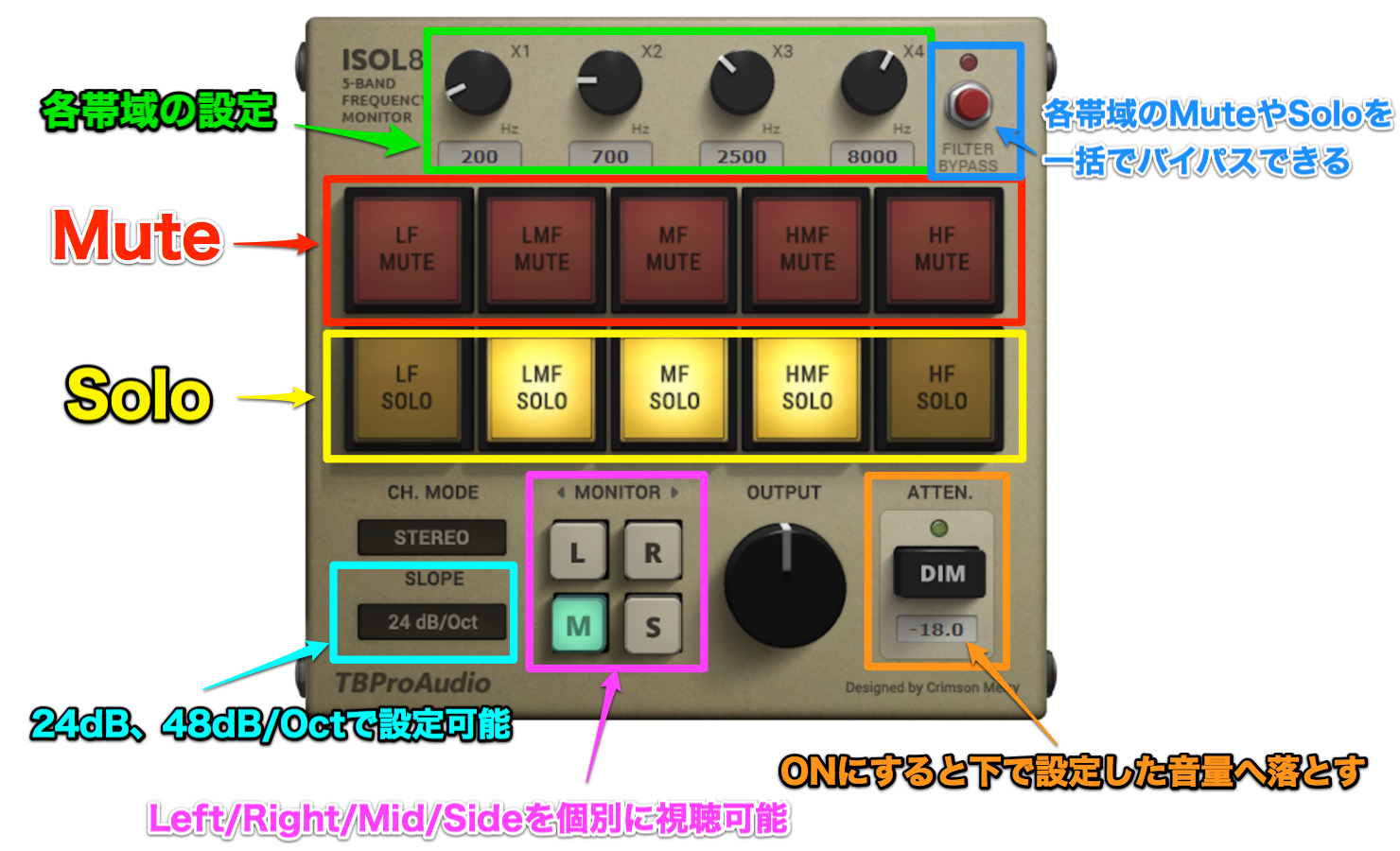
First, the red and yellow buttons in the middle of the window control mute and solo respectively. You can use them to monitor or mute individual bands, from low to high frequencies.
To set each band, use the four knobs at the top of the window. For example, setting the left knob to 120 Hz assigns frequencies below 120 Hz to the two buttons on the far left.
In addition to selecting bands, the MONITOR switch lets you listen separately to the left channel, right channel, mid or side of the monitored signal.
The SLOPE setting controls how broadly or narrowly the crossover separates the bands. Choose 48 dB/oct when you want to examine a selected band more precisely.
The OUTPUT knob controls output volume. Pressing ATTEN. (attenuator) reduces the output volume to the value set below it.
Pressing FILTER BYPASS in the upper right bypasses all band mute and solo selections at once, making it convenient to compare with the original sound.
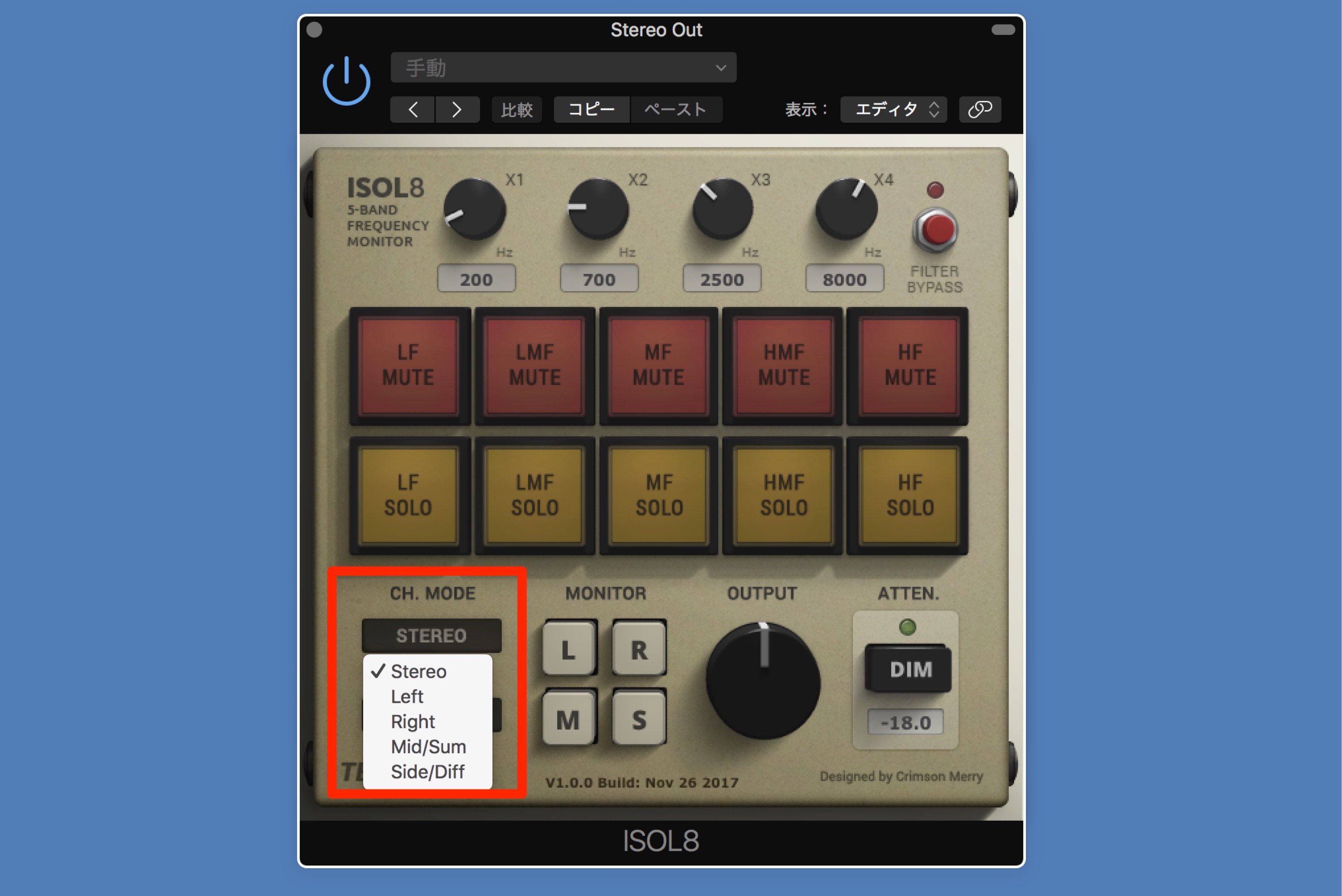
The CH. MODE control keeps the selected channel audible while monitoring. It has no effect in the default Stereo mode; for example, if you select LEFT, the entire left channel remains audible even when you solo a particular band.
Using ISOL8 while mixing
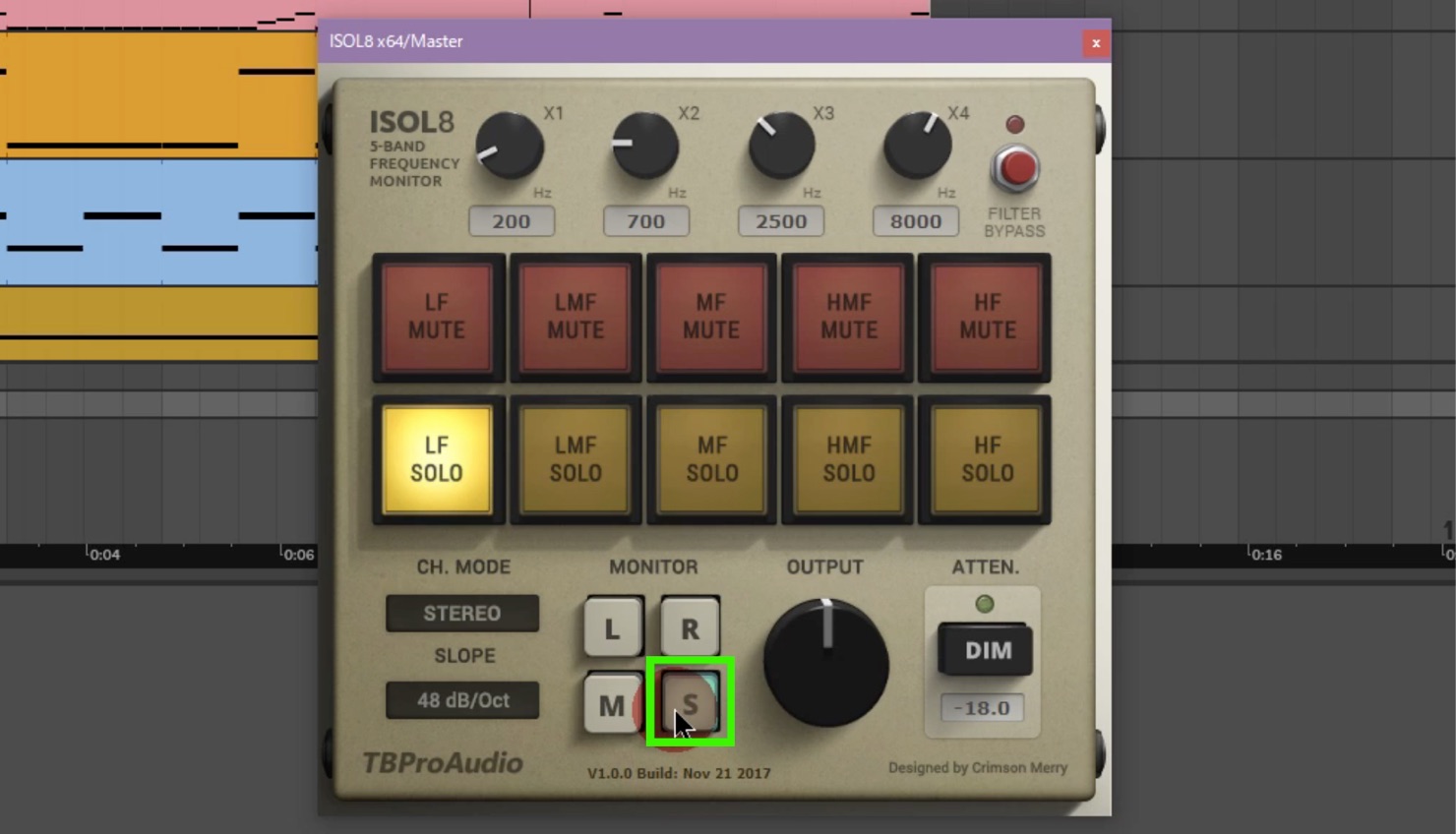
Suppose a synth-bass preset used in a mix has reverb and sounds good on its own. If you leave it as it is, too much bass information in the side signal can make the low end of the song feel unstable and indistinct.
If you notice this immediately, it is easy to address, but as the track count grows and the session becomes harder to manage, finding the cause of an unintended sound can become difficult.
In that situation, solo the low band and monitor only the side component.
You may hear that too much of the bass track is present in the sides. Review the effect settings or panning to resolve the problem.
Using ISOL8 while mastering
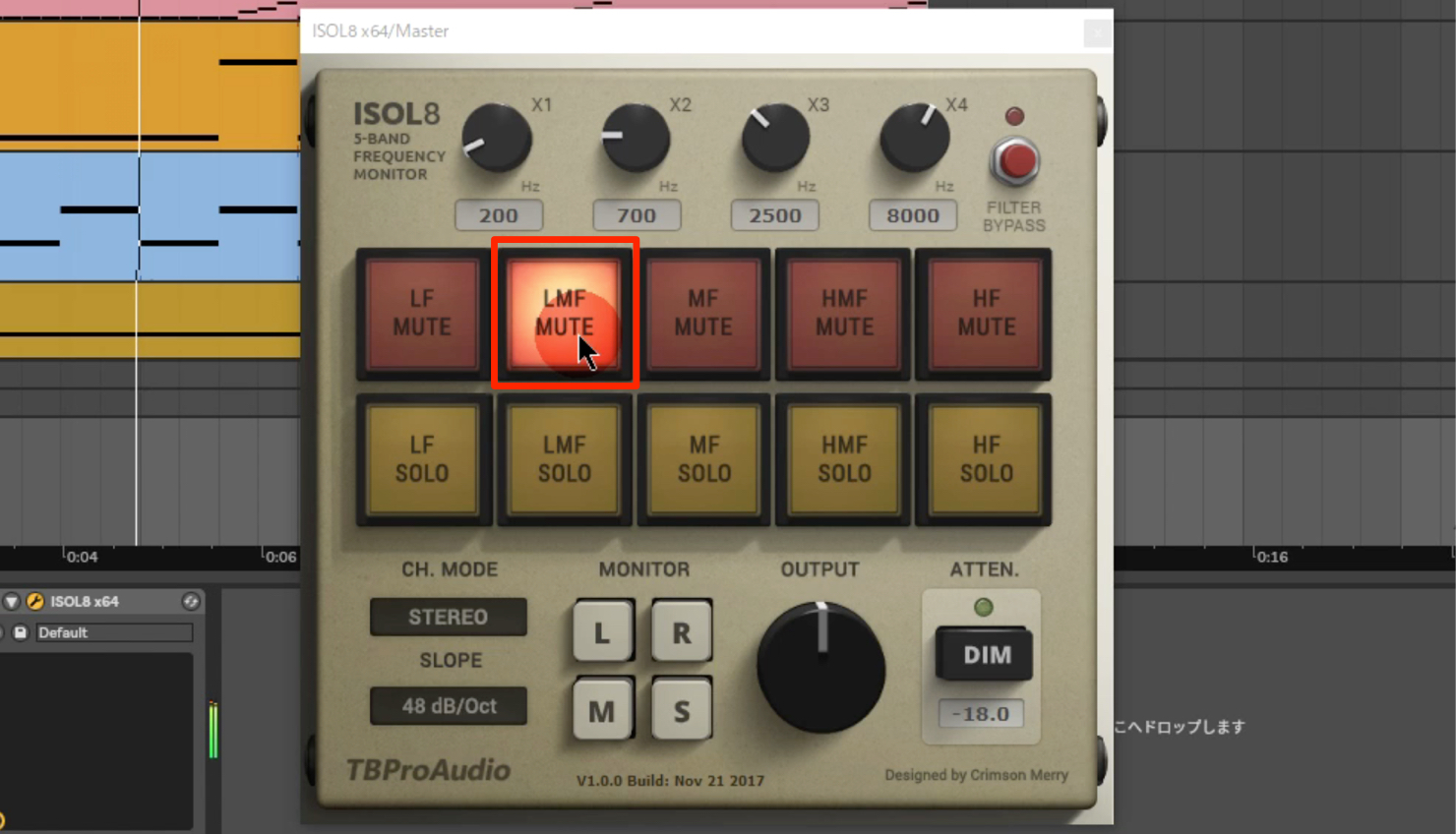
For a mastering example, suppose a finished mix sounds crowded in the low mids and lacks clarity. To make it sound cleaner with EQ on the stereo mix, first locate the frequency range responsible.
Because the problem seems to be in the low mids, estimate its location and try muting the second band from the bottom.
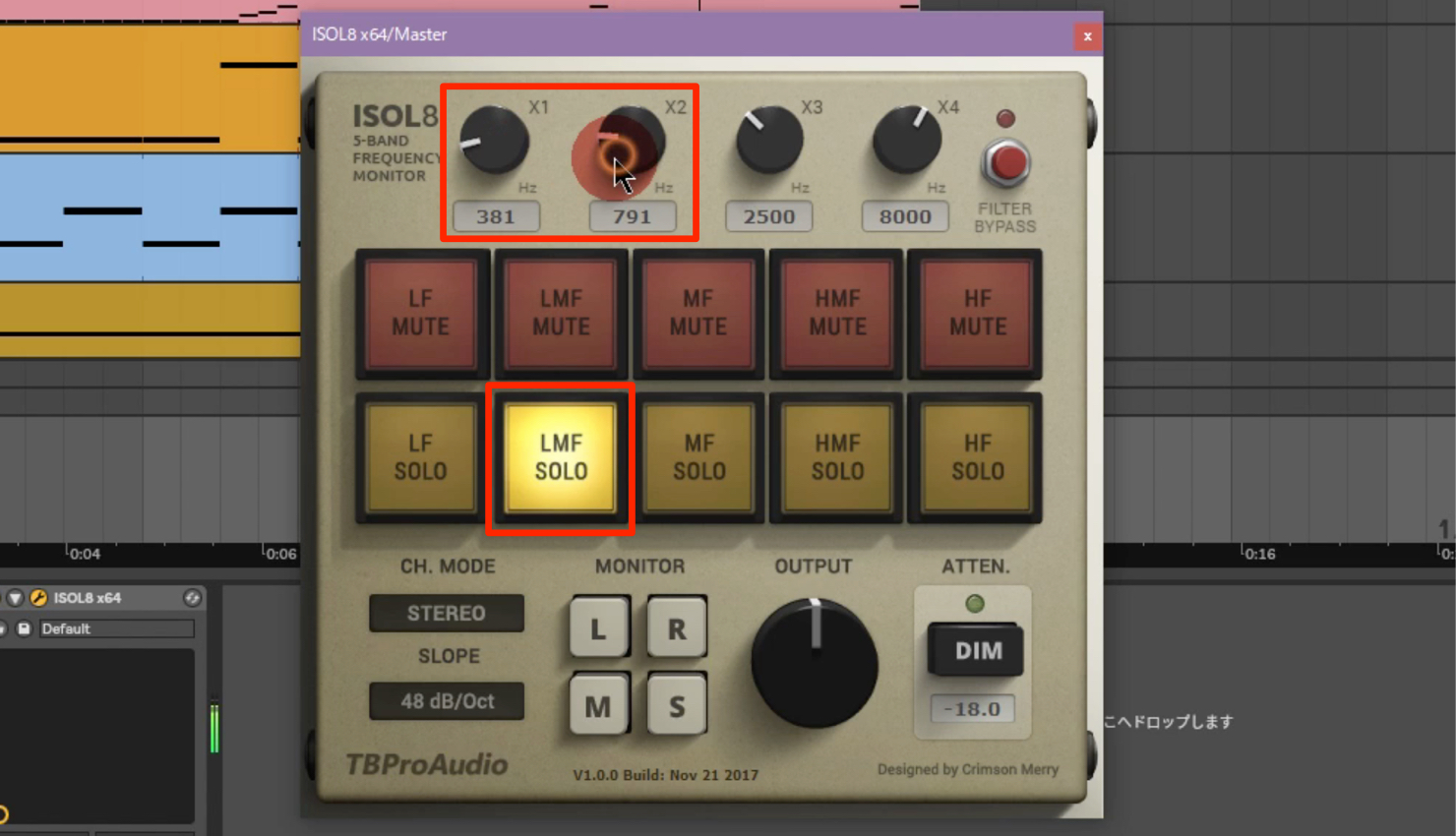
If that area sounds like the cause, solo the same band and adjust the crossover frequencies to pinpoint the problem range.
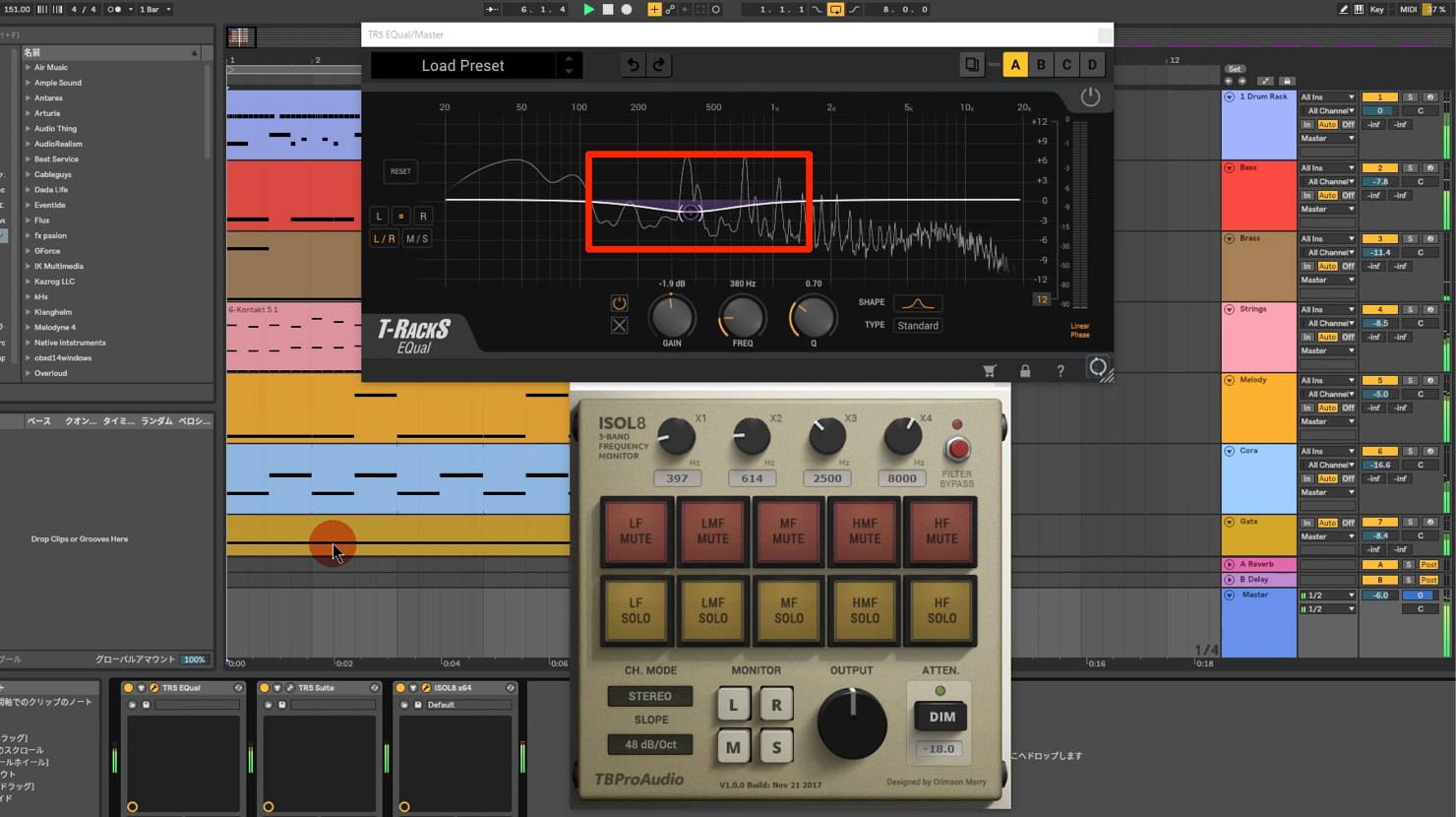
Once you have found the range, use EQ to cut around the center of the selected crossover range.
In this way, ISOL8 can be a useful tool for finding frequency ranges that cause problems in a sound.
Using ISOL8 as a filter
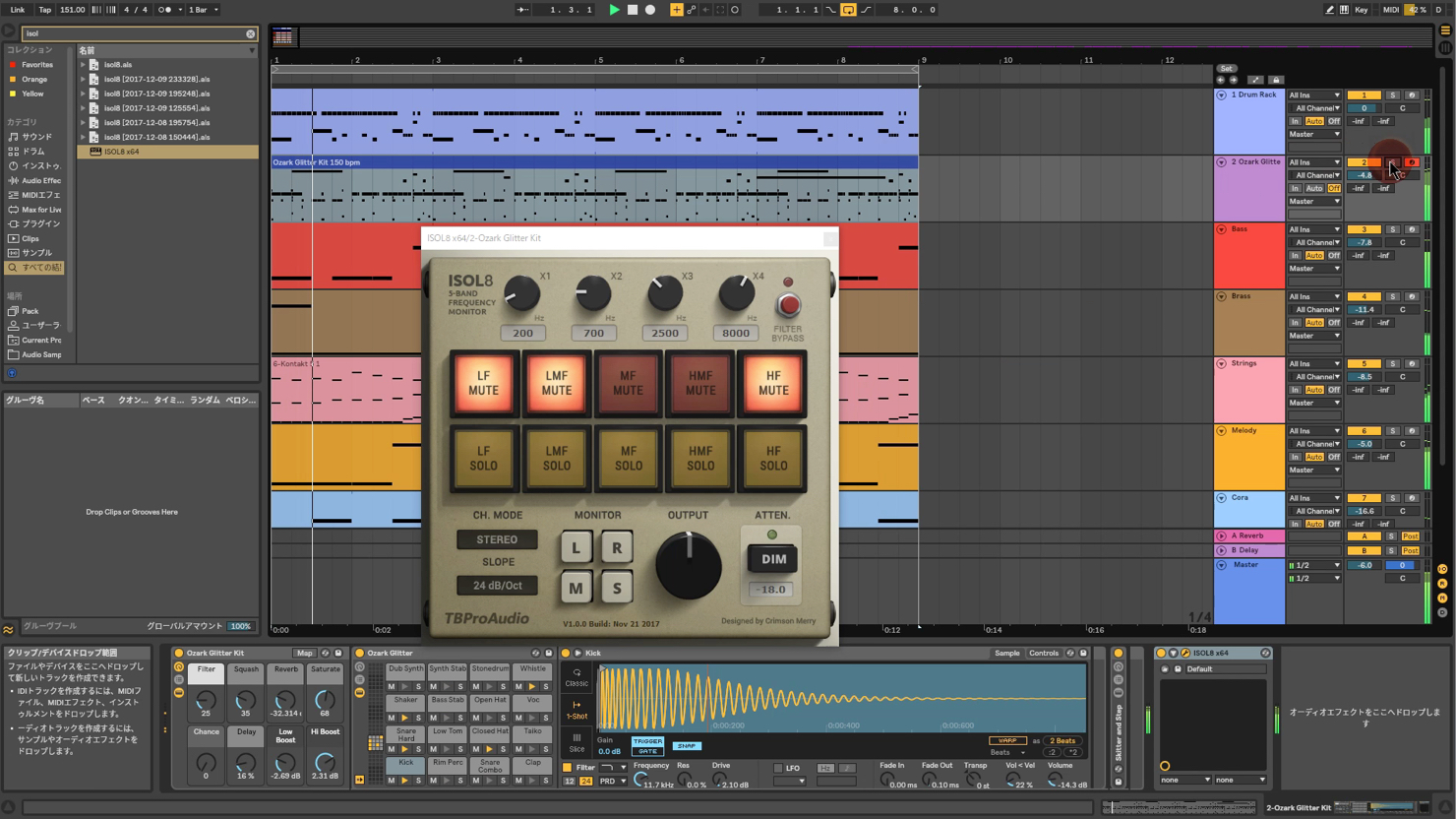
This is a less conventional application, but you can also use it as a filter to cut a particular band.
For example, try cutting the lows from a rhythm loop and keeping only the higher frequencies to reinforce an existing rhythm.
What did you think? Because you can listen to mid and side separately, ISOL8 can also help you distinguish them when applying M/S processing during mastering.
It is intended as a monitoring tool rather than a plug-in that directly alters the sound, but it can help you achieve a higher-quality mix or master. If you are interested, follow the link below to download it.
Frequently asked questions
Q1. Which DAWs can use ISOL8?
The version described in this article supports Mac and Windows, 32-bit and 64-bit systems, and VST, AU, AAX and RTAS formats. It can be used with major DAWs such as Studio One, Logic Pro and Cubase when the relevant format is supported.
Q2. How does ISOL8 differ from a multiband compressor?
ISOL8 is a relatively lightweight monitoring tool that does not directly process the sound in its monitoring role. A multiband compressor applies compression to individual frequency bands and therefore uses more processing resources.
Q3. Why check the side component with ISOL8 when mixing?
You can determine whether reverb or stereo effects have added too much side information, helping you achieve a mix balance that preserves a stable low end.
Q4. Can ISOL8 be used as a filter?
Yes. Muting a particular band can create a filter effect, for example to cut low frequencies from a rhythm track.
Q5. How do I find a problem frequency range during mastering?
First estimate and mute the likely problem range. Then solo that band, adjust its crossover frequencies to pinpoint the issue, and use EQ to cut the identified range.
NEW ARTICLES
Latest English Articles







































































































































































































































































































































