
KICK 3 is a next-generation kick-sound plugin from Sonic Academy, released about eight years after KICK 2. It offers extensive sound-design flexibility with a wide range of presets, Sub and Click layering, an intuitive waveform editor, powerful effects, a trigger function, and sidechain support. Covering genres such as EDM, dance, and hip-hop, it makes it easy for beginners and advanced users alike to create professional kick sounds—from importing samples and adding harmonics to applying effects.
A long-awaited update: A closer look at the evolved kick plugin
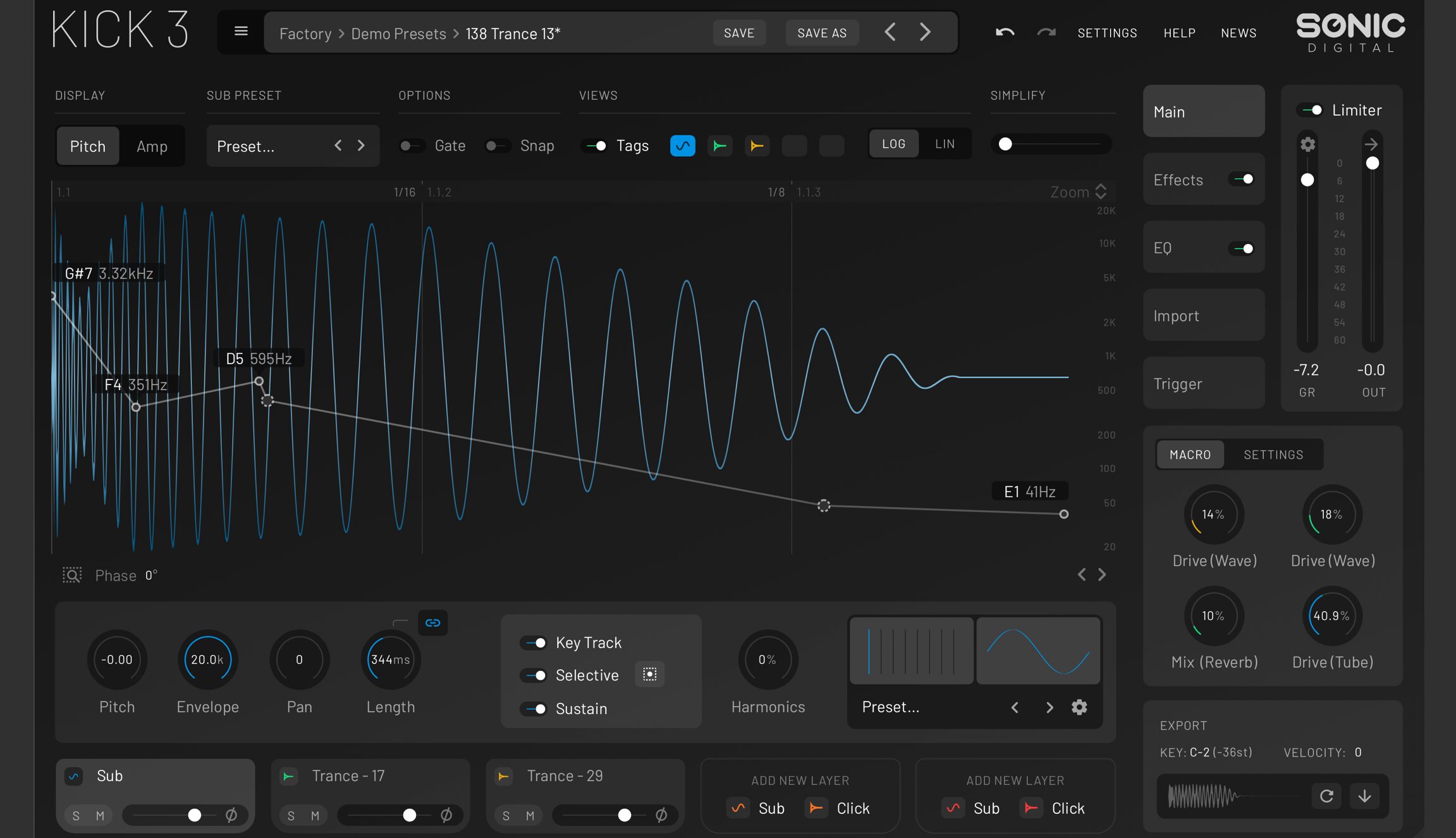
In music production, the kick plays an important role in shaping the character of an entire track.
This is especially true in EDM and dance music, where its impact and depth directly affect the overall quality.
Sonic Academy's new KICK 3 is a plugin designed to help you achieve the kick sound you have in mind.
After about eight years since KICK 2, this update adds a wide range of features, greatly expanding the flexibility of sound design.
Here, we take a detailed look at KICK 3's features and how to use them.
Video, audio comparison, and key features of KICK 3
First, listen to the audio before and after using KICK 3.
After processing, the kick sounds more powerful than before, giving the whole track a tighter feel.
KICK 3 combines the following elements to deliver its greatest strengths: exceptional flexibility and creative freedom in sound design.
- A wide range of presets: A rich selection of sounds for genres including EDM and hip-hop
- Sub and Click layering: Adjust the low-frequency body and attack independently to create your ideal kick sound
- Intuitive sound adjustment: Freely control pitch and length to make the sound fit your track
- Powerful effects and EQ: Add punch and depth with distortion, reverb, and EQ adjustments
- Trigger function: Automatically trigger a kick in time with another sound, saving time while achieving precise timing
- Sidechain function: Make the kick stand out while keeping it balanced with other instruments
Choose sounds easily with presets
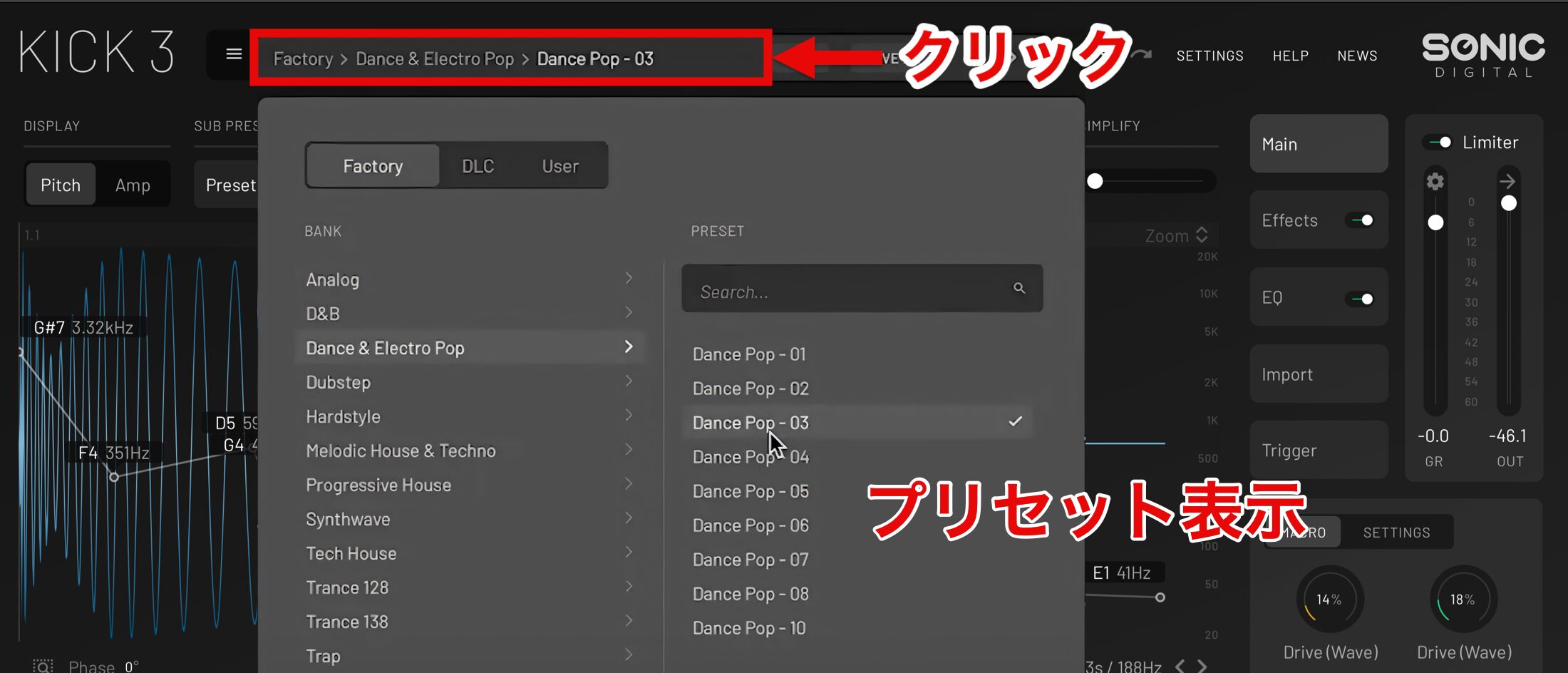
Click the navigation bar at the top of the screen to display the presets.
KICK 3 comes with production-ready sounds, and choosing a preset alone gives you options for a wide range of genres.
Main screen
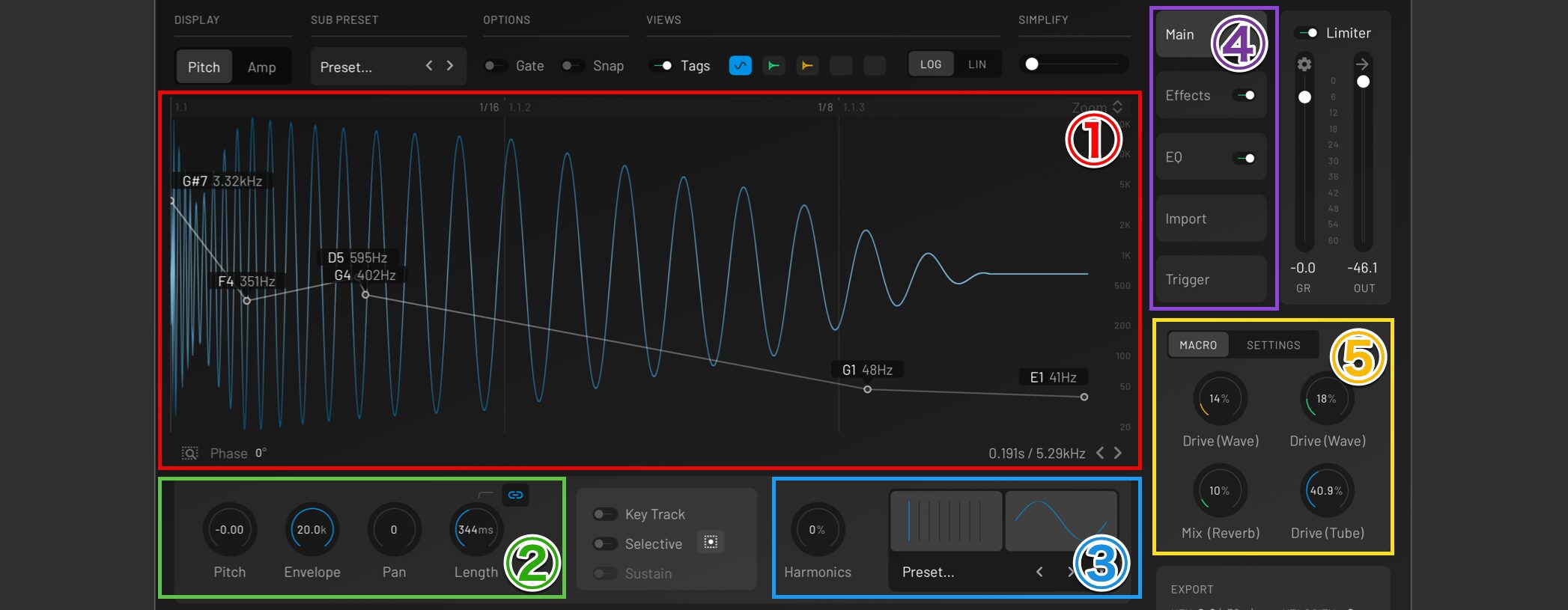
The main sections of the screen work as follows:
1 (red): Waveform editor: Visually edit the kick waveform and fine-tune its attack and decay
2 (green): Parameter controls: Adjust core kick parameters such as pitch, envelope, pan, and length
3 (blue): Harmonics and Sub presets: Add harmonics or choose a preset to strengthen the low end
4 (purple): Menu area: Access features such as Main, Effects, and Trigger
5 (yellow): Macro controls: Quickly adjust effects such as reverb and drive
Build complex sounds in the Layer section
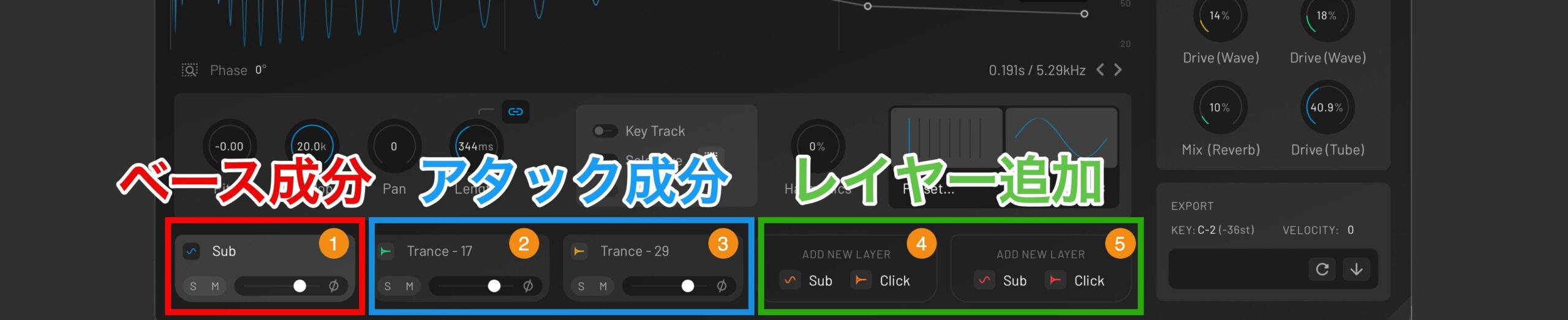
Another especially important part of KICK 3 is the Layer section at the bottom of the screen.
KICK 3 lets you adjust the kick sound in separate layers: the red-framed “Sub” (bass component) and blue-framed “Click” (attack component). Each layer can be adjusted independently.
That is enough to create a solid kick sound, but you can add multiple Sub or Click layers with the green “ADD NEW LAYER” button for an even more complex, three-dimensional kick sound.
You can freely add or replace up to five layers, giving you a wide range of kick-sound design options.
The kick-sound design process
Next, we will show you how to create kick sounds using the different features.
Importing a sample
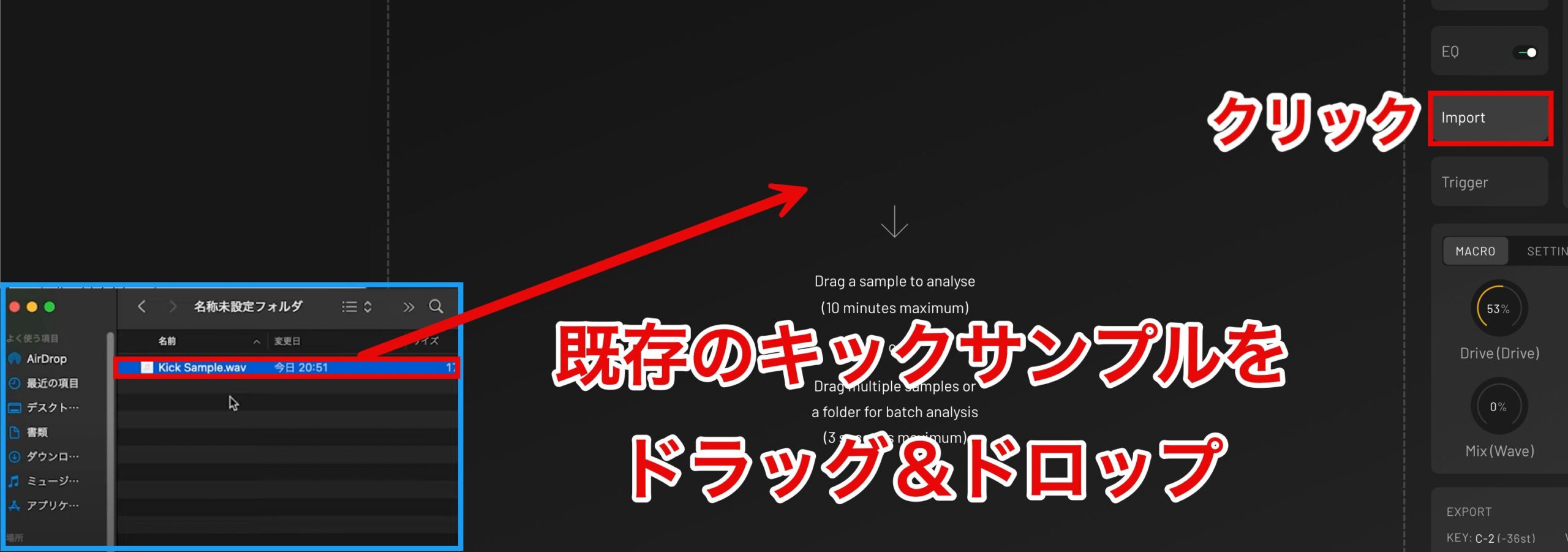
Click the “Import” tab to change the main area in the center of the screen.
Drag and drop an existing sample here from your DAW or file browser.
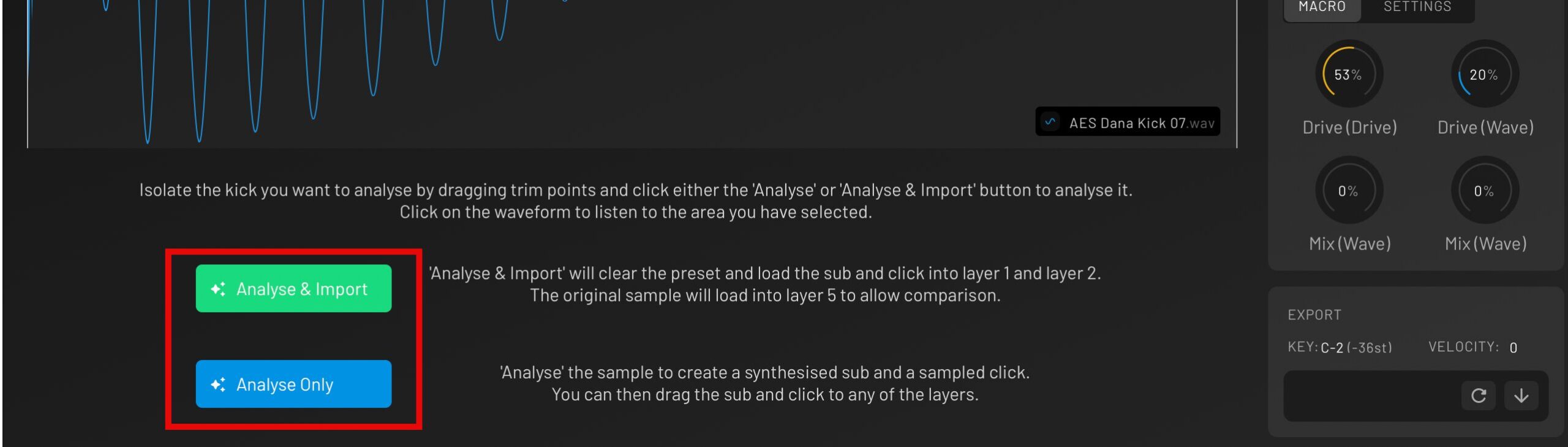
Two buttons appear: “Analyze & Import” and “Analyze Only.”
These buttons let you choose how to analyze and import the kick sample; use the option that suits your needs.
- Analyze & Import: Analyzes the sample, creates Sub and Click layers in Layers 1 and 2, and keeps the original sample in Layer 5
- Analyze Only: Analyzes the sample and creates Sub and Click, which you can drag into any layer
For this example, choose “Analyze Only” at the bottom.
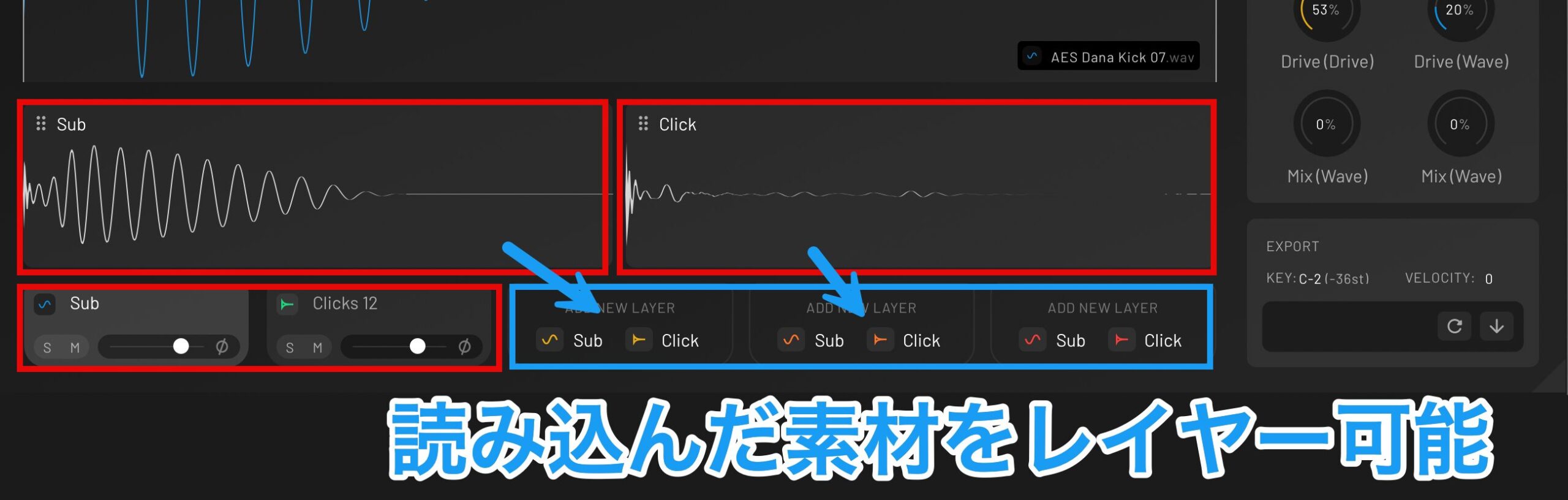
As shown in the image above, the imported sample is automatically split into Sub and Click layers.
You can also drag the generated elements onto “ADD NEW LAYER” to add them.
Basic adjustments in the Main tab
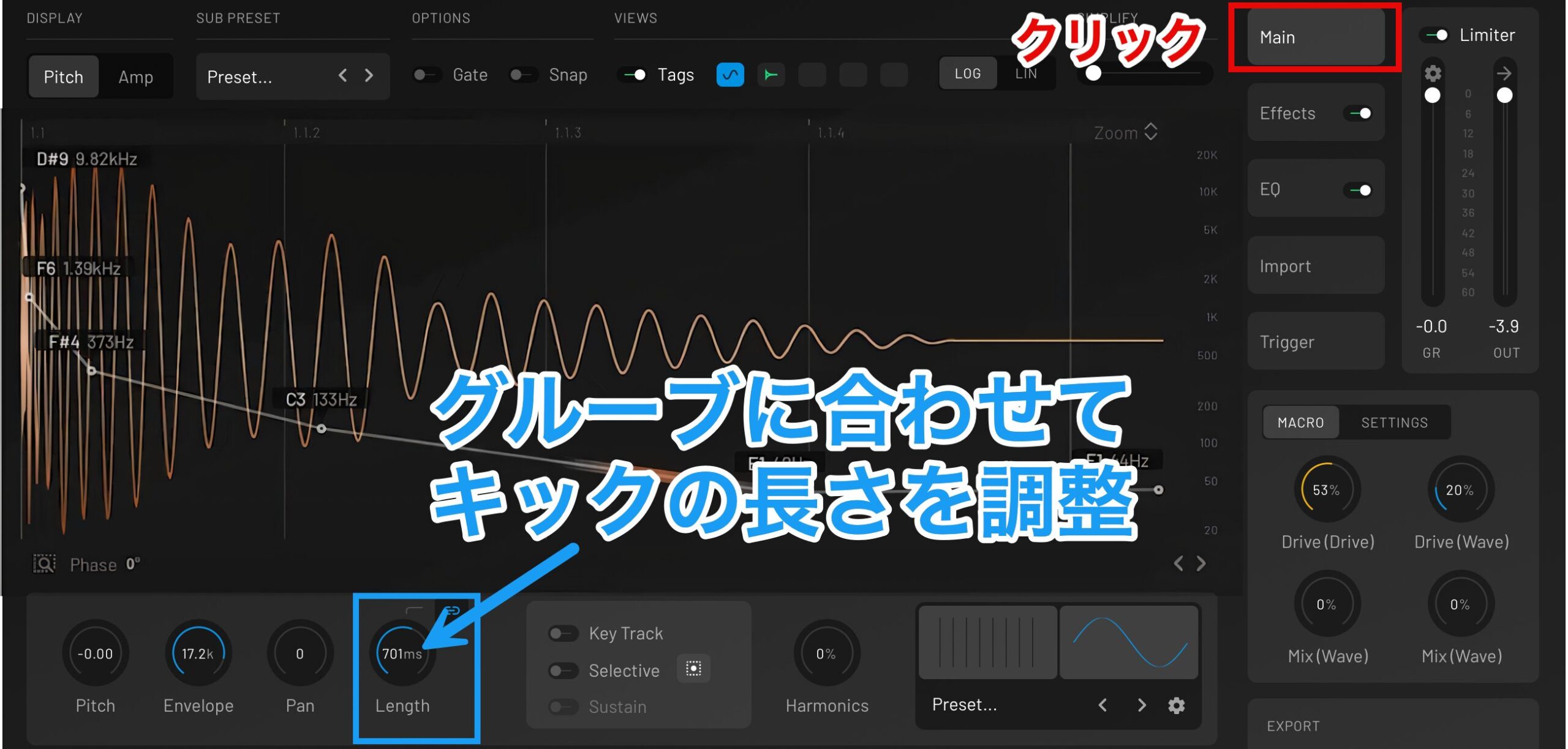
The “Main” tab controls the overall pitch and length of the kick.
Adjust the kick's length with “Length” in the Parameter Controls to create a kick that fits the groove.

Adjust the kick's pitch to match the key of the track so it fits more naturally into the song.
This example uses a song in F♯ minor, so drag the Sub point in the Waveform Editor until it is set to “F♯.”
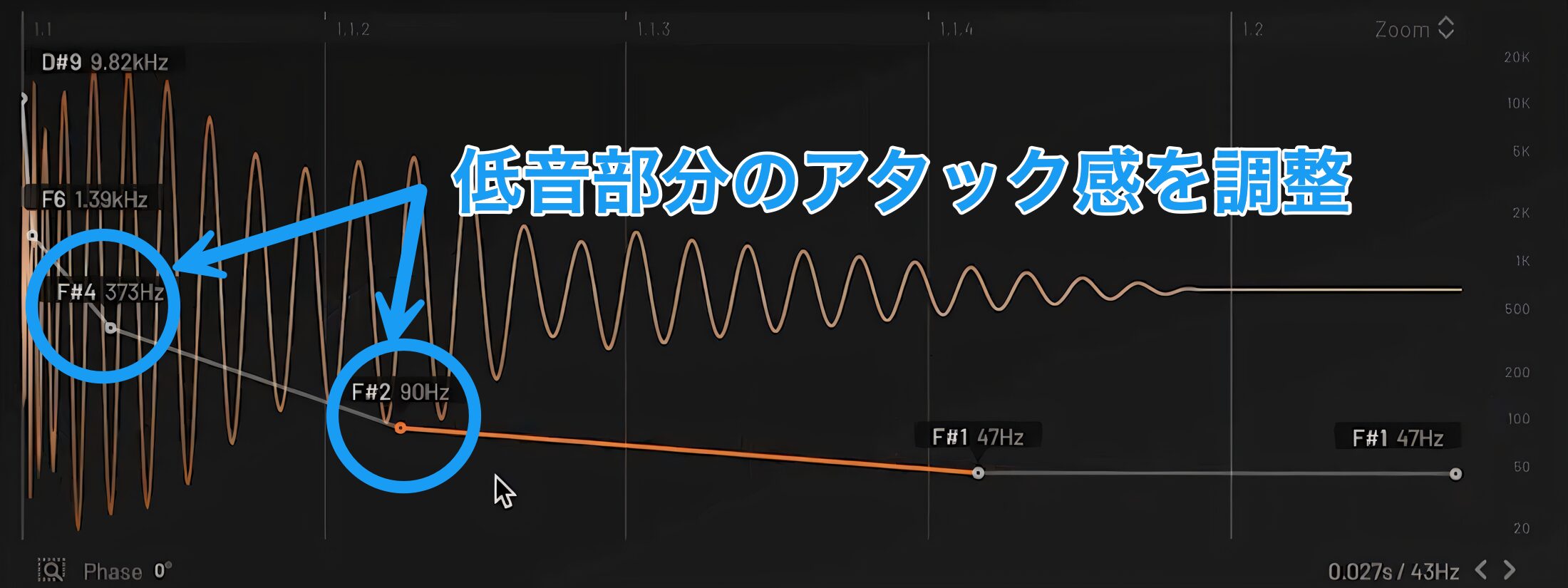
One useful technique is to adjust the duration around the point where the Sub pitch drops. This increases the low-end attack and gives the kick more impact.
Add depth with harmonics

Next, let's add harmonics using the Harmonics section.
Adding harmonics gives the kick more body and depth and helps create a more distinctive sound.
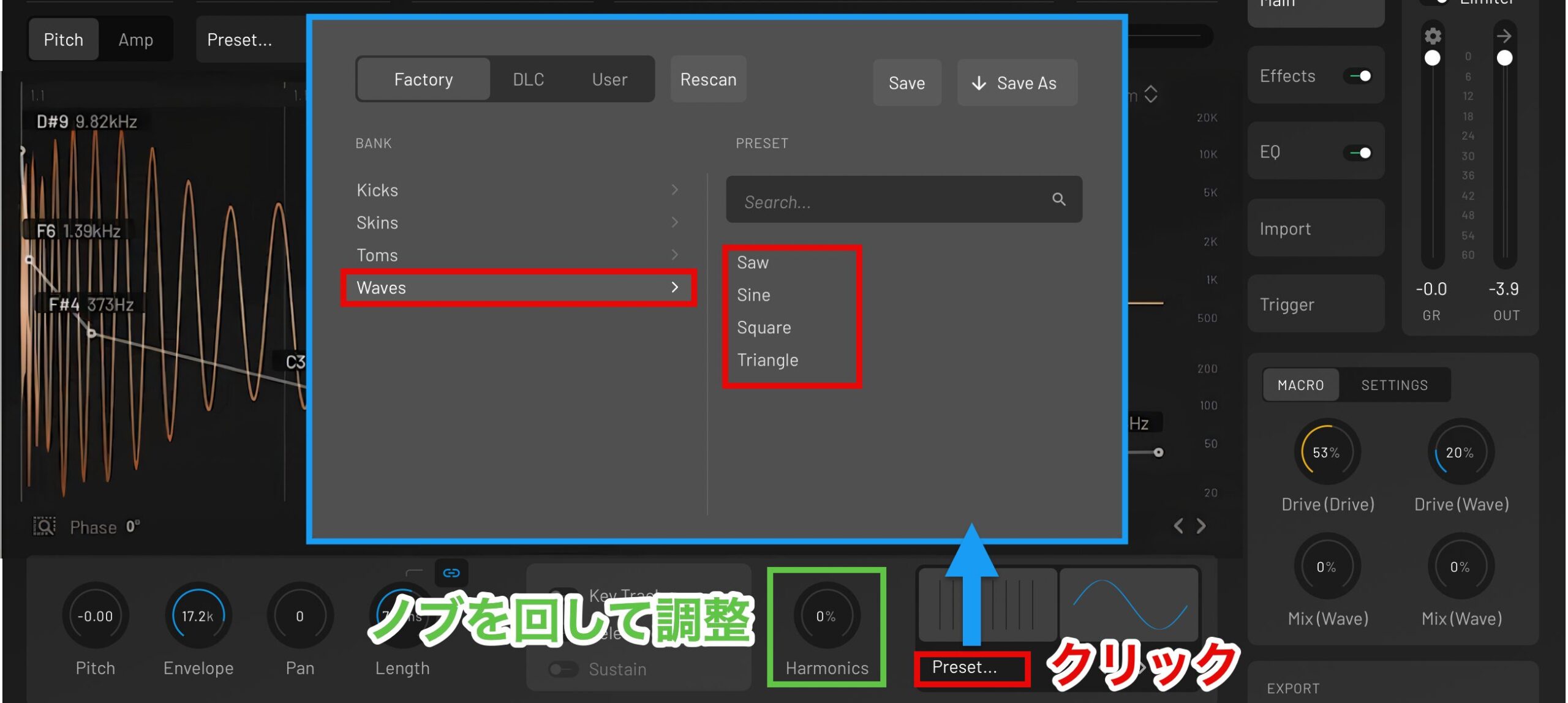
Click “Preset…” and select “Waves.”
Choose a waveform—Saw, Sine, Square, or Triangle—to select the type of harmonics to add.
This adds a different texture to the kick. Turn the “Harmonics” knob to fine-tune the level of the selected harmonics.
Add character to the kick with effects
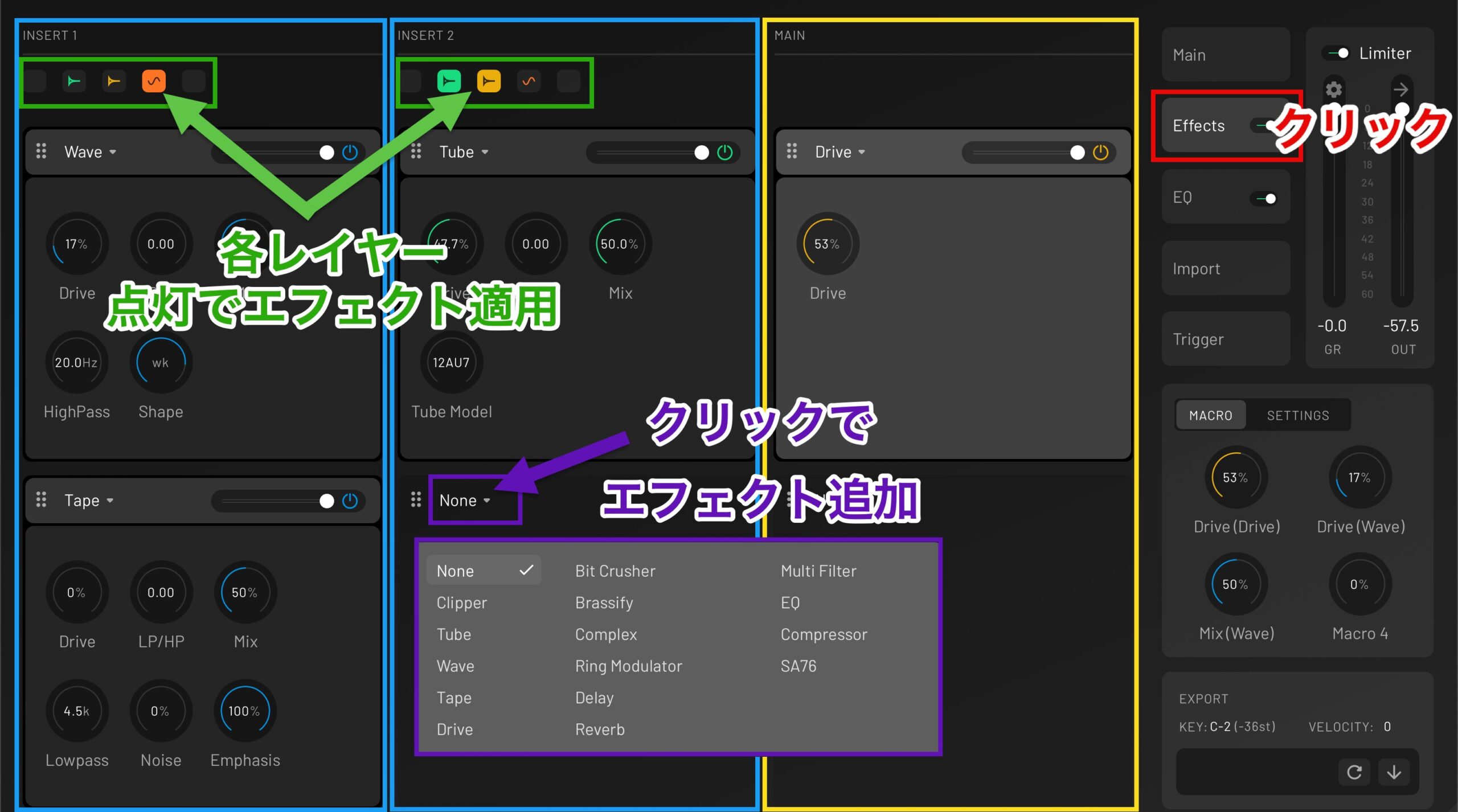
KICK 3 includes a broad selection of effects. To use them, click the “Effects” tab on the right.
The blue-framed “INSERT 1” and “INSERT 2” can each apply up to two different effects.
To add an effect, click “None” in the purple frame and choose one from the drop-down menu.
The green frame shows the current layers (Layers 1–5). Turn a layer on to apply the effect to that specific layer.
The yellow-framed “Main” controls effects applied to the entire kick.
Effects set here are applied to the whole kick, regardless of its layers, for a cohesive result.
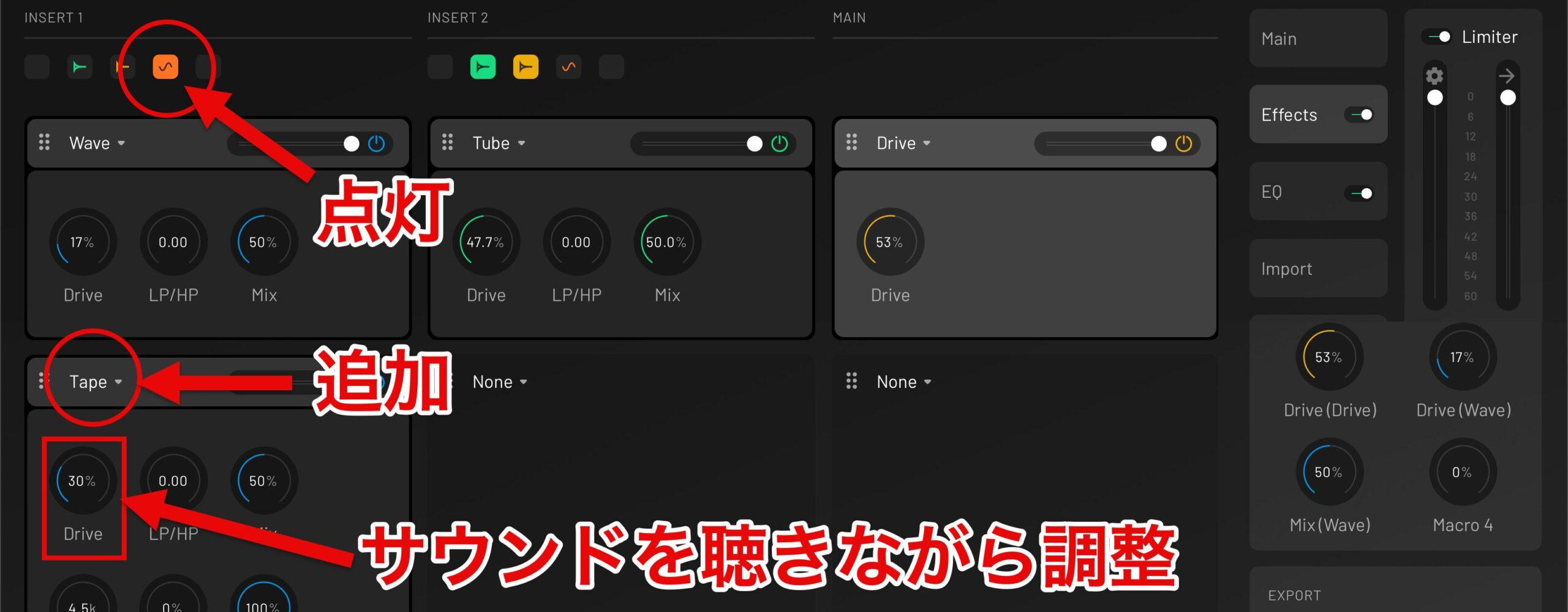
In this example, we wanted a thicker Sub sound, so we added “Tape” to INSERT 1 with only the Sub indicator lit, then raised “Drive” while listening.
The added harmonics create a very powerful sound.
Fine-tune frequencies with EQ
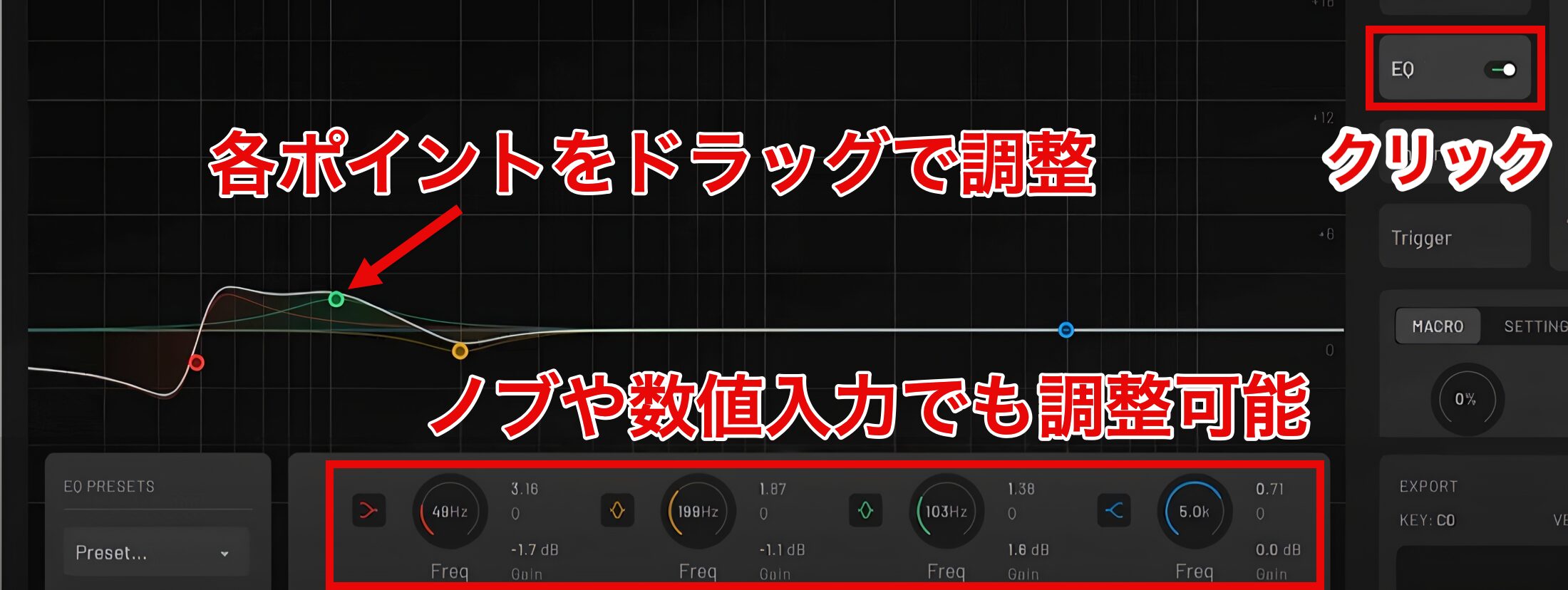
The “EQ” tab lets you boost or cut specific frequency ranges of the kick.
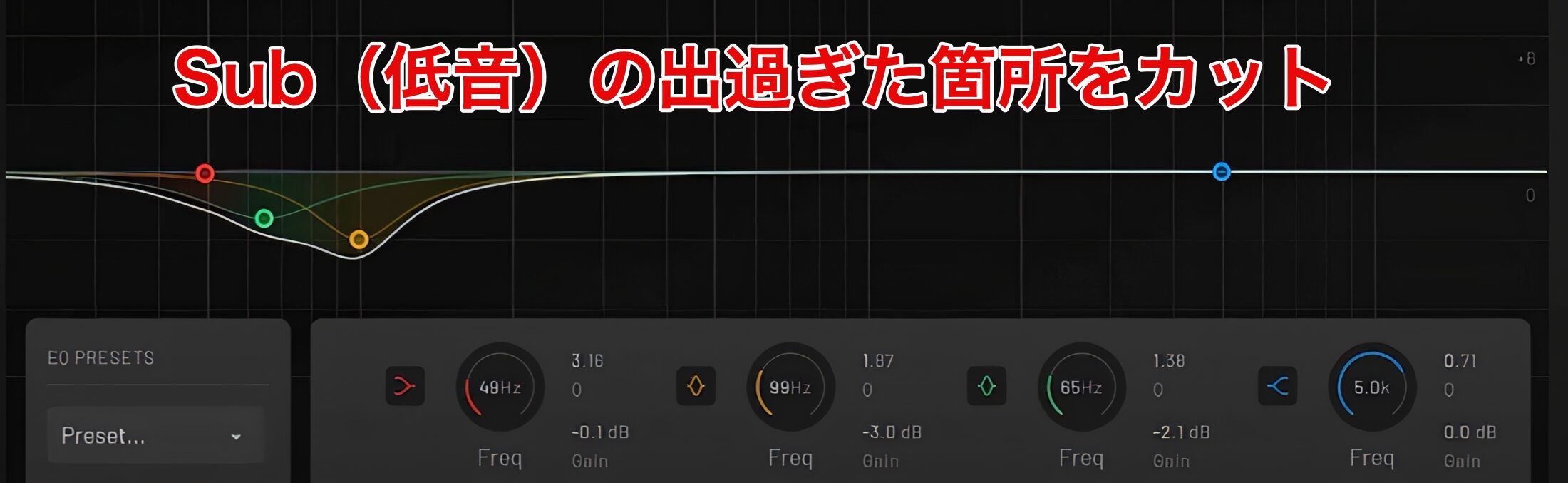
Here, we felt the Sub had been emphasized a little too much in the Main and Effects sections, so we cut the relevant frequencies for a sharper sound.
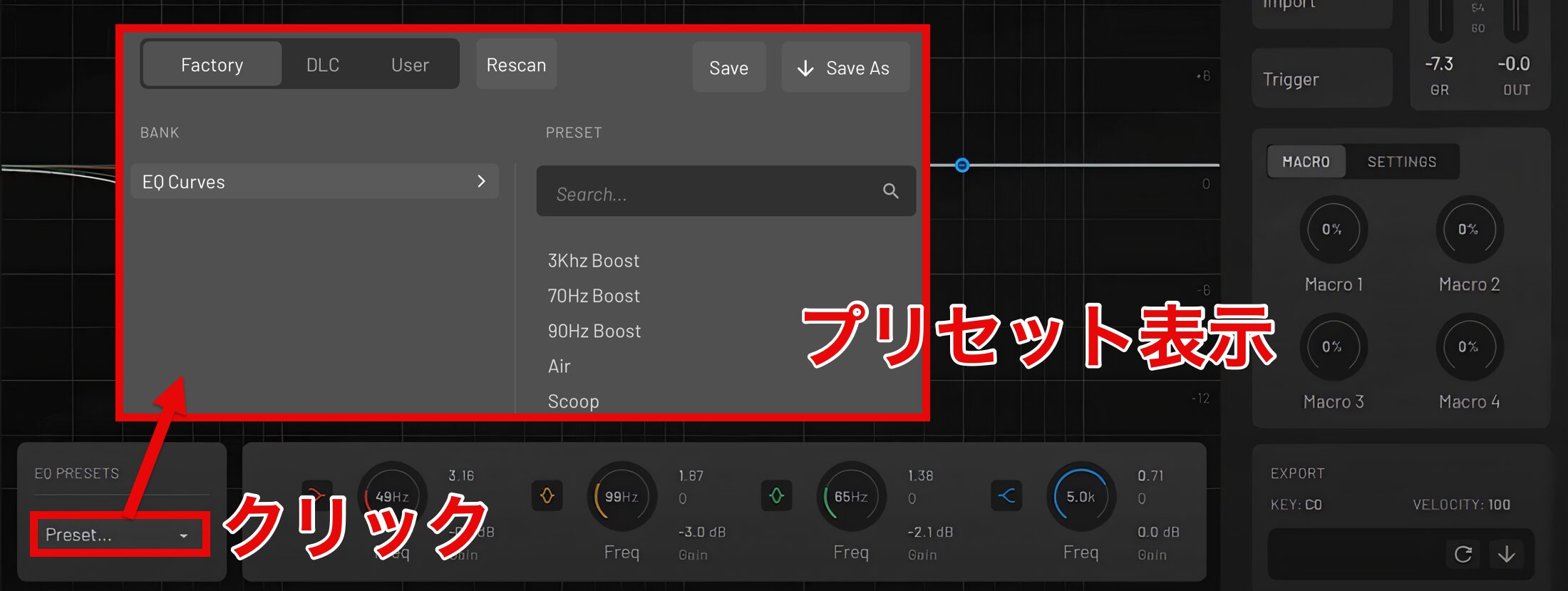
If you find EQ adjustments difficult, click “Preset…” under “EQ PRESETS” at the bottom left and choose a preset you like.
Use the Trigger function to follow another track
KICK 3 includes a Trigger function that automatically plays a kick made in KICK 3 in time with an existing kick.
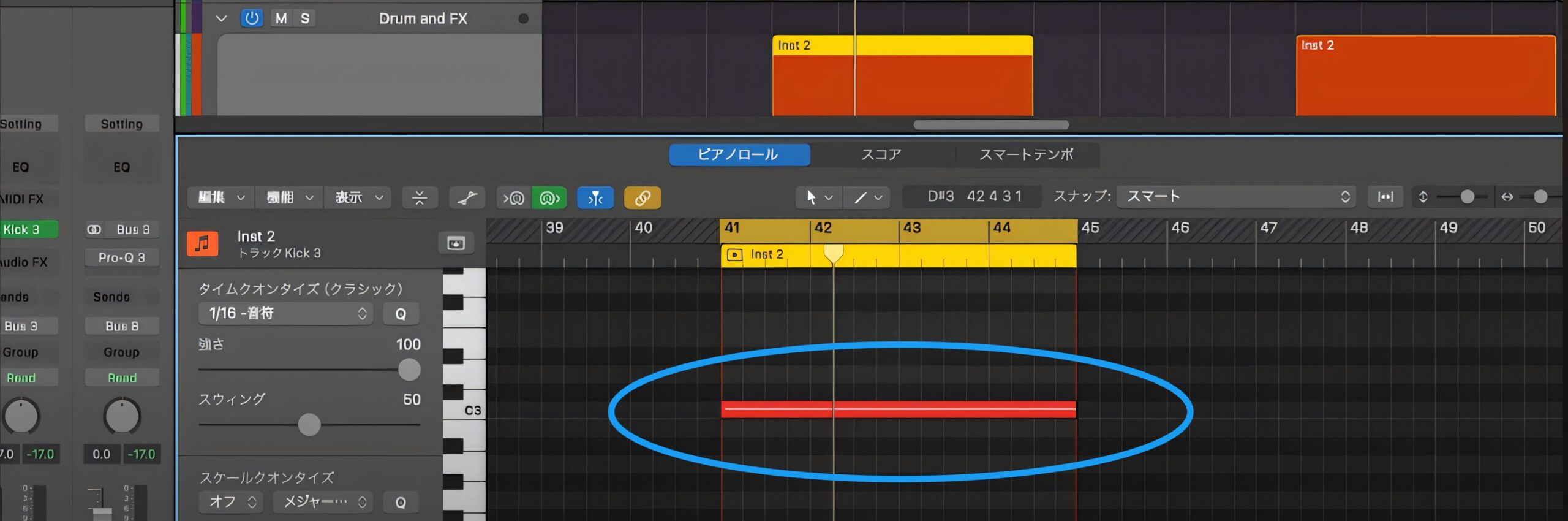
Enter MIDI notes as steady, continuous notes on the track with KICK 3, as shown by the blue circle in the image above.

Route the audio signal from an existing drum track or kick source to KICK 3's Trigger input.
The routing method varies by DAW. In Logic, click the “Side Chain” menu at the top right of KICK 3 and select the existing track under “Audio.”
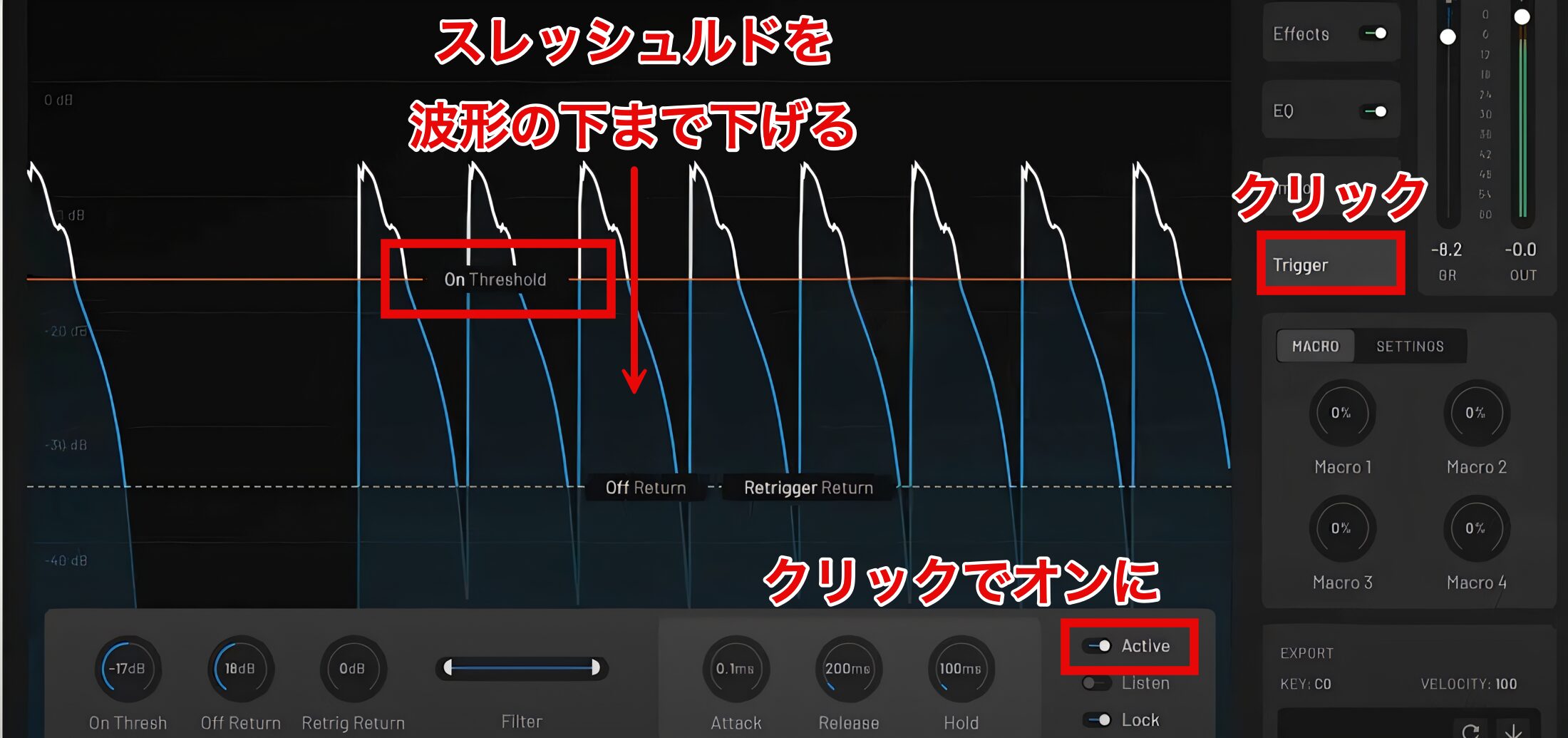
Click the “Trigger” tab and start playback in your DAW. KICK 3 detects the input signal and automatically displays its waveform.
Lower “Threshold” below the waveform, then switch on “Active” at the bottom right to trigger the kick automatically.
This makes it easy to replace a kick, significantly reducing production time and improving timing accuracy.
System requirements and supported formats listed in the original article
Mac
Supported operating systems: macOS 10.13 or later
Minimum requirements: Intel Core Duo or later, 512 MB RAM (PPC not supported)
Supported plugin formats: AU, AAX, VST3 (64-bit)
Windows
Supported operating systems: Windows 8 or later
Minimum requirements: Intel Core Duo or AMD Athlon 64 X2 or later, 512 MB RAM
Supported plugin formats: AAX, VST3 (64-bit)
Pricing and trial option

At the time this article was published, KICK 3 was available for $103.56 and a 14-day free trial was also available before purchase.
With flexible layering, a wide range of effects, and a Trigger function, KICK 3 brings the tools together—give it a try and explore new sounds.
Frequently asked questions
Q1. What are the main differences between KICK 3 and KICK 2?
KICK 3 is an update released about eight years later. It adds features such as multiple layers, enhanced effects, a Trigger function, and sidechain support, significantly increasing sound-design flexibility. You can freely combine up to five layers to create more complex, three-dimensional kick sounds.
Q2. Can I use it with presets alone?
Yes. KICK 3 includes many production-ready presets for a wide range of genres, including EDM and hip-hop. Presets alone can provide high-quality kick sounds, making them suitable for beginners as well.
Q3. Can I create a kick from a sample?
Yes. Import an existing kick sample and analyze it automatically with “Analyze & Import” or “Analyze Only.” You can then add the sample split into Sub and Click to different layers and customize it.
Q4. Which DAWs is it compatible with?
The article does not list individual compatible DAWs. Its system-requirements section lists AU, AAX, and VST3 on Mac, and AAX and VST3 on Windows (64-bit). Check the official website for current DAW compatibility and requirements.
Q5. Can I tune the kick to the key of my song?
Yes. Drag the Sub pitch point in the Waveform Editor on the Main tab to adjust it. Matching the kick to the song's key can help it fit more naturally.
NEW ARTICLES
Latest English Articles

































































