This guide covers pitch correction with Cubase’s VariAudio, from basic editing to more advanced techniques. Pitch correction is a common production tool for polishing vocal tracks. VariAudio lets you adjust segments graphically, move pitches toward the nearest semitone with Quantize Pitch, and reduce pitch fluctuations with Straighten Pitch. You can also split segments for more detailed editing and use keyboard shortcuts to speed up your work. The interface shown here is from an older Cubase version.
Pitch correction is a creative tool: VariAudio in Cubase
Pitch correction is often applied to vocal tracks in professional production.
This does not necessarily mean the singer performed poorly.
Think of it as a touch of makeup to help the song sound its best.
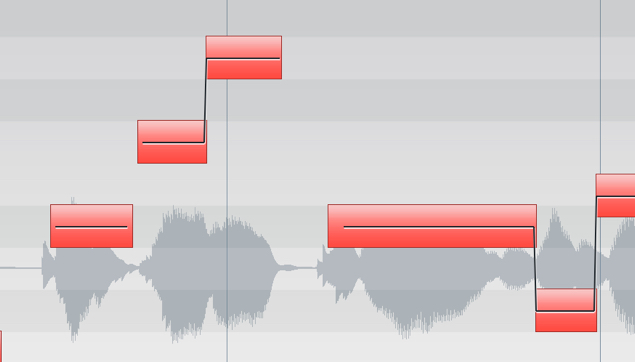
Cubase includes a powerful pitch correction tool called VariAudio.
VariAudio 1: Pitch correction
Selected questions and answers from the YouTube video

Could I use this to make VOCALOID sing with detailed expression easily?

This feature is designed to edit existing audio. For adding expression, adjusting parameters in VOCALOID itself may give better results.
I would like to compose by humming and converting it to MIDI with VariAudio. The detection seems quite good.
At the time of this reply, the video had been published about five years earlier. We felt that detection had improved in newer Cubase versions since the video was made.
VariAudio 2: MIDI step input and extracting MIDI
Opening the audio

Select the audio event you want to edit and double-click it.
The Sample Editor window opens, as shown.

↑ In the VariAudio tab, click Pitch & Warp, circled in red.

↑ Automatic analysis starts, and the detected pitches are displayed graphically.
Correcting pitch
The operation is simple.

↑ Click a note segment and drag it up or down.
The keyboard on the left indicates pitch: move up to raise it or down to lower it.
You can also select multiple segments and change their pitches together.

↑ The parameters circled in red provide more detailed correction.
- Quantize Pitch
In the version shown, dragging normally moves the segment in semitone steps.
Quantize Pitch adjusts the detected pitch toward the nearest semitone; the slider controls the amount of correction.
Moving it farther to the right brings the segment closer to that semitone. - Straighten Pitch
The pitch within a note is not always constant.
This control reduces fluctuations in the pitch curve.
Moving it farther to the right produces a flatter pitch, which can create a robotic vocal effect.
Both controls apply only to the selected segments.

↑ Set both controls to maximum and,
as shown, the pitch is brought to the semitone and its fluctuations are flattened.
Splitting notes
You can split a note into segments for more detailed correction or to create a phrase.

↑ Click Segments, circled in red,
then move the cursor to the lower part of the note where you want to split it. The cursor changes to a scissors icon.
Click to split the note.
Useful techniques
- Hold Option (Alt) and drag over a range
to zoom so that only the selected area fits on screen.
Option-click (Alt-click) an empty area to zoom out. - Use the left and right arrow keys to move the selection between notes,
and the up and down arrow keys to change pitch. - Hold Shift while moving a note up or down
to fine-tune it without restricting the movement to semitone steps.
Frequently Asked Questions
Q1. What is the first step in correcting pitch with VariAudio?
Double-click the audio event you want to edit to open the Sample Editor. In the interface shown here, click Pitch & Warp in the VariAudio tab to start automatic analysis and display the pitches graphically.
Q2. What is the difference between Quantize Pitch and Straighten Pitch?
Quantize Pitch moves the segment’s pitch toward the nearest semitone, with the slider controlling the correction amount. Straighten Pitch reduces pitch fluctuations within the note and can create a robotic vocal effect. For free fine adjustment, use the Shift-drag technique described above.
Q3. Can I correct multiple notes together?
Yes. Select multiple segments to apply Quantize Pitch or Straighten Pitch together. You can also use the left and right arrow keys to move the selection and the up and down arrows to change pitch.
NEW ARTICLES
Latest English Articles