
Mixing in Ableton Live combines high-quality included effects with external MIDI controllers to help you achieve a professional sound. This article covers fader control in Session View, parallel processing with Racks, the use of included effects such as EQ Eight and Glue Compressor, and dynamic sound processing with automation. Guitarists and other musicians, from beginners to professionals, can learn an efficient, practical mixing workflow for producing high-quality tracks without complicated external routing.
A Mixing Workflow with Practical Built-in Effects
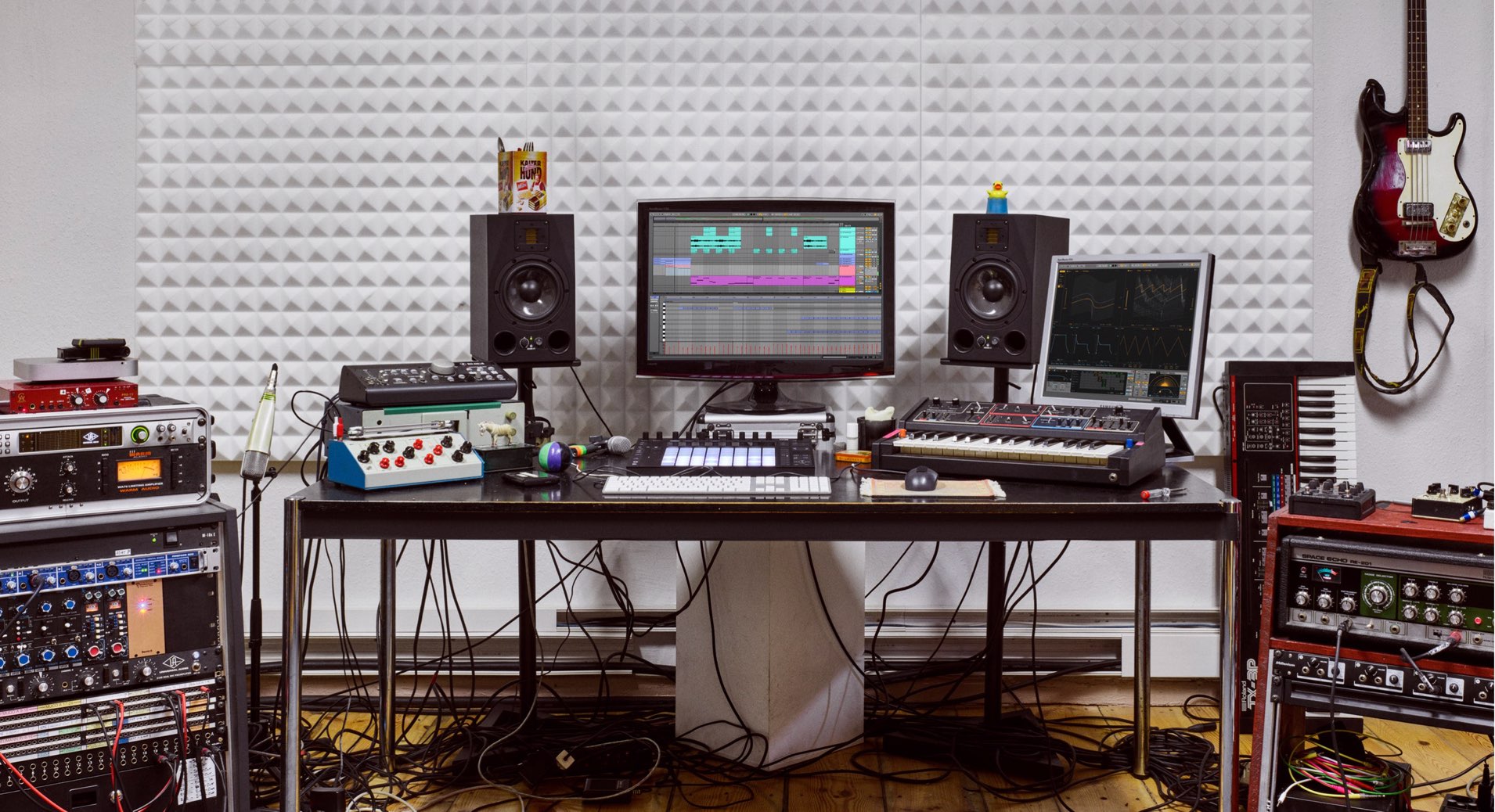
This is the final installment of Ableton Live for Guitarists. Here, we will look at mixing a song.
We will explore mixing techniques that make the most of Live's high-quality included effects and distinctive features, so be sure to read through to the end.
Ableton Live for Guitarists #6: Video Tutorial
- 1A Workflow for Creating Drum Tracks
- 2A Workflow for Recording MIDI and Audio with a Guitar
- 3Creating Lead Sounds with Instrument Rack and External Instrument
- 4Programming Keyboard Chords with MIDI Effects
- 5Building a Song with Session View
- 6Exploring Live's Mixing Features
- 7Download the Tutorial Project
Controlling Faders and Pan with External MIDI Devices
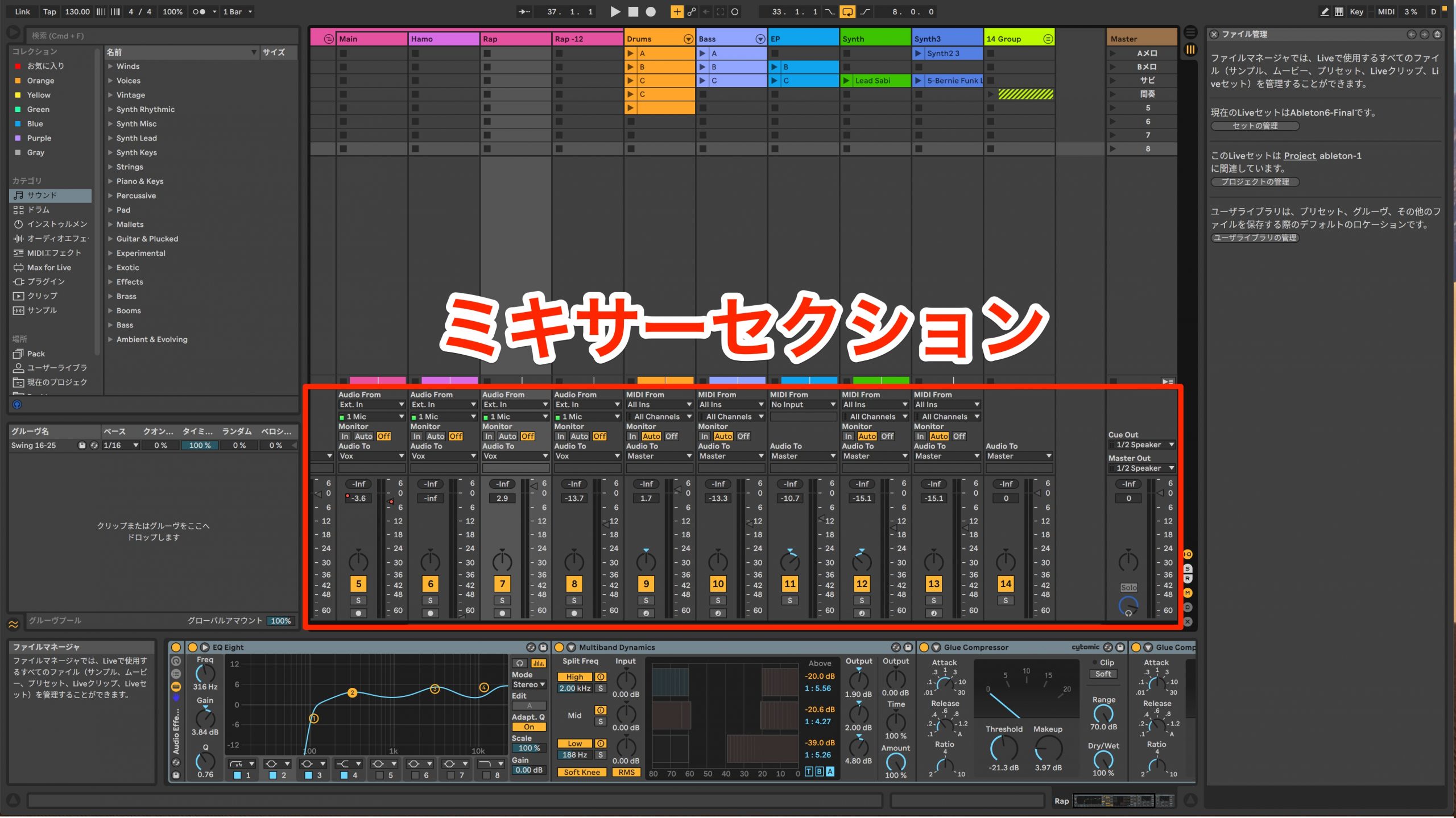
The mixer appears in Session View, where you can control the volume faders. Live also makes it easy to operate the mixer using external hardware or apps on a smartphone or tablet such as an iPad.
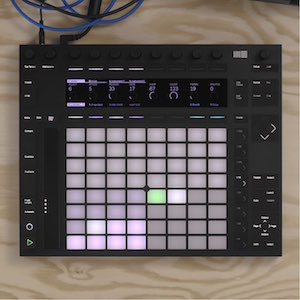
An external controller lets you control several tracks at once, something that is difficult to do with a mouse.
Setup is very simple.
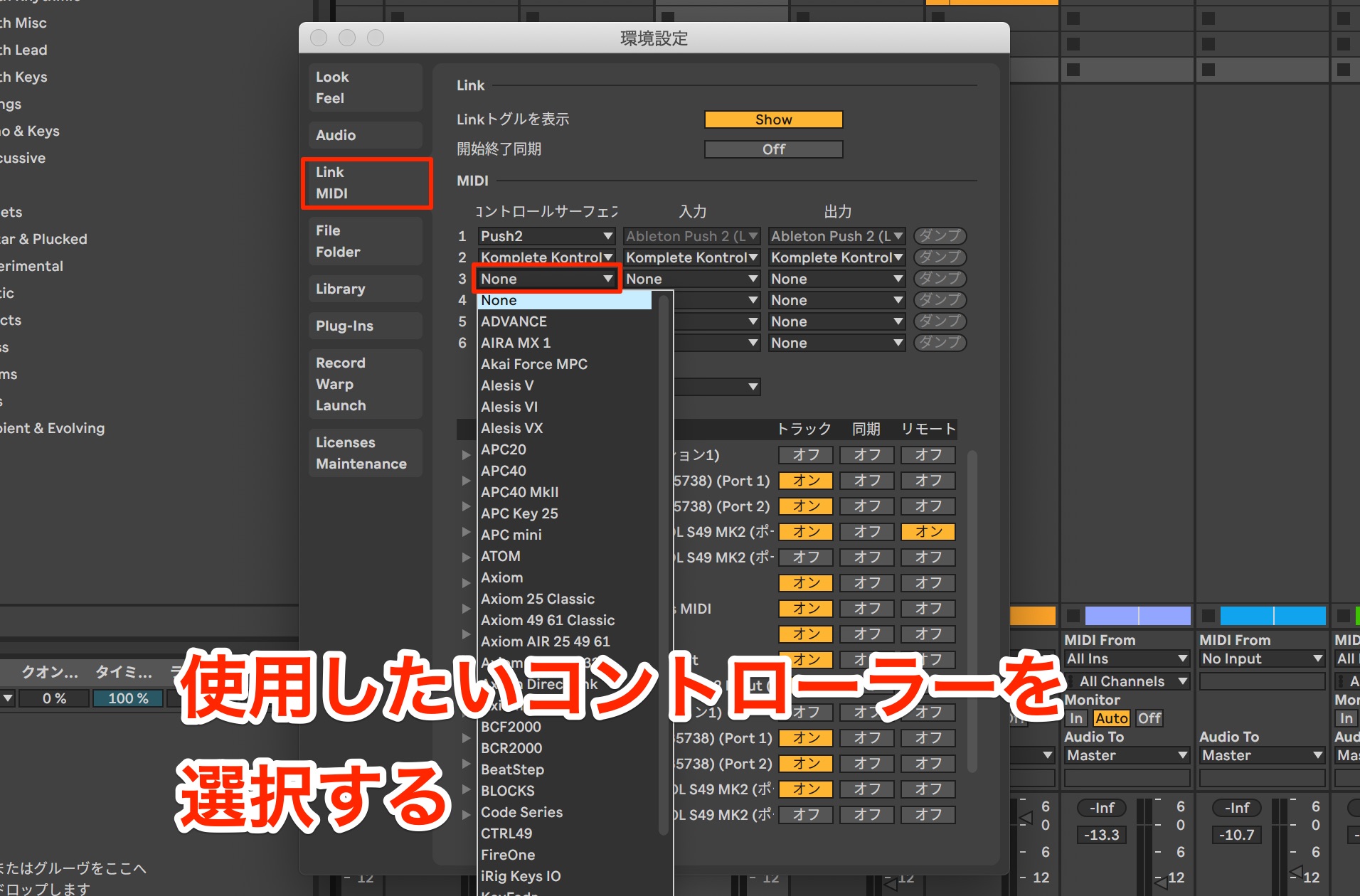
Open Preferences, go to Link MIDI, and select your MIDI controller under Control Surface.
We will use Push, Ableton's own controller, but Live supports models from many different manufacturers.
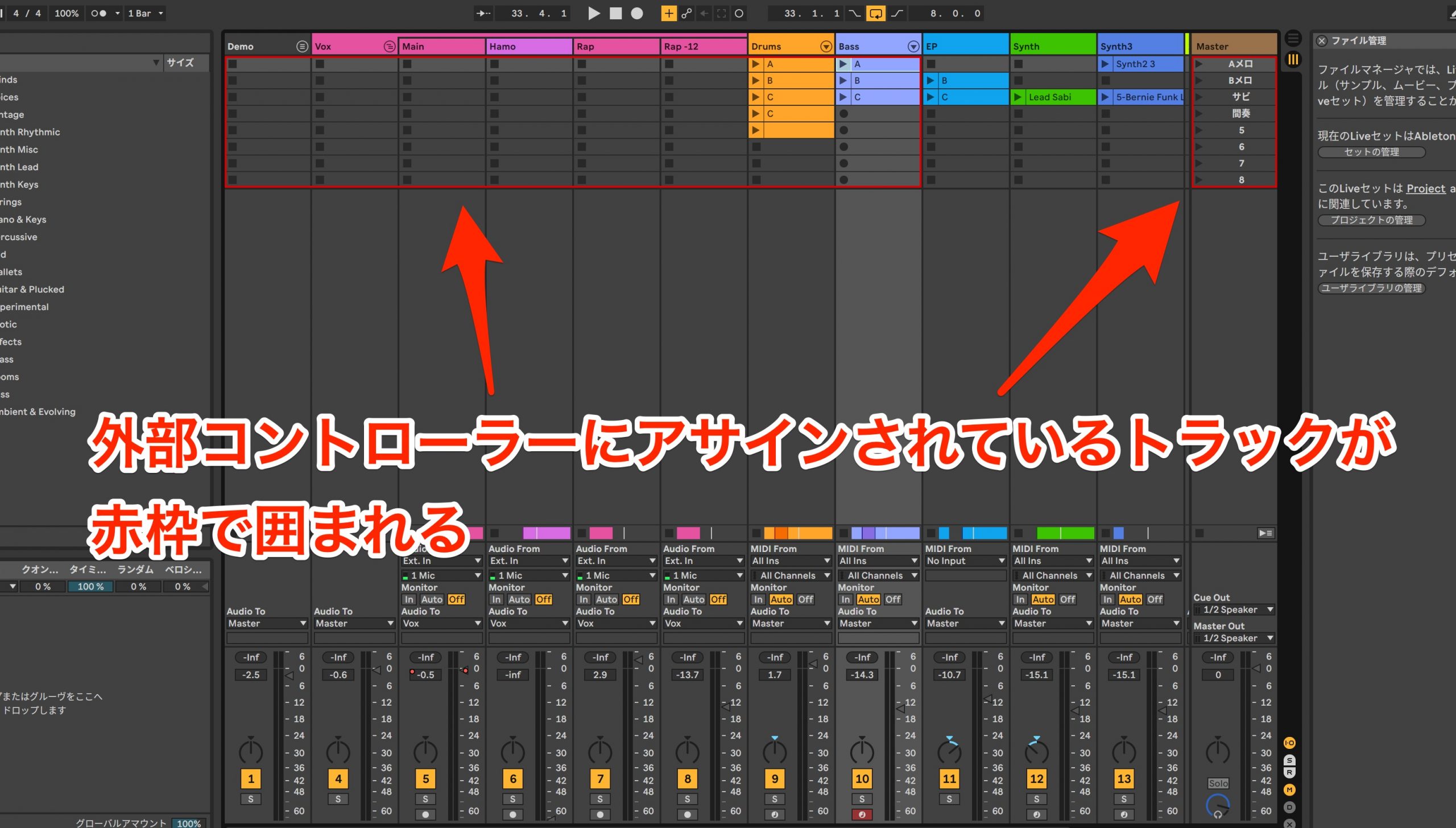
With a supported controller, Session View shows which channels are assigned to the controller, as illustrated here.
You can then switch between the channels you want to edit on the controller while adjusting volume and pan.
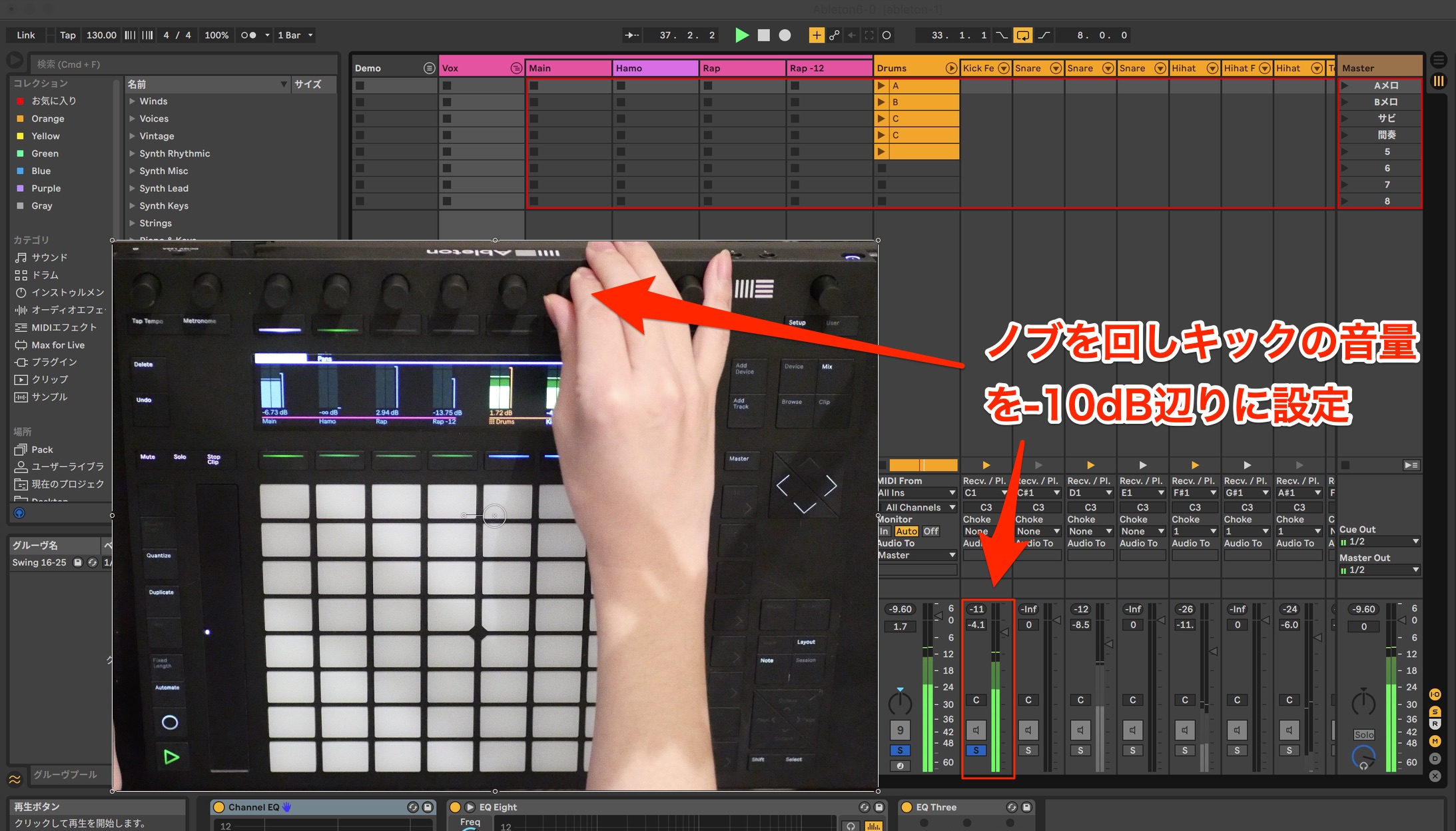
For rhythm-driven genres, it is easier to establish a balance by starting with the low-end parts: kick and bass. First, set the kick so that it peaks at around -10 dB.
Listen to the kick as you bring the bass to an appropriate level.
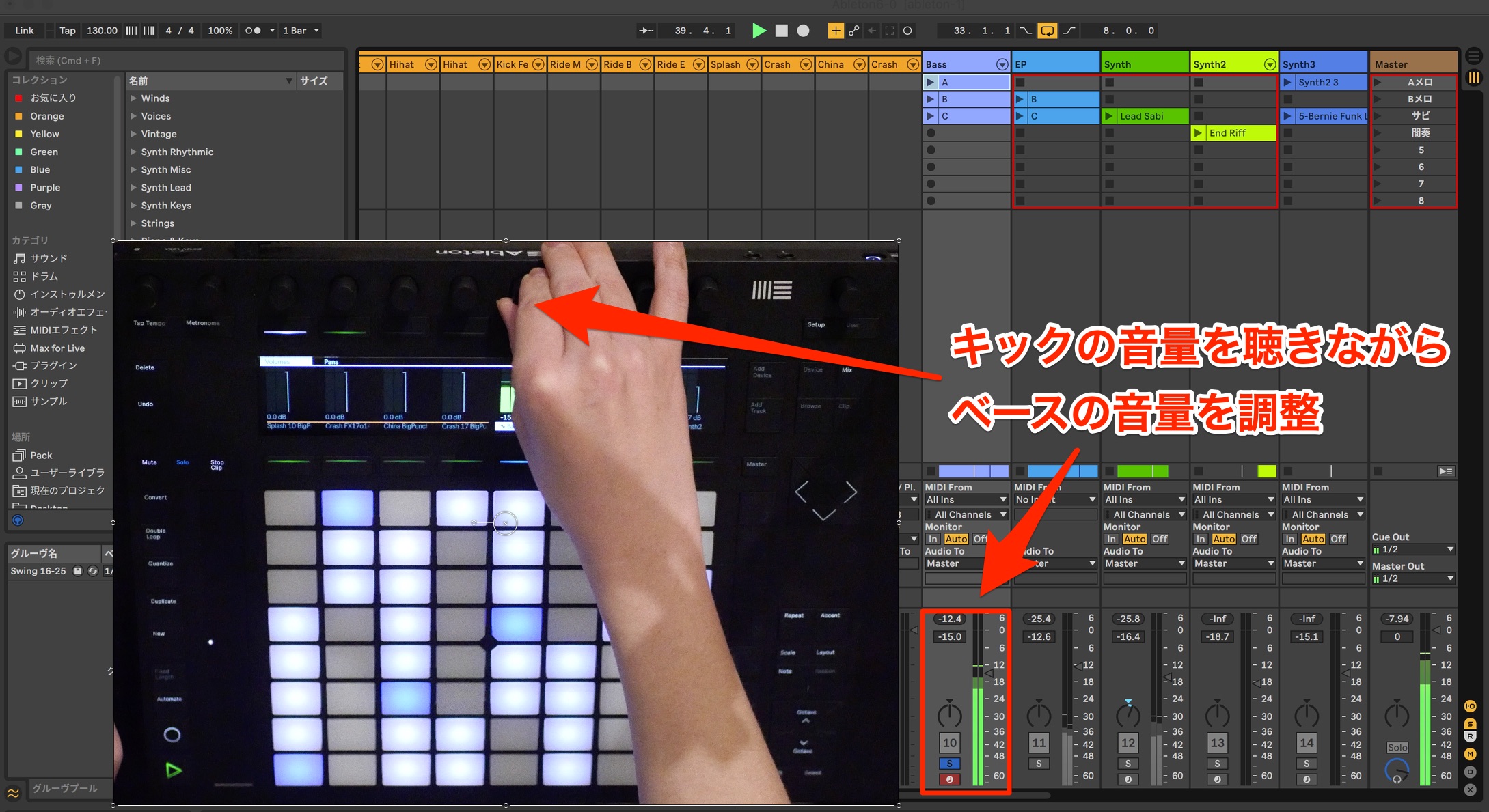
The bass line is an important part of this song's arrangement, so we will make it slightly louder.
Next, adjust the vocal, the most important part of the song. Recorded performances generally have level variations, so start with a rough balance.
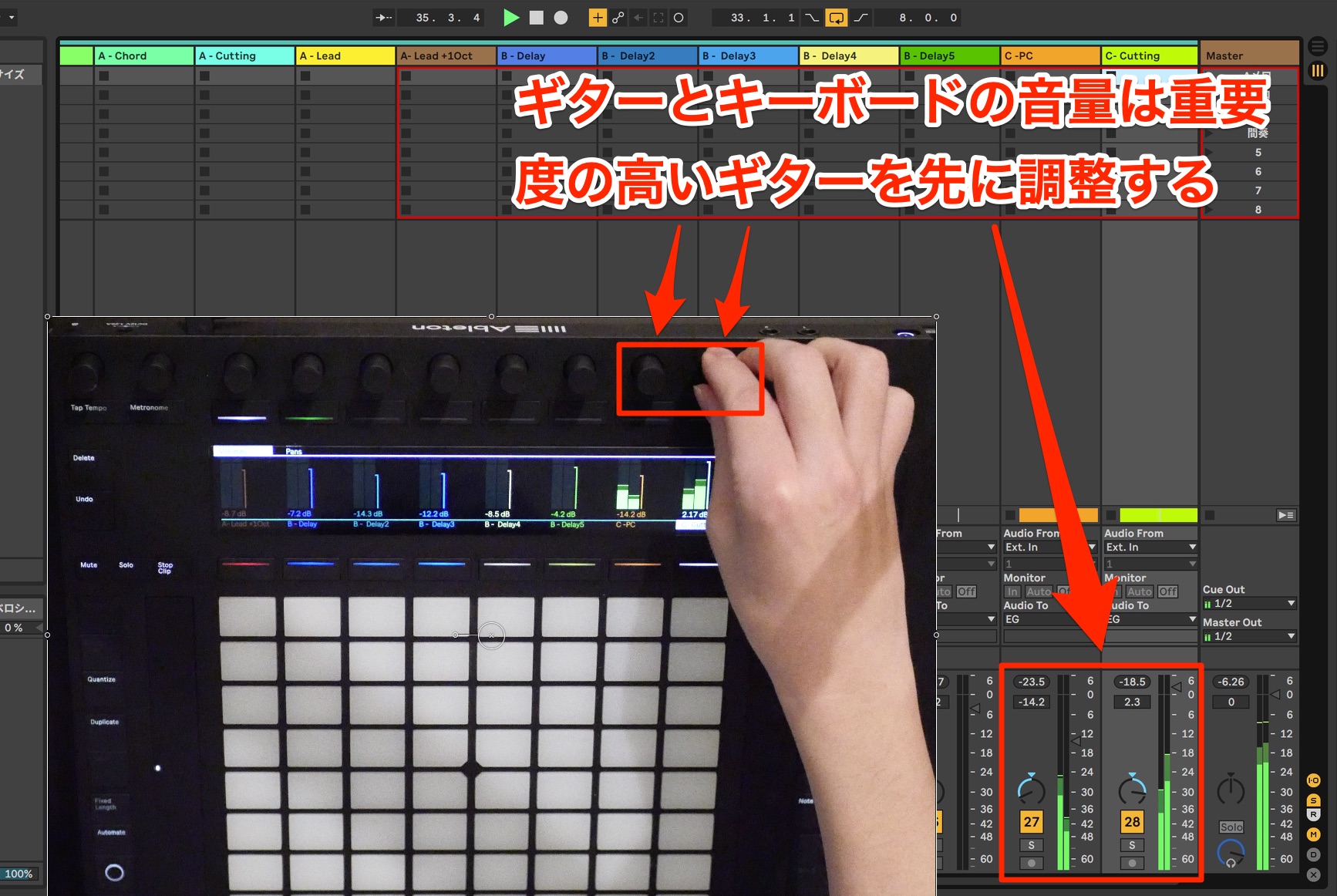
Now adjust the guitar and keyboard parts that provide the chords. Since this is a band arrangement, we will give the guitar track higher priority.
Set the guitar level first, then bring in the keyboard around it.
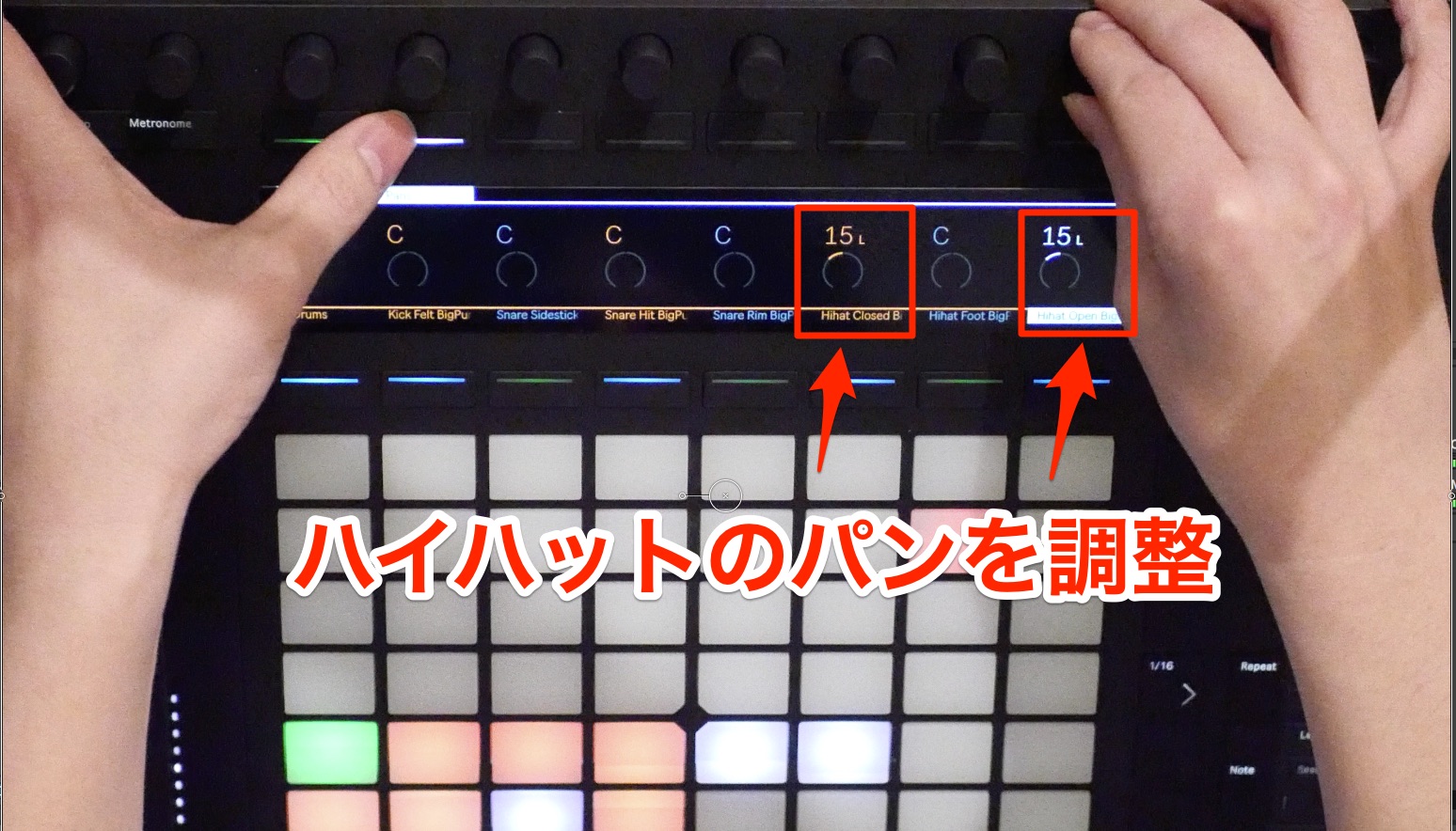
Add the remaining tracks in order of their importance to the song, adjusting their volume and pan.
Grouping and Saving Effects
Continuing with the low end, a crucial part of the mix, we will now process the bass track with effects.
The bass is heavily distorted, and we want a little more definition. To achieve this, we will blend in the original sound without effects.
Live's Audio Effect Rack makes it easy to process a track in parallel.
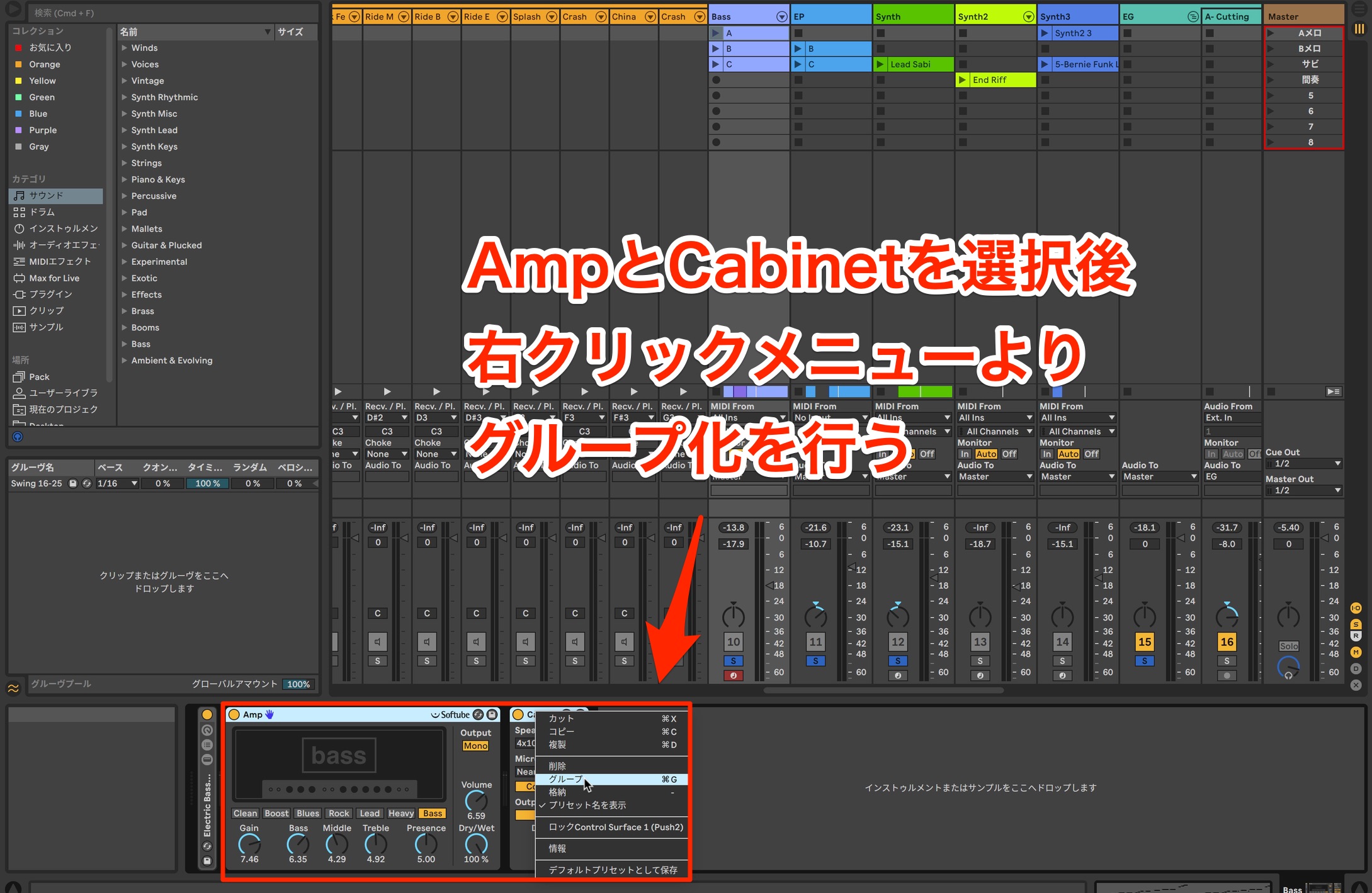
First, select the amp and cabinet, right-click, and choose Group from the menu.
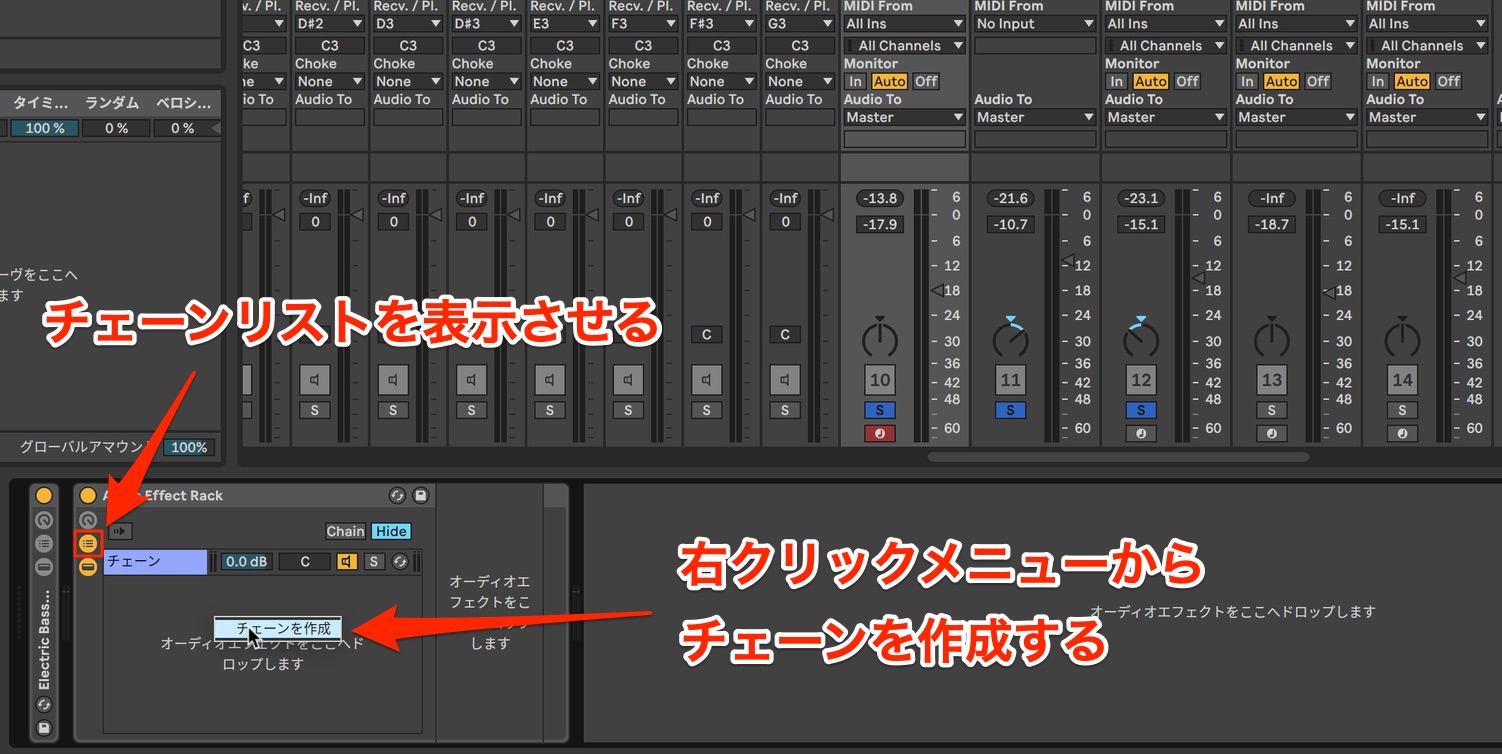
Show the Chain List here, then right-click in it and create another chain from the menu.
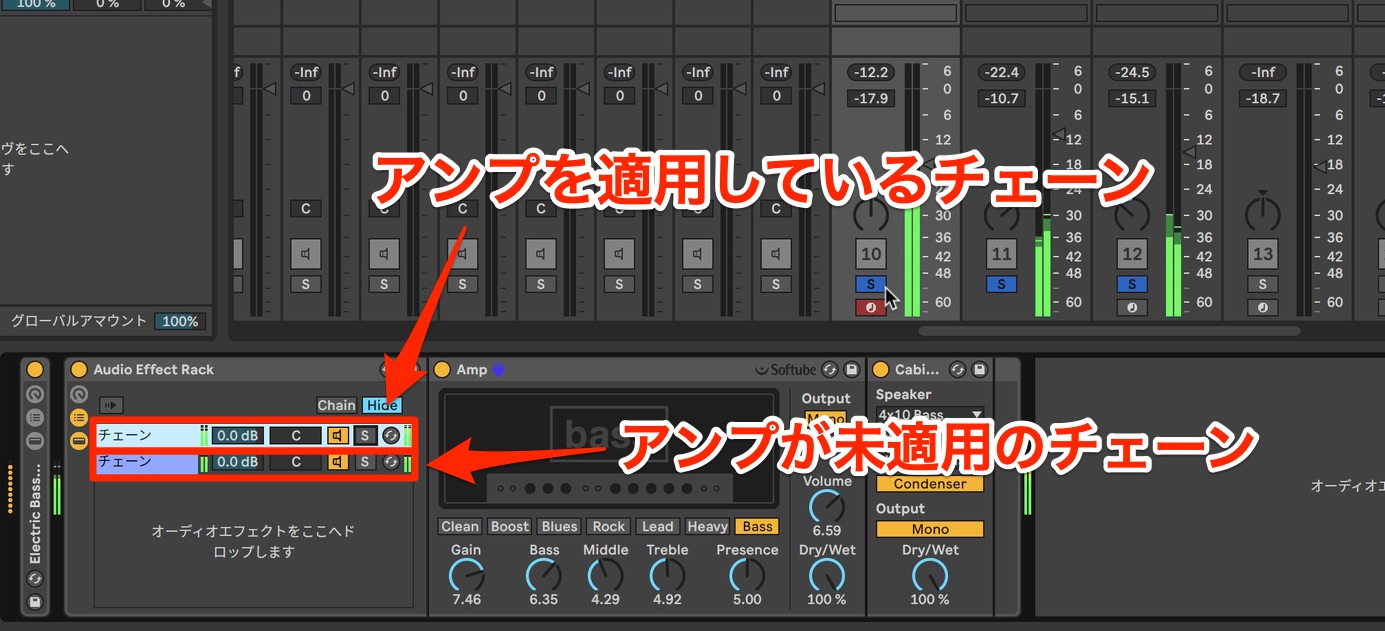
Looking at the two chains, the upper one contains the effects and the lower one has no effects.
This lets you combine the processed and unprocessed sounds within a single track and output them together.
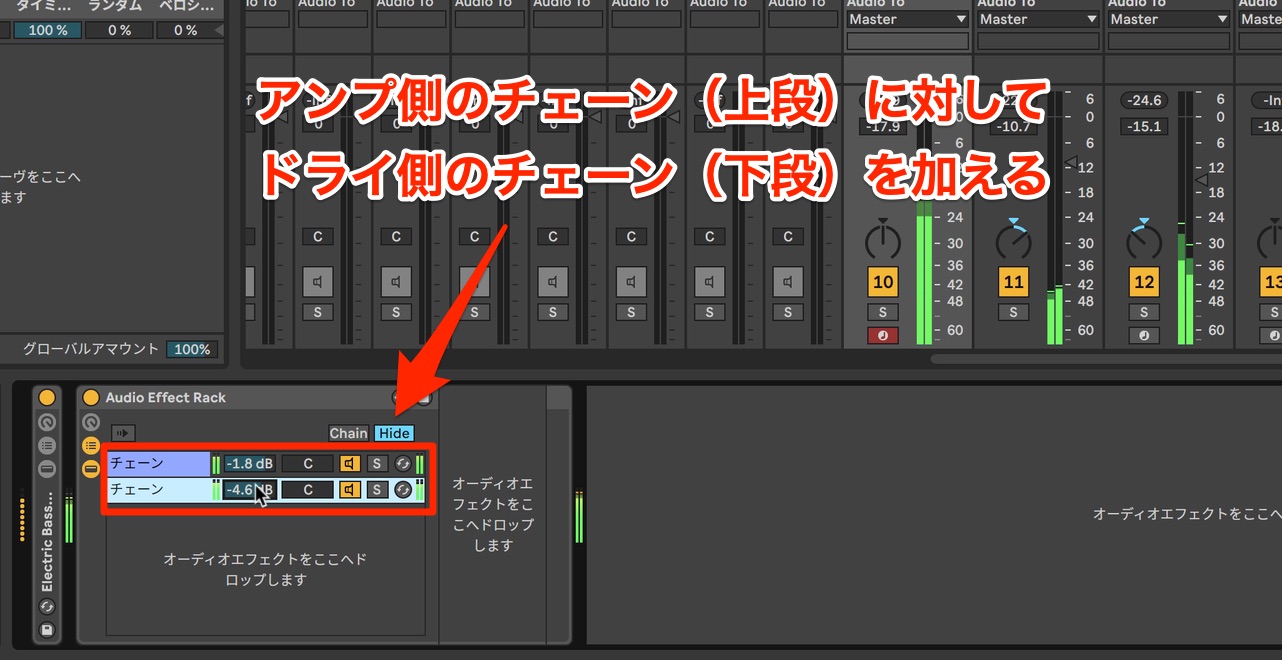
Use the amp sound as the foundation, then raise the dry chain's volume to add definition.
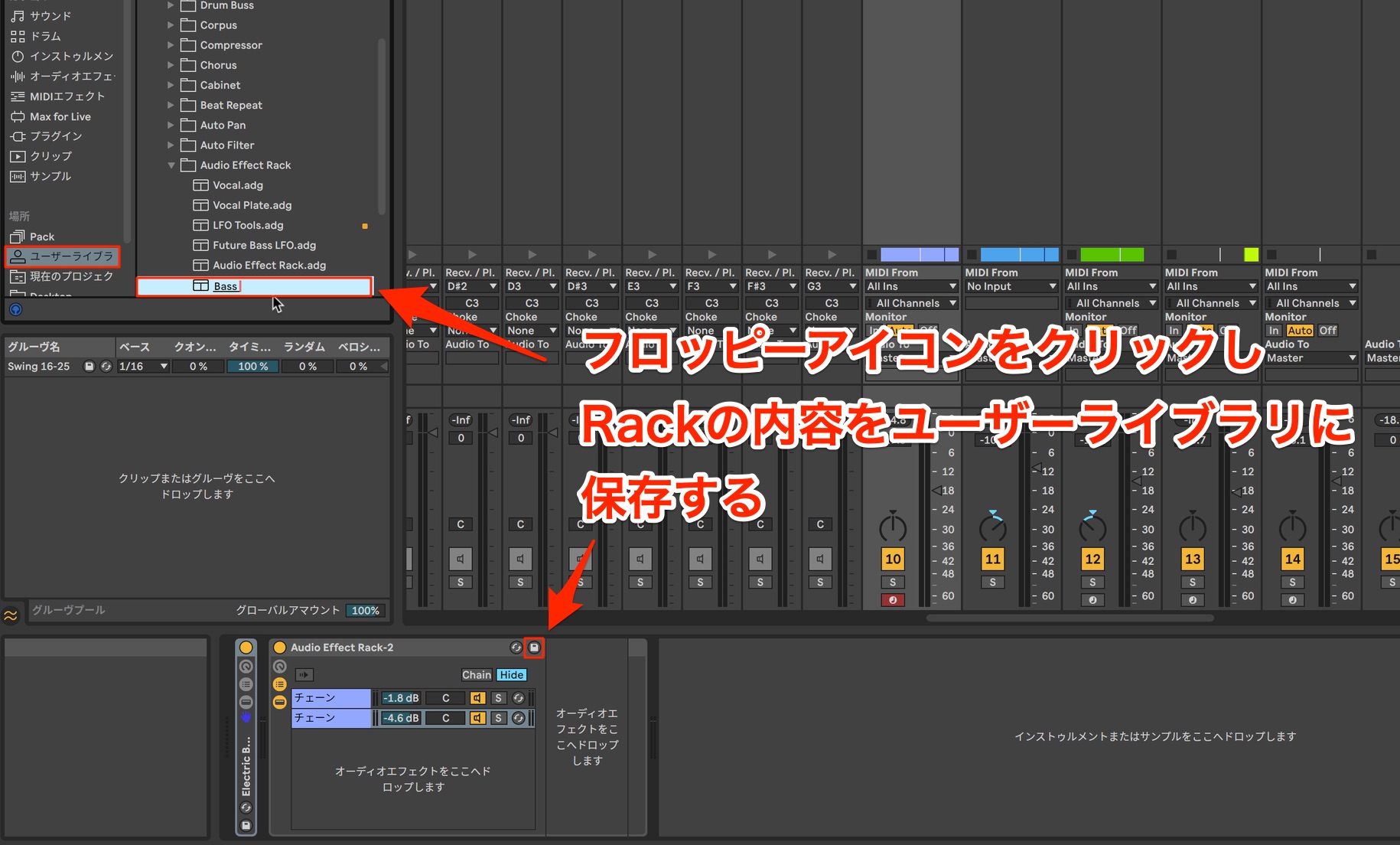
If you like the effect settings, you can save them for quick recall in another song.
Cutting Unwanted Frequencies with EQ Eight
Next, we will apply EQ.
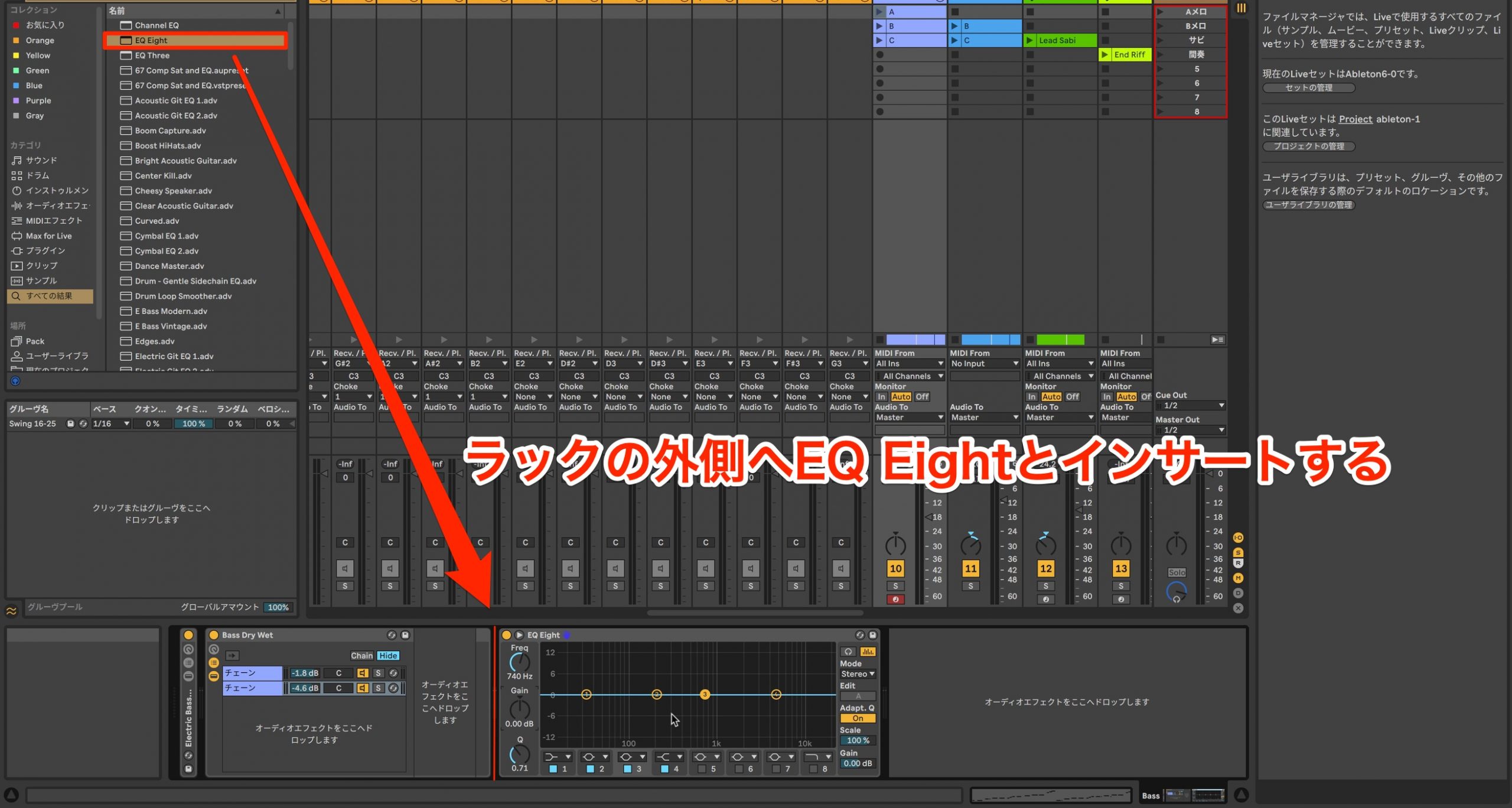
Live includes three EQ effects. Here, we will use EQ Eight, a versatile eight-band EQ that also supports mid/side processing.
To process each chain separately, drag EQ Eight onto that chain. In this case, however, we want to EQ both chains together.
Drag the effect outside the Rack, after it, to apply the same processing to the combined output of all its chains.
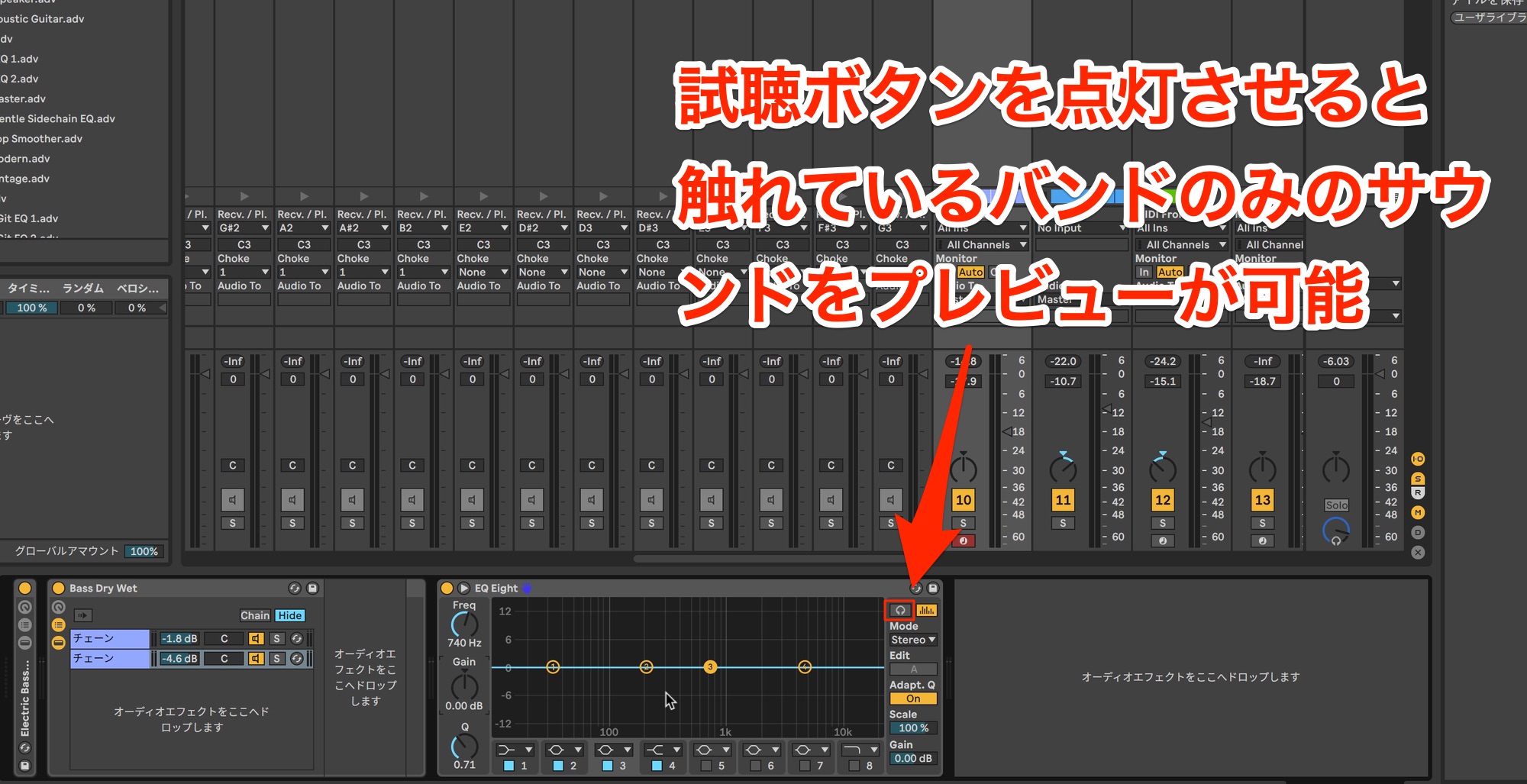
Enable EQ Eight's audition button to hear only the frequency band you are adjusting.
Being able to monitor a specific band in isolation makes this EQ particularly easy to use for sound shaping.
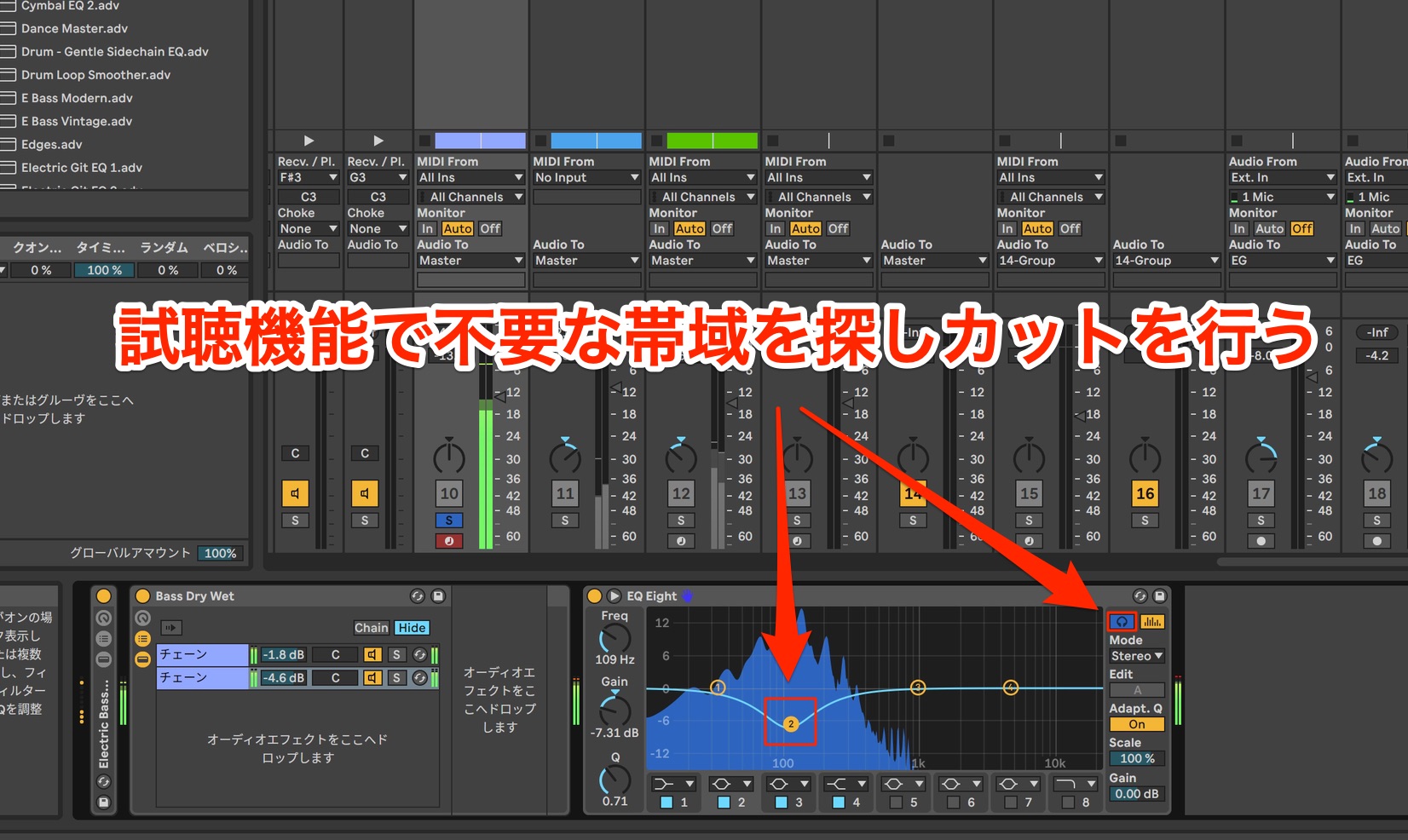
The bass currently has a strong peak in the low frequencies, so we will tame it.
Controlling Level Variations with Glue Compressor
Next, apply a compressor to reduce variations in level.
The included Glue Compressor is very well made; in our view, its quality is on a par with separately sold compressors.
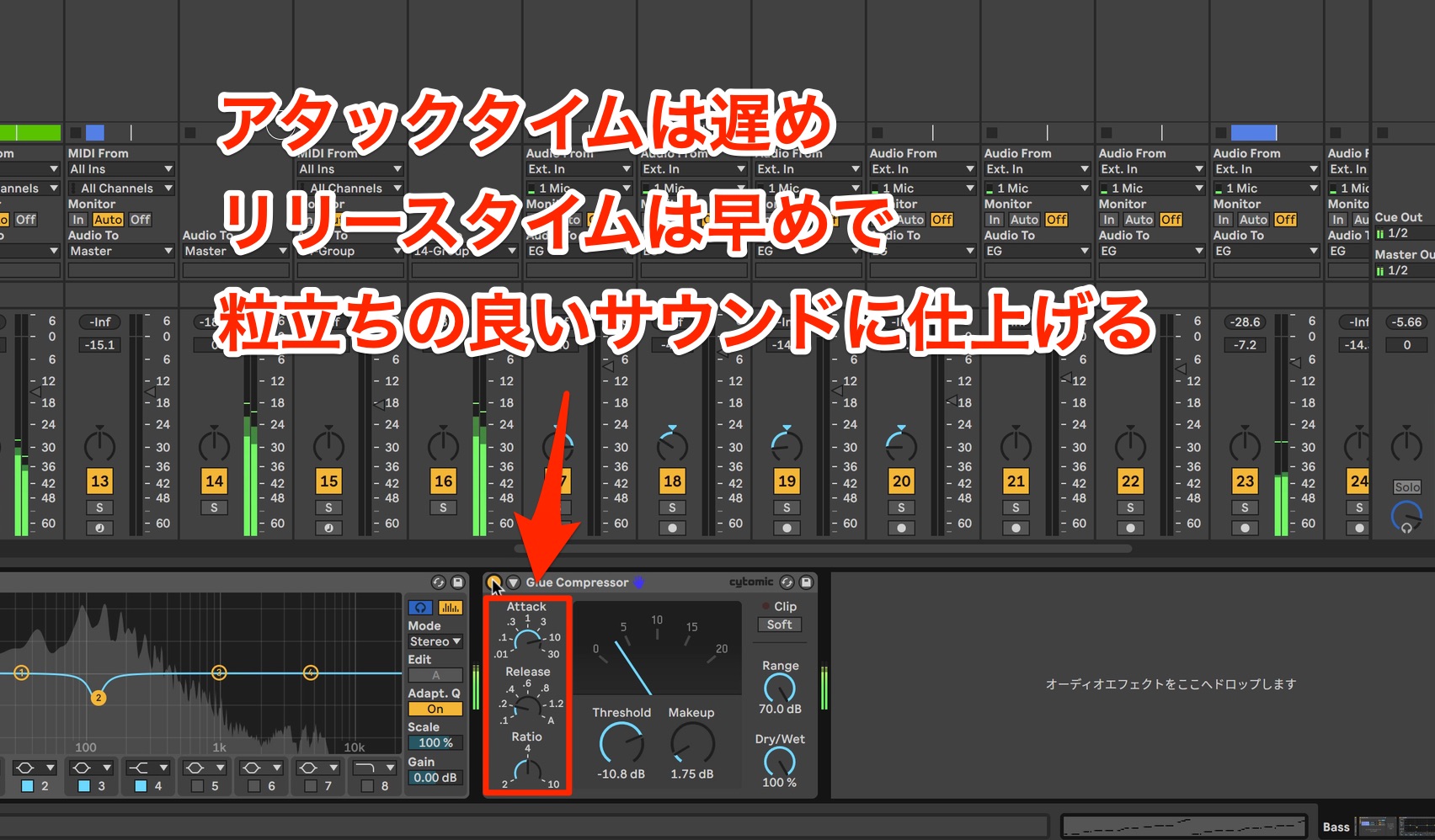
Here, we will even out the level without losing the definition of the rhythm.
Set the ratio to a conventional 4:1, with a slower attack and a faster release.
Creating Effect Sets with Macros and Using Automation
Next, we will explain how to record automation.
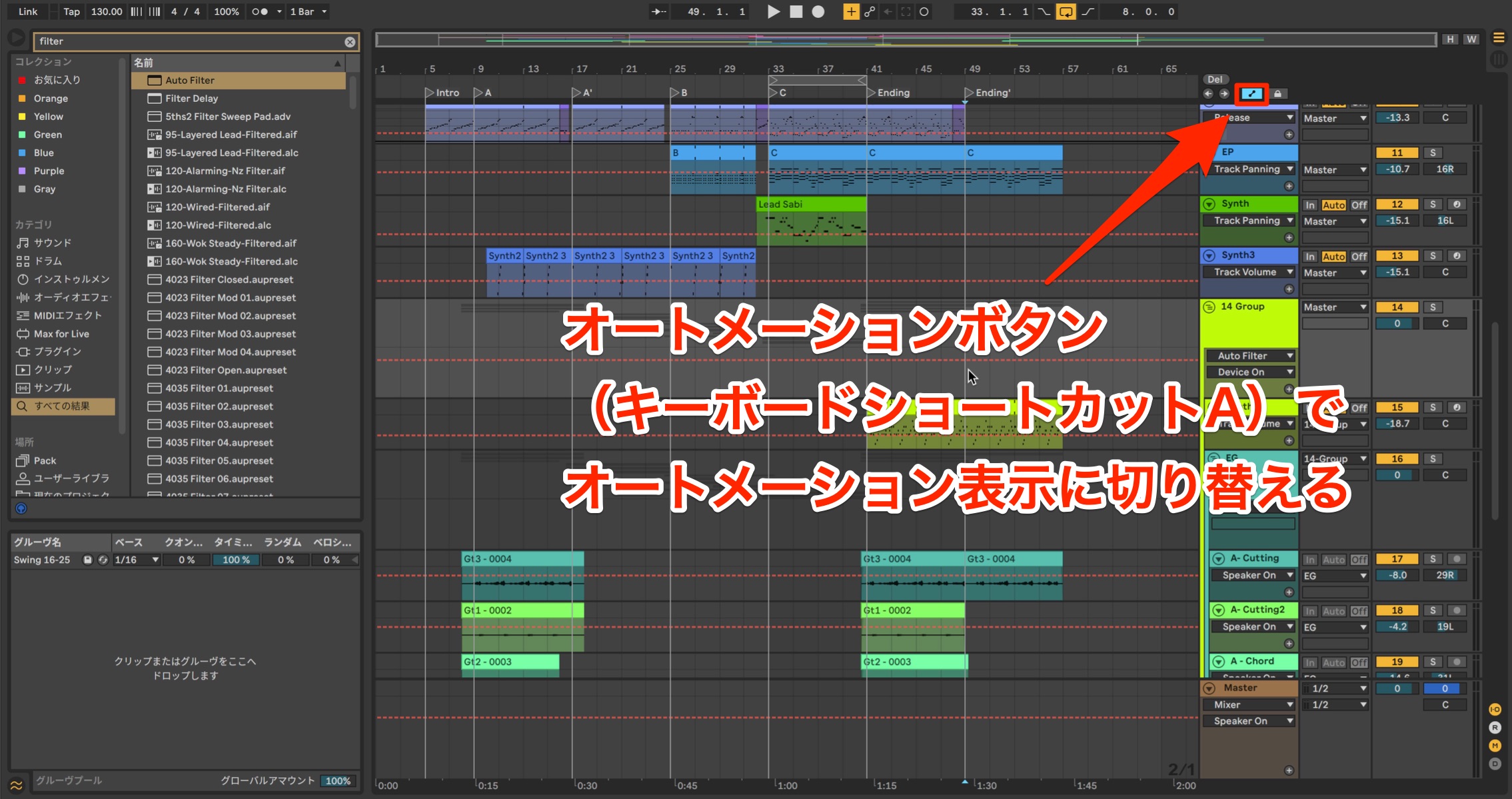
To display automation, click the Automation Mode button at the top of Arrangement View. You can also toggle the display with the A key.
Keeping automation hidden when you are not editing it helps prevent accidental changes and avoids cluttering the screen with extra lanes.
Now we will draw automation to use a filter to cut the high frequencies only during the ending.
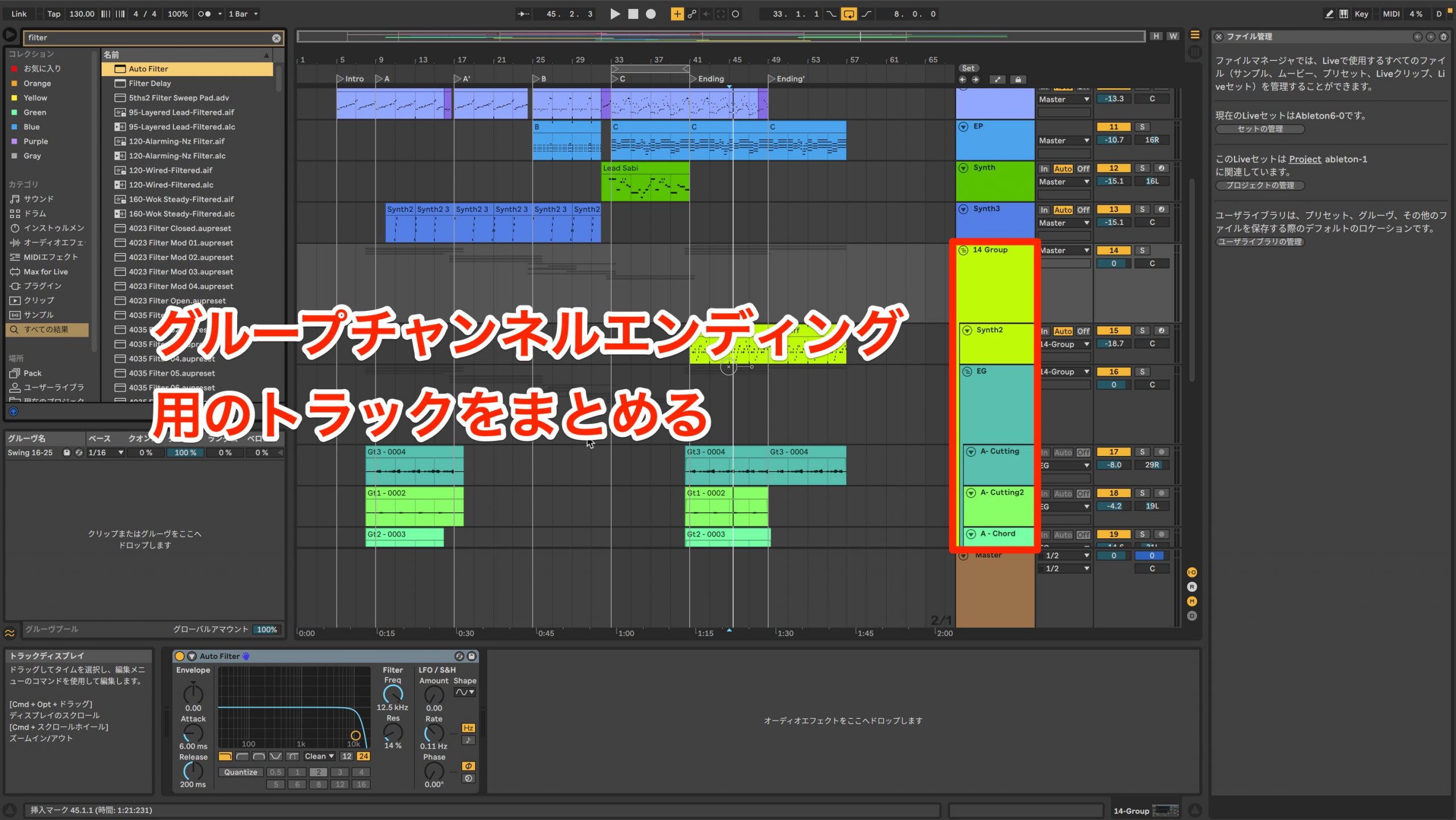
First, create a track group so that we can apply the effect to these two tracks together.
Select the tracks, then choose Group Tracks from the right-click menu, or use the following shortcut:
- Mac: Command + G
- Windows: Control + G
This creates the group.
Applying an effect to the group processes all the grouped tracks together.
This is a quick, simple way to create a bus without having to set up the tracks' audio routing manually.
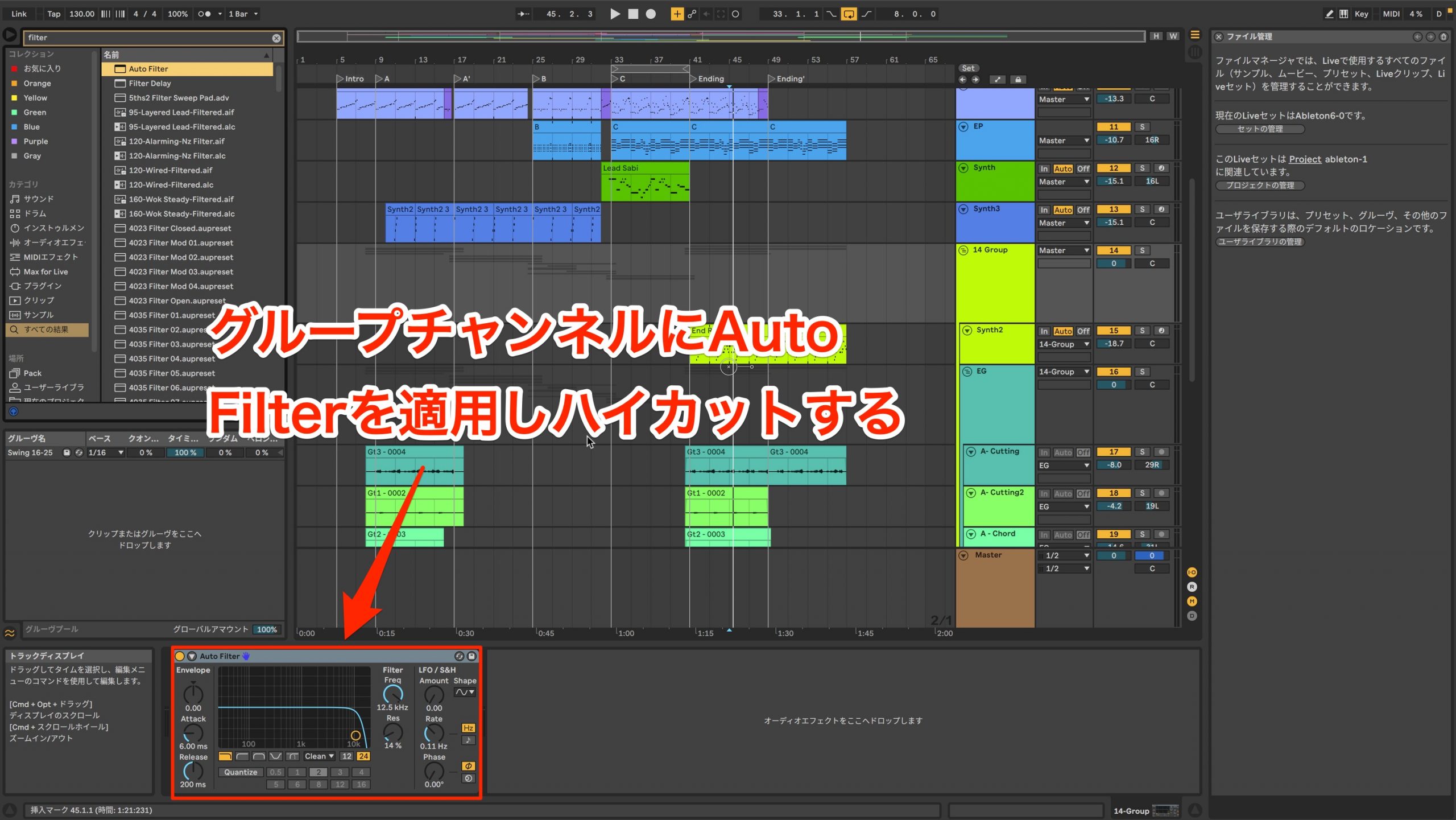
Here, insert Auto Filter on the group to cut the high frequencies.
As it stands, the filter will affect the whole song, so we need to make the effect active only during the ending.
We will therefore use automation to control the effect's on/off state.
In Live, the last parameter you touched automatically appears in the automation lane.
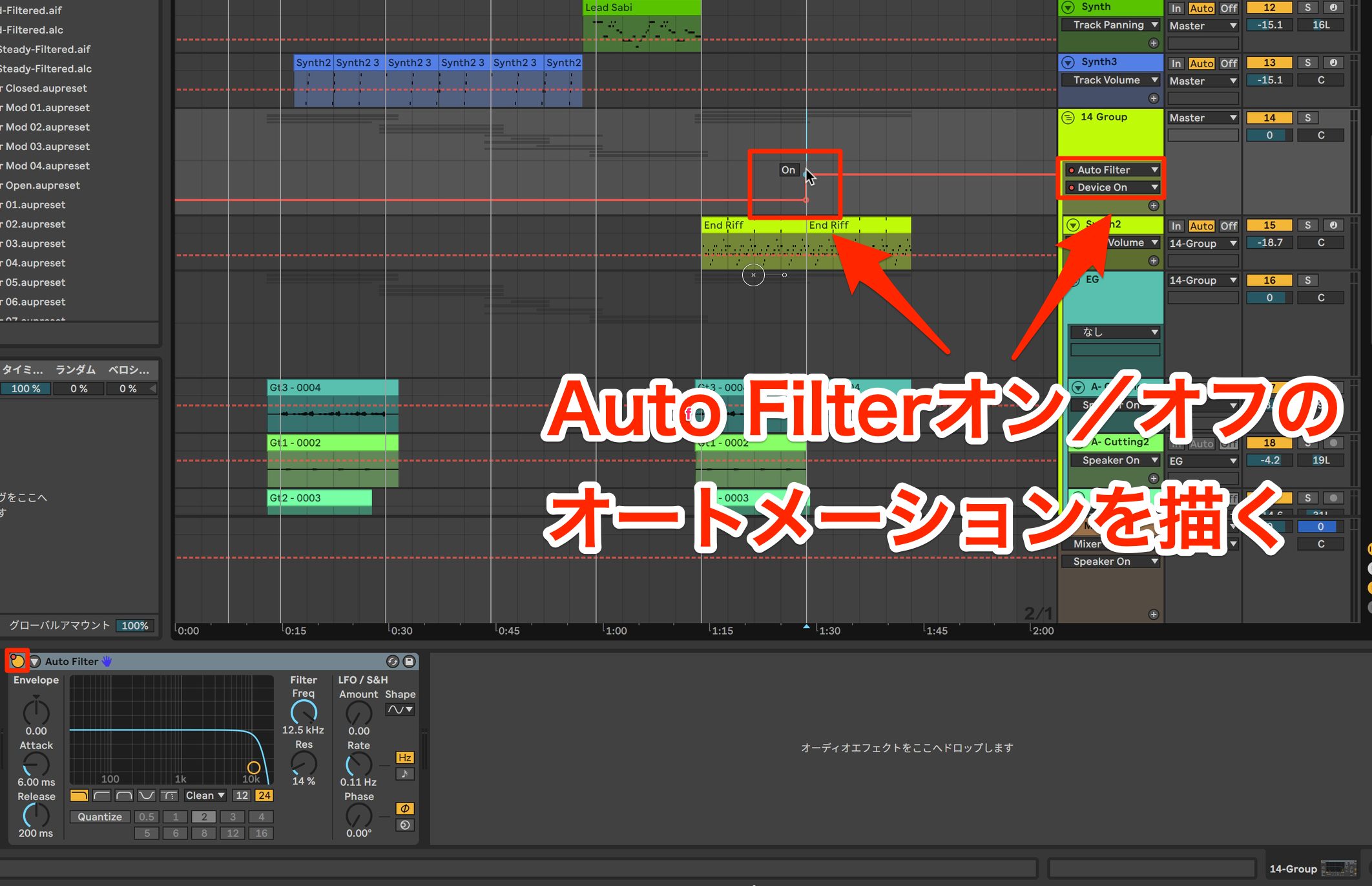
Click Auto Filter's Device Activator to display it in the automation lane, then draw the automation envelope.
Listen to the section where the filter is active and adjust Freq to determine how much high-frequency content to cut.
Editing the Vocal Automation Envelope
Next, draw volume automation for the vocal.
In the chorus, there are places where the level is too low and the lyrics are hard to hear. We will raise the volume in those places with automation.
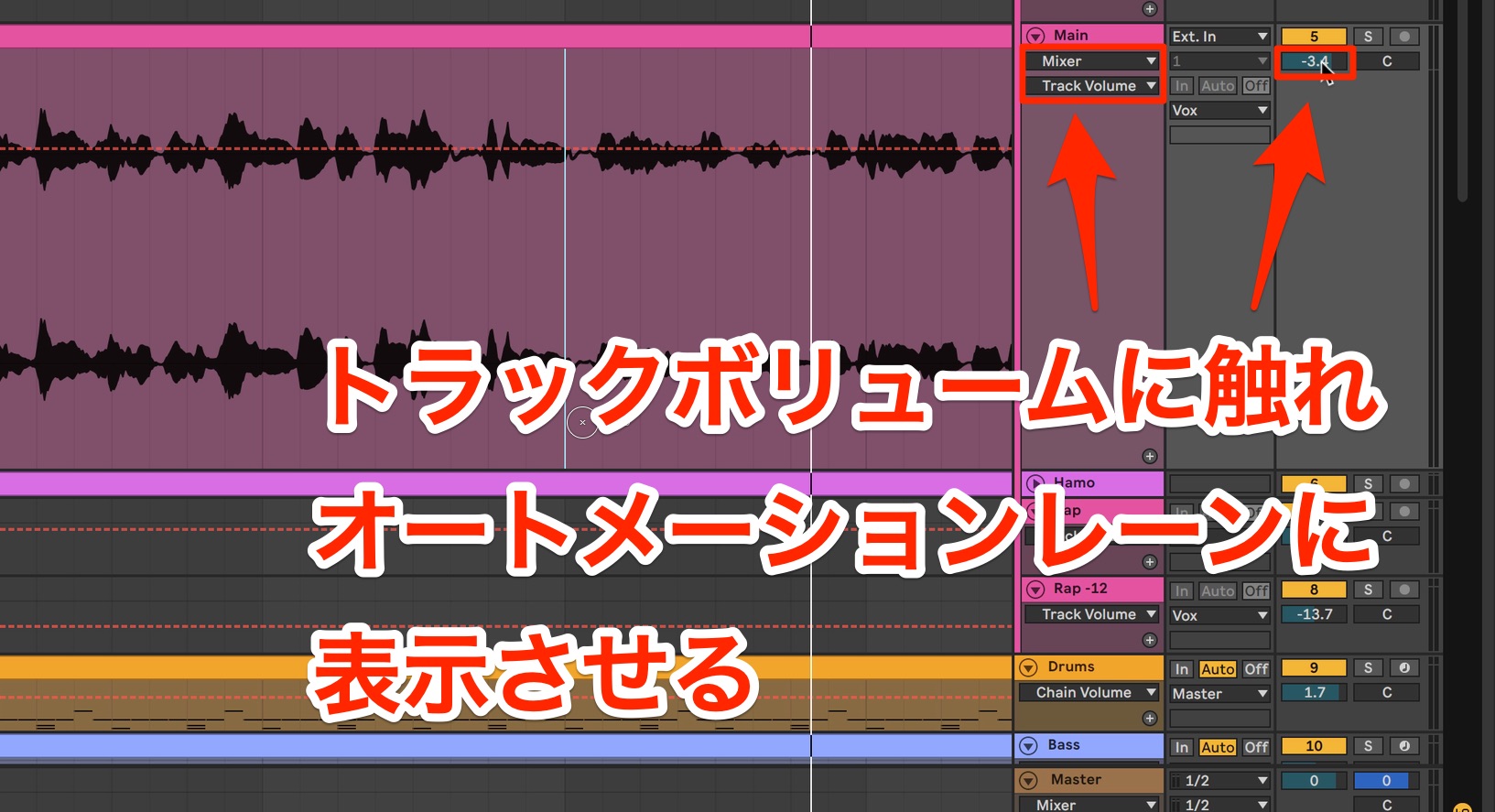
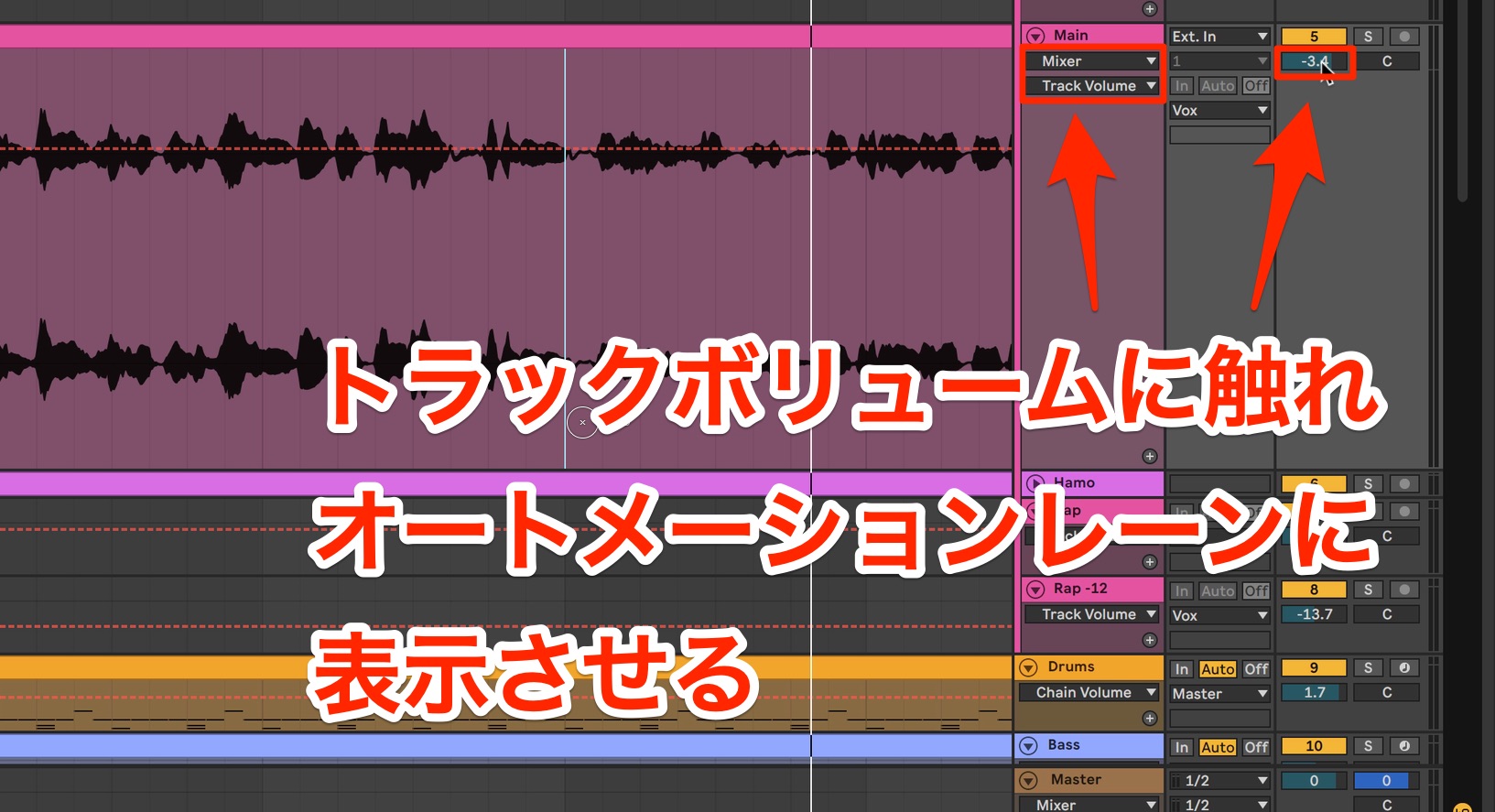
We will use fader automation for this, so touch the fader once to display its parameter in the automation lane.
To raise the vocal level for a whole section, drag to select the desired time range.
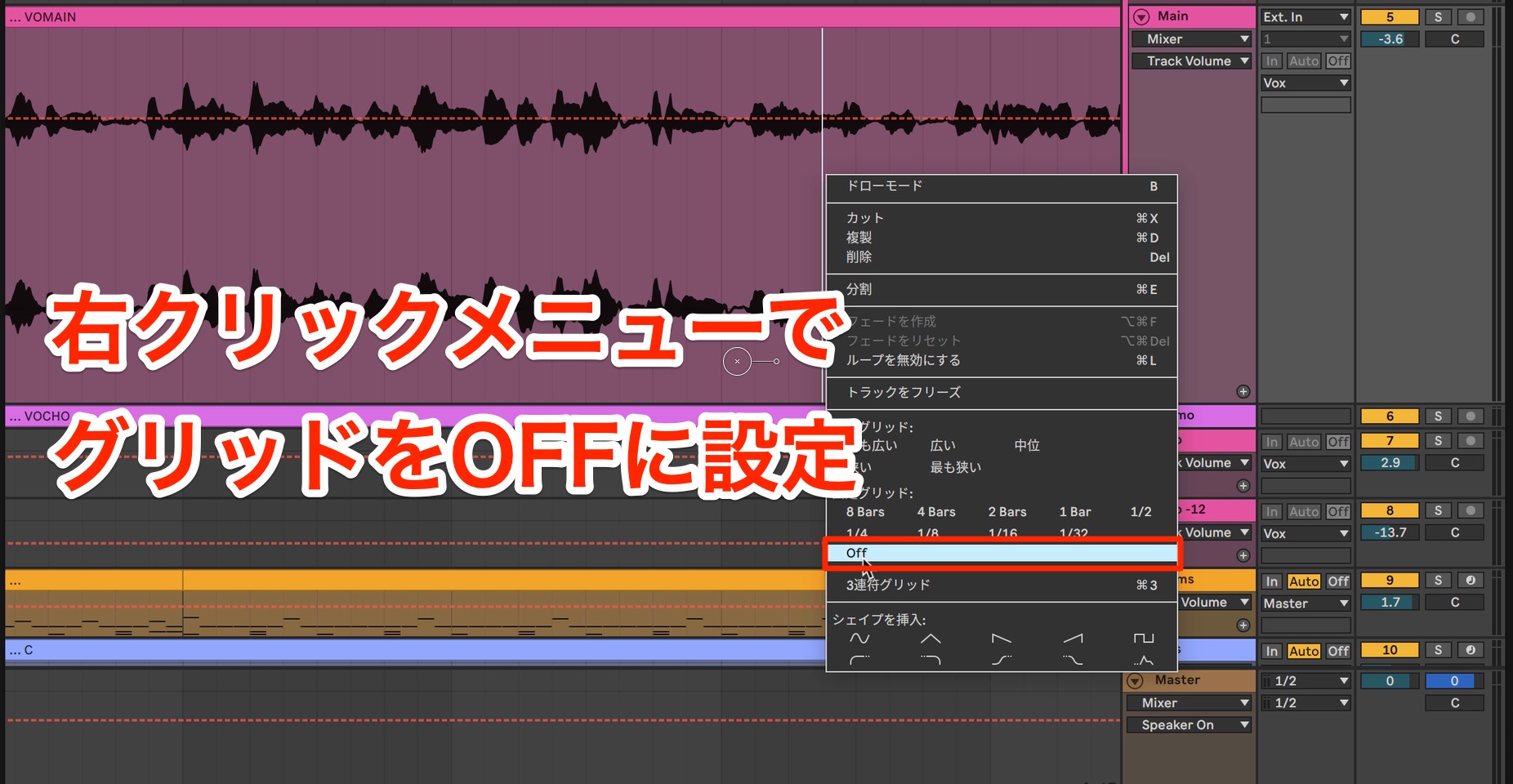
The grid can prevent precise range selection. If necessary, choose Off for the grid in the right-click menu.
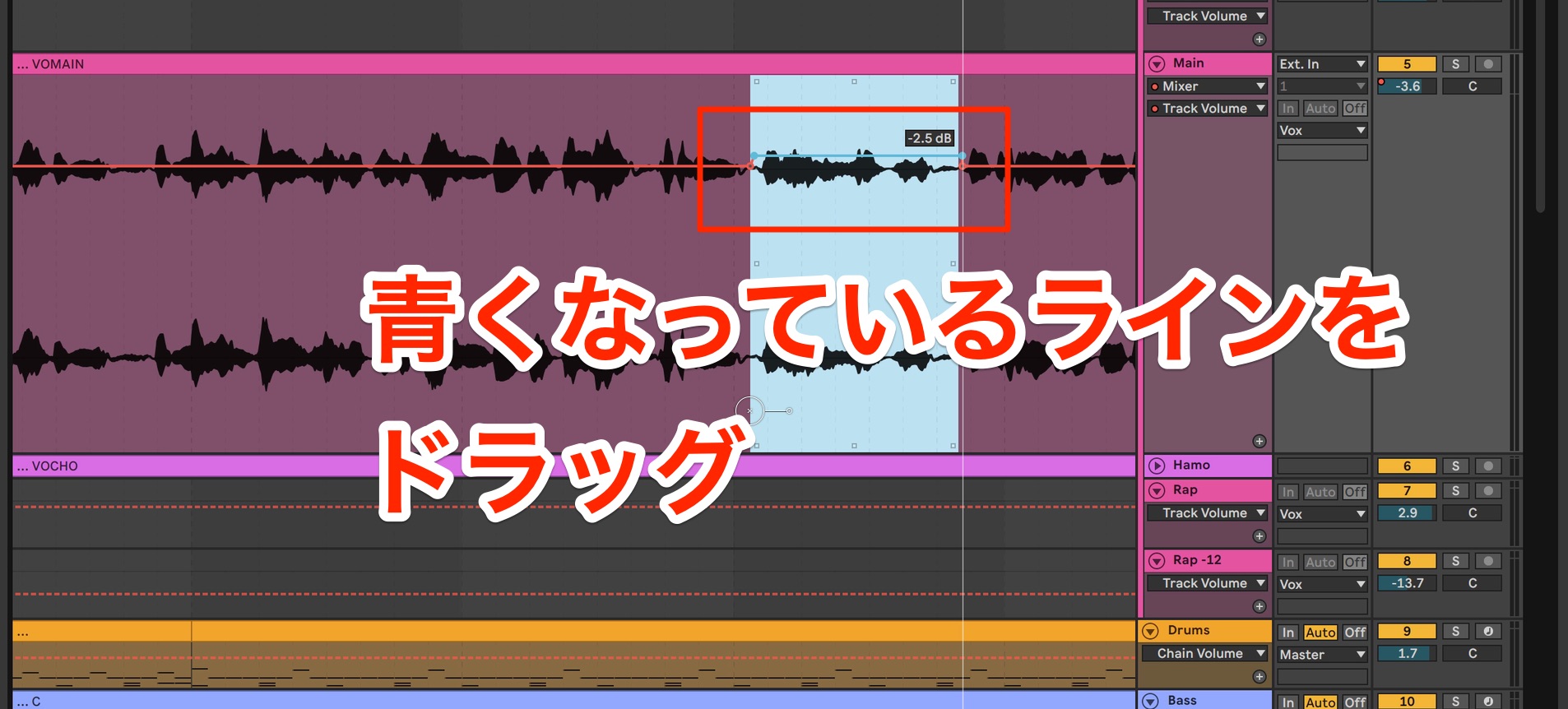
Move the pointer a little away from the automation line, and the selected section turns light blue, as shown here.
Drag the line to adjust the entire selected range at once.
Next, we will add expression by creating a crescendo in the desired section.
The function for tilting an automation envelope is useful here.
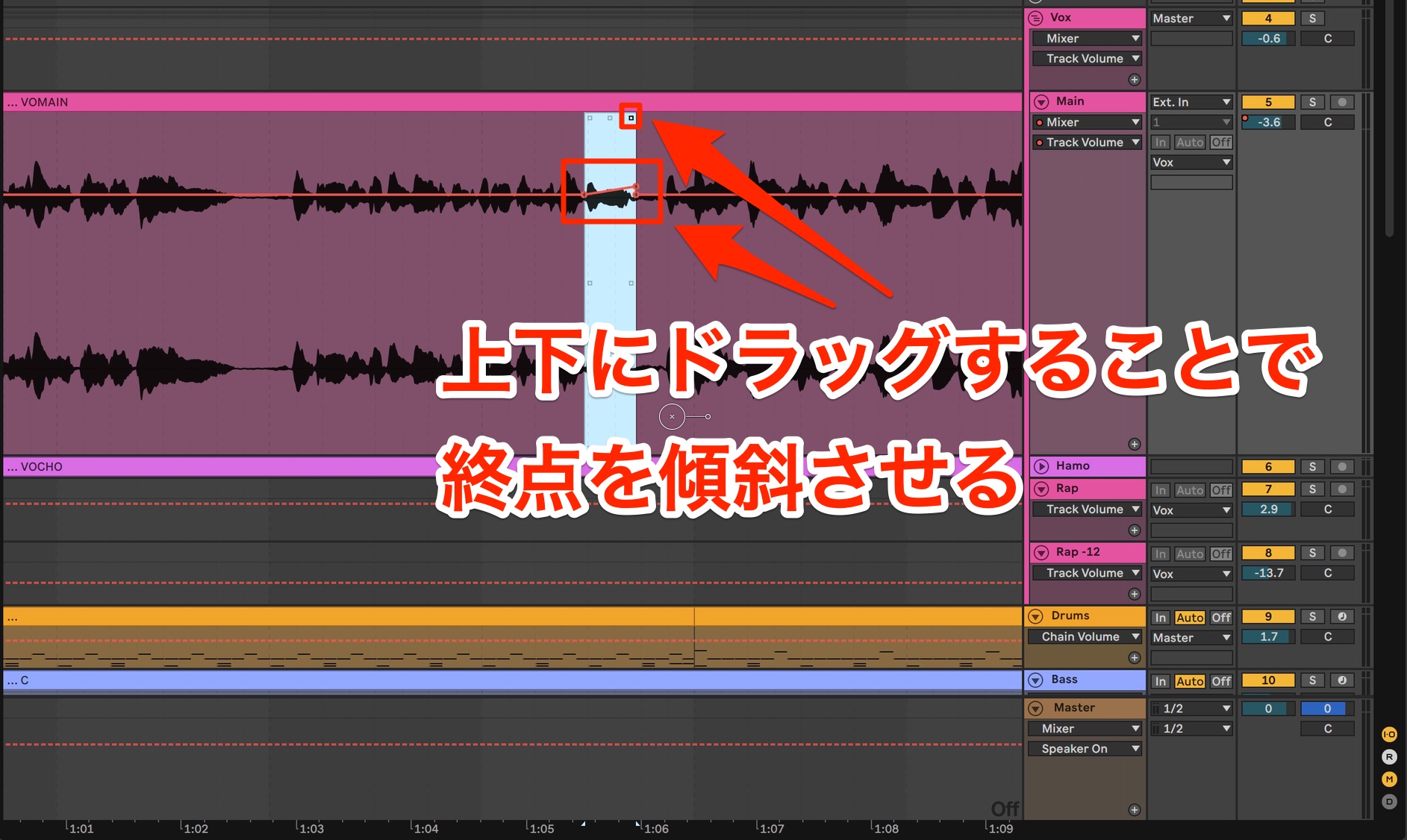
Drag the handles around the selection to tilt the existing envelope.
For a crescendo, drag the upper-right handle upward to raise the end of the envelope.
Using time selections like this allows you to create complex curves efficiently.
Volume automation is an important step in making vocals sound consistent, so try using it in your own songs.
That brings our six-part series to a close.
We hope it has given you a feel for a production approach that is a little different from other DAWs.
With its many features, customizable operation, and time-saving tools, we feel Live is a DAW that becomes more your own the more you use it.
We are making the project file for the song used throughout this series available to download. If you use Live, please give it a try.
- Download it here.
At the time of this original article, even those who did not own Live could try the top-tier Live Suite free for 30 days.
If you have not used Live before, try it for yourself; check the linked page for the current trial terms.
https://www.ableton.com/ja/trial
In this final installment, we cover mixing a song.
We introduce mixing techniques that make the most of Live's high-quality included effects and distinctive features.> Ableton Live for Guitarists #6: Exploring Live's Mixing Features
🎥 YouTube: https://t.co/zbXdsl7wip📝 Article: https://t.co/9SlzmGNmVa pic.twitter.com/bGrdP1Ifog
— SLEEP FREAKS (@SLEEPFREAKS_DTM) February 20, 2020
Frequently Asked Questions
Q1. What should beginners learn first about mixing in Ableton Live?
Start by setting the levels of the low-end parts: drums, especially the kick, and bass. Set the kick to peak at around -10 dB, then use it as a reference as you gradually adjust the bass and vocal levels to create a balanced mix.
Q2. Is an external MIDI controller essential for mixing in Ableton Live?
No, but it is useful when you want to control several tracks at once, which is difficult with a mouse. Live supports controllers from many manufacturers, including Ableton's Push, and they are easy to set up in Preferences.
Q3. What is Glue Compressor used for?
It reduces variations in level and makes a track more consistent without sacrificing the definition of the rhythm. Although it is included with Live, its quality is comparable to separately sold effects.
Q4. How can I apply an effect to several tracks at once in Ableton Live?
Select multiple tracks and choose Group Tracks from the right-click menu (Mac: Command + G; Windows: Control + G), then insert the effect on the resulting group to process them together.
Q5. Can I use automation to enable an effect only during a specific section?
Yes. Show the automation lanes with the Automation Mode button in Arrangement View (or the A key), then automate parameters during a specific section, such as the ending, to apply the effect only there.
NEW ARTICLES
Latest English Articles

























































































































































































































