Cubase workspaces help you manage multiple windows efficiently while working in your DAW. Save screen layouts for editing, MIDI programming, mixing, and other tasks, then switch between them instantly with keyboard shortcuts. Even on a small screen, you can give each window an appropriate size and work more efficiently. The setup differs between Cubase 8 and other versions, but both approaches let you save and customize multiple layouts.
Work efficiently even on a small screen
When using a DAW, you may find that your workspace feels cramped.

Because you switch between various windows as you work,
each individual window can end up small.
That is where the workspace feature comes in handy.
Save your preferred window arrangements,
then recall them with specific keys.
Video: Enhanced workspaces in Cubase 8
- Cubase 8
- Cubase 7 and earlier
Setting up workspaces in Cubase 8
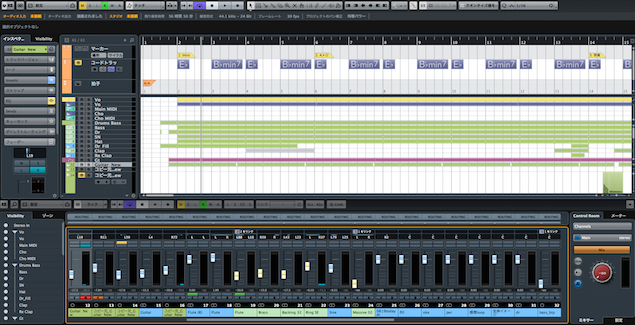
↑ First, arrange your windows as you like.
Adjust window sizes, the Transport position, zoom, and so on.
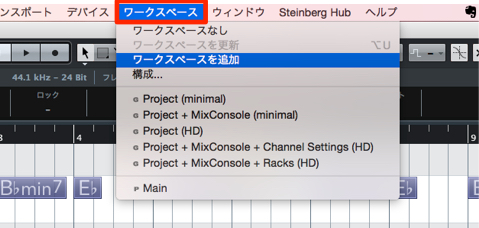
↑ Once the layout is ready, save it.
From the top menu, choose Workspaces → Add Workspace.
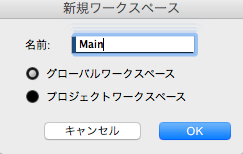
↑ This dialog appears.
- Name: Give the layout a name.
- Global: Available across all Cubase projects.
- Project: Available only in this project.
For this example, we will use Global.
Continue saving your frequently used layouts in the same way.
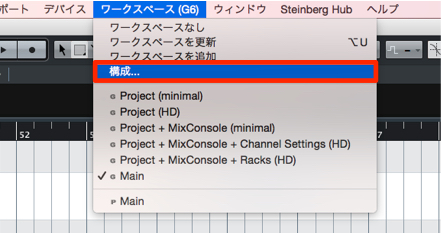
From the top menu, choose Workspaces → Organize.
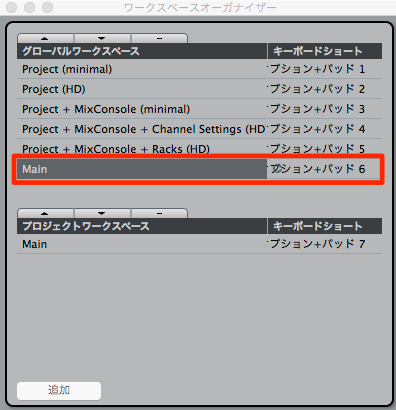
You can see a list of saved layouts.
Shortcuts are assigned automatically,
but you can click here to assign shortcuts of your choice.
Video: Setting up shortcuts
Use these layouts for editing, MIDI programming, and mixing
to make your workflow much more efficient.
Changing and deleting workspaces
You can change or delete saved workspaces.
To change a workspace
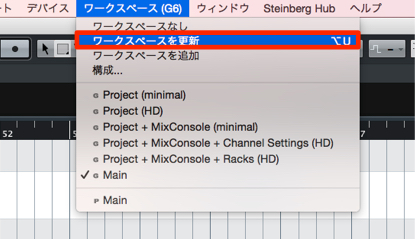
Select Update Workspace
to replace the saved layout with the current arrangement.
To delete a workspace
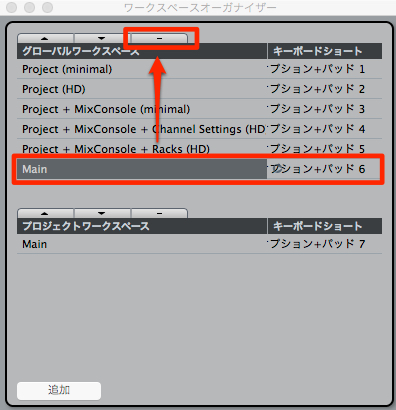
Select the workspace you want to delete,
then click the minus button at the top.
Setting up workspaces in Cubase
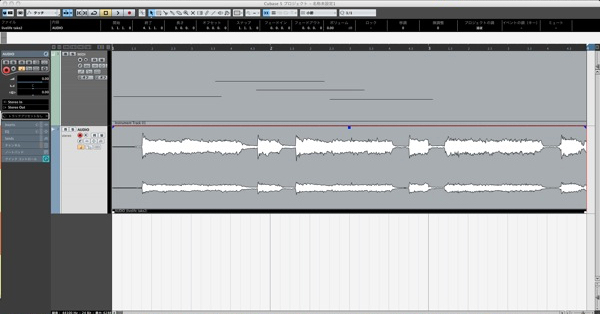
↑ First, arrange your windows as you like.
Adjust window sizes, the Transport position, zoom, and so on.
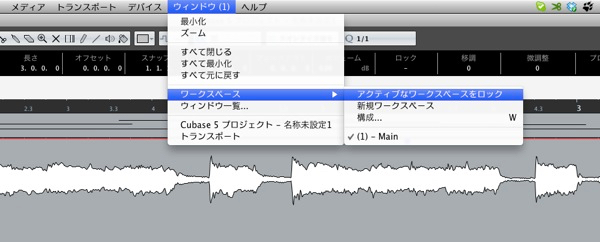
↑ Once the layout is ready, save it.
From the top menu, choose Window → Workspaces → Lock Workspace.
The screen layout is now saved.
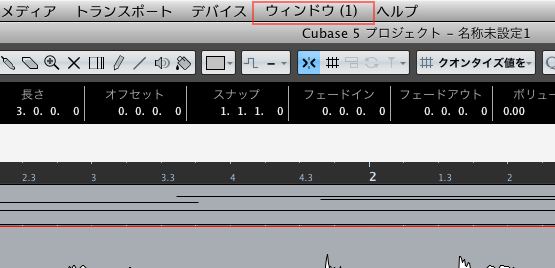
↑ The number beside Window
indicates the current workspace; the layout saved above has been assigned to 1.
Continue saving your frequently used layouts in the same way.
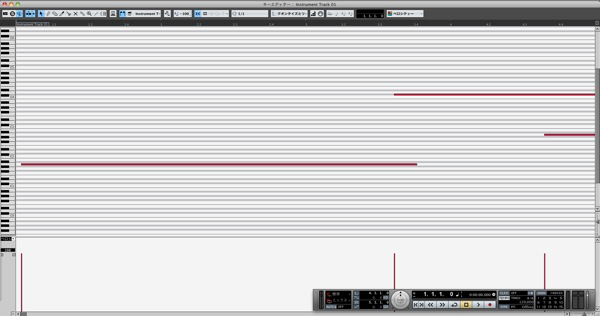
↑ Next, let’s save the frequently used Key Editor.
Expanding it to fill the screen makes it easy to see.
Once the layout is ready, save it as before,
but screen number 1 is already in use.
So save the Key Editor layout as Workspace 2.
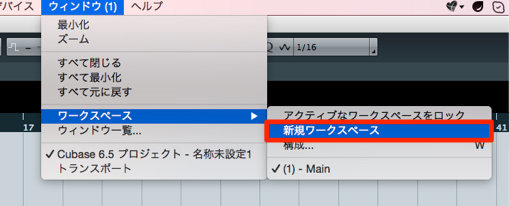
↑ From the top menu, choose Workspaces → New Workspace.
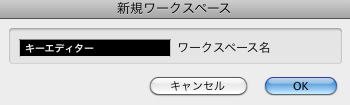
↑ The dialog above appears.
Enter a name and click OK.
The Key Editor is now registered as number 2.
Choose Window → Workspaces → Lock Workspace from the top menu to lock the layout.
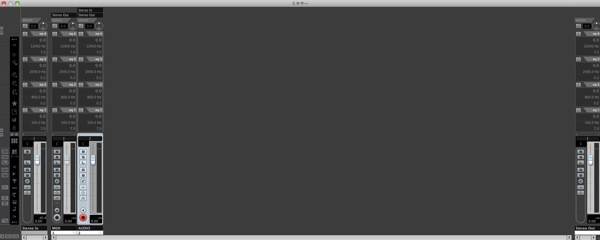
↑ Finally, let’s save the Mixer window too.
Expand it to fill the screen and arrange it,
then choose Workspaces → New Workspace from the top menu.
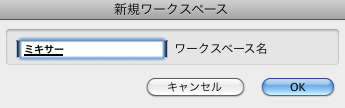
↑ Give it a name in the dialog, then lock it using the same steps as above.
You now have three saved layouts.
Using screen sets
Shortcuts for recalling screen numbers
- Mac: Option + screen number on the numeric keypad
- Windows: Alt + screen number on the numeric keypad
This instantly switches to the saved layout.
If your keyboard has no numeric keypad,
customize the shortcuts to assign other keys for recalling workspaces.
Video: Setting up shortcuts
Use these layouts for editing, MIDI programming, and mixing
to make your workflow much more efficient.
The examples above use screen numbers 1–3, but you can save more.
To change a locked layout, simply unlock it from the top menu.
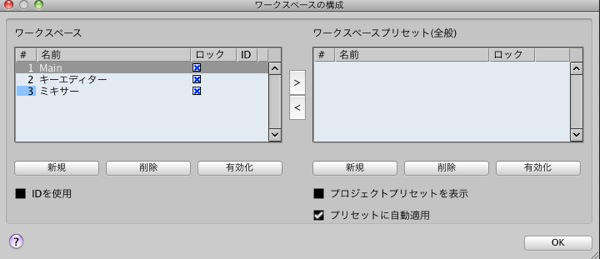
↑ You can also choose Workspaces → Organize from the top menu
to change the numbers of saved layouts or delete them.
- Cubase 8
- Cubase 7 and earlier
Frequently asked questions
Q1. What is a workspace in Cubase?
It saves window sizes, positions, zoom settings, and more so you can recall them instantly with shortcuts. Switching layouts for editing, MIDI programming, mixing, and other tasks can greatly improve your workflow.
Q2. Can I save multiple workspaces?
Yes. In Cubase 8, you can choose Global or Project and save multiple preferred layouts. Cubase 7 and earlier also allow more than three.
Q3. How do I recall a saved workspace?
In the Cubase 7-and-earlier workflow shown above, use Option plus the workspace number on the numeric keypad on Mac, or Alt plus the number on Windows. If you have no numeric keypad, you can customize the shortcuts. Cubase 8 shortcuts can be assigned in the workspace organizer.
Q4. How do I change or delete a saved workspace?
In Cubase 8, use Update Workspace to change it or the minus button to delete it. In Cubase 7 and earlier, unlock it, make your changes, and lock it again, or delete it via Organize.
NEW ARTICLES
Latest English Articles