
Native Access is the dedicated application for installing and managing Native Instruments products for your DAW. This guide explains downloading and installing Native Access 2, signing in, registering products, managing storage, and installing updates. It also shows how to choose a location for sound libraries and find troubleshooting guidance, helping you avoid storage problems and set up your music production environment. This guide was originally published in December 2022; interface labels and available versions may differ from the screenshots.
Install and Manage Native Instruments Products More Easily
When choosing instruments to add to your DAW, Native Instruments may be one of the first names that comes to mind.
Its extensive range of high-quality instruments for virtually any genre has earned the support of many professional users.
After purchasing a Native Instruments product, use the dedicated application Native Access to install it.
Here, we will explain how to get Native Access, start using your products, and manage your sound libraries.
Native Access Video Guide (an Older Version, with a Similar Overall Workflow)
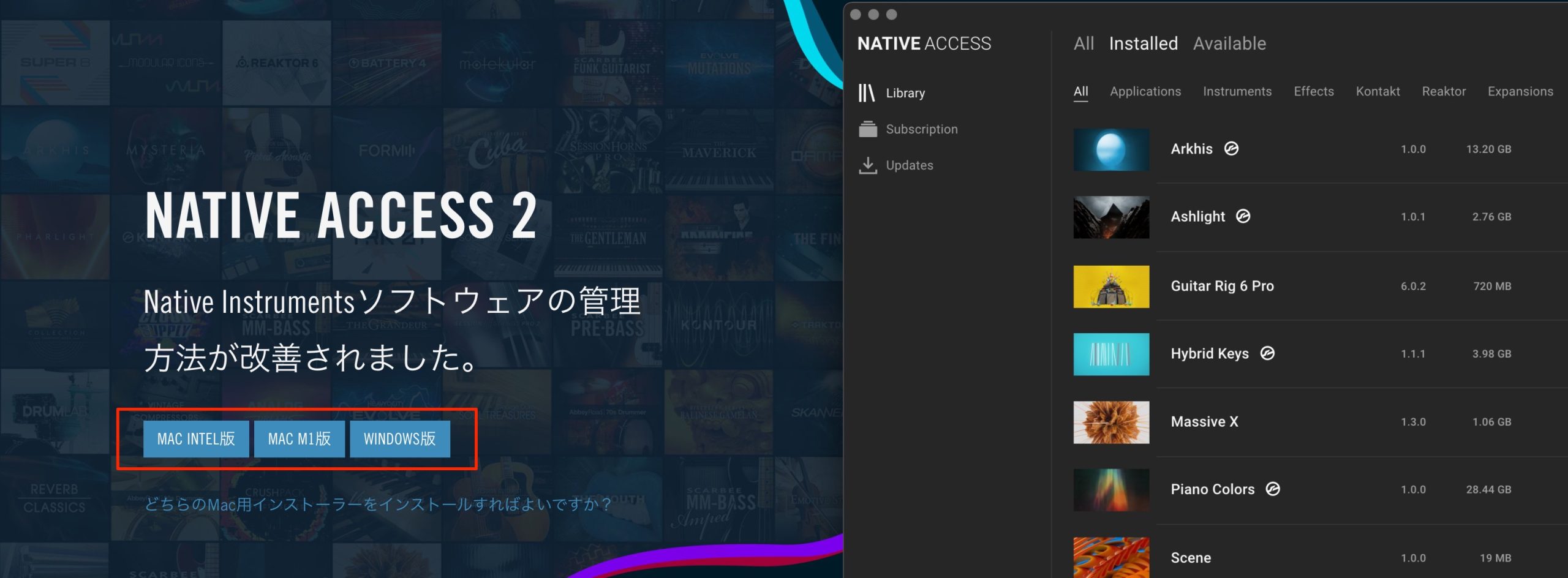
Downloading Native Access
First, download Native Access from the link below and install it.
Signing In and Creating an Account
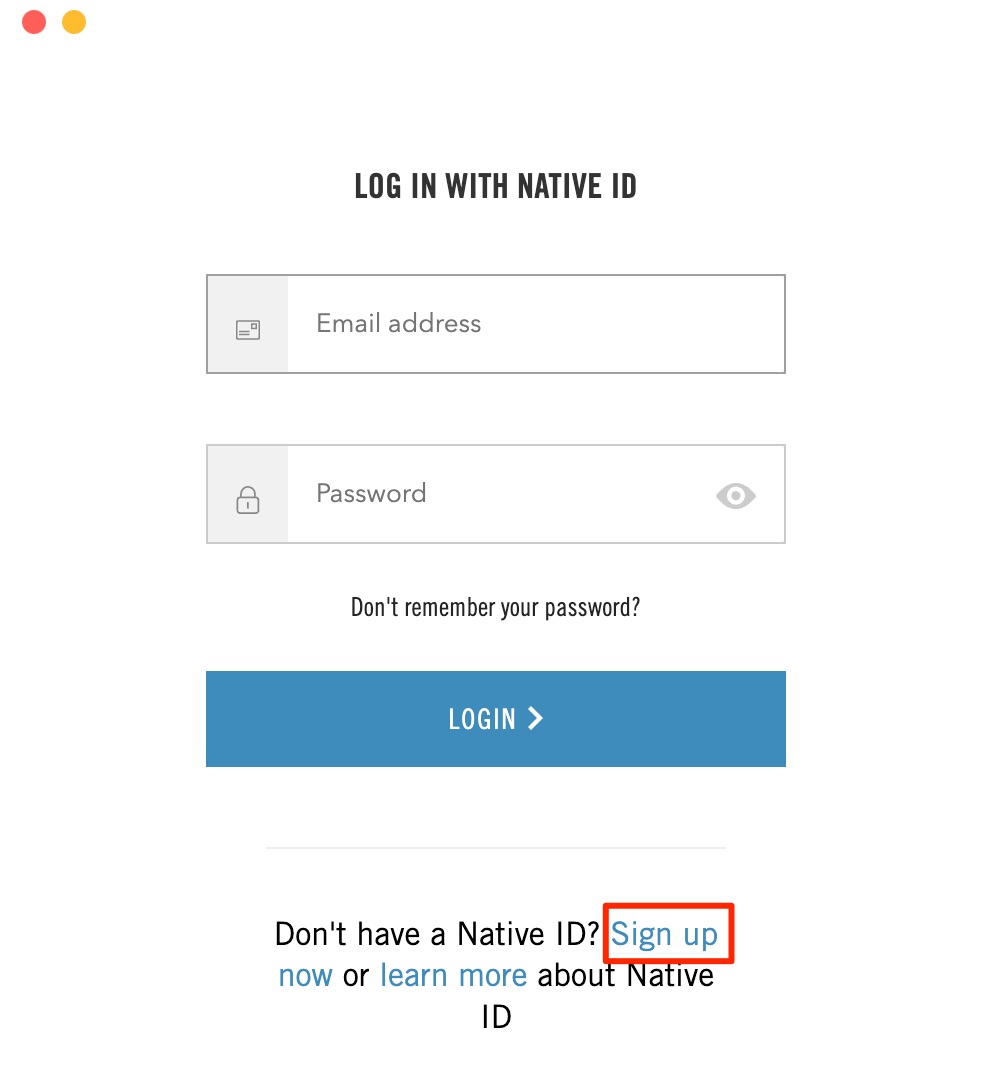
Launch the installed Native Access application and sign in with your Native Instruments account.
If this is your first purchase, create an account using Sign up, then sign in.
Registering a Product
Enter the serial number of your newly purchased product
to link it to your account.
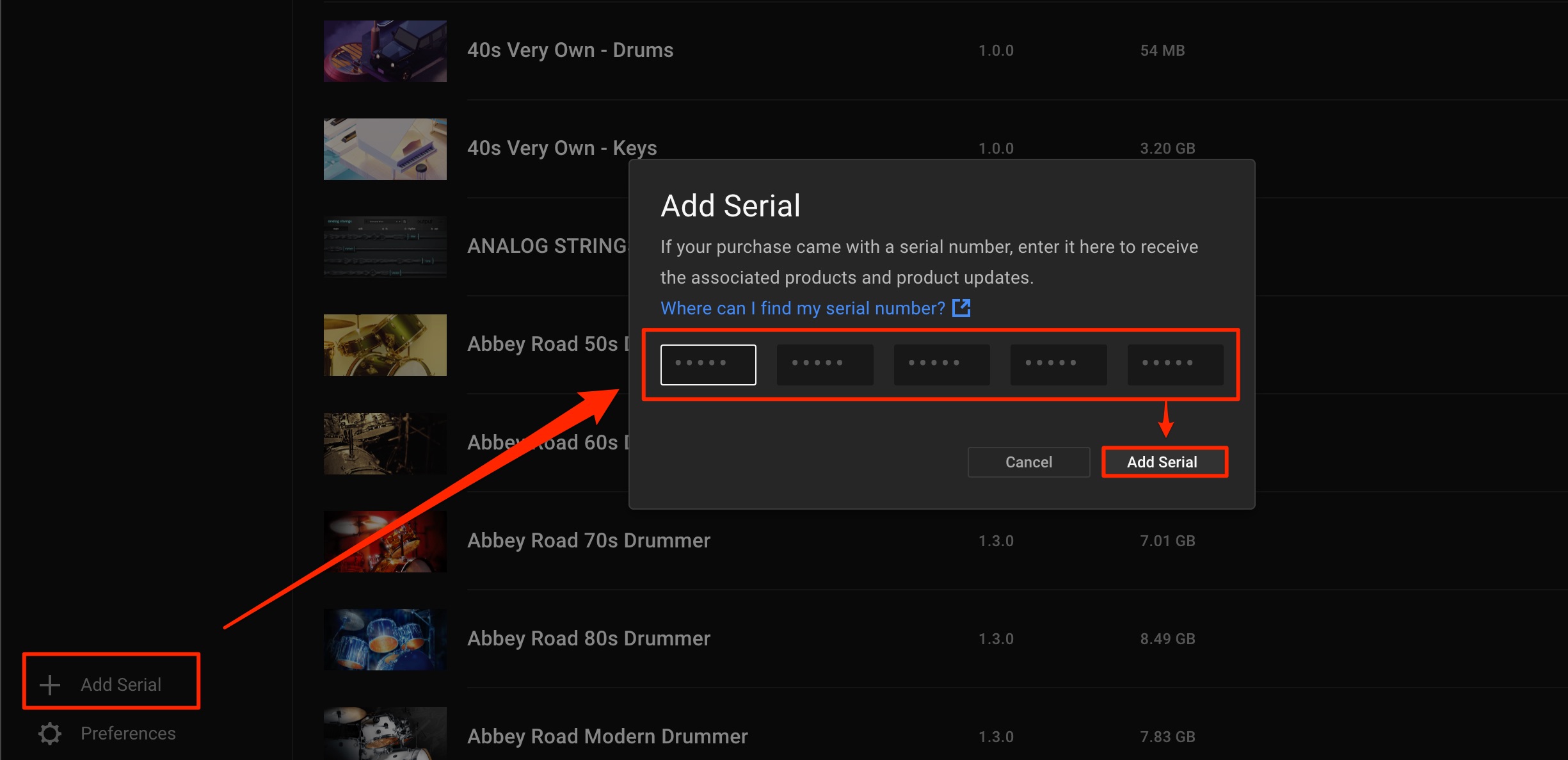
Click Add Serial and enter the serial number.
Then click Add Serial again.
The product is now registered, so you can proceed with installation.
Checking Installation Status
The tabs at the top of the application show the status of your products.
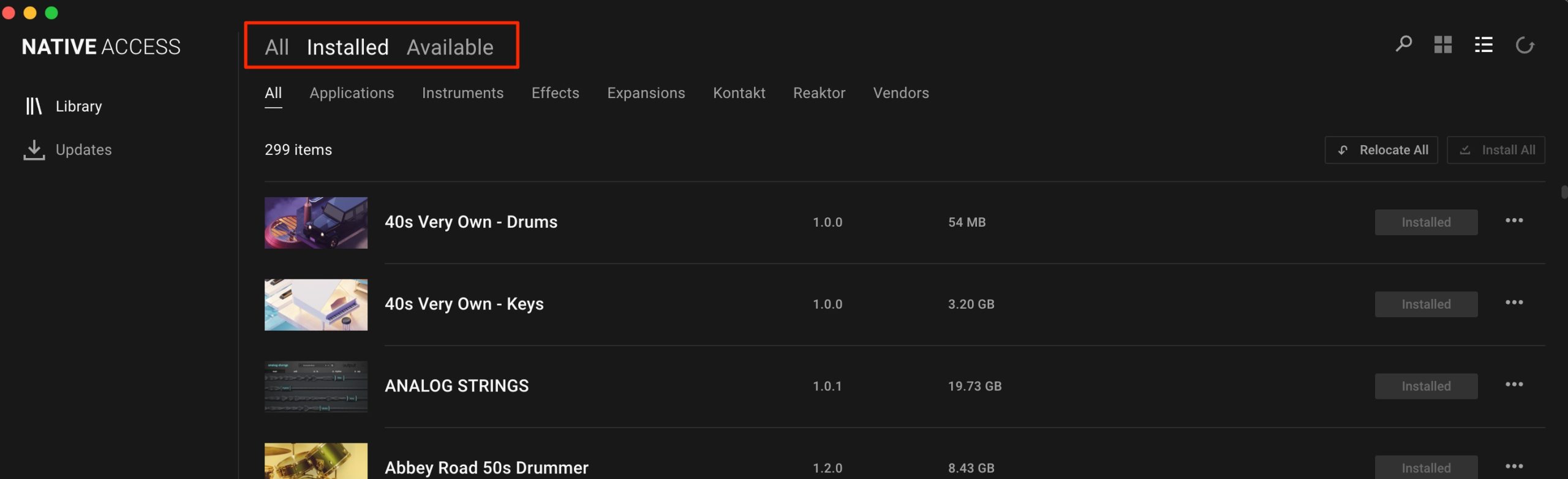
- All: Displays all the products you have purchased.
- Installed: Products you have purchased and already installed on your computer.
- Available: Products you have purchased but have not yet installed on your computer.
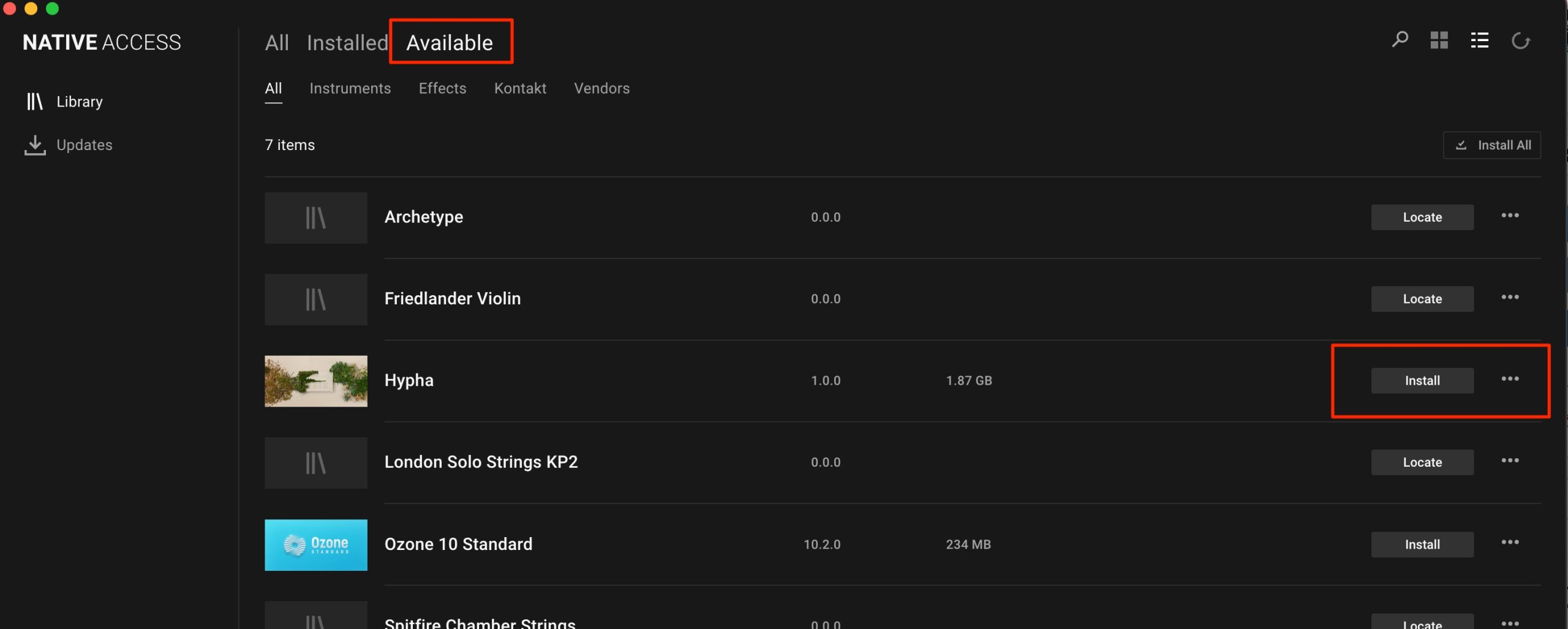
Click Install next to a product to download and install it automatically.
Downloading and installation may take a long time, depending on your internet connection and the size of the product.
Leave Native Access running and wait until the process is complete.
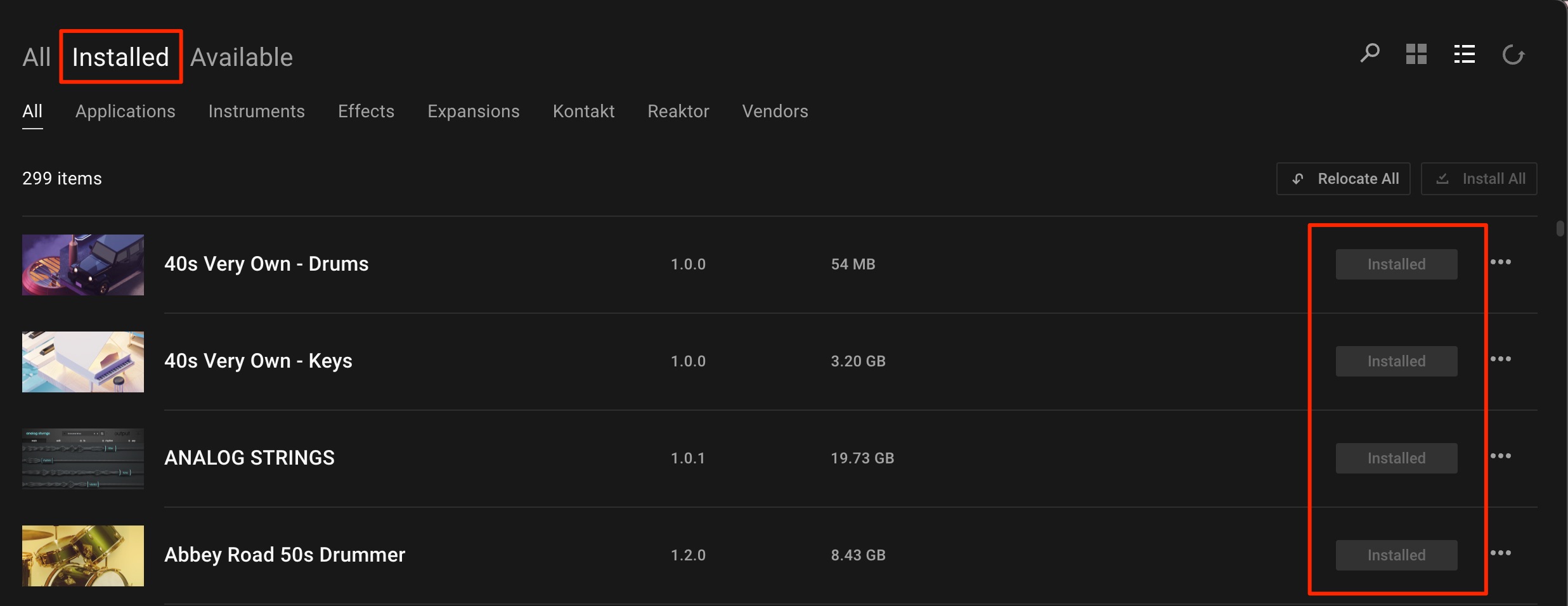
Once installation is complete, the product appears under Installed.
Choosing Where to Install Sound Libraries
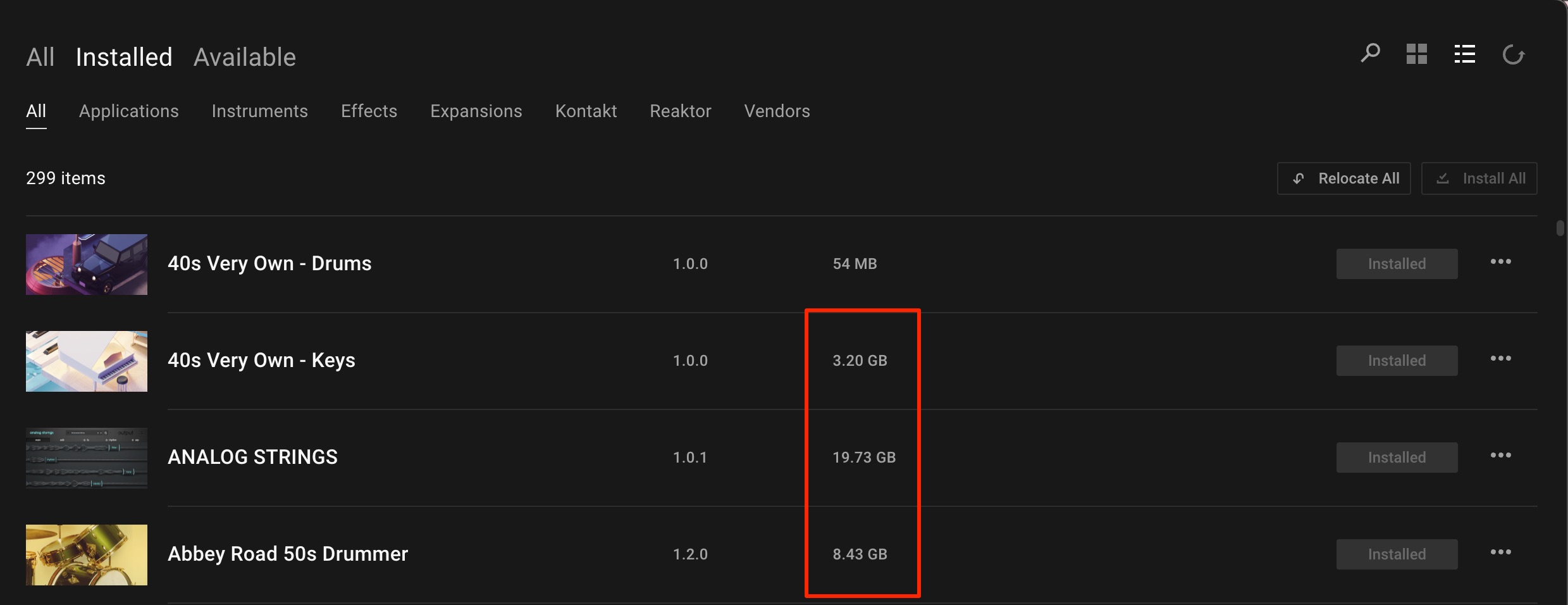
Some products have large sound libraries.
You may not have enough space on your main drive, or you may prefer to install libraries on an external drive. Here is how to choose the locations.
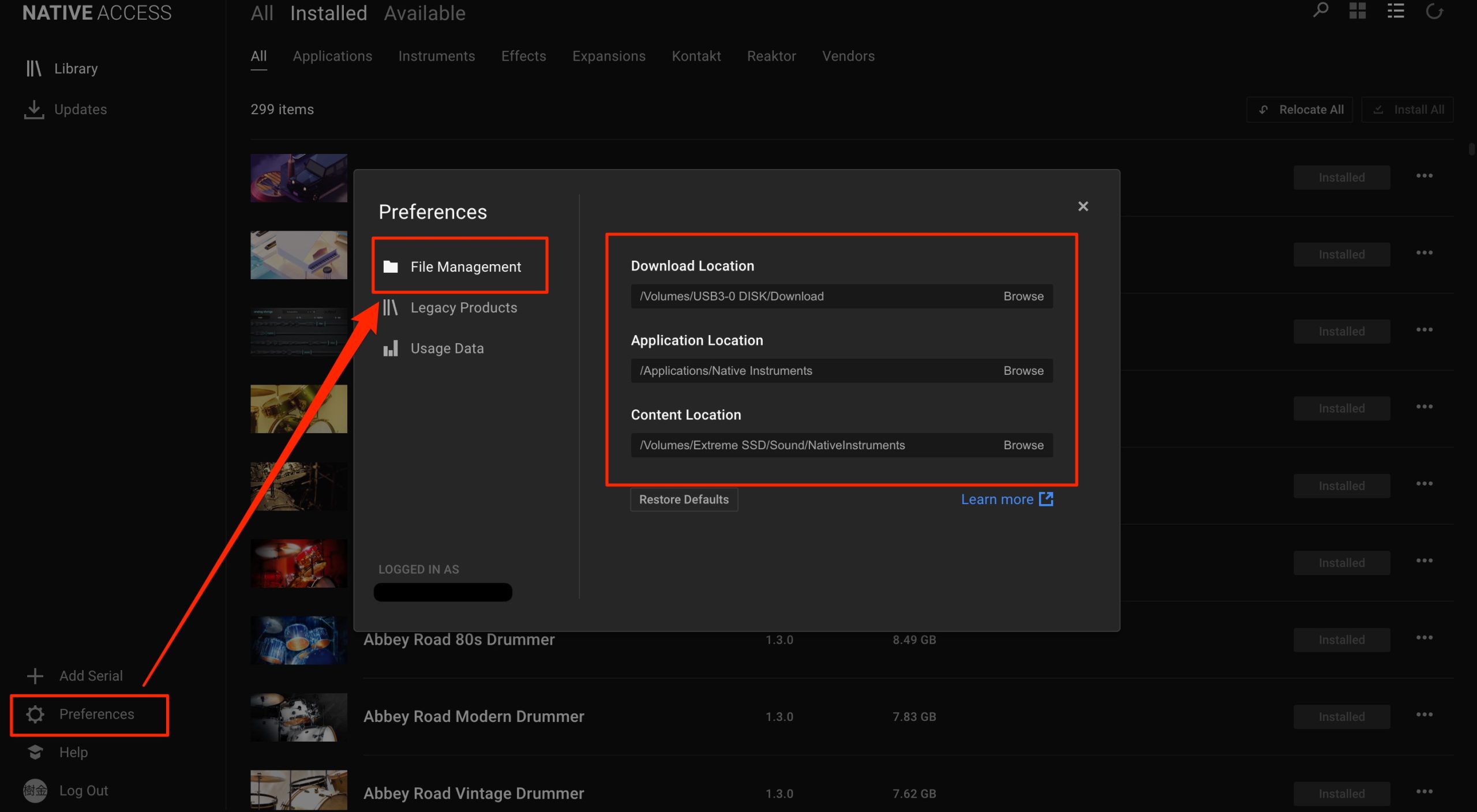
Click Preferences.
- Download location: The location where product installers are downloaded.
These files are normally removed automatically after installation. If an installer remains, you can delete it once installation has finished.
The download files take up space until installation is complete, so if insufficient space prevents installation, consider choosing an external drive for downloads. - Application location: The location where the application itself is installed.
These application files are generally not large. Moving them to another location, such as an external drive, can sometimes cause problems, so we recommend leaving this setting at its default. - Content location: The location of the sound libraries themselves.
The instruments will continue to read their sounds from this location, so choose an external drive here if you want to save space on your main drive.
Installation and Usage Troubleshooting
If your product does not work correctly after following these steps, see the articles below.
Native Access Crashes While Installing a Product
Crashes while installing Native Instruments products in Native Access can sometimes be related to the computer's sleep settings. This article explains what to check…
Komplete Does Not Appear in Cubase on Windows
This article explains what to do if Komplete plug-ins do not appear in Cubase on Windows. The VST installation location is important, including for products already installed…
Komplete Does Not Appear in Cubase on Windows
This article explains what to do if Komplete plug-ins do not appear in Cubase on Windows. The VST installation location is important, including for products already installed…
Choosing External Storage
We recommend an external drive with fast read and write speeds.
This helps your products run more smoothly.
SanDisk Portable SSD Series: Video Review

Checking for Updates
Product updates are released regularly.
They address issues such as bugs and CPU efficiency, so we recommend keeping your products up to date.
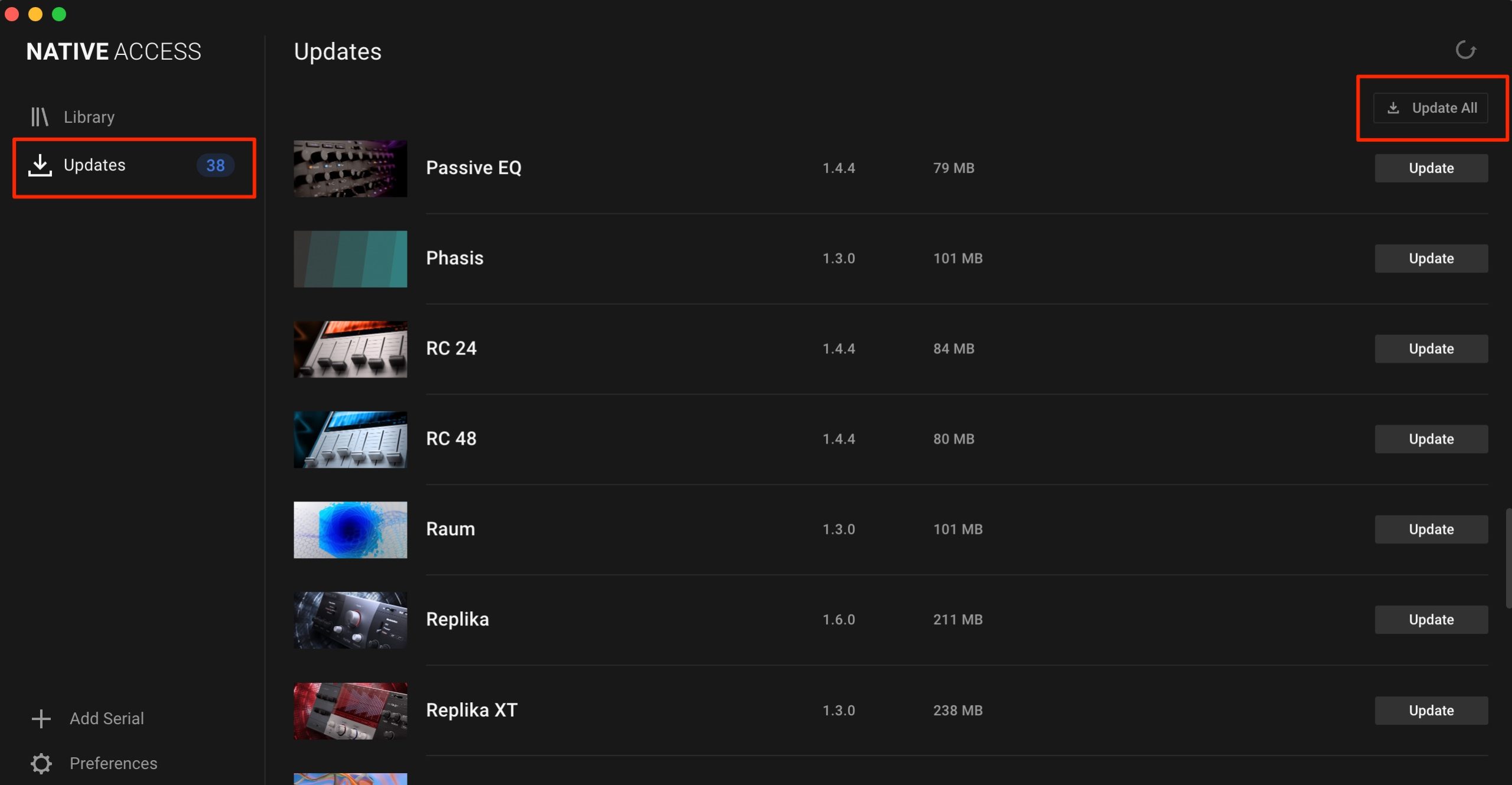
Update All installs all available product updates. Alternatively, click UPDATE to the right of a product to update it individually.
Frequently Asked Questions
Q1. Where can I download Native Access 2?
Use Native Instruments' official Native Access download page. After installation, sign in with your account. If you are a new user, create an account using Sign up first. The official page provides the currently available version.
Q2. Can I install sound libraries somewhere other than my main drive?
Yes. In Native Access 2, open Preferences and set Content location to a folder on an external drive. This lets you install sound libraries there and is useful when your main drive is short of space.
Q3. What should I do if downloading or installation takes a long time?
The time required depends on your internet connection and the size of the product. Leave the application running until the process is complete. Choosing an external drive for Download location can help avoid installation failures caused by insufficient space.
Q4. How can I check the status of products I have purchased?
Use the tabs at the top of Native Access 2: All shows all products, Installed shows installed products, and Available shows products that have not yet been installed. These are the labels shown in this guide's screenshots.
Q5. Should I install product updates?
Yes. Regular updates address bugs and improve aspects such as CPU efficiency, so we recommend keeping products up to date. Update All lets you install available updates together.
NEW ARTICLES
Latest English Articles






































































































