A newly purchased external hard drive may display an unreadable disk message when connected to a Mac used for music production. This older tutorial explains a formatting method for getting such a drive ready to use for DAW files, sample libraries, and backups. It demonstrates Mac OS Extended (Journaled), a format used with older Macs. Modern macOS also supports APFS, and the right format depends on compatibility and how you intend to use the disk. Formatting erases the selected disk or volume, so back up any files you need before proceeding.
Getting a New External Hard Drive Ready to Use
When you connect a newly purchased hard drive,
you may see a message saying it cannot be read.
Here is one way to address the problem. Check the disk and your backup before formatting; an unreadable message does not always mean the disk needs to be erased.
Video Highlight: Choosing a Format
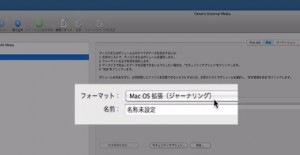
In this older demonstration,
the format selected is Mac OS Extended (Journaled). This is not the only choice for every Mac or disk: check compatibility and your intended use before choosing a format.
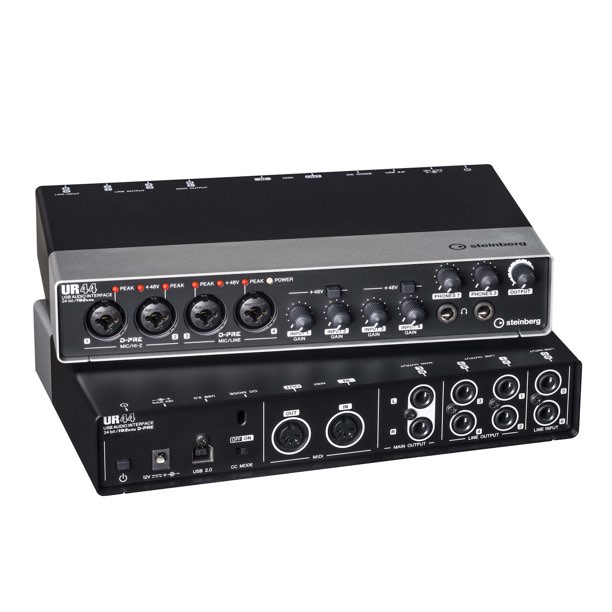
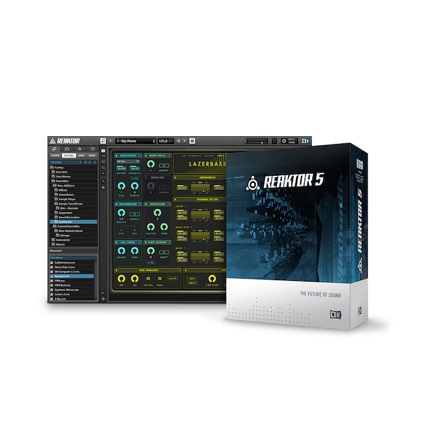
Recommended Hard Drive
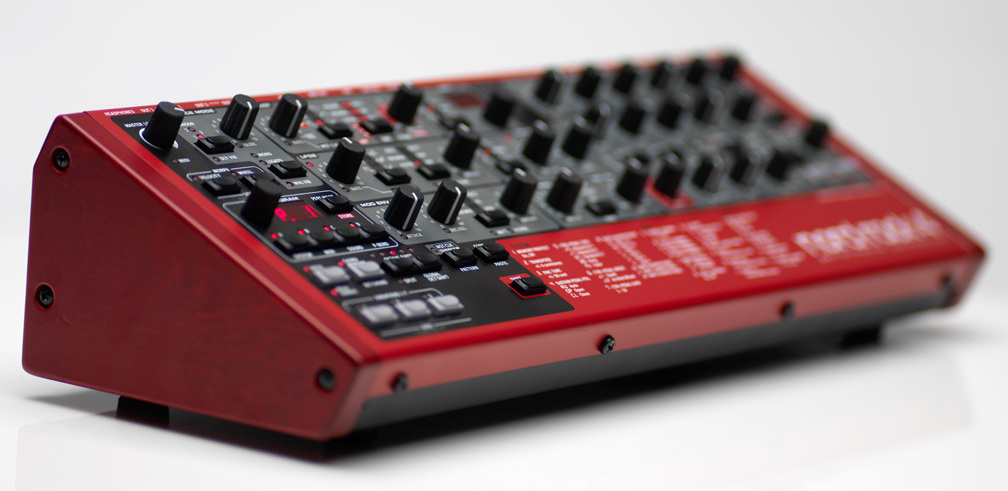
The drive featured in the original article combines attractive design and reliable operation
and can be used for backups.
It also supports several connection standards. Check the specifications and availability of any drive before buying.
Frequently Asked Questions
Q1. Why choose Mac OS Extended (Journaled) when formatting a hard drive on a Mac?
Mac OS Extended (Journaled) was a standard Mac file system and its journal helps protect file-system integrity after an unexpected shutdown. It can be useful for compatibility with older Macs. The original article recommends it for large audio and project files and backups, but no format guarantees file safety. APFS is the default file system on macOS 10.13 and later and can also be used on external hard drives. Choose a format based on the devices and software you need to support, and maintain separate backups.
Q2. If a new external hard drive is not recognized, what else should I check before formatting?
Check that the cable is securely connected and that the USB or Thunderbolt connection is compatible. Try another port or cable. If the drive still is not recognized, check its status in Disk Utility. Avoid erasing it if it contains files you need.
Q3. Can I recover existing files after formatting?
Formatting erases the files on the selected disk or volume, so back up anything you need elsewhere first. Recovery software might be able to recover data immediately afterward, but recovery is not guaranteed and further use may make it more difficult. If the data is important and you have no backup, stop using the drive and consider professional recovery assistance.
NEW ARTICLES
Latest English Articles