
Quantize in Cubase 11 automatically corrects timing errors in real-time recordings. Choose a note value in Quantize Presets and click the Q button to apply it. Beyond the basics, advanced options such as Catch Range, Safe Range, and Soft Quantize let you tighten the rhythm while preserving its groove. Swing and other functions can also give programmed parts a more human feel.
In this lesson, we will look at quantize, which automatically corrects the timing of the performance we recorded in the previous lesson on real-time recording.
It can speed up your workflow and offers a range of useful features, so take the time to learn it.
Quantize Video Tutorial
Selected Questions and Answers from YouTube

Quantizing does not line up the ends of my notes. How can I fix that?

Thank you for using the video. On the left of the piano roll, there is a Quantize Lengths function. You can use it to quantize the note endings.
When to Use Quantize
First, let's look at when you would use quantize.
When you draw notes in the Key Editor with Snap enabled, their timing already falls on the grid, so quantizing is generally unnecessary.
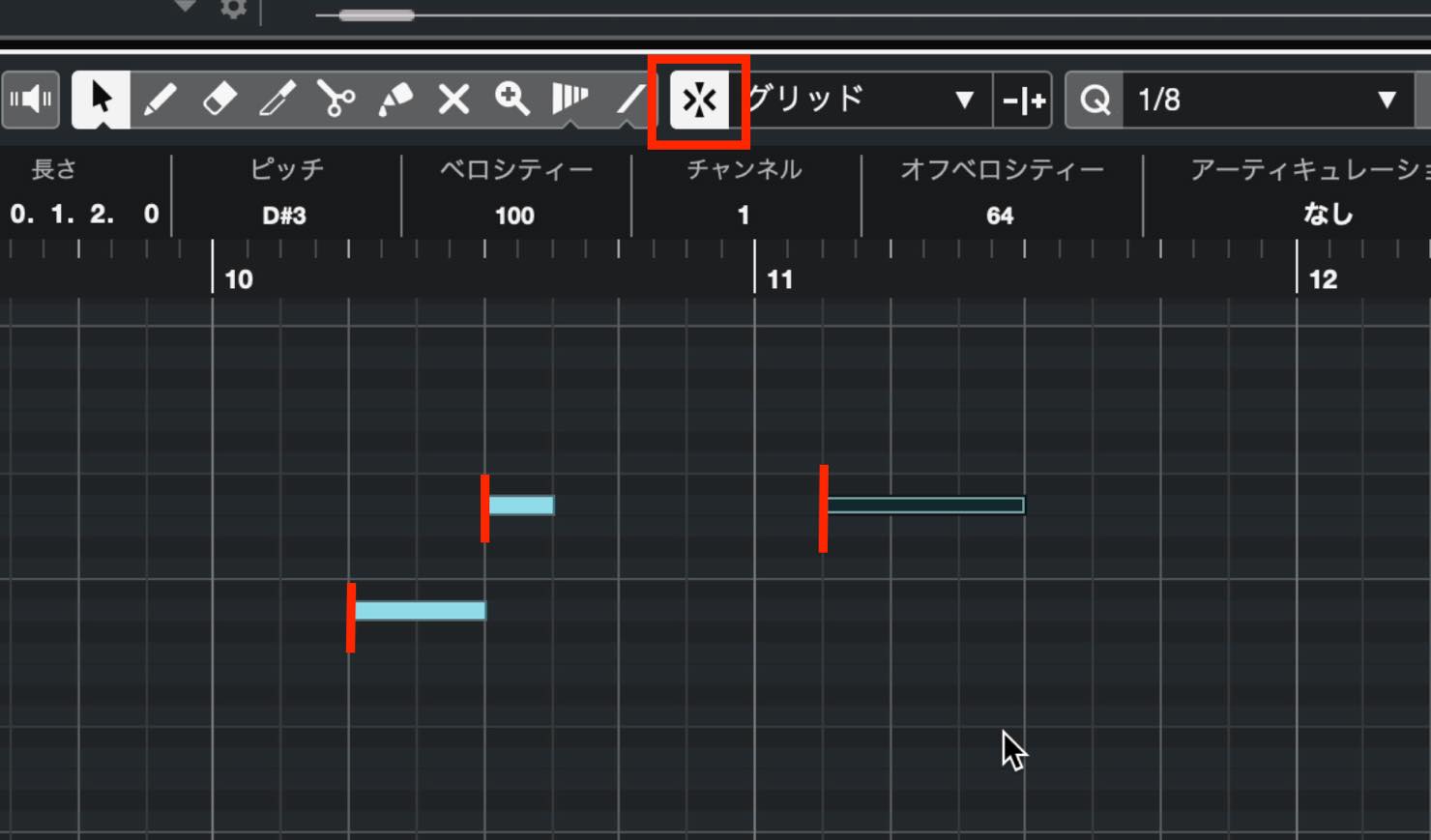
Quantize is mainly needed when you record in real time and the timing is slightly off.
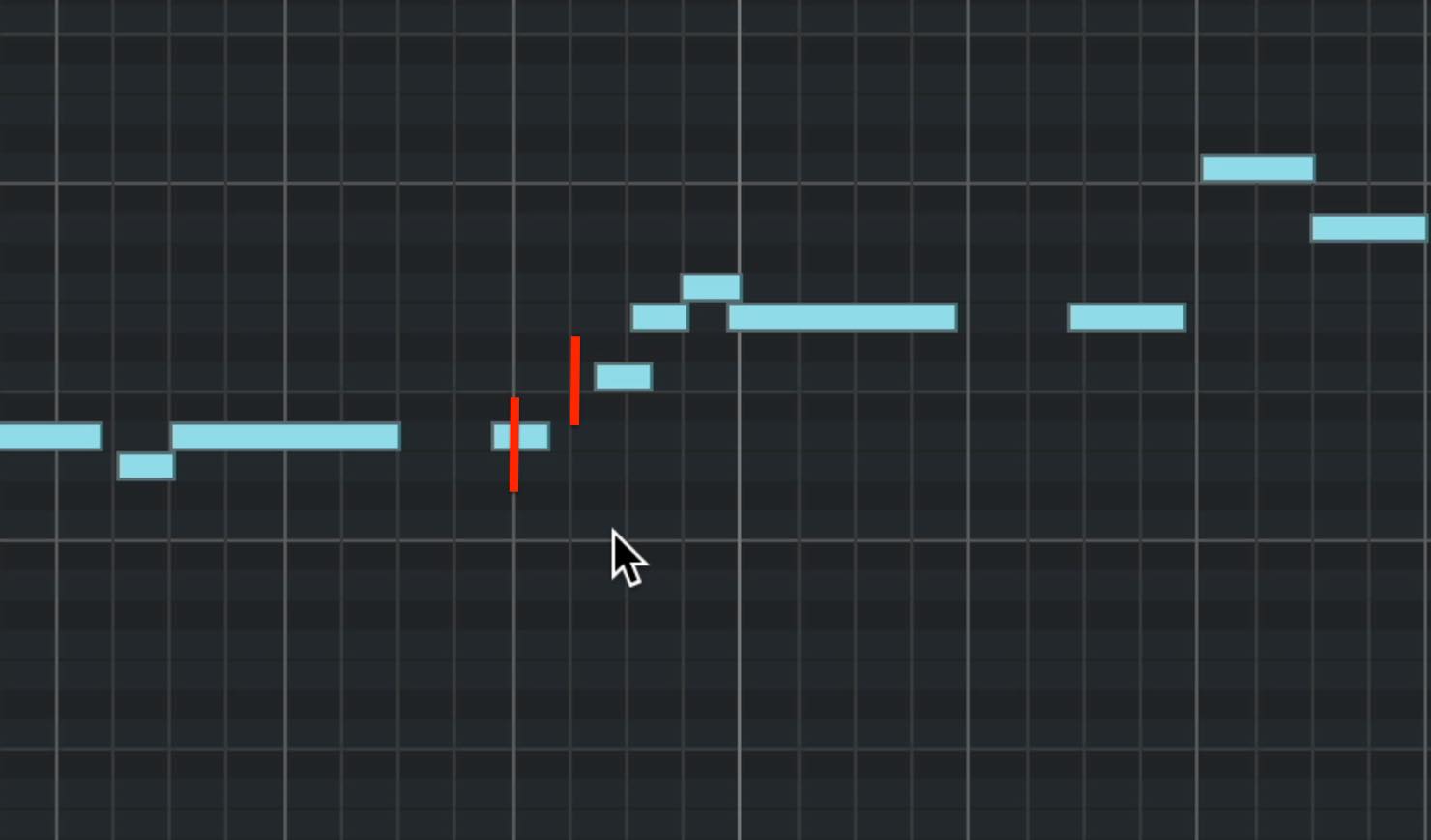
You can correct these timing errors by hand, but doing so takes considerable time and effort. This is where quantize comes in handy.
Basic Quantizing
To quantize, first choose the note value that will serve as the timing unit. Set this in Quantize Presets, the same control used to choose the grid size when programming notes.
In other words, the timing is corrected according to the spacing of the editor's grid.
You therefore need to choose the smallest note value used in the phrase.
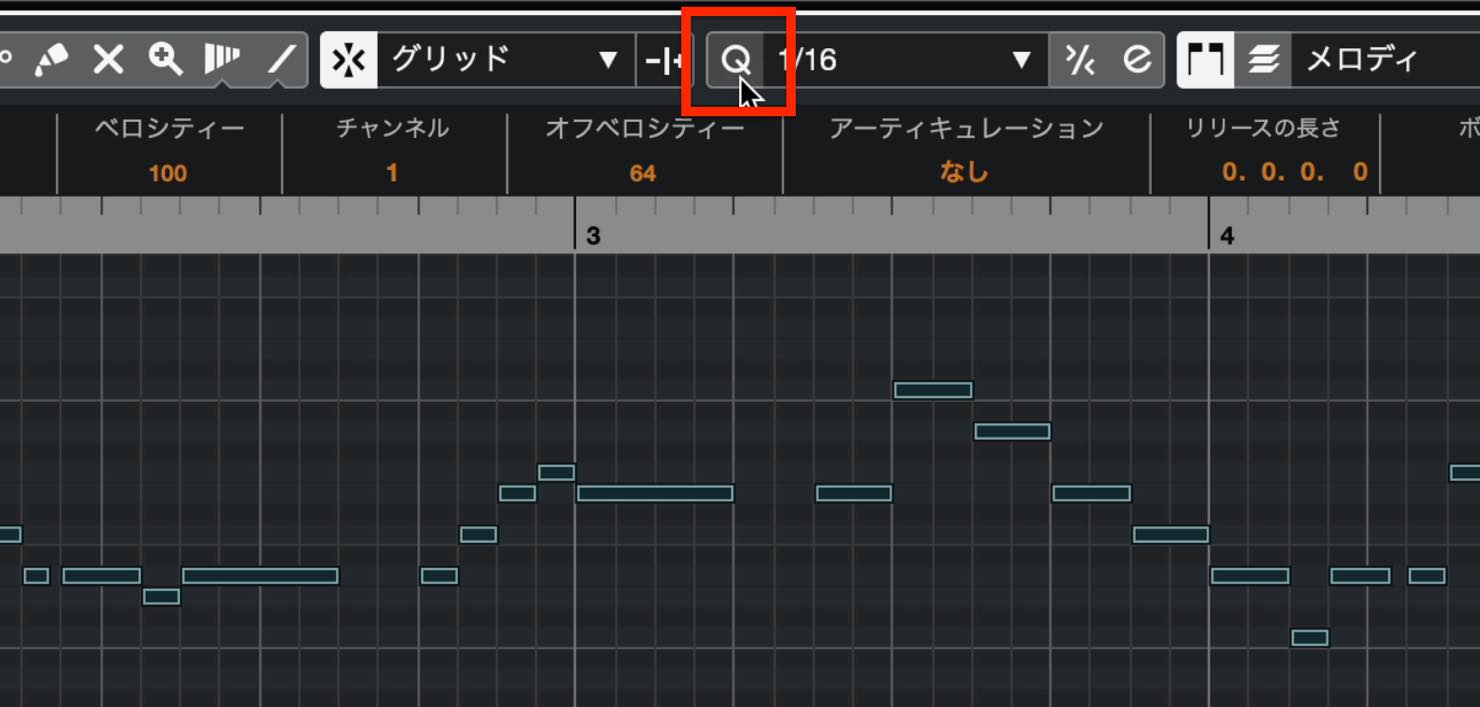
The smallest value in this example is a sixteenth note, so select 1/16 in Quantize Presets.
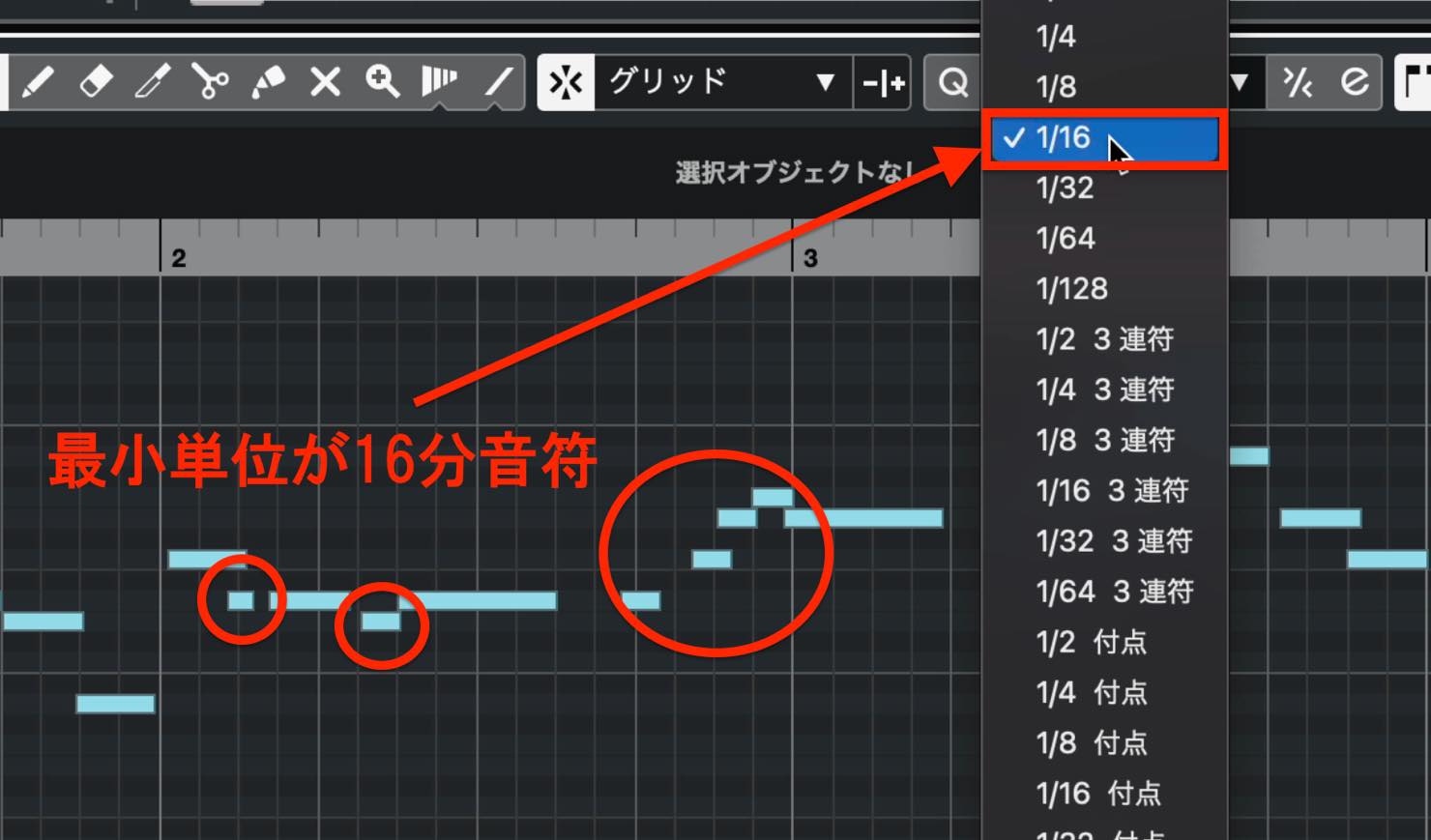
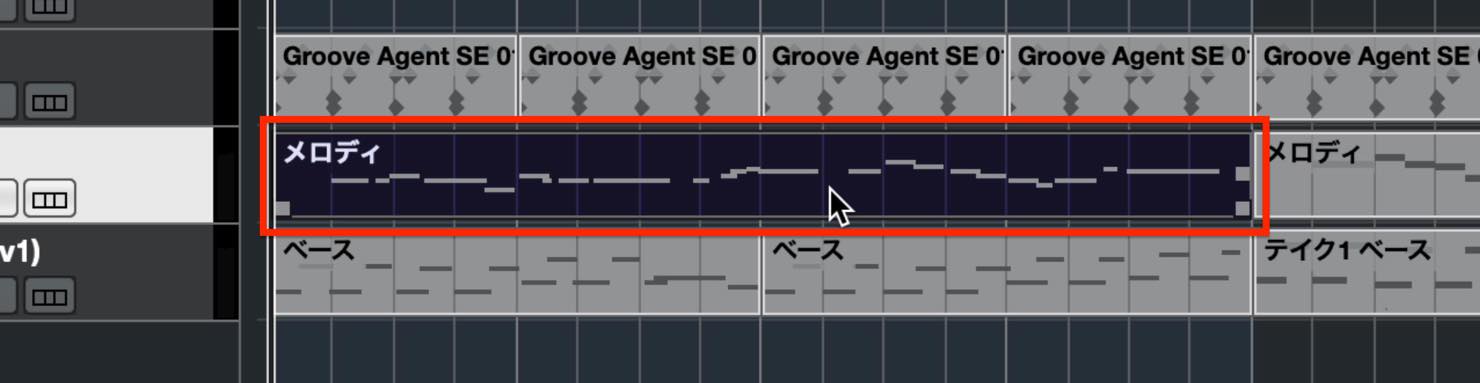
Next, select the notes you want to quantize.
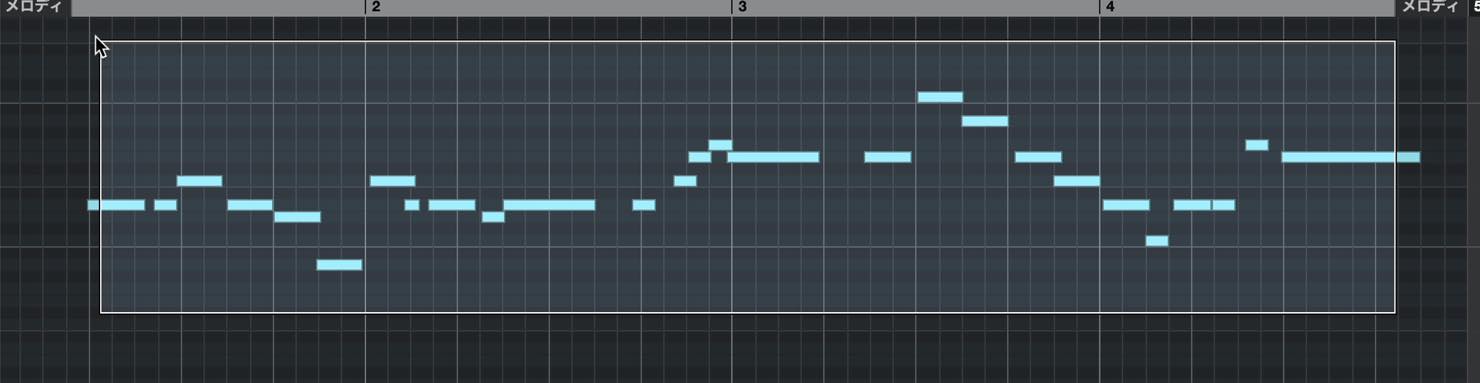
Alternatively, select an event in the Project window to target all the notes it contains.
Click the Q button to apply quantize.
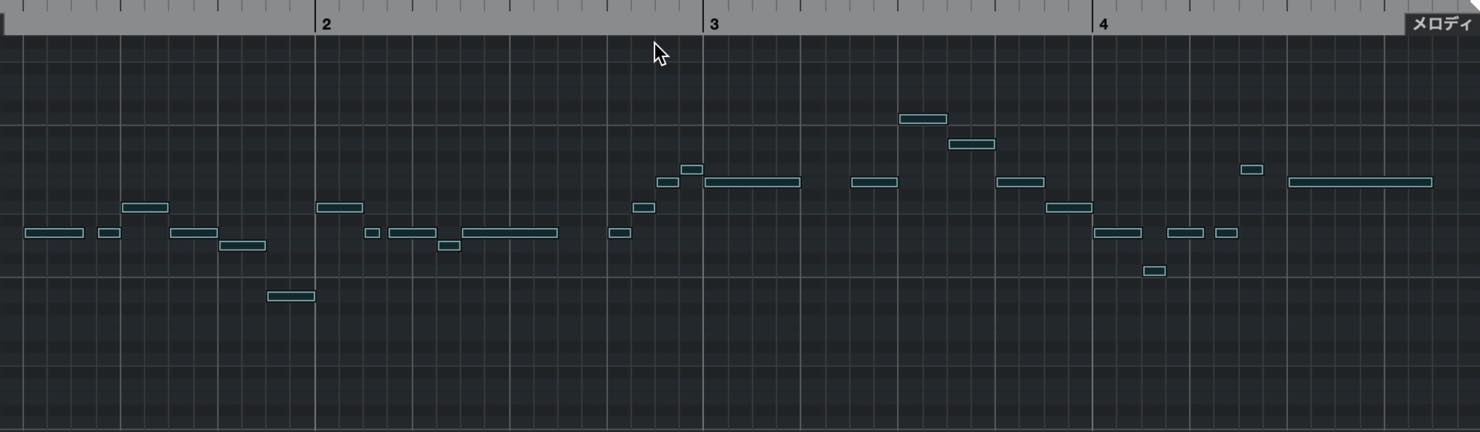
The timing errors are corrected, and the note starts now align precisely with the grid.
Things to Watch Out for When Quantizing
Quantize moves each note's start to the nearest grid position.
As mentioned above, the value selected in Quantize Presets is important.
For example, if the phrase's smallest value is a sixteenth note but you choose 1/8, quantizing moves the notes to the nearest eighth-note grid positions. The result will differ from the intended rhythm.
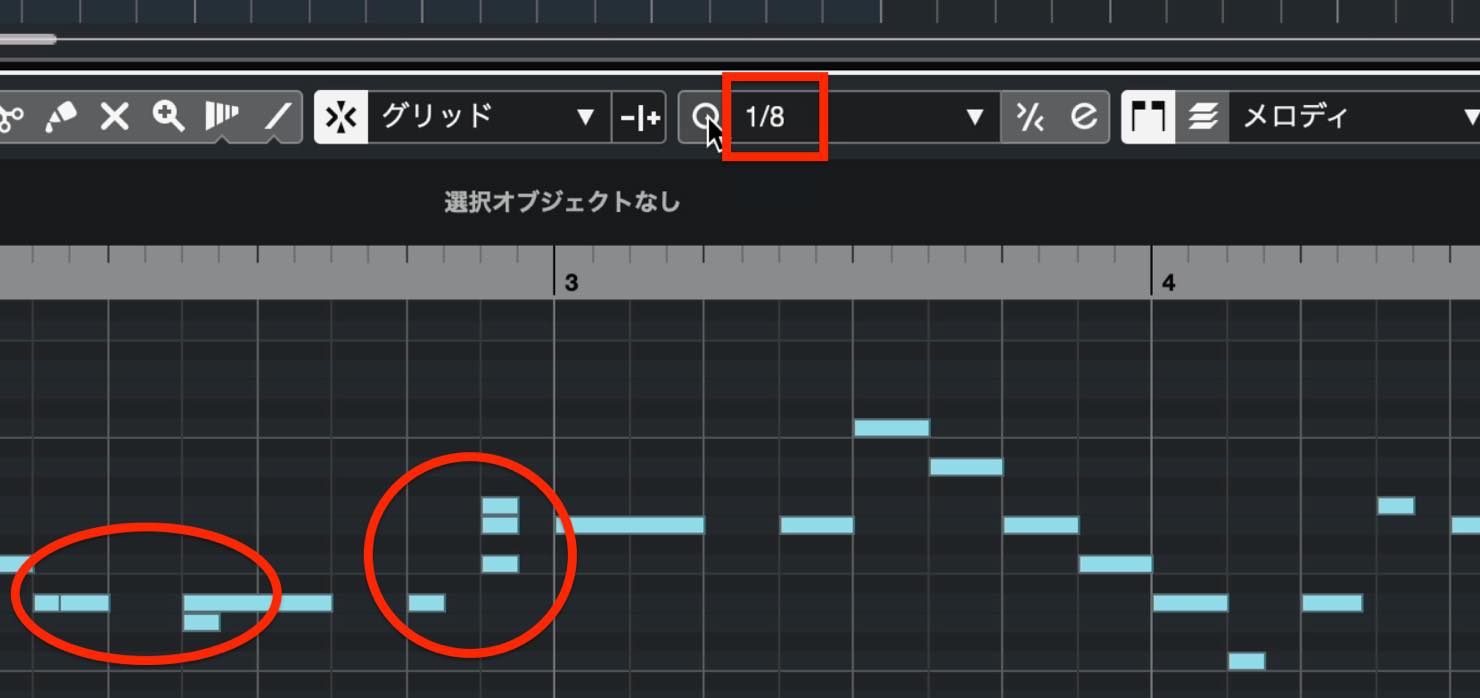
Even with the correct smallest note value selected, the result may not match the rhythm you intended if a note was played too far from its target position.
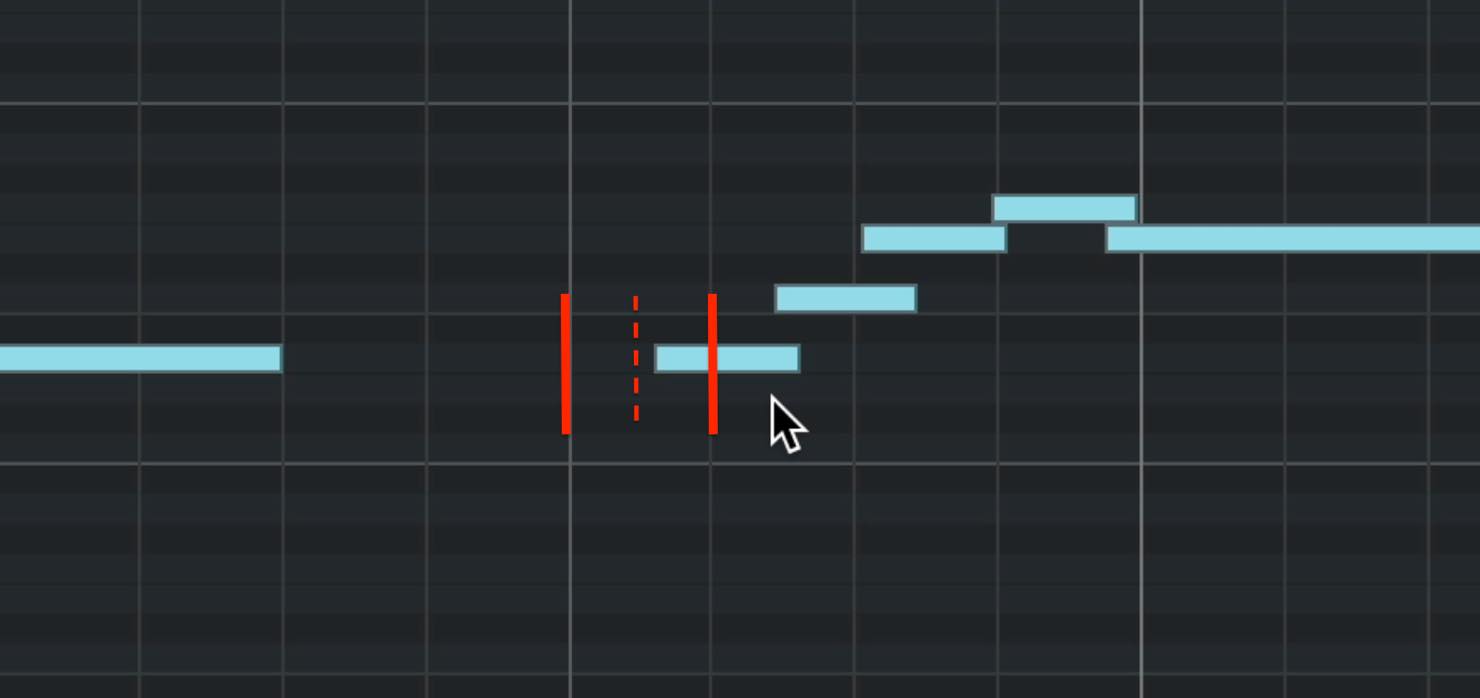
Because quantize moves notes to the nearest grid position, a note more than half a grid interval away from its intended position will move to the neighboring grid line. With a 1/16 preset, that threshold is the length of a thirty-second note.
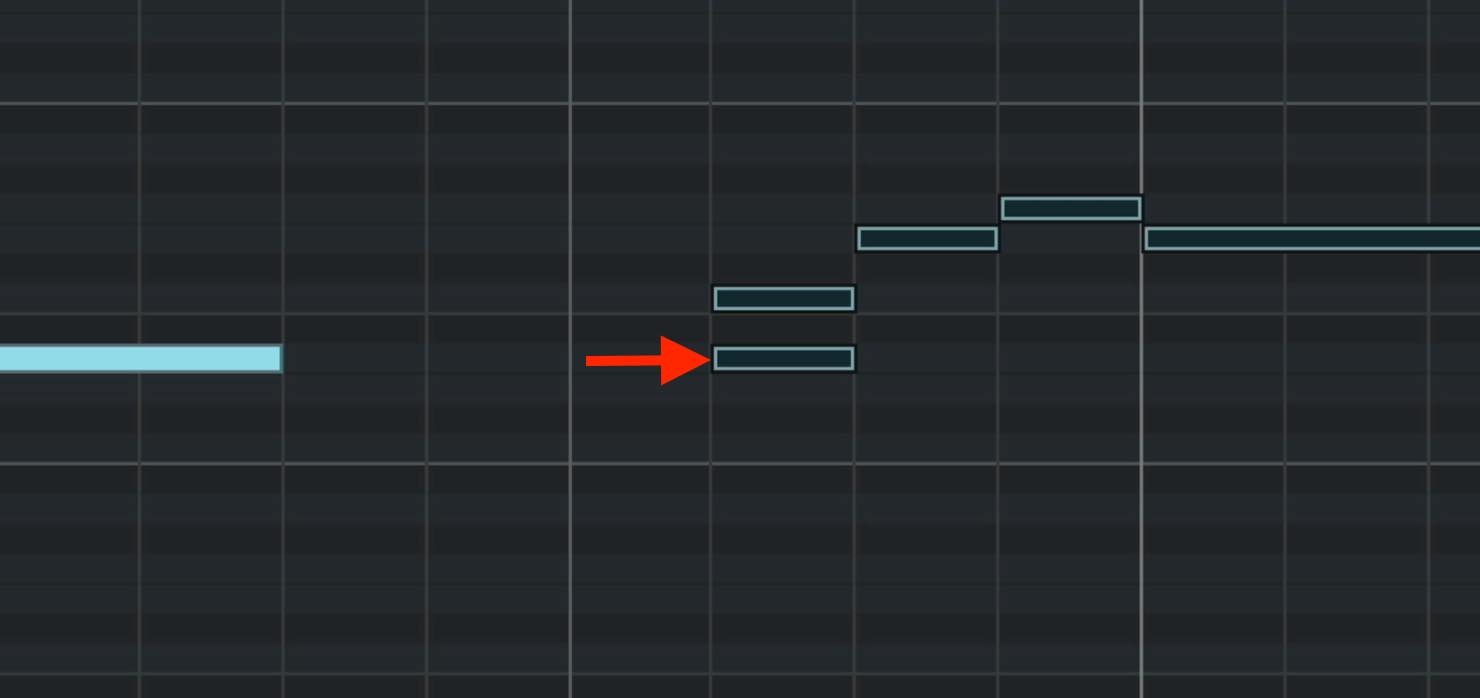
You will need to correct notes like these manually after quantizing the phrase as a whole.
Tuplet Settings
Triplet settings are also available for quantizing.

They are useful both for triplet phrases and for quantizing swing beats in styles such as jazz and blues.
You can set up other, finer tuplet divisions too. Click the e button to open the Quantize Panel.
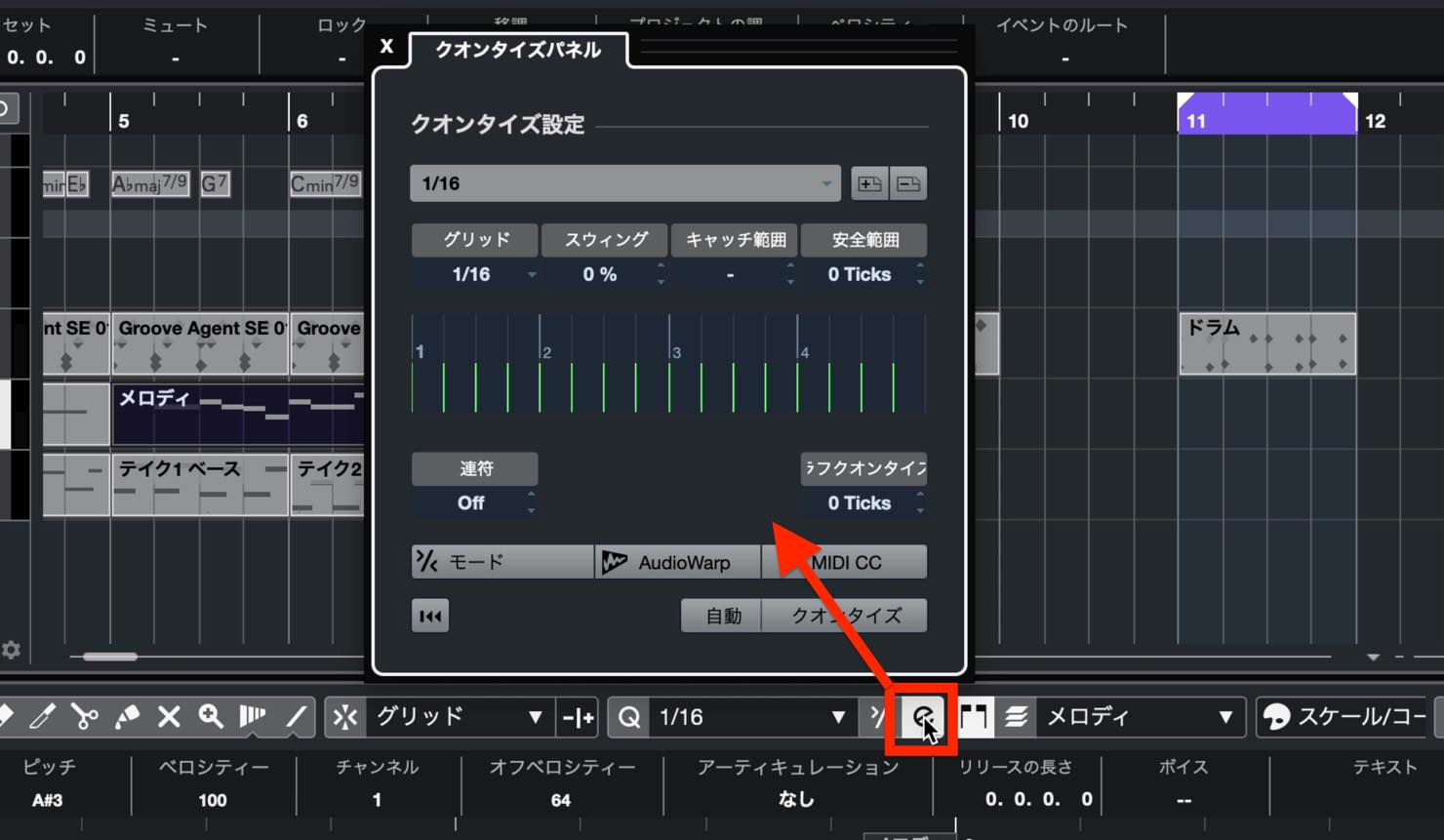
This panel offers various detailed quantize settings. To create a tuplet, first choose the base note value to divide.
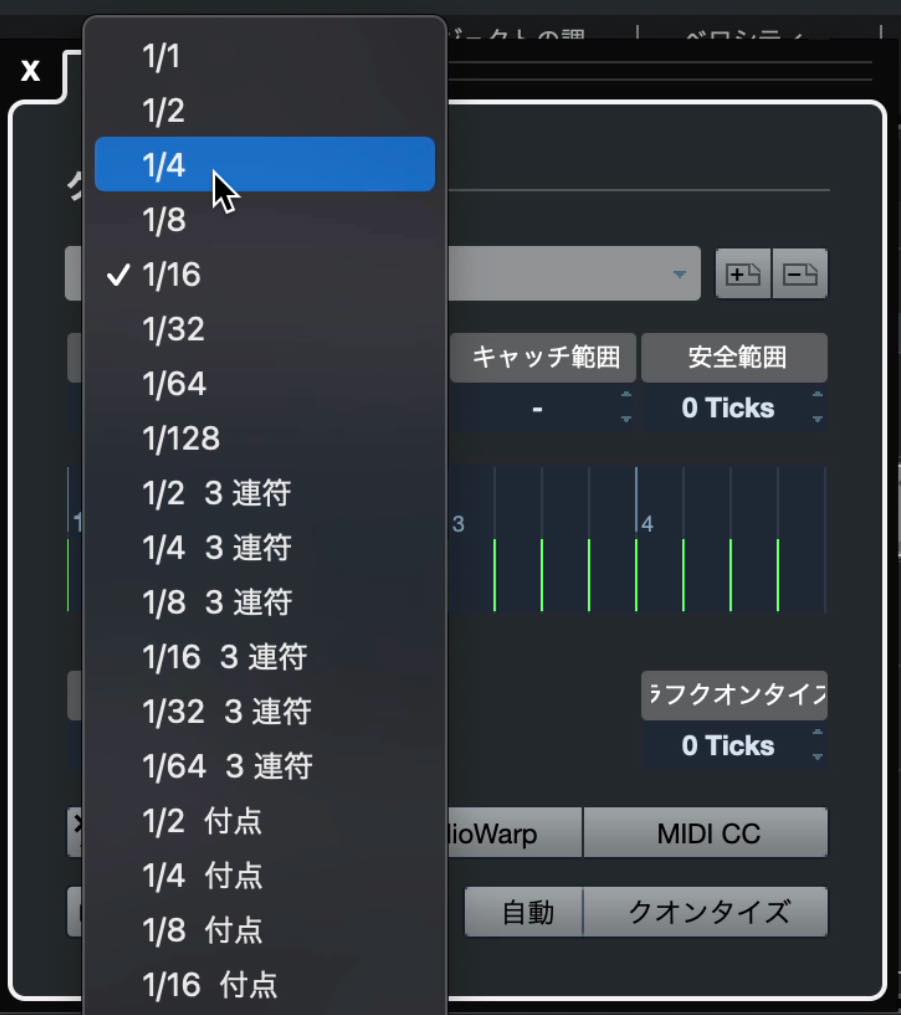
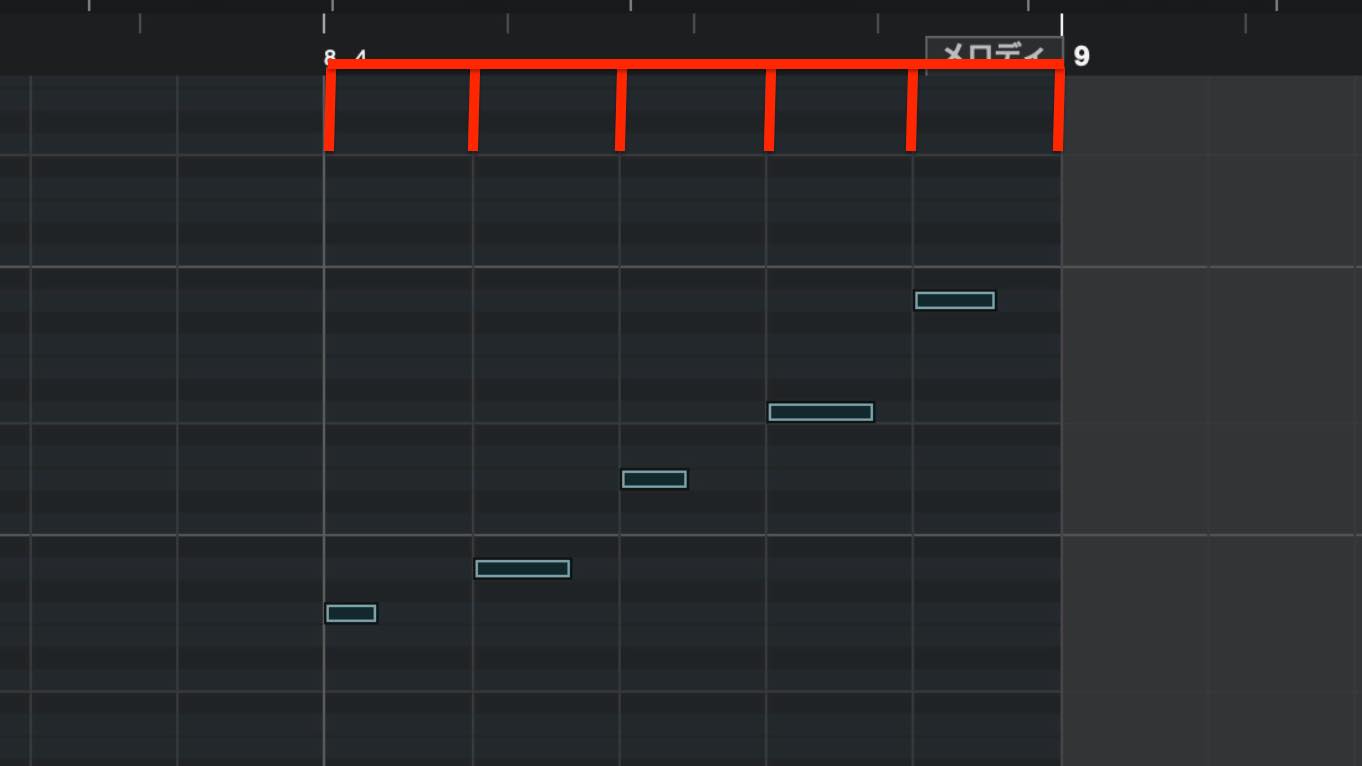
Then use Tuplet at the lower left to specify how many subdivisions that note value should contain.
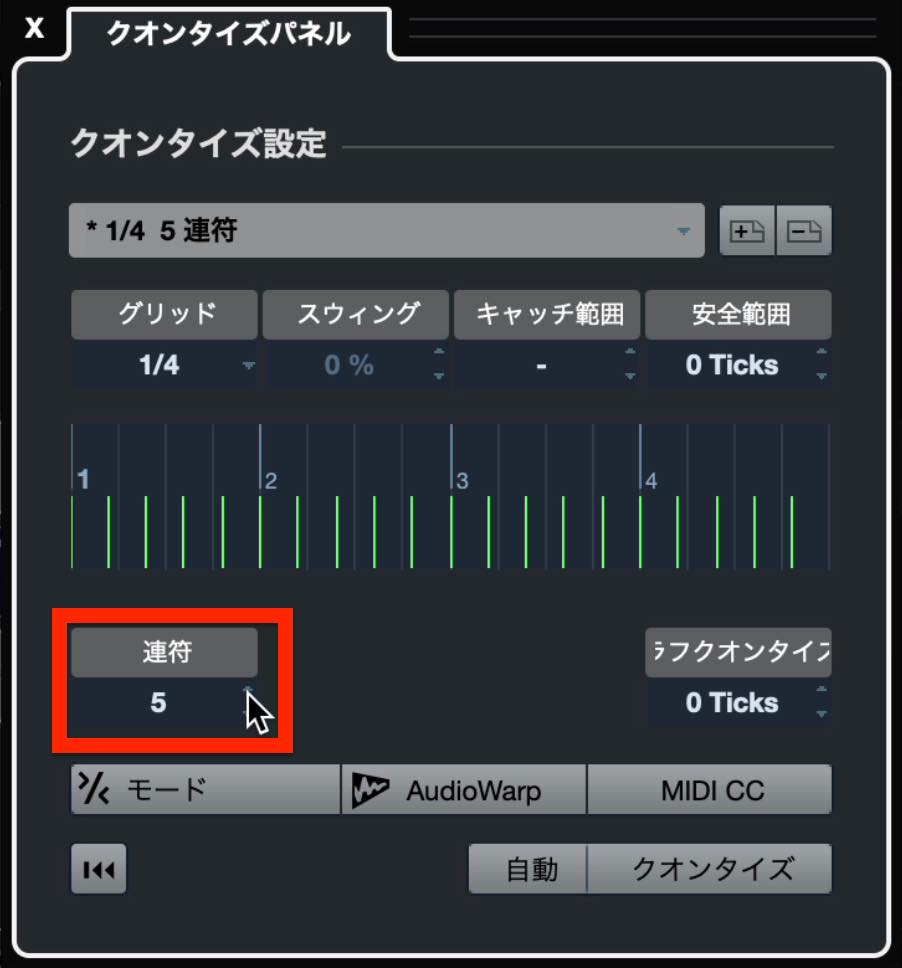
The grid is divided accordingly, allowing you to quantize to that pattern. This is also useful when programming notes.
Advanced Quantize Techniques
Now that we have covered basic quantizing, let's move on to some more advanced techniques.
Catch Range and Safe Range
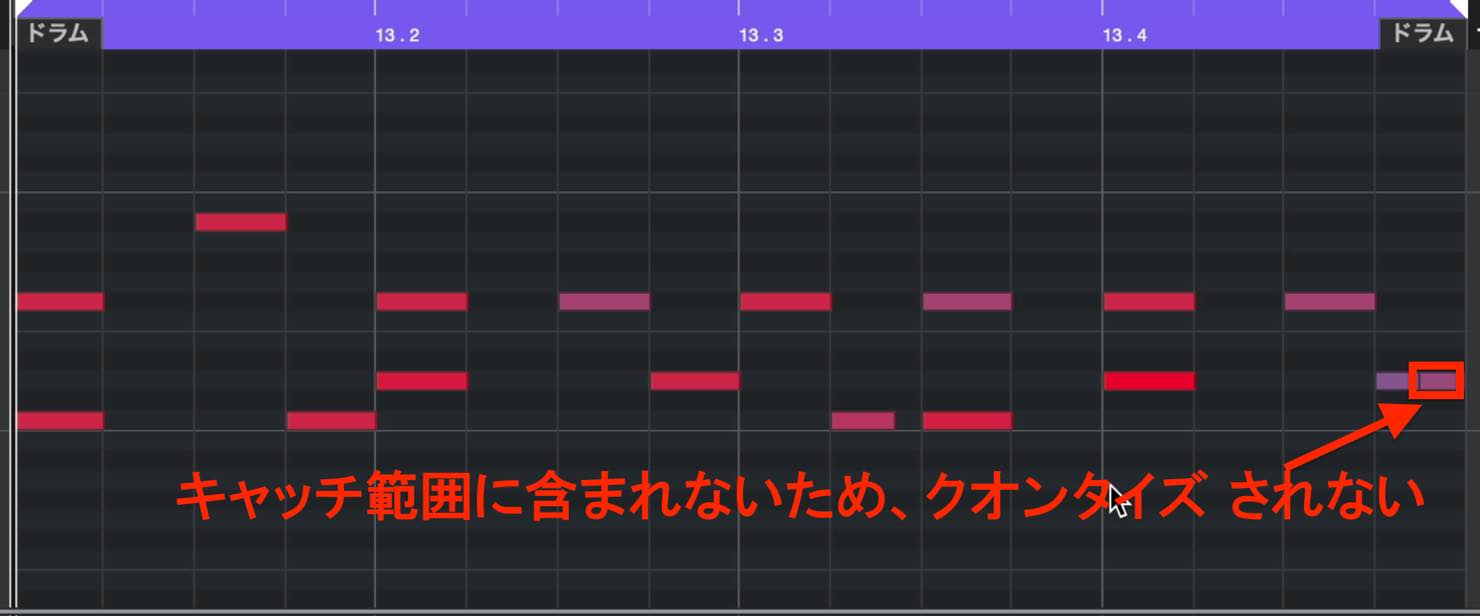
This example consists mostly of sixteenth notes but includes a short thirty-second-note phrase.
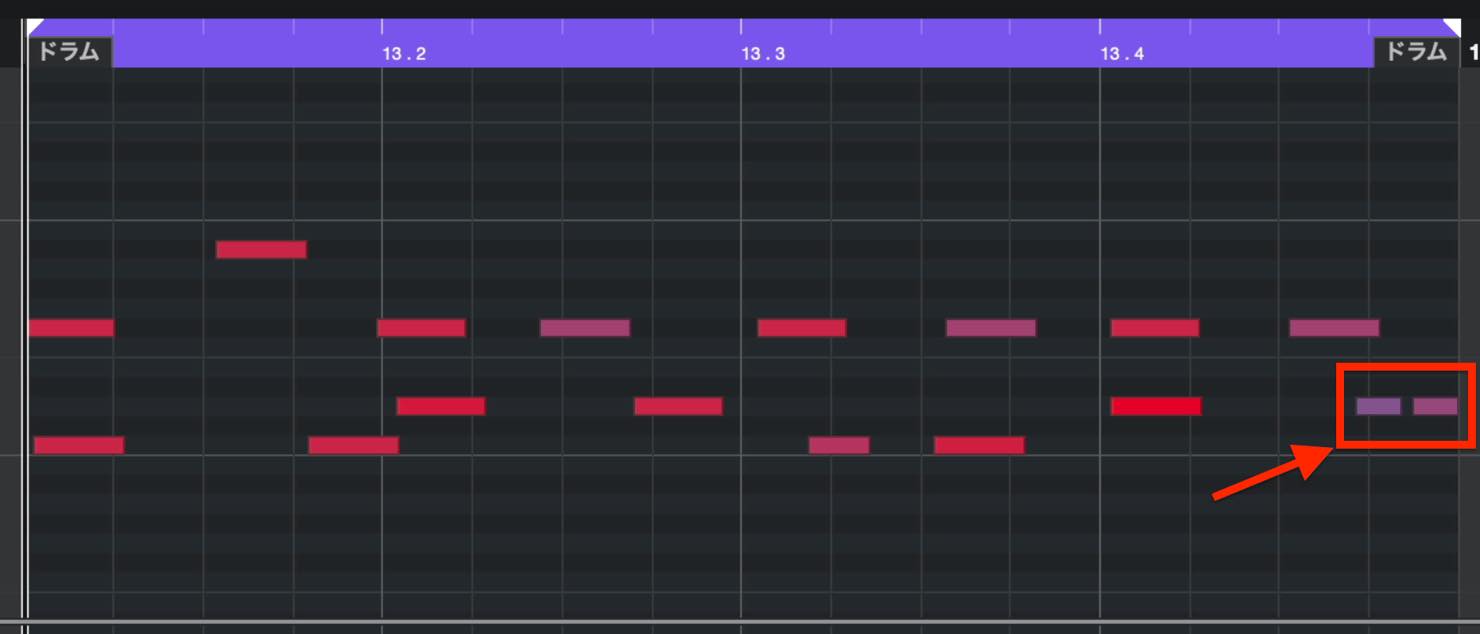
Quantizing the whole phrase to thirty-second notes moves notes to the nearest thirty-second-note grid line, which may put some of the sixteenth-note rhythms in unintended positions.
On the other hand, quantizing to sixteenth notes would disrupt the thirty-second-note phrase.
In this situation, use Catch Range in the Quantize Panel.
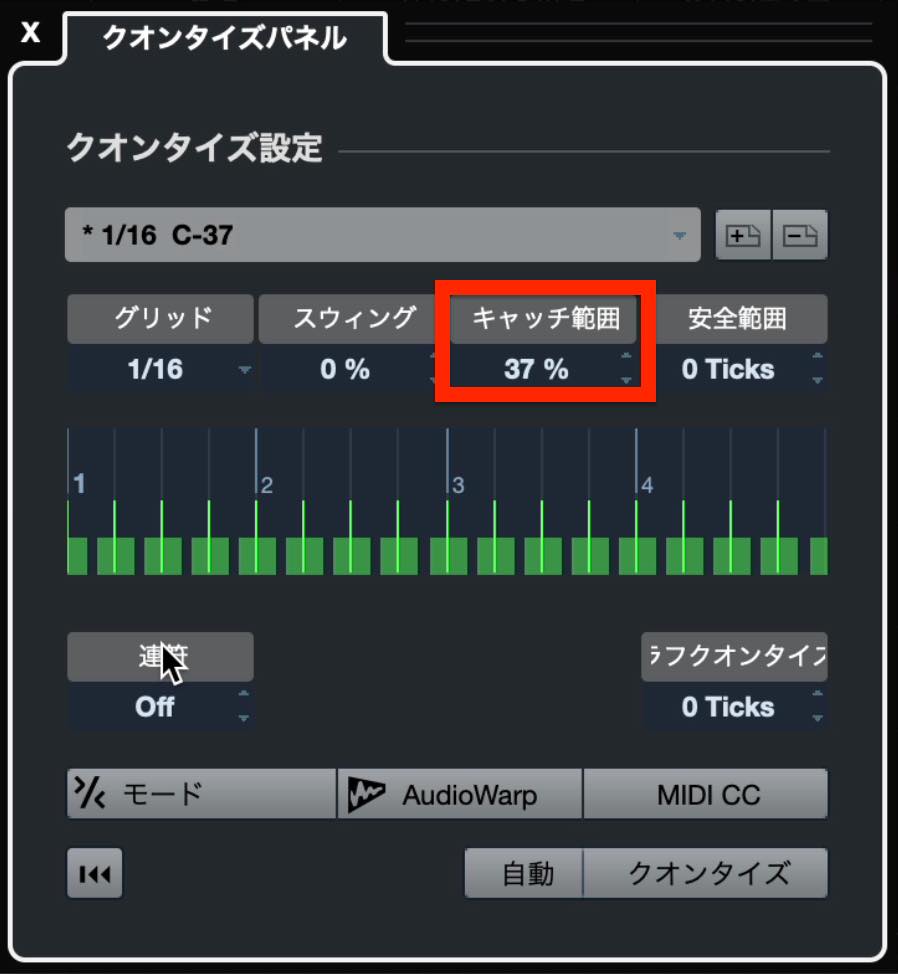
This limits quantizing to notes within a specified distance of the grid positions set by the quantize preset.
In this example, choose a 1/16 preset and set Catch Range so it does not include the later note of the thirty-second-note figure. You can then quantize without disrupting the phrase.
With an appropriate setting, the sixteenth-note timing is tightened while the thirty-second-note figure remains intact.
Safe Range works in the opposite way: notes within the specified range are excluded from quantizing. The value is set in ticks; 120 ticks corresponds to a sixteenth note here.
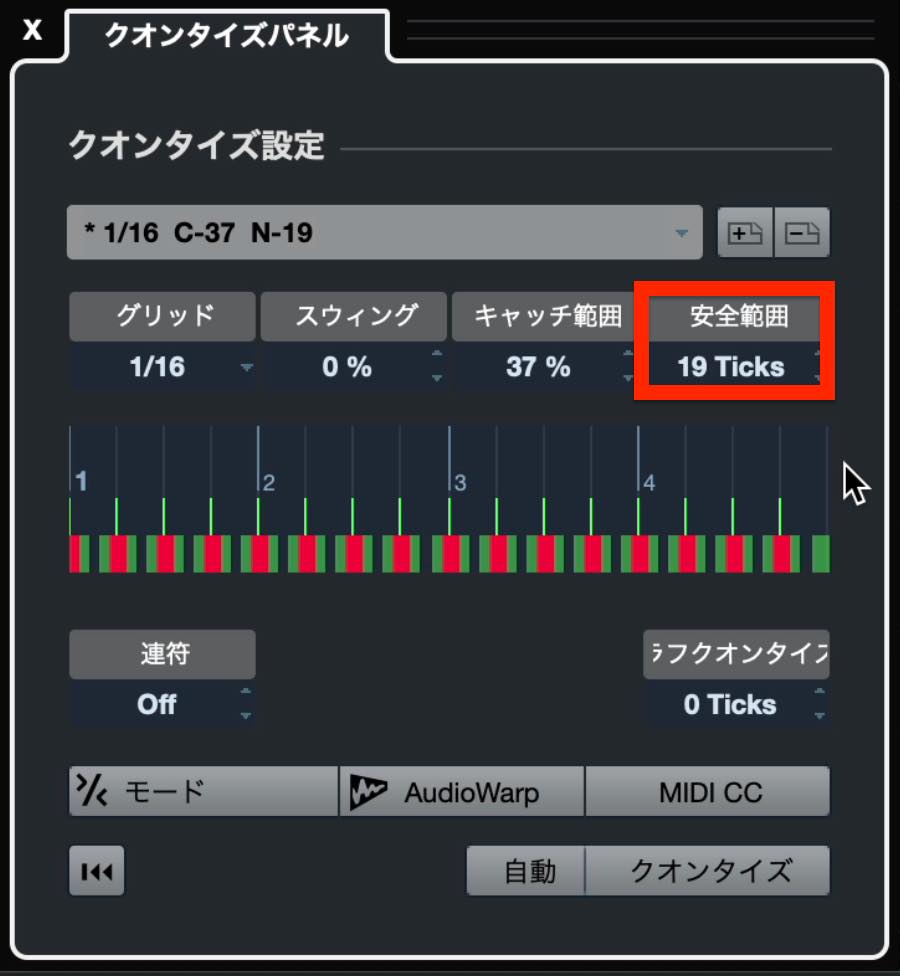
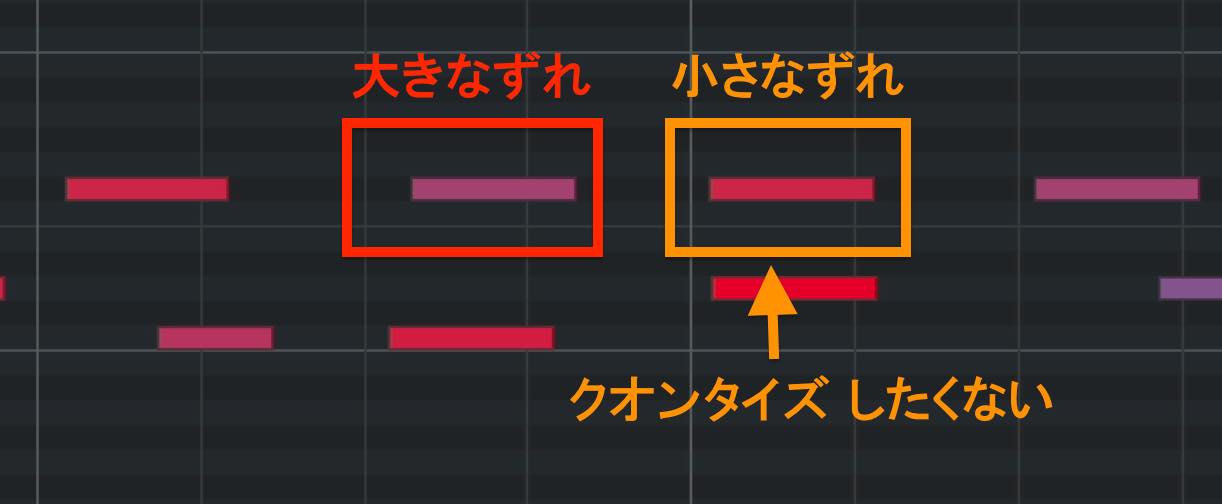
This is useful when you want to leave small timing variations in a real-time recording untouched.
In this example, some notes are slightly off the grid and others are much farther away.
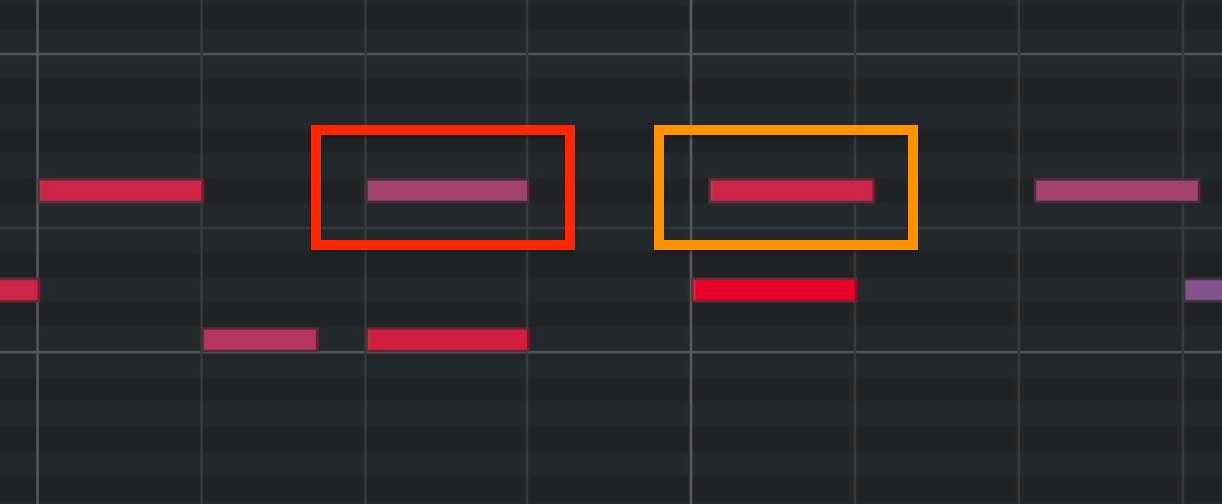
With Safe Range set appropriately—12 ticks in this example—the small timing variations are preserved, and only the notes farther away are quantized.
Soft Quantize
The previous example preserved the small variations, but the notes with larger errors were moved exactly onto the grid. You may want those notes to retain a little variation too.
Soft Quantize is useful in this situation.
Click the Mode button to enable Soft Quantize and display its strength as a percentage.
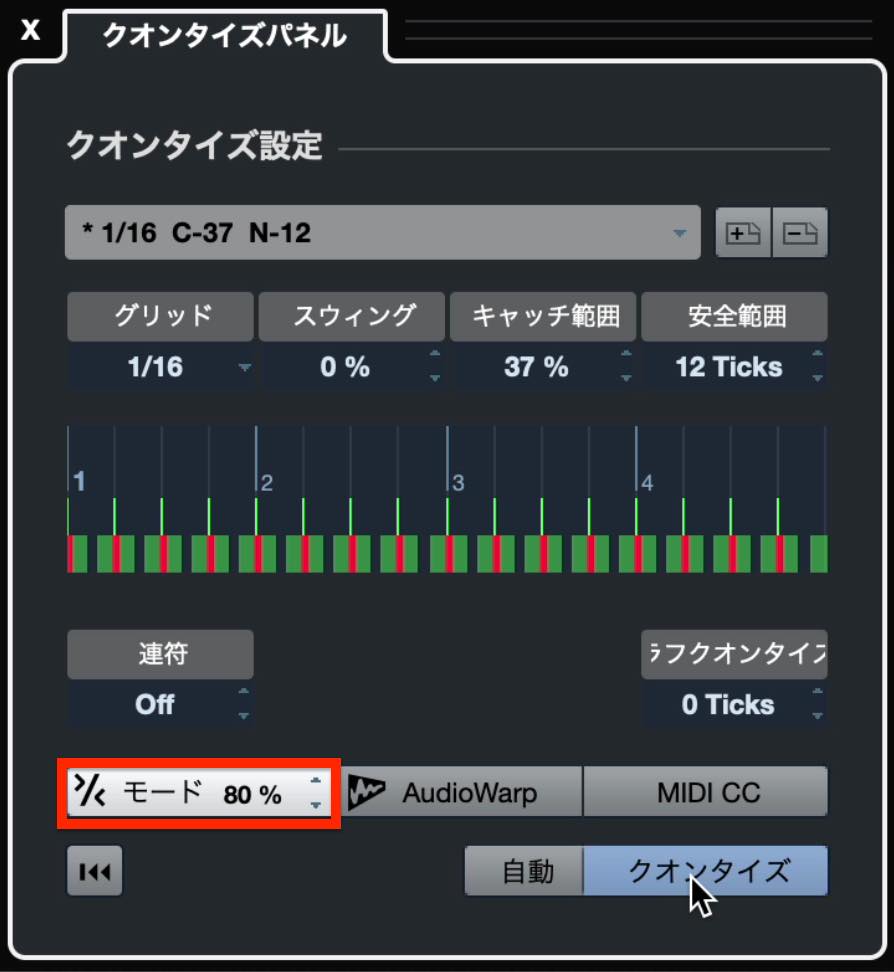
At 100%, quantizing is complete. Lower values make the correction gentler. The percentage determines how much of the distance between the note and the grid is closed.
For example, set it to around 80% and apply quantize. The timing becomes nearly exact, but a small offset remains for each note.
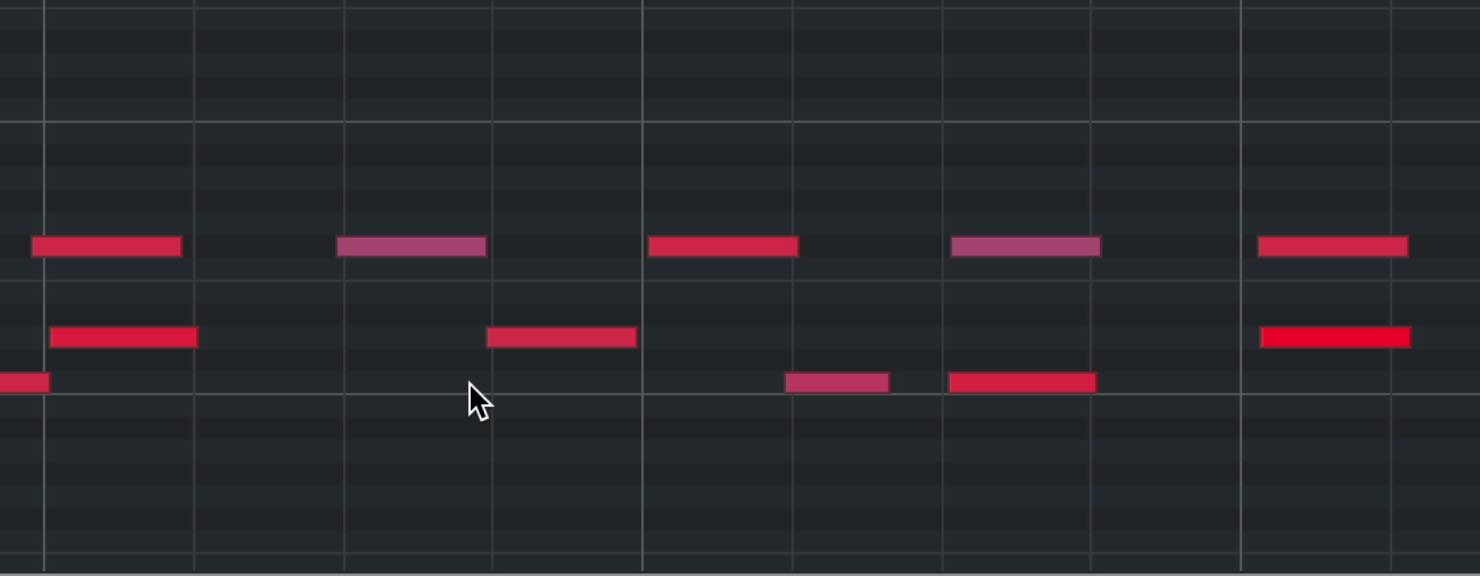
This is also useful when you want to preserve some of the groove of the original performance.
Giving Programmed Parts a Human Feel
The following features are for adding a human feel to precisely programmed phrases, rather than correcting errors in a real-time recording.
Swing
Swing delays the offbeat positions—the even-numbered grid lines—of the selected quantize preset.
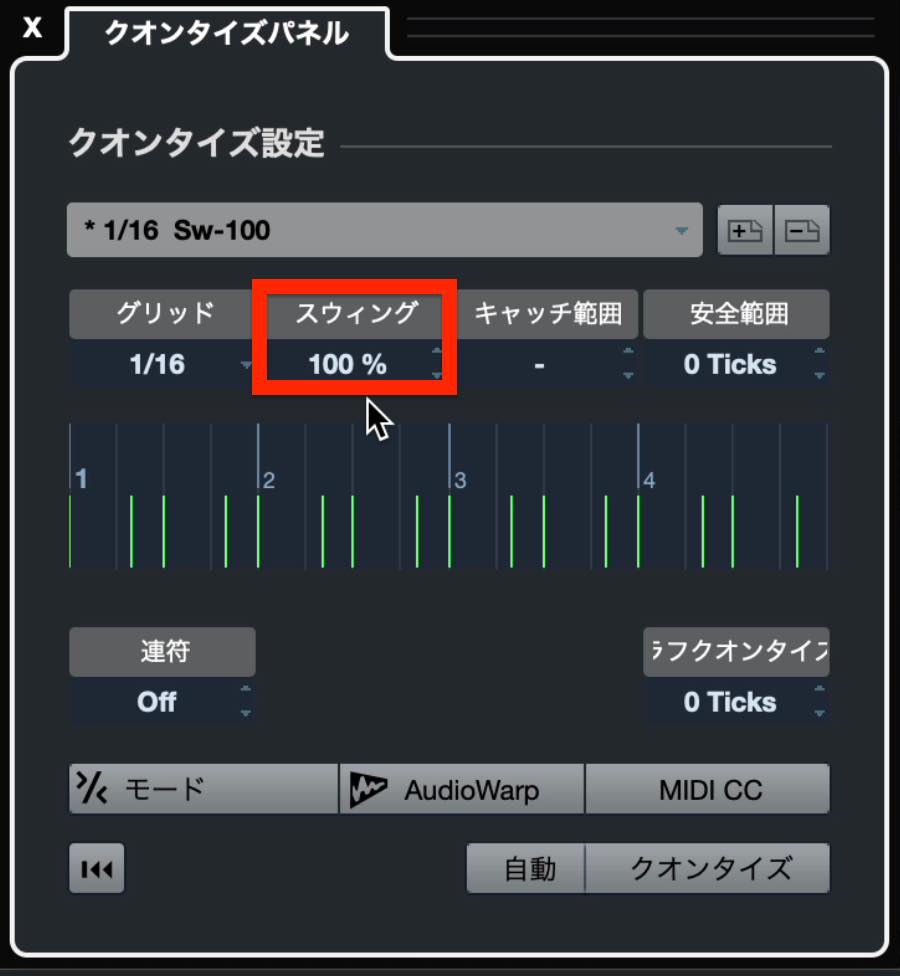
At 100%, this produces a swing beat equivalent to the triplet rhythm discussed earlier. The grid positions move accordingly.
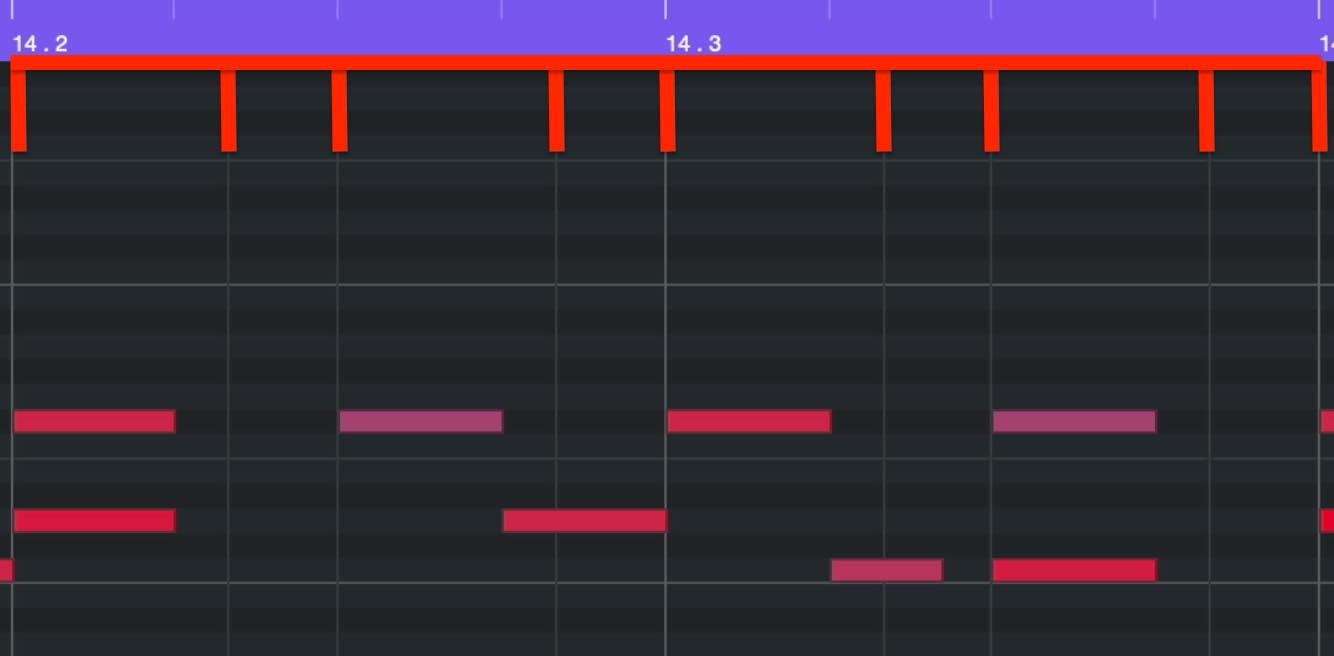
Applying a smaller amount can add a human feel and groove to an otherwise straight beat.
For example, applying around 30% swing to a straight drum phrase softens its rigid, mechanical feel.

If you want to adjust the swing amount while listening to a loop, enable Auto.
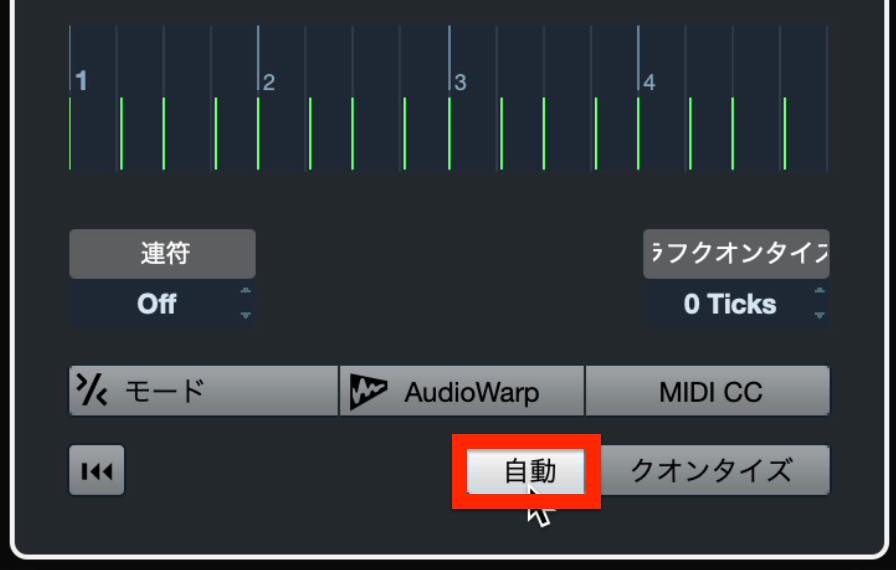
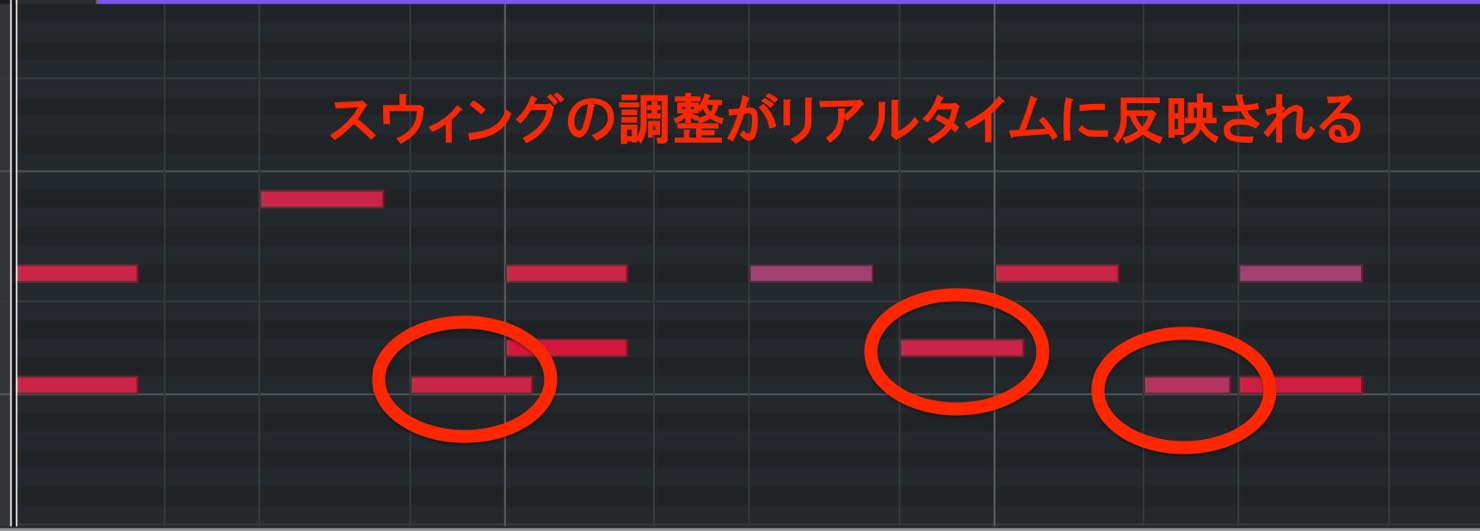
With Auto enabled, changing the swing amount automatically moves the selected notes to follow the grid.
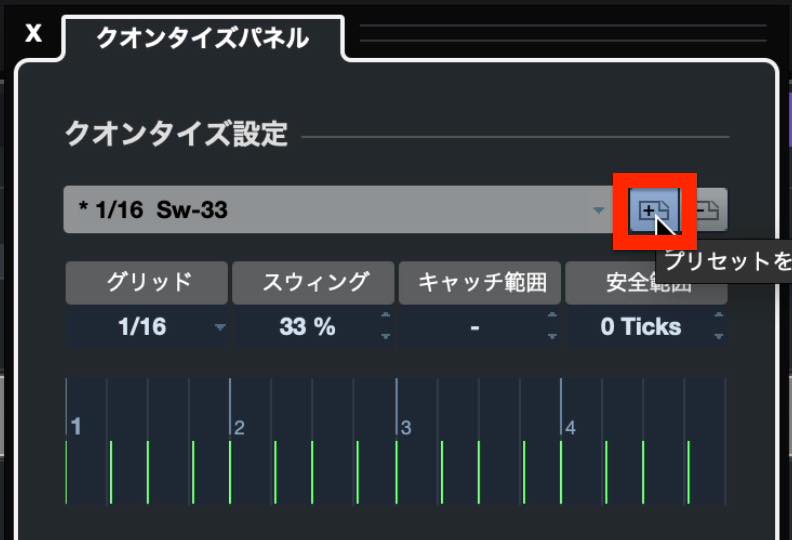
Once you have settled on the values, you can save a quantize preset that includes swing and the other detailed settings.
Click the + button next to the Quantize Presets display.
Open the preset list, and you will see that the current settings have been added.
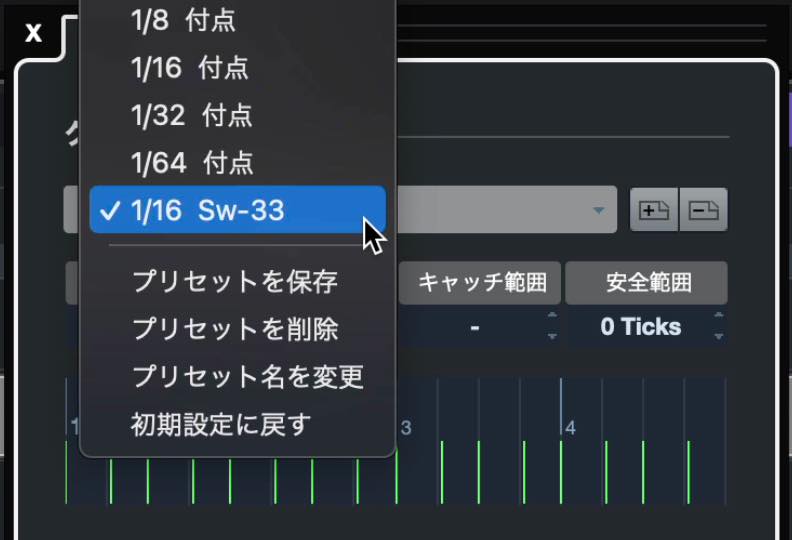
You can now recall those settings whenever you need them.
Rough Quantize
Rough Quantize adds random timing offsets while quantizing.
The amount is set in ticks, with a maximum of 48 in the example. Notes are moved randomly within the specified distance of the exact grid positions.
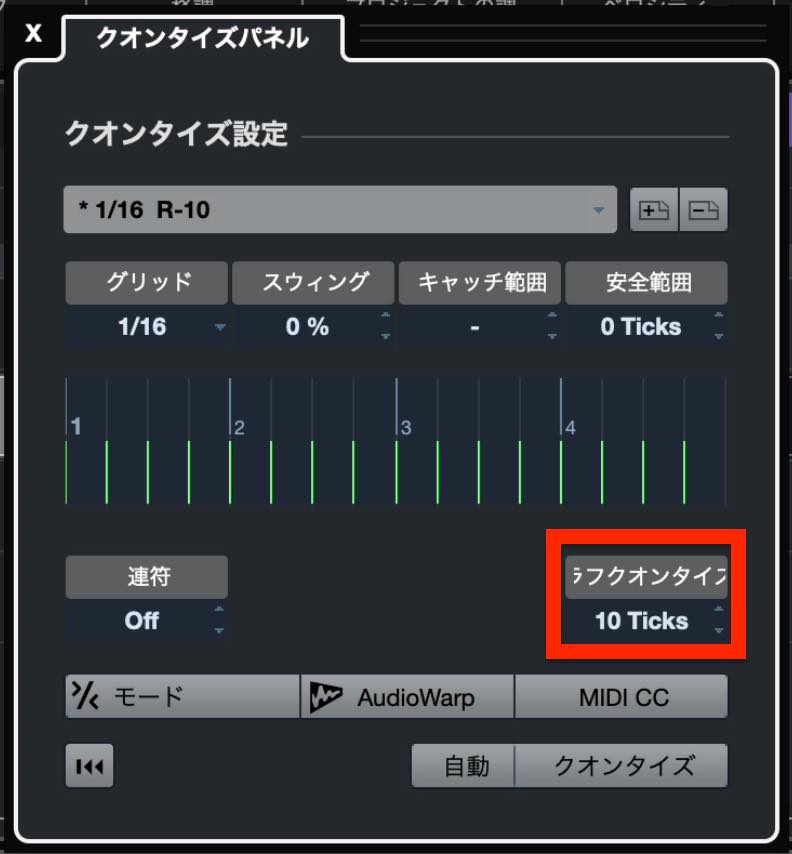
Too much variation can make the rhythm unsteady. In most cases, a setting of around 10 ticks or less should provide enough human feel.
After applying it, each note is shifted slightly earlier or later, as shown here.
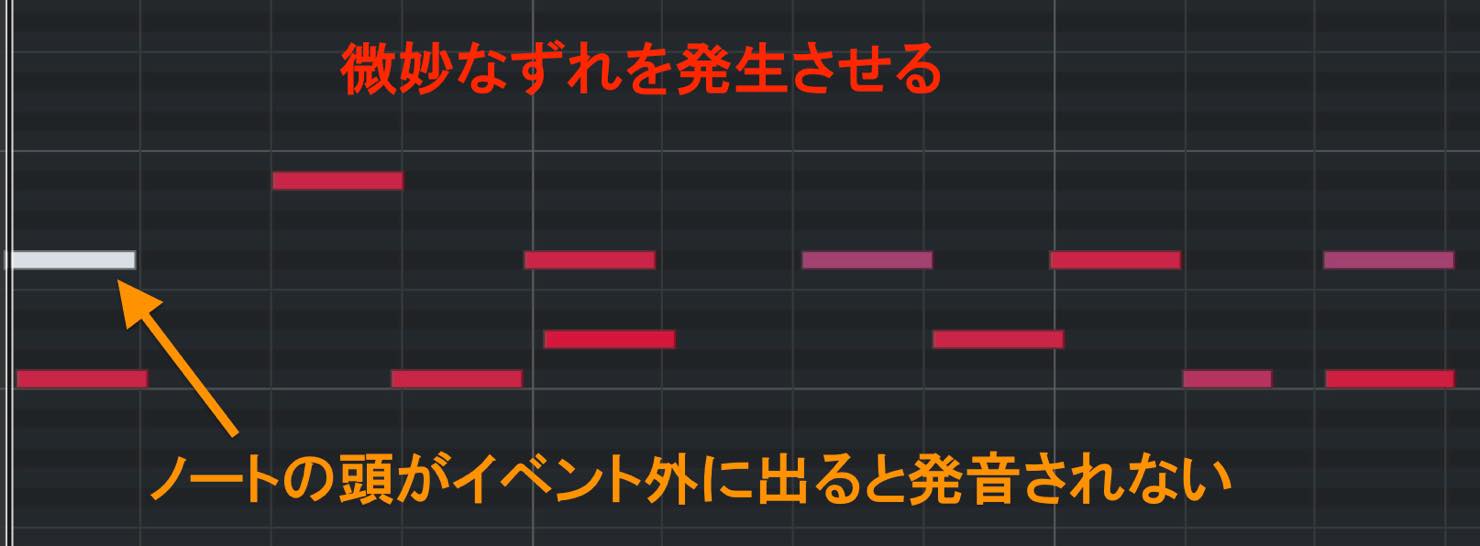
To keep the beat stable, it is often better to leave the first beat exactly on time. Exclude the first note before applying Rough Quantize.
That concludes our explanation of quantize.
It is essential for real-time recording, and used creatively, it can also add character to programmed parts. Make sure you get comfortable with it.
Next time, we will cover audio recording.
Lesson 10 of our Cubase 11 Beginner Course covers the basics and applications of quantize.
It speeds up your workflow and offers a range of useful features, so be sure to learn how to use it. https://t.co/OtBL3Z3rf1 #DTM #Cubase— SLEEP FREAKS (@SLEEPFREAKS_DTM) August 7, 2021
Frequently Asked Questions
Q1. When should I use quantize?
It is mainly used to correct timing errors in real-time recordings. Notes drawn in the Key Editor can be aligned using Snap, so quantizing is usually unnecessary. Correcting timing by hand takes time, making automatic quantizing a useful alternative.
Q2. What happens if I choose the wrong quantize preset?
The result will differ from your intended rhythm. For example, choosing 1/8 when the smallest note value is a sixteenth note moves the notes to eighth-note grid positions and disrupts the rhythm. Choose a setting that matches the phrase's smallest note value.
Q3. Can I correct timing while preserving the groove?
Yes, with Soft Quantize. A strength below 100% moves notes partway toward the grid instead of aligning them completely. This retains small timing variations while tightening the performance.
Q4. Does quantize support triplets and swing beats?
Yes. You can choose triplets in the Quantize Panel or configure finer tuplet divisions. These settings are also useful for quantizing swing beats in jazz, blues, and similar styles.
NEW ARTICLES
Latest English Articles
















































































































































