
New Sonic Arts Nuance is a sampler plug-in that lets you edit samples as pitched instruments. This article covers the basics of dragging and dropping samples and mapping them to a MIDI keyboard, along with sound design using glide, effects, envelopes, LFOs, and other modulation. Group management and separate DAW outputs let you flexibly reshape rhythm and chord samples into a variety of original sounds.
Reshape pitched samples freely
In the previous article, we placed and edited rhythm samples to create an original kit.
You saw how putting your sample libraries to use can greatly expand the variety of your rhythm tracks.
This time we will move on to editing pitched samples.
We will also look at ways to create different sounds from a single sample.
How to use Nuance
- 1Using Freestyle, the host application
- 2Using Granite, a granular synthesizer
- 3Using Nuance: rhythm editing
- 4Using Nuance: editing pitched instruments
- 5Using Vice, the loop slicer
Product purchase: https://beatcloud.jp/product/705
Placing samples
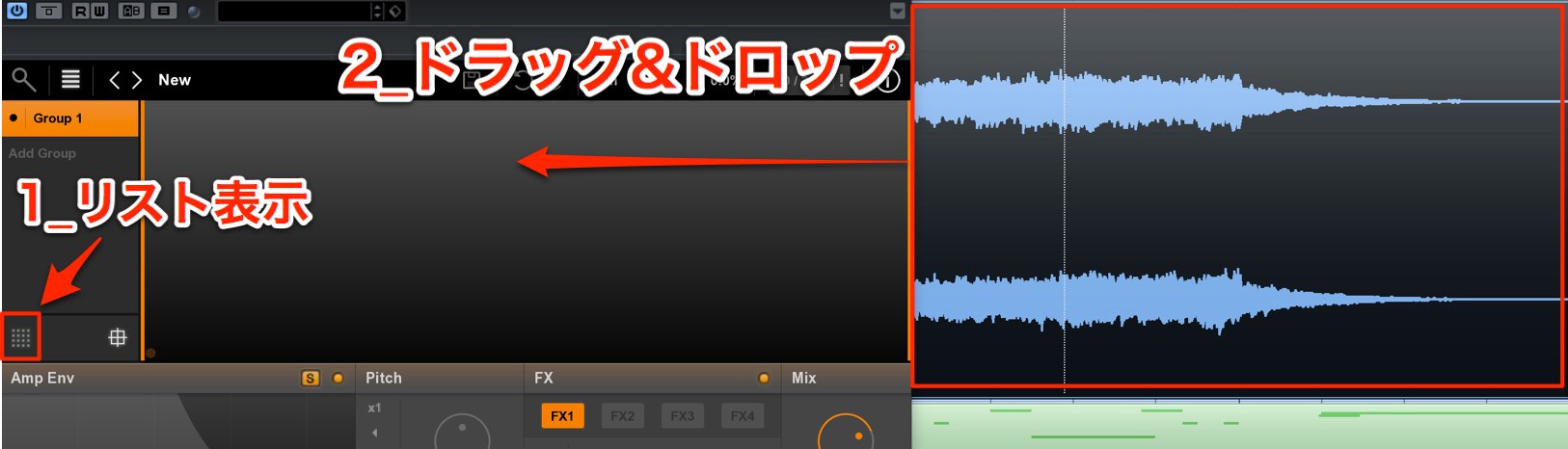
The easiest way to import a sample as a pitched instrument is to open the Group list and drag and drop the sample into it.
It is mapped across the MIDI keyboard and given pitches.
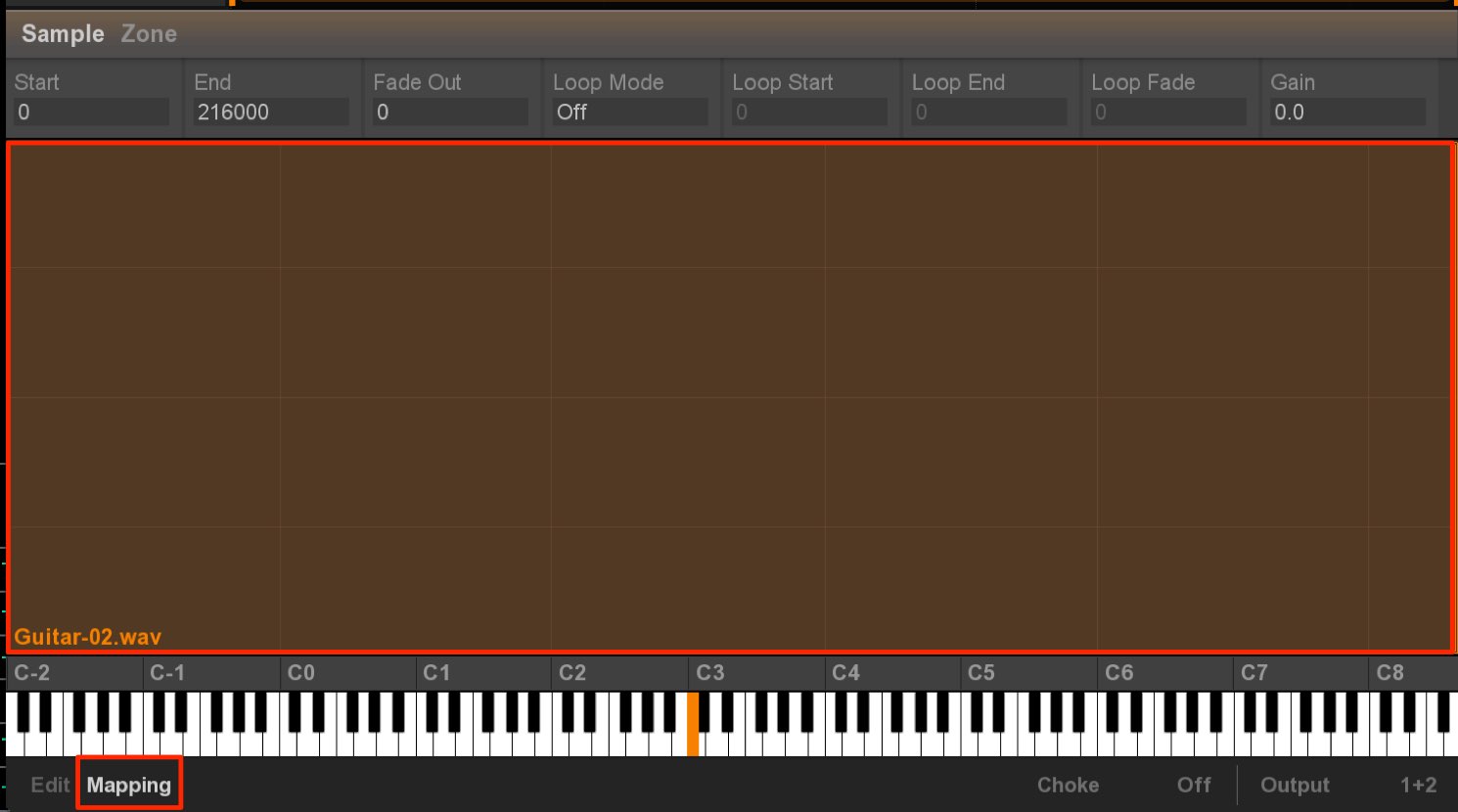
Switch to the Mapping window to see how the sample is assigned to the keyboard.
An orange zone shows where the sample is mapped.
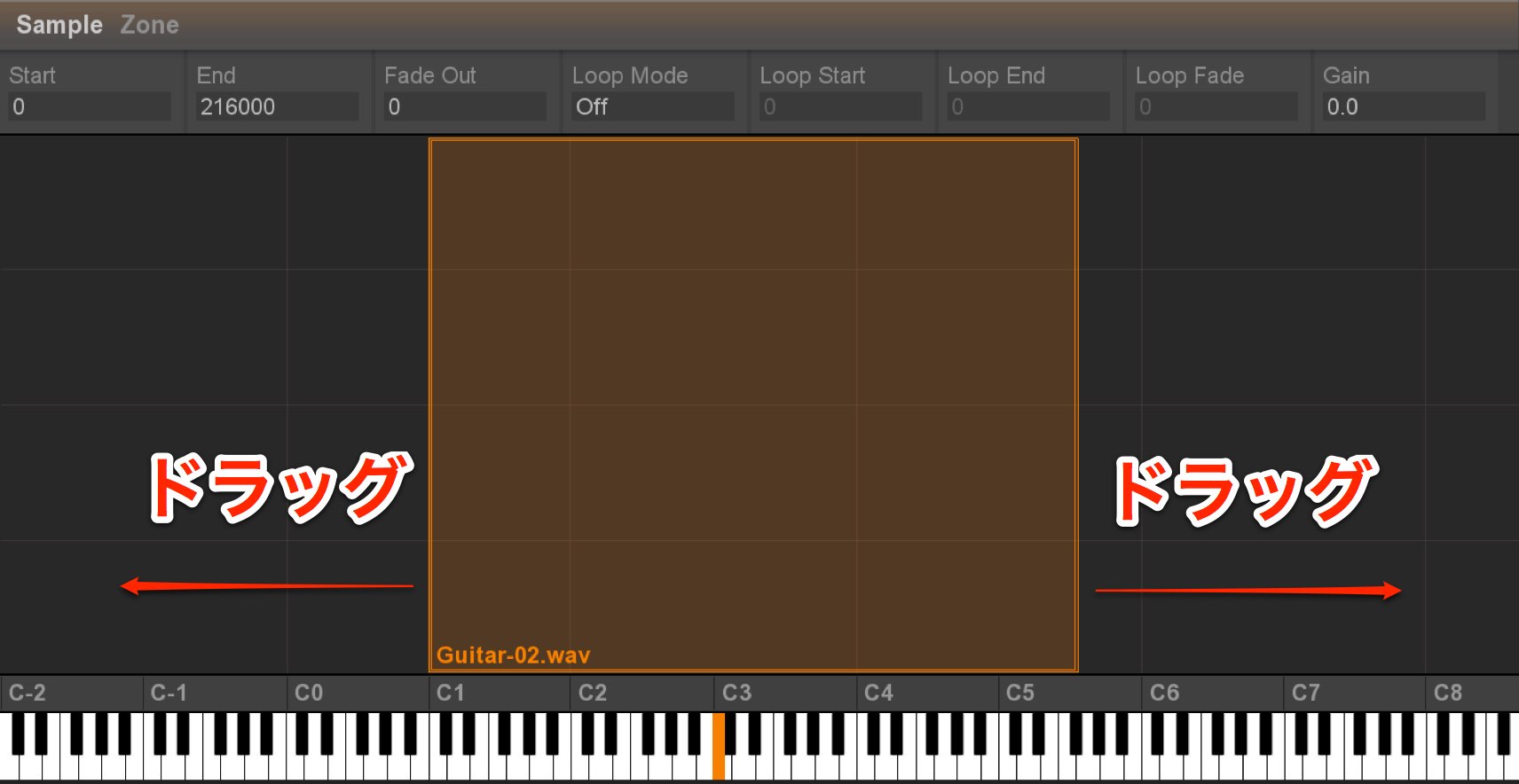
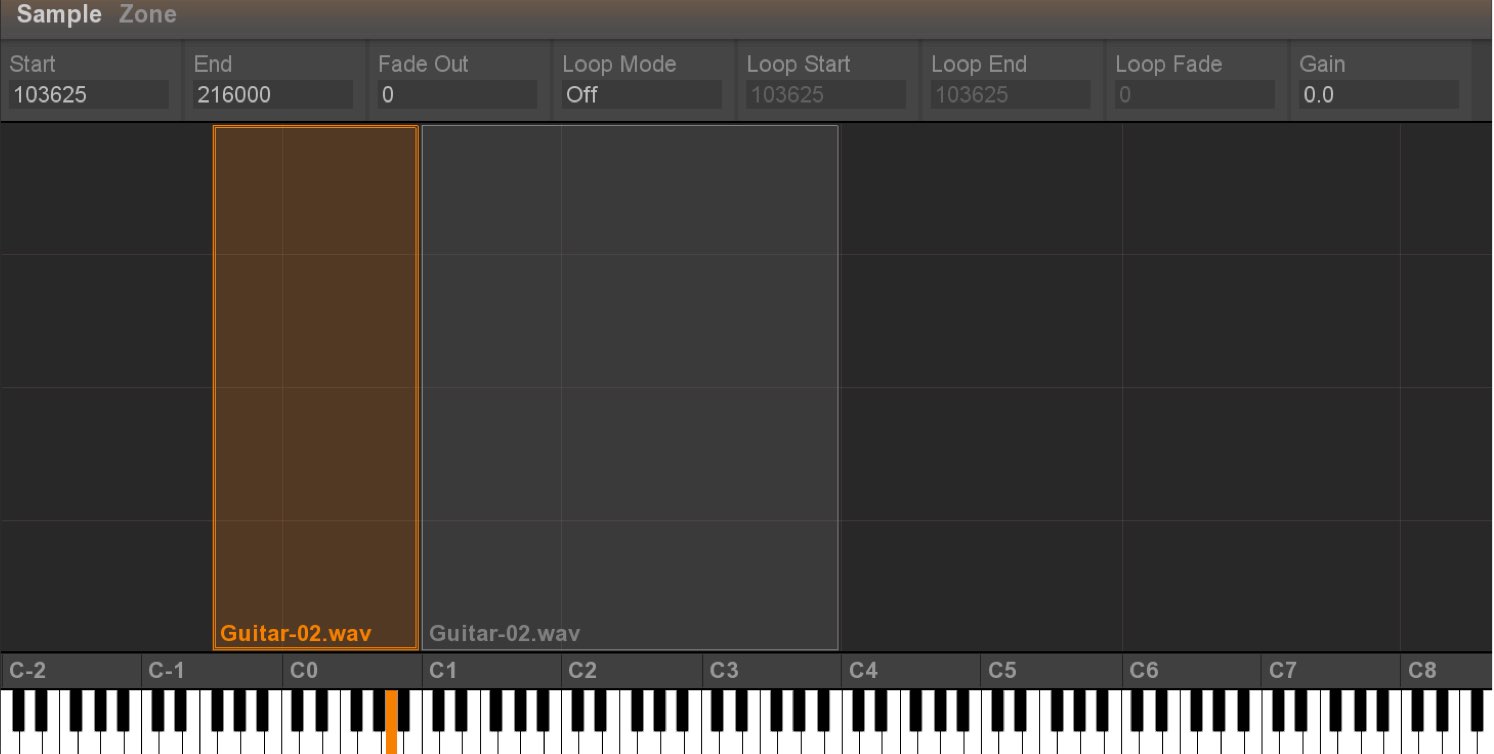
Drag the zone to specify the range of keys to which it is assigned.
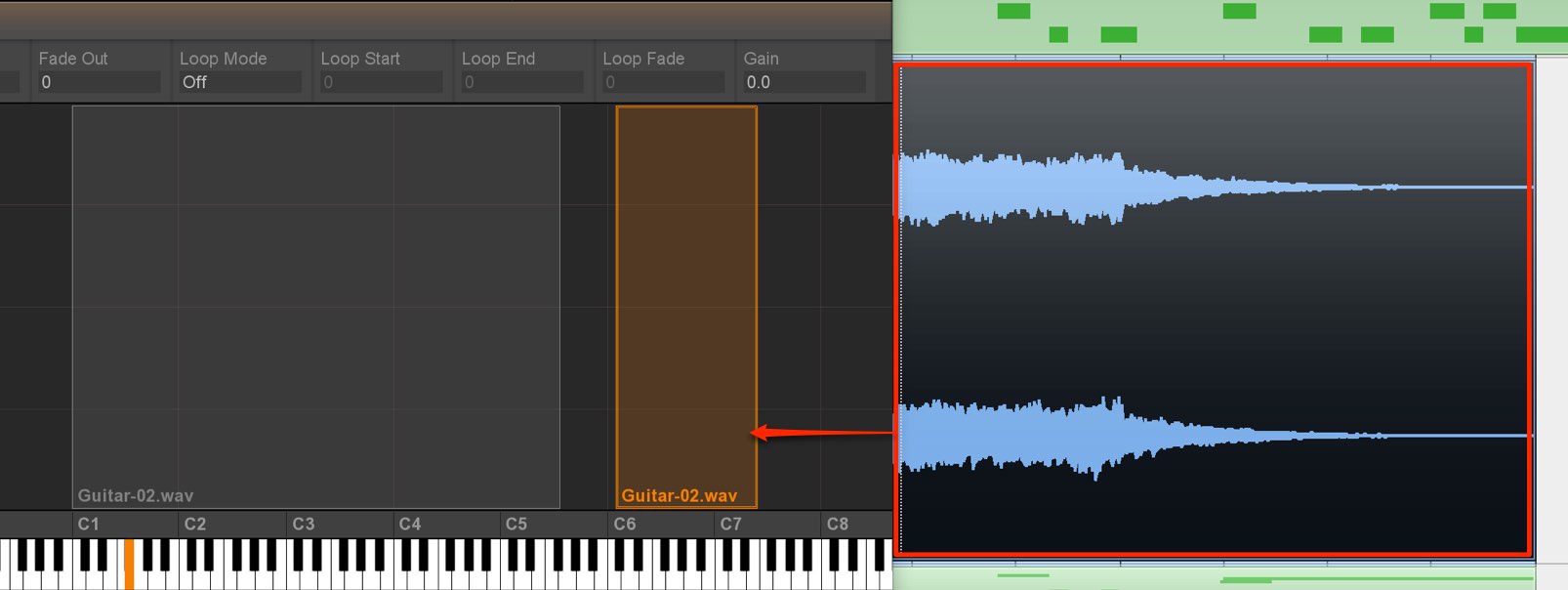
You can also drag in additional material to place multiple samples.
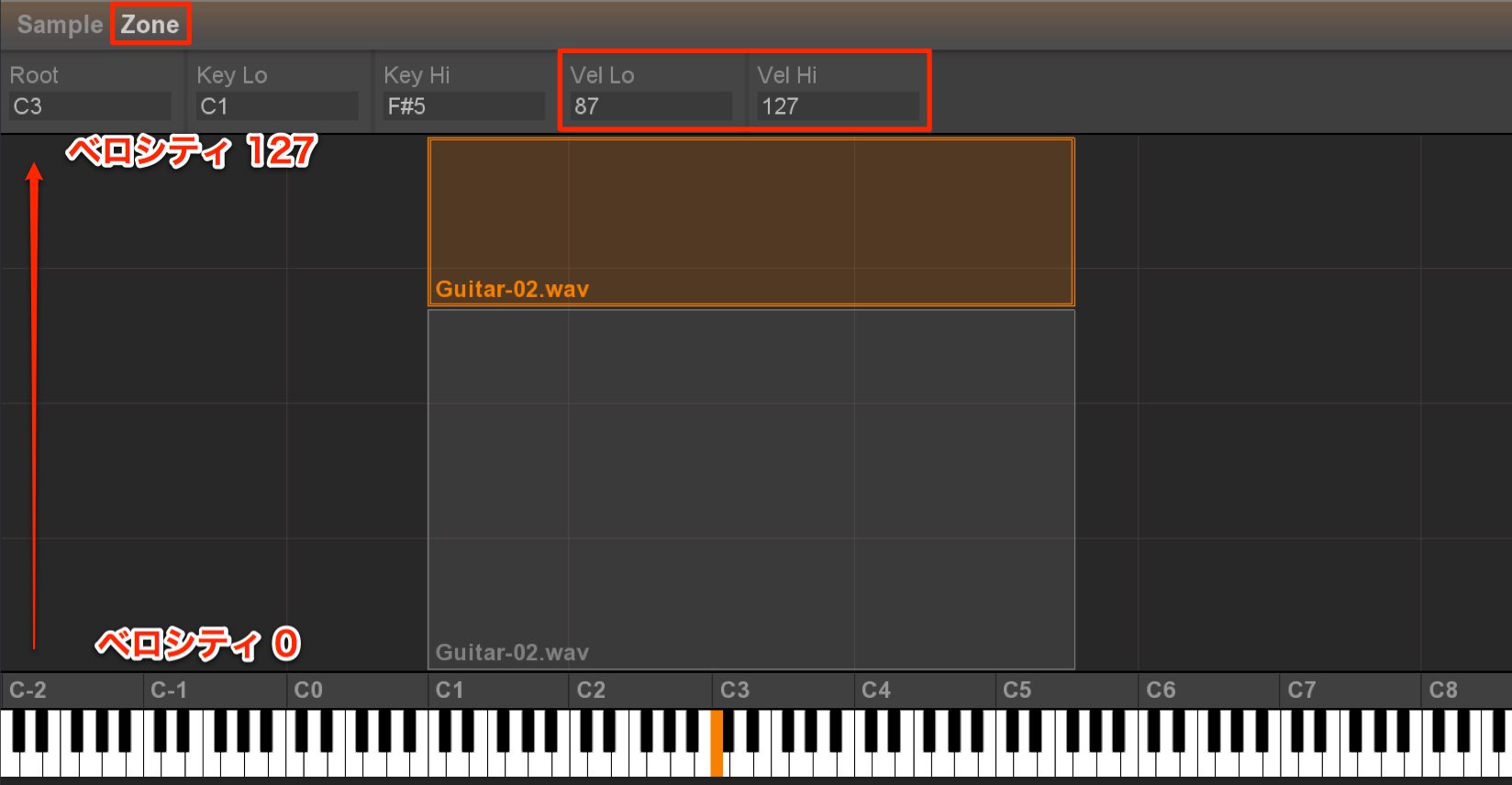
The vertical axis represents velocity; drag to set and position the velocity range.
This allows you to trigger different samples depending on how hard you play.
Select Zone to see the numerical velocity range assigned to each sample.
Setting the root key
For example, when you load an Am chord sample into Nuance, the original sound (Am) is placed at C3, with the pitch transposed in semitones across the keyboard.
In this case, pressing a C key plays an Am chord, making it harder to keep track of pitch.
Changing the root key is one way to align the sample’s pitch with the keyboard.
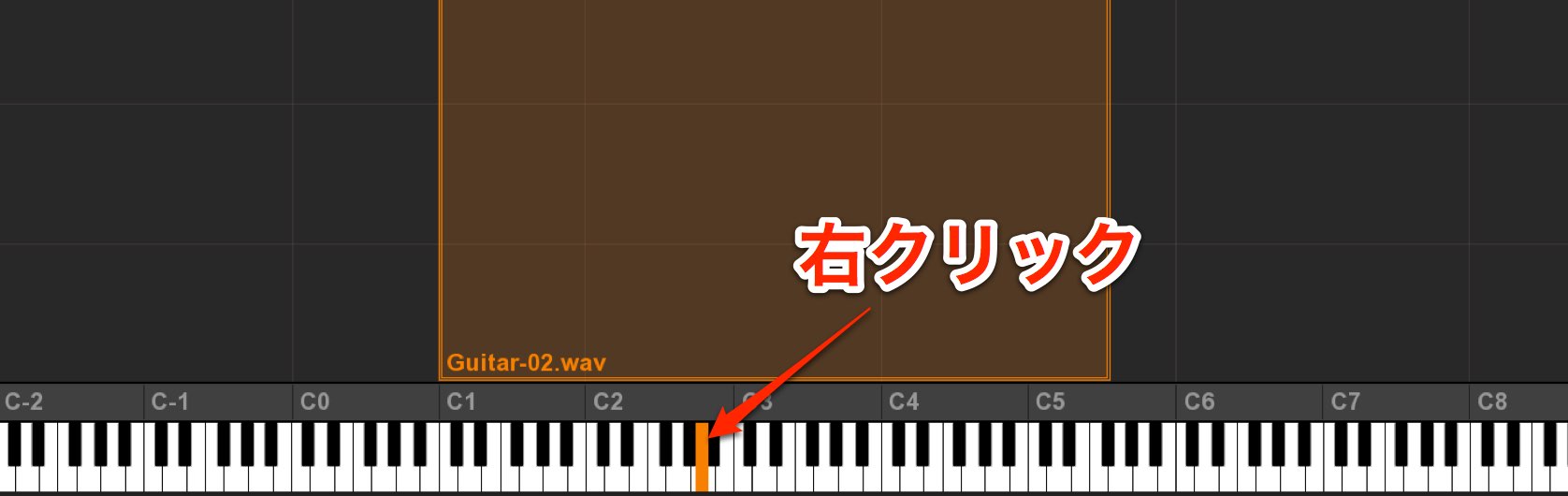
Right-click the key on which you want the original Am sample to play.
Here we set A2 as the root key.
The Am sample now plays on A, making pitches easier to understand and manage.
Editing samples
You can edit the samples you have placed in many ways.
You can also create experimental sounds, so try different settings.
Using glide
Glide makes the pitch transition smoothly between played notes.
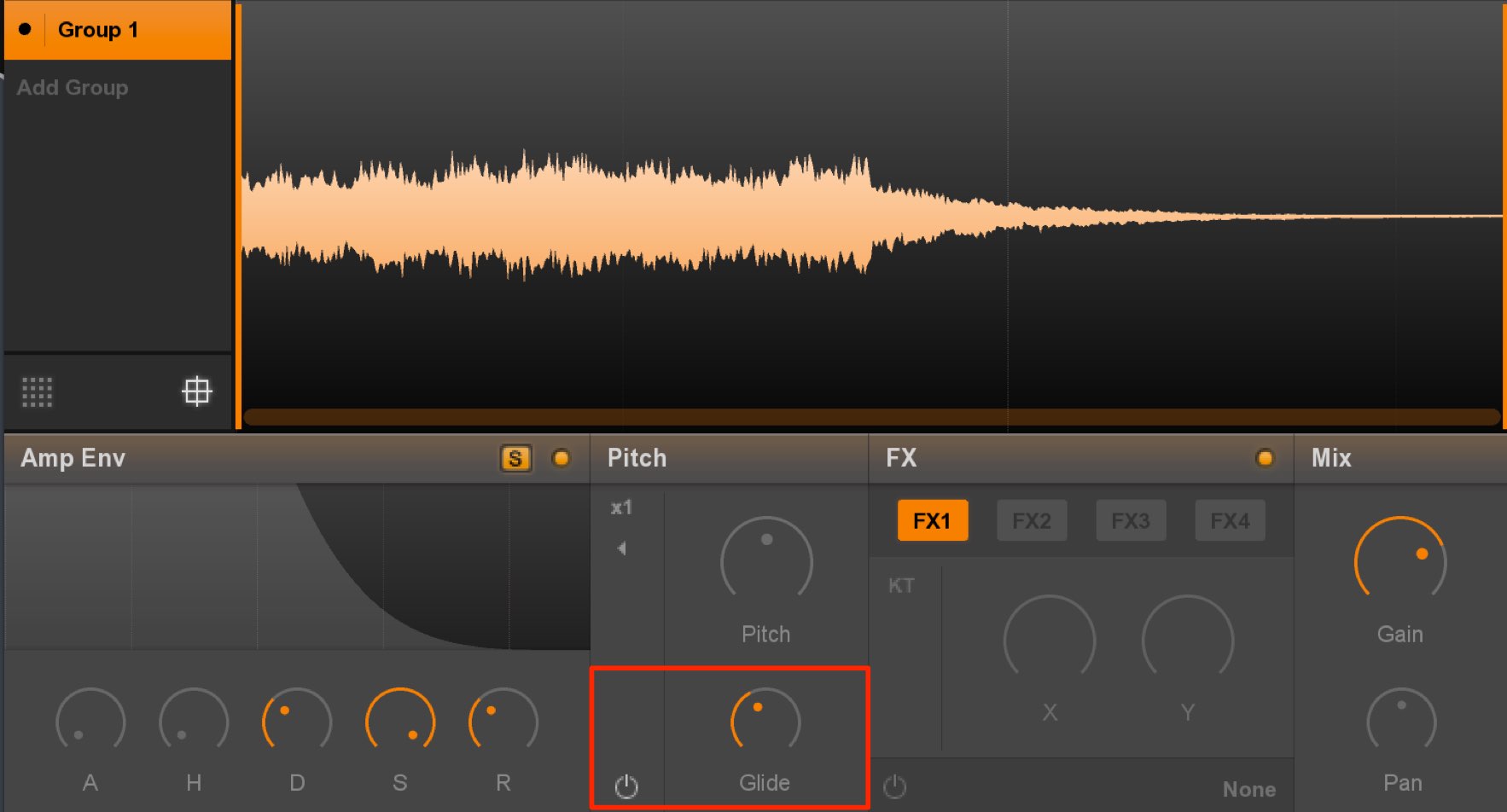
Enable Glide and set the duration of the pitch transition.
Adjust it to suit the desired effect and tempo.
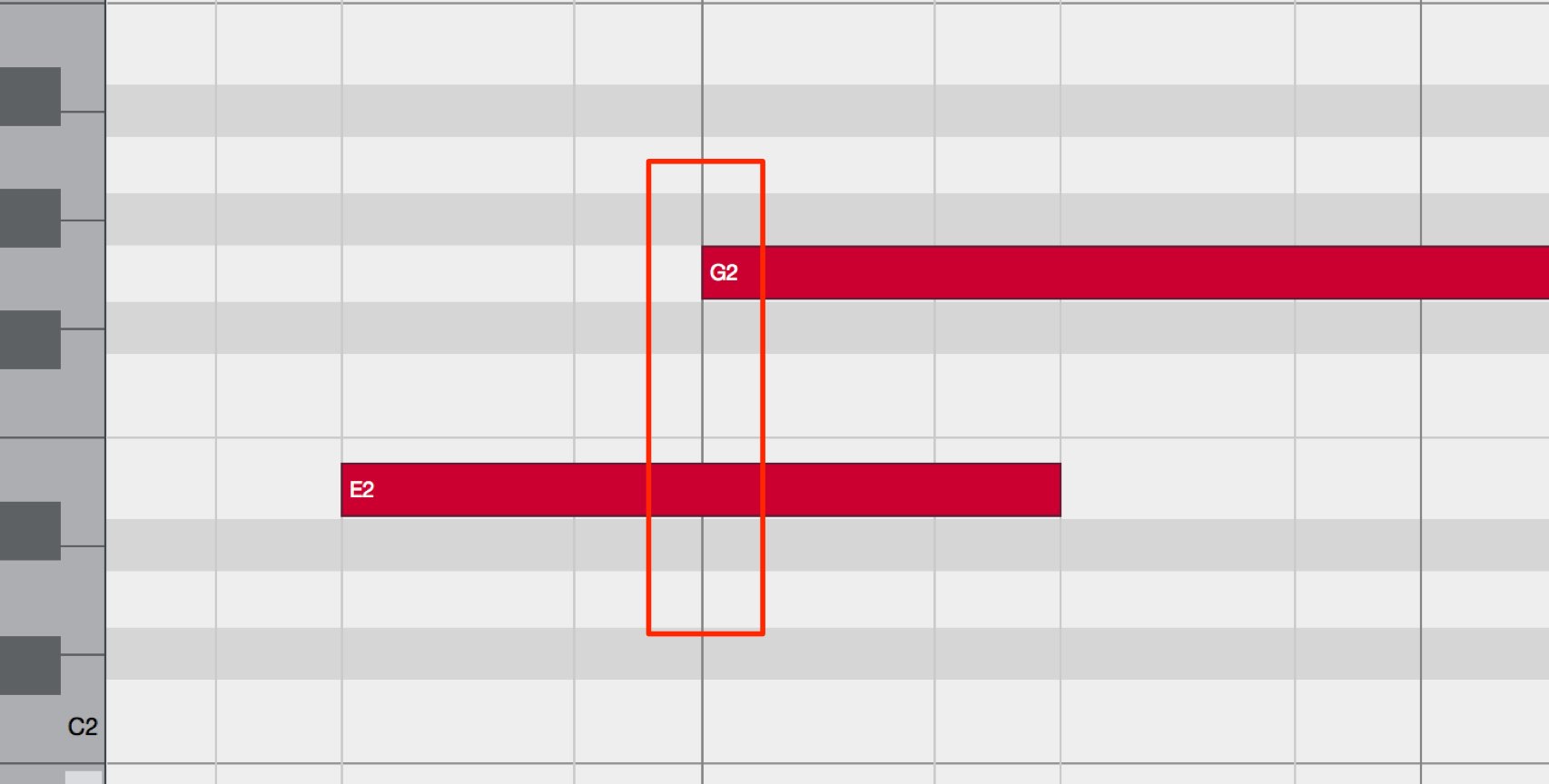
The two notes must overlap for the glide effect to work.
The pitch then moves smoothly to the next note.
Using effects
You can apply up to four effects.
These include familiar filters as well as more distinctive creative effects.
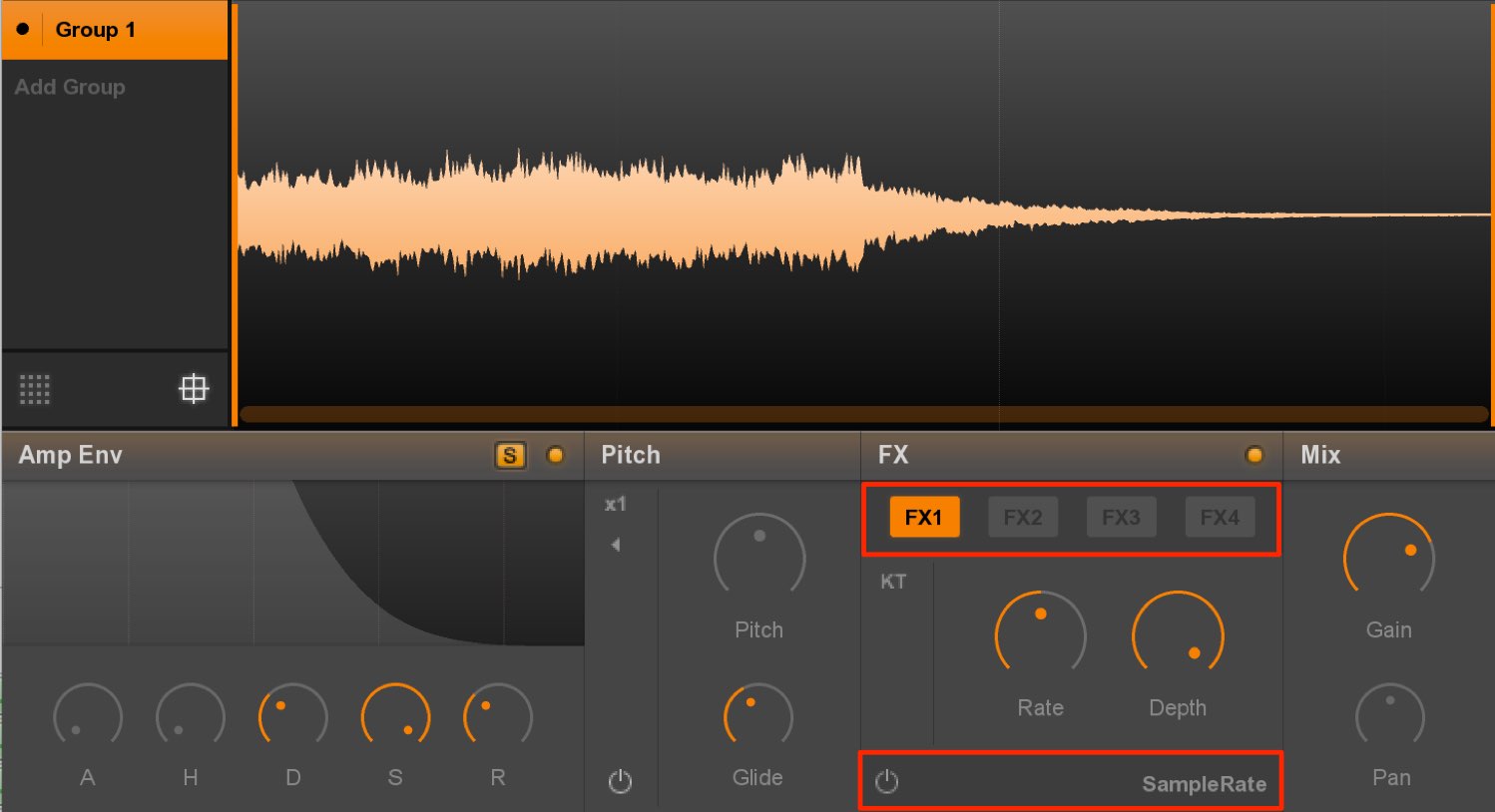
Select the desired effect here.
With only a few knobs, it is easy to get the effect you want.
Using modulation
You can apply familiar synthesizer modulation sources such as envelopes and LFOs to parameters.
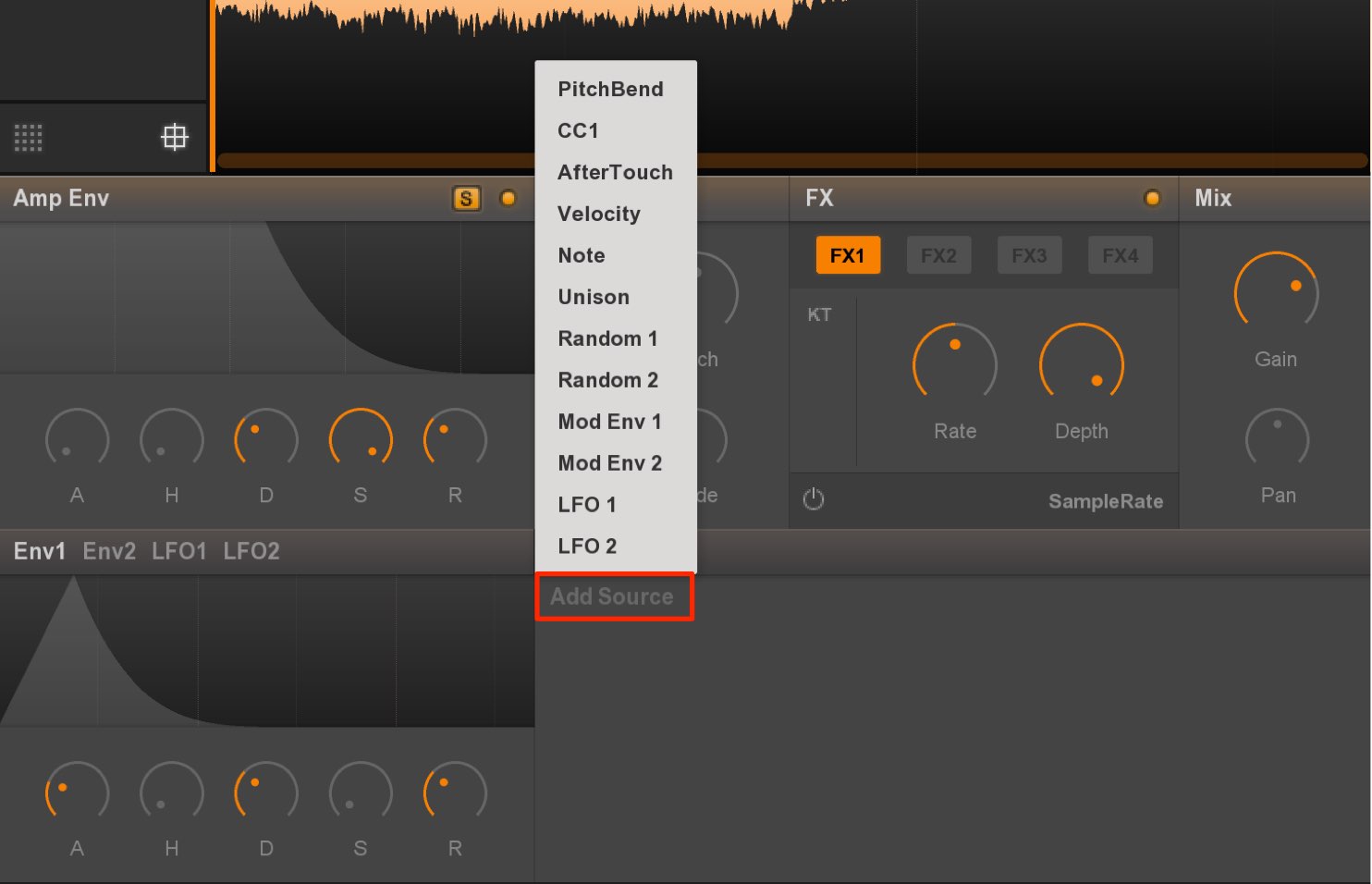
Click Add Source and choose a modulation source.
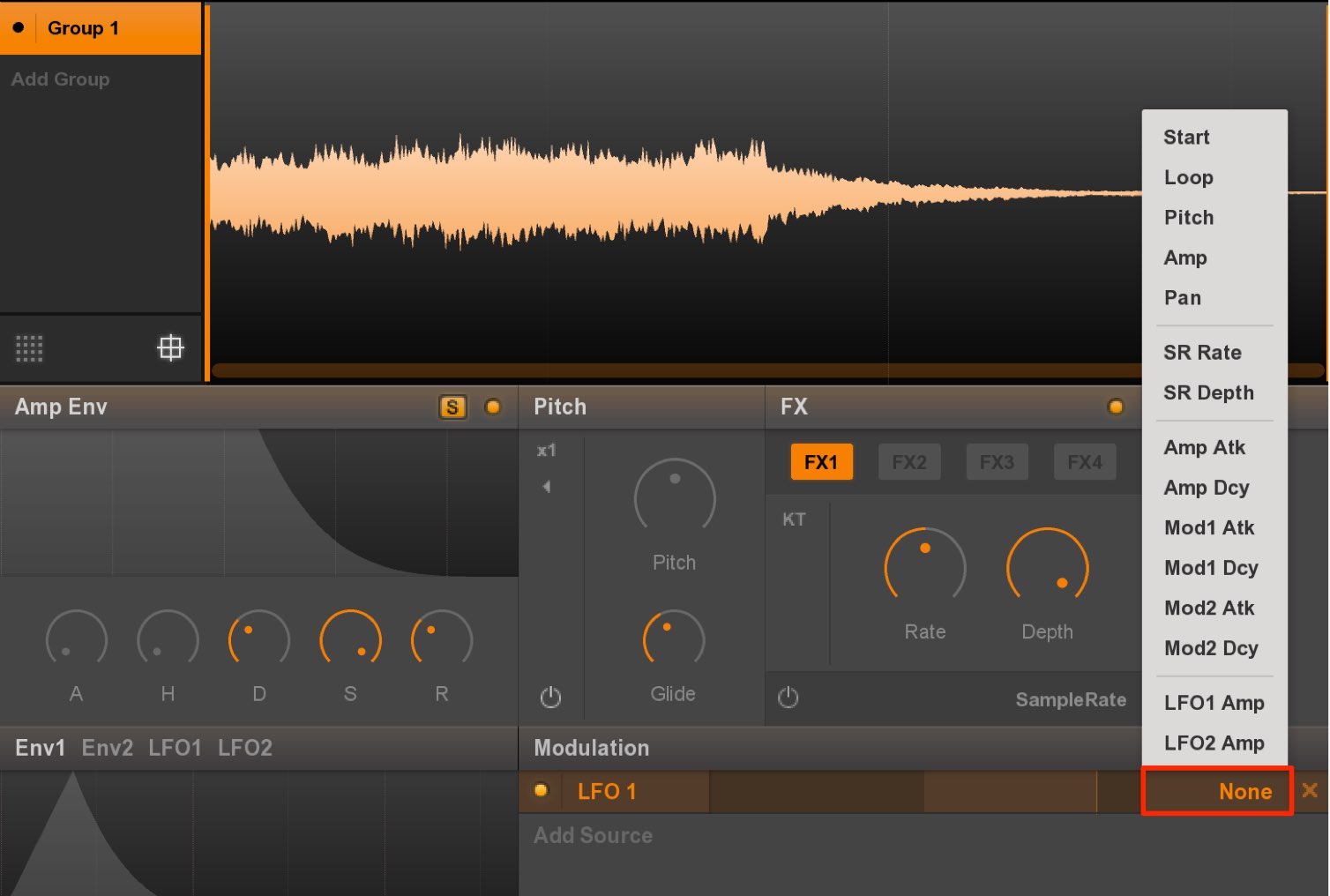
Next, specify the parameter that the selected source will modulate.
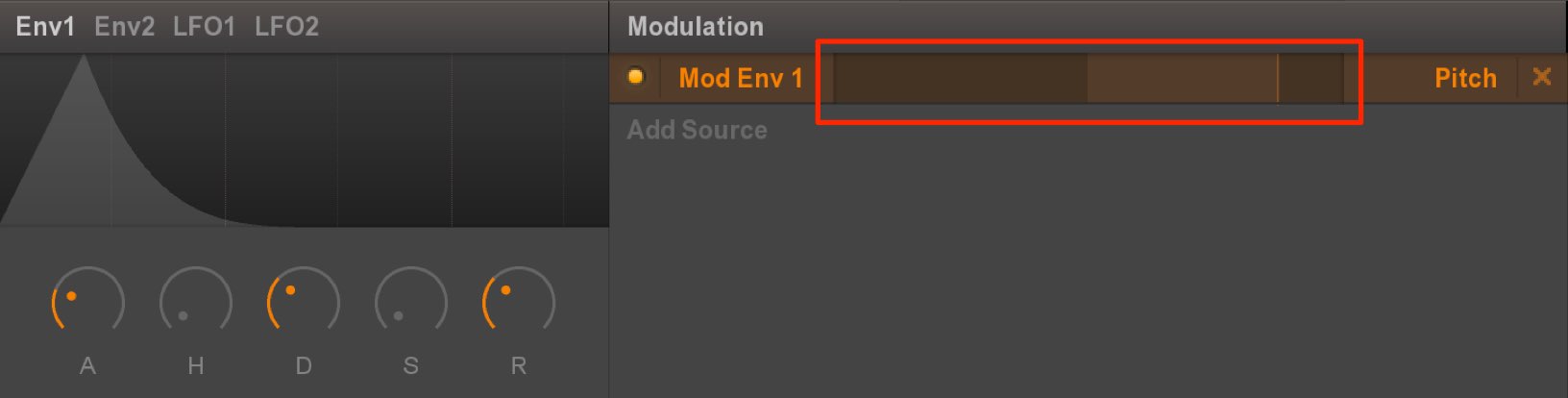
Use the slider to set the modulation amount for that parameter.
The center is the reference point; moving right increases the positive amount.
Moving left increases the negative amount.
For example, when applying an envelope to pitch:
- At the center, pitch does not change.
- The farther right you move, the higher the pitch changes.
- The farther left you move, the lower the pitch changes.
These settings can be made individually.
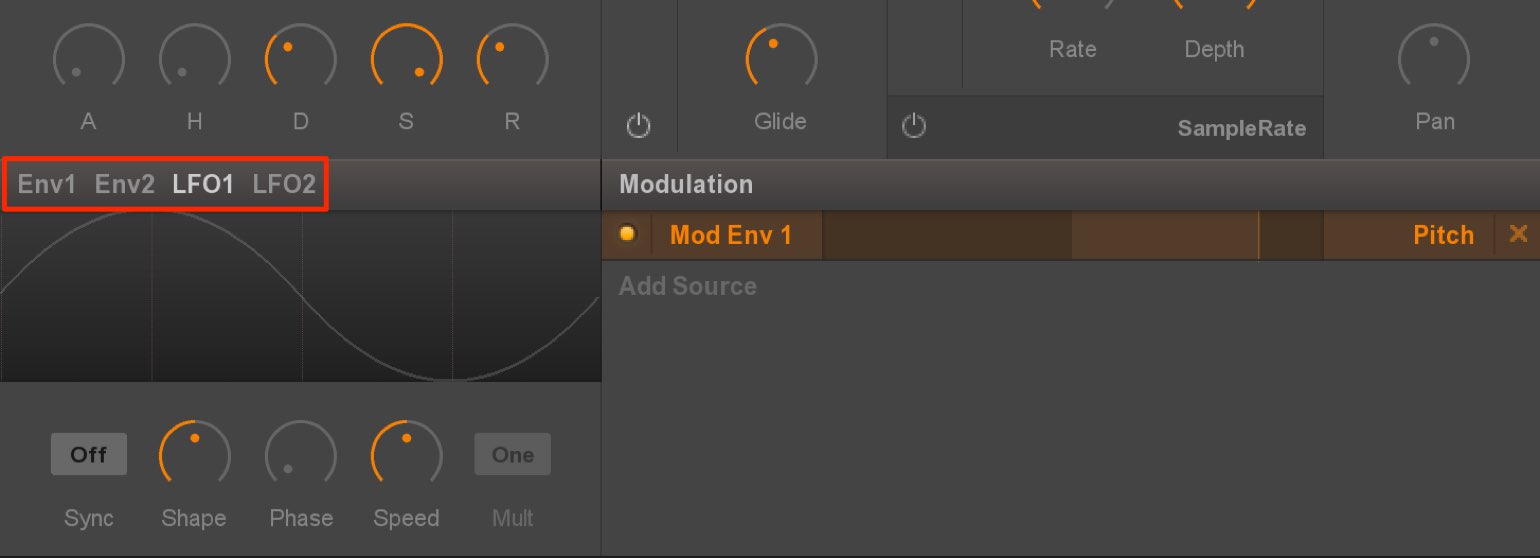
Adjust the detailed envelope and LFO settings in their respective tabs.
About envelopes
The explanation starts at 1:42.

About LFOs
About sample groups
Creating groups lets you apply the parameter changes above separately.
Conversely, when samples are placed in the same group, parameter edits apply to all of them.
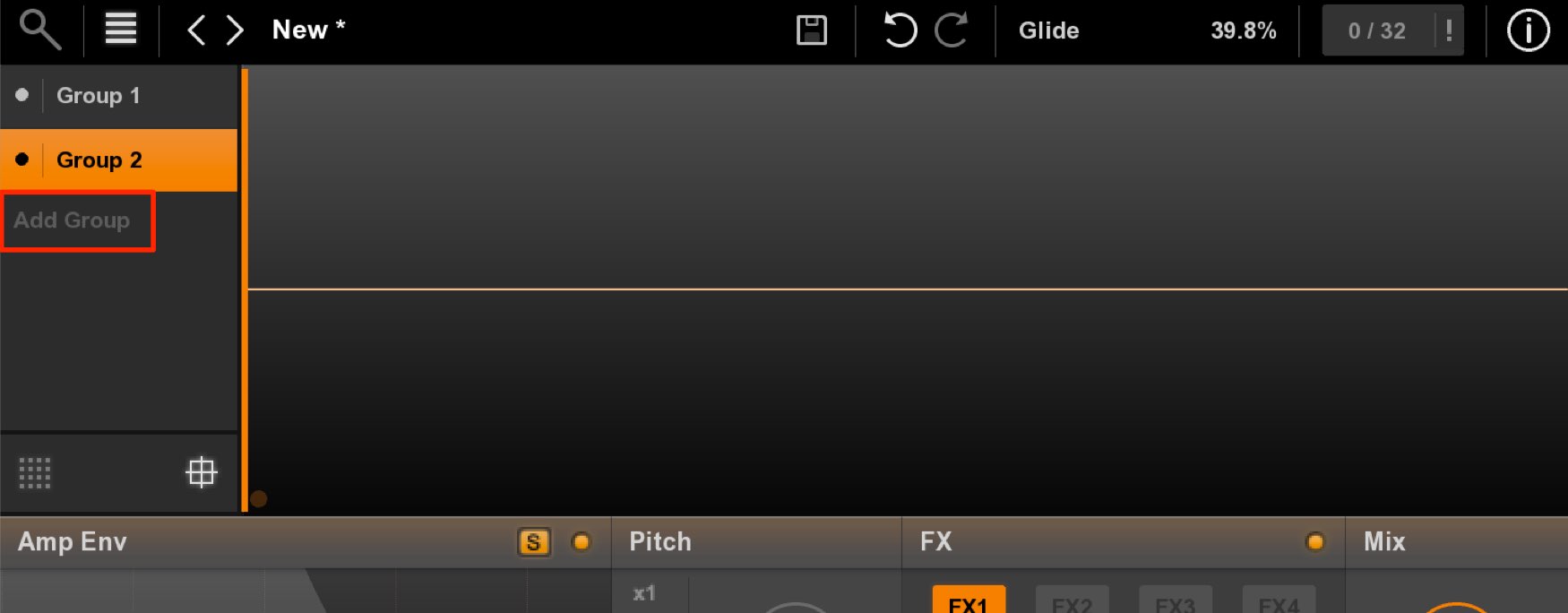
Click Add Group to create a new group.
Drag and drop samples into it.
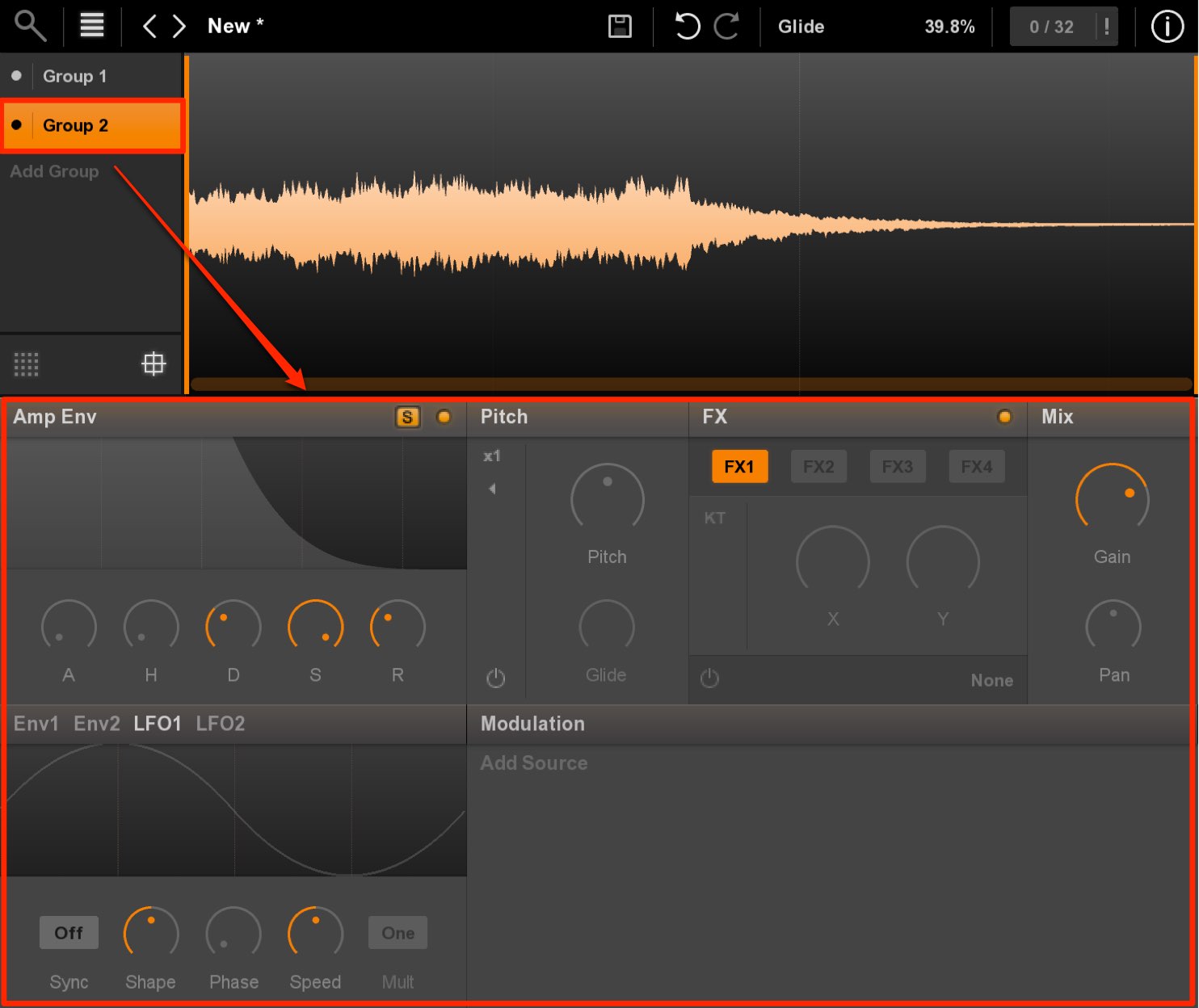
Then select the group and adjust its parameters.
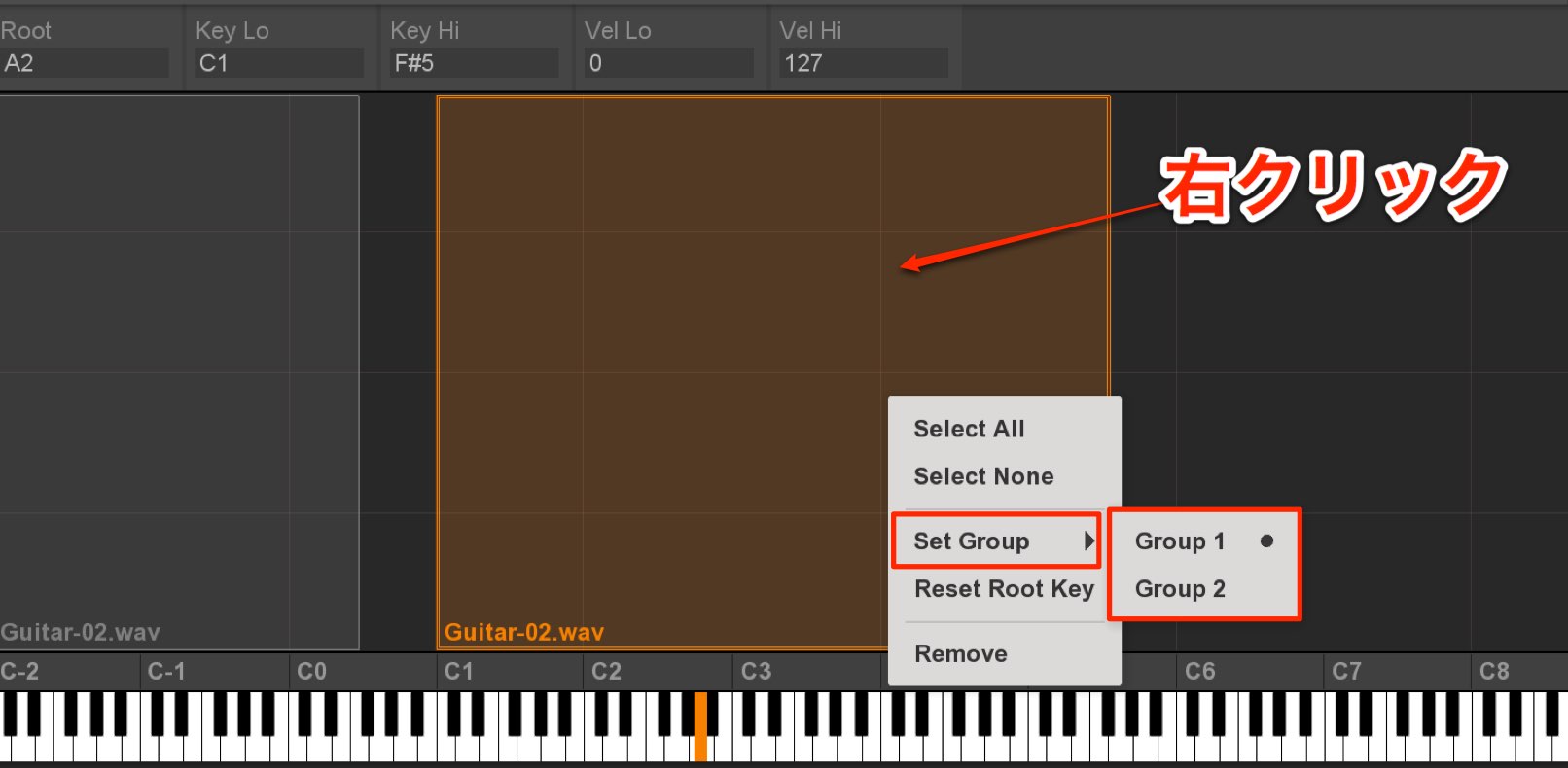
If your samples are already in the same group, right-click the desired sample in the Mapping window to reassign it to a different group.
Routing separate outputs to your DAW
You can send each group’s output separately to your DAW.
This lets you apply DAW effects only to particular sounds.
Multi-output setup by DAW

 Logic
Logic Cubase
 Ableton Live
 Studio One
 FL Studio
Product purchase: https://beatcloud.jp/product/705
Frequently Asked Questions
Q1. What is the easiest way to place a sample in Nuance?
Open the Group list and drag and drop the sample into it. It is automatically mapped and pitched across the MIDI keyboard. The Mapping window lets you inspect and adjust the assigned range.
Q2. Why change the root key?
To align the original pitch of the sample with the corresponding key. For example, playing an Am chord sample from an A key makes its pitch easier to track and manage.
Q3. Can I apply the same edits to multiple samples?
Yes. Put samples in the same group and parameter changes will apply to all of them. Create separate groups when you need different settings.
Q4. Can Nuance outputs be processed separately in the DAW?
Yes. Each group can be routed to a separate DAW output, allowing you to apply DAW effects to particular sounds.
NEW ARTICLES
Latest English Articles
































































































































































































































































































































































