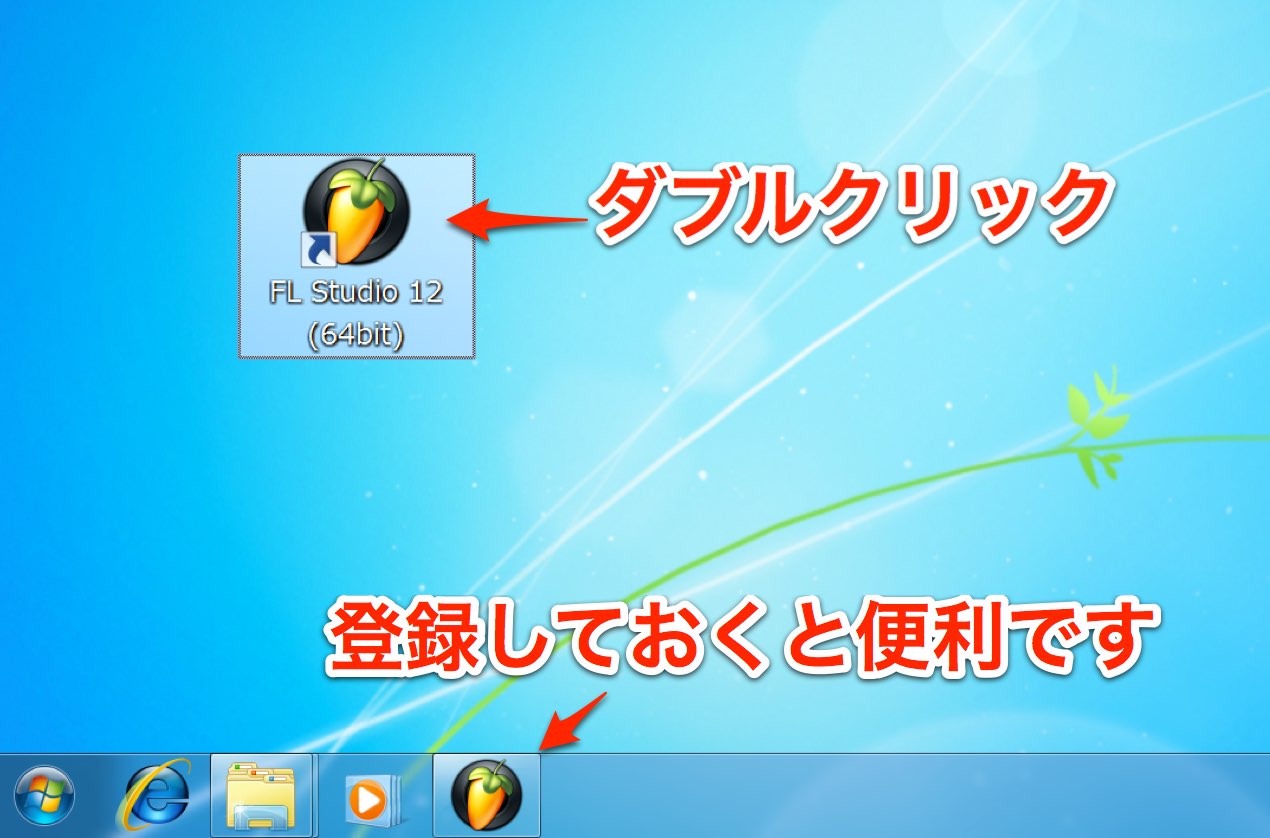
Learn how to add third-party instruments and effects in FL Studio using the Plugin Manager. The screenshots show an older Windows workflow for VST plug-ins; current versions support additional formats, and file extensions and install locations vary by format and operating system. Synthesizers and effects with presets can expand your production options.
Use Third-Party Instruments and Effects in FL Studio
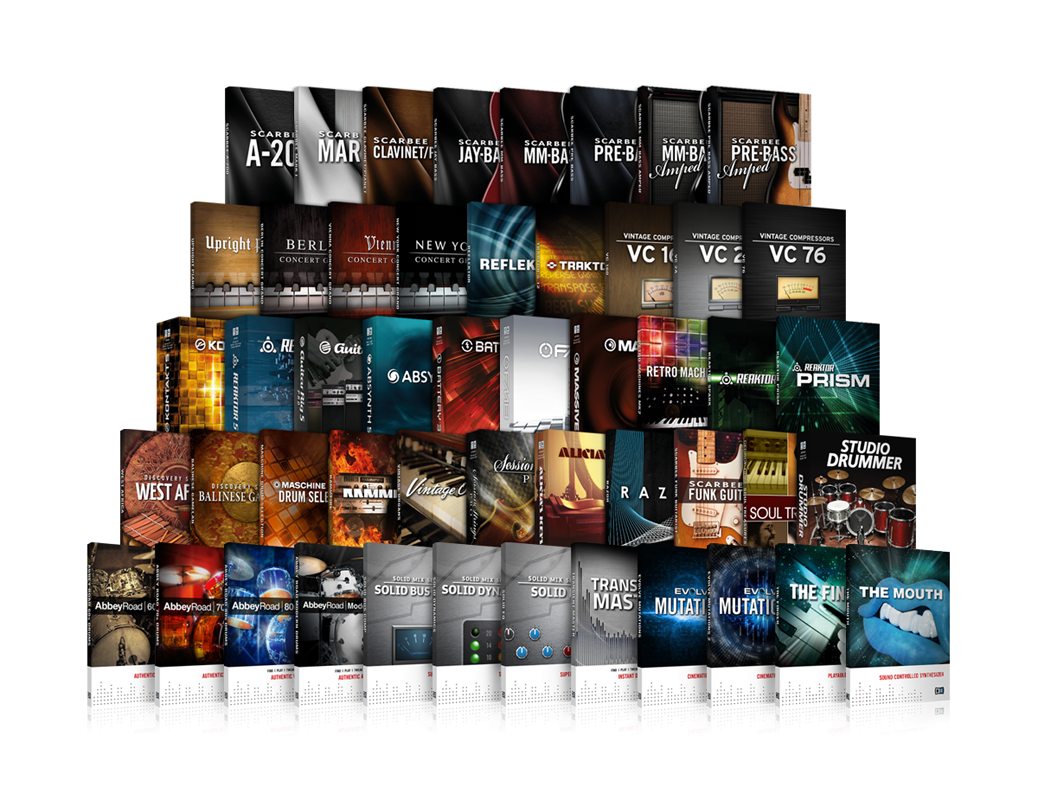
You can expand FL Studio with additional instruments and effects.
VST and VST3 are supported.
Current FL Studio versions also support CLAP on Windows and macOS, and AU on macOS. AAX is not listed as a supported format in the Image-Line manual. Check your FL Studio version and the plug-in’s compatibility before purchasing.
Let’s look at how to add a purchased VST plug-in.
Setting Up a Purchased VST Plug-in in FL Studio
Questions and Answers from the YouTube Video

This helped! I installed PIAPRO using the method in the video. At first it produced sound, though not what I expected, but after changing its type from Unknown to Effect it stopped making sound. I would appreciate any suggestions. 😭

PIAPRO Studio is generally treated as an instrument or VSTi rather than an effect, so changing its type to Effect may prevent it from producing sound correctly. Try rescanning it in Plugin Manager and loading it as a Generator or Synth rather than an Effect. Also check that you load it in the Channel Rack rather than the mixer. If it was producing sound while marked Unknown, try loading it as an instrument without forcing the type to Effect.
My Plugin Manager says “Find plugins” in the upper left instead of “Start Scan.” Is something wrong?
The label varies by version; Find plugins serves the same scanning purpose.
Manage plugins does not appear when I press Options! Can someone help?
Right-click the relevant item and select it from the menu that appears. https://app.box.com/s/mlgl4z5xsfwn8kektjpb6g5daju24iya
Video: Plug-in Formats
How to Add a VST Plug-in
Depending on the product and your setup,
the plug-in may already be detected without additional configuration.
First, check whether it is available.
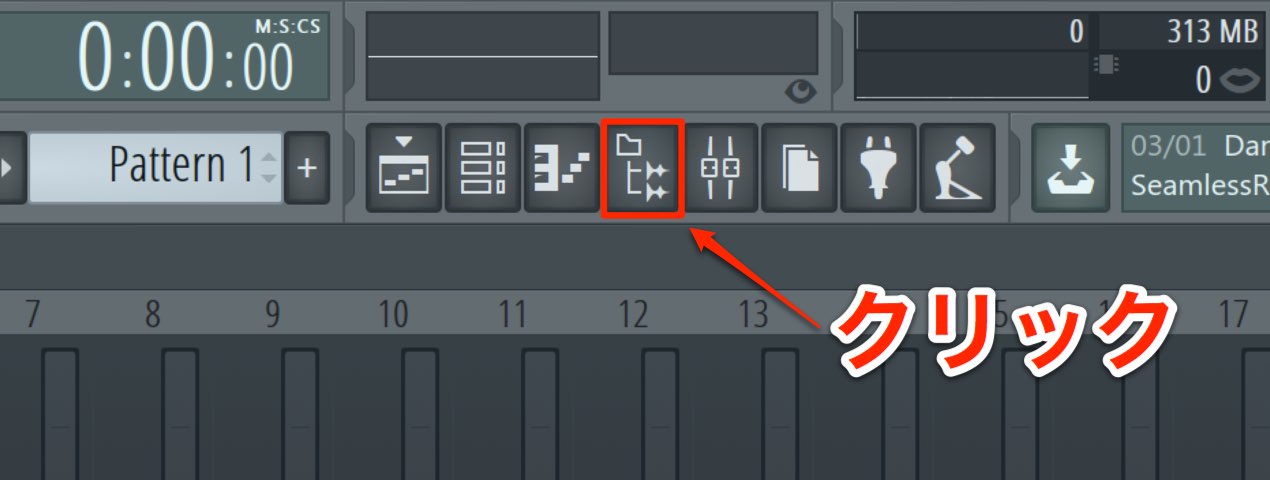
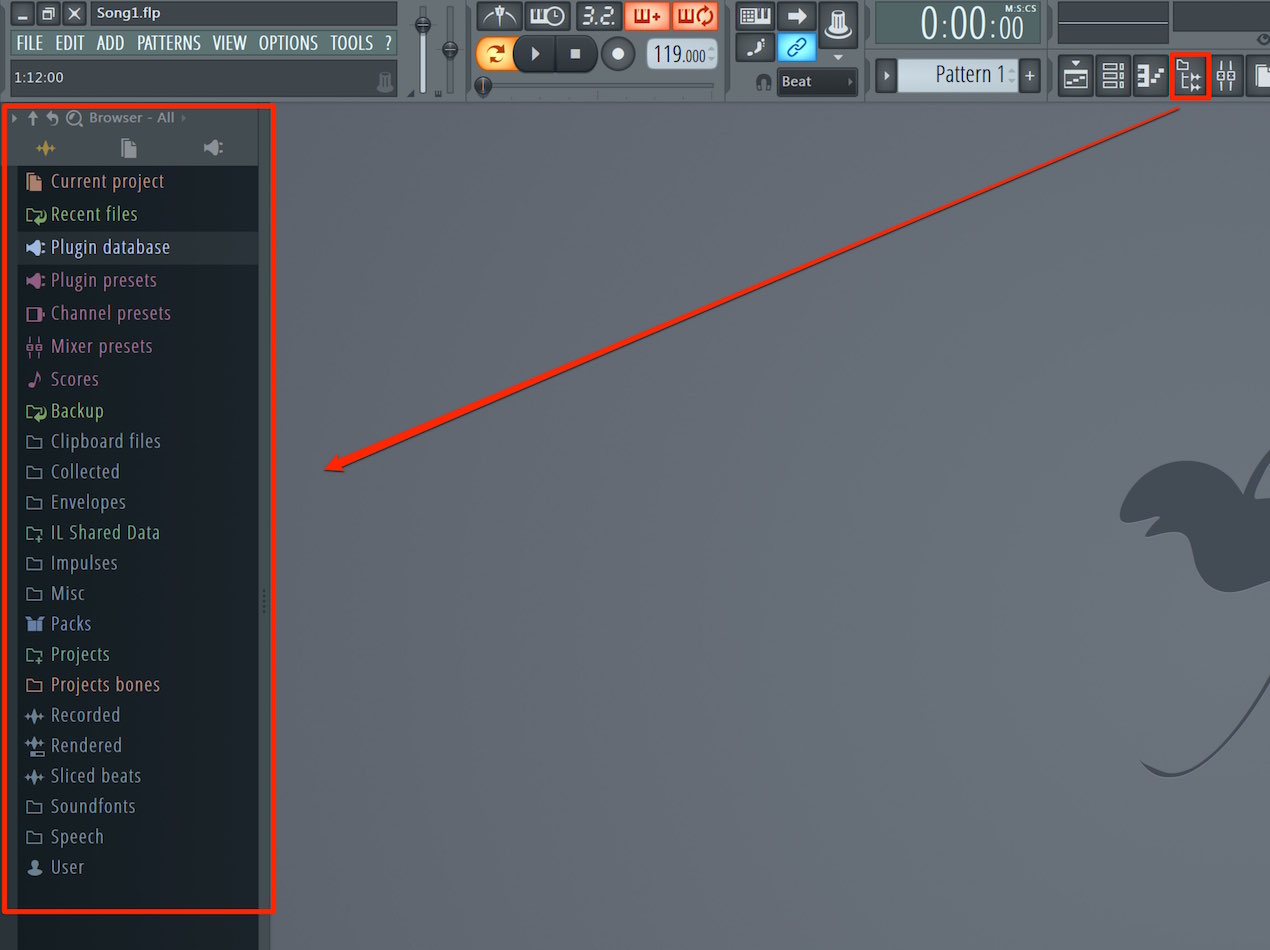
Click the Browser icon to open the Browser.
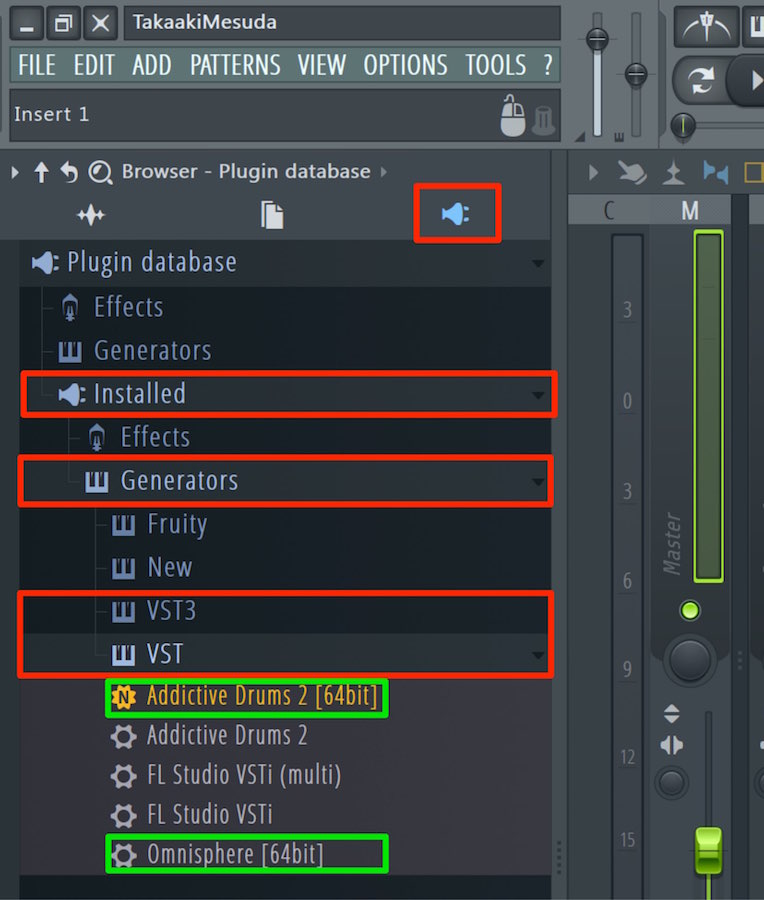
Then click the plug-in icon in the Browser.
If your product appears in one of the following lists, it is available:
- Instruments: Installed → Generators → VST or VST3
- Effects: Installed → Effects → VST or VST3
If the product is not listed, follow the steps below.
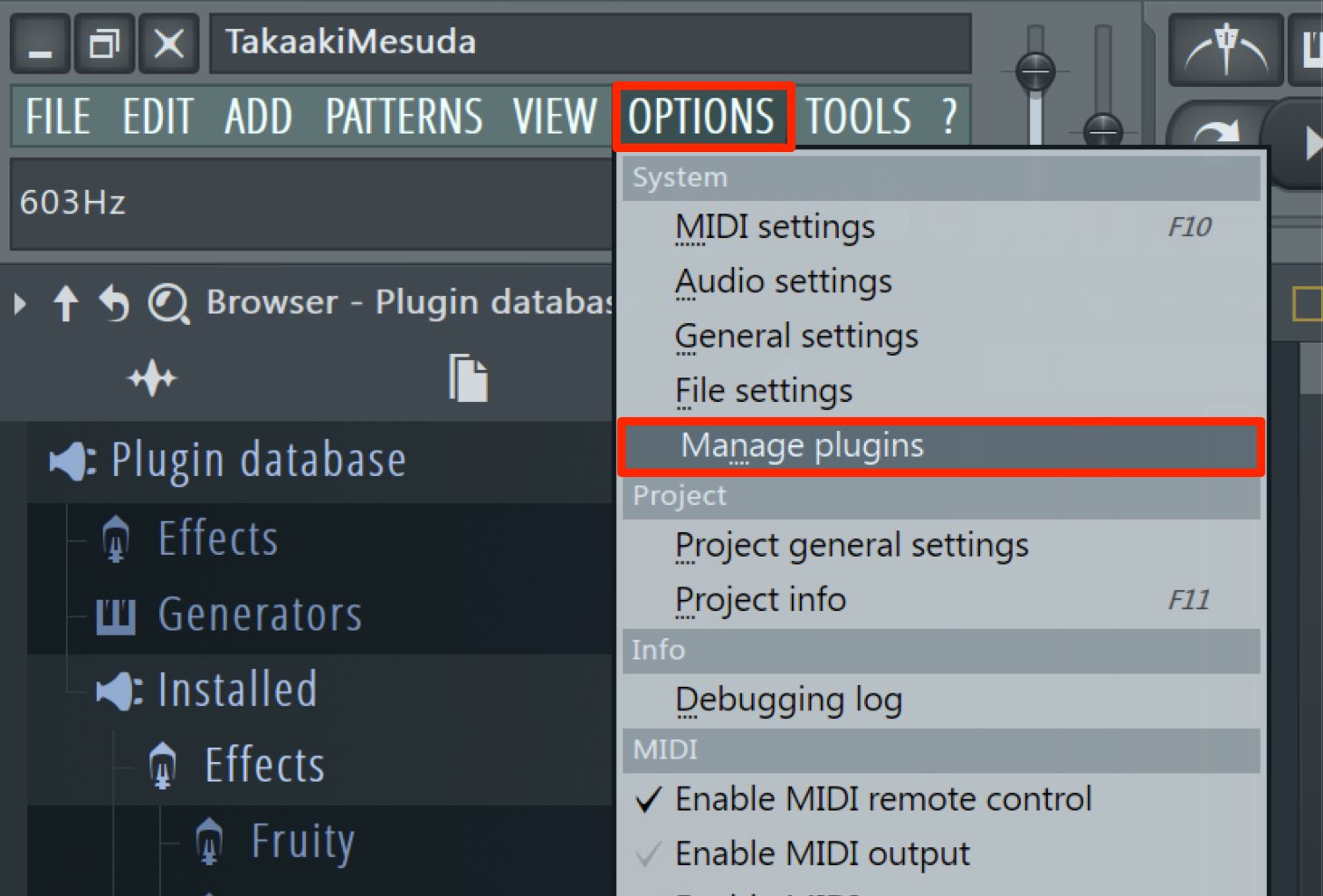
Select “Manage plugins” from the Options menu.
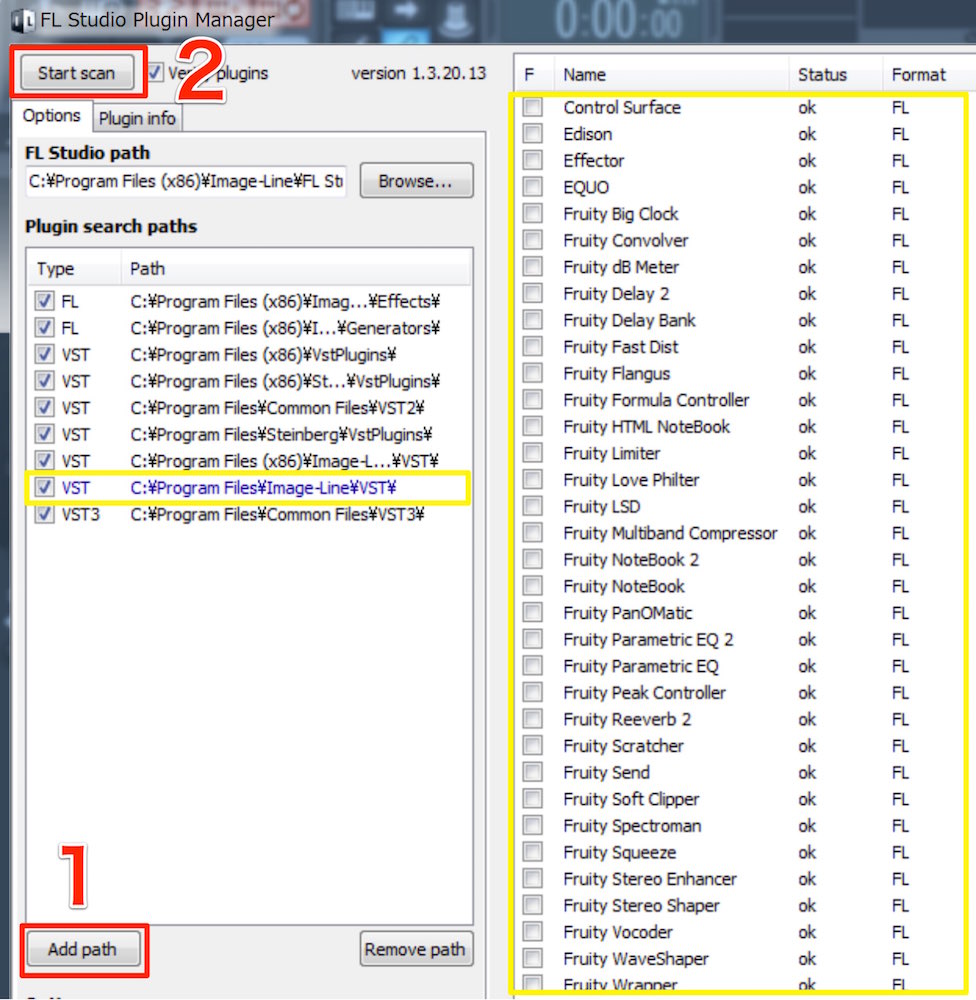
- 1. Click “Add path” and choose the folder containing your plug-in. In this Windows VST2 example, the plug-in file ends in .dll. VST3 and AU use different formats and system locations.
- 2. Click “Start Scan” (called “Find plugins” in some versions) to scan the folders and display the results.
Once the scan succeeds, the detected compatible VST plug-in can be used in FL Studio.
About Plug-in Files
On Windows, VST2 plug-ins commonly use .dll files. VST3 uses .vst3; macOS VST and AU plug-ins use different extensions. Not every plug-in creates a .dll file.

Some products let you choose the VST2 .dll location during installation.
If you do not remember choosing a location,
check the manufacturer’s installation instructions or search Program Files on the C: drive for the plug-in.
Once you find the VST2 .dll, add its folder to the scan paths.
The original Windows tutorial suggests collecting VST2 .dll files in one folder.
For current installations, use the manufacturer’s installer and scan the installed location; do not move files blindly. VST3 and AU should be installed in their standard system locations.

Frequently Asked Questions
Q1. Which plug-in formats does FL Studio support?
Current FL Studio supports VST and VST3 on Windows and macOS, CLAP on both platforms, and AU on macOS, as well as its native plug-ins. Check the requirements for your FL Studio version and operating system. AAX is not listed as a supported format in the Image-Line manual.
Q2. My purchased VST plug-in is not detected. What can I do?
Open Options → Manage plugins, check the plug-in search paths, and run “Find plugins” or “Start Scan,” depending on your version. For VST2, add the installed .dll folder if necessary. VST3 and AU use their standard system locations.
Q3. Where are .dll files stored?
Windows VST2 .dll locations depend on the installer and manufacturer. Check the installation instructions or search Program Files, then add the installed folder to the scan paths. VST3 uses .vst3 and macOS uses different plug-in formats and locations.
NEW ARTICLES
Latest English Articles