

Drum and rhythm loops are essential in music production, but their single-file format makes detailed customization difficult. Acon Digital's Remix:Drums uses AI to analyze the individual drum elements in a loop, such as kick, snare, and hi-hat, and lets you control them separately. Its accurate detection, intuitive interface, and volume and panning controls help you tailor a rhythm to your song and greatly expand what you can do with loop-based production.
A Must-See for Producers Who Use Loops
Drum and rhythm loops are a familiar part of music production.
Alongside sample services such as Splice, many DAWs also include a wide selection of loops.
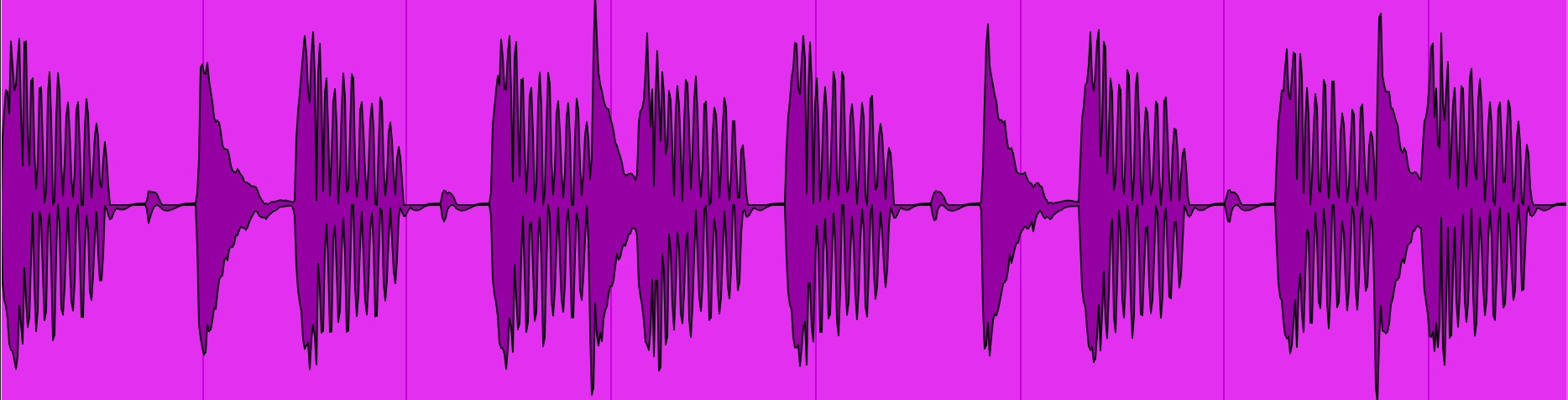
They have many uses: building a song's main rhythm track, sparking new ideas, or adding a layer to reinforce an existing beat.
As useful as rhythm loops are, being a single audio file makes detailed changes difficult. You might want to remove the kick to create a new section, turn down a slightly loud snare, or use only the hi-hat pattern.
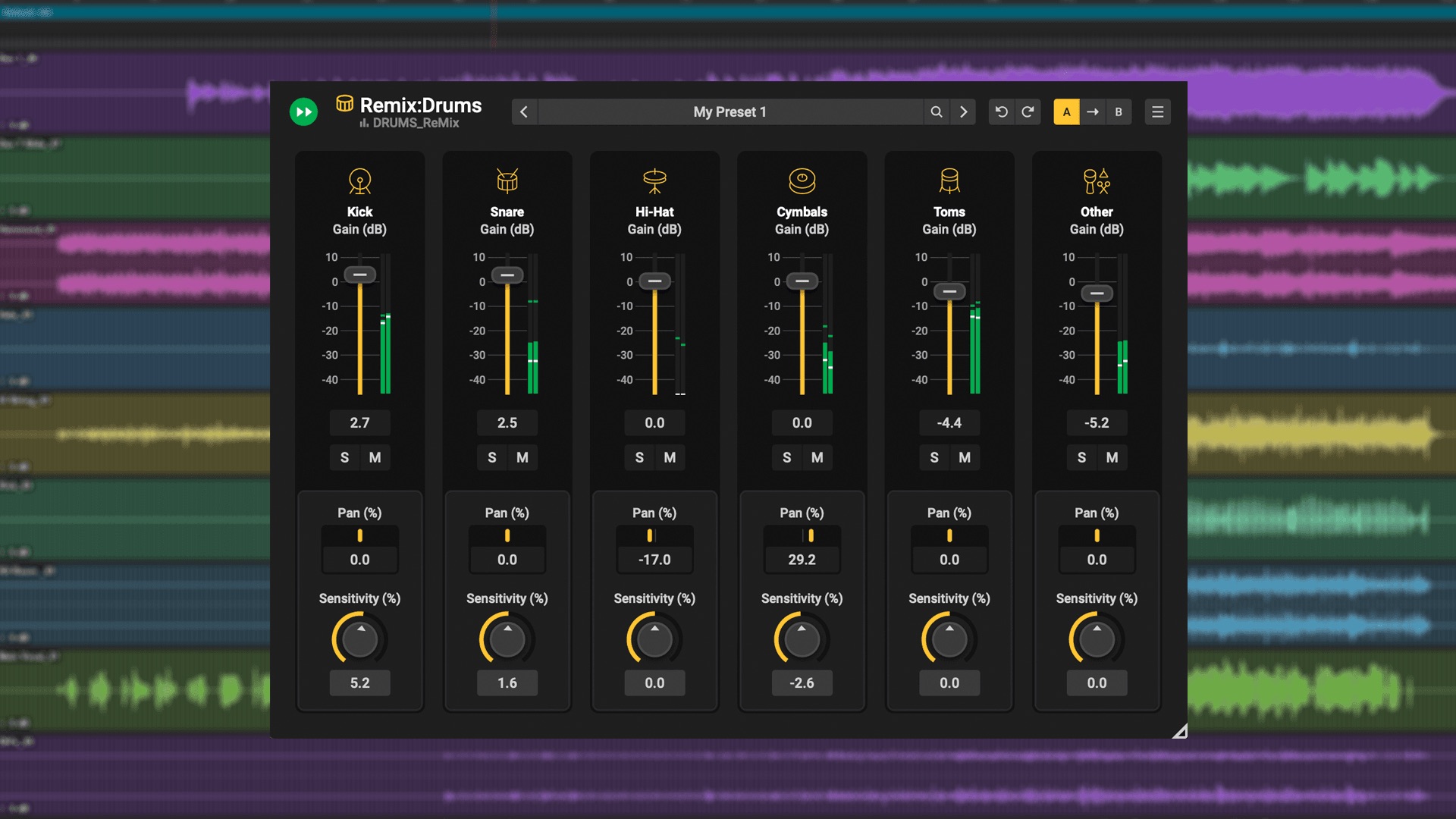
Acon Digital's Remix:Drums, the subject of this review, offers a solution.
It analyzes the contents of a loop and lets you control each drum element individually.
How accurate is it? Let's find out together.
Remix:Drums Video Review
How to Use Remix:Drums
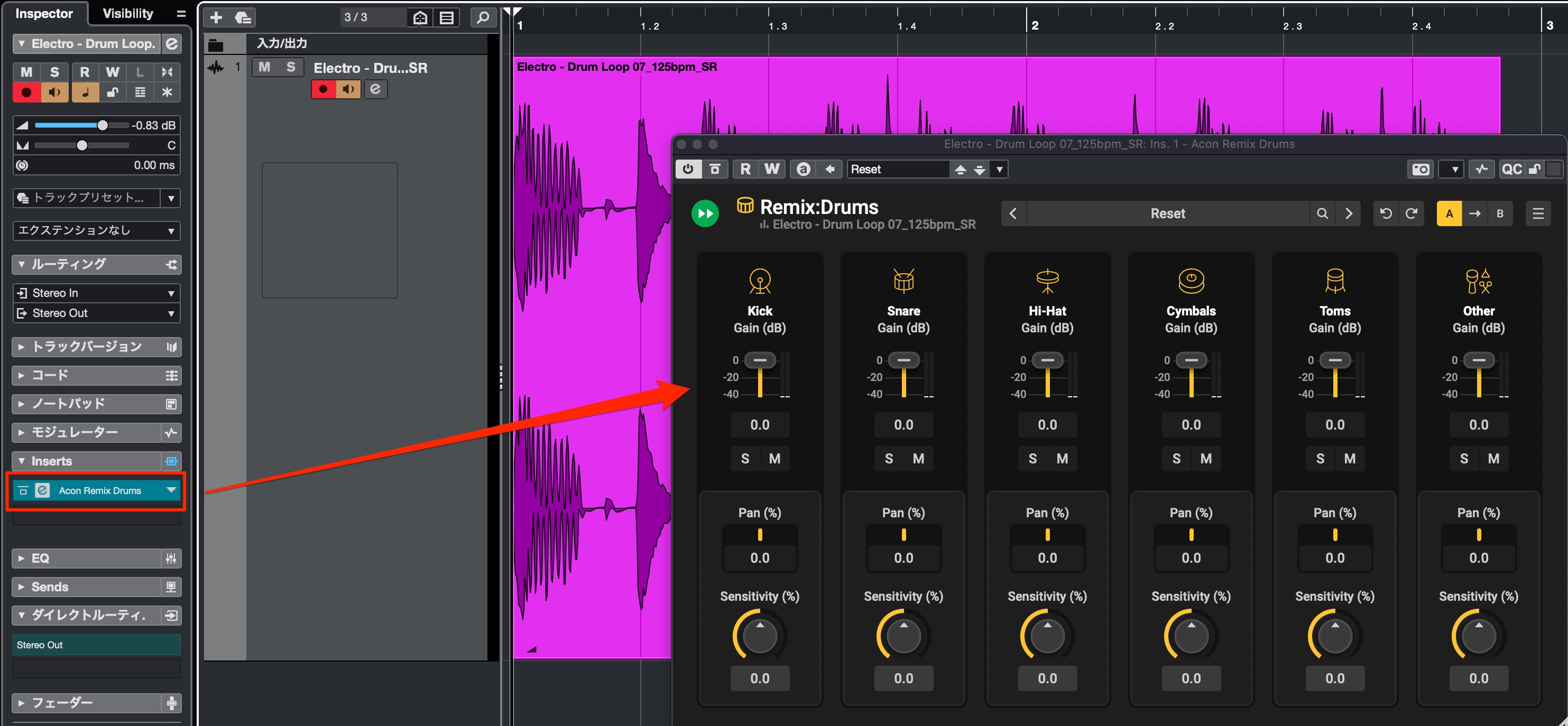
Insert the plug-in on the audio track containing the loop you want to process.
As you can see from the interface, it is very simple to use.
Isolate or Remove Individual Drum Elements
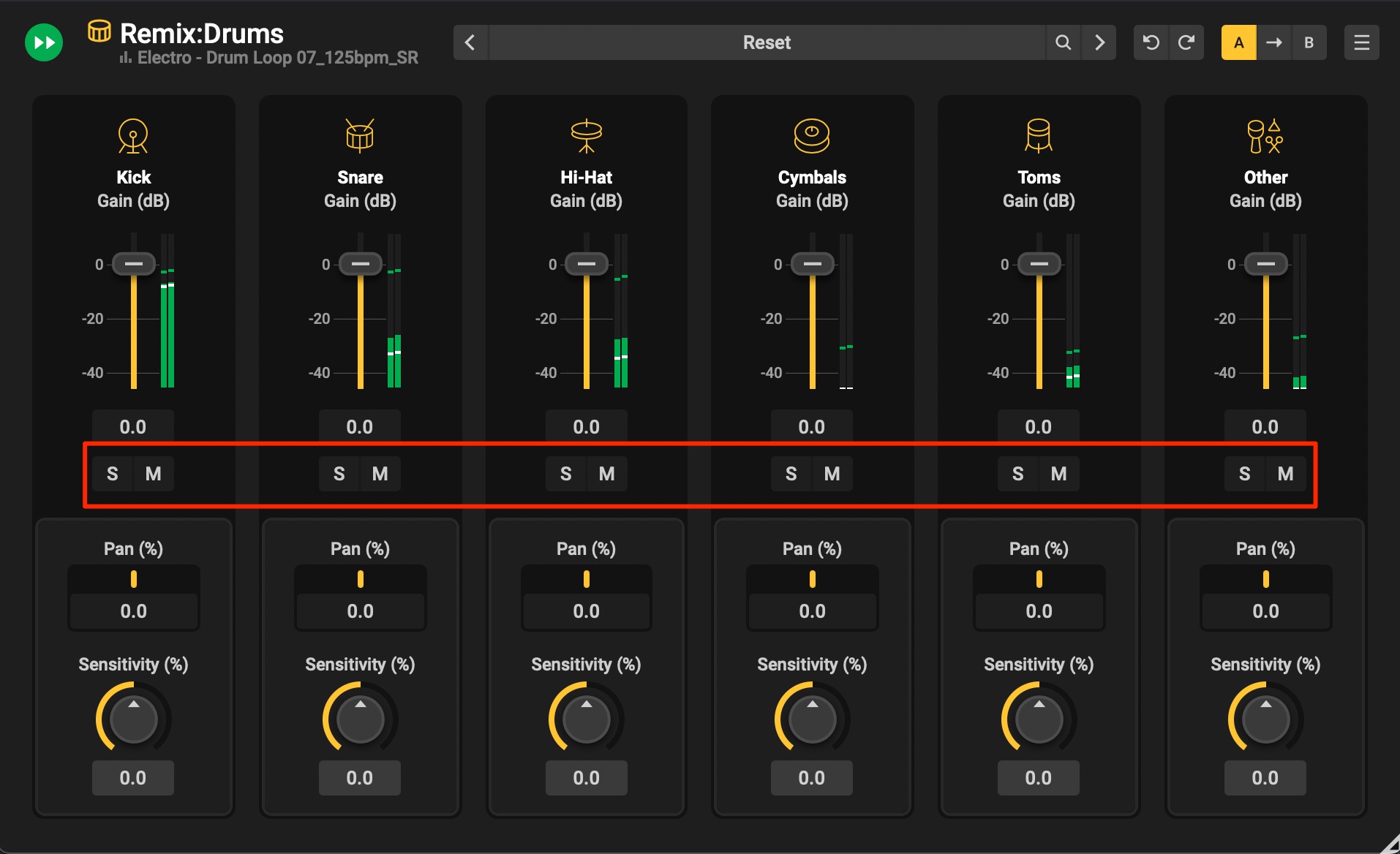
The drum elements are automatically separated as soon as you apply the plug-in, with impressive accuracy right from the start.
Use the mute and solo buttons to isolate or remove the elements you want.
Customize Naturally with Volume and Panning
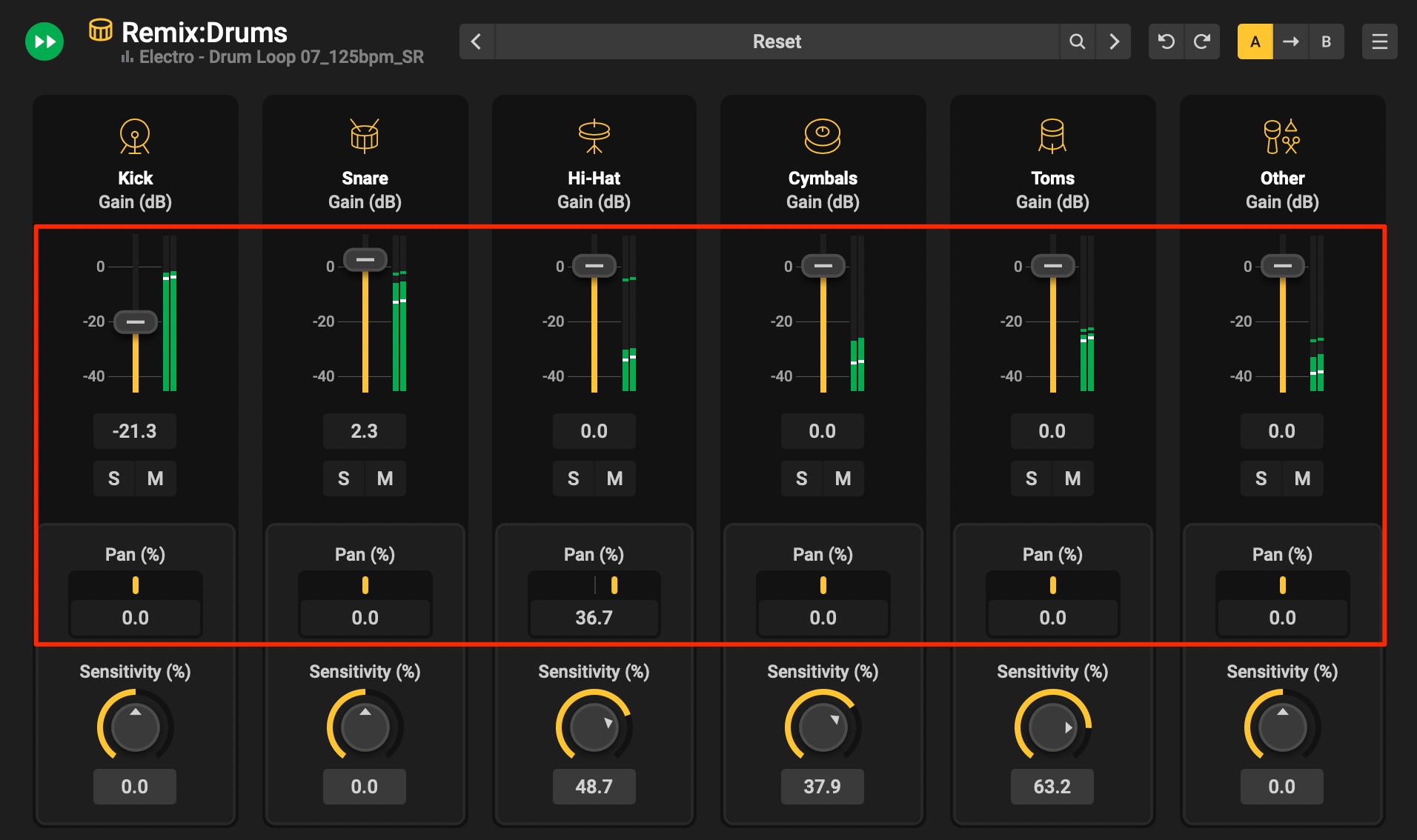
You can also adjust the volume and panning of each drum element.
The changes sound very natural, making these controls useful for adapting a loop to your song.
Adjust Each Element's Sensitivity
If the drum elements are not separated correctly,
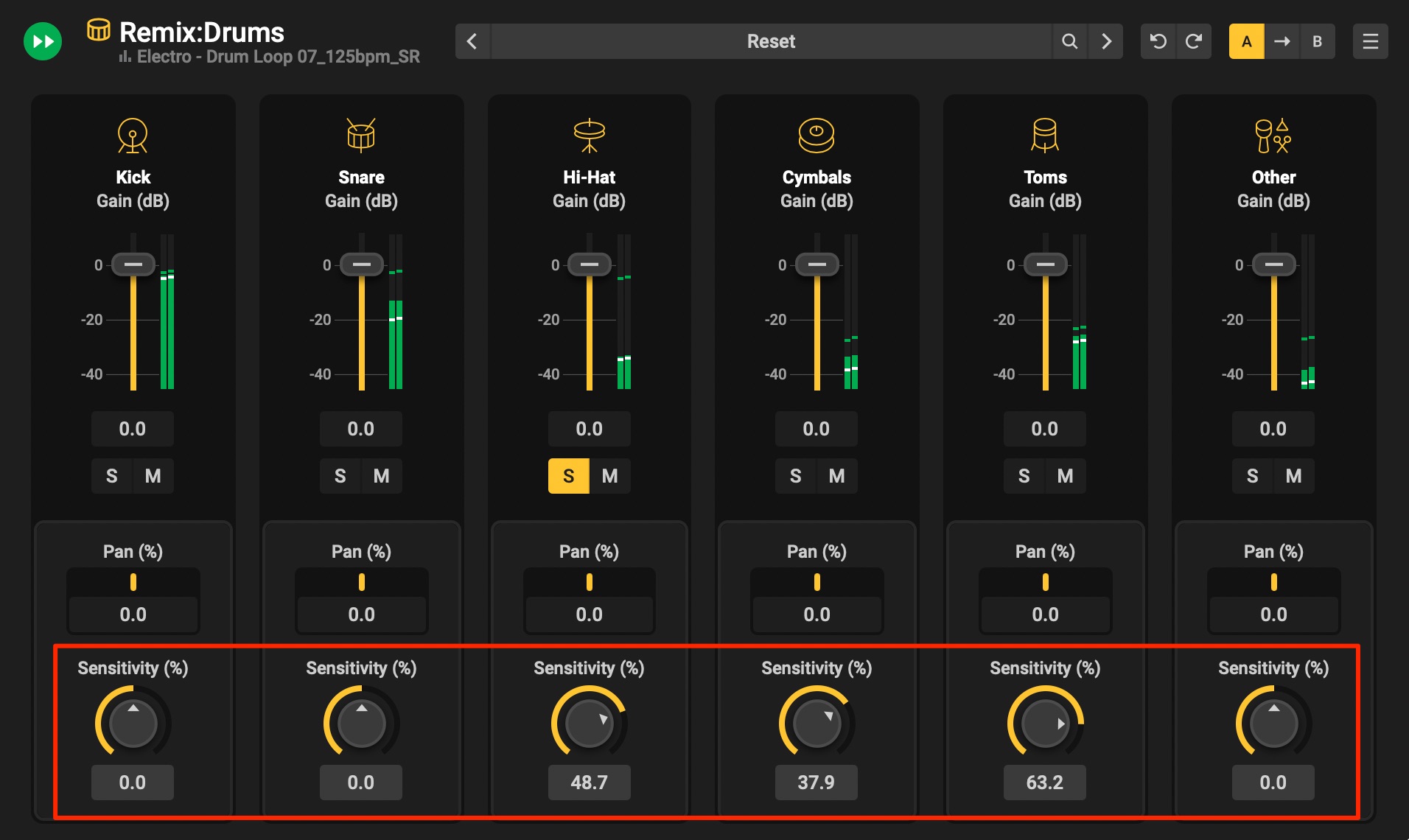
adjust Sensitivity
. Play the loop while adjusting it to find the setting that works best.
Separate Outputs for Individual Elements (Pro Tools Support)
Pro Tools supports routing each drum element to a separate output.
After loading Remix:Drums on the source track, add an aux track.
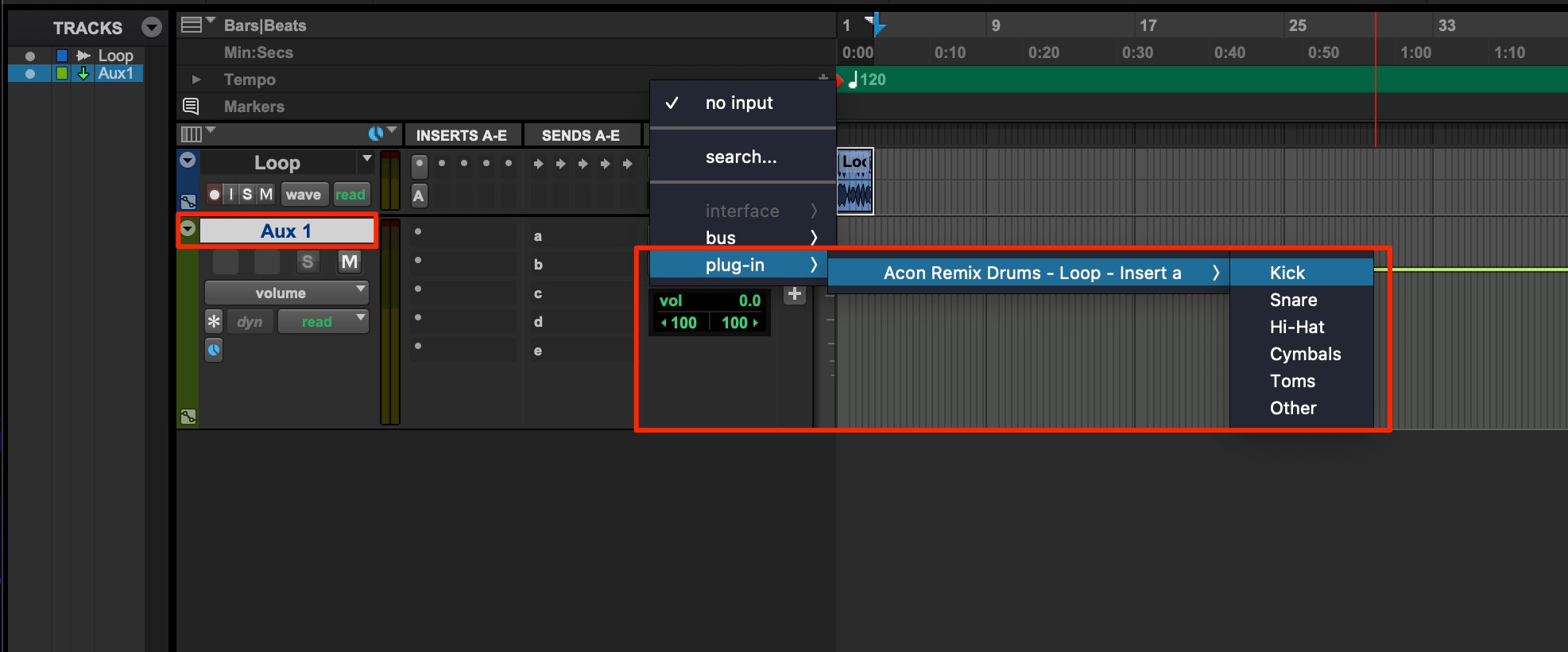
The drum elements from Remix:Drums appear among the aux track's audio input options. Simply select the element you want.
Add as many aux tracks as you need and assign one drum element to each.
What did you think?
This much-discussed product delivers excellent detection and ease of use.
Some loops require sensitivity adjustments, but the ability to change volume and panning within a loop is a major breakthrough. It gives you flexibility to fit existing material to a song in ways that would otherwise be difficult.
If you use rhythm loops often, it can expand your production options considerably, so be sure to take a look!
Frequently Asked Questions
Q1. Does Remix:Drums work with every kind of loop?
It supports most drum and rhythm loops, but some types of loop may need Sensitivity adjustments. Play the loop while finding the best sensitivity setting to achieve accurate detection.
Q2. Can I use separate outputs in DAWs other than Pro Tools?
Separate outputs are supported in Pro Tools, where you can route each drum element to an individual aux track. Other DAWs do not support this feature, so check compatibility before using it.
Q3. How can Remix:Drums benefit my production workflow?
It lets you customize loops in ways that were previously difficult, such as removing the kick, adjusting an individual instrument's volume, or changing its panning. This greatly expands how you can use existing material.
NEW ARTICLES
Latest English Articles






































