
This article explains how to prepare master files for CD pressing. DDP, or Disc Description Protocol, includes track information and spacing between tracks, providing a delivery format that replaced the CD-R and DAT workflows described here. Creating a DDP image from 44.1 kHz/16-bit WAV files in mastering software such as WaveLab involves several careful steps: fading to silence, setting track gaps (two seconds in this example), checking file names, and finally compressing and verifying the ZIP archive. Mastering includes not only tonal adjustments, but also the practical preparation of data for a CD release.
Exporting a DDP Image for CD Pressing
This is the final installment of our series on mastering for CD production.
We will explain how to create the master files—a DDP image—to deliver to a CD pressing plant.
What Is a DDP Image?
DDP stands for Disc Description Protocol. Rather than being an individual audio file such as a WAV, it is a set of disc data that includes track names, text information, and the gaps between tracks.
In earlier workflows, masters were delivered to pressing plants on CD-R or DAT (Digital Audio Tape). By the time of this tutorial, DDP had become a common delivery format.
Here, we will export the two songs we have mastered as a DDP image.
Organizing the Folders
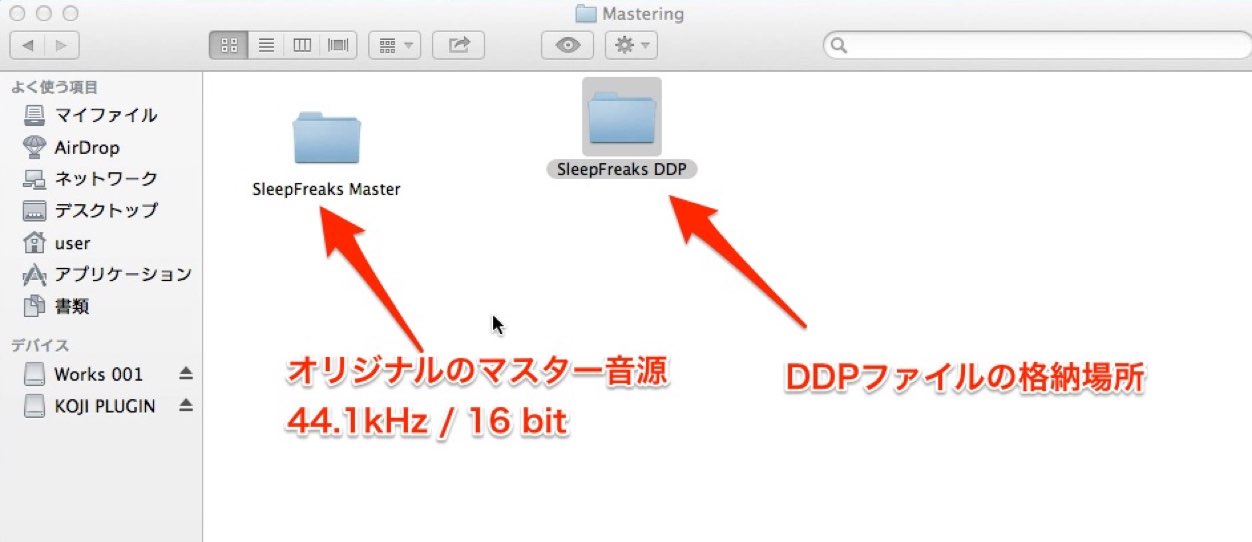
Create two separate folders so you can distinguish the mastered audio files from the files you will send to the pressing plant.
The delivery format for the pressing plant in this example is the DDP image described above.
Exporting for CD Pressing
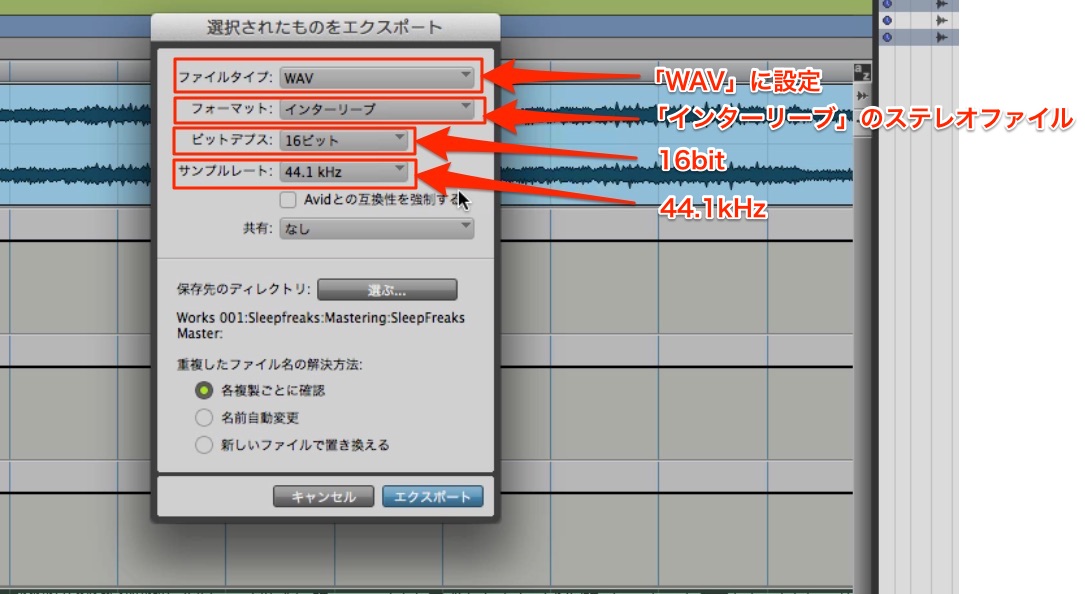
First, export the files from your DAW.
For this CD pressing workflow, export WAV files at 44.1 kHz/16-bit.
When converting from the sample rate and bit depth of your DAW project to the delivery format, be sure to apply dithering when reducing the bit depth.
We have separate articles on dithering in each DAW.

 Logic
Logic Cubase
 Studio One
 FL Studio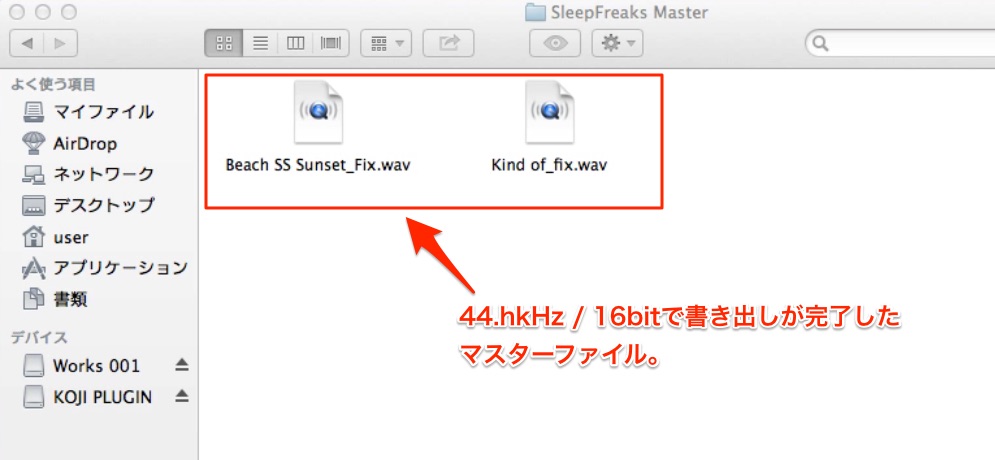
Export to the master-audio folder you created above, as shown here.
Loading the Songs into Mastering Software
To create a DDP image from the song files, we will use Steinberg’s WaveLab, a waveform-editing and mastering application.
WaveLab Tutorial, Part 5: Creating a DDP Image for CD Pressing
Selected Questions and Answers from the YouTube Video

When delivering a DDP image, should all characters entered in the TOC be half-width characters?

Using half-width Latin letters and numbers is recommended, because some players may not display full-width characters or symbols correctly.

Another DAW with DDP export functionality is Studio One.
The basic steps explained here are similar even when using a different application.
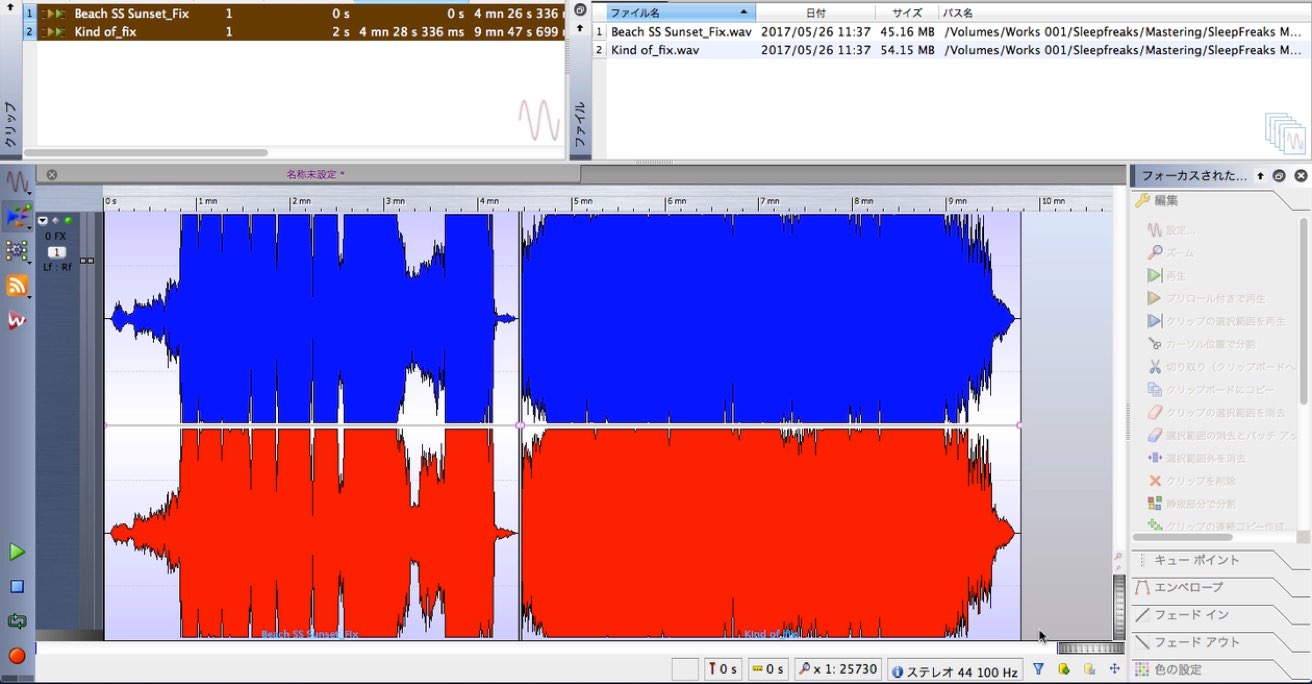
Load the songs into WaveLab as shown here.
Adding Fades at the Start and End of Each Song
When compiling several songs into an album, pay careful attention to how each intro begins and each outro fades away.
Otherwise, a little noise may remain, or the audio may end abruptly.
To avoid this, apply fades that bring the audio all the way down to silence.
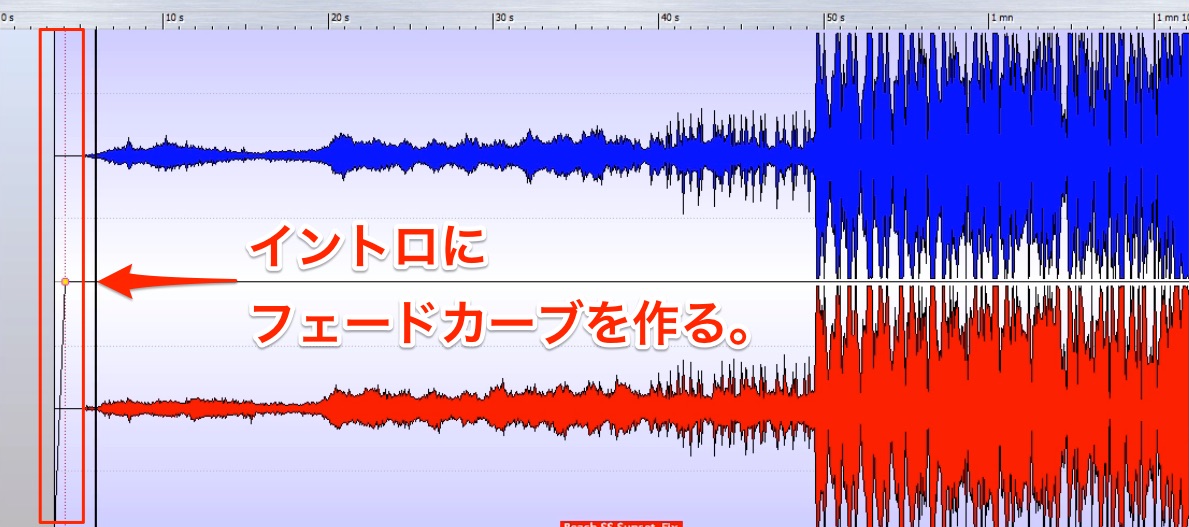
First, draw a fade curve at the beginning.
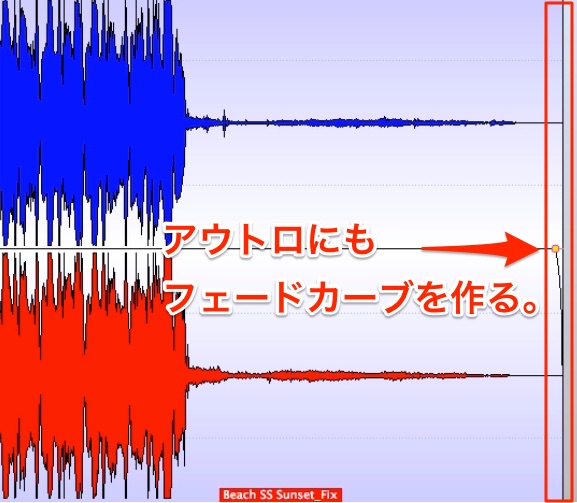
Draw a fade curve at the end as well.
Adjusting the Gaps Between Tracks
Next, set the spacing between songs—the track gaps.
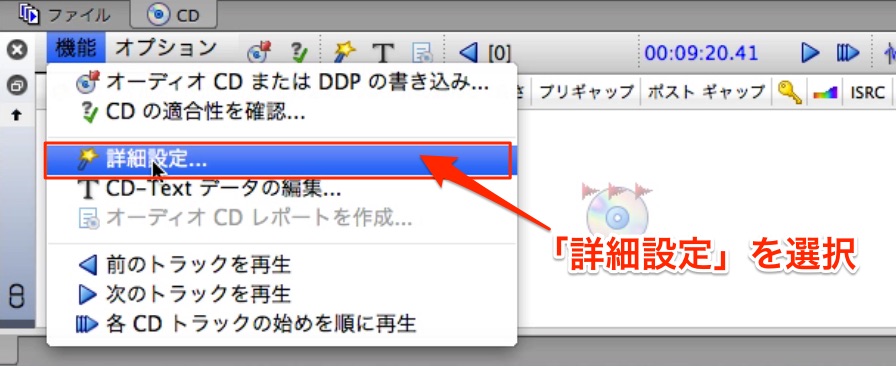
In WaveLab, use the pause-before-each-track setting to adjust the gaps.
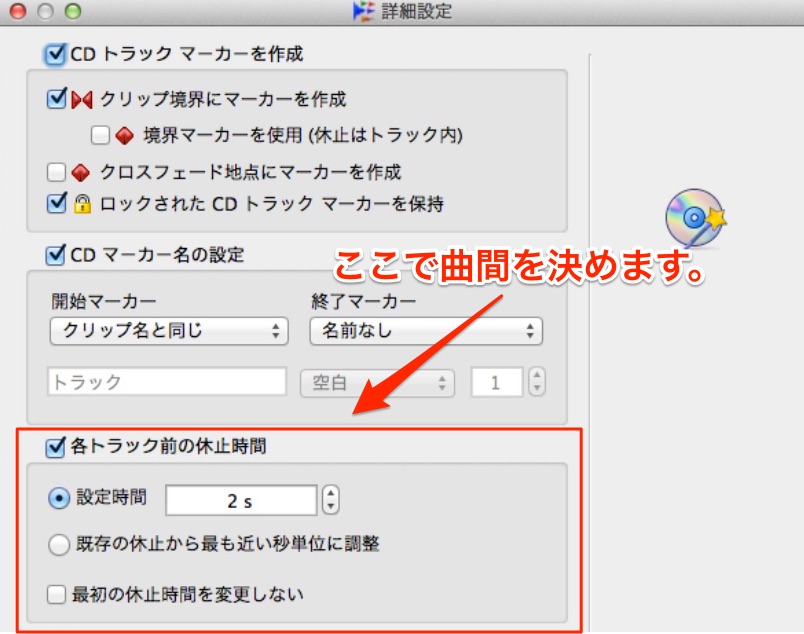
For this example, we chose a conventional two-second gap.
Entering the Final File Names
If you have been using temporary file names, change them to the final song titles at this point.
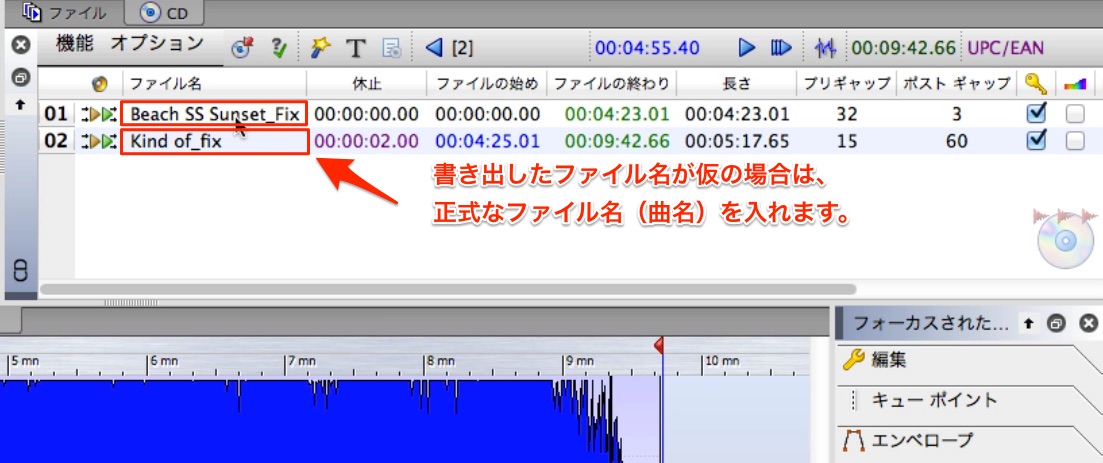
Check the names carefully as you enter them.
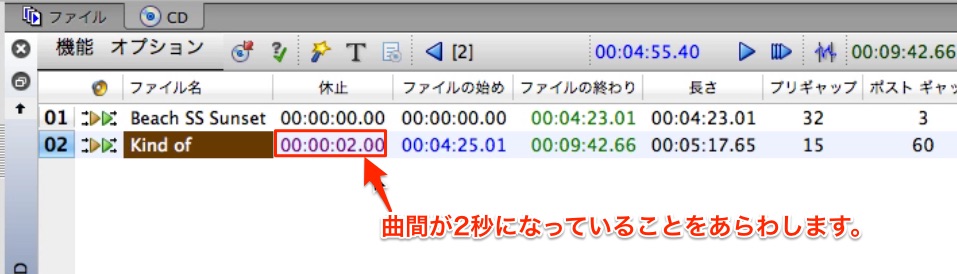
Check the track gaps at the same time.
Exporting the DDP Image
Once these preparations are complete, proceed to DDP export.
Click the CD button to open the “Write Audio CD or DDP” dialog shown in the screenshot.
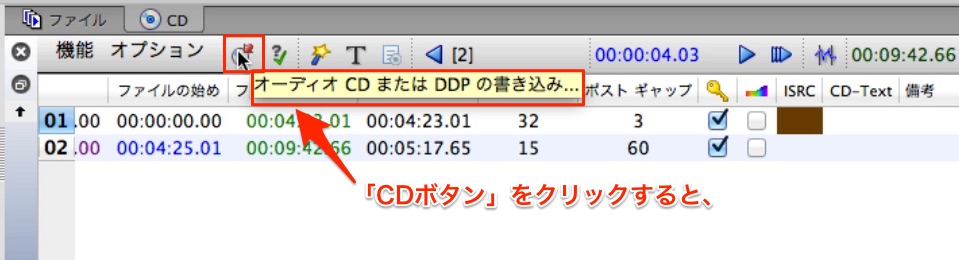
Clicking the CD button opens the “Write Audio CD or DDP” dialog.
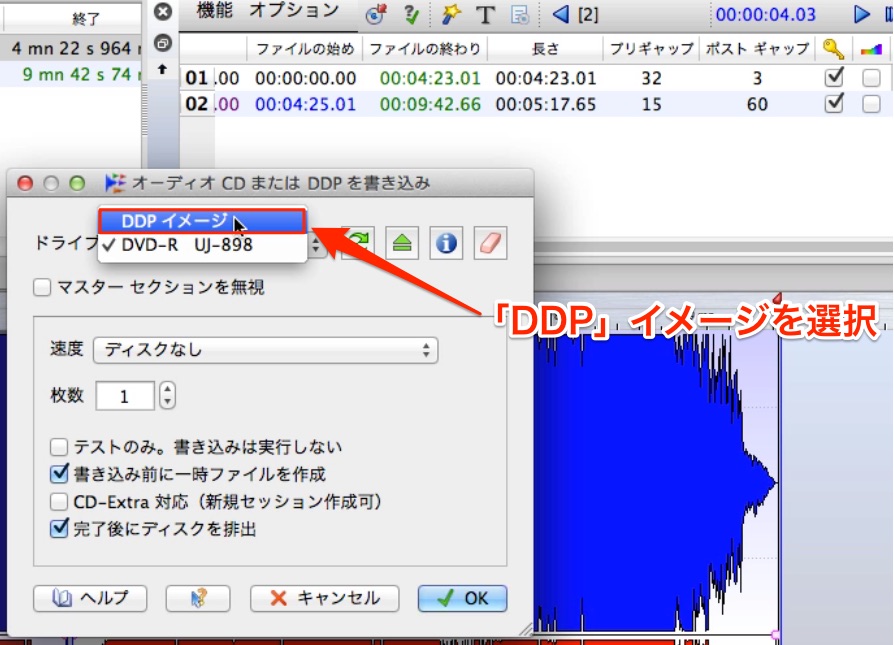
Set Drive to “DDP Image,” then export to the DDP folder you created at the beginning.
Final Checks on the DDP Files
The DDP image has now been created, but there are a few final checks to make.
Open the DDP folder and look at the files inside.
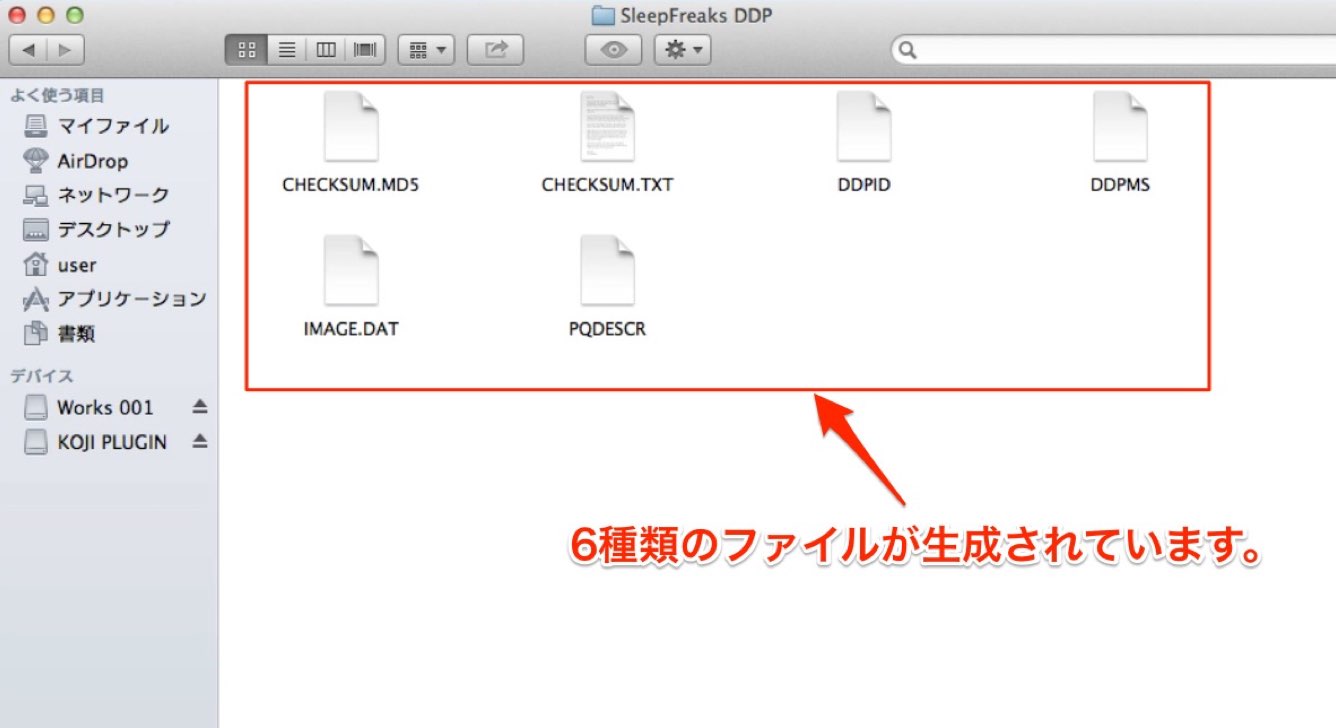
Together, these files make up the DDP image. Check for errors, such as any files that were not generated.
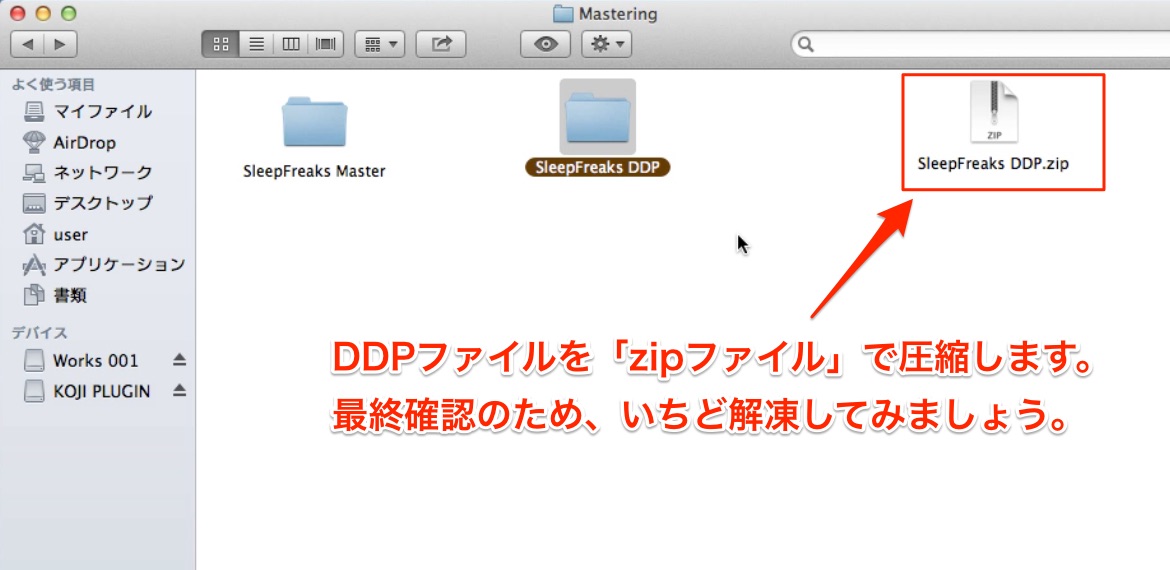
Finally, compress the folder into a ZIP archive.
After compression, extract the ZIP archive once to double-check that there are no problems.
That completes the process.
Final Thoughts
How did you find this series on mastering for CD production?
Mastering includes not only adjusting sound quality, but also preparing the data required to produce a CD, including track spacing and delivery files.
The sound-processing approach demonstrated in this series will not suit every song in exactly the same way.
Keep in mind that a hundred songs may call for a hundred different approaches to effects, loudness, and track spacing, each suited to the music.
Take on the challenge with the aim of mastering hundreds of songs, including your practice projects!
Thank you for reading to the end.
Frequently Asked Questions
Q1. How does a DDP image differ from a WAV file?
A WAV file provides the audio for a song, whereas a DDP image contains disc-level information such as track names, text, and track spacing as well as the audio. DDP was the common formal delivery format for CD pressing plants described in this tutorial.
Q2. What format should I export for CD pressing?
The standard audio format used here is 44.1 kHz/16-bit WAV. When converting the project to these delivery settings, apply dithering when reducing the bit depth to minimize quantization artifacts.
Q3. How long should the gaps between tracks be?
Two seconds is a conventional starting point for album track gaps. Adjust the pause before each track in WaveLab to set appropriate spacing between songs.
Q4. What should I check after creating the DDP image?
Check that all files in the DDP folder were generated correctly, then compress the folder into a ZIP archive. Extract the archive once afterward to double-check that there are no problems.
NEW ARTICLES
Latest English Articles
















































































































































































































































































































