
This article explains how to build a real-time Future Bass performance in Ableton Live. Learn how to divide tasks among MIDI controllers—Launchpad, MIDI Fighter Twister, LPD8, and MIDI Fighter64—play several tracks simultaneously from one device using Drum Rack and Instrument Rack, and configure key zones and MIDI effects such as Scale and Pitch. These practical techniques let you create an expressive live performance using software instruments and effects rather than hardware sound generators and effects units.
Real-Time Performance with Ableton Live
“Real-Time Live Performance with Ableton Live” is a three-part series.
Three Sleepfreaks instructors perform with Ableton Live, then introduce and explain the distinctive features and custom settings used in their performances.
In part two, Miyakawa explains a performance that layers tracks through live looping using a variety of MIDI controllers.
Real-Time Live Performance: Future Bass
Overview of the Performance
Here, we will look at selected key features to explain how the system behind this live performance works.
Let’s begin with the setup at the start of the performance.
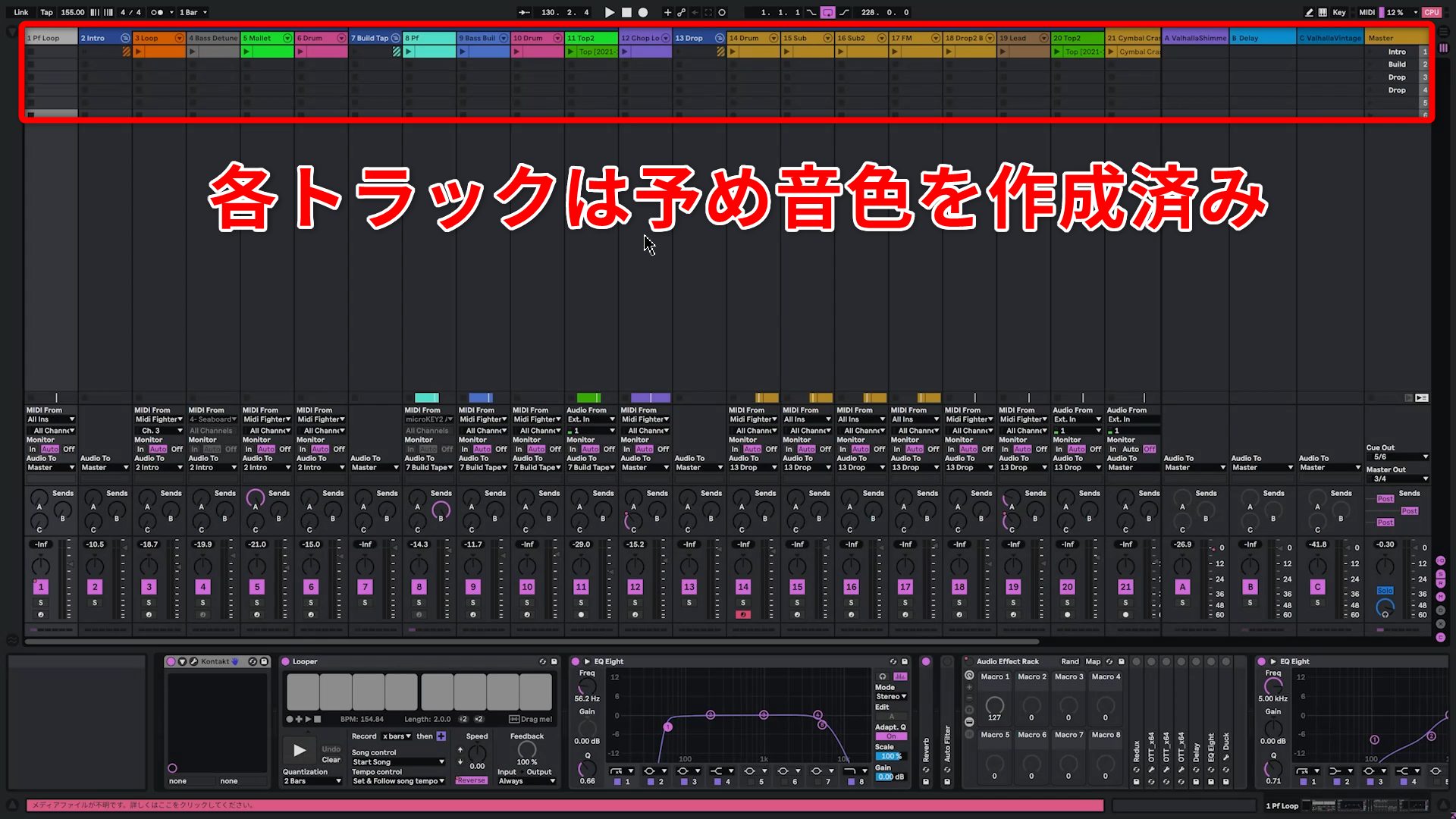
The performance uses Ableton Live’s Session View. Sounds for the drum, bass, and other tracks to be played have already been prepared.
No hardware sound generators or effects units are used: all instruments and effects are software, including Live’s built-in instruments and VST plug-ins.
Using several MIDI controllers, these tracks are played, recorded, and processed one after another to build the piece.
Equipment and Its Roles
A variety of MIDI controllers are used, including MIDI keyboards, pad controllers, and MPE controllers. The following devices form the core of the performance.
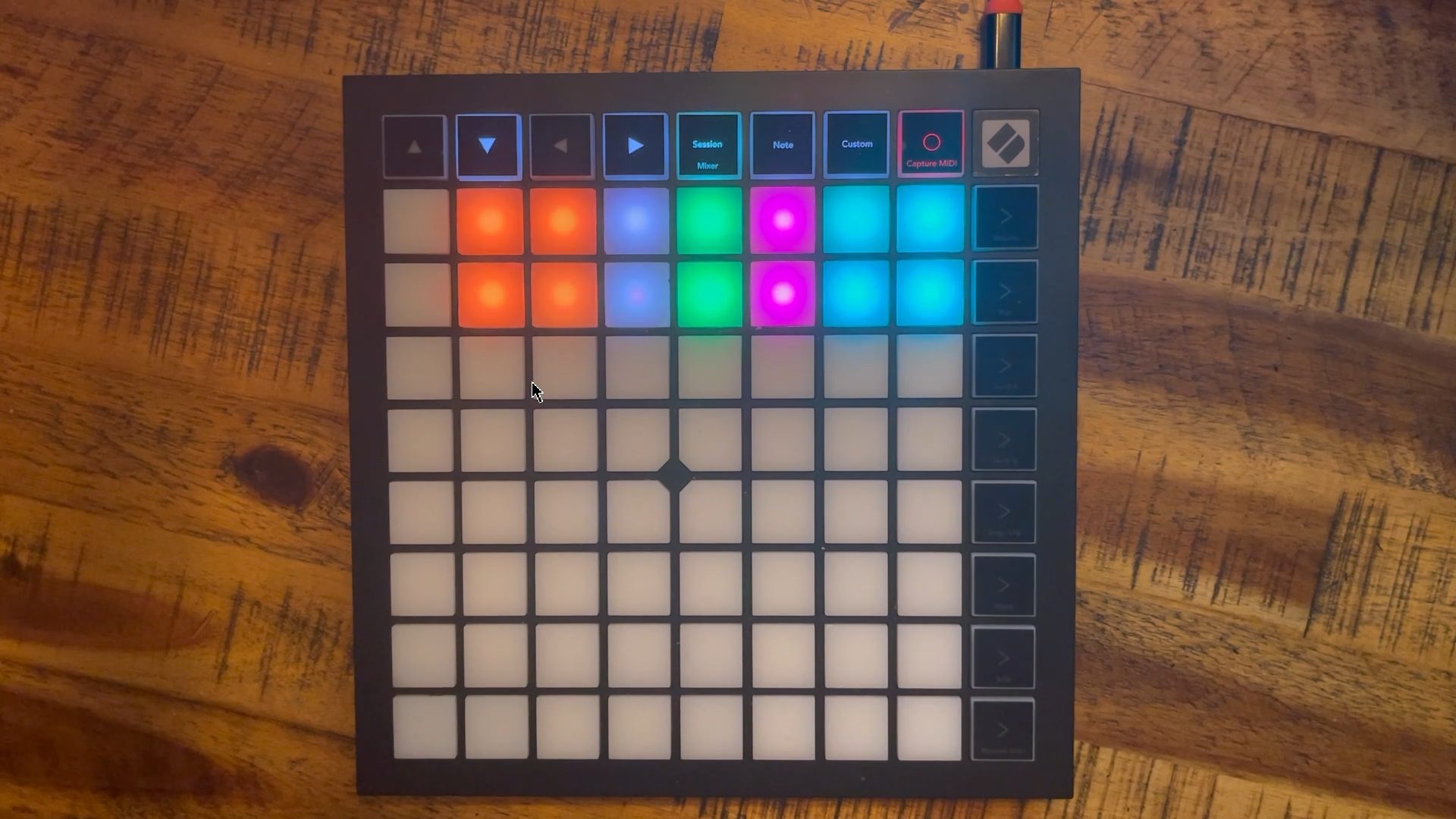
Launchpad, a dedicated Live controller, controls clip recording and playback on individual tracks.
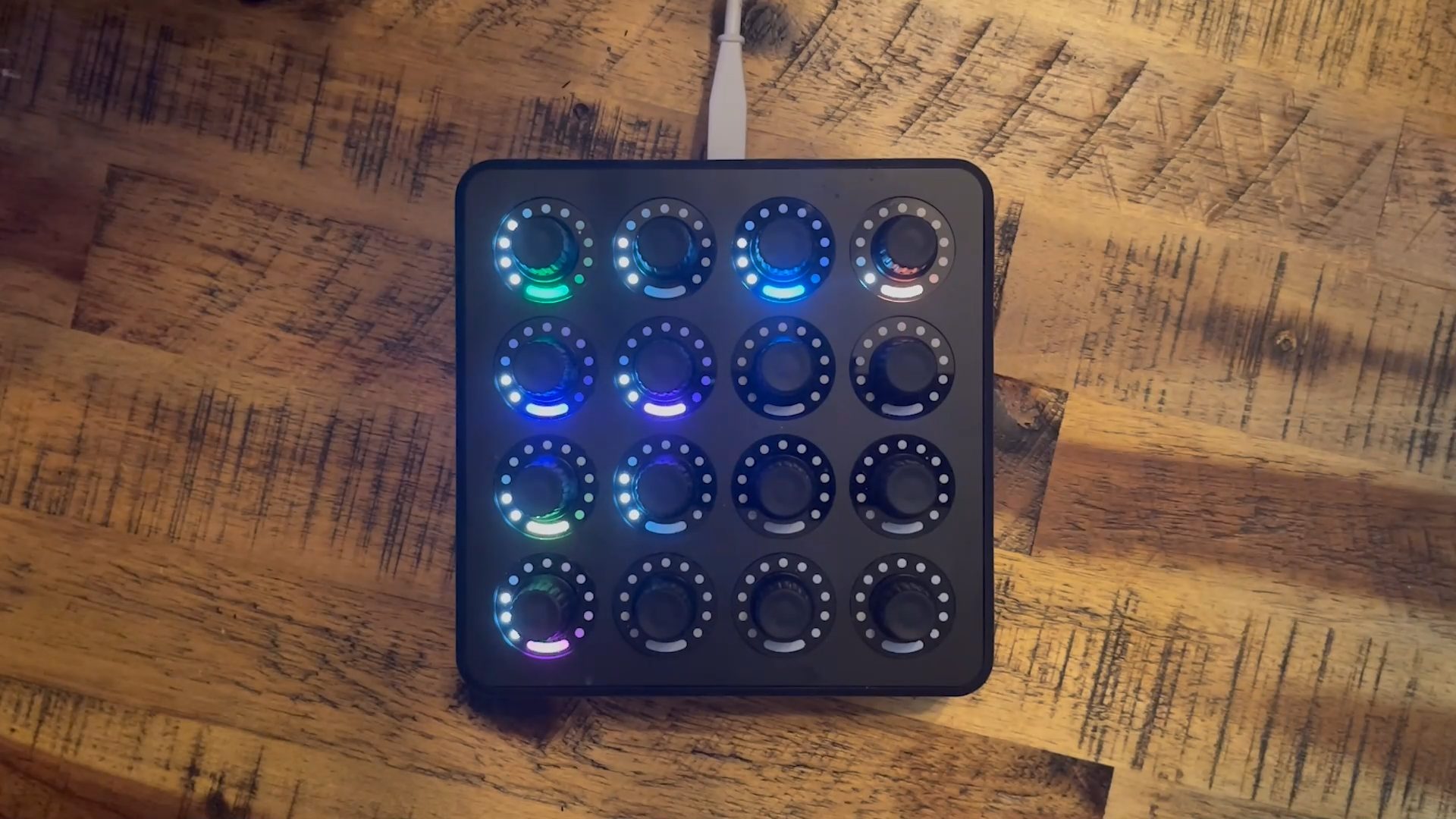
MIDI Fighter Twister controls effects.
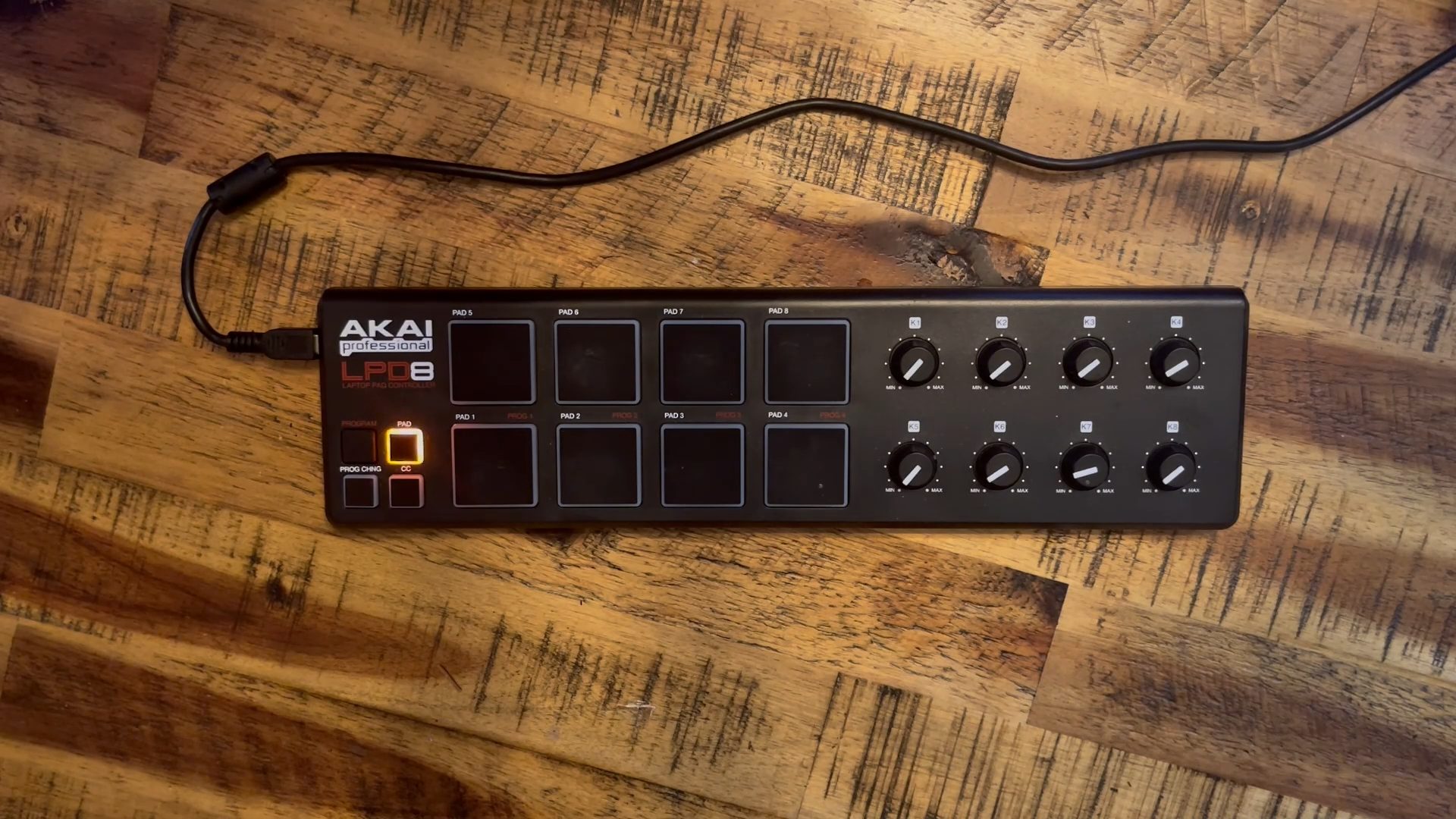
LPD8 controls Looper at the beginning of the performance and stops clips at the end.
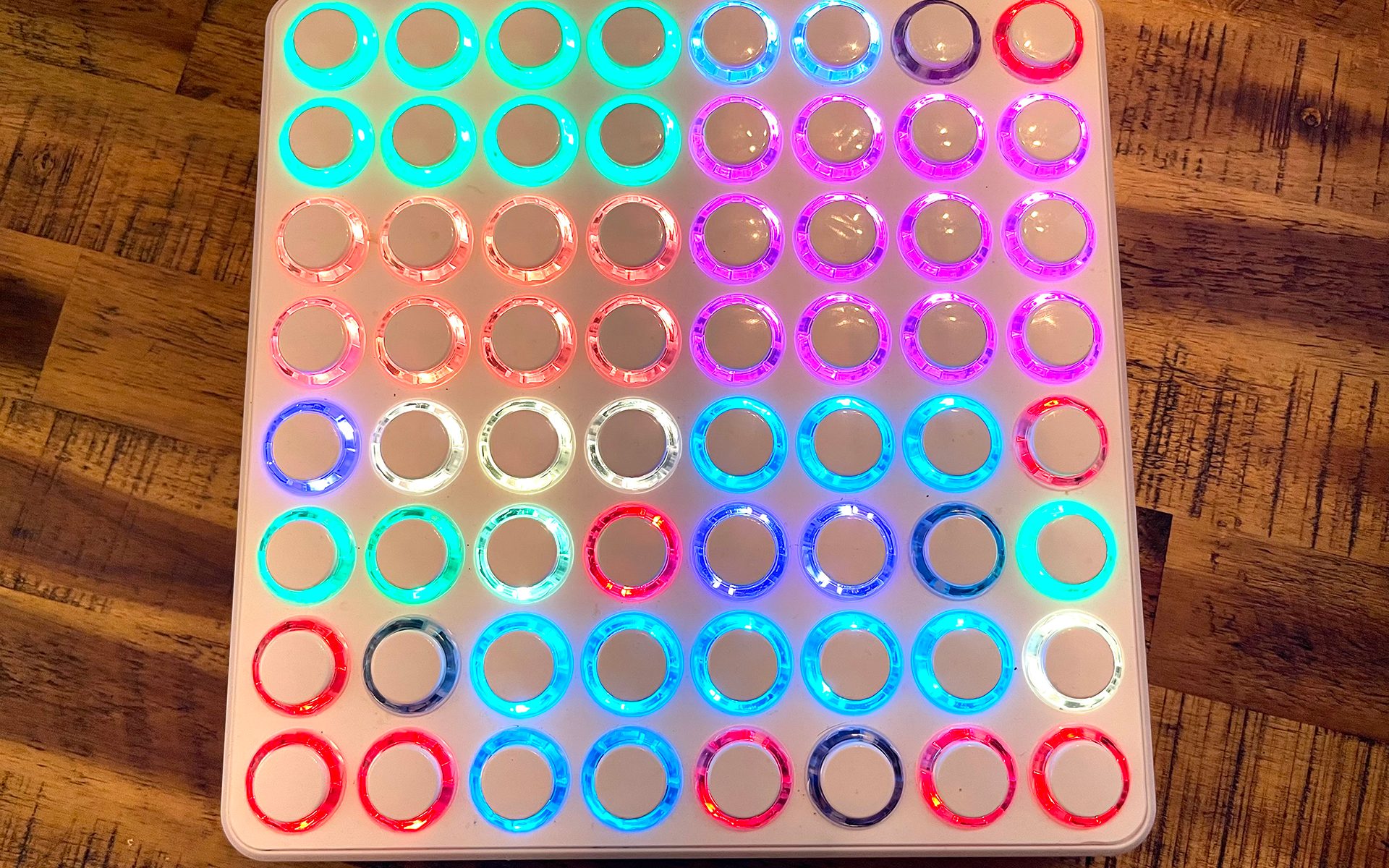
MIDI Fighter64 handles many tasks, from playing instruments to changing effect settings and controlling clips.
Tasks are divided among these devices to make them easier to control.
Next, we will look at the actual settings and operations on MIDI Fighter64, the device that handles the widest range of tasks in this setup.
Playing Multiple Tracks with One MIDI Device
First, let’s briefly introduce MIDI Fighter64.
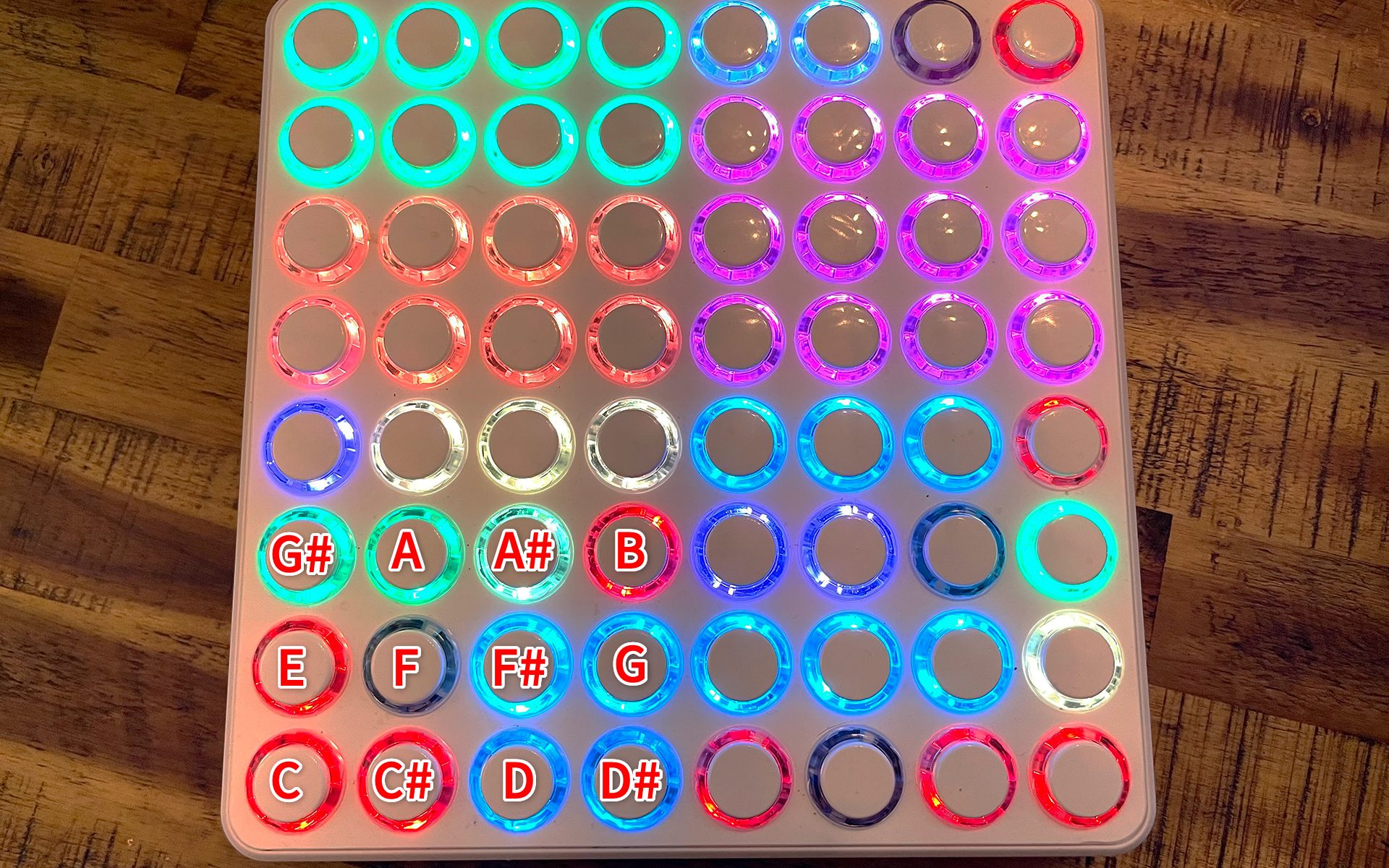
Like a typical MIDI keyboard or pad controller, MIDI Fighter64 is a performance device whose pads are assigned MIDI notes in chromatic order.
This single device plays a variety of tracks during the performance. In the drop, it plays four tracks simultaneously: one drum track and three bass tracks.
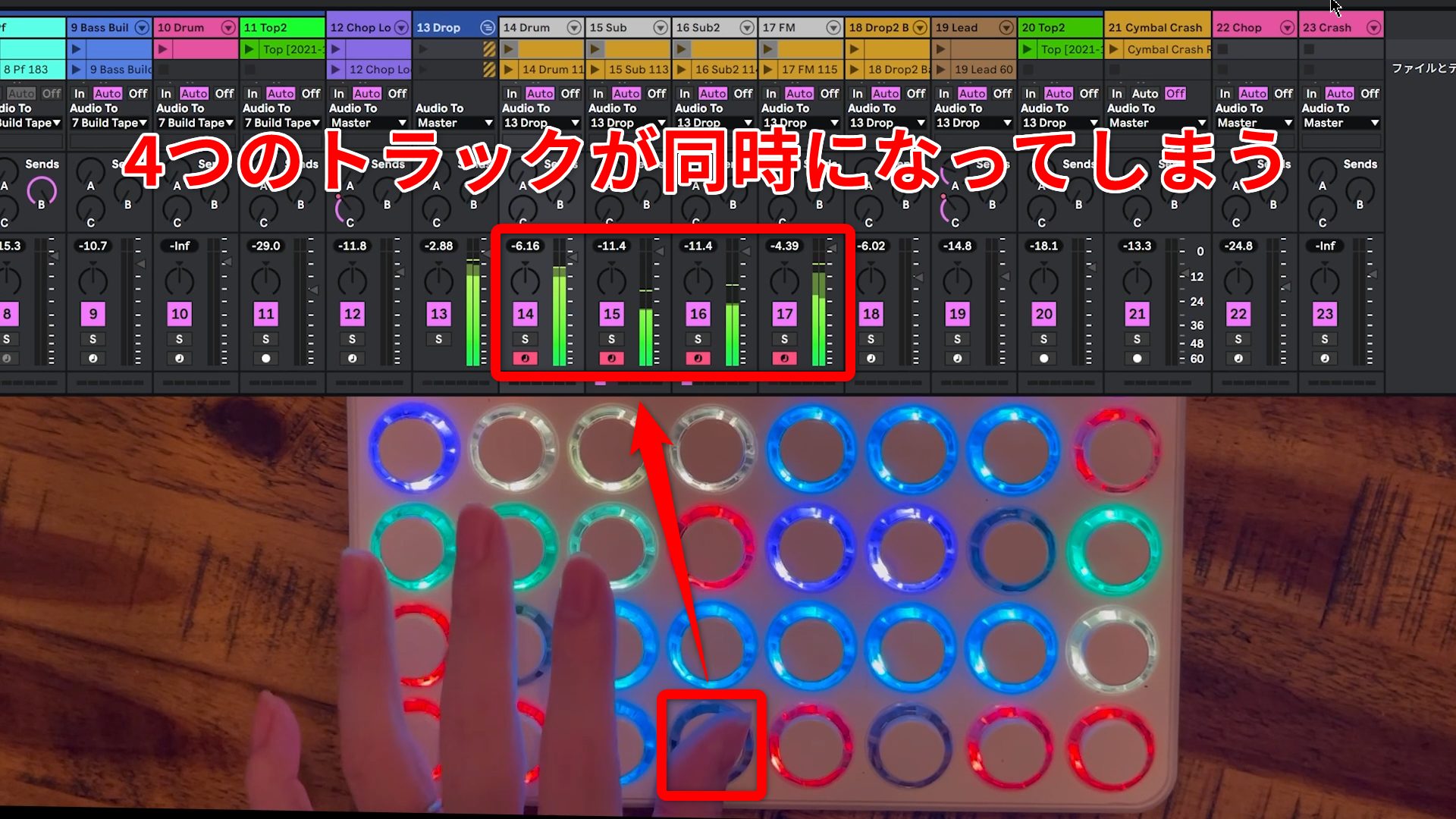
Normally, when you try to play several tracks simultaneously from one MIDI controller, all of the tracks respond together, preventing you from playing them individually.
Ableton Live’s Drum Rack and Instrument Rack let you use separate pads to play them independently.
Setting Up Drum Rack
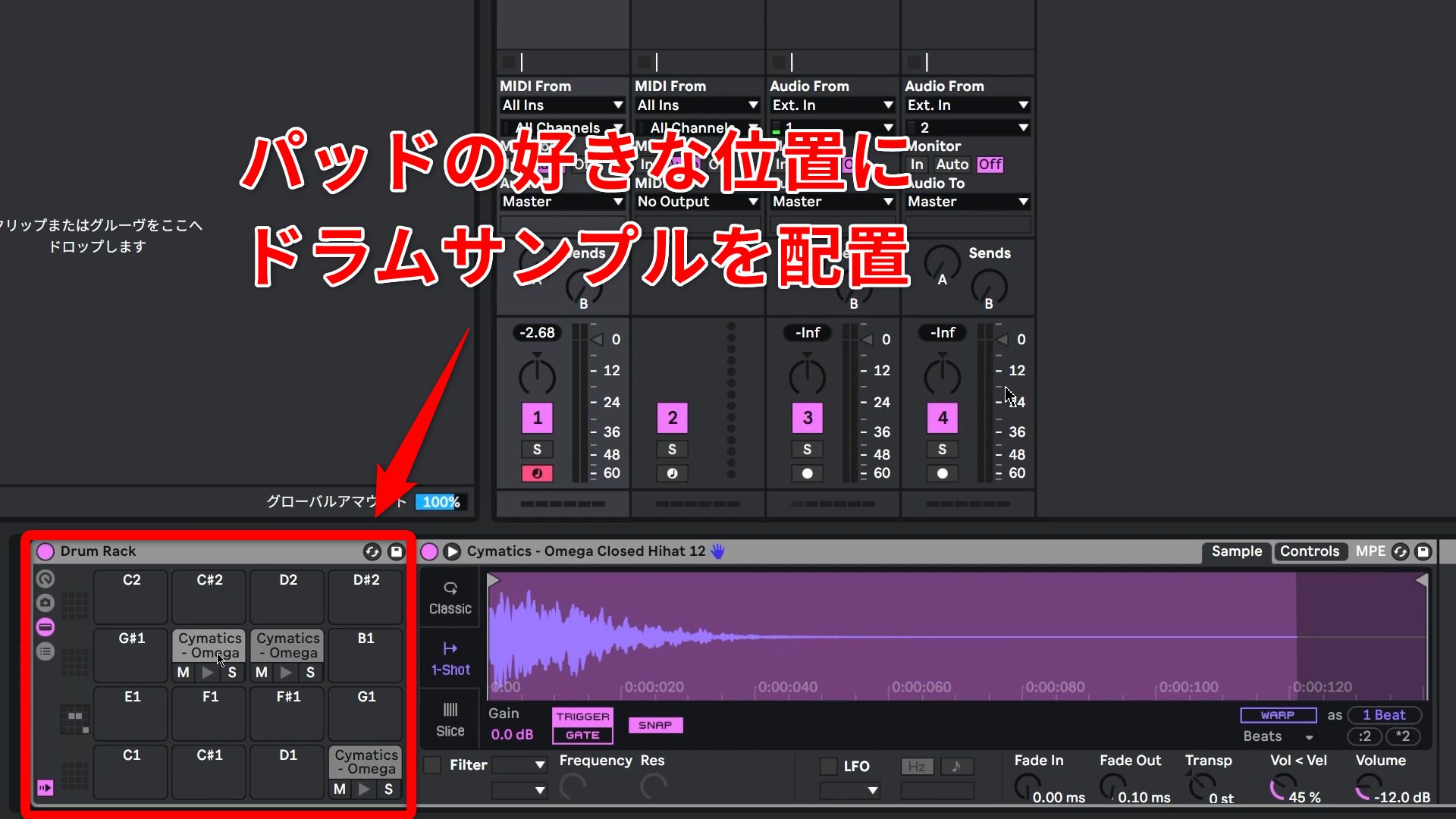
First, load the kick, snare, and hi-hat sounds into Drum Rack at the pad positions you want to use for each sound.
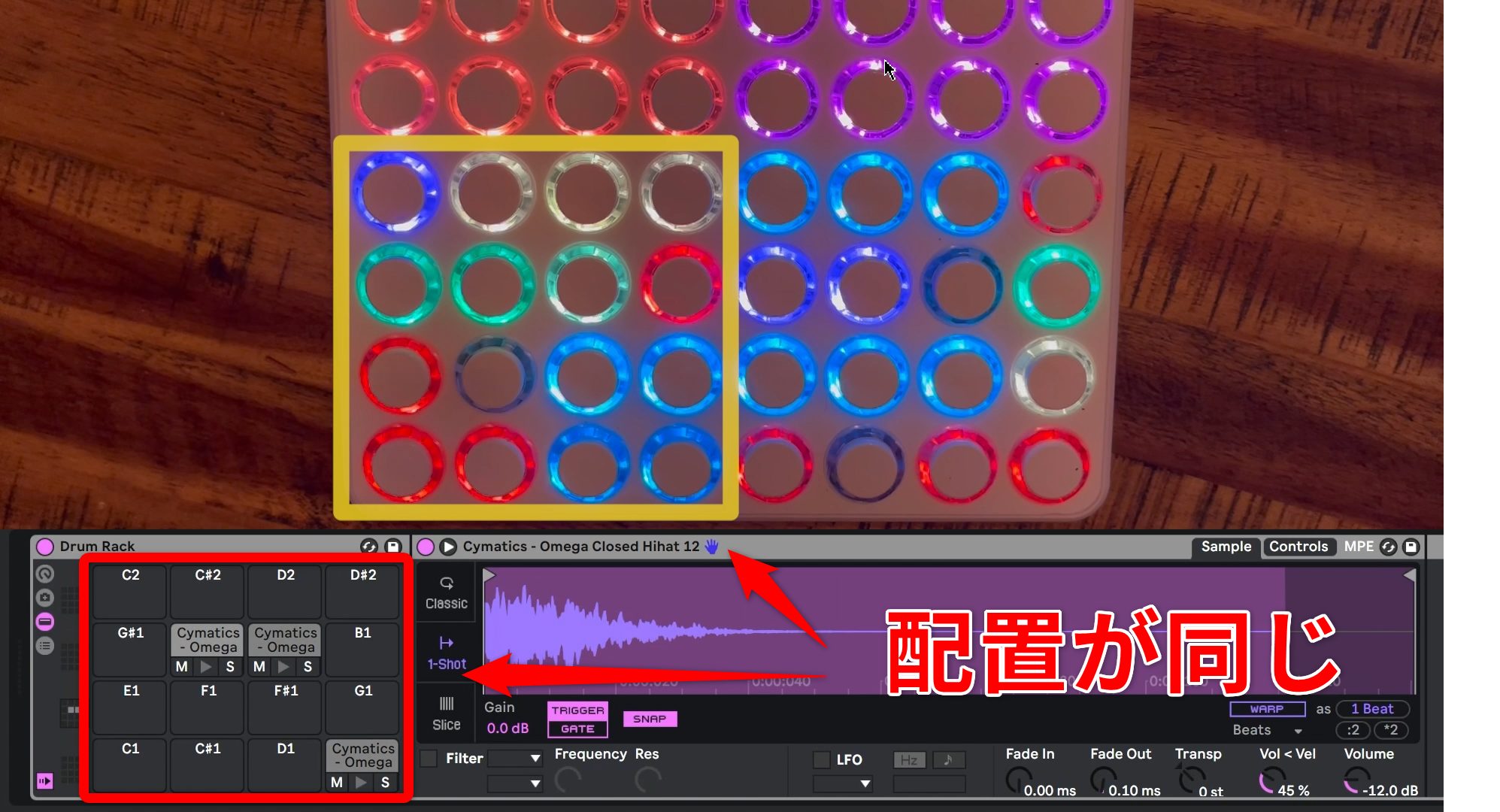
Both Drum Rack and MIDI Fighter64 arrange notes chromatically in rows of four pads, so their pad positions correspond.
Setting Up the Bass Tracks
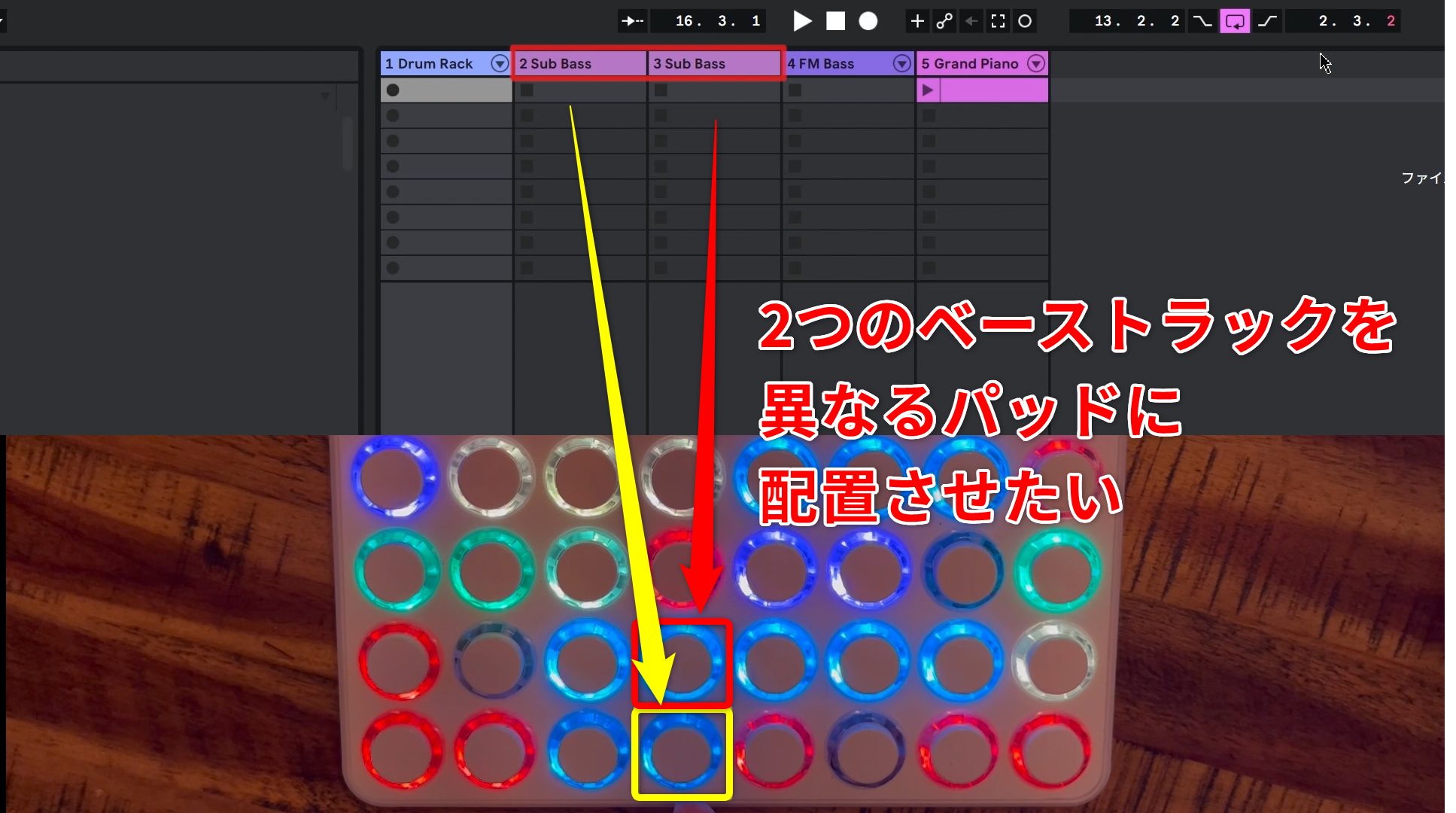
Next are the three bass tracks. For the two sub-bass tracks, the aim is to play one from the same pad as the kick and the other from the pad directly above the kick.
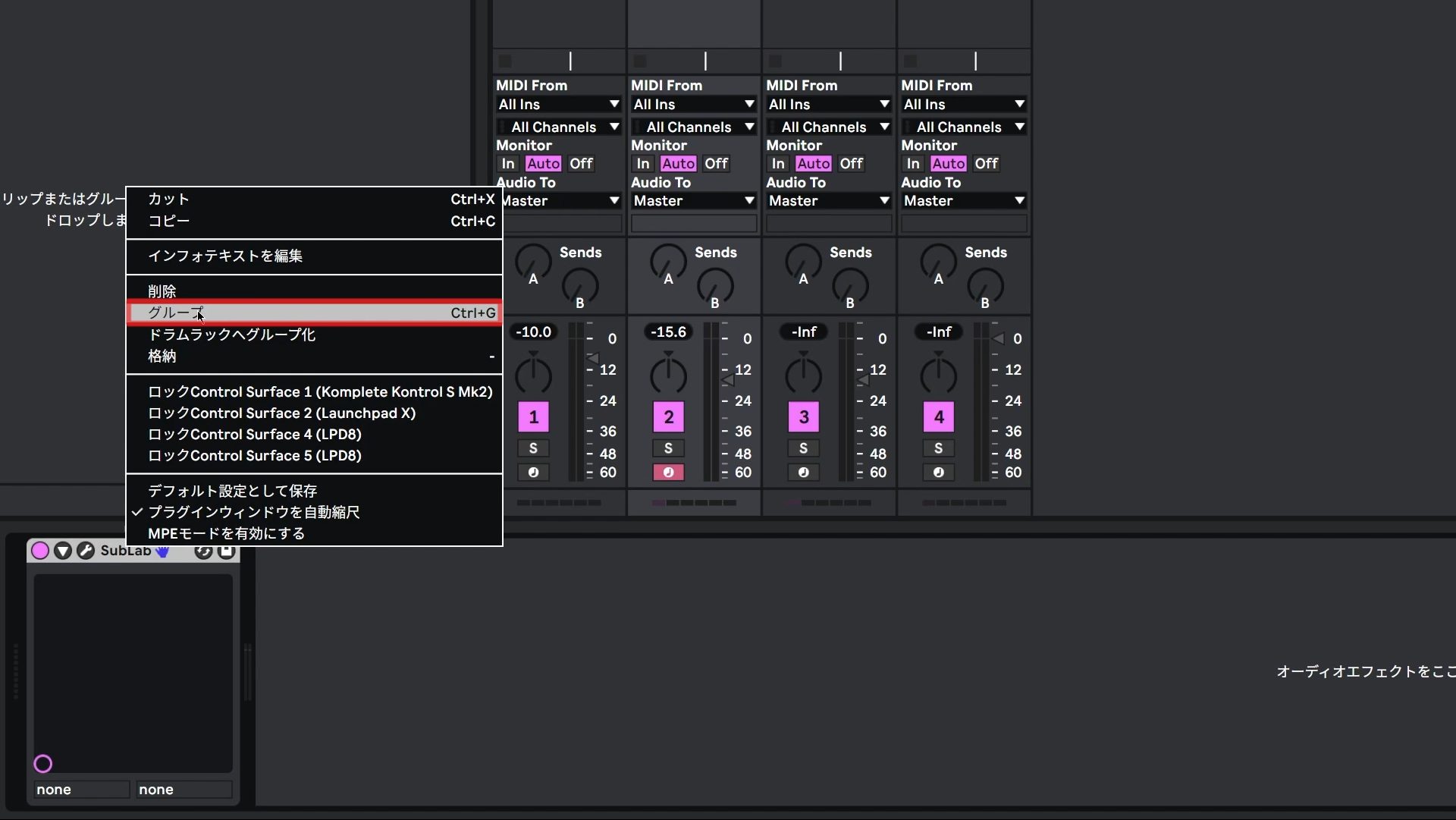
To do this, first use Group on the instrument in each bass track.
This places the instrument inside an Instrument Rack.
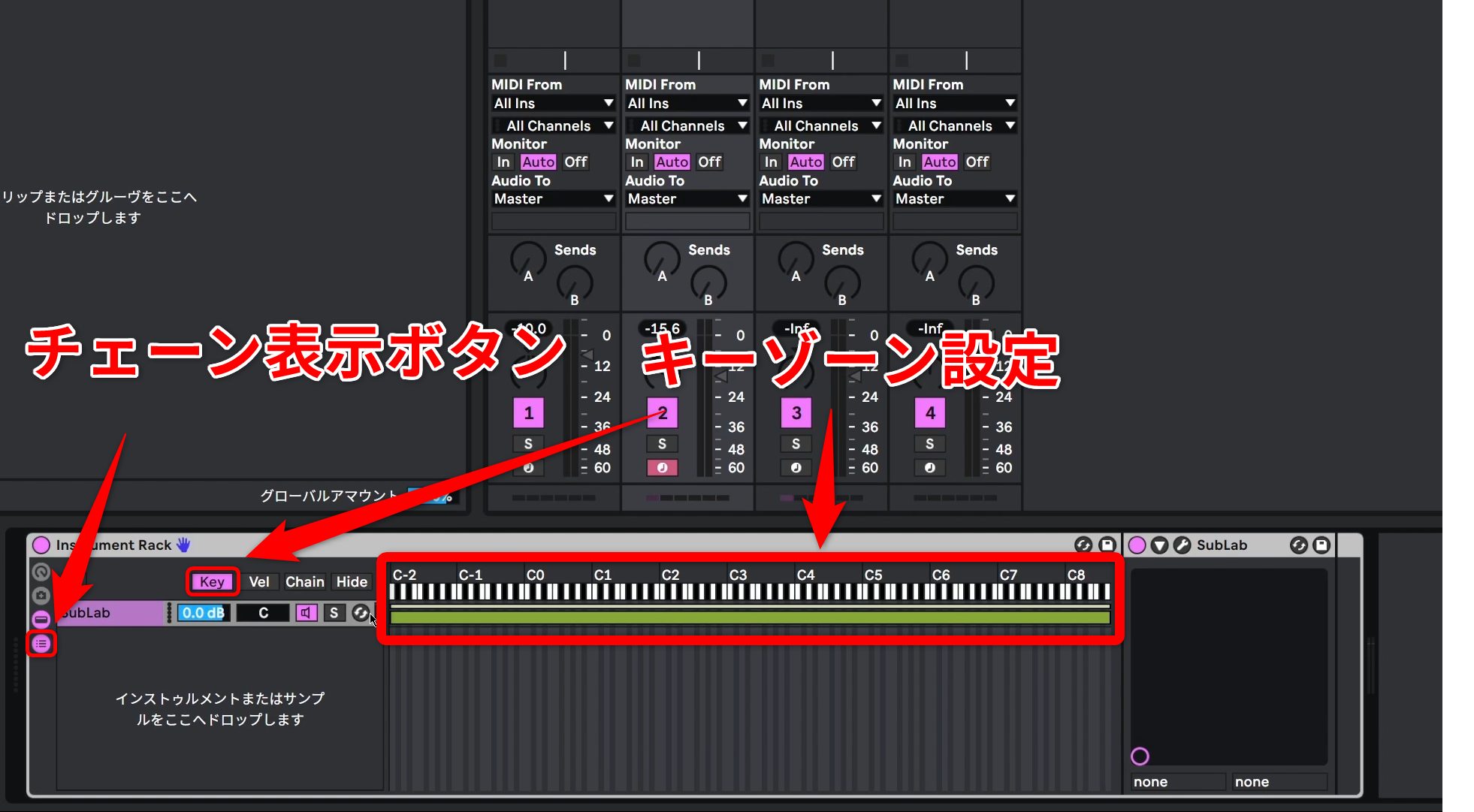
Placing an instrument inside one of Live’s rack devices, such as Instrument Rack, gives you access to chains.
The Key Zone settings shown for a chain let you specify the range of notes that can play the instrument inside the rack.
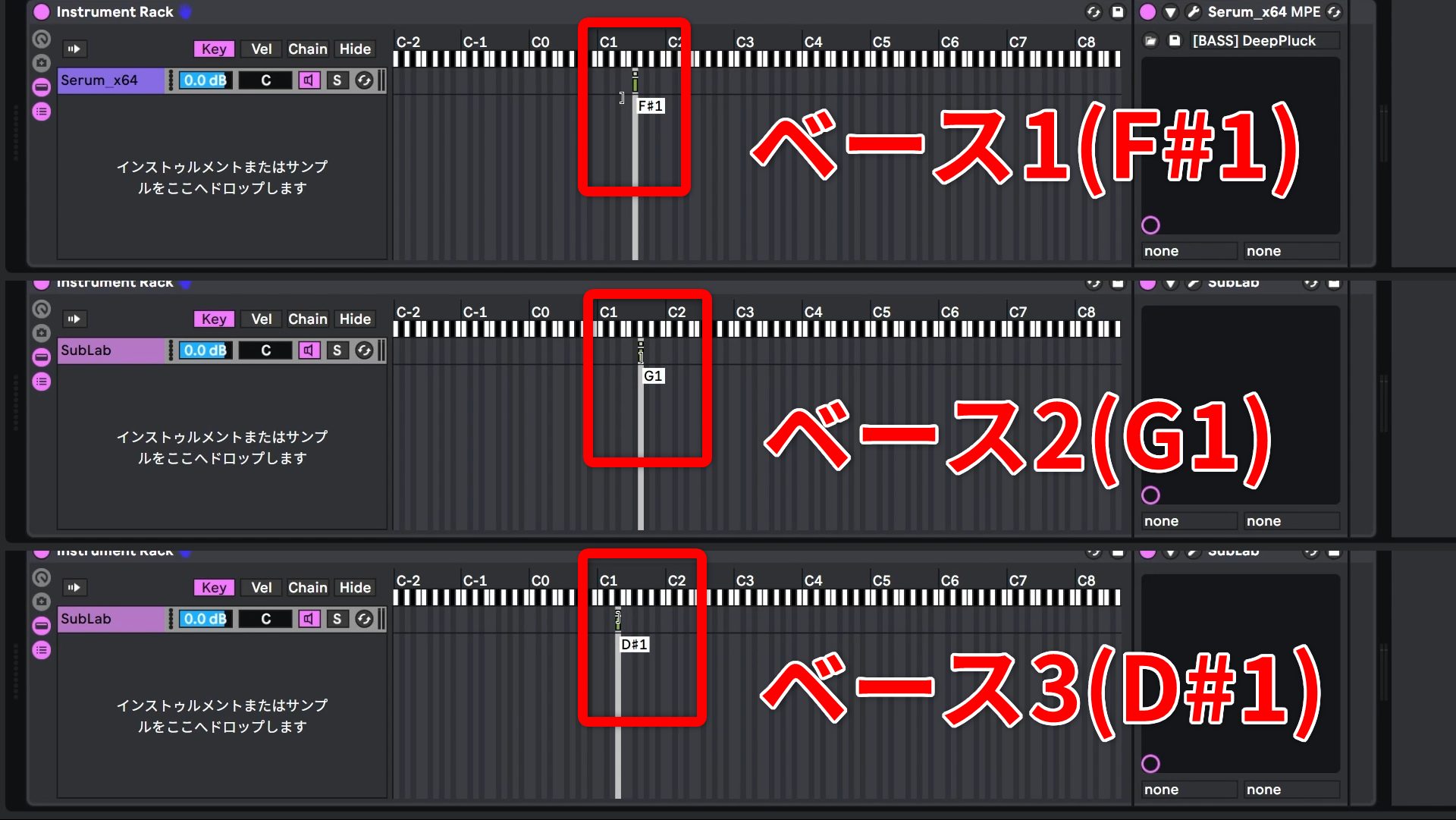
For the three bass tracks here, set one key zone to D#1—the same note as the kick—another to G1, and the last to F#1.
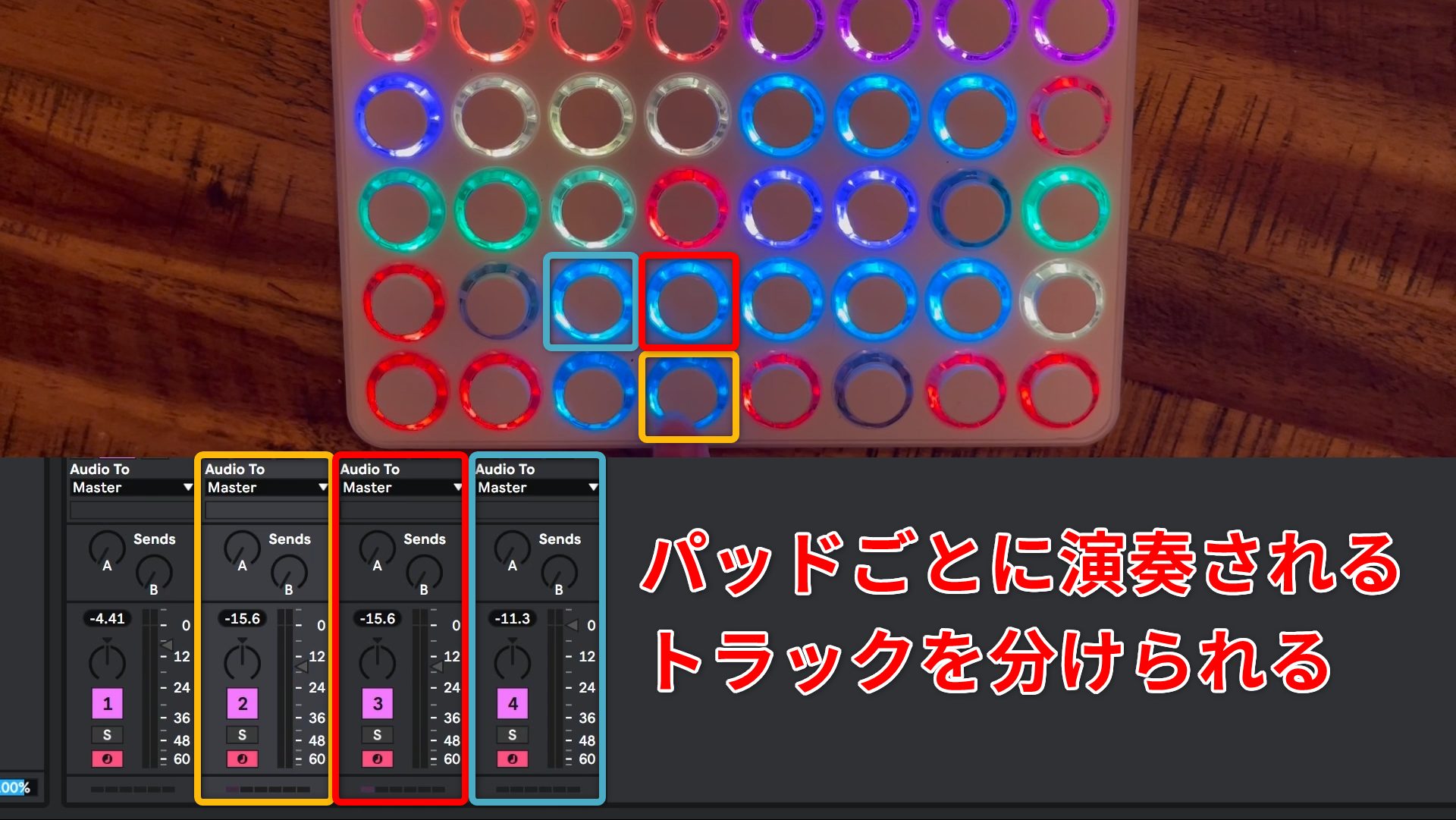
This allows different pads to play different tracks.
However, the notes do not yet sound at the desired pitches. Next, use the Scale MIDI effect to remap the incoming notes to different pitches.
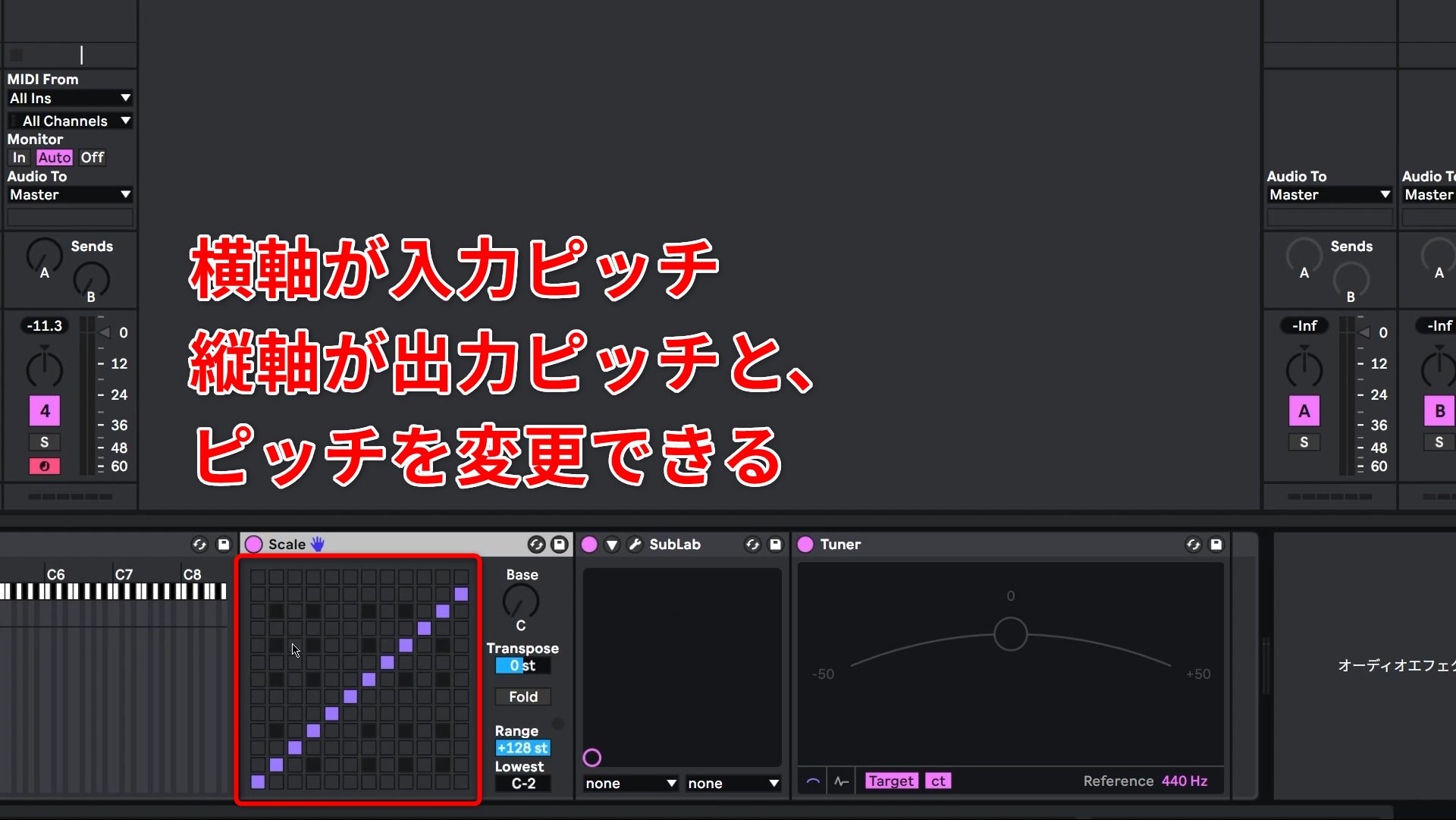
Scale is a MIDI effect that remaps played notes to other pitches. Its horizontal axis represents incoming pitches, and its vertical axis represents output pitches.

Here, all the bass sounds should play F, so set the matrix as shown to output F regardless of the incoming pitch.
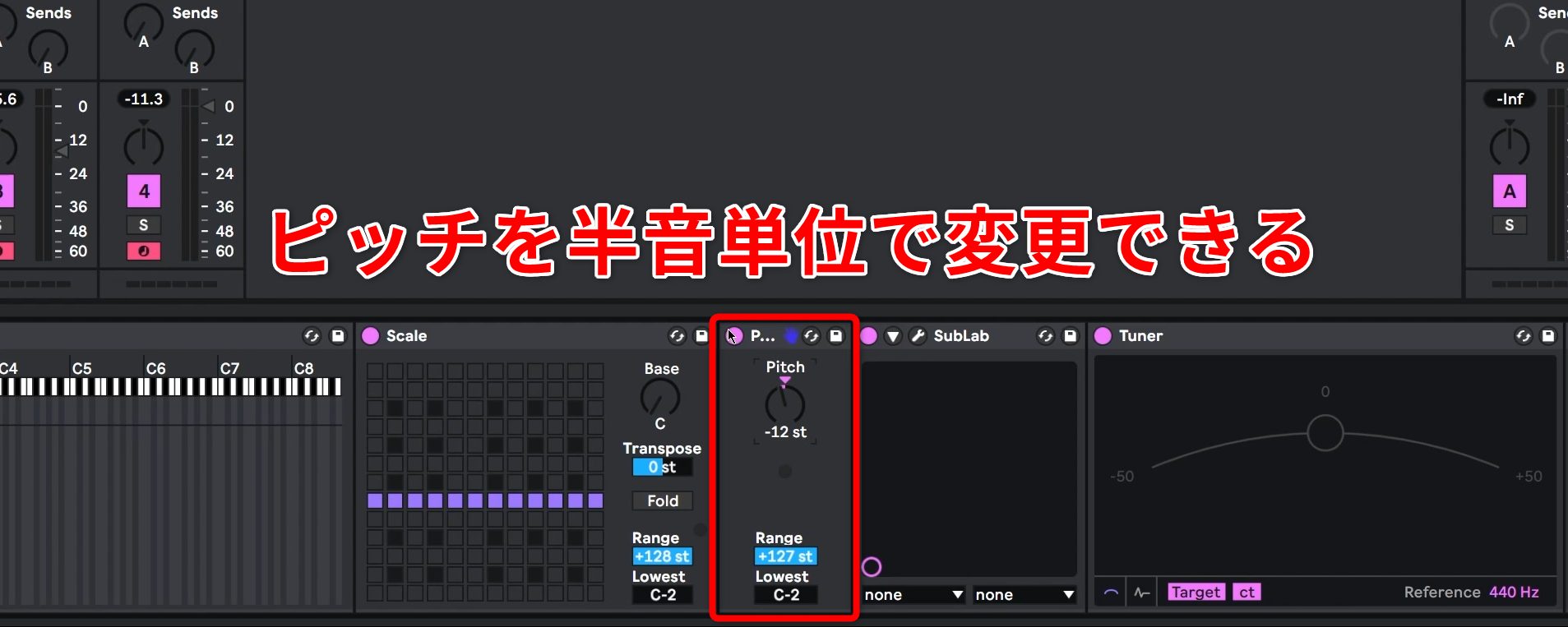
Another MIDI effect, Pitch, shifts notes up or down in semitone steps.
This is useful, for example, when you want a bass sound to play one octave lower.
Apply these key zone, Scale, and Pitch settings to the other instruments as well. You can then play different tracks from different pads, even with every track’s Arm button enabled.
Using MIDI Pads for More Than Playing Notes
So far, we have mainly covered settings for playing instruments. Next, we will explain how MIDI Fighter64 is configured to record and stop clips and control effects.
Although devices are assigned separate roles in this performance, you may need to perform several operations from the controller you are already playing. For example, you might want to stop a clip while both hands are playing and you cannot reach another controller.
Ableton Live offers a wide range of parameters that can be controlled even with MIDI notes, with a straightforward setup process.
MIDI Mapping: Examples and Setup
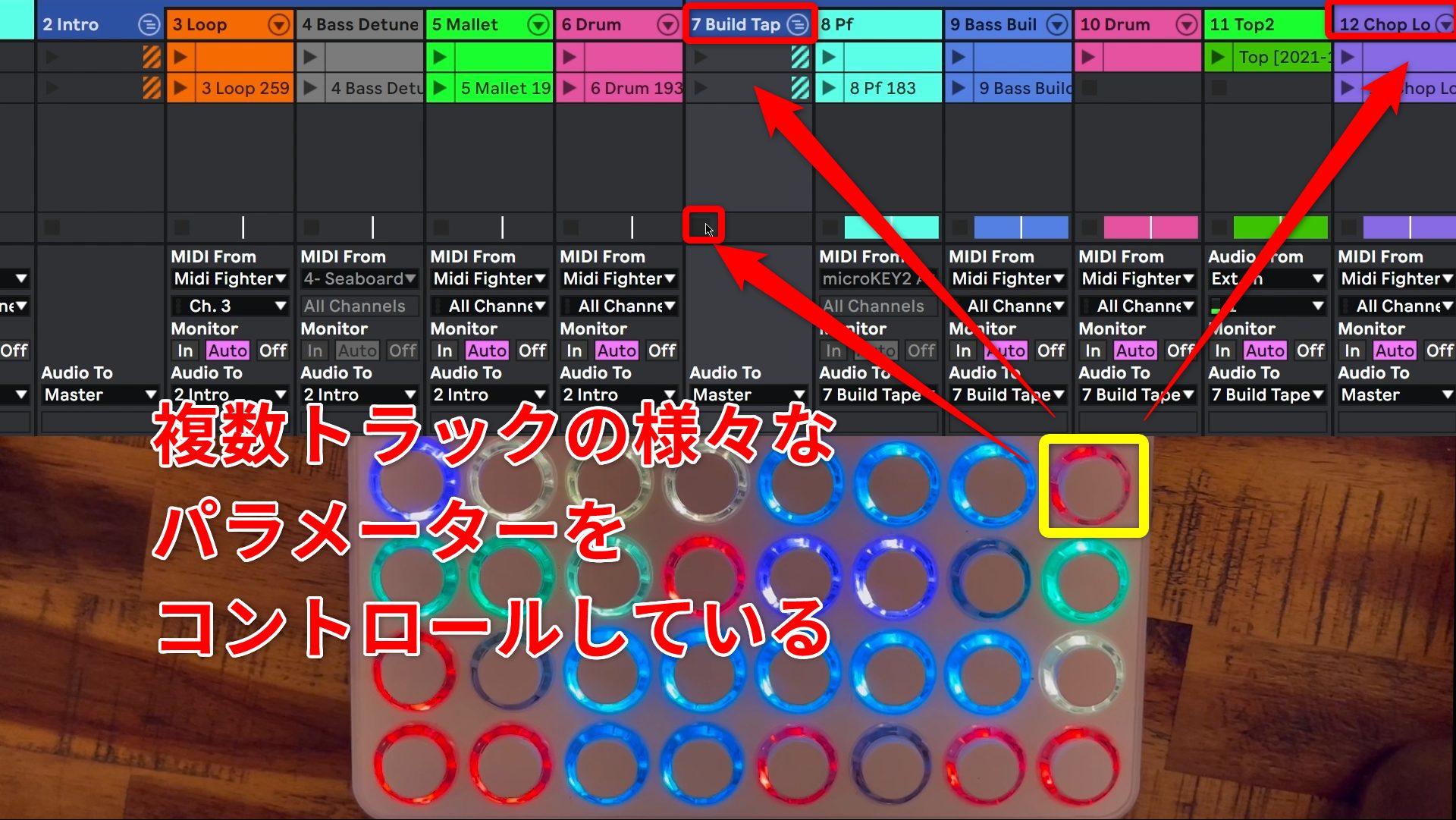
Just before the drop, a single MIDI Fighter64 pad performs the following operations:
- Stop the currently playing clips at the start of the next bar
- Apply a tape-stop effect
- Add a sound one octave below the vocal chops
These operations are controlled together from one pad.
First, configure the mapping that stops the playing clips.
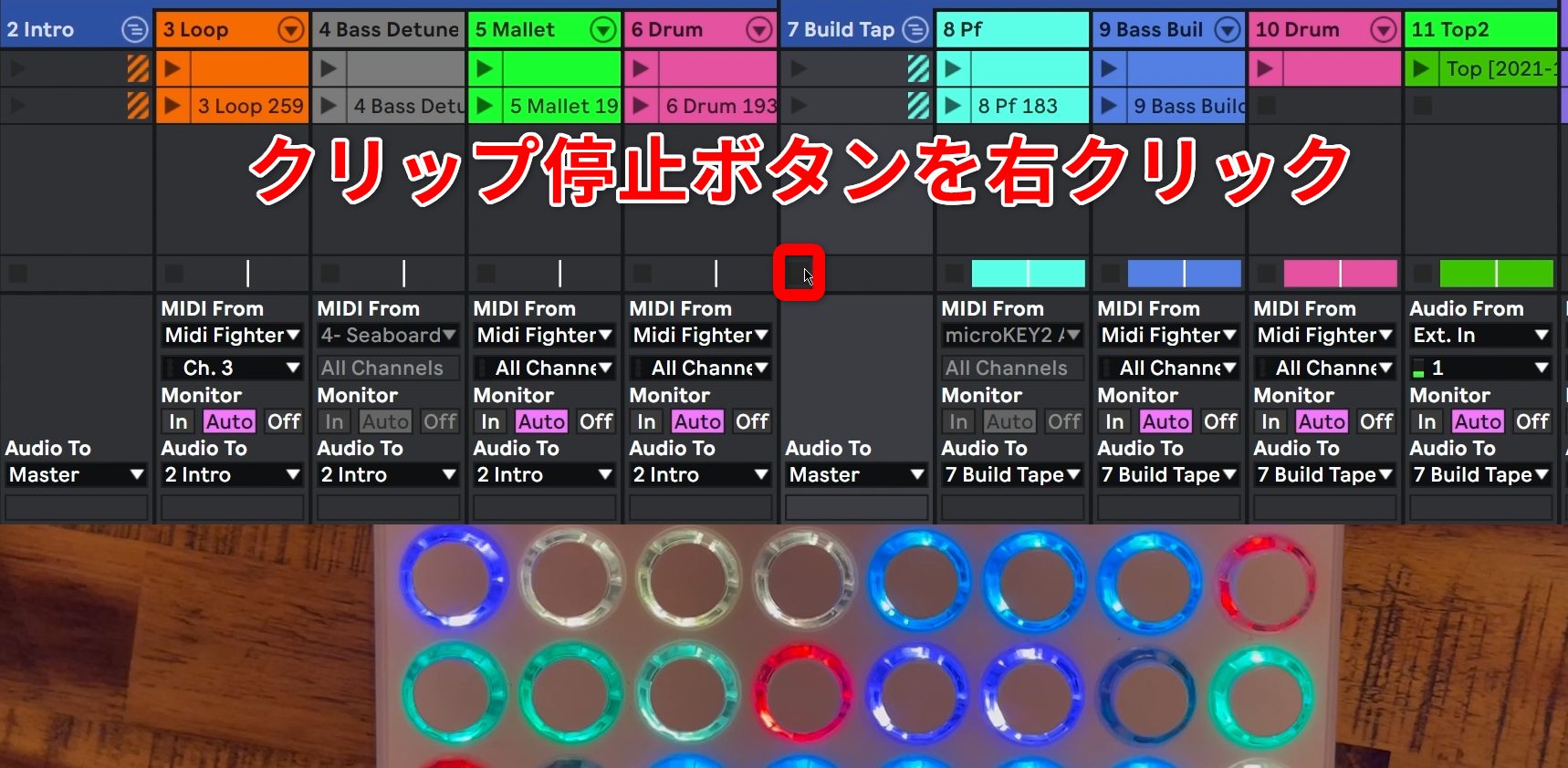
Here, we want to stop all clips on tracks inside the group named “Build Tap” at once, so move the pointer over its clip stop button.
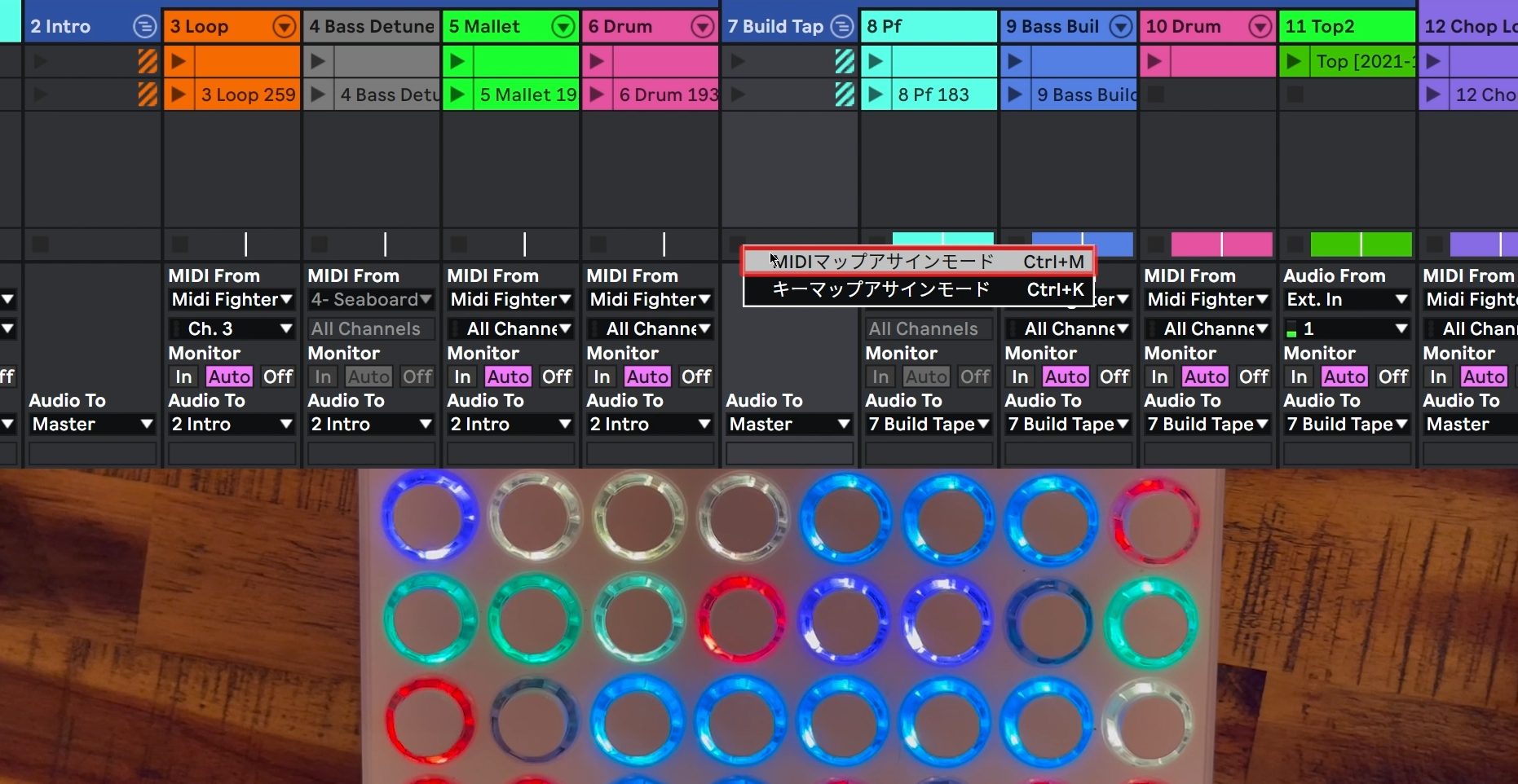
Right-click and choose Edit MIDI Map from the menu.
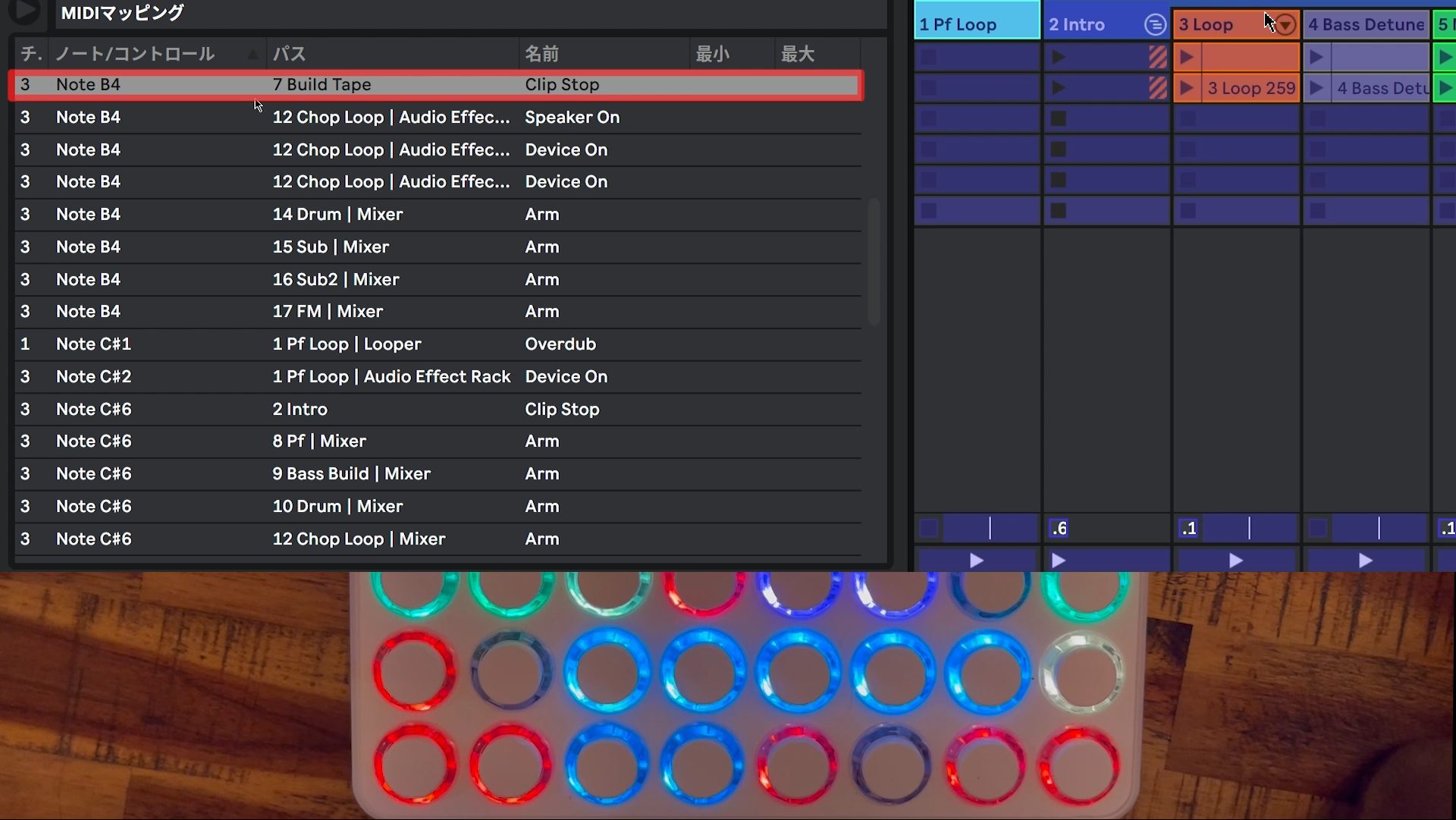
With MIDI Map Mode active, operate the MIDI controller. The assigned control will appear in the MIDI Mappings list at the upper left of the screen.
Next, map the control that adds a sound one octave below the vocal chops.
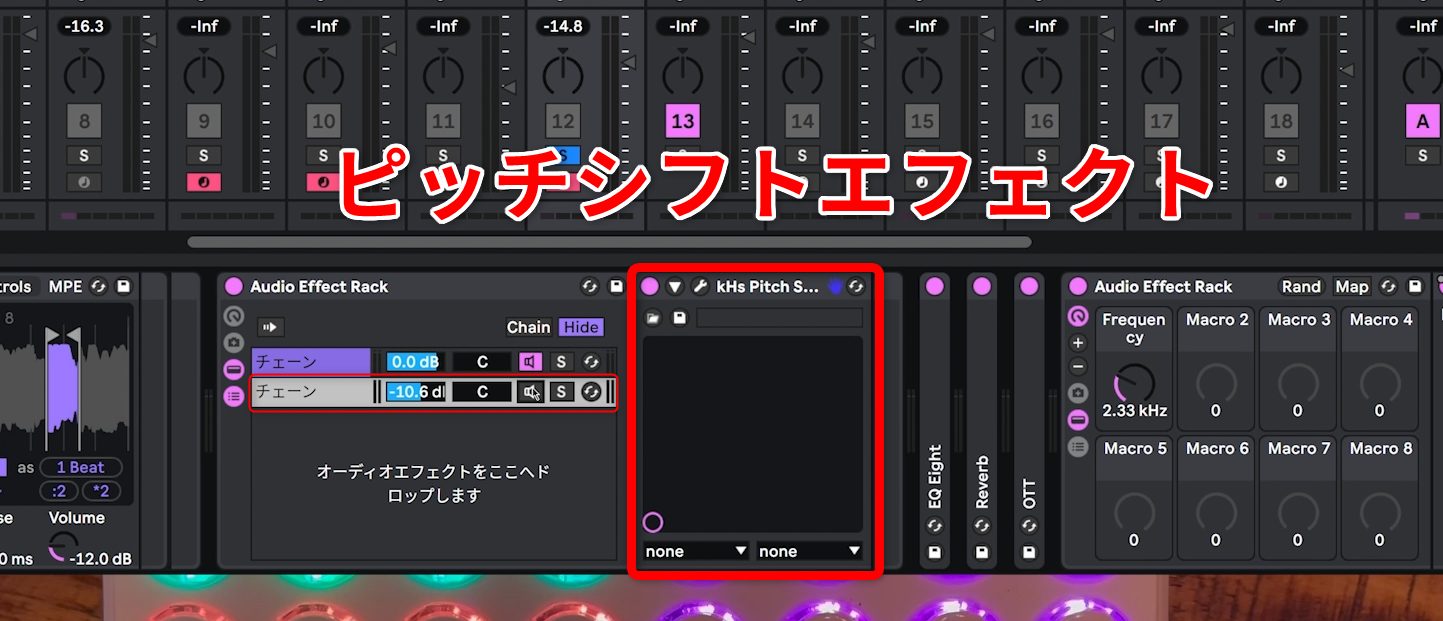
Inside an Audio Effect Rack, create a chain with a pitch shifter set to produce a sound one octave lower. This lets the original pitch and the octave-down pitch sound together.
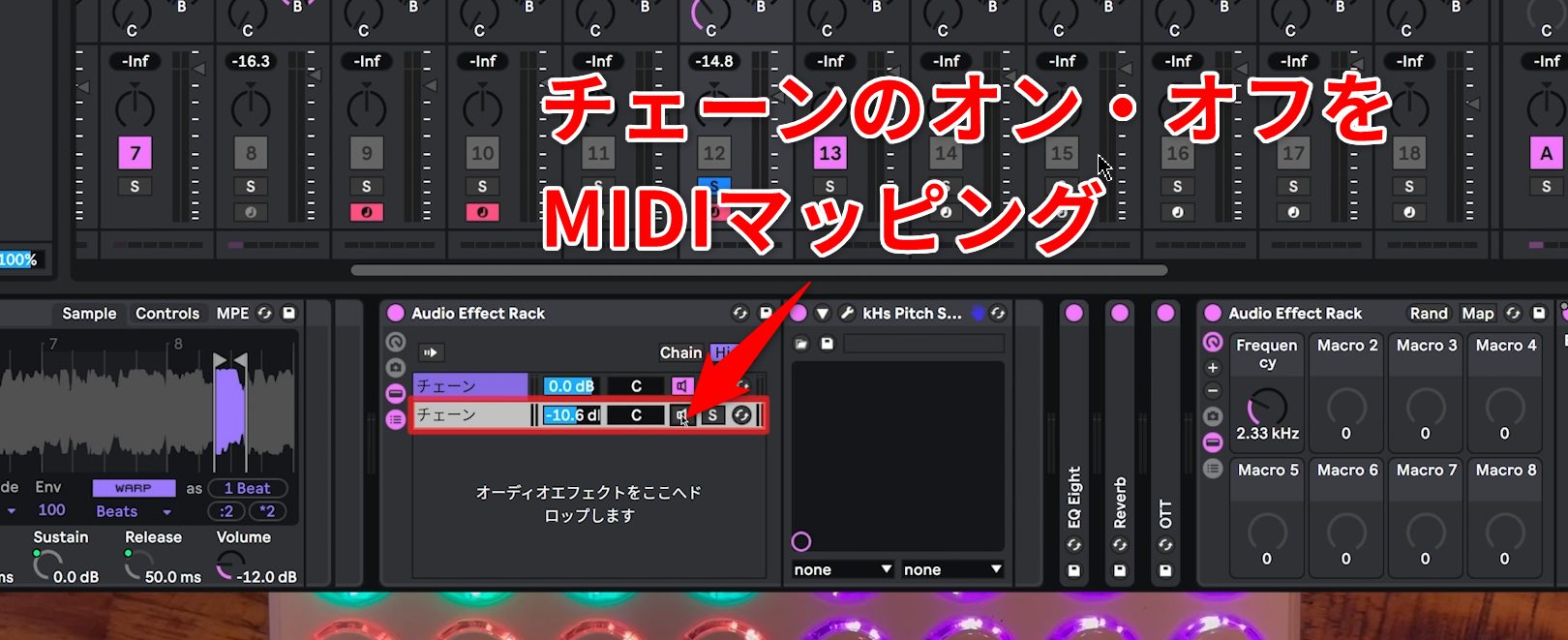
Keep this chain muted normally, and map it so that it sounds when the button is pressed.
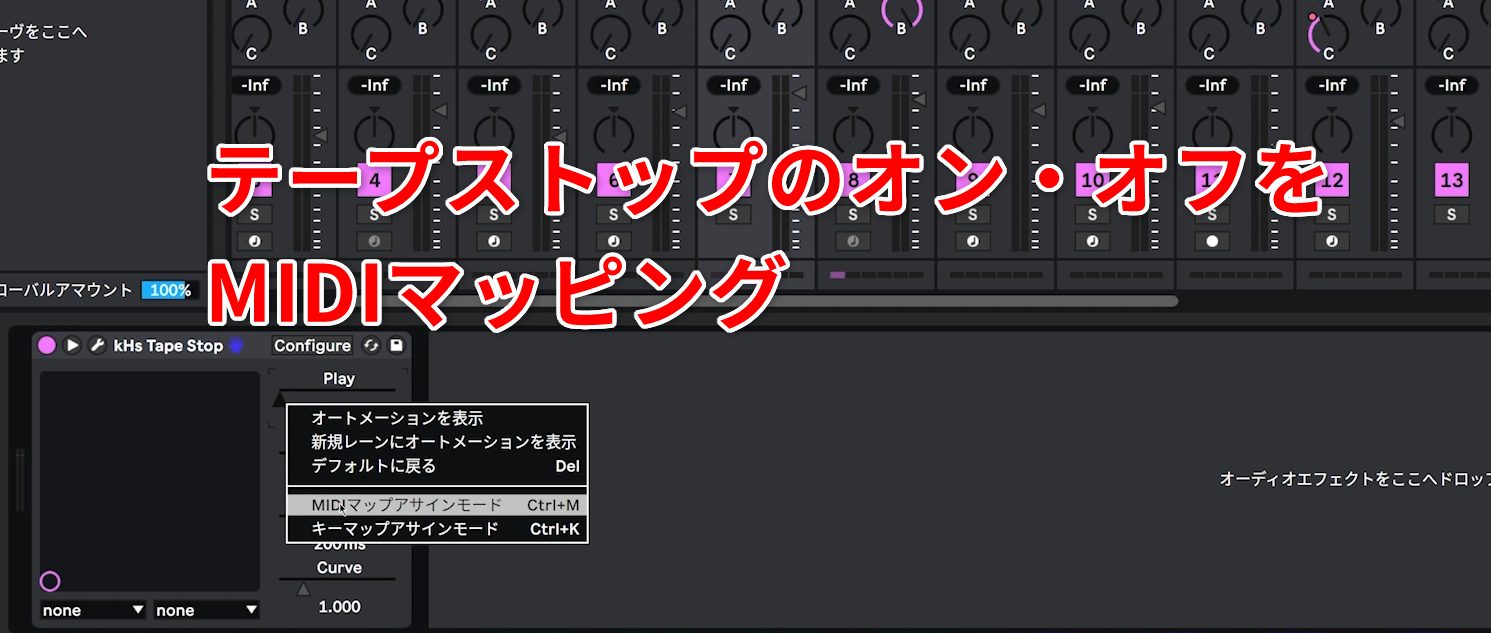
Finally, the tape-stop effect is a third-party plug-in. Because its parameters are displayed in Live’s parameter list, you can map them in the same way.
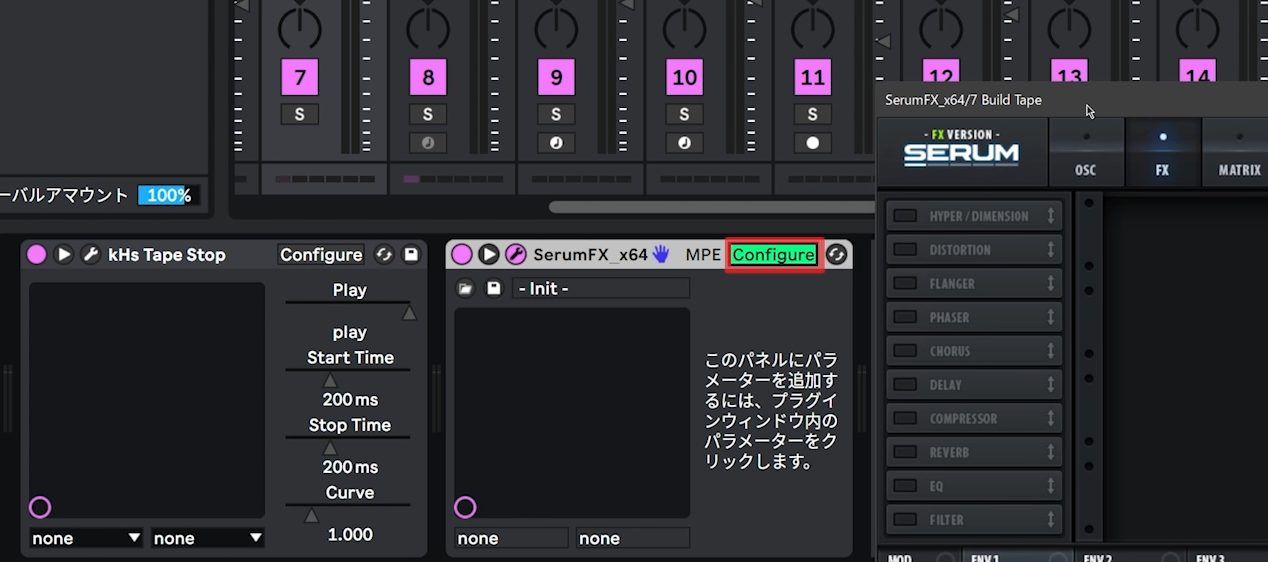
If a parameter you want to control in a third-party plug-in is not displayed, expand the device’s parameters and click Configure in its title bar.
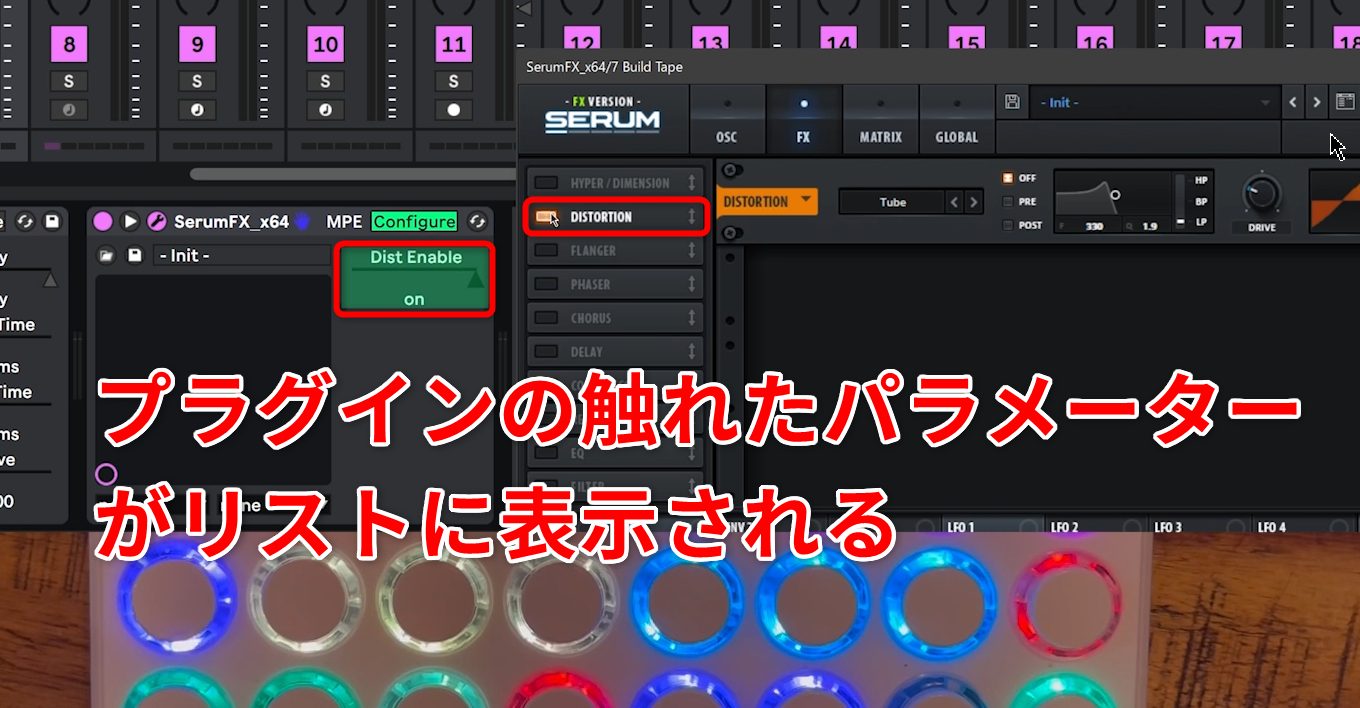
Then click the desired knob, button, or other control in the plug-in window. Its parameter will appear in the device.
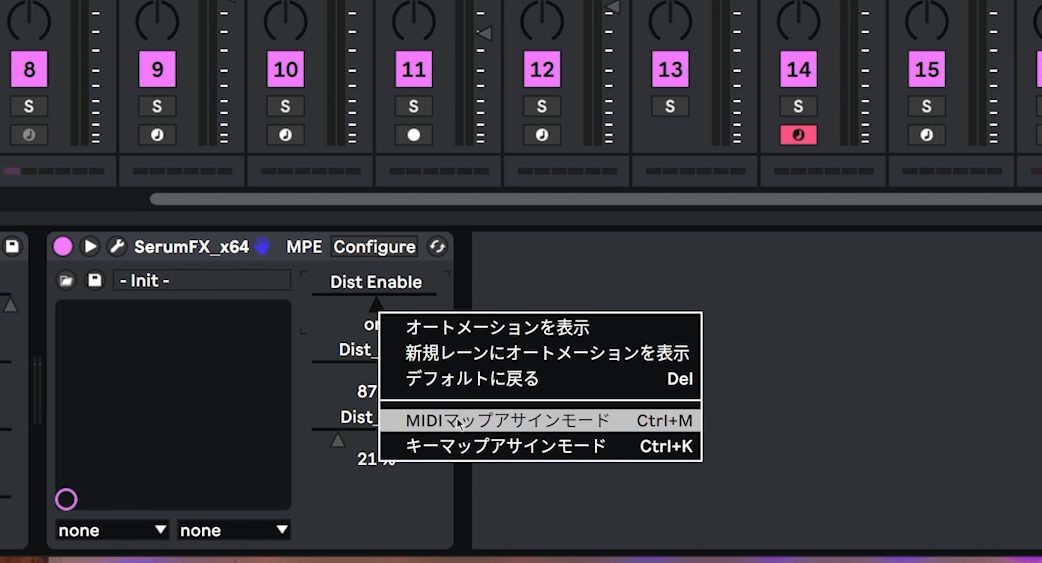
Right-click the displayed parameter to assign a MIDI mapping, following the same procedure as before.
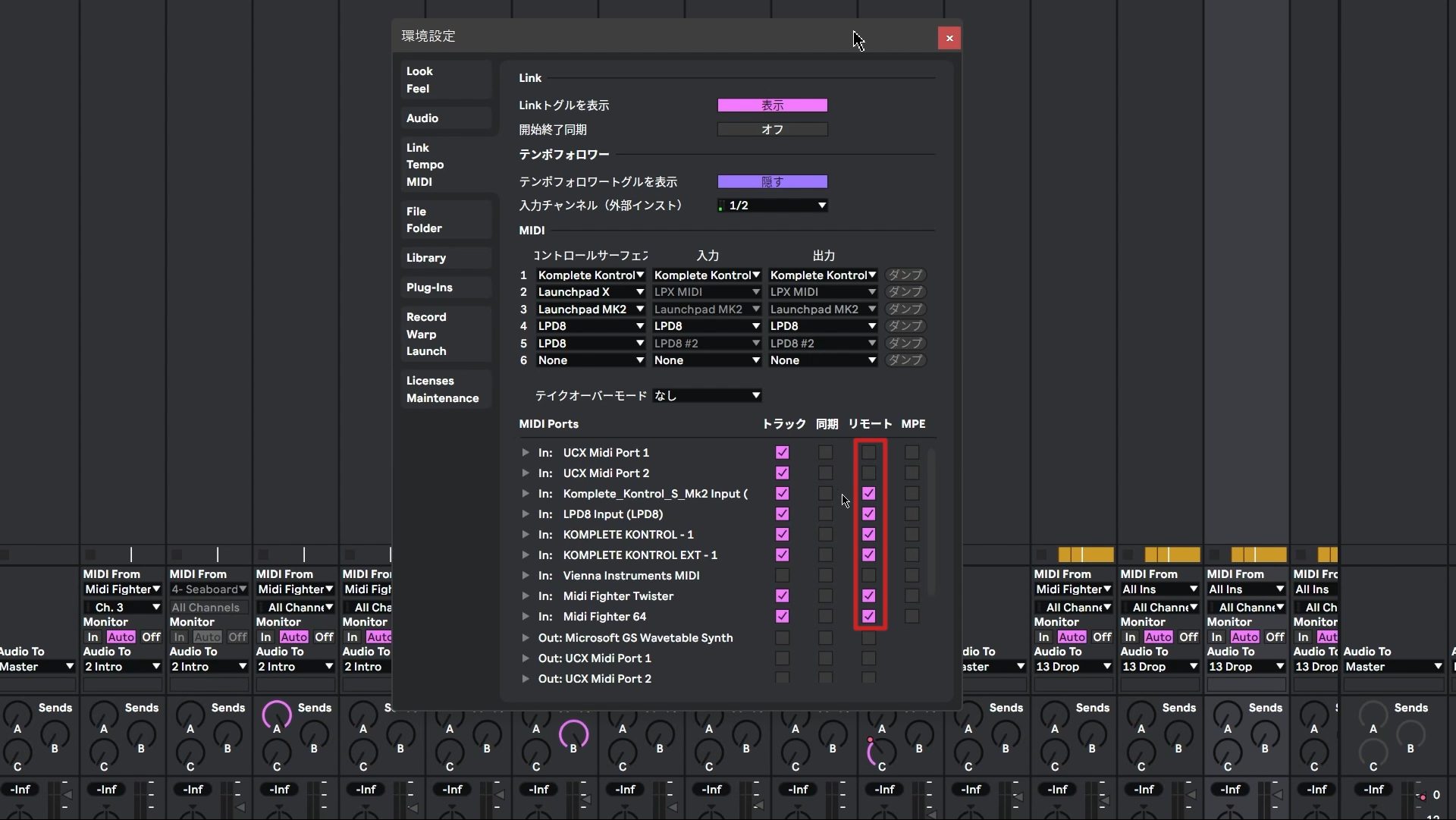
If your MIDI controller does not register when you try to assign a mapping, open Live’s MIDI preferences. In the input section of the MIDI Ports list, check that Remote is enabled for the relevant device.
Enabling Remote allows the device to control Live through MIDI mappings.
Controlling MIDI Effects with MIDI Mapping
To finish, here is a useful technique from the performance that takes MIDI mapping a step further.
For parts of this performance, the aim was a mechanical drum beat with as little timing variation as possible. The Arpeggiator MIDI effect was used to generate those repeated drum hits.
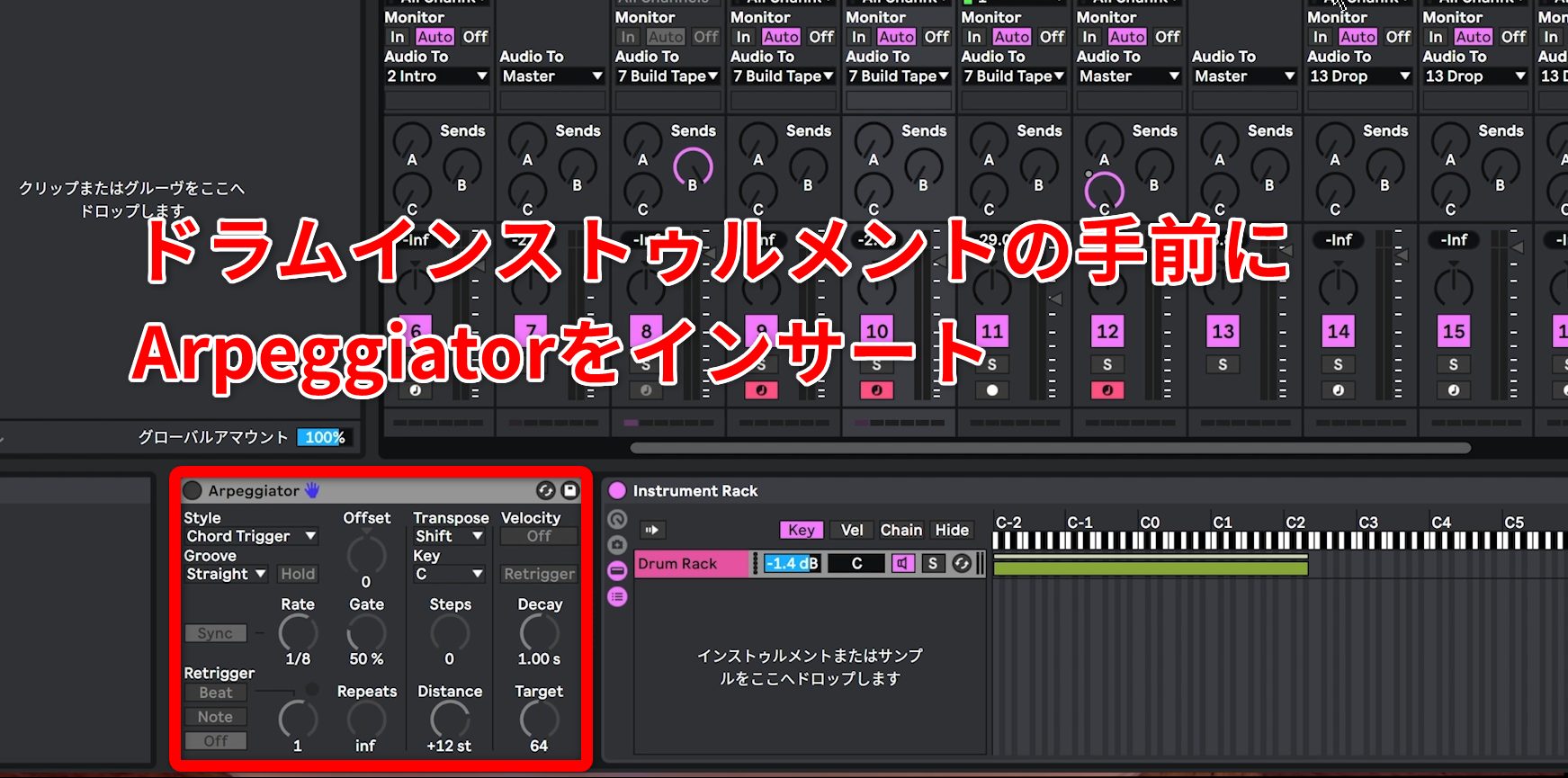
The setup is simple: insert Arpeggiator directly before the drum instrument, then use a MIDI mapping to control the device’s on/off button.
When Arpeggiator is active, simply hold a pad to generate repeated hits automatically. This simplifies the performance and helps reduce mistakes.
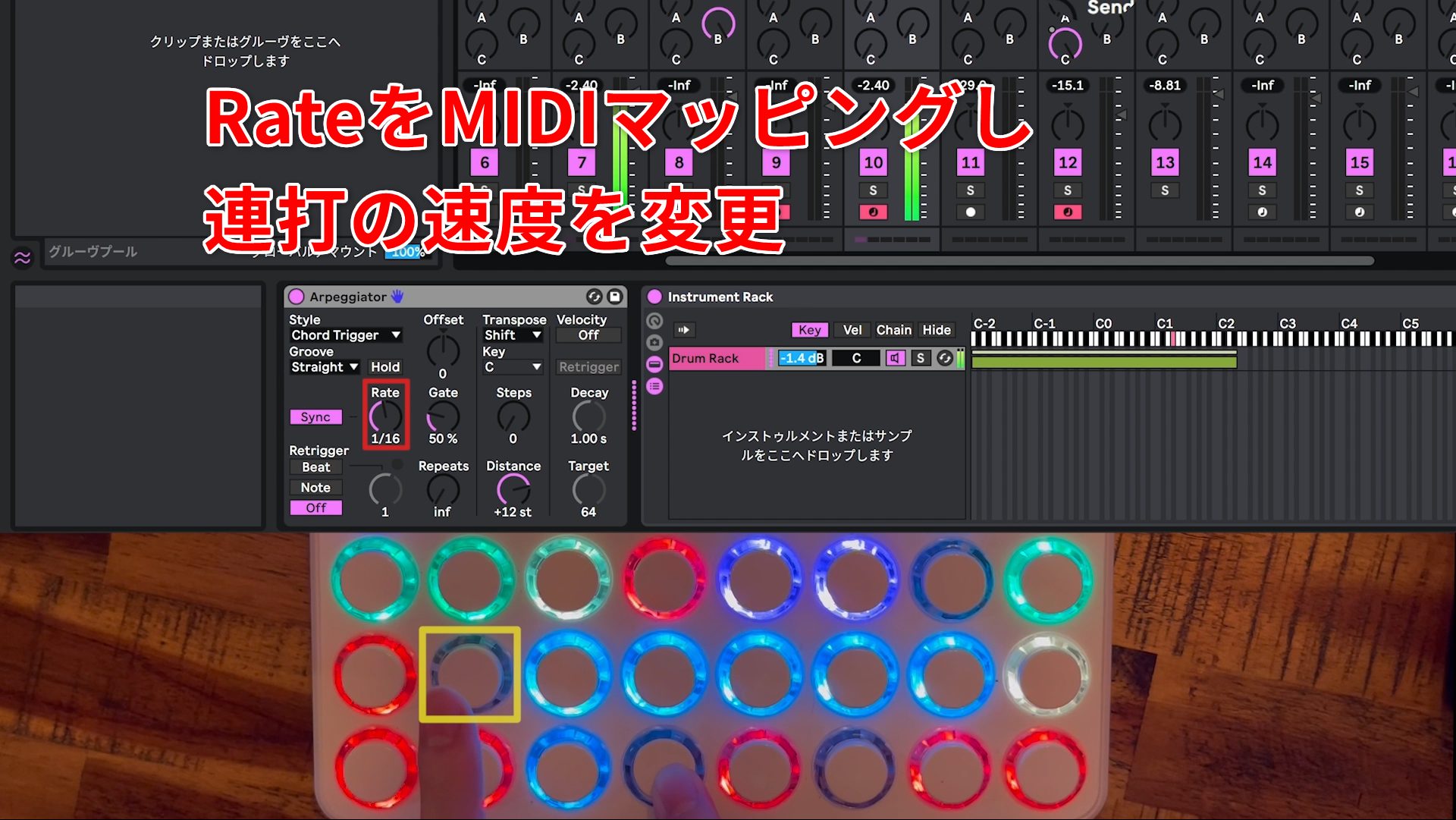
Another pad is mapped to change Arpeggiator’s Rate from eighth notes to sixteenth notes, allowing the repetition speed to change as needed.
This is a simple but practical example of MIDI mapping.
Ableton Live provides many features optimized for performance, and each performer can configure them differently.
Its flexibility, together with the simplicity of trying an idea immediately, makes it easier to build a complex performance system.
If you want to start performing live with a DAW, or are interested in this approach, give Ableton Live a try.
Frequently Asked Questions
Q1. What is Drum Rack in Ableton Live?
Drum Rack is a built-in Ableton Live device that holds multiple drum instruments in a single rack. Each button on a MIDI pad controller can play a separate drum sound, such as a kick, snare, or hi-hat. The pad layout corresponds to note pitches for intuitive control.
Q2. Can one MIDI controller play multiple tracks simultaneously?
Yes. Combine Instrument Rack’s Key Zone settings with MIDI effects such as Scale and Pitch to play different tracks from different pads. This lets you control multiple tracks independently.
Q3. Can MIDI pads stop clips and control effects?
Yes. Ableton Live offers many parameters that can be controlled with MIDI notes. MIDI mappings let you stop clips and control effects from the pads you are playing.
“Real-Time Live Performance with Ableton Live,” Part 2: Future Bass
A performance that layers tracks through live looping using a variety of MIDI controllers.
Presented by Tomoki Miyakawa
Details: https://t.co/wObkIzmhi4 #DTM #Live
— SLEEP FREAKS (@SLEEPFREAKS_DTM) November 25, 2021
NEW ARTICLES
Latest English Articles



































































































































