Cubase's PitchCorrect plug-in can produce a strong vocoder-like effect when used with MIDI. This article explains how to insert PitchCorrect on a vocal audio track and make its pitch follow a separately programmed MIDI melody. Set Speed to 100 and select External MIDI Note to make the vocal follow the MIDI pitches, creating an effect distinct from VariAudio and expanding your creative options for vocal processing.
Cubase's Versatile PitchCorrect Plug-in
Cubase users commonly use VariAudio for pitch correction,
but there is also a separate plug-in called PitchCorrect.
When used with MIDI, PitchCorrect can create a powerful vocoder-like effect.
Selected Questions and Answers from the YouTube Video

Is this really a vocoder? Isn't it Auto-Tune?

Because the pitches are specified using MIDI, the effect is closer to a vocoder.
Is it difficult without a MIDI keyboard?
You can do it without a MIDI keyboard, but using one makes it easier to find pitches efficiently. Thanks for your continued support.
How to Use It
Here is an example vocal recording.
↑ We'll apply a vocoder-like effect to this sample using PitchCorrect.

↑ First, program the same melody as the audio above using MIDI.
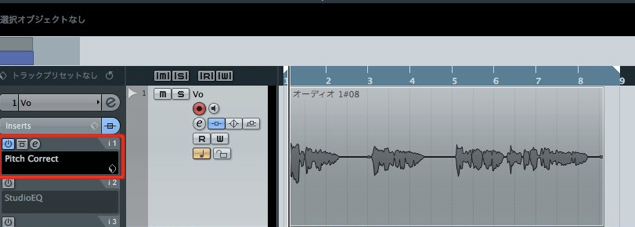
↑ Next, insert PitchCorrect as an insert effect on the audio track.
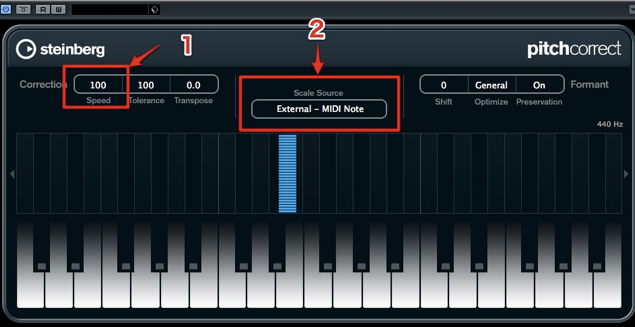
- 1. Set Speed to 100.
- 2. Select External MIDI Note.
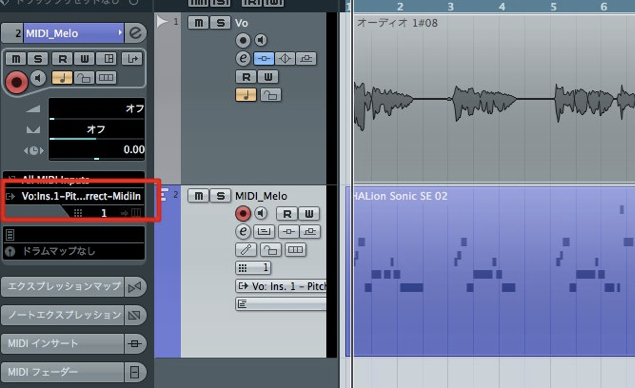
↑ On the MIDI track, select PitchCorrect in the area outlined in red.
That's all there is to it.
The vocal audio now follows the MIDI pitches.
This produces a vocoder-like effect.
The farther the vocal pitch is from the MIDI pitch, the stronger the effect becomes.
For the next example, we added compression, EQ and delay.
Frequently Asked Questions
Q1. What is the difference between PitchCorrect and VariAudio in Cubase?
VariAudio is mainly used for pitch correction, while PitchCorrect can create a vocoder-like effect when combined with MIDI. Its ability to follow MIDI pitches allows for creative sound processing.
Q2. What do I need to create this effect with PitchCorrect?
Program a MIDI melody that matches the vocal audio and insert PitchCorrect on the audio track. Then set Speed to 100, select External MIDI Note, and route the MIDI track to PitchCorrect.
Q3. Can I adjust the strength of the effect?
Yes. The greater the difference between the vocal pitch and the MIDI pitch, the stronger the effect becomes. You can also add compression, EQ or delay to further shape the result.
NEW ARTICLES
Latest English Articles