
Melodyne 4 is an essential pitch-editing tool for music producers, available in four editions from essential to studio. Even the entry-level essential edition offers pitch correction, timing editing, and note separation. Its intuitive visual interface lets you precisely adjust the pitch and rhythm of vocals and melodies. It works both as a DAW plug-in and as a standalone application, with full Japanese-language support for users ranging from beginners to professionals.
Choose the Melodyne Edition That Suits You
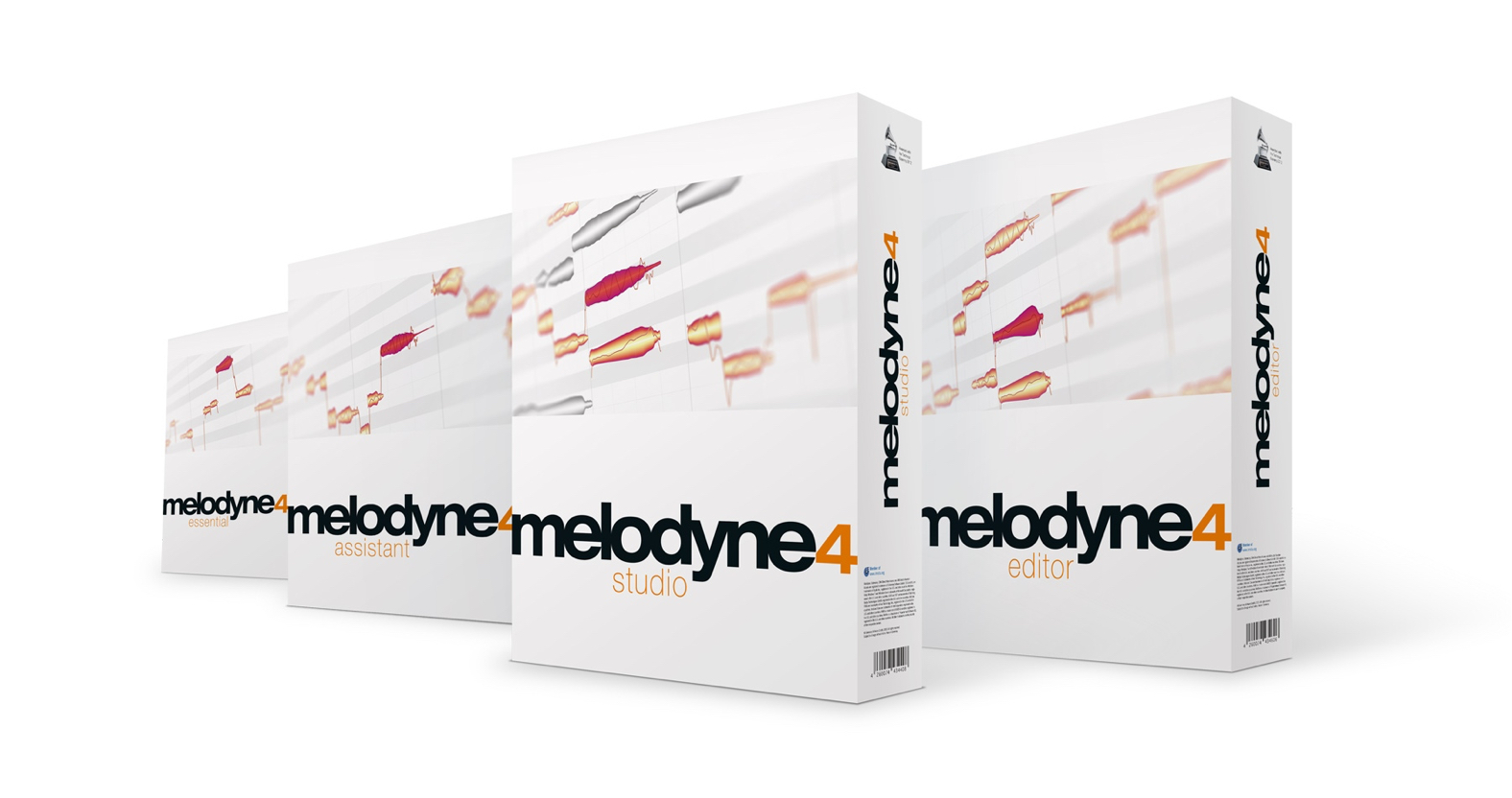
In this series, we will explore the widely known pitch-editing software Melodyne 4, focusing on the differences in features between its editions.
Melodyne 4 comes in four editions, starting with the simplest, essential, and adding progressively more advanced features in assistant, editor, and studio.
The chart below compares their features. Higher editions allow increasingly detailed editing.
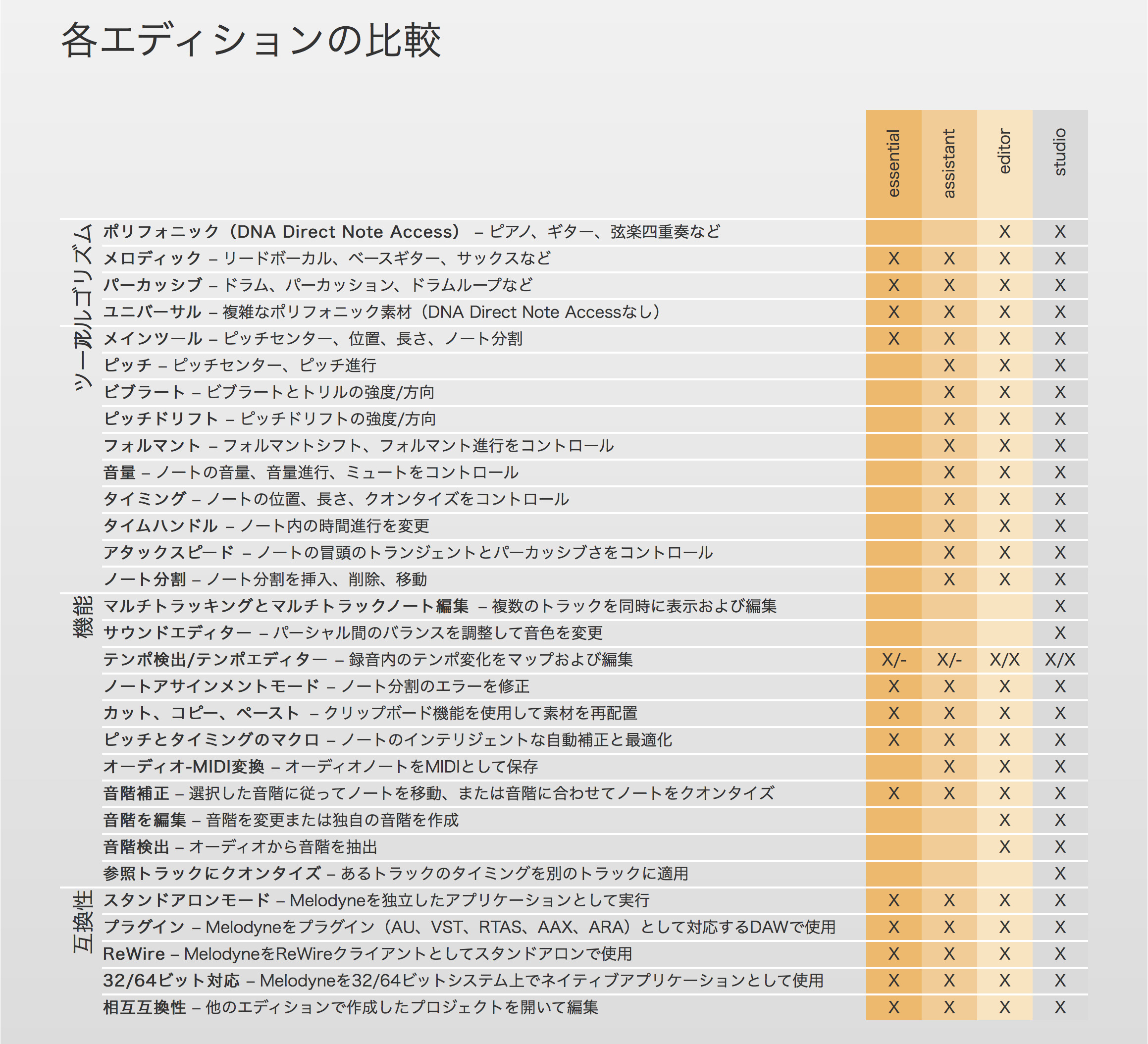
Melodyne can run as a standalone application or as a plug-in inside your DAW, supporting AAX, AU, and VST on 32-bit and 64-bit platforms.
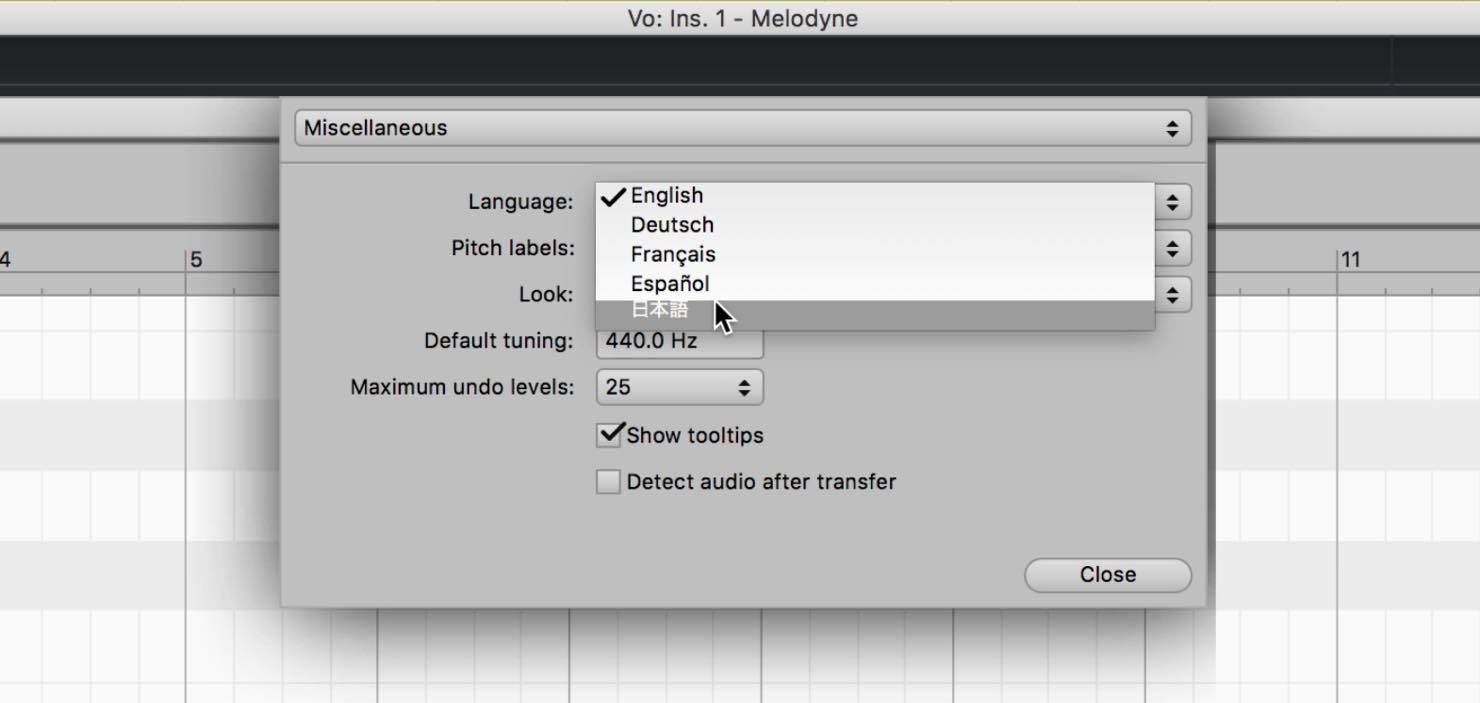
It also fully supports Japanese. You can change the language to Japanese under Settings > Preferences.
We will start with essential, the entry-level edition.
This should give you a good understanding of Melodyne's core functions.
Melodyne Essential Overview and Tutorial — Video
- 1Melodyne 4 essential: Overview and Tutorial
- 2Melodyne 4 assistant: Overview and Tutorial
- 3Melodyne 4 editor and studio: Overview and Tutorial
- 4What's New in Melodyne 5 Pitch-Editing Software
- ◆ Manufacturer's Website: http://urx.space/Rgab
- ◆ Purchase Here (Affiliate Link): http://urx.space/Rgab
Selected Questions and Answers from the YouTube Video

Q: Sorry if this is a basic question. I use Studio One and bought Melodyne because I wanted to create harmonies. Can the standalone version of Melodyne 4 essential be opened in Studio One 4's mixer? I cannot find it under audio or inserts in Studio One.

A: We are sorry that we cannot check this in our own setup at the moment, but it should be possible even with Melodyne 4 essential. Does it appear in the area shown in this image? https://app.box.com/s/lkuc12gj6jda090g2byq73ac1h4clywx
Q: Does essential not include the Pitch Modulation Tool? I want to edit the line rather than the note itself, but I cannot work out how.
A: Unfortunately, it appears that essential does not support this. You can find a feature comparison on the following page. https://hookup.co.jp/products/celemony-software/melodyne/edition-spec
Q: Sorry for such a beginner's question, but which DAW are you using to host Melodyne in the tutorial?
A: We are using Cubase in this tutorial. https://new.steinberg.net/ja/cubase/new-features/?_sp=0feaf0e6-d5e1-4f60-8bdf-ffb6f20b9779.1587426555764&_ga=2.190369451.1627969613.1587426549-1986056456.1587277525
Q: Is Melodyne paid software?
A: Yes, it is paid software.
Q: The display used to show letters, but now it shows numbers. Where can I change it back?
A: You can change it using the control shown here. https://www.dropbox.com/s/4ebce5qchuhmlzy/Melodyne%20%E3%83%94%E3%83%83%E3%83%81%E3%83%A9%E3%83%99%E3%83%AB-1.jpg?dl=0
Q: I installed Melodyne as a plug-in in GarageBand, but I cannot click Transfer or get it to read the audio. What should I do?
A: It sounds as though your Melodyne license may not be activated. Use the serial number you purchased to activate the full version. https://app.box.com/s/vlk836ffkb34x5lkjll3f4g2pn55vxjh
Essential: The Core Functions
Essential provides only the Main Tool, which incorporates several different functions.
Pitch Editing
Pitch editing is, of course, Melodyne's core function. Let's walk through the process.
First, you need to transfer the audio you want to edit into Melodyne.
Insert Melodyne on the track you want to pitch-edit, then click the Transfer button at the upper left so that it lights up red.
Now start playback in your DAW. Melodyne will capture and analyze the track's audio.
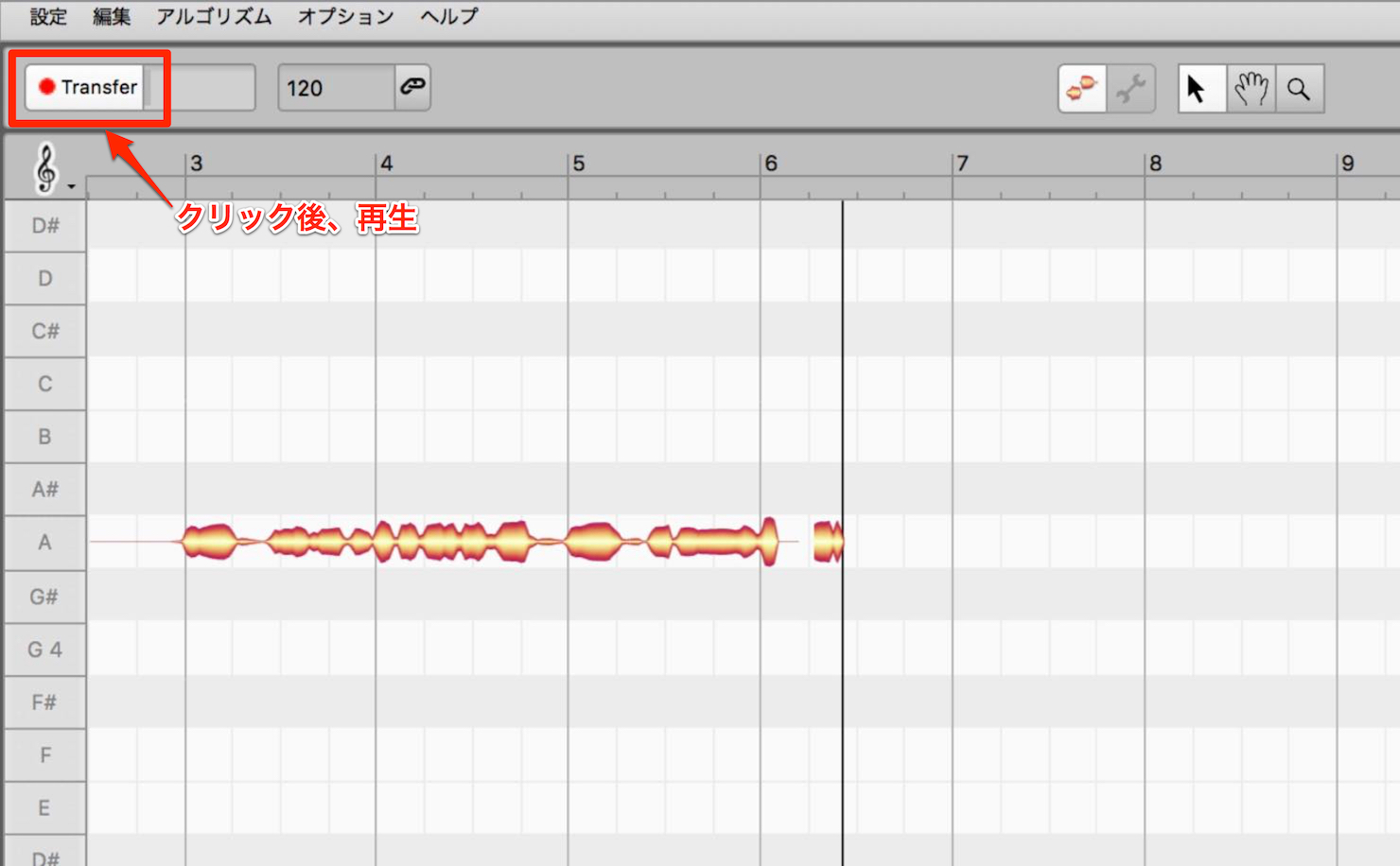
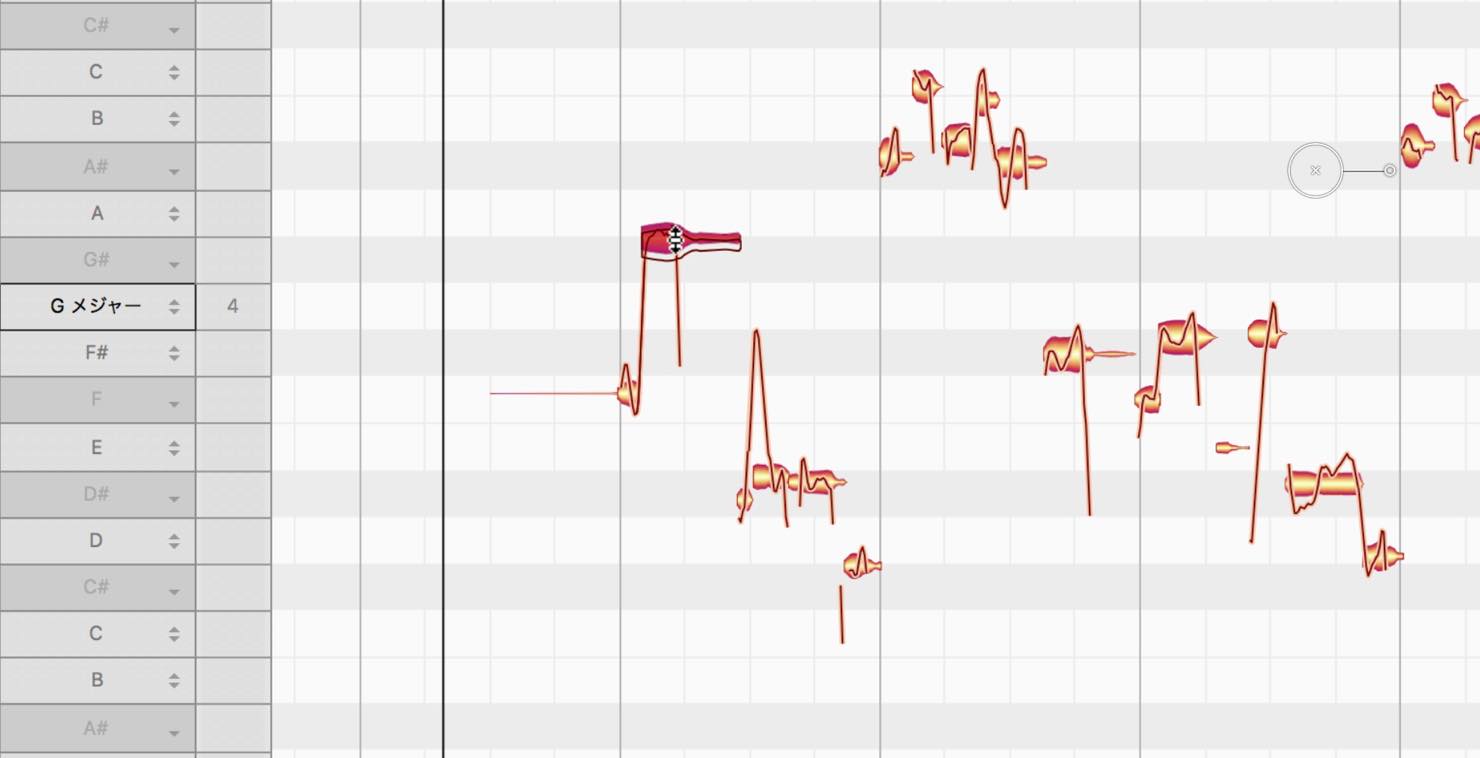
Once the transfer is complete, the pitches are displayed as notes, as shown here.
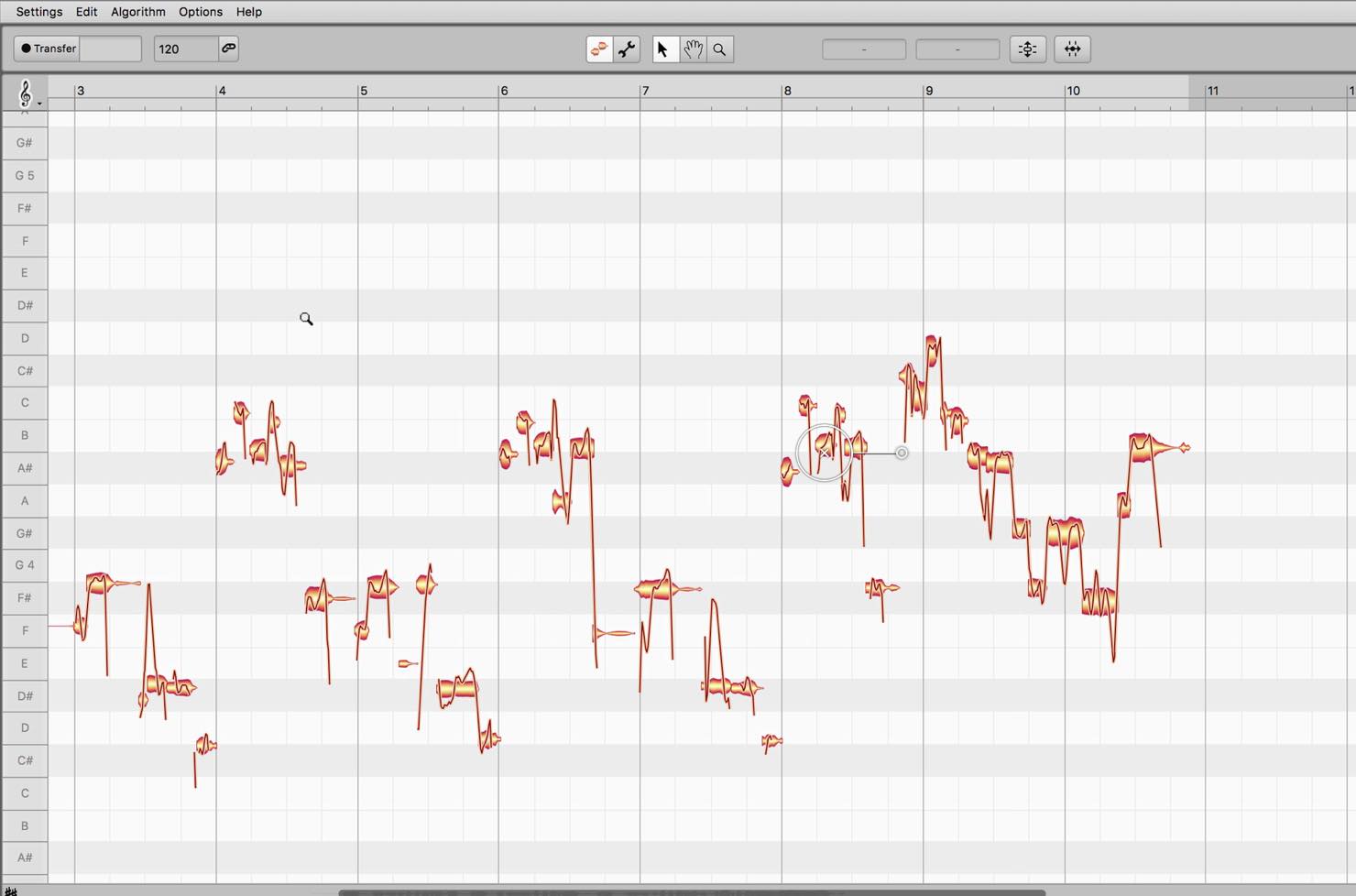
If the notes are too small to see clearly, hold Option+Command on Mac or Alt+Ctrl on Windows to switch to the Zoom Tool. Drag vertically or horizontally to change the zoom level.
As you can see, the pitches appear on a grid with a piano roll on the vertical axis, making it easy to spot notes that seem out of tune.
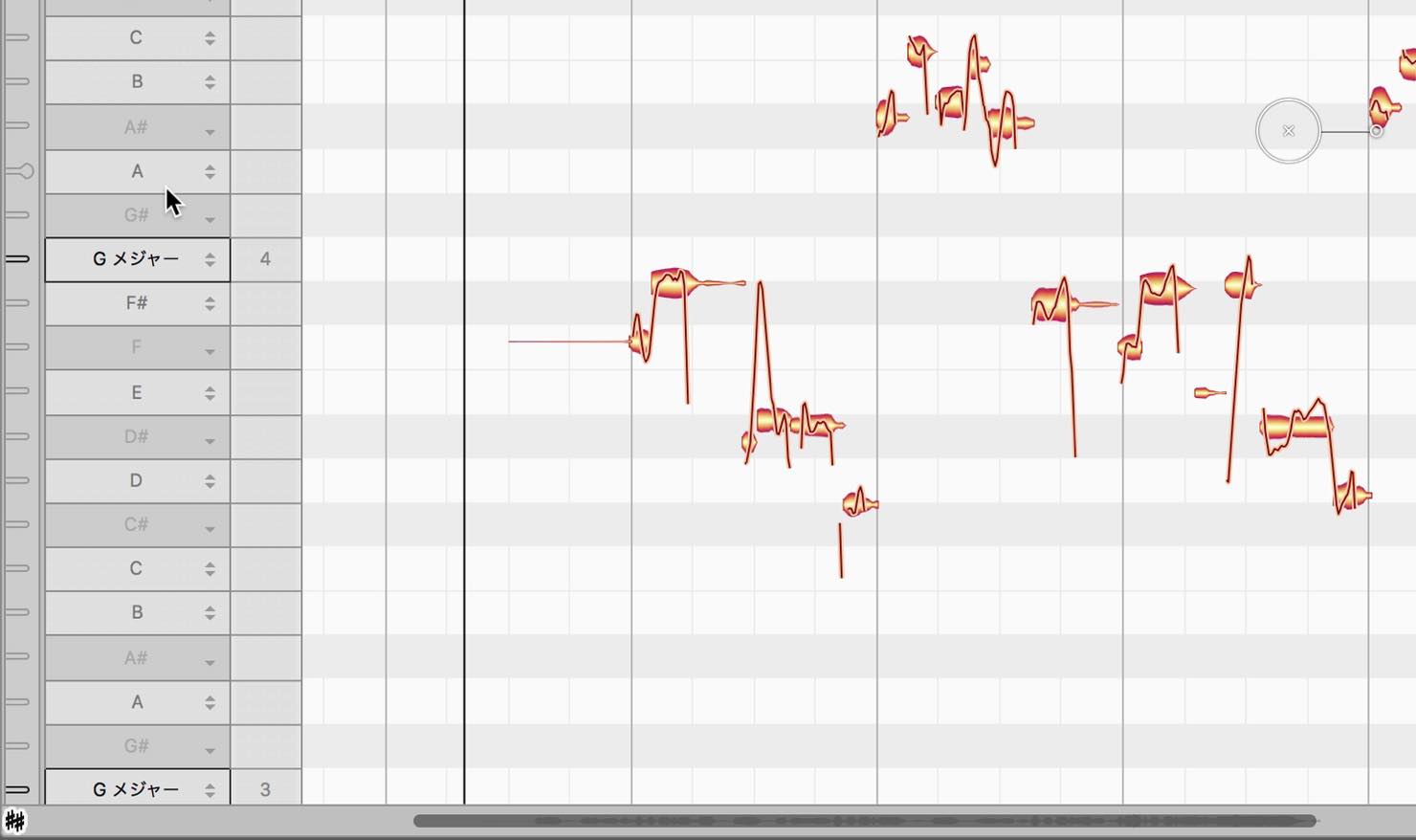
Click the double-sharp symbol at the lower left to expand the panel on the left and show the automatically detected key and scale. Here, Melodyne has detected G major, with notes outside that scale grayed out.
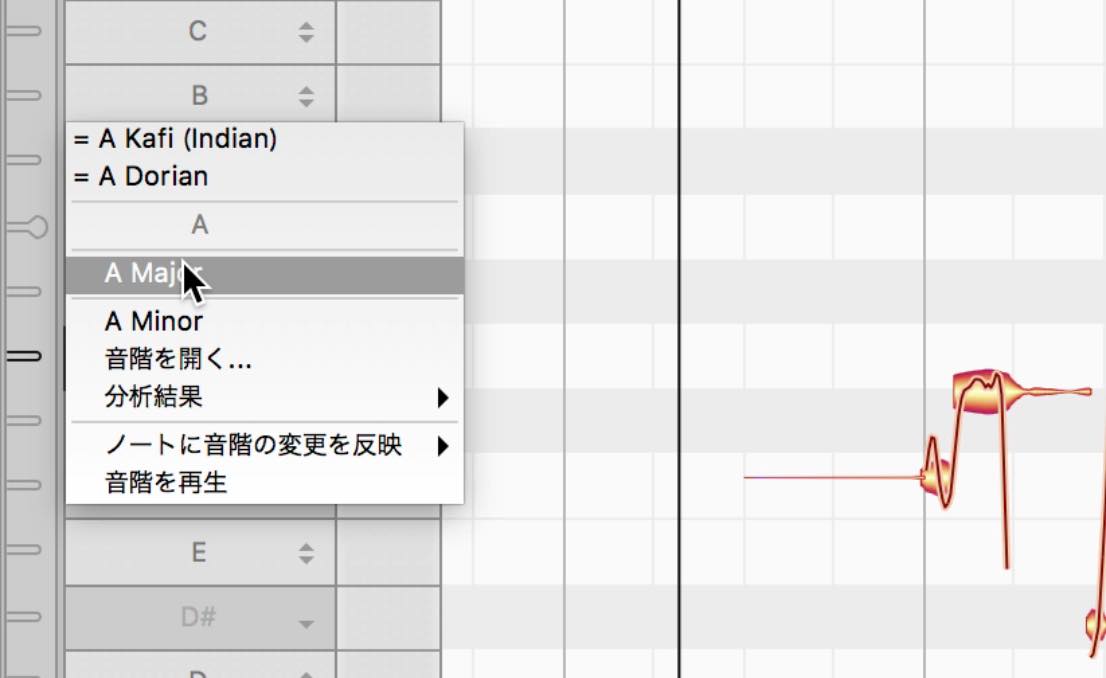
To change the key, click the desired root note and select major, minor, or another scale.
Now let's correct the pitch.
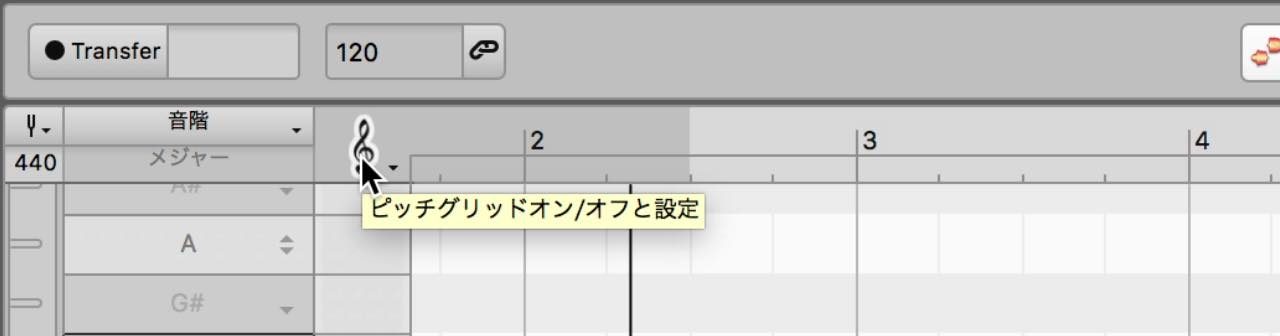
Drag the desired note up or down. It moves in semitone steps because pitch snapping is enabled by default.
To disable snapping, click the treble-clef icon at the upper left so that it is no longer lit.
Alternatively, with snapping still enabled, hold Option on Mac or Alt on Windows while dragging a note to temporarily bypass it.
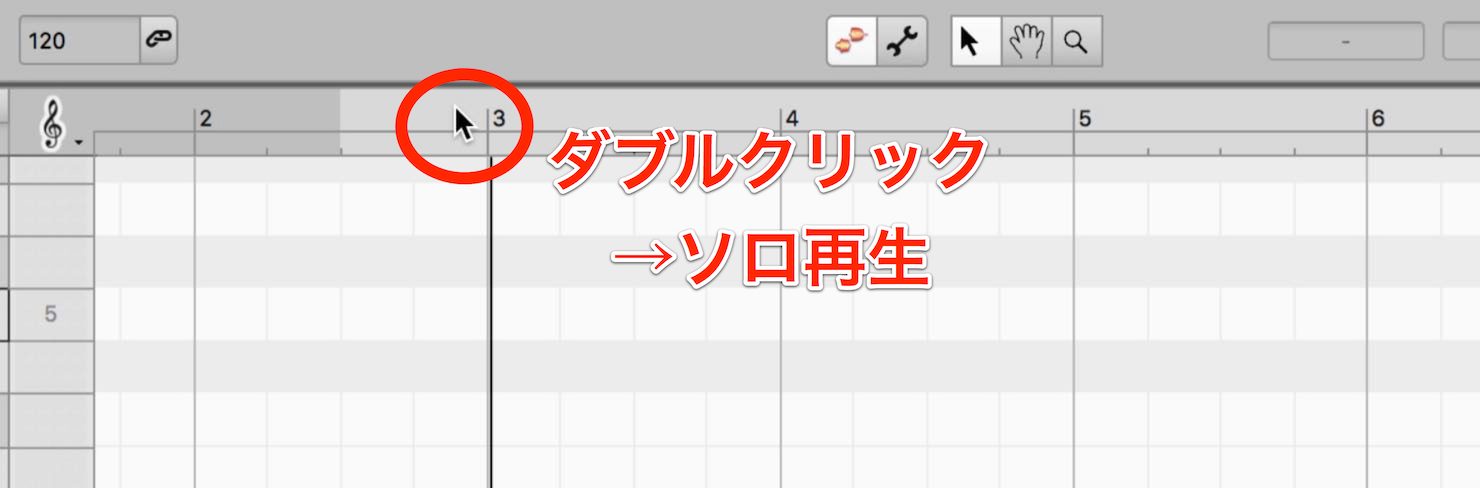
When correcting pitch, you will often want to listen to the track on its own.
You do not need to solo the track in your DAW: double-click a position in Melodyne's ruler to start solo playback from that point.
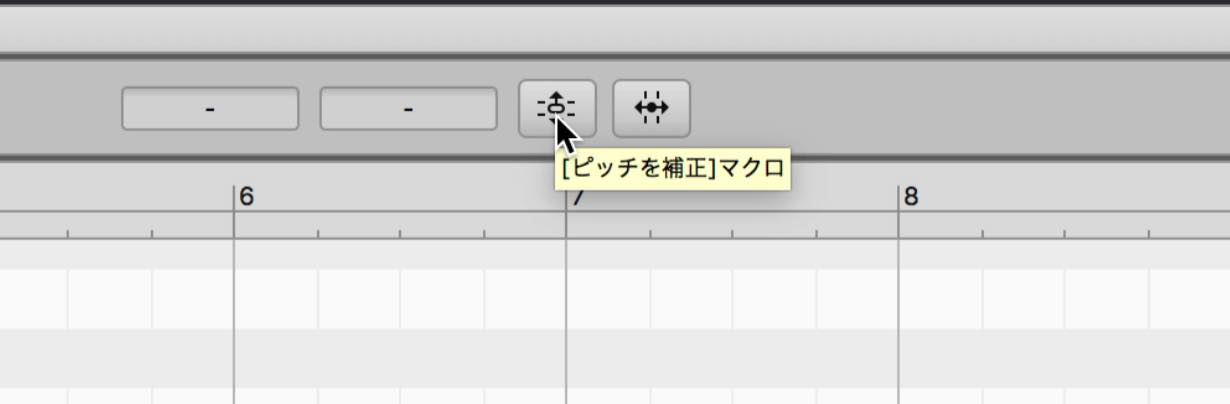
You can also correct the pitch of several notes at once.
Drag a selection around the notes you want to correct, then click the Correct Pitch Macro button at the top of the window.
Move the Pitch Center slider to the right to move all selected notes toward the nearest correct pitch.
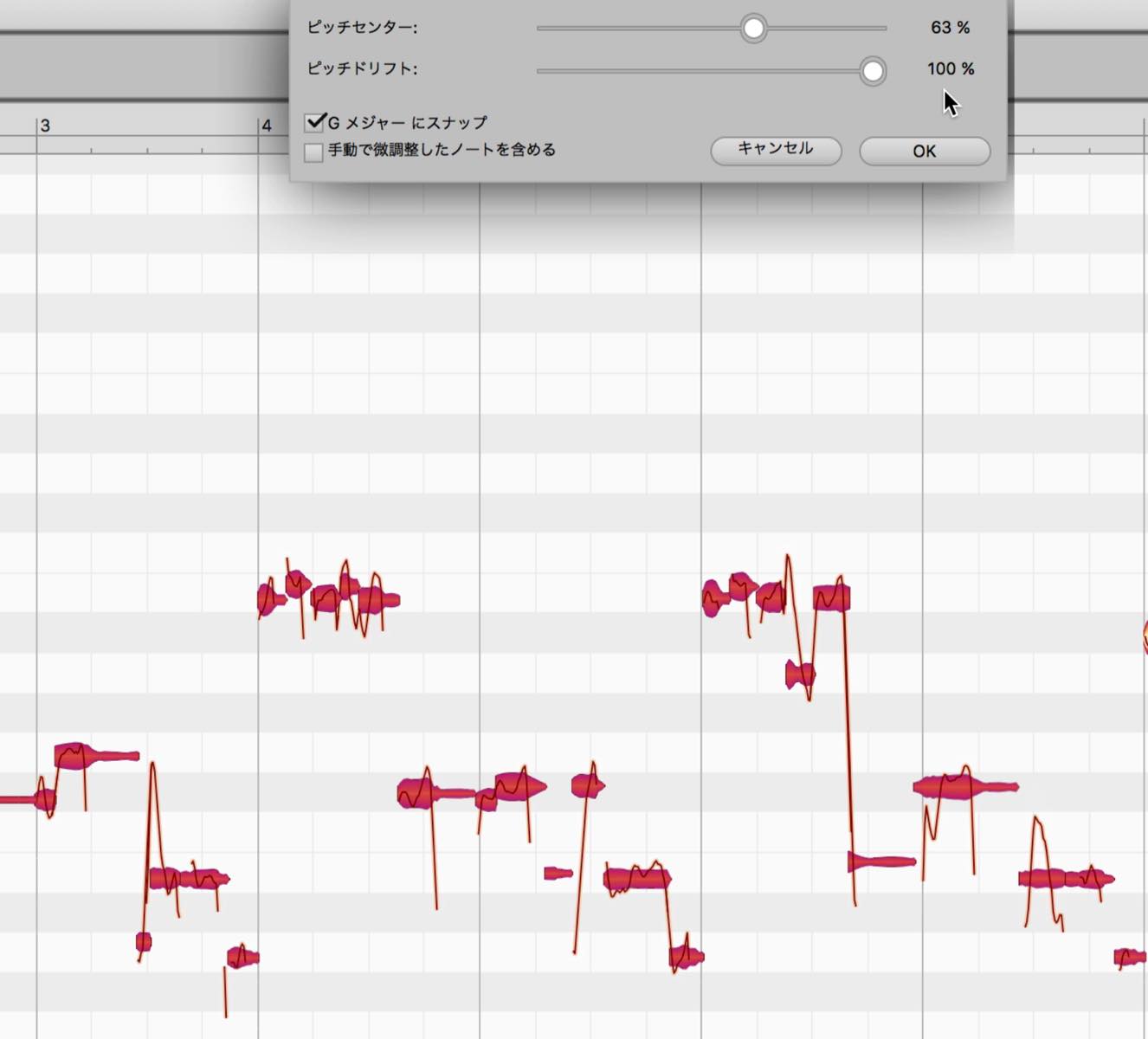
If you also enable Snap to G Major, the notes will move toward the nearest note in that scale.
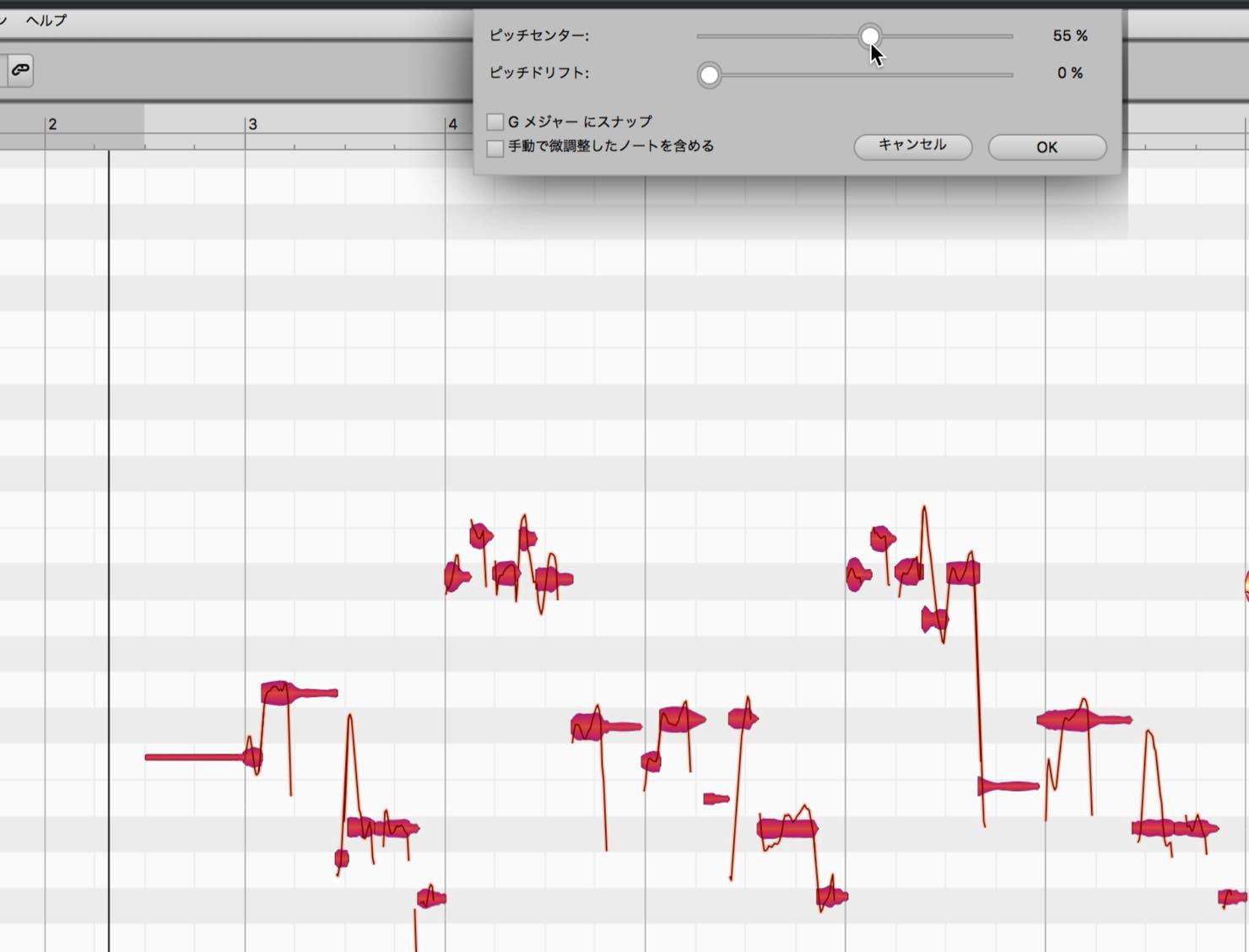
The Pitch Drift control below corrects subtle changes in pitch over the course of a note.
Look at the notes again: as well as the waveform-like blobs, you can see a curve. This curve shows the actual pitch movement, while the note blob represents its average pitch.
Pitch Drift correction does not remove all variation. It mainly balances the pitch between the beginning and end of a note.
Move this slider to the right and the curve changes, reducing drift across the note.
Timing Editing
Melodyne can correct timing as well as pitch.
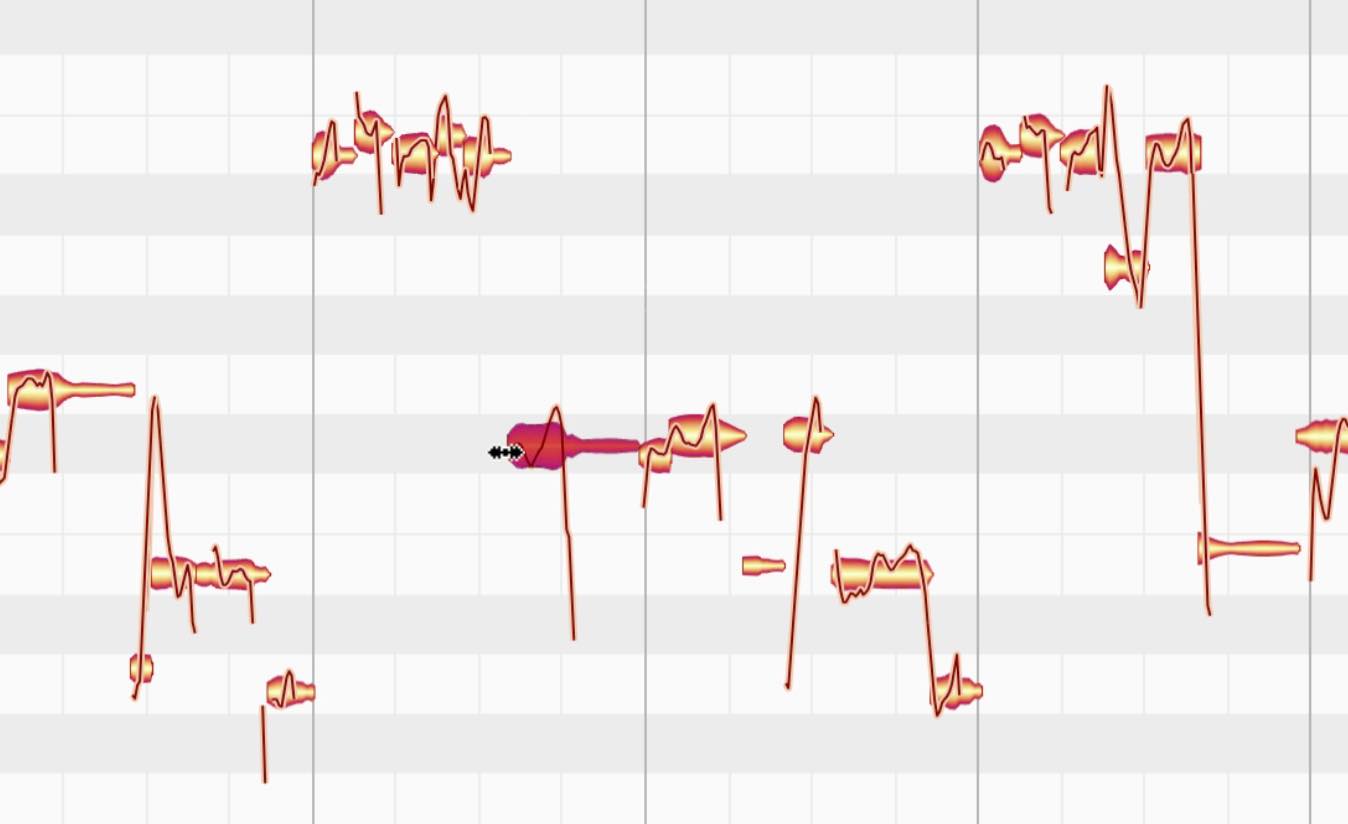
Move the pointer near the edge of a note and it changes as shown here. Drag left or right to adjust the timing. Timing snapping also applies to this operation.
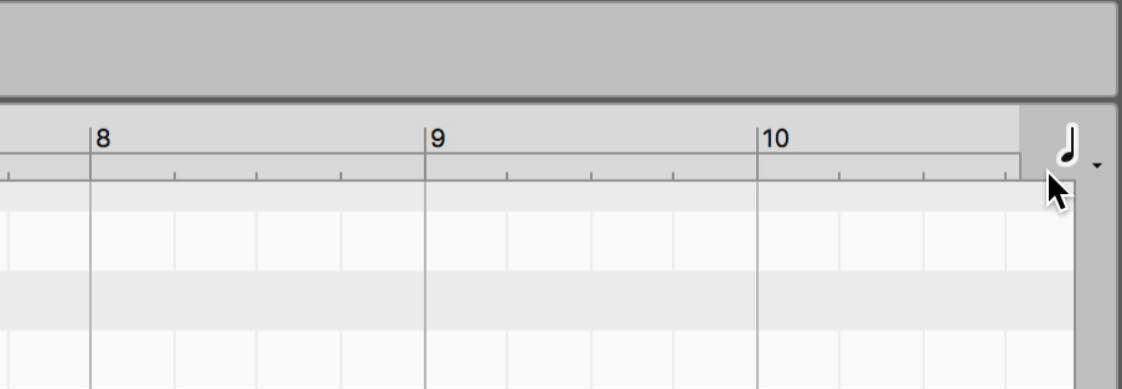
To disable snapping, click the musical-note icon at the upper right so that it is no longer lit. You can also temporarily bypass snapping by holding Option on Mac or Alt on Windows while editing.
There is also a macro for timing correction.
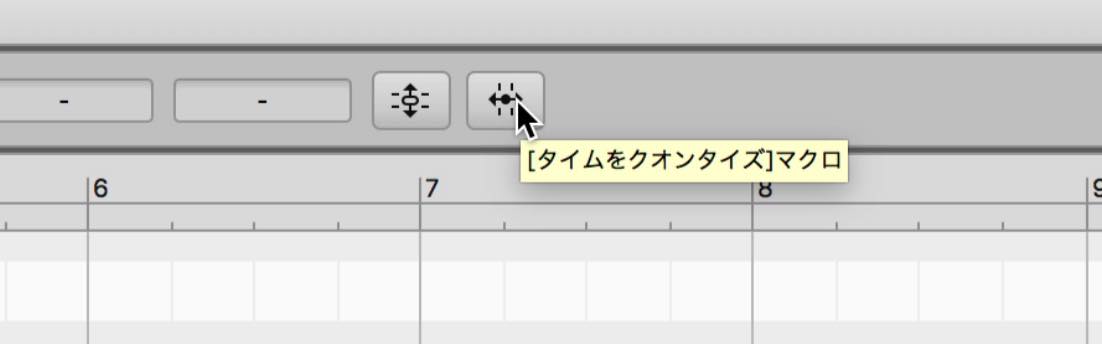
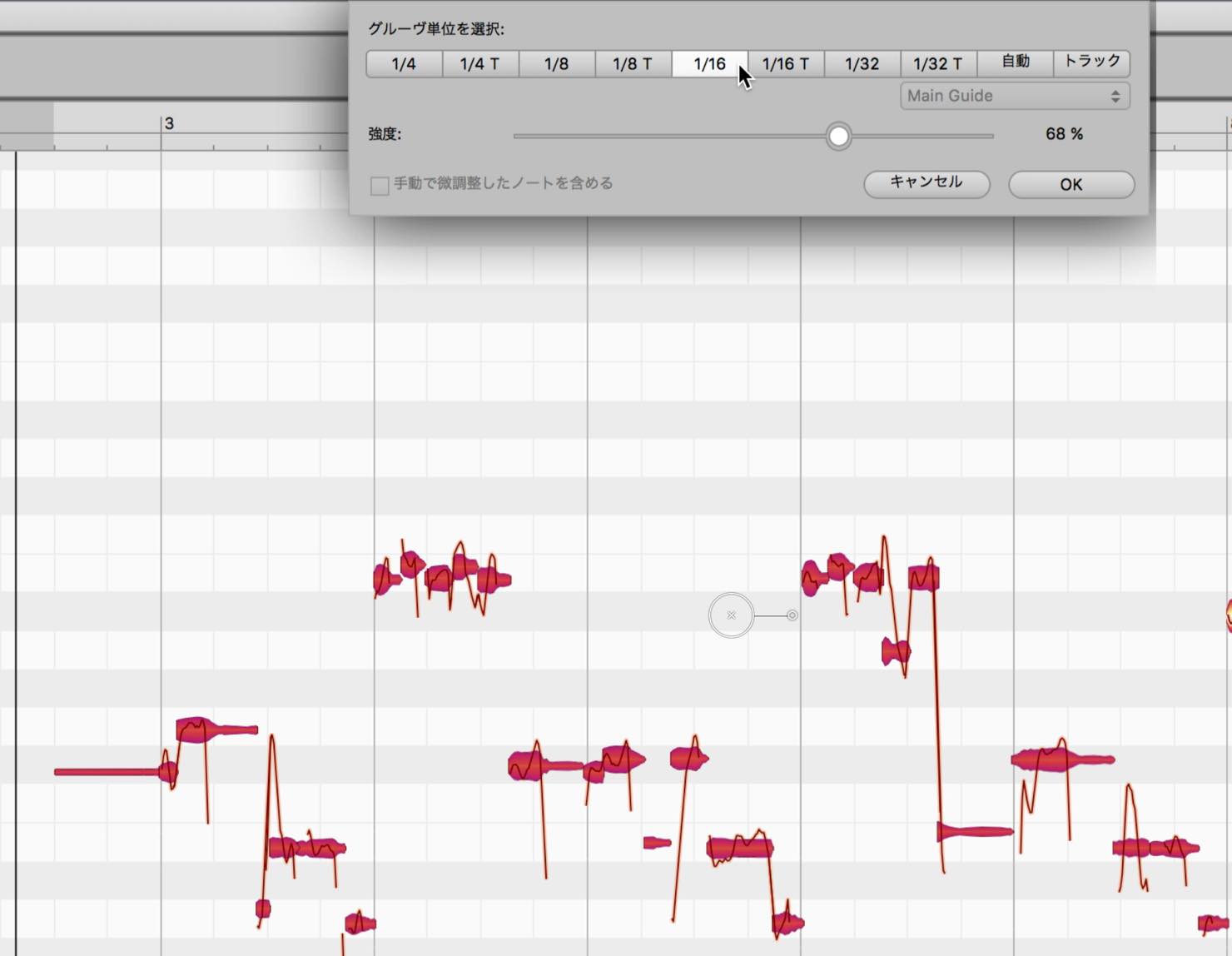
As with pitch correction, drag a selection around the desired notes, then click the Quantize Time Macro button at the top of the window.
The quantization interval options and an Intensity slider appear.
Selecting Auto lets Melodyne determine the quantization resolution automatically. Try adjusting the intensity, and choose another interval if the result does not match your intent.
Separating Notes
You can split something currently recognized as one note into several notes.
Move the pointer to the upper half of a note. It changes as shown here;
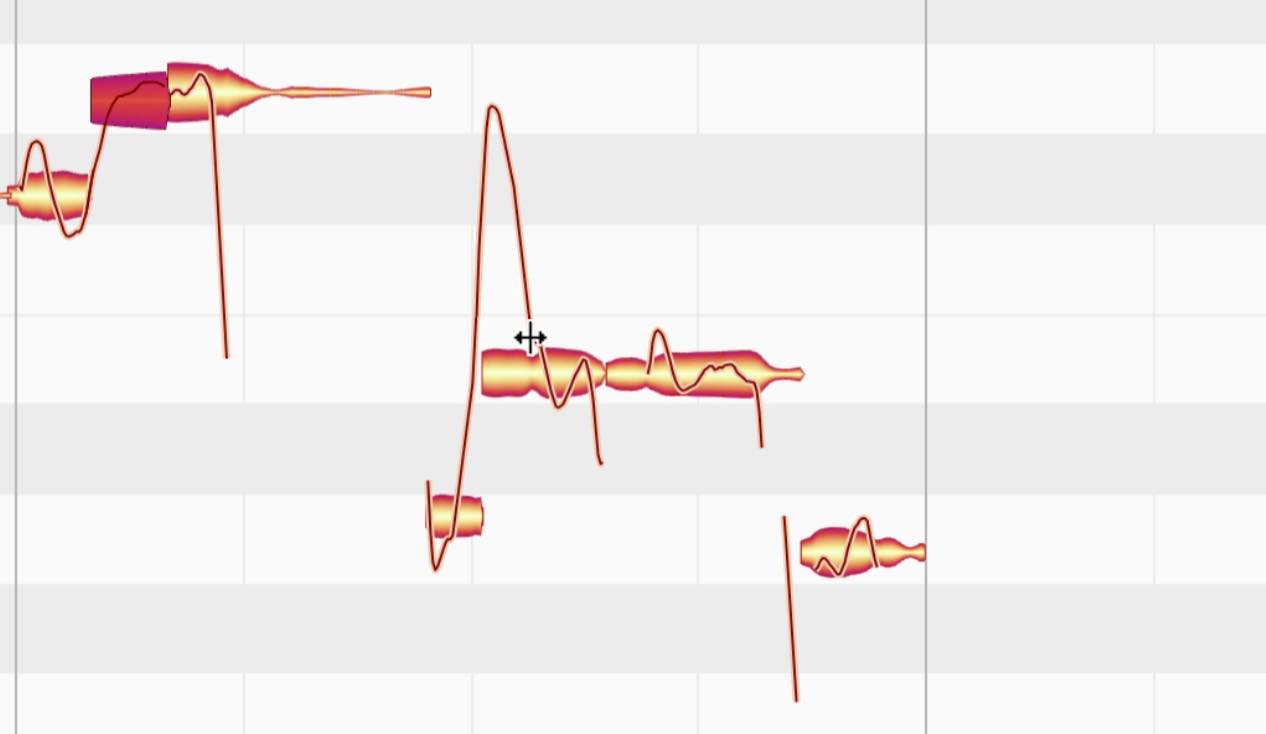
double-click to split the note.
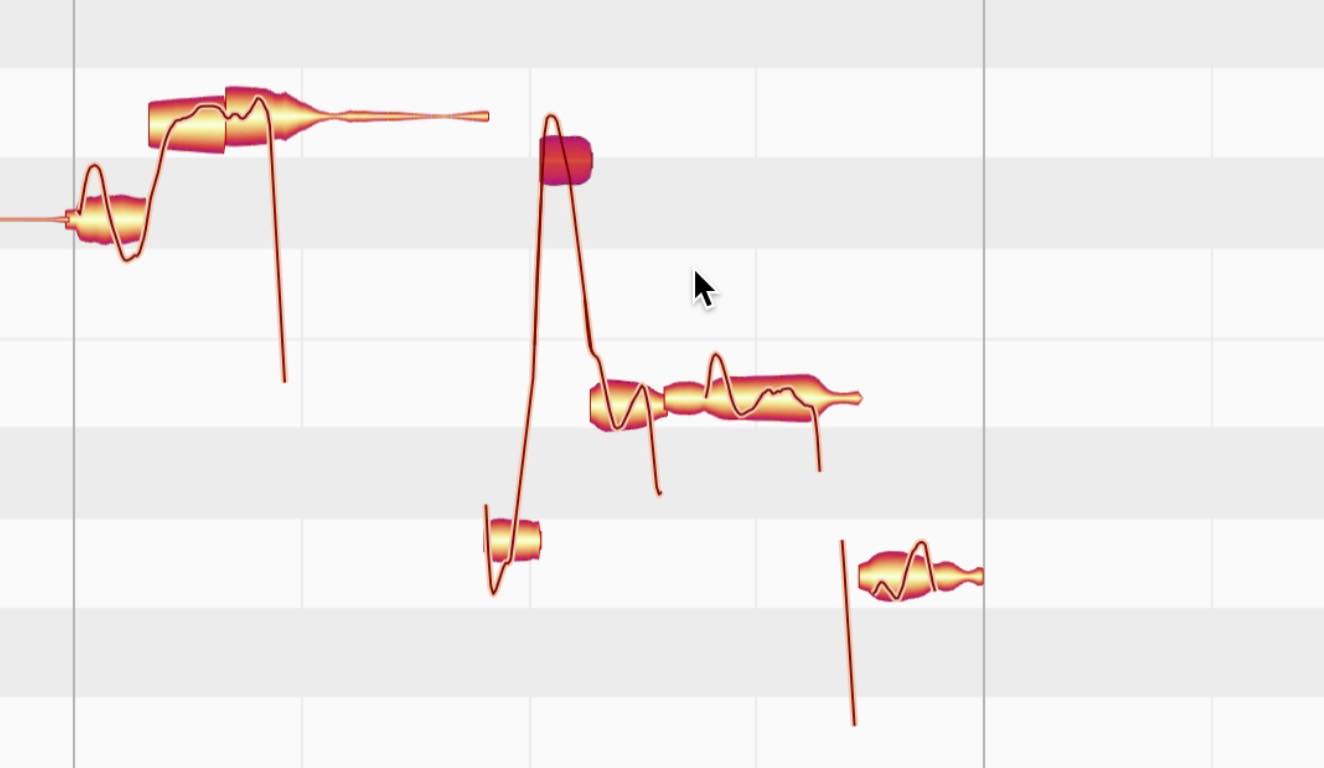
This is useful when, as in the example, the pitch curve changes but Melodyne has recognized it as a single note.
Undoing Edits
We have covered several editing functions, but sometimes you may be unhappy with the result and want to revert it.
Press Command+Z on Mac or Ctrl+Z on Windows to undo one action.
There is one important point: to undo an action in Melodyne, make sure the Melodyne window is active. If the DAW window is active instead, the shortcut will undo an action in the DAW.
To redo an action you have undone, press Command+Shift+Z on Mac or Ctrl+Shift+Z on Windows.
Melodyne can also reset only a specific type of edit.
Select a single note, or drag a selection around several notes, then right-click and point to Reset Specific Edits to display a list of editing operations.
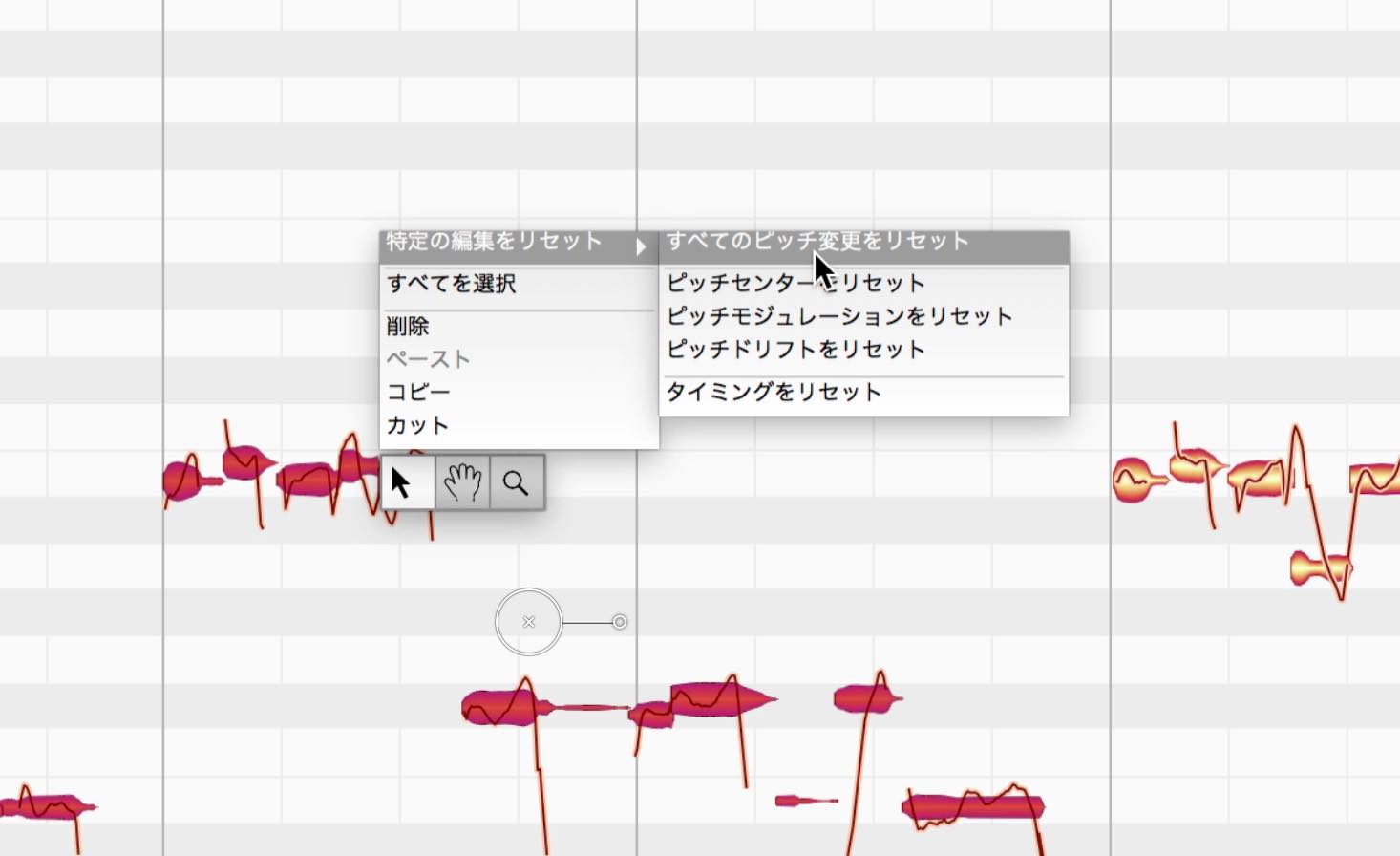
Choose an item from the list to reset that type of edit.
That concludes our introduction to the features available in essential.
Next time, we will look at assistant, which offers more detailed pitch correction.
- 1Melodyne 4 essential: Overview and Tutorial
- 2Melodyne 4 assistant: Overview and Tutorial
- 3Melodyne 4 editor and studio: Overview and Tutorial
- 4What's New in Melodyne 5 Pitch-Editing Software
- ◆ Manufacturer's Website: http://urx.space/Rgab
- ◆ Purchase Here (Affiliate Link): http://urx.space/Rgab
Frequently Asked Questions
Q1. How do the features of Melodyne 4 essential and editor differ?
Essential is limited to the core functions, while editor adds more detailed editing tools and advanced features. Essential can handle pitch editing and timing correction, but editor or a higher edition is recommended for complex editing.
Q2. What do I need to install to use Melodyne 4 in my DAW?
Melodyne 4 is available as a plug-in supporting AAX, AU, and VST on 32-bit and 64-bit platforms. Install the format supported by your DAW, then insert it as a plug-in.
Q3. How do I turn off snapping when correcting pitch?
Click the treble-clef icon at the upper left so that it is no longer lit, or hold Option on Mac or Alt on Windows while dragging a note to temporarily bypass snapping.
Q4. How can I undo an incorrect edit?
Press Command+Z on Mac or Ctrl+Z on Windows to undo one action, making sure the Melodyne window is active. To reset only a specific type of edit, right-click a note and choose an option under Reset Specific Edits.
NEW ARTICLES
Latest English Articles


































































































































































































































































































