Cubase automation lets you change parameters such as volume, pan, and effects automatically throughout a song. You can add and drag points with the selection tool or draw curves with the Pencil and Line tools. Cubase also lets you work with multiple automation parameters, delete unwanted data, and temporarily suspend automation for detailed control over your production.
Automate your parameters
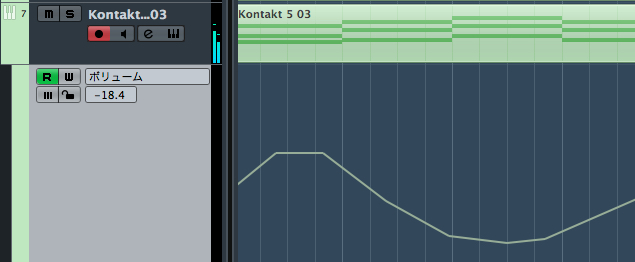
Automation lets you
automatically change
parameters such as track volume, pan, and effects throughout a song.
Video: Cubase automation, part 1
Setting up automation in Cubase
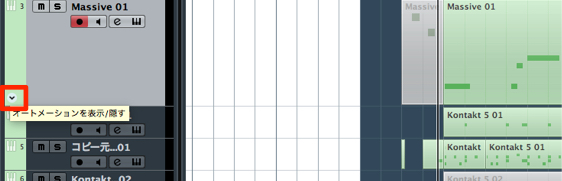
↑ Click the area outlined in red.
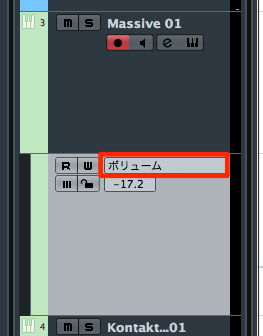
↑ Select the parameter you want to change.
Here, we select Volume.
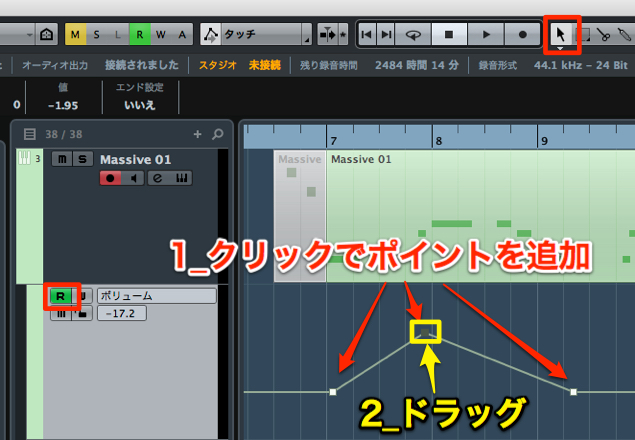
↑ Select the selection tool from the tool menu and turn on R.
- 1. Click to add automation points.
- 2. Drag the points to the values you want.
You can also draw curves freely.
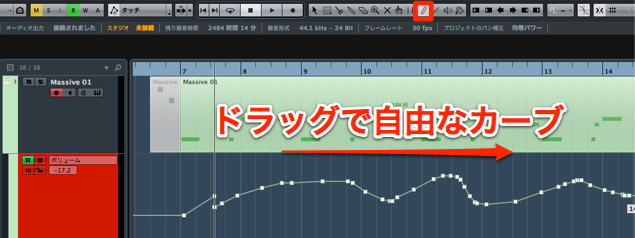
↑ Select the Pencil tool from the tool menu and turn on R.
Drag to draw the curve you want.
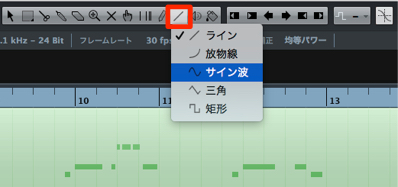
↑ You can also press and hold the Line tool and choose a different shape
to draw precise automation shapes.
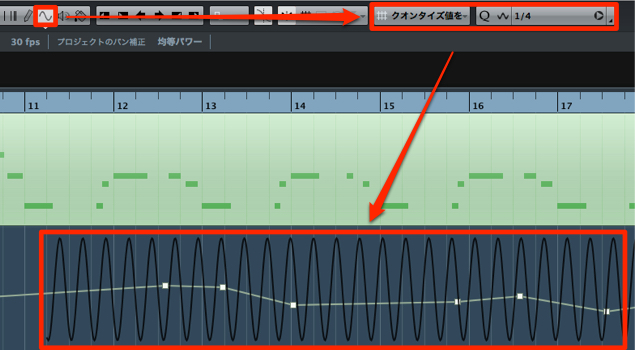
↑ The width of the automation shape follows the Snap setting.
In the example above, Snap is set to quarter notes, so one cycle repeats every beat.
Adding multiple automation parameters
Here is how to work with more than one automation parameter.
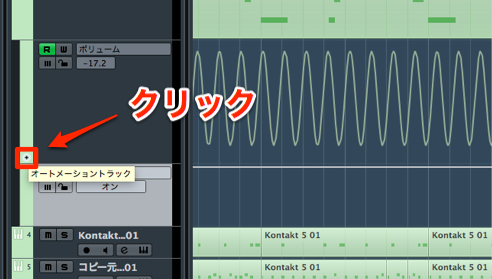
↑ Click the area outlined in red.
A Pan automation lane is now shown as well.
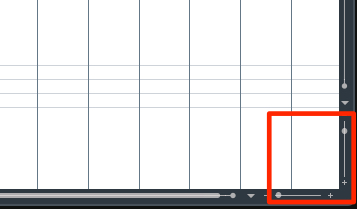
Click the plus sign outlined in red to add other automation lanes.
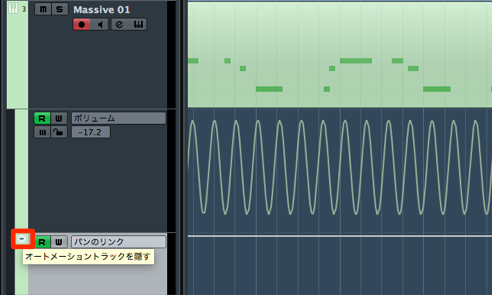
To hide the automation display again, click the area outlined in red.
The automation data you have written remains in place.
Deleting automation
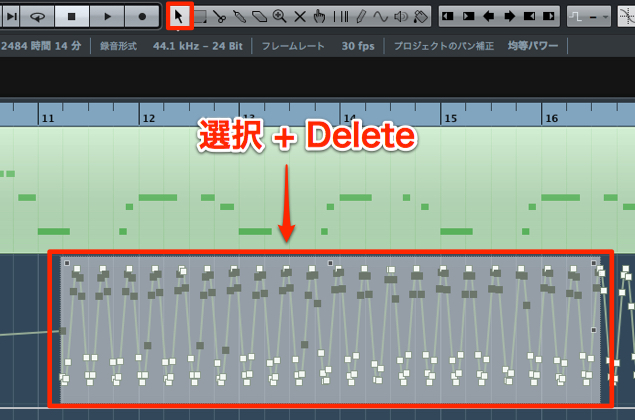
↑ Switch to the selection tool and select the section you want to remove,
then press Delete or Backspace.
Temporarily suspending automation
Sometimes you may want to suspend automation temporarily.
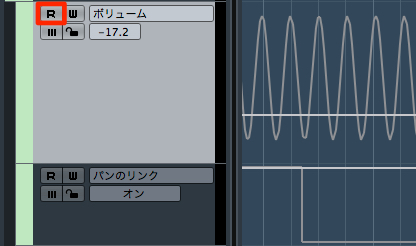
To stop all automation, turn off R.
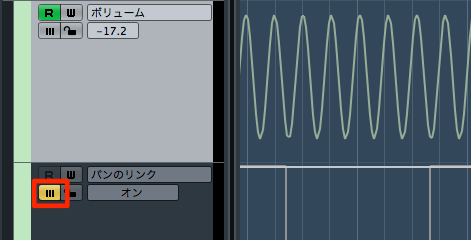
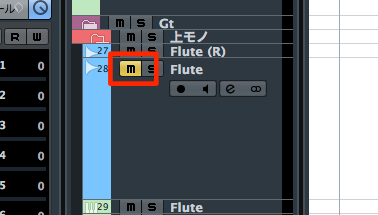
To suspend an individual parameter, turn on its suspend button.
In the next article we will show how to record automation
by moving faders and knobs.
Frequently asked questions
Q1. What do I click to add automation in Cubase?
Click the area outlined in red on the track and select a parameter, such as volume, pan, or an effect. Select the selection tool and turn on R to read the automation, then add and edit points.
Q2. How do I draw precise automation shapes?
Press and hold the Line tool in the tool menu and select the desired shape. Its width follows the Snap setting, which lets you control the repeat interval.
Q3. How can I temporarily disable automation I have written?
Turn off R to stop reading all automation. To suspend an individual parameter, turn on its suspend button.
NEW ARTICLES
Latest English Articles