
Reveal Sound Spire is a feature-rich synthesizer suited to EDM and electronic music production. Starting with its extensive presets, this tutorial covers practical sound design examples using ADSR, pitch bend, glide, LFOs, matrix modulation and filters. Its clear interface makes experimentation approachable, while four oscillators, four LFOs, four envelopes and two filters offer plenty of tools for shaping contemporary sounds.
Contemporary sounds and a beautiful interface
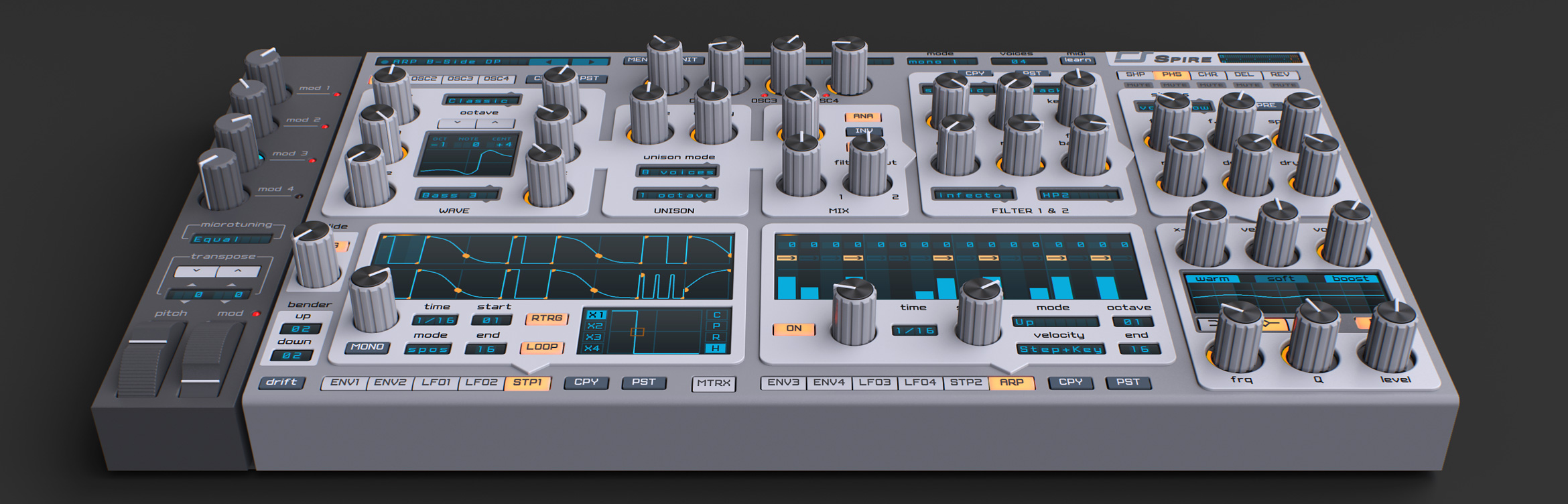
This time we explore Spire by Reveal Sound, a synthesizer popular in EDM and electronic music.
Spire comes with many ready-to-use presets that can be adapted to your song through its clear, attractive interface.
Video: Spire overview
Controlling Spire
Let’s open a Spire preset and use its features to shape a sound.
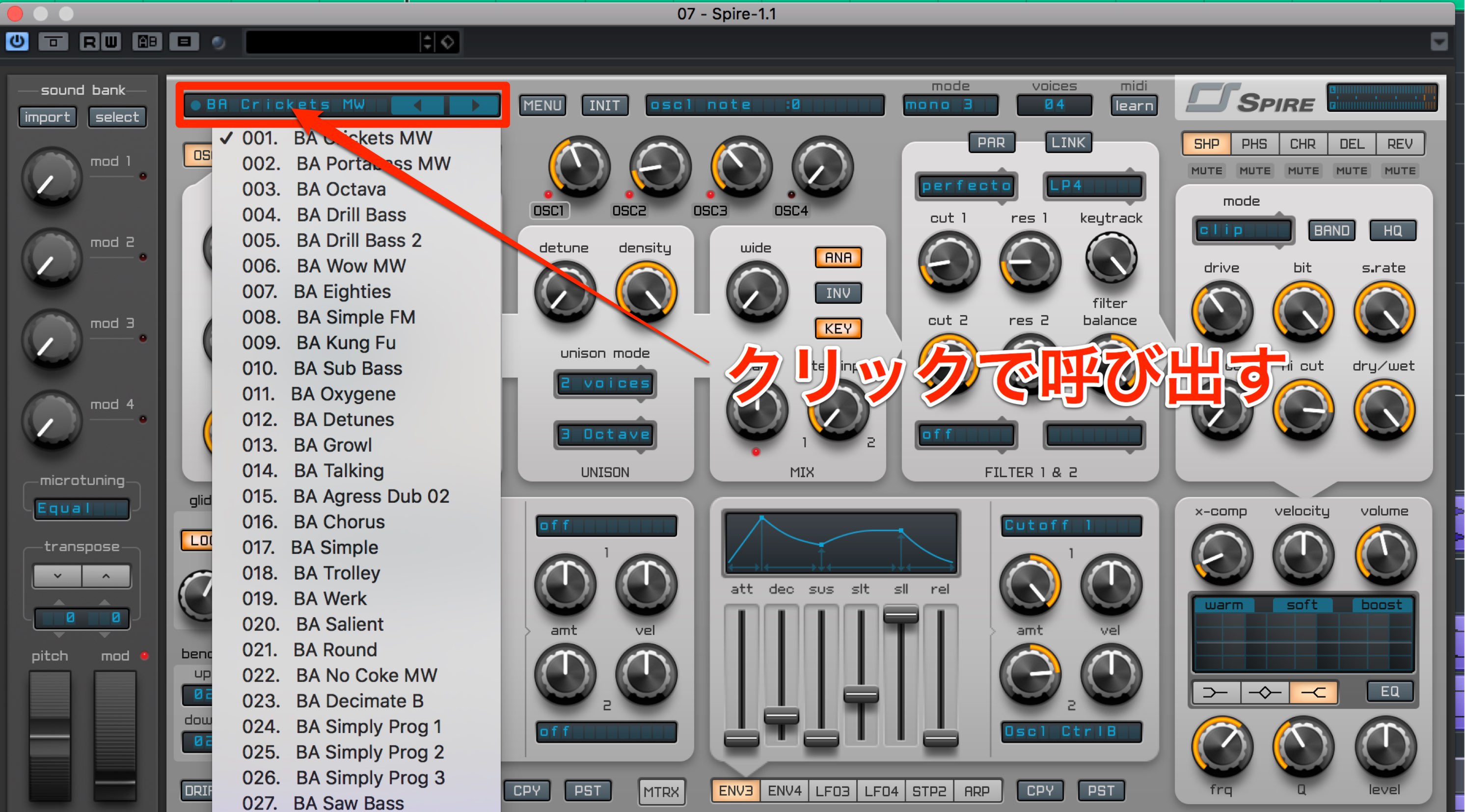
Click the window in the upper left to show the presets below.
There are many, but these are only a small selection.
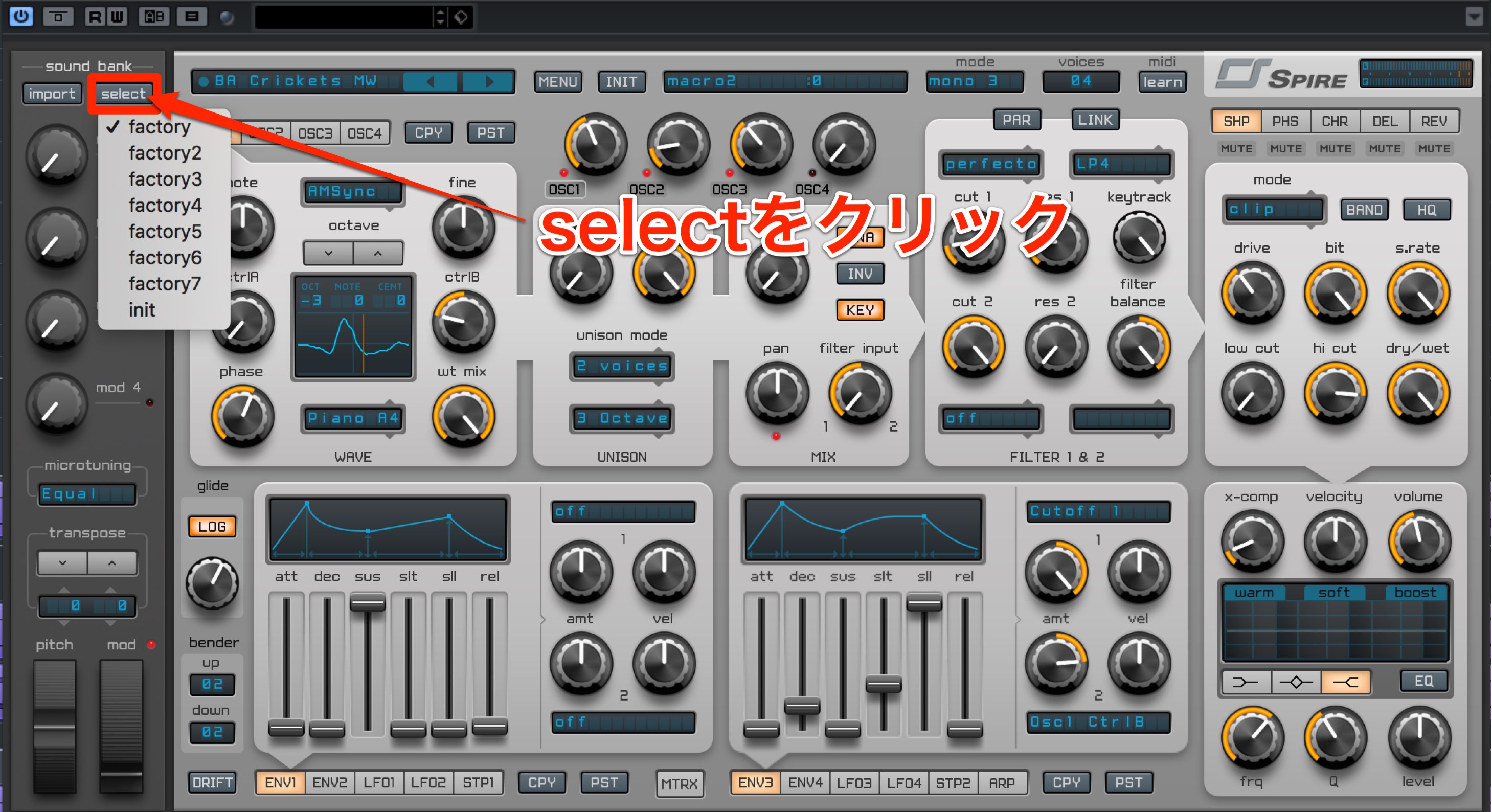
Click select in the sound bank area on the left.
The presets shown above are in Factory; Factory banks 2–7 are also available.
Let’s load a bass preset.
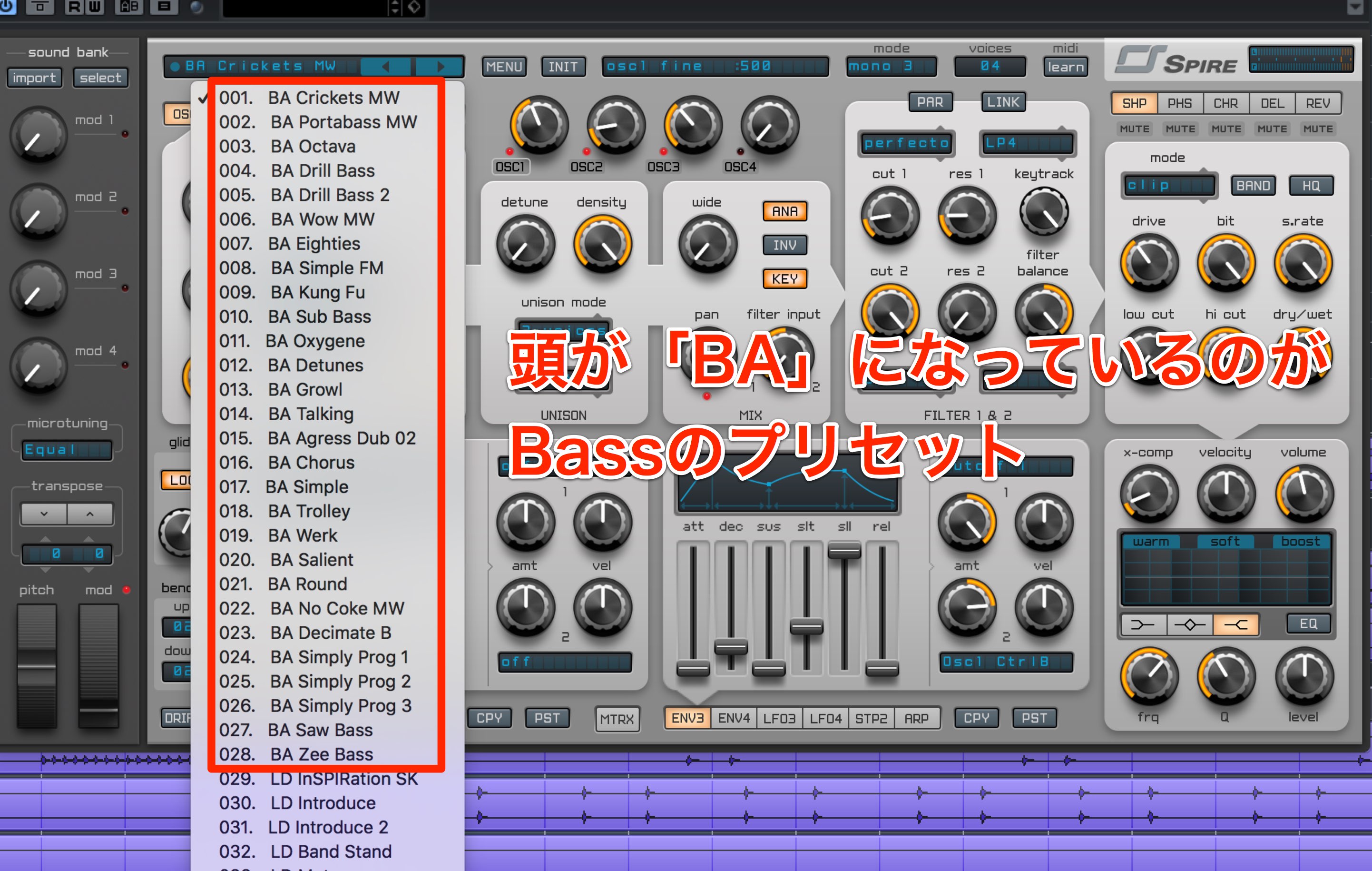
Preset names beginning with “BA” are bass presets.
Select number 10, Sub Bass.
It is an essential kind of sound for contemporary dance music.
The bass above has a slightly strong attack, so let’s adjust it with the AMP ADSR.
Adjusting the AMP ADSR
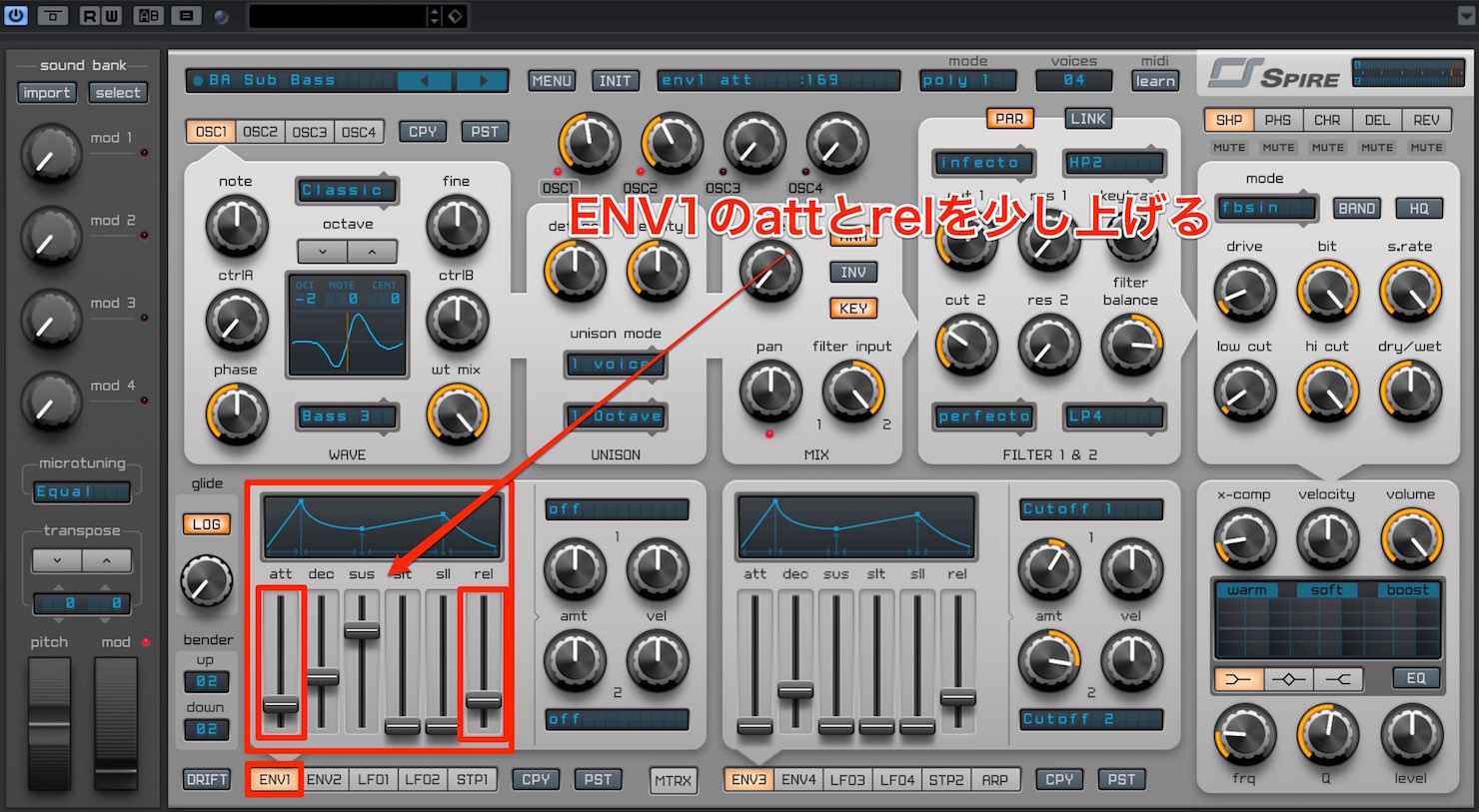
ENV1 at the lower left controls the master volume (AMP). Raise the attack and release slightly.
Applying pitch-bend automation
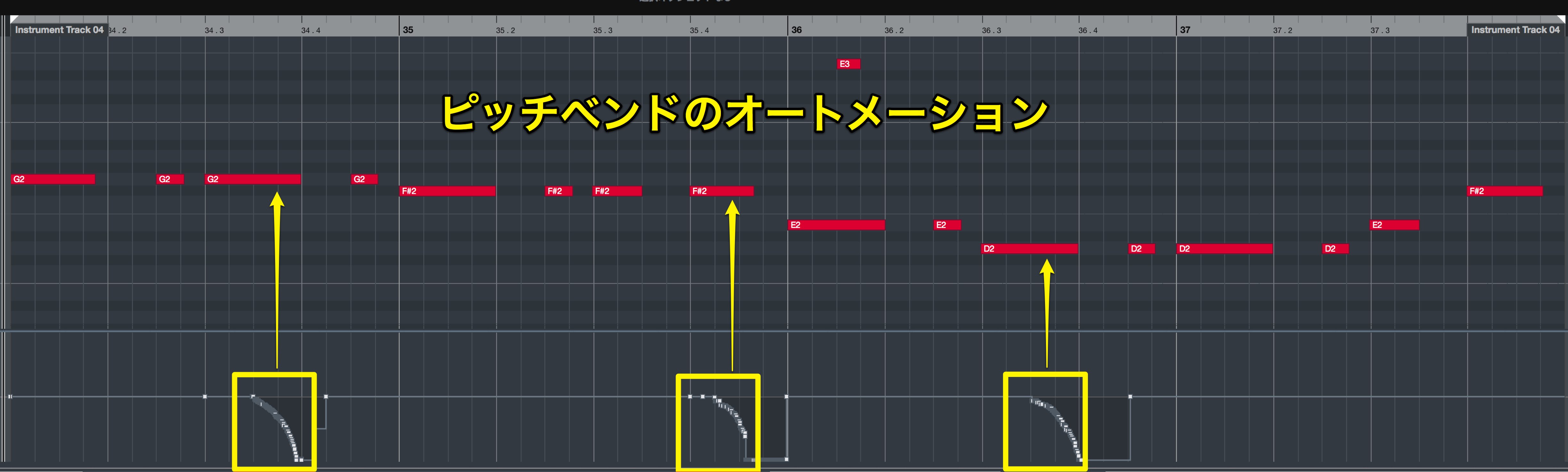
Next, record pitch-bend automation where the bass phrase holds a note like this.
Dropping and raising the pitch at selected points gives the phrase a contemporary feel.
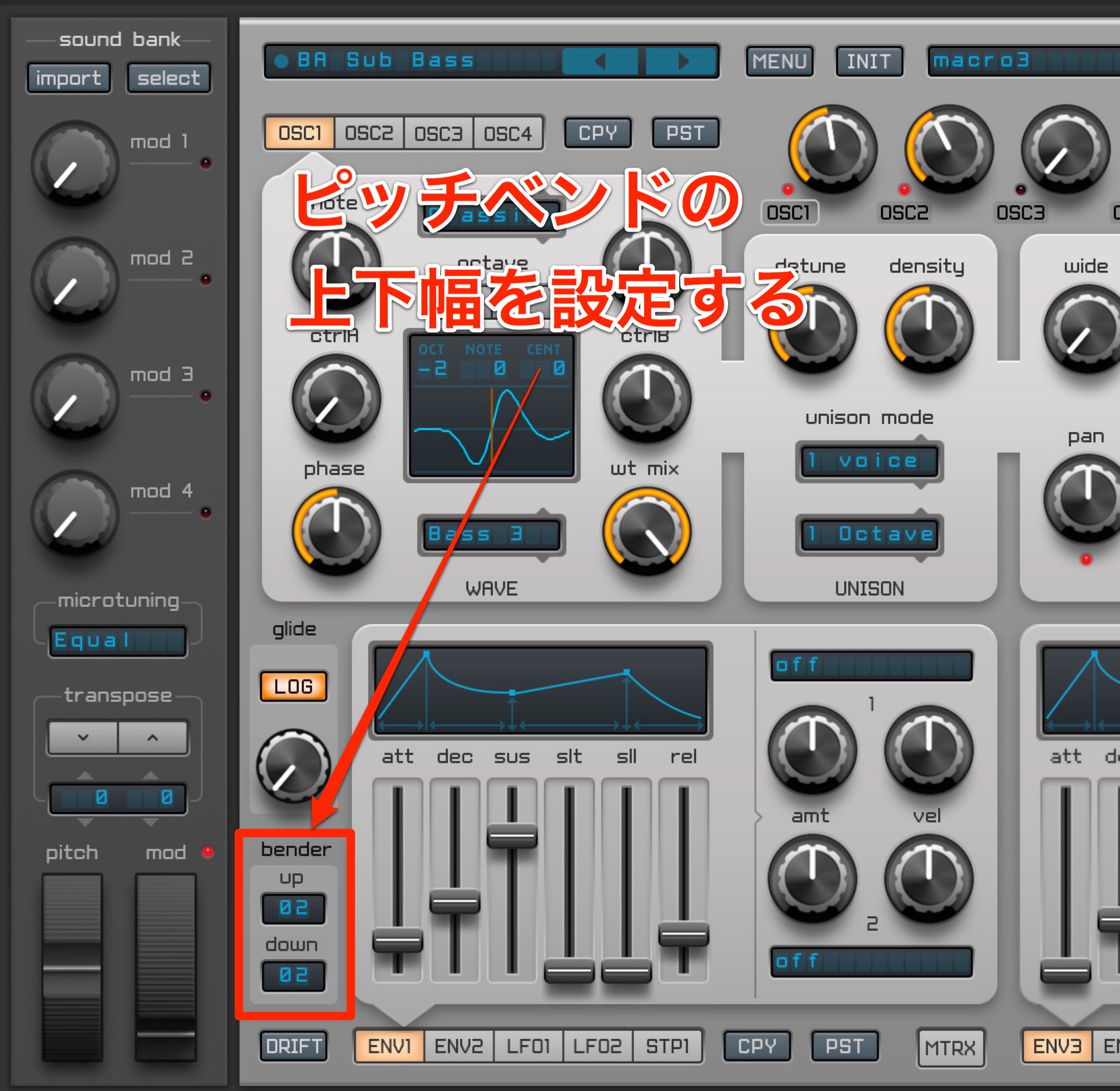
The bender’s up and down controls at the lower left set the pitch-bend range. The default is 2.
That means two semitones.
You can change this range by clicking the pitch-bend value; each direction can be set to as much as 36 semitones, or three octaves.
Here, set down to 24, or two octaves.
Next, let’s look at glide, a technique often used on leads.
Glide can add an interesting touch to a sub bass too.
Connecting phrases smoothly with glide
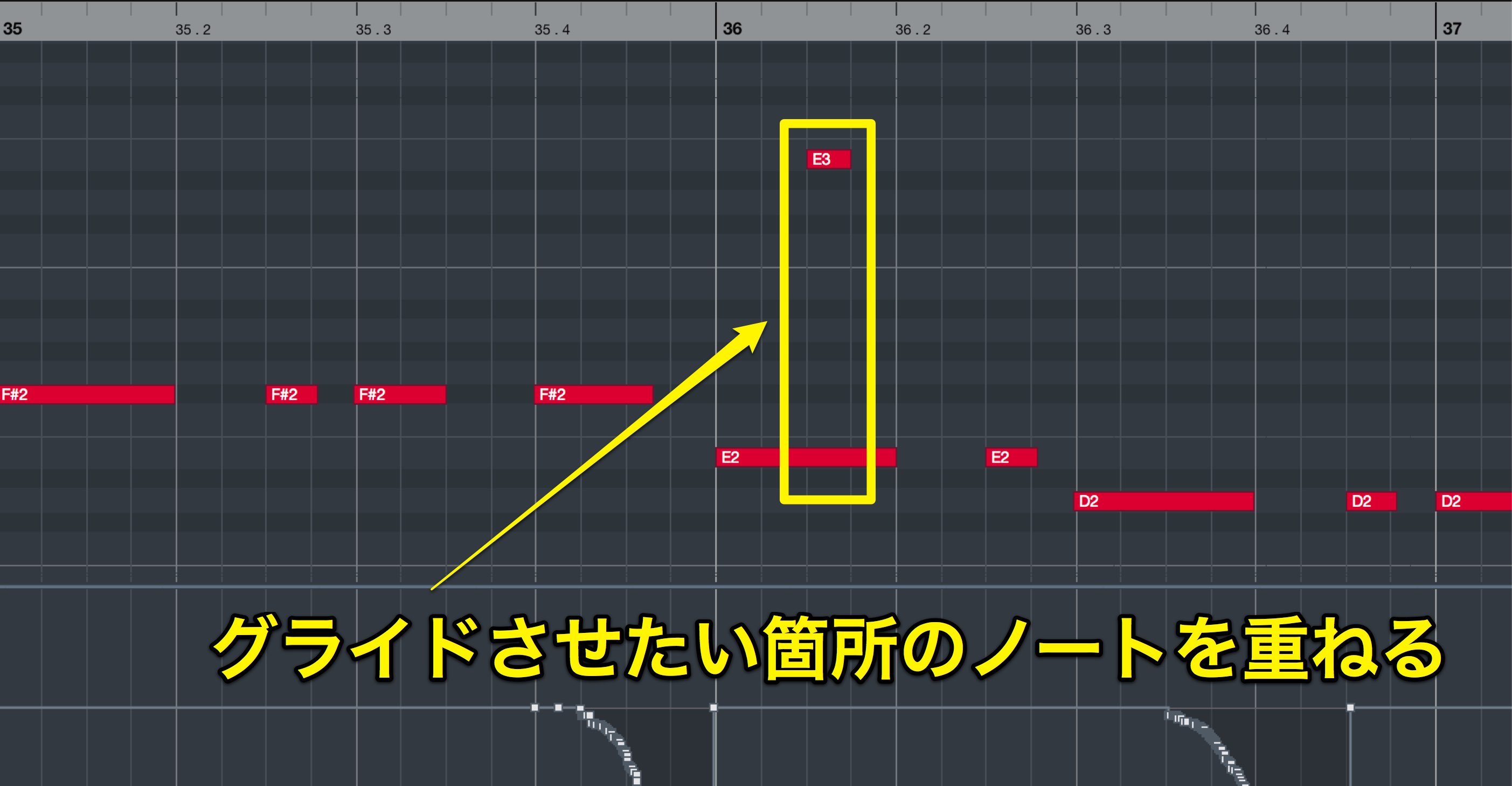
Overlap the notes where you want the glide.
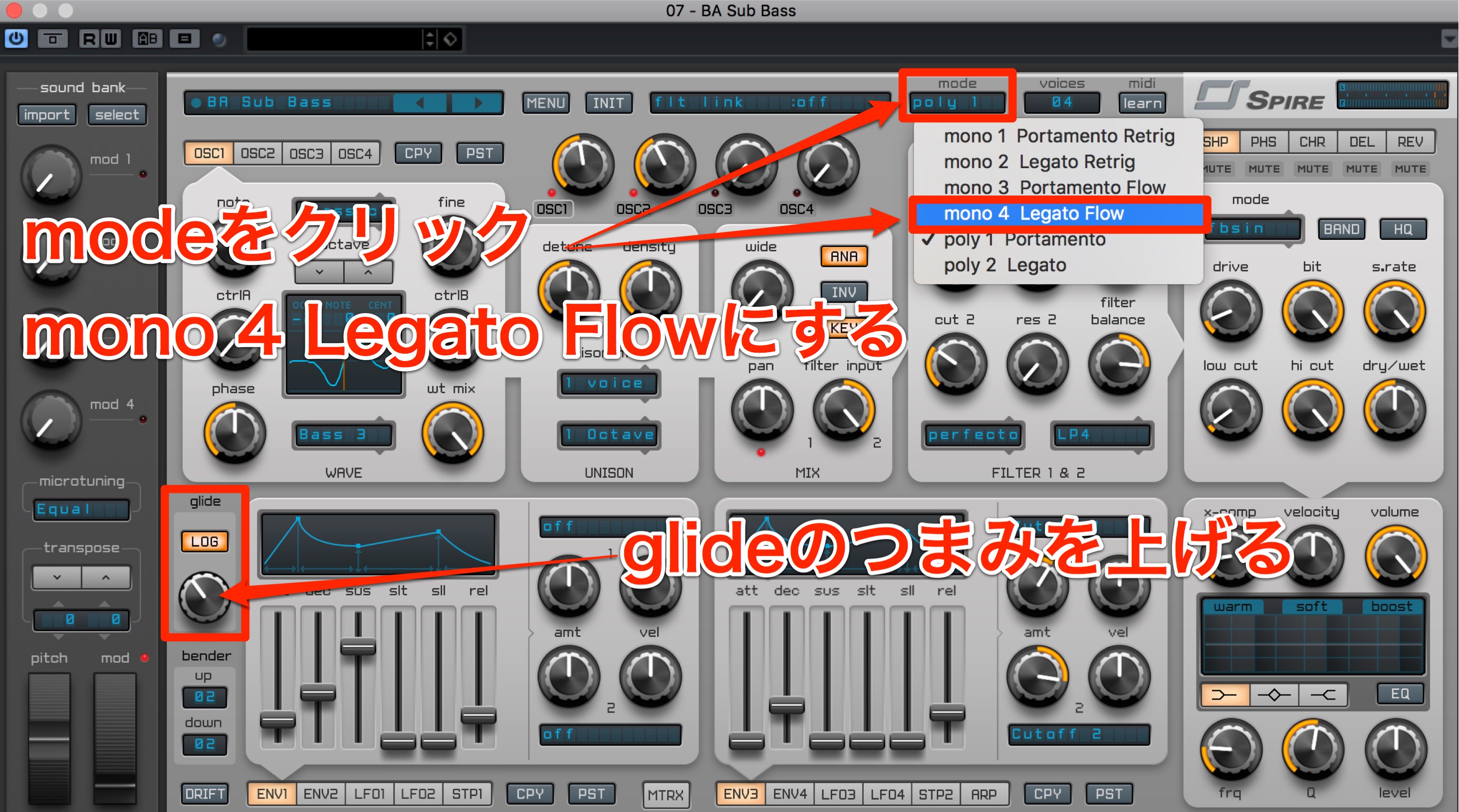
Click mode at the upper right and choose mono. There are four mono modes.
“mono 4” (Legato Flow) provides a conventional legato glide.
Use the glide knob above the bender to adjust the speed of the transition to the next note.
These simple controls can create a contemporary phrase.
Next, let’s look at a backing sound.
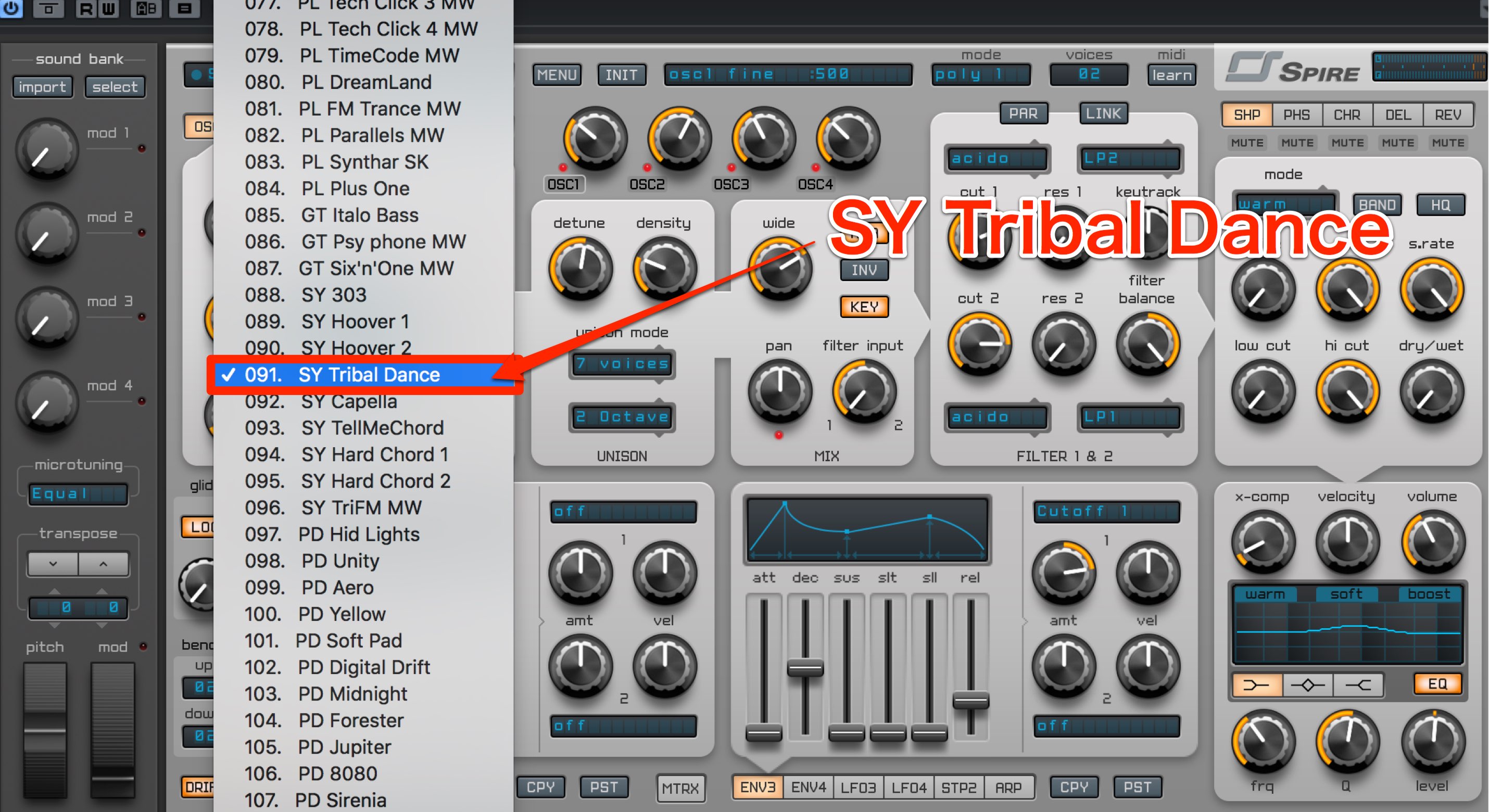
Select preset 91, “SY Tribal Dance”.
It already sounds good, but we can refine it with a few simple adjustments.
We will use an LFO to create a sidechain-like effect.
Creating a sidechain-like effect with an LFO
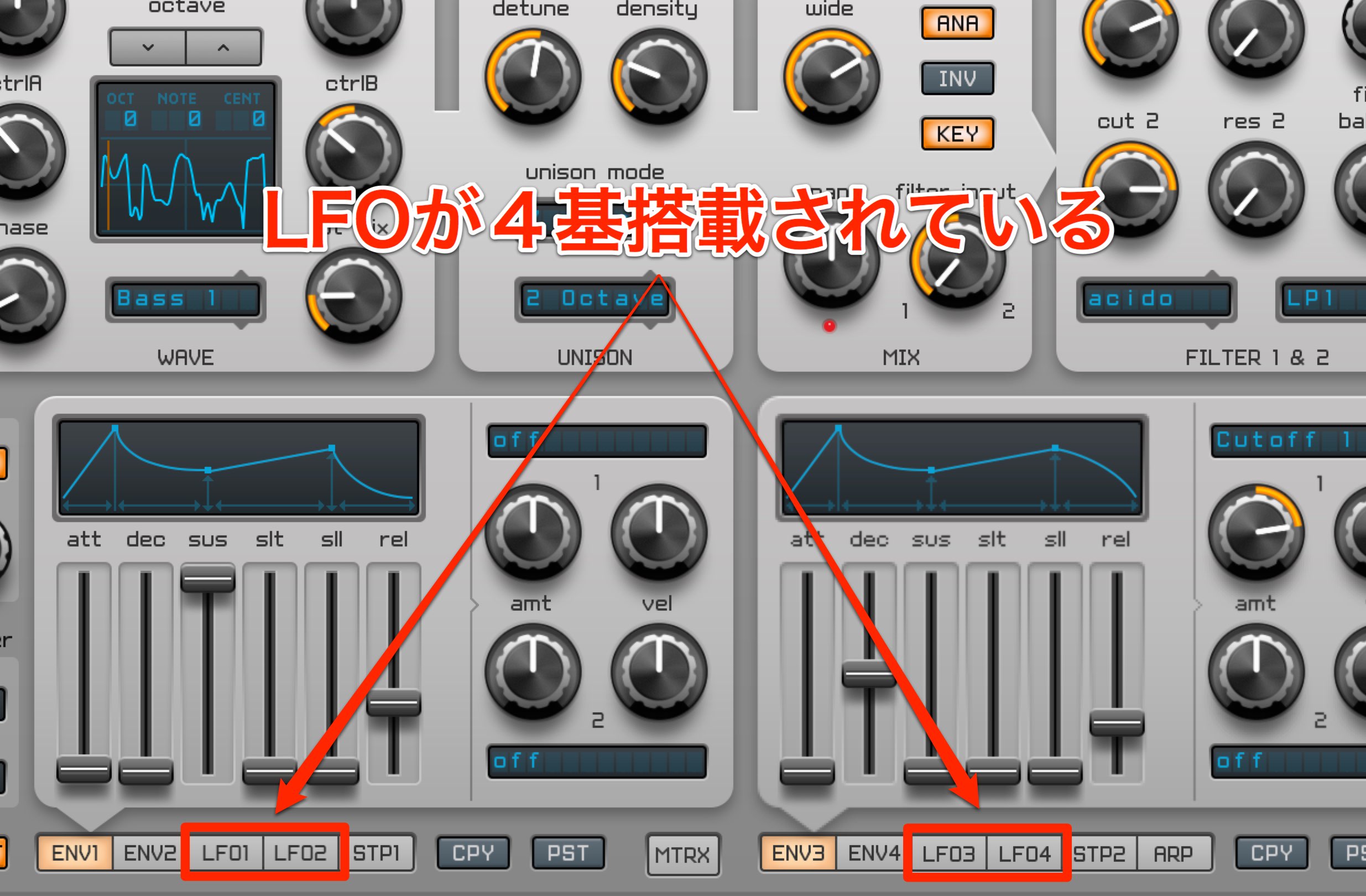
Spire has four LFOs.
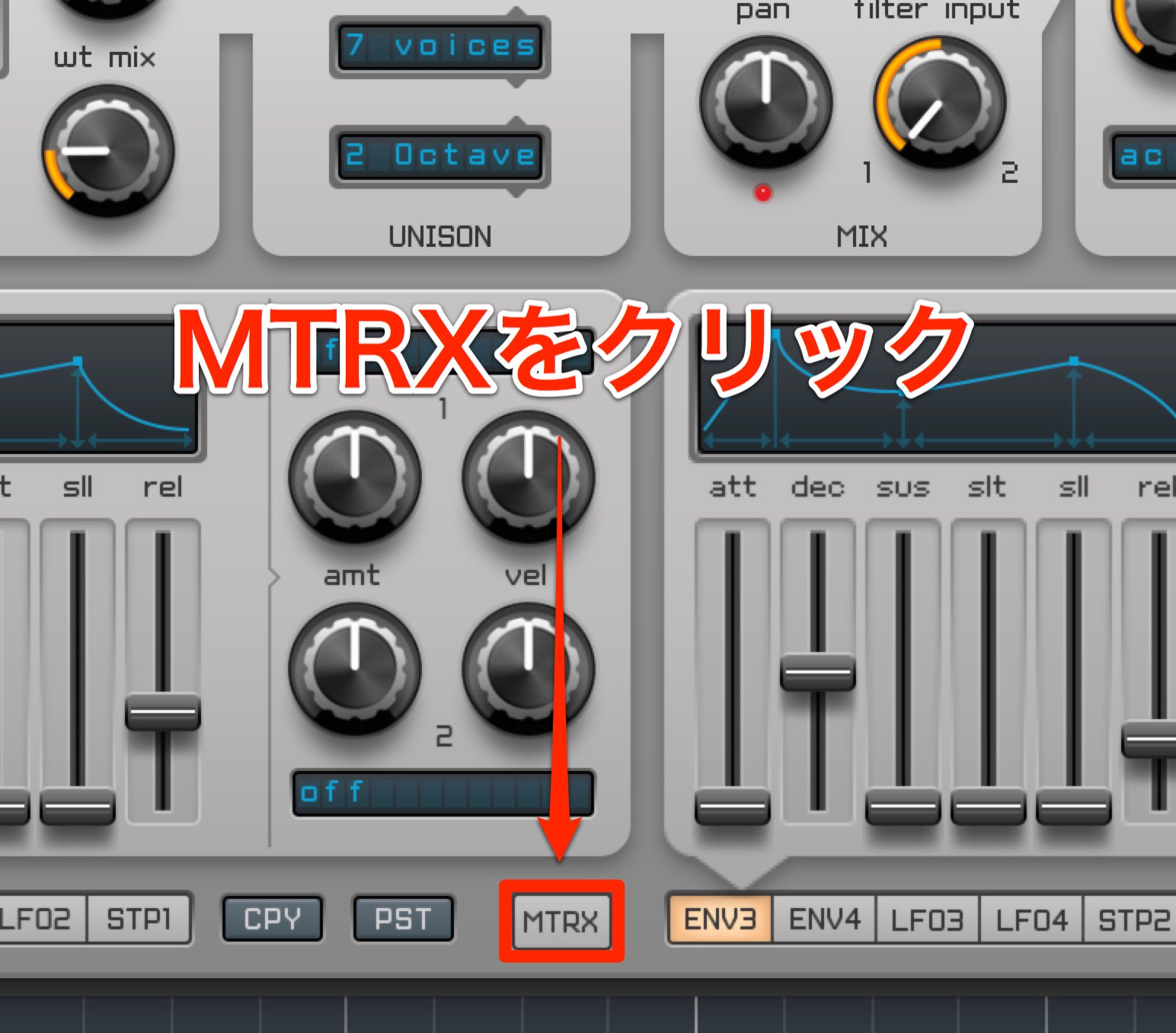
Click MTRX.
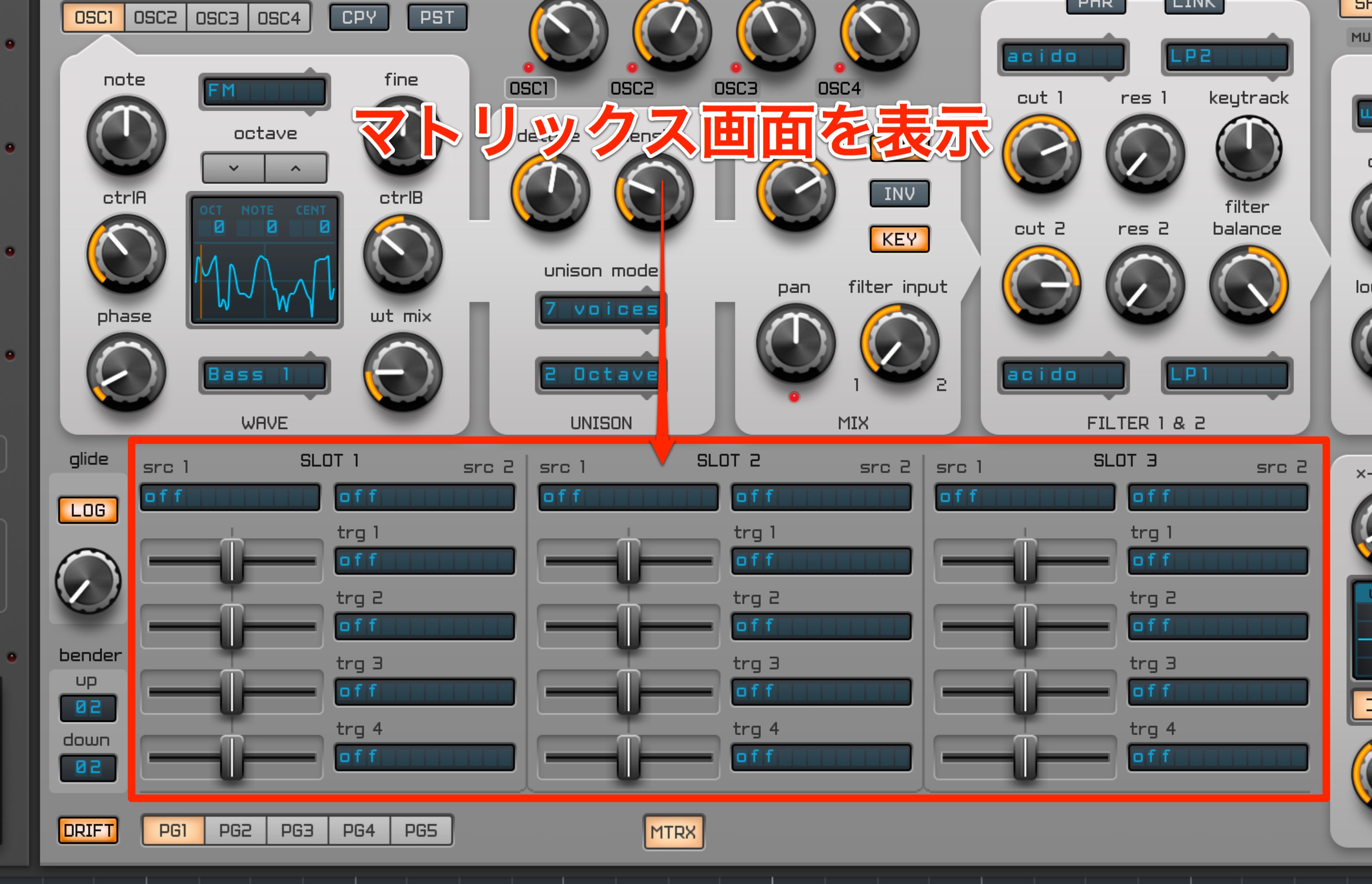
This opens the matrix screen.
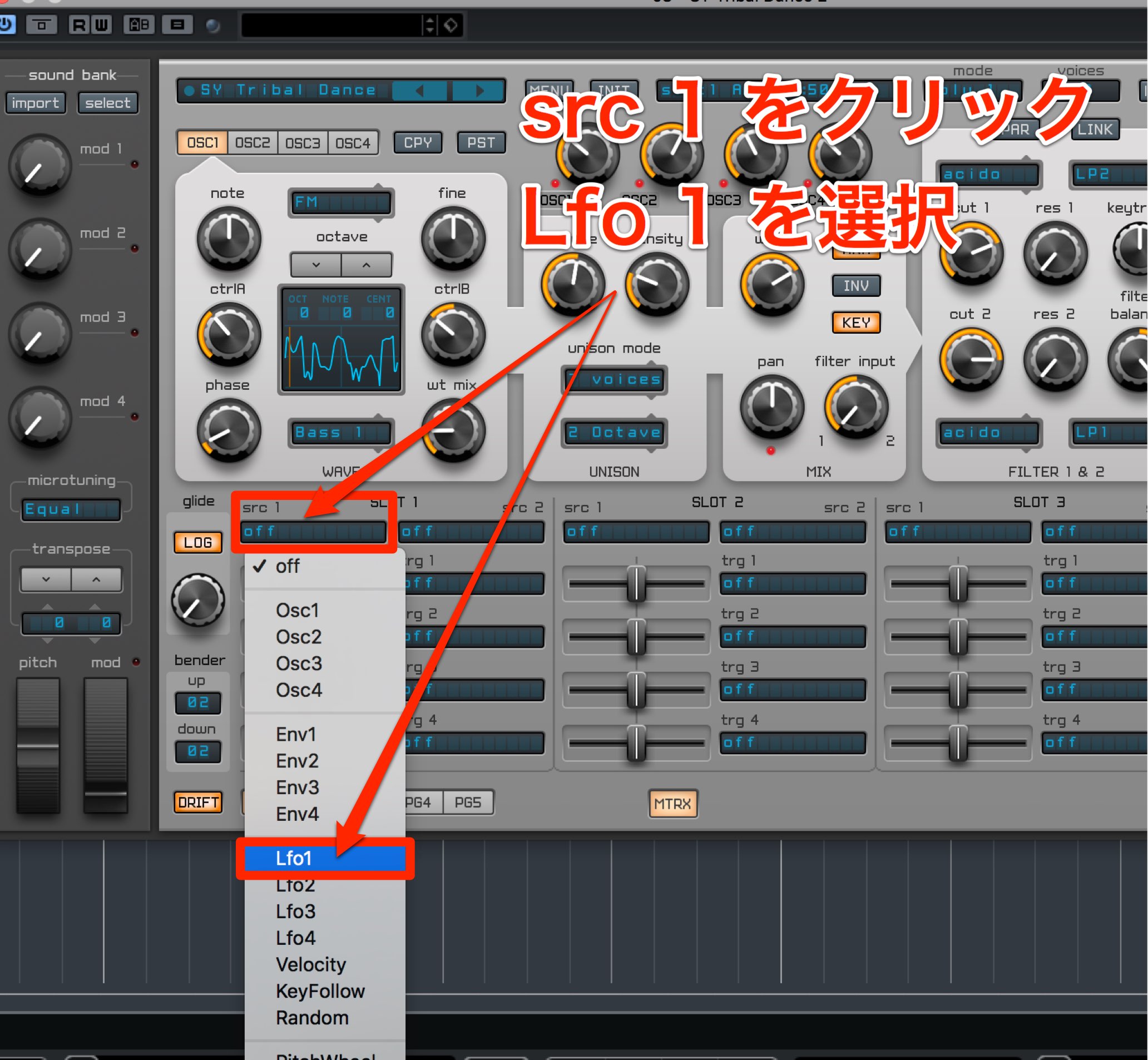
In an empty slot, click src 1 and select Lfo 1.
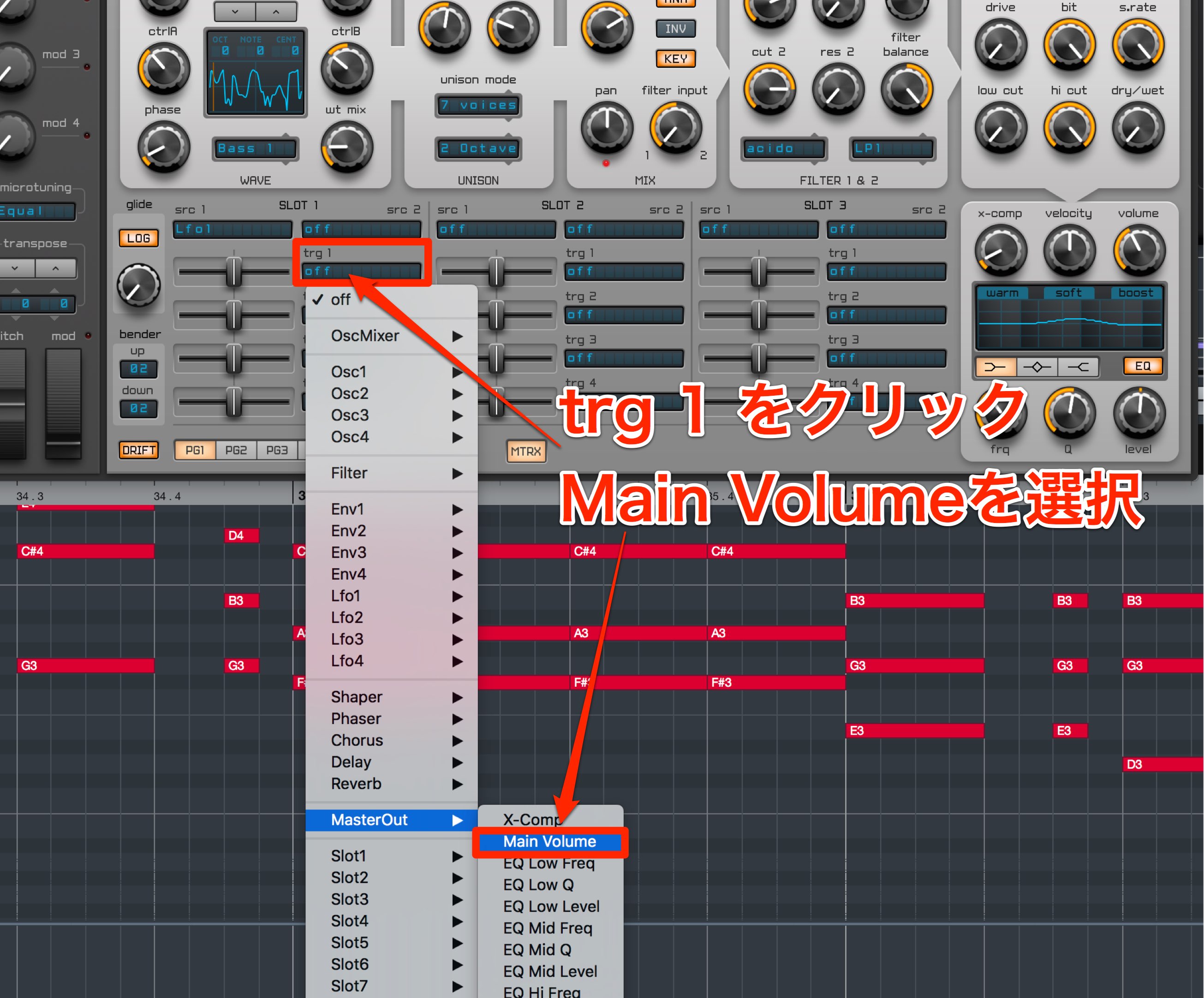
Next, click trg 1 and select Main Volume under MasterOut.
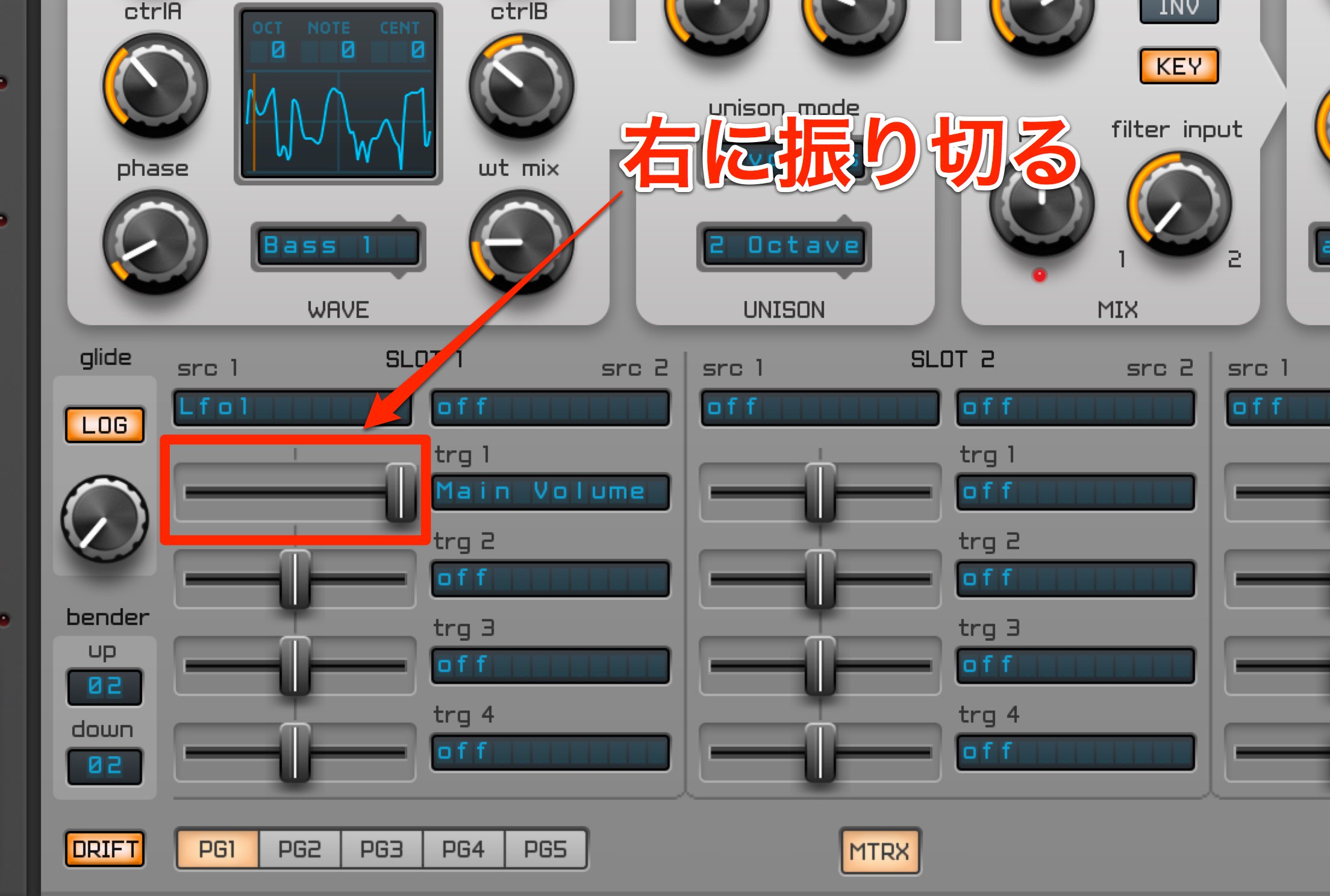
Use the adjacent slider to adjust the modulation amount.
Moving right gives a positive value and moving left gives a negative value.
For this example, move it fully right.
The LFO will now raise and lower the volume.
Next, configure the LFO itself.
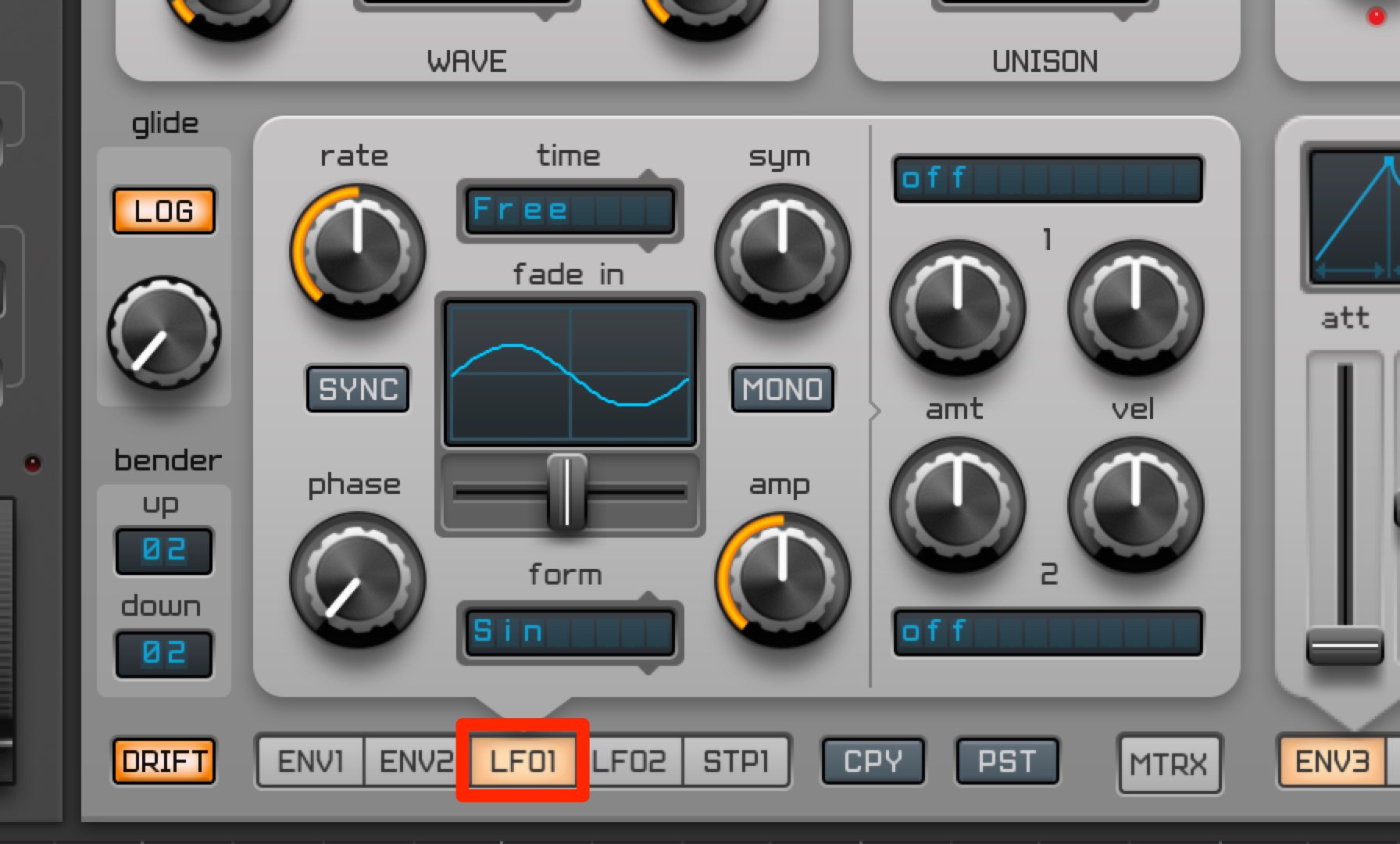
Click LFO 1 to display its controls.
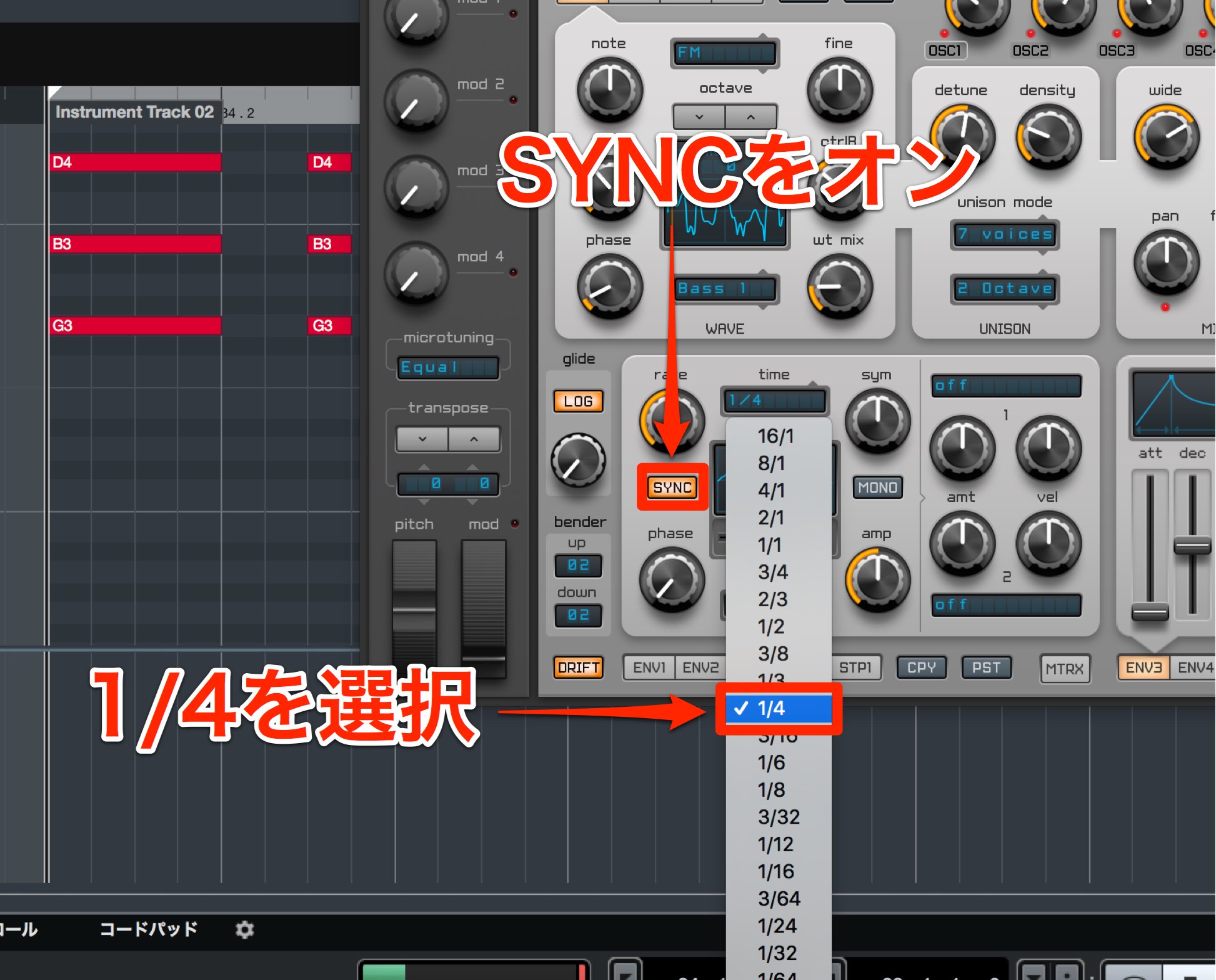
Turn on SYNC to match the DAW tempo.
Set time to 1/4. Tempo synchronization is simple.
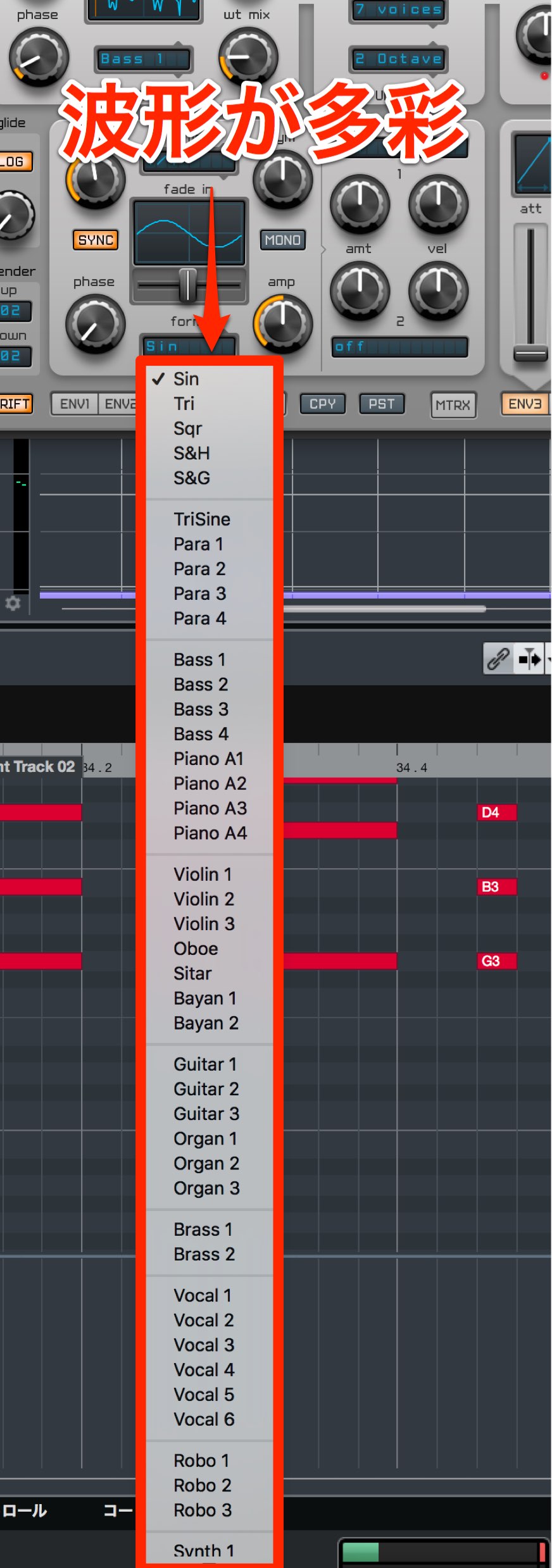
Click form to choose from a variety of LFO waveforms.
This choice of LFO shapes is another useful feature of Spire.
Next, let’s change the tone of the same preset.
Changing the sound of the same preset
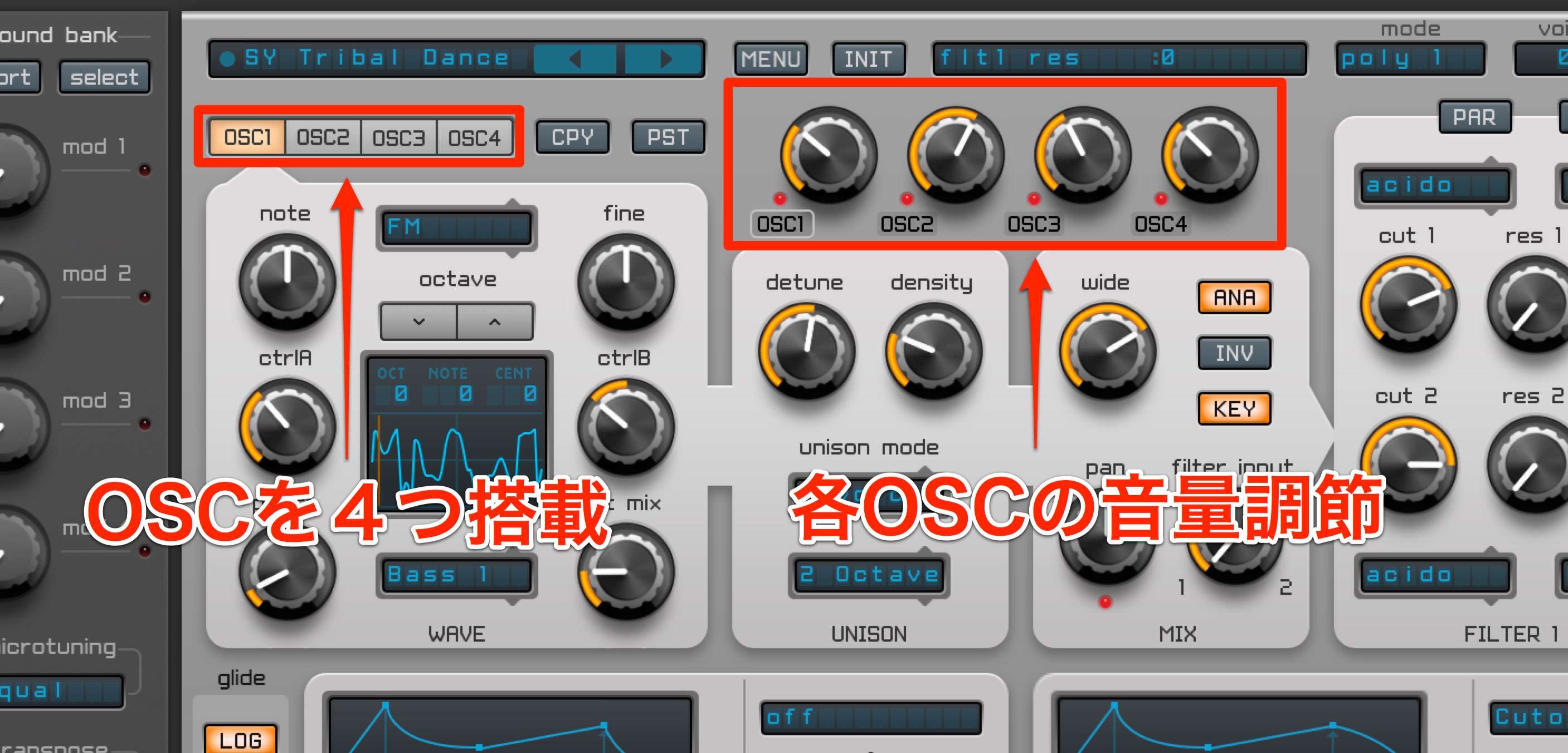
Spire has four oscillators.
Use the four adjacent knobs to adjust each oscillator’s volume.
The preset uses all four oscillators with the balance shown here.
Lower the volume of every oscillator except OSC 1 so we can adjust OSC 1 on its own.
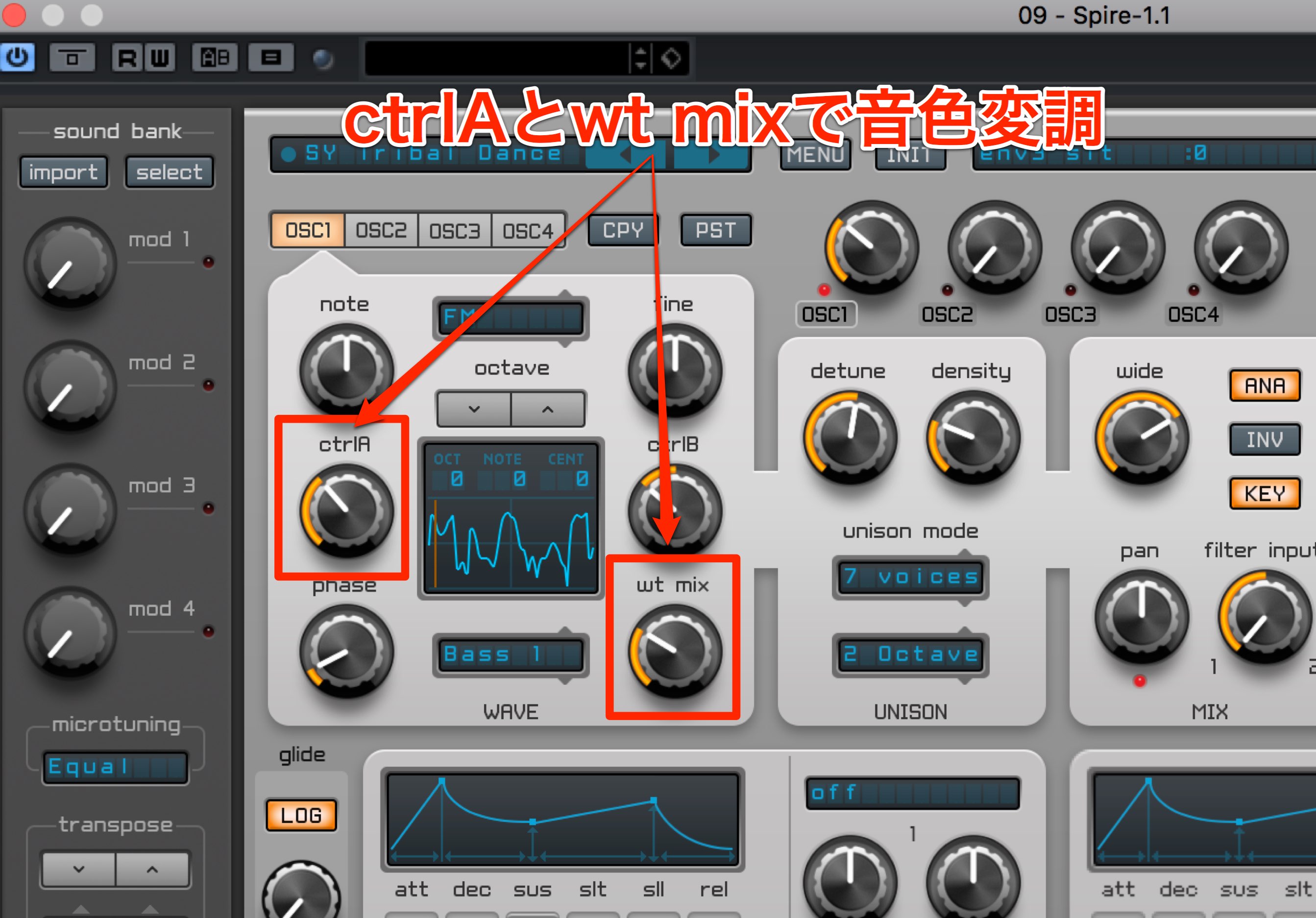
Moving ctrlA and wt mix in OSC 1 changes its tone and creates variations.
Modulating these parameters with an LFO is useful too.
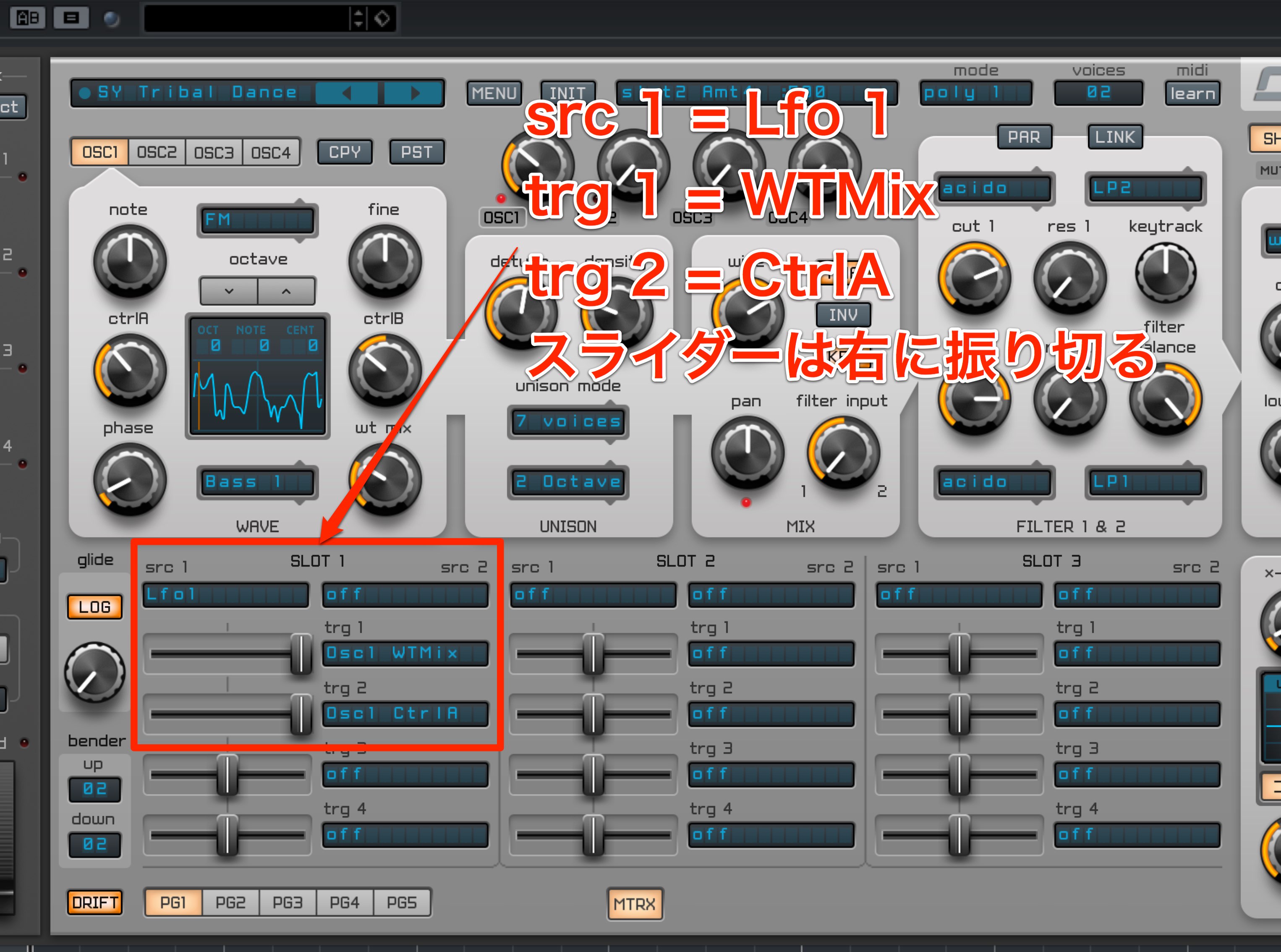
Open the matrix and set:
src 1 to Lfo 1;
trg 1 to OSC 1 WTMix;
trg 2 to OSC 1 CtrlA.
Move both sliders fully right.
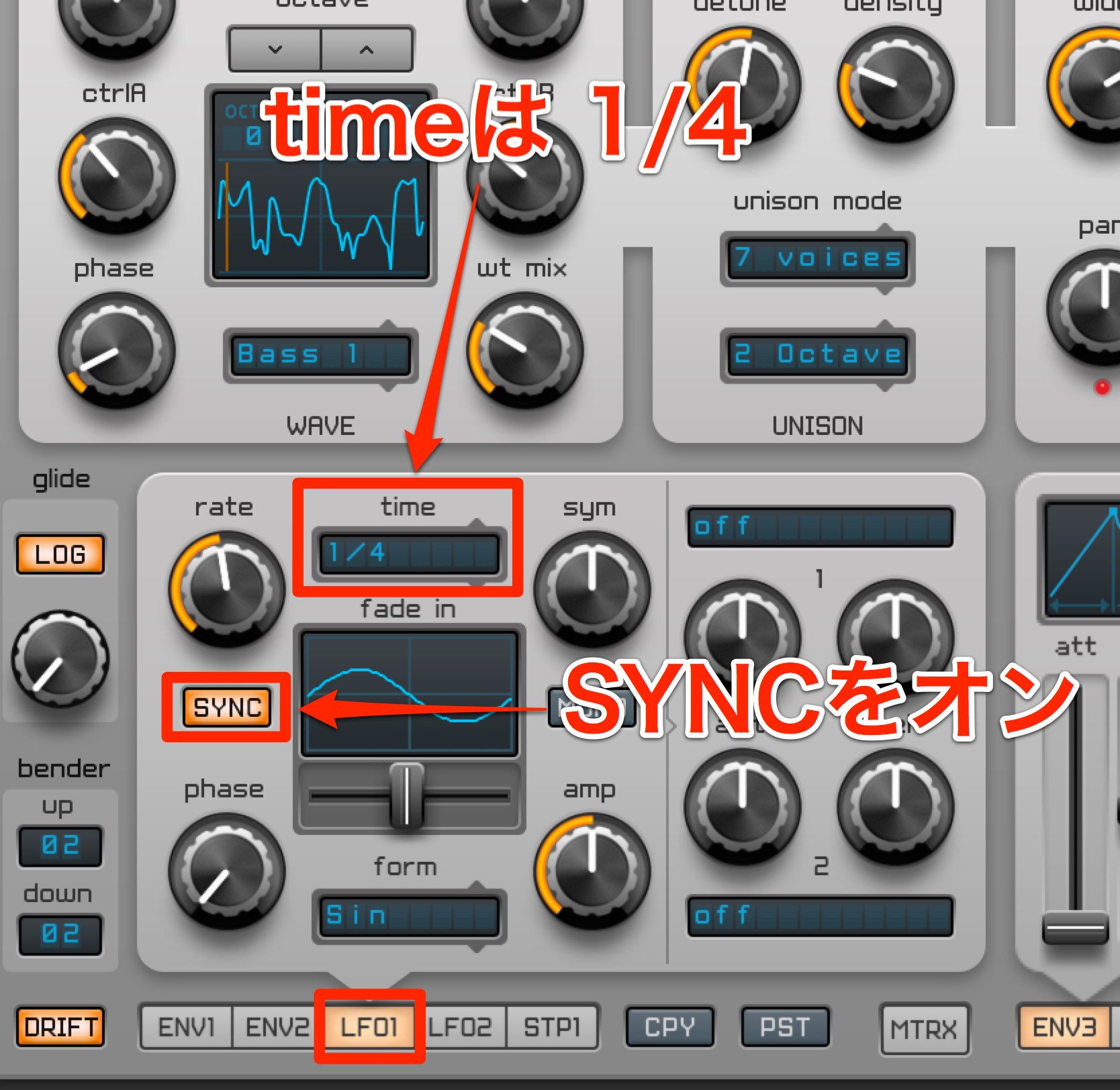
Open LFO 1 and set SYNC time to 1/4.
This creates a subtle, pleasing movement.
Next, let’s modulate only wt mix on OSC 2.
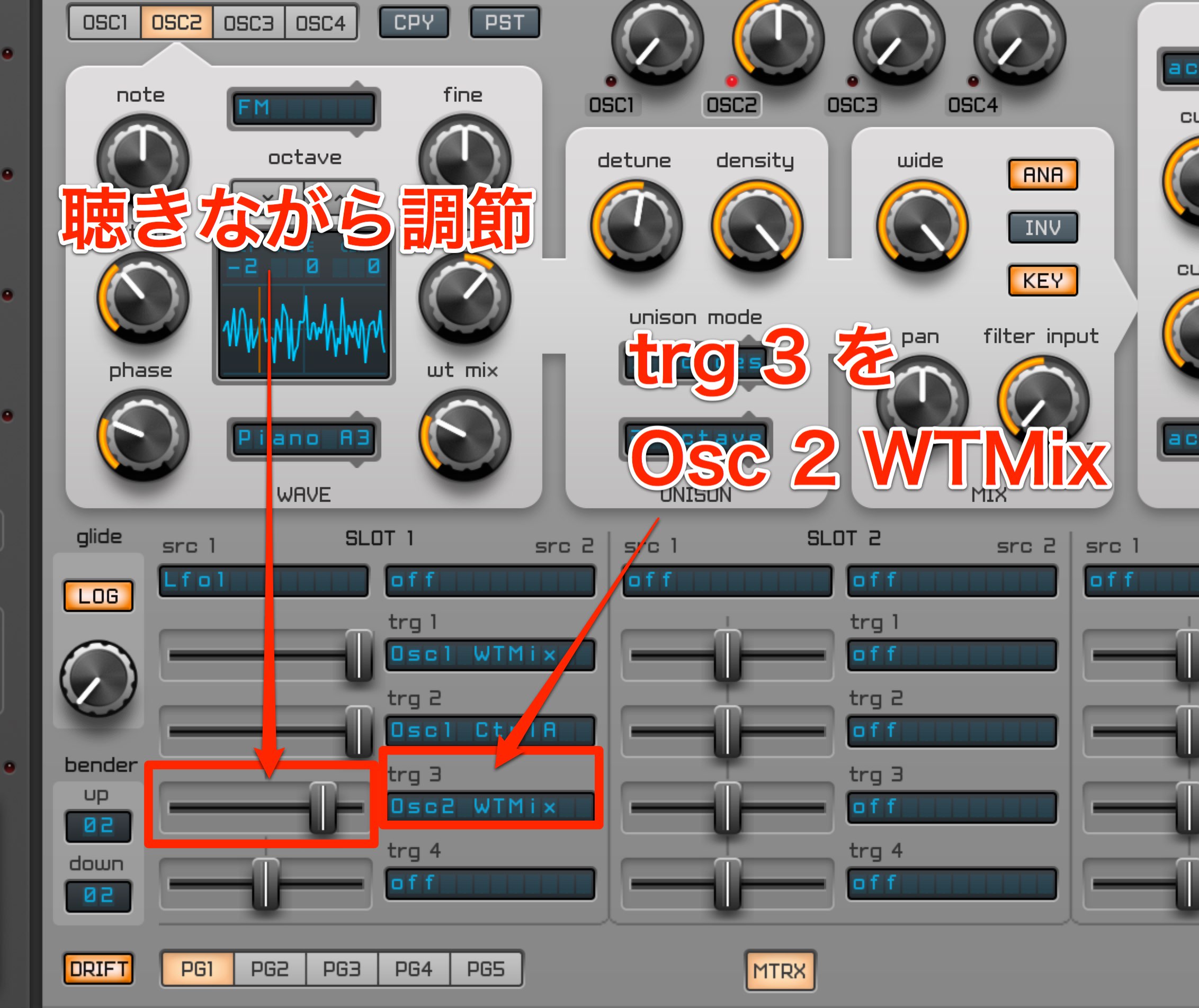
Open the matrix and set trg 3 of the same LFO 1 to OSC 2 WTMix.
Adjust the slider while listening.
When finished, raise the oscillator levels and blend them.
Let’s refine this sound further with a filter.
Refining the sound with FILTER
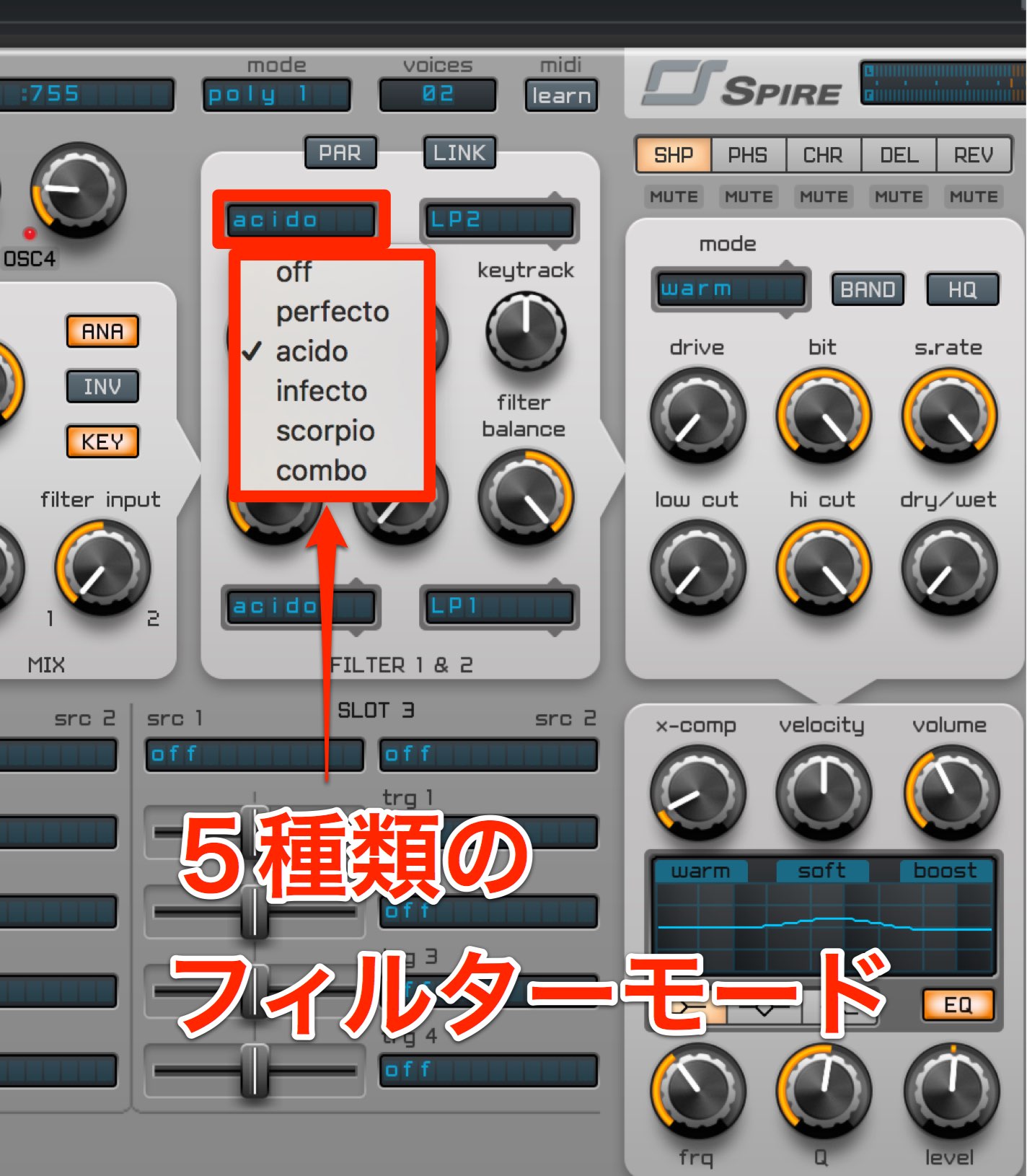
Select a filter mode in the window on the left of FILTER.
Spire offers five modes.
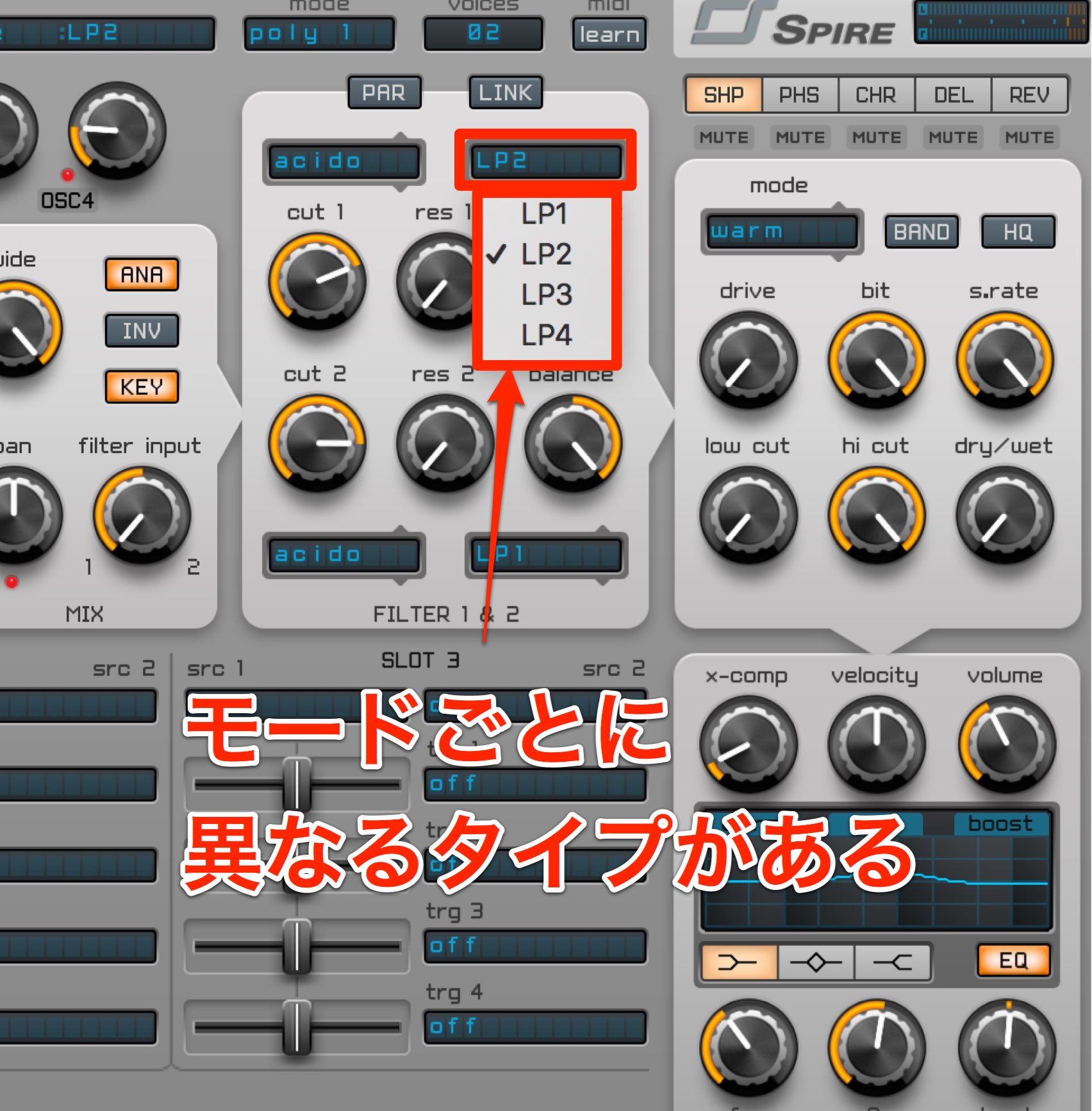
Choose a filter type there; each mode offers different types.
There is plenty to experiment with.
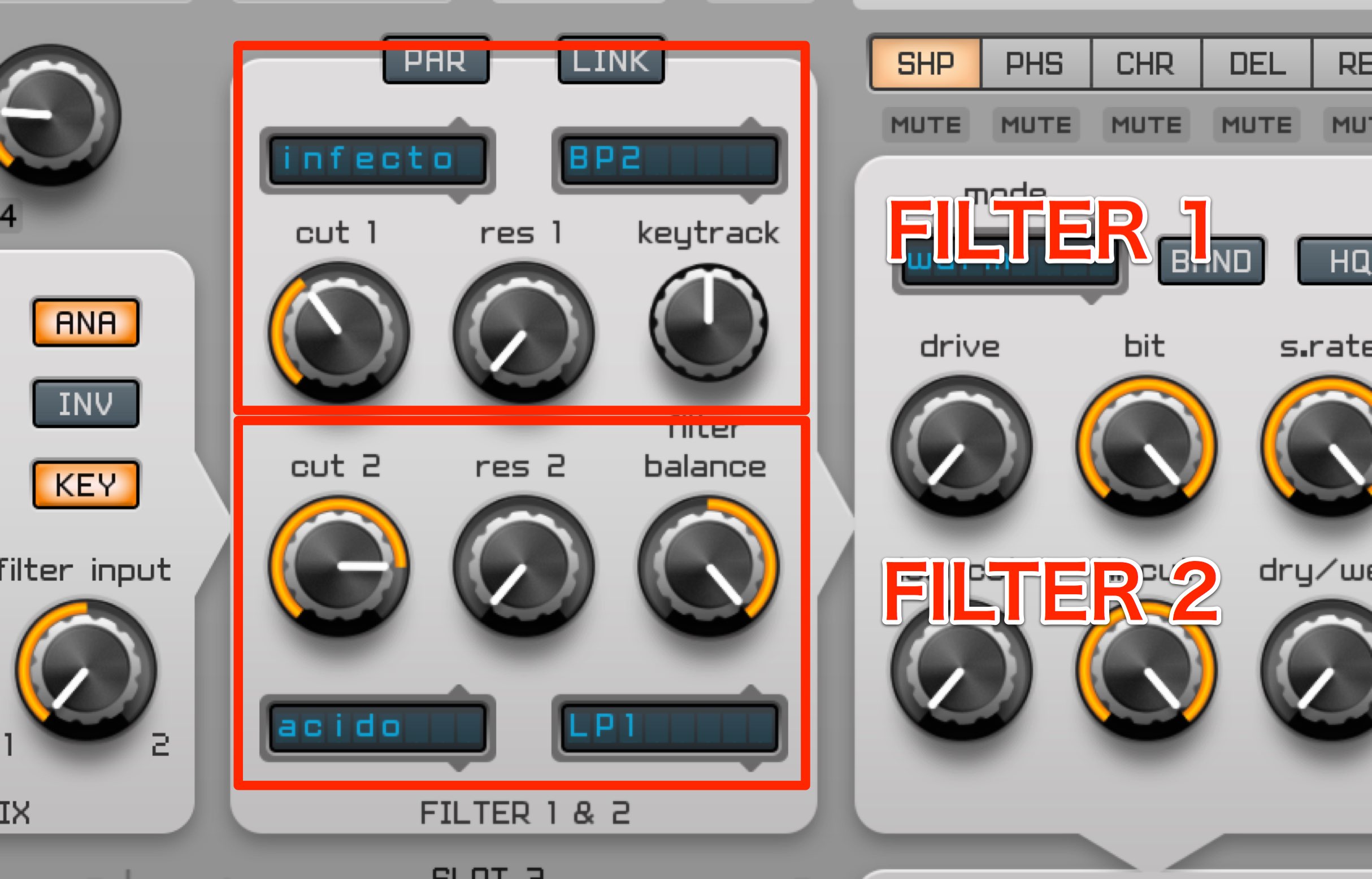
There are two filters:
FILTER 1 above and FILTER 2 below.
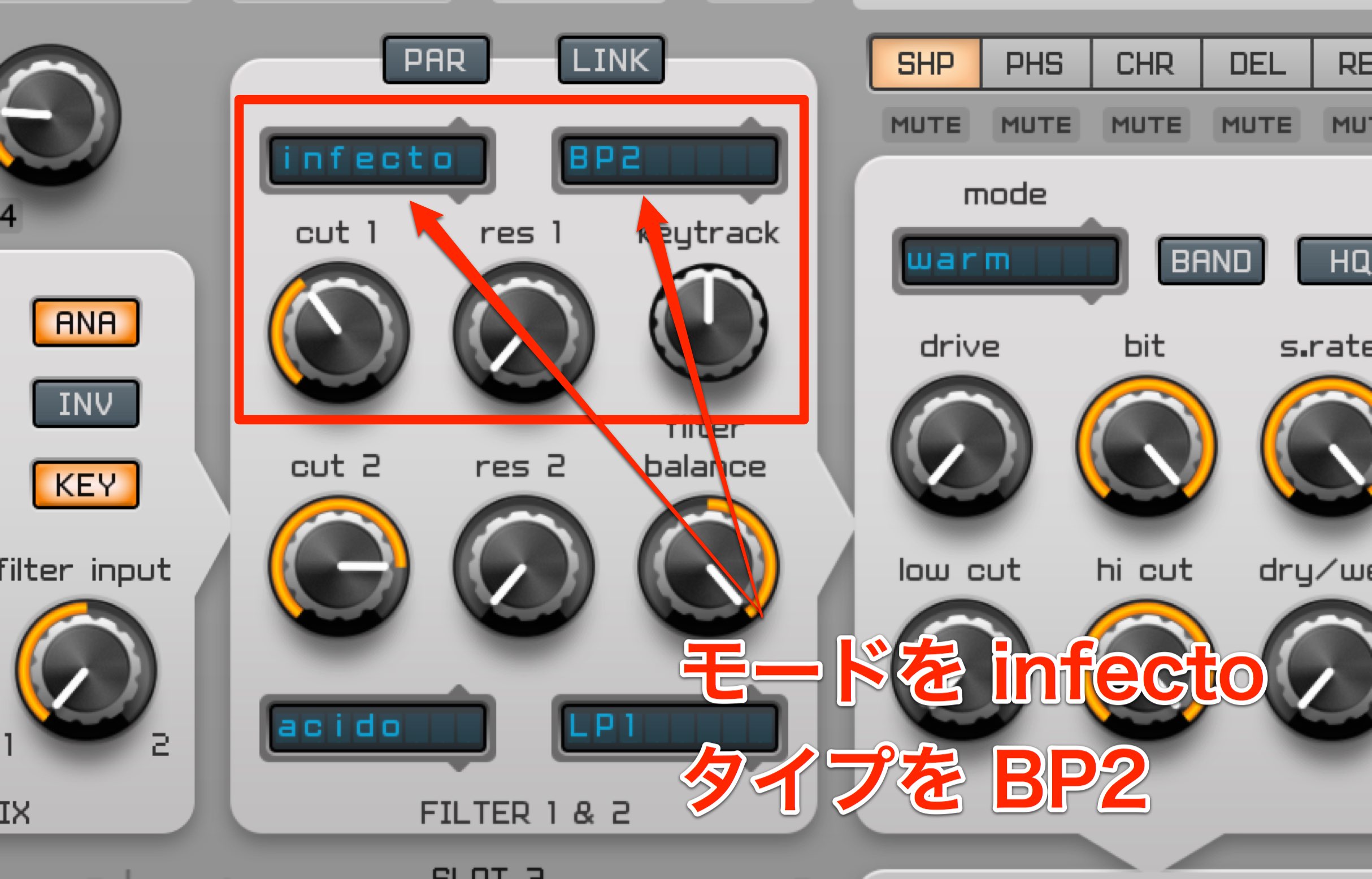
For this example, set FILTER 1 mode to infecto and type to BP2 (band-pass).
Moving the filter cutoff adds further tonal variation.
Let’s use an envelope for this.
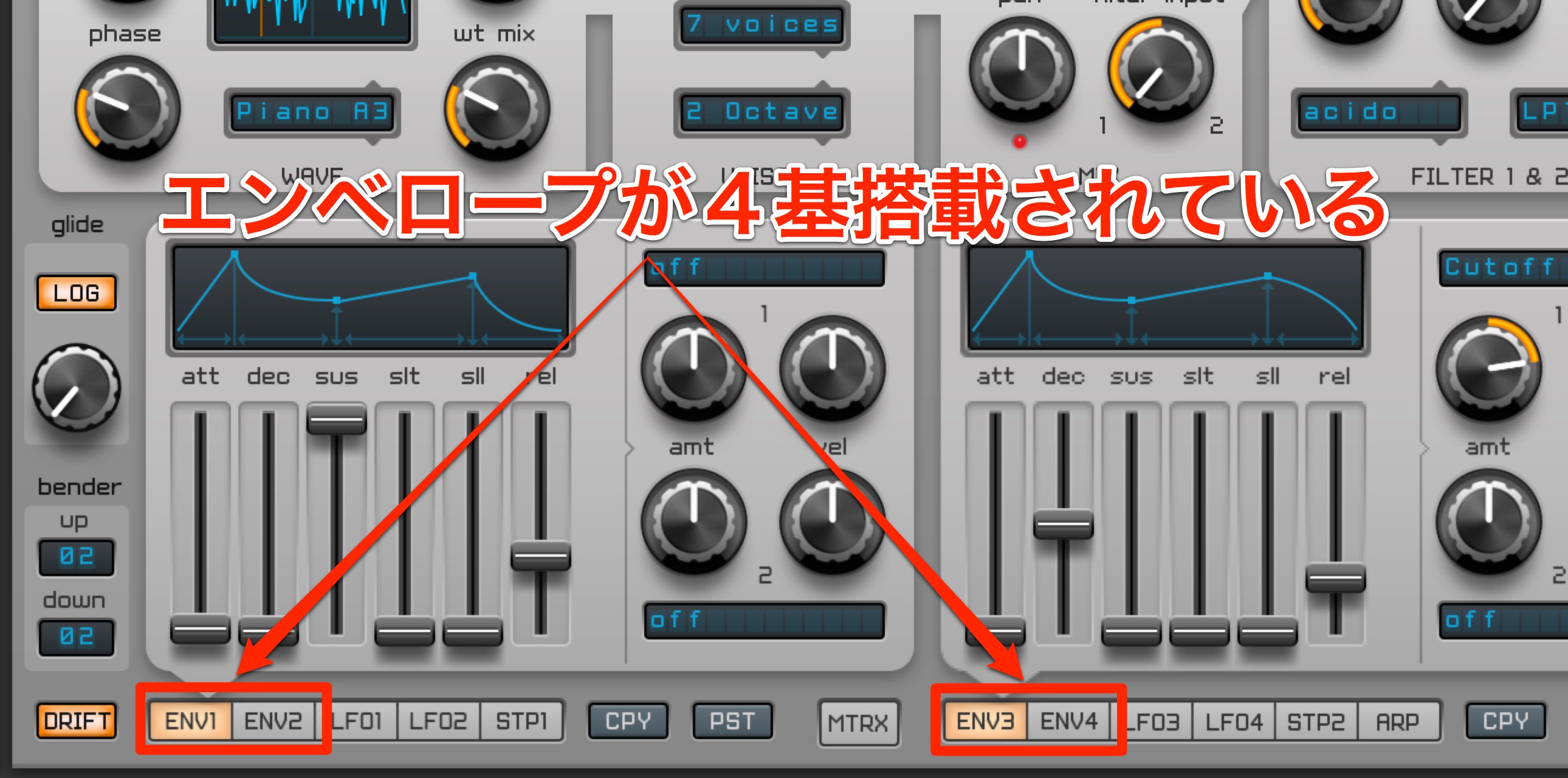
Spire has four envelopes.
Because ENV1 controls master volume, let’s use ENV2.
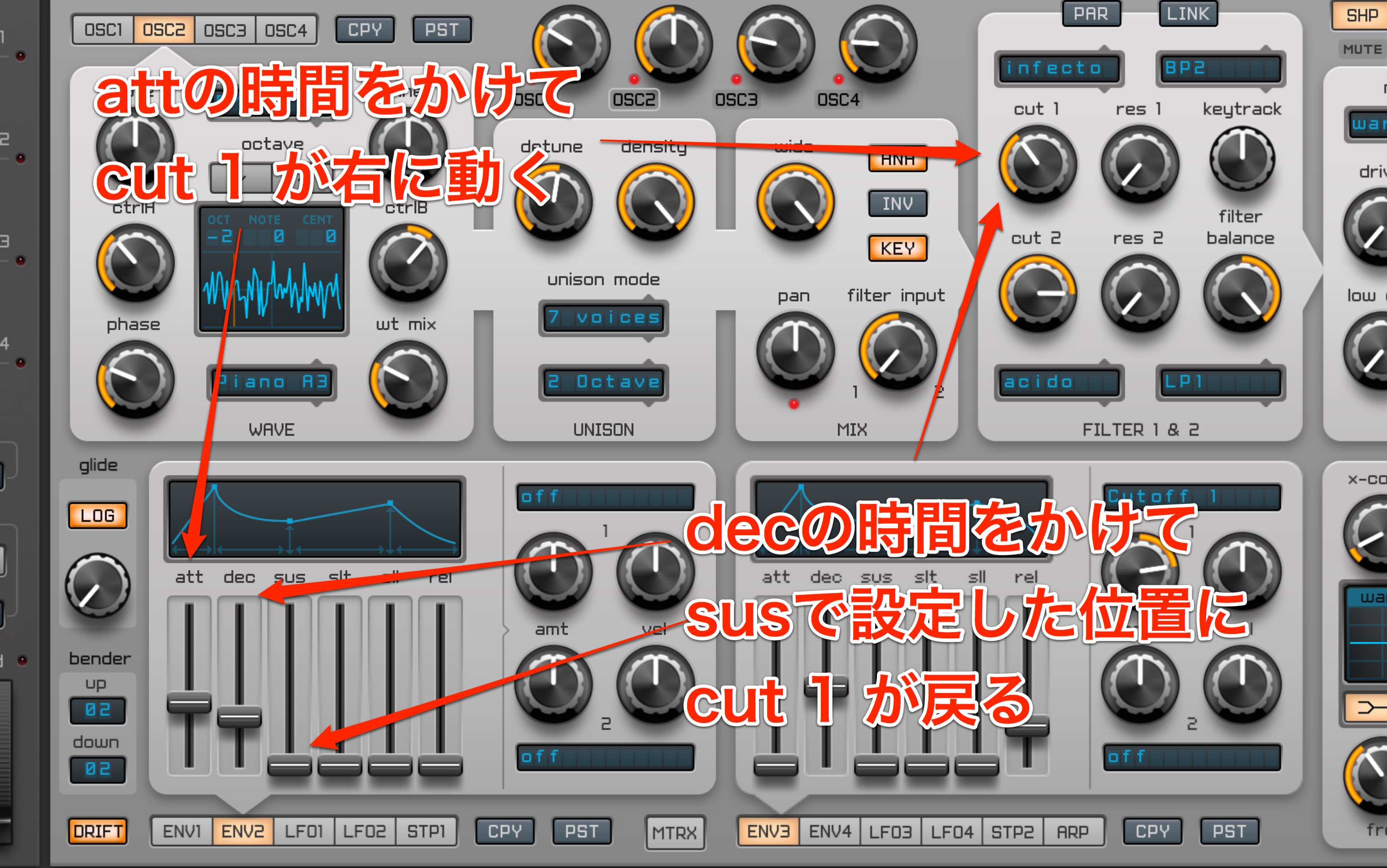
The cutoff (cut 1) opens over the time set by att, then returns to the position set by sus over the time set by dec.
With sus at its lowest setting, cut 1 returns to its starting position.
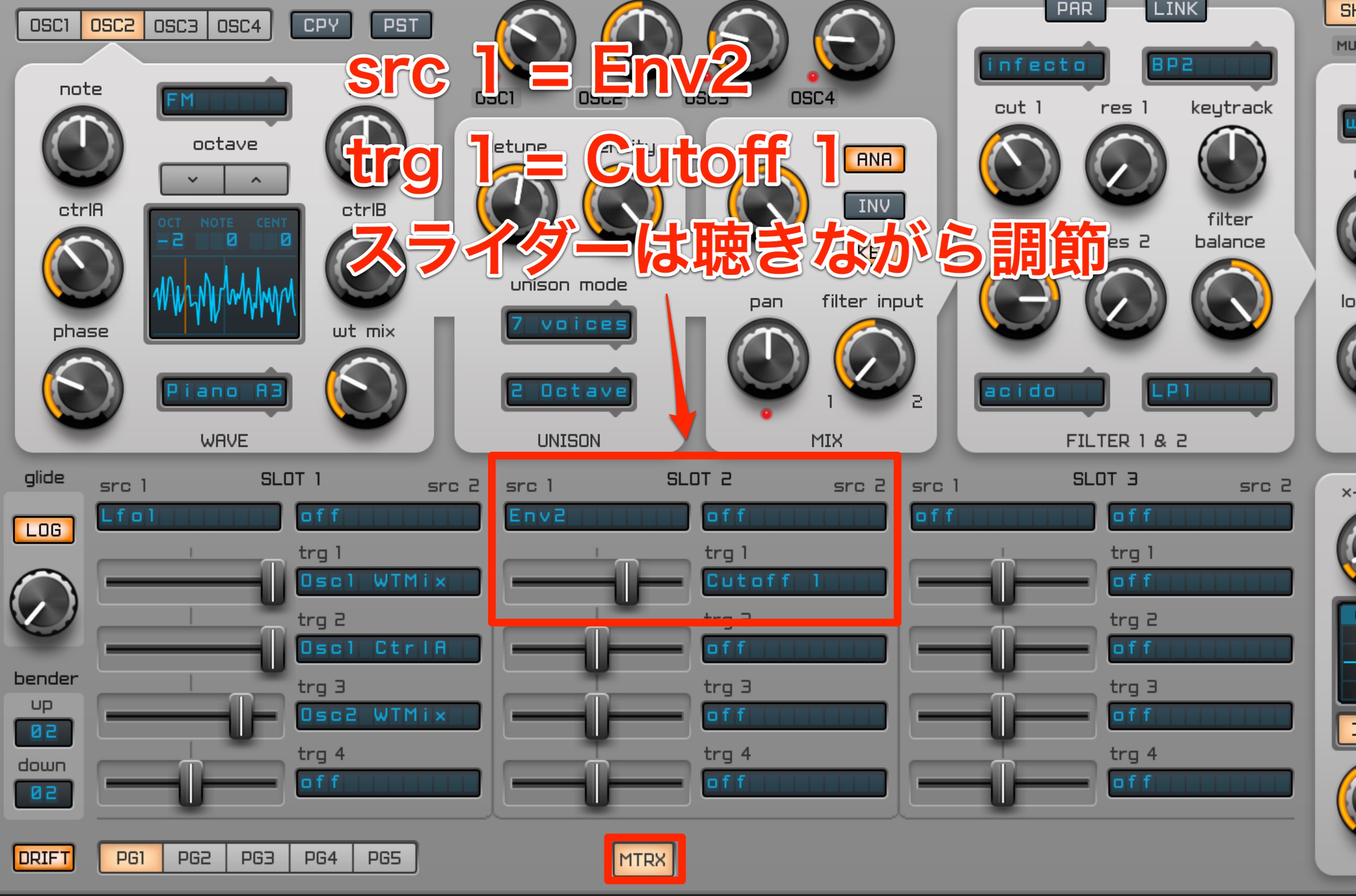
Open the matrix and use SLOT 2.
Set src 1 to Env2 and assign trg 1 to Cutoff 1.
To move FILTER cut 1 to the right, move the slider right.
Adjust by ear.
Finally, let’s create a lead sound.
Creating a lead sound
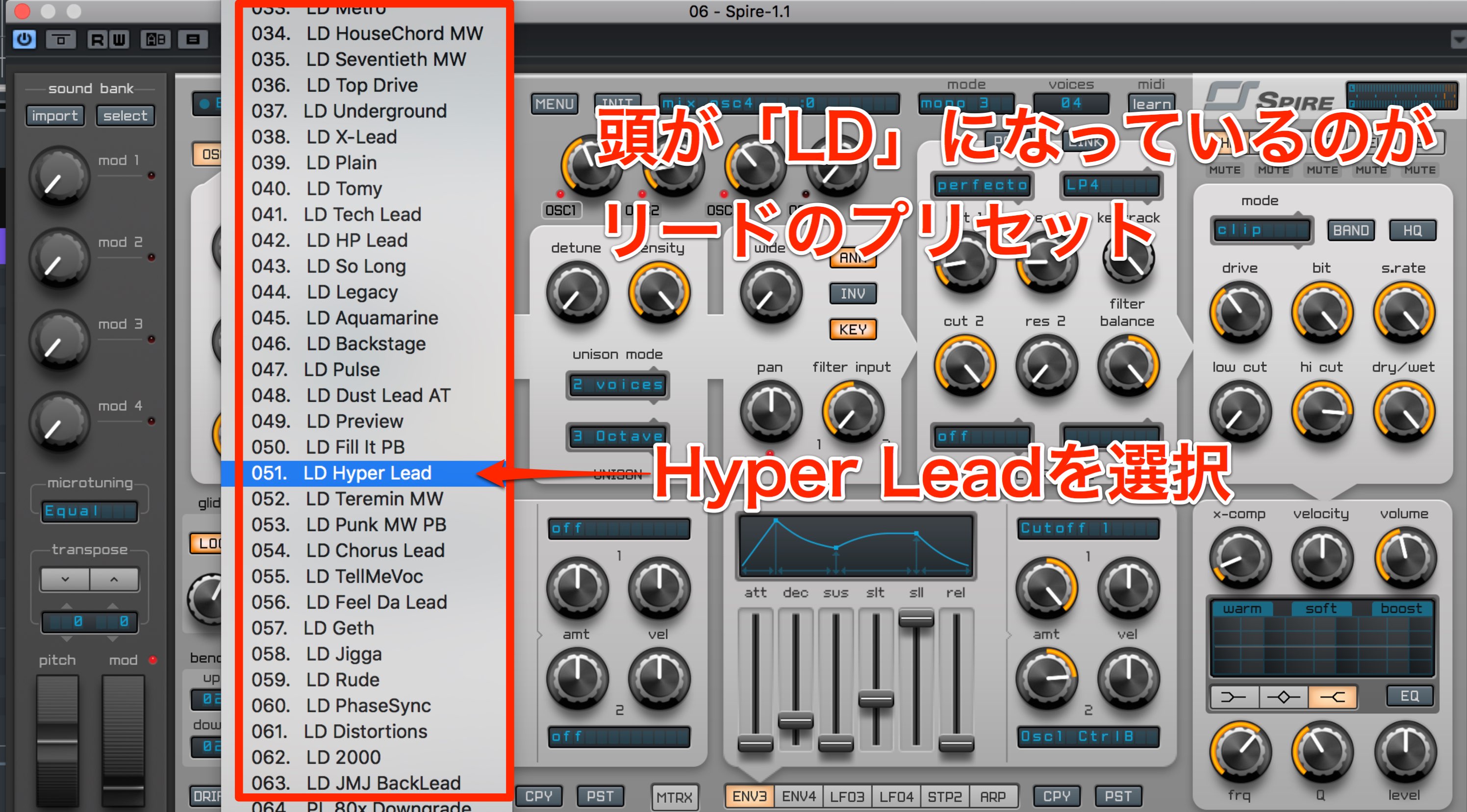
Preset names beginning with “LD” are leads.
Here we selected number 51, Hyper Lead.
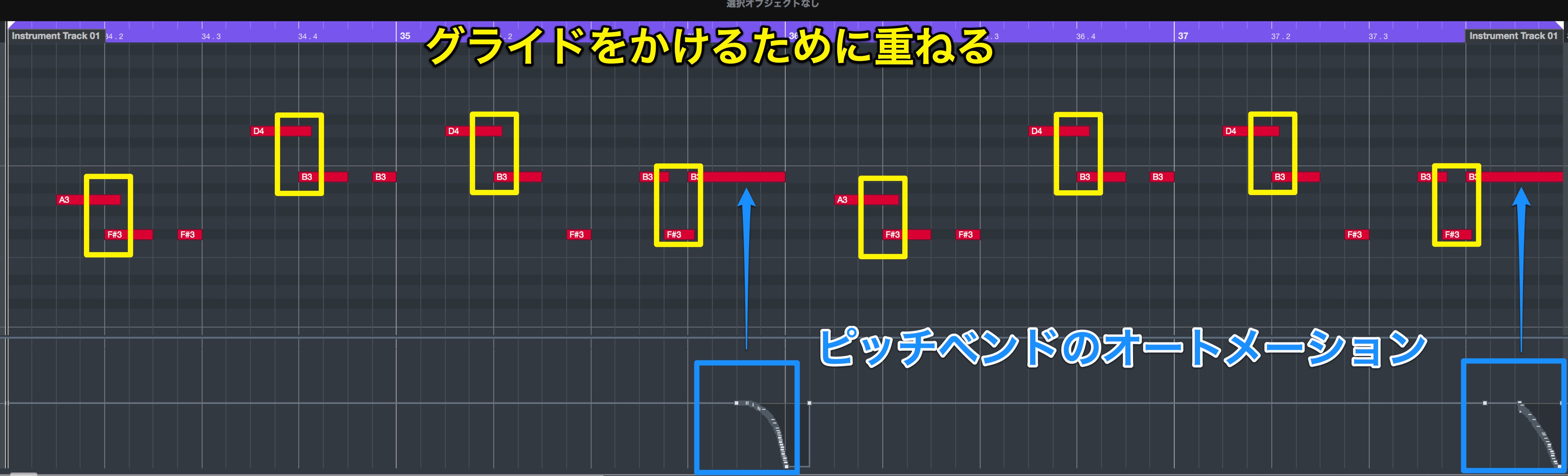
As with the sub bass, apply pitch-bend automation and glide to the lead.
Overlap notes where you want glide and draw automation where you want pitch bend.
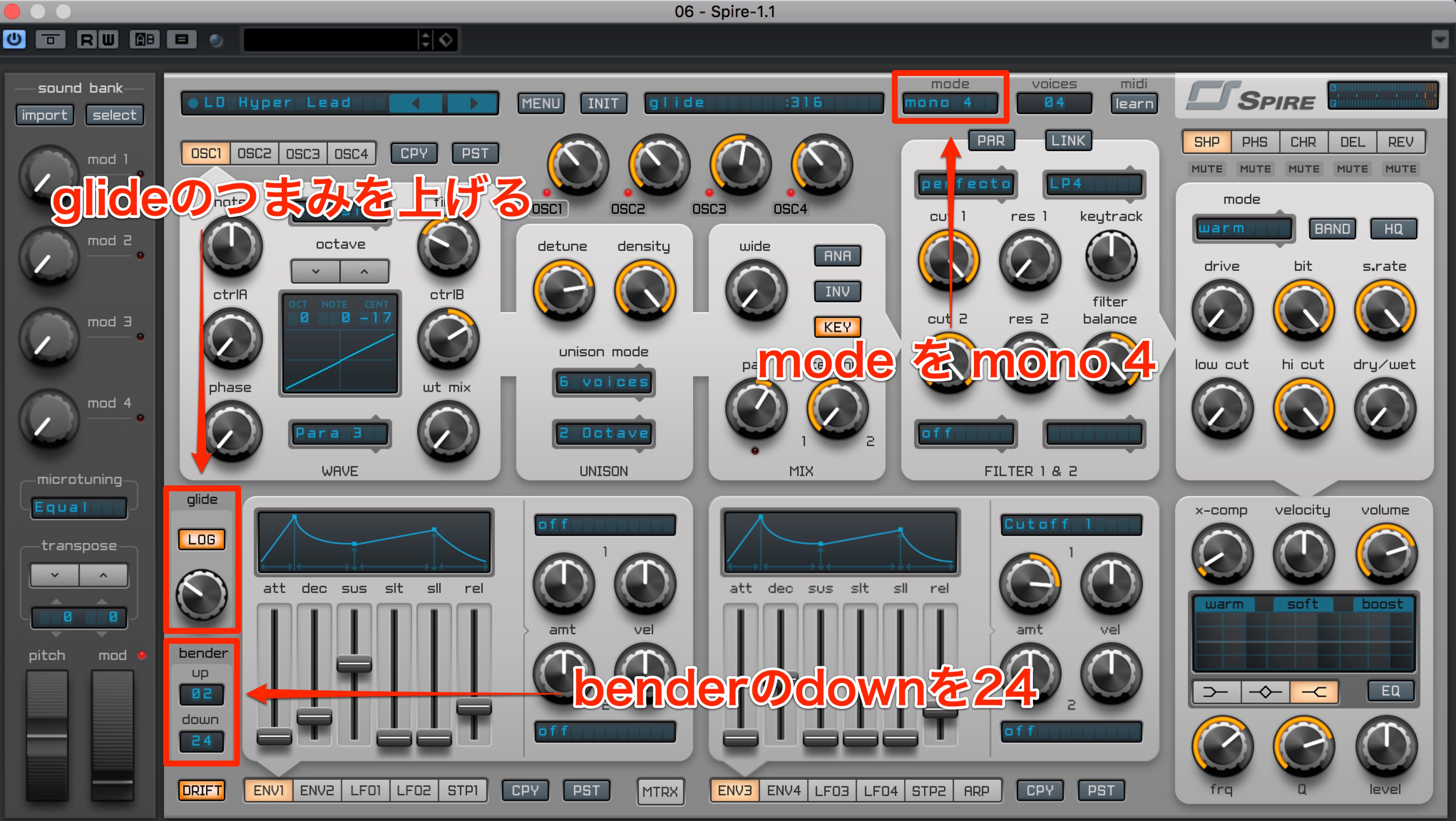
In Spire, set mode to mono 4, raise glide and set bender down to 24.
You can also use a filter to add movement to this sound.
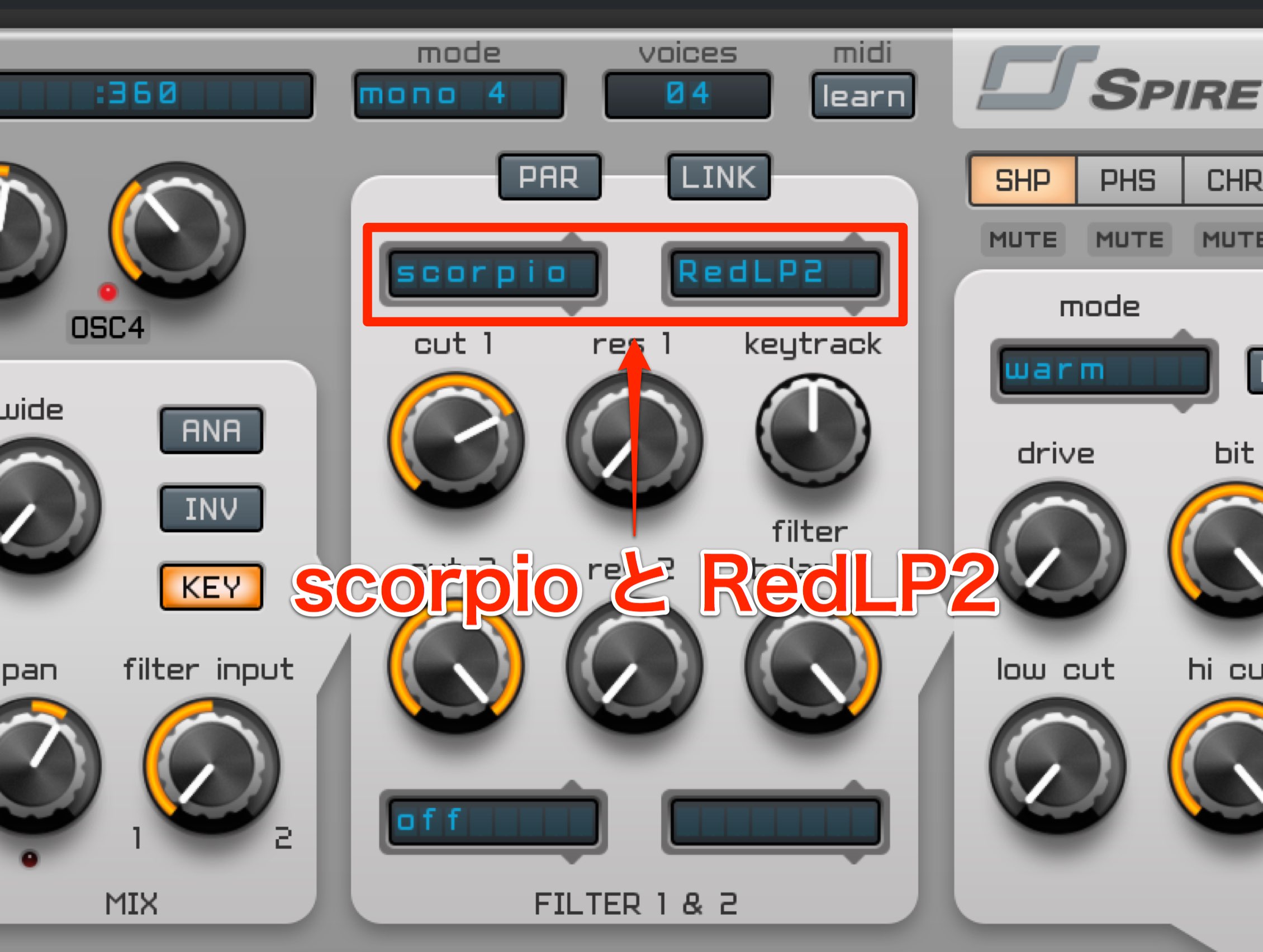
Set FILTER 1 mode to scorpio and type to RedLP2.
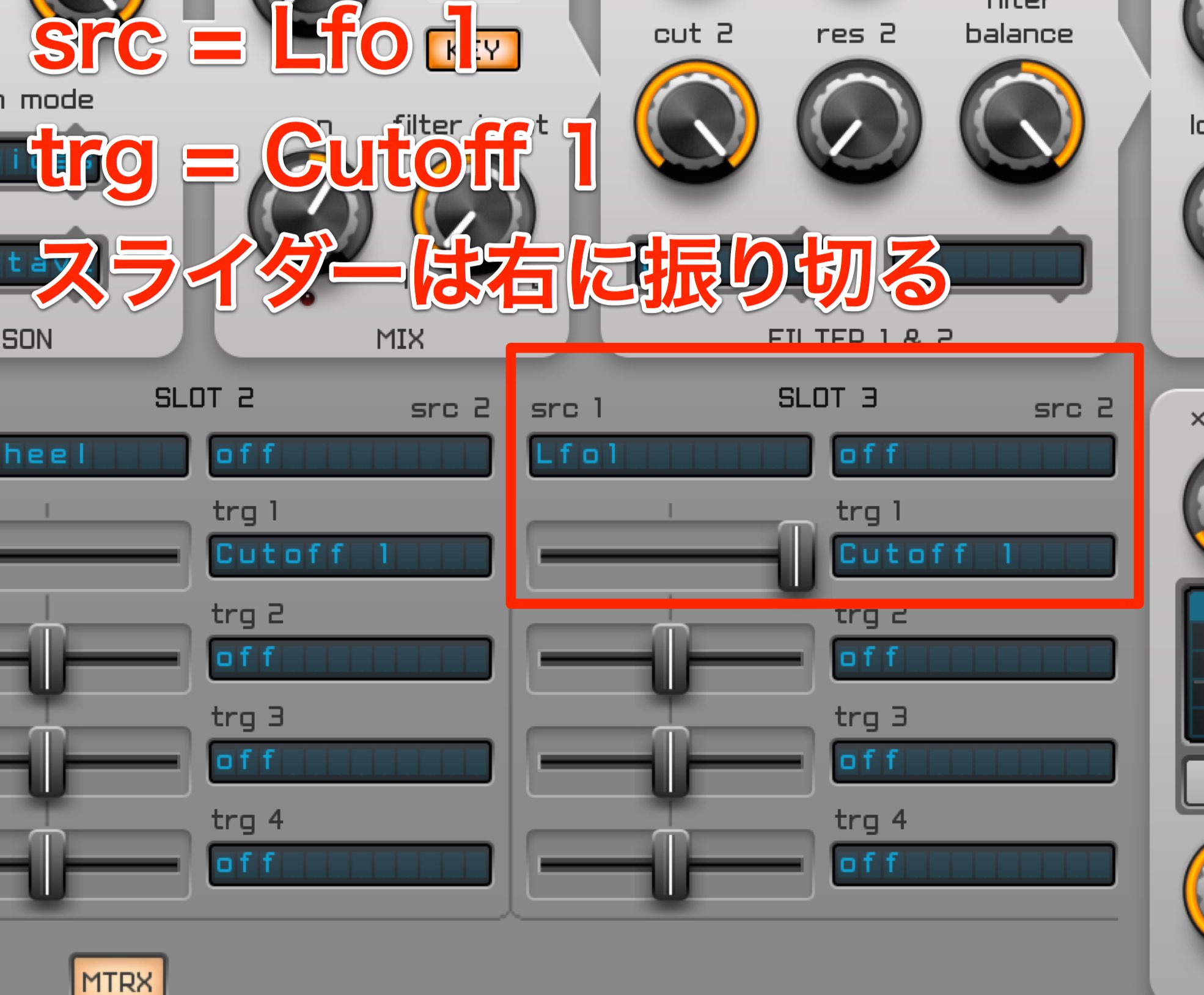
Open the matrix.
SLOT 3 is available.
Set src 1 to Lfo 1 and trg 1 to Cutoff 1.
Then move the slider fully right.
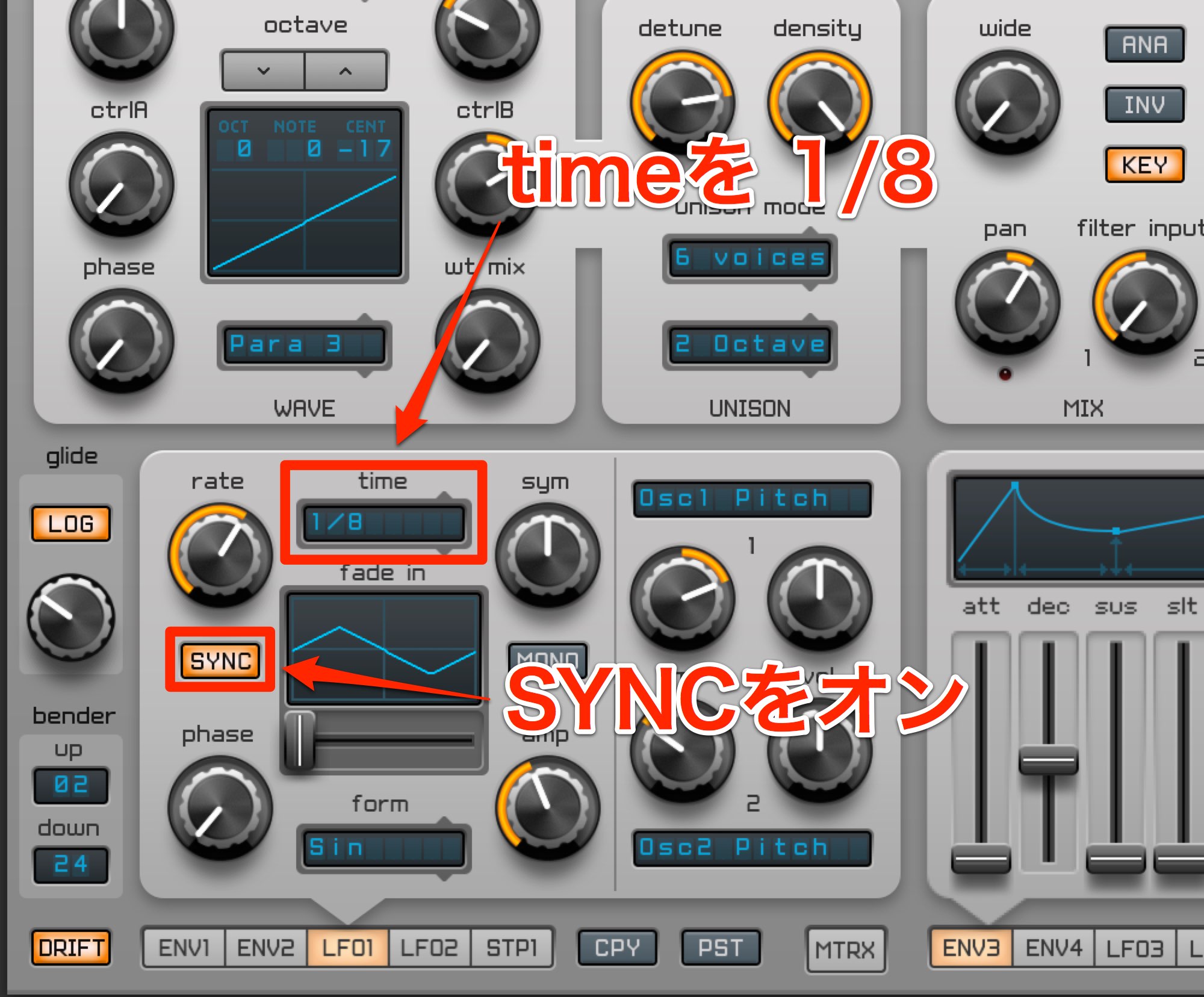
Open LFO 1, turn on SYNC and set time to 1/8.
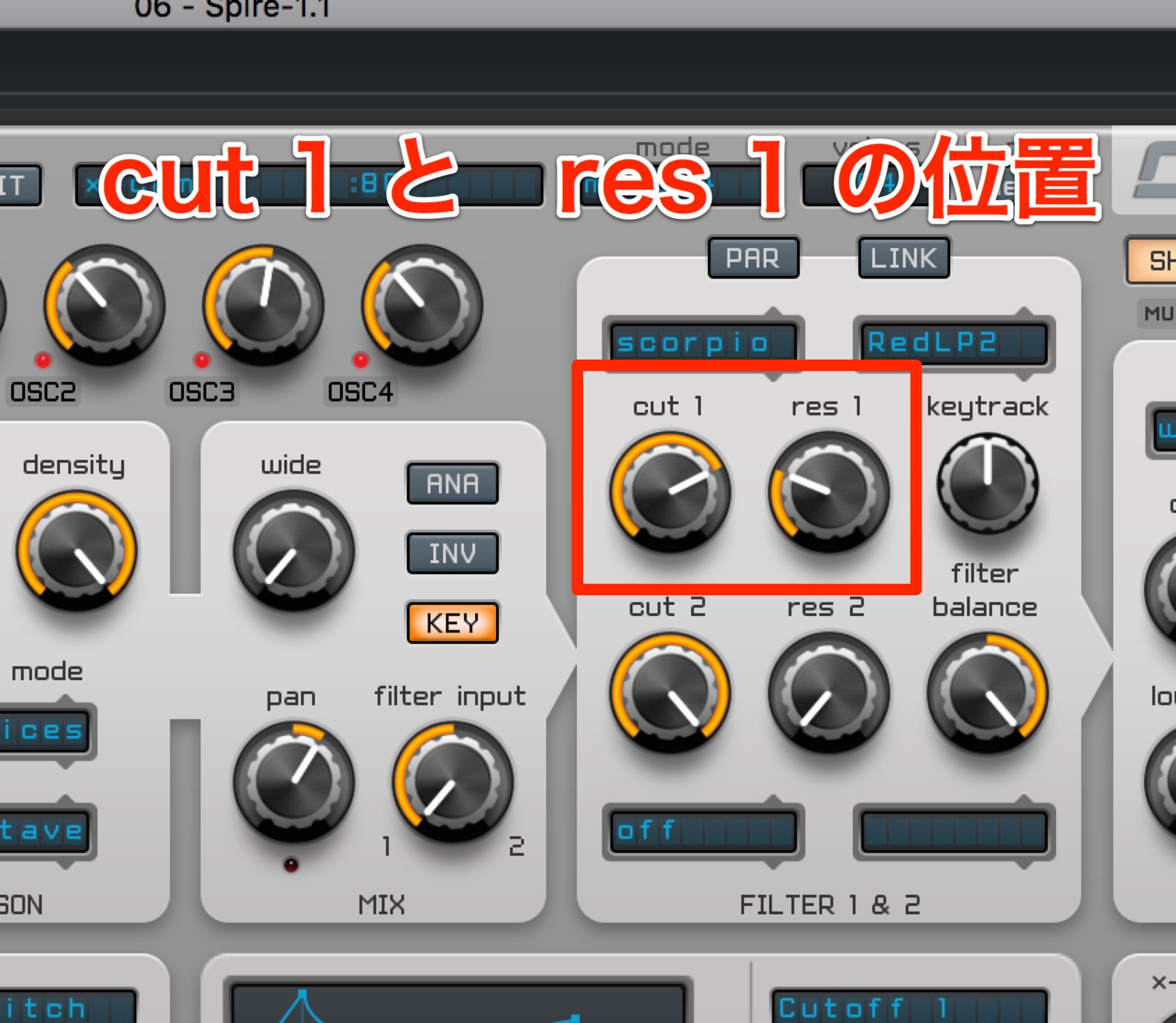
Set FILTER cut 1 around two o’clock and res 1 around ten o’clock to add some character.
Finally, let’s polish the sound with effects.
Applying effects
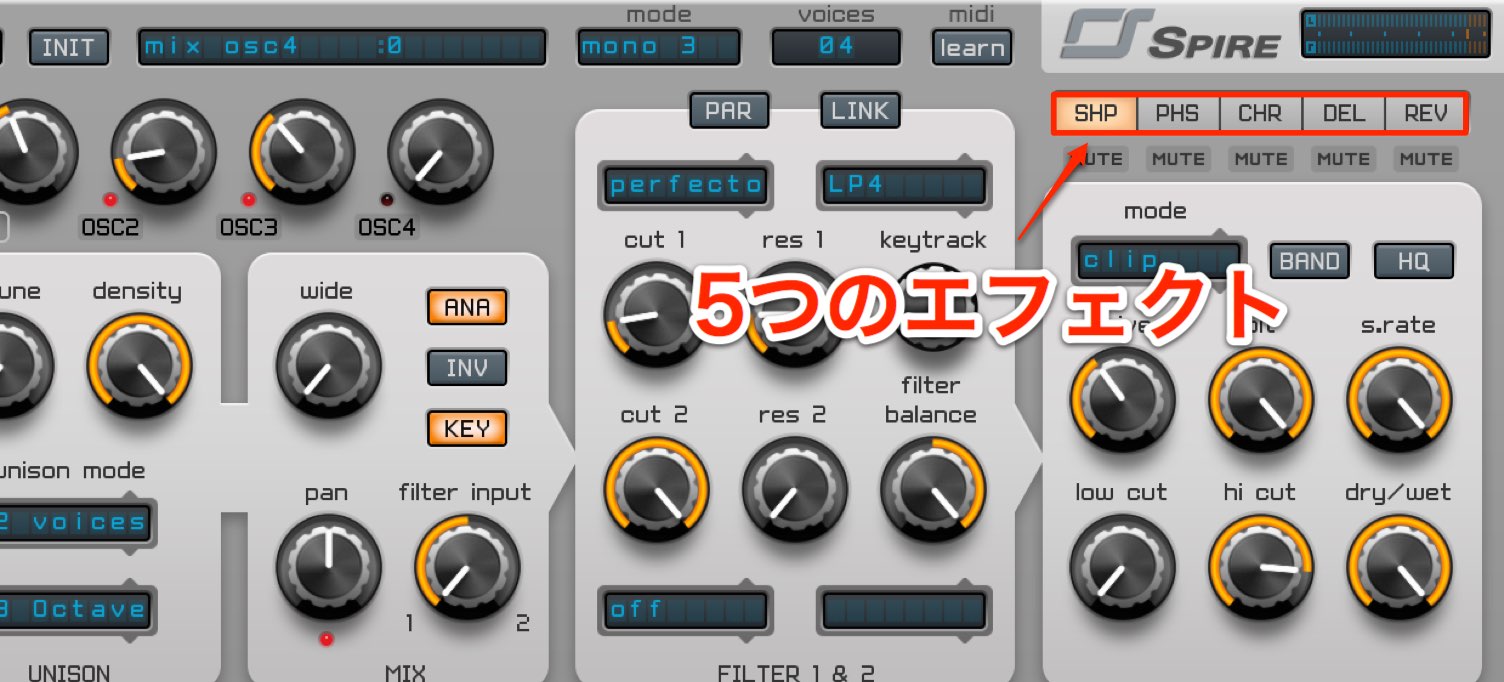
- Shaper
- Phaser and Vowel
- Chorus and Flanger
- Delay
- Reverb
These five effects are available.
Here we will use Shaper to add distortion.
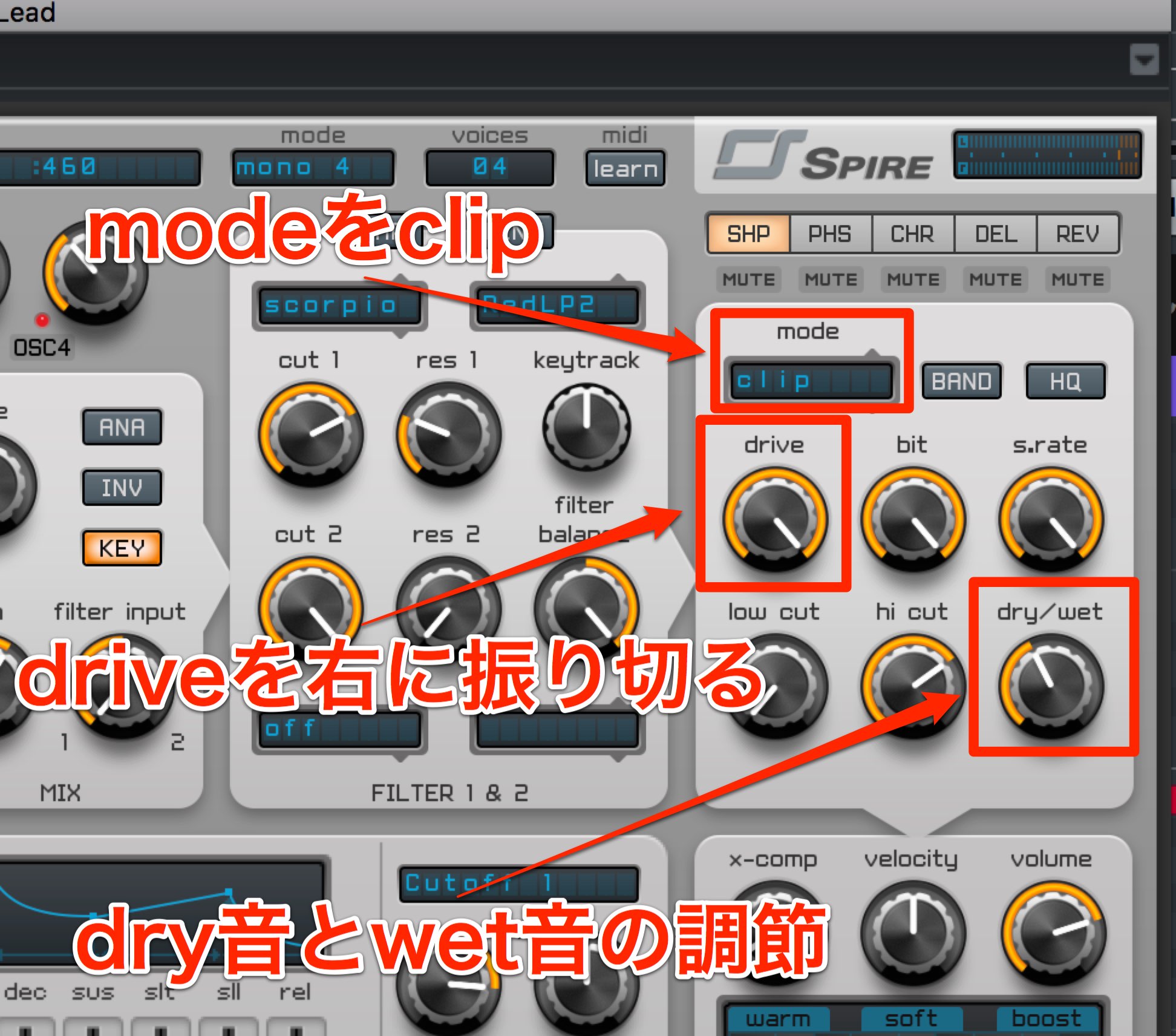
Open Shaper and set mode to clip.
Use drive to adjust the distortion intensity; for now, turn it fully right.
Next, use dry/wet to balance the original and effected sound.
As distortion increases, the high frequencies can become harsh, so try reducing hi cut slightly.
This creates a full, natural sound.
Because the presets are strong starting points, Spire could cover the non-rhythm sounds in a production.
We have made a few adjustments starting from presets, but you can also build sounds from scratch.
Of the many synths available, Spire is a useful addition to a plug-in collection.
A demo is available, so give it a try.
Frequently asked questions
Q1. How many presets does Spire have?
Spire includes a large selection of presets across multiple sound banks, such as Factory 2–7. They are organized by use, including bass, lead and synth pad; for example, names starting with “BA” identify bass presets.
Q2. Where do I set the pitch-bend range?
Use up and down in the bender section at the lower left. The default is two semitones; click the pitch-bend value to extend the range to as much as 36 semitones (three octaves).
Q3. How do I create a sidechain-like effect with an LFO?
In the matrix (MTRX), set SRC 1 to LFO 1 and TRG 1 to Main Volume under Master Out. Then turn on SYNC in LFO 1 and adjust the waveform and time in sync with the tempo to produce sidechain-like volume movement.
NEW ARTICLES
Latest English Articles











































































































































































































































































































































