
This article offers a practical guide to performing lo-fi hip hop live with Ableton Live. Learn how to build a track in real time by layering loops in Session View, use controllers such as Push 2 and touchAble, and create lo-fi sounds with the included presets and samples. Detailed examples of editing a vocal loop and synth bass demonstrate Live’s flexible workflow, with techniques you can apply both onstage and in music production.
Real-Time Performance with Ableton Live
“Real-Time Live Performance with Ableton Live” is a three-part series.
Three Sleepfreaks instructors perform with Ableton Live, then introduce and explain the distinctive features and custom settings used in their performances.
In part one, Okamoto explains a performance that layers tracks through live looping, using a guitar, Push 2, and other equipment.
Real-Time Live Performance: Lo-fi Hip Hop
Overview of the Performance
This performance uses Session View, one of Ableton Live’s defining features, to build a piece by layering loops.
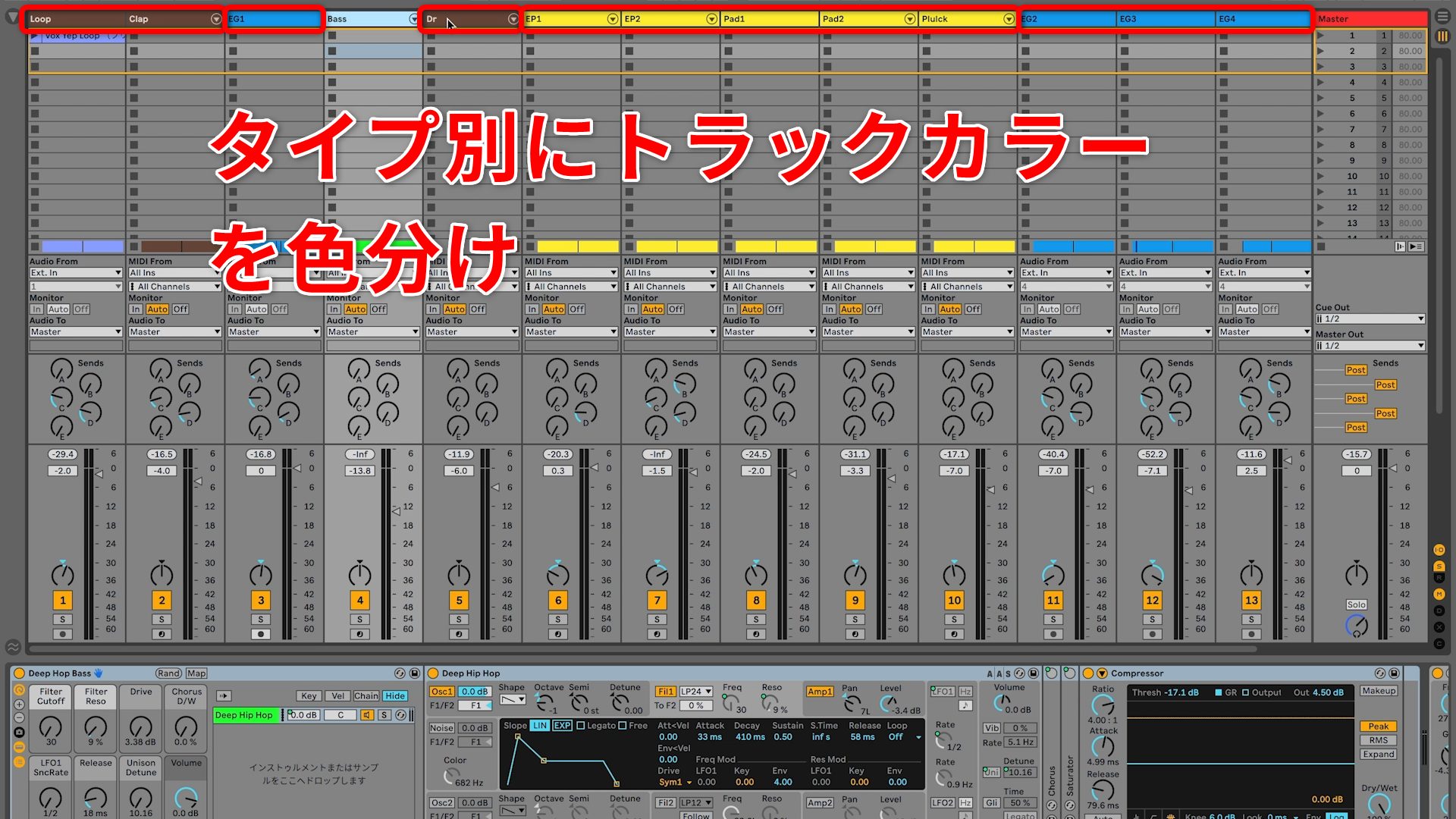
Before the performance begins, the sounds on each track have already been prepared. Tracks are color-coded: brown for rhythm, green for bass, blue for guitar, and yellow for keyboard instruments.
Only the vocal loop has a clip prepared in advance. All other tracks, except for the final guitar solo, are recorded one after another into clip slots on the same row.
Next, let’s look at the Session View after the performance.
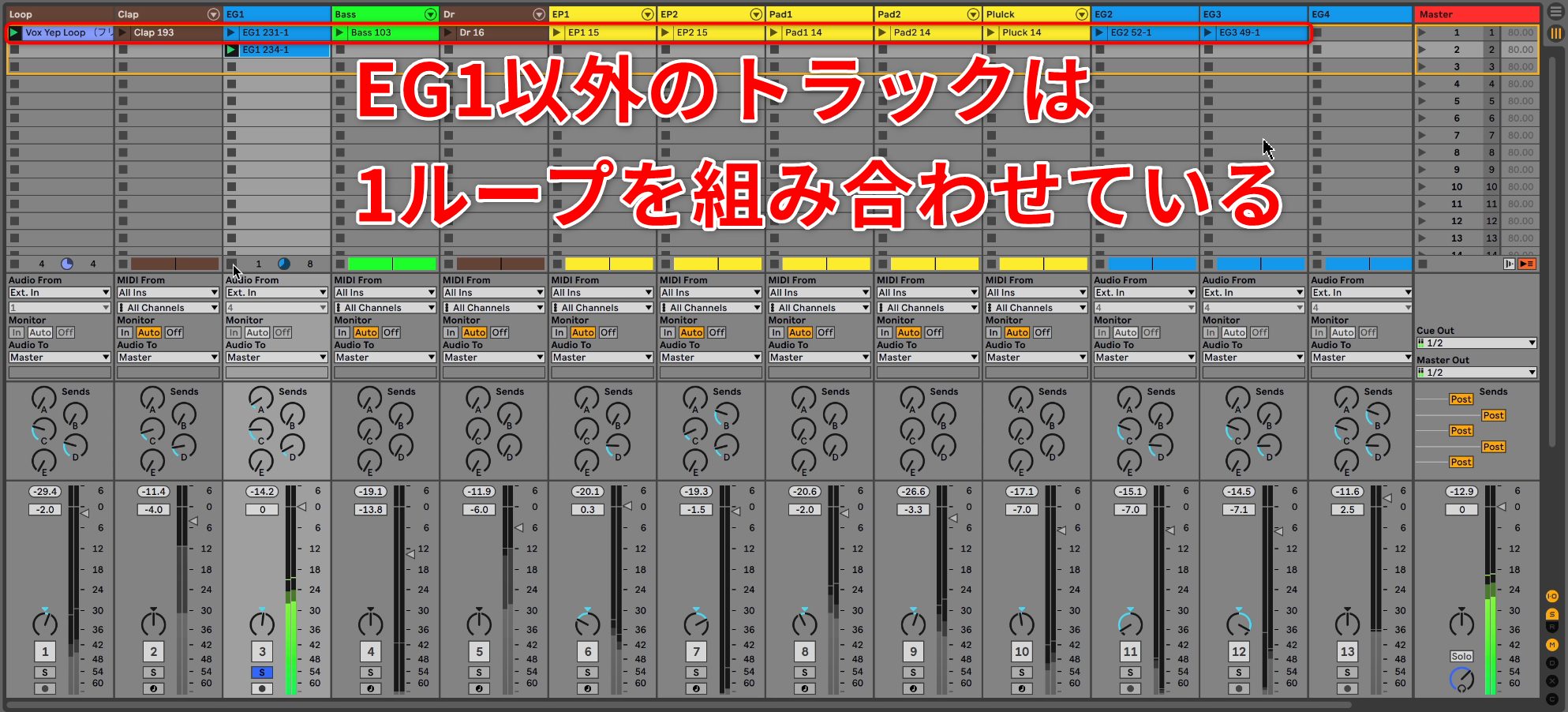
Only the backing guitar has two patterns, because a different loop is recorded for the contrasting section. Everything else is built from a combination of single loops.
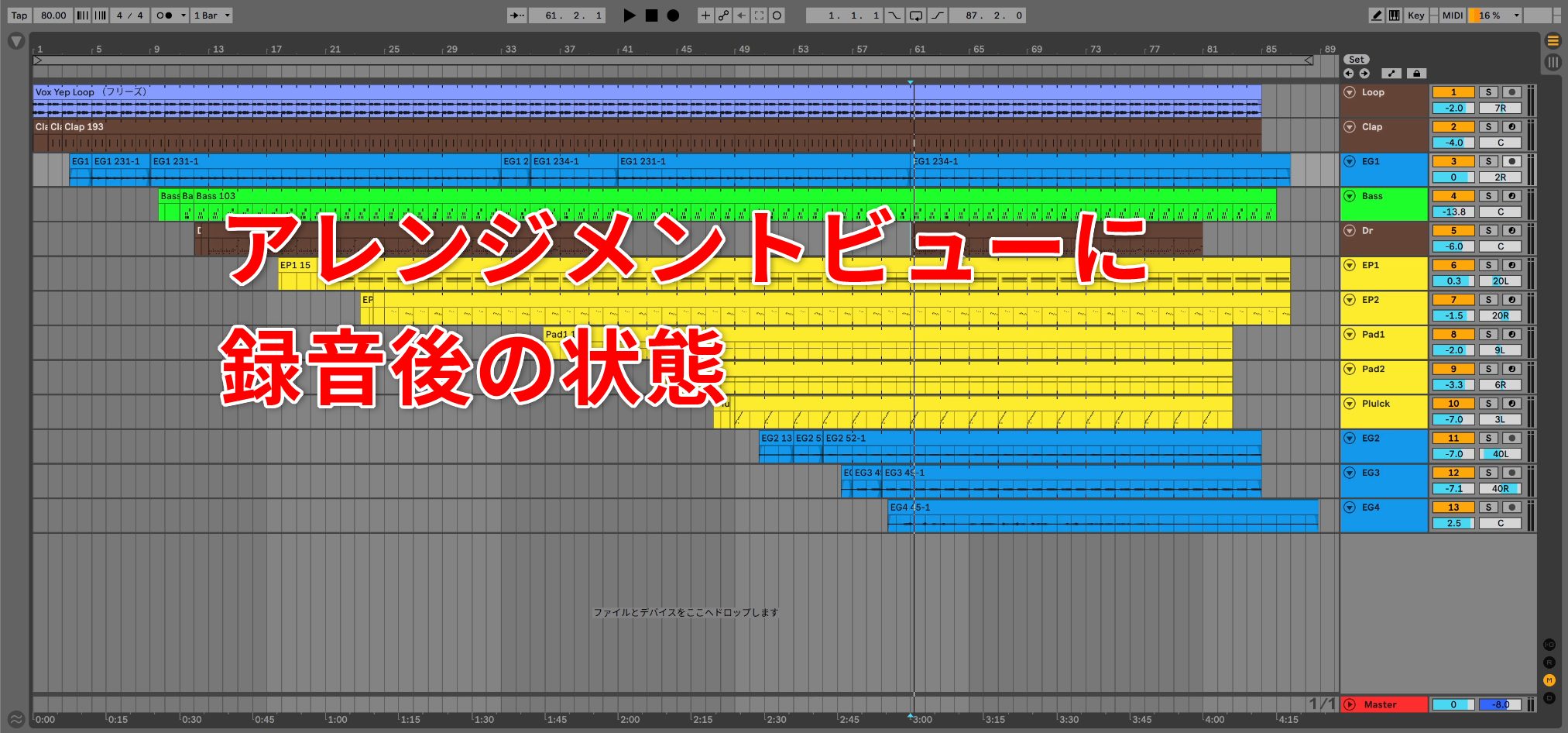
You can also record the entire Session View performance into Arrangement View.
This allows you to correct mistakes or change the structure afterward.
Beyond live performance, this gives you a production workflow in which you freely develop ideas in Session View, record them into Arrangement View, and make detailed edits later.
The flexibility to turn freely developed ideas into music is one of Live’s great strengths.
Equipment and Its Roles
Three pieces of equipment are used here:
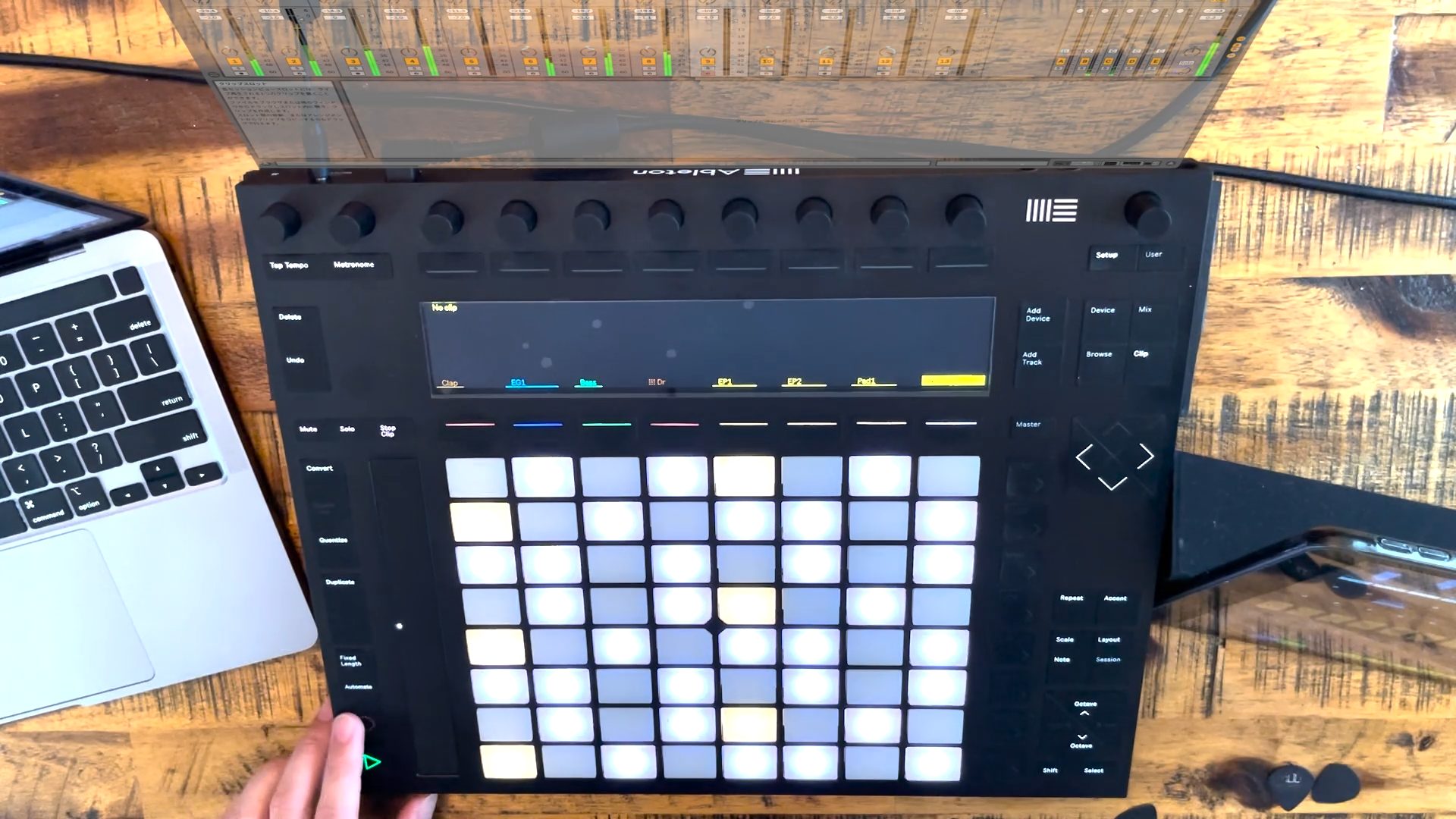
Push 2, a dedicated Ableton Live controller
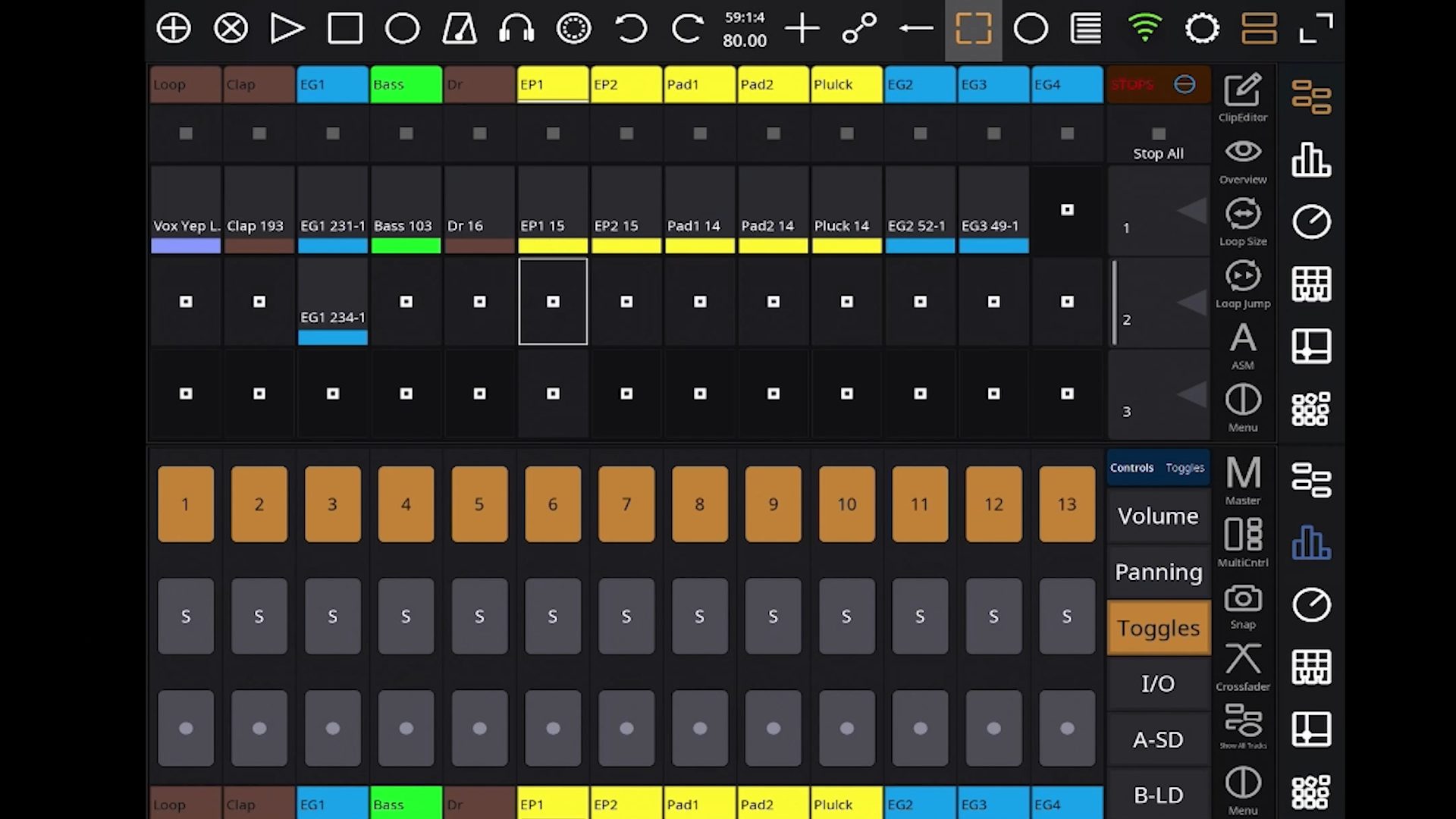
The touchAble iPad app
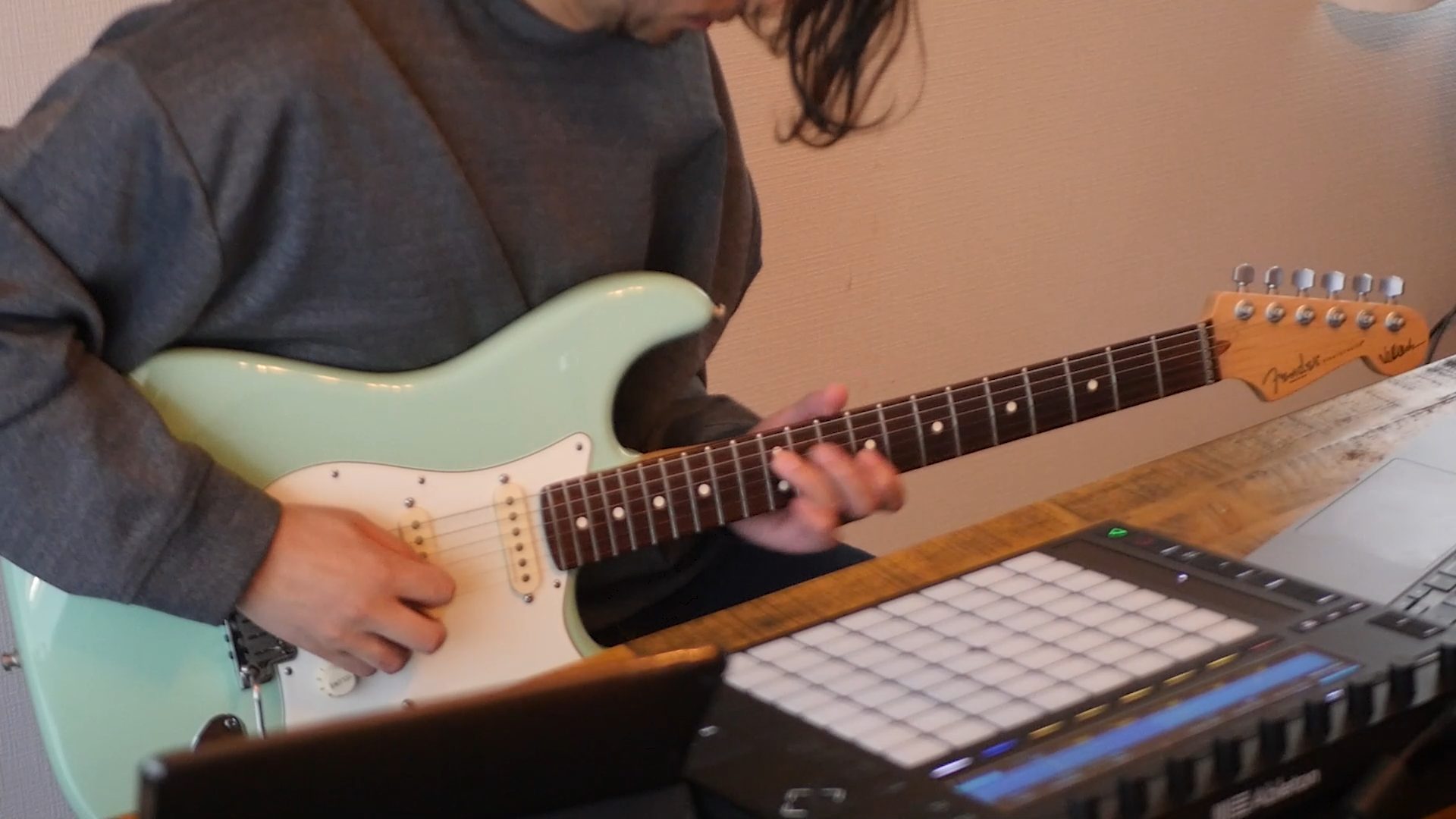
A guitar
Push 2 is used to play the pads and record and stop clips.
Although everything could be controlled from Push 2 alone, touchAble is also used to make the performance smoother.
The following touchAble functions are used in this performance:
- Clip playback
- Stopping clips
- Launching recording
- Recording and stopping recording
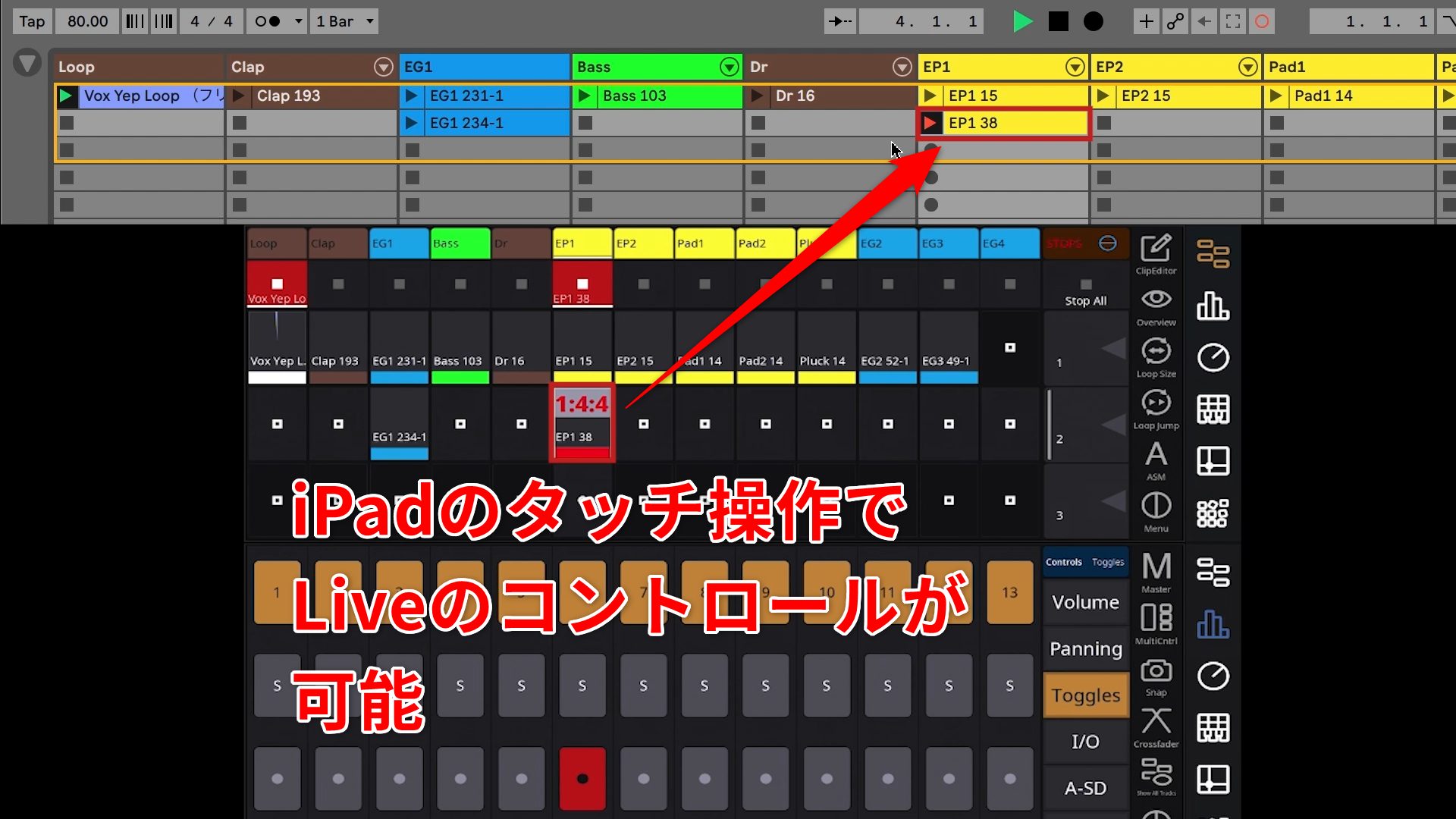
With its touchscreen controls and clear visual feedback, touchAble complements Push 2 and helps bring out more of Ableton Live’s strengths.
Apart from the guitar, all instruments in this session are included with Live Suite. All effects are also included with Live Suite, except for one ducking effect.
Creating Lo-fi Hip Hop Sounds from Included Presets and Samples
Throughout this performance, various instrument and effect presets and audio samples included with Ableton Live are used to create sounds suited to lo-fi hip hop.
Here are some of the more distinctive sound-design techniques.
Processing an Audio Sample to Fit the Track
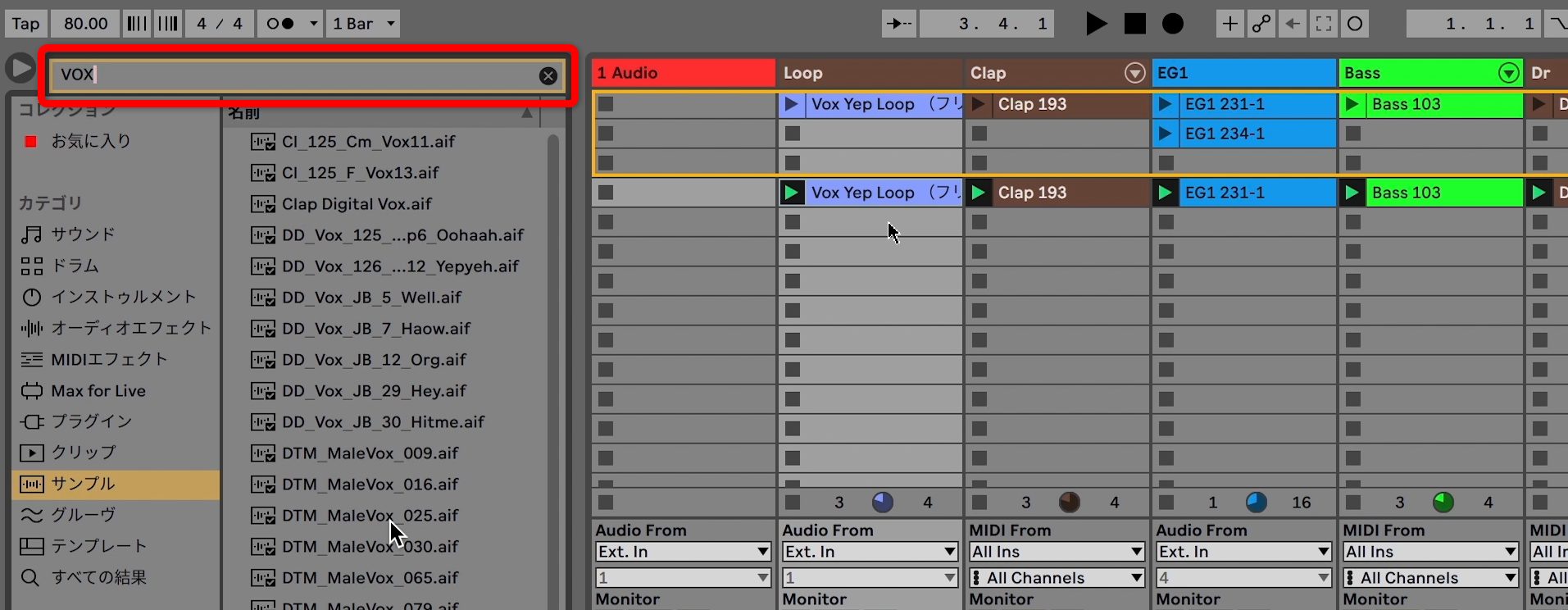
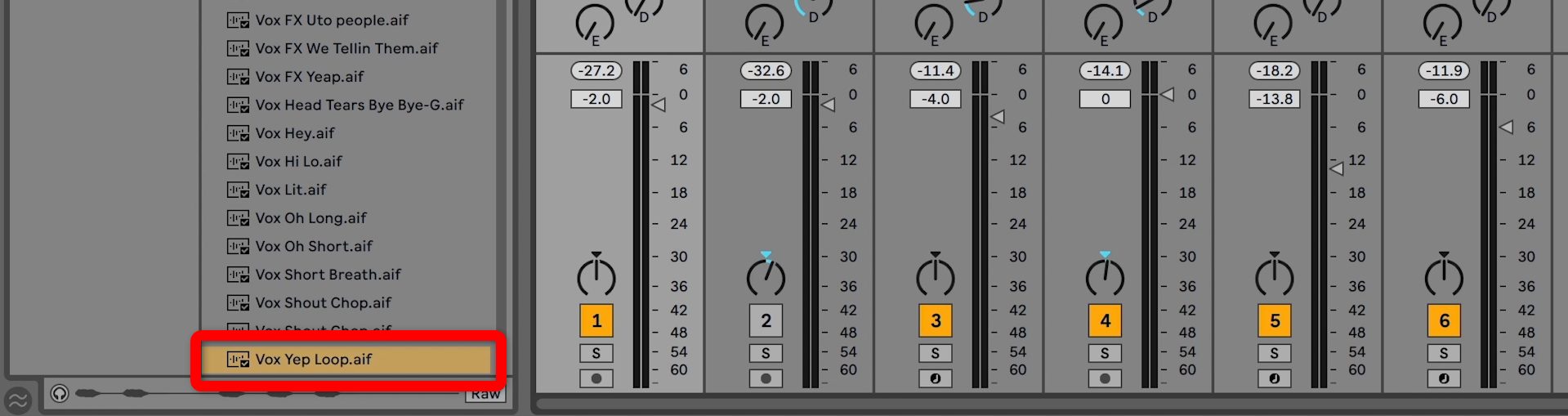
For the opening vocal loop, select Samples in the browser categories, enter “Vox” in the search field, and choose a sample you like from the results.
Drag it into a clip slot on a newly created track. Live automatically matches its tempo, making it easy to use.
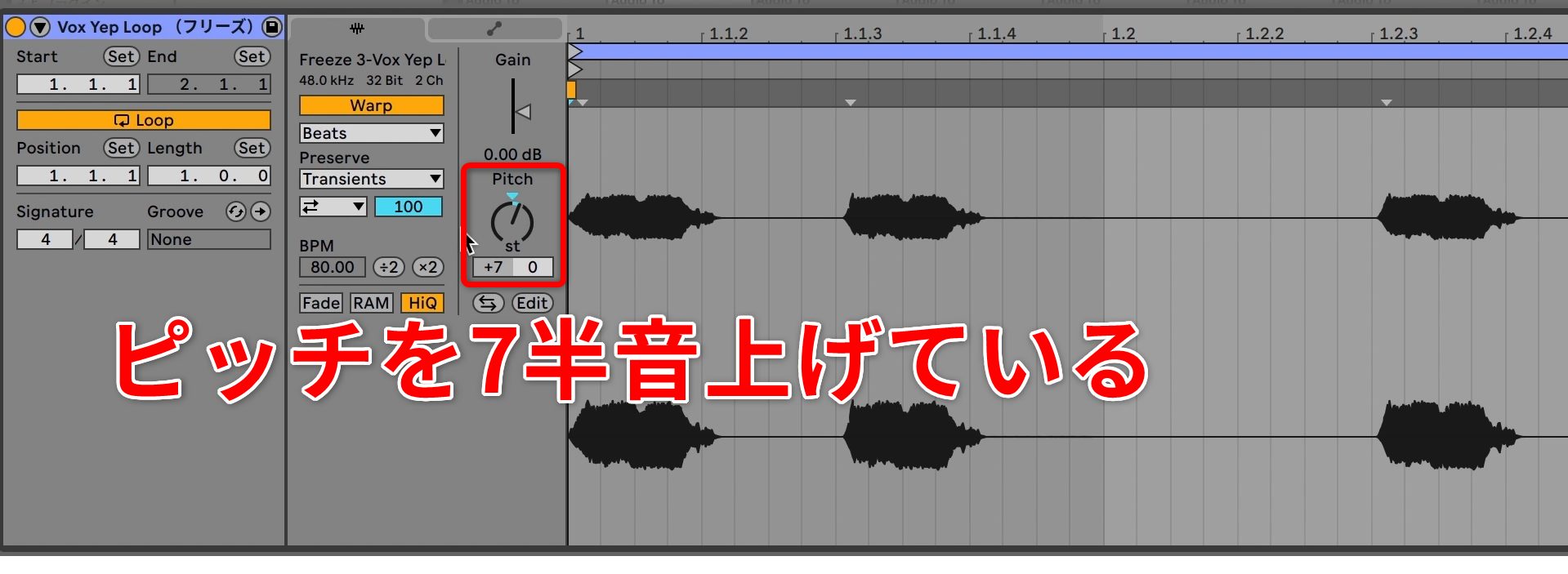

The aim was a light, percussive sound that would not interfere with the other instruments. The sample’s pitch was raised by seven semitones, and Cabinet—a plug-in that models guitar and bass speaker cabinets—was added for a lo-fi character and a sense of space.
Listen to how the sound changes.
Vocal Loop Before Processing
Vocal Loop After Processing
This adds rhythmic depth without getting in the way of the other tracks.
Editing the Synth Bass
Next, let’s look at the bass.
First, select Instruments in the browser categories and enter “Bass” in the search field.
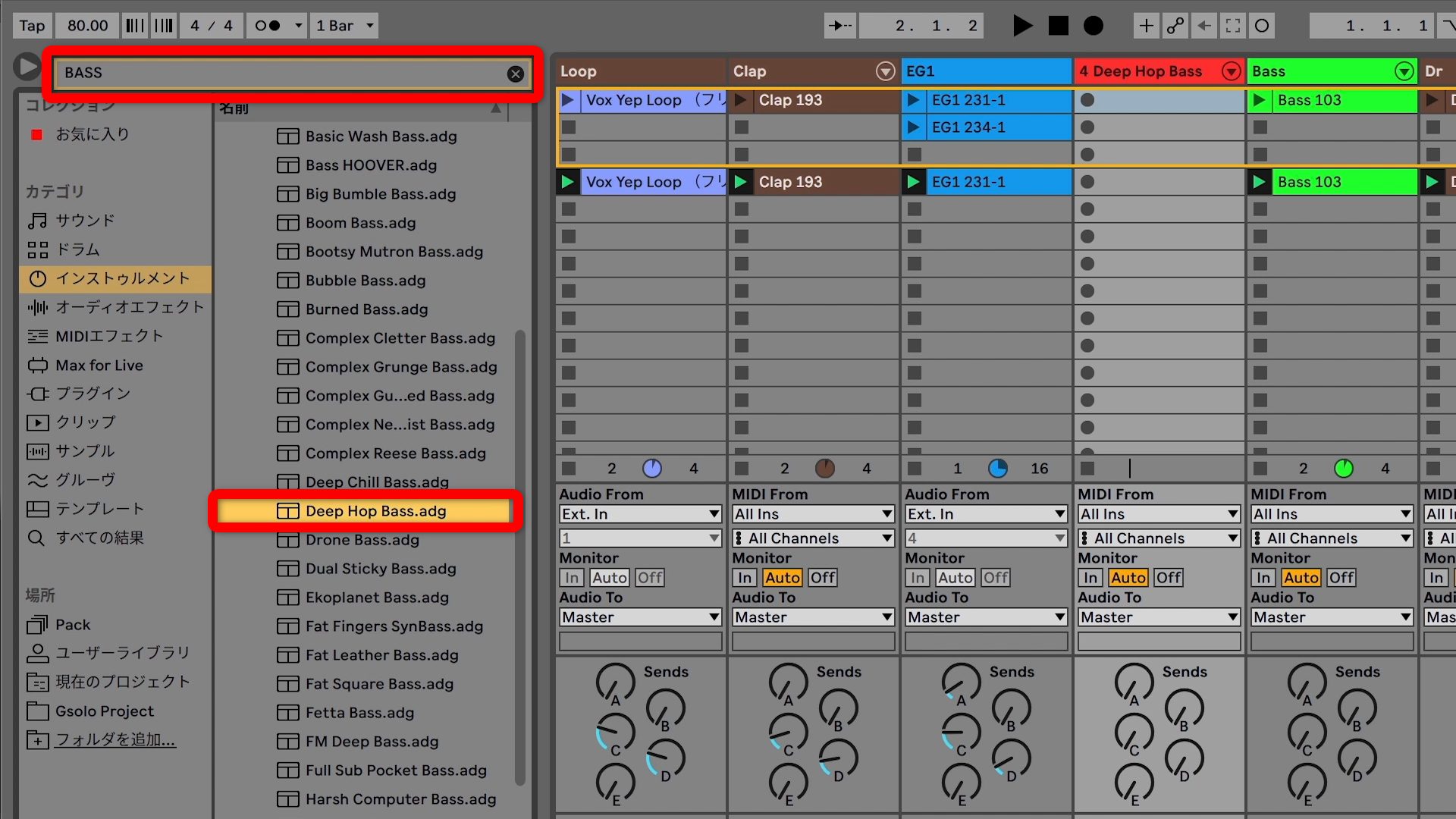
This performance uses a preset from Instrument Rack → Bass.
The following sound was chosen as the starting point.
Bass Preset Sound
However, the preset raised three concerns:
- The bass sound was a little too high in its tonal center of gravity.
- Some stereo width and modulation made it feel unstable.
- It needed more rhythmic movement and groove.
We will edit the sound to address these three points.
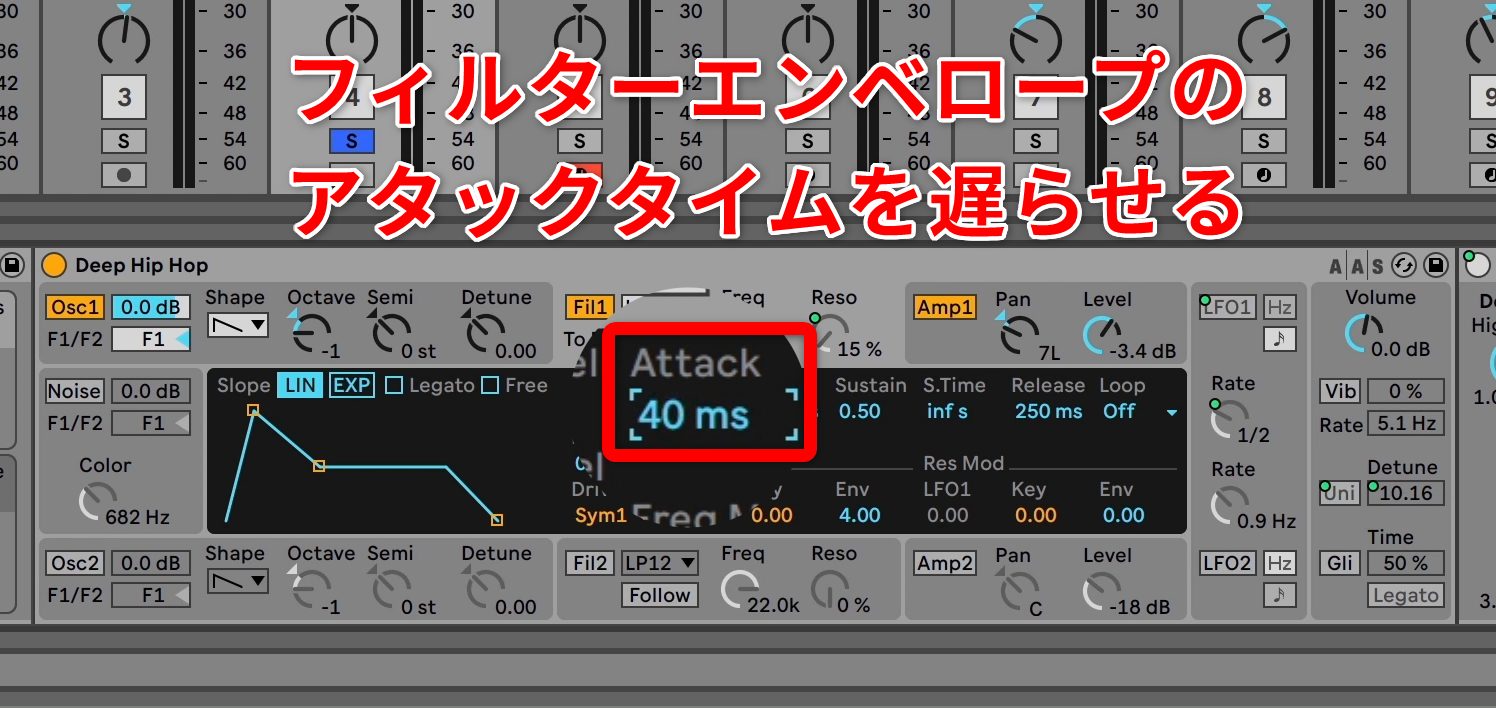
First, slightly lengthen the synth’s filter attack time to give the sound a lower tonal center of gravity and add rhythmic movement.
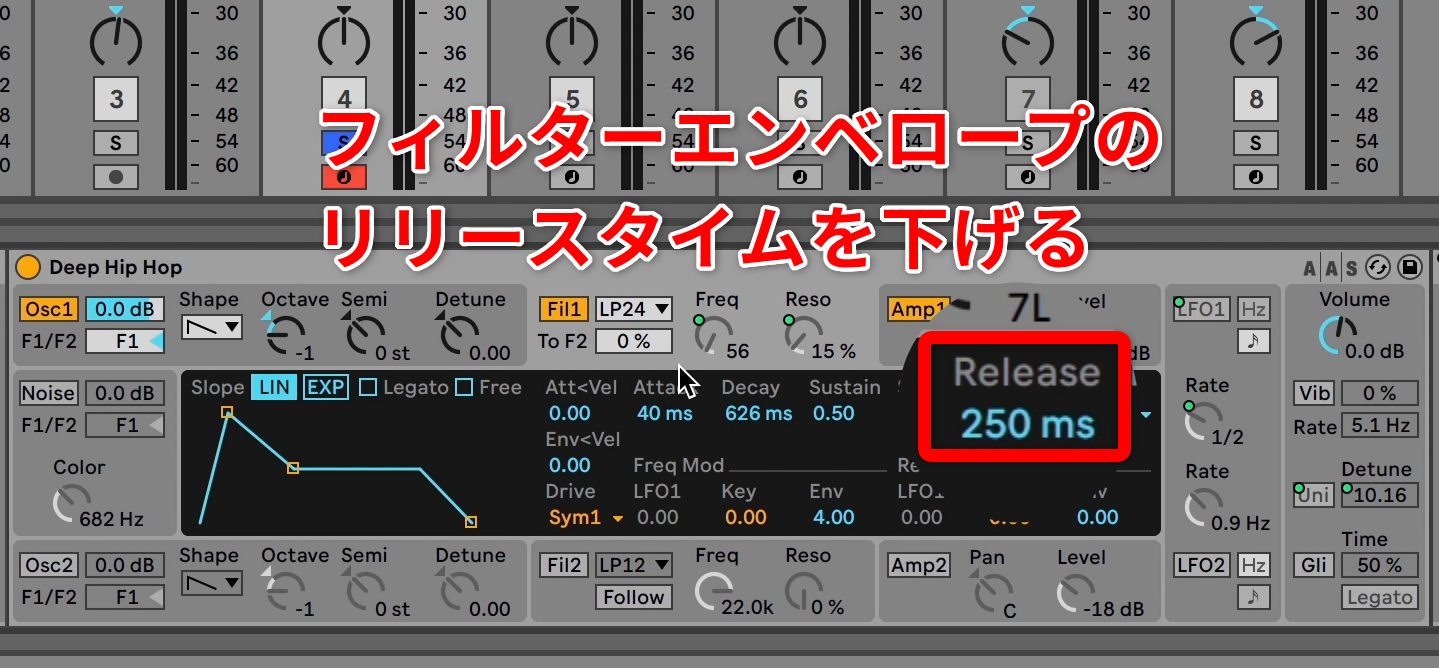
Shorten the synth’s filter and amplitude release times so that notes stop more tightly when the MIDI notes end.
Lower the filter cutoff and resonance to shift the sound’s tonal center of gravity further downward.
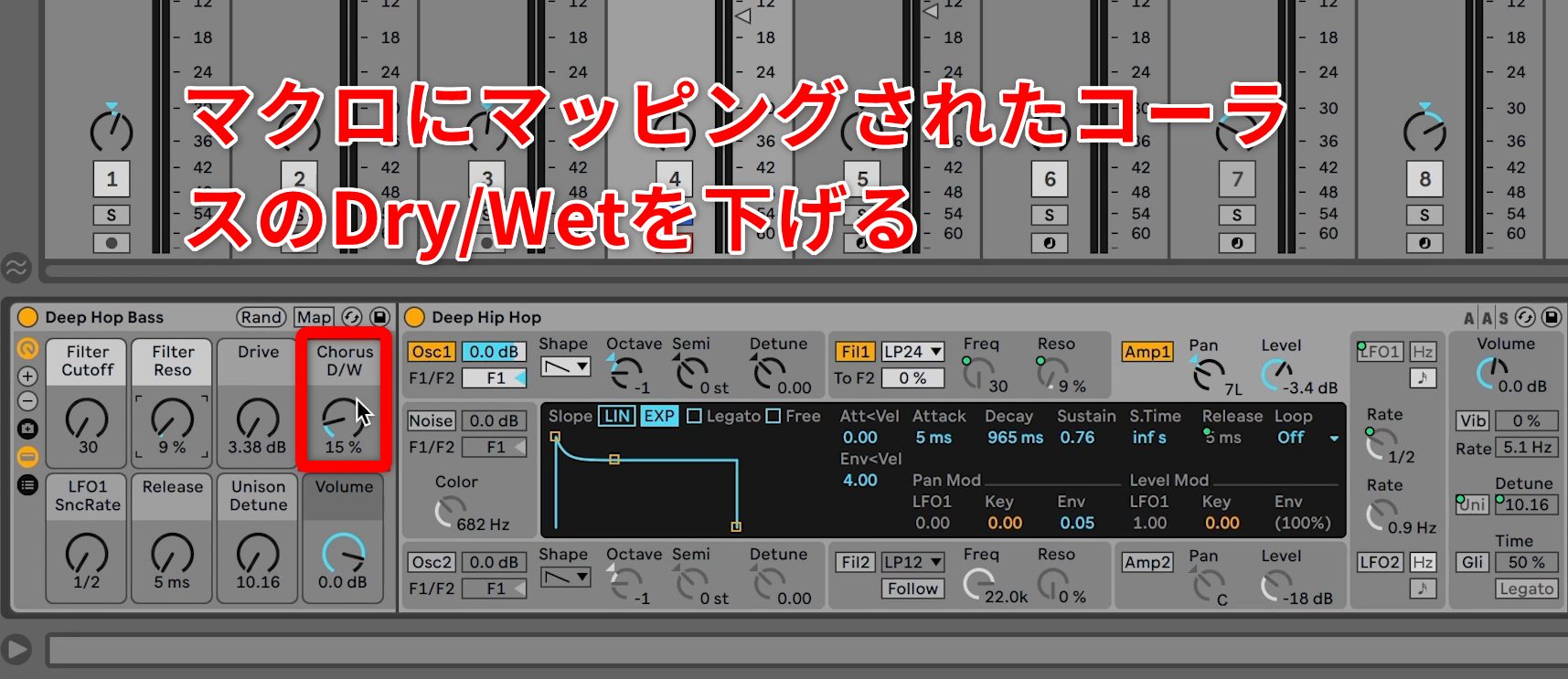
Turn the chorus effect down to zero to remove pitch modulation and give the sound a tighter feel.
With the basic sound in place, add effects to bring it closer to the intended result.
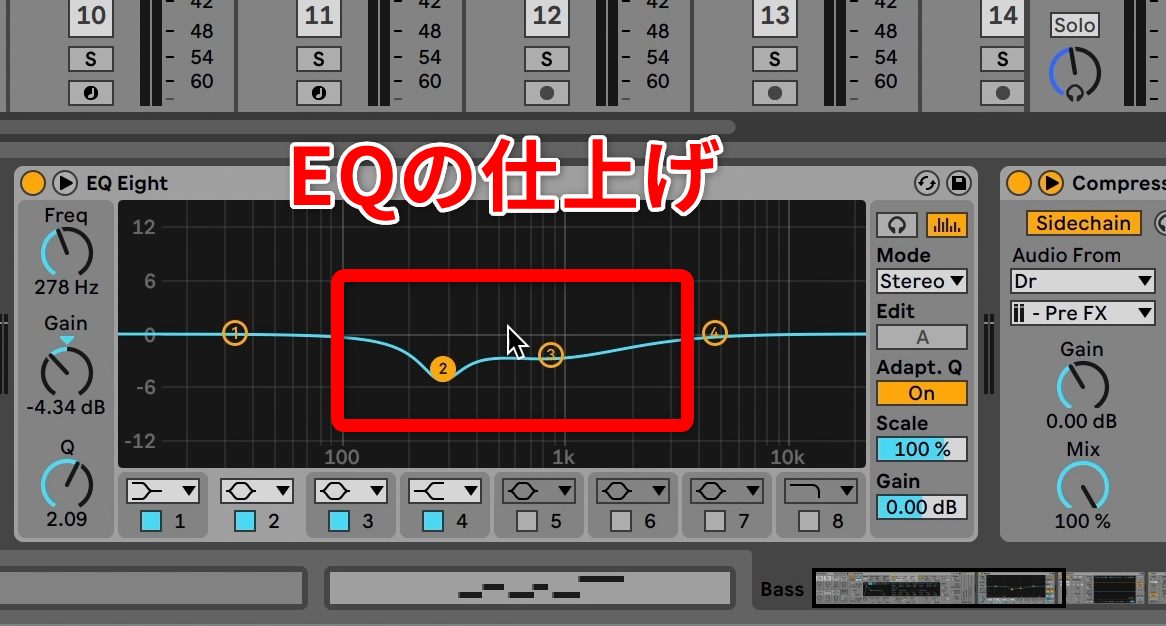
Use EQ to reduce the low-mid to midrange frequencies slightly and clean up the sound.
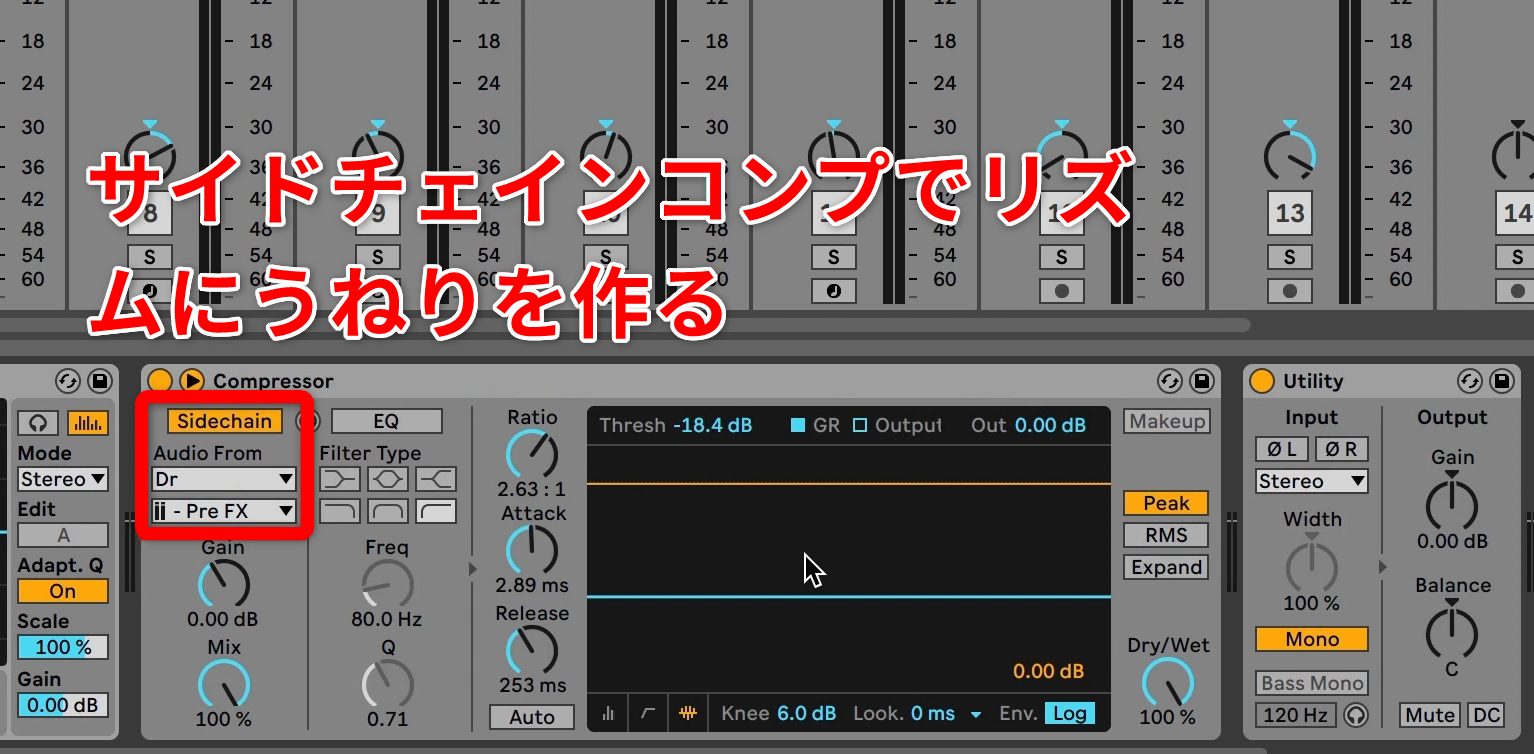
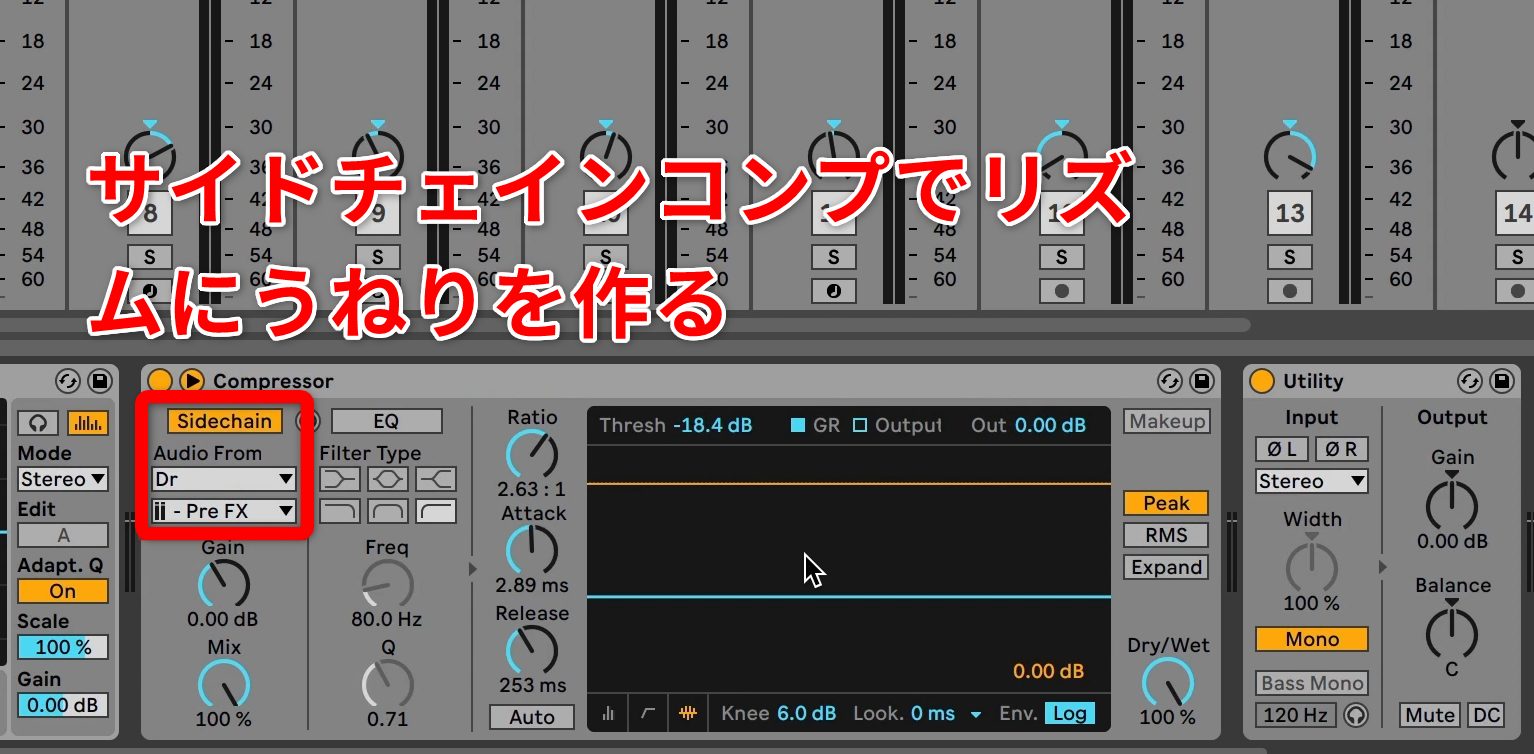
To make the kick stand out and add rhythmic movement, insert a kick-triggered sidechain compressor.
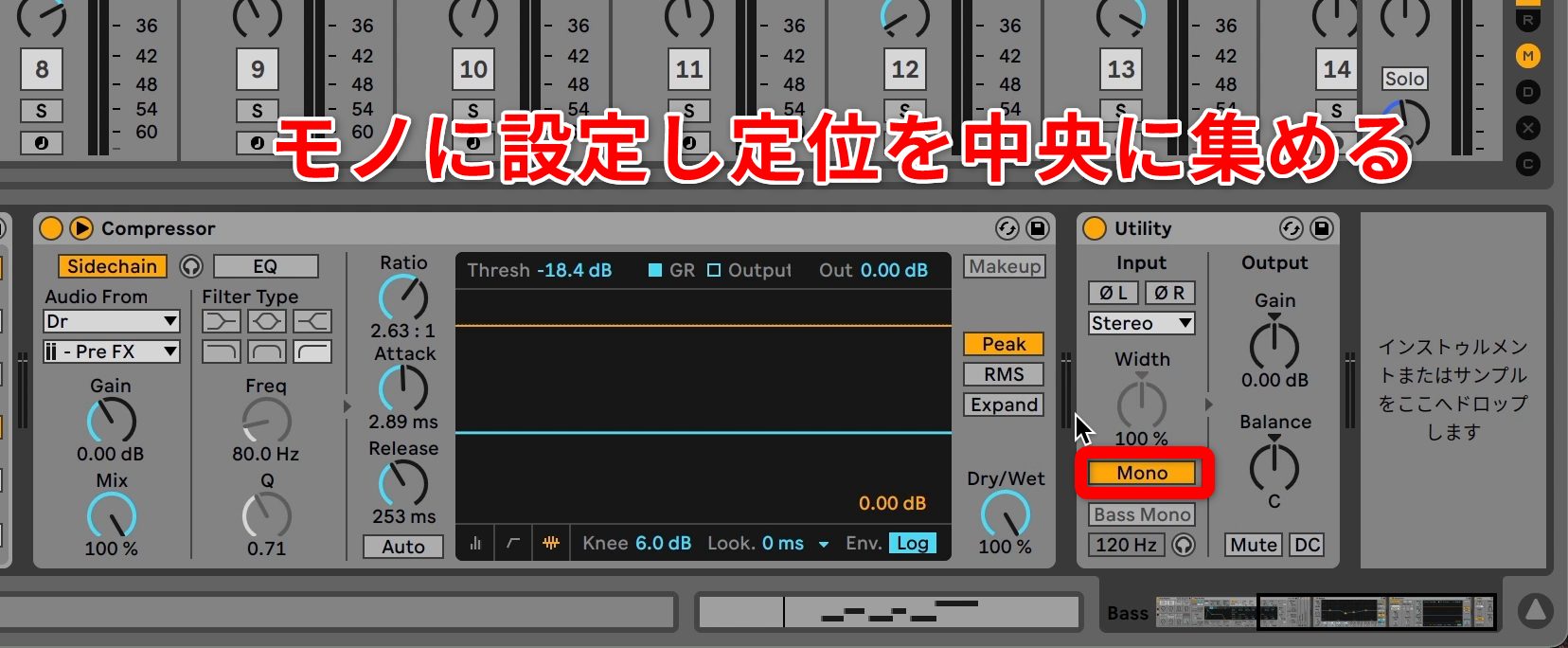
Use Utility to make the originally wide stereo signal mono, giving the bass a more stable foundation.
Finally, compare the sound before and after editing.
Bass Before Editing
Bass After Editing
After editing, the sound’s lower tonal center of gravity gives it a broader range and a hip-hop-style rhythmic pulse.
Push 2: Features and Characteristics
As Ableton Live’s own controller, Push 2 offers many features for controlling Live more intuitively.
Here are two features used in this performance.
Our website also explains the basic operation of Push 2. See the following article:
1. Browsing and Loading Instruments with Ableton Push 2
An Approach Unique to Pads
The first characteristic of Push 2 is the different ideas and approaches that its pads encourage compared with a piano keyboard.
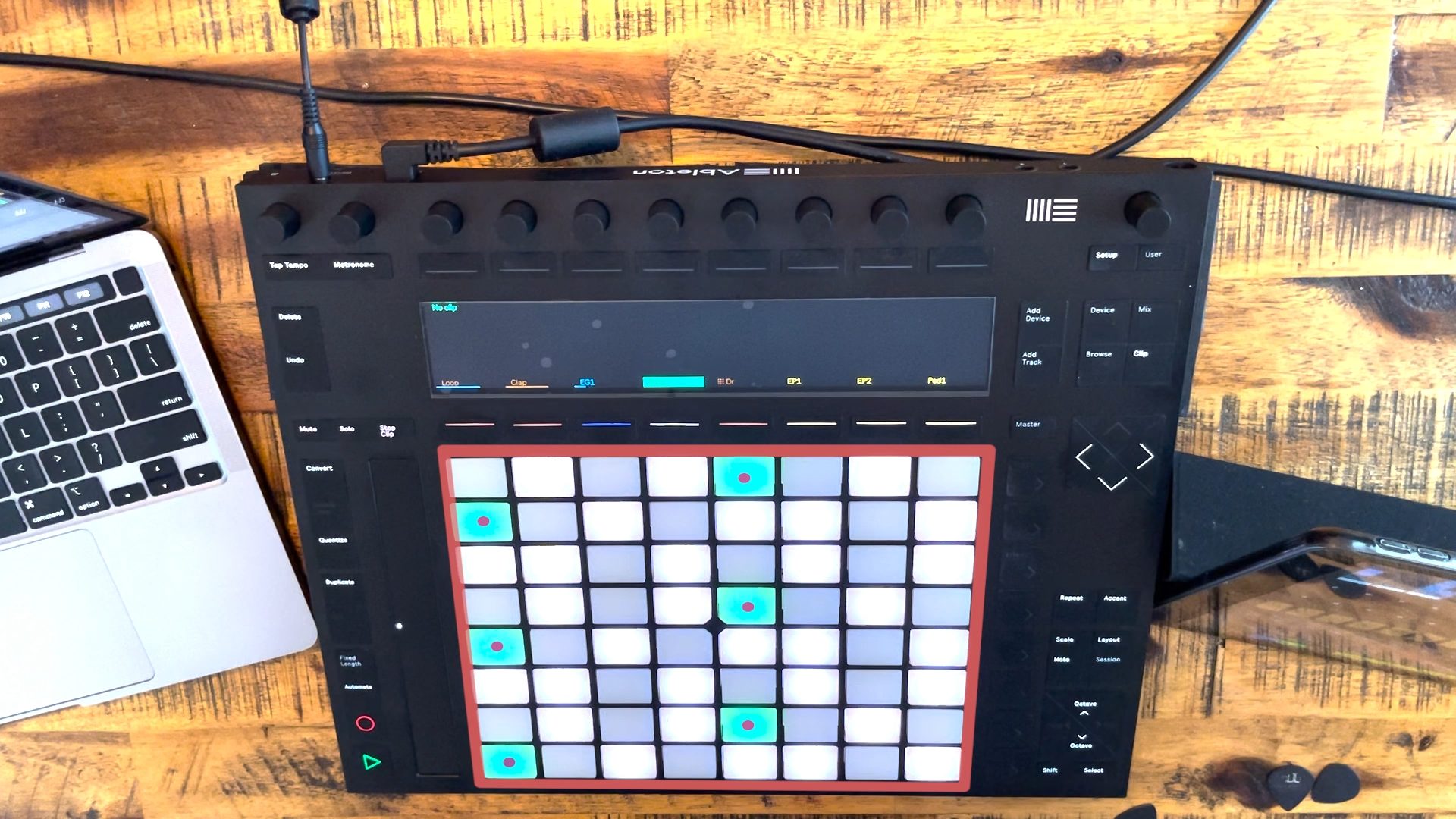
This piece is in C. The tonic, C, is shown more strongly in each track’s color, and the pads are arranged chromatically, with notes a semitone apart.
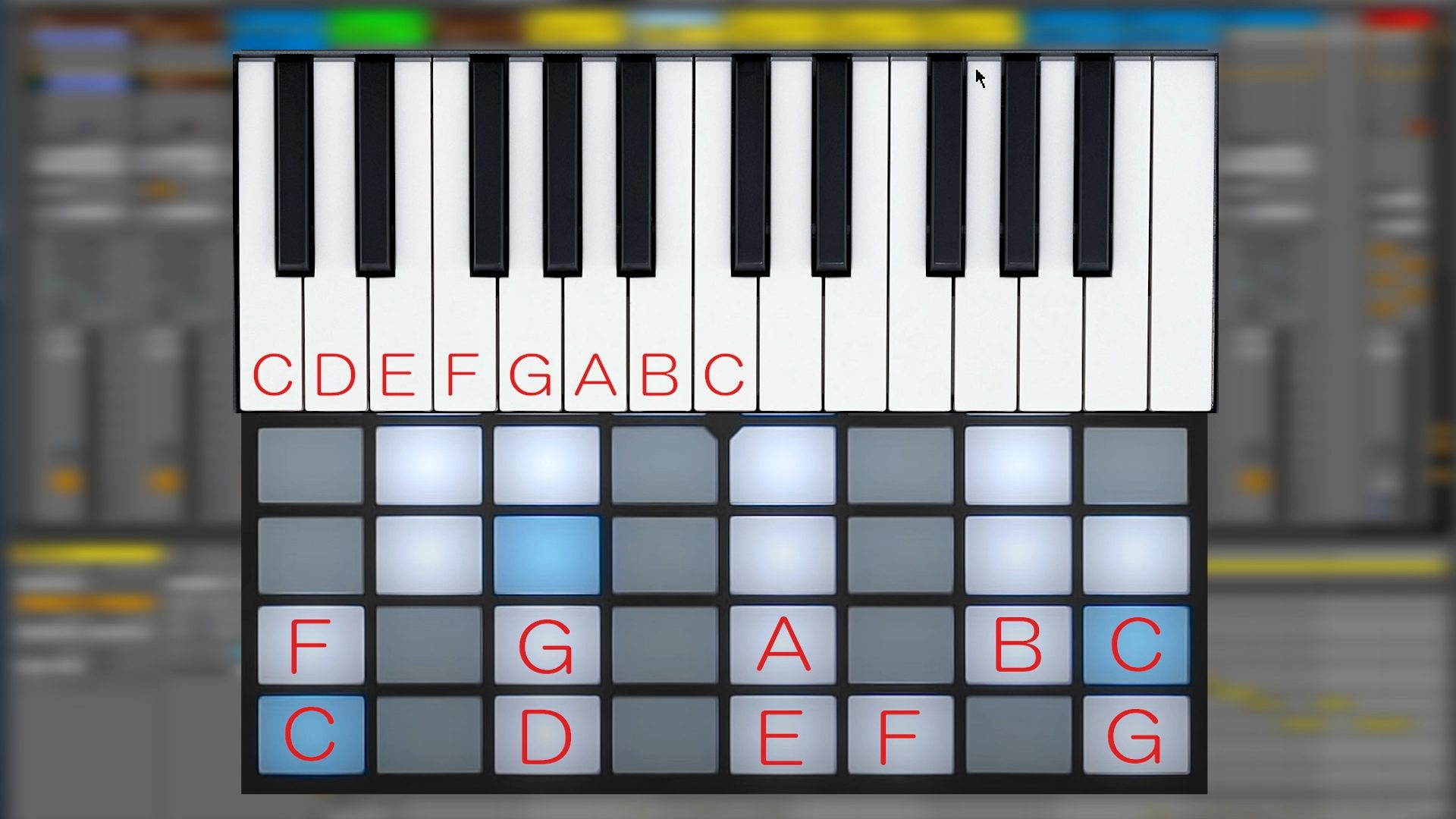
Although these are the same notes as on a piano keyboard, there is no distinction between white and black keys, and the layout is different. This opens up a completely different perspective on playing.
With this layout, chromatic approaches and blue notes naturally led to looping phrases that suited the piece without sounding overly bluesy.
The performance also includes a chromatic glissando that would not be possible in the same way on a piano keyboard.
Chromatic Glissando Slide
Expression with the Touch Strip
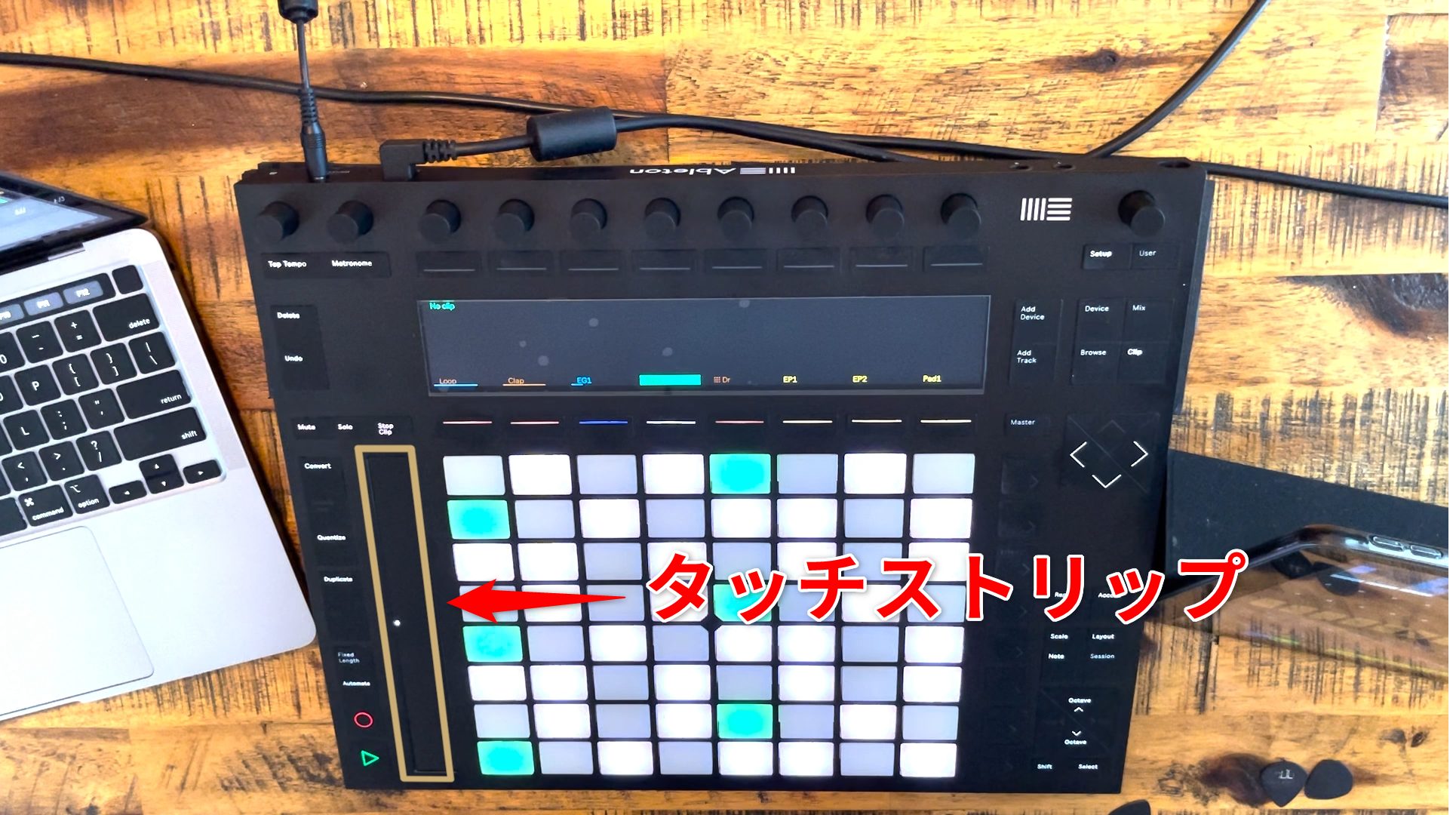
Slide your finger along the touch strip to control either pitch bend or modulation amount.
Touch Strip Slide
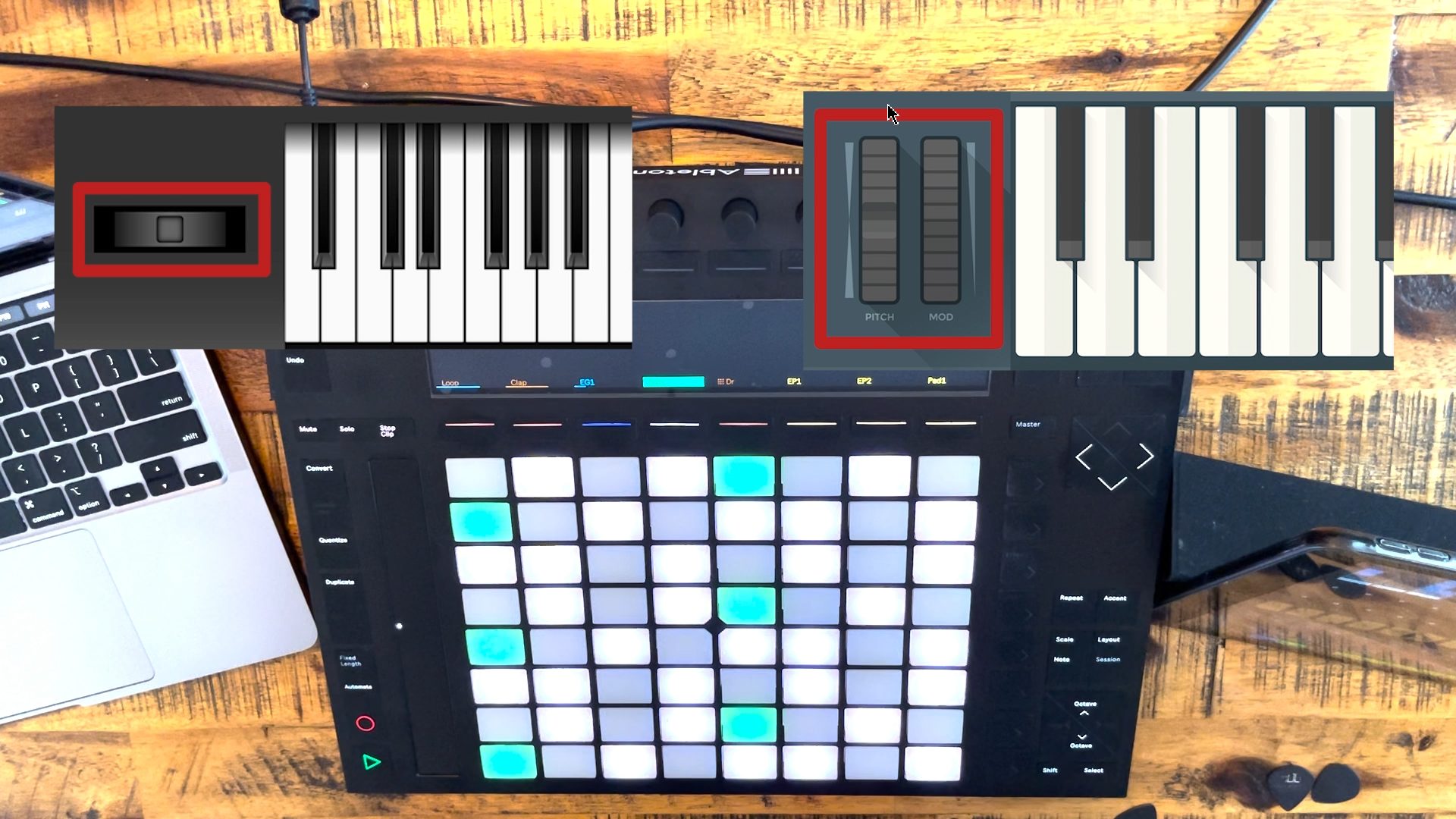
Unlike a lever or wheel, the strip offers fingertip control that makes subtle expression easier and can inspire new ideas.
Shaping the Guitar Sound
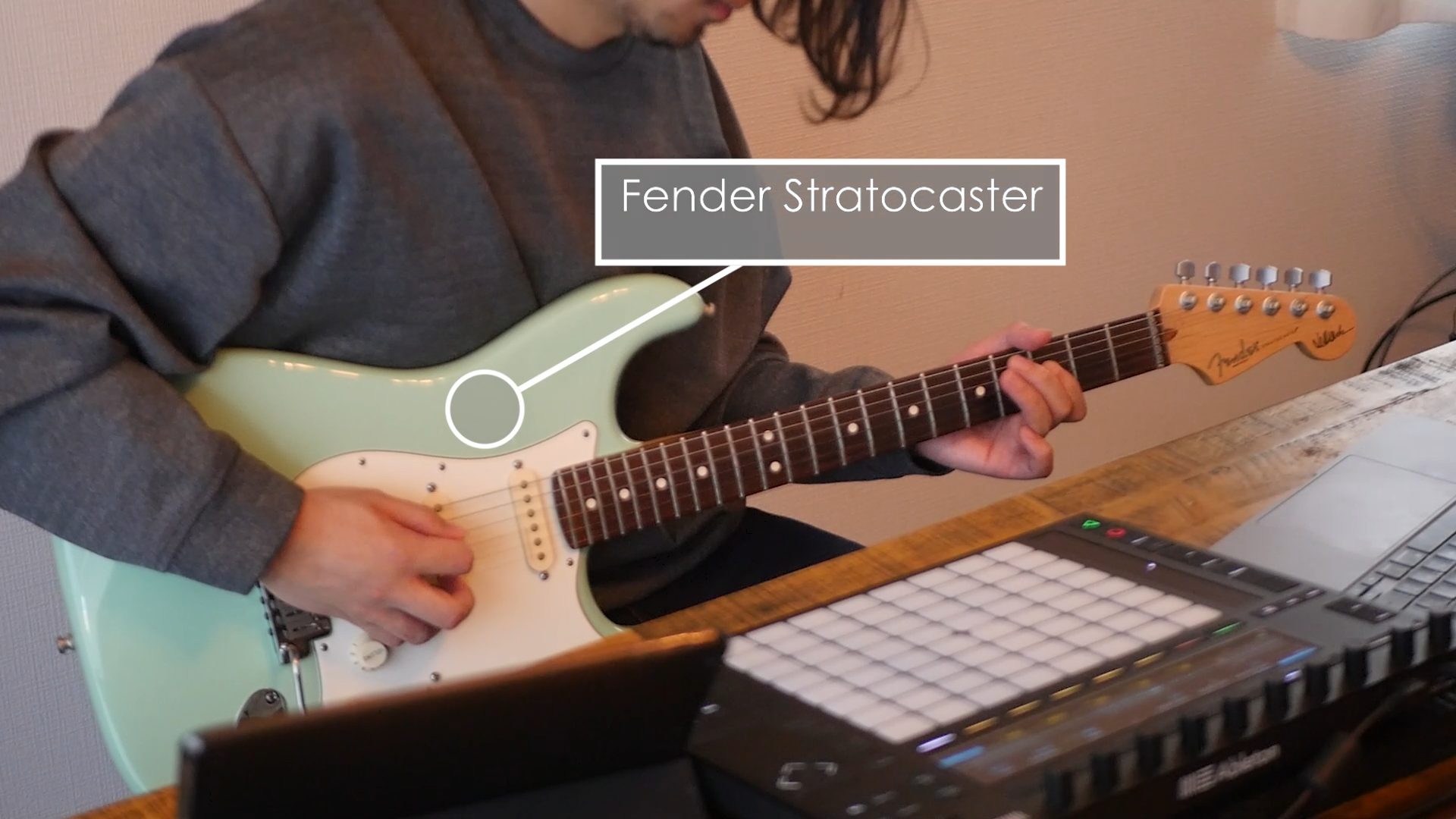
A Stratocaster was used for its sharp, clear tone.
The guitar is connected directly to the audio interface, without external effects or amp simulators. Its sound is shaped entirely with effects included in Live Suite.
Here are the actual effect settings used.
The Main Backing Guitar Sound
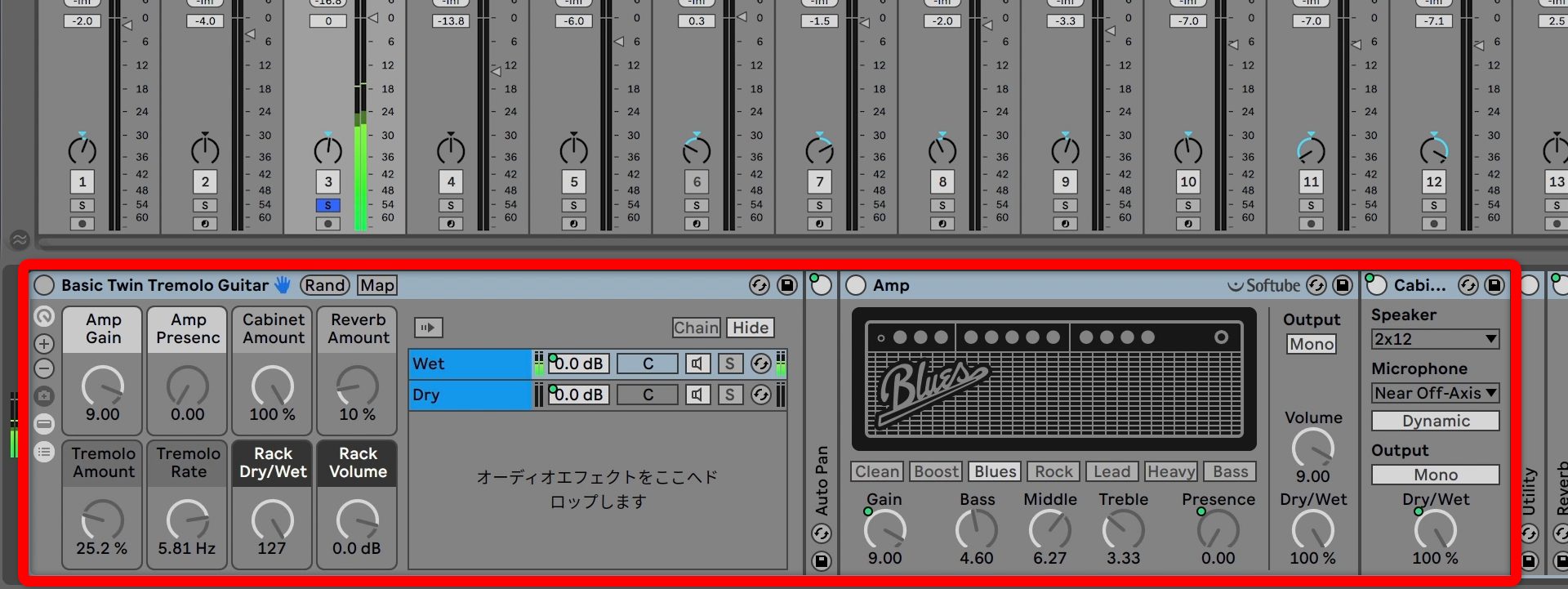
The main backing guitar heard throughout the performance uses an amp-simulator preset modeled on Fender’s TWIN REVERB, known for its beautiful clean tone.
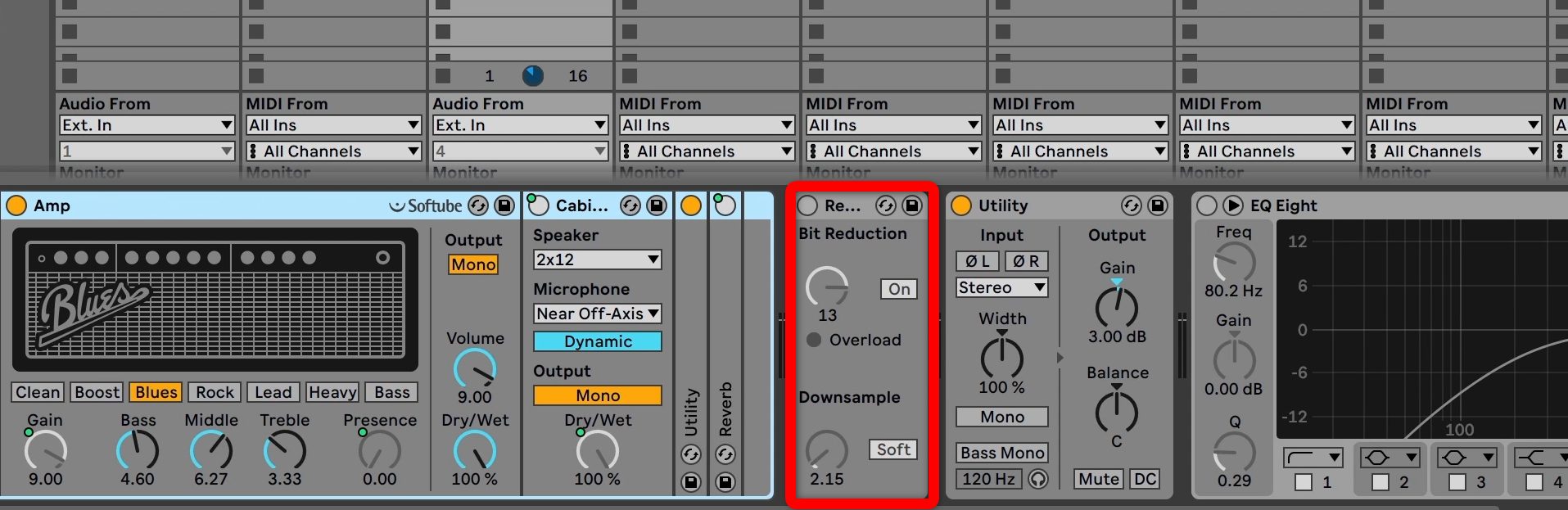
To add a lo-fi character, the bit-crusher-style plug-in Redux is added.
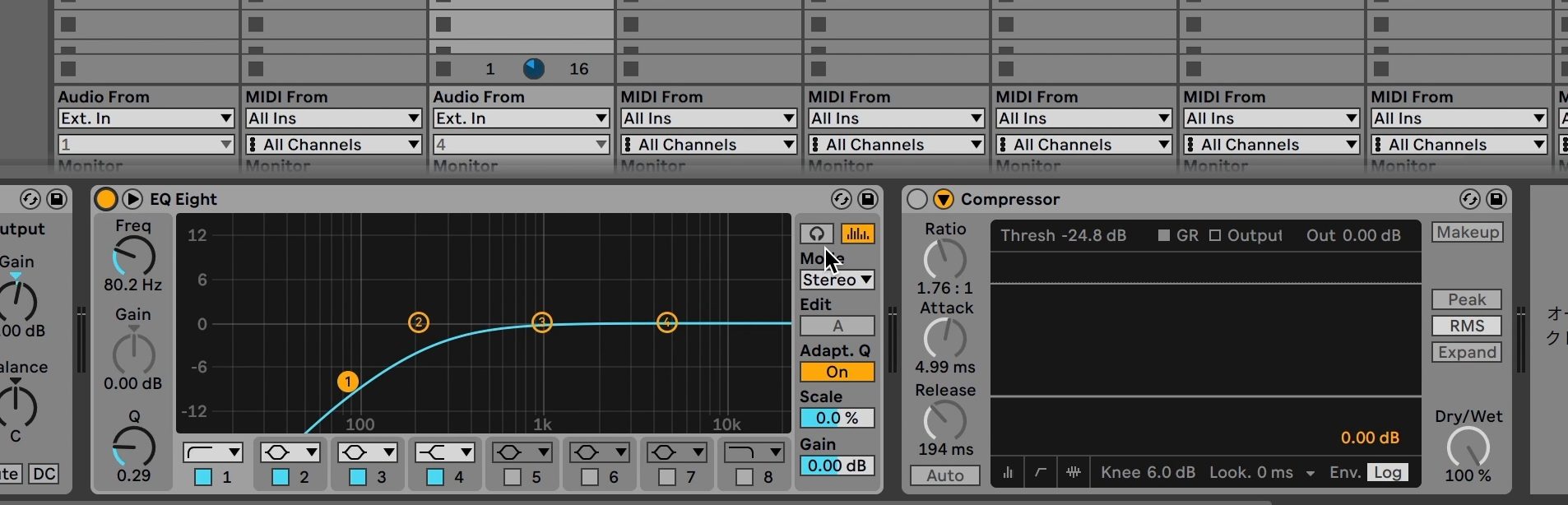
Finally, EQ removes the low frequencies, compression evens out the sound slightly, and a send routes it to reverb.
Direct-Recorded Guitar
Guitar After Effects
The Muted Single-Note Backing Guitar Sound
For the muted backing part played in the second half, no amp simulator is used. Instead, the aim is the sound of a guitar connected directly to a recording studio’s mixing console.
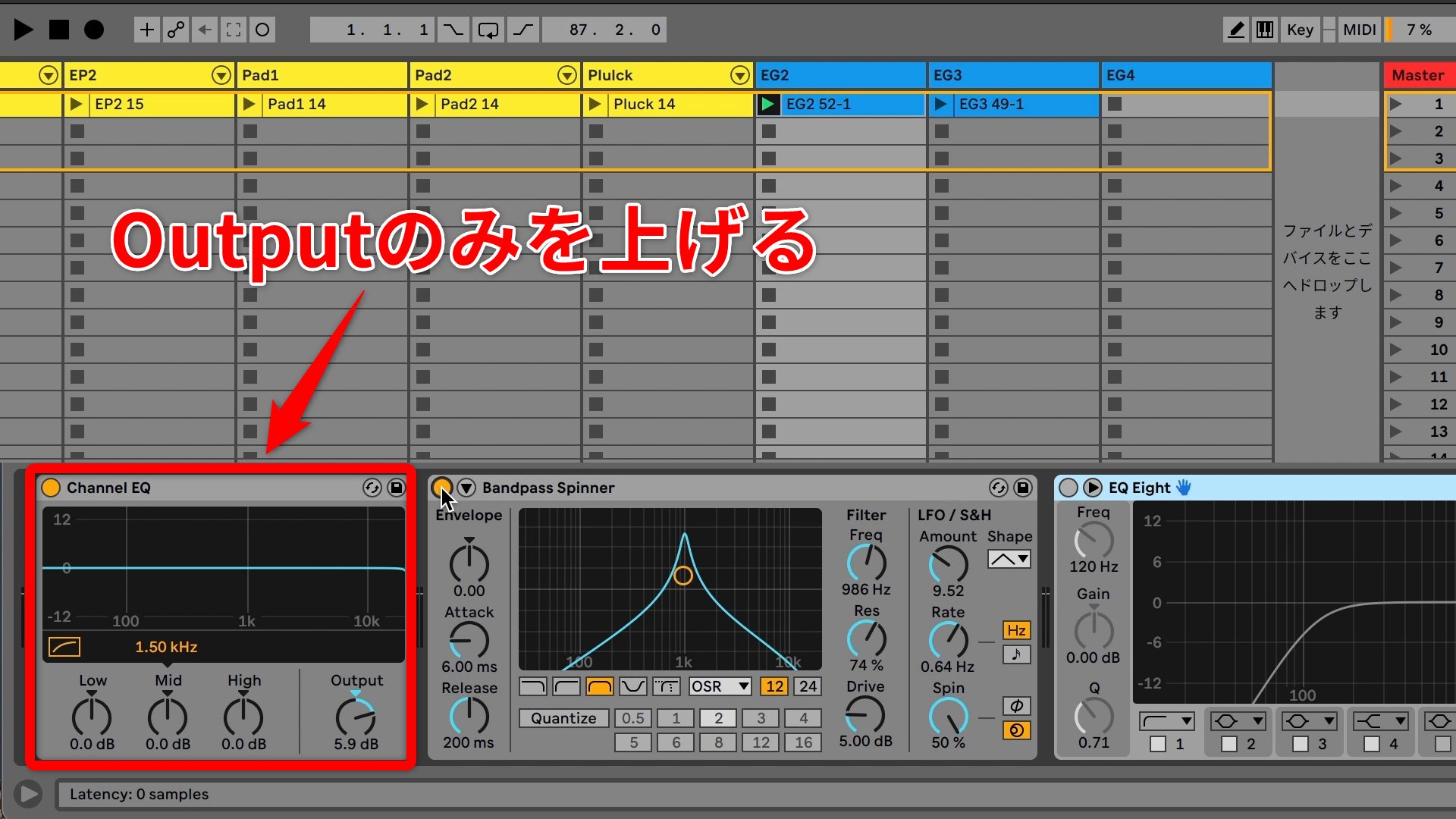
Channel EQ, inspired by classic mixing consoles, is inserted. No EQ adjustments are made; only Output is increased, to add the effect’s tonal character.
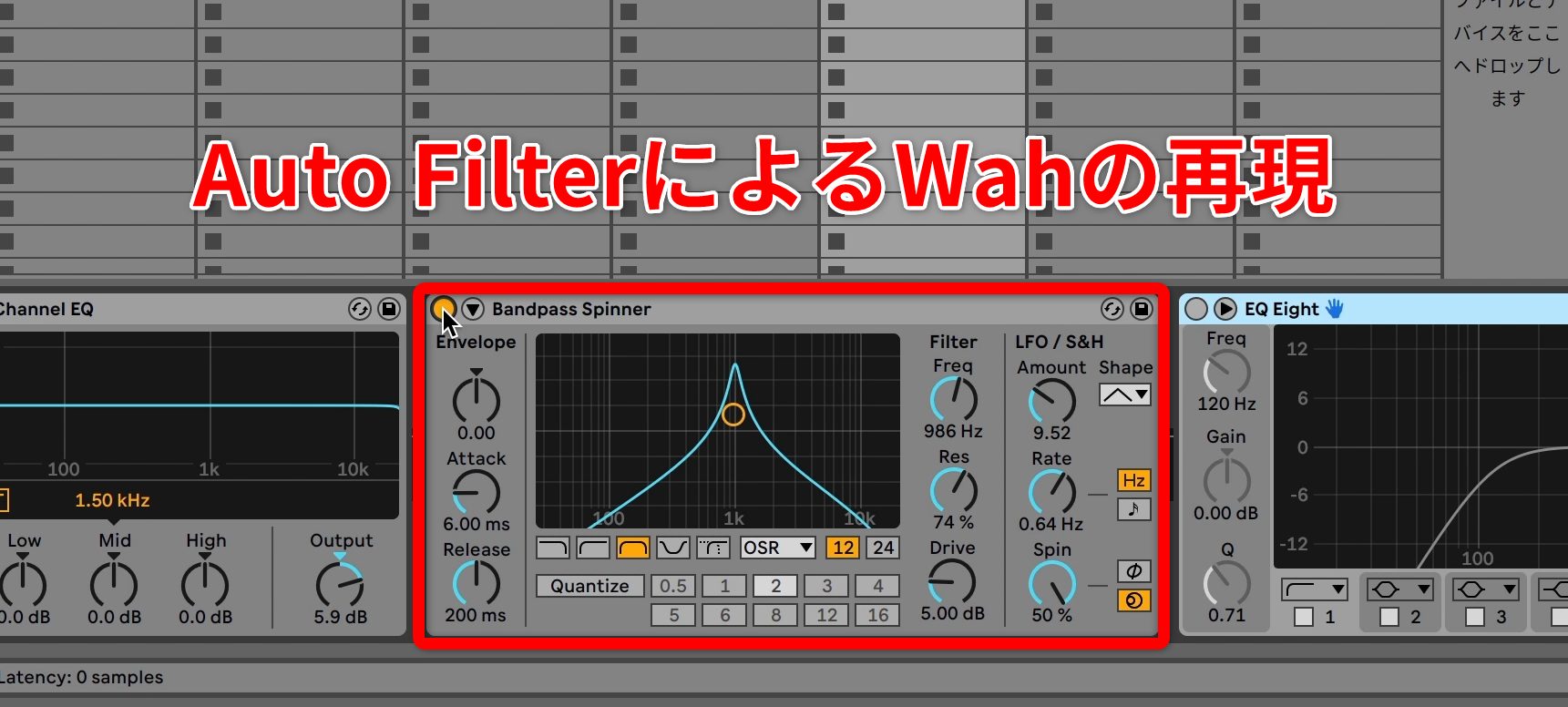
Next, an Auto Filter preset is selected for an effect similar to a touch-sensitive wah.
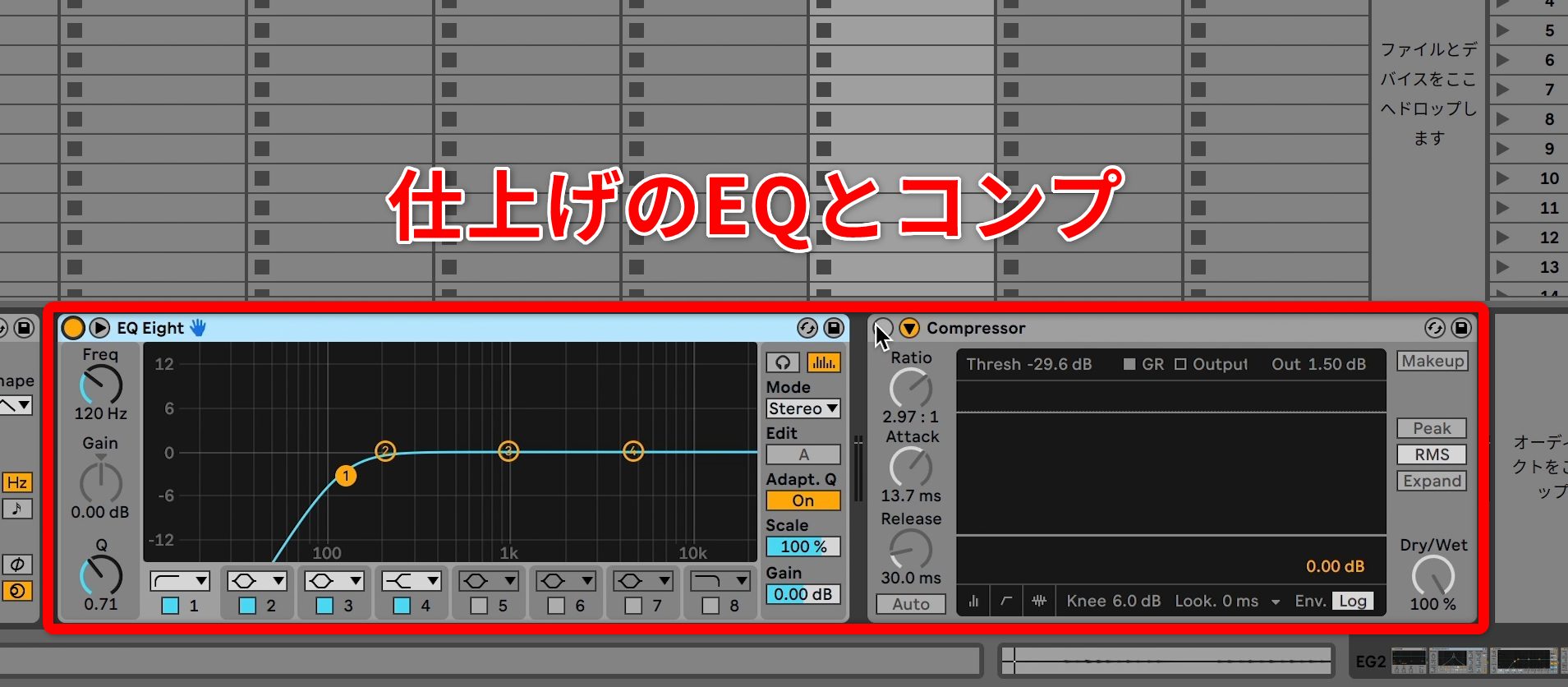
EQ then removes the low frequencies, compression smooths the dynamics made slightly uneven by the wah, and a send adds reverb to finish.
Direct-Recorded Guitar
Guitar After Effects
From realistic amplified tones to lo-fi sounds and touch-sensitive wah, the effects included with Ableton Live alone offer plenty of scope for shaping guitar sounds.
This performance highlighted one of Ableton Live’s greatest strengths: being able to treat the DAW like a musical instrument.
Controllers such as Push 2 bring out even more of that potential.
If you prefer an intuitive approach to making music rather than focusing on theory, give it a try.
Frequently Asked Questions
Q1. How should I use Session View and Arrangement View in Ableton Live?
Session View is ideal for live performance and freely developing ideas by layering loops in real time. Arrangement View is suited to detailed editing afterward. Recording your Session View work into Arrangement View lets you benefit from both.
Q2. Can I perform live with Ableton Live without Push 2?
Yes. However, using controllers such as Push 2 and touchAble together improves visual feedback and makes performance smoother and more intuitive.
Q3. Can beginners create lo-fi hip hop sounds?
Yes. Use Ableton Live’s included presets and samples, then apply basic edits such as filter adjustments and additional effects to create lo-fi sounds.
Q4. Why use a ducking effect on the synth bass?
A sidechain compressor triggered by the kick emphasizes the kick’s pulse. The interaction between the bass and kick creates rhythmic movement and groove.
NEW ARTICLES
Latest English Articles




































































































































