
Cubase 11's MixConsole is an essential tool for viewing all your tracks at once and efficiently adjusting volume balance and effects. You can use it in the lower zone or in a separate full-screen window, with fader balance, panning, Inserts, and Sends forming the basics. Learning techniques such as fine adjustments with Shift or Command, controlling several tracks together, and using group tracks can help you mix professionally and greatly improve your finished tracks.
This time, we will look at MixConsole, a useful tool for mixing a completed arrangement.
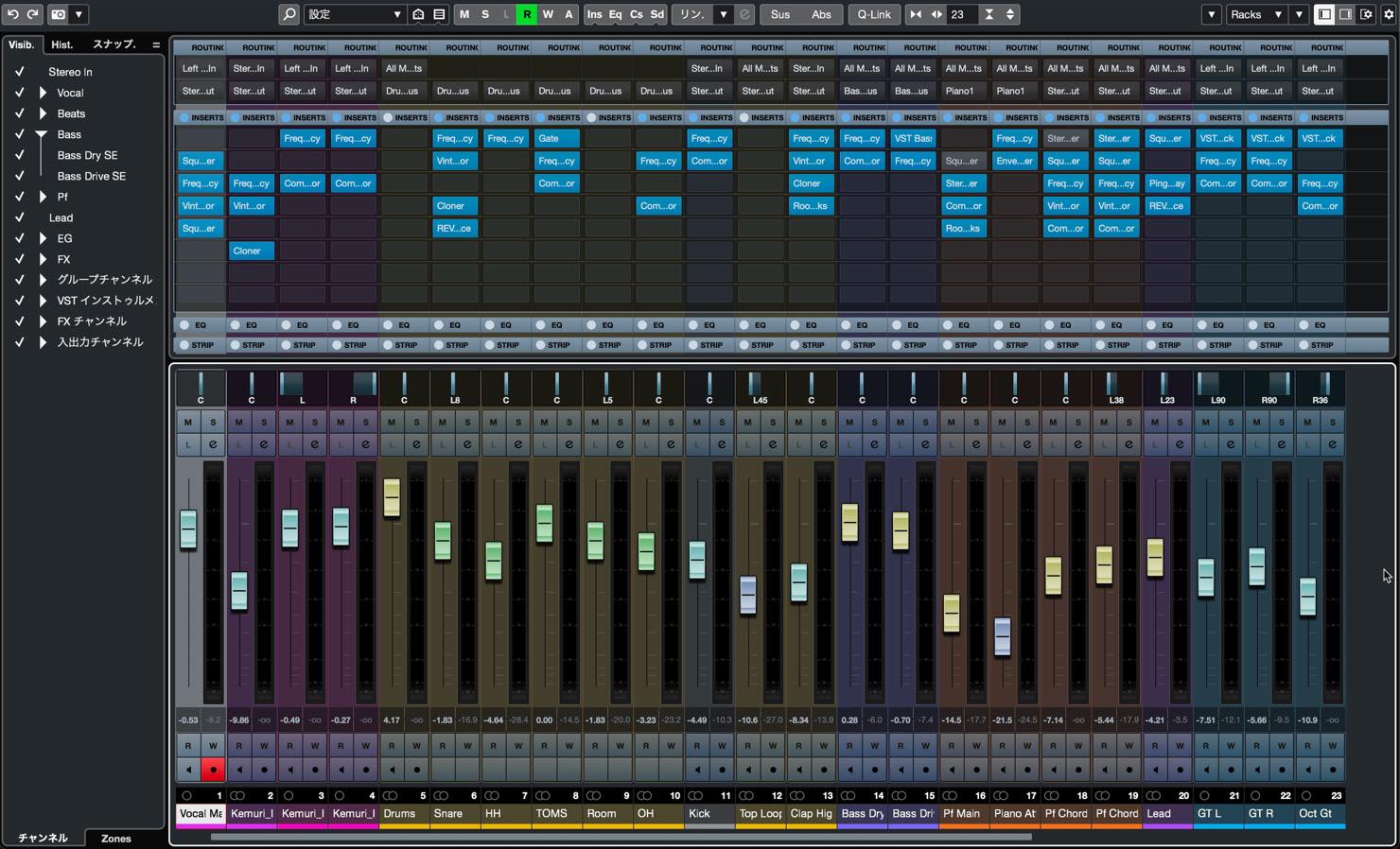
MixConsole gives you an overview of all your tracks so you can efficiently adjust volume balance and process effects.
If you have understood the material so far, this should not be too difficult. Try to become comfortable using it.
MixConsole Video
How to Open MixConsole
There are two main ways to display MixConsole.
The first is to click MixConsole in the lower zone.
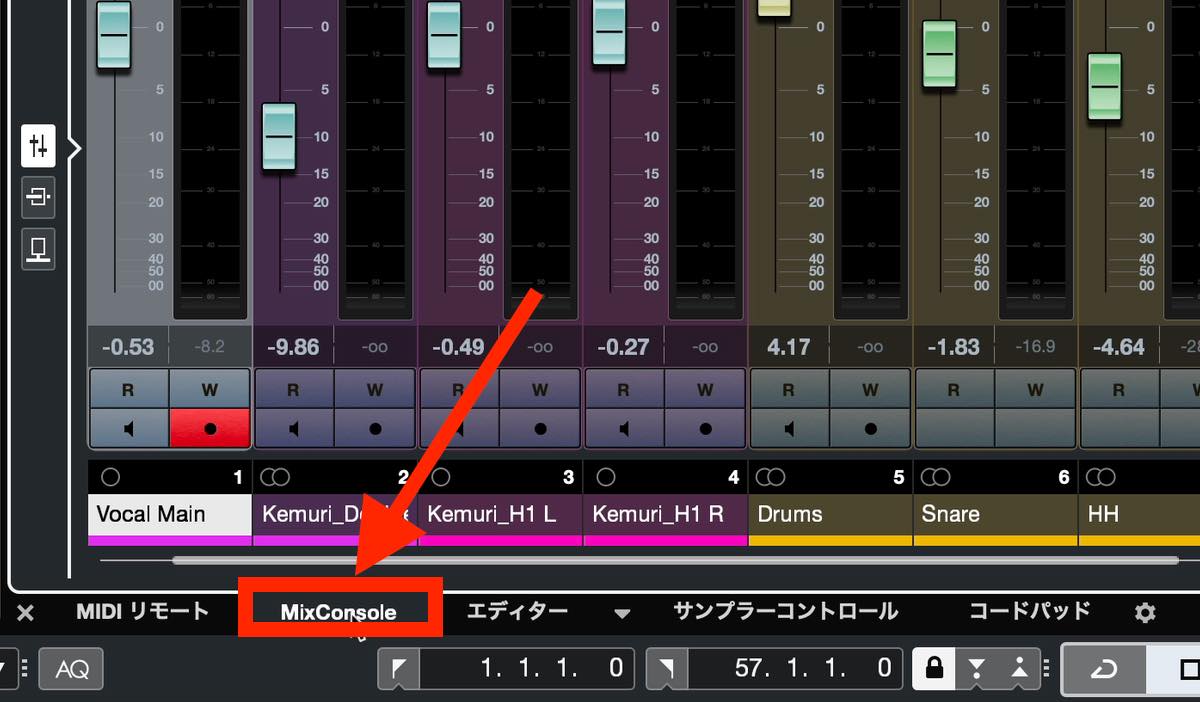
The three buttons at the far left of the zone switch between the faders, Inserts, and Sends.
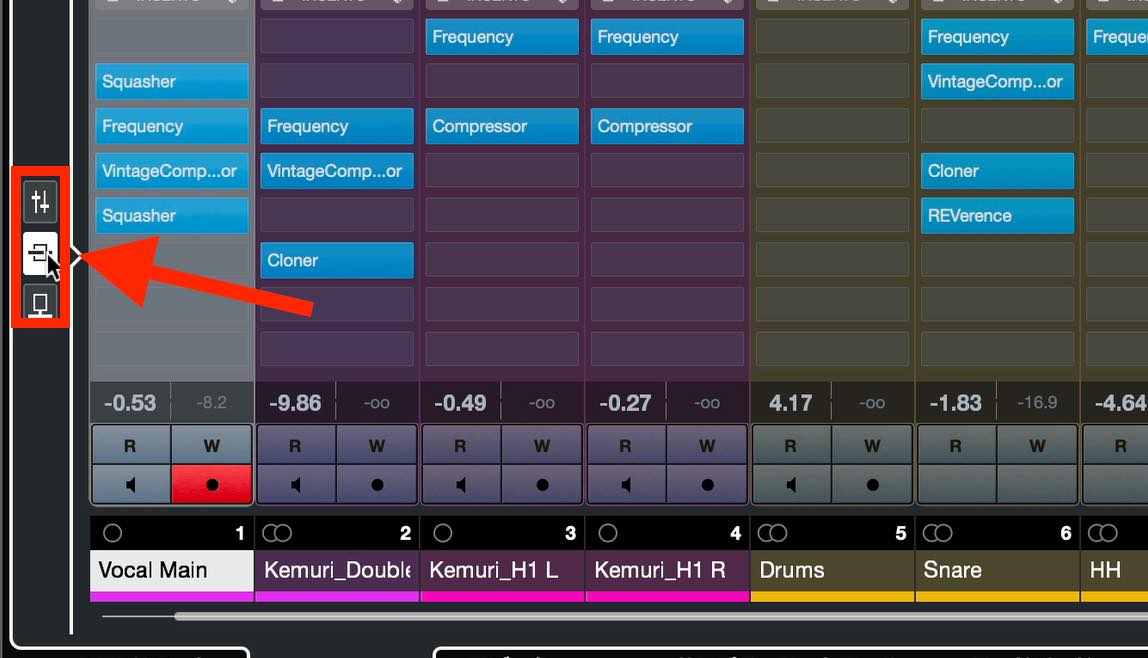
The advantage is that you can mix while keeping an eye on your project.
The other method is to choose MixConsole from the Studio menu at the top. You can use three separate consoles, each with its own display settings.
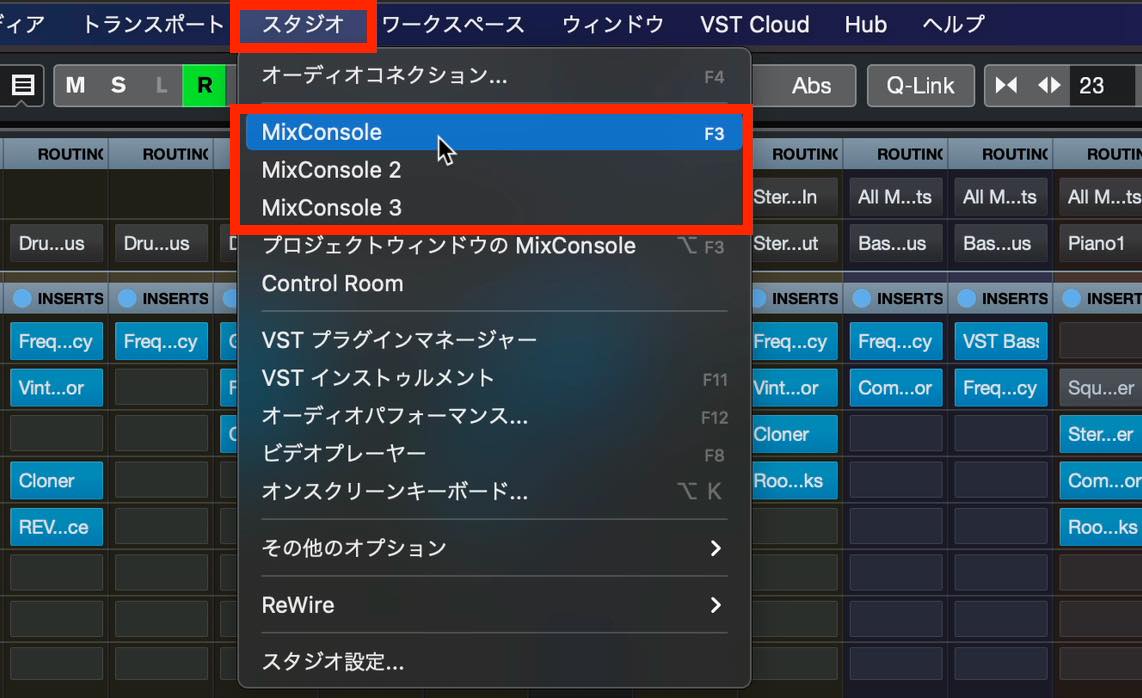
MixConsole 1 is assigned to the F3 shortcut, so you can open it quickly.
This method lets you display MixConsole full-screen and expand or collapse sections such as Inserts and Sends.
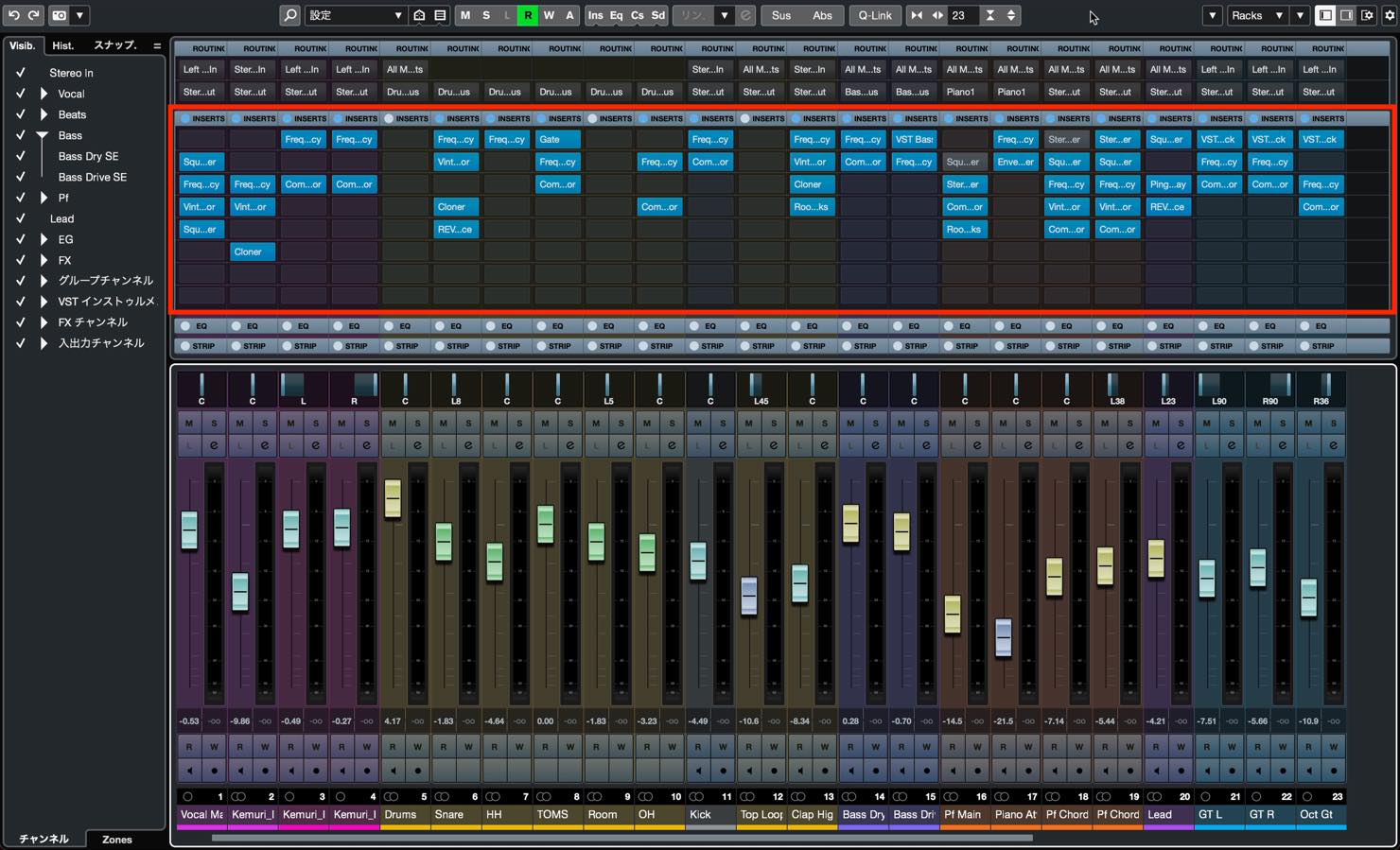
It is also useful when you have two monitors and want to display your project and MixConsole at the same time.
Fader Balance and Panning
One of the most important tasks in MixConsole is balancing levels with the faders. If your production mainly involves recording, balancing levels will probably be your first step.
In production centered on programmed parts, it has become common to make a rough mix while arranging. One useful workflow is to set a rough balance in the lower-zone MixConsole during arranging, then use the full-screen MixConsole to refine the balance for the final mix.
Keep an eye on the Stereo Out level and make sure it does not get too high. Before turning up a track that is hard to hear, check whether another track is too loud. Adjust the balance to leave about 6 dB of headroom on Stereo Out. Displaying the meter in the right zone makes this easier to see.
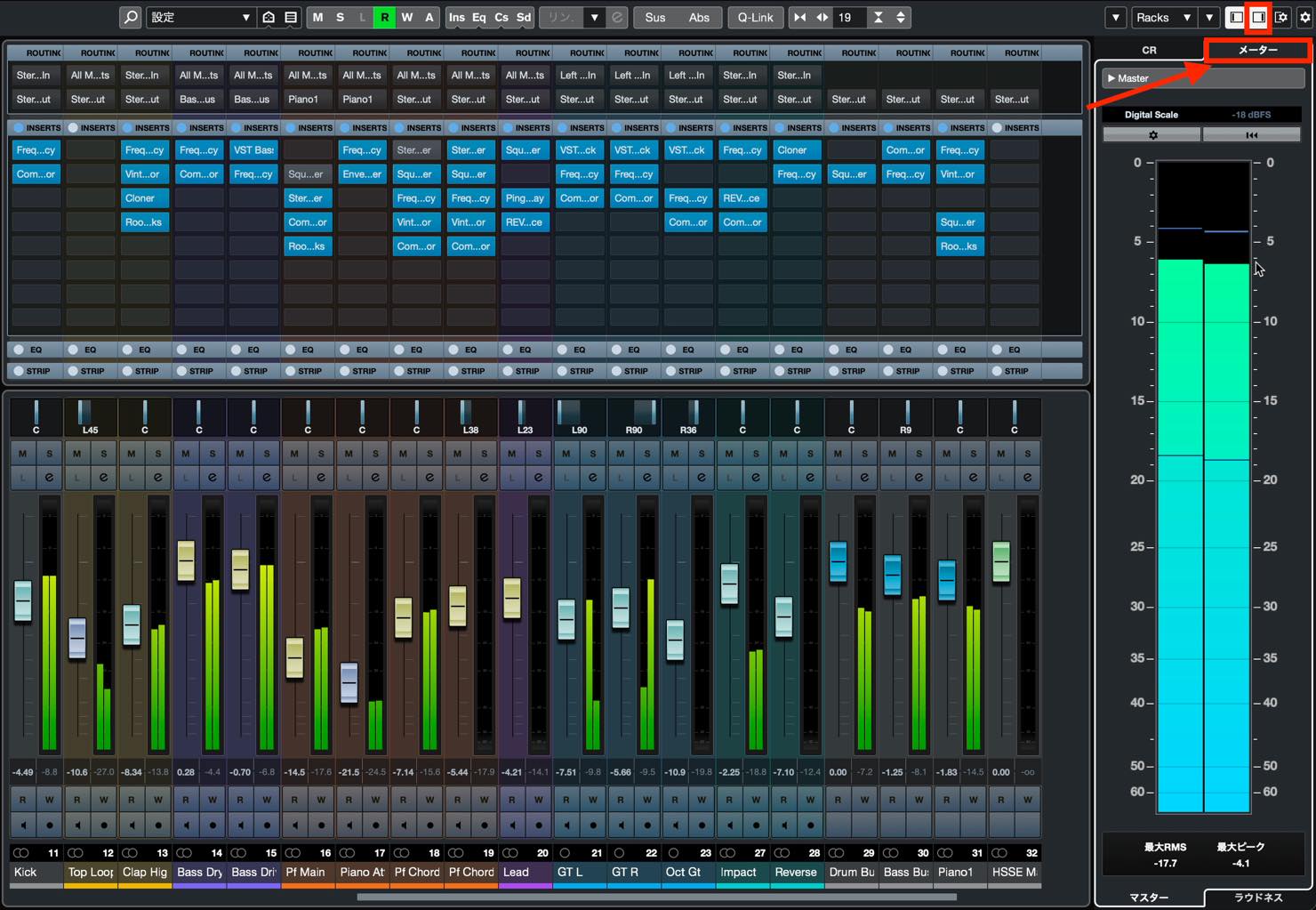
We will adjust the final loudness using master effects, which we will cover next time.
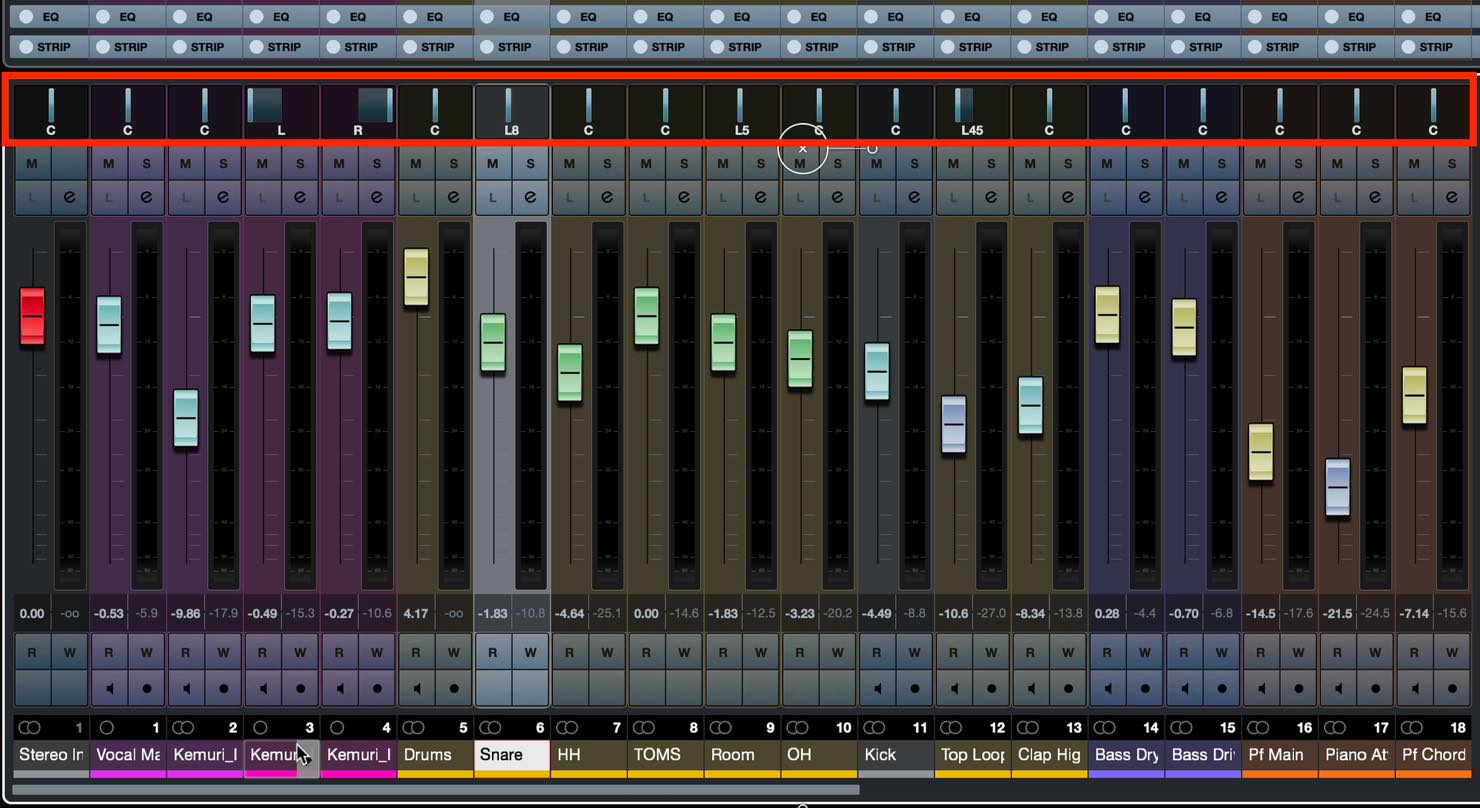
Panning is the next important consideration. Make good use of the stereo width to separate the instruments while keeping the performance cohesive.
As a general starting point, place vocals, bass, kick, and snare in the center, then use the other instruments to fill out the sides.
Controlling Inserts and Sends
It is also convenient to see Inserts and Sends side by side across your tracks.
As mentioned in an earlier installment, you can freely move or copy them between tracks here.
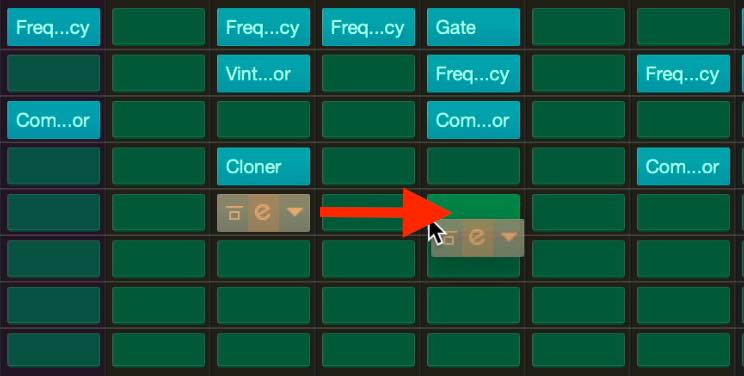
To copy an entire chain, right-click the area labeled Inserts and choose Copy. Then right-click the corresponding area on the destination track and choose Paste.
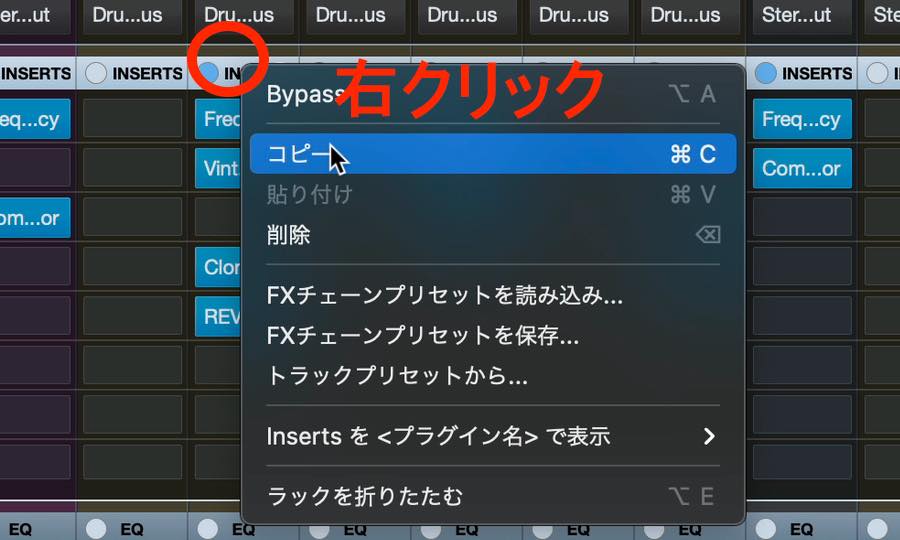
You can do the same with Sends.
Useful MixConsole Techniques
Fine Parameter Adjustments and Resetting
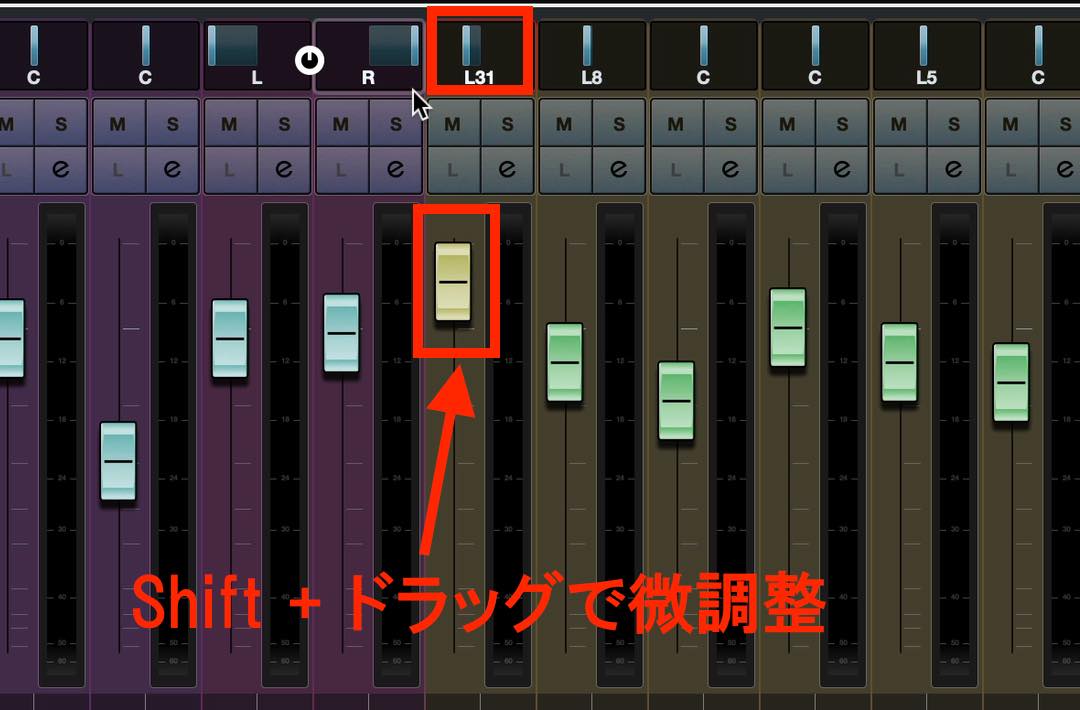
Hold Shift while adjusting a parameter such as a fader or pan control to make fine changes in its smallest increments.
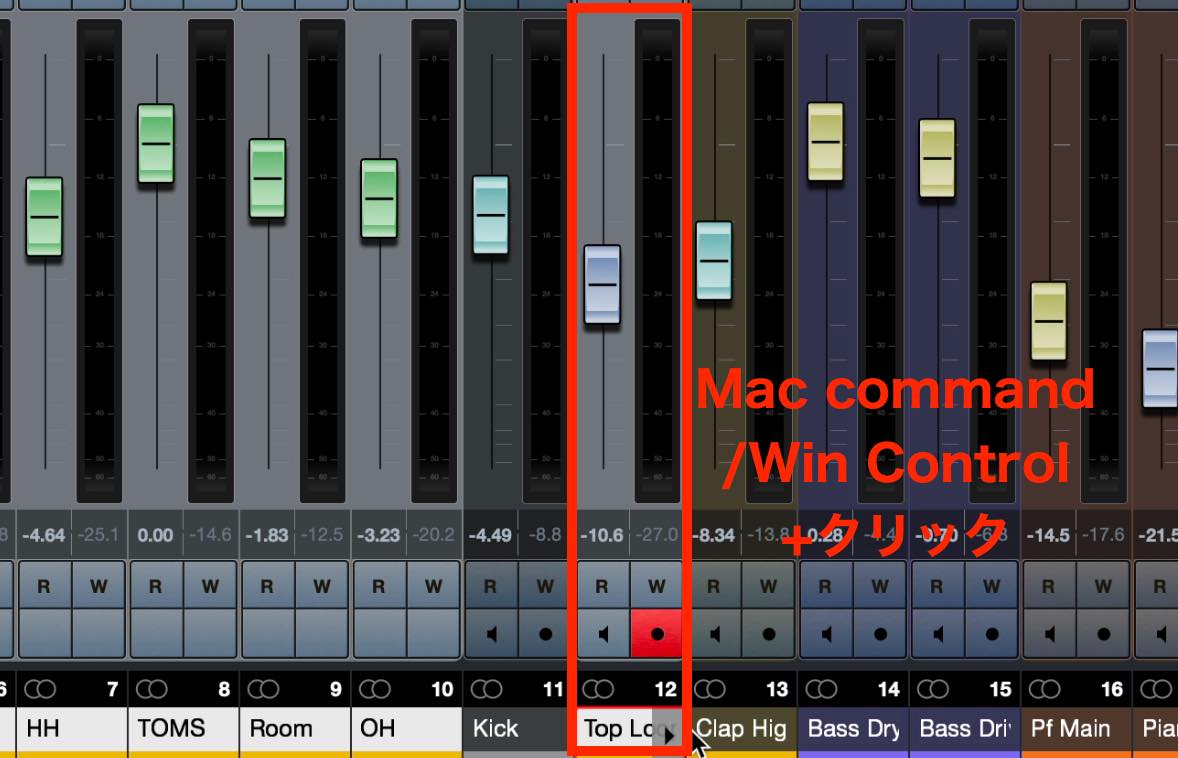
To reset a parameter to its default value, hold Command on Mac or Control on Windows and click the parameter.
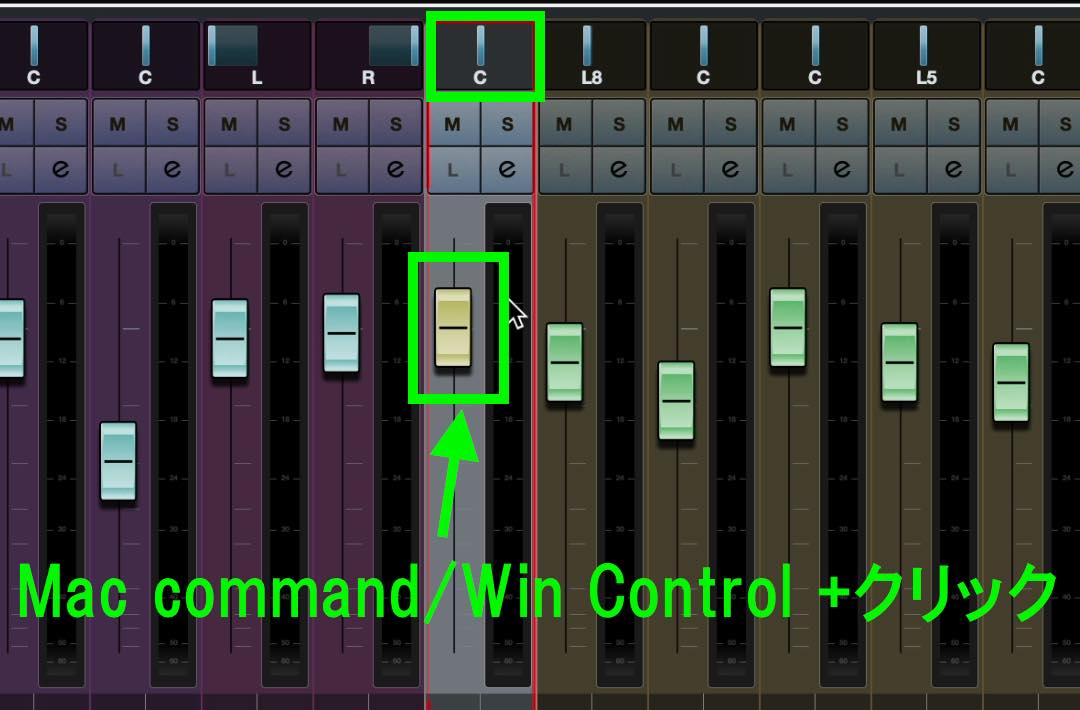
These operations also work with effect parameters.
Q-Link: Linking Parameter Adjustments
To control several tracks at once, first select the tracks you want to work with.
For adjacent tracks, select the track at one end, then hold Shift and select the track at the other end to select the whole range.
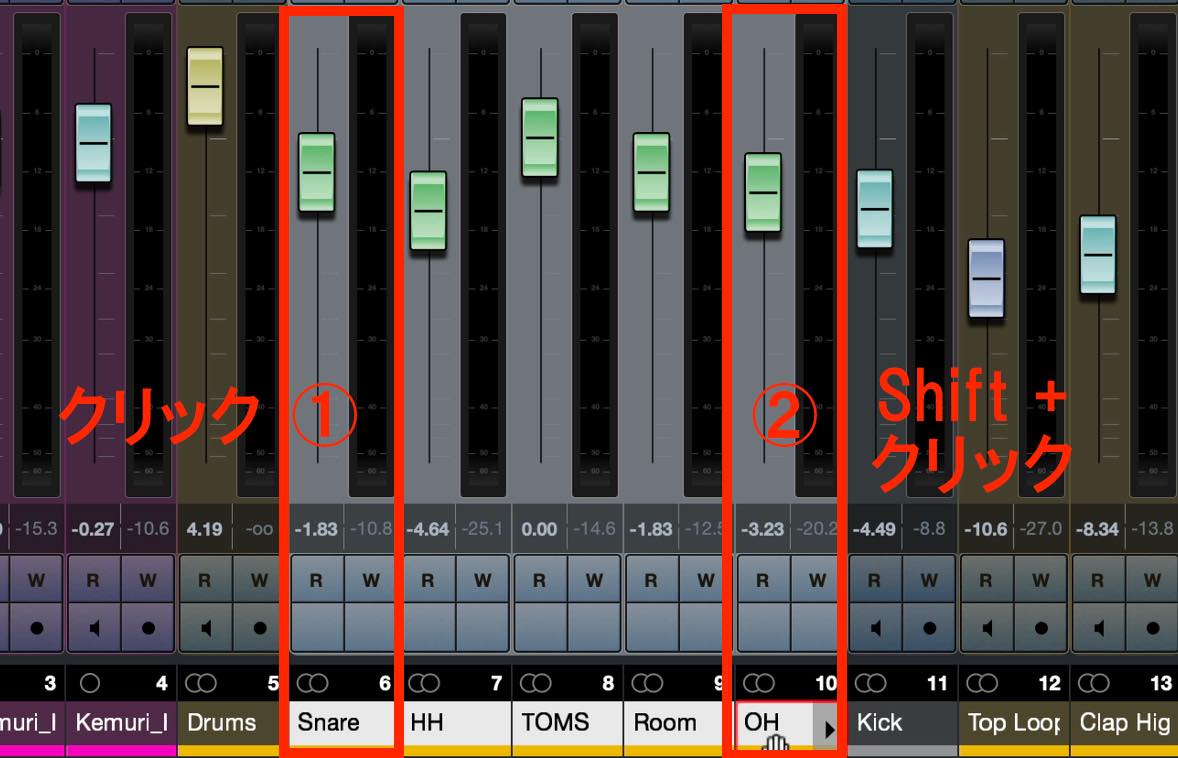
For non-adjacent tracks, hold Command on Mac or Control on Windows while clicking the tracks to select them together.
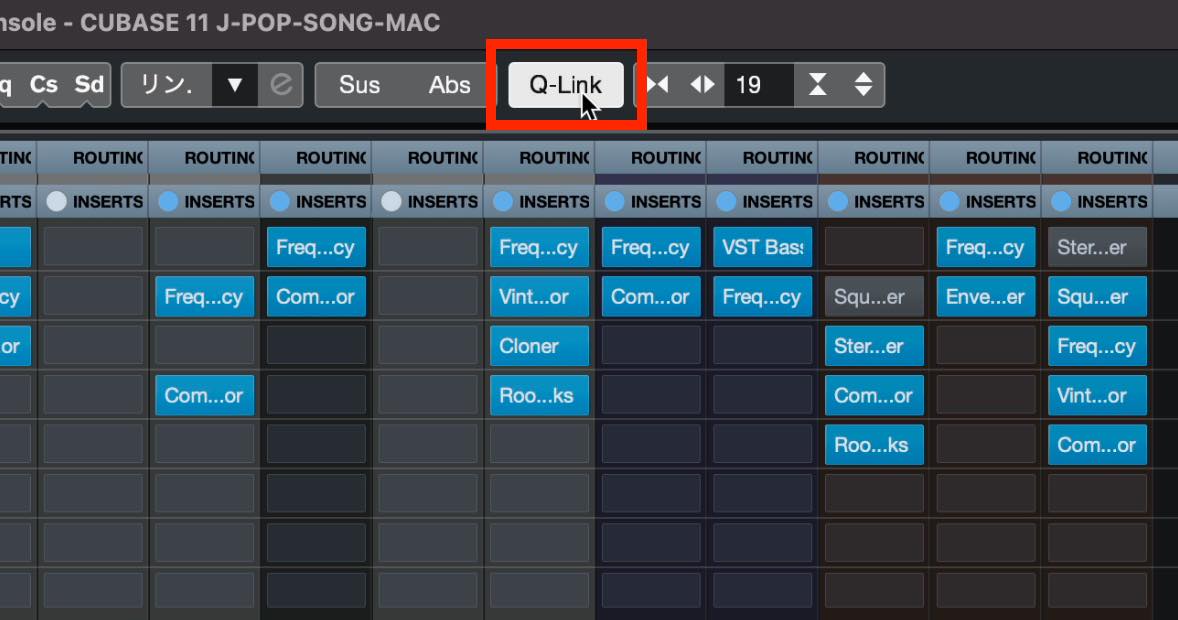
Once you have selected the desired tracks, click the Q-Link button at the top of the console.
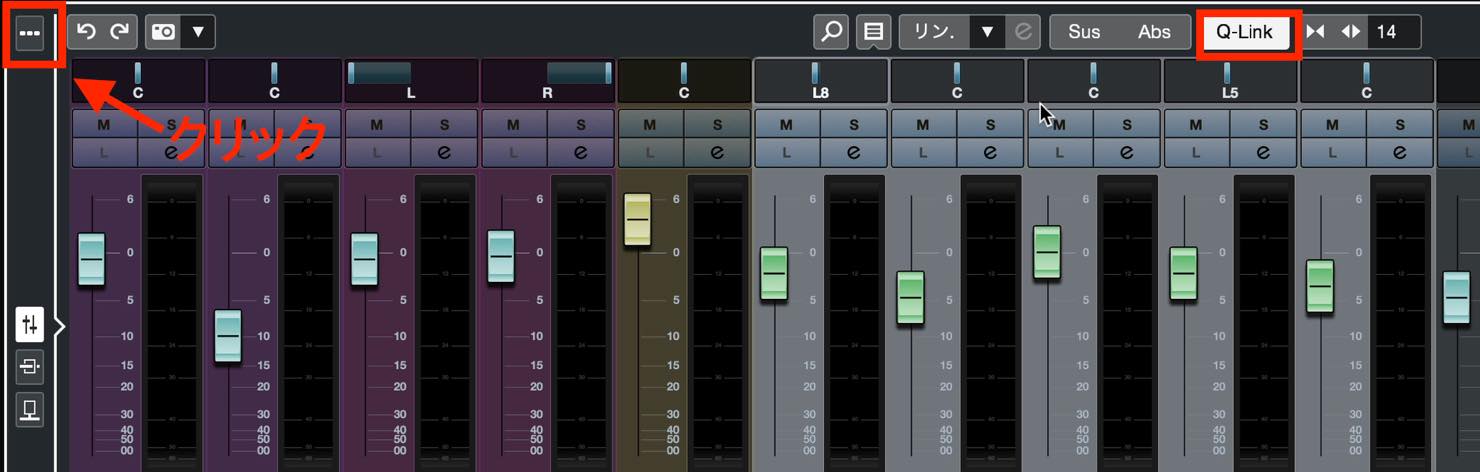
In the lower zone, click the button that shows the toolbar to reveal Q-Link.
Now, when you adjust one selected track, the other selected tracks follow. This applies not only to faders and pan controls but also to effect adjustments.
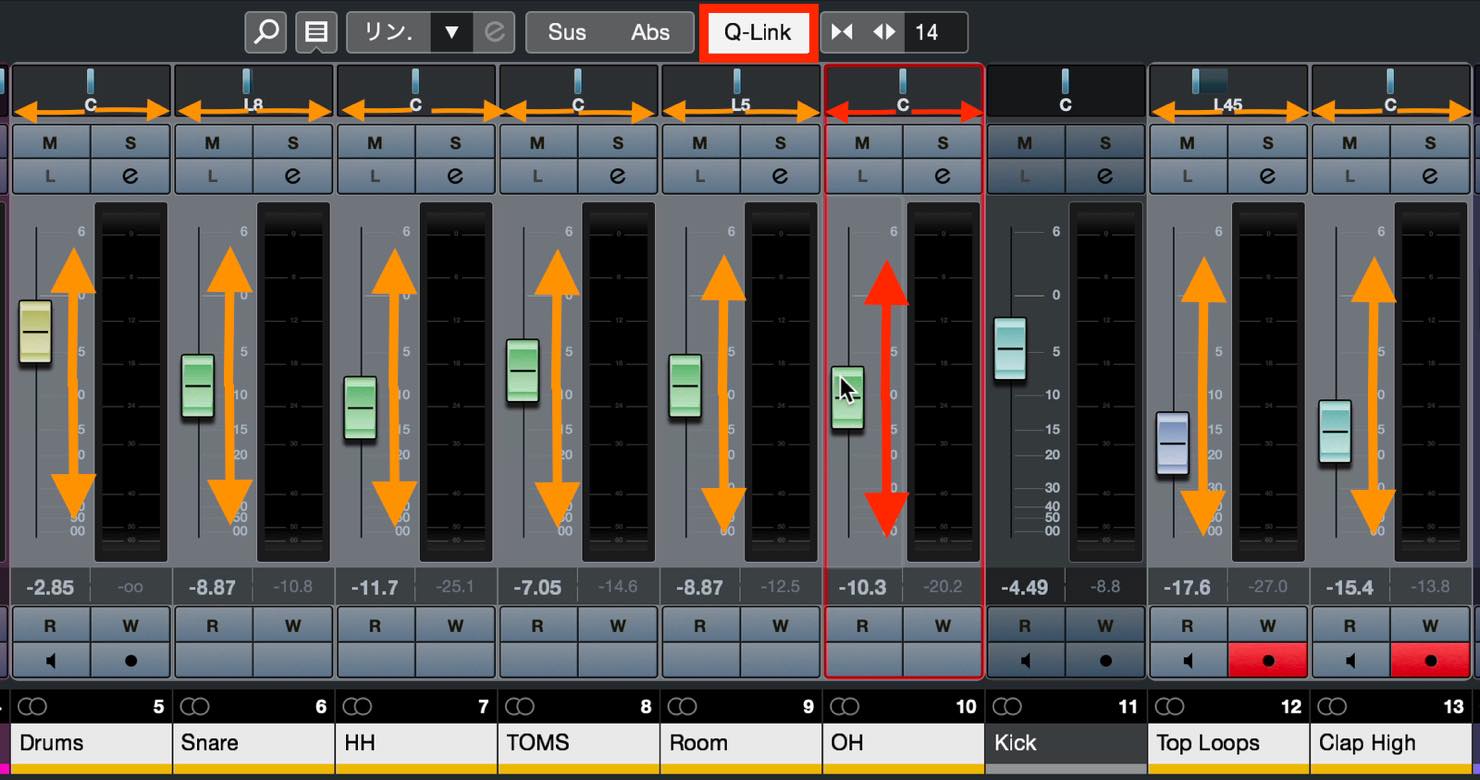
The controls stop following each other when you deselect the tracks or turn Q-Link off.
To avoid unintended linked adjustments, it is best to leave Q-Link off when you are not using it.
Group Tracks
For instruments such as drums, where several tracks form one performance, a group track lets you combine their outputs and control them together.
To create a group track, select the desired tracks as described above, then right-click one of them.
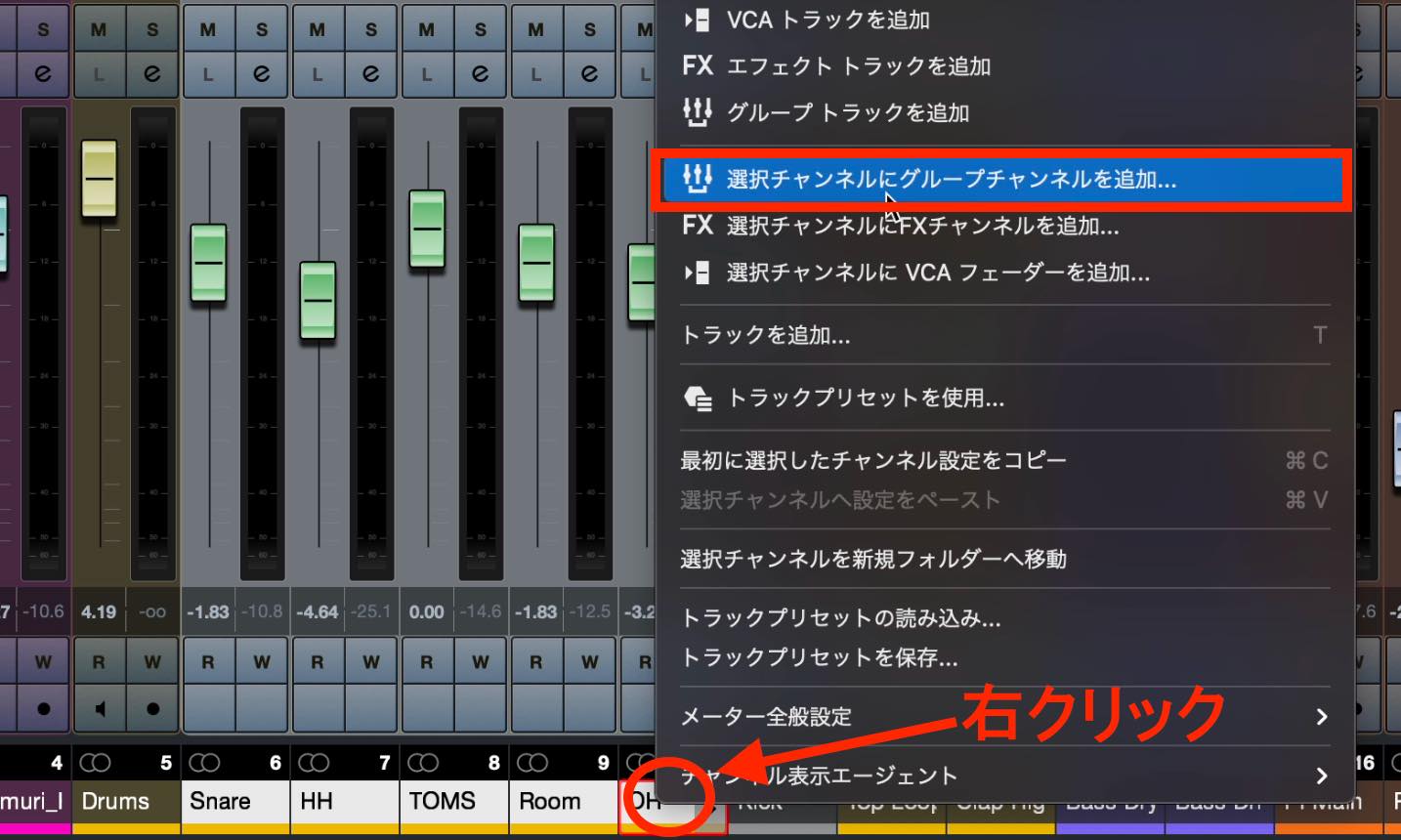
Choose Add Group Channel to Selected Channels from the menu.
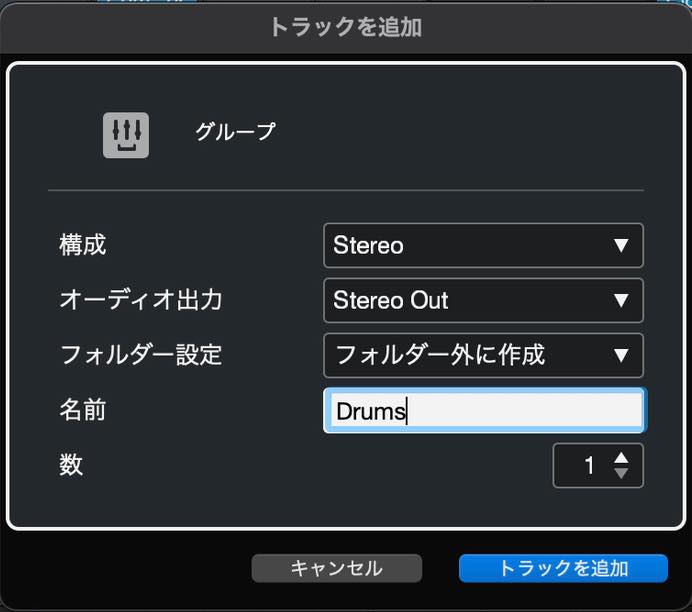
In the dialog that appears, set the configuration, output, folder options, and name, then add the track.
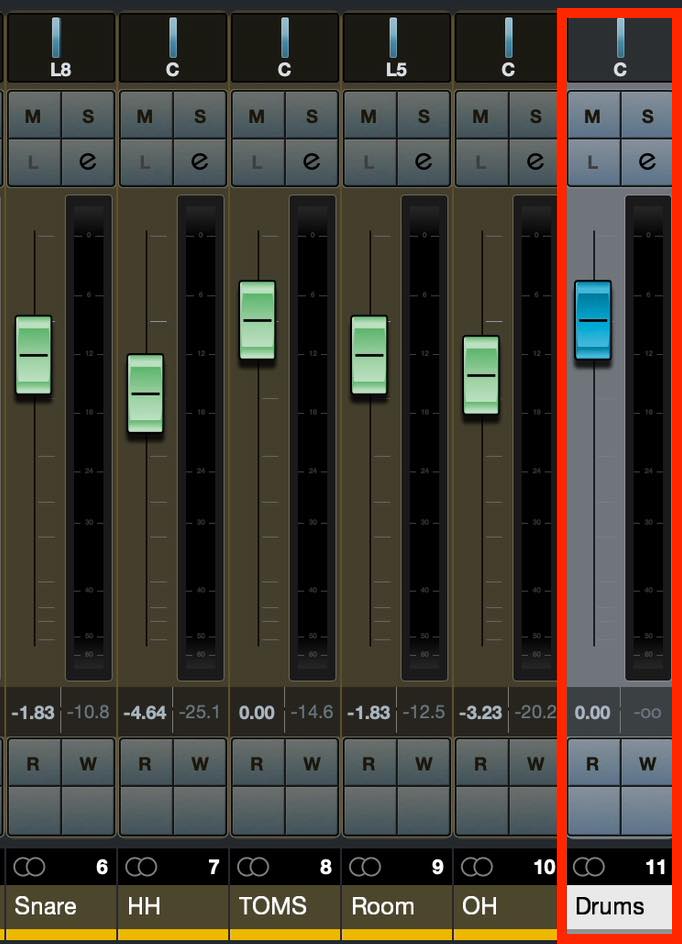
A group track with a blue fader is created, as shown here.
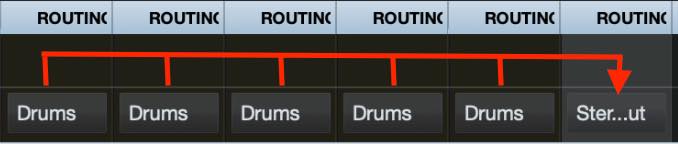
All the tracks you selected are routed to this group track. Their audio is combined here before being sent to Stereo Out.
Solo and mute operation is linked as well, which is useful when checking the tracks together. Moving the fader changes the overall drum level, and the pan control works on the group in the same way.
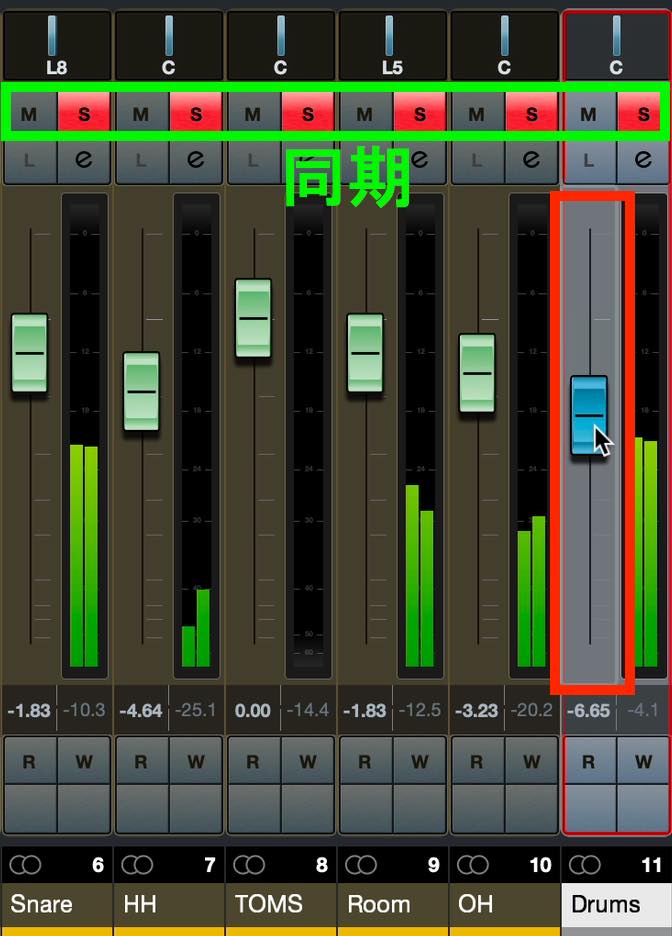
Applying Inserts or Sends on the group track lets you process the combined drum sound.
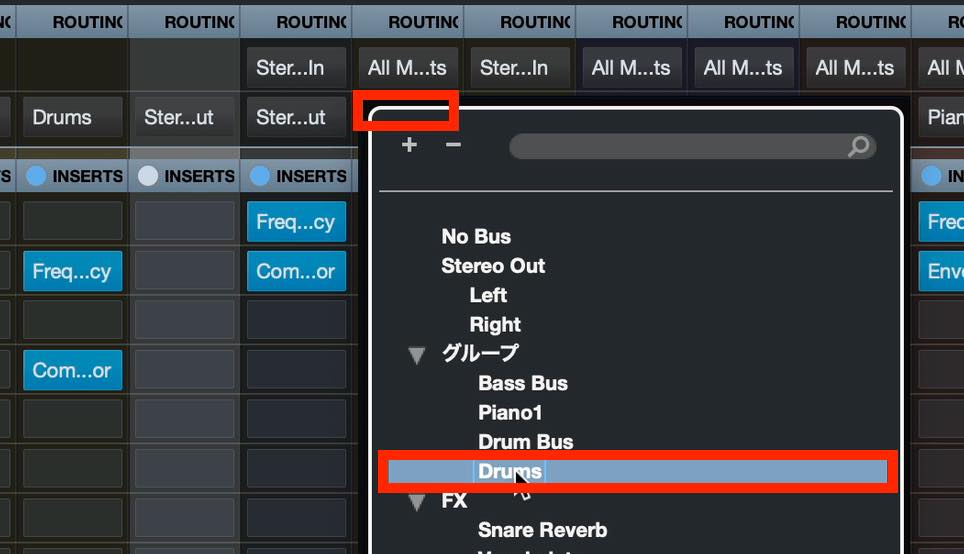
To route another track to an existing group track, use the ROUTING section at the top of MixConsole. Click the field currently set to Stereo Out and select the group track.
Undo/Redo
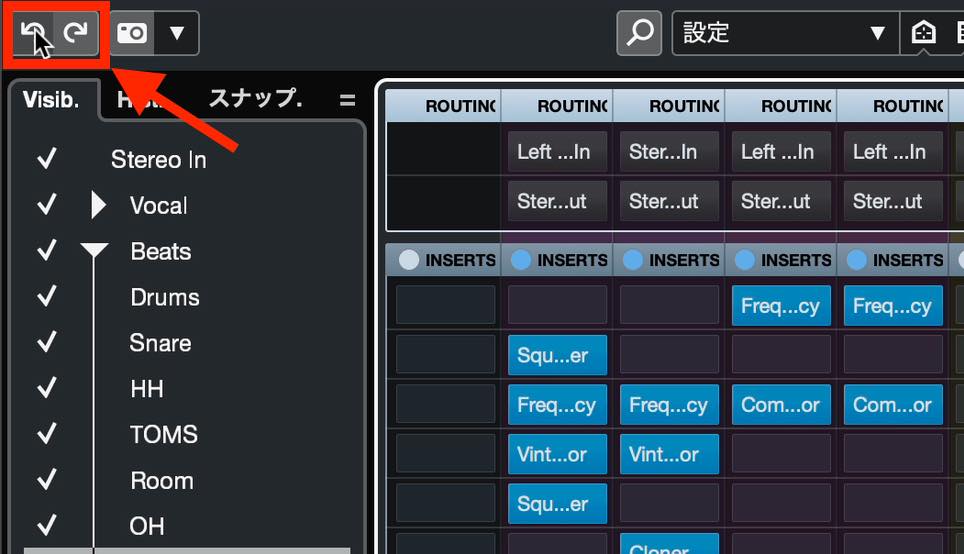
As covered earlier, use the circular arrow buttons at the upper left to undo or redo MixConsole and plug-in operations.
Snapshots
Snapshots are useful when you want to save several different versions of your mix.
First, save a snapshot of the current state by clicking the camera icon at the upper left of MixConsole.
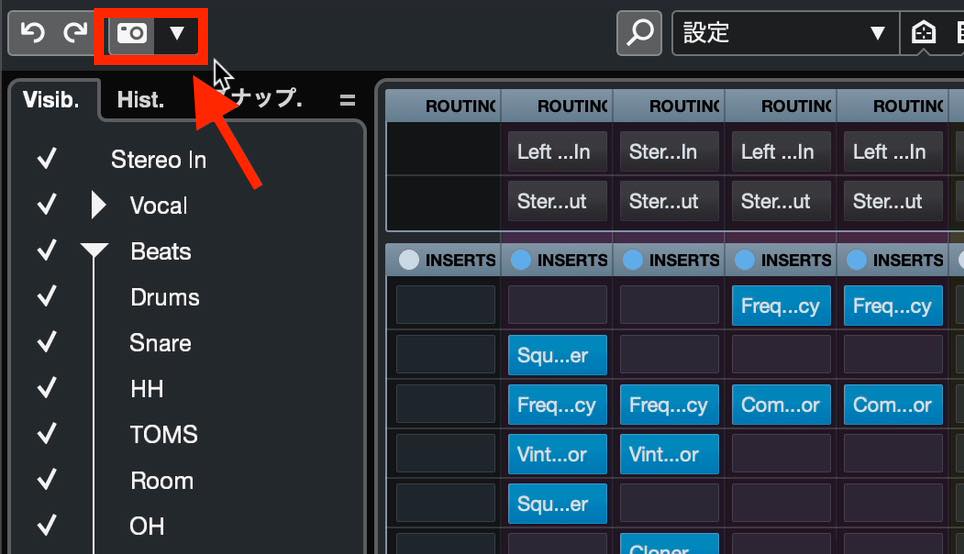
Open the Snapshots tab in the left zone to see the saved entry and its timestamp. You can also rename it.
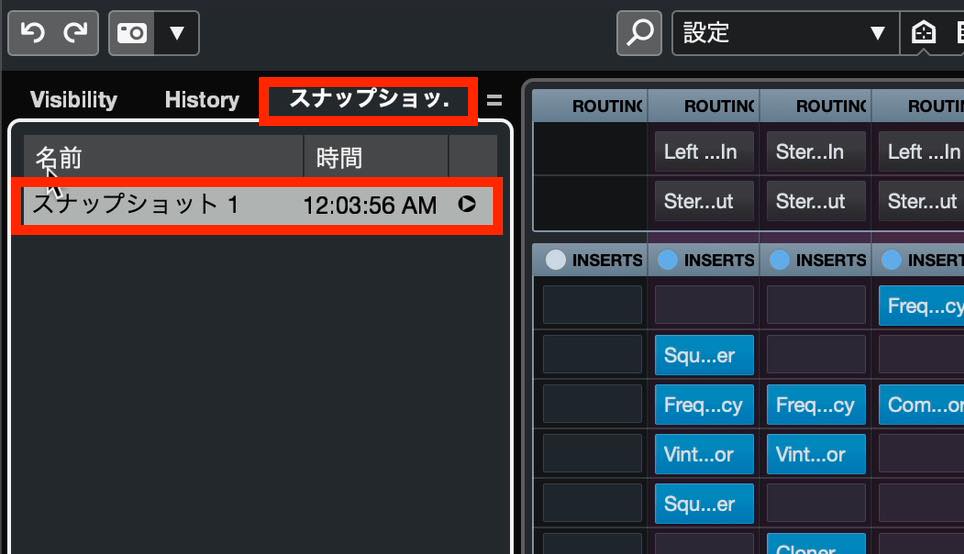
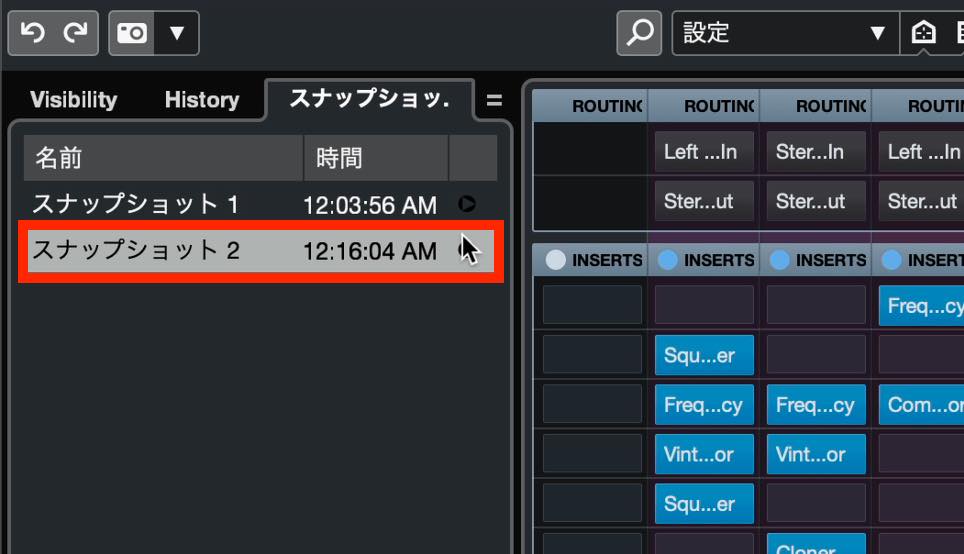
Make some changes and take another snapshot to add a new entry.
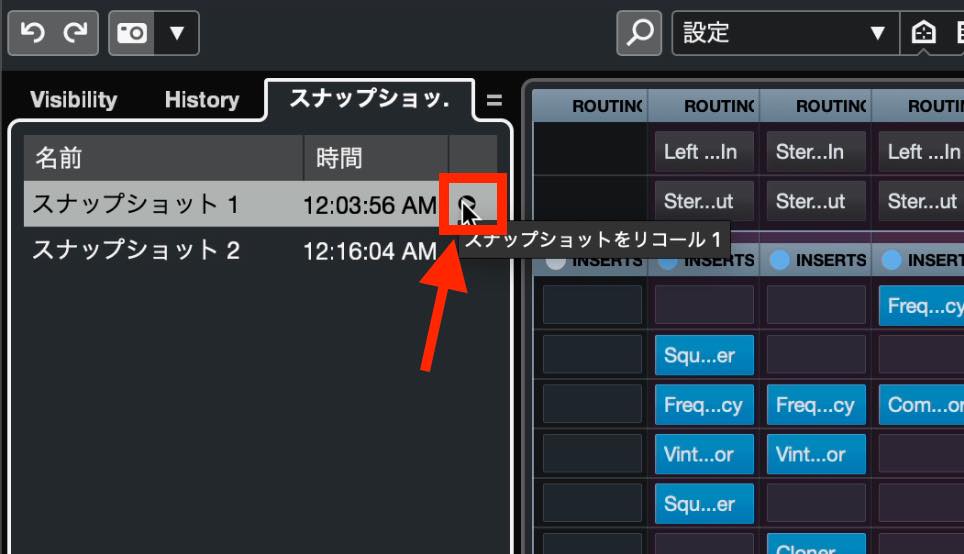
To return to the first snapshot, click the Recall button to the right of its entry. The saved settings will be restored.
That concludes our introduction to MixConsole.
MixConsole offers a wide range of functions, but mastering the features covered here should help you mix efficiently. Use them regularly to get comfortable with the controls.
Next time, we will cover master effects for finishing your mix and preparing it for export.
In installment 16 of our Cubase 11 Beginner Tutorial, we explain MixConsole, a useful tool for mixing a completed arrangement. It lets you efficiently adjust volume balance and effects. Try to become comfortable using it.
Details: https://t.co/nERgqi3Ut6 #DTM #Cubase
— SLEEP FREAKS (@SLEEPFREAKS_DTM) December 5, 2021
Frequently Asked Questions
Q1. How can I open MixConsole quickly in Cubase?
Press F3 to open MixConsole 1 instantly. You can also click the MixConsole tab in the lower zone to mix while keeping your project in view.
Q2. How can I make fine fader adjustments?
Hold Shift while moving the fader to make fine adjustments in the smallest increments. To reset it to its default value, hold Command on Mac or Control on Windows and click.
Q3. How can I control several tracks, such as drums, together?
Create a group track to combine the outputs of several tracks and control their overall level and effects. Select the tracks, then choose Add Group Channel to Selected Channels.
Q4. How can I apply the same adjustment to several tracks at once?
Use Q-Link. Select several tracks, then click Q-Link at the top of the console to link adjustments across the selected tracks.
Q5. What is an appropriate Stereo Out level?
As a guideline, leave about 6 dB of headroom to allow room for the final loudness processing. Use master effects to adjust the final loudness.
NEW ARTICLES
Latest English Articles
































































































































