
Setting up an audio interface and MIDI keyboard can make working in Cubase 11 more rewarding. This beginner guide explains interface drivers, ASIO driver selection, processing precision, audio output routing, and checking MIDI keyboard connections. You can compose without either device, but they expand your options for recording vocals and guitar, performing software instruments, and auditioning sounds. Follow the setup steps below to prepare your music production environment.
This time, let's set up an audio interface and a MIDI keyboard.
You can make music without either one, but using them opens up more possibilities.
If you own these devices, there are a few straightforward settings and checks to complete. Let's go through them.
Setting Up an Audio Interface and MIDI Keyboard: Video
Selected Questions and Answers from YouTube

My MIDI keyboard is connected, but the keys do not respond and I hear no sound. Clicking the drum instrument does produce sound, though…

If clicking the drum instrument produces sound, the instrument itself is probably loaded correctly. Check that the track's Monitor button, shown as a speaker, is enabled; that its MIDI input is set to All MIDI Inputs or the correct keyboard input port; and that the keyboard is enabled in Studio Setup > MIDI Port Setup. Reviewing these settings may solve the problem. Please give them a try.
Setting Up an Audio Interface
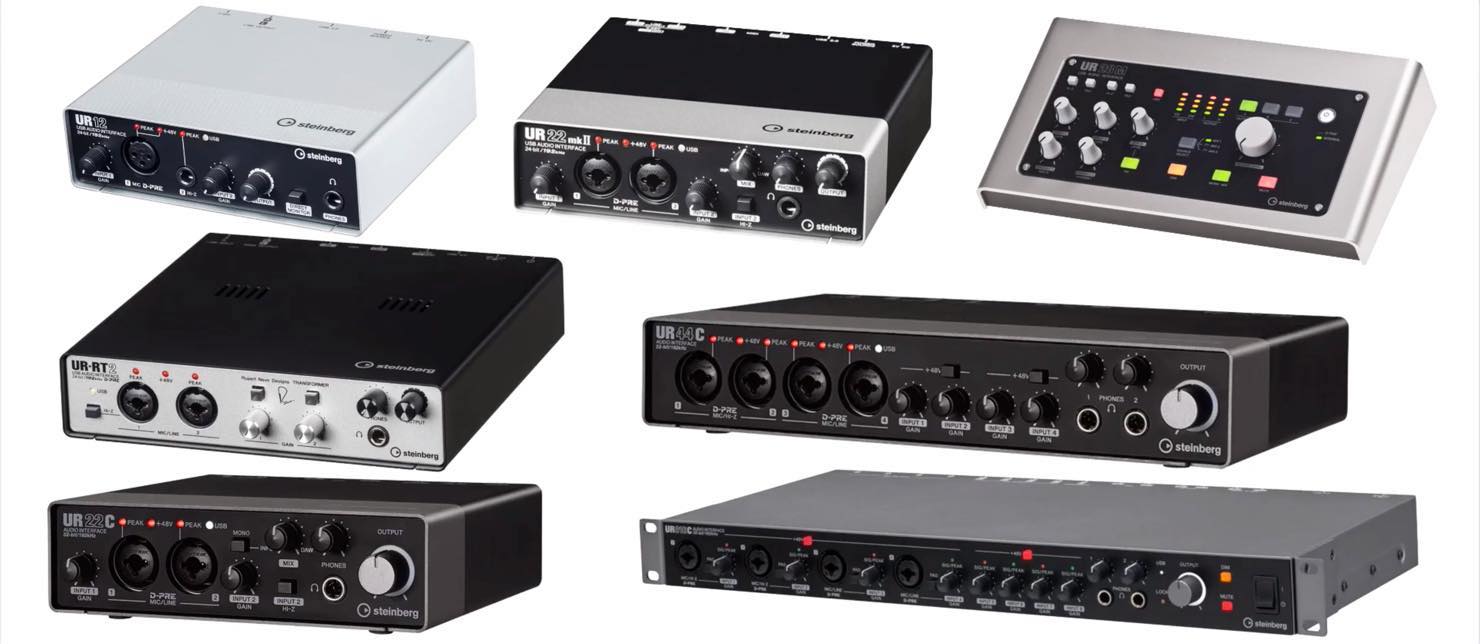
An audio interface is a device that lets you record vocals and guitar, and monitor the sound from Cubase. If you do not need to record, you can also use your computer's built-in audio output.
Audio interfaces connect through USB, Thunderbolt, or other connections. Many require a driver to be installed first. Follow the device's manual to install the driver and connect the cables.
Which Audio Interfaces Are Most Popular? Top 5 from a Survey of 3,272 Users

Once the interface is connected, launch Cubase and open Studio > Studio Setup.
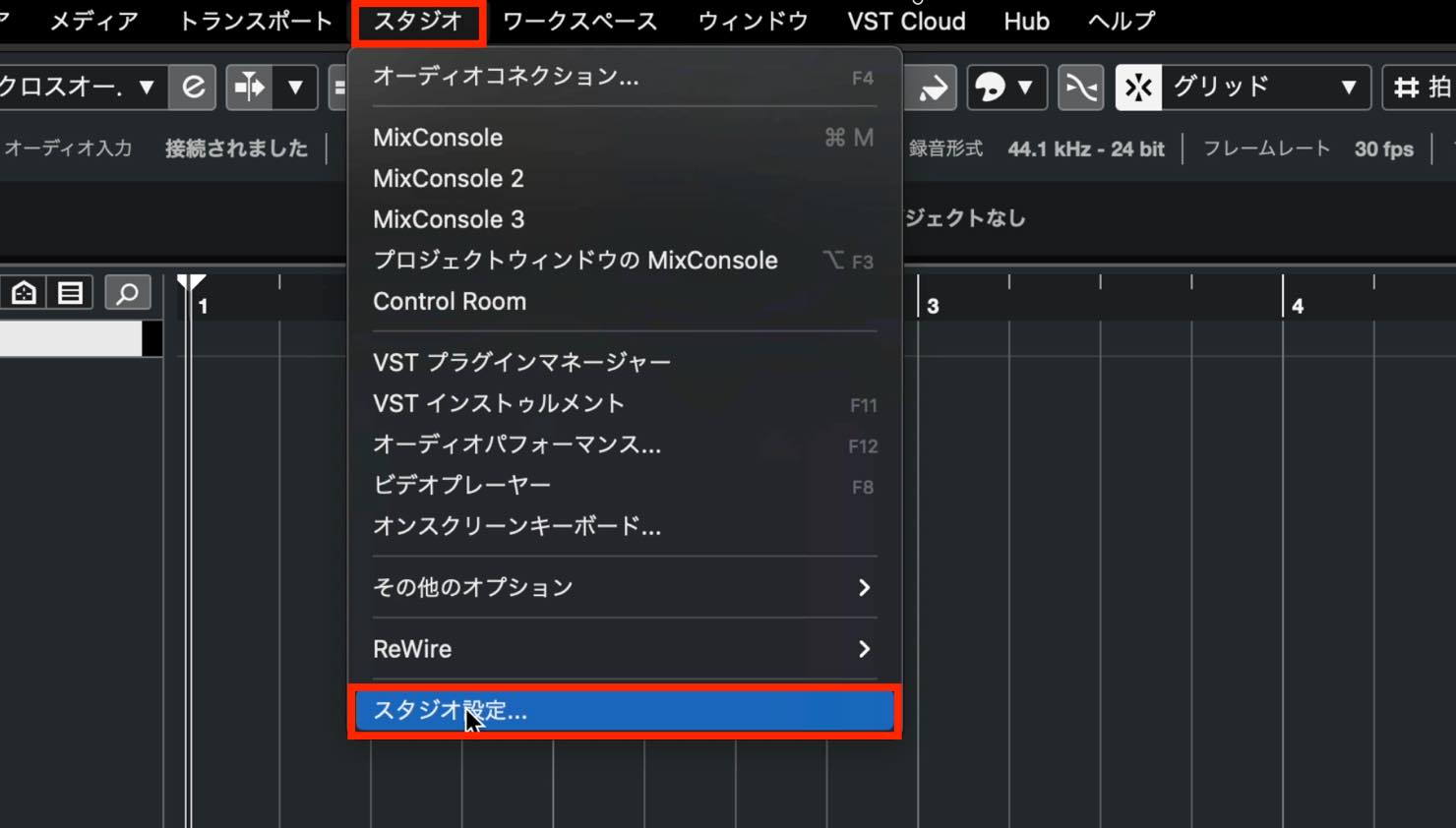
Select Audio System in the left menu. Settings appear on the right; first, check ASIO Driver at the top.
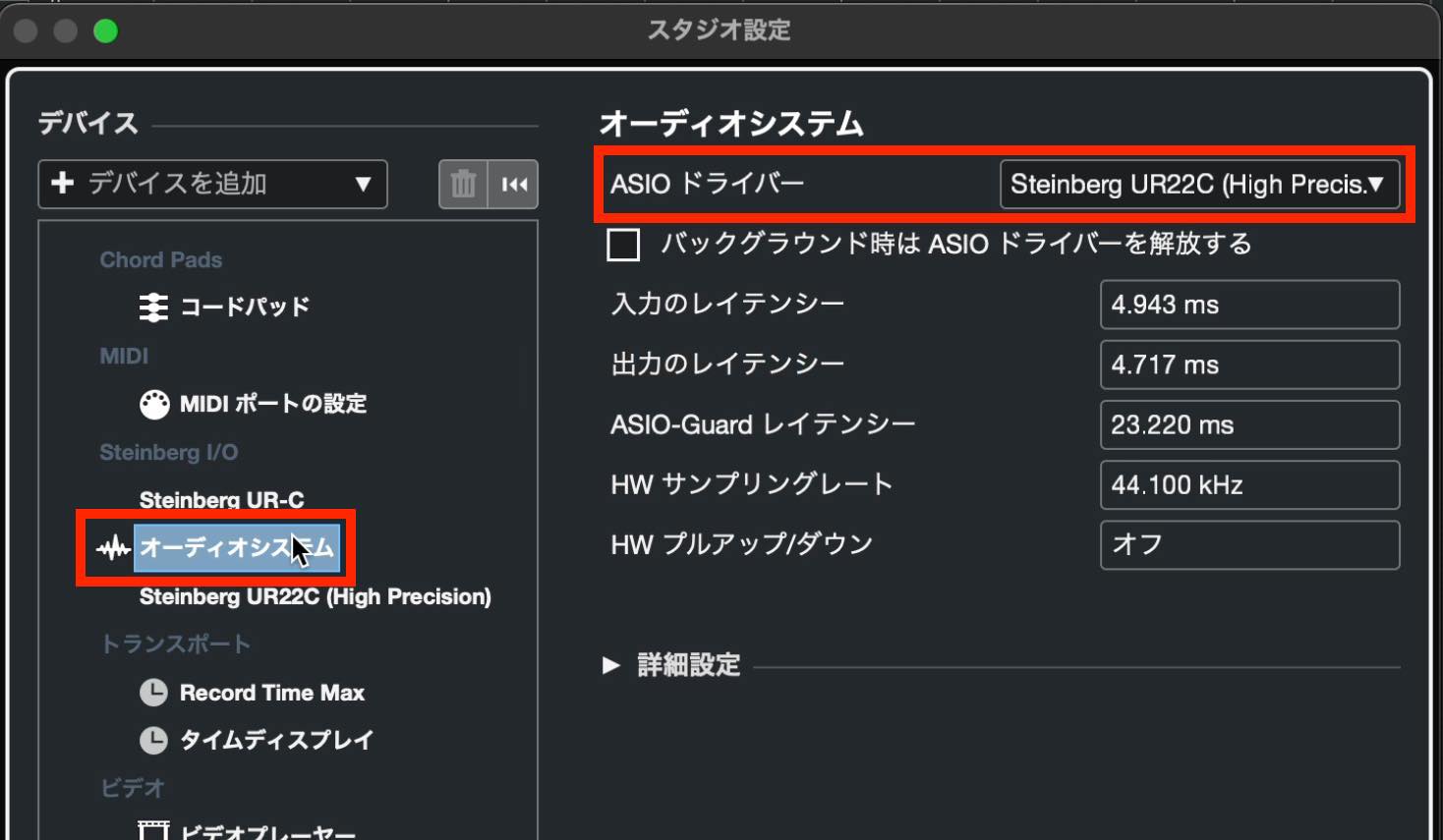
If it shows the driver for your audio interface, it is set correctly.
Otherwise, open the drop-down list and choose your interface's driver.
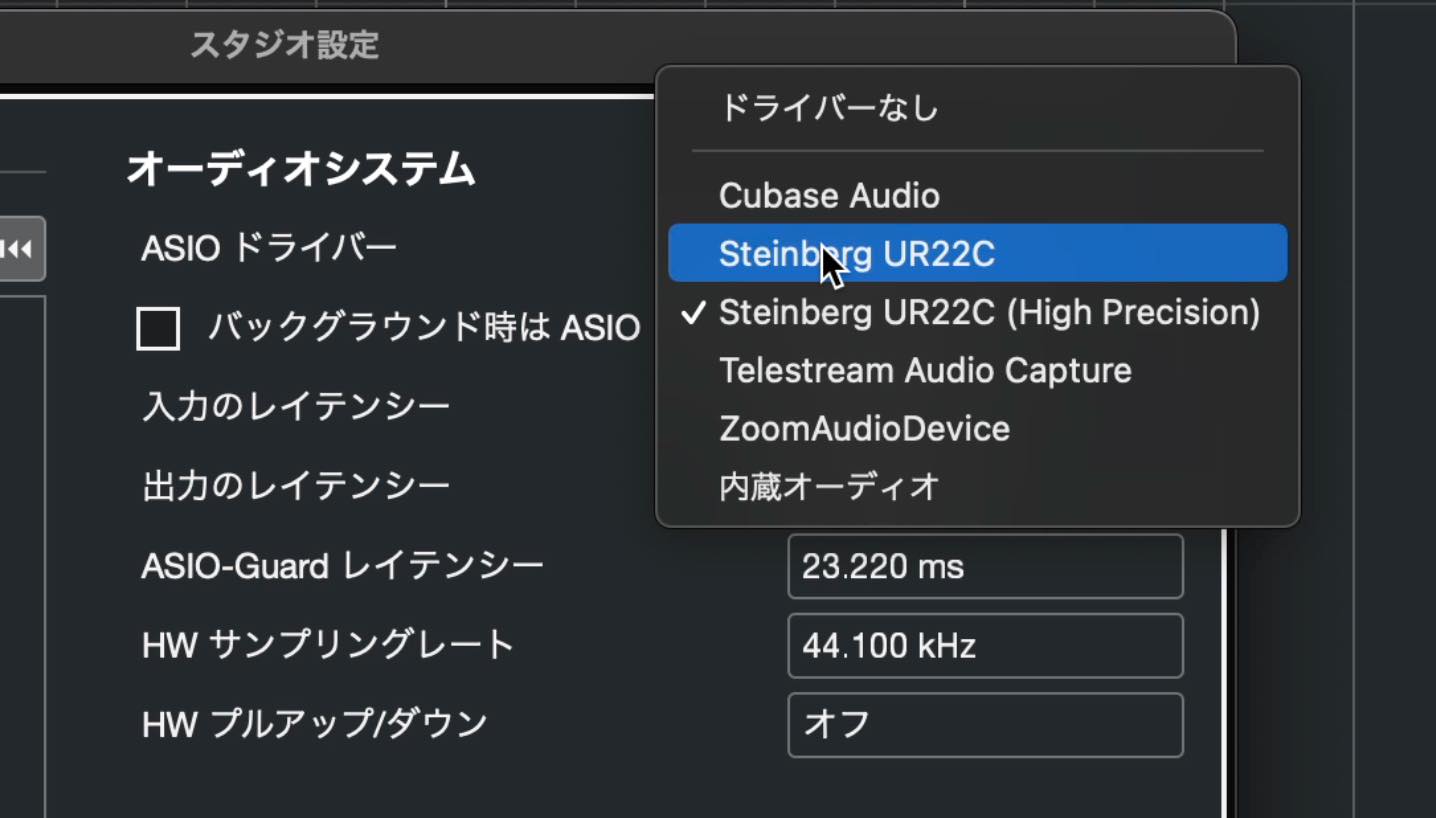
If you do not have an audio interface, choose the option for your computer's built-in audio output.
Next, look at Release Driver when Application is in Background.
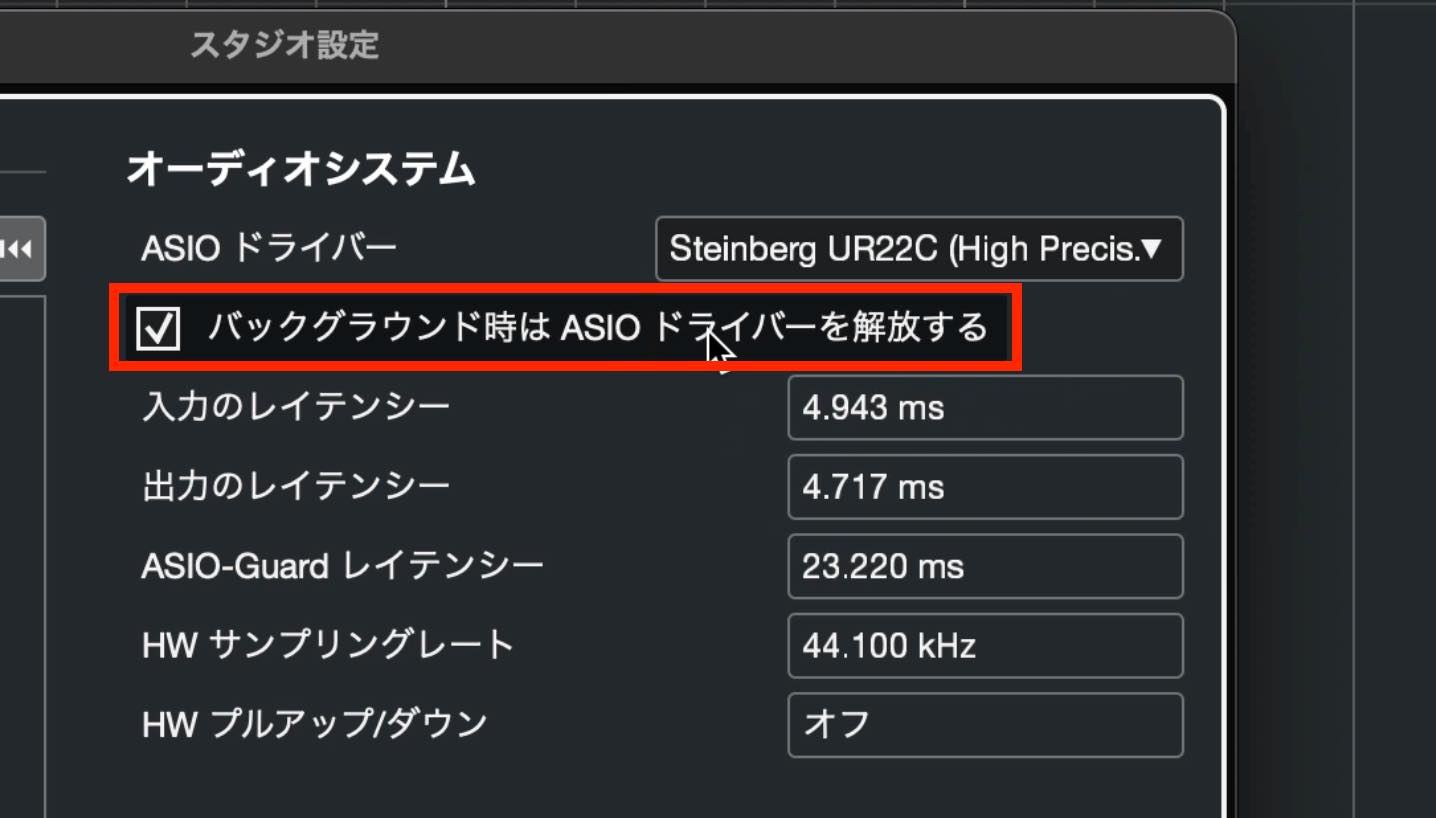
If opening Cubase prevents you from hearing other applications, such as iTunes or YouTube in a browser, enable this option. It allows the driver to be released when Cubase is in the background.
Open the Advanced Options section farther down.
There are two settings to check here.
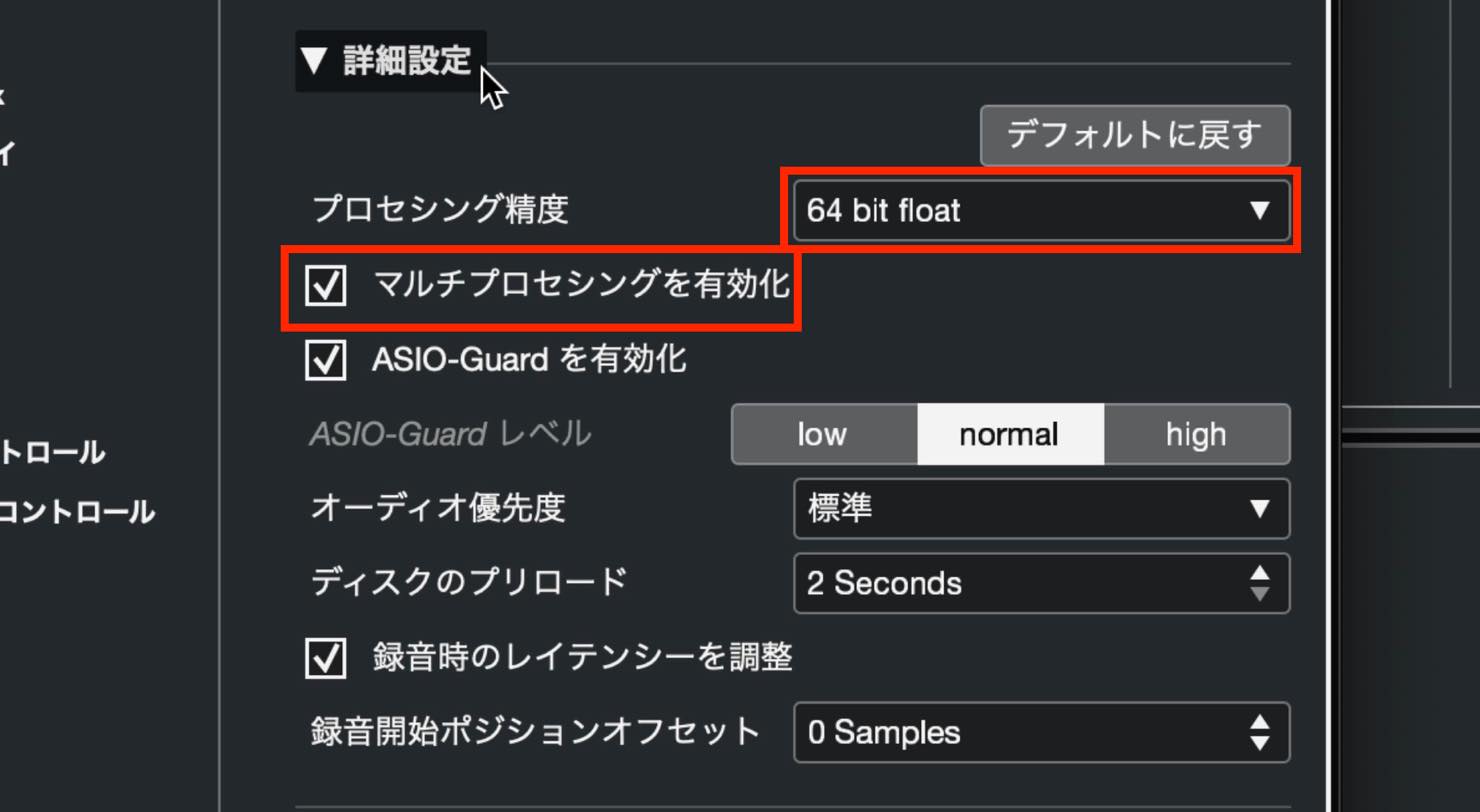
First, the tutorial recommends starting with Processing Precision set to 64 bit float. If Cubase becomes unstable while you work, try changing this to 32 bit float.
Second, check Activate Multi Processing below it.
This setting helps Cubase use your computer's CPU resources. Enable it if it is not already checked.
Click OK to close Studio Setup, then open Studio > Audio Connections.
What Are 32-Bit Integer Audio and a 64-Bit Floating-Point Audio Engine?
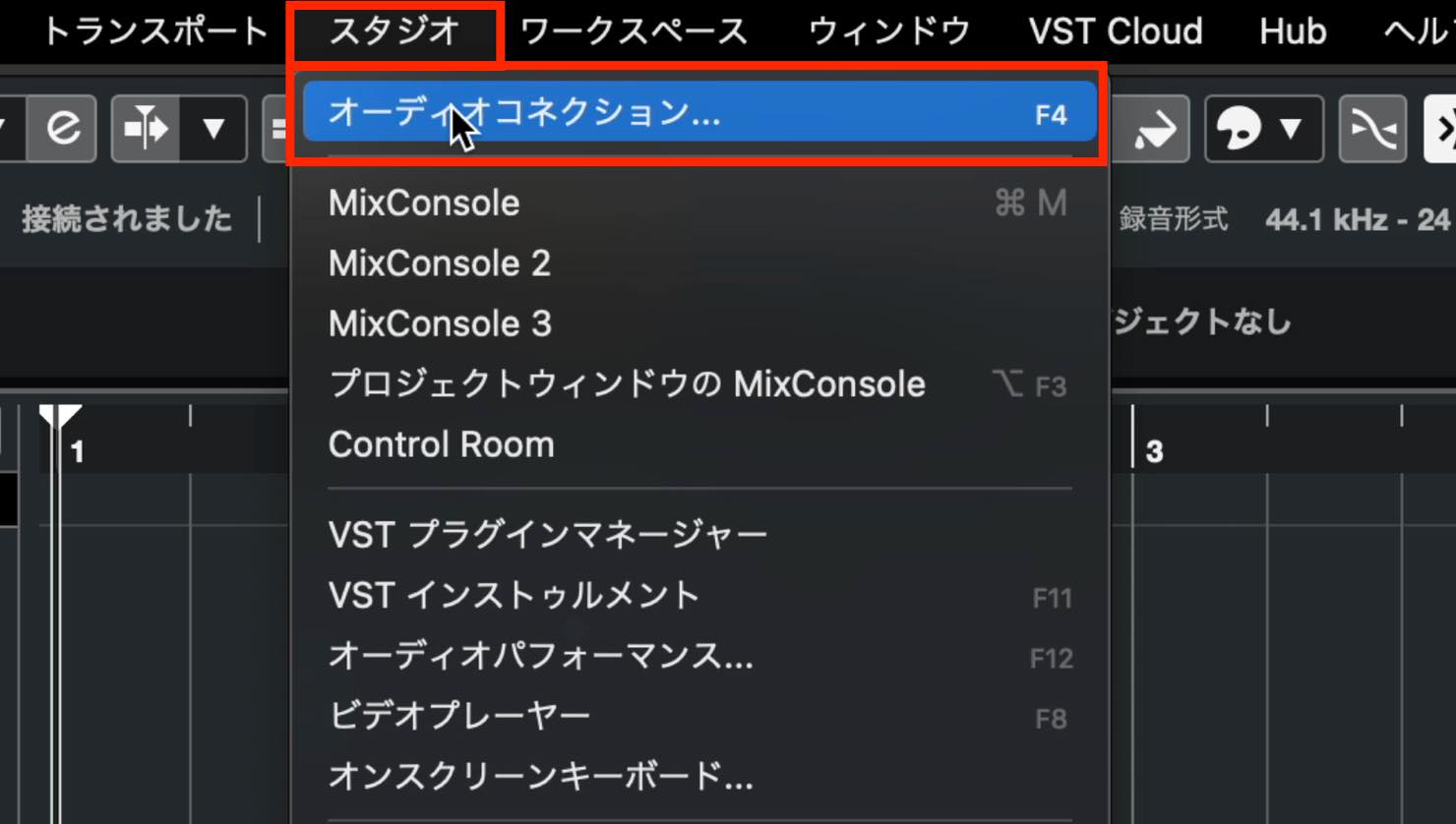
Go to the Outputs tab, expand Stereo Out, and check the Device Port assignments.
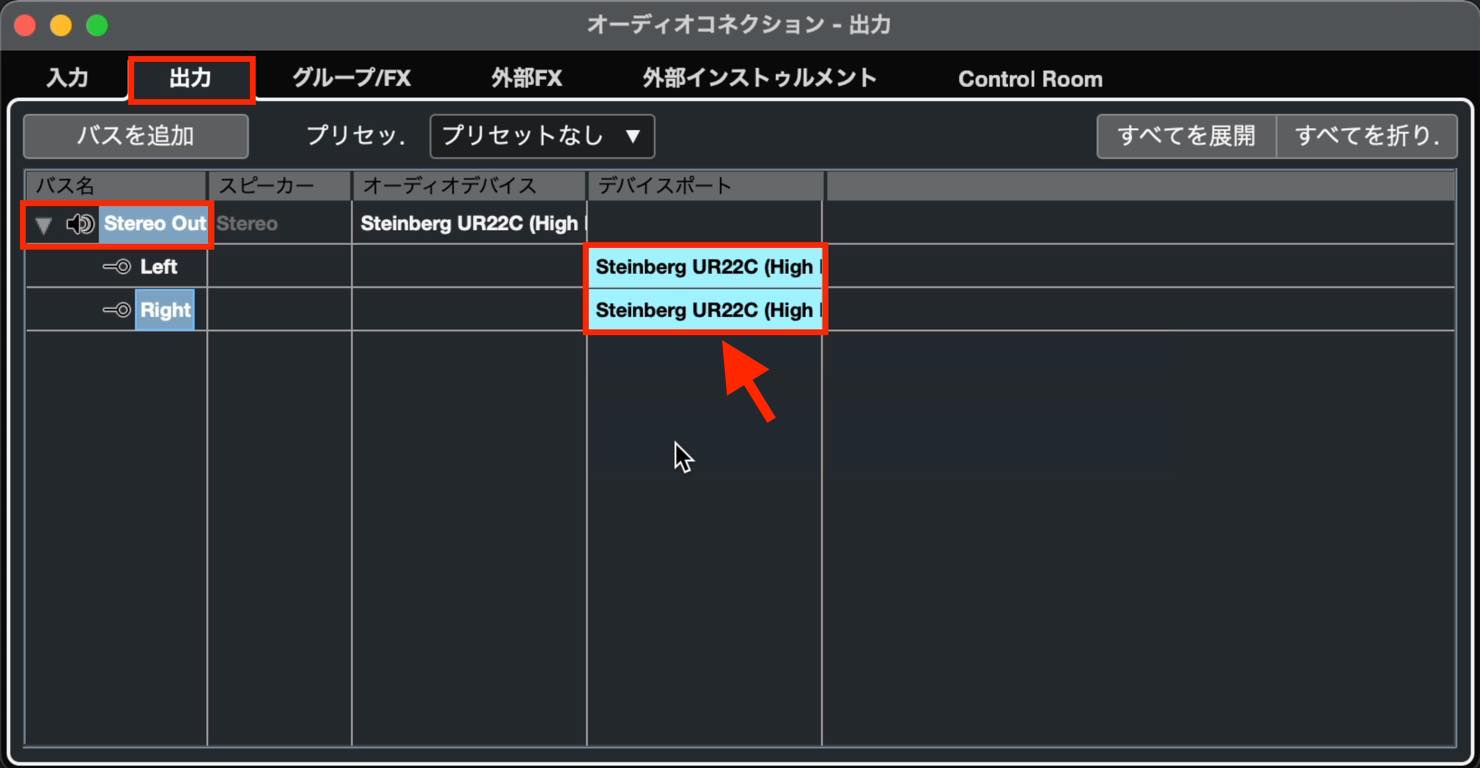
If a port is marked Not Connected, you will not hear output through it. Select the appropriate outputs on your audio interface.
That completes the interface setup. Recording with microphone and line inputs will be covered later in the series.
Setting Up a MIDI Keyboard
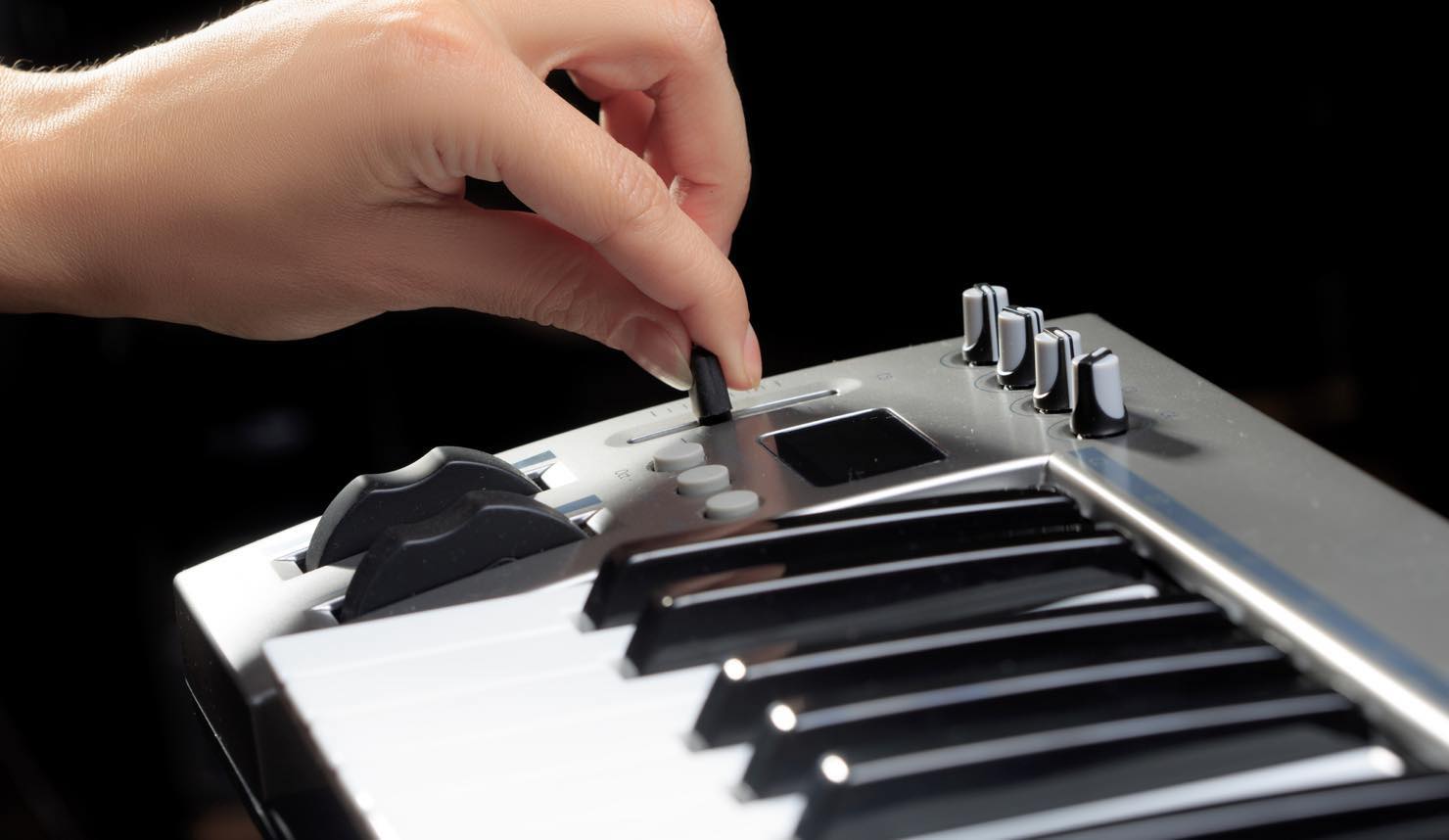
A MIDI keyboard is used to play software instruments in Cubase. We will cover software instruments in more detail later. With a MIDI keyboard, you can record your performance directly and quickly audition sounds while choosing an instrument. Both are useful parts of the workflow.
You can still compose in Cubase without a MIDI keyboard.
Which MIDI Keyboards Are Most Popular? Top 5 from a Survey of 3,272 Users

Some MIDI keyboards connect by USB, while others use a MIDI cable connected to a MIDI interface. USB models are often recognized simply by connecting them. If yours is not, consult its manual and install any required driver.
After connecting the keyboard, play a few keys and check whether this MIDI activity meter responds.
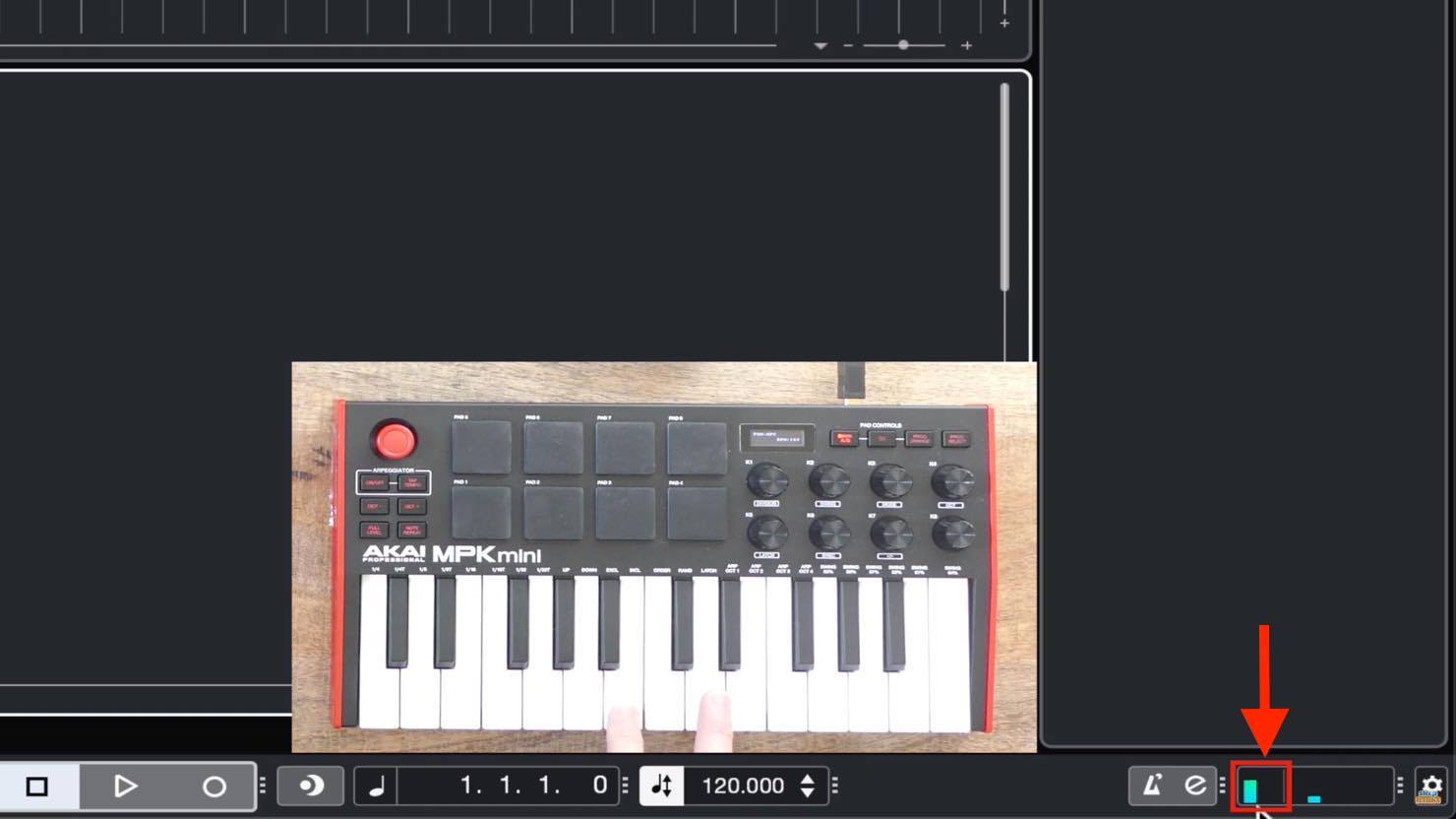
If it responds, Cubase is receiving MIDI from the keyboard.
If it does not respond, open MIDI Port Setup in the left menu of Studio Setup and look for the MIDI Input entries highlighted in yellow.
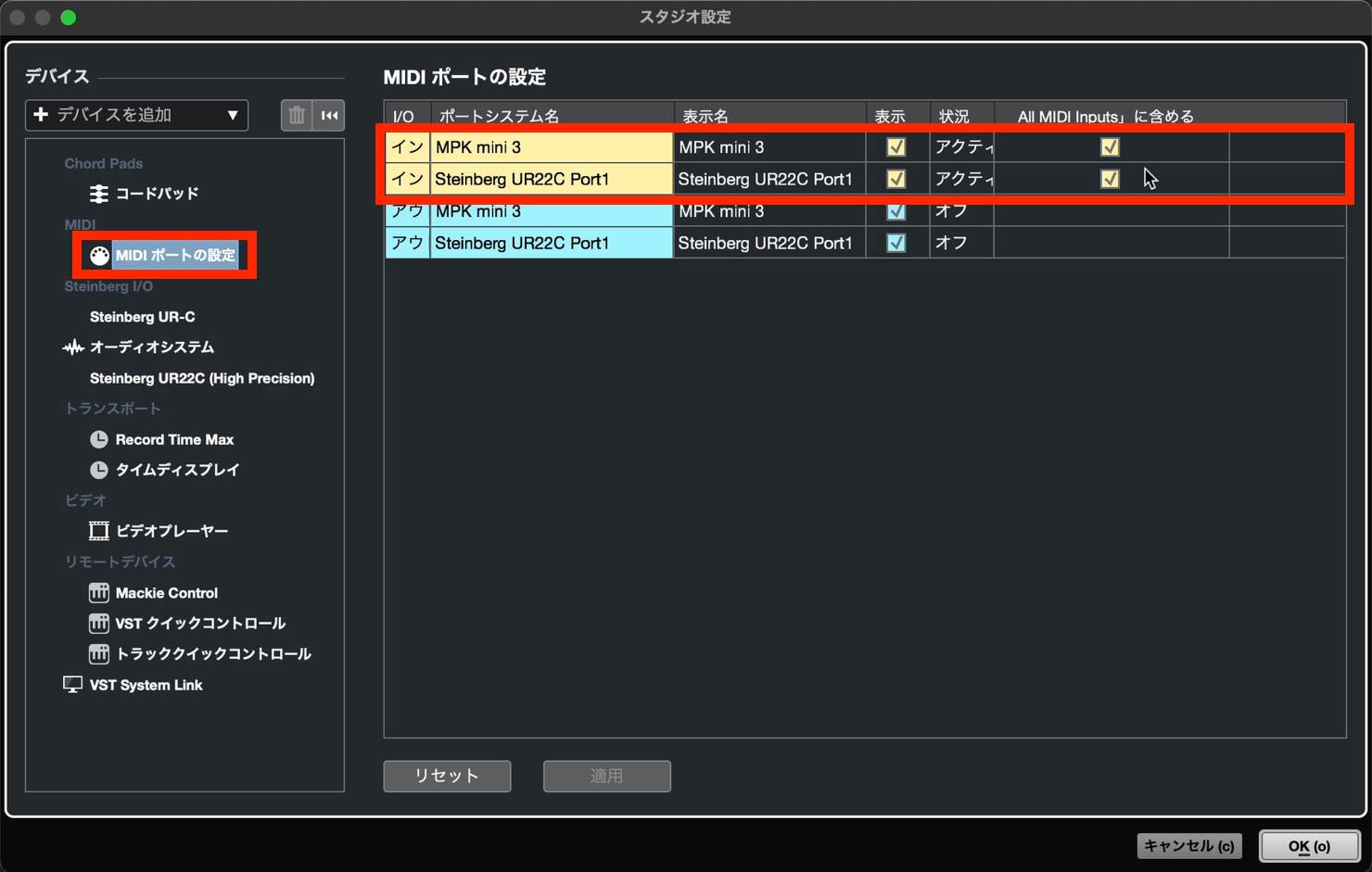
If your keyboard is missing from the list, there may be a connection problem. Check that the cable is properly connected and that the keyboard is powered on.
Normally, enable both Visible and In 'All MIDI Inputs'.
That completes the audio interface and MIDI keyboard setup.
Next time, we will learn about basic track types and how to create them.
Part 2 of our Cubase beginner series explains how to set up an audio interface and MIDI keyboard. https://t.co/qaFmSQ4lvg
— SLEEP FREAKS (@SLEEPFREAKS_DTM) March 13, 2021
Frequently Asked Questions
Q1. Can I make music without an audio interface?
Yes. You can use your computer's built-in output for basic production. An audio interface is recommended for recording sources such as vocals and guitar and for a dedicated monitoring setup.
Q2. Other applications become silent when I open Cubase. What should I do?
In Studio Setup, enable Release Driver when Application is in Background. This lets other applications, such as iTunes or a browser playing YouTube, use the audio device when Cubase is in the background.
Q3. Can I use software instruments without a MIDI keyboard?
Yes. A MIDI keyboard is optional, but it makes it easier to record performances in real time and audition sounds, which can improve your composing workflow.
Q4. Should I choose 64-bit or 32-bit floating-point processing?
This tutorial recommends starting with 64 bit float. If Cubase becomes unstable, try 32 bit float to see whether that improves operation.
Q5. Cubase does not recognize my audio interface after I installed its driver. What should I check?
Open Studio Setup > Audio System and check ASIO Driver. Select the driver for your interface from the drop-down list; the wrong driver may currently be selected.
NEW ARTICLES
Latest English Articles































































































































































