Customizing keyboard shortcuts in Cubase is an important way to improve your music production workflow. This article explains how to assign frequently used commands to keyboard shortcuts, align shortcuts across multiple DAWs, and save your settings to a file for use on another computer. You can also use macros to execute multiple commands at once and assign shortcuts to snap values so you can switch note lengths quickly. These customizations make your setup more comfortable and help you focus on creating music.
Why customize shortcuts?
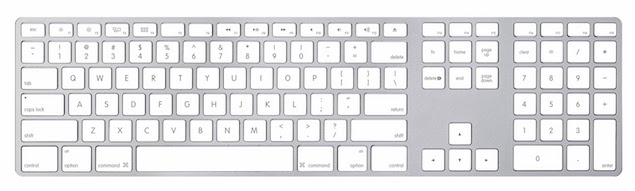
Learning keyboard shortcuts is essential for working efficiently.
They let you execute commands instantly,
so it is worth learning the shortcuts for commands you use often.
But many people find them hard to remember.
That is where shortcut customization comes in.
If you use two or more DAWs, you can also use it to make their shortcuts consistent.
Shortcut setup video
Selected questions and answers from YouTube

Thank you for always uploading such clear videos! I have a question about 40:42. I selected Merge as the MIDI recording mode and tried recording, but the events ended up separate. Can I record over an existing event and have the result extend that event? Or am I the only one having trouble? Someone else asked this, but I was curious, so I am asking again. Please answer when you have time. Sorry for the long message!

Thank you for watching! We tested this in our setup and the recording merged into a single event without a problem. If you were using cycle (loop) recording, please try turning cycle off.
Will the current MacBook Air (Core i3, 8 GB memory) run Cubase 10.5 comfortably?
The load depends on the number of tracks and how many instruments you use. As a rough estimate, around 15–20 tracks using Cubase's included instruments may be a comfortable range on a MacBook Air.
Mastering Cubase shortcuts, part 1
Mastering Cubase shortcuts, part 2
How to set shortcuts in Cubase

From the top menu, choose File → Key Commands.

The Key Commands window opens.
- 1. Select the command you want to assign.
- 2. Press the key you want to assign.
- 3. Click Apply.
Note: A warning appears if the shortcut is already assigned to another command.
Check carefully before assigning it.
More advanced use
For example, when using Cubase on a friend's computer,
different shortcuts can make it hard to concentrate on your work.
This is where saving your shortcuts helps.
Save your shortcuts and load them on your friend's computer
to work in your familiar environment.
Shortcut files are very small,
so you can put one on a USB drive or use online storage.
They are easy to carry with you.
How to save

↑ Click the floppy disk icon outlined in red.

A naming window appears as shown. Enter a name of your choice.
The saved shortcut file is stored deep in your computer's folder hierarchy.
- Mac
Users → Library → Preferences → Cubase →
Presets → KeyCommands - Windows
Windows icon in the lower-left corner → Steinberg Cubase (version name) → Application Data Folder → Presets → KeyCommands
Take the files in this folder with you.
Advanced: execute multiple shortcuts at once with macros
Recommended shortcuts for snap values
The explanation starts at 2:03.
You can also assign shortcuts to snap values.
This lets you quickly switch between quarter notes, eighth notes, sixteenth notes, and so on.
Frequently asked questions
Q1. What if a keyboard shortcut is already assigned in Cubase?
A warning appears if you assign a key that is already in use. Choose another key or change the existing assignment before registering it.
Q2. How can I transfer my shortcuts to a friend's computer?
Click the floppy disk icon in the Key Commands window to save the file, carry it on a USB drive or in cloud storage, and load it on your friend's computer to use the same settings.
Q3. Why assign shortcuts to snap values?
You can quickly switch between snap values such as quarter notes and eighth notes, making editing in the DAW faster and more precise.
Q4. Can I use consistent shortcuts across multiple DAWs?
You can customize Cubase shortcuts to match those in another DAW, reducing confusion when switching between programs.
NEW ARTICLES
Latest English Articles