Cubase project templates can reduce the setup work involved in music production. Save your frequently used tracks, click settings and workspaces in advance, then load them when you start a new song so you can get straight to creating. Multiple templates let you switch between setups suited to different genres and workflows.
Spend Less Time on Basic Setup
When producing music, you may notice something:
the steps you take before you start creating are often almost the same.
Create tracks, set up the click, open a synth, arrange your workspace...
and by the end you may have forgotten what you wanted to do in the first place.
That's where the template feature comes in.
Save your frequently used setup in advance,
then recall it when starting a new song.
This can greatly reduce the work needed at the start of a project.
Creating a Project Template in Cubase
First, prepare your project.
Set up your frequently used tracks, click and workspace the way you like them.
It's especially useful to save your workspaces at this stage.

Once your project is ready for you to start creating:
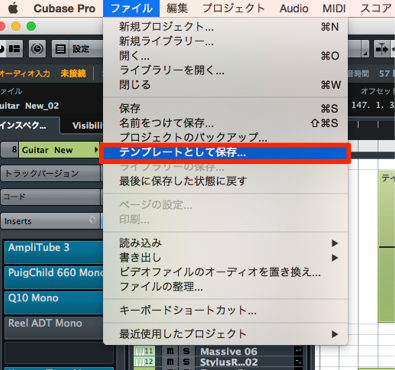
↑ Choose File → Save as Template from the top menu.
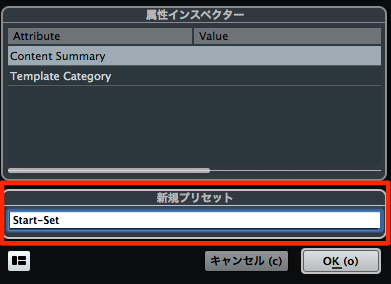
↑ Name the template in the highlighted area and click OK.
In this example it is named Start-Set.
Using a Template
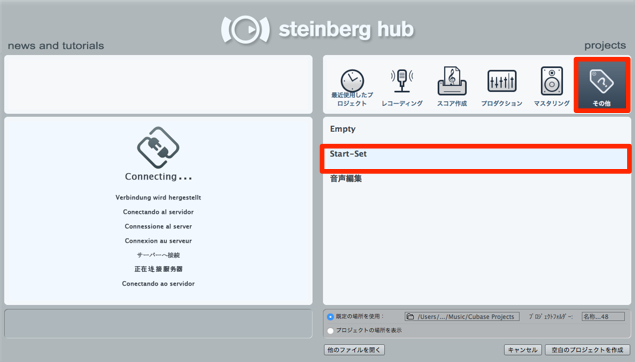
↑ In the dialog that opens when you create a new project, look under Other
for the template you created.
The example template appears in the list.
Select it to start making music right away.
You can create multiple templates.
Try preparing several to suit your different workflows.
Frequently Asked Questions
Q1. What should I prepare before creating a Cubase template?
Set up your commonly used tracks, click, instruments and workspace, then choose File → Save as Template. Saving workspaces can be especially useful.
Q2. How do I use a saved template?
In the project creation dialog shown here, your template appears under Other. Select it to load the saved setup and begin working on your song.
Q3. How many templates can I create?
You can create multiple templates for different genres and workflows, making it easier to start each project with the setup you need.
NEW ARTICLES
Latest English Articles