
Freestyle by New Sonic Arts is a sound-design tool that lets you combine multiple VST instruments and effects in a single host application. Plug-in scanning, flexible routing and macro controls allow dramatic, complex sound changes for situations including live performance. Since Freestyle can also be used in Logic, it provides a way to use VSTs there and control multiple instruments together.
Combine multiple software instruments and effectsA new approach to sound design
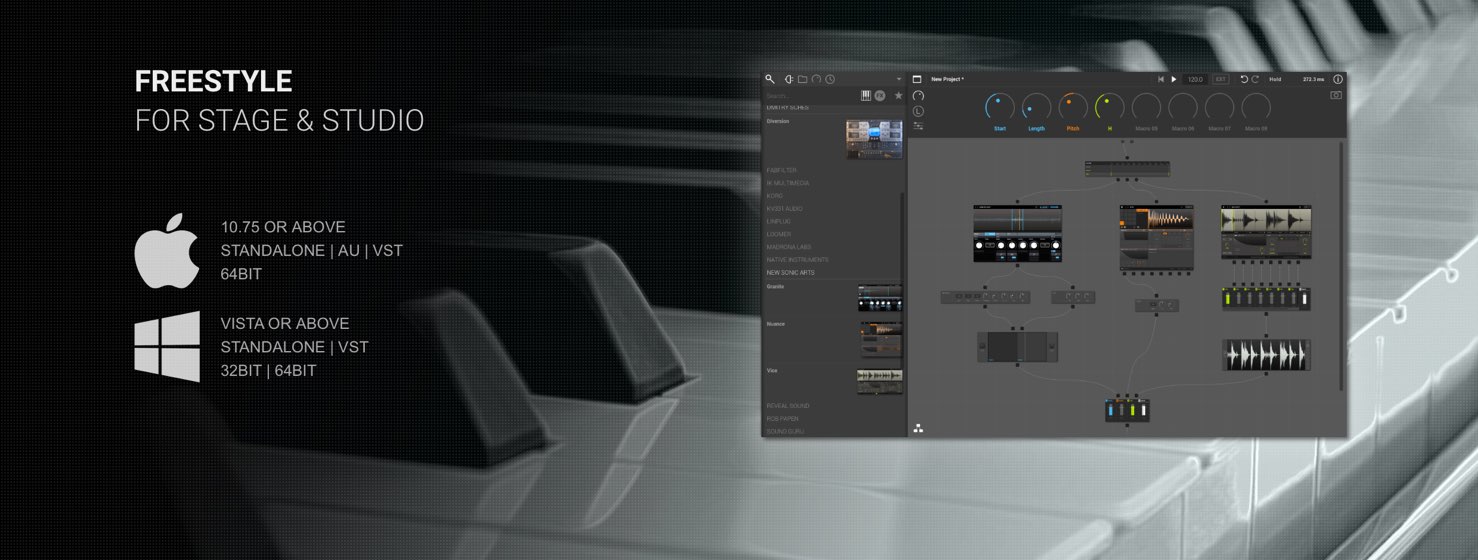
Freestyle from New Sonic Arts
Freestyle is a host application that lets you open multiple VST instruments and effects within it and combine them freely for flexible sound design.
You can control parameters across instruments at once, making it useful for dramatic sound changes, including in live performance.
How to use Freestyle
- 1How to use the Freestyle host application
- 2How to use Granite: Granular synthesis
- 3How to use Nuance: Rhythm editing
- 4How to use Nuance: Editing pitched instruments
- 5How to use Vice: Loop slicing
Excerpt from YouTube questions and answers

Thank you for the information. I’m deciding between this and VIENNA ENSEMBLE PRO. Are they intended for the same purpose, such as reducing CPU load? Freestyle seems more focused on sound design, and using it alongside VEP might make management and routing more complicated. I’m afraid I might not be able to manage it all, although this one is cheaper. What do you think?

My impression is that VIENNA ENSEMBLE PRO is suited to CPU and memory efficiency and instrument management. Freestyle, on the other hand, specializes in sound editing and offers a great deal of freedom in creating sounds.
Scanning VST plug-ins
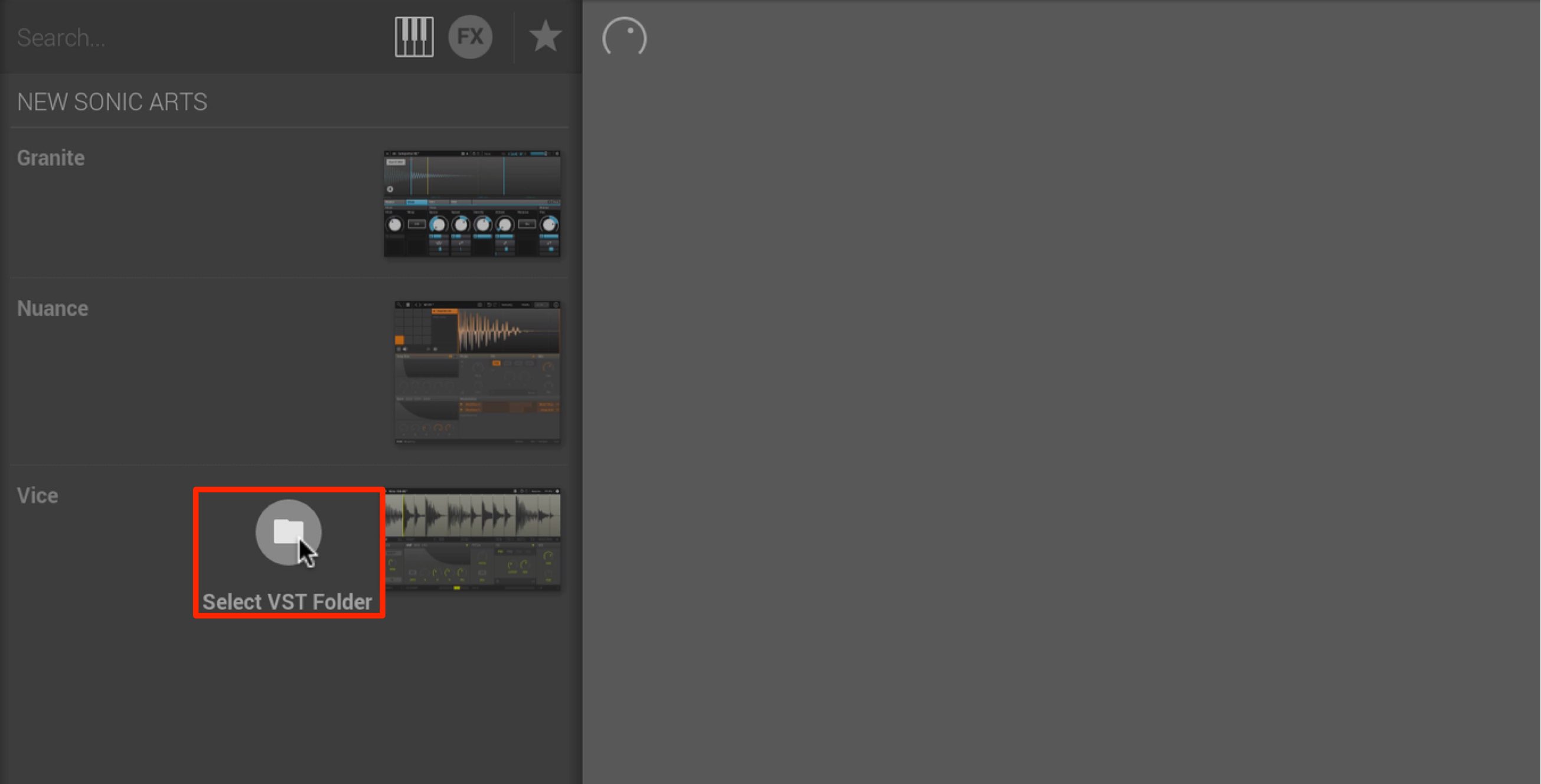
When you first launch Freestyle, specify the VST plug-in folder containing the plug-ins you want to use.
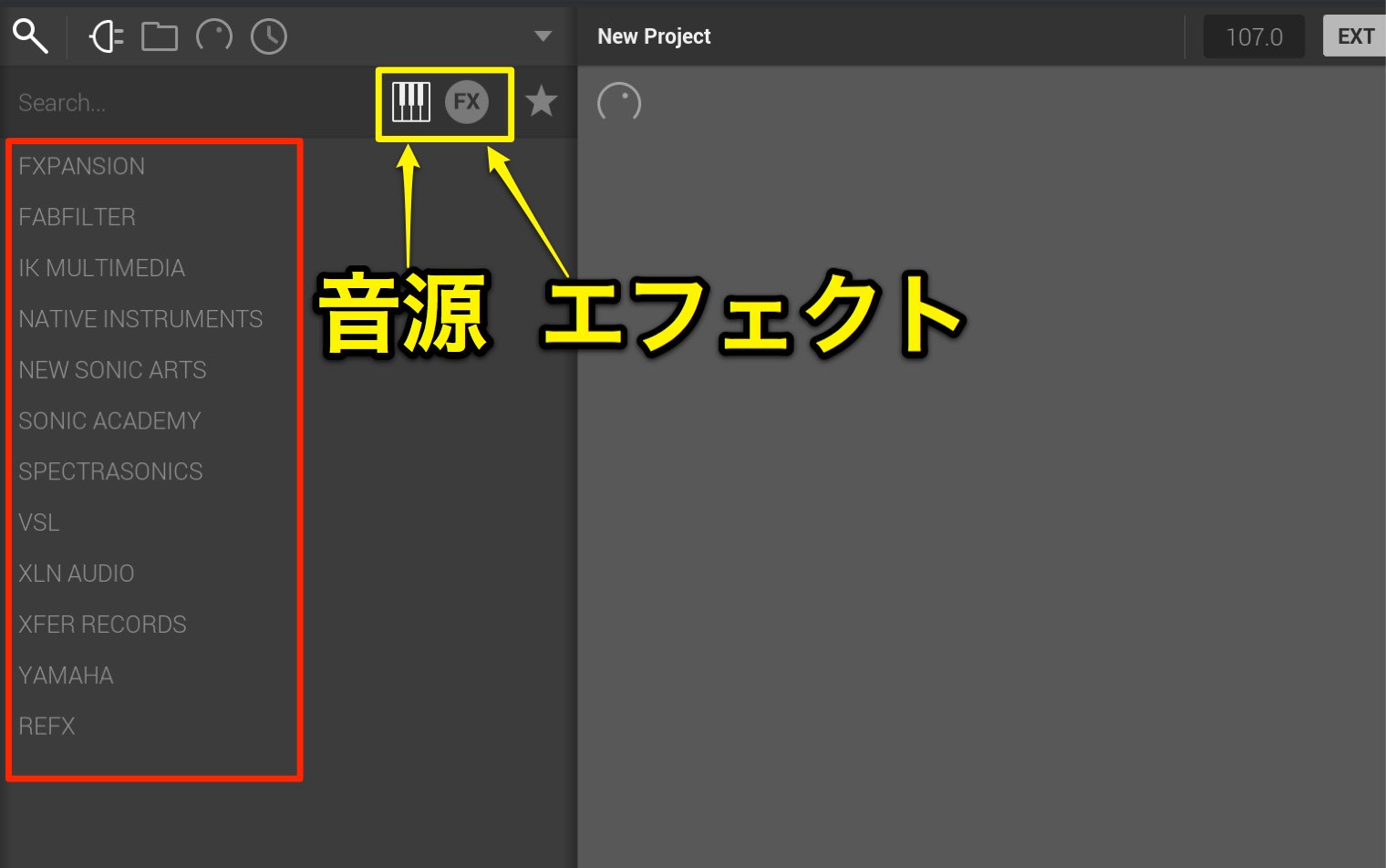
After you select the folder, scanning begins and the plug-ins are listed by manufacturer.
Software instruments appear on the left and effects on the right.
Freestyle also supports AU and can be launched in Logic.
This means you can use VSTs in Logic through Freestyle.
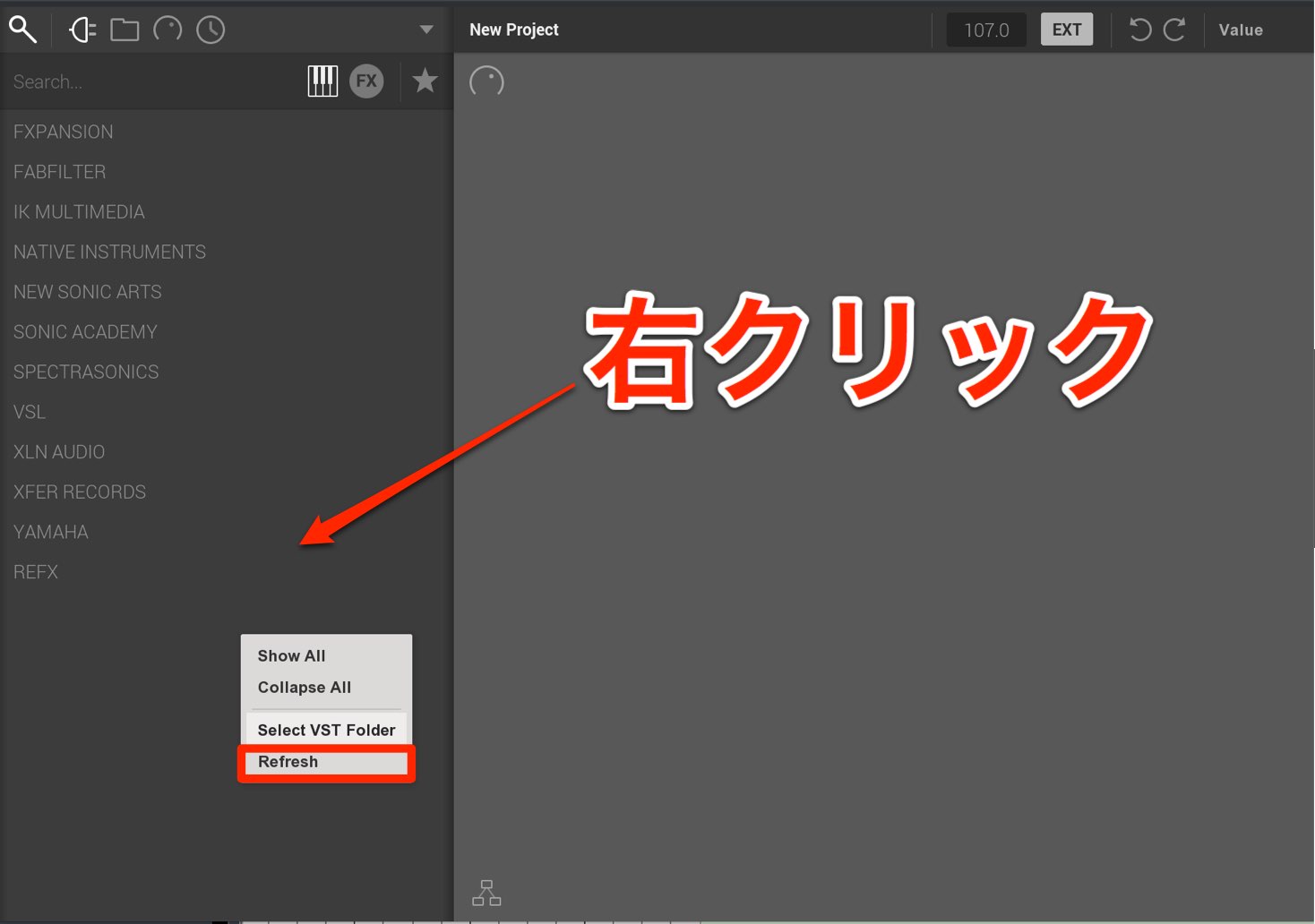
If a plug-in does not appear or you want to show newly installed VST plug-ins, right-click in the plug-in area and select “Reflesh” [Refresh].
Loading VST plug-ins
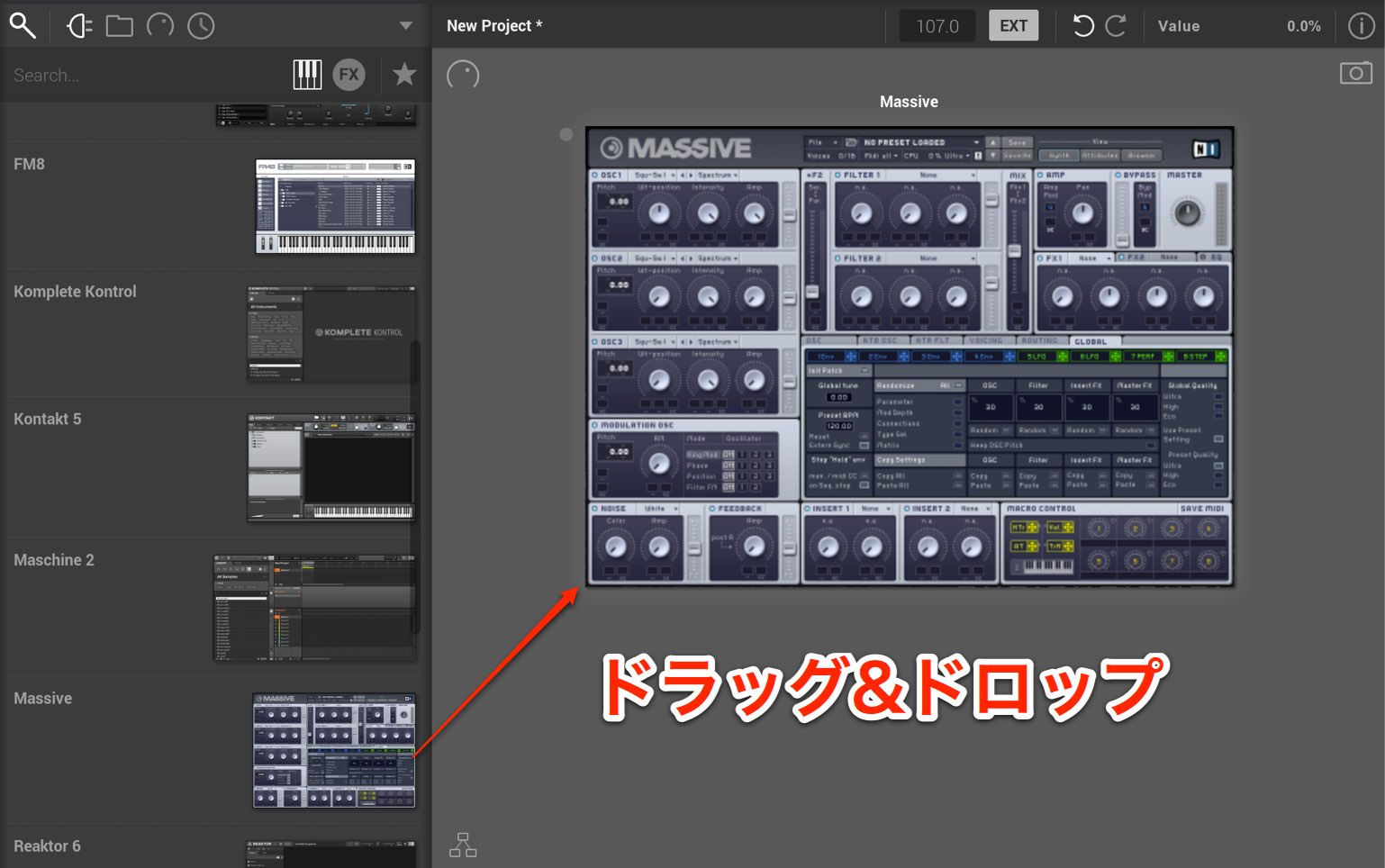
To open an instrument in Freestyle, drag the desired product from the instrument icon in the browser to the rack.
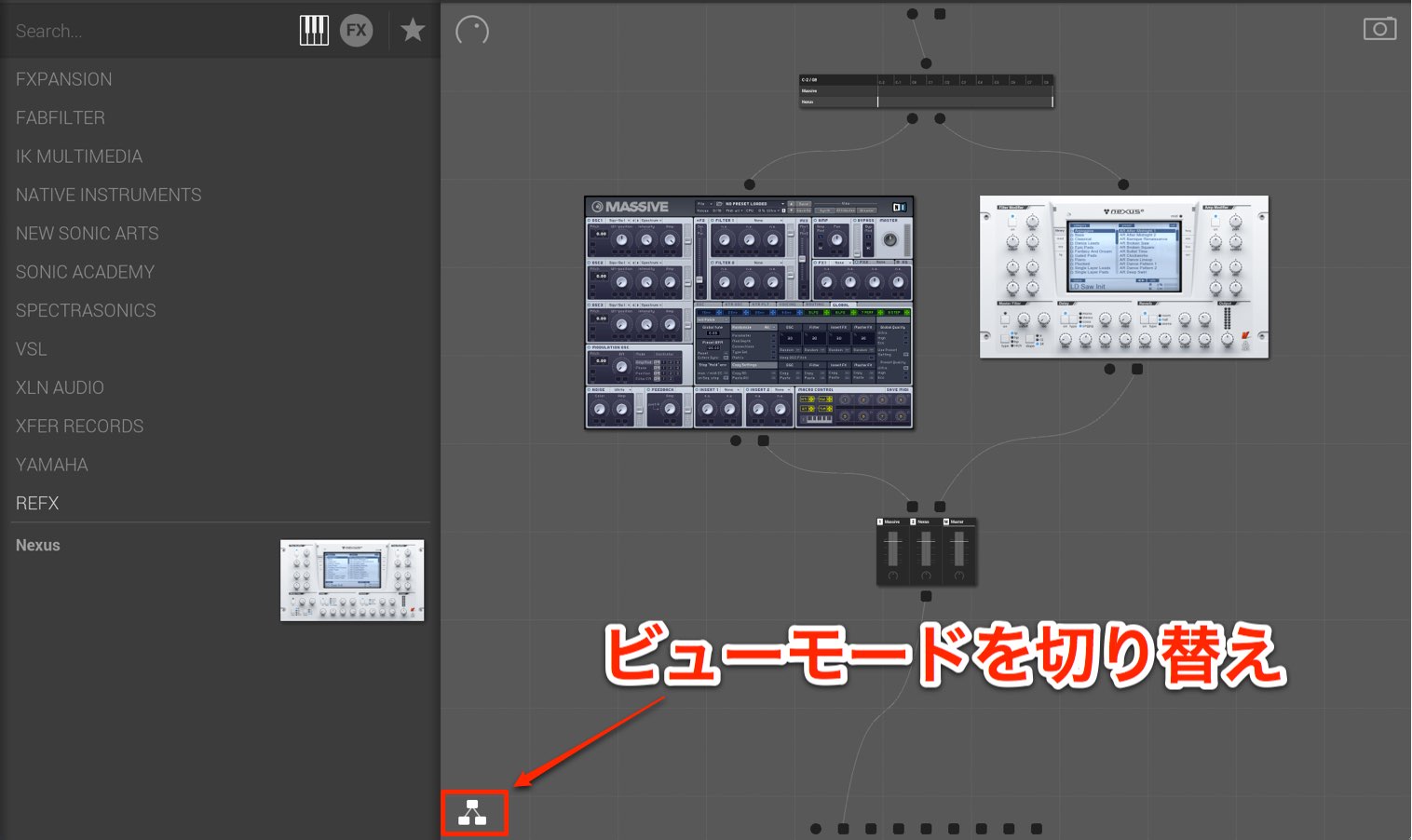
You can open multiple instruments this way and play them with one MIDI input.
To see multiple instruments at once, we recommend switching the View mode.
Opening a sampler from an audio file
Freestyle can load audio files such as WAV files as well as VST instruments and effects.
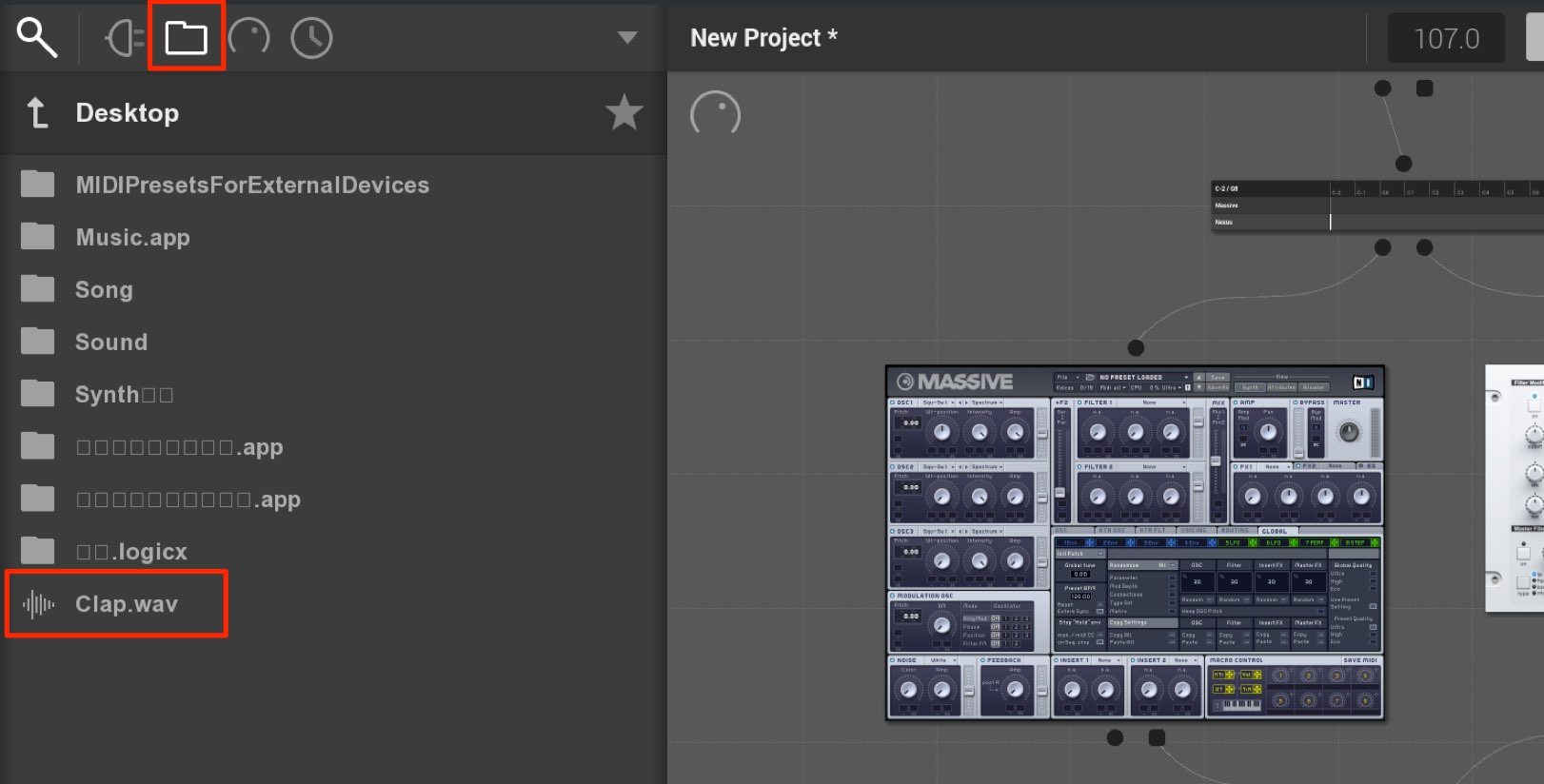
Open the browser and select the folder icon.
The hard drive’s folder hierarchy appears; navigate to the location of your audio file.
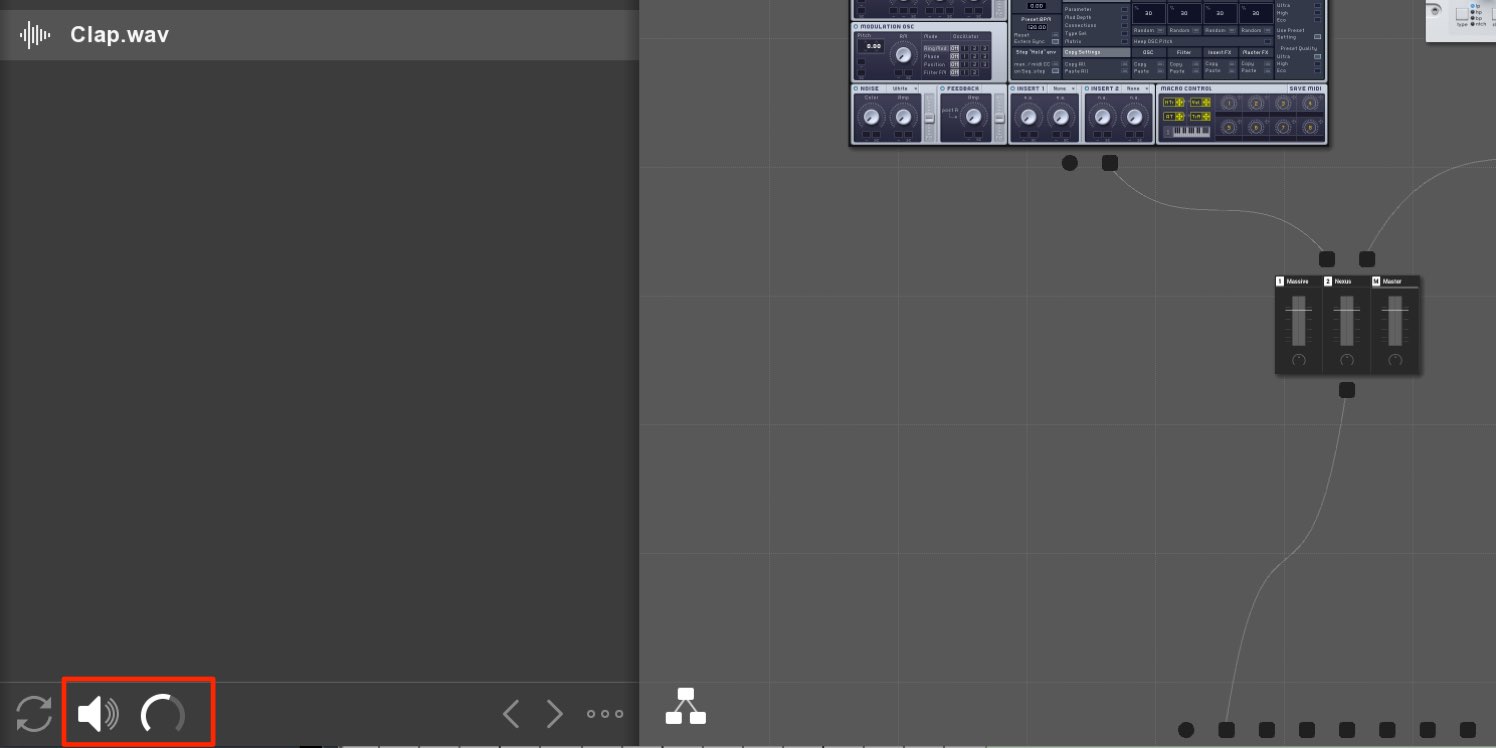
Click a file to audition it. Controls at the bottom let you turn auditioning on or off and adjust its volume.
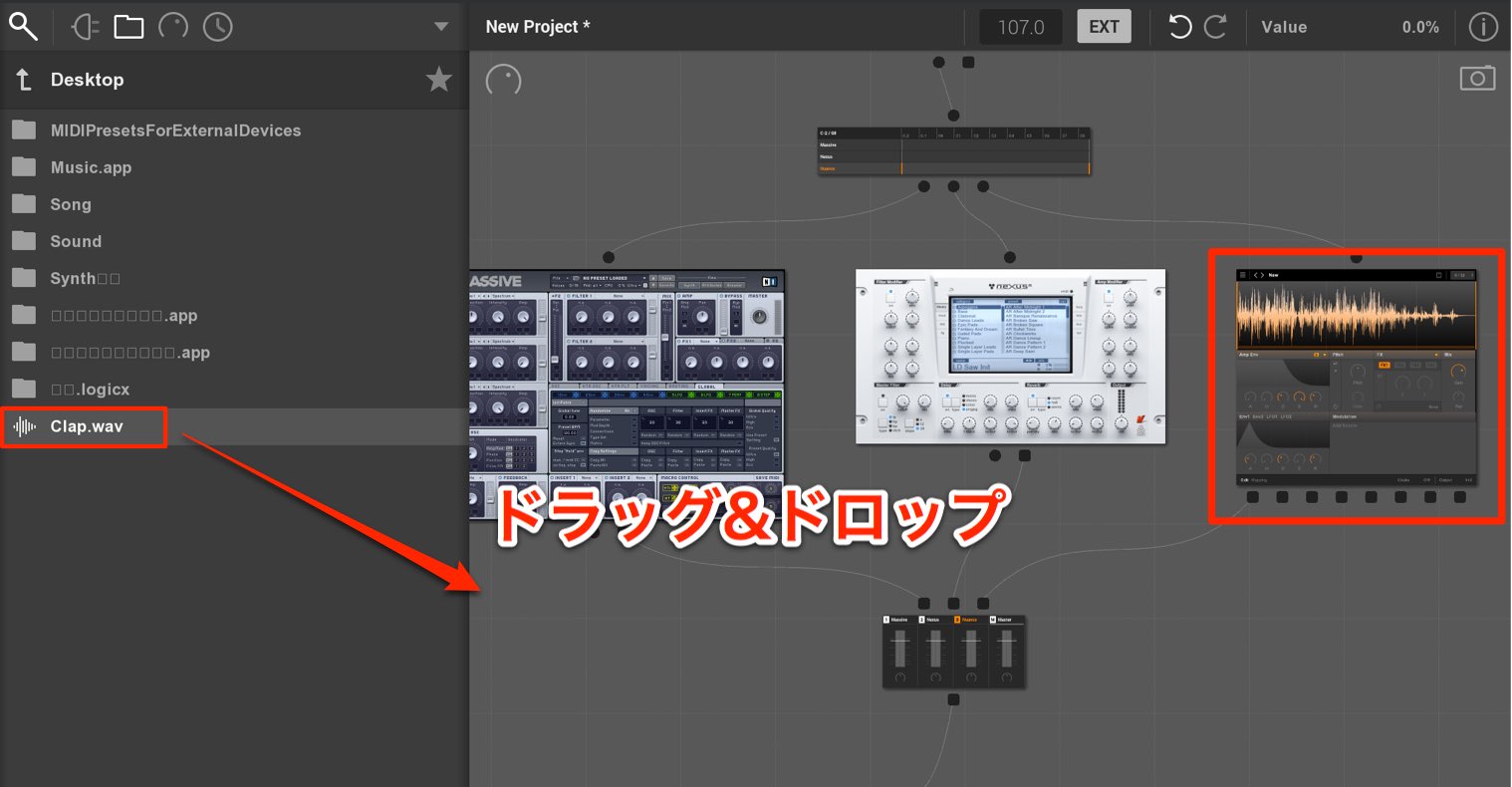
Once you find the file, drag it into the rack.
New Sonic Arts’ sampler Nuance opens with the file loaded.
If you do not own Nuance, it can be opened in DEMO mode.
Flexible sound routing
A major attraction of Freestyle is the freedom to route instruments and effects.
Once you understand the simple routing rules, you can control the sound freely.
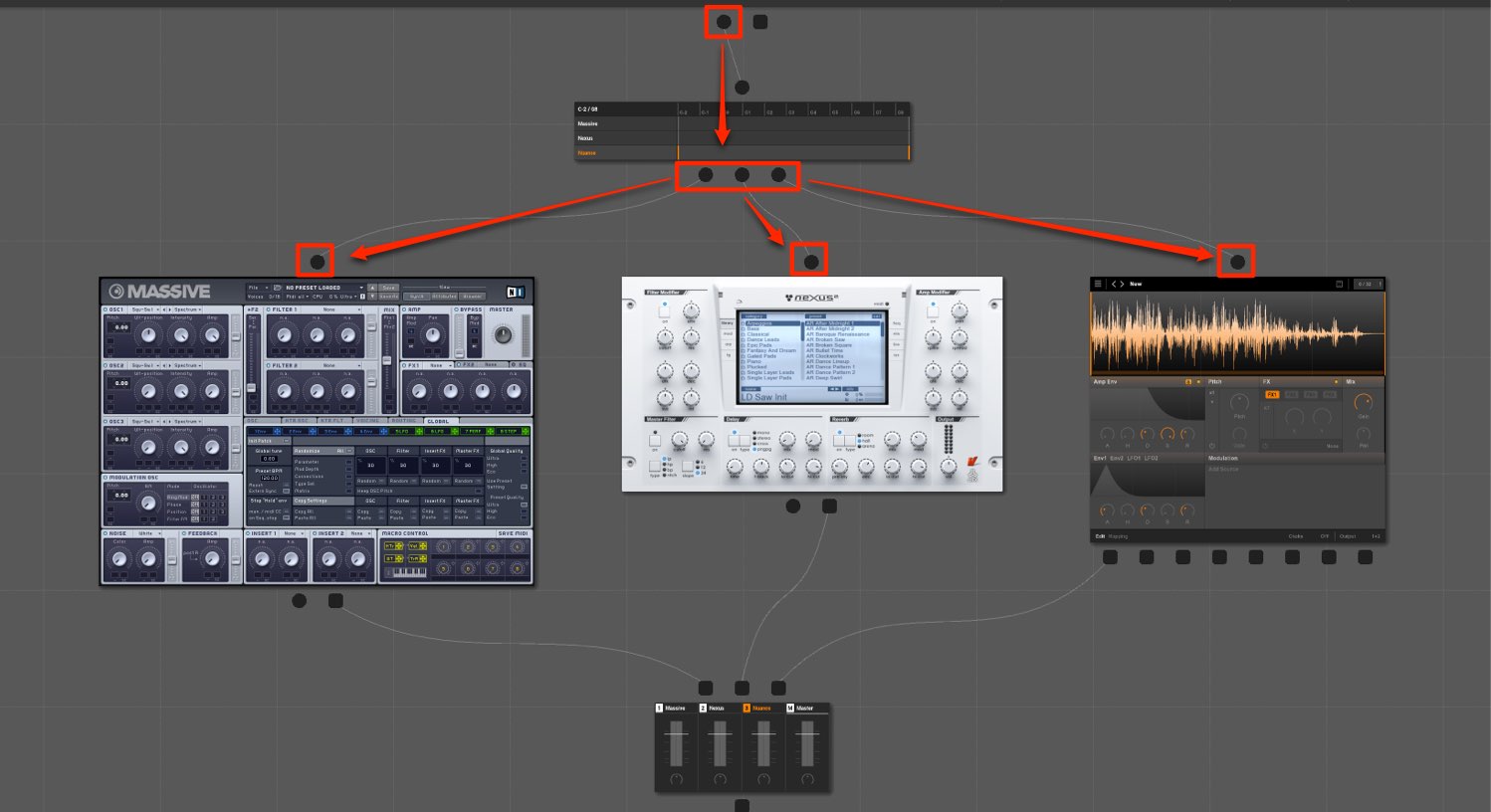
Round icons represent the flow of MIDI signals.
You can see that note information programmed in your DAW or played on a keyboard reaches each instrument.
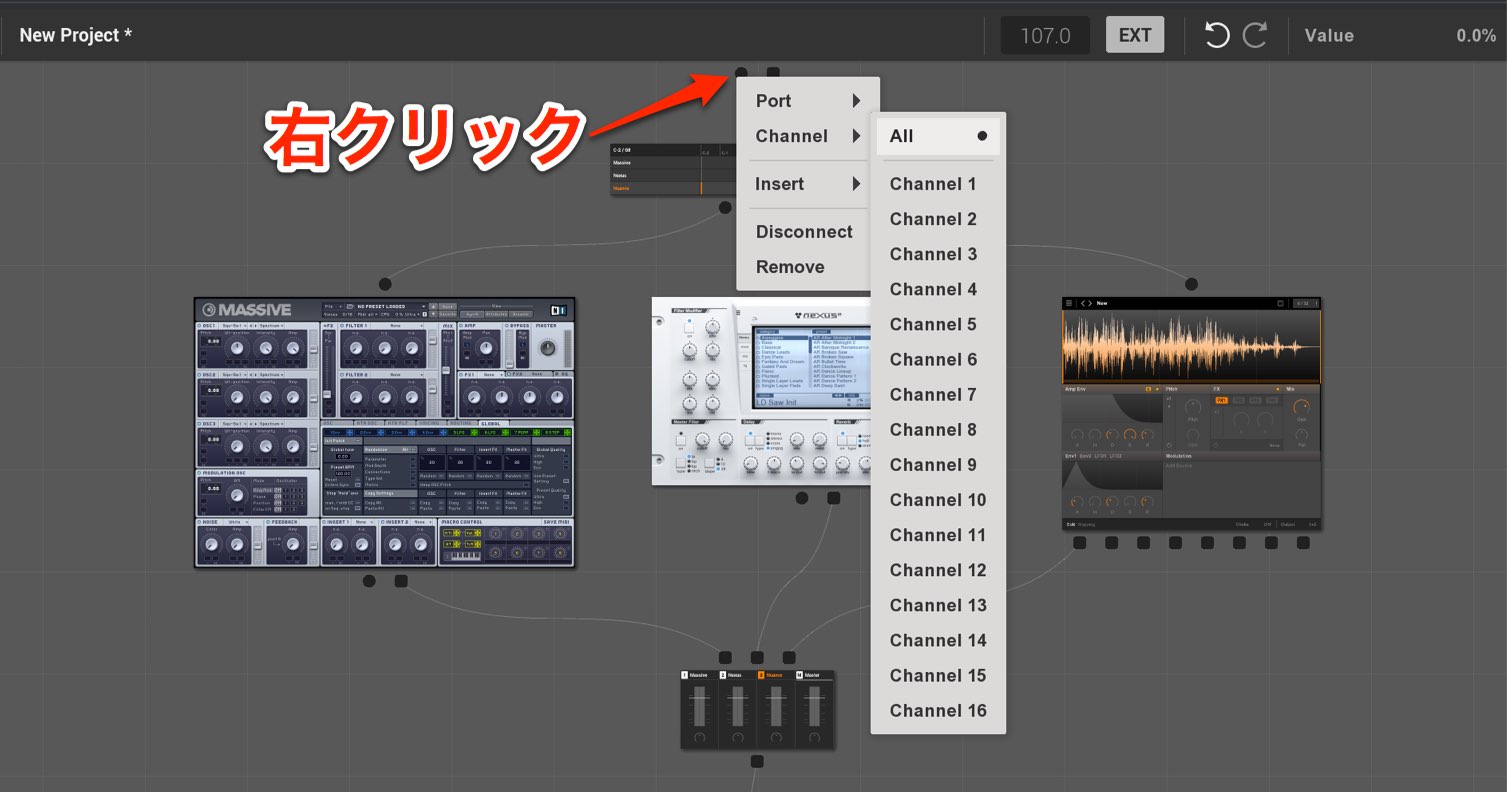
You can also right-click this area to specify a MIDI channel.
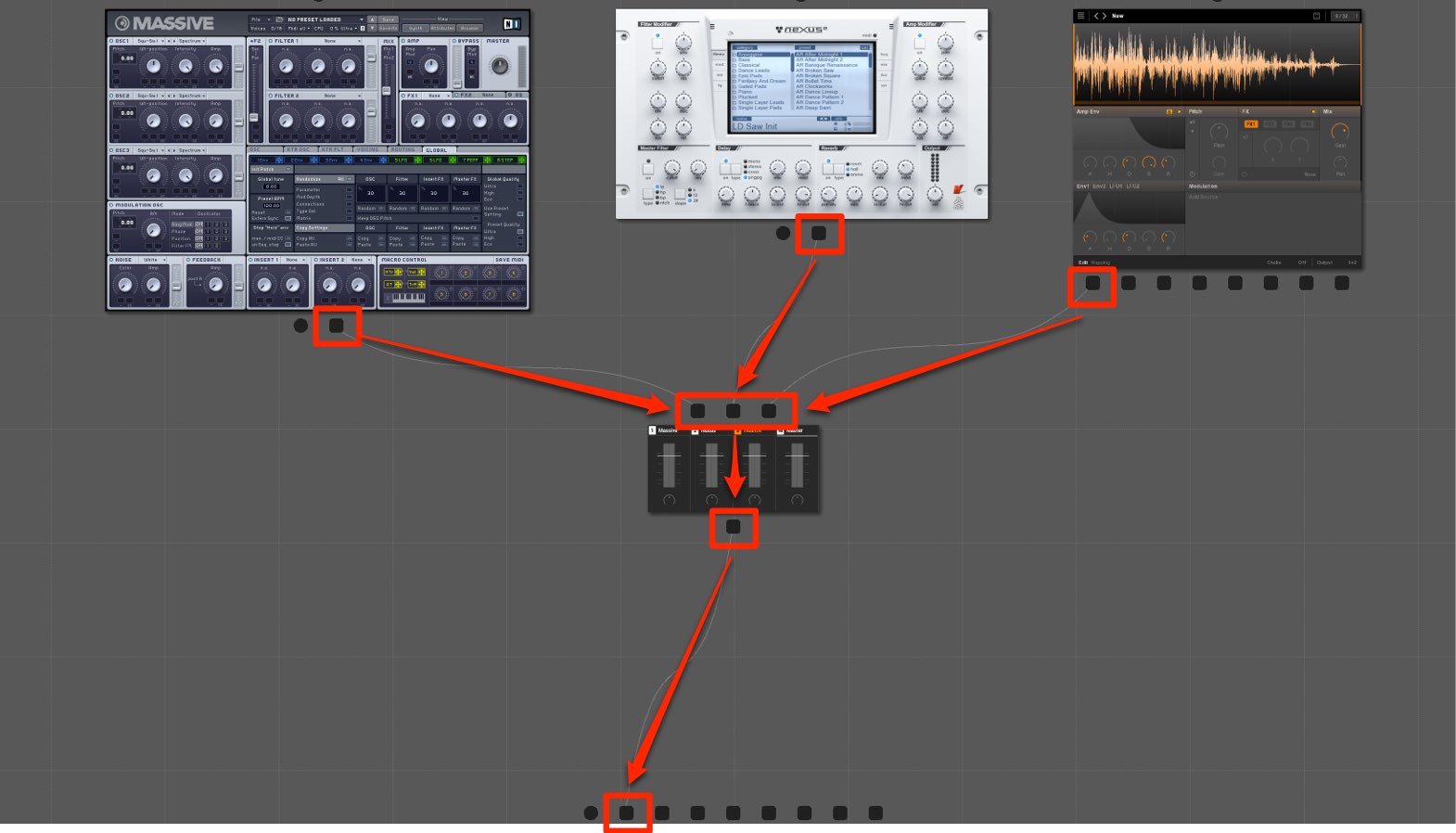
Square icons represent audio signals.
You can see the software instrument receiving MIDI and producing an audio signal.
Each instrument is routed to the mixer, where levels are adjusted, and the mixed sound is sent to Out 1/2.
Creating a routing
You can freely route each audio output.
Click the desired output and drag it to the desired input.
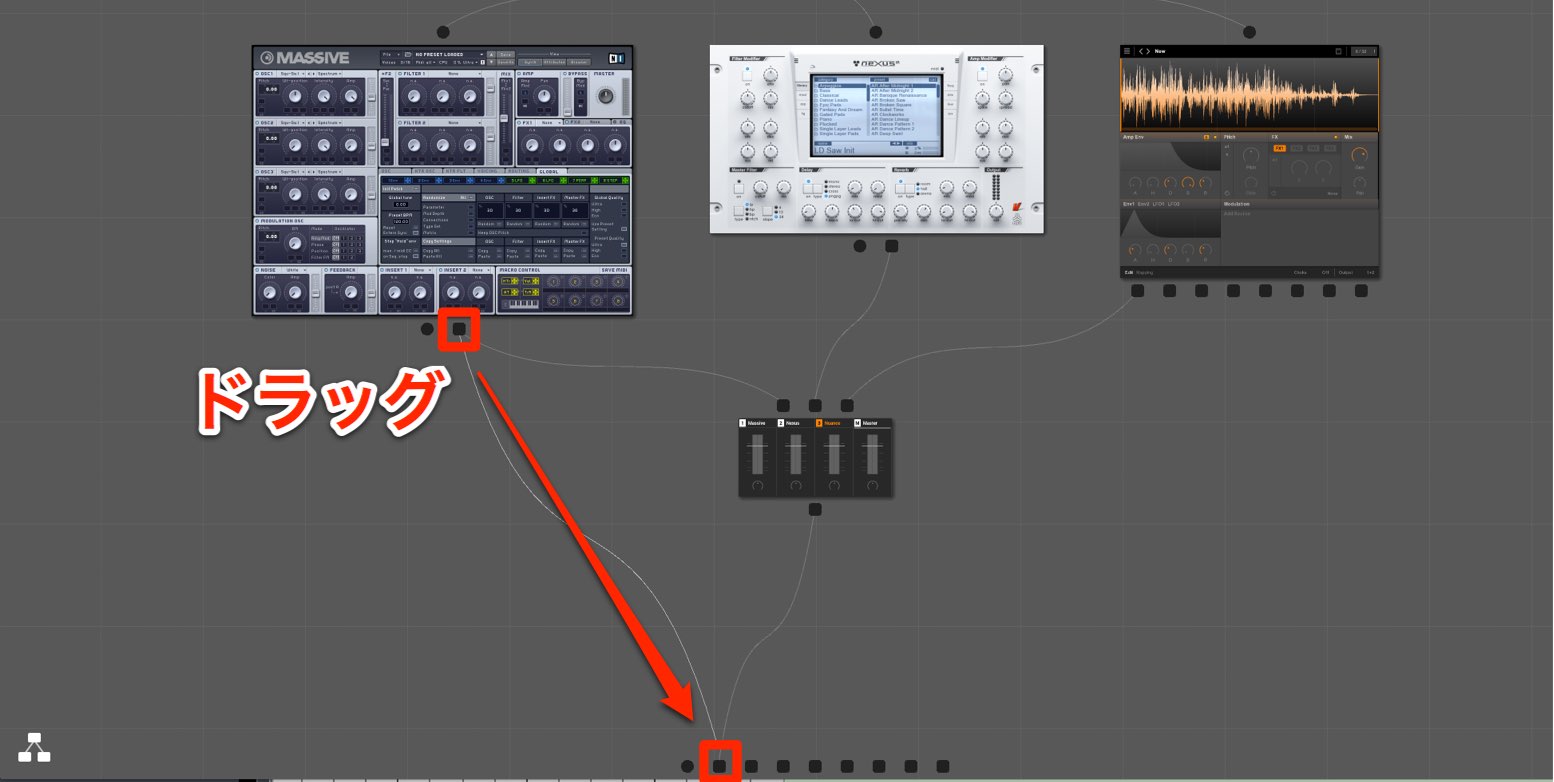
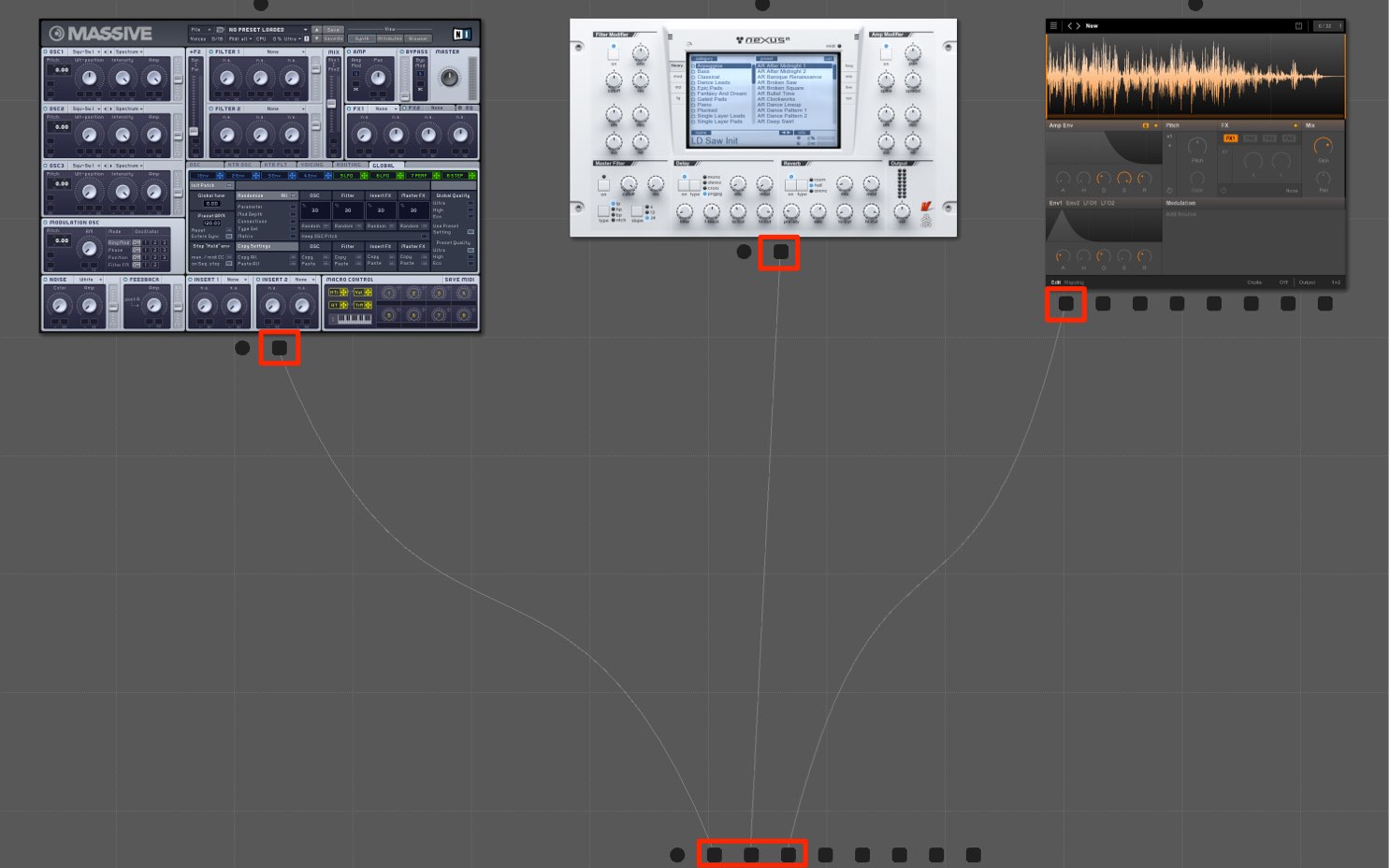
With this routing, each instrument can be sent to a separate output and track in the DAW.
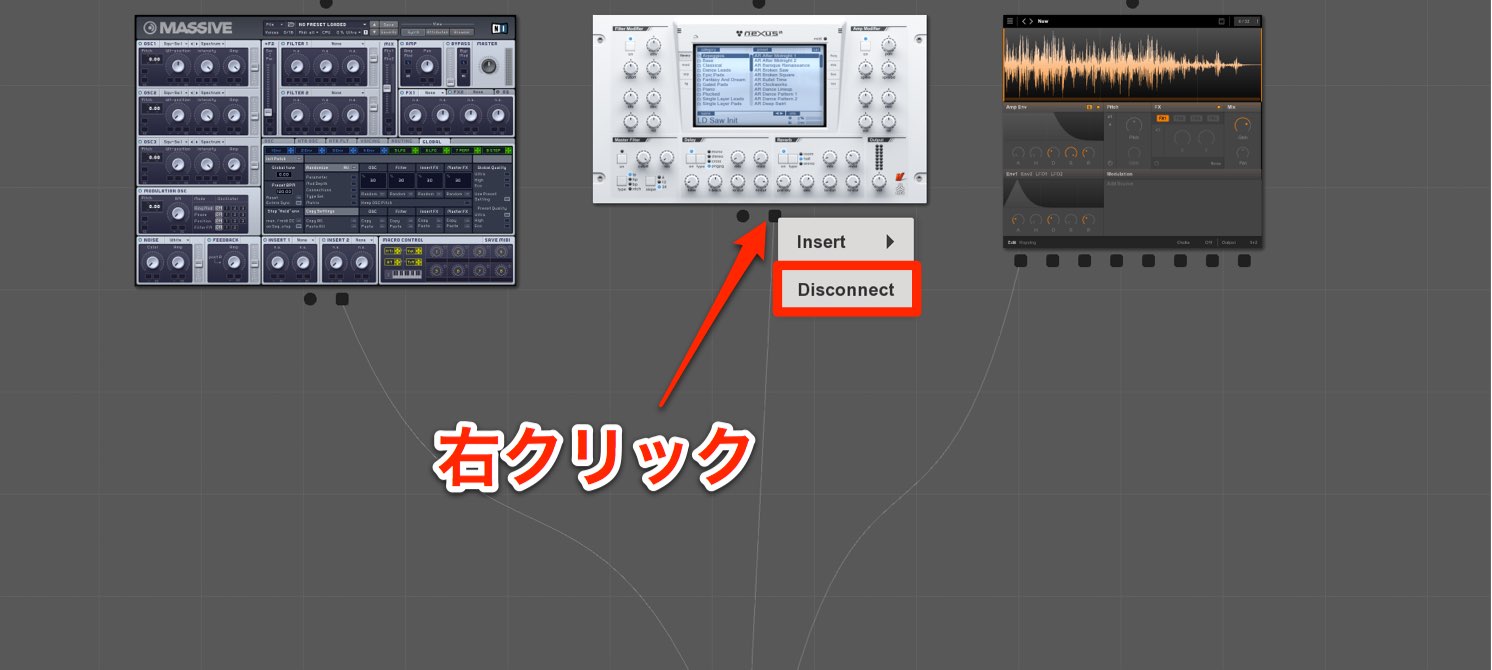
To remove a routing, right-click the relevant connection and select “Disconnect”.
Separate outputs in each DAW
 Logic
Logic Cubase
 Ableton Live
 Studio One
 FL Studio
Routing effects
You can also apply an effect at the desired point in an audio signal path.
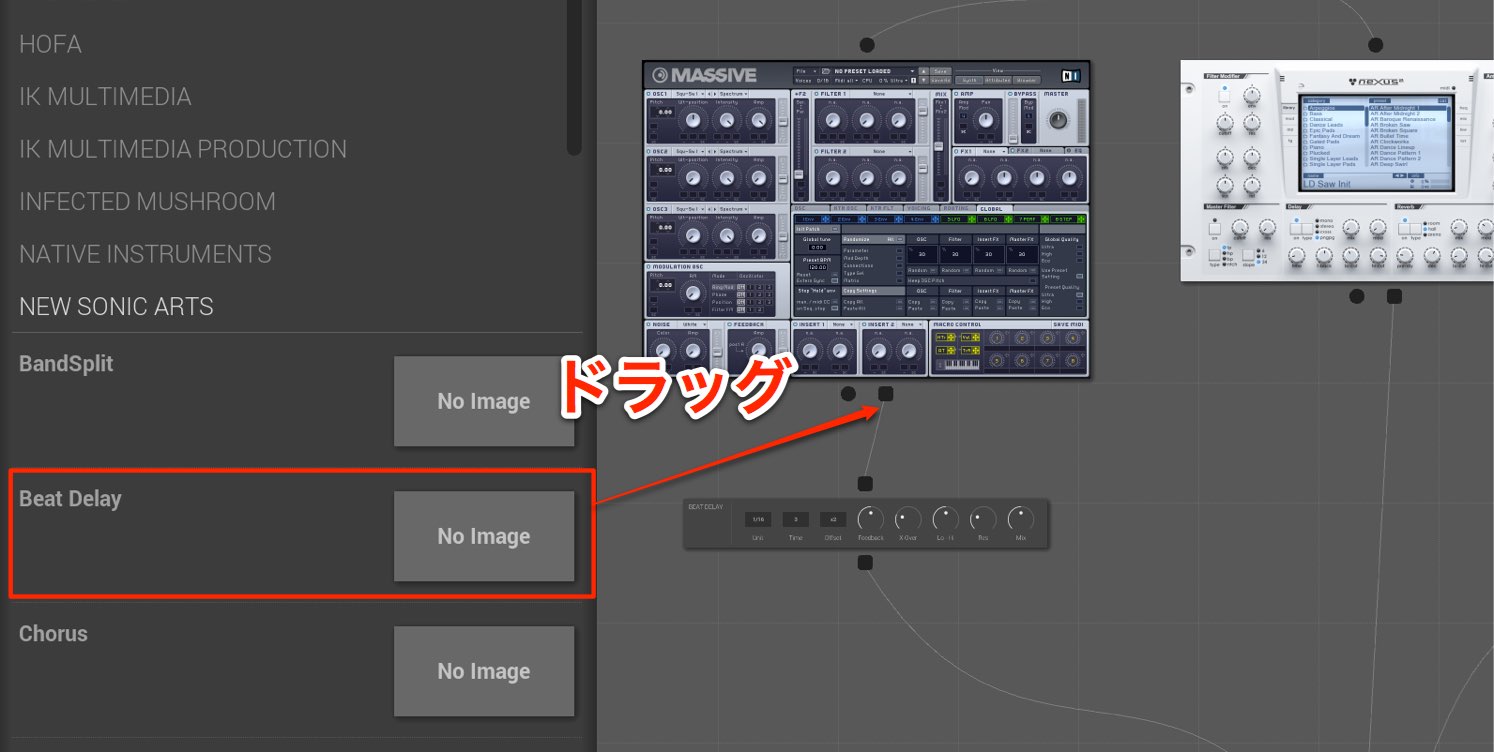
Drag and drop the effect where you want to apply it.
In this configuration, delay is applied only to Massive.
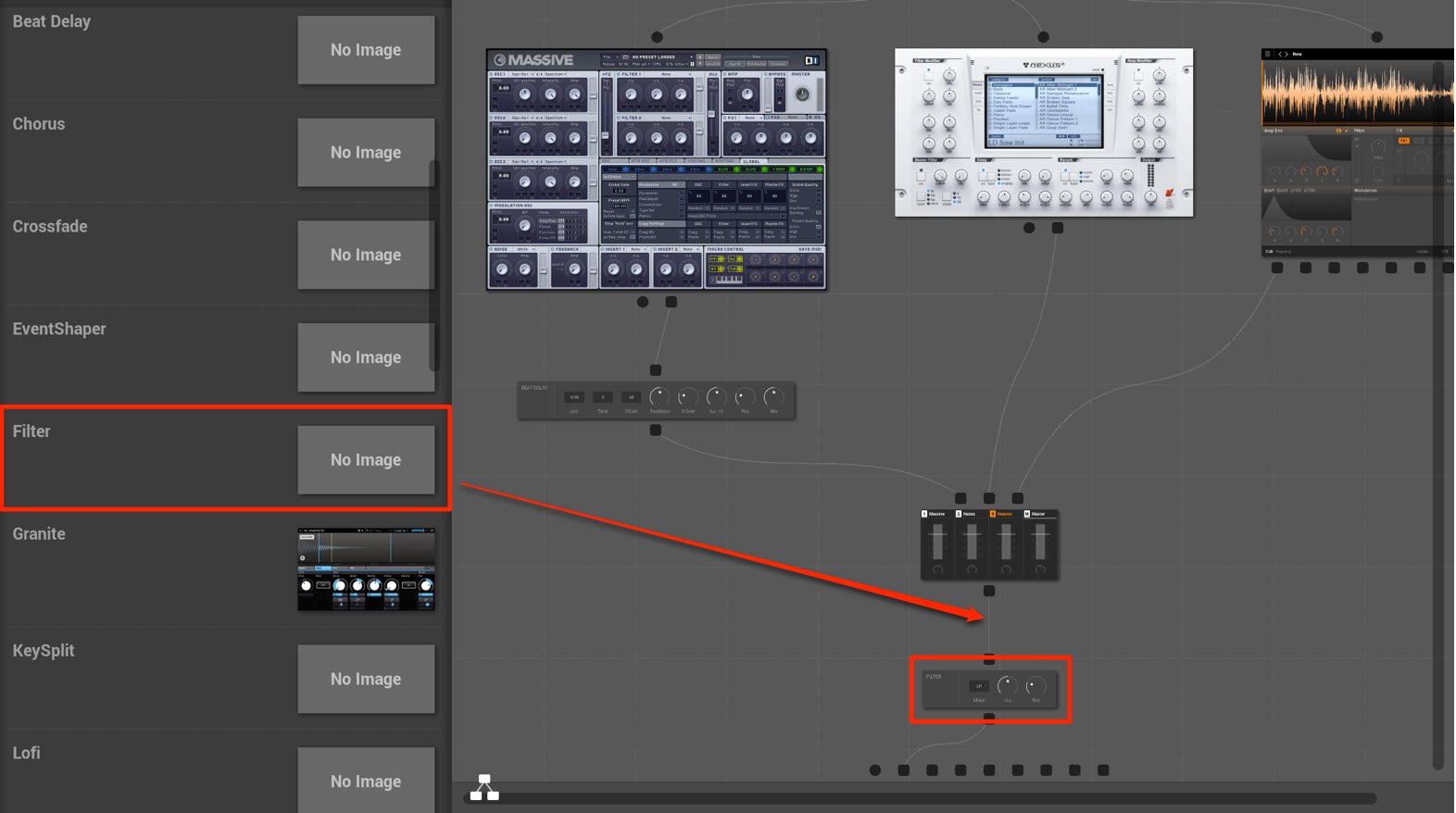
If the effect is placed here, it affects the sound of all the software instruments.
Understanding the routing described above makes it easy to choose between these options.
Using Undo and Redo
If you make a mistake, you can use Undo and Redo.
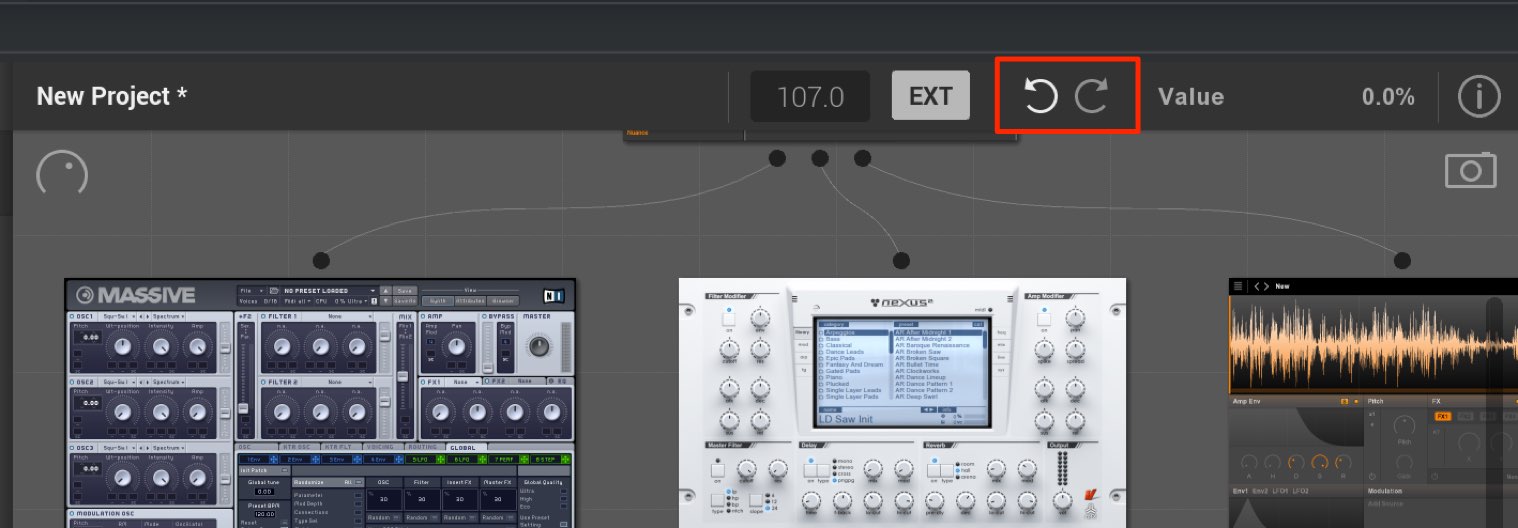
Simply click here.
The right button is Undo, which reverses an operation; the left is Redo, which restores an undone operation.

Macro control
Macro control lets you assign parameters from your chosen software instruments and effects to up to eight knobs.
The key feature is that assignments can span multiple products.
The process is simple.
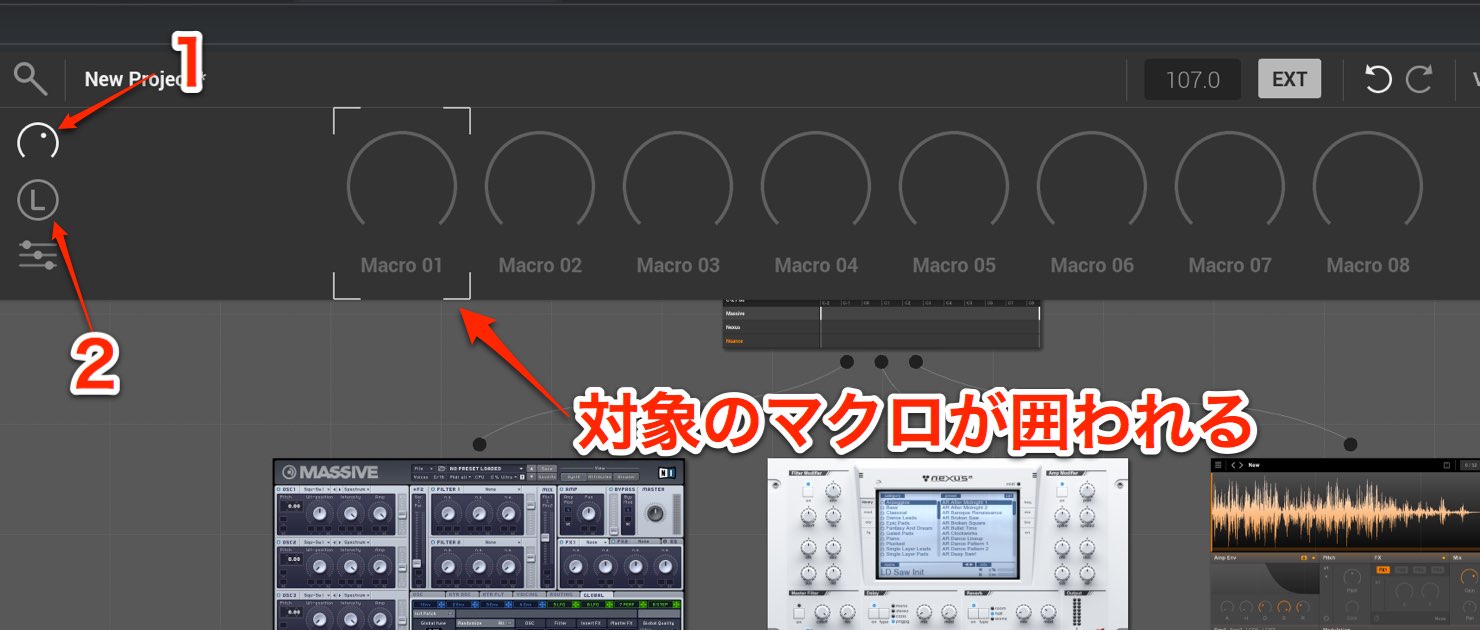
1. Display the macro controls. 2. Click “L” so that it flashes.
The macro controls available for assignment are outlined.
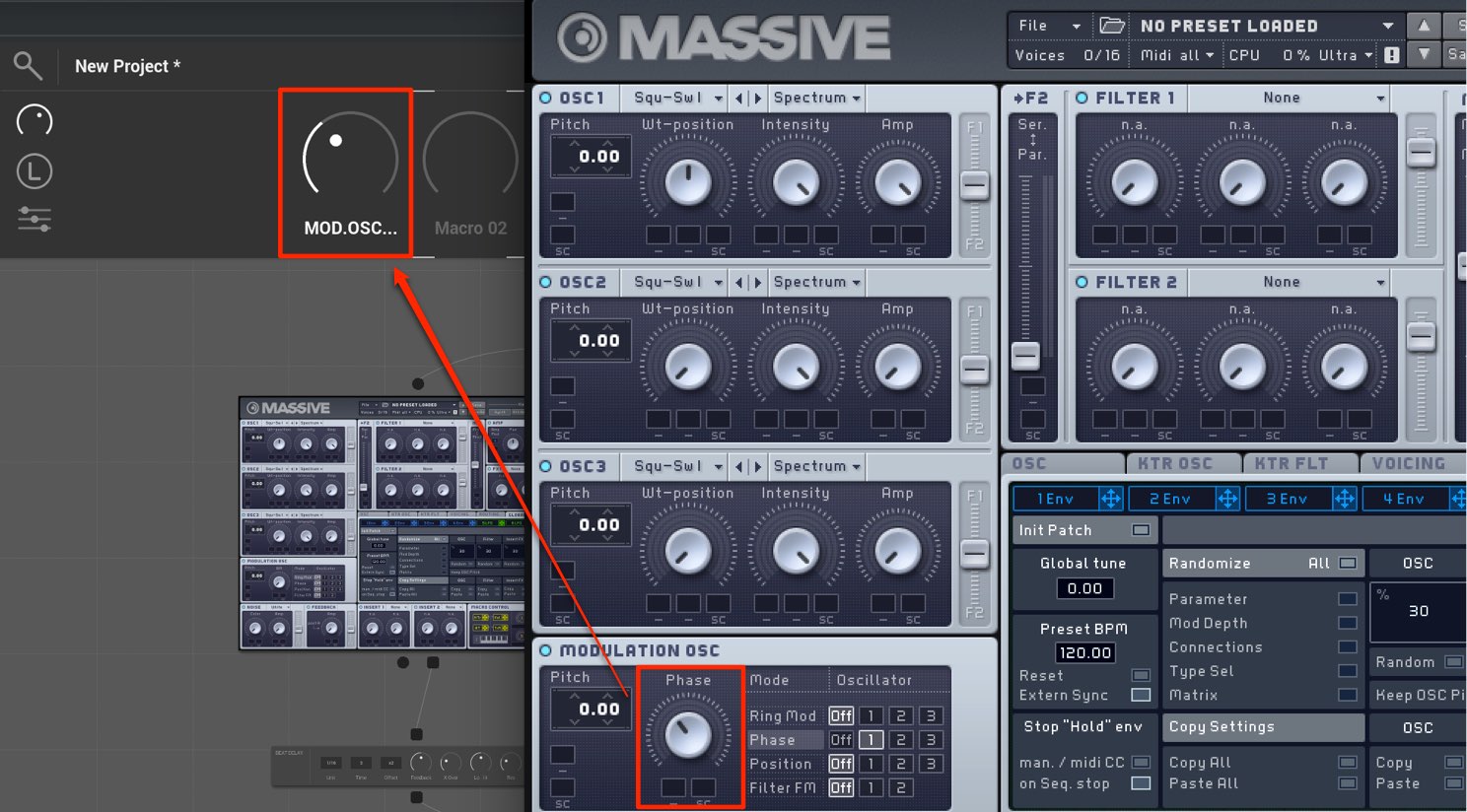
Move the desired parameter on an instrument or effect.
The assignment to the macro control is now complete.
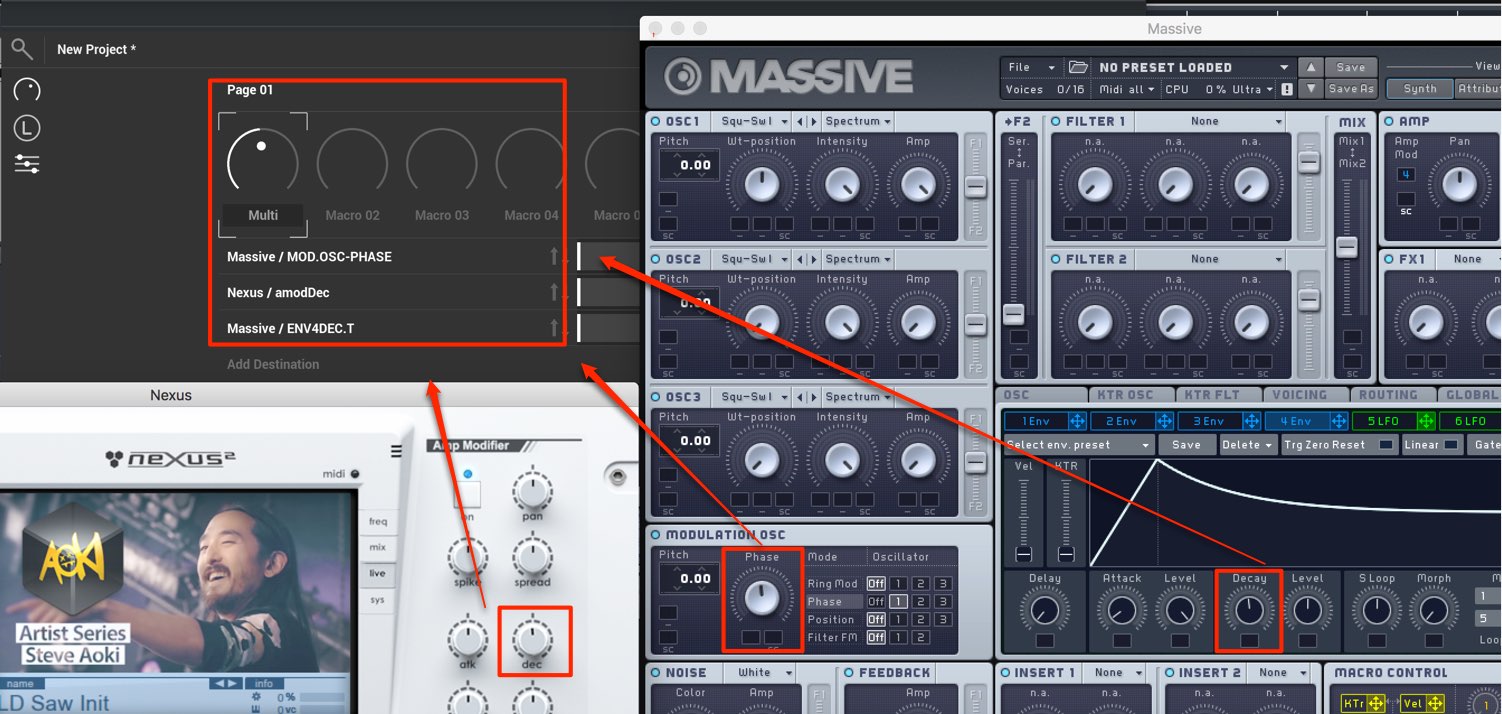
To assign multiple parameters to one macro control, hold Shift while moving each parameter you want to assign.
It helps to keep the macro control details tab open while doing this.
Repeat the process to control parameters from multiple instruments and effects simultaneously with a single macro control.
This lets you create some very interesting sounds.
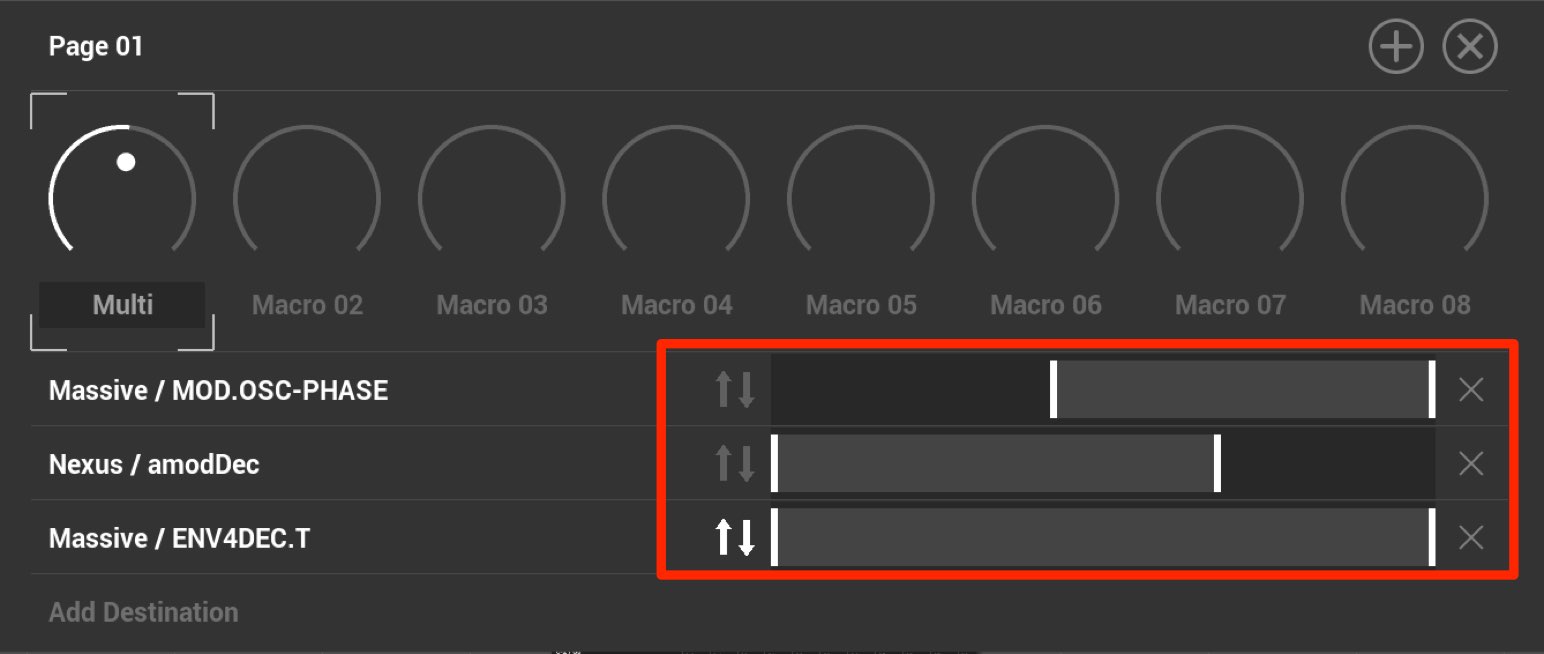
You can set each parameter’s range using the slider and reverse its movement.
Experiment with the settings to shape the sound you want.
Linking macro controls to a MIDI controller
You can assign the macro controls above to your MIDI device.
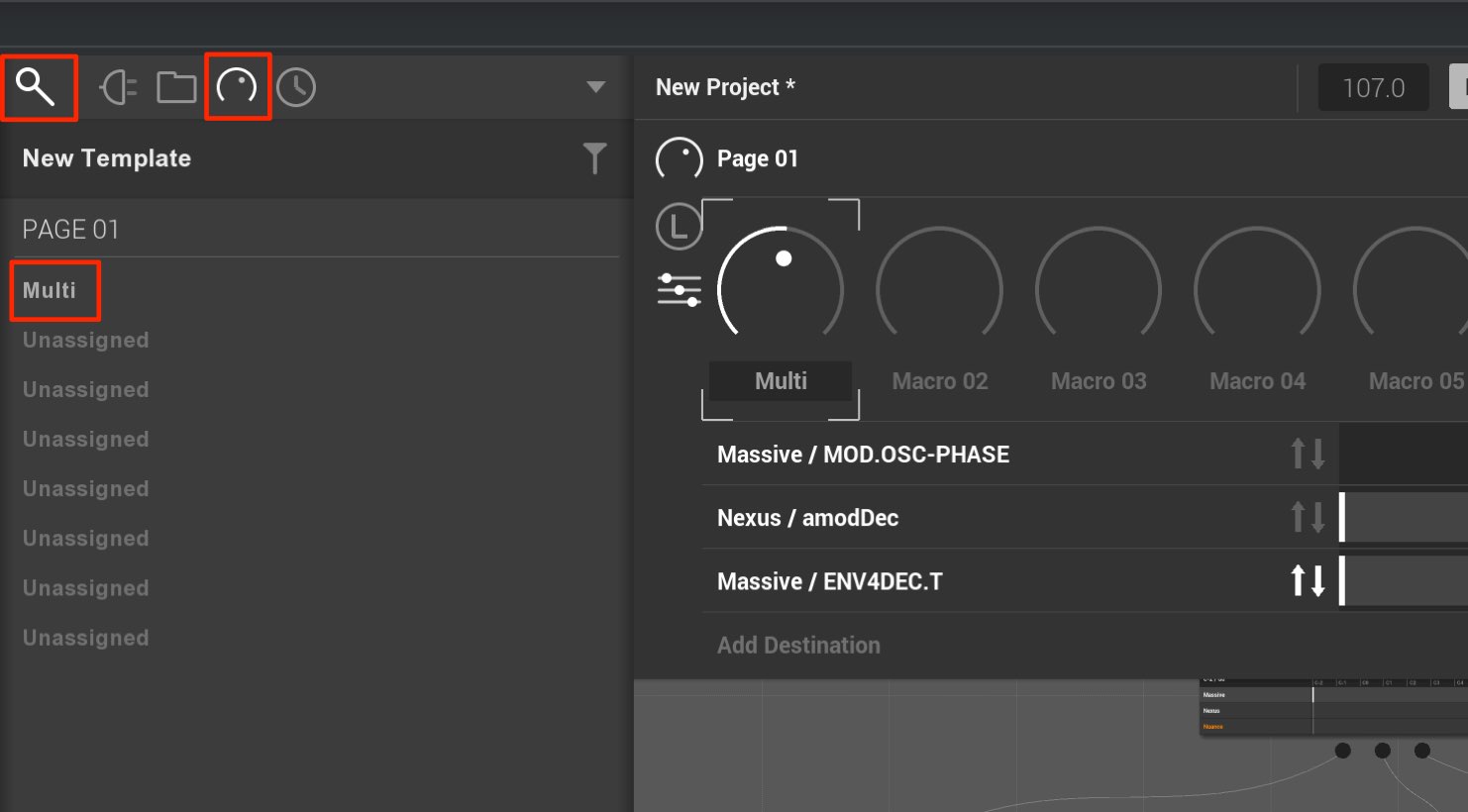
Open the browser and select the control icon.
The macro controls appear as shown.
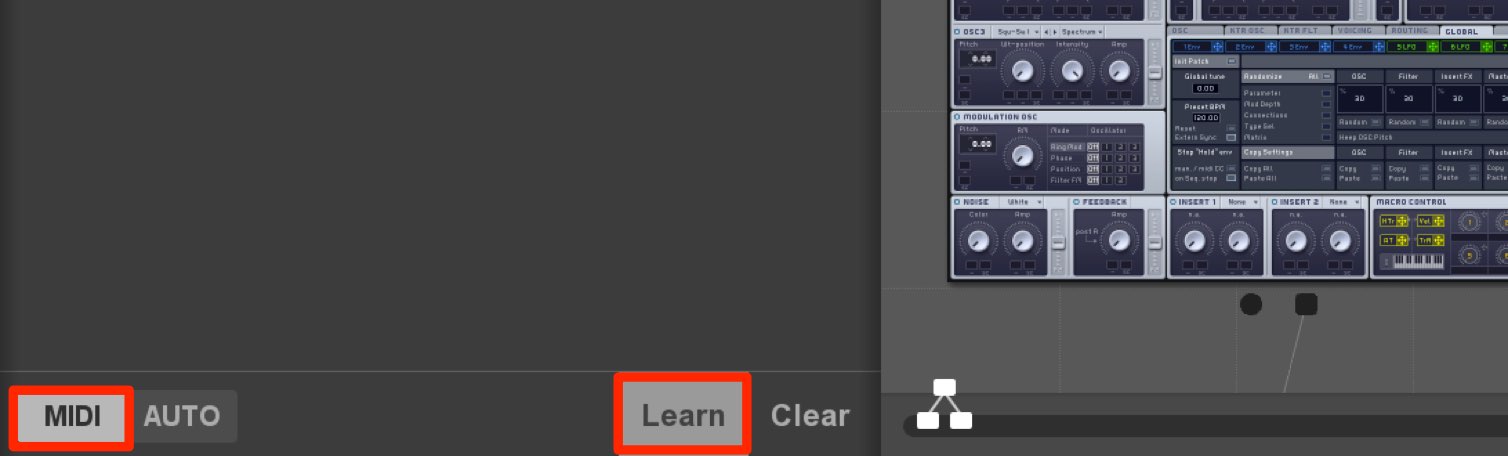
Select the “MIDI” tab and turn on “Learn” on the right.
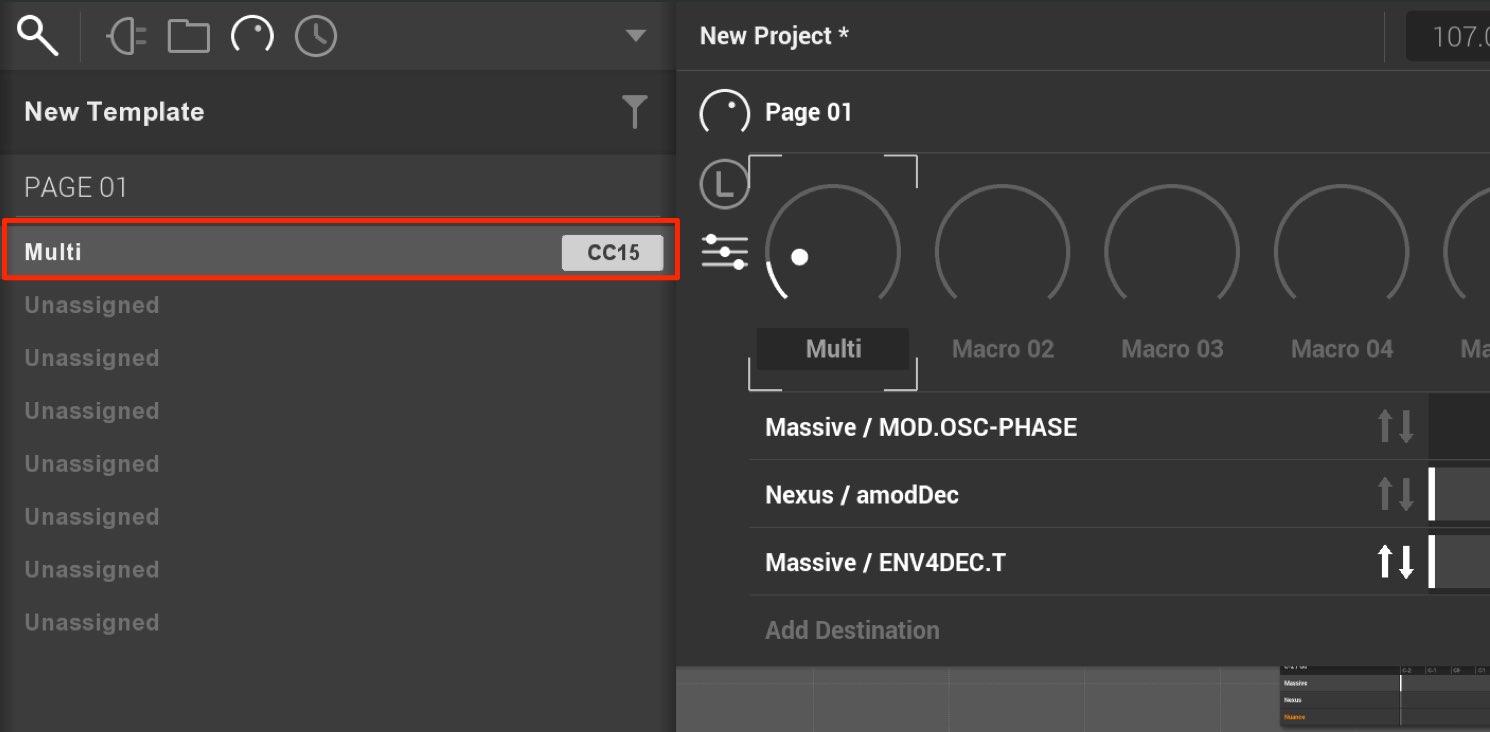
Then select the macro control you want to assign and move the desired control on your MIDI device.
When a CC appears to the right of the macro control, the assignment is complete.
Snapshots
You can record the state of all instruments, effects and macro controls and switch between states instantly.
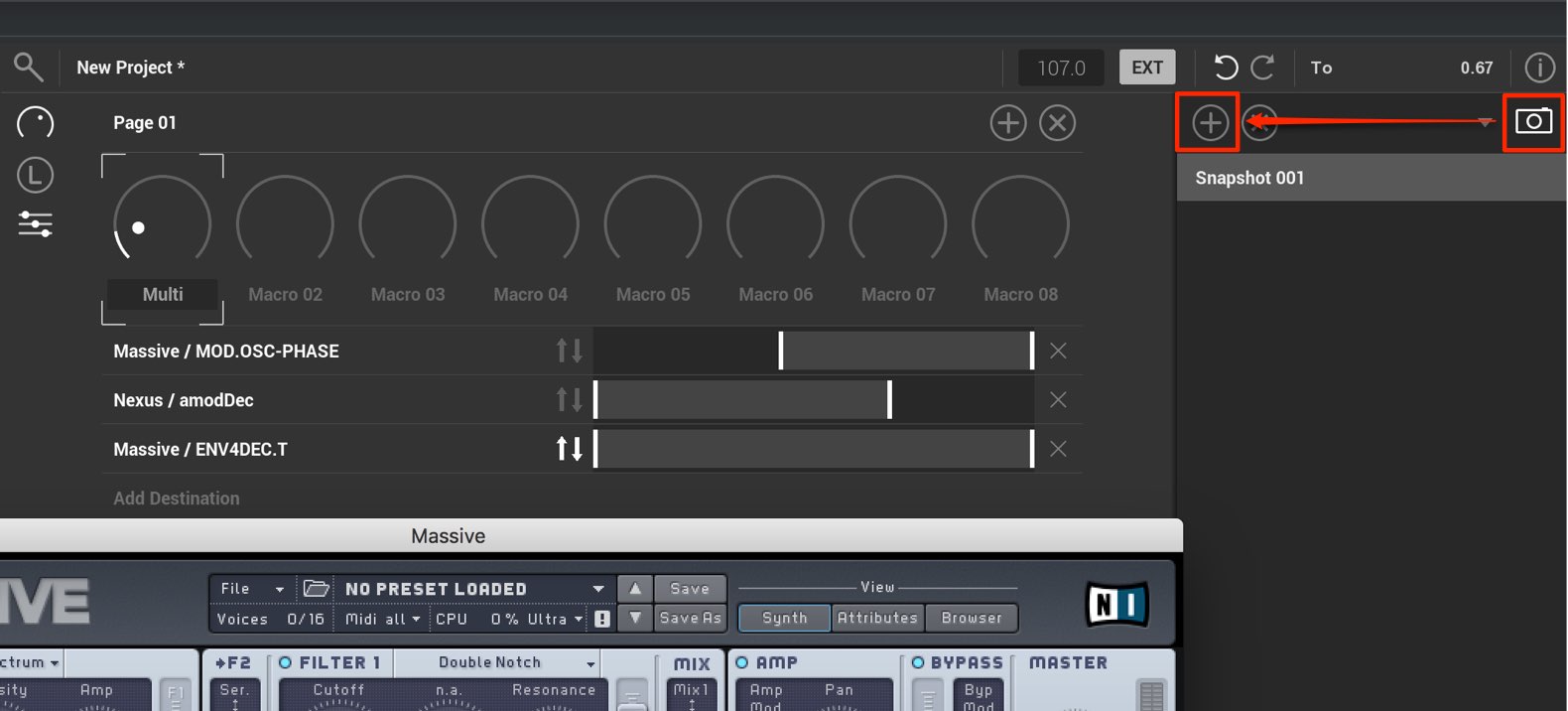
Click the camera icon in the upper right.
Set the instruments and effects as desired, then click the “+” icon to record the current state.
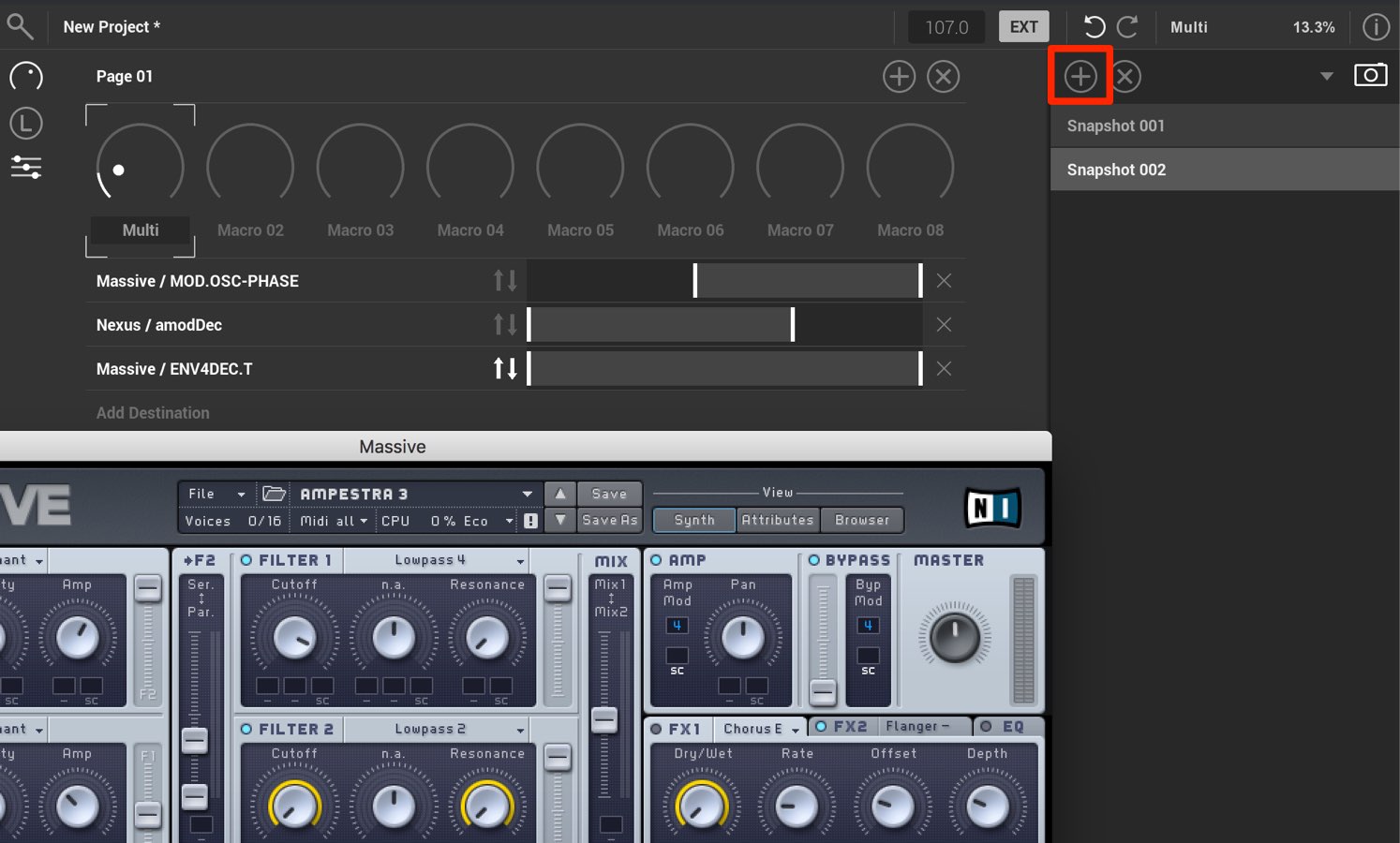
Create another configuration and click the “+” icon.
A new snapshot is created.
The setup is complete. Click a snapshot to recall its settings instantly.
This is useful for recording stages of sound design or switching live performance setups, depending on your ideas.
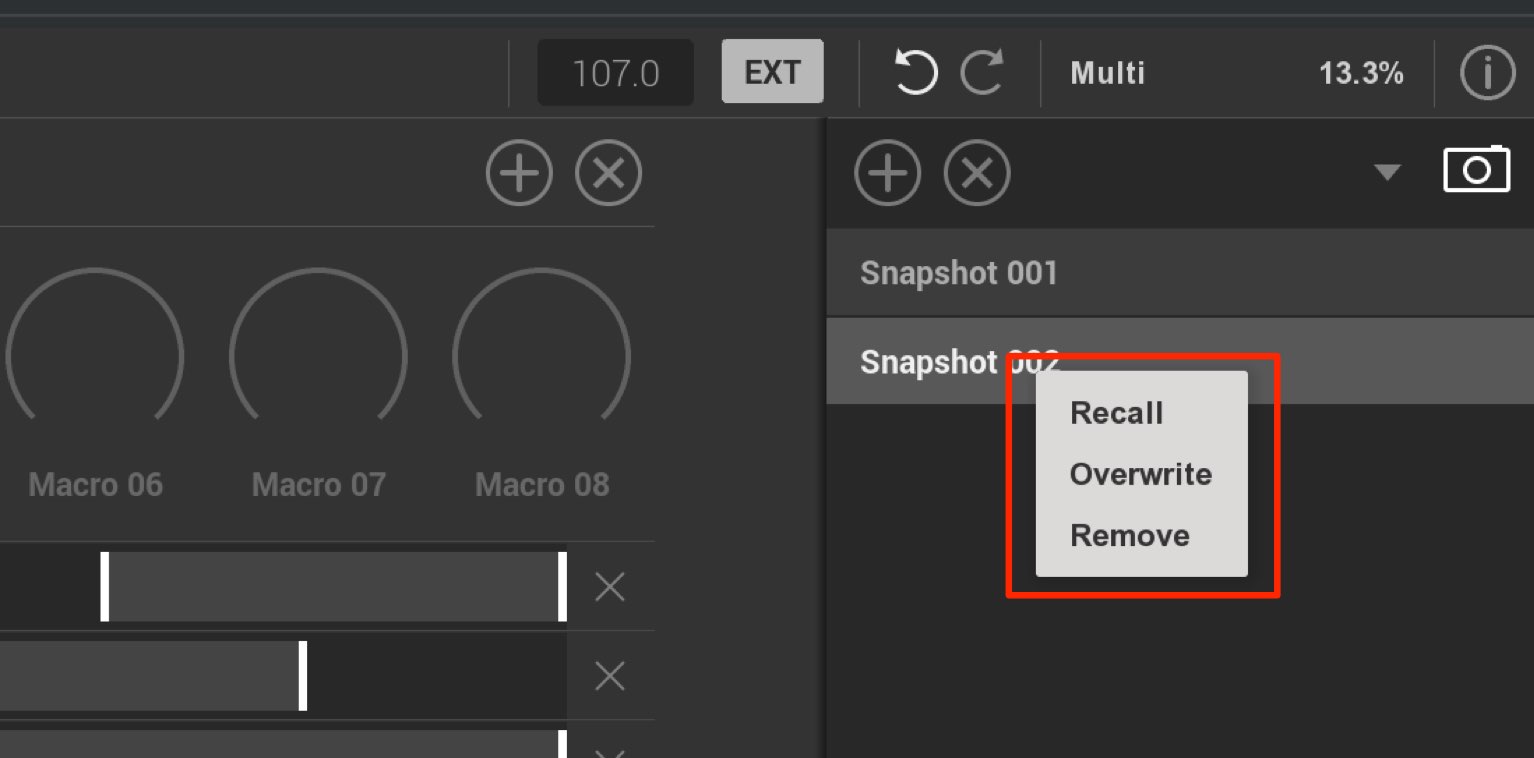
Right-click a snapshot to rename or delete it.
Saving and recalling presets
Once you have created a combination and settings you like, you can save the state as a preset.
Because it can easily be recalled in a different song, this can greatly improve your workflow.
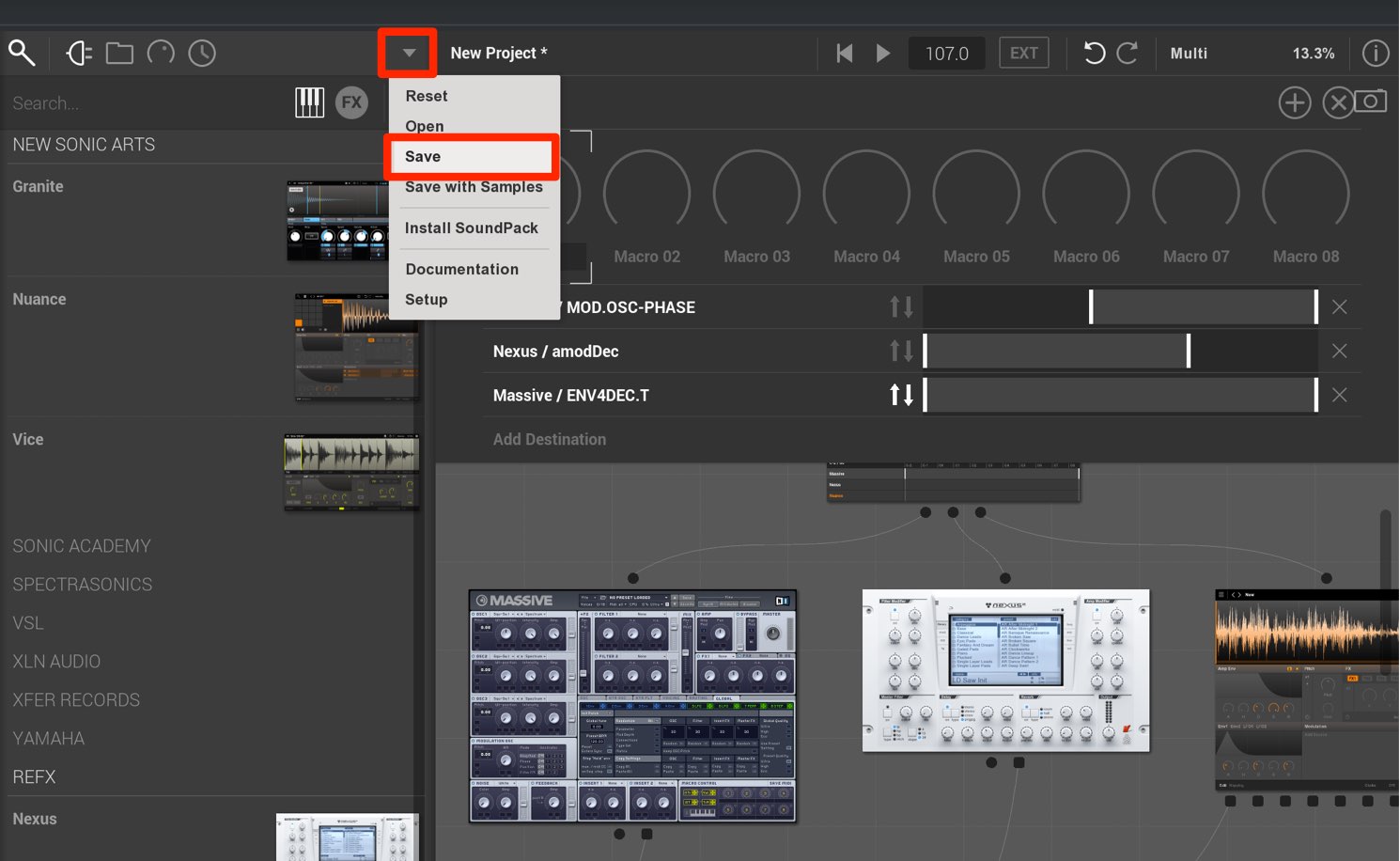
Click the menu and select “Save”.
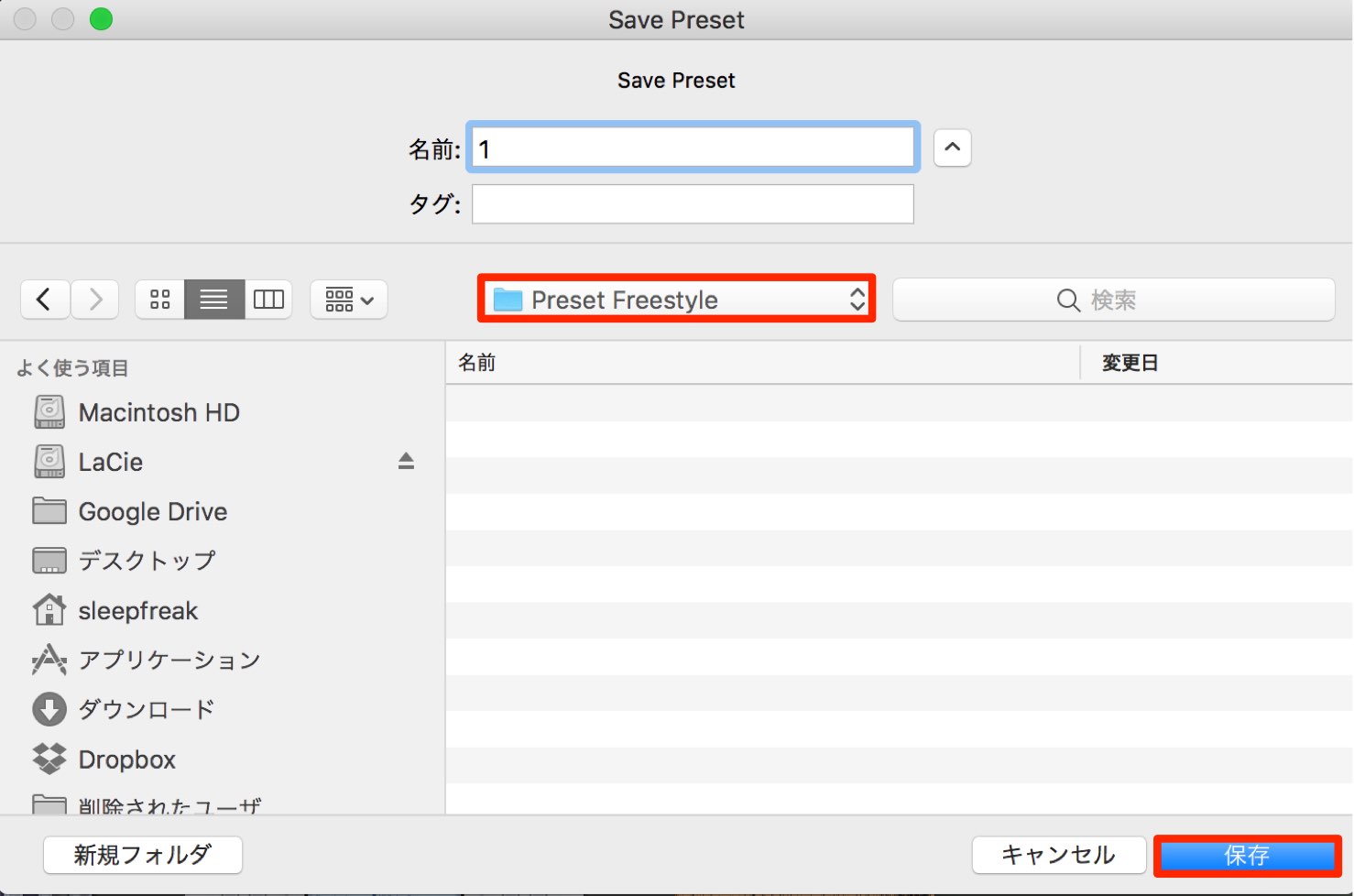
Choose a name and location and save it. A clearly named folder is useful.
The preset is now saved.
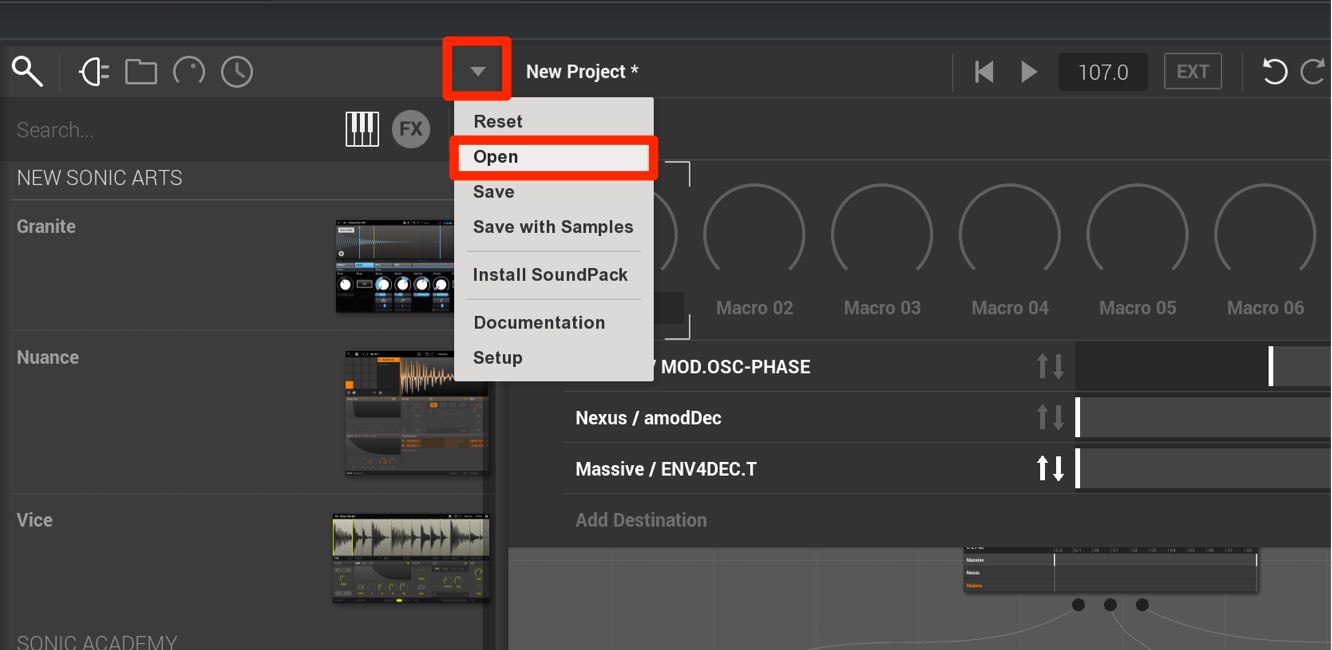
To recall it, simply select “Open” from the menu and choose the saved preset.
Frequently asked questions
Q1. Which DAWs support Freestyle?
Freestyle supports AU and can be opened in Logic. Its separate outputs can also be used with major DAWs including Pro Tools, Cubase, Ableton Live and Studio One.
Q2. Can multiple instruments be played at the same time?
Yes. Drag multiple instruments into the rack to open them, and a single MIDI input can play them simultaneously.
Q3. What is the main benefit of macro controls?
Up to eight knobs can be assigned parameters from different instruments and effects, allowing parameters across products to be controlled together. This can create dramatic sound changes in live performance.
Q4. Can I load audio files?
Yes. Loading an audio file such as a WAV into Freestyle opens New Sonic Arts’ Nuance sampler with the file loaded.
NEW ARTICLES
Latest English Articles




































































































































































































































































































































































