
Debate and litigation over the training data used by AI music services are taking place in Japan and internationally.
We produced this content with serious consideration of these issues.
We do not recommend leaving the entire task of finishing a song to AI. Instead, we aim to explain the musical knowledge and approaches needed to use AI as a starting point and then develop the music you want to make.
Create the song you have in mind: a practical workflow for using SUNO effectively

- You cannot get generative AI to create the music you imagined.
- You are unsure how to incorporate generative AI into your existing music production process.
If you are interested in AI composition but have struggled to use it as you hoped, you are probably not alone.
SUNO is an AI service that generates songs when you describe the song you want to make in text.
The result depends on how precisely you write your instructions to the AI—your prompt.
Simply considering the genre, mood, and instrumentation can bring the result closer to what you intended.
This article explains SUNO as it was in July 2026.
SUNO is updated frequently. Some steps differ between the video and article, and the interface you see may also differ depending on when you read this guide.
The features available also vary by subscription plan. This article uses the Premier Plan.
Under SUNO's terms, users may own and commercially use songs generated during an active Pro or Premier Plan subscription.
However, this ownership under SUNO's terms is separate from copyright under the law.
Be aware that AI-generated portions may not qualify for copyright protection.
Conditions for using generated songs may change with each service's terms, future court judgments, or changes in legislation.
When using songs commercially in particular, check the latest terms of use.
Suno Terms of Service (in English; updated periodically)
https://suno.com/terms-of-service
How to change the display language
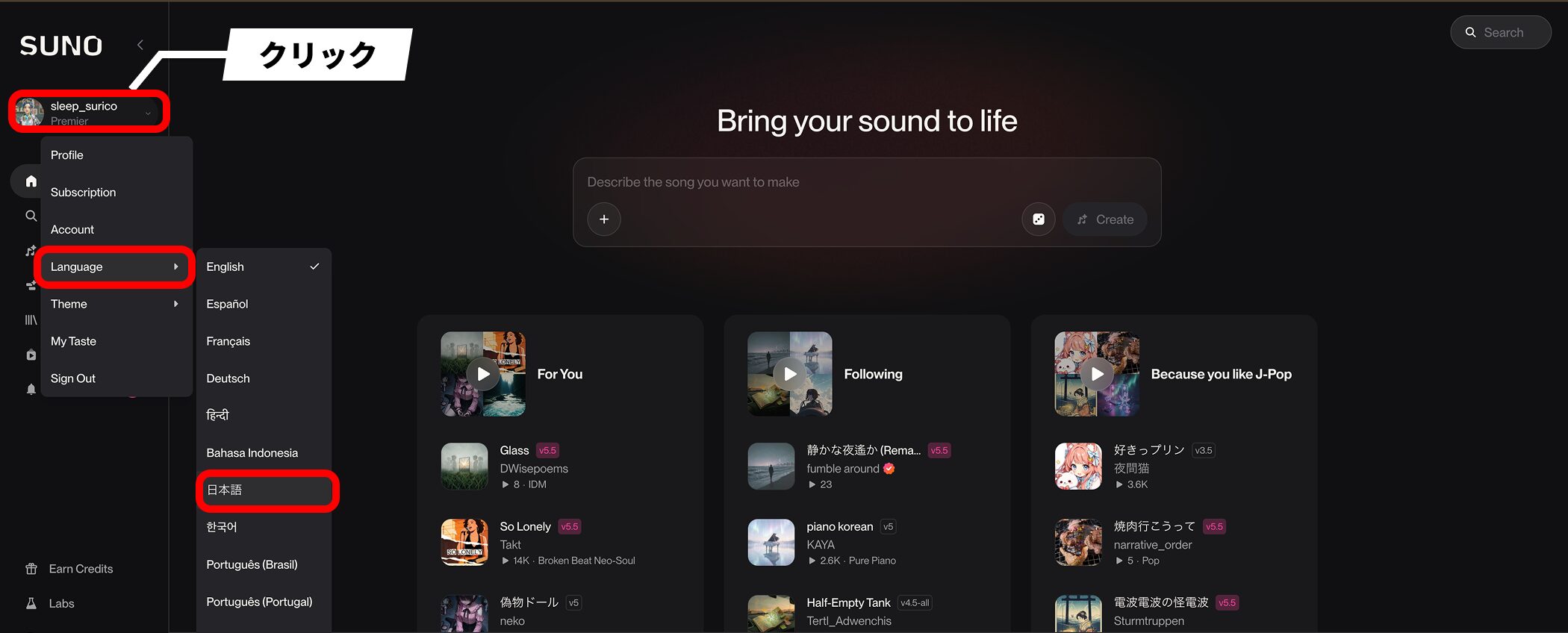
Click the account name in the upper-left corner to open the menu.
Select Japanese from Language to switch the interface to Japanese.
If you find the English interface difficult to follow, switching languages may make it easier to operate.
This guide uses the default English interface.
The Create screen and its three modes
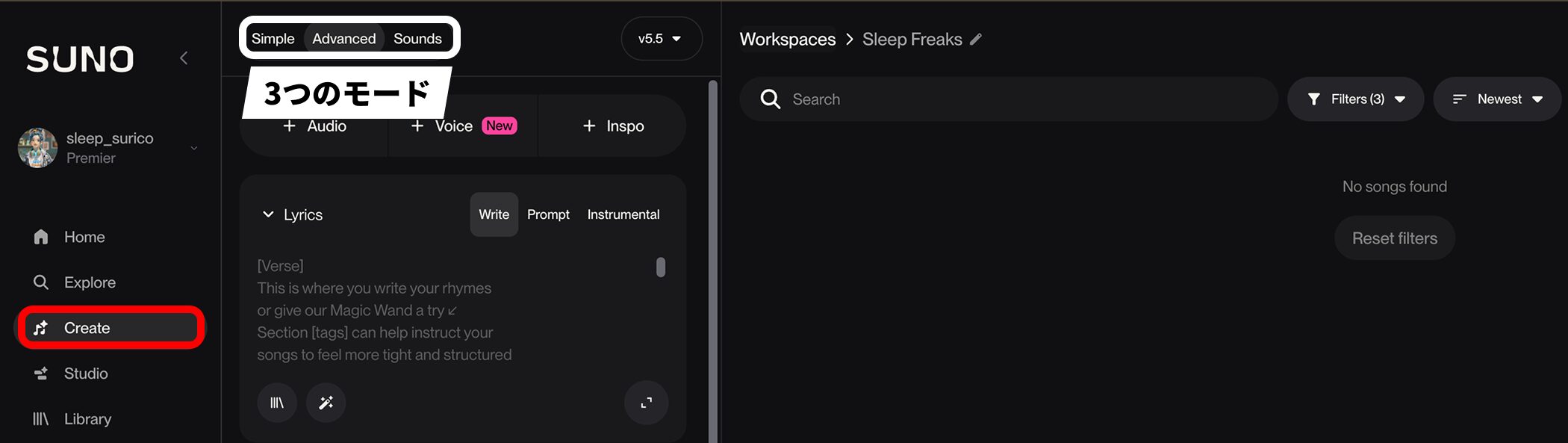
Generate songs from Create on the left side of the screen.
The Create screen offers three modes for choosing how to make your music.
- Simple: quickly generate a song by entering a description of what you want to make.
- Advanced: specify lyrics and styles yourself in more detail.
- Sounds: generate sound materials such as one-shots and loops.
This article uses Advanced mode, which makes it easier to shape a song in detail.
STEP 1: Prepare your Lyrics
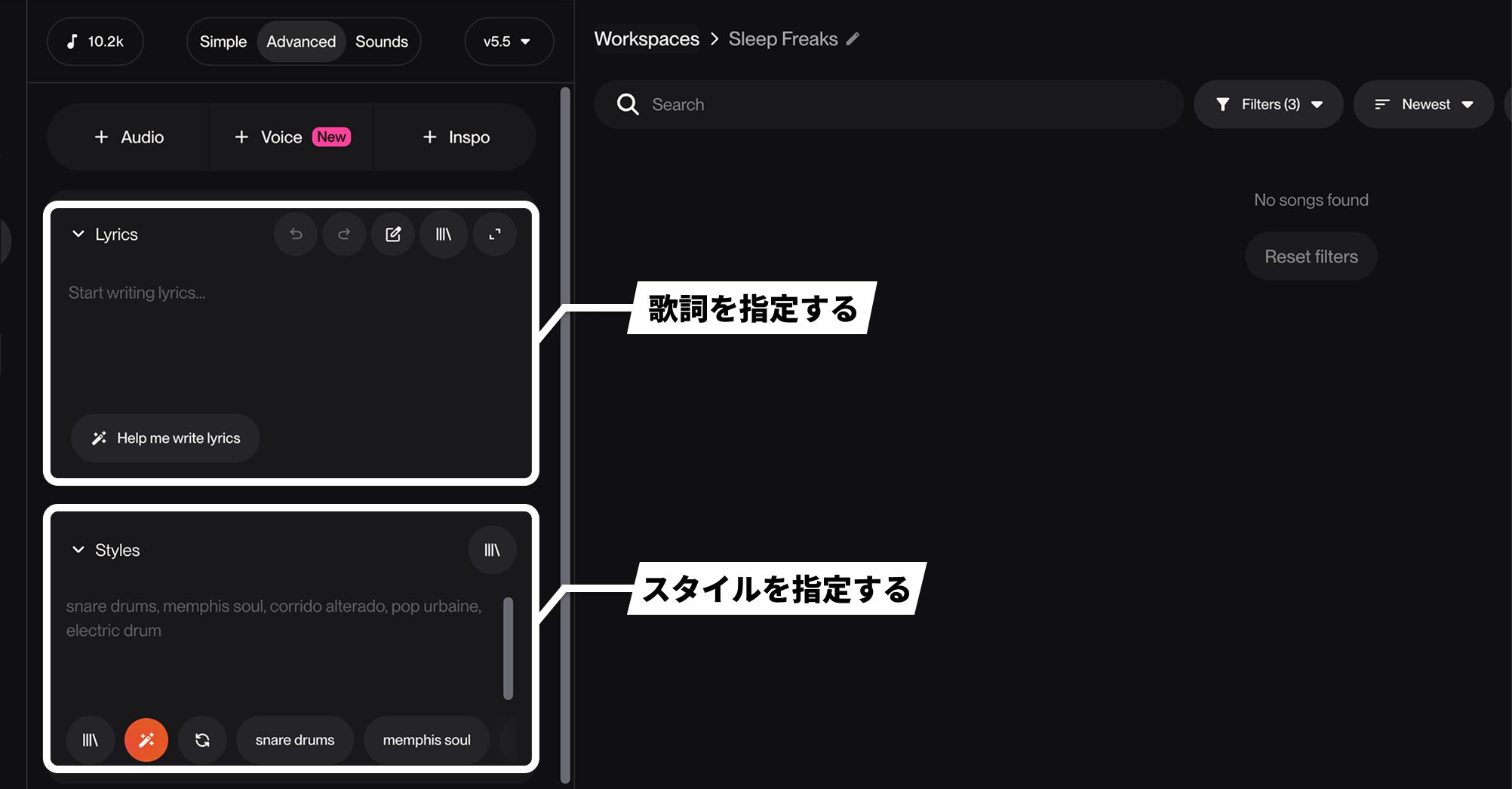
SUNO's song creation process centers on two input fields: Lyrics at the top and Styles below.
If you want to generate a song with vocals, start by preparing the lyrics.
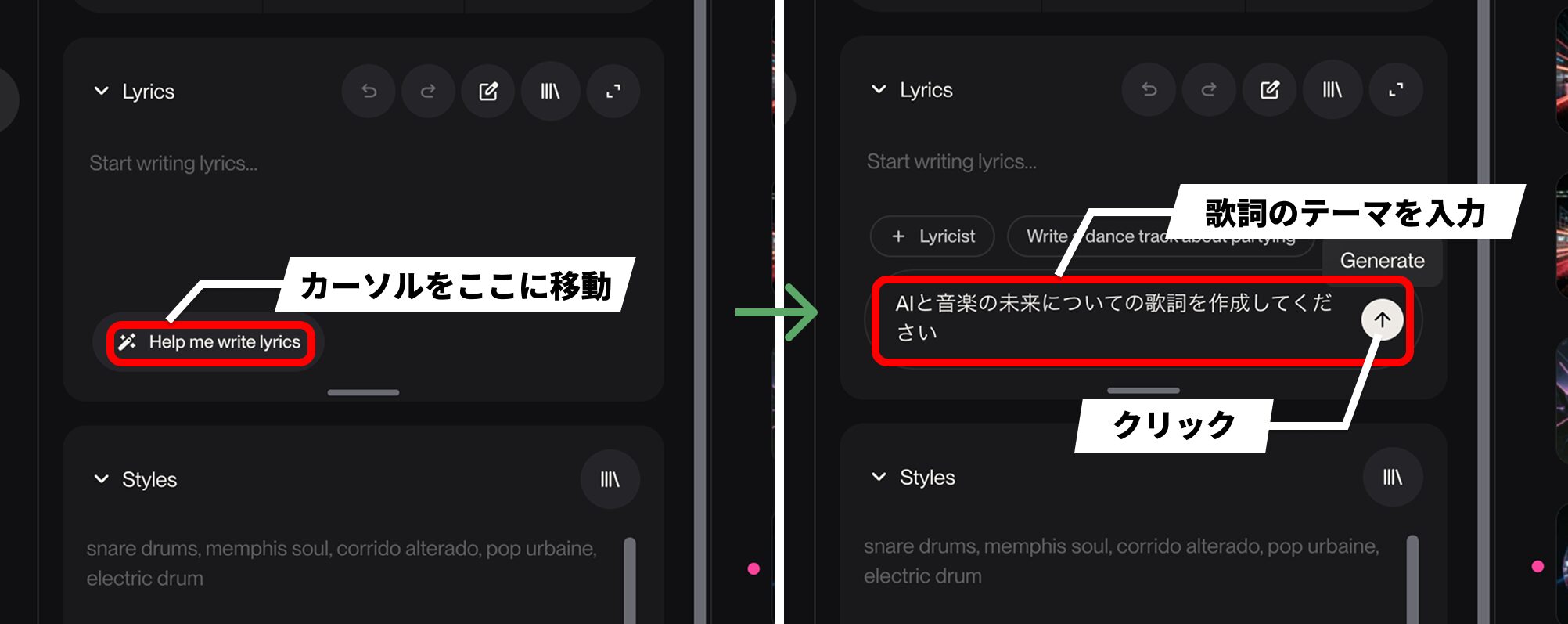
You can enter any lyrics directly in Lyrics. If writing them yourself is difficult, you can also have them generated automatically.
Hover over Help me write lyrics to reveal an input field. Enter a lyrical theme and click the send button (Generate).
Enter the theme in Japanese for Japanese lyrics, or in English for English lyrics.
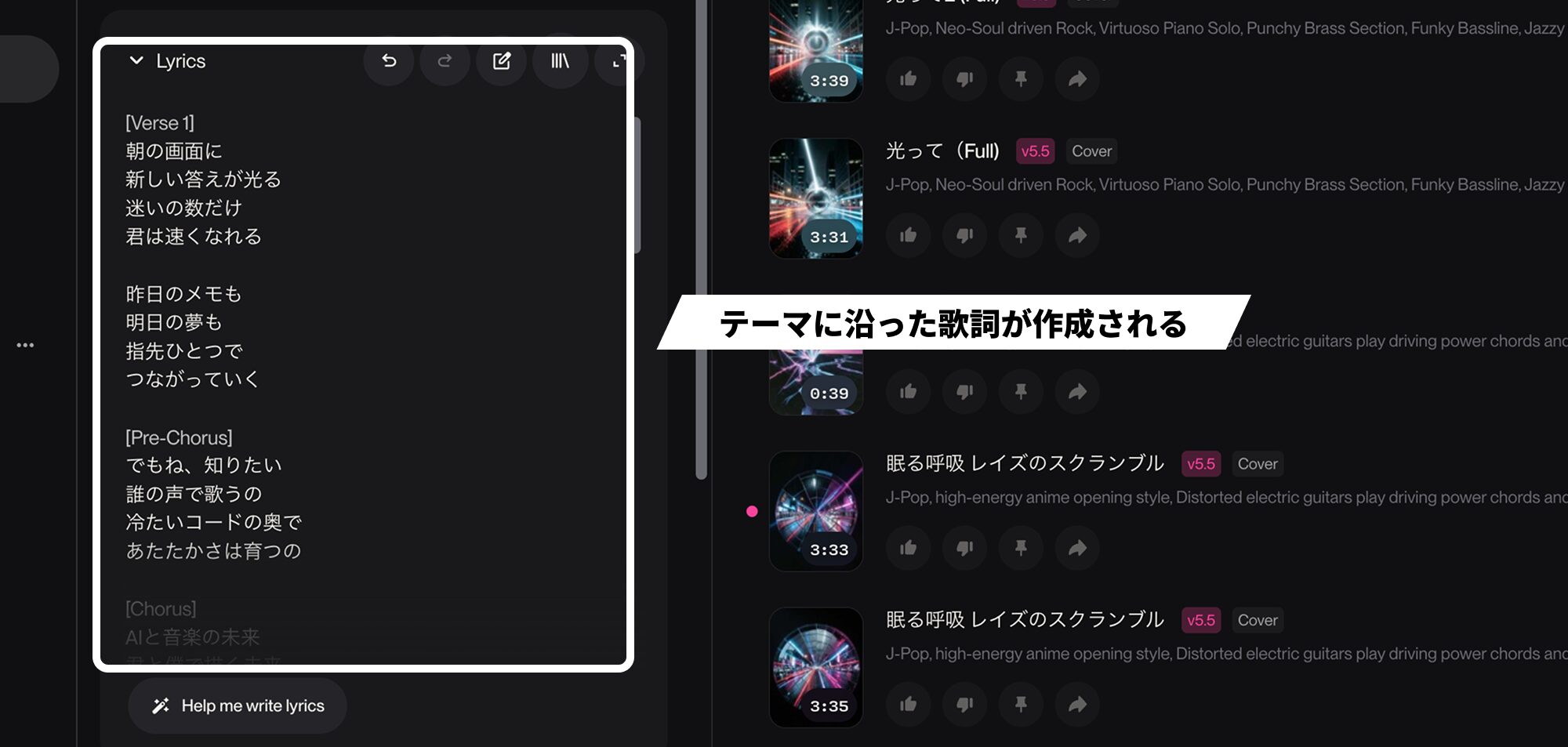
Lyrics based on your theme are generated and inserted automatically.
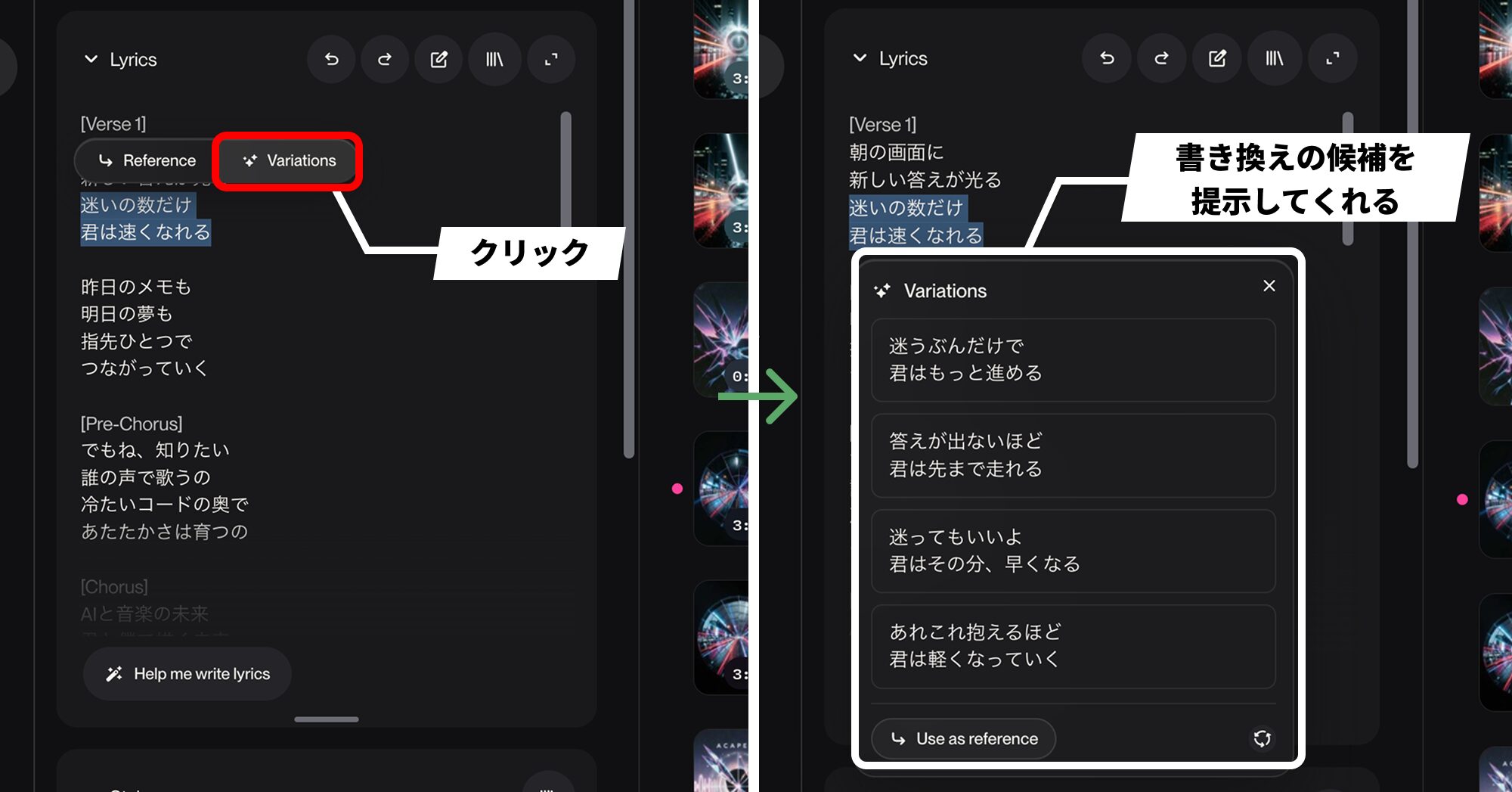
You can edit the text directly afterward. Alternatively, select the passage you want to change and click Variations to see suggested rewrites.
STEP 2: Set the direction with Styles
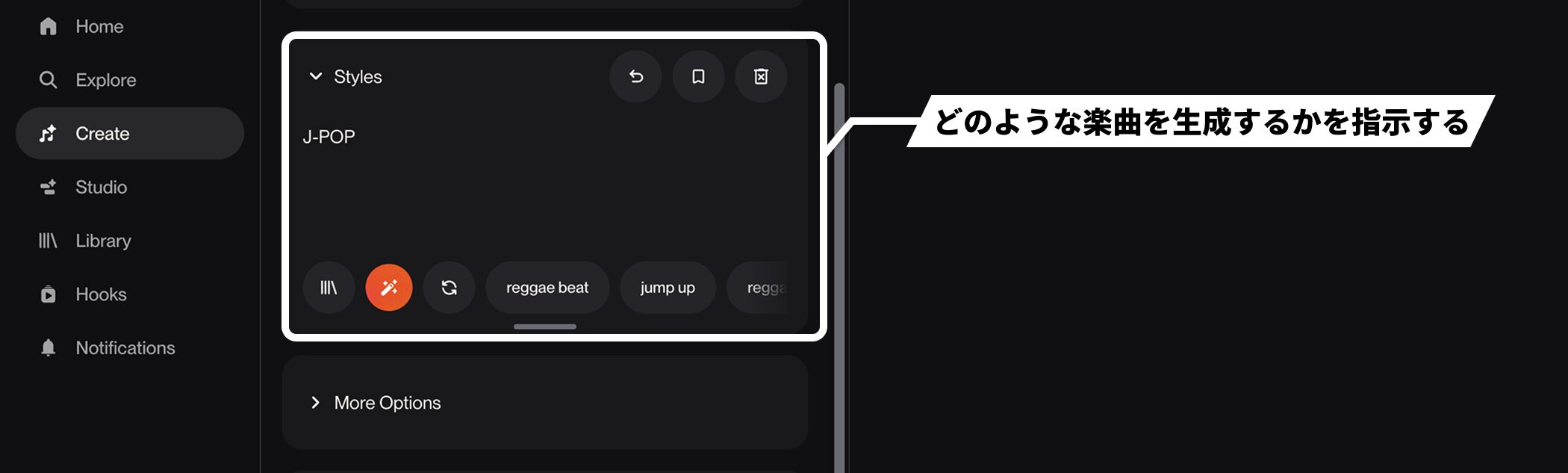
The prompt you enter in Styles is the biggest factor in shaping the result.
Here, a prompt means text that tells the AI what kind of song to generate.
For example, J-POP alone can generate a song, but for a more specific result, add keywords such as the BPM (tempo) and instruments.
Write the genre, then BPM, then instruments
There is no fixed rule for writing a prompt, but ordering elements by their influence on the whole song makes it easier to organize.
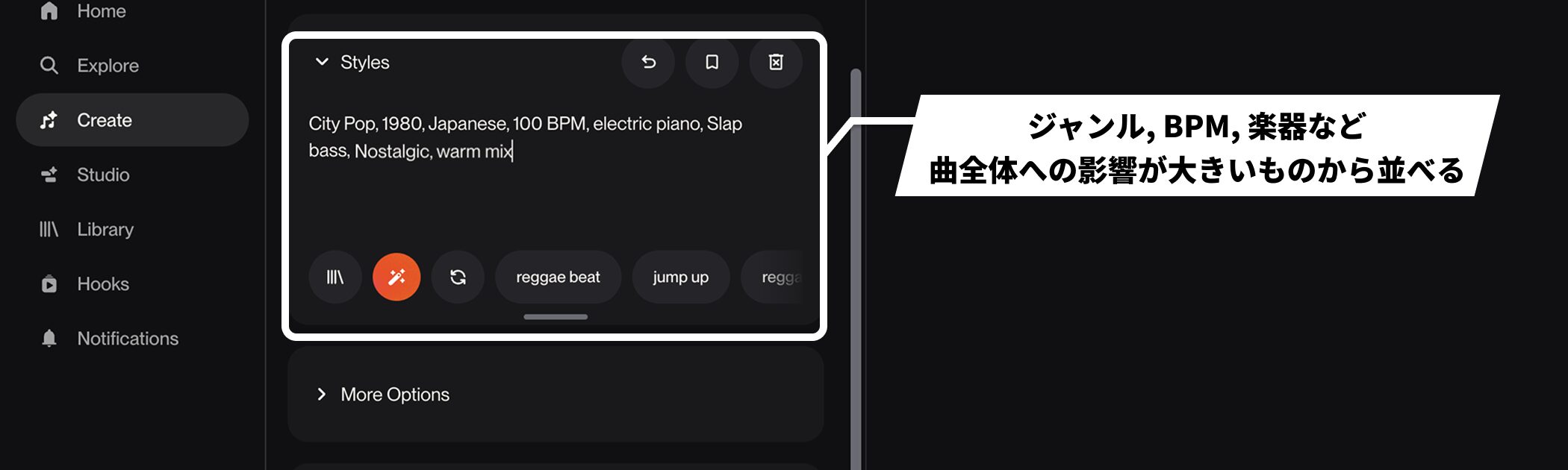
Start with the genre, follow with the BPM, then add more specific instructions such as instruments: separate each keyword with a comma and a space.
BPM is particularly likely to be followed closely, so include it if you have a reasonably clear tempo in mind.
- Genre: City Pop (adding a country or era, as in 1980, Japanese, can make the direction more precise).
- Tempo: both BPM100 and 100 BPM are recognized.
- Instruments: specify particular instruments or playing techniques, such as electric piano or Slap bass.
- Mood / mix: Nostalgic, warm mix, and similar terms.
Specific sound names such as Rhodes Piano or TR-808 can also be taken into account.
The more musical knowledge you have, the more specific your prompt can be, making it easier to aim for the intended direction. People who already produce music in a DAW have an advantage, it seems.
English communicates nuances more clearly
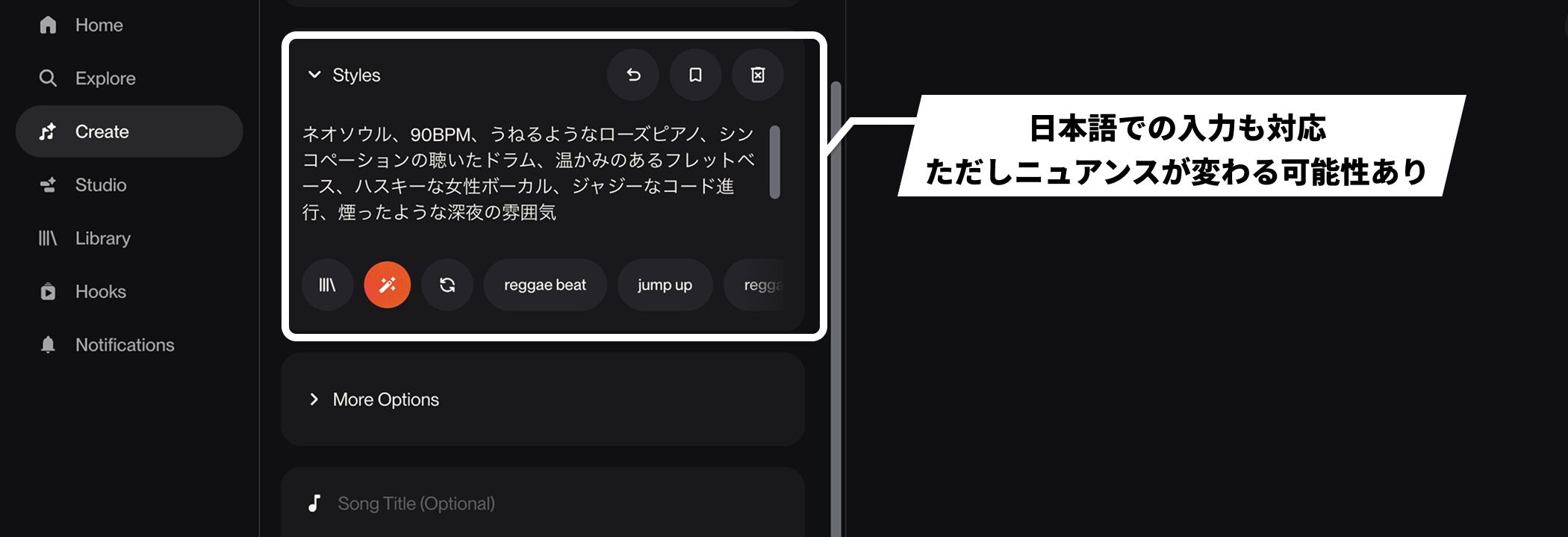
You can enter prompts in Japanese, and they are recognized to some extent when generating music.
However, SUNO was developed in the English-speaking world, and its associations between sounds and words center on English.
To communicate subtle nuances precisely, writing in English tends to work better.
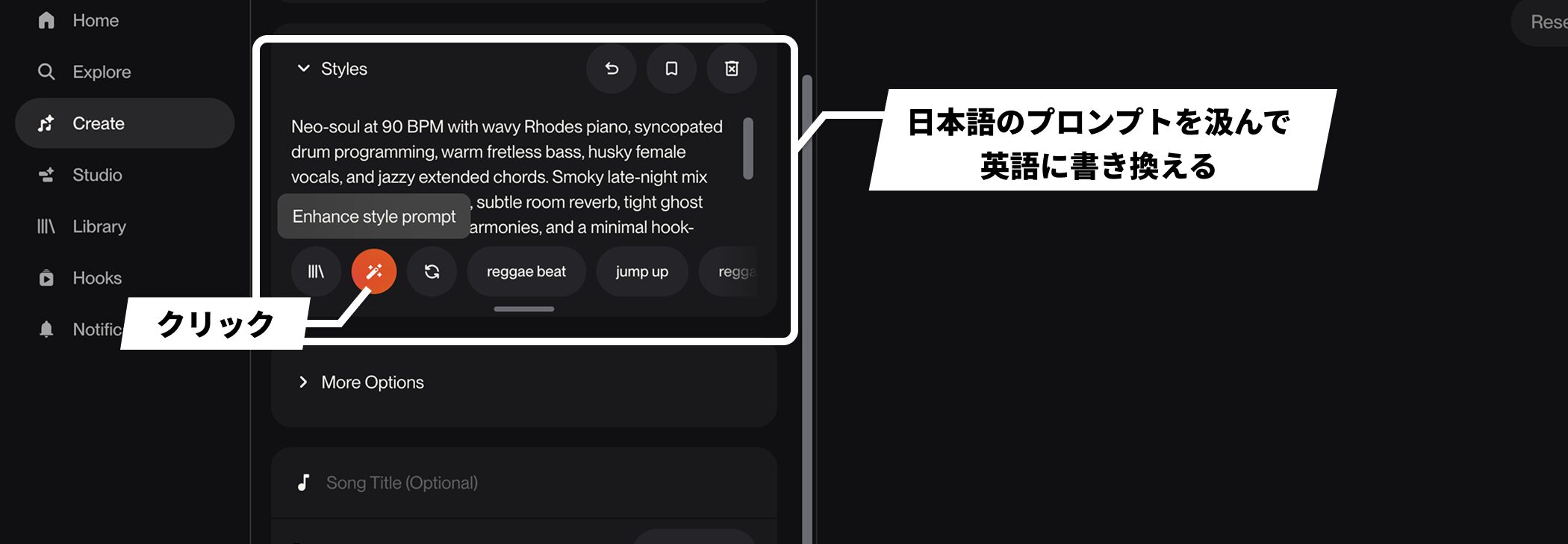
If you find English difficult, Enhance Style Prompt can help.
Rather than simply translating Japanese instructions, it interprets their context and rewrites them in English based on the song you seem to want.
It is useful, but there are two things to watch for.
First, it may add elements you did not write.
For that reason, we recommend translating the rewritten prompt back to check its meaning.
Second, running it overwrites all of the original Japanese text.
If you want to keep your Japanese instructions, copy them elsewhere first.
STEP 3: Generate songs and choose one
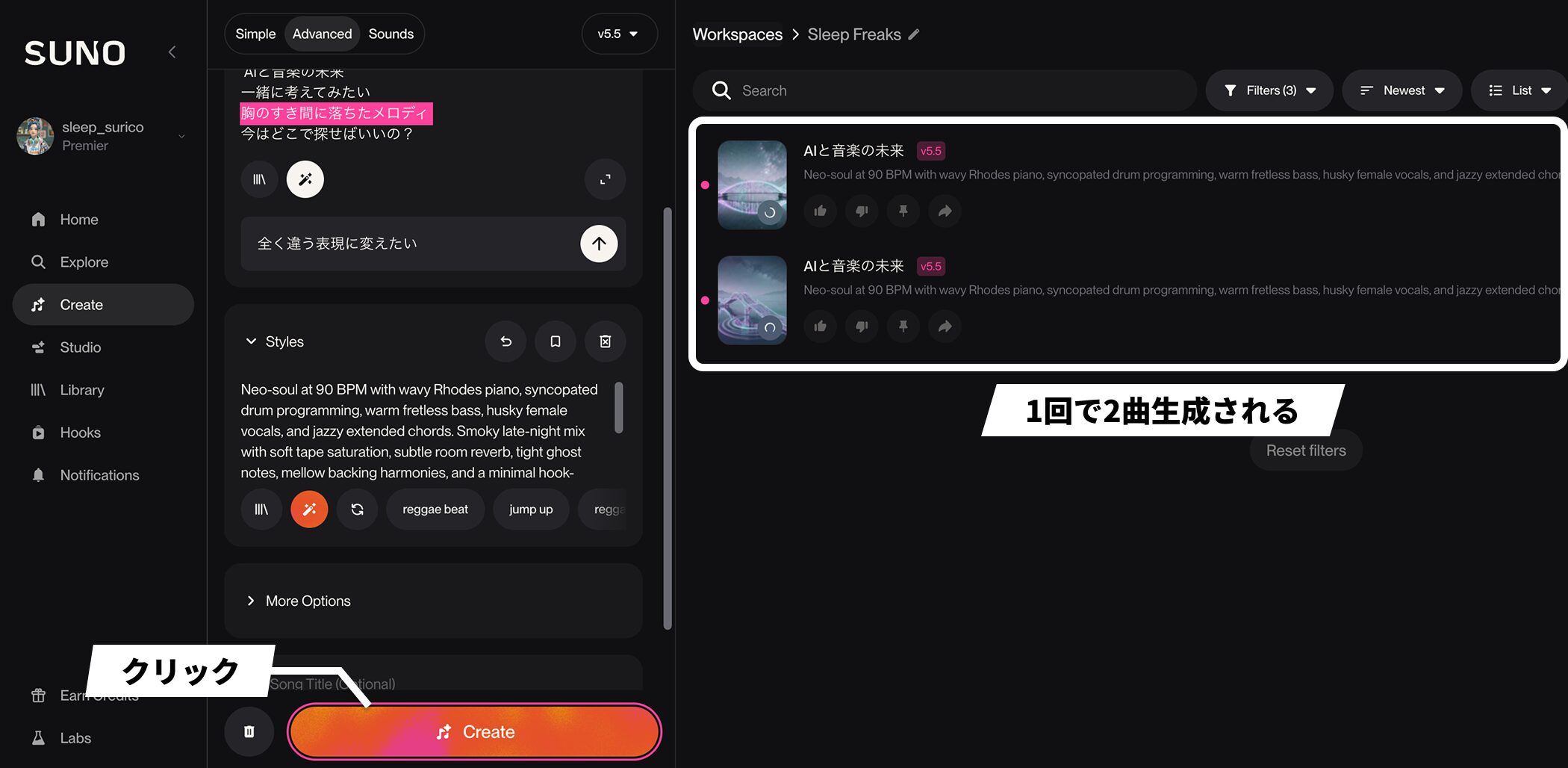
Once Lyrics and Styles are ready, press Create to generate two songs in one run.
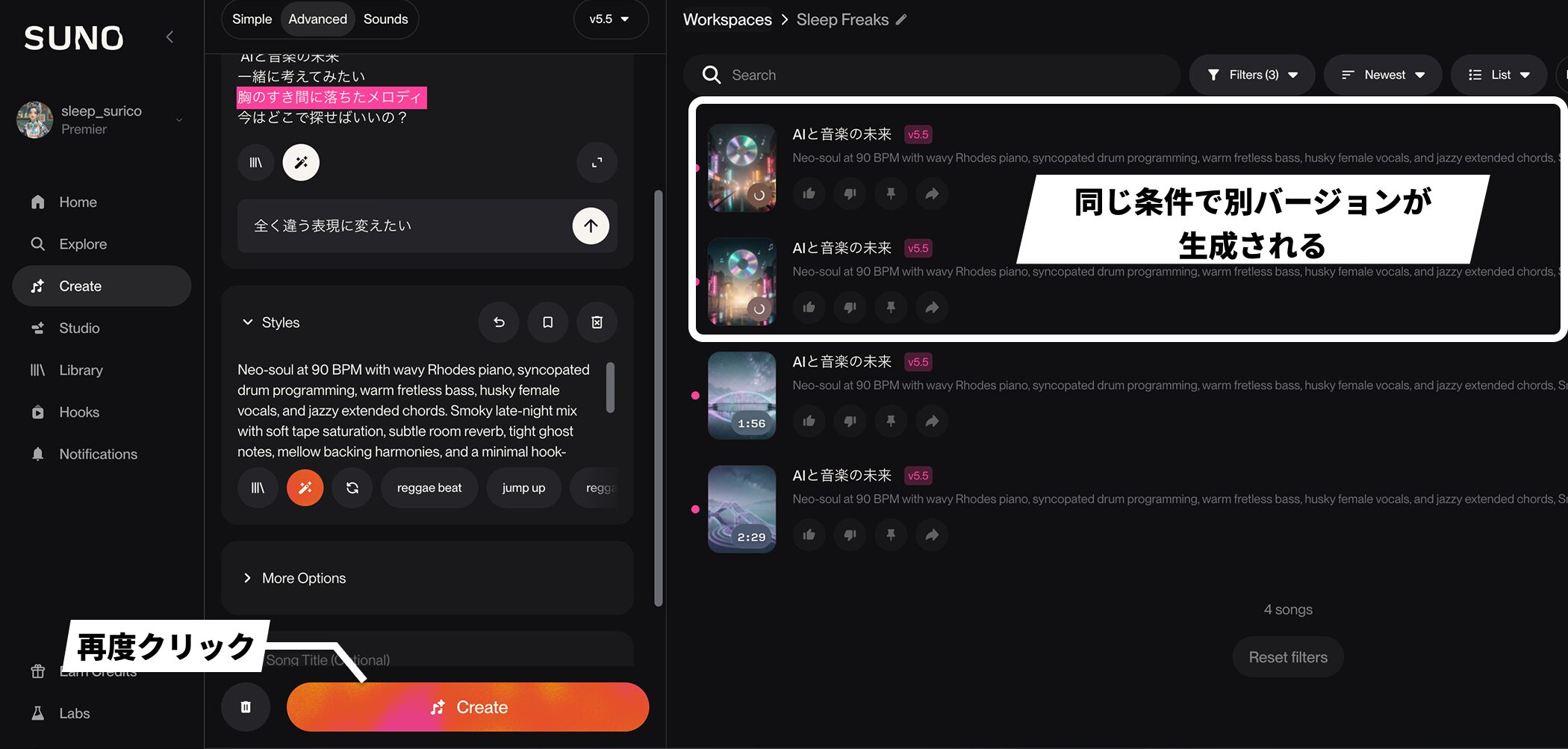
The result changes each time you press the button: even the same settings produce different versions.
More focused Styles prompts tend to produce results closer to your goal, but there is an element of chance. Generating several options and choosing among them is the basic workflow.
Generation consumes points according to your subscription plan.
Advanced technique 1: Shape the song section by section
You can also request changes in energy, such as a bigger chorus or a quieter verse.
These instructions go in the Lyrics field, rather than Styles.
Section tags
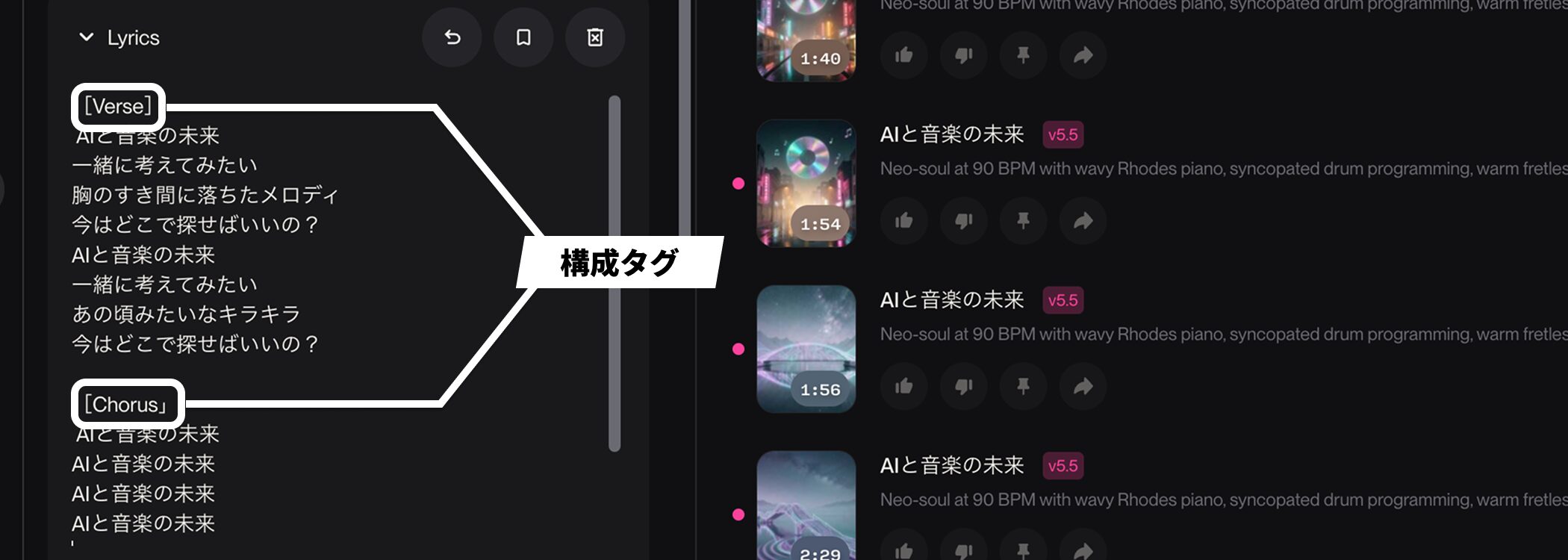
When SUNO creates lyrics, it automatically inserts section tags such as [Verse] and [Chorus].
Adding section tags to your own lyrics also gives the AI information to consider when generating the song.
Here are the basic section tags.
| Tag | Role |
|---|---|
| [Intro] | The intro: establishes the beginning of the song. |
| [Verse] / [Verse 1] / [Verse 2] | The verse: develops the story or scene through the lyrics. |
| [Pre-Chorus] | The pre-chorus: builds energy and tension before the chorus. |
| [Chorus] | The chorus: the main, catchiest, repeated section. |
| [Post-Chorus] | A hook, responses, synth riff, or similar material after the chorus. |
| [Bridge] | The bridge: creates contrast by changing the harmony, lyrics, or arrangement. |
| [Final Chorus] | The final chorus: use when you want a bigger, fuller chorus than before. |
| [Outro] | The outro: lingering atmosphere, a fade-out, or a closing phrase. |
Japanese section names such as A-melo, B-melo, and sabi may also work, but English tags are a safer choice for consistent results.
The following tags help when you want to add instrumental sections or other changes in energy.
| Tag | When to use it |
|---|---|
| [Instrumental] | An instrumental section without vocals. |
| [Interlude] | A short transition or a bridge-like instrumental passage. |
| [Solo] | A guitar, synth, saxophone, or other solo. |
| [Break] | Remove some instruments to create a change. |
| [Breakdown] | Drop the drums or bass to create a calmer section. |
| [Build] / [Build-Up] | Build excitement before a drop or chorus. |
| [Drop] | The release of energy in EDM, trap, future bass, and similar styles. |
| [Hook] | A short, memorable, repeated phrase. |
| [Refrain] | A phrase repeated at the end of sections or elsewhere. |
It helps to treat section tags not as commands that are guaranteed to be followed, but as markers that communicate the song's structure and development to SUNO.
Start with the basic patterns, then add more advanced tags if the arrangement feels lacking. This approach tends to be more consistent.
Add characteristics to section tags
Writing short English descriptions of volume, vocal delivery, instrumental density, or mood inside a section tag or at the start of a section can make the result more closely match your intention.
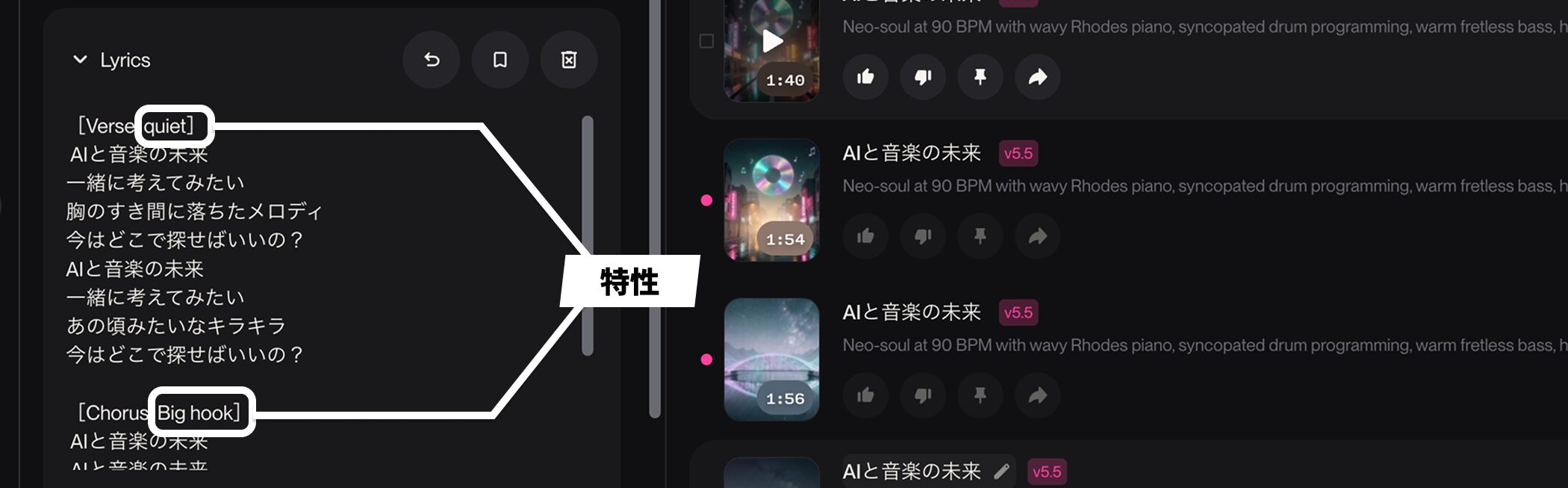
For example, add a short English description such as [Verse: quiet] for a quieter verse, or [Chorus: powerful] or [Chorus: big hook] for a bigger chorus.
These characteristics are not guaranteed to be reflected either, so adjust the wording while listening to the results.
Start the song with the chorus
To start a song with its chorus, keep the lyrics unchanged and move the Chorus section to the beginning.
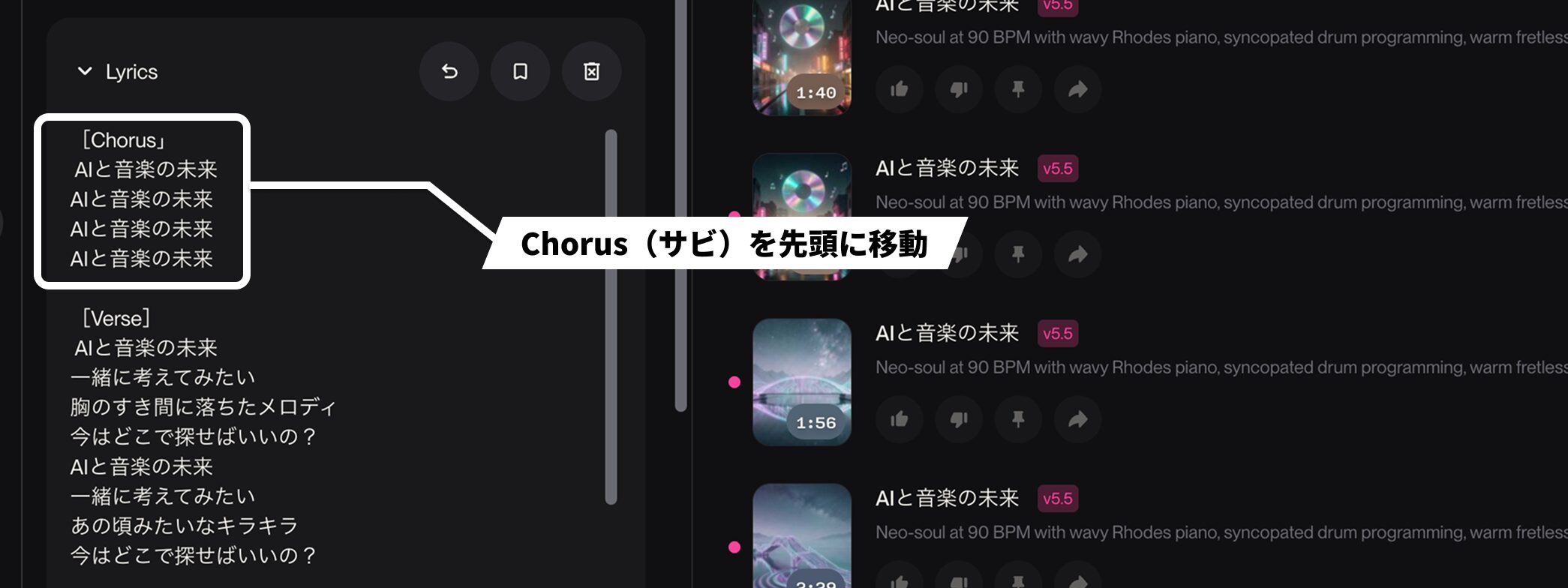
In our test, SUNO kept the instrumentation relatively sparse even with a chorus opening and adjusted it into a natural, familiar pattern. It did not tend to produce an implausible structure.
Advanced technique 2: Fine-tune with More Options
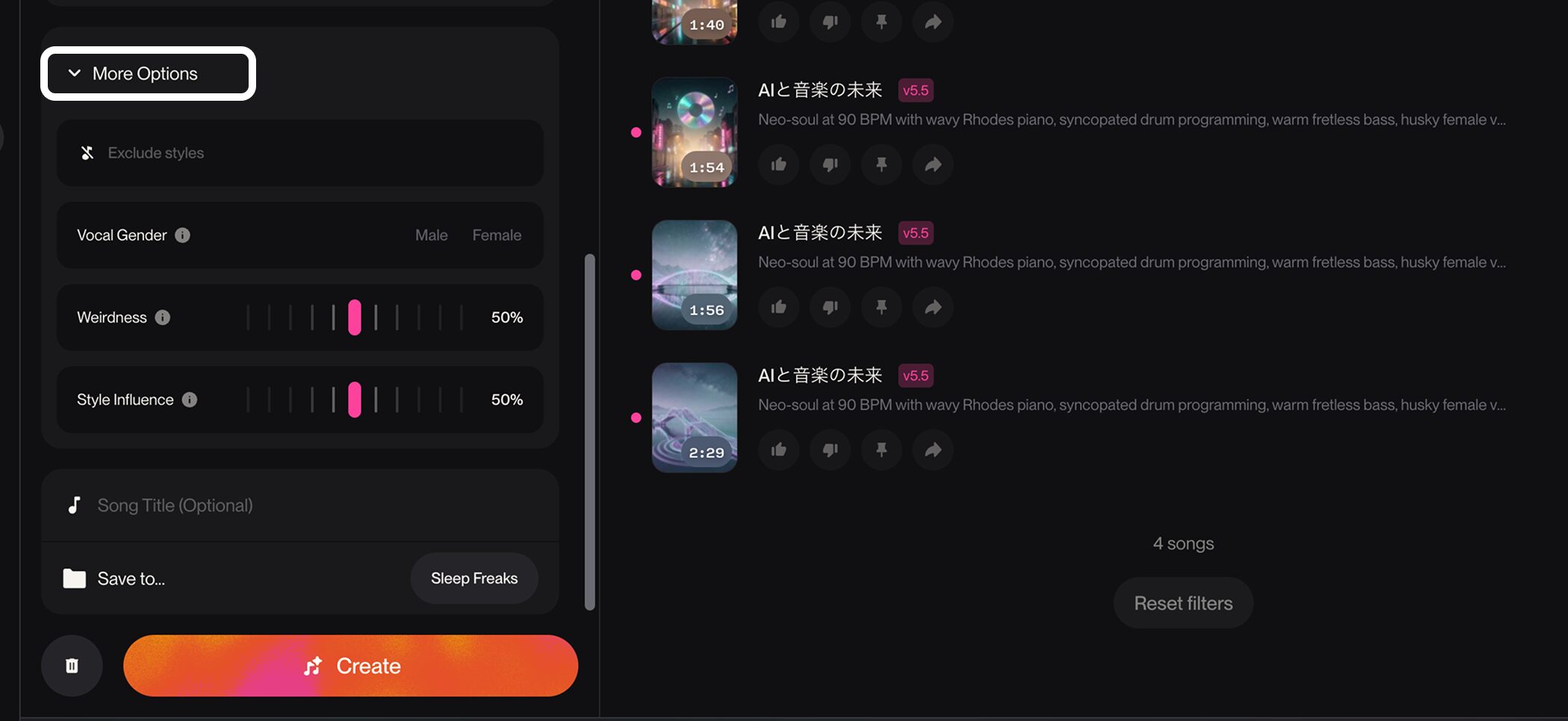
More Options provides additional controls for shaping the generation in greater detail.
Elements to exclude (Exclude Styles)
This feature specifies elements you want to leave out of the generated song.
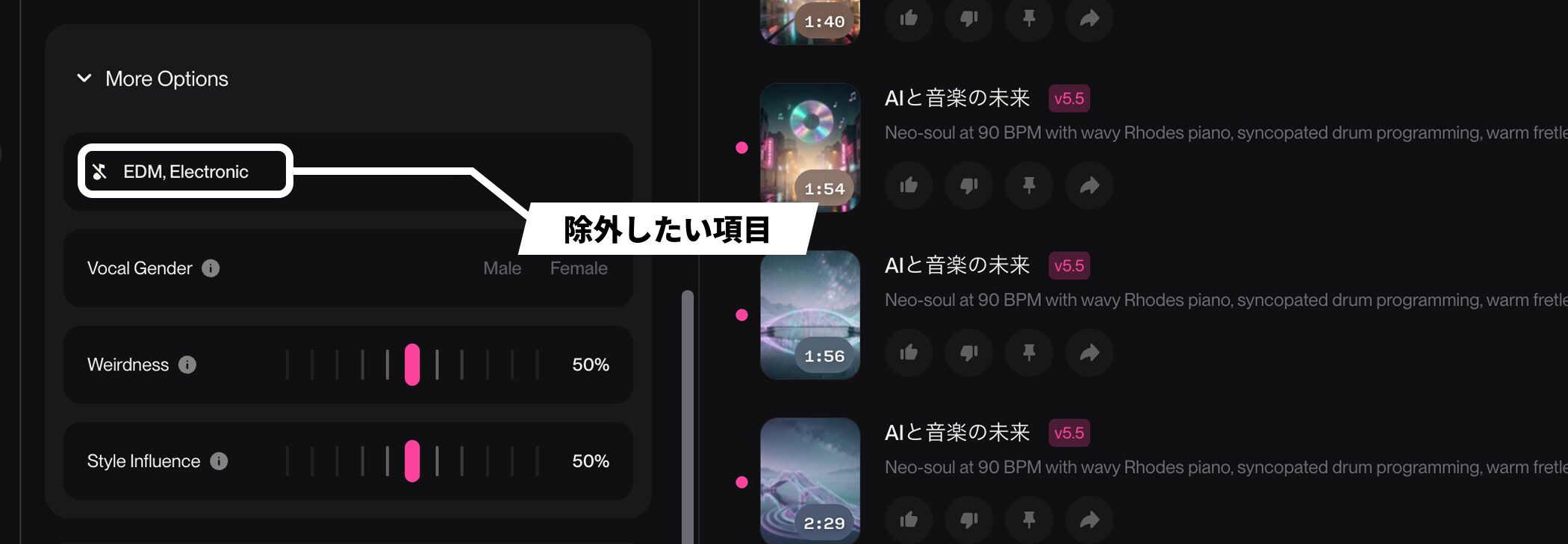
For example, if you specify J-POP in Styles but the result sounds too much like EDM, entering EDM or Electronic can reduce those elements.
It also works for instruments: entering Piano or Guitar makes an arrangement without that instrument more likely.
Listen to the result, then remove unwanted elements afterward to fine-tune it.
Vocal gender (Vocal Gender)
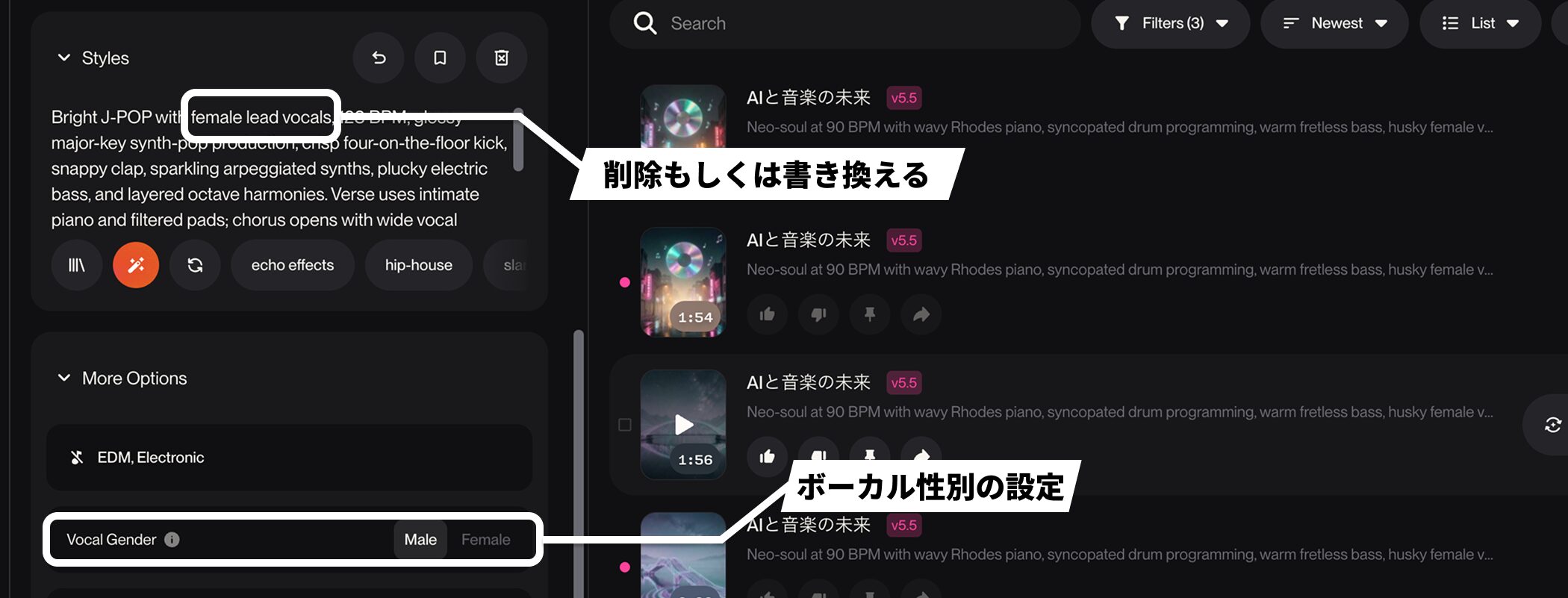
You can set the gender of the vocals.
Even if you select Male in Vocal Gender, an instruction such as female lead vocals in Styles can create conflicting instructions that may not communicate your intention.
When specifying gender with this feature, remove or rewrite gender instructions in Styles.
Unusualness (Weirdness)
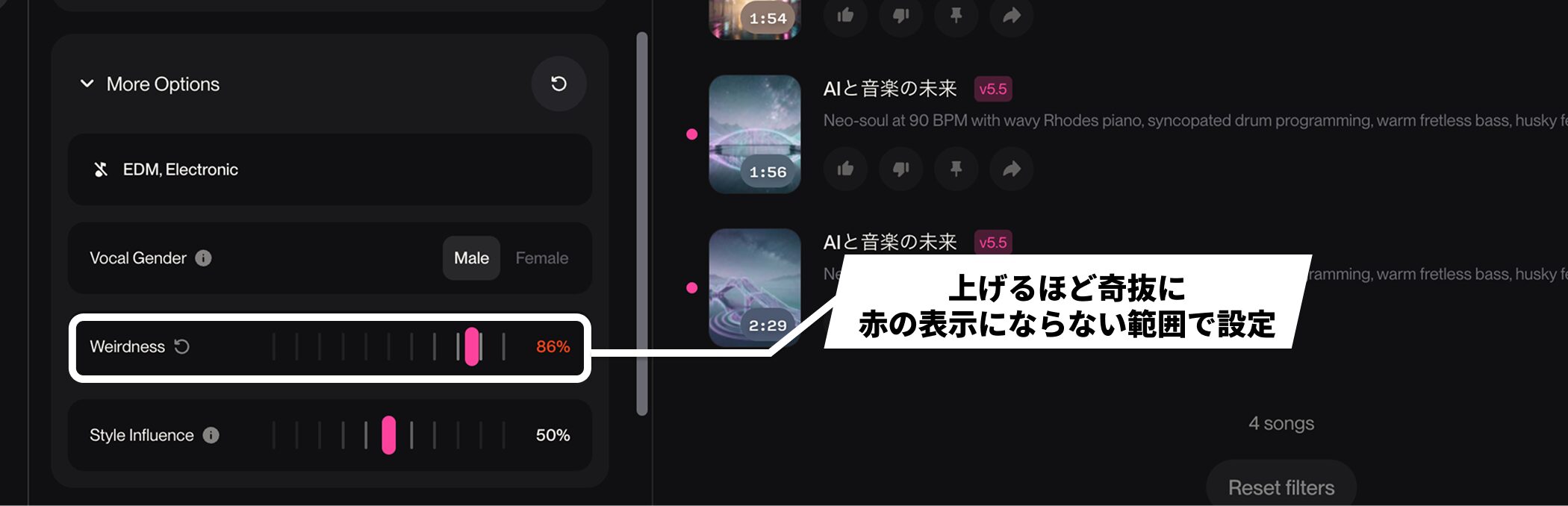
This control adjusts how unusual the song is.
Higher settings produce more unusual songs, but moving beyond the red indicators at either end may not improve the results.
We recommend experimenting within the range that does not trigger the red indicators.
How closely Styles is followed (Style Influence)
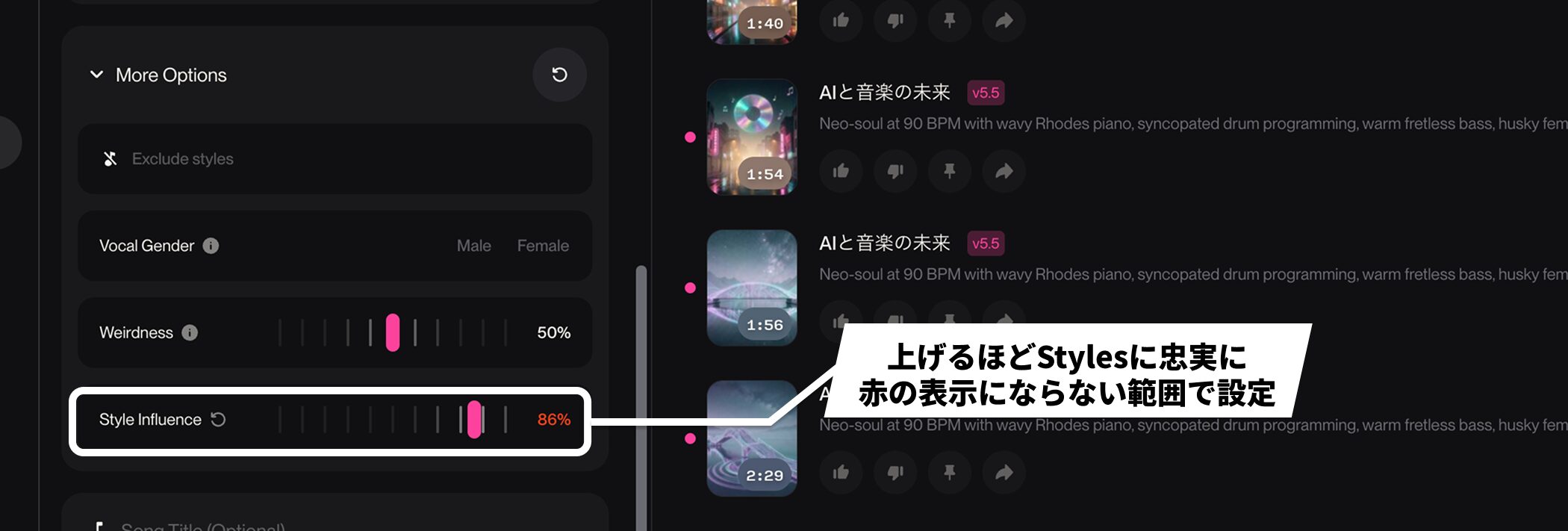
This determines how faithfully SUNO follows the content of Styles. Raising it can help when the result differs from your prompt.
However, extreme settings at either end also turn red. There is randomness involved, so adjust it while checking the results.
Manage the songs you create
Each generation adds more songs. Knowing how they are organized makes it easier to find them later.
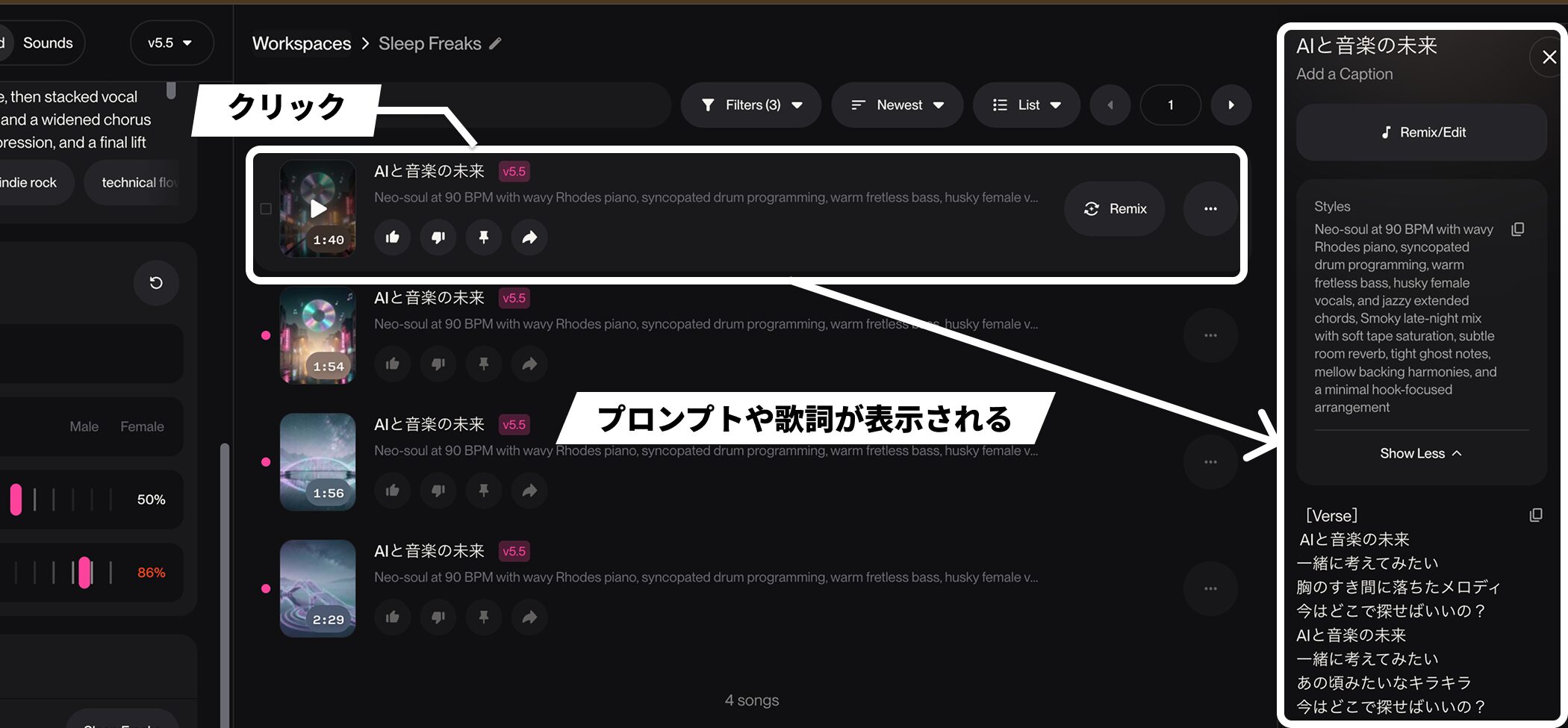
Previously generated songs remain in the list. Select a song to display its prompt and lyrics on the right.
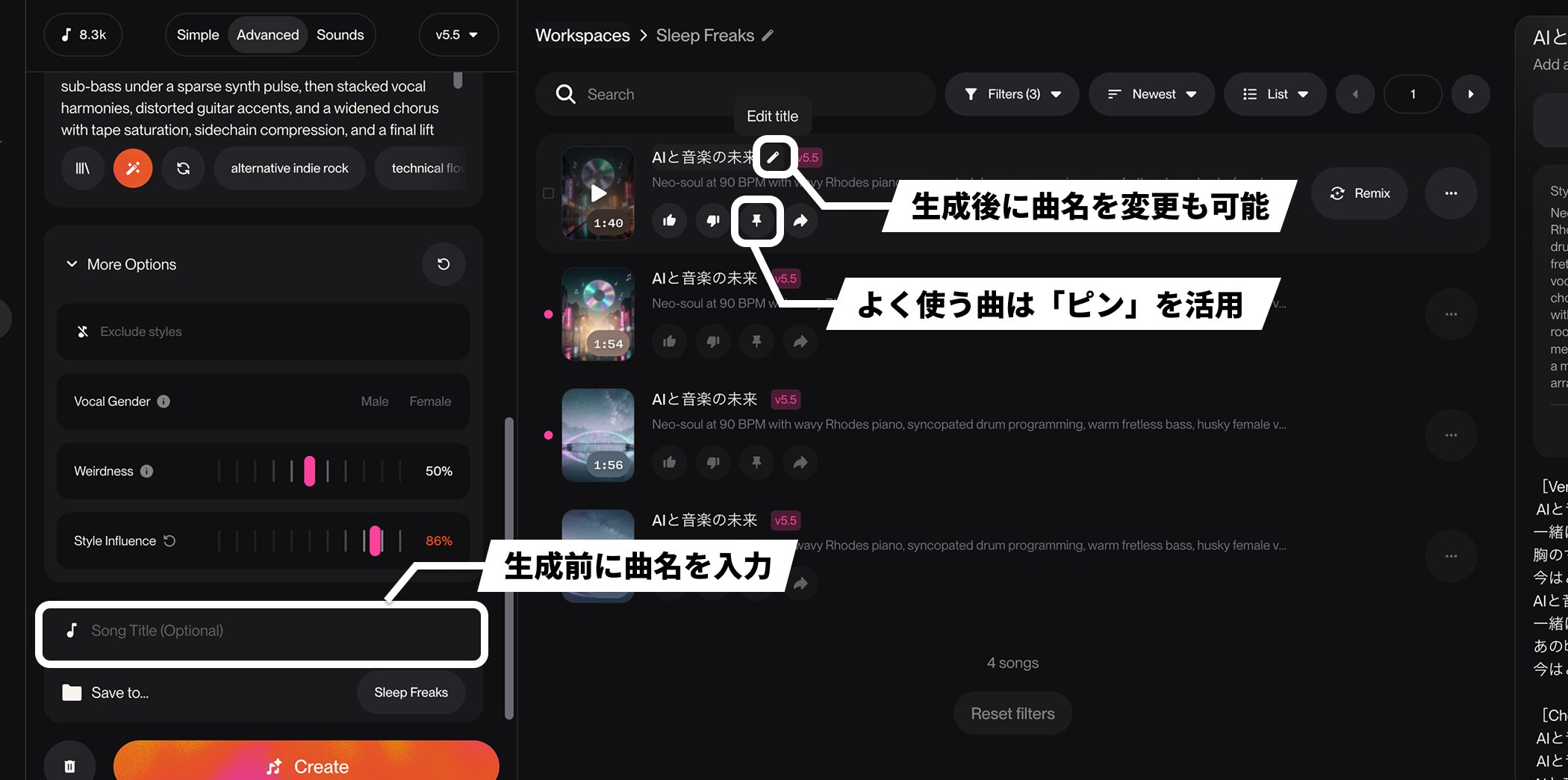
You can name a song before generating it in the Song Title field at the bottom of the screen, and change it afterward by clicking the pencil icon (Edit Title).
Pin songs you use often to keep them near the top instead of losing them in the list.
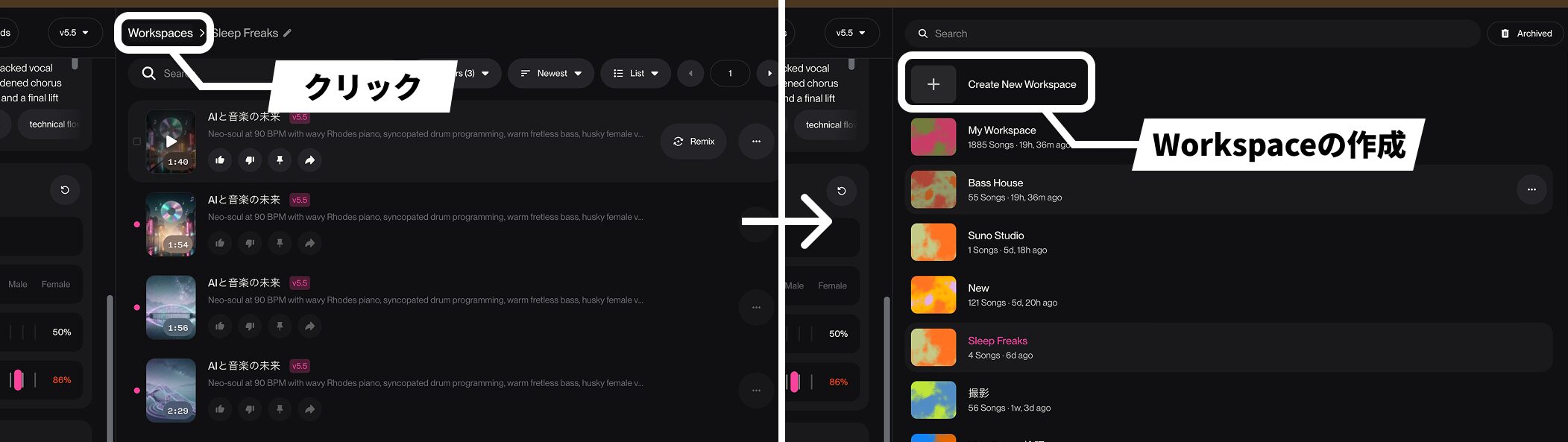
Everything is organized into Workspaces.
Create a new Workspace with Create New Workspace.
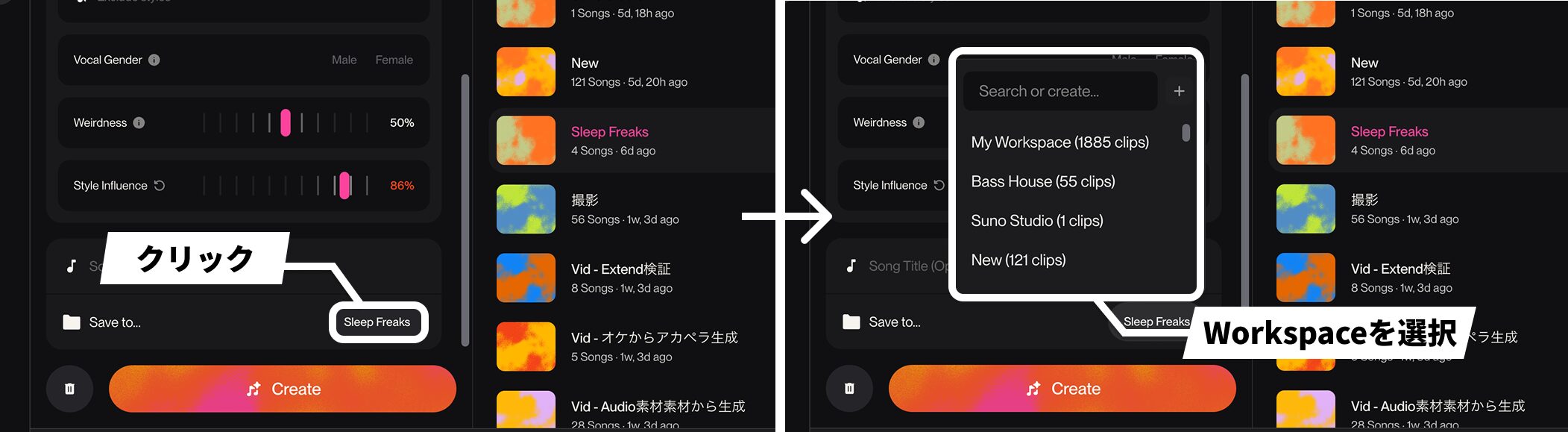
Before generating, choose the destination Workspace from Save To.
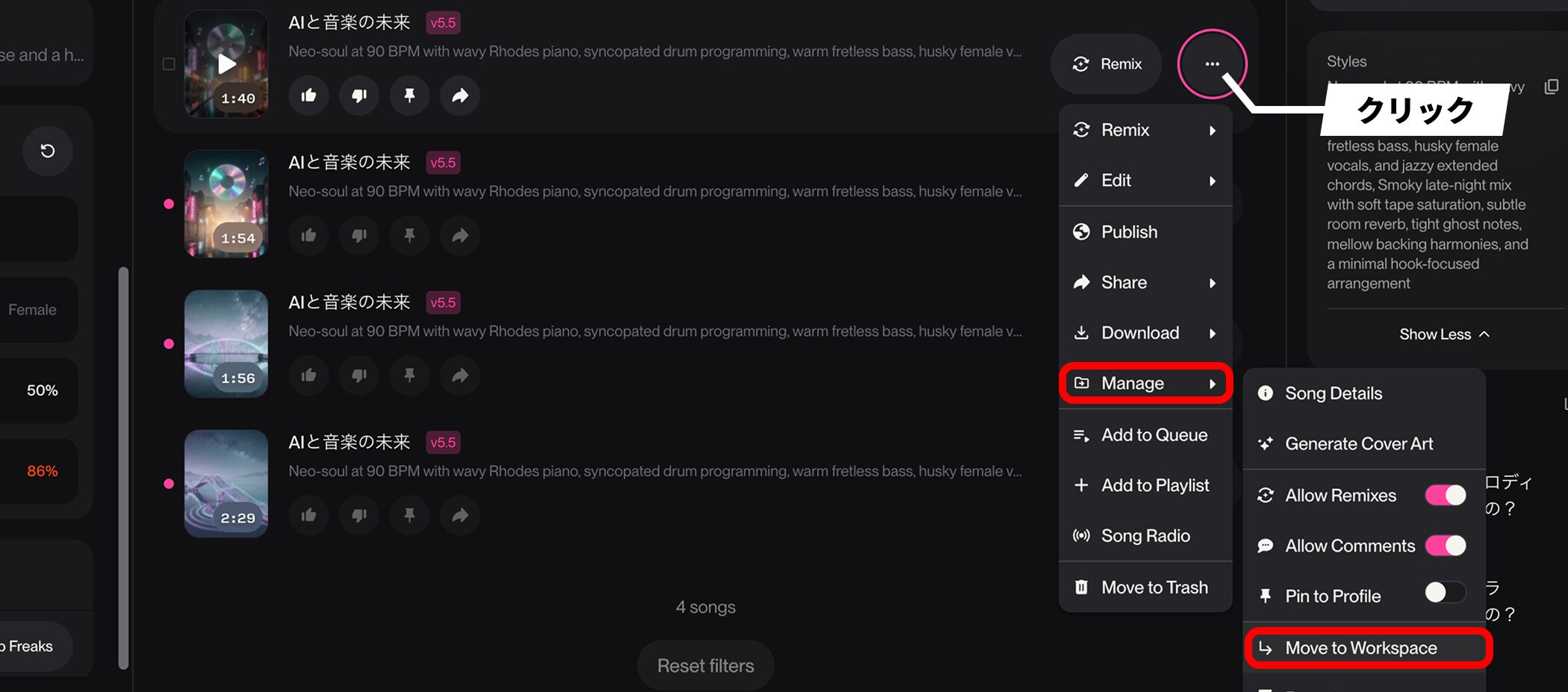
To move a song afterward, open its three-dot menu and choose Manage → Move to Workspace.
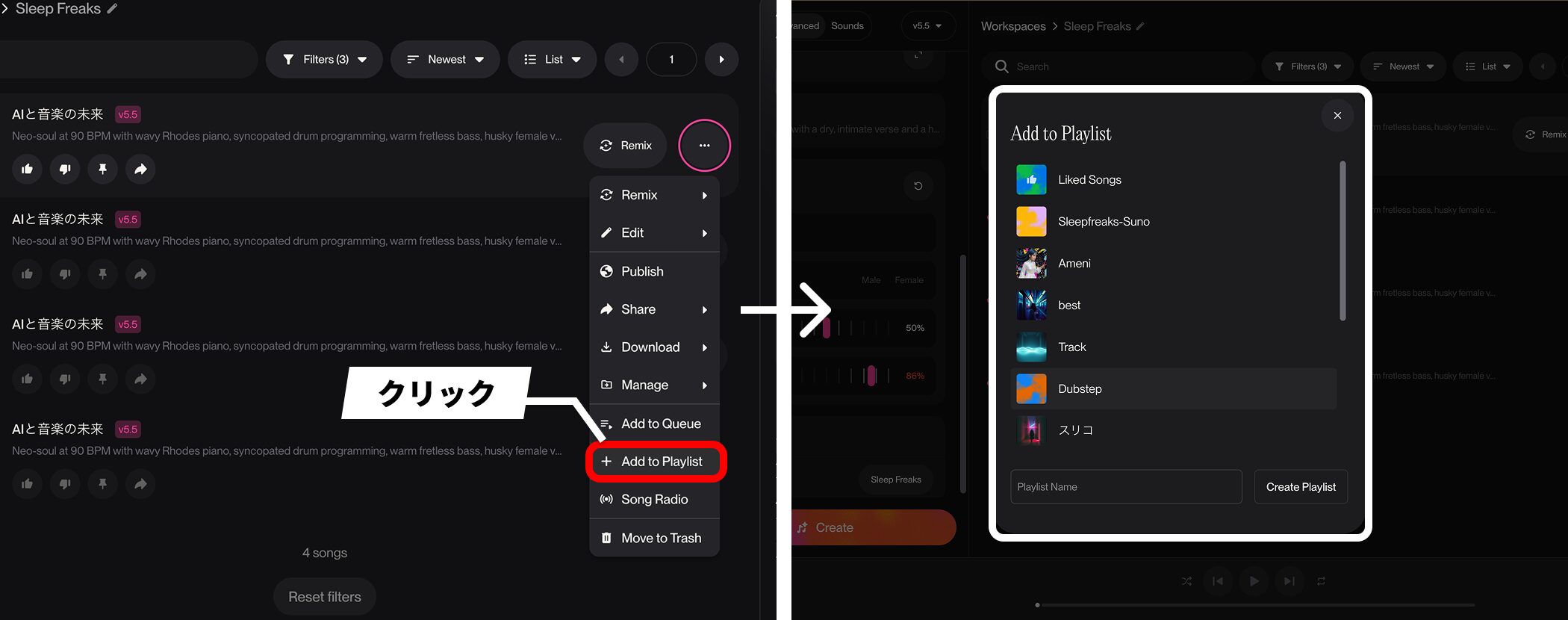
Add to Playlist in the same menu lets you organize favorite songs into playlists.
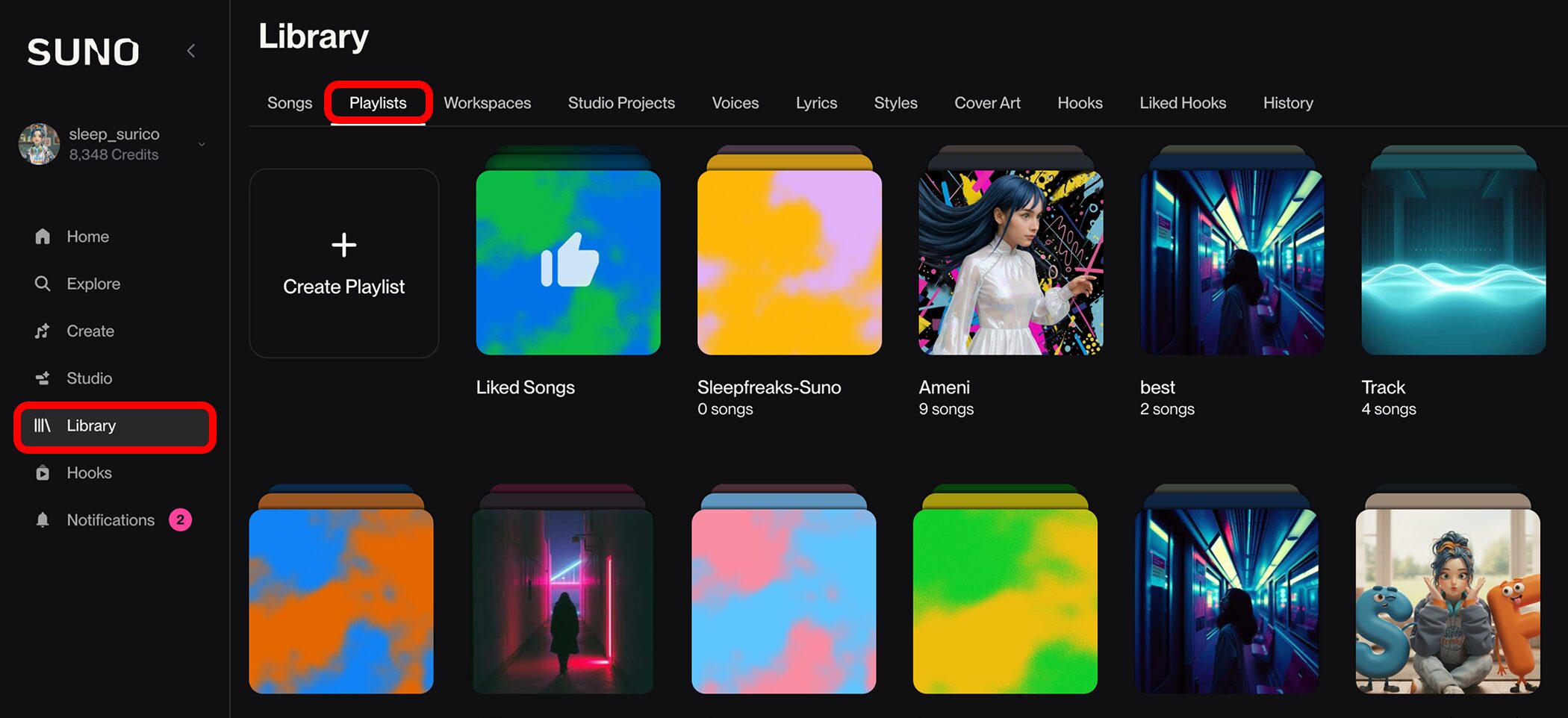
Created playlists appear under Playlists on the Library screen.
Two ways to use AI questions or research to create SUNO prompts
A specific prompt in Styles is essential for getting closer to the song you want.
At first, however, it can be difficult to describe genres, instruments, and tempos in musical terms.
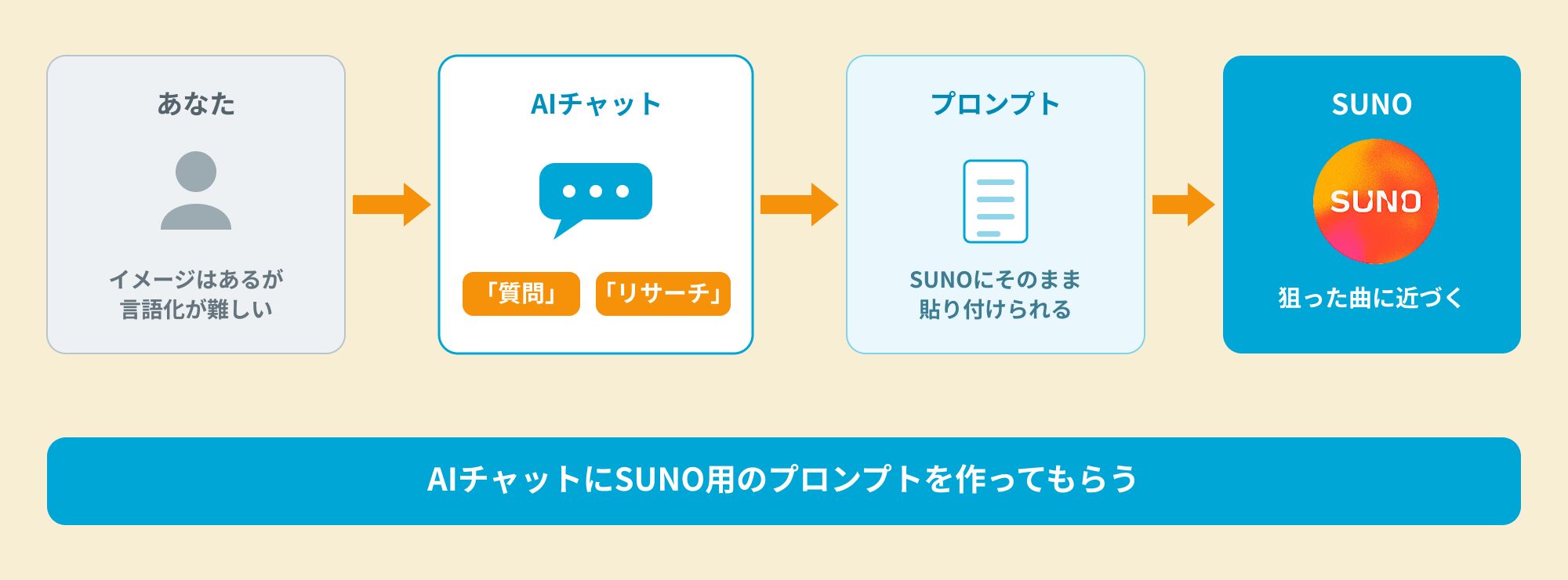
Here are ways to ask questions or carry out research with an AI chat tool such as ChatGPT, and have it create a prompt you can paste into SUNO.
You can create a prompt without knowing musical terminology
The more specific your instructions—your prompt—the easier it is to get closer to the intended song.
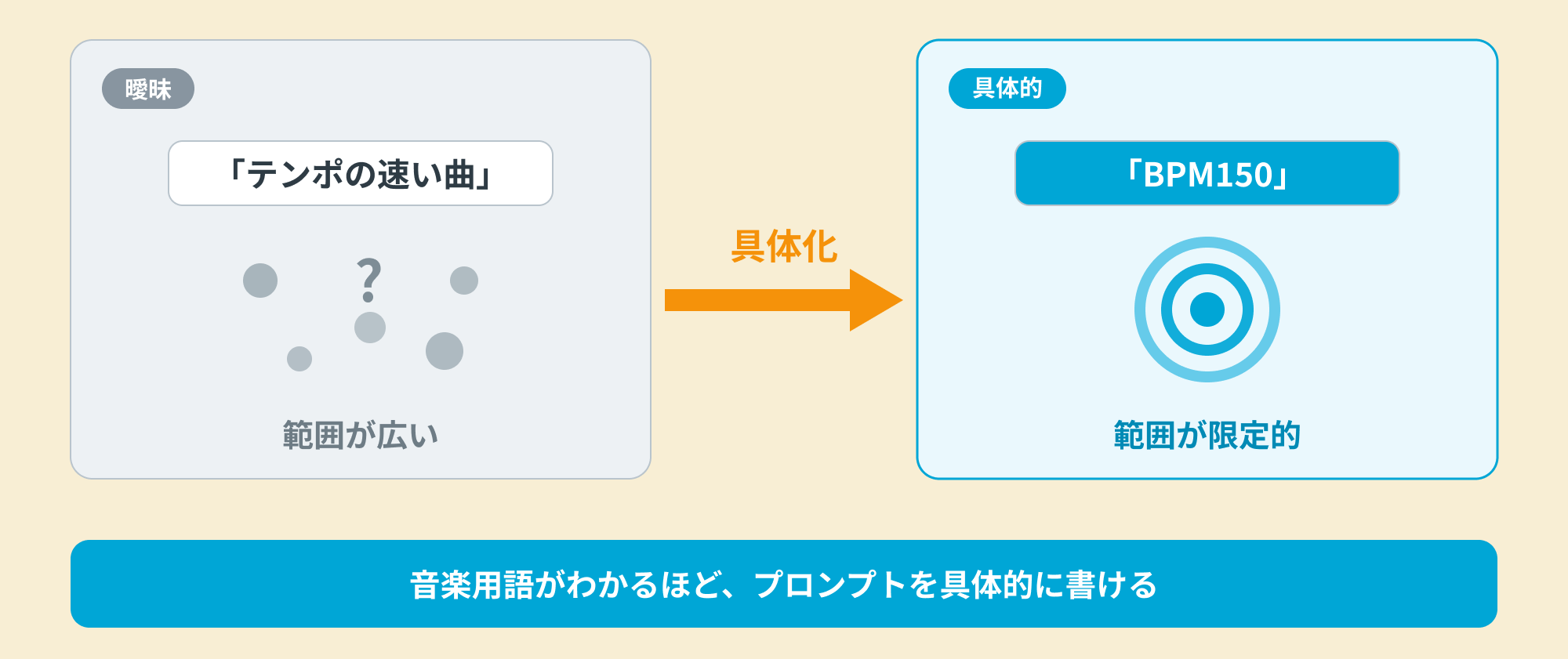
For example, a fast song is vague, while BPM150 communicates a definite tempo.
Knowing musical terminology makes it easier to write a specific prompt.
One useful approach is to ask an AI chat tool to create the prompt for you.
By having AI work out what to include, you can reach a specific prompt even without knowing the terminology.

You can use whichever chat AI you normally use, such as ChatGPT, Gemini, or Claude.
We will use ChatGPT here.
Enable search mode
The key is to enable search mode.
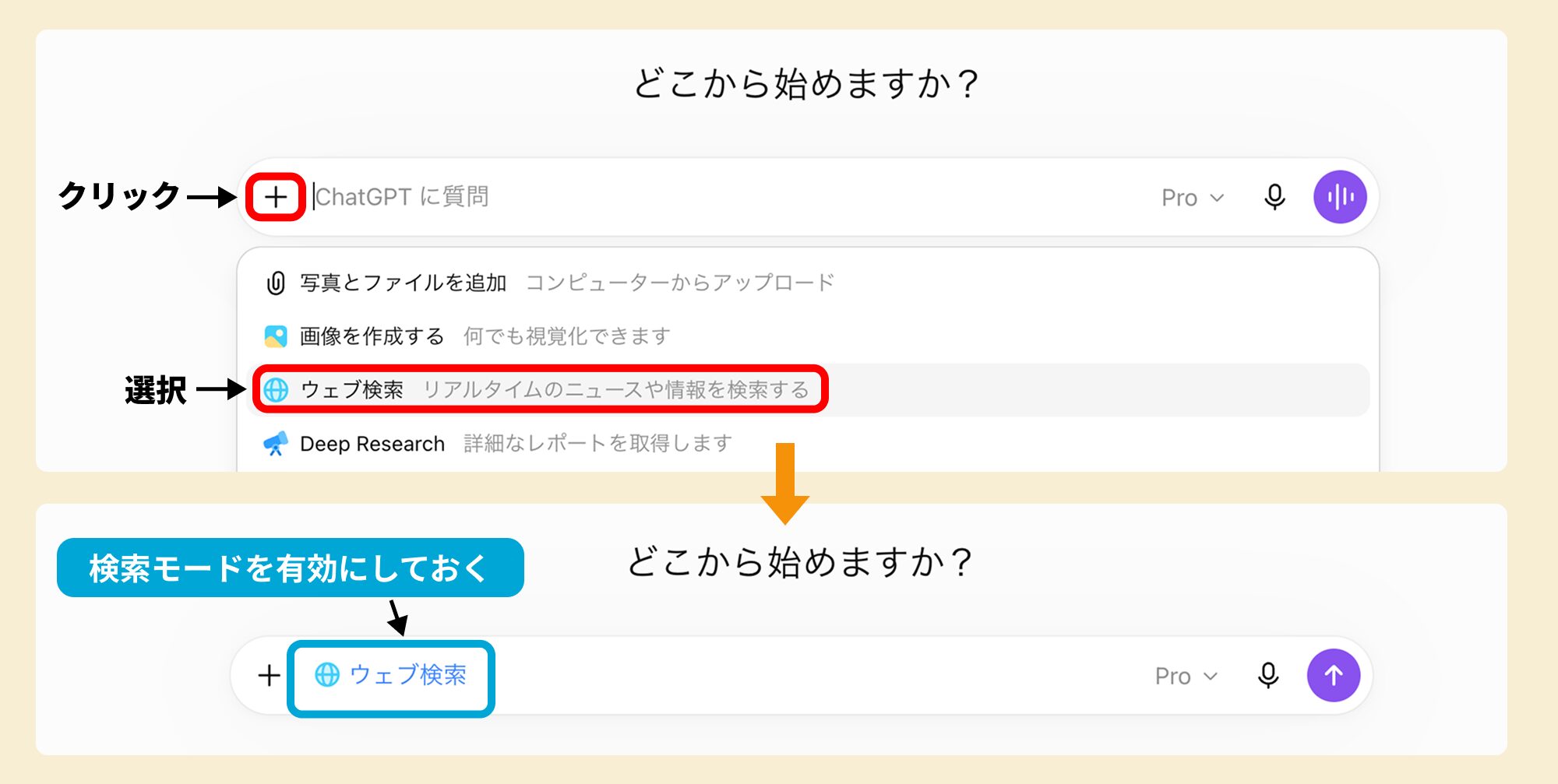
The AI can search the web for information it does not already have and answer using what it finds.
This is particularly useful when researching reference songs in Method 2 below.
This feature is often available in free versions as well, so start by enabling it.
Method 1: Have AI put the song in your head into words
The first situation is when you have a song in mind but cannot describe it.
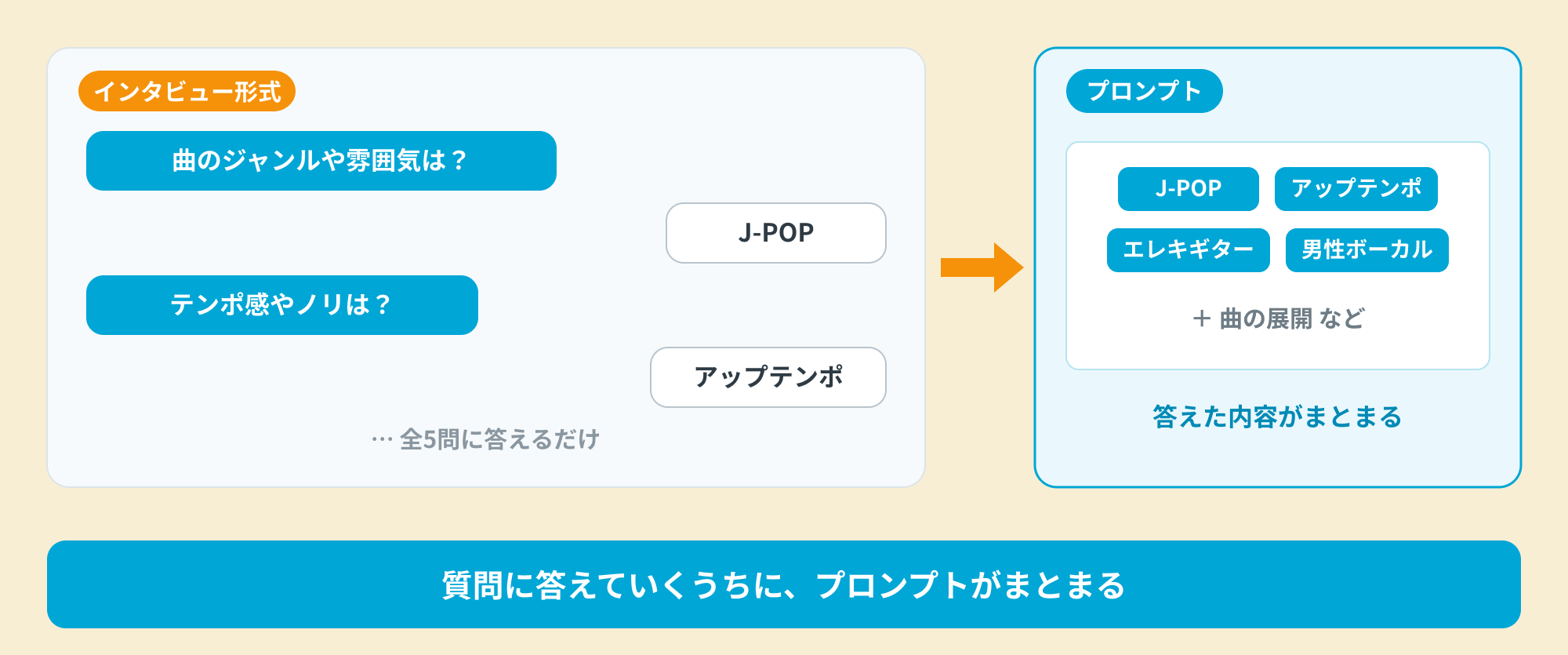
The trick is to avoid trying to write the prompt yourself, and instead have the AI ask you questions—an interview.
As you answer, the information is assembled into a prompt.
A prompt that asks AI to interview you
First, give the AI a role and explain your starting point.
Then ask it to pose just five questions.
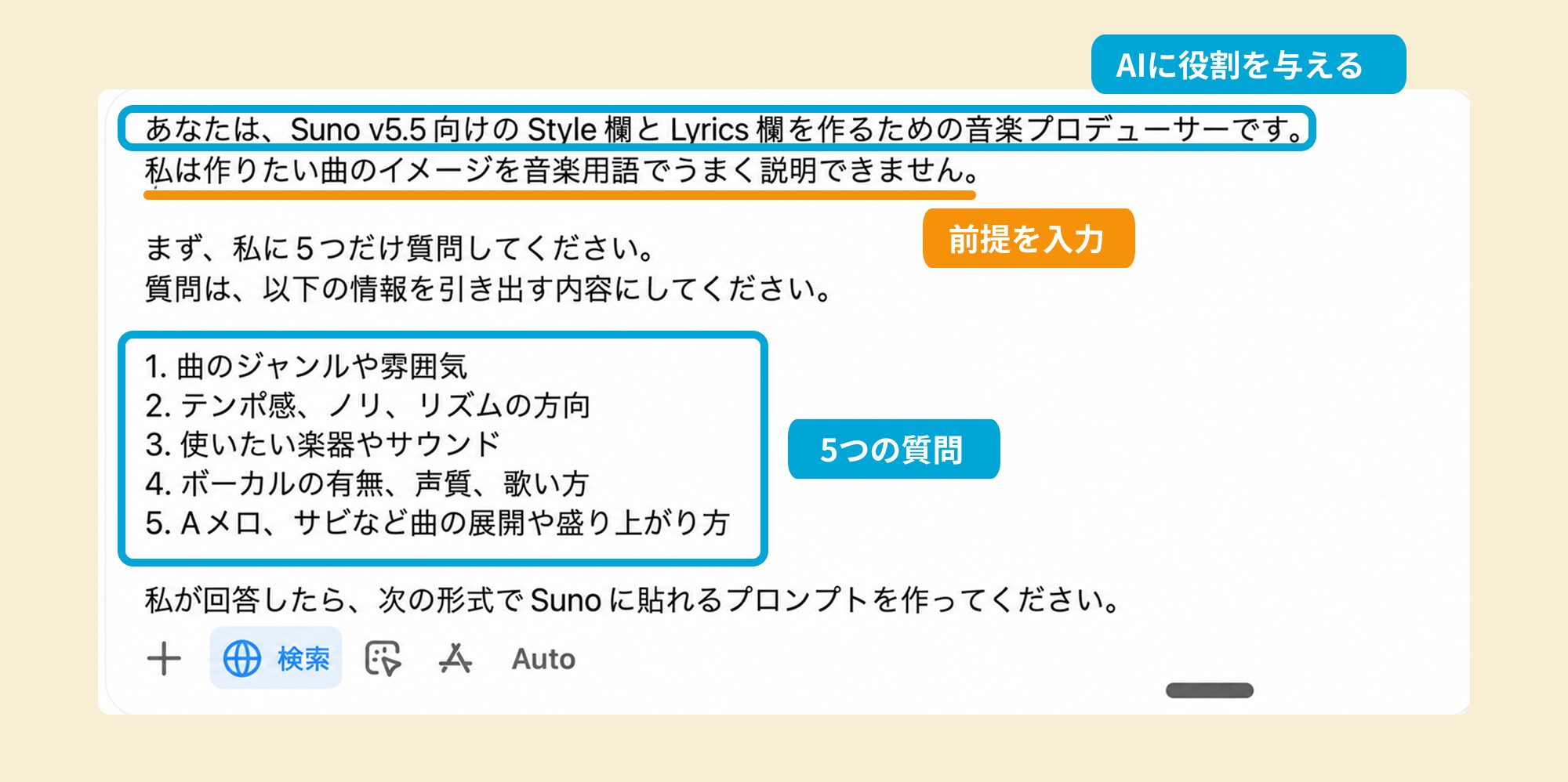
The five topics are much the same as the basic keywords that work in Styles.
The prompt below also specifies the output format. Copy and paste it directly into your AI chat and send it.
You are a music producer creating Styles and Lyrics fields for SUNO V5.5.
I find it difficult to describe the song I want to make in musical terms.
With that in mind, first ask me just five questions.
The questions should elicit the following information.
1. The song's genre and mood
2. Its tempo feel, groove, and rhythmic direction
3. The instruments and sounds I want to use
4. Whether it has vocals, and their tone and delivery
5. How the song develops and builds through the verse, chorus, and other sections
After I answer, create a prompt I can paste into SUNO in the following format.
[Styles field]
In one line of English, organize the genre, approximate BPM, rhythm, instruments, vocals, mood, and mix character.
[Lyrics field]
If lyrics are needed, create Japanese lyrics with section tags.
If lyrics are not needed, create [Instrumental] or section-by-section tags.
Answer the questions to complete your prompt
After you send it, the AI asks questions one at a time.
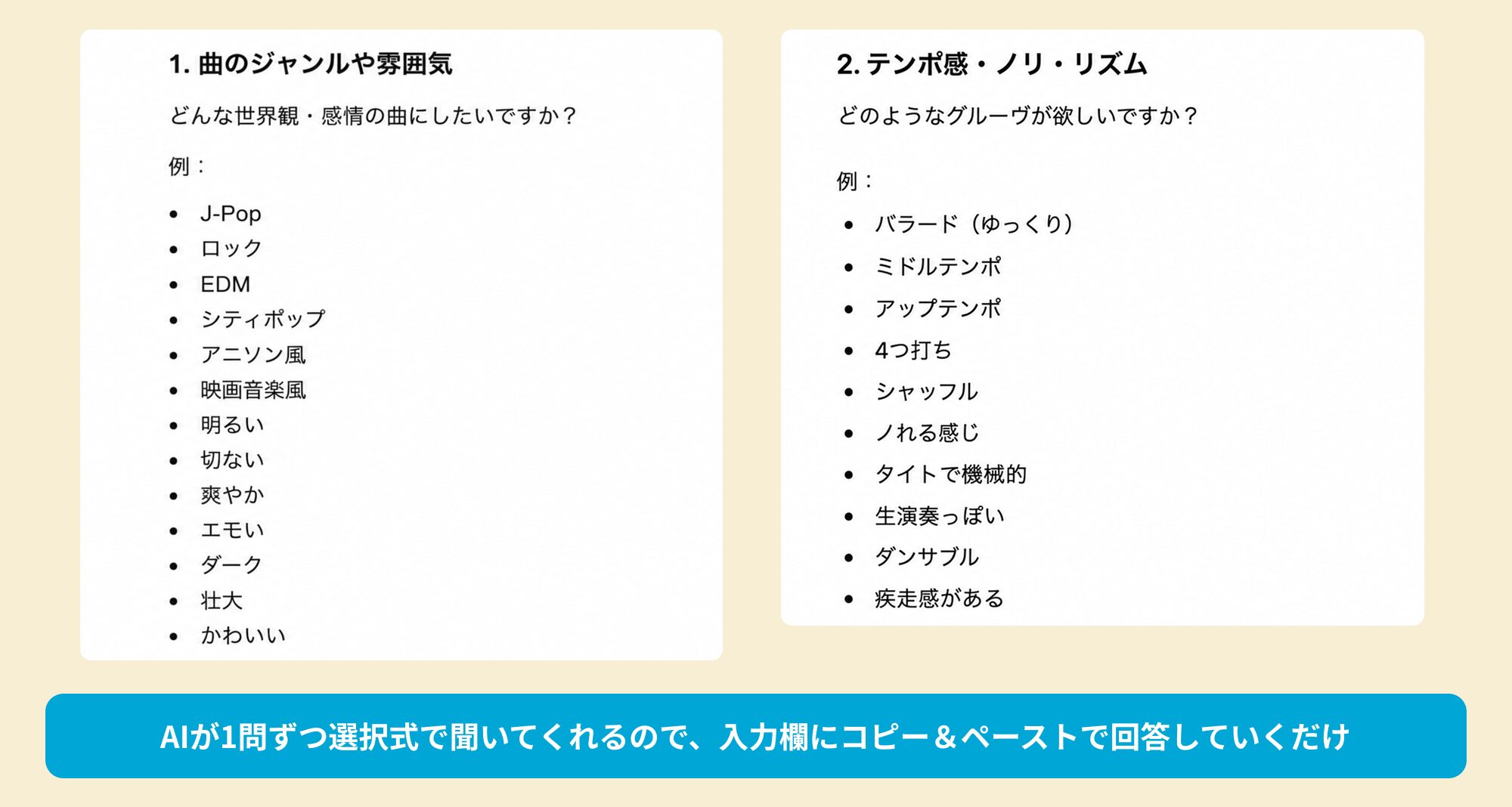
In many cases, it offers multiple-choice answers with examples, so you can answer simply by choosing, even without knowing musical terminology.
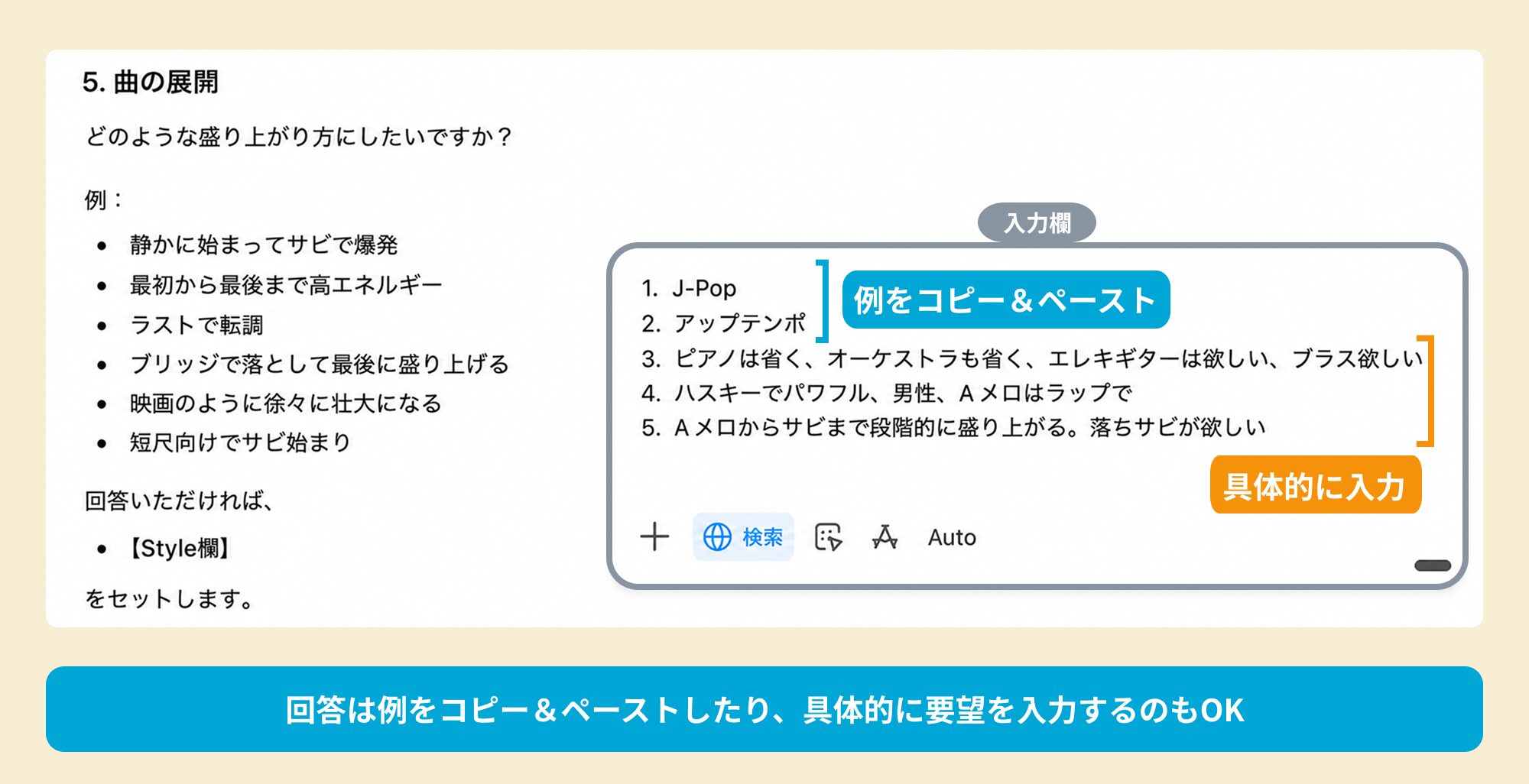
If you have a more specific request for a question, you can also type it directly.
Here are the answers we entered and sent in this example.
1. The song's genre and mood: J-POP
2. Its tempo feel, groove, and rhythmic direction: Up-tempo
3. The instruments and sounds I want to use: No piano, no orchestra; I want electric guitar and brass.
4. Whether it has vocals, and their tone and delivery: Husky and powerful, male; rap in the verse.
5. How the song develops and builds through the verse, chorus, and other sections: Build gradually from verse to chorus. Include a stripped-back chorus.
Paste into SUNO and generate
When you send your answers, the AI creates a prompt for Styles.
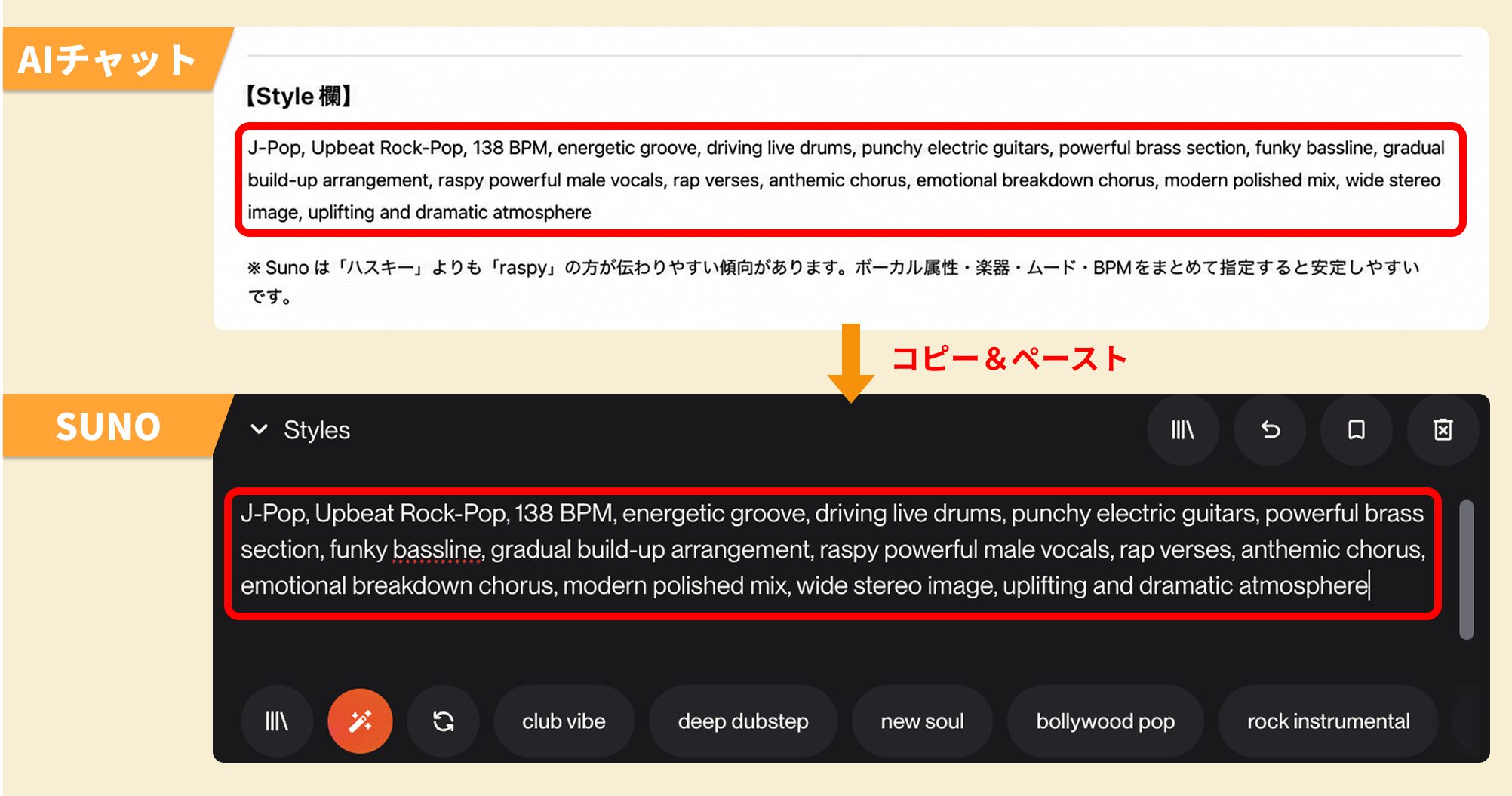
Copy it and paste it into SUNO's Styles field.
For the Lyrics field, it creates only section tags—a blueprint for the arrangement.
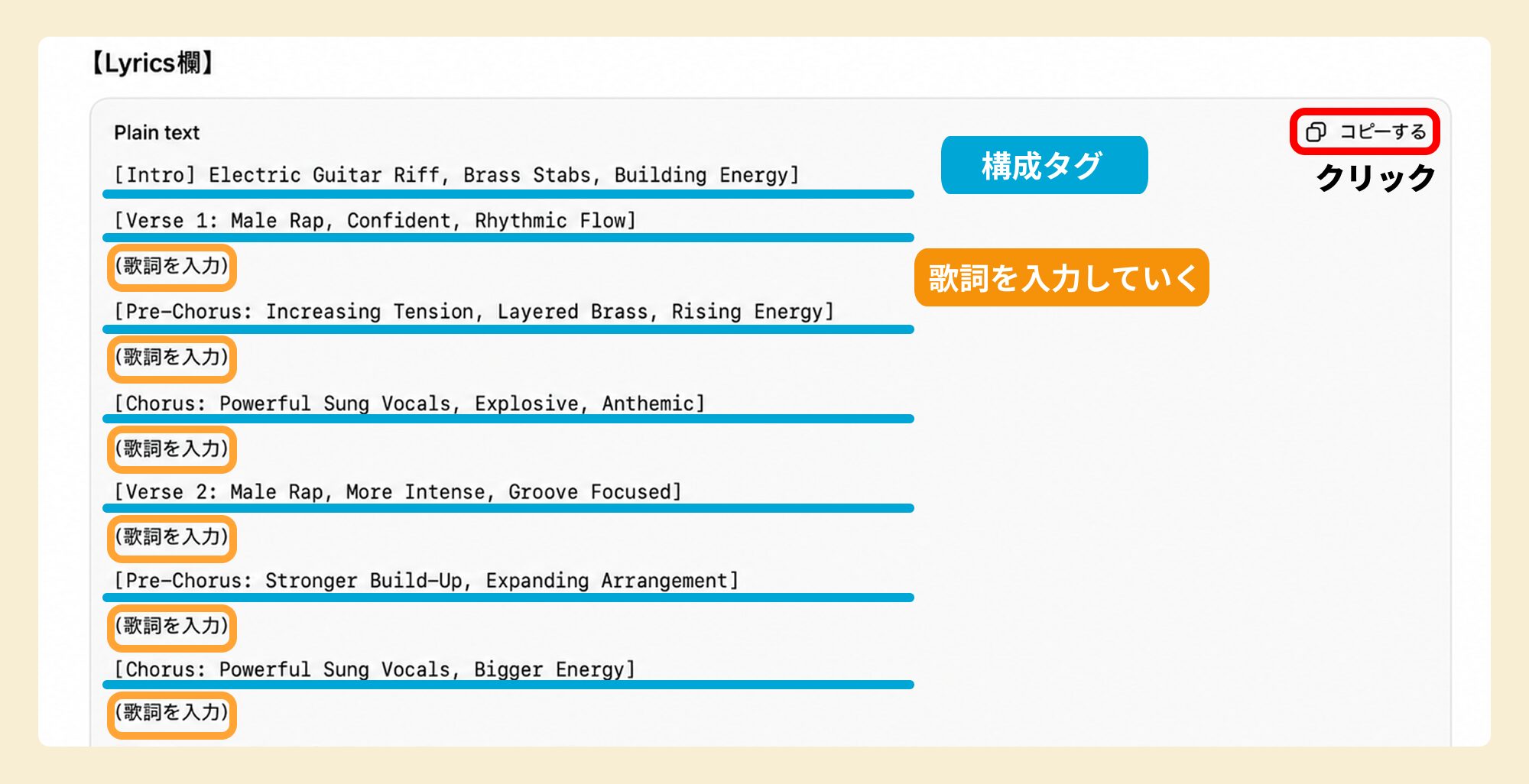
For a vocal song, click Copy and paste the text into a notepad or text editor. Fill the insert lyrics placeholders with your own lyrics, SUNO-generated lyrics, or lyrics prepared beforehand with an AI chat tool.
You can also enter lyrics after pasting into SUNO's Lyrics field, but its visible input area is small. We recommend organizing them in a text editor first.
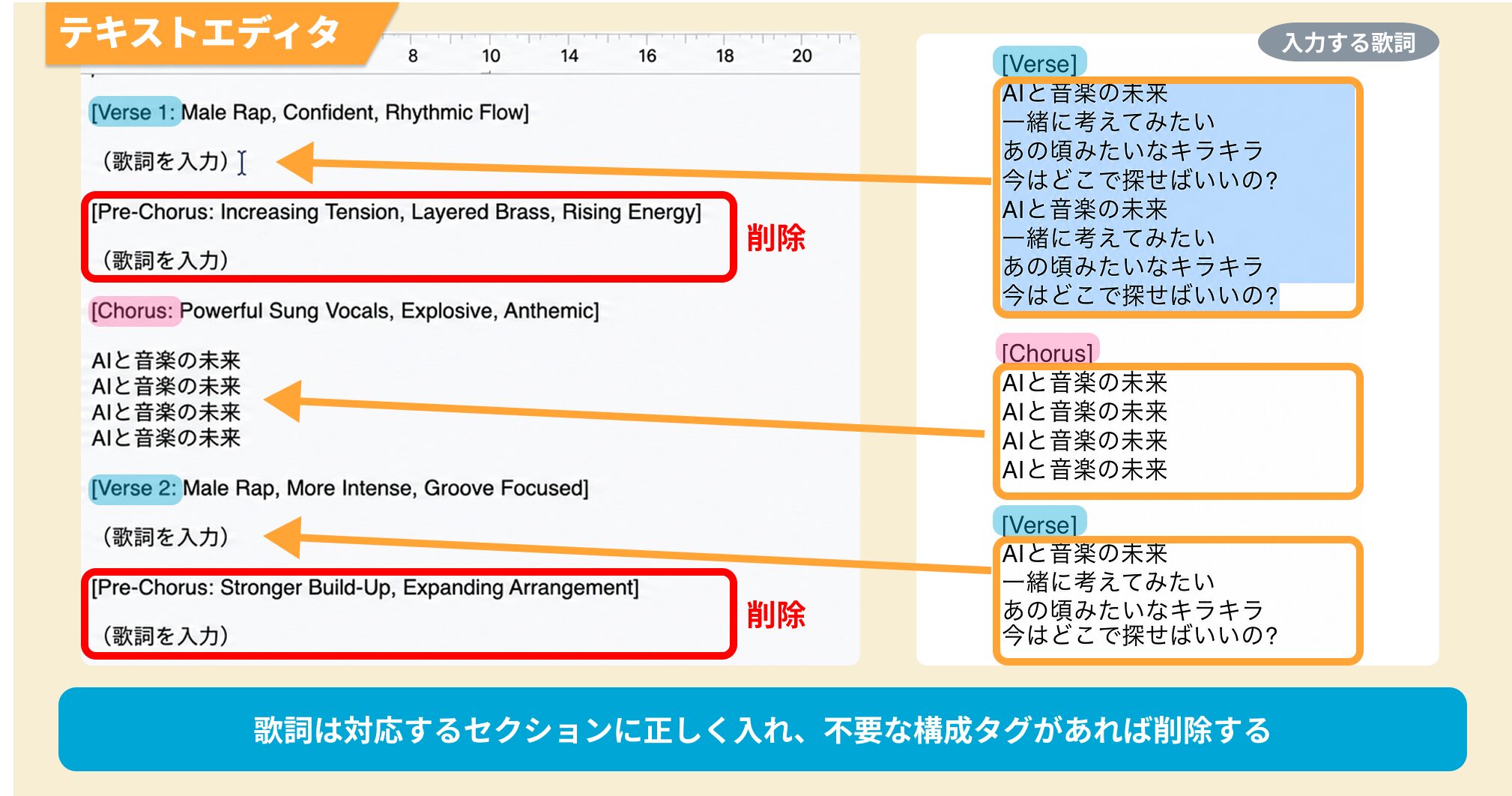
When entering the lyrics, make sure to put each passage in its corresponding section.
For example, putting the [Verse] lyrics in the [Chorus] position can make the words and musical development conflict.
After entering the lyrics, remove any unused section tags.
However, even if you leave them in, SUNO may still assemble the song naturally.
If you are unsure, generate once with the text as it is, listen, and then adjust it.
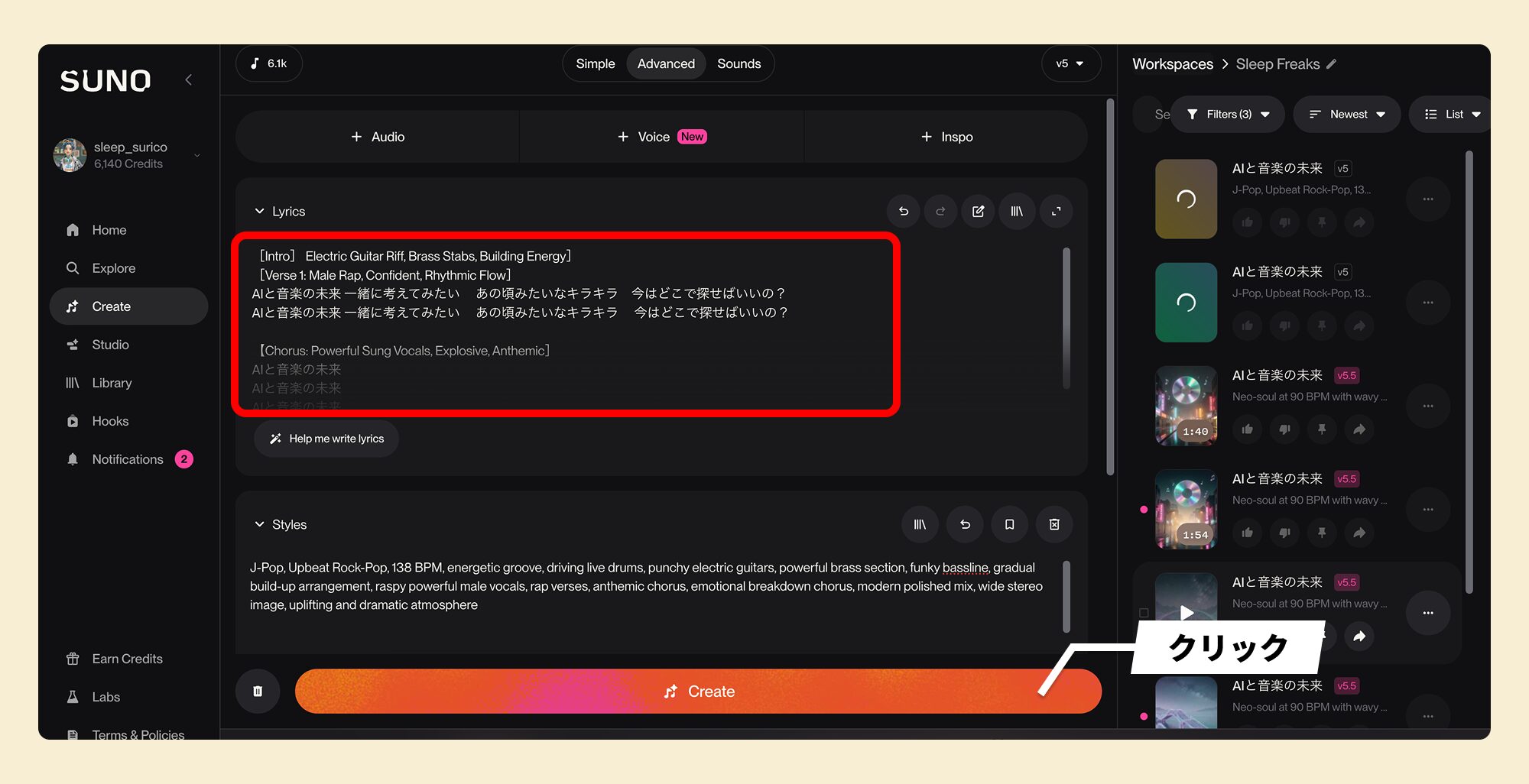
Once the lyrics are complete, paste them into SUNO's Lyrics field, generate a song, and check the result.
Return to the AI chat to revise anything that differs from your idea
The first result rarely matches your ideal exactly, so this is where you refine it.
The process is simple: tell the AI what differed from the song you imagined.
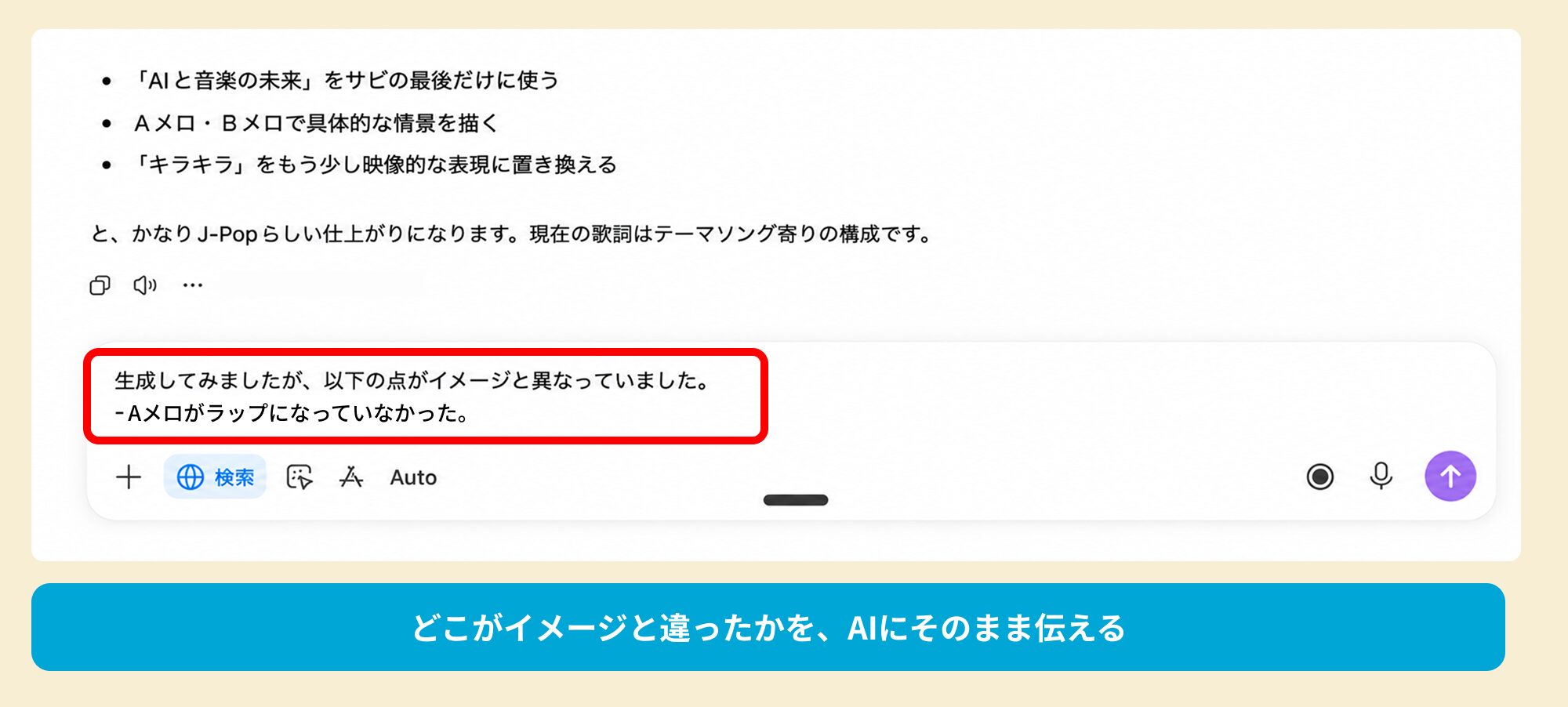
In this example, we requested rap vocals in the verse, but the result was not rap.
In that situation, simply tell the AI, for example: I tried generating it, but the verse was not rapped.
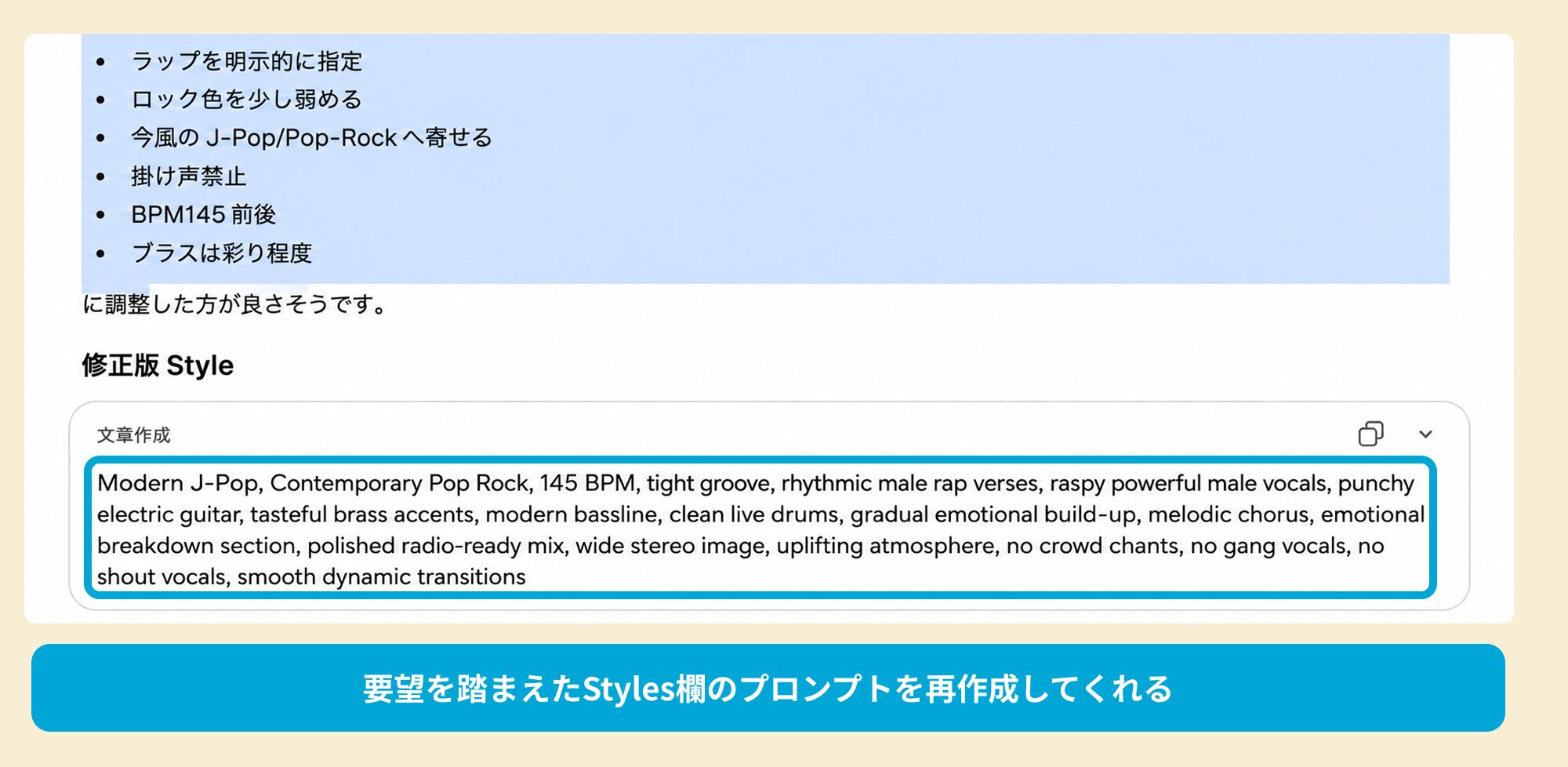
It will rewrite the prompt to reflect your feedback.
Repeating this exchange can bring you closer to your intended sound without requiring specialist terminology.
Method 2: Have AI research and describe the musical features of a reference song
The second situation is when you have a specific reference song whose feel you want to draw on.
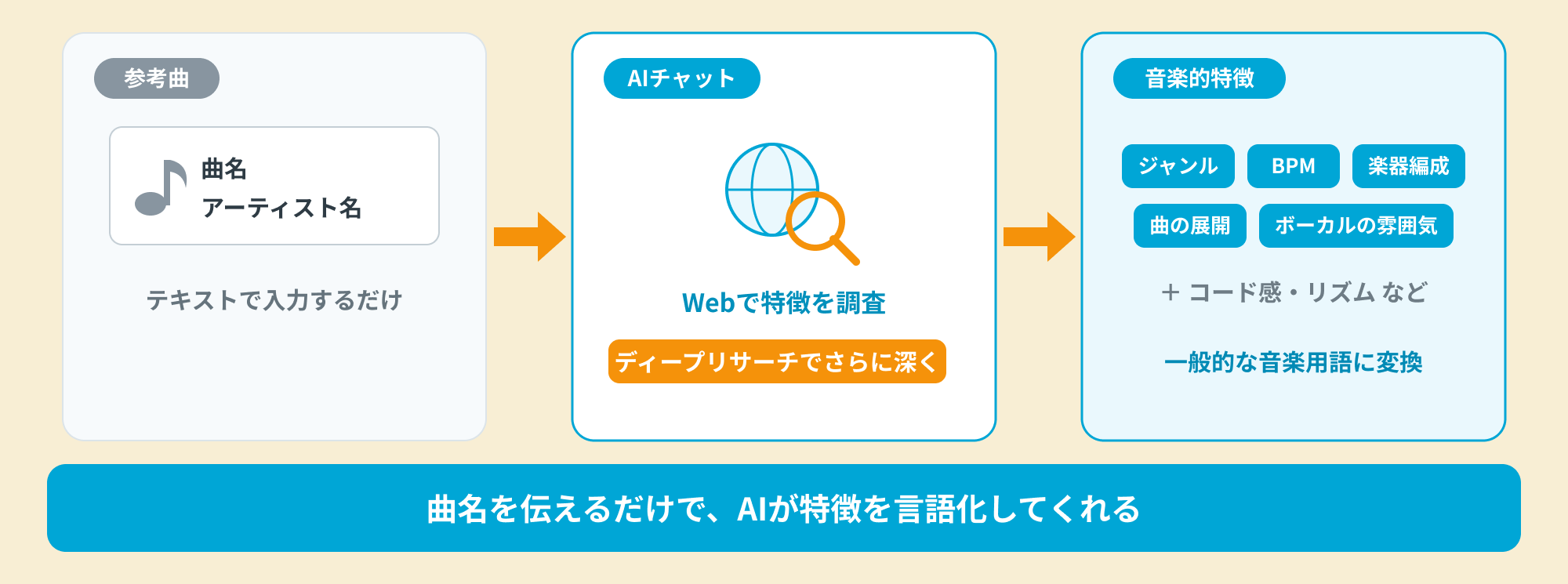
As in Method 1, you use an AI chat tool, but the main difference is that you ask it to research the reference song's characteristics.
For more thorough web research, you can use an AI tool's deep research feature, which is often part of a paid version.
Points to consider about rights
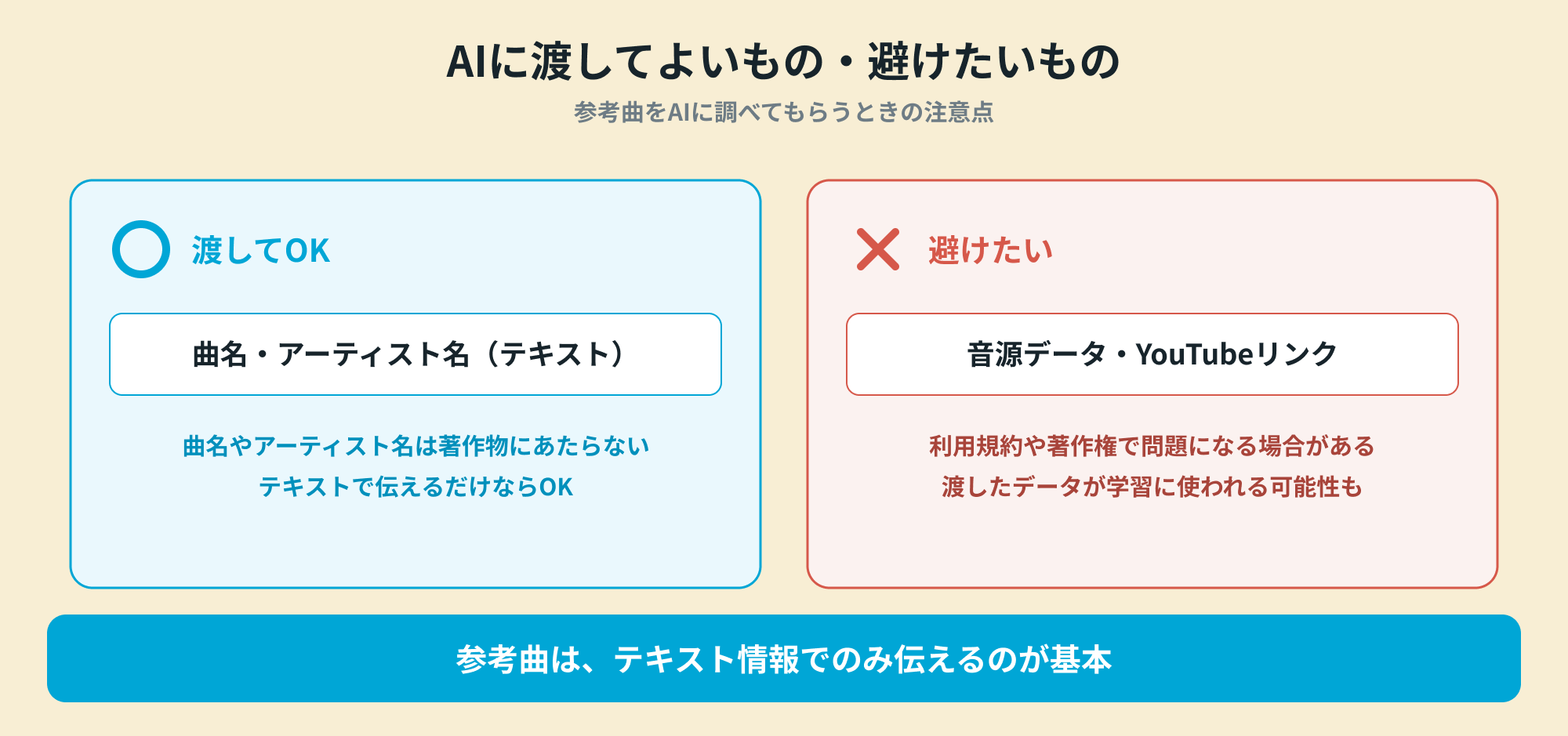
Research the reference song by entering its title and artist name as text.
Under Japanese copyright law, song titles and artist names themselves are not copyrighted works, so this method generally does not raise a copyright issue.
However, avoid giving the AI the audio file or a YouTube link itself.
Even where this is technically possible, it may create issues under an AI service's terms or copyright rules, and the supplied data may be used to improve or train the service.
AI services' terms and the laws surrounding AI may change. Check the latest terms of the service you use each time.
A research prompt
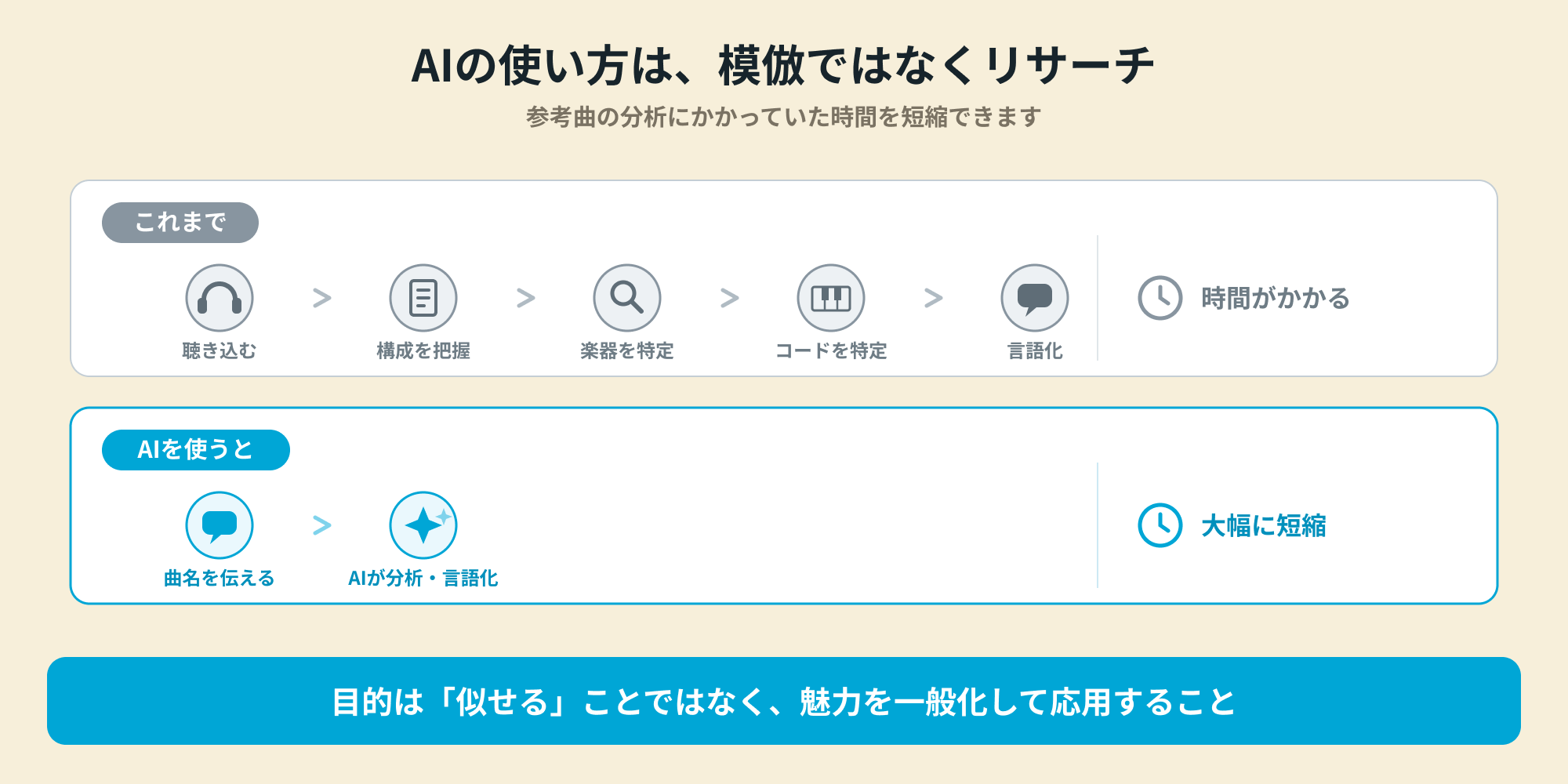
The use of generative AI we recommend here is research rather than imitation.
For example, when a reference song is supplied for a songwriting competition or a production commission, you would traditionally analyze it yourself.
The idea is to let AI handle that part of the work.
By contrast, asking it to make a song like this one may also lead it to imitate the melody, which undermines the aim of creating an original song.
The following prompt therefore makes the purpose clear: generalize and apply the song's appeal, rather than reproduce it.
You are a music producer creating Styles and Lyrics fields for SUNO V5.5.
I do not want to reproduce (reference song title) itself. I want to generalize its musical appeal and use it as a reference for creating a new song of my own.
Research this song's features on the web and create a SUNO prompt under the following conditions.
Conditions:
• Do not include the song title, artist name, quoted lyrics, or distinctive phrases in your output.
• Do not attempt to reproduce the original song's melody, lyrics, or riffs.
• Convert the genre, tempo feel, rhythm, instrumentation, harmonic character, song development, and vocal atmosphere into general musical terms.
• Aim to apply the reference song's appeal to a different, new song, rather than imitate it.
Output format:
[Extracted musical features]
Use bullet points to organize the genre, approximate BPM, rhythm, instruments, development, vocals, and mood.
[Styles field]
One line in English. Include the genre, approximate BPM, rhythm, main instruments, vocals, mood, and mix character.
[Lyrics field]
Create Japanese lyrics with section tags.
Within the section tags, use short English descriptions of each section's arrangement, rhythmic characteristics, instrumental roles, and build in energy.
[Points to watch]
If any elements risk becoming too close to the original song, point them out in Japanese.
Run the AI research with this prompt.
Turn the resulting characteristics into a prompt
The AI describes the reference song's musical features in words.
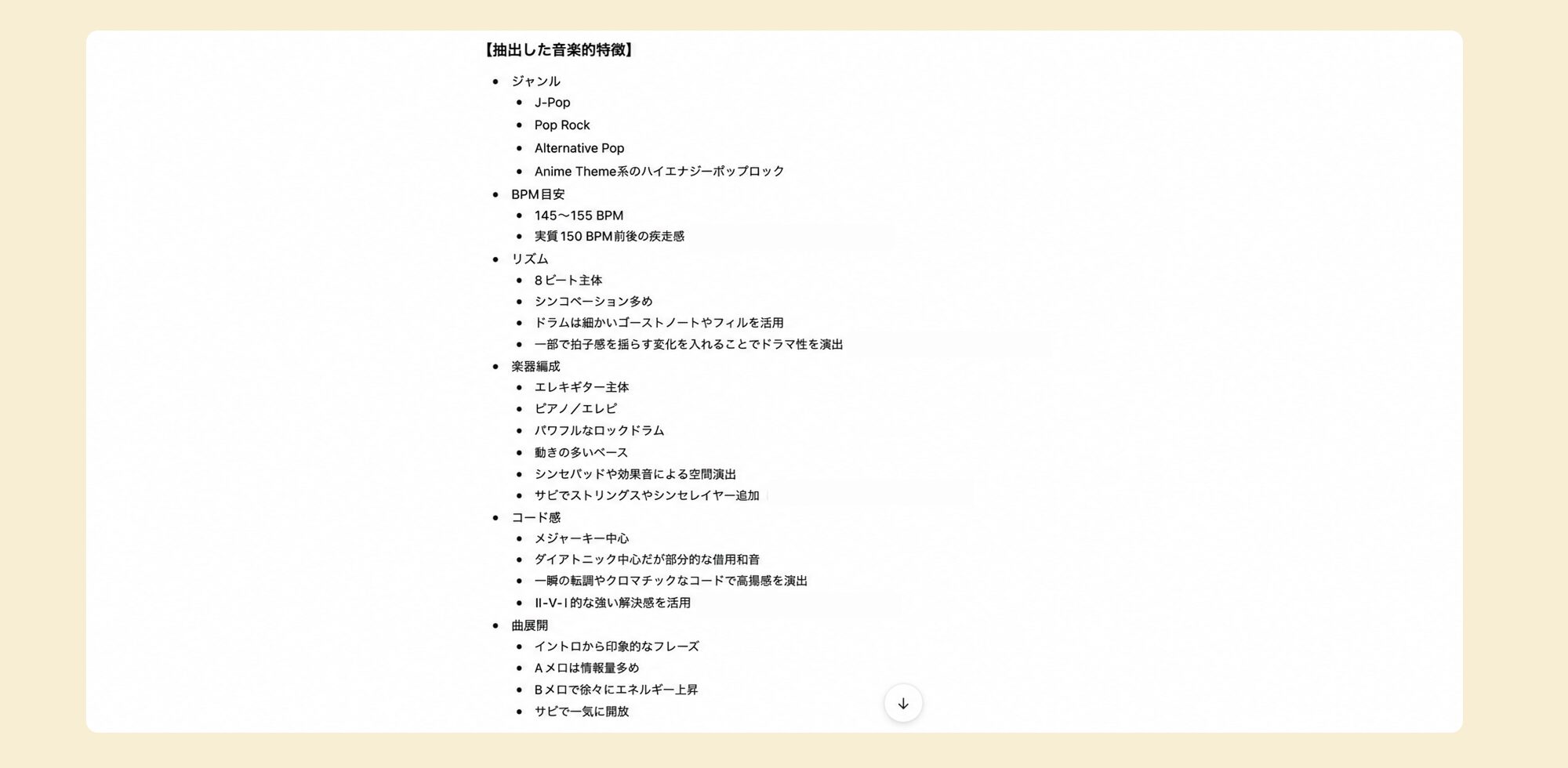
For example, it may organize a song blueprint using descriptions such as J-POP / pop rock / alternative pop, BPM145–155, and an energetic verse with increasing energy in the pre-chorus.
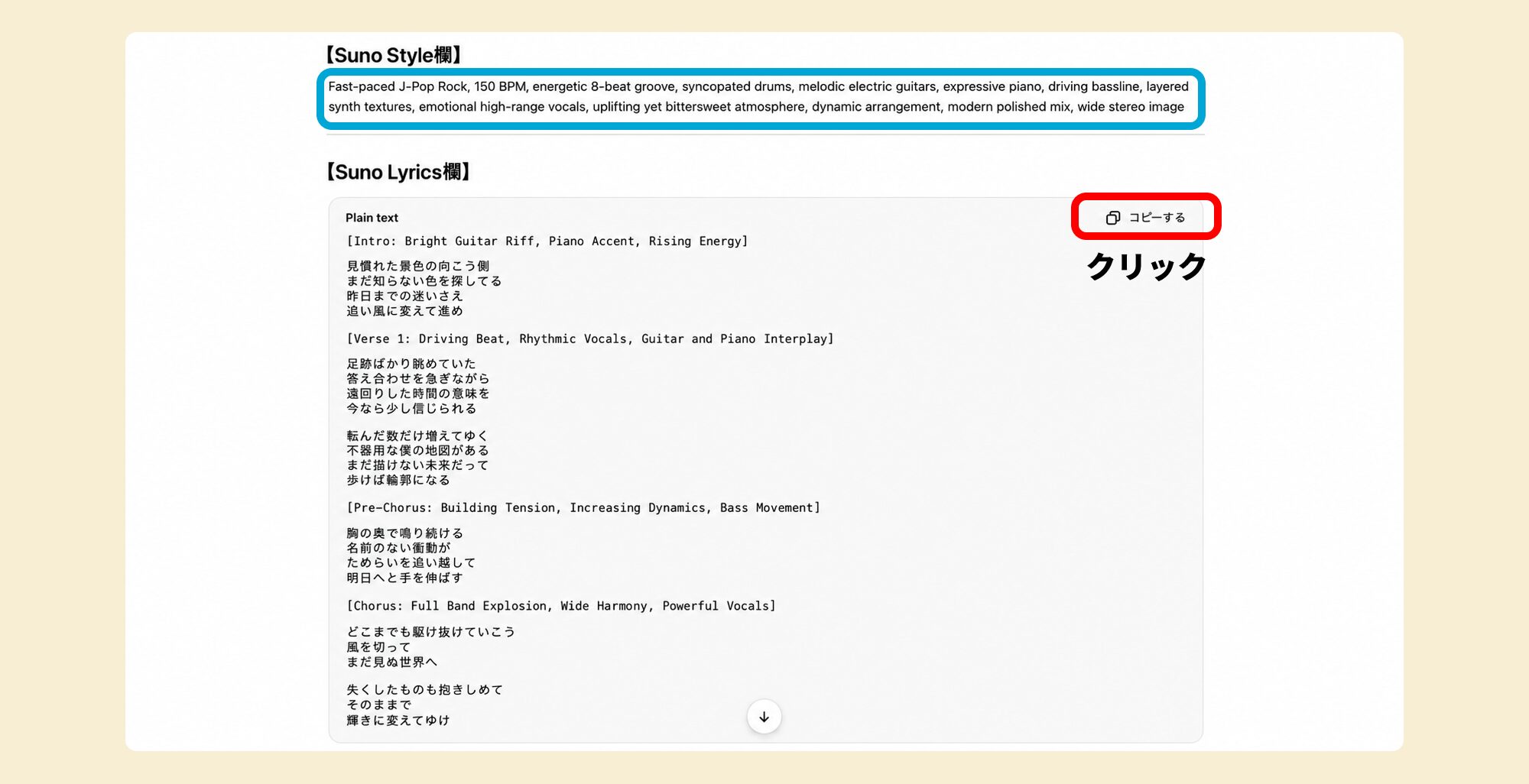
It then creates the Styles prompt and Lyrics text. Paste them into SUNO to generate a new song with a feel related to the reference.
This method also helps with analysis and learning. Asking AI to analyze favorite songs exposes you to new vocabulary through the prompts, and repetition can help you learn musical terminology naturally.
Two more useful points
Finally, here are two points that are useful in practice.
Direct artist-name requests are generalized
You may want to write in the style of (artist) directly in a prompt, but at the time of this guide, artist names are blocked.
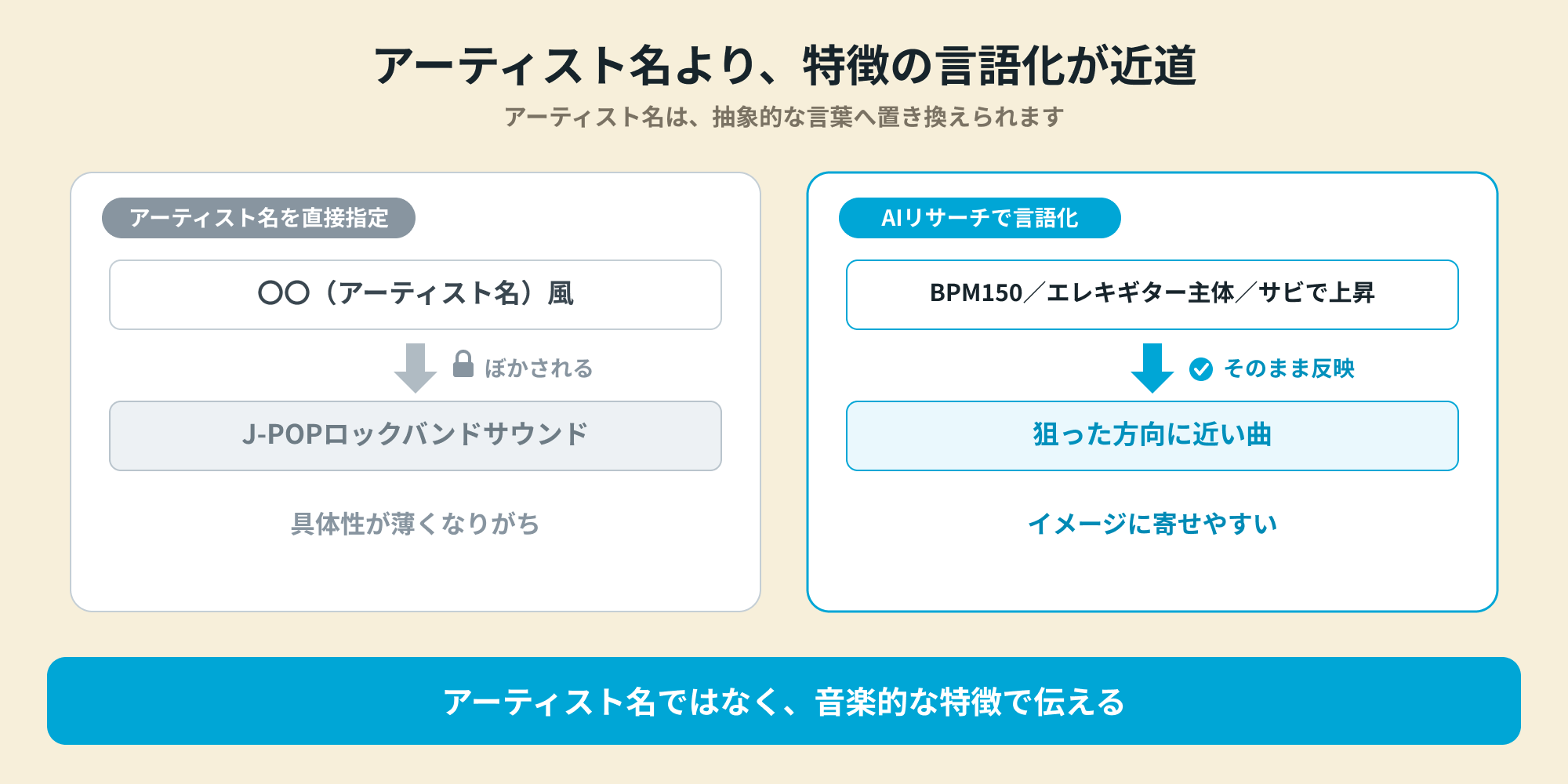
Even if you can type the name, it is replaced with abstract wording such as J-POP rock band sound, which tends to make the instruction less specific.
You can capture a general tendency, but describing the features through AI research as above is more likely to bring the result closer to your intended direction.
Adjust the key afterward in your DAW
A generated song may be higher or lower in pitch than you expected.
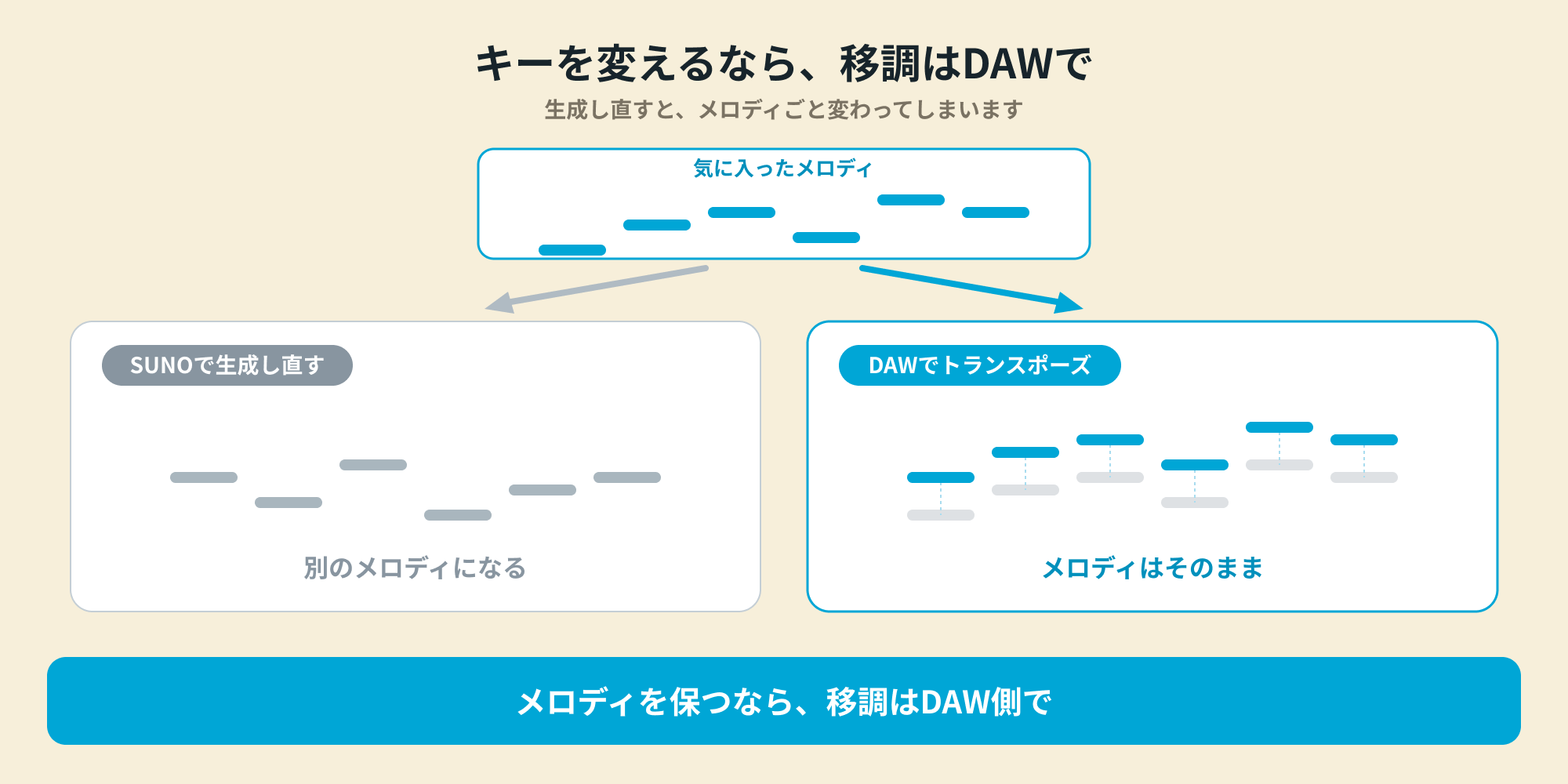
In that case, regenerating to change only the key often changes the melody itself.
To keep a melody you like while changing the key, import the generated song into a DAW and transpose it there.
SUNO itself also provides transposition in SUNO Studio, but we do not cover it in this article.
These methods let you get closer to the song in your head or the feel of a favorite song even if you are not yet comfortable with musical terminology.
Start by having the AI ask you questions, and give it a try.
From vocals or humming to accompaniment, instrument replacement, and stem / MIDI export
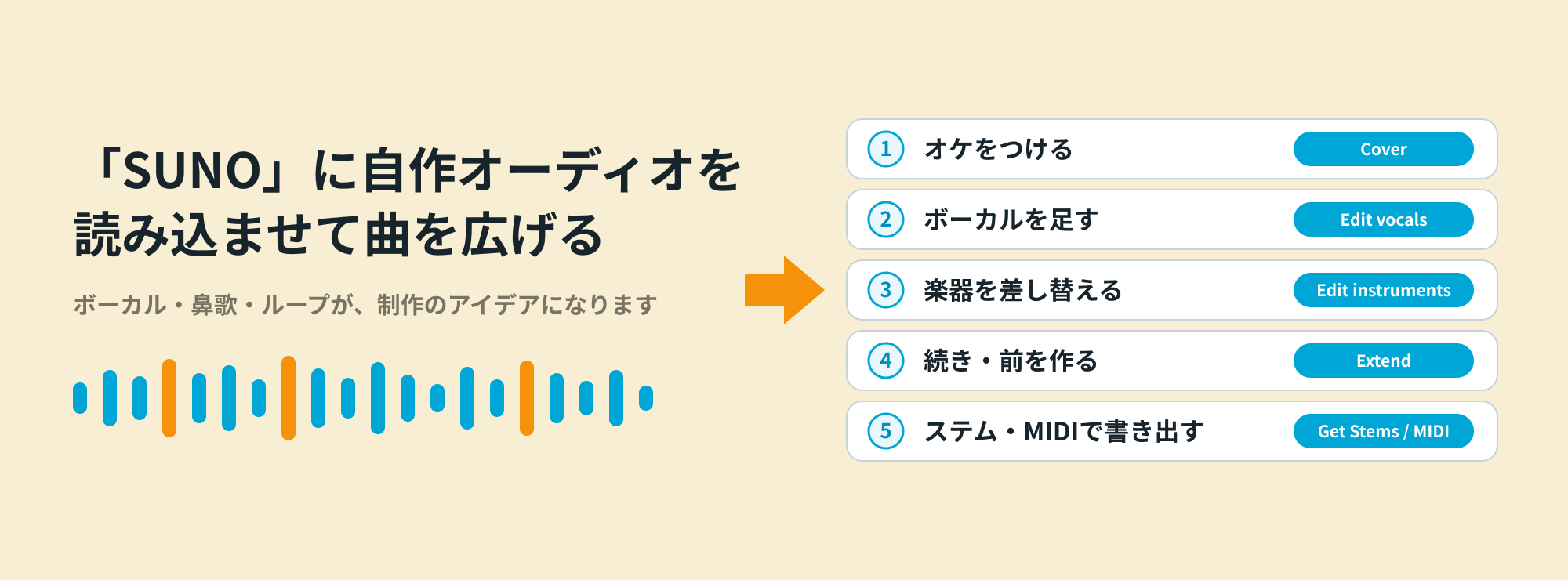
SUNO does more than generate songs from text prompts: it also has a feature for importing audio you prepared yourself.
You can start with melodies, humming, loops, or similar material, add accompaniment or replace instruments, and export stems or MIDI to take into a DAW.
Next, we will explain how to use these features in your music production workflow.
Upload audio to develop a song
As a starting point, let's look at how to add accompaniment to your own melody with SUNO.
Simply upload the recording of your melody, and SUNO can add accompaniment and develop it into a song, as in this example.
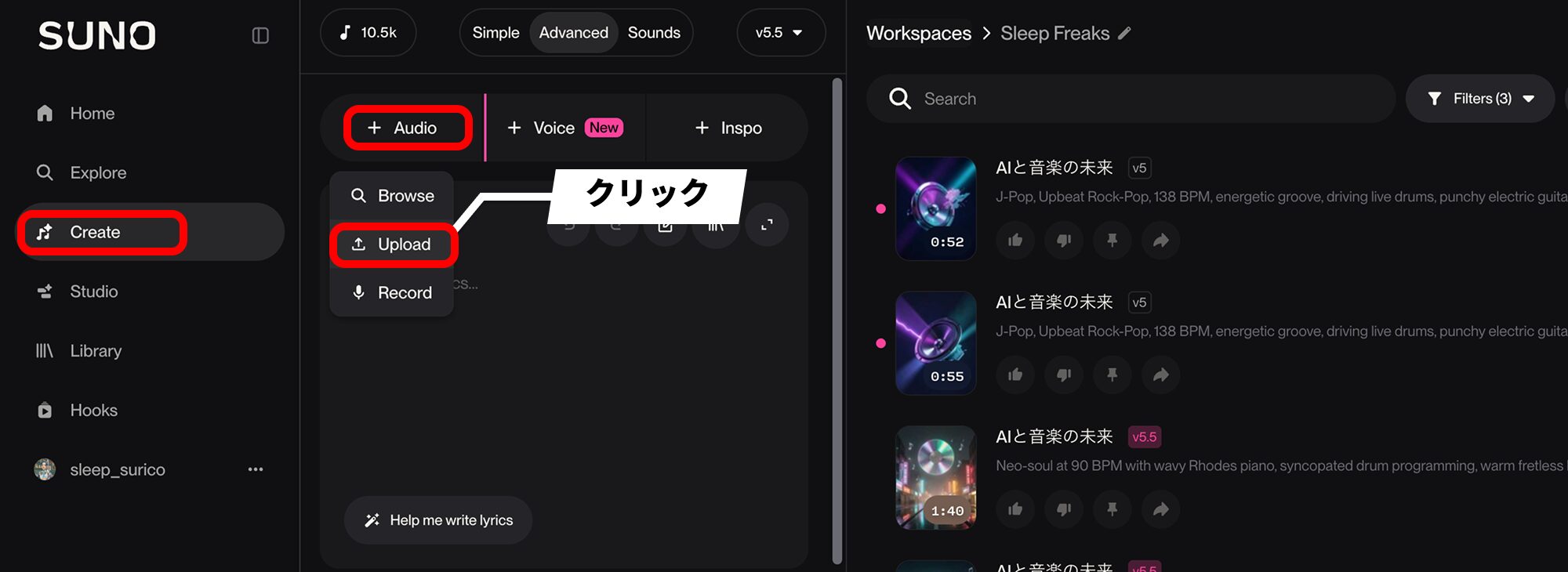
On the Create screen, choose + Audio → Upload to upload your own audio recording.
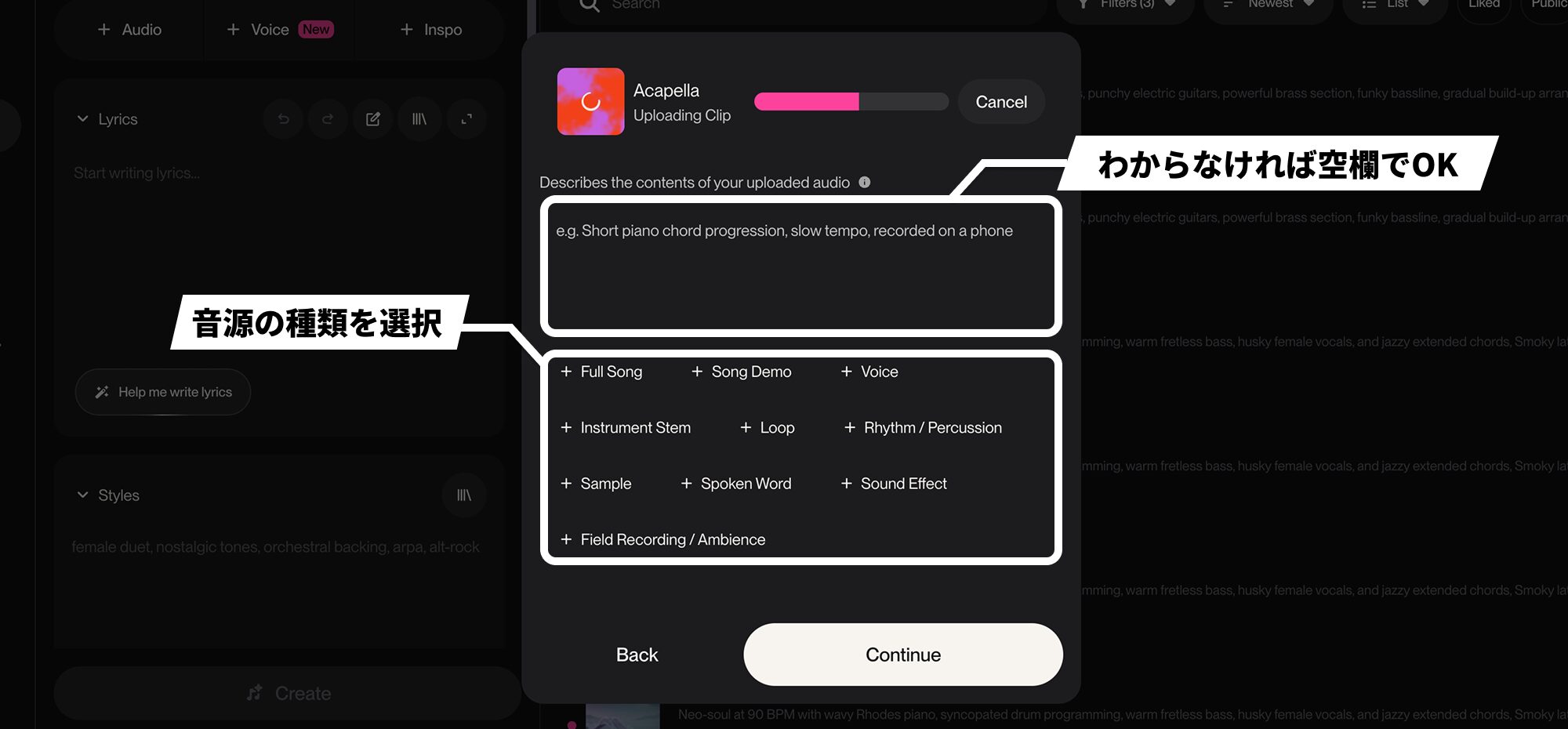
When uploading, a field asks you to describe the audio. If you are unsure, you can leave it blank.
Below it, select the type of audio—such as Full Song, Voice, or Loop—to match your material.
Here, we are uploading only a vocal recording of the melody, so we choose Voice.
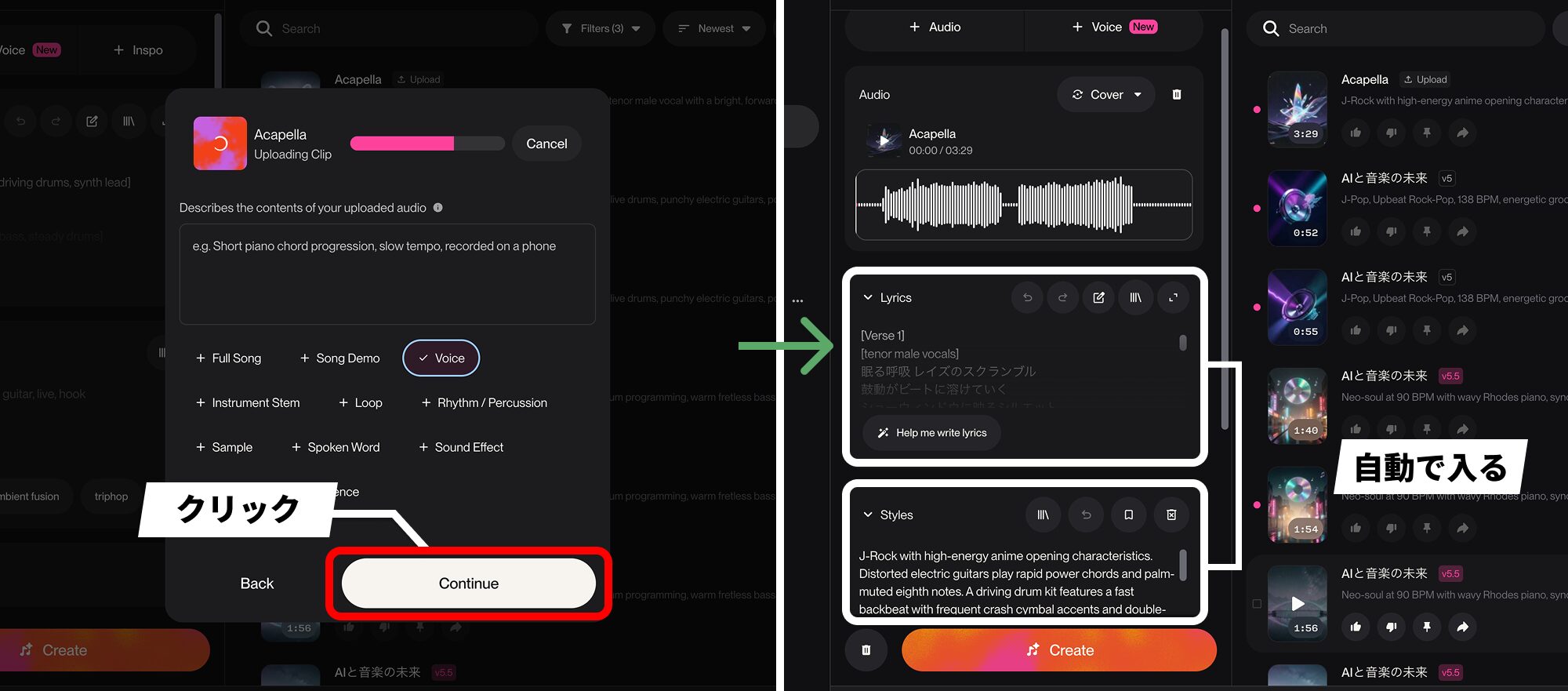
When you click Continue, the Lyrics and Styles prompts SUNO analyzes from the audio are inserted automatically.
Things to check before uploading audio
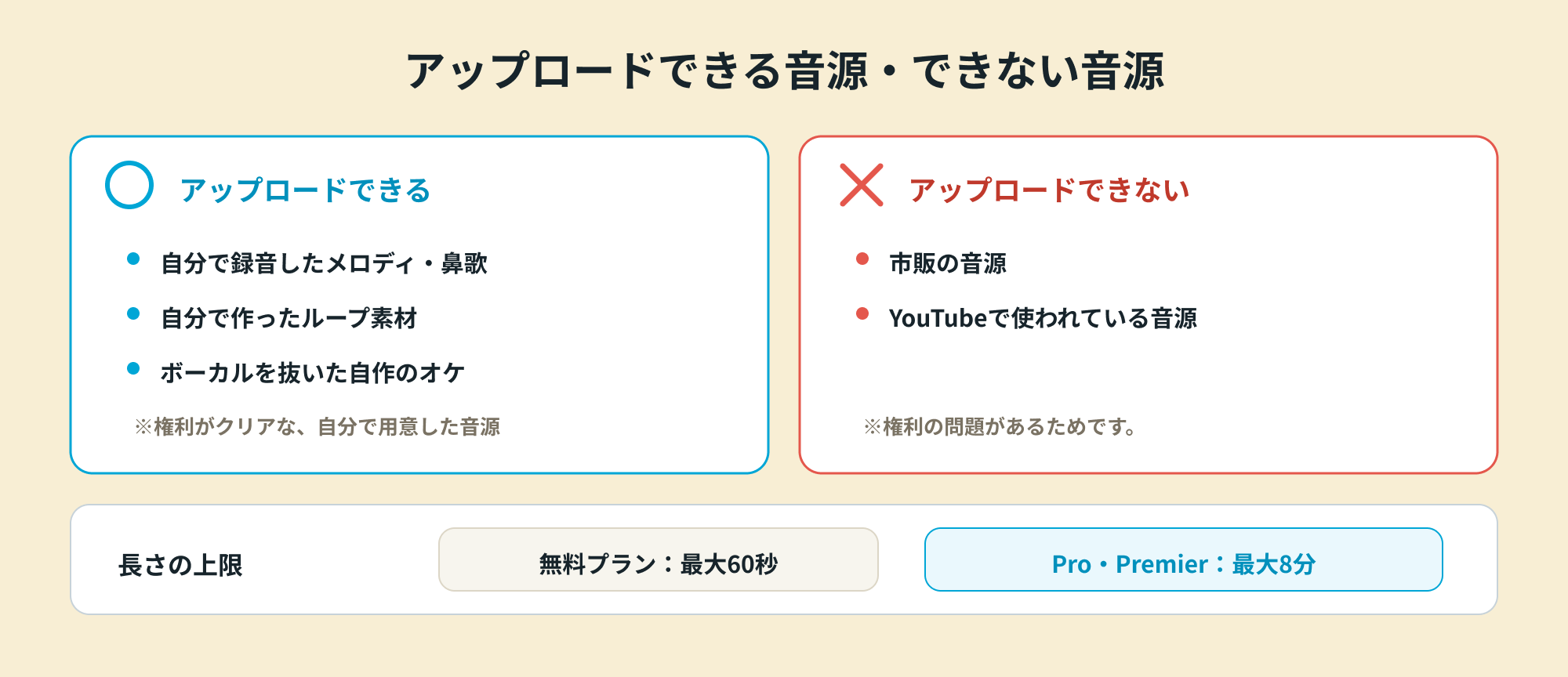
There are a few points to be aware of when uploading audio.
- Commercially released recordings are rejected because of rights issues.
- Audio used on YouTube is also rejected in an increasing number of cases.
- The maximum length is 60 seconds on the free plan, or eight minutes on Pro and Premier.
Decide how to use the audio
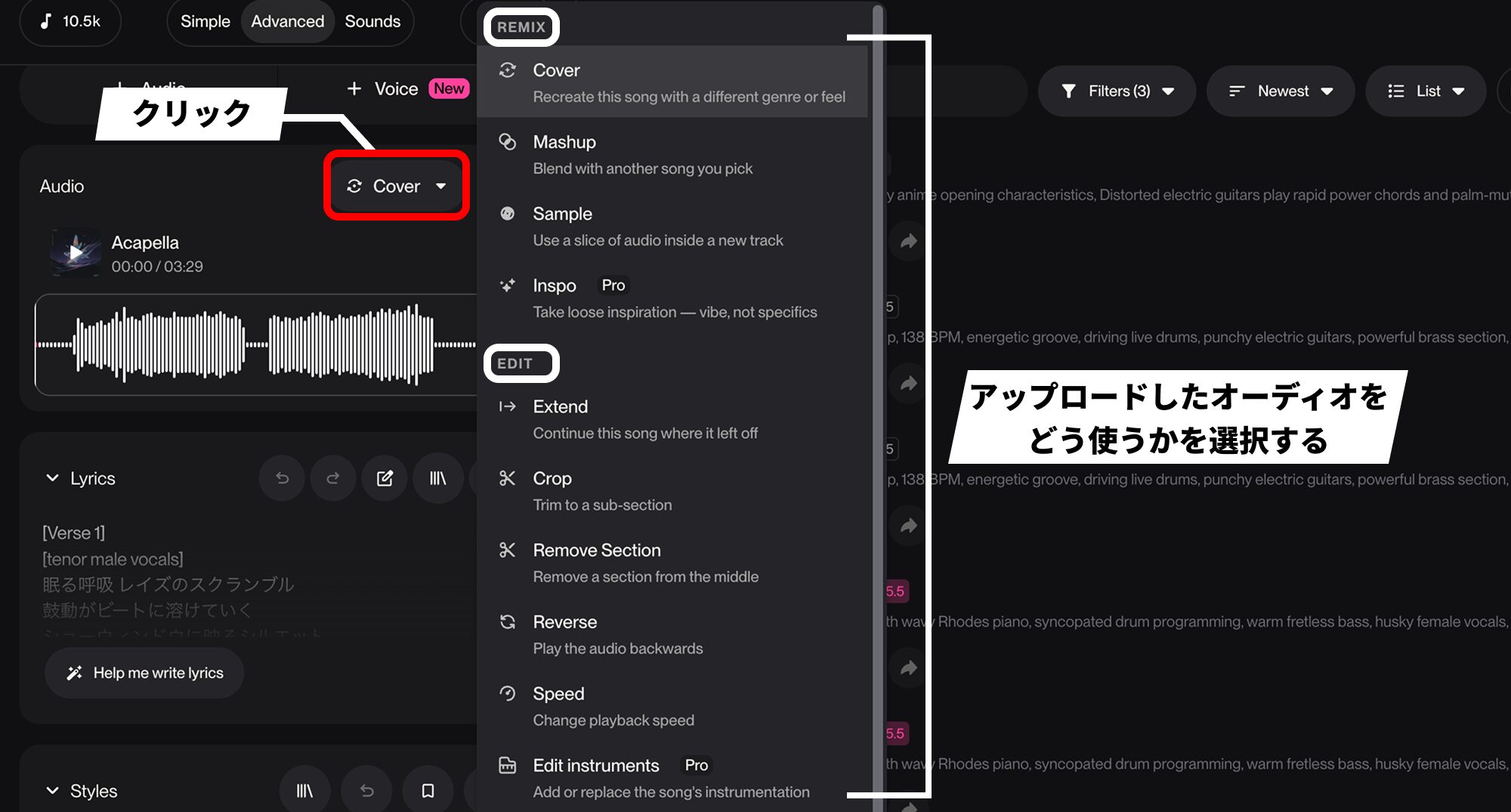
The first setting to choose is how to use your uploaded audio.
The Audio menu is divided into REMIX and EDIT. Choose whether to create a new song from the source or edit the audio itself.
The main options are as follows.
- Cover: remake the uploaded audio in a different genre or mood.
- Inspo (Pro): extract only the source audio's feel and create a new song more freely.
- Extend: generate more of the song to lengthen it (explained below).
- Edit instruments (Pro): add or replace instruments (explained below).
To add accompaniment to a melody in this example, we select Cover.
Adjust the lyrics and section tags to match your idea
Next is the Lyrics field.
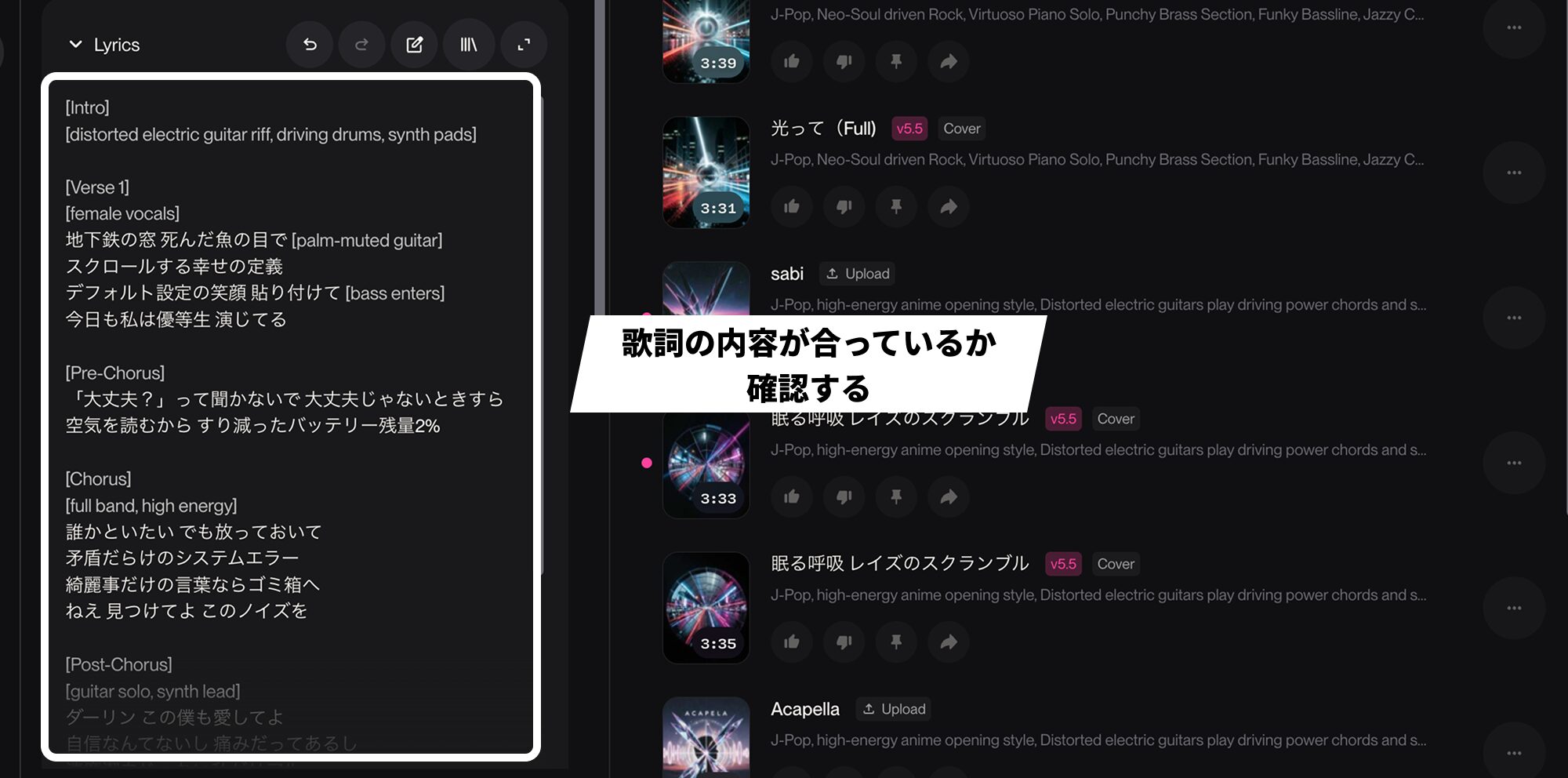
Lyrics extracted from the uploaded audio are inserted with section tags.
Some words may be misrecognized. Check the lyrics and correct any mistakes.
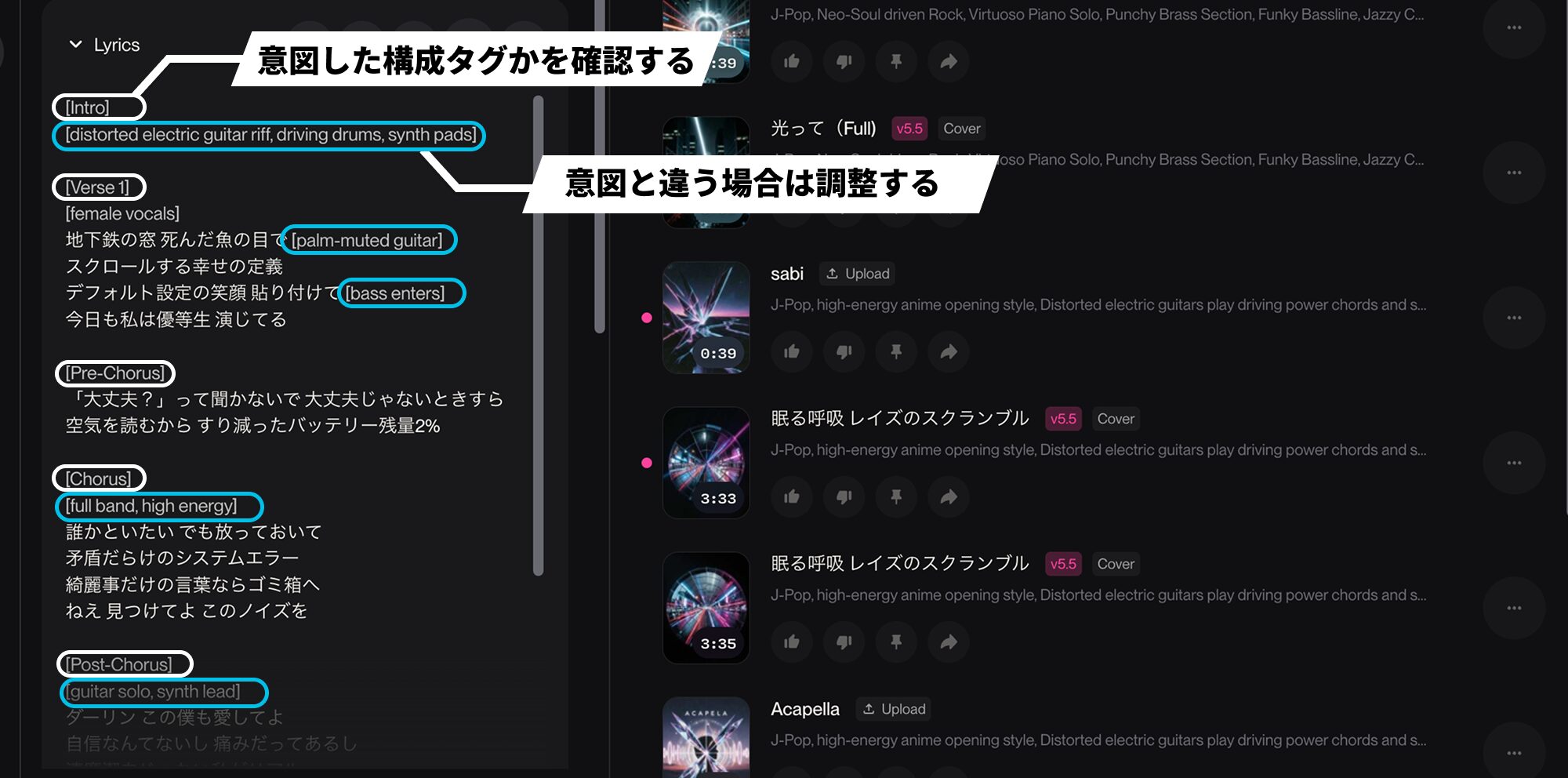
The section tags also reflect the system's interpretation during analysis.
Delete or manually adjust tags if the structure is not what you intended or the keywords differ from your idea.
Refine the analyzed Styles prompt
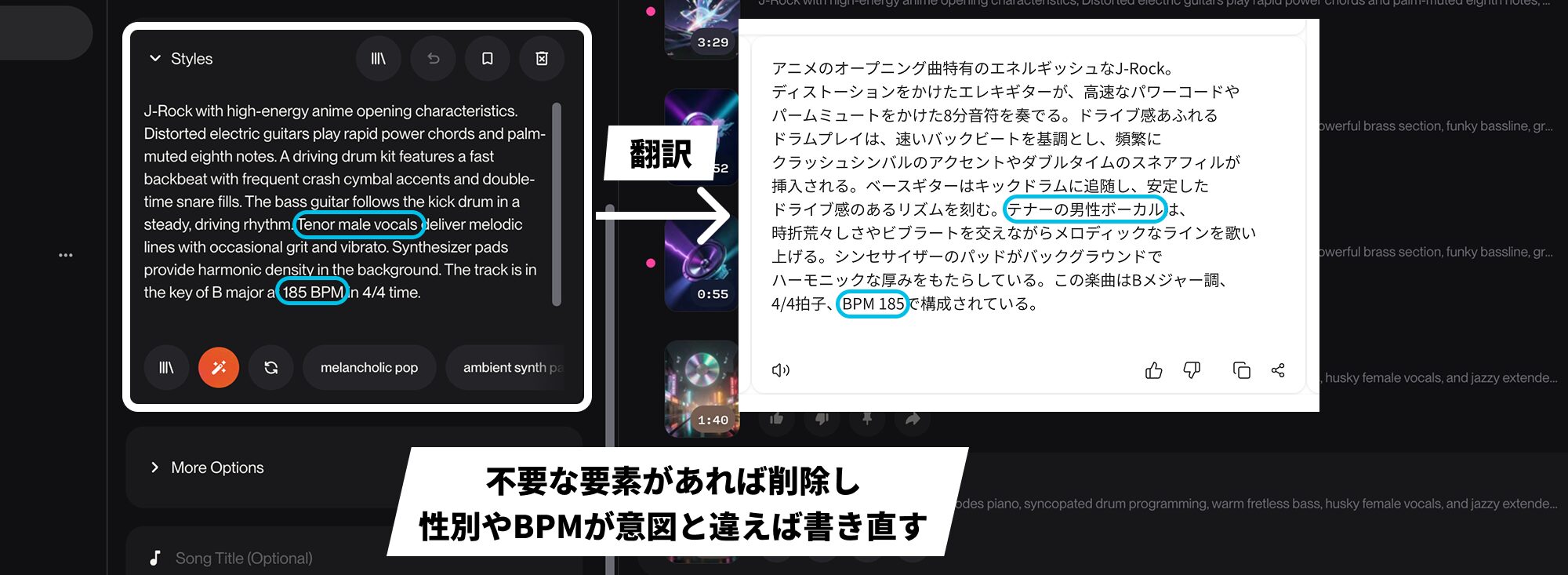
The Styles field contains a prompt describing the audio's characteristics.
It is accurate enough to recognize the genre even from Japanese vocals, but you still need to adjust it if its direction differs from the song you want.
The detailed prompt is in English, so translate it to check its meaning and remove unnecessary elements.
The vocal gender may be misidentified; rewrite it if that happens. Correct the BPM manually as well if it is clearly wrong.
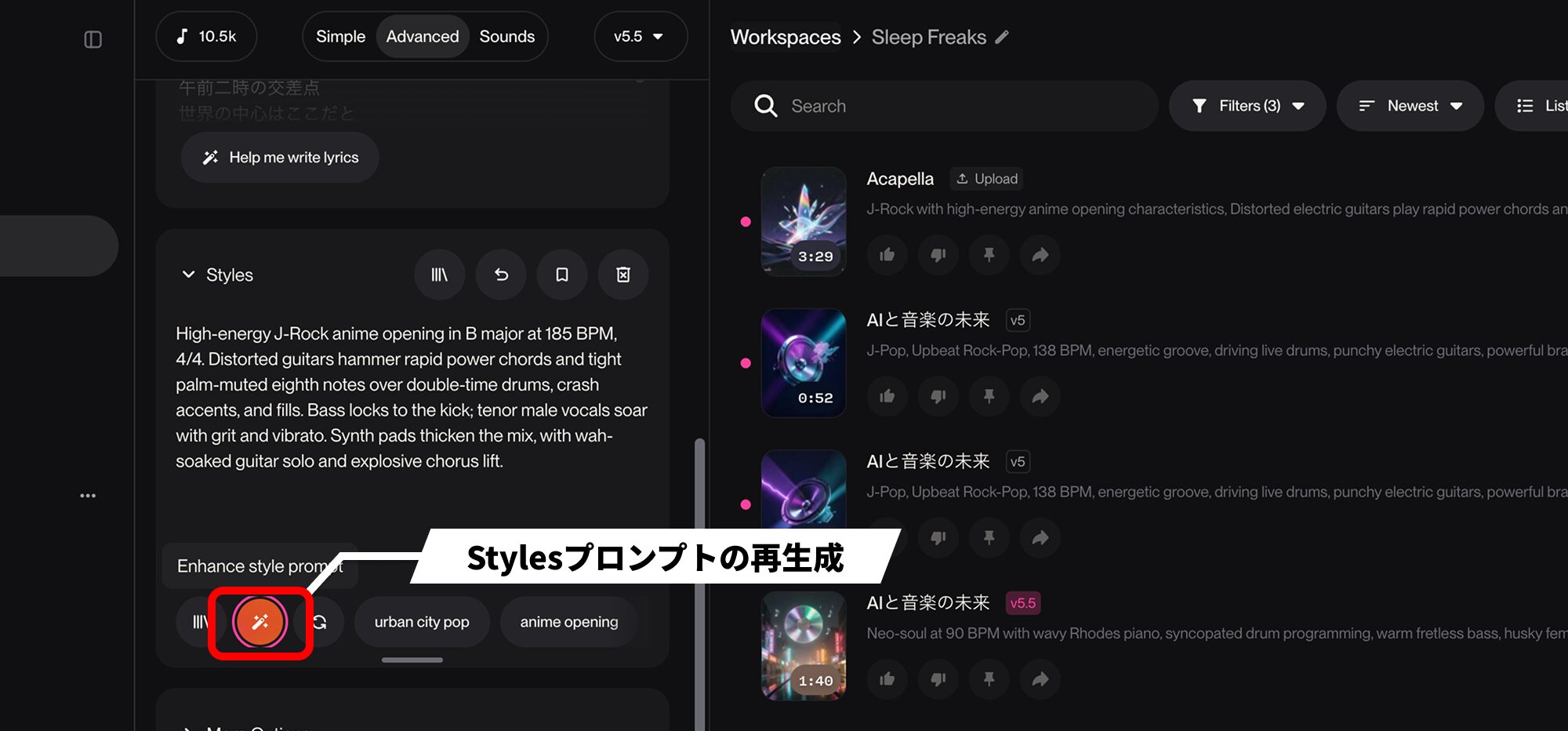
If the prompt differs completely from your intended song, try regenerating it with Enhance style prompt or refining it with help from an AI chat tool.
Set Audio Influence
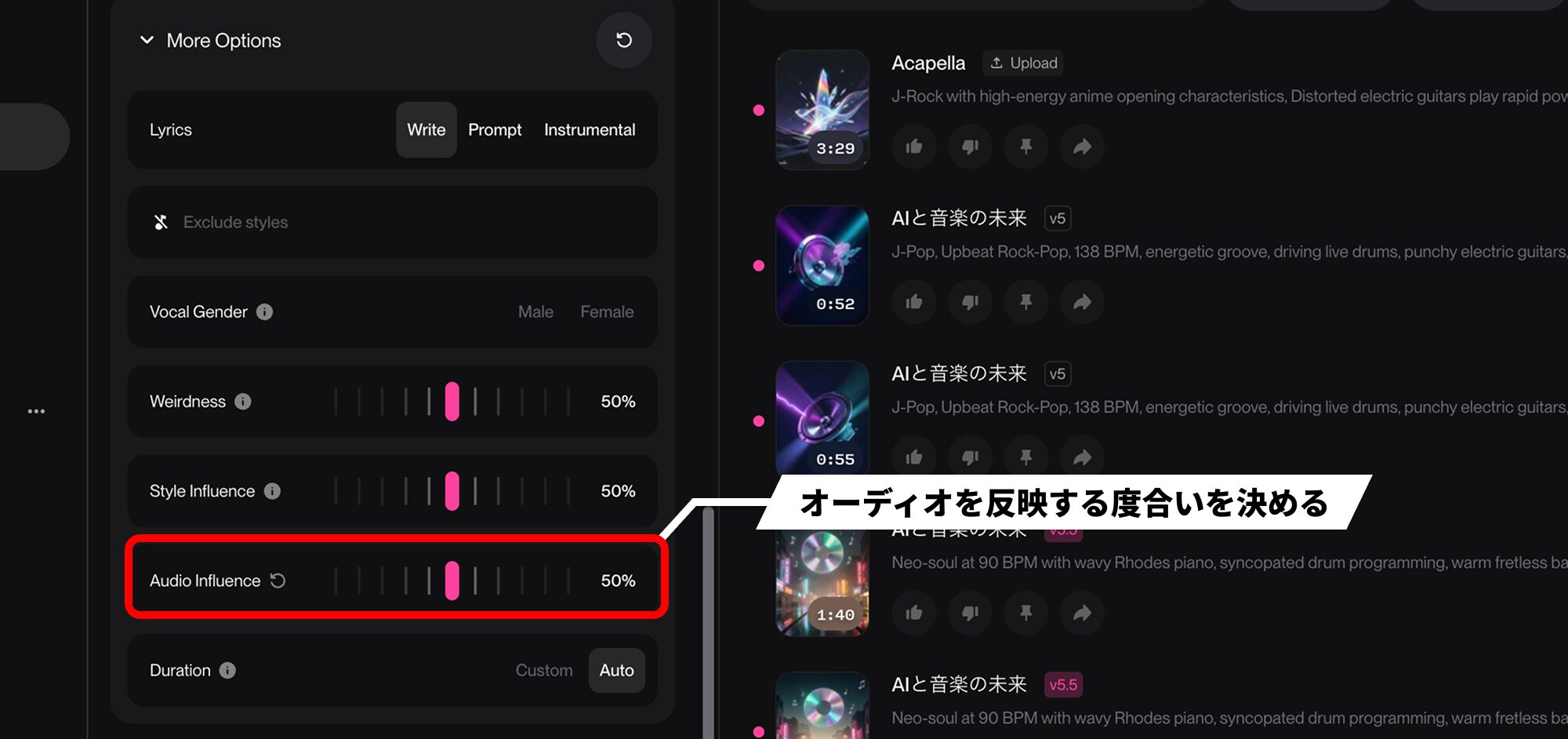
Next, set Audio Influence under More Options, which appears when you upload audio.
This determines how strongly the uploaded audio is reflected in the result.
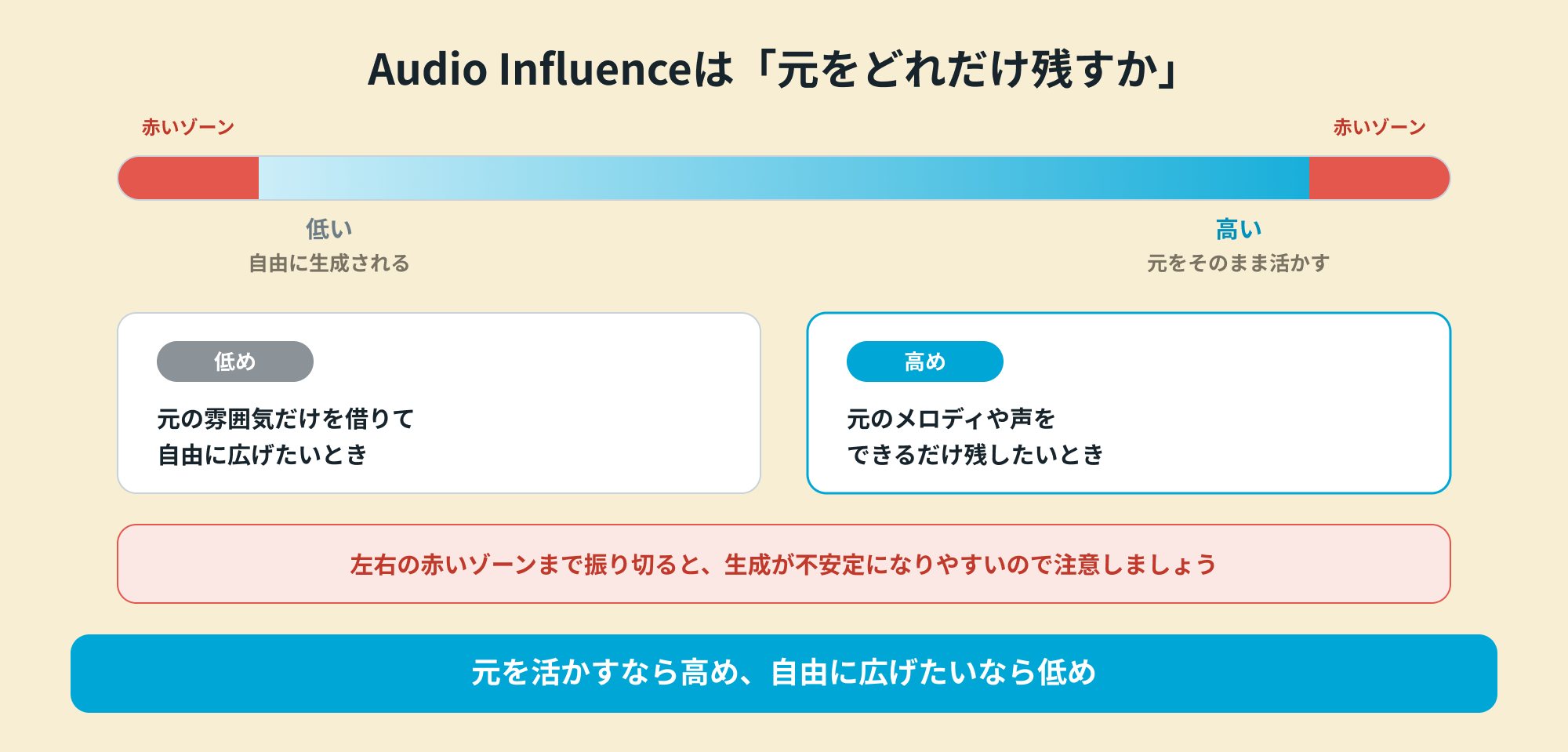
To preserve the original vocal or recording as closely as possible, use a higher setting.
However, extreme settings in the red zones at either end can become unstable, so take care.
Set Duration (song length)
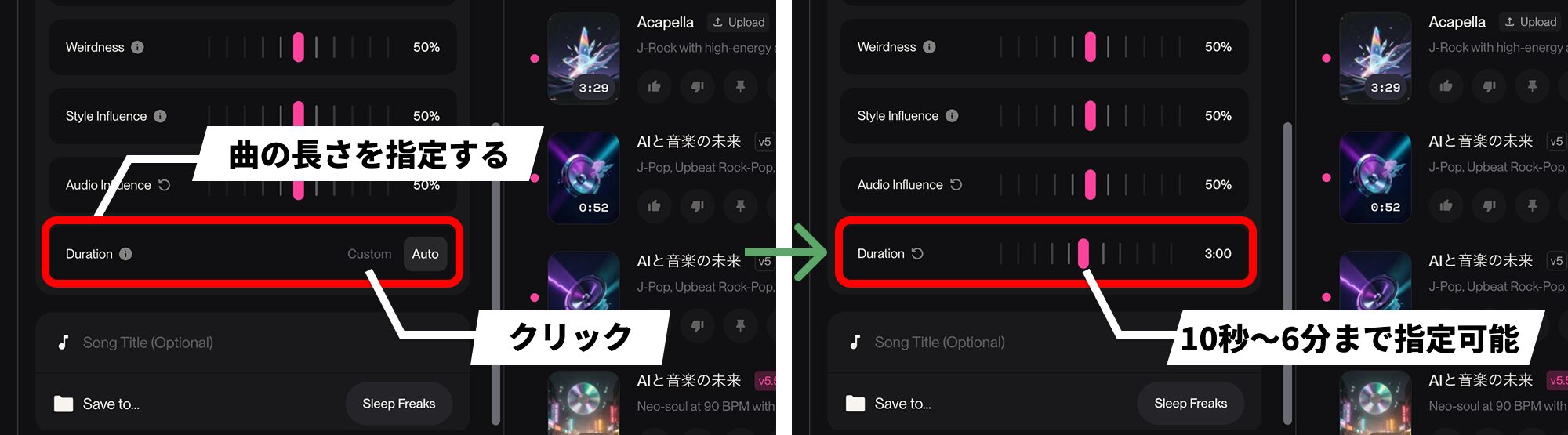
A new Duration control was added under More Options.
This lets you specify the song's length before generating it.
- Auto: let SUNO choose the length (the default).
- Custom: drag the slider to specify a desired length from 10 seconds to six minutes.
Previously, you did not know the song's length until it was generated. This feature lets you communicate in advance that you want, for example, a short demo of about one minute or a full-length song.
The specified length is only a guideline. The amount of lyrics, tempo, and structure—such as the intro or repeated choruses—can make the actual result somewhat longer or shorter.
Generate and adjust how closely the result follows Styles
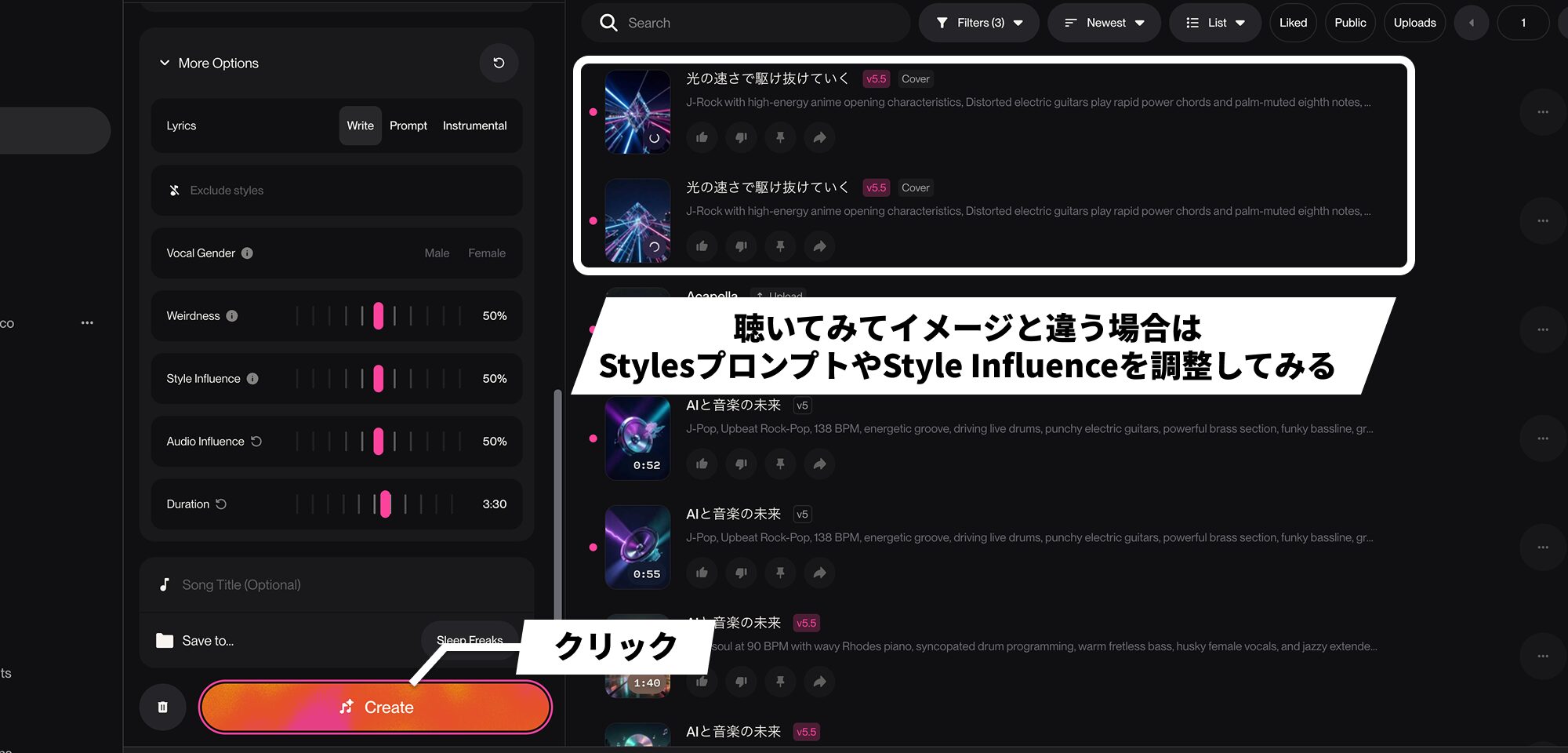
Once the settings are ready, generate the song.
Unlike generating from a text prompt alone, the key is that the accompaniment is created around the constraint of your melody.
Listen to the result. To bring it closer to your intended sound, change the Styles text or adjust Style Influence and generate again.
Add vocals to an instrumental track
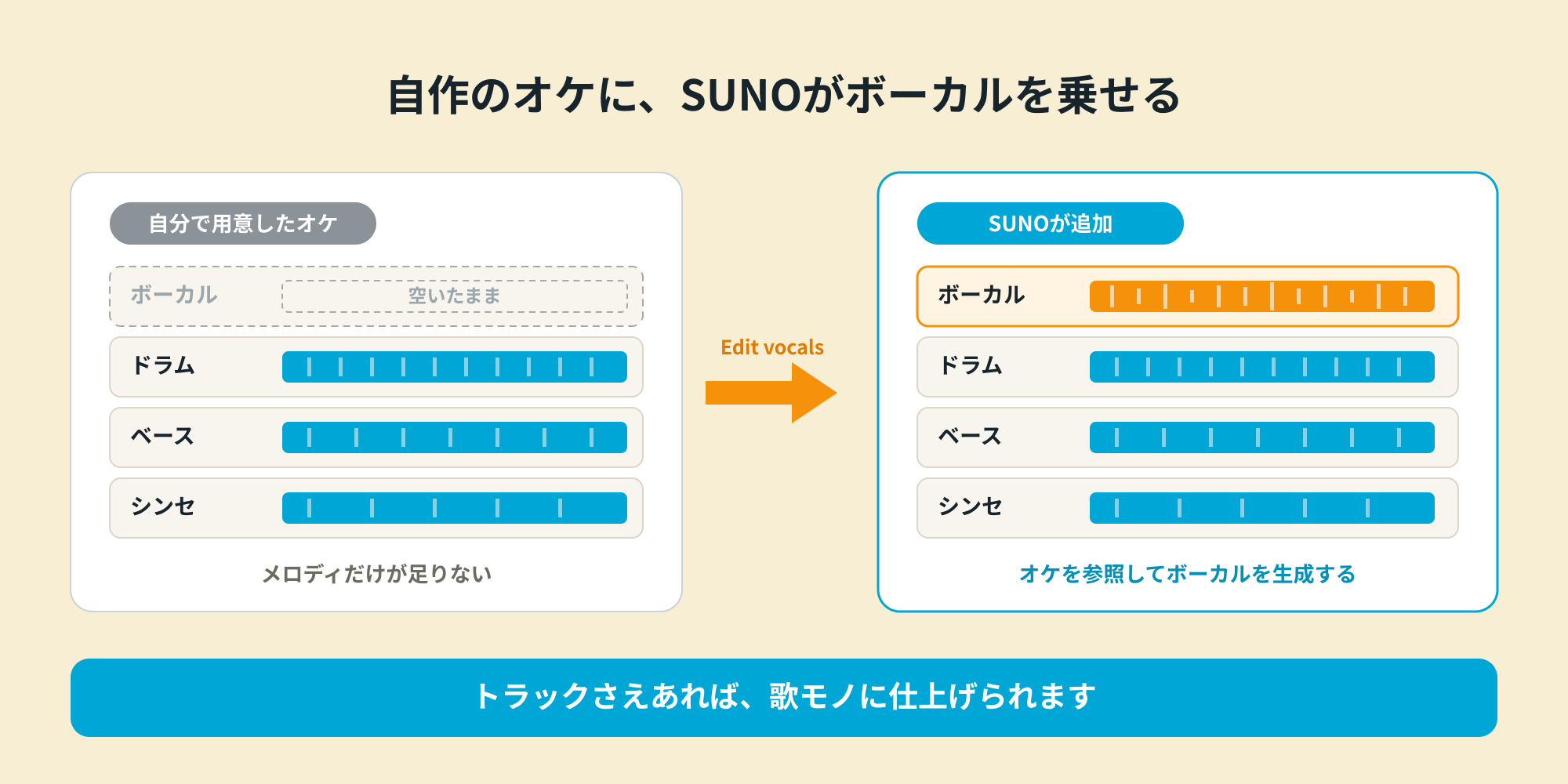
You can also go the other way and use SUNO to add vocals to an instrumental track you made yourself.
This is useful if you are confident in making tracks but less comfortable writing melodies.
SUNO can generate high-quality vocals, including Japanese vocals, while retaining the feel of your backing track.
With the stem feature described below, you can also download just the vocals and layer them over an instrumental track you have developed further.
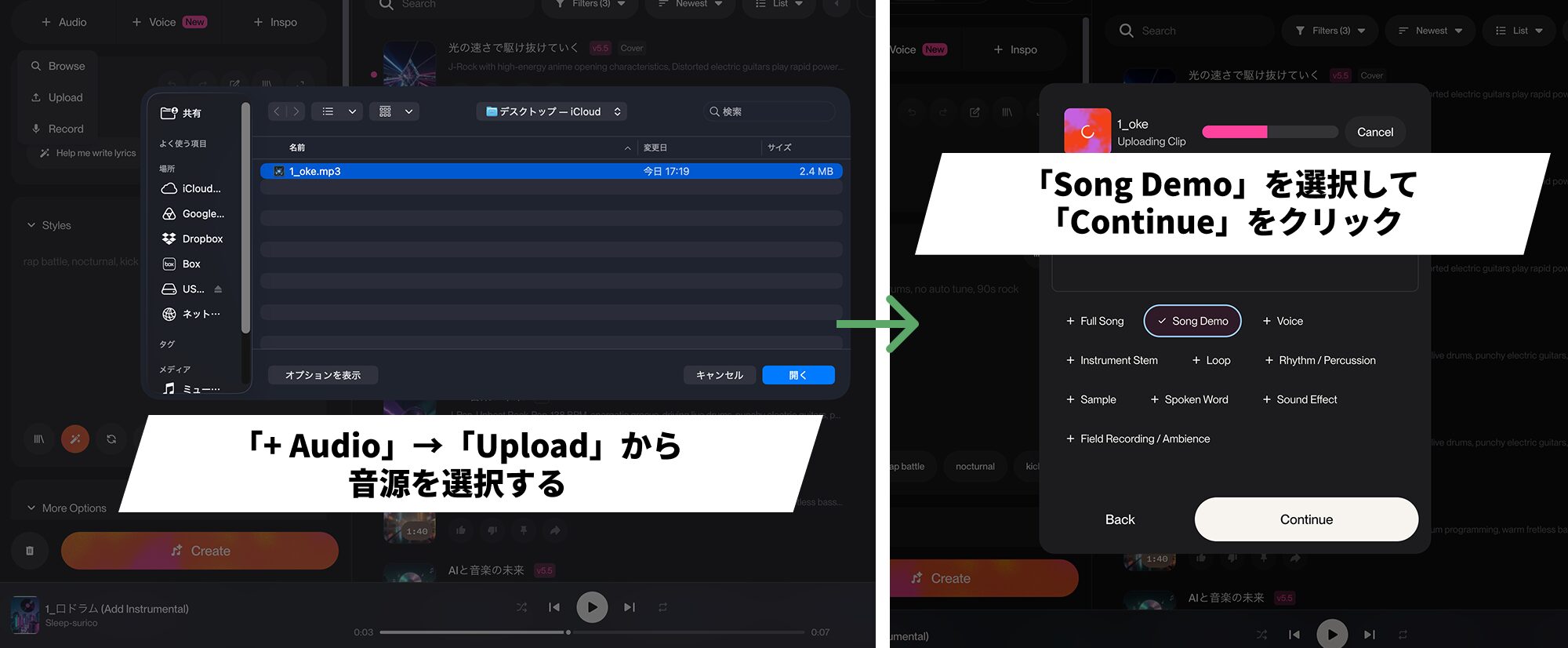
The steps are similar: upload your own instrumental track.
We selected Song Demo as the audio type.
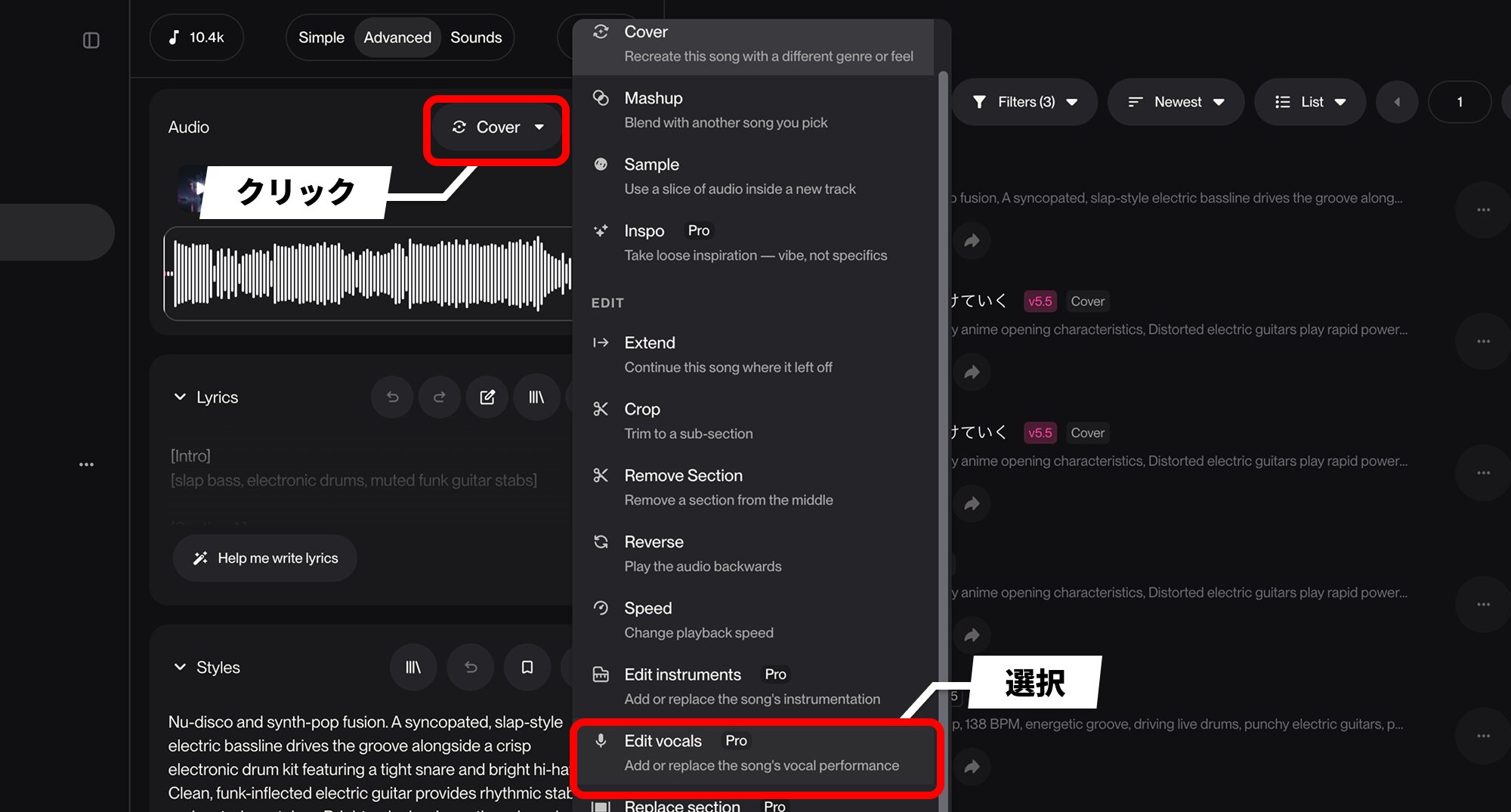
Choose Edit vocals from the Audio menu instead of Cover.
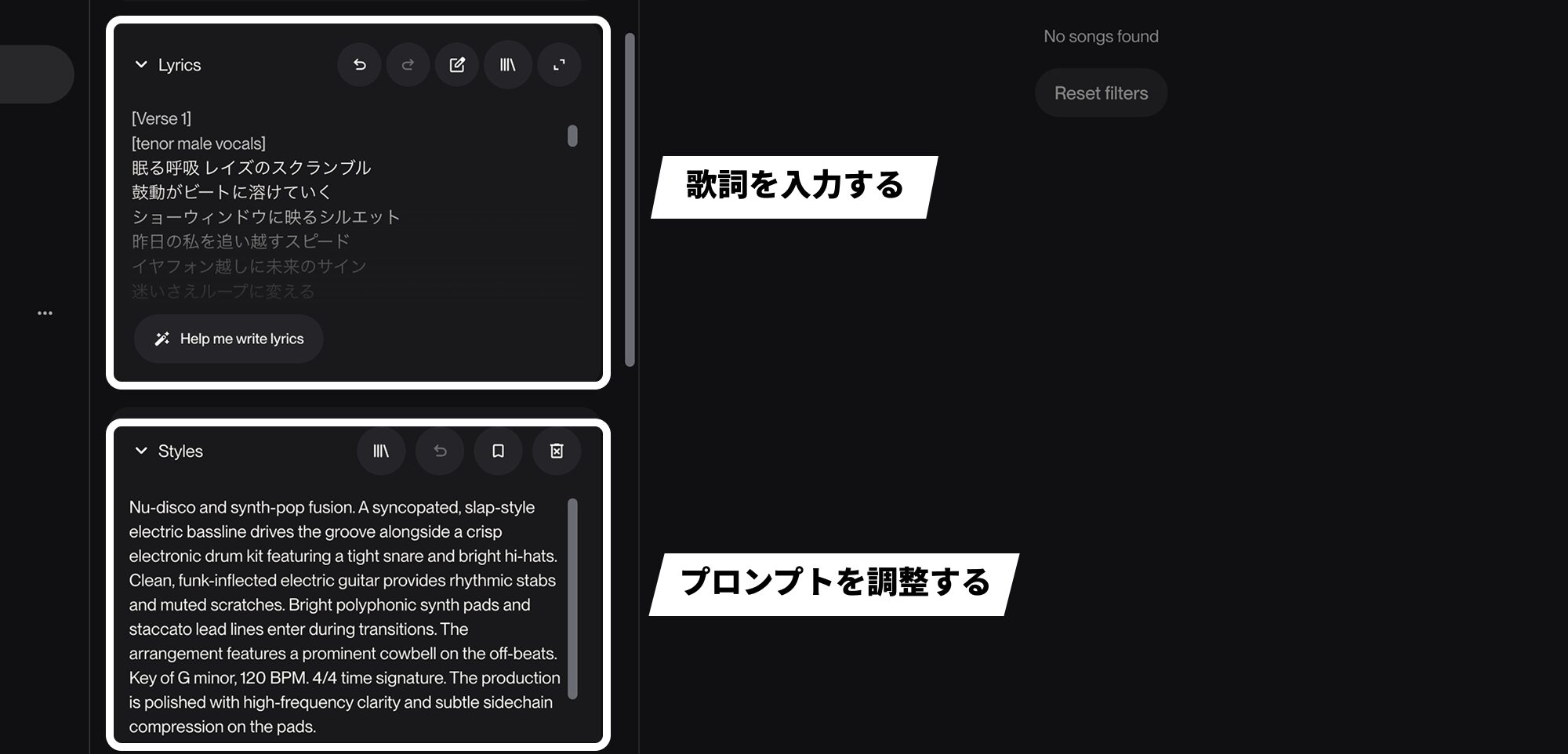
Enter your prepared lyrics in Lyrics, and adjust the Styles prompt if needed.
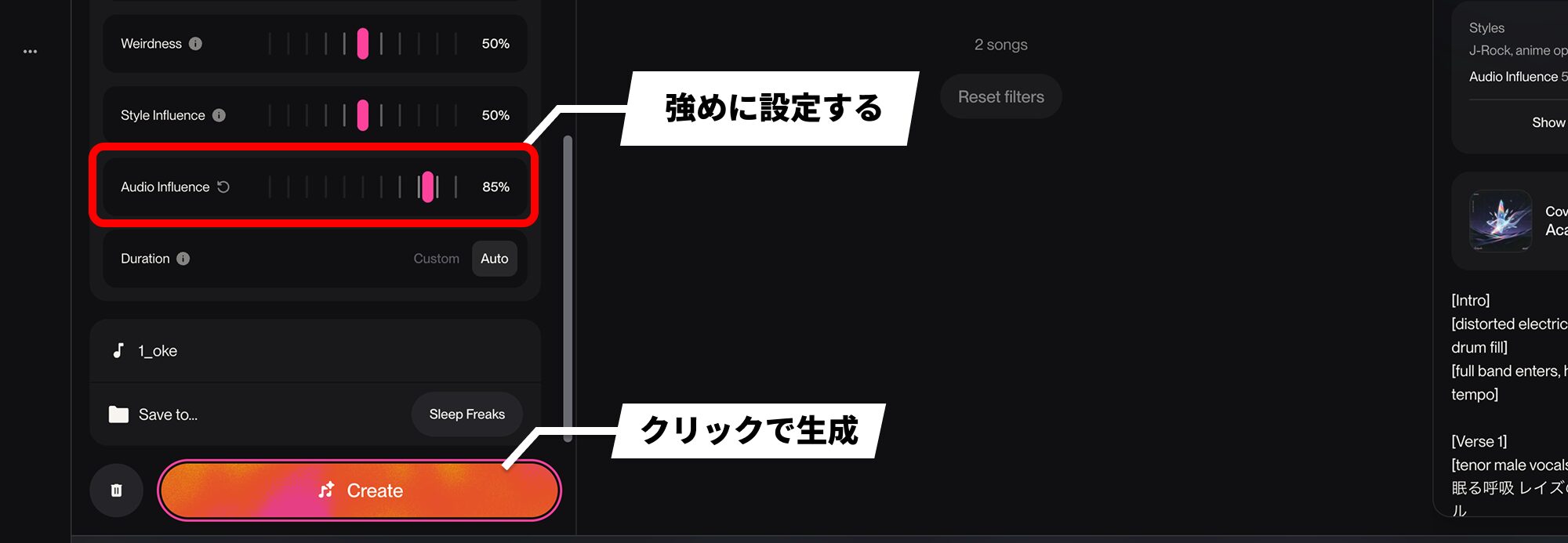
To reflect your track as closely as possible, we recommend starting with a stronger Audio Influence setting, then listening to the result and adjusting it.
Continue a song with Extend, and edit individual sections
If you have made a chorus but cannot think of what comes next, you can ask SUNO to create the missing sections.
Even with a recording of just the chorus, you can generate a complete verse-to-chorus sequence like this by specifying Lyrics and Styles.
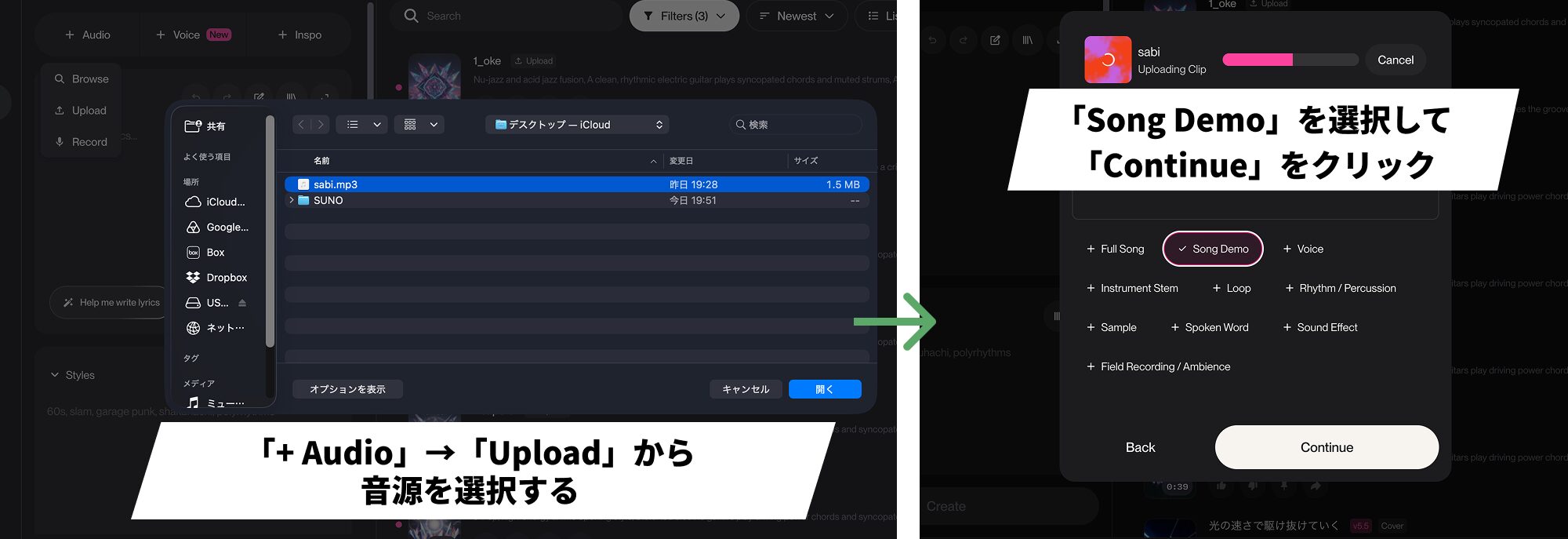
As before, upload a demo containing just the chorus.
We selected Song Demo as the audio type.
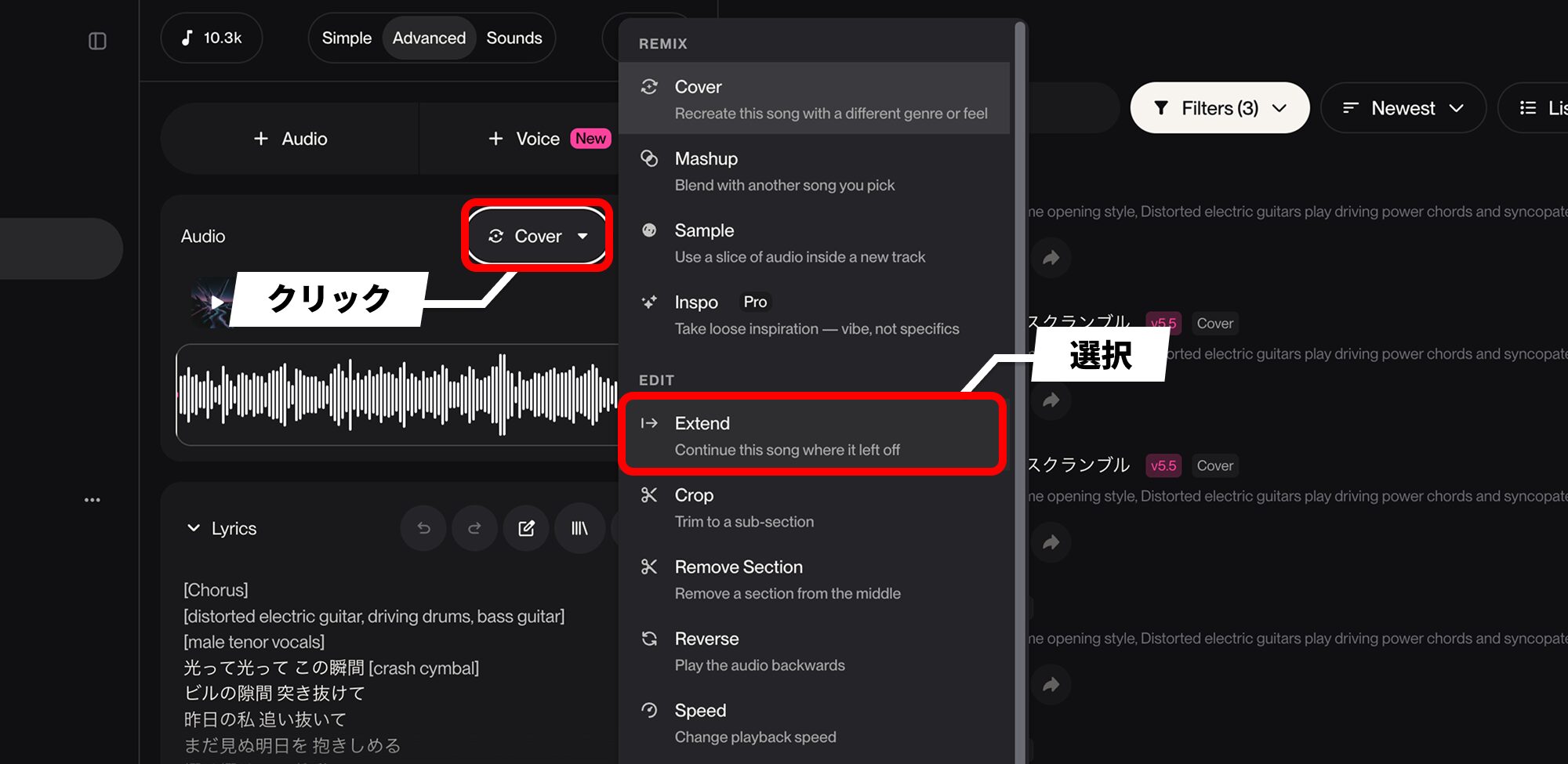
Choose Extend from the Audio menu.
It normally continues and lengthens the song from its ending, but it can also generate sections before the chorus.
Use Extend both to add material afterward and to add material before the source.
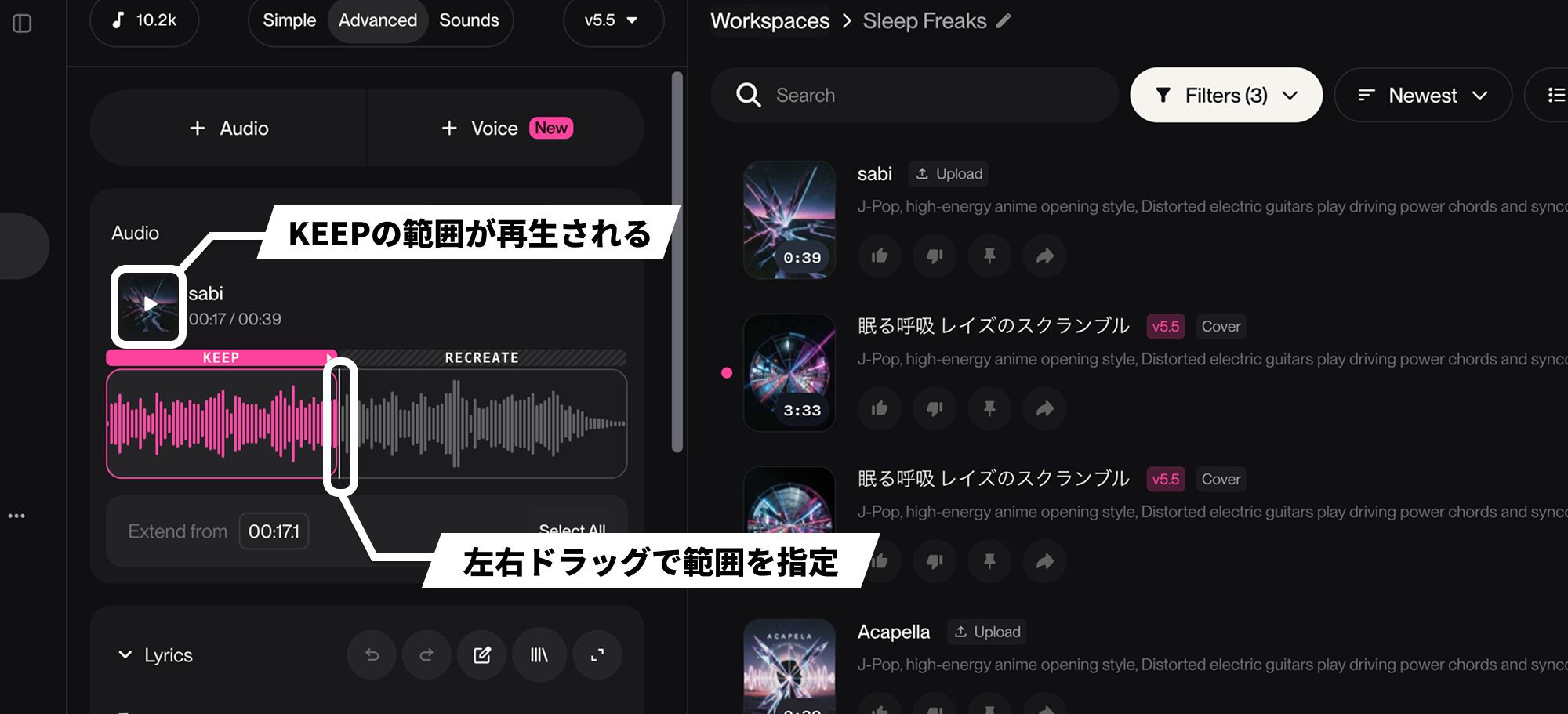
Slide the uploaded waveform left or right to select a range and specify which part of the original recording to keep.
KEEP indicates the retained section; RECREATE indicates the section to remake. You can keep the whole chorus or use only its first four bars.
Press Play to hear only the KEEP section, which makes it convenient to choose the range by listening.
You also use this range selection for the section-editing features described below.
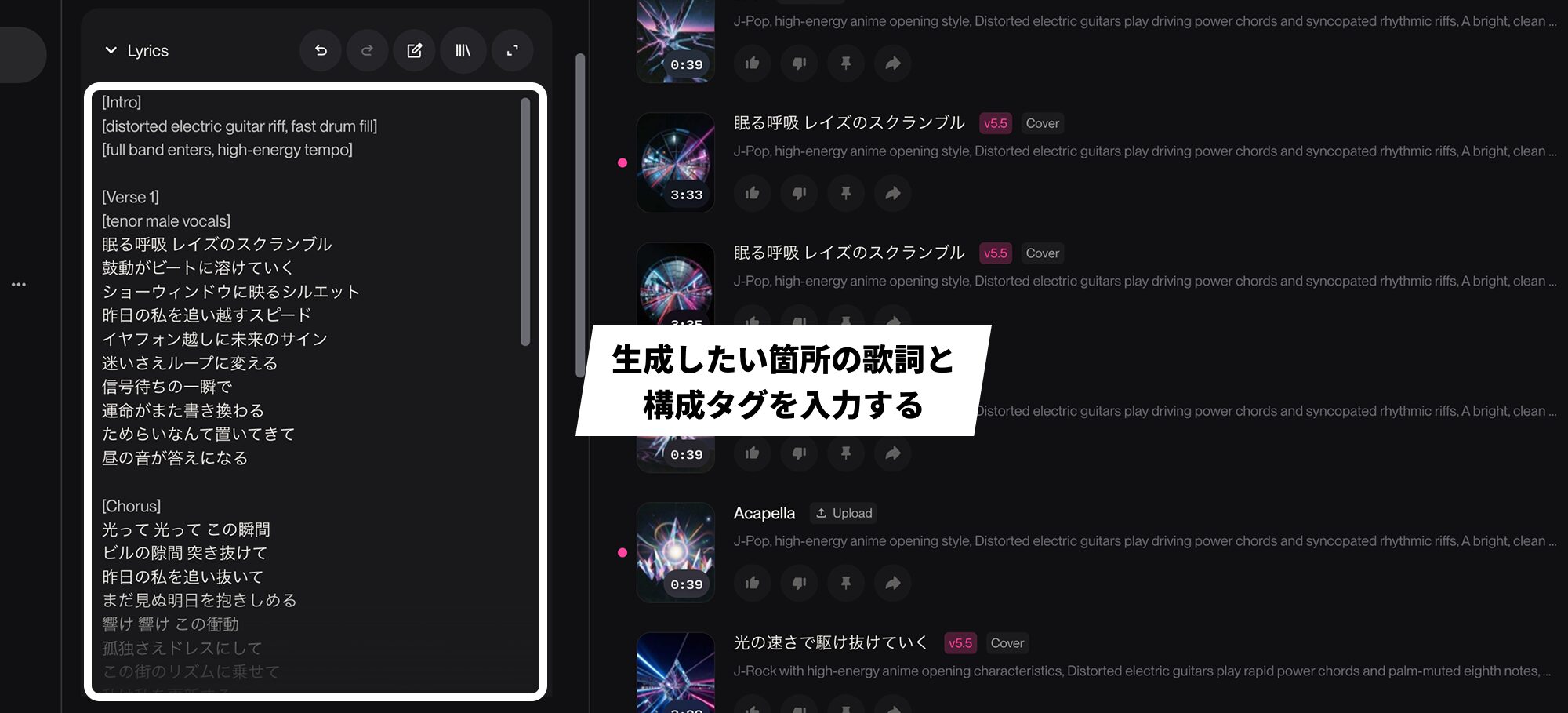
To generate material before the chorus, enter lyrics and section tags such as [Verse] in Lyrics.
Enter the corresponding material in the same way if you also want to generate sections after the chorus.
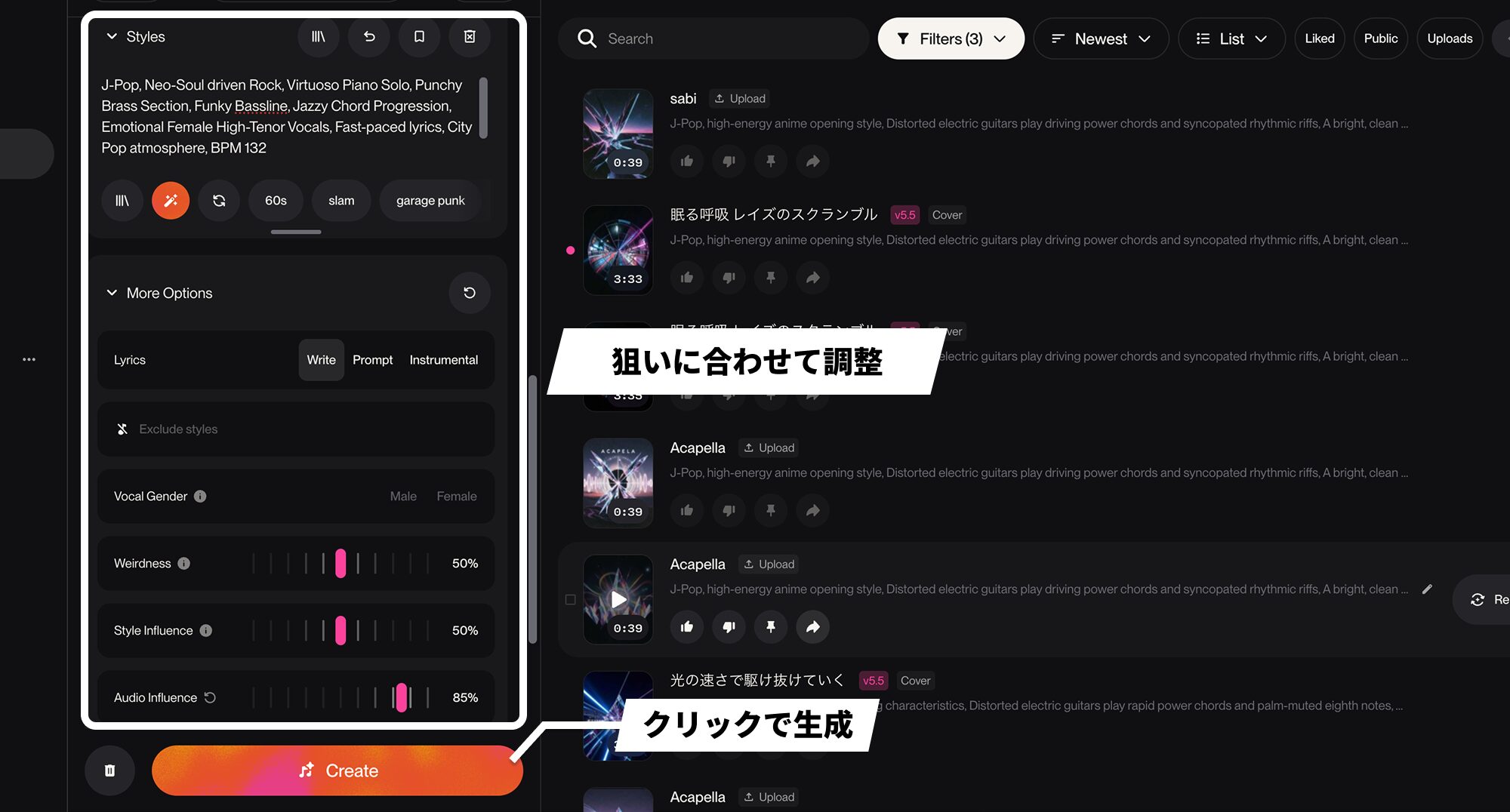
Then adjust the Styles prompt and More Options to suit your goal and generate as before.
Randomness is involved here too. If the result does not follow the section tags, try generating again several times.
Tools for editing individual sections
There are also section-editing tools for parts of the result you do not like.
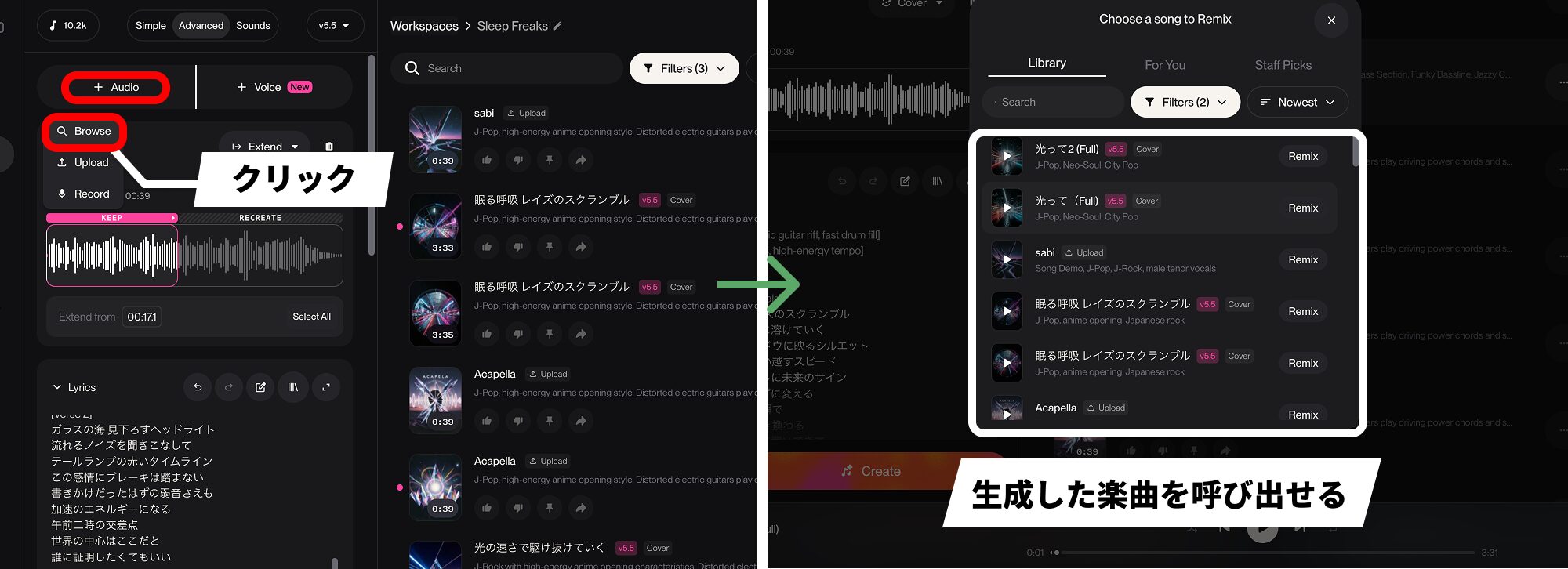
Choose Browse under + Audio to recall a generated song.
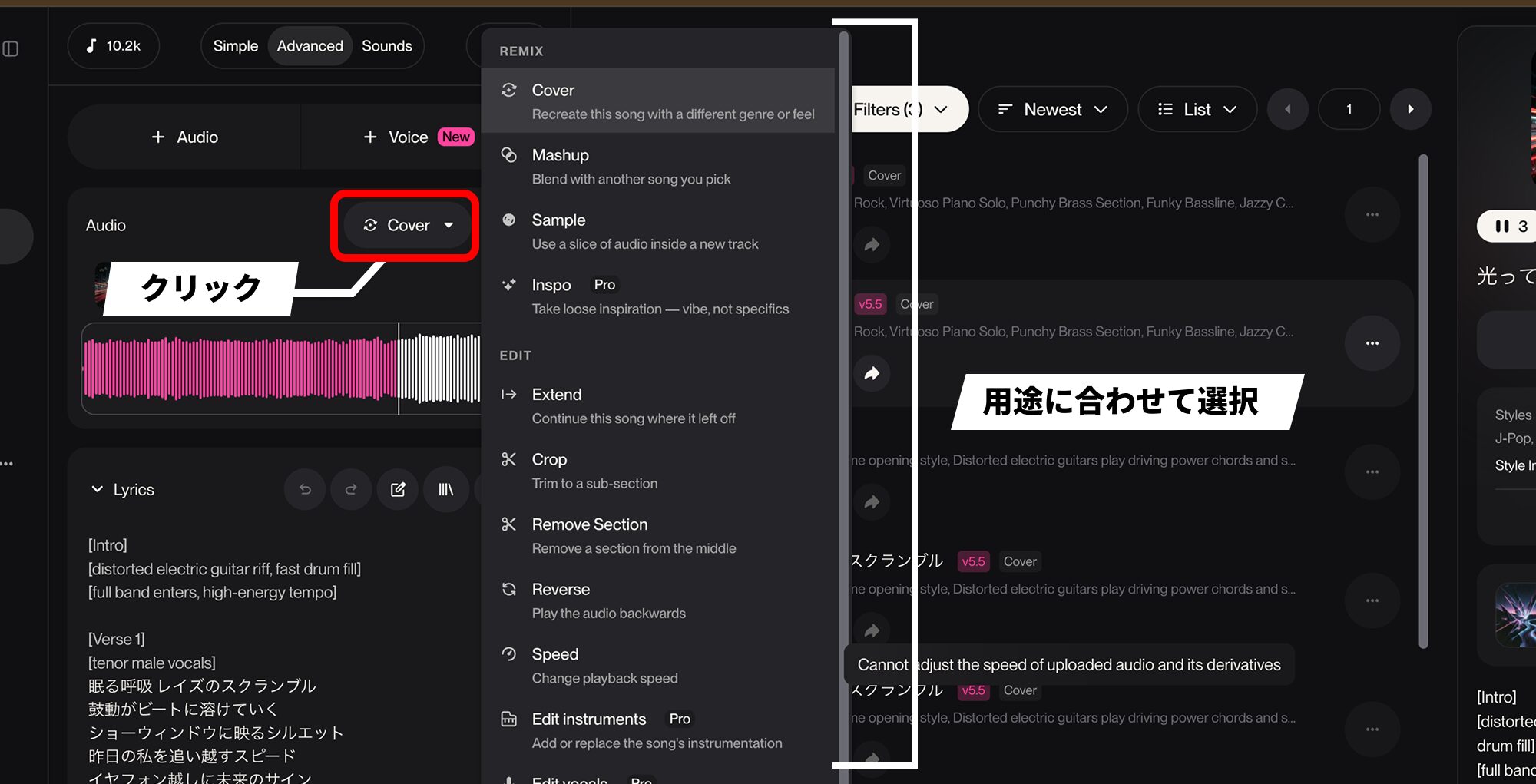
Then choose the appropriate command from the Audio menu and generate using the steps above.
The main features are as follows.
- Crop: keep only the range you want and trim away the rest.
- Remove Section: delete an unwanted passage from the middle of a song.
- Replace section: regenerate only a particular passage.
- Fade in / Fade out: smooth the beginning or ending of the song.
Combining these tools effectively lets you reshape a generated song into a structure you prefer.
Replace instruments with Edit instruments
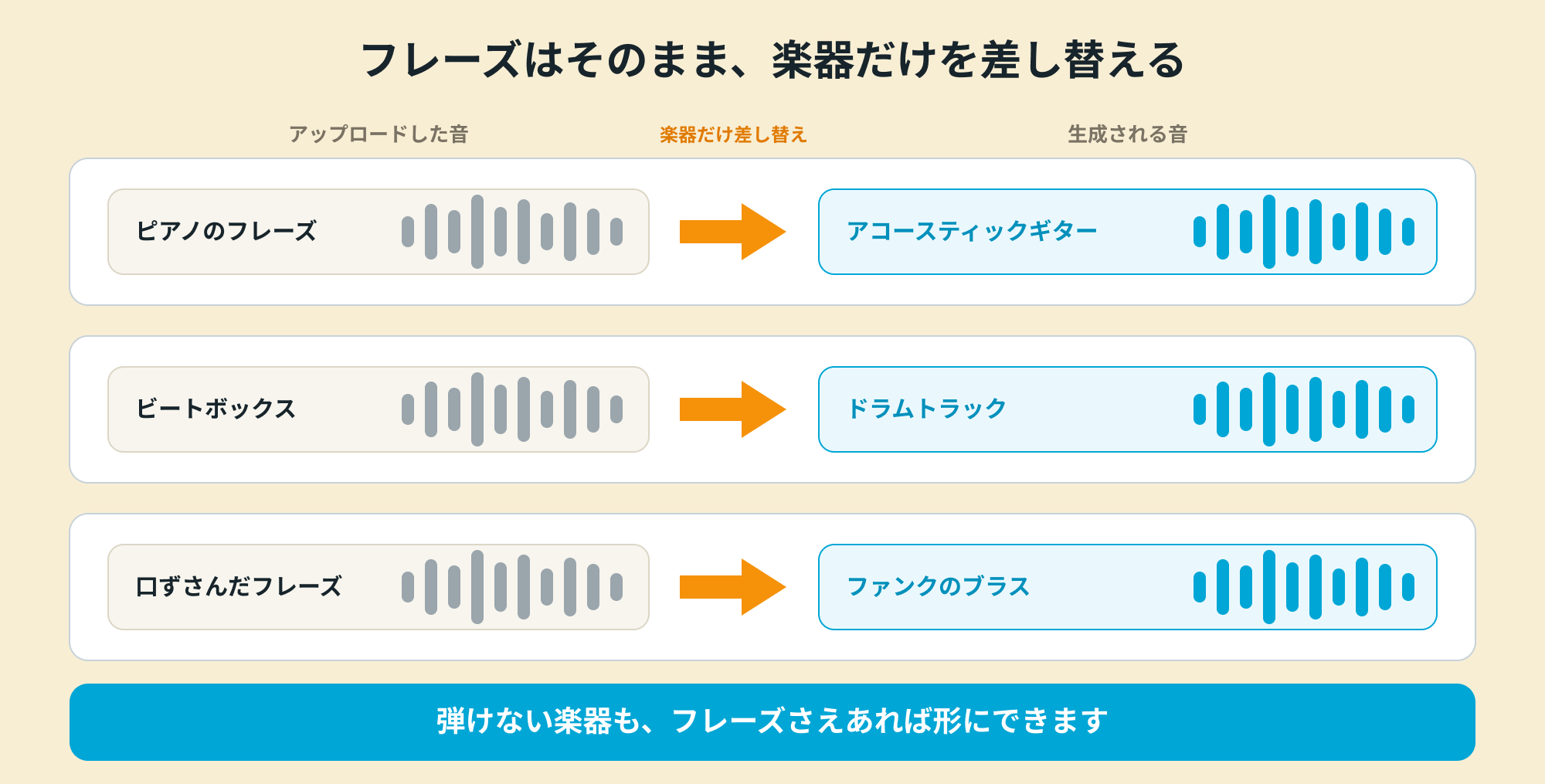
For uploaded audio, Edit instruments is a feature that replaces one instrument with another.
For example, you can turn piano into guitar, or a voice into trumpet.
The instrument changes while the feel of the played phrase is retained.
This seems particularly useful if you can play keyboards but struggle with guitar, or vice versa.
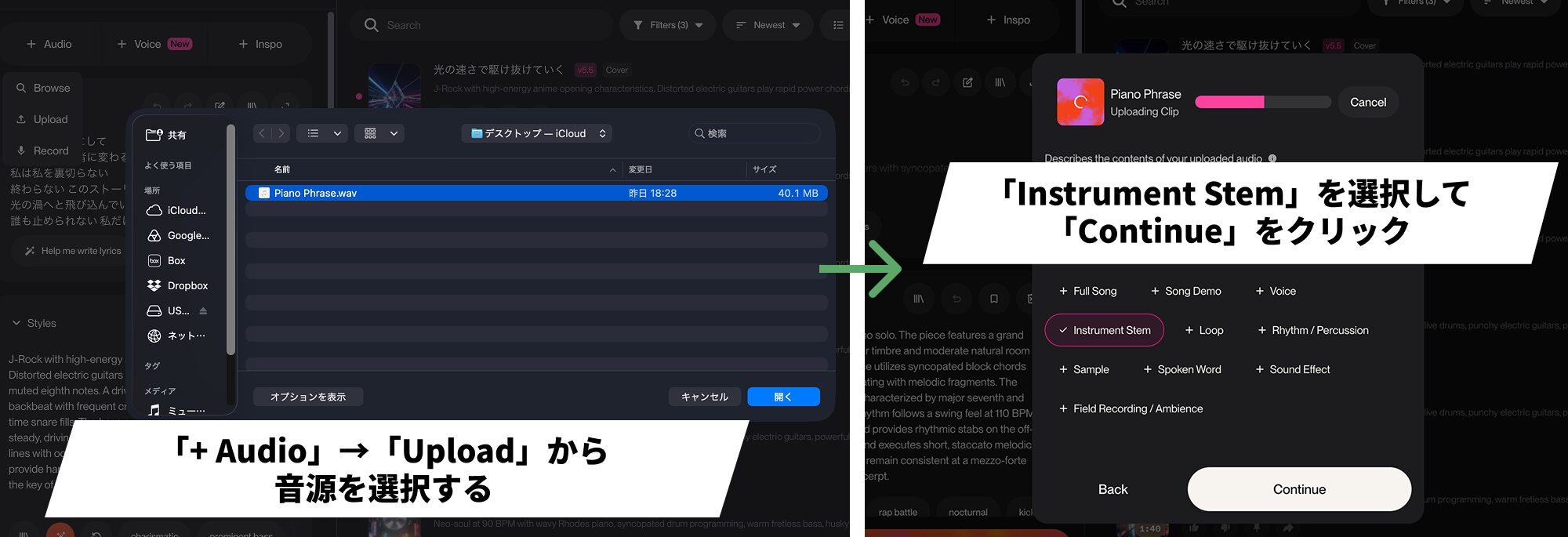
As when adding accompaniment to a melody, start by uploading the audio.
For this short piano phrase, we chose Instrument Stem as the audio type.
Select the closest type for your material, such as Loop for loops or Rhythm / Percussion for rhythmic material.
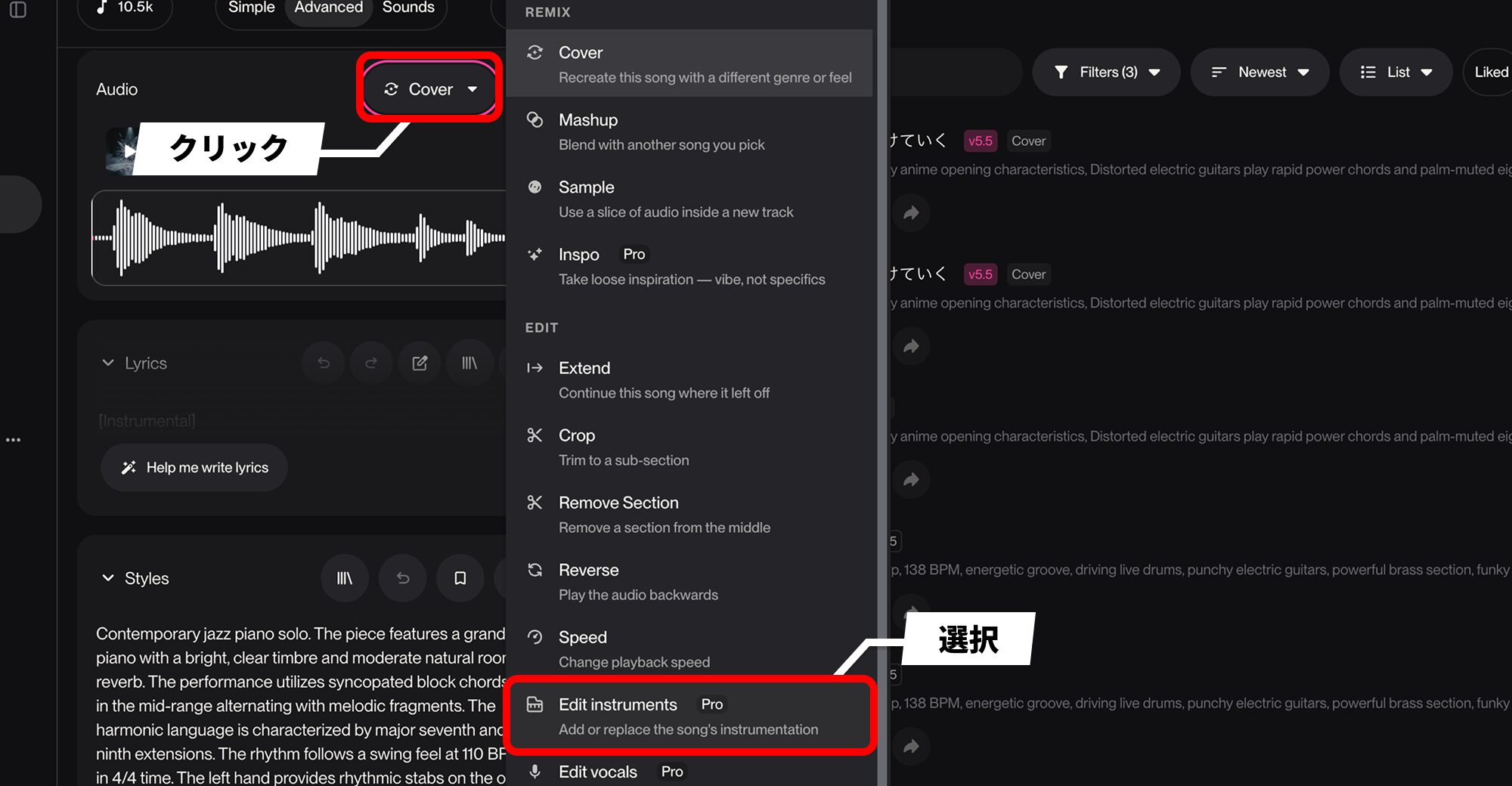
Select Edit instruments from the Audio menu.
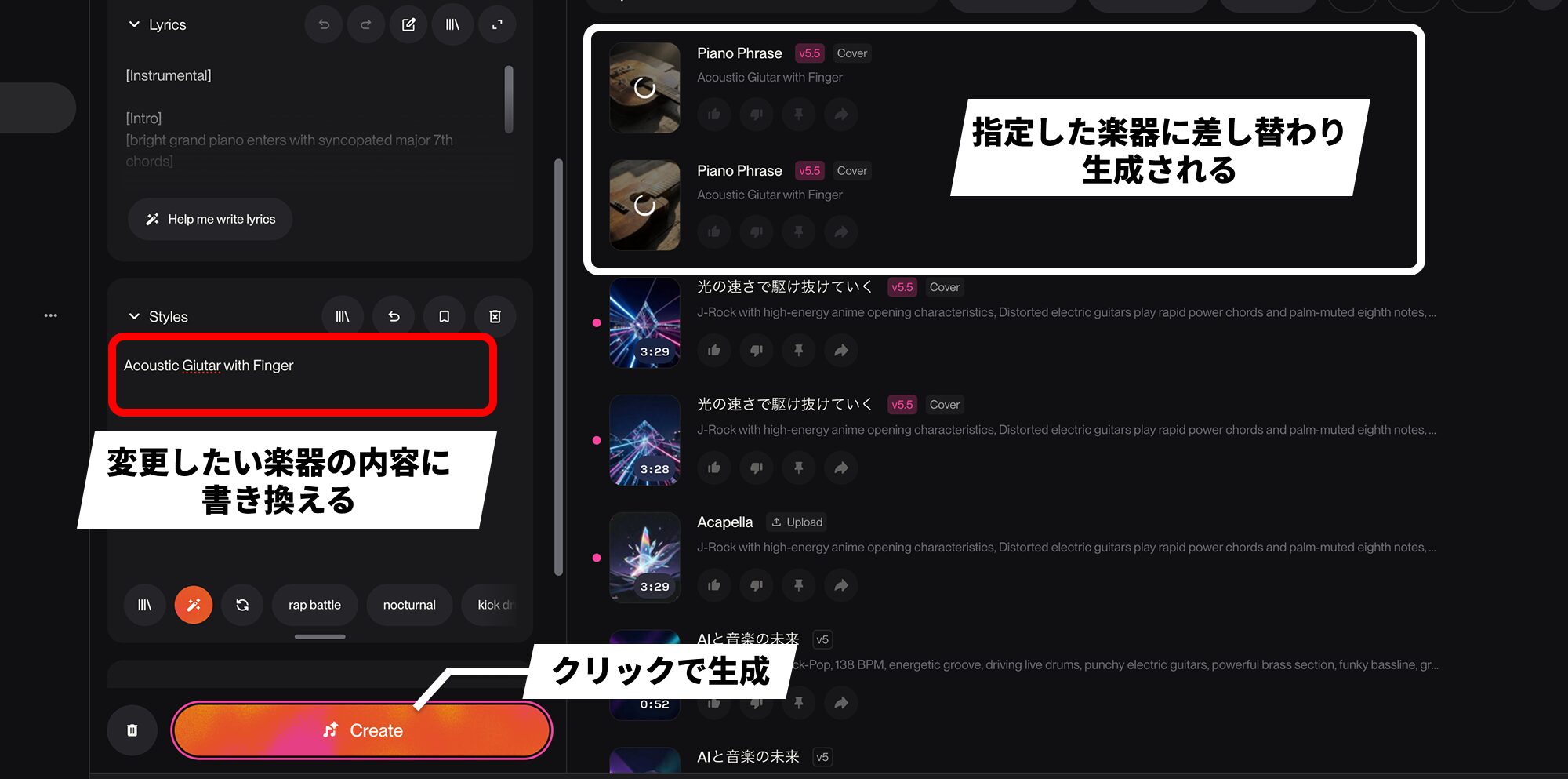
Rewrite the automatically inserted Styles prompt to describe the instrument you want instead.
In this example, we specified acoustic guitar for the piano phrase and generated the result.
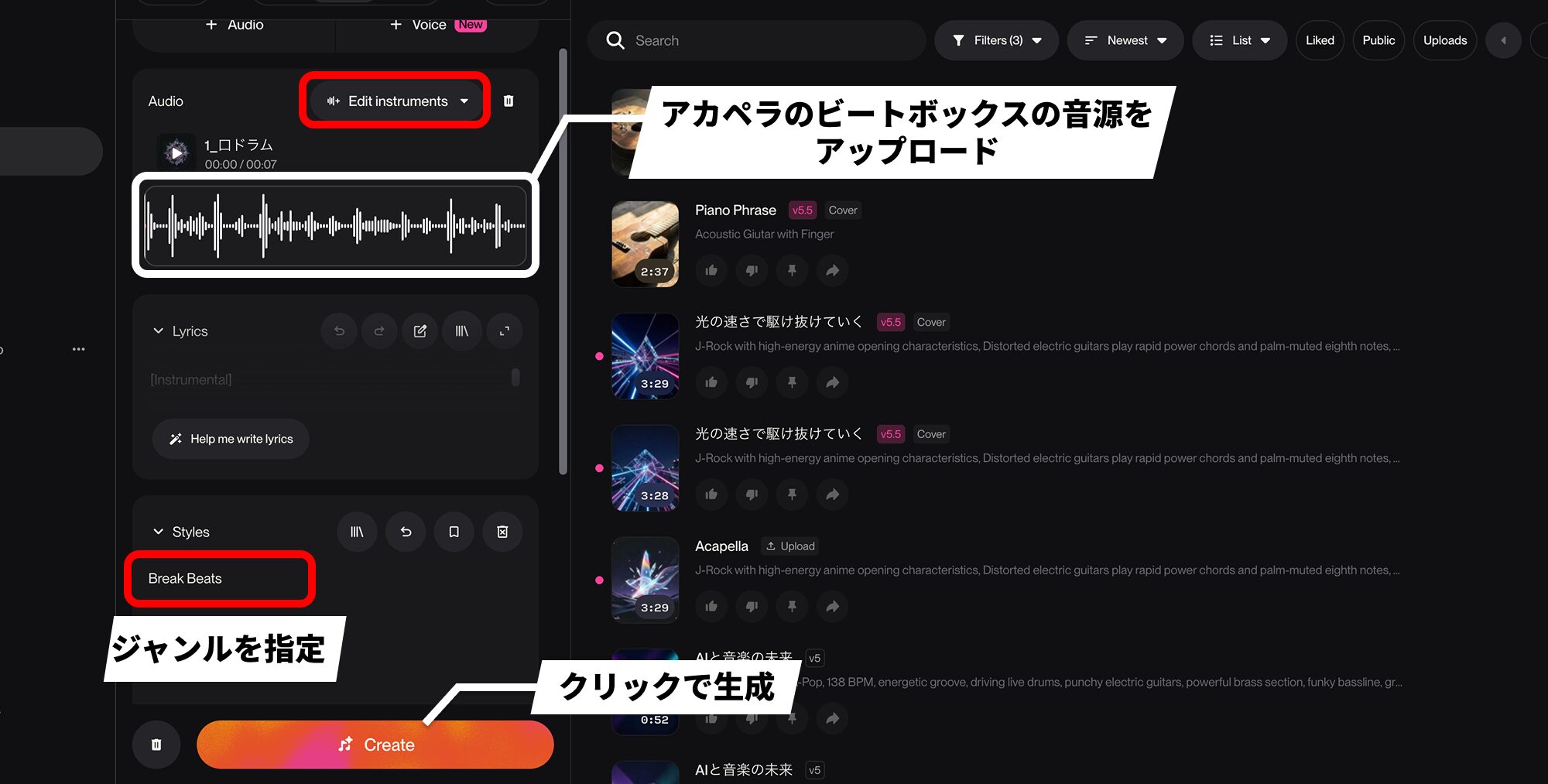
You can also upload an unaccompanied beatboxing recording in the same way, choose Edit instruments, and specify a genre in Styles to turn the rough rhythm into a drum sample.
If unwanted instruments appear in the generated result, the stem feature explained next can still help you incorporate it into your production.
Export stems and MIDI to your DAW
We have covered the main features for generating and editing songs.
Finally, let's look at exporting a finished song for use in your DAW.
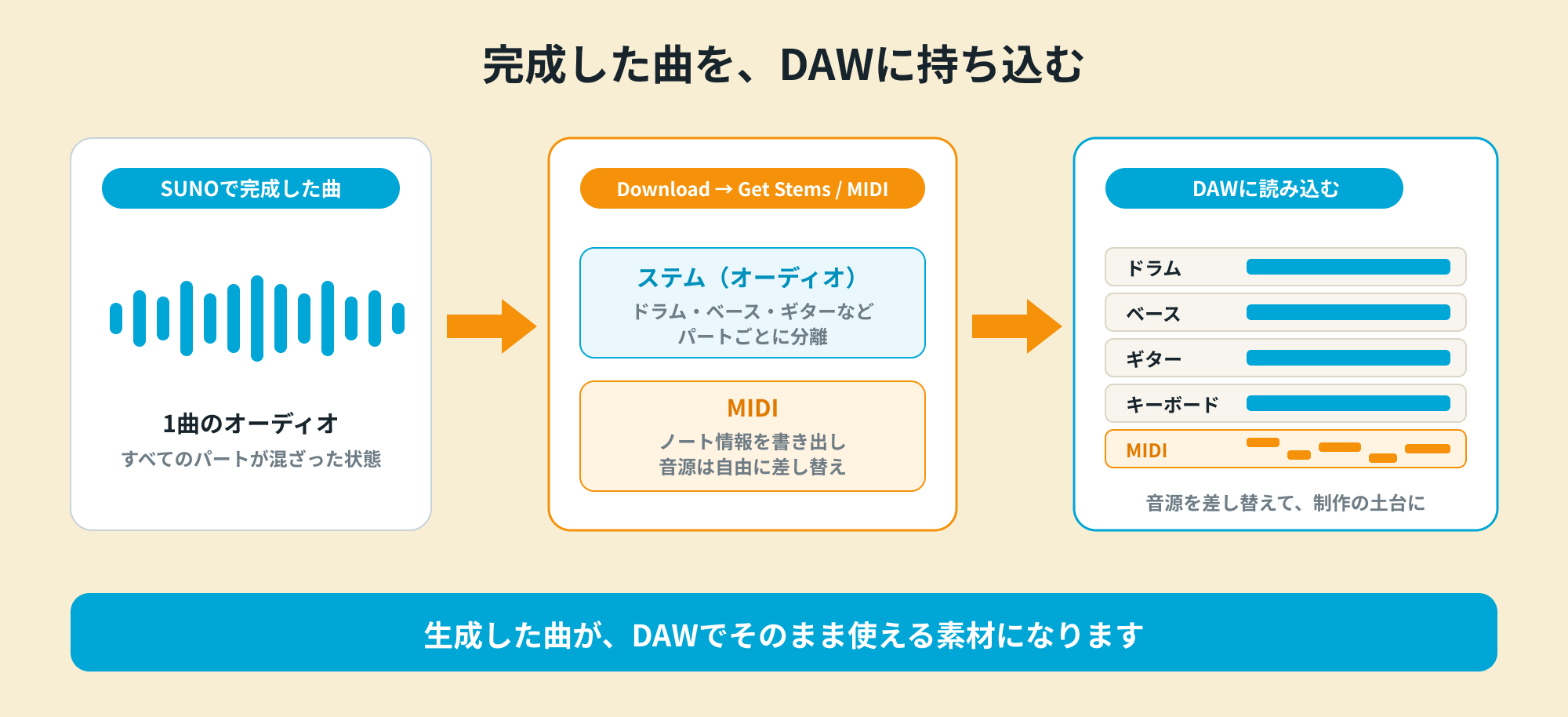
You can export individual parts as stems or MIDI and import them into a DAW.
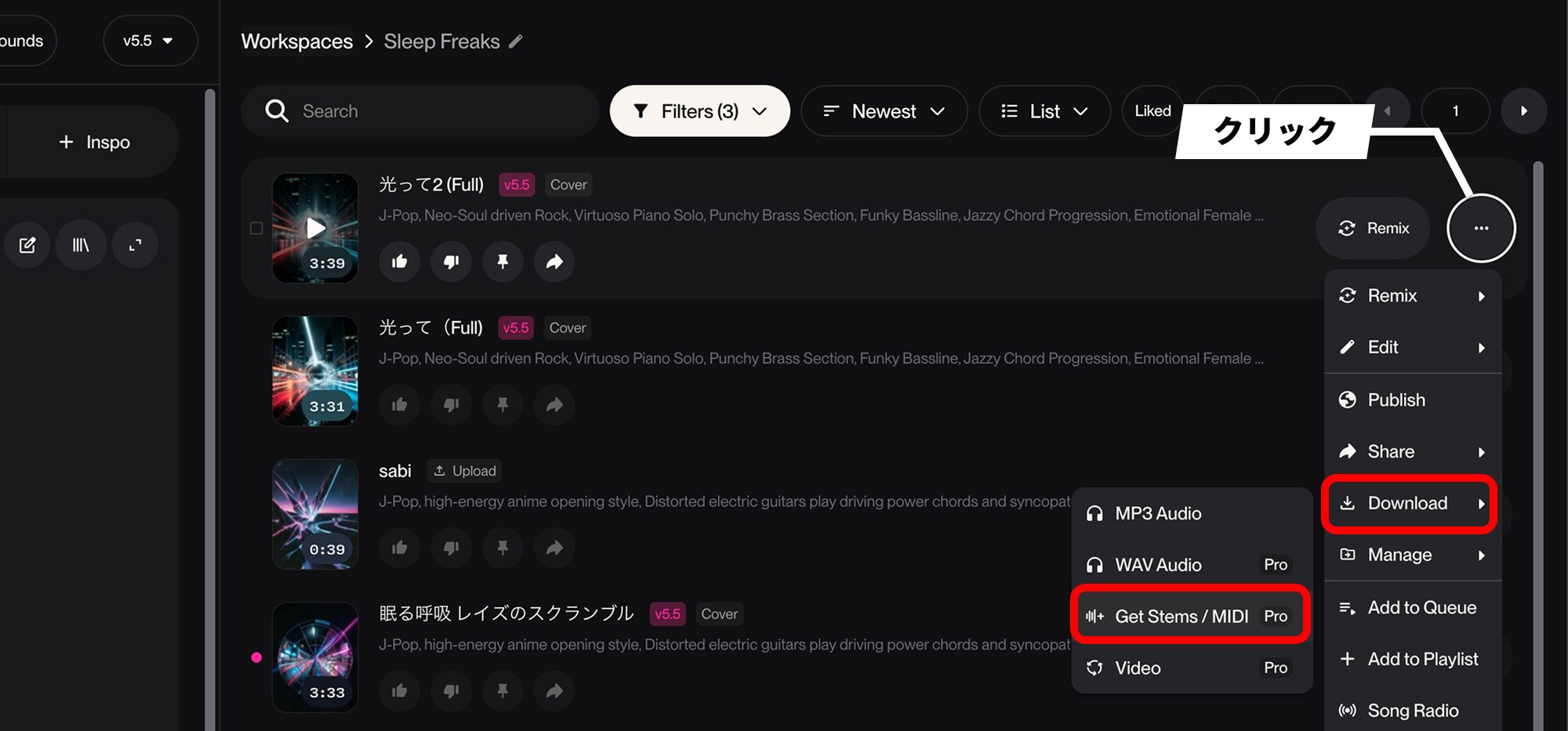
Open the song's three-dot menu and choose Download → Get Stems / MIDI.
You can export both audio stems and MIDI.
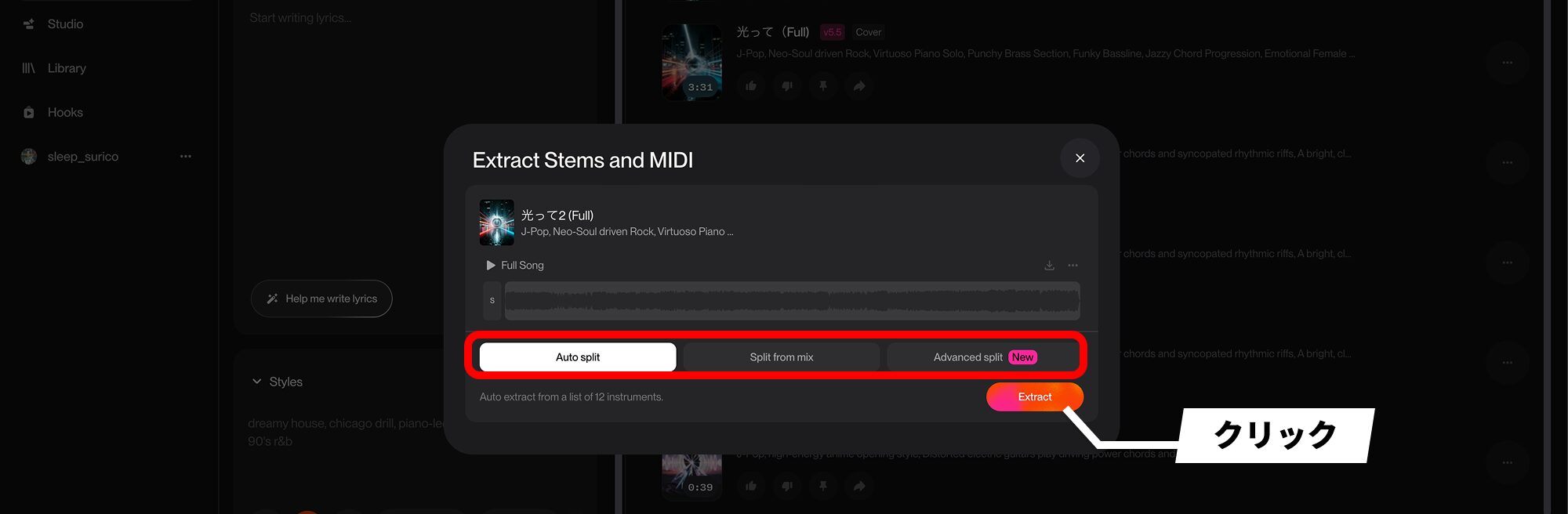
There are several splitting modes.
- Auto Split: automatically identifies and separates the sounds present (Pro or higher).
- Split from mix: use this to extract a particular part, such as drums or bass, from the mix.
- Advanced Split: the most advanced model, offering the finest and most extensive separation into parts (Premier-only and in beta at the time of this guide).
Choose a mode—we used Auto Split—and click Extract.
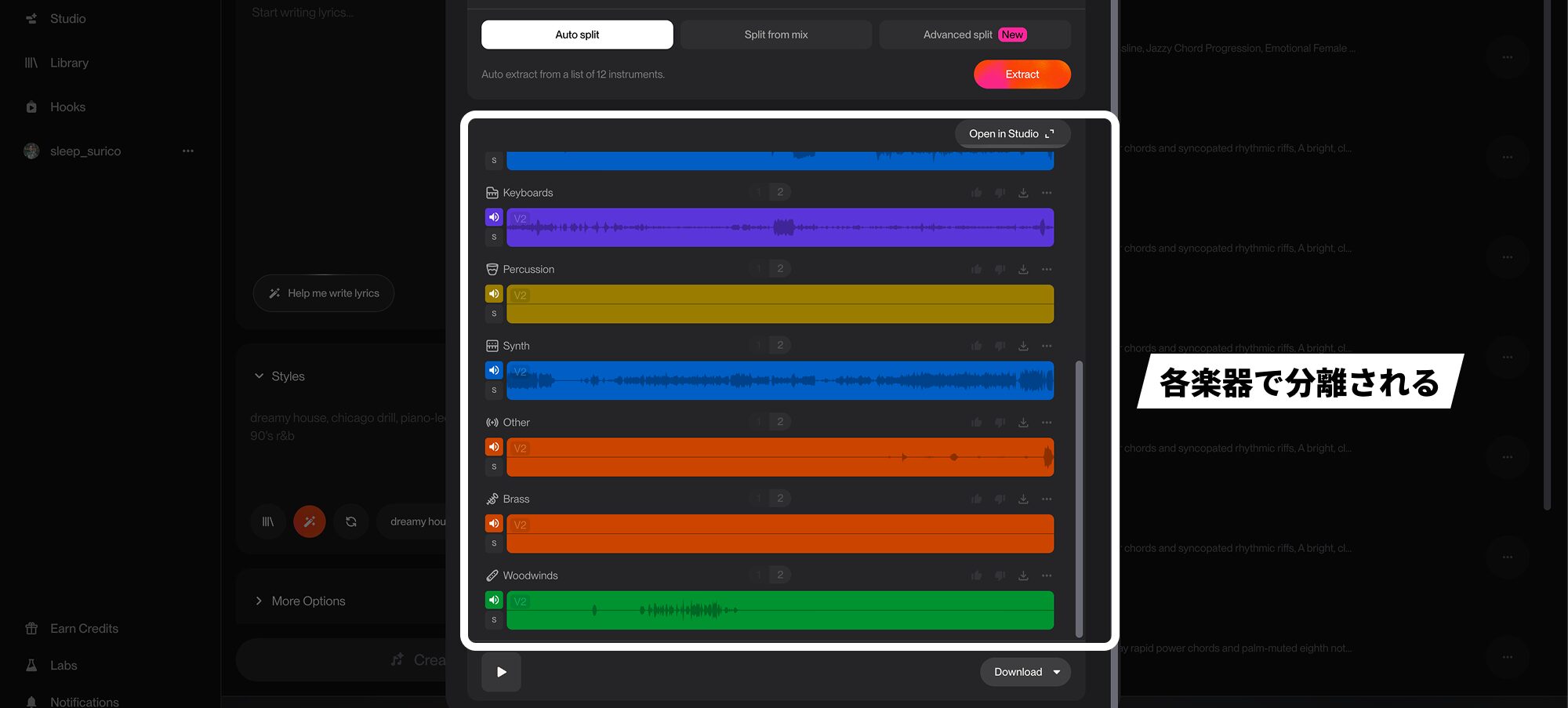
It separates a substantial range of parts, such as drums, bass, guitar, keyboards, percussion, strings, synths, and brass.
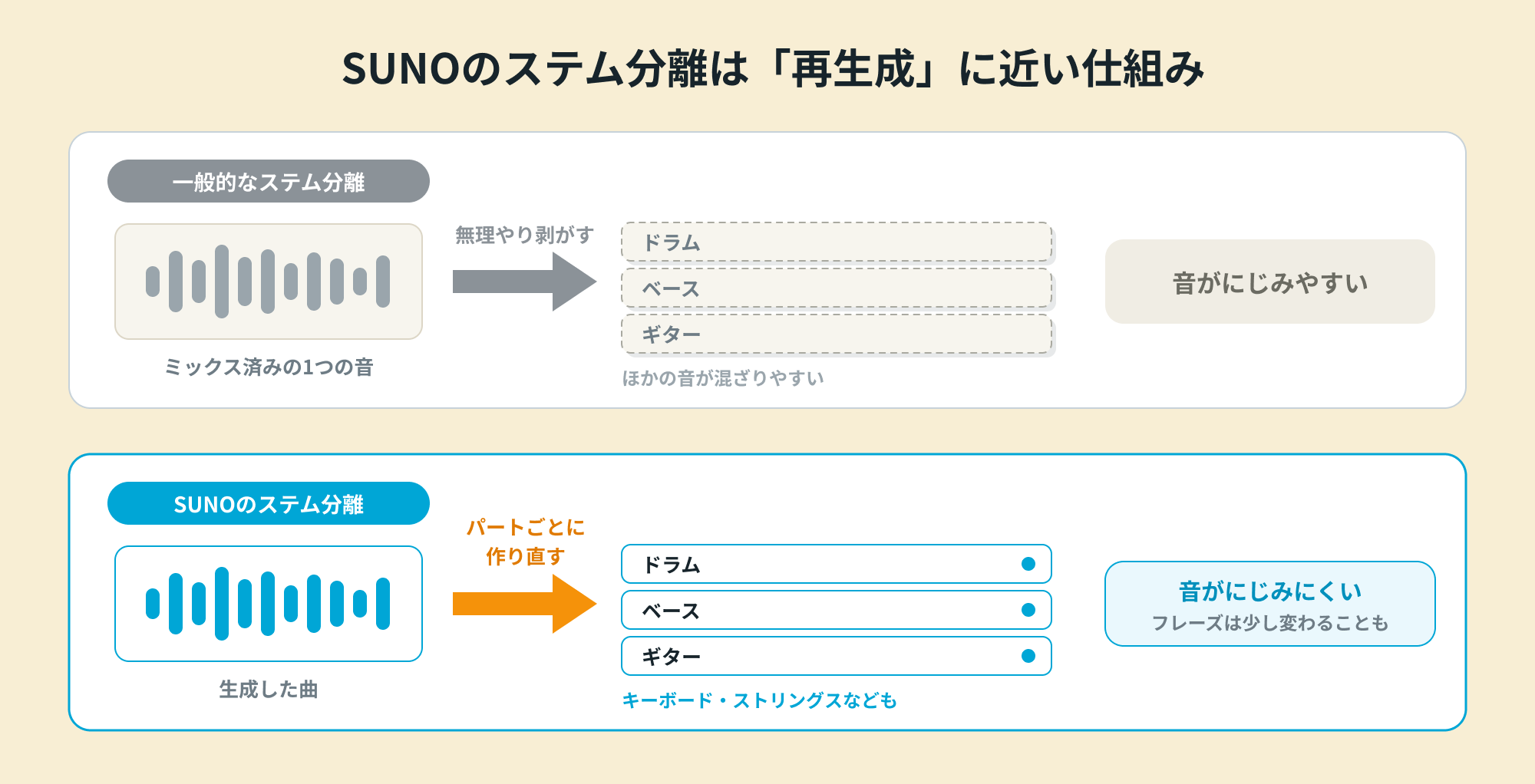
Our impression is that SUNO's stem separation may work more like regenerating individual parts than the conventional approach of forcibly extracting a sound from a mix.
This can reduce smearing, but separated phrases may change slightly from the original.
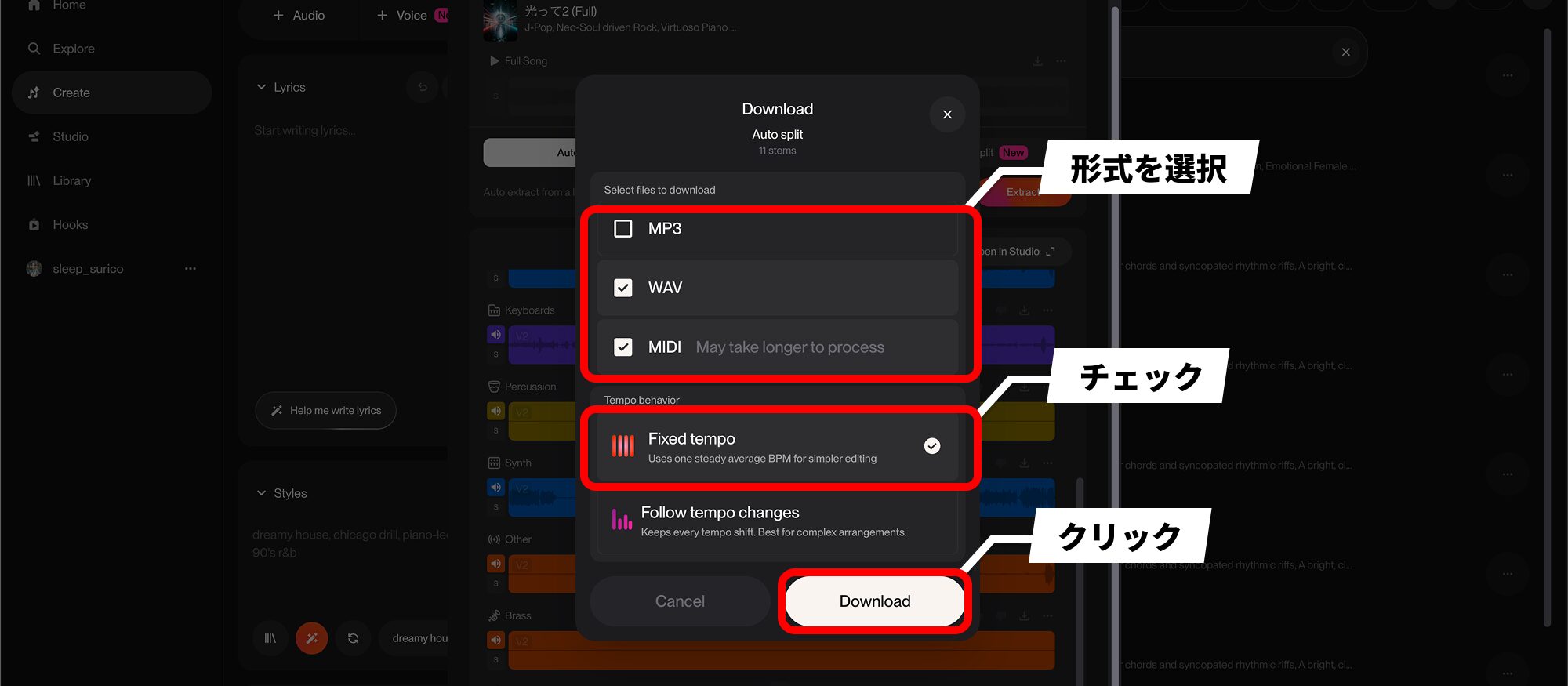
Choose MP3, WAV, or MIDI when downloading. You can select multiple formats at once.
Generated songs sometimes vary in tempo, so check Fixed Tempo to make them easier to work with in your DAW.
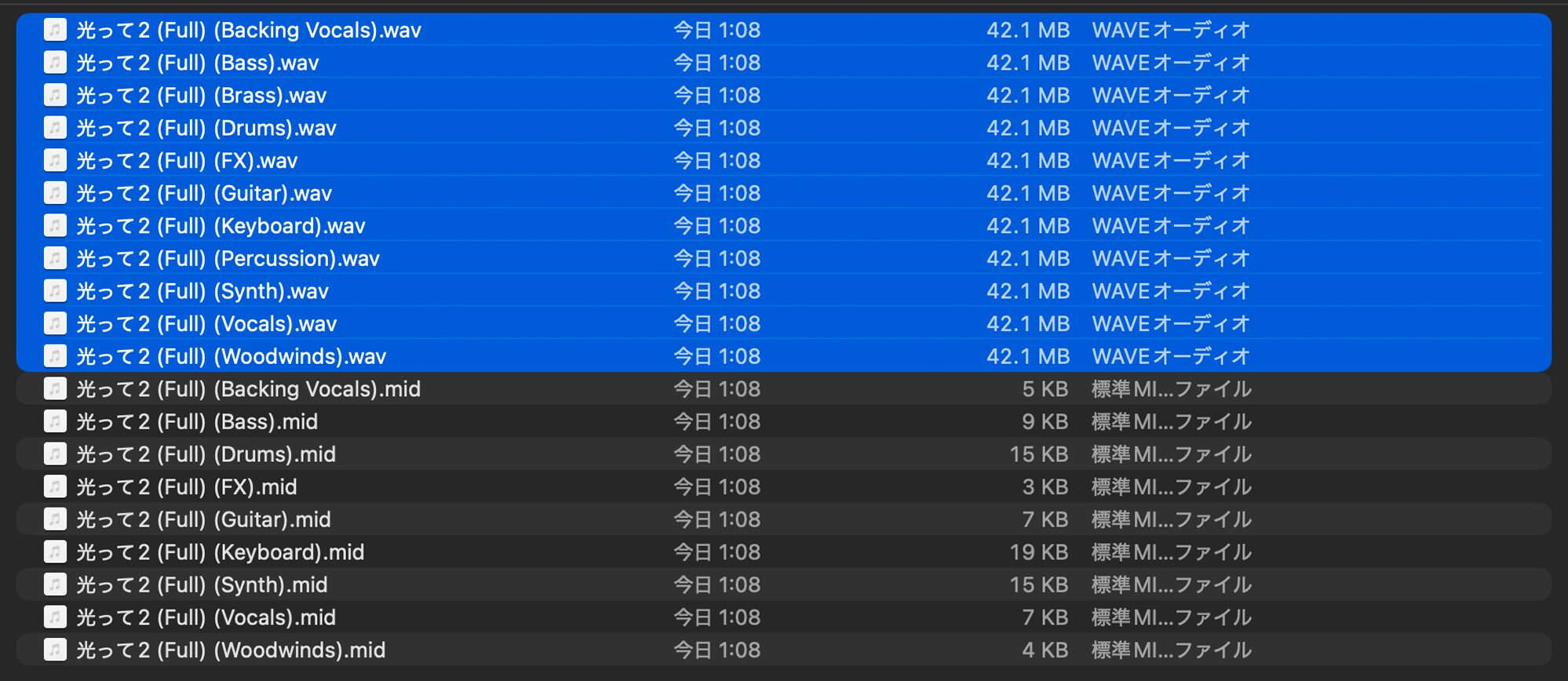
We selected WAV and MIDI, so the exported files contain both audio stems in WAV format and MIDI.
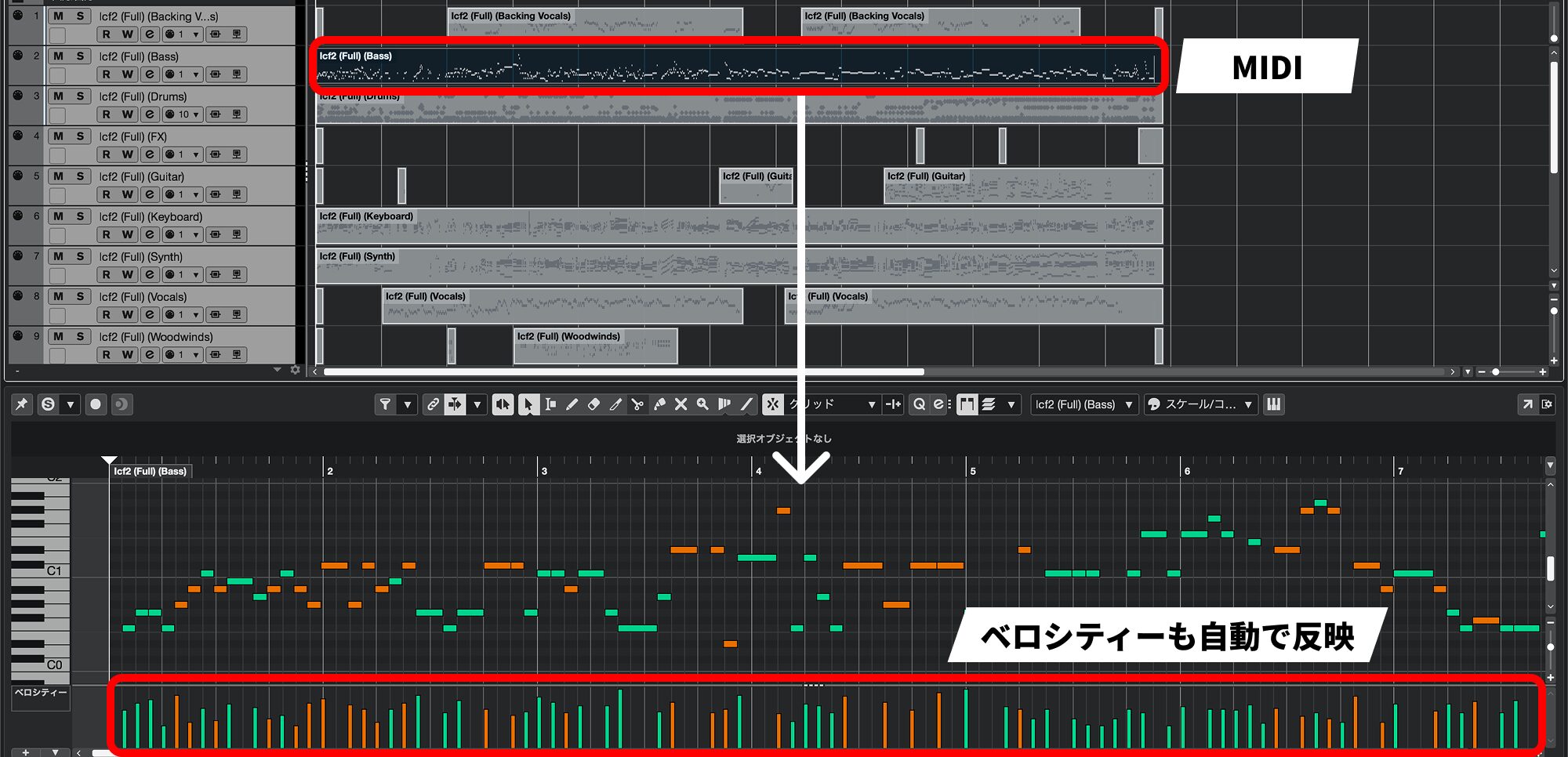
The MIDI includes sound settings (CC), allowing it to play to some extent simply by importing it into a DAW.
Some correction is needed, but the quality is workable for anyone comfortable adjusting material in a DAW.
The version used here also includes velocity automatically.
With no unnecessary overlapping notes, the material is convenient to use as a foundation with different instruments.
SUNO is more than a tool for generating songs from text: it can also be a partner for developing ideas from your own material.
Try starting simply by importing one vocal recording or phrase you already have.
NEW ARTICLES
Latest English Articles







