
This article introduces the VR audio features added in Cubase Pro 10, from the basic concepts to practical setup. VR audio, also called spatial audio, changes the direction of sound in response to the listener’s movements or settings. Unlike conventional surround playback, it is primarily intended for headphones. You will learn how to import four-channel Ambisonics B-format audio recorded with devices such as the Zoom H3-VR, decode spatial audio with VST AmbiDecoder, control its direction with YAW, PITCH, and ROLL, and synchronize VR video playback using GoPro VR Player.
Cubase Pro 10 Adds Support for VR Audio!
Cubase Pro 10 arrived with many new features. The one that caught my attention most was its support for VR audio.
We have also prepared a detailed video tutorial and sample files you can try yourself, so be sure to use them alongside this article!
Download the sample files here.
VR Audio, Part 1: The Basics — Video Tutorial
What Is VR Audio?
VR audio may still be unfamiliar to many readers, so let’s begin with the basics.
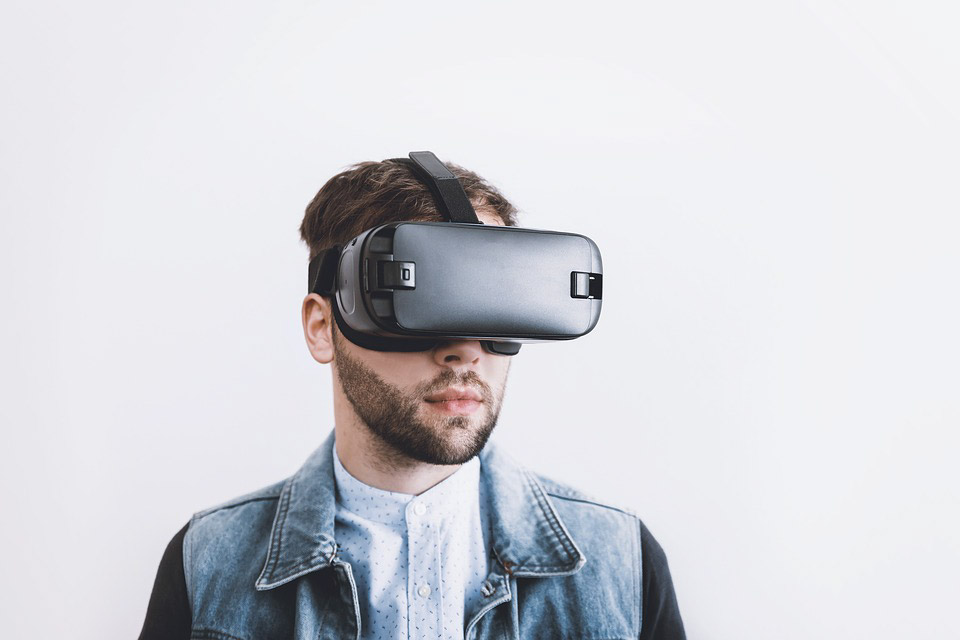
VR video lets you look around a full 360° by wearing an HMD (head-mounted display) like the one shown here, or by dragging within the picture on a screen. It has attracted considerable attention in recent years, so many of you have probably seen it.
VR audio is the sound equivalent: the direction from which you hear a sound changes to match the direction you are looking in the video. It is often called spatial audio. Searching for that term on YouTube, which supports this playback format, brings up plenty of examples. For the playback method described here, use the YouTube app on iOS or Android, or access YouTube in Chrome or Firefox.
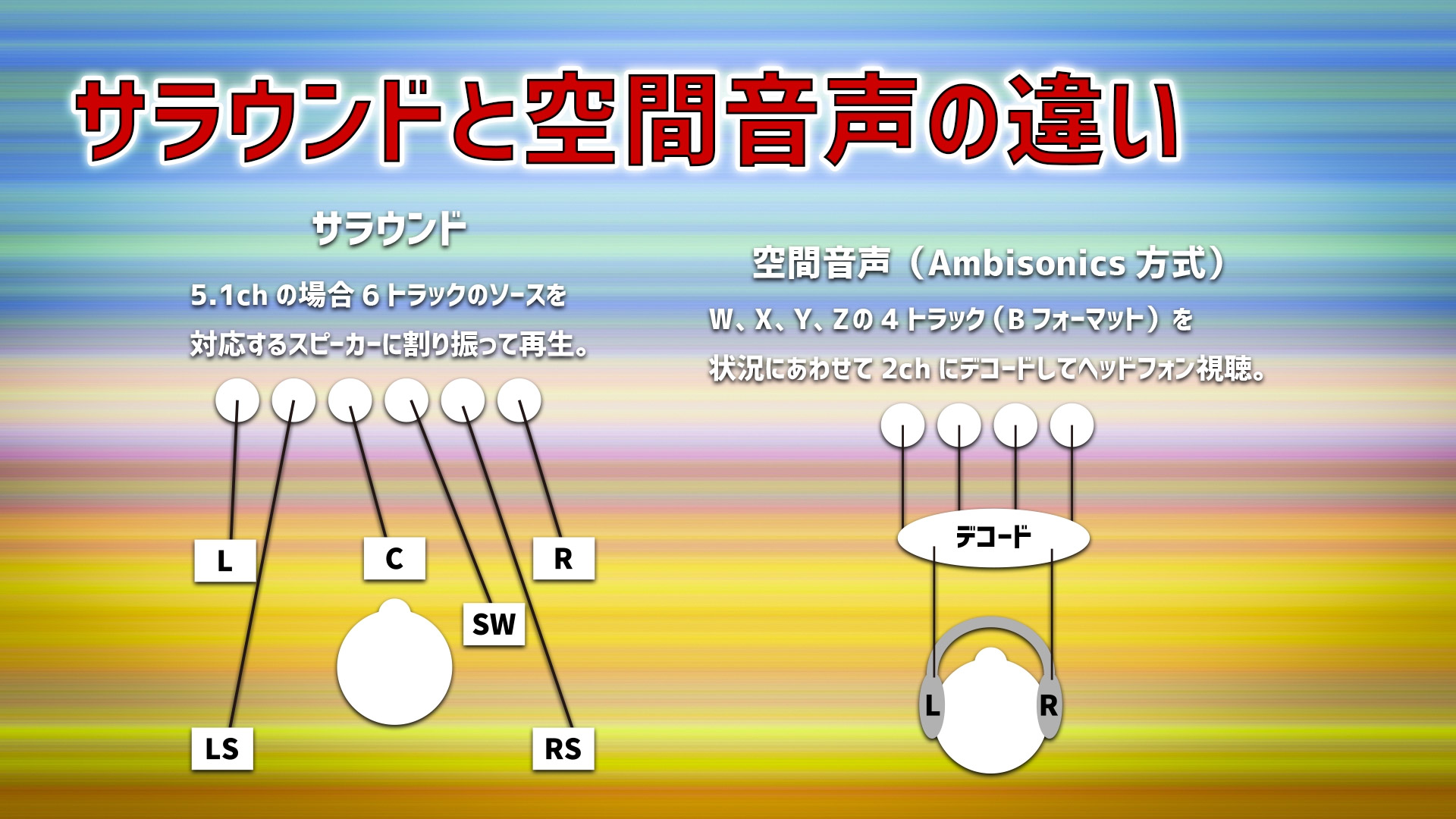
Surround sound is a familiar way of reproducing sound in three dimensions. Conventional surround playback places the listener among a predetermined number of speakers. Spatial audio, by contrast, is decoded into stereo as the listener moves or changes settings—typically from a four-track source in the most common format. It is primarily intended for headphones and can provide a more realistic, immersive experience.
At the time of this article, VR audio was often used with live-action VR video, while also attracting attention for games and new forms of musical expression. Cubase’s features let you go well beyond editing audio recorded with dedicated microphones or recorders: for example, you can mix a synthesizer sound at any position in a VR space.
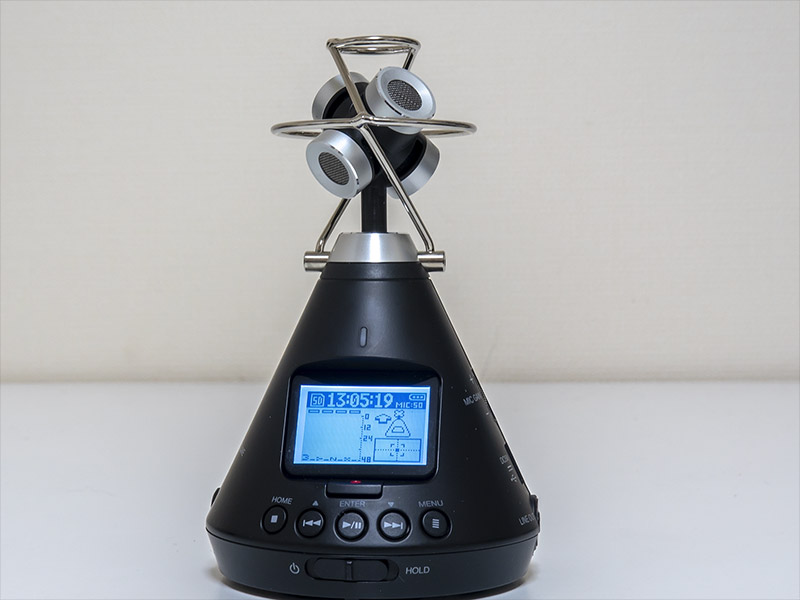
Shown here is the Zoom H3-VR, a VR audio recorder released in October. Its four built-in microphones capture sound all around you: front and back, above and below, and left and right. Many VR cameras also support VR audio recording, including the RICOH THETA V, the then-latest version of the popular THETA camera. Let’s start by importing this type of audio into Cubase and monitoring it while decoding it to stereo.
Monitoring a VR Audio File
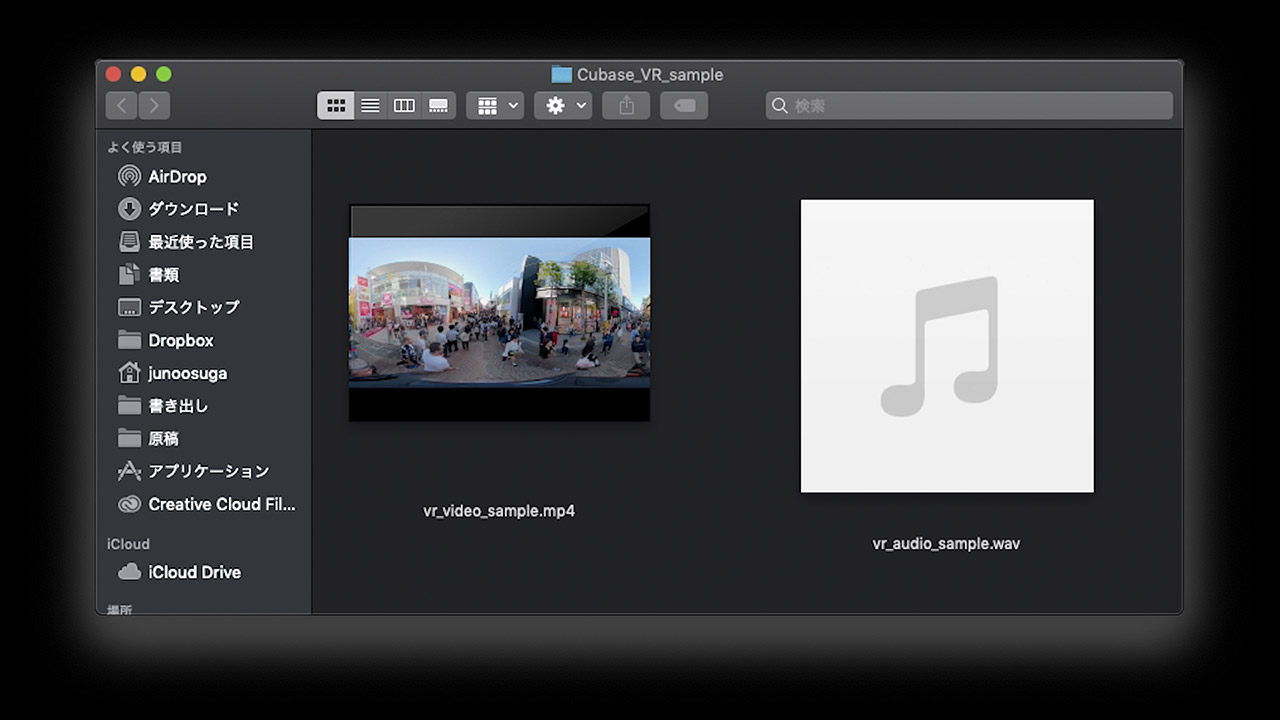
The “vr_audio.wav” file in the sample package was recorded with the Zoom H3-VR introduced above.
Download the sample files here.
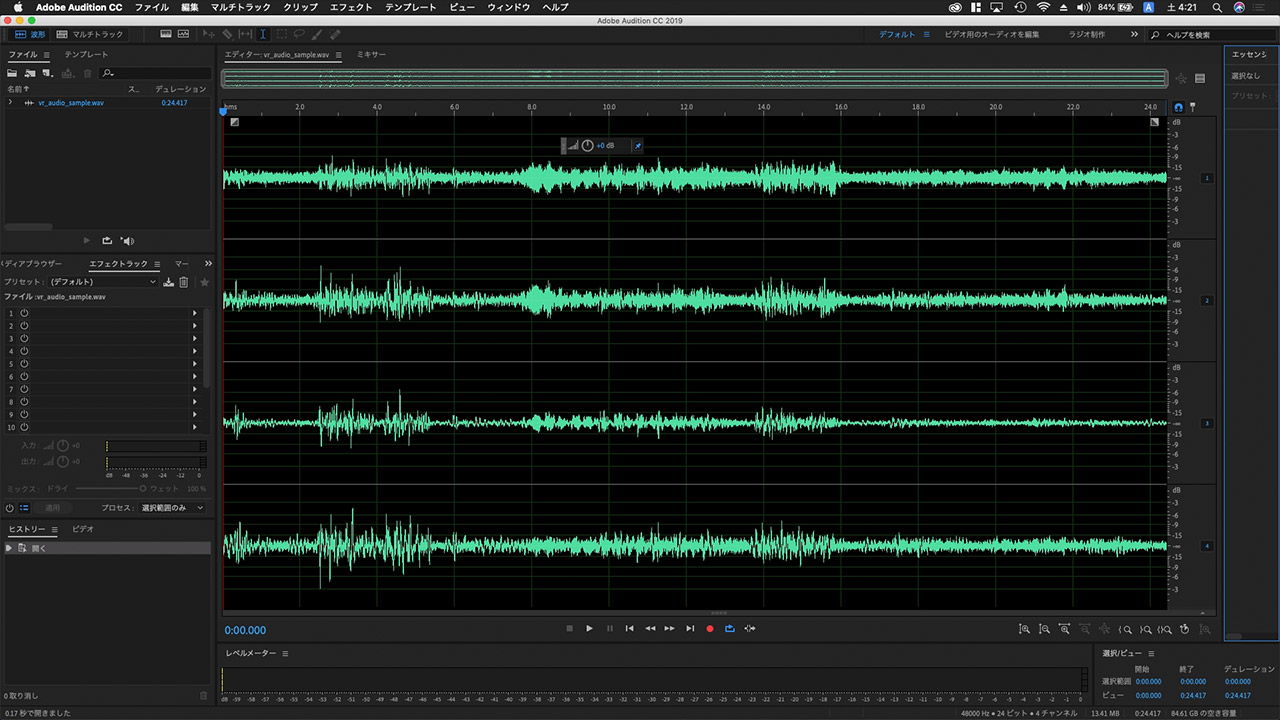
Opening the file in a waveform editor reveals four channels, as shown here. These are not simply recordings from four directions: they contain omnidirectional, lateral, vertical, and front-to-back information. This format is called Ambisonics B-format and is widely used throughout the process, from editing to playback.

Let’s place the B-format WAV file in Cubase, using a project with a normal stereo output. Add an audio track and set its Configuration to “1st Order Ambisonics.”
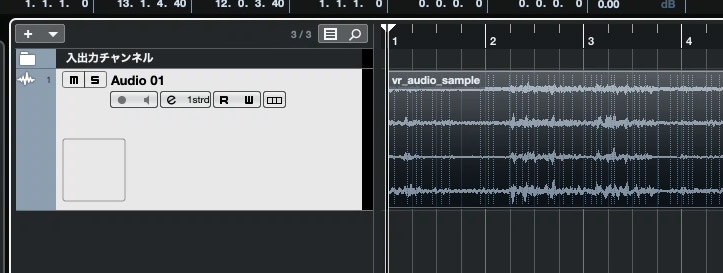
Four waveforms now appear on a single track. Playing it in this state decodes the four-channel audio into the stereo perspective you would hear when facing the recorder’s original forward direction.
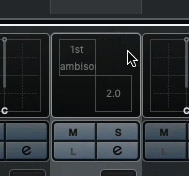
Now let’s change the listening direction freely. In the mixer, the track’s panner area looks like the one shown above. Double-click it.
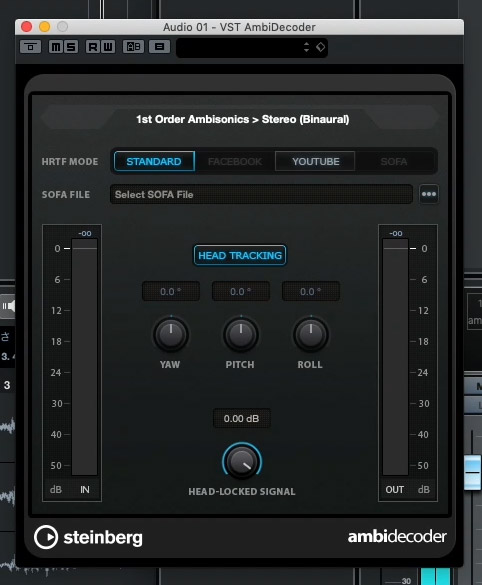
This opens the detailed view of VST AmbiDecoder, which decodes spatial audio. When HEAD TRACKING is enabled, the orientation in VR follows the project-wide setting. Click it to turn it off.
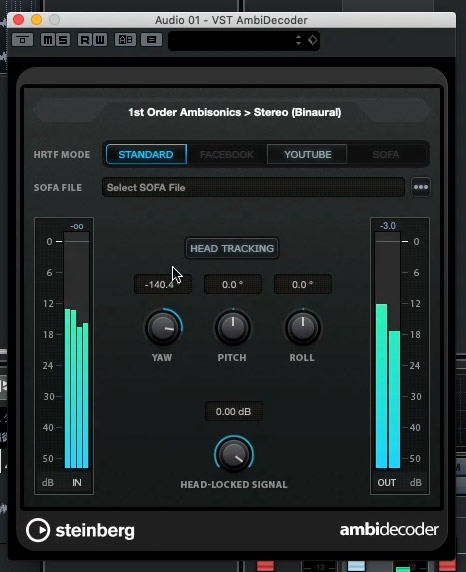
YAW turns your head left or right, PITCH looks up or down, and ROLL tilts your head to either side. Adjusting these controls changes the direction from which you hear the sound. The dynamic changes are quite different from ordinary panning or stereo balance—you may find the effect surprisingly fresh!
Synchronizing VR Video Playback
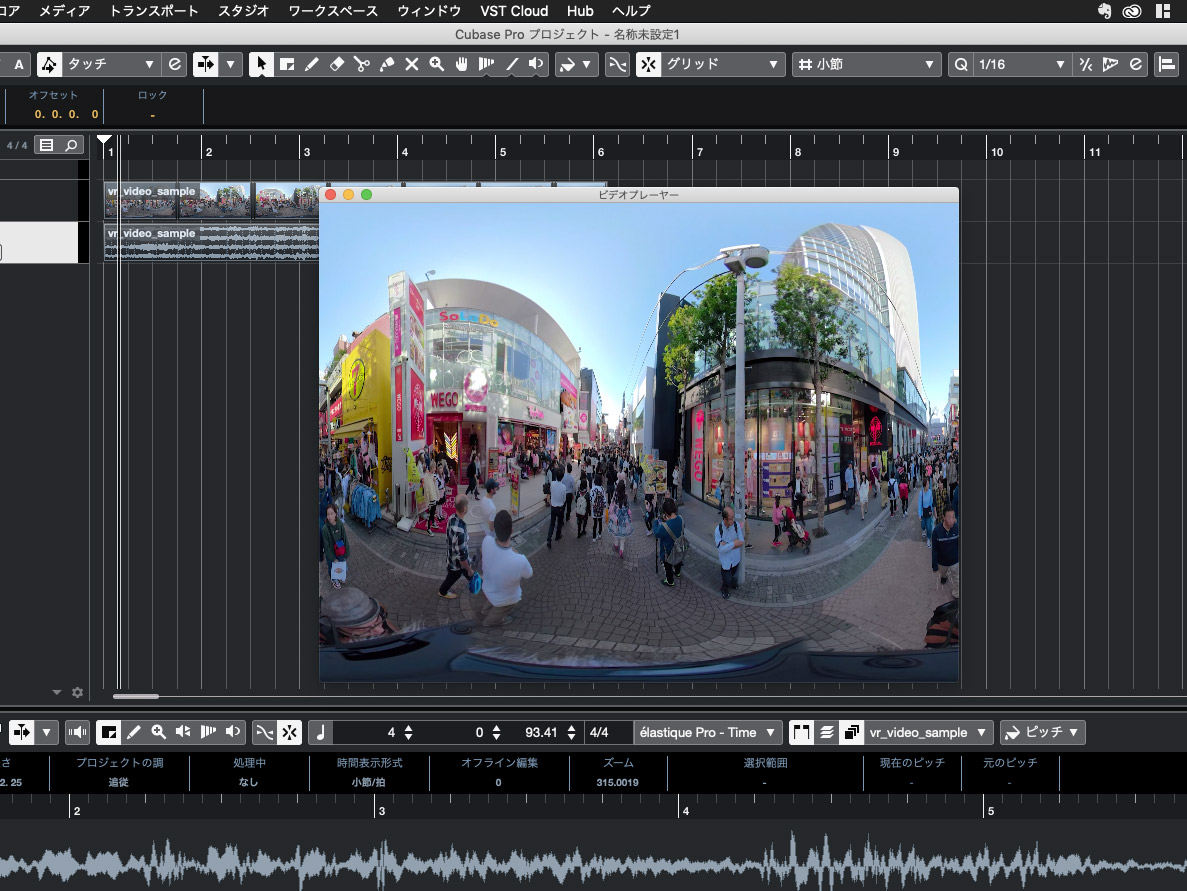
VR audio is often edited together with VR video. However, opening VR video directly in Cubase displays the entire 360° image flattened out, so you cannot preview the viewing perspective properly.
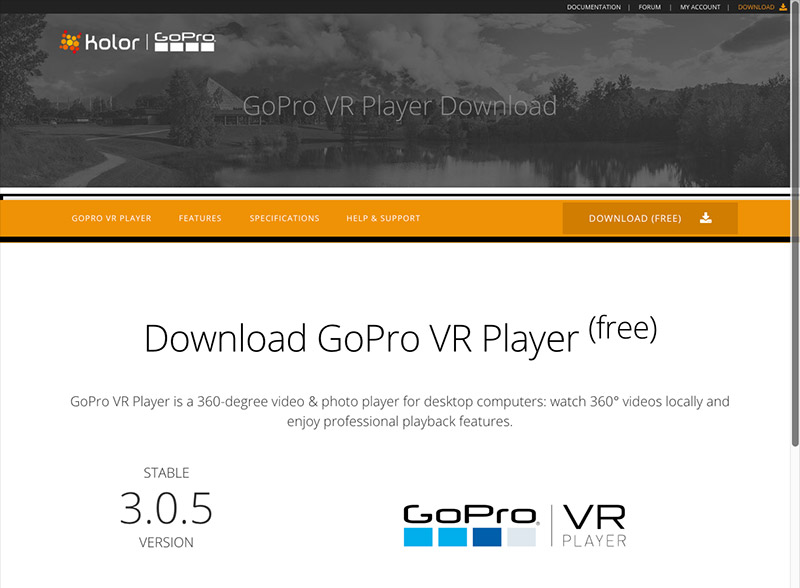
For VR video playback, we use the freeware GoPro VR Player. Download it from this website (http://www.kolor.com/gopro-vr-player/download/) and install it before continuing.
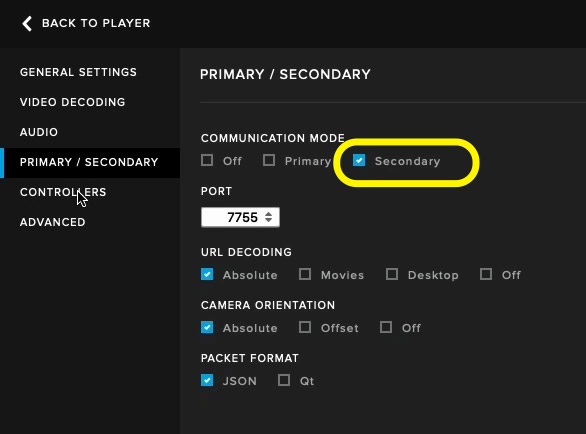
First, configure GoPro VR Player in its Preferences. On the “PRIMARY/SECONDARY” tab, select “Secondary.”
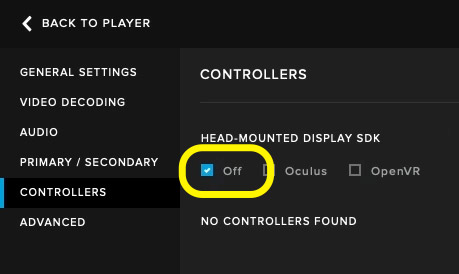
Next, select “OFF” on the “CONTROLLERS” tab. That completes the settings in GoPro VR Player.
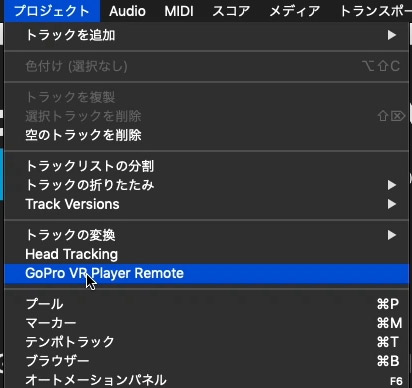
Now configure Cubase. Choose Project > GoPro VR Player Remote.
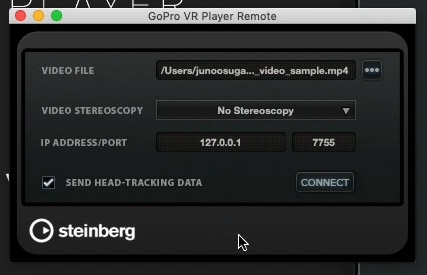
Under VIDEO FILE, click “…” and open the VR video you want to play—in this example, vr_video_sample.mp4. Enable SEND HEAD-TRACKING DATA, then click CONNECT.
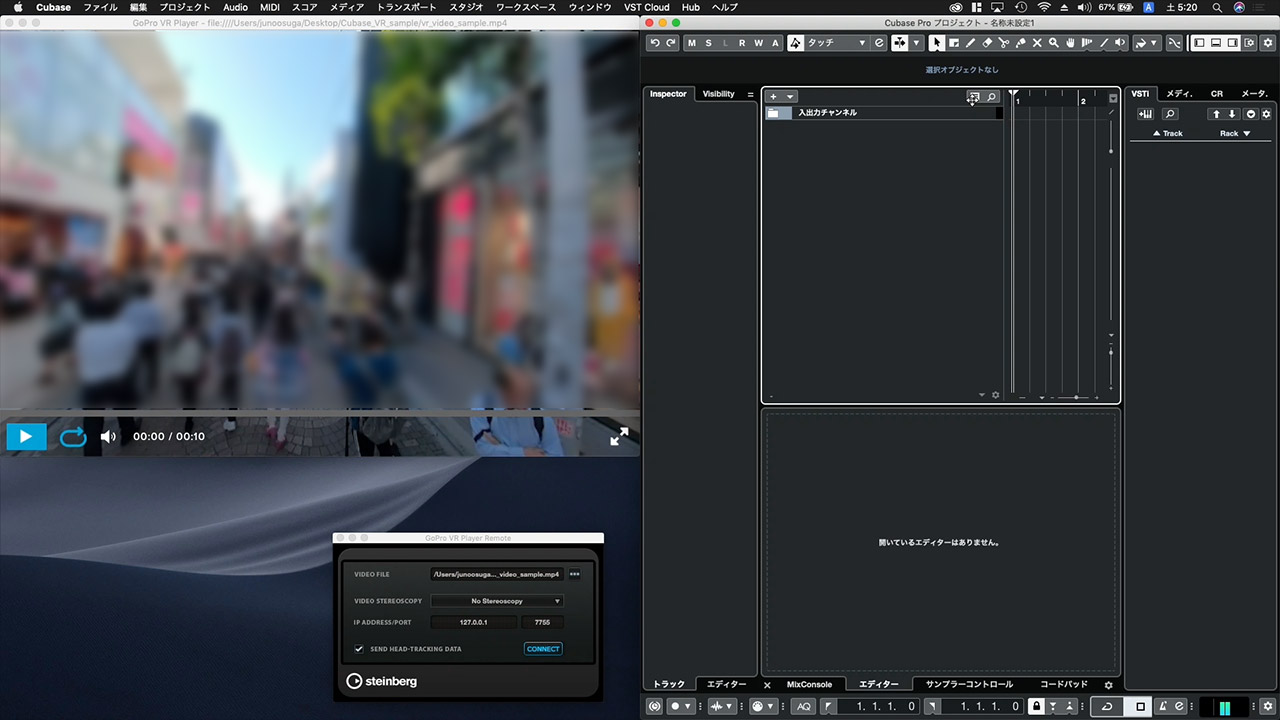
Starting playback in Cubase will now play GoPro VR Player in sync. The VR video’s audio is not automatically imported into Cubase, so mute GoPro VR Player and import the audio separately into Cubase: drag and drop the video into the project, then delete only the video, leaving its audio.
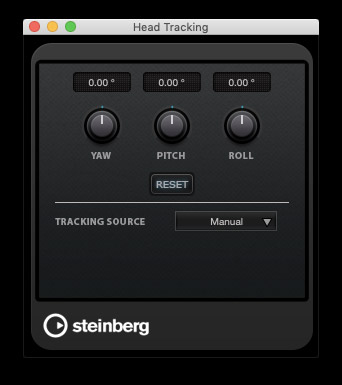
Choosing Project > Head Tracking in Cubase opens the project-wide orientation settings. You can then control the direction of both the picture in GoPro VR Player and the audio in Cubase together.
There are many concepts here that were not part of earlier versions of Cubase, so it may seem difficult at first. In practice, the setup is straightforward—give it a try! In the next installment, we will show you an example of mixing software synthesizer audio in a VR space.
Purchase the Product
Frequently Asked Questions
Q1. How does VR audio differ from conventional surround sound?
Conventional surround playback uses a fixed arrangement in which the listener is surrounded by a predetermined number of speakers. VR audio, or spatial audio, is decoded into stereo in real time according to the listener’s movements or settings, creating a more immersive experience. It is primarily intended for headphones.
Q2. What file format do I need to monitor VR audio in Cubase?
Four-channel WAV files in Ambisonics B-format are widely used. Audio recorded with compatible devices such as the Zoom H3-VR and RICOH THETA V can be used in this format.
Q3. What should I keep in mind when playing VR video directly in Cubase?
Opening it directly displays the full 360° image flattened out, rather than a proper viewing preview. The workflow described here uses the freeware GoPro VR Player and Cubase’s Project > GoPro VR Player Remote function to synchronize playback.
Q4. Which parameters control the direction of VR audio?
Use YAW to turn left or right, PITCH to look up or down, and ROLL to tilt to either side. Adjusting these values in the detailed VST AmbiDecoder view dynamically changes the direction from which you hear the sound.
NEW ARTICLES
Latest English Articles



















































































































































































































































































