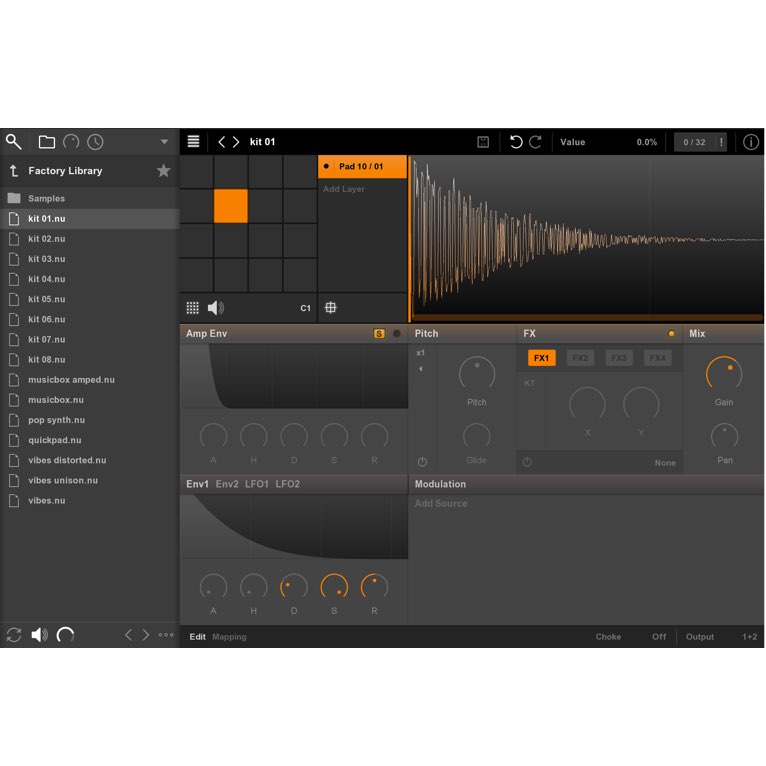
Native Instruments Polyplex is an electronic rhythm instrument that builds distinctive sounds by combining samples. Its randomization-based editing is accessible and enjoyable for beginners and experienced users alike, while its presets and kit functions support live performance. Up to four layers can be combined for each kit sound, from acoustic and electronic tones to effects. Multiple outputs also allow individual volume and effect adjustments in a DAW.
Polyplex: A Next-Generation Rhythm Instrument

Polyplex is an innovative electronic rhythm instrument.
Its distinctive sounds, created by combining multiple samples, can work across many genres.
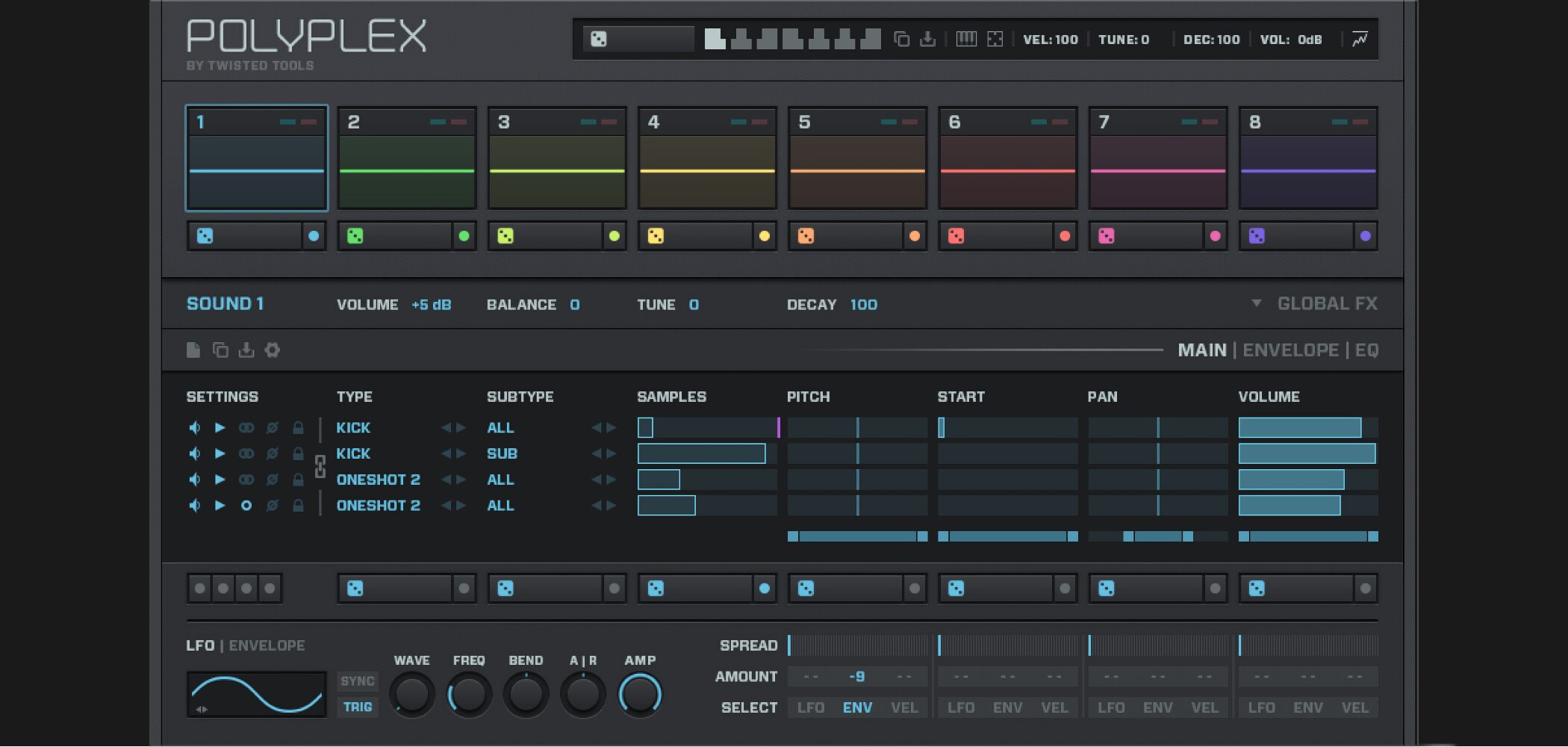
Its extensive randomization features make editing enjoyable for everyone from beginners to advanced users.
Here we explain how to use Polyplex.
Video: Basic Concepts and Global Editing
Selected Questions and Answers from the YouTube Video

This looks like a promising instrument. On another topic, can Reaktor be used with multiple outputs? I noticed the option when launching it from an instrument rack.

Multiple-output support in Reaktor depends on the instrument you are using. Polyplex does support it, and we cover the setup in the next video planned for upload. Thank you for watching.
Launching Polyplex
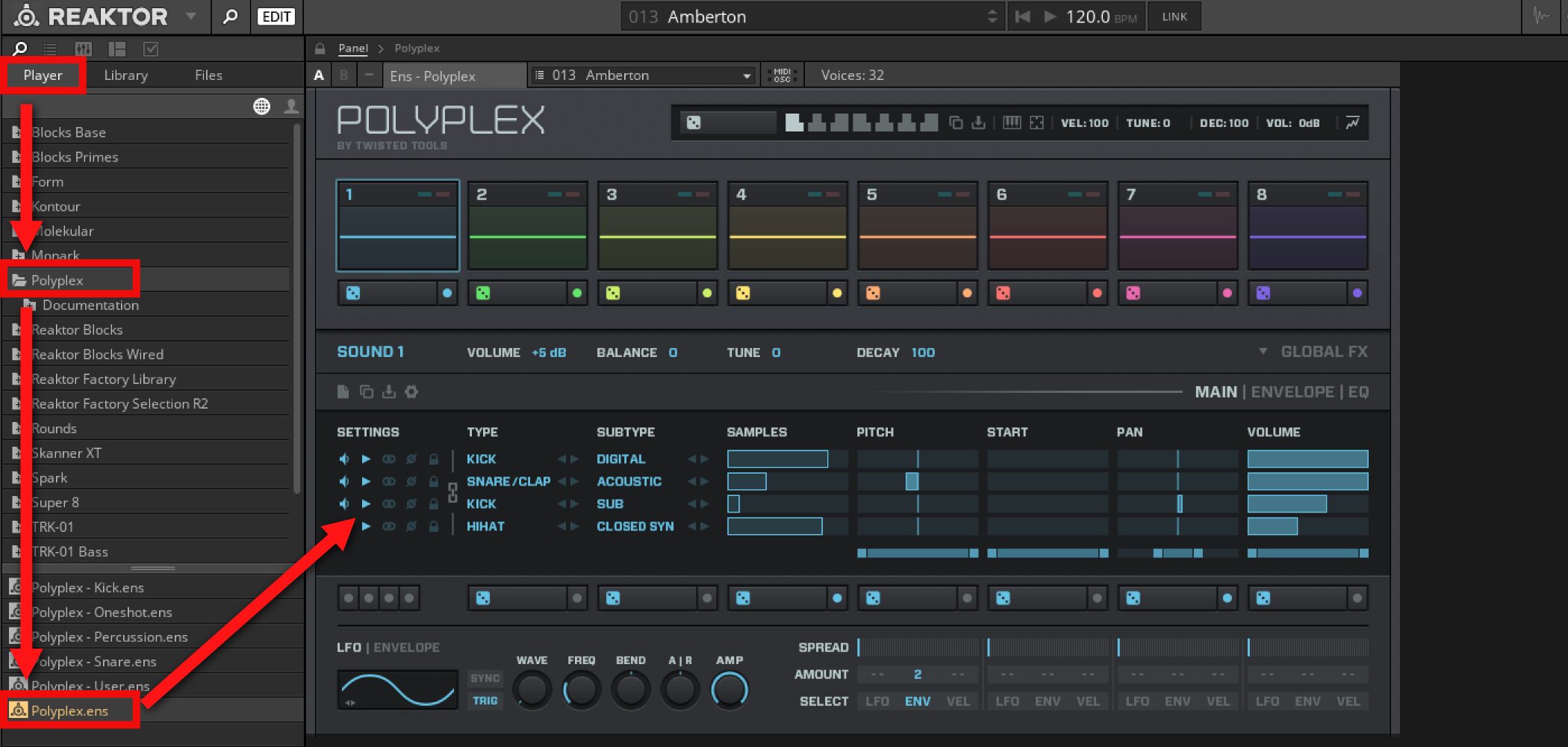
Launch Polyplex in Reaktor.
Drag and drop Polyplex from PLAYER.
Presets and Randomization
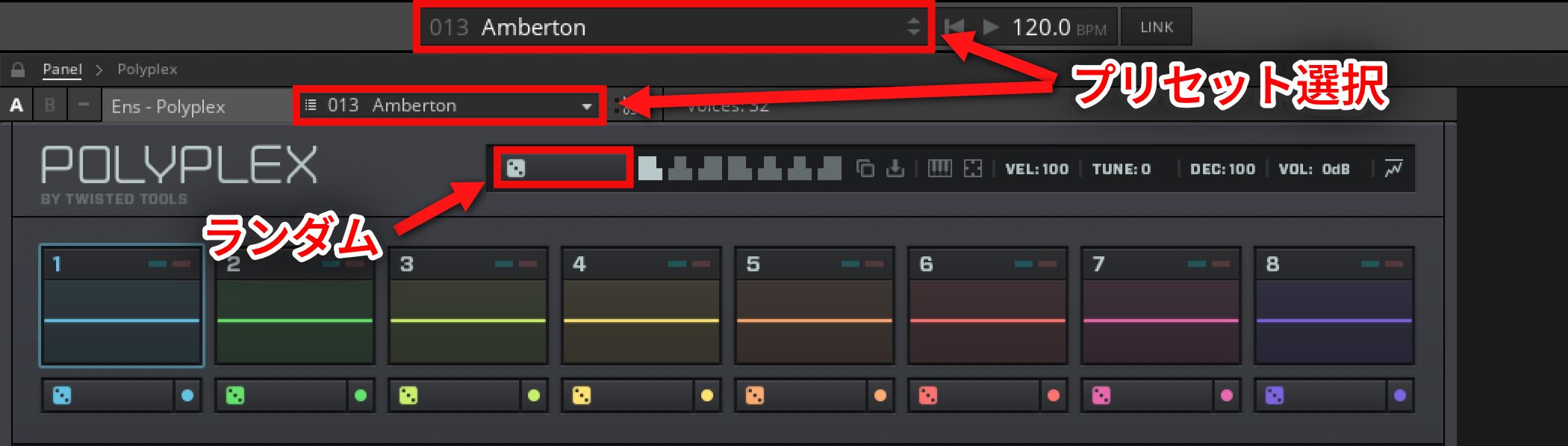
Polyplex includes a variety of presets.
Switch presets using the area outlined in red.
The dice control randomizes all parameters.
This creates different variations from the same preset.
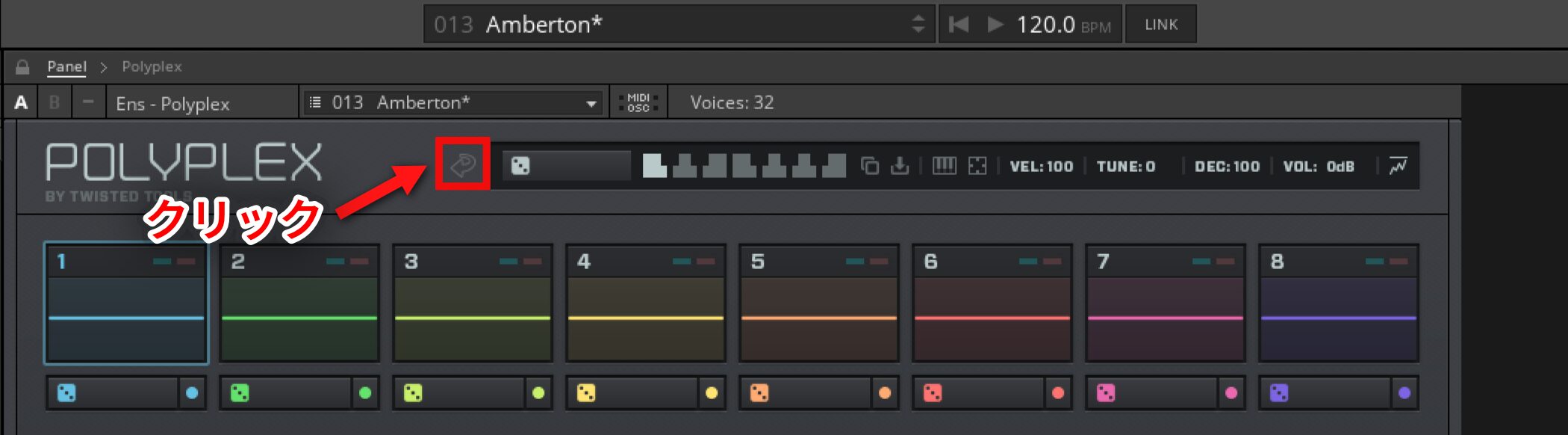
Use this control to undo the randomization.
Switching Kits
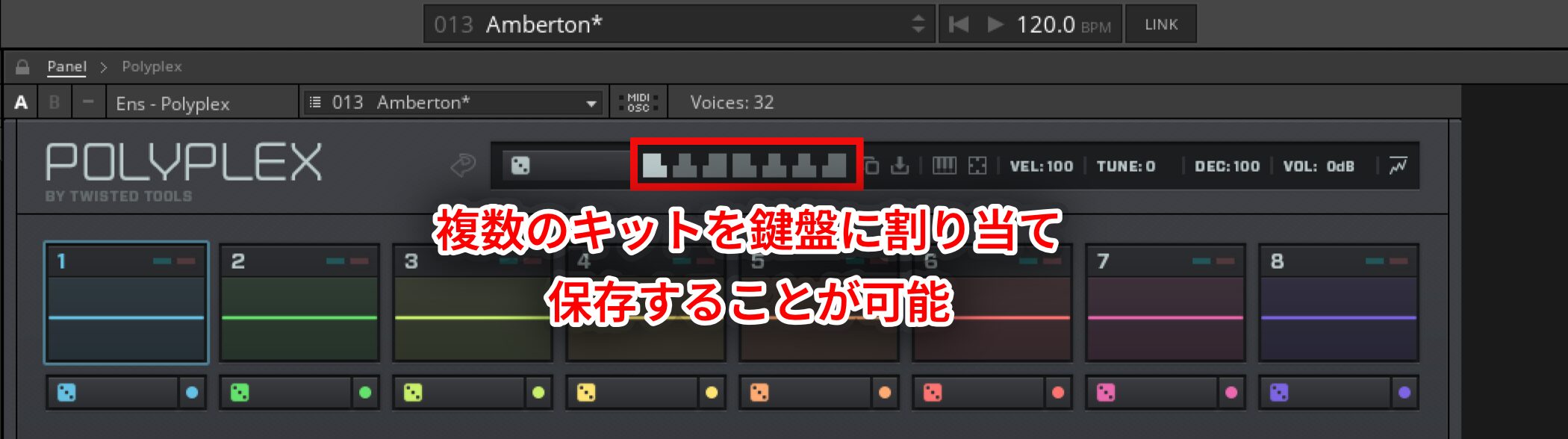
You can assign and save multiple kits to keys.
This lets you switch kits during a live performance or as the situation requires.
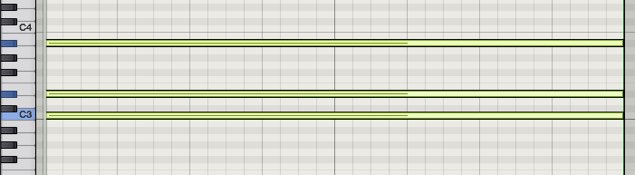
Patterns are assigned to the white keys from C2 to B2. Click a key or play it on your keyboard to switch patterns.
Assigning Each Kit
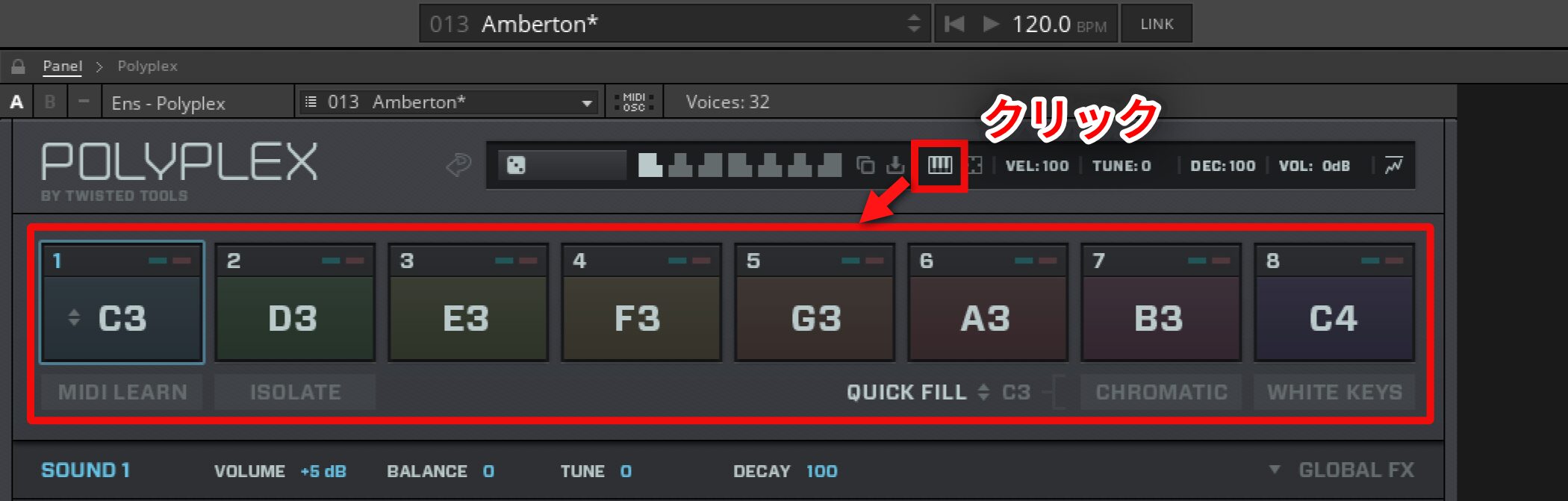
You can assign each kit to a key of your choice.
There are several ways to do this.
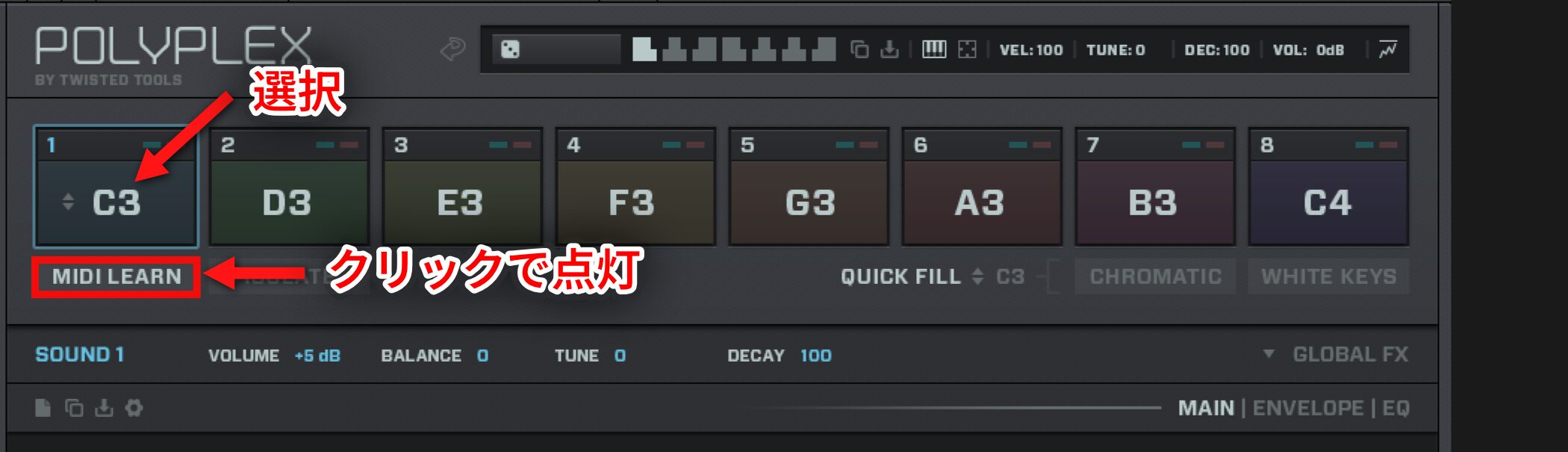
- Method 1: Select a kit, enable MIDI Learn, then press the key you want to assign.
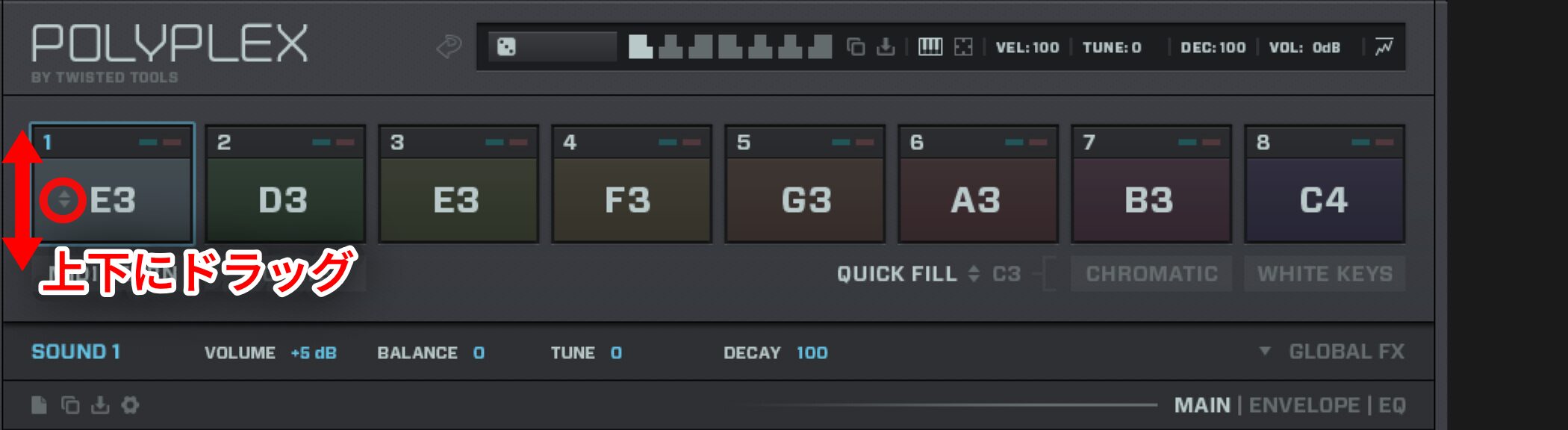
- Method 2: Drag up or down to assign a MIDI note.
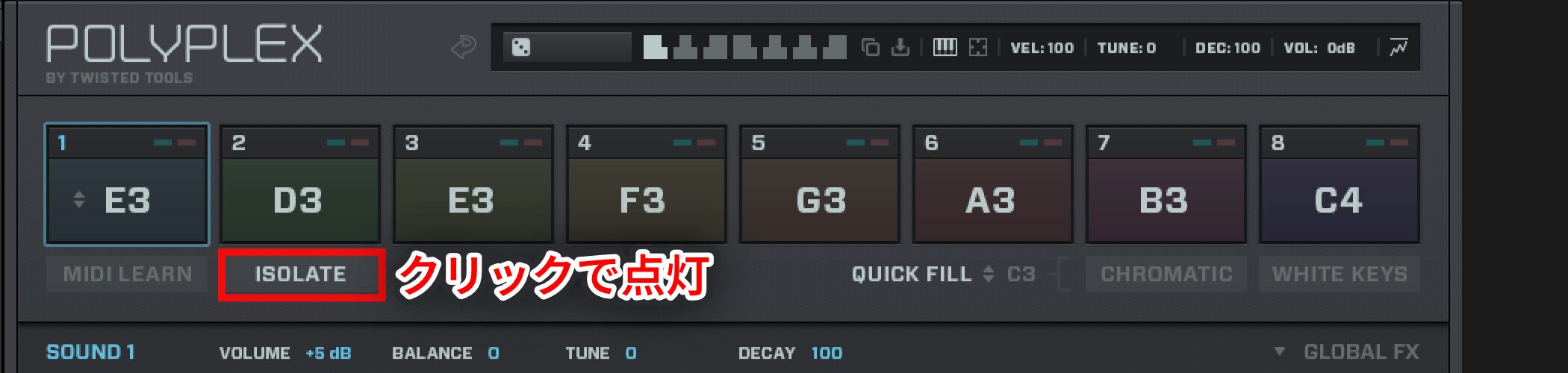
To preserve this assignment when changing presets, enable ISOLATE.
MIDI assignments are retained even when you change sounds.
Adjusting Kits to Get More from Polyplex
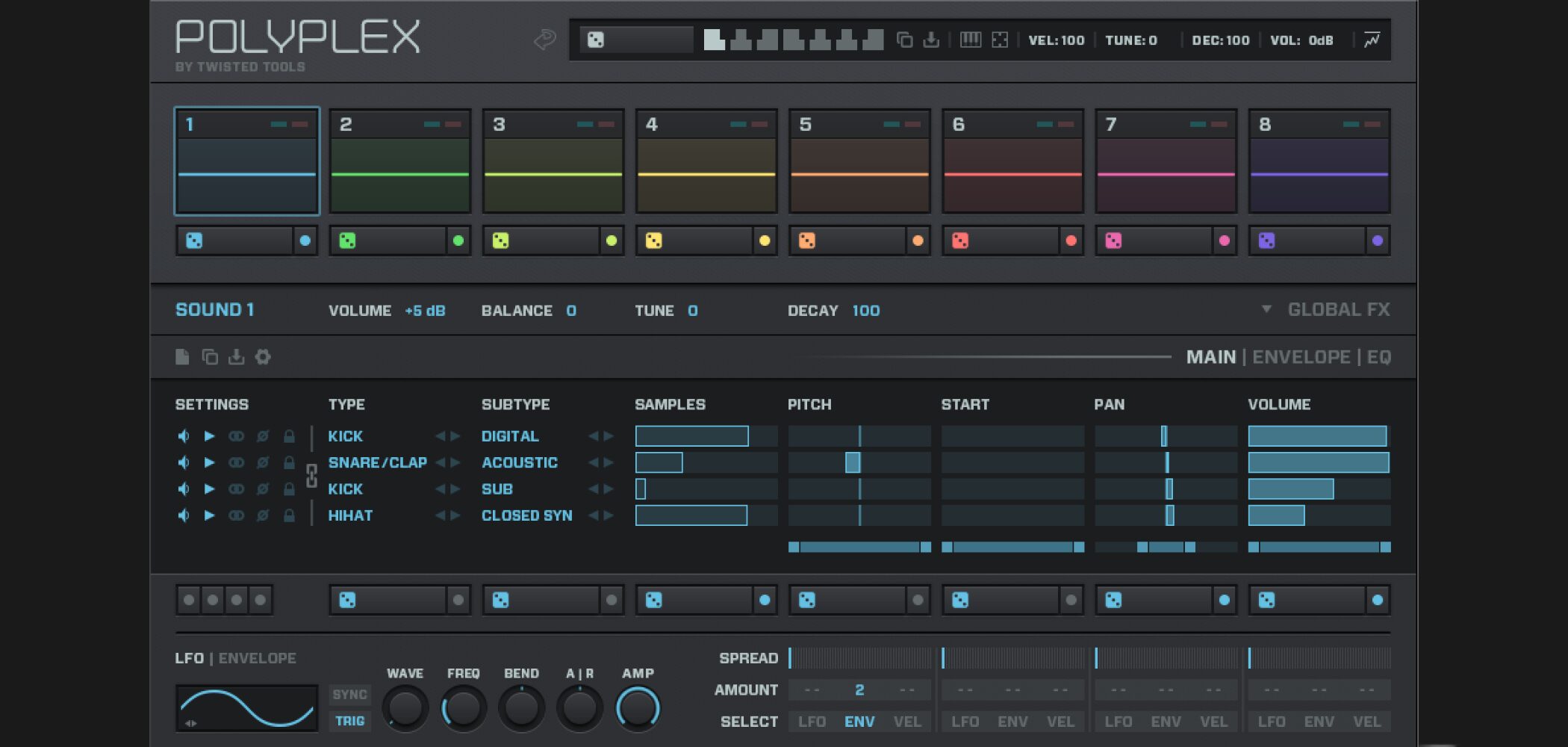
Once you understand the basics, you can start adjusting kits.
Randomization is used extensively here too; let’s look at its controls and settings.
Video: Kit Controls
Randomizing Individual Kits
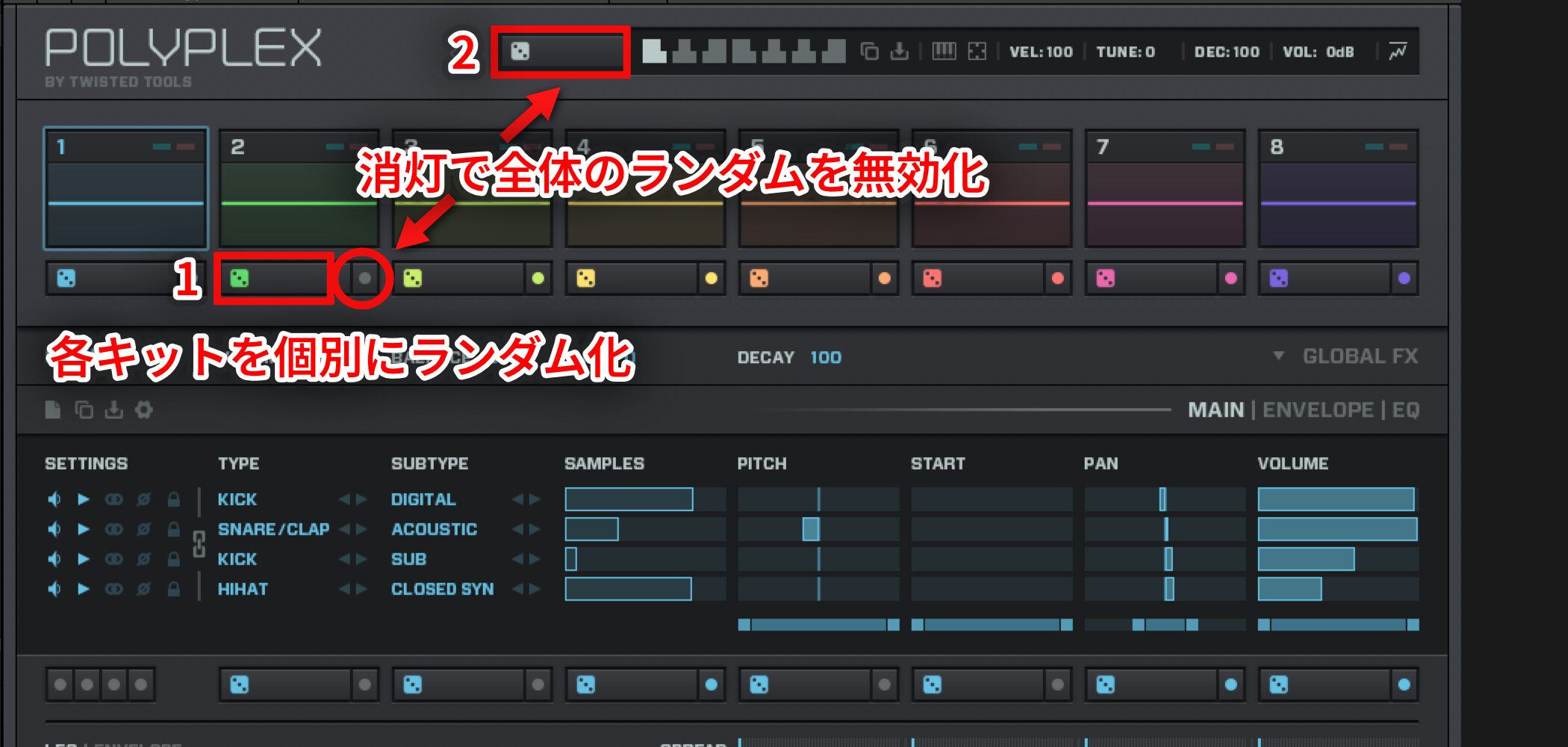
Use control 1 to randomize each kit individually.
You can also switch off the control on the right to exclude it from the global randomization at 2.
Kit Balance and Tuning
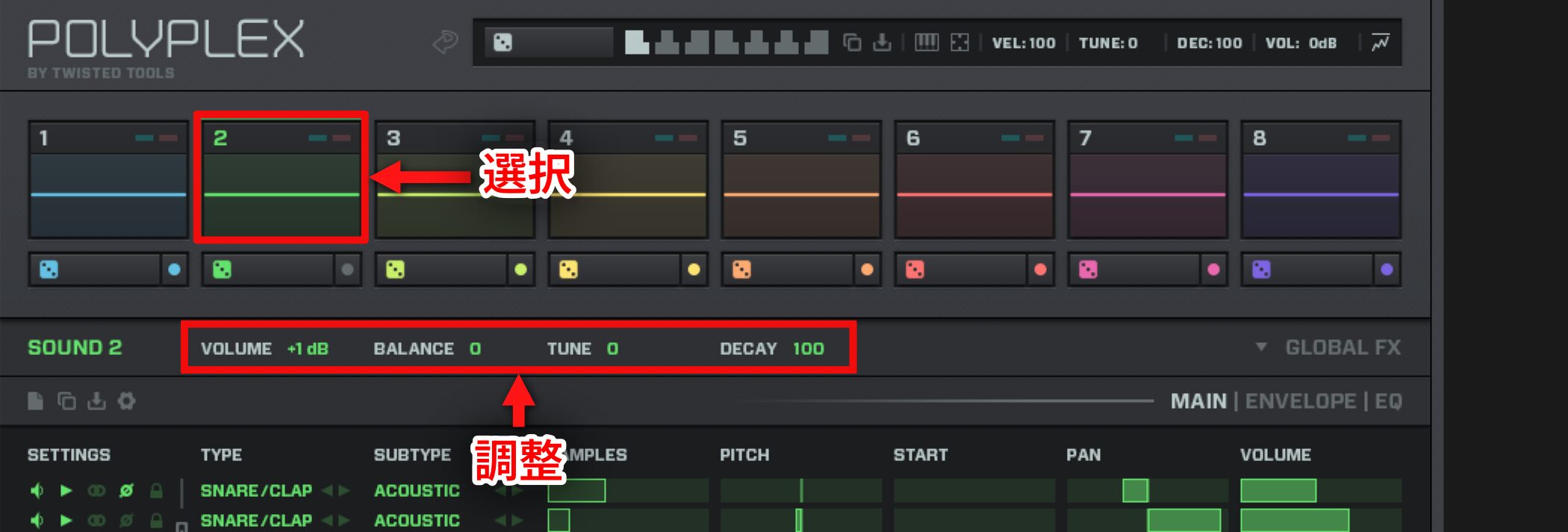
Select the kit you want to adjust and use the controls outlined in red.
- VOLUME: level
- BALANCE: pan
- TUNE: pitch
- DECAY: sound length
Copying and Pasting Kits
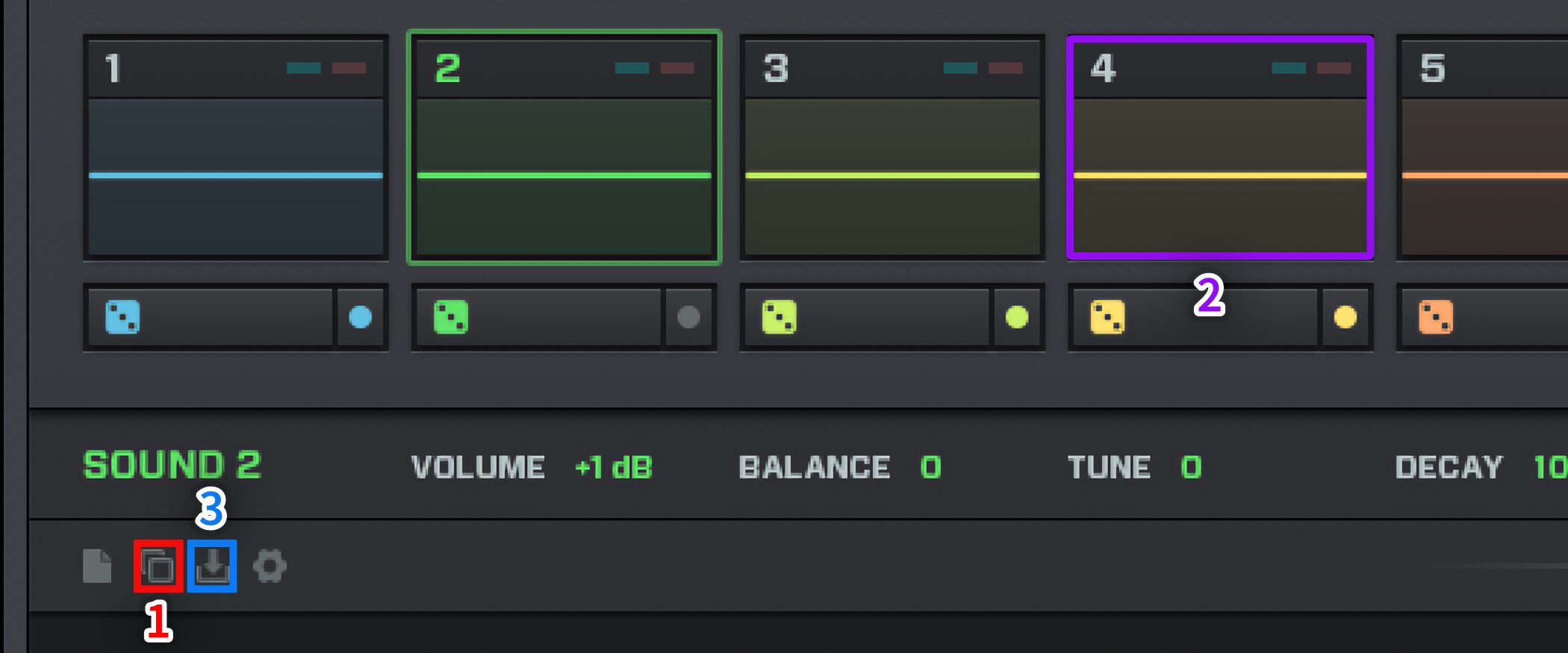
You can copy a kit’s sound and settings to another kit.
- 1. Select the source kit and click 1.
- 2. Select the destination kit.
- 3. Click 3.
Choke Settings
You can set up choking, for example to stop an open hi-hat when a closed hi-hat plays.
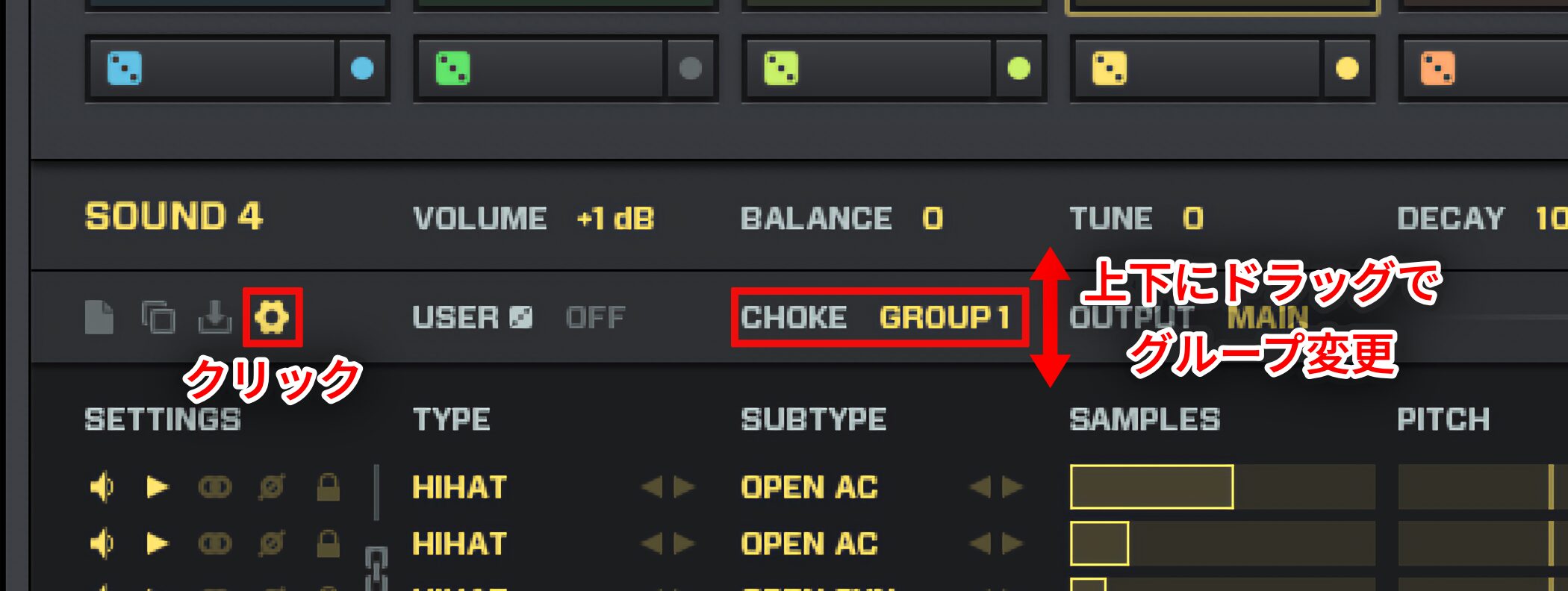
Select the settings, then place the kits that should cut each other off in the same group.
Drag up or down to change the group.
When another sound in that group plays, the previous kit sound stops.
Multiple Outputs
With multiple outputs for individual kits, you can adjust each kit’s volume, pan and effects separately in your DAW.
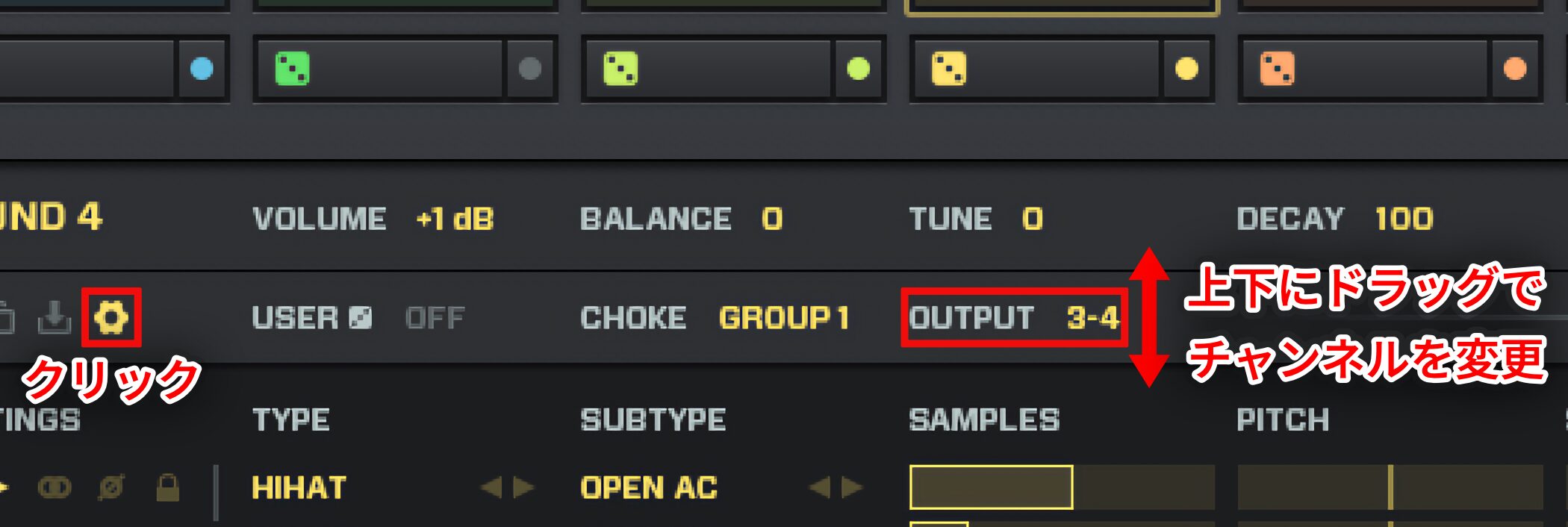
Select the settings and choose a different OUTPUT channel for each kit.
Drag up or down to change the channel.
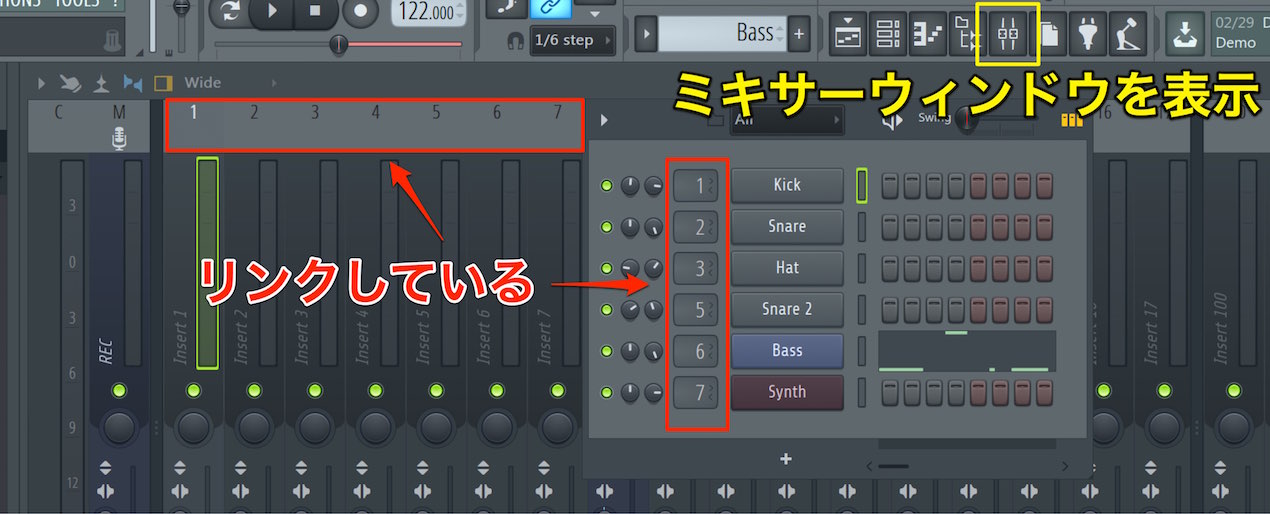
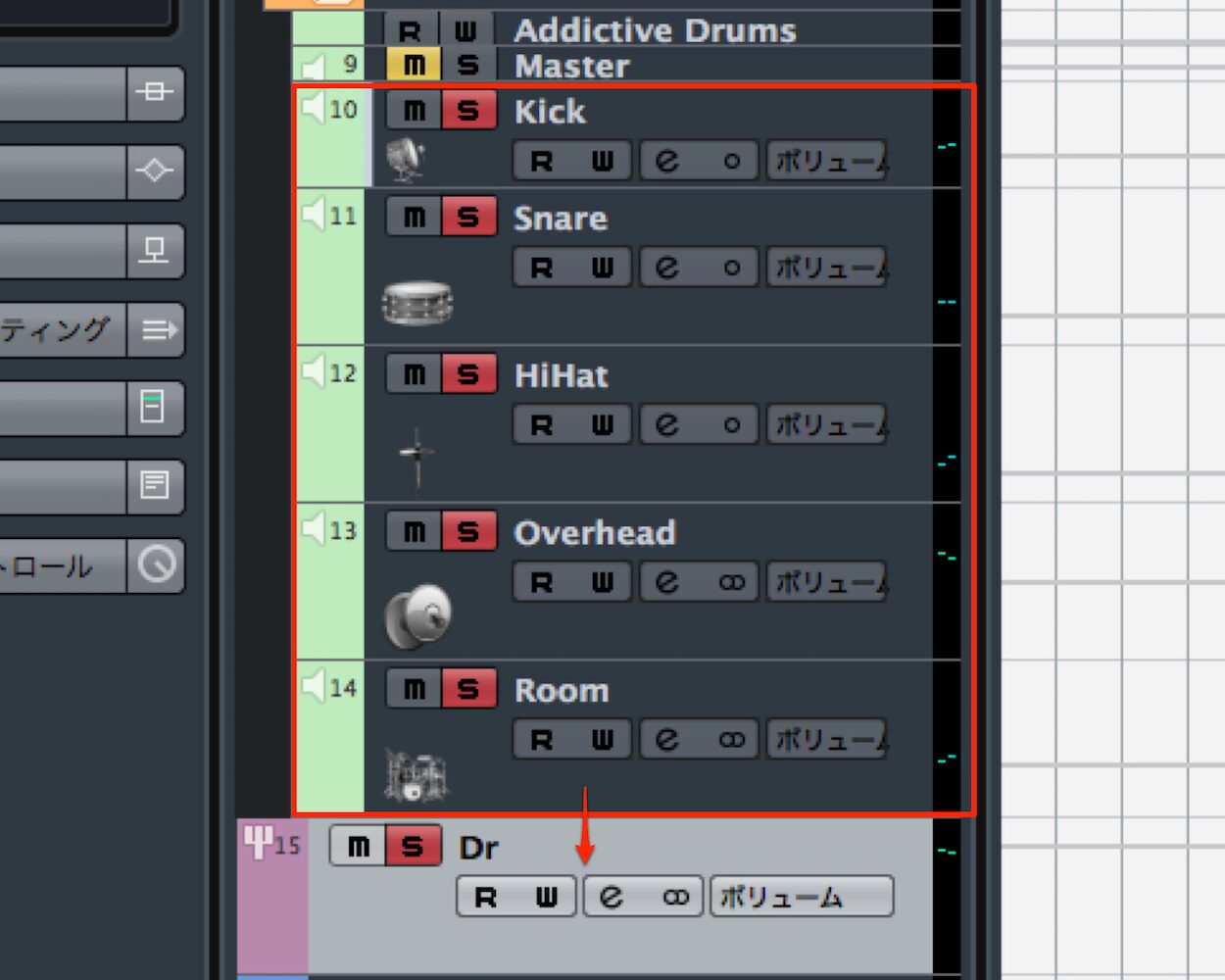
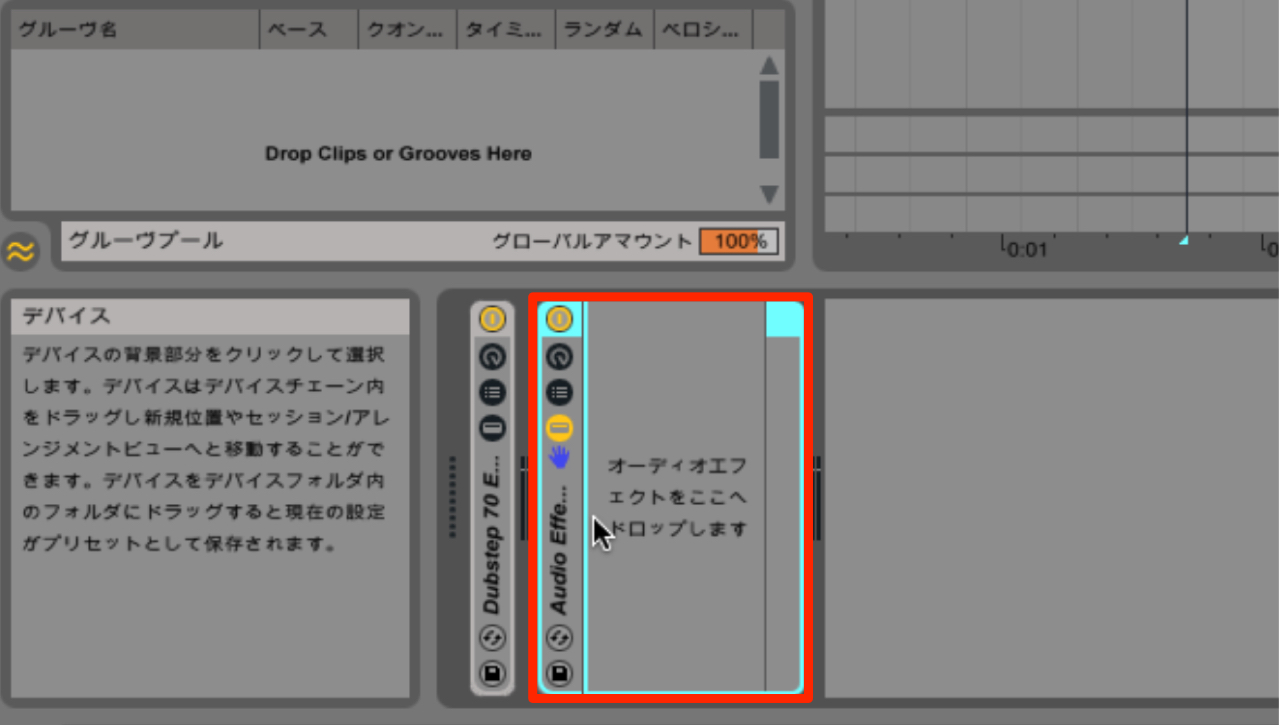
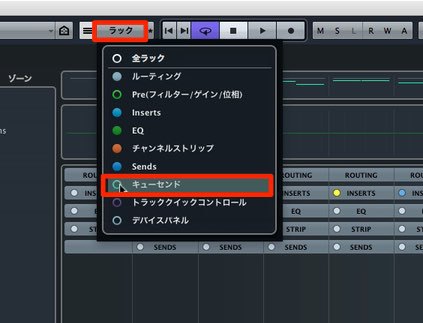
Then configure multiple outputs in your DAW.
 Logic
 Cubase
 Ableton Live
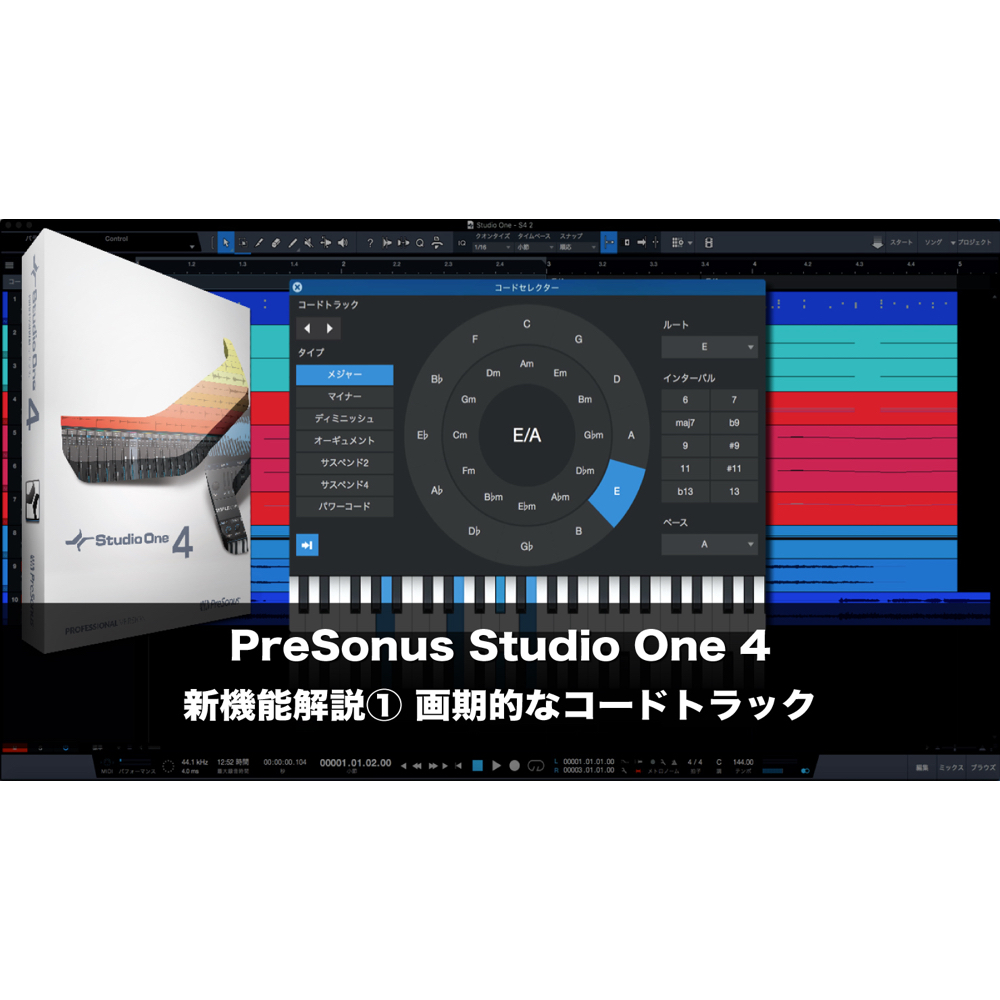
 Studio One
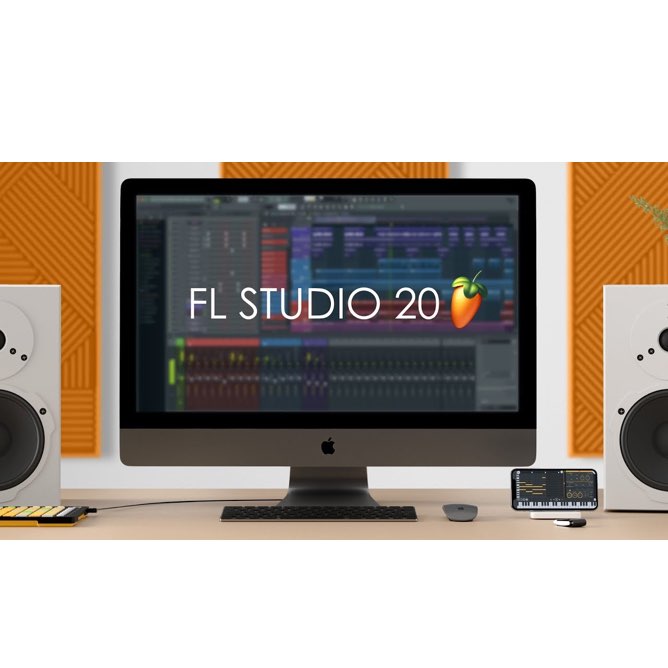
 FL Studio
Build Kits by Layering Sounds in Polyplex
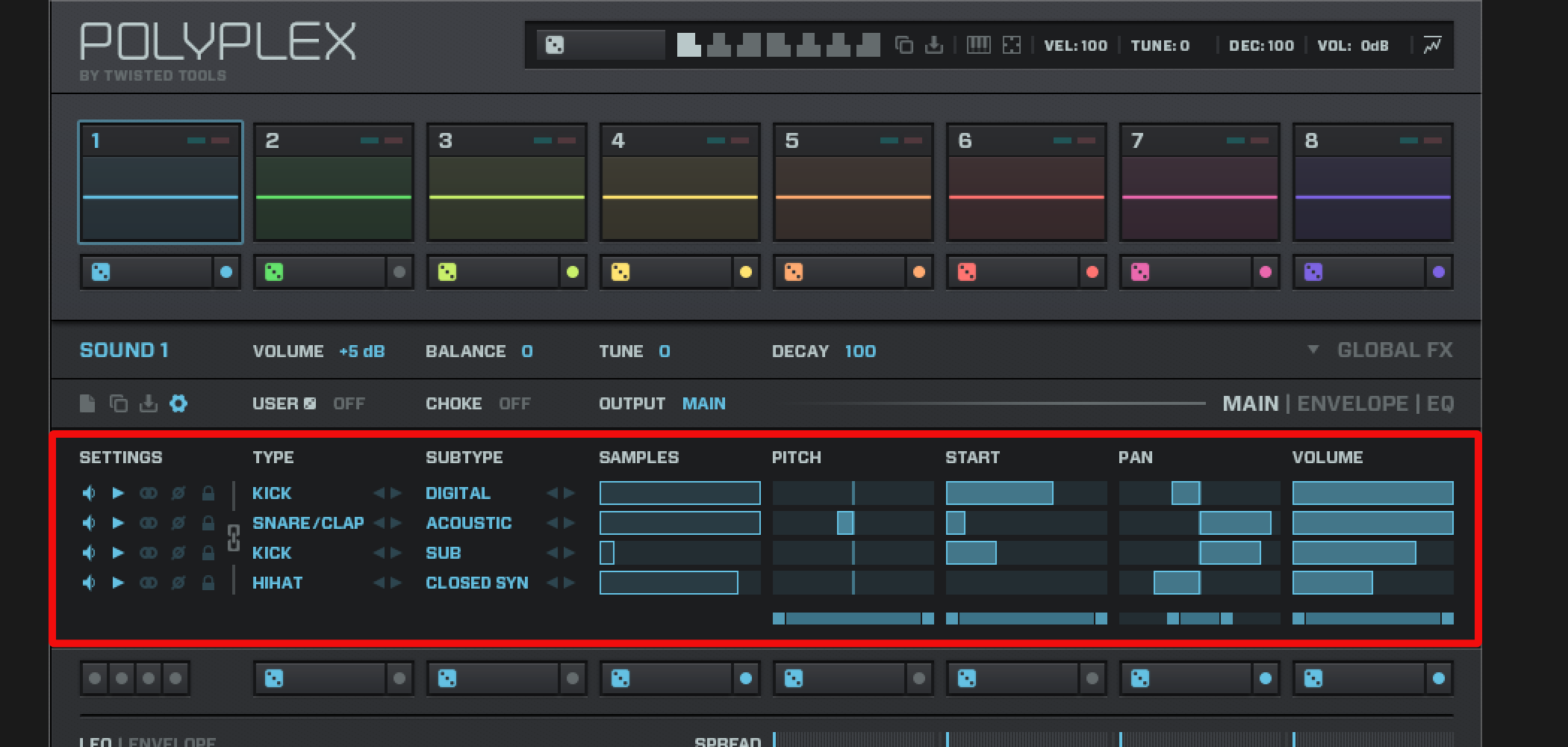
For each kit, Polyplex lets you combine up to four sounds to create a tone.
These combinations open up many possibilities, from acoustic and electronic sounds to effects.
Next, we will focus on the layering concept.
Video: Kit Layers
Choosing Layers
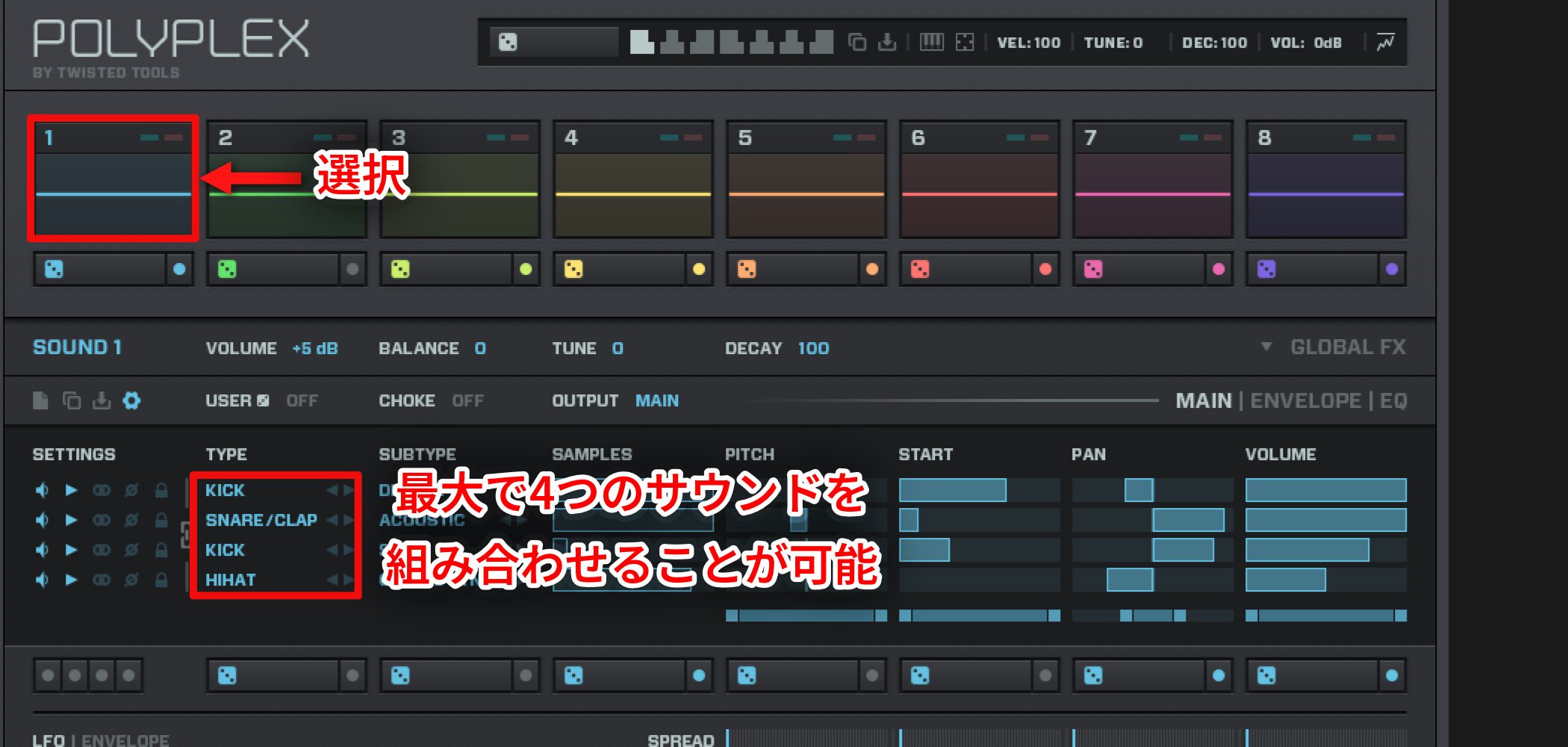
Select the kit you want to edit to show its details in the lower window.
You can combine up to four sounds; choose their types in the area outlined in red.
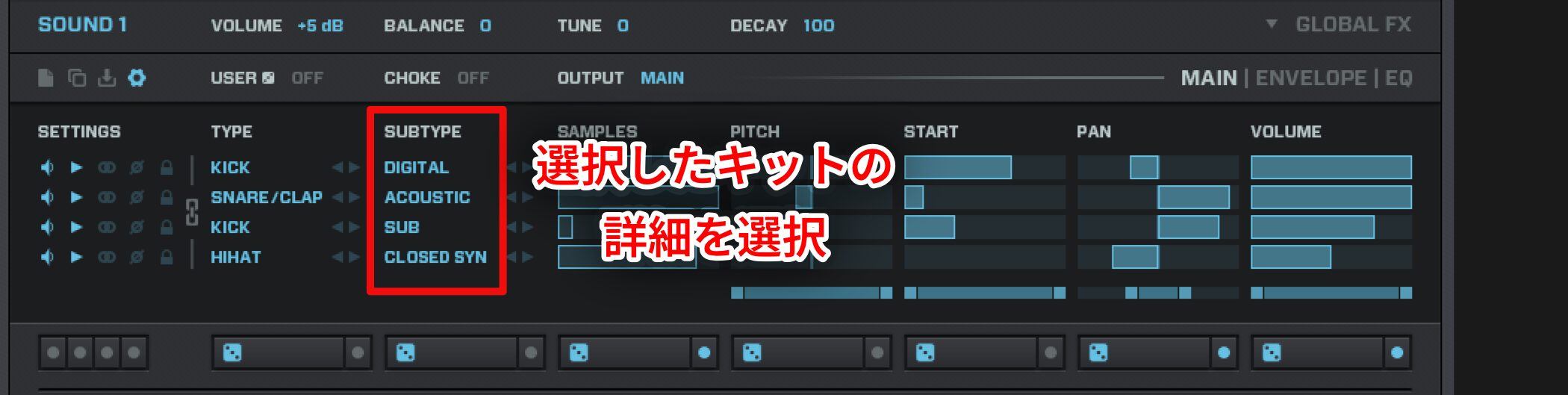
Use SUBTYPE to choose details for the kit selected above.
Choose the type you want, such as acoustic or digital.
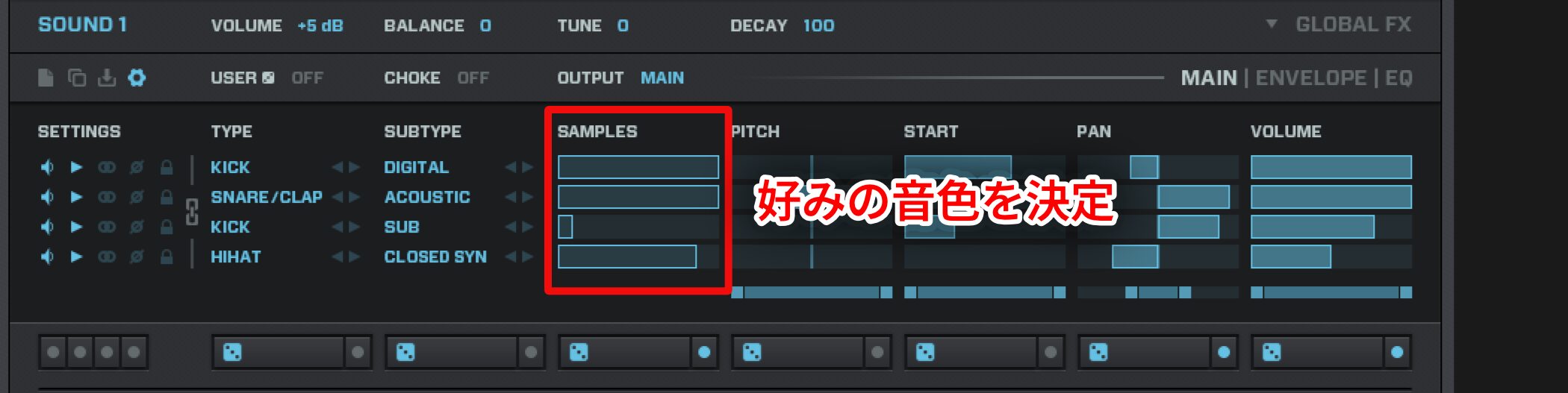
Under SAMPLES, choose the sound you want.
Changing the number by one calls up a completely different sound.
Balancing Layers
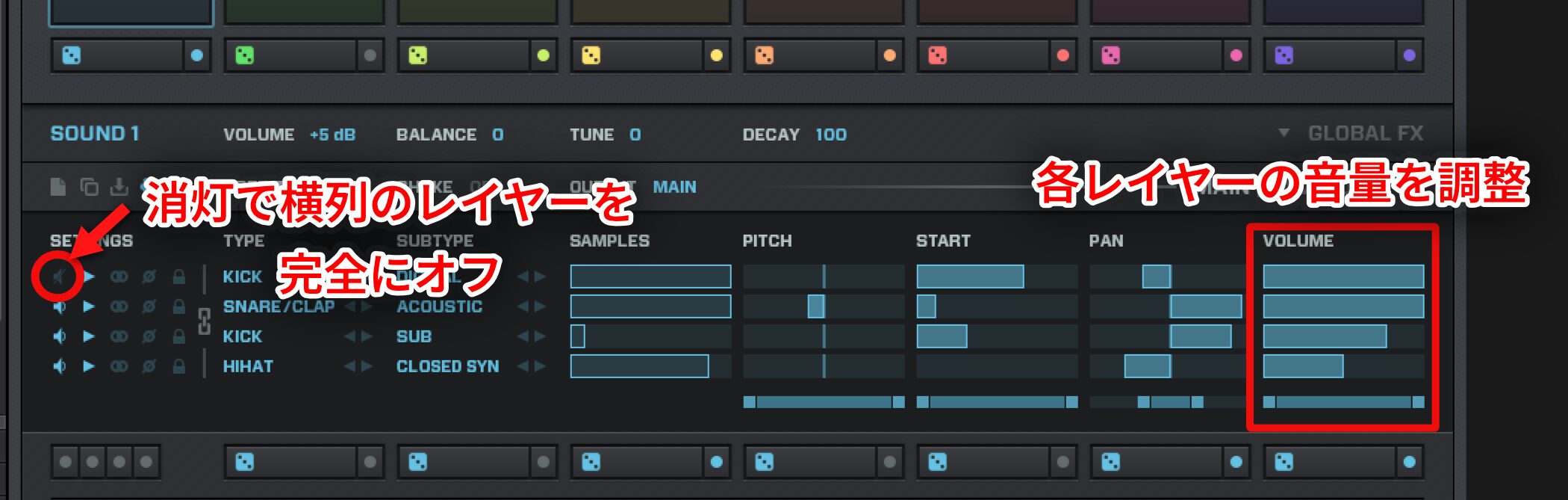
Use VOLUME on the right to balance the volume of each layer.
Even small adjustments can change the tone considerably.
Turn off the speaker icon on the left to disable the layer in that row completely.
Layer Settings
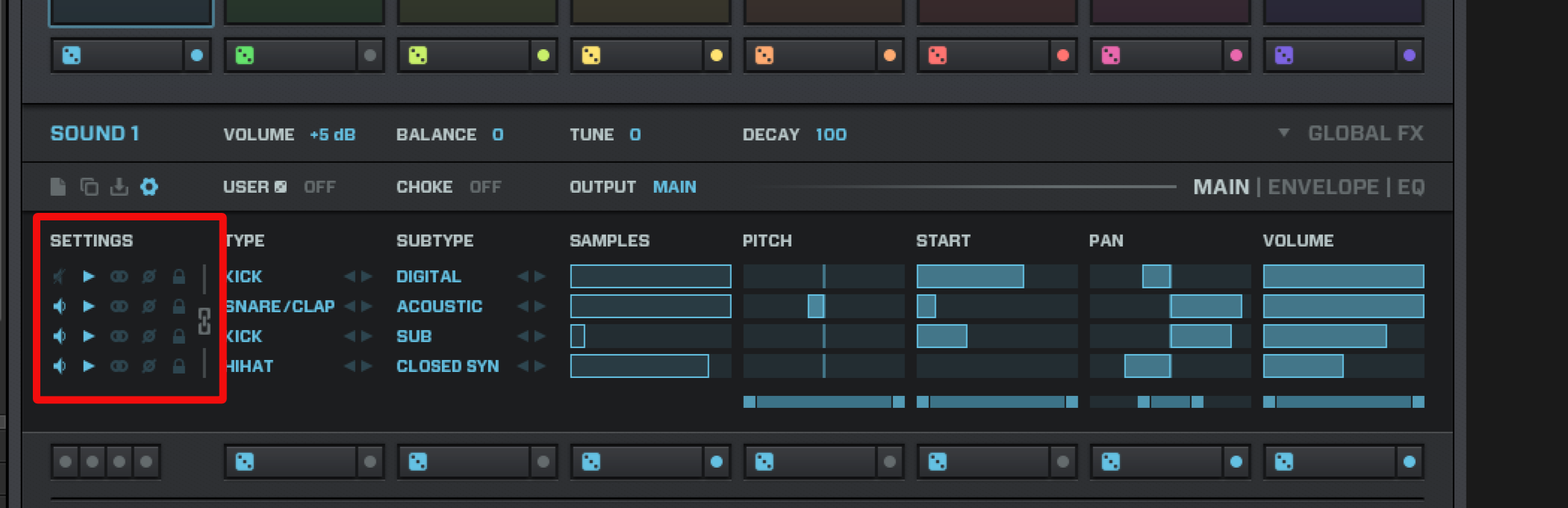
These controls are important too.
From left to right:
- Turn the layer on or off, as described above.
- Reverse the sound.
- Switch between mono and stereo.
- Invert the phase to adjust the tone.
- Lock settings to prevent them from changing during randomization.
Frequently Asked Questions
Q1. Which plug-in launches Polyplex?
Launch Polyplex in Native Instruments Reaktor. Drag and drop Polyplex from Reaktor’s PLAYER to get started.
Q2. Can I quickly create variations with the random function?
Yes. Click the dice icon on the preset screen to randomize all parameters. If you do not like the result, use the undo control to restore it.
Q3. How can I switch kits live?
Assign patterns to the white keys from C2 to B2, then press a key to switch kits. MIDI Learn also lets you assign keys of your choice.
Q4. Can each kit be sent to a separate DAW track?
Yes. Set a different OUTPUT channel for each kit, then configure multiple outputs in your DAW to adjust volume, pan and effects separately.
Q5. Can I combine multiple sounds in one kit?
Yes. You can layer up to four sounds for each kit. Choose their types, subtypes and samples, then fine-tune the volume balance.
NEW ARTICLES
Latest English Articles