
Part 3 of our vocal-cover video series focuses on recording. This beginner-friendly guide explains why Vocaloid songs are popular choices, how to obtain a backing track and import it into Studio One, and how to position your microphone and set its input gain. It also discusses checking the creator's usage terms and shows how careful setup and level adjustment can help beginners record reliably.
Time to Start Recording!
In Part 3 of our Getting Started with Vocal Covers series, we'll record using the equipment we set up in the previous installment.
Filming this episode made one thing clear: even beginners can record quite smoothly once they get used to the controls.
We've gathered the essentials to help you sing comfortably and give your best performance. Put them to use in your own recordings!
Note: This article provides supplementary information for the video, so please watch the video below before reading on.
Getting Started with Vocal Covers — Part 3: Video
- 1Getting a Backing Track and Importing It into Studio One
- 2Setting Up the Microphone
- 3Testing Your Recording Setup
Selected Questions and Answers from YouTube

I've recently started using Cubase LE/AI/Elements 13, but I can't find the “Takes to Layers” setting shown in the video. Does it have a different name in my version?

The software used here is Studio One, so you won't find that particular menu in Cubase. Cubase has a related feature called Stacked recording; see this guide for an explanation. https://sleepfreaks-dtm.com/for-advance-cubase/besttake-3/
Getting a Backing Track and Importing It into Studio One
For this series, we've chosen DECO*27's song “Cinderella.”
It's a very popular Vocaloid song that many cover singers have recorded, making it well known in the vocal-cover community.
We also plan to upload Yokoyama's finished cover to YouTube once the recording is complete. Stay tuned!
Why Are Vocaloid Songs So Popular for Vocal Covers?
Let's briefly look at why Vocaloid songs are such common choices for vocal covers.
Copyright is part of the picture, so it's useful to understand the basics.
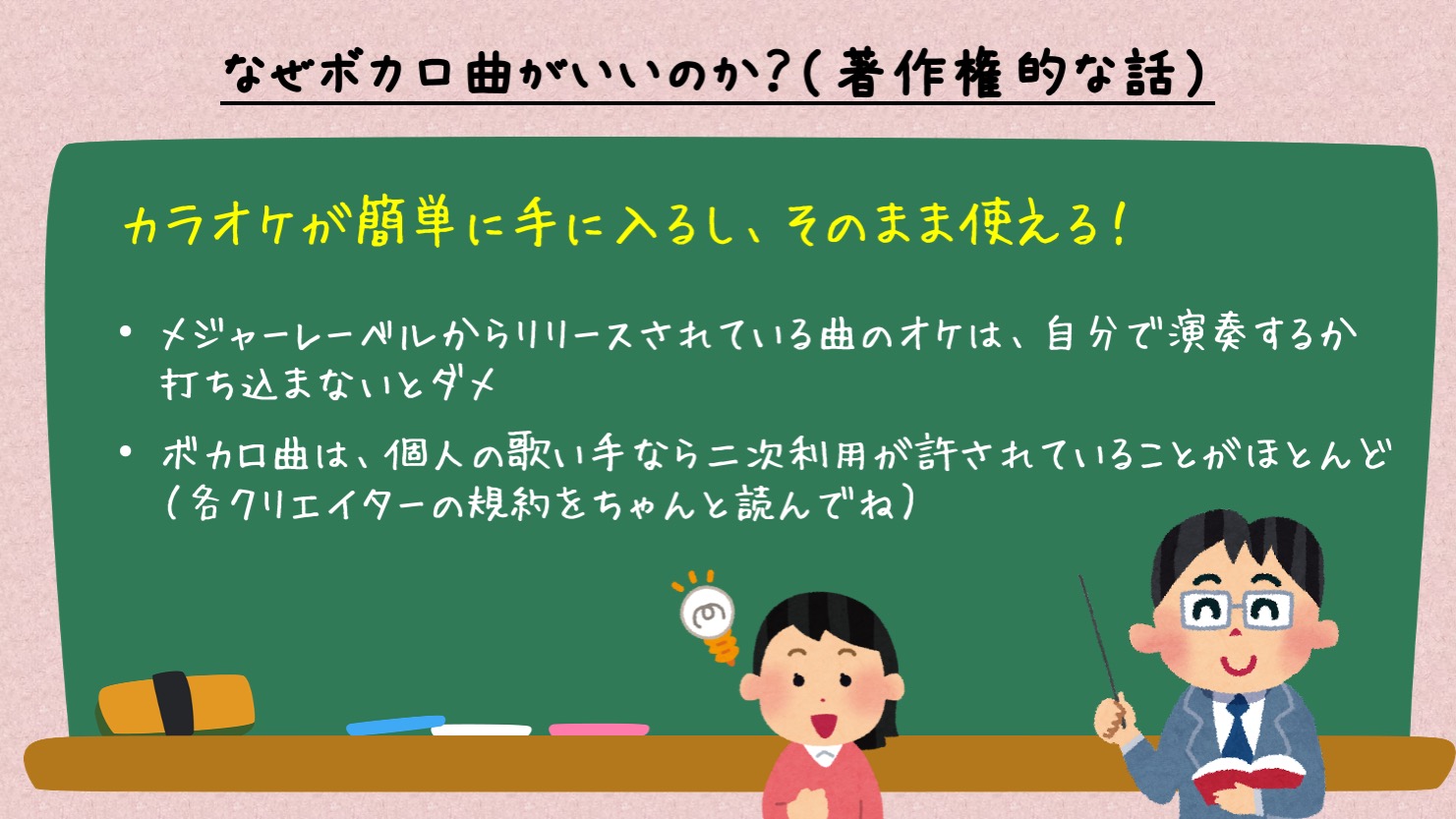
One straightforward advantage is that backing tracks for Vocaloid songs are often easy to obtain.
You'll need a backing track to make a vocal cover. However, many songs released by major labels do not have an official backing track readily available, and even if you find one, uploading a cover that uses it to YouTube or Niconico may require permission for that recording.
To cover such songs, you may need to play or program your own accompaniment, while still checking the permissions needed for the song itself.
By contrast, many Vocaloid creators offer free backing tracks and permit vocal covers using them under specified conditions. You can mix your singing with those tracks and upload your cover only within the applicable terms. Read and follow each creator's rules; free availability does not mean unrestricted use.
Many Vocaloid songs become popular without a major-label release, and this accessibility has helped the vocal-cover community grow.
Where to Download DECO*27's Backing Tracks
You can find backing tracks for DECO*27's songs, including “Cinderella,” on the following website.
Alongside backing tracks, the site also provides video assets, such as lyric animations, for some songs. Many cover singers use these materials in their music videos. Check OTOIRO's current usage terms before using either type of asset; corporate or commercial use requires contacting OTOIRO.
In Part 6 of this series, we plan to introduce a simple video-editing workflow.
Many other well-known Vocaloid producers also release backing tracks, sometimes labeled “off-vocal” or “instrumental.” Look in the original video's description to find them.
Creating a Song and Importing the Backing Track
Once you've obtained a backing track for the song you want to sing, import it into Studio One.
“Import” is the standard term for bringing a file into the software—it's worth remembering.
First, create a Song to import the file into. You'll also use this Song to record your vocals, so give it a recognizable name, such as the song title.
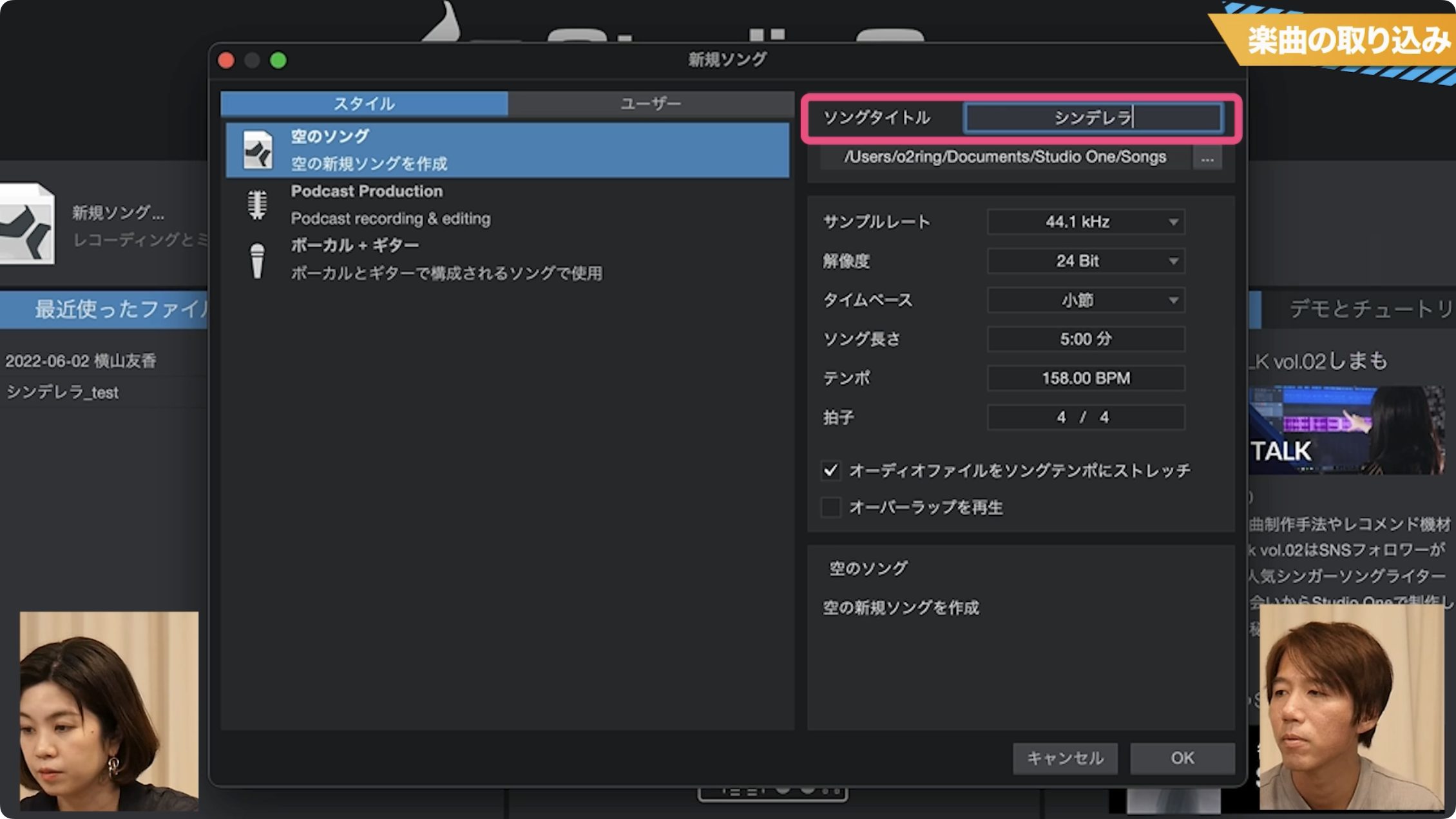
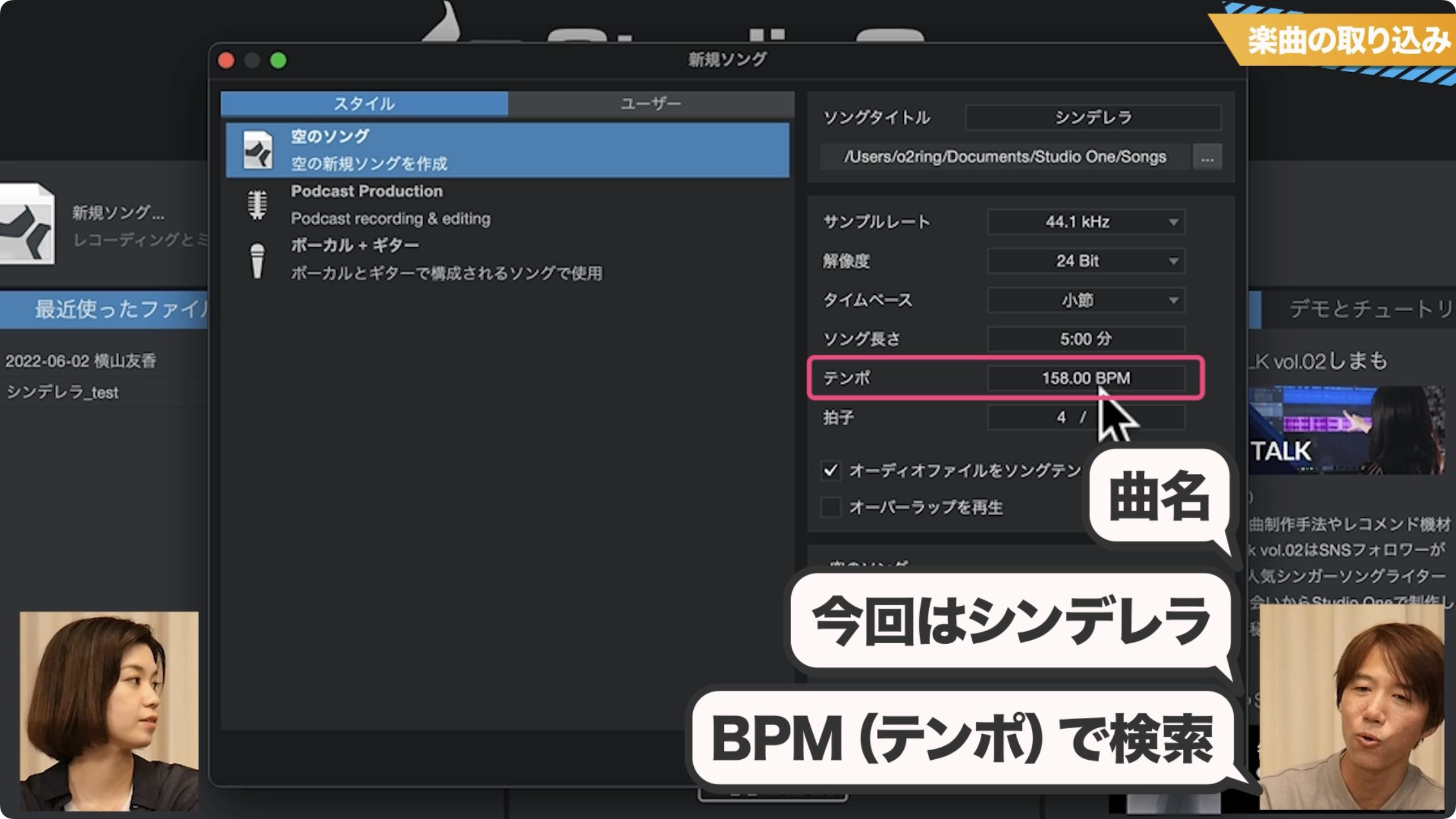
Next, set the song's tempo.
Vocaloid songs often have a published tempo. Searching for the song title together with “BPM” will usually help you find it.
With your Song created, drag and drop the downloaded backing-track file into it. Studio One will automatically create a track for the file.
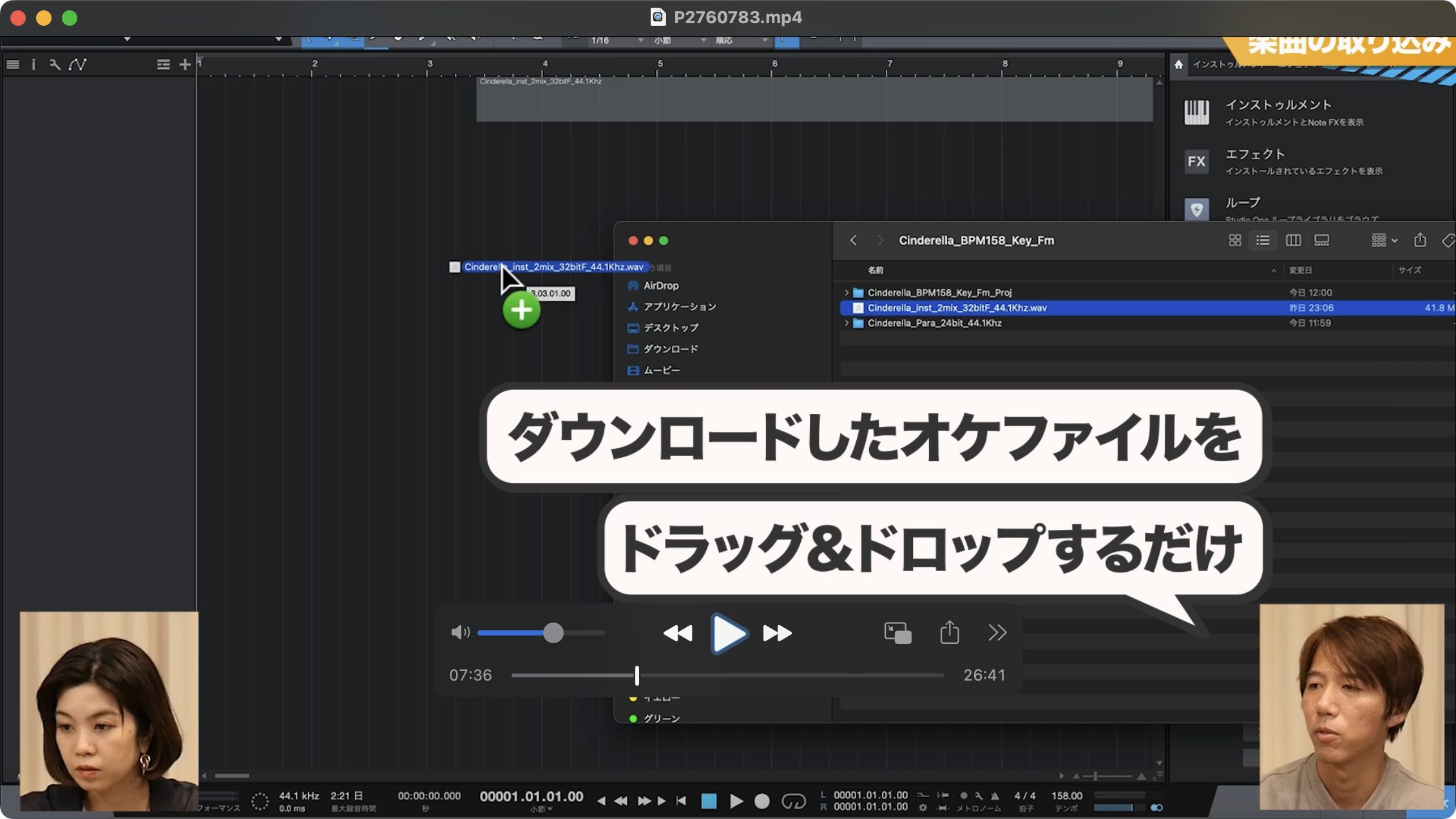
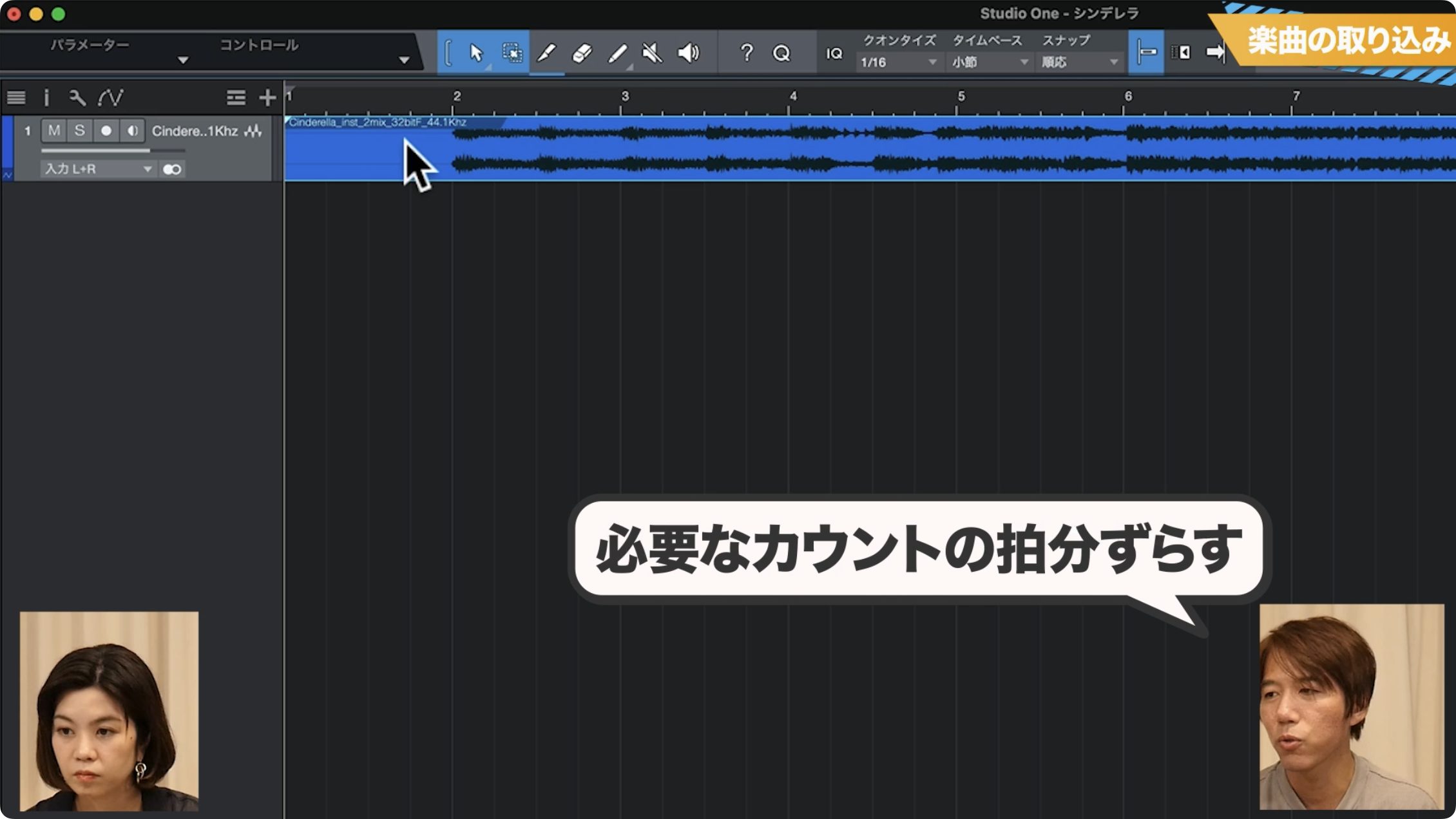
Position the waveform on the track—called an audio event—at the far left, or move it to leave the number of beats you need before the vocal starts.
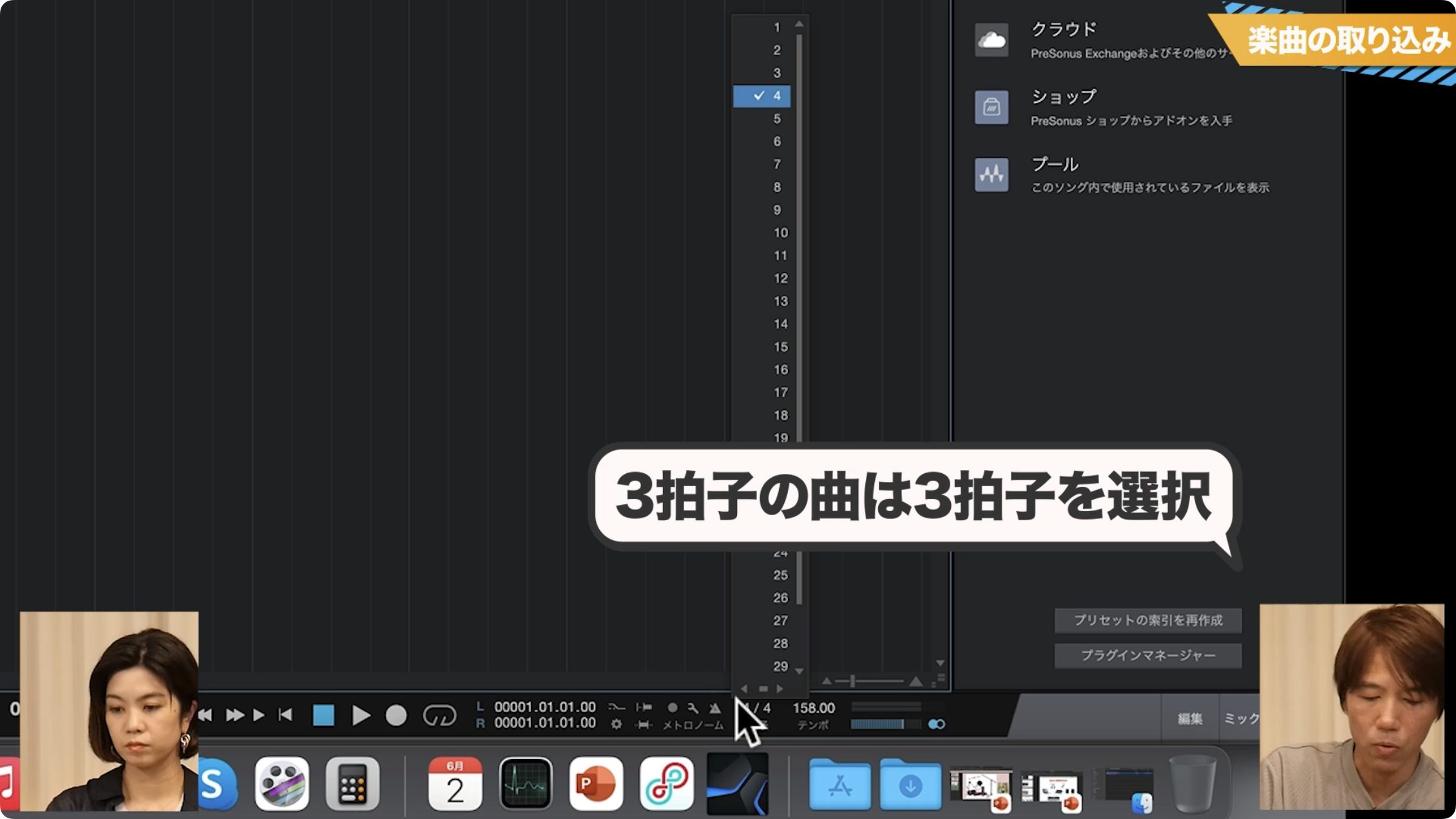
Set the time signature as well. Many songs use 4/4, but if yours is in triple meter or another time signature, set it correctly so the metronome is easy to follow.
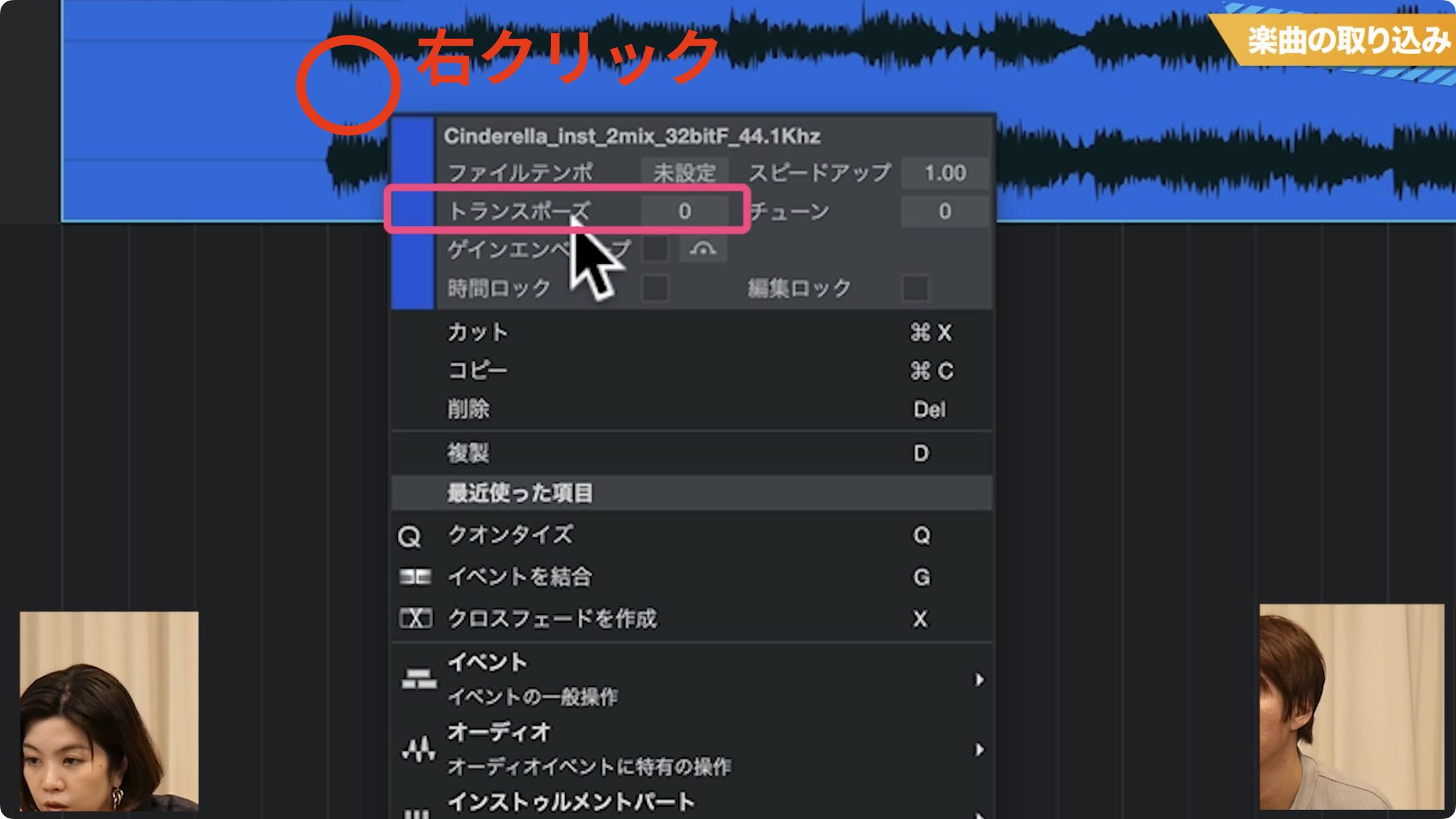
Most DAWs, including Studio One, let you change the key of the song. Adjust it to suit your vocal range.
In Studio One, right-click the audio event to open its menu, then raise or lower the Transpose value. Each step is one semitone, just like the key-change control on a karaoke machine.
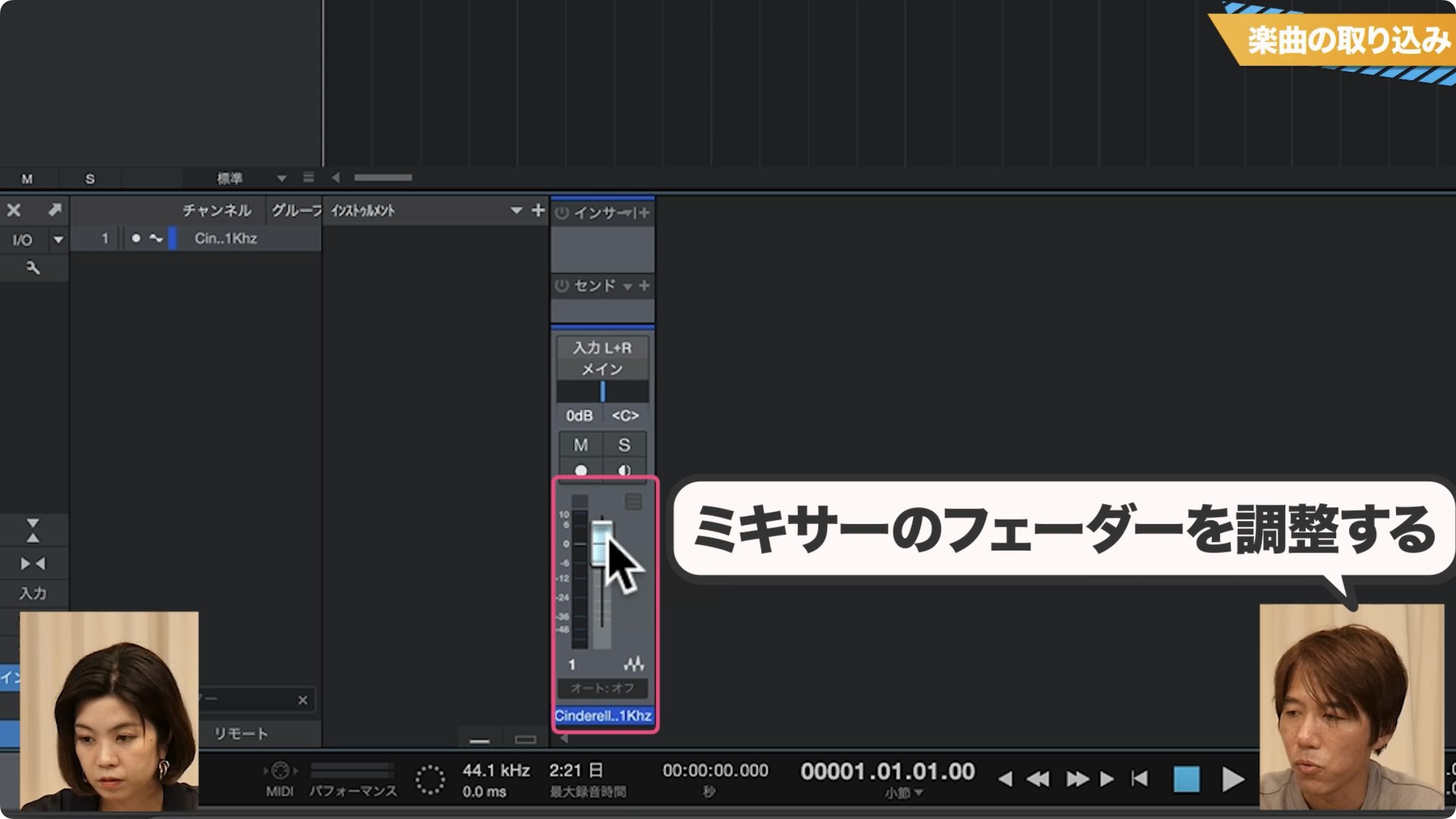
Next, adjust the backing track's volume. Some tracks can be quite loud as soon as you import them.
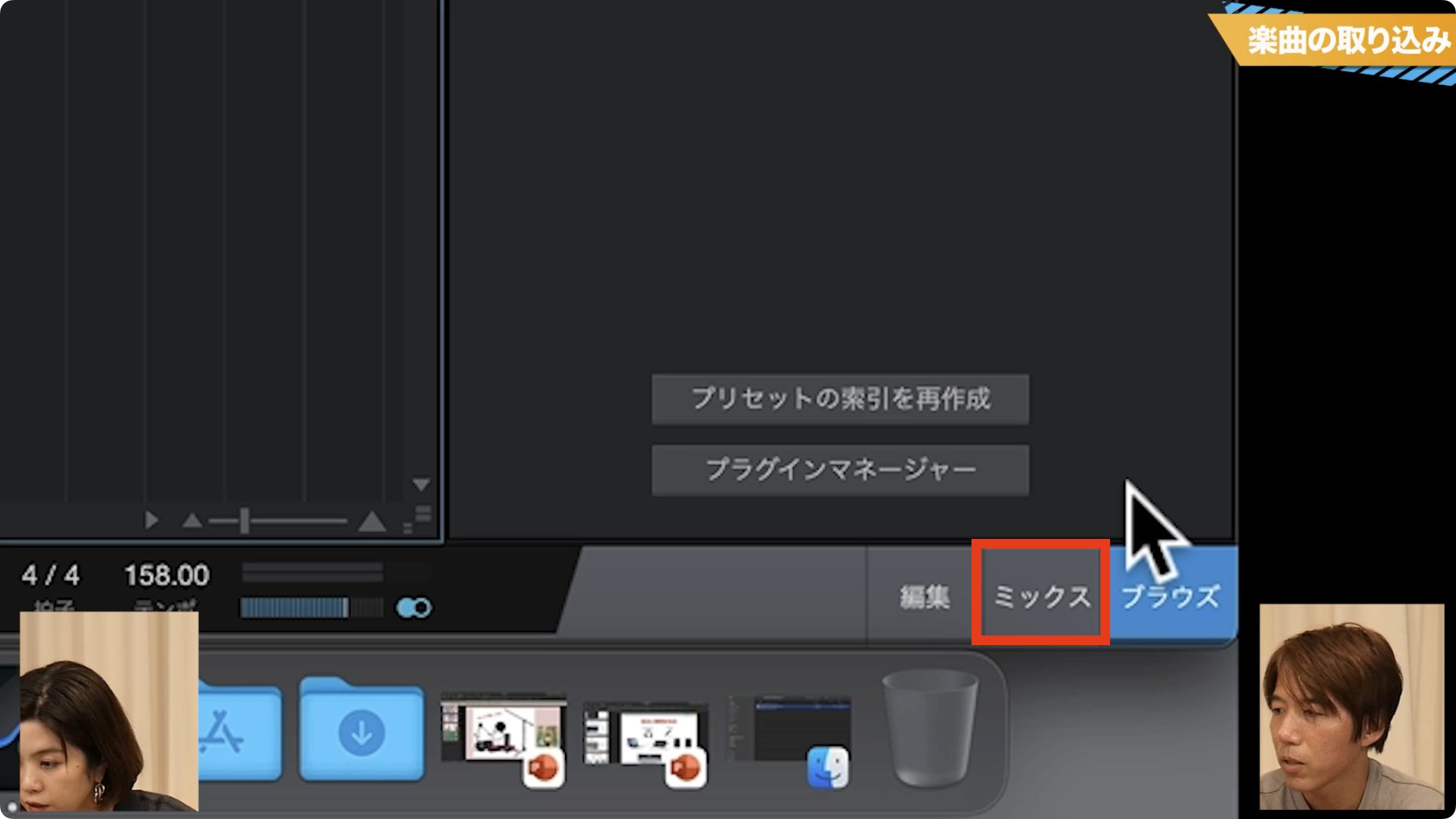
In Studio One, first click Mix at the bottom right of the screen.
Then move the backing track's fader up or down in the mixer at the bottom of the screen. Play the track while adjusting it to make the level easier to judge.
Preparing to Record
Once the backing track is ready, prepare to sing into the microphone.
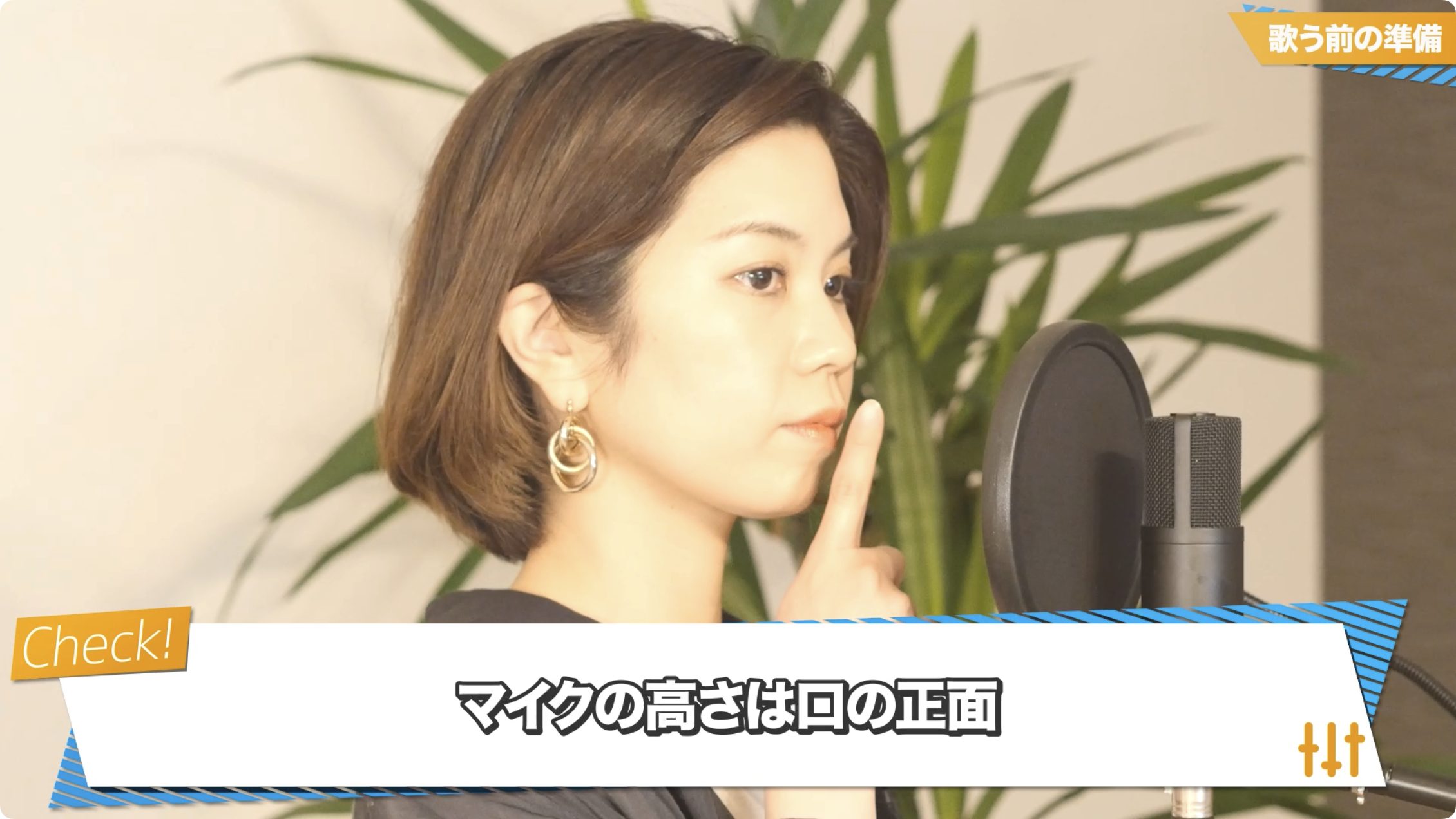
Stand in front of the microphone and adjust the stand so the microphone is at mouth height, directly in front of you.
As a starting point, leave roughly one to one and a half fist-widths between your mouth and the pop filter.
Next, adjust the microphone input gain for the song.
As explained in the previous installment, you need to avoid distortion from clipping when recording. Run a test and set the level carefully.
First, create a track for recording your vocals. Follow the previous installment's steps, and remember to set its format to Mono.
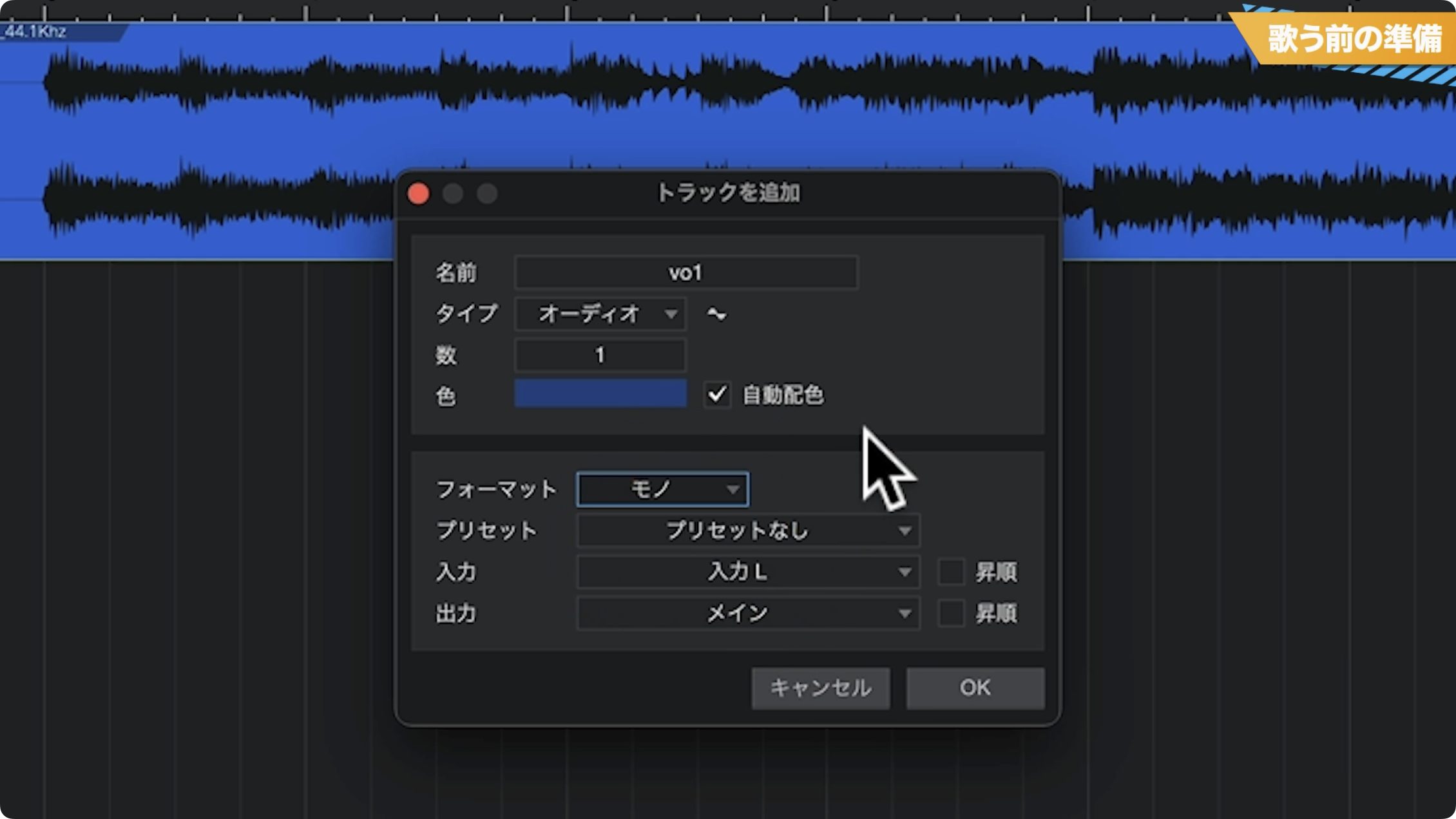
Enable the track's ● Record Enable button to arm it. The meter will now respond to your voice; watch it while adjusting the gain knob on your audio interface.
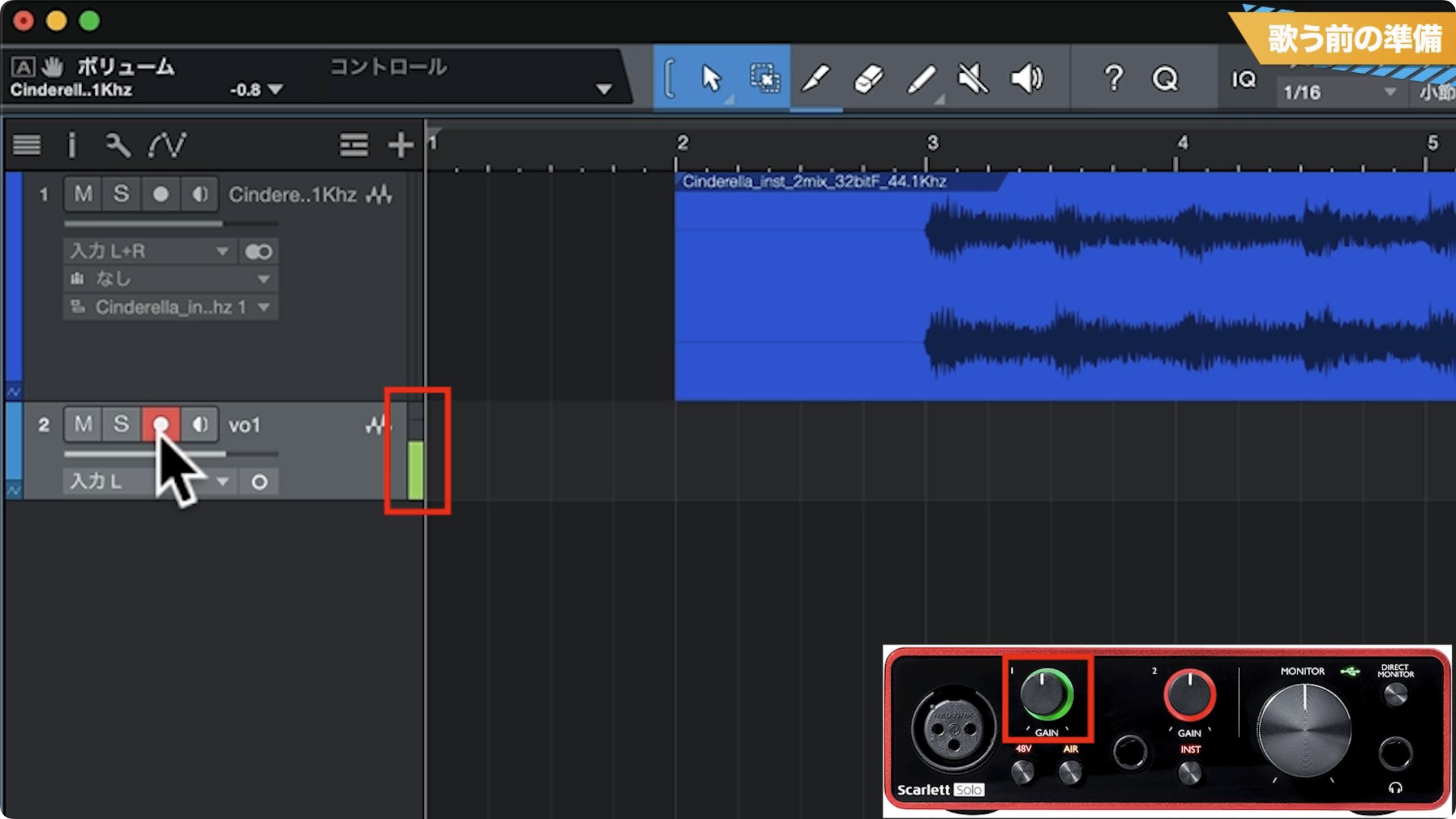
Once the level is roughly set, try singing along with the song.
When you actually sing, especially in higher passages or more intense sections, your voice can be much louder than your speaking voice.
Make sure those parts do not clip either.
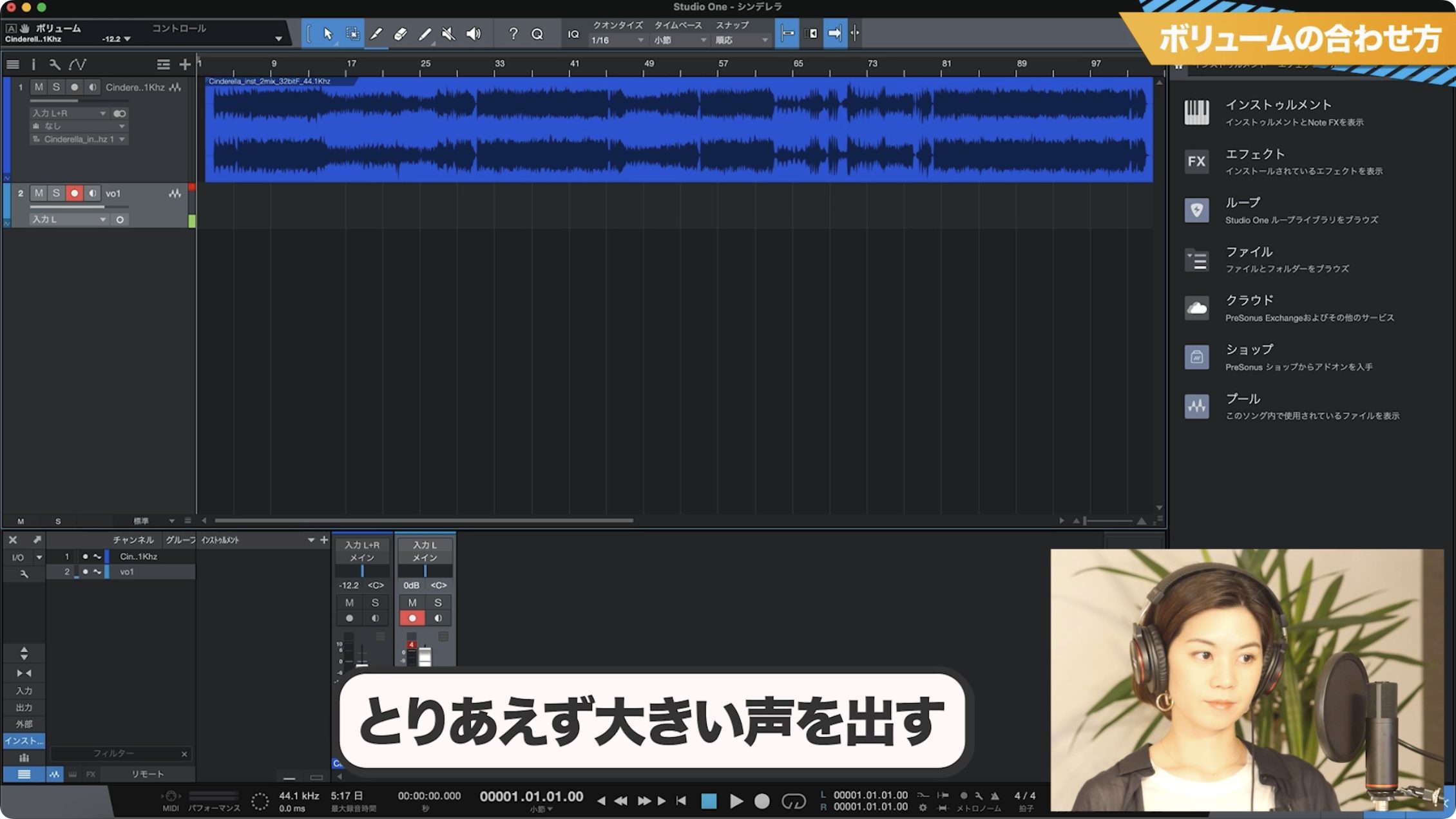
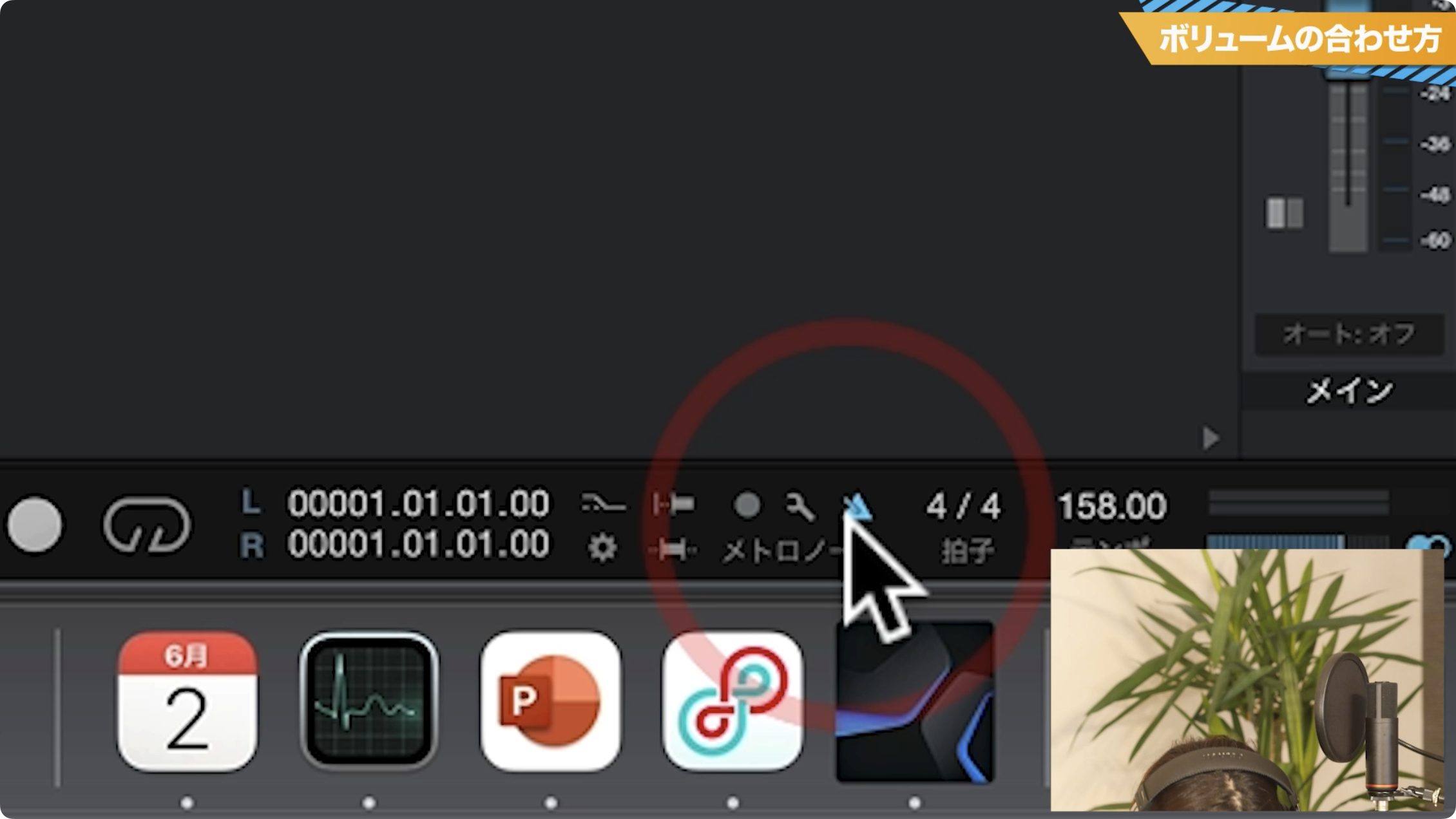
Let's also check how to use the metronome, which can be helpful when recording.
In Studio One, its button is quite small and sits in the transport area at the bottom of the screen. Switch it on and start playback to hear a click at the song's tempo.
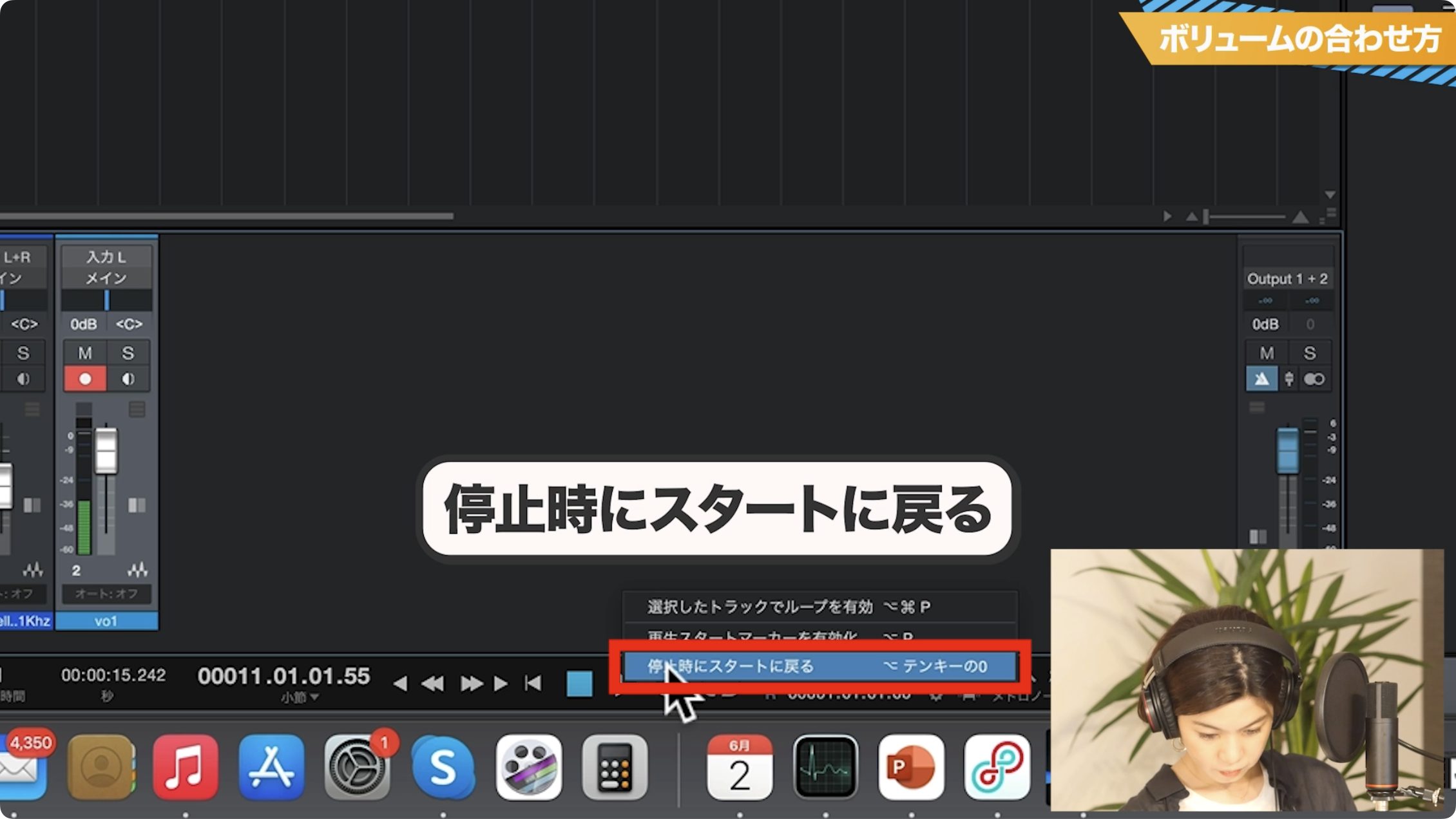
You'll often record the same section repeatedly, so the Return to Start on Stop option is useful.
Right-click the Play button and choose it from the menu that appears.
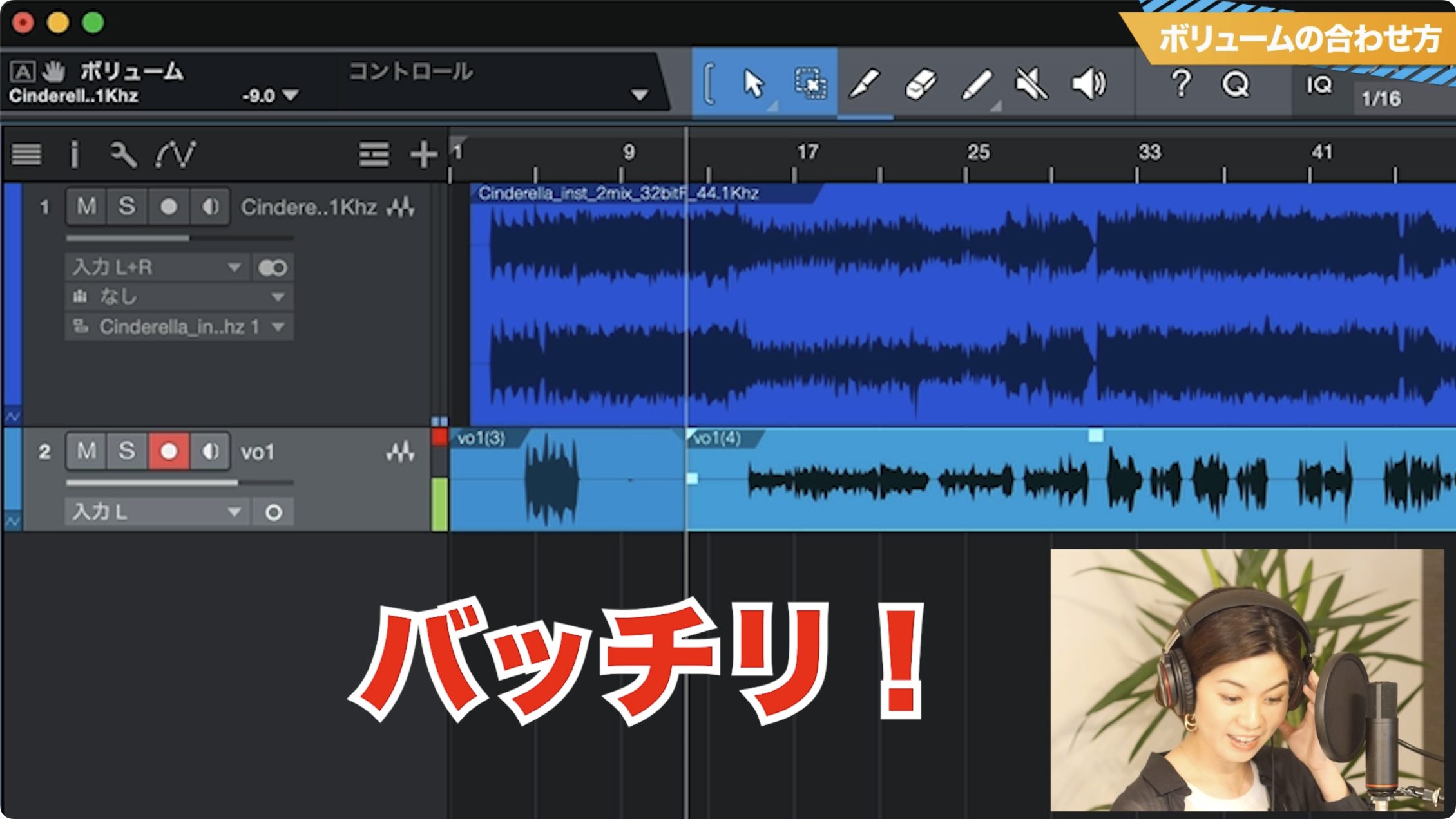
Once you're ready, sing with the energy you'd use for the actual take and check the meter and waveform. If the meter's red indicator lights up, or the waveform reaches its upper and lower limits, the level is too high—lower the audio interface's gain. Avoid setting it excessively low as well; aim for a healthy recording level with room for peaks.
Repeat this process carefully until you're happy with the result.
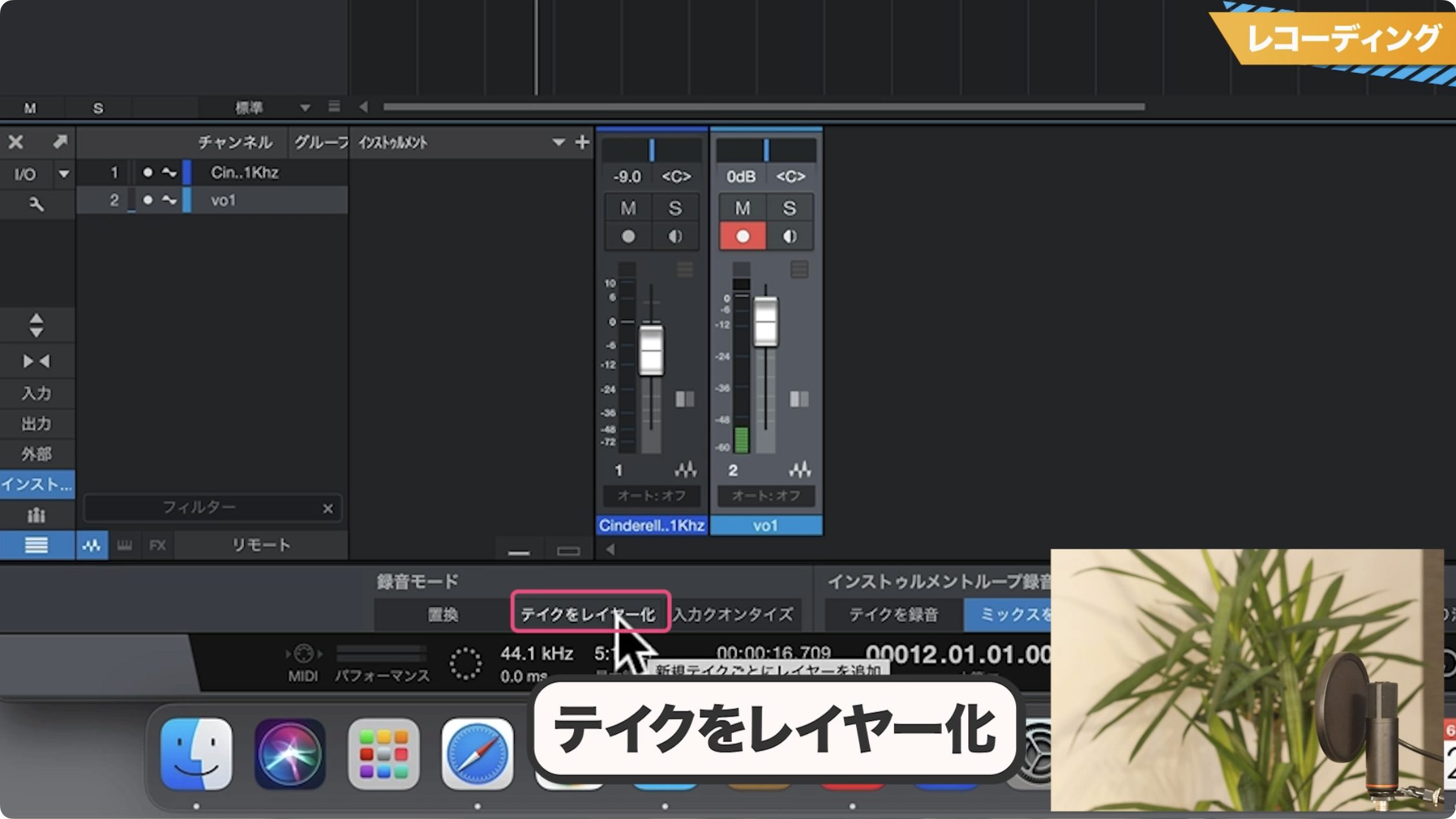
As a final preparation step, enable the setting that keeps repeated recordings of the same section as separate takes.
Click the small gear-shaped icon near the metronome to open the recording options, then enable Takes to Layers under Record Mode.
Tips for the Recording Session
With the setup complete, it's time to record for real.
When you're recording yourself, you can try as many times as you like without worrying about anyone watching. Relax and enjoy it.
Here are a few points to keep in mind during the session.
Record in Manageable Sections
You don't have to sing the entire song from beginning to end in one pass.
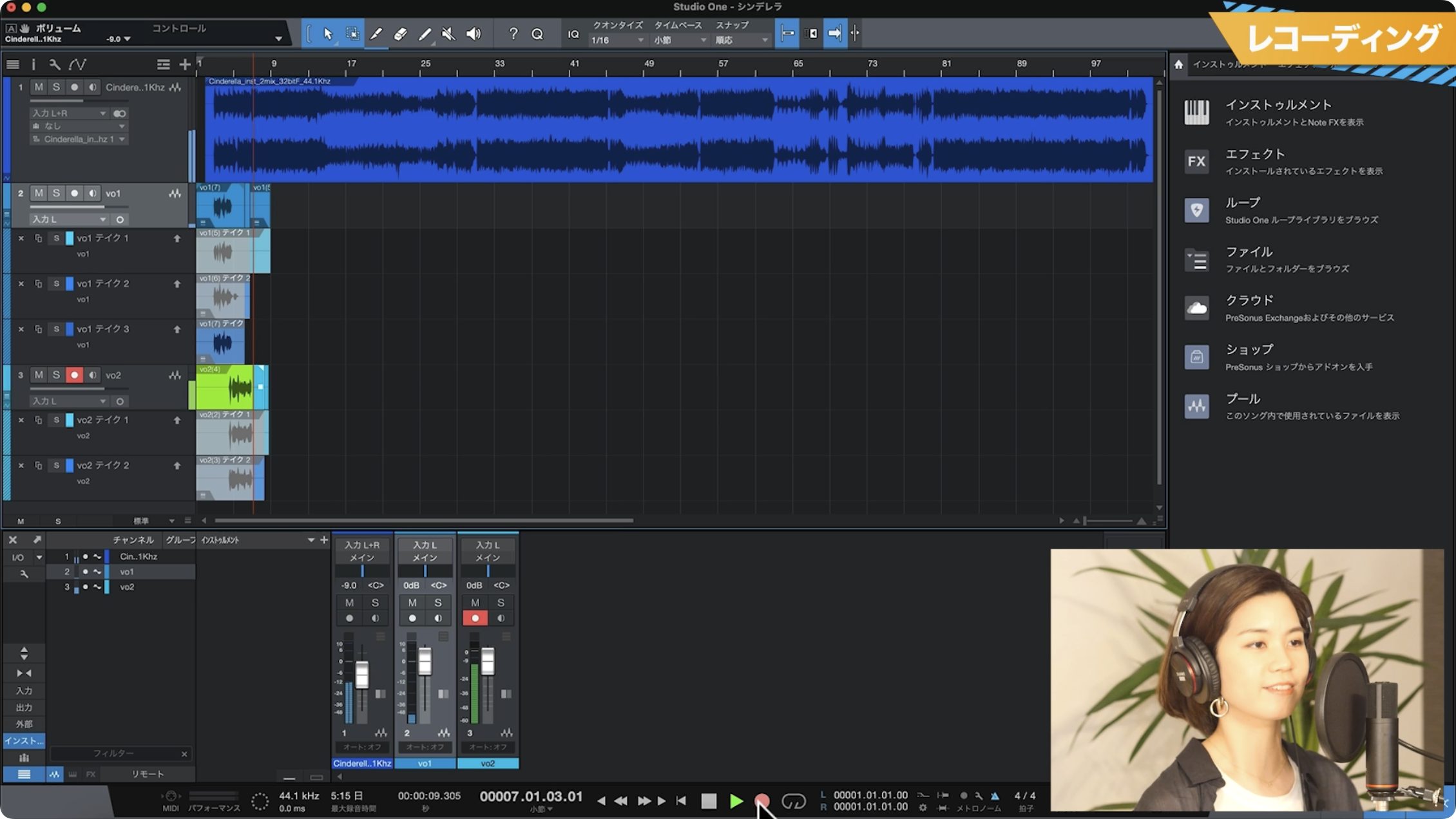
It's common to record the song in musical sections, such as a verse or pre-chorus.
“Cinderella,” our example song, has a call-and-response arrangement between the lead vocal and other vocal parts, so we'll record it in even smaller sections.
Use Separate Tracks Where Needed
Create separate tracks for harmonies and backing vocals, and for overlapping lead-vocal phrases—for example, when the end of one line overlaps the start of the next.
One important precaution is to arm only the track you're currently recording and turn off the red ● Record Enable buttons on the other tracks. Otherwise, you'll record the same input onto multiple tracks at once.
If you've created two or three tracks and a similar part appears later in the song, you can reuse an existing track.
Record a Few Takes Even If the First One Goes Well
A first take can have a special quality, but each additional take may reveal subtle changes or new possibilities.
We recommend recording at least two or three takes, even for a simple part.
That concludes Part 3 of Getting Started with Vocal Covers, covering recording preparation and practical tips for the session itself.
Next time, we'll edit the takes we've recorded and move on to mixing.
Mixing is often considered difficult, but we'll show you a very simple method that anyone can try. Don't miss it!
Getting Started with Vocal Covers — Part 3: Recording
We've gathered the essentials to help you sing comfortably and give your best performance. Put them to use in your own recordings!Video: https://t.co/WlWkHDifAz
Article: https://t.co/oc5XyPheZ6 #DTM #VocalCovers pic.twitter.com/SGj2FPbEvG
— SLEEP FREAKS (@SLEEPFREAKS_DTM) September 15, 2022
Frequently Asked Questions
Q1. Why are Vocaloid songs so common in vocal covers?
Many Vocaloid creators make backing tracks available free of charge and allow vocal-cover uploads under their own usage terms. This makes suitable backing tracks easier to obtain than for many major-label releases. Permission is not automatic: check the terms for the song and recording, including any restrictions on corporate or commercial use.
Q2. How do I set the backing track's tempo and key in Studio One?
Set the tempo when creating the Song. To change the key, right-click the audio event and adjust Transpose. Each step is one semitone, just like a karaoke key-change control.
Q3. What matters most when setting microphone input gain?
Avoid clipping. Watch the meter while testing with your actual singing voice, and set the gain so that high notes and loud passages do not clip.
NEW ARTICLES
Latest English Articles










































































































