
Backing up project files is an important part of a music production workflow. FreeFileSync is a free application for Mac and Windows that can synchronize files using saved settings. It can copy only changed files to reduce backup time and offers versioning for files that would otherwise be deleted or replaced. Multiple configurations can be saved and switched between for projects such as those made in Cubase.
Synchronize Two Folders to Keep Files Up to Date
One task worth doing after every work session is backing up your files.
Repeating the same work after a device failure can waste a great deal of production time.
Considering that risk, it is best to make backups after each session.
But deciding which files to copy to another device every time can be tedious.

That is where the free application FreeFileSync comes in.
It is available for Mac and Windows and can be used free of charge.
FreeFileSync: http://www.freefilesync.org
Once configured, a backup can be started from the saved settings with a click; review and confirm the proposed changes before running it.
FreeFileSync also supports incremental backups, allowing you to copy only changed files.
This can substantially reduce the time required for subsequent backups.
Let’s look at the setup and how to use it.
FreeFileSync Video Tutorial
Setting Up FreeFileSync
First, visit the FreeFileSync download page.
http://www.freefilesync.org/download.php
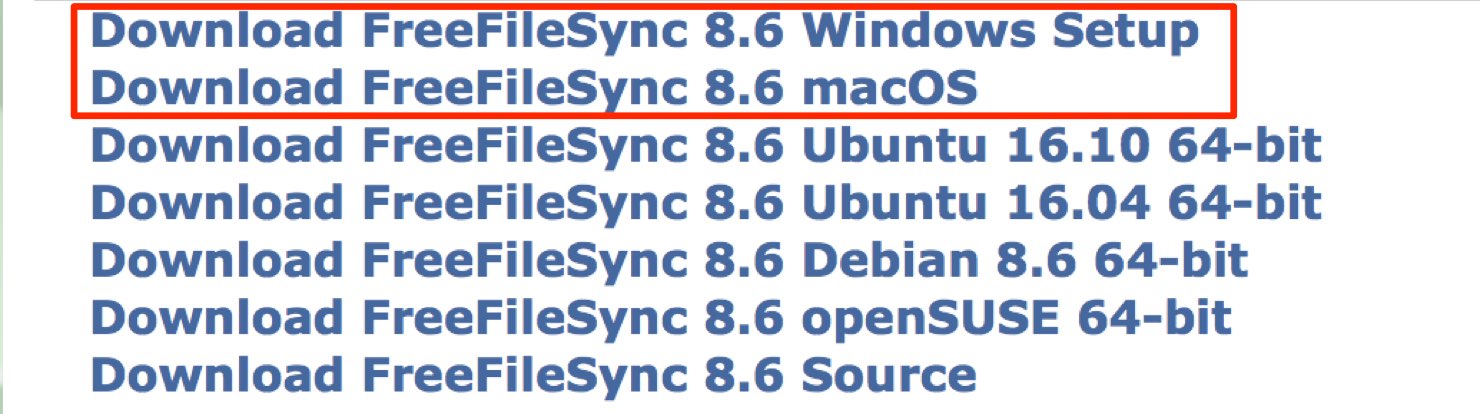
Choose the download link for your operating system and start the download.
After downloading, install it as you would any other application.
When you open the application, you will see a screen like this.
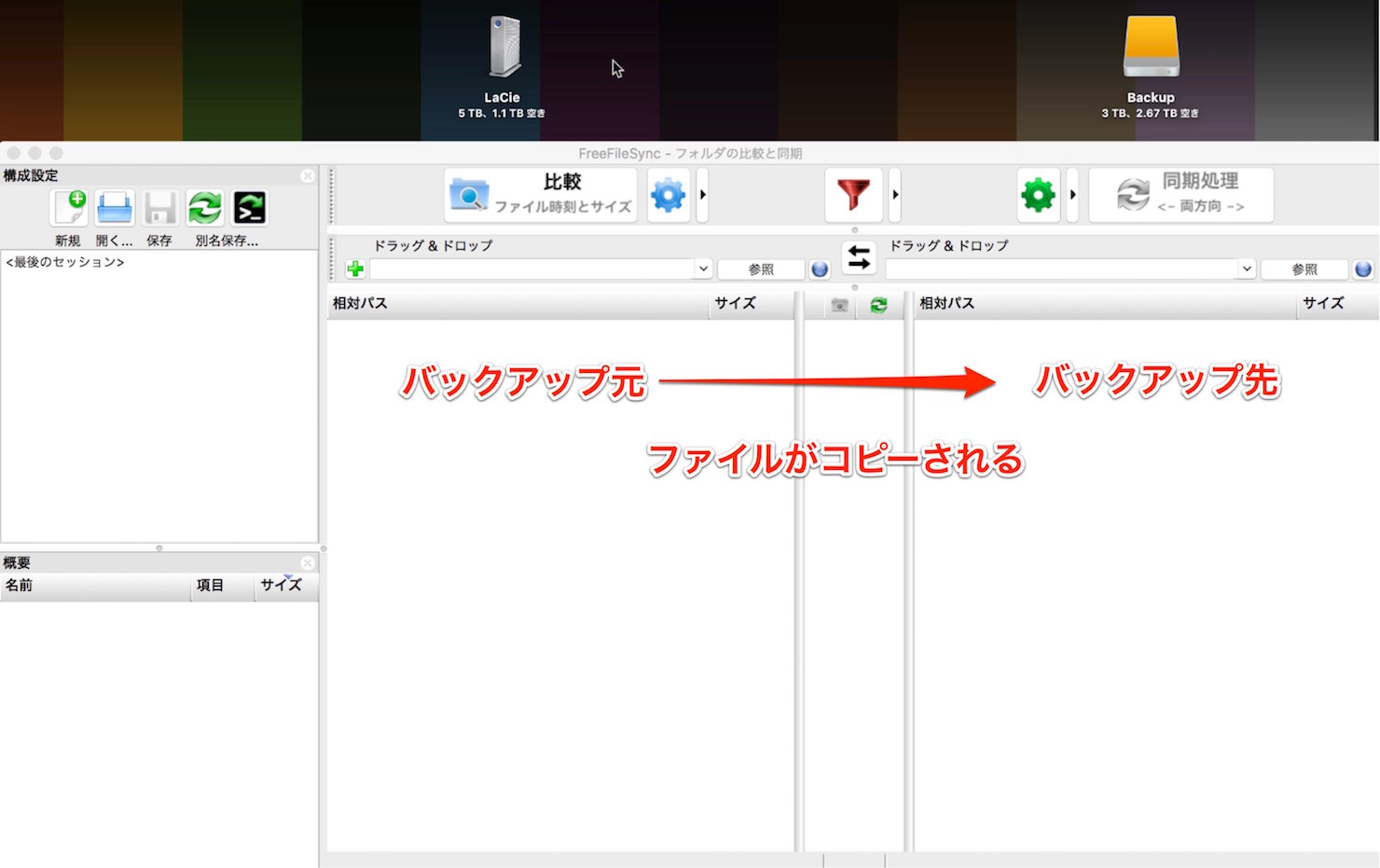
- Left: select the working folder containing your files.
- Right: select the backup folder where files will be copied.
First, set these two folders.
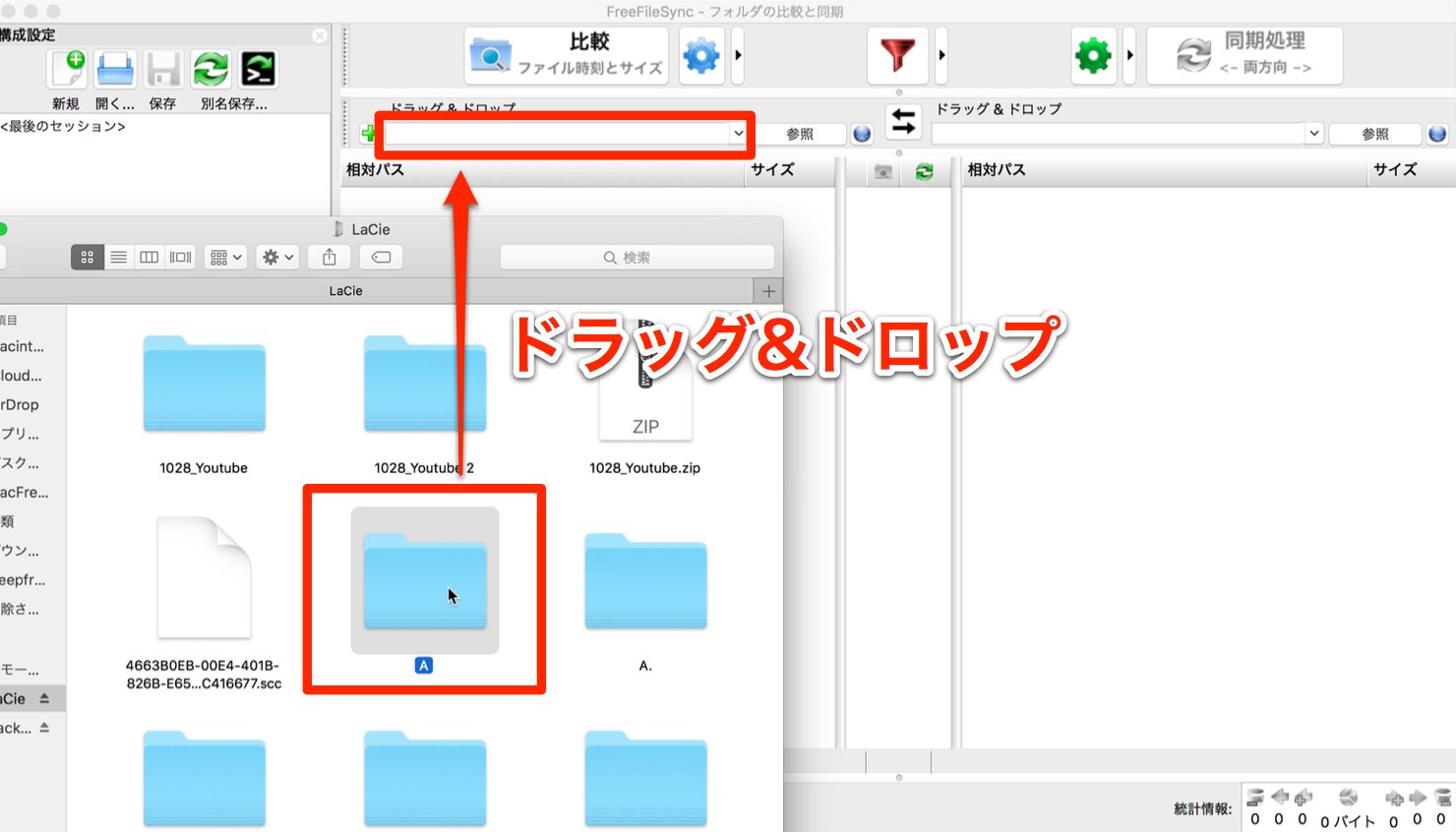
Drag and drop the folder containing your working files to select it.
In this example, we select a folder called “A” containing Cubase projects.
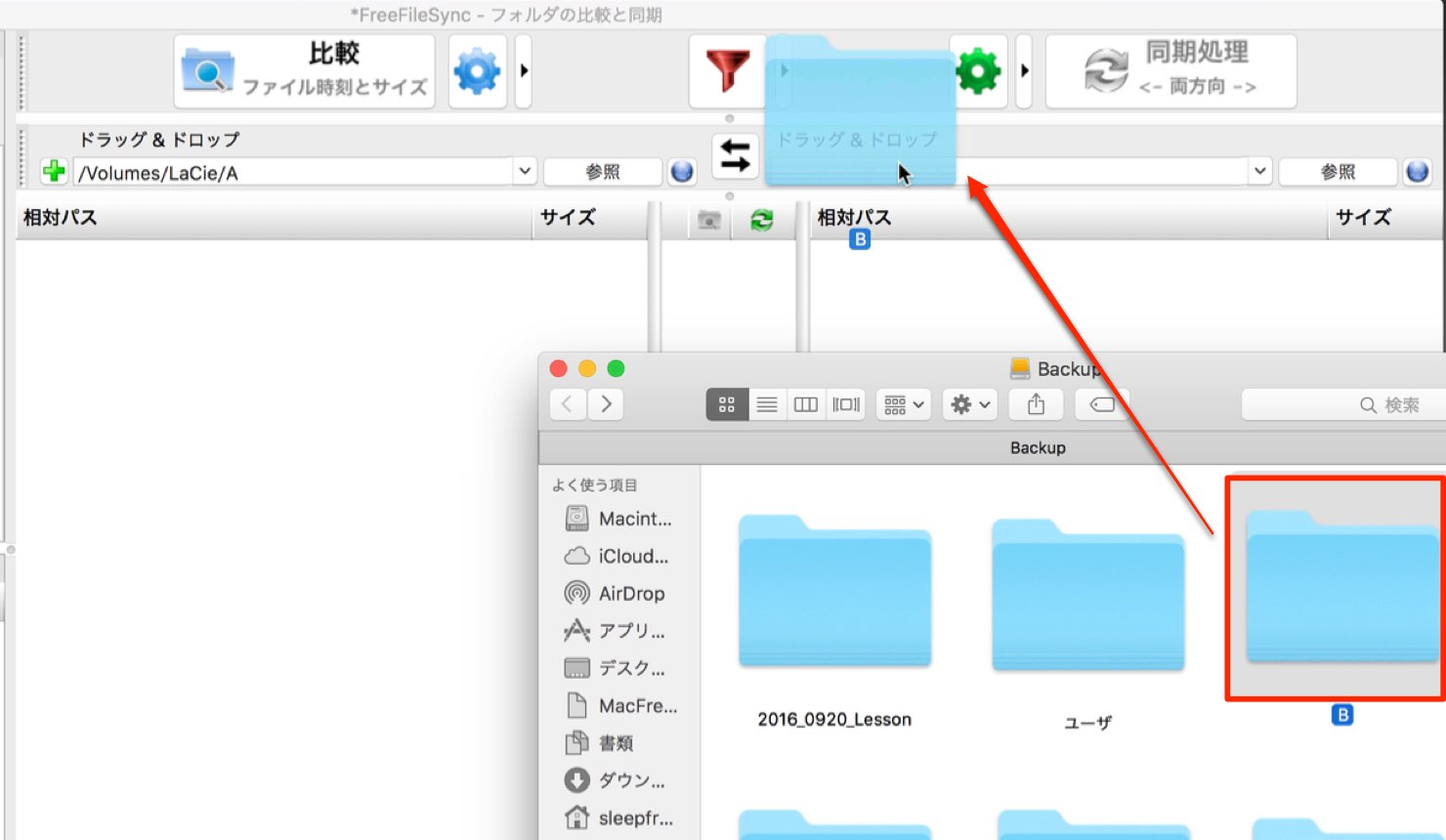
Next, select the backup destination.
In the same way, we select an empty folder called “B.”
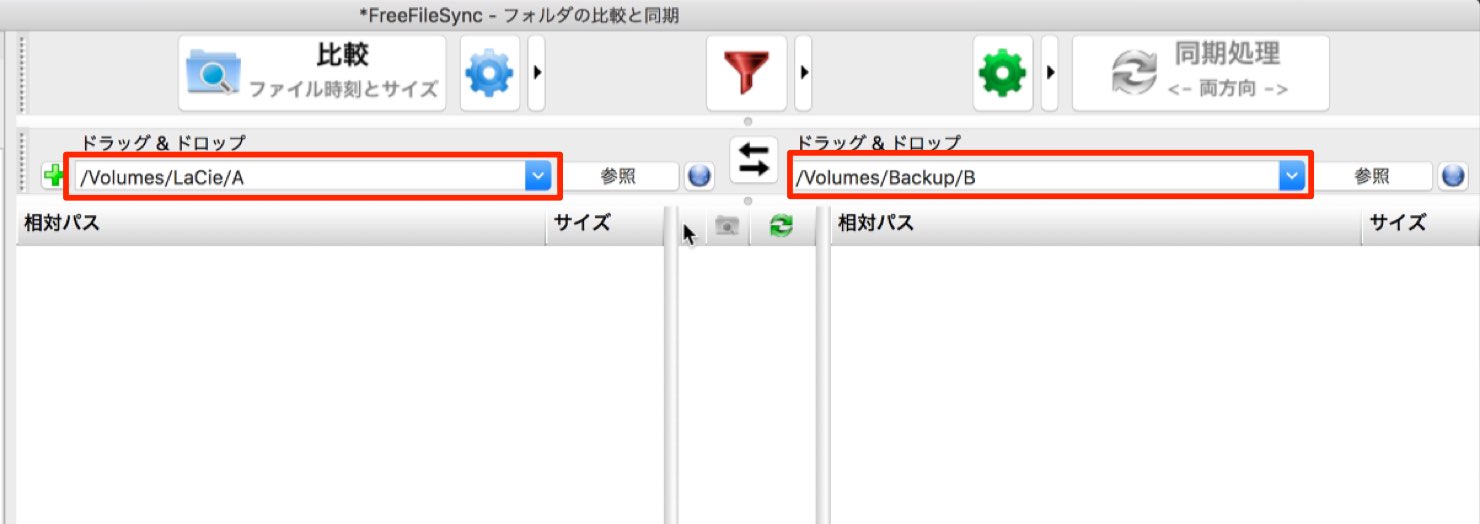
The screen above shows both folders selected.
Next, configure the backup settings.
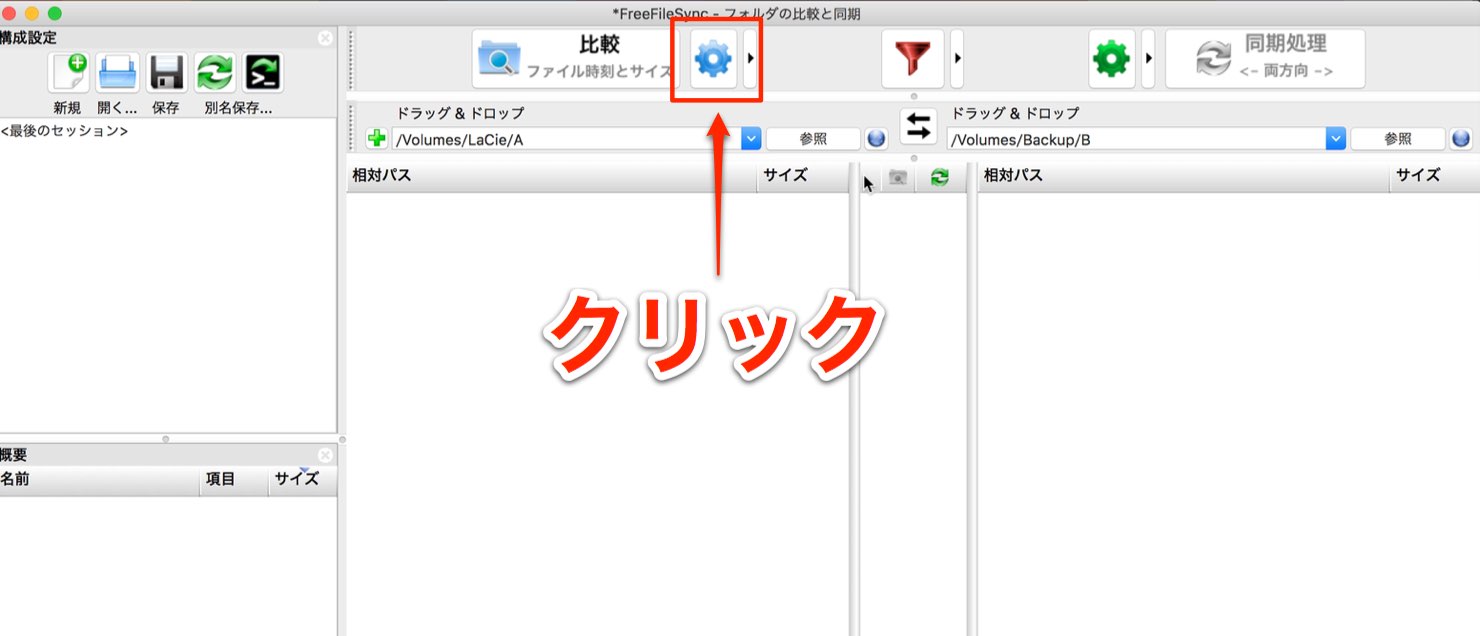
Click the backup settings button.
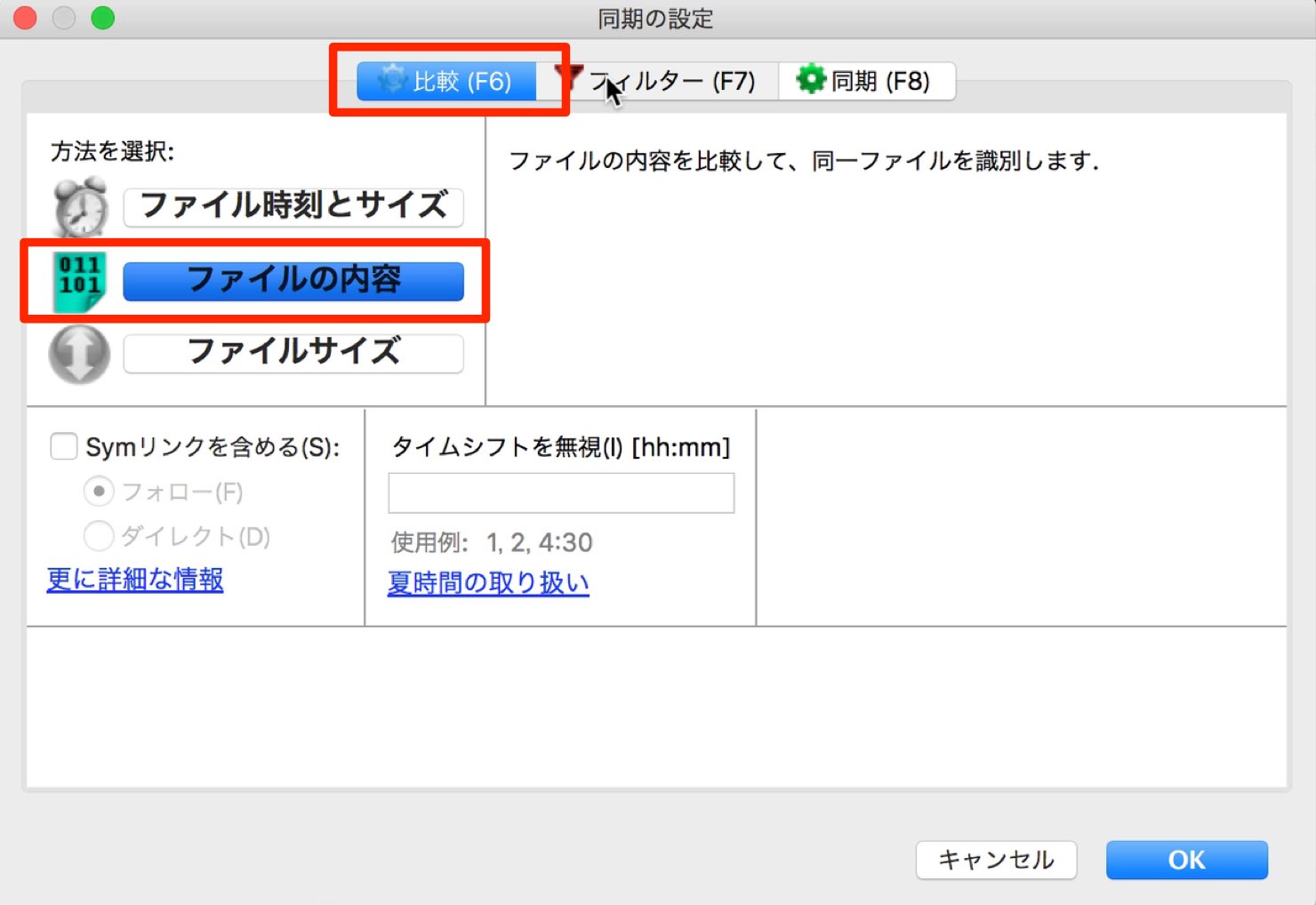
On the Compare tab, select the criteria used to identify files for backup.
Here, select “File content.”
This compares file contents so changes can be detected.
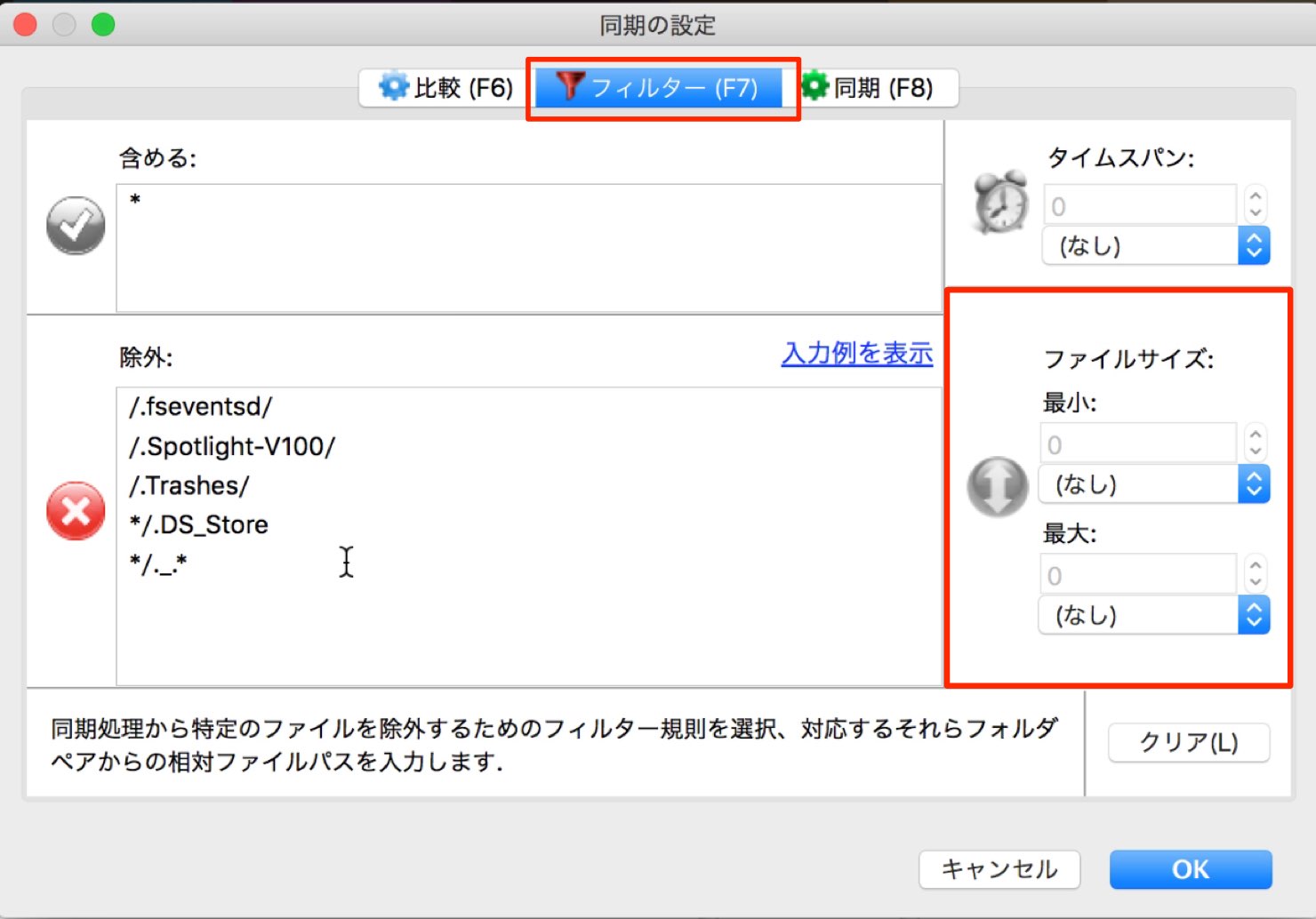
The Filter settings let you exclude particular files from the backup.
Normally no special settings are needed, but add exclusions here if there are files you intentionally want to omit.
You can also exclude files based on their size.
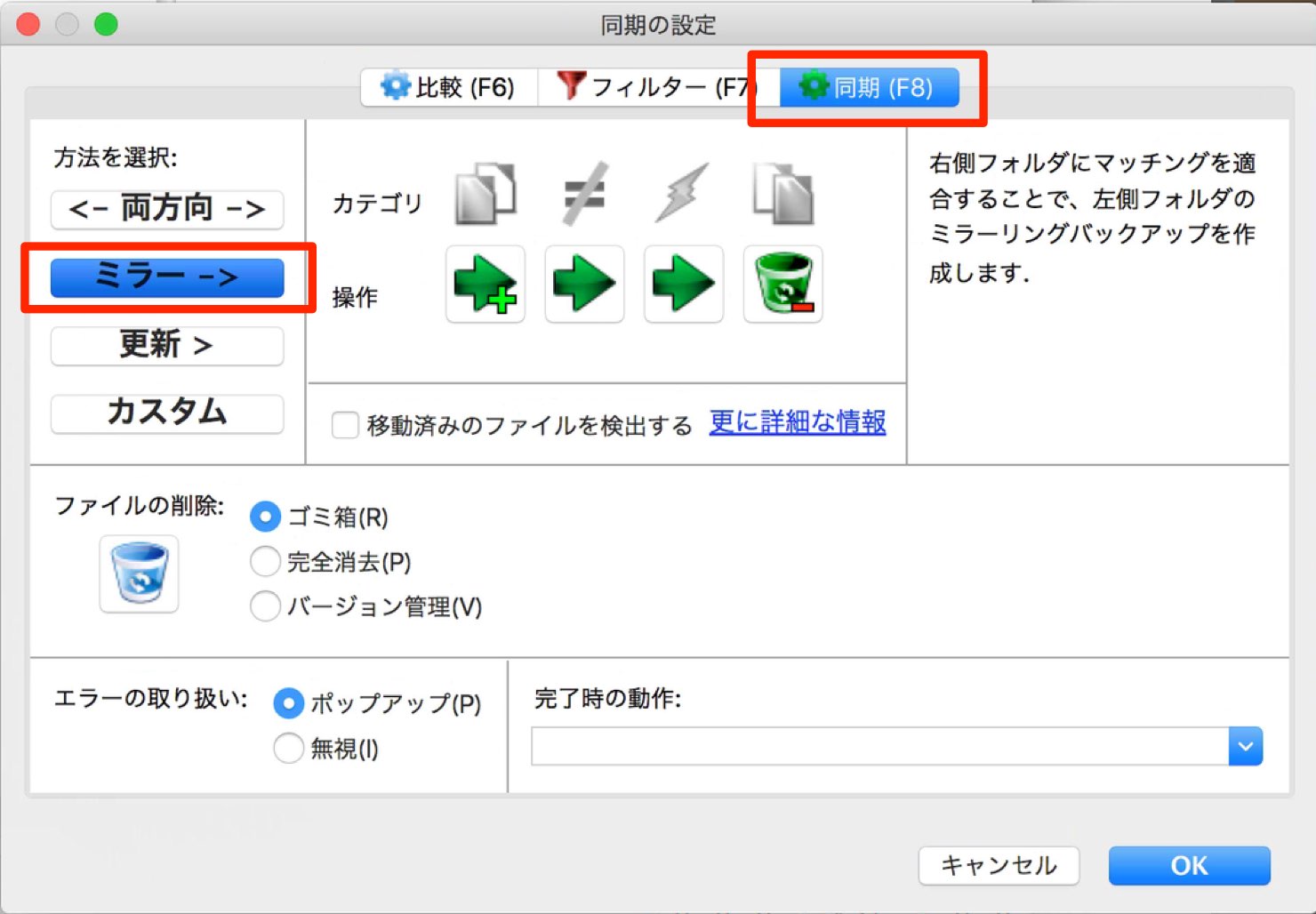
Under Synchronization, choose how the two folders are synchronized.
Here, select “Mirror.”
This makes the contents and structure of folder B match folder A. Files present only in B can be removed, so review the proposed actions before starting.
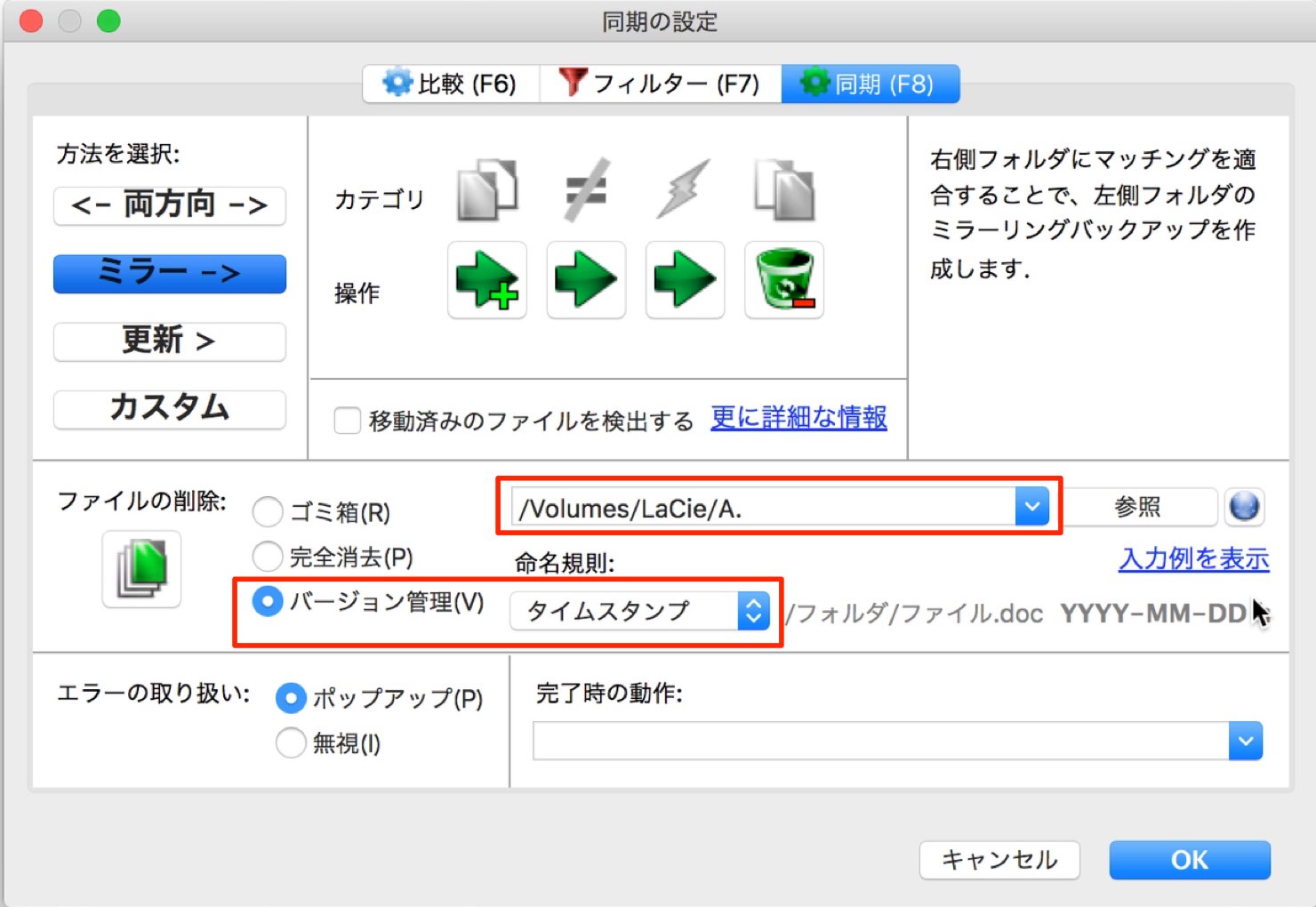
The same Synchronization settings include an option for handling deleted files.
As you work, you may create more files, but you may also delete files you no longer need.
When a file is deleted from the source folder A, that change is reflected in backup folder B.
The file is therefore removed from B as well, but you can choose how the removed file is handled.
Keeping a copy is useful if you later want to restore a file.
You can delete files permanently or move them to the recycle bin, but choosing “Versioning” moves files that would be removed to a separate folder.
Select that folder and set the format to “Timestamp.”
In this example, removed files are moved to a folder named “A.” and their names receive a date.
The backup settings are now complete.
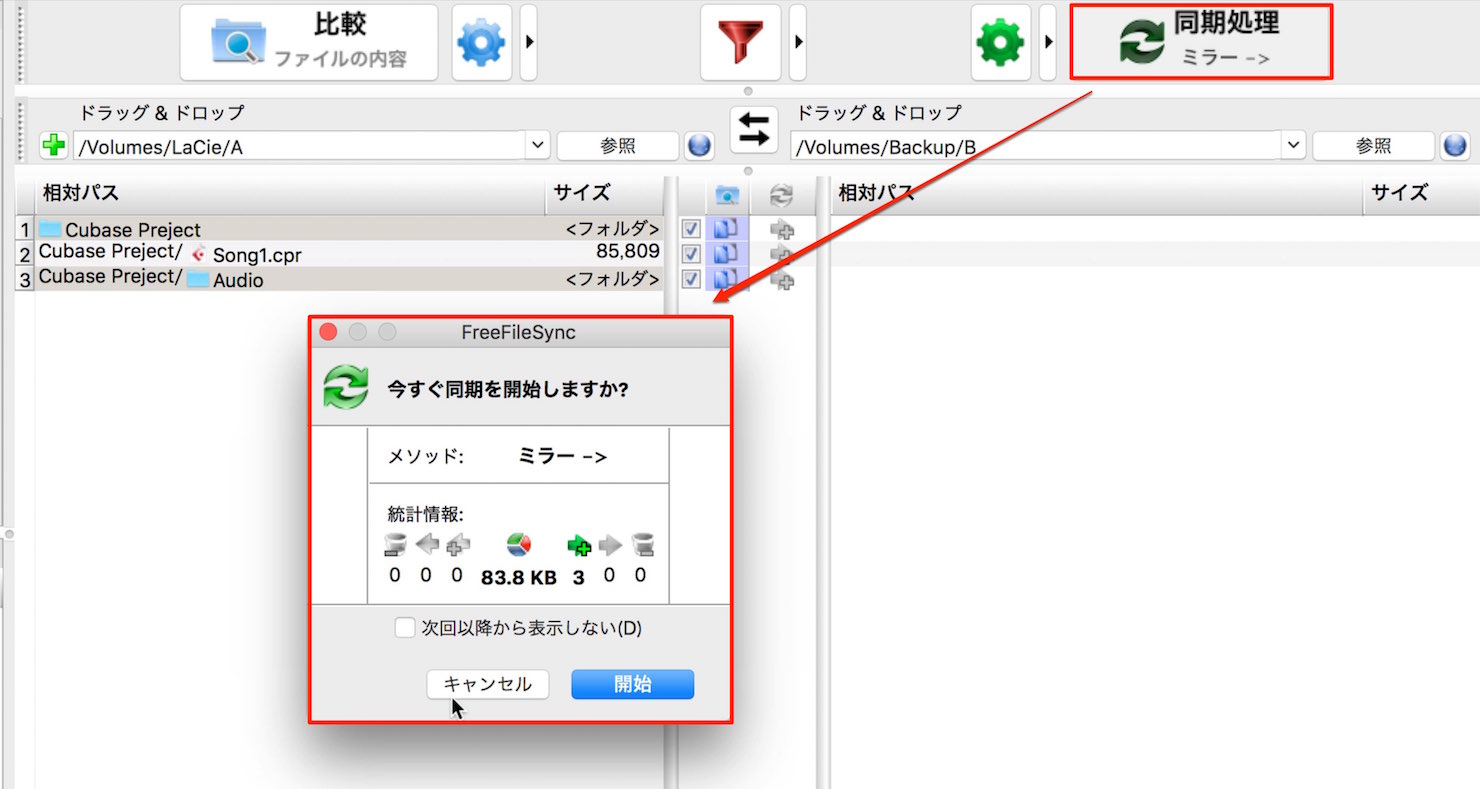
Click “Synchronize” to display the proposed changes and file sizes.
Review them and press “Start.”
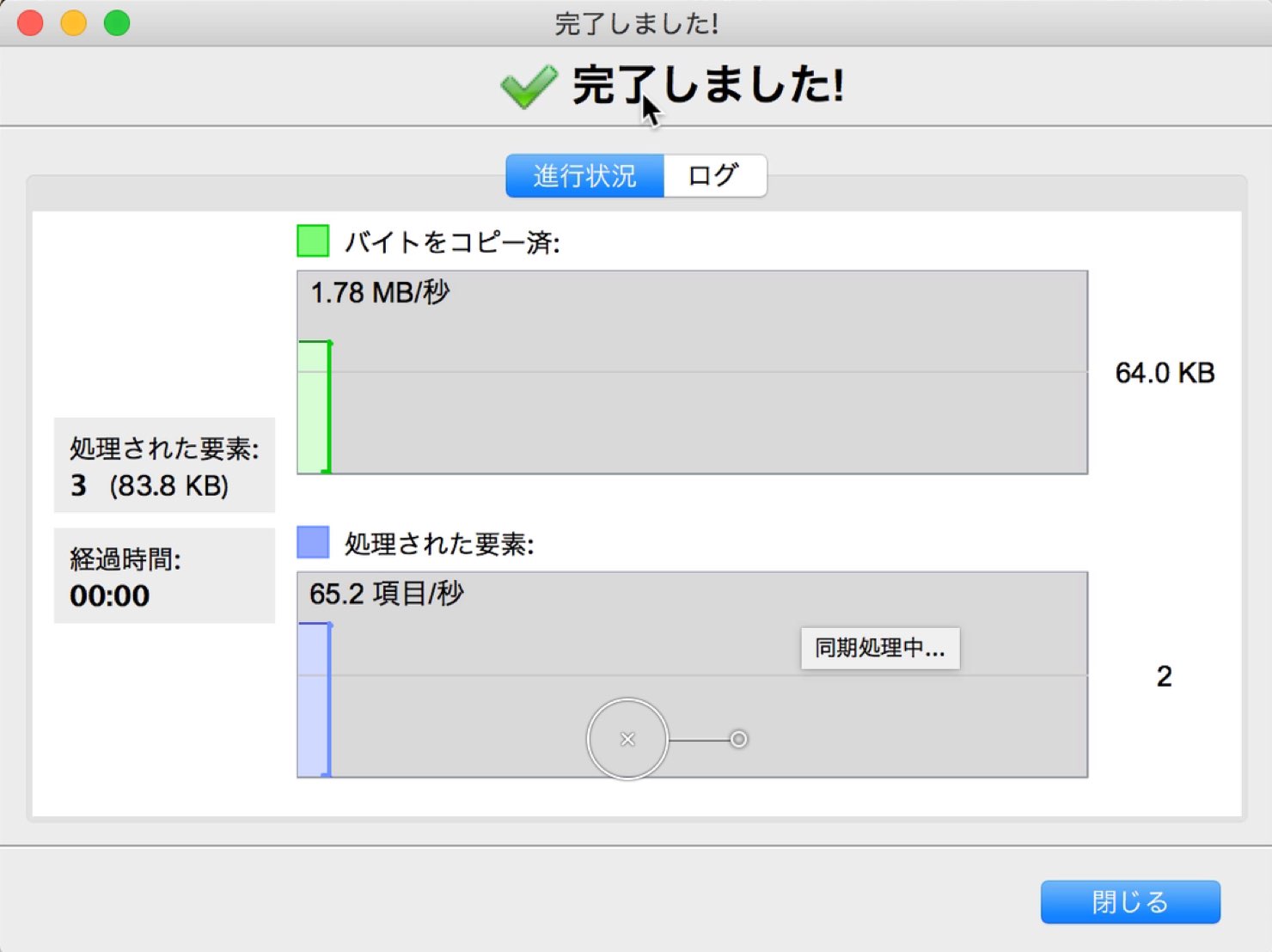
A completion dialog like this indicates that the operation succeeded.
Once the settings are saved, you can run the same backup after each session using the button and confirming the operation.
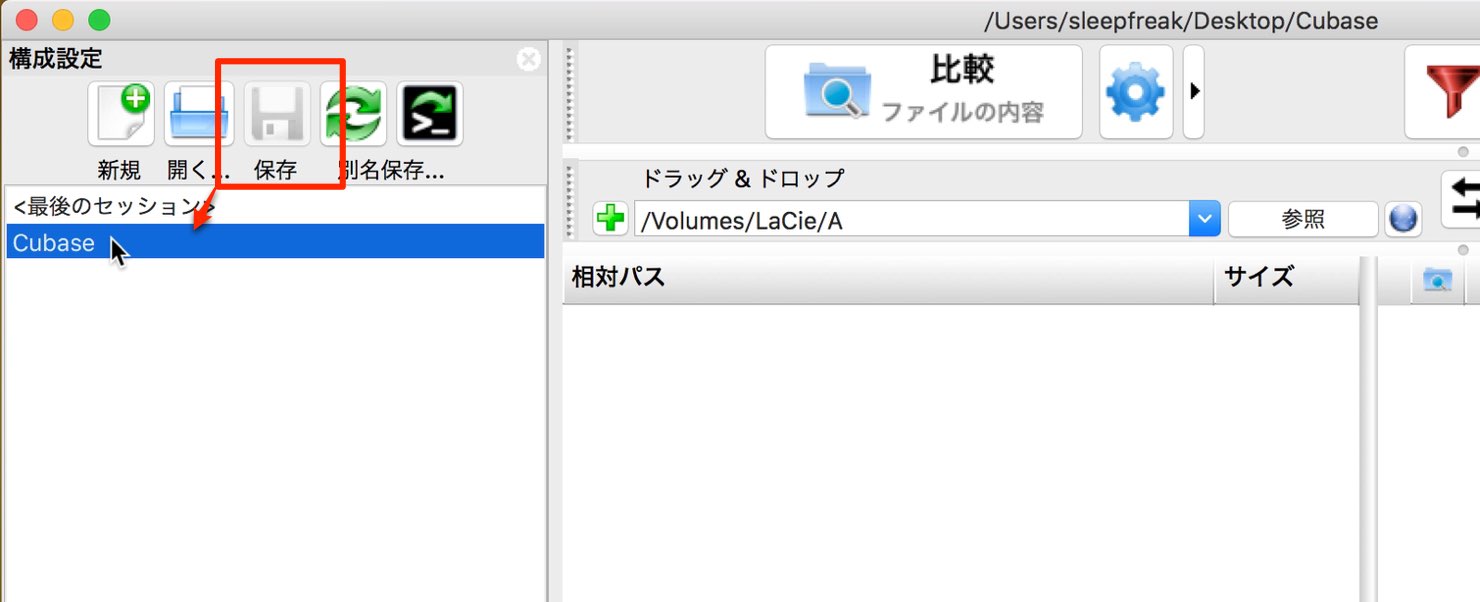
You can save configurations and switch between different backup setups.
Click Save and choose a location and name.
The saved configurations appear as shown; click one to switch to it.
Frequently Asked Questions
Q1. Do I need to copy all files every time I back up with FreeFileSync?
No. FreeFileSync can copy only changed files, which can make subsequent backups much faster.
Q2. How can I avoid losing files deleted from the source when syncing the backup?
Select “Versioning” under the deletion settings. Files removed from the destination by synchronization are moved to a separate version folder, where dated copies can be restored if needed. They are not kept in their original location in folder B.
Q3. Can I use different backup settings for multiple projects?
Yes. Save multiple configurations and click the one you want to use. This lets you manage settings separately for each project.
NEW ARTICLES
Latest English Articles















































































































































































































































































































































































