
Master effects in Cubase 11 process the whole song after mixing. This tutorial focuses on controlling loudness with a limiter or maximizer while preventing output clipping. The original January 2022 guide uses roughly −10 dB RMS for a CD-style comparison, −14 LUFS integrated for its YouTube/Spotify example, and about 3–6 dB of gain reduction as starting points. These are the tutorial’s illustrative guidelines, not universal mastering targets or a guarantee of commercial sound quality. Listen to the result and preserve the dynamics that suit the music; the interface and workflow shown refer to Cubase 11.
This time, we explain master effects: processing applied on Stereo Out after mixing.
Loudness control is one of the essential tasks discussed here. We will focus mainly on that, but mixing and mastering are deep subjects, so consider this tutorial a starting point.
Master effects: video tutorial
Selected questions and answers from the YouTube video

The explanation itself is clear, but I am unsure whether the level simply needs to stay below 0 dB or should be −6 dB. Is staying below 0 dB enough for now?

For the final digital output discussed here, exceeding 0 dBFS causes clipping, so avoiding that is essential. The frequently mentioned −6 dB is a rough mixing-headroom guideline: it leaves room for brief peaks that might otherwise reach 0 dBFS. You do not need to keep the signal constantly at −6 dB. The original answer suggests keeping the general level around that region as a practical starting point, rather than treating it as a fixed mastering target.
What processing takes place on the master channel, Stereo Out?
First, a basic mixer concept: the signals adjusted on the individual tracks are collected at Stereo Out and output as two-channel stereo.
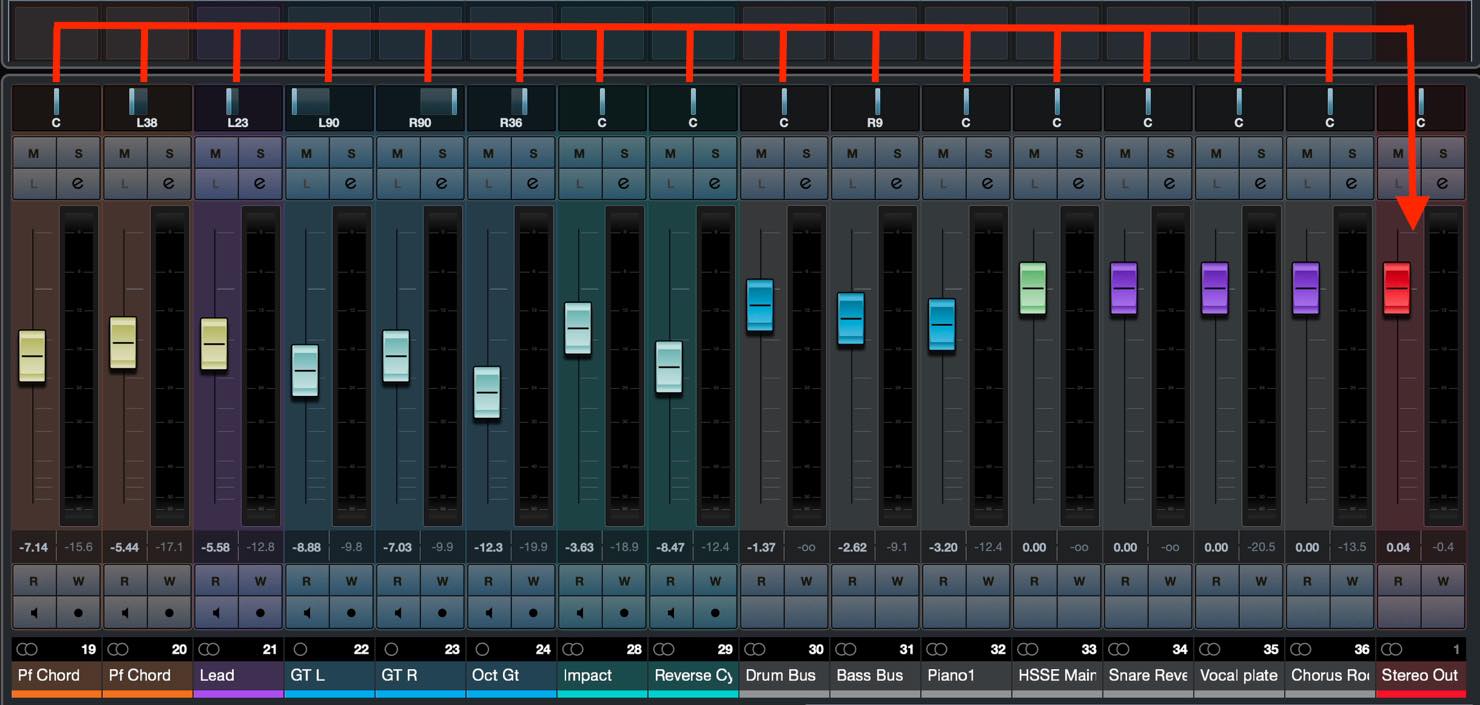
Applying an effect to Stereo Out therefore affects the entire song.
If you are not careful, this processing could undermine the mix you have built so far.
EQ and compression are often used here, of course. Avoid extreme processing that substantially changes the existing mix balance.
What are limiters and maximizers?
Here we will look at the limiter and maximizer used for master-level loudness control.
As mentioned above, Stereo Out is the final outlet for the mix, so clipping or distortion at this stage must be avoided.
In the previous tutorial, we suggested leaving around 6 dB of headroom while mixing. This is only a rough guideline; very brief peaks could still reach above 0 dBFS.
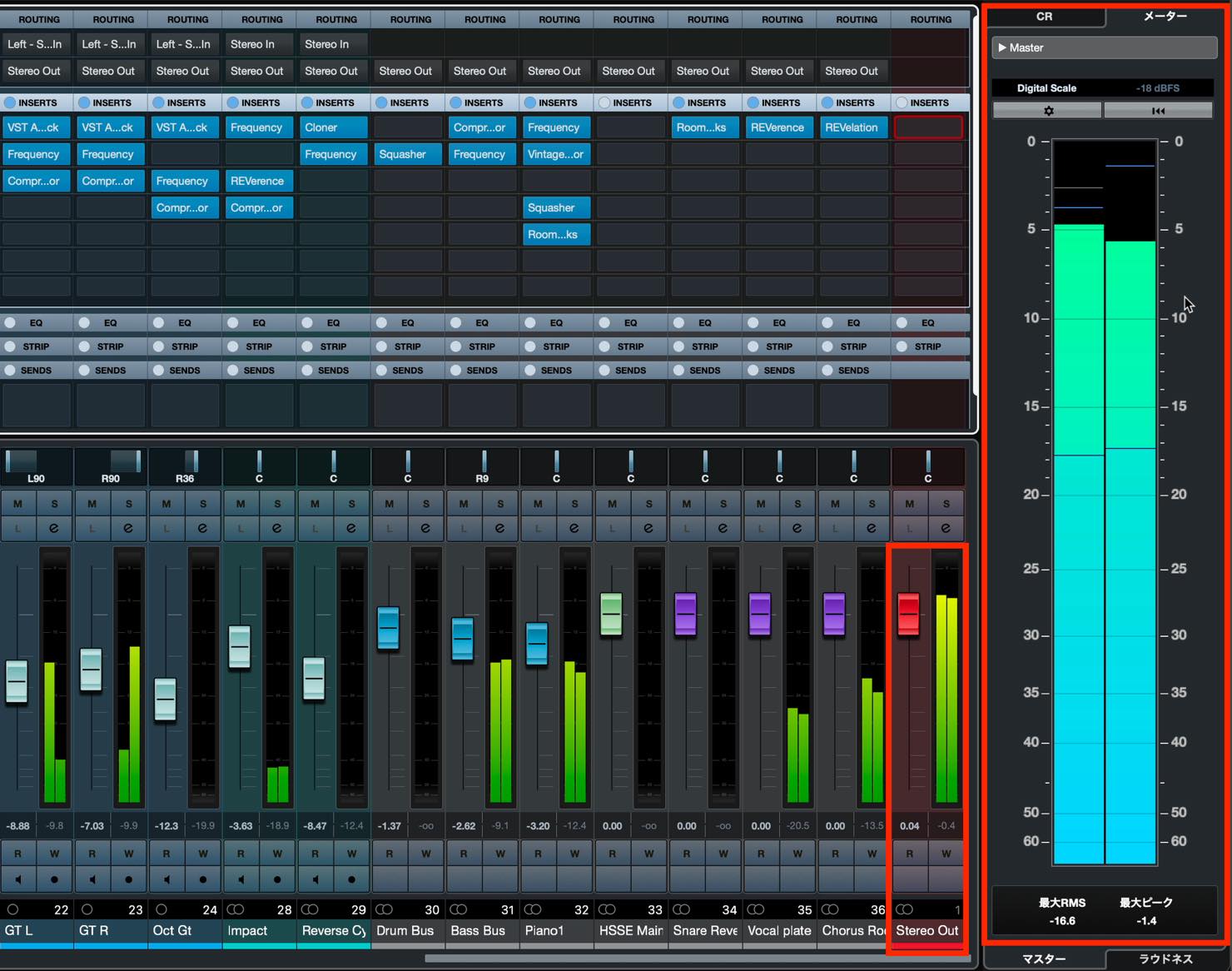
An effect that restricts these peaks is generally called a limiter. It limits brief peaks to help prevent clipping.
A processor that combines limiting with final loudness adjustment is a maximizer.
Find Maximizer under Dynamics and insert it on Stereo Out.
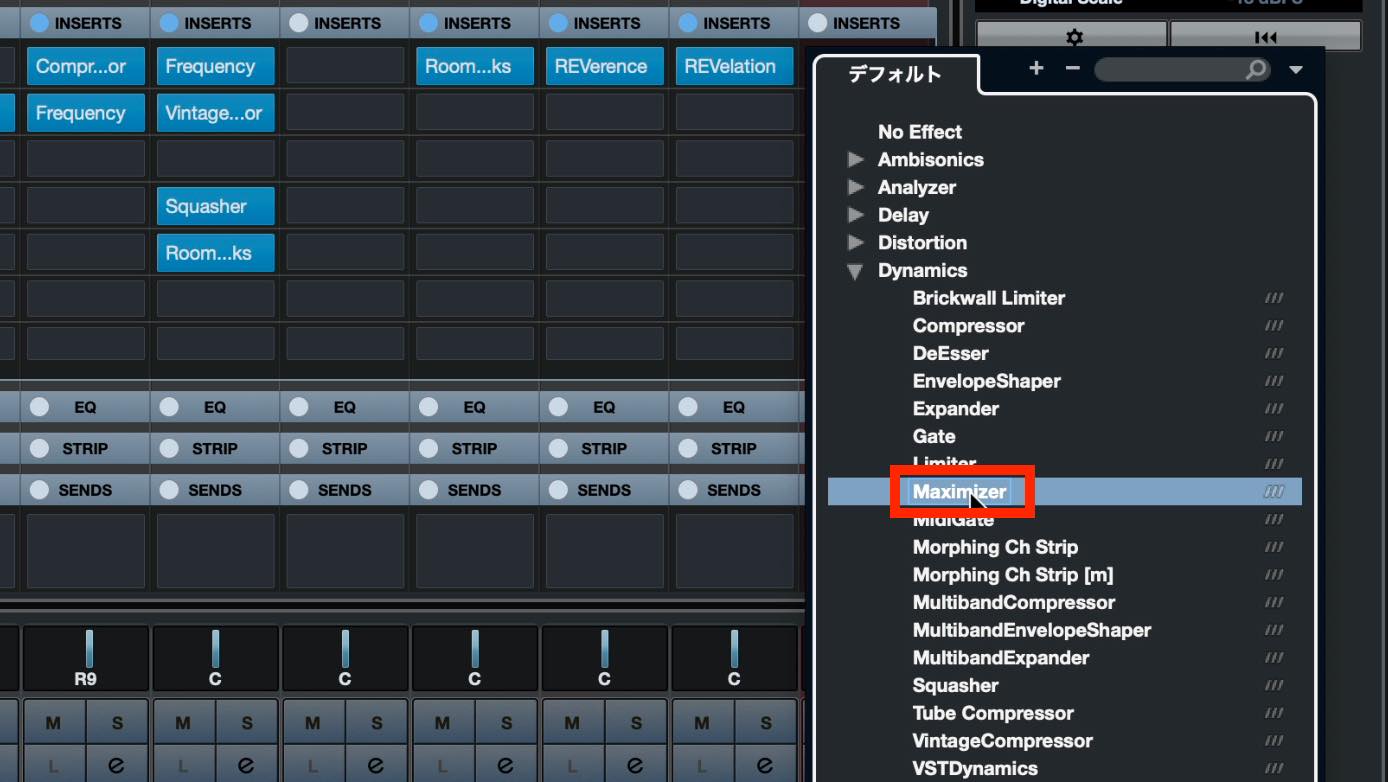
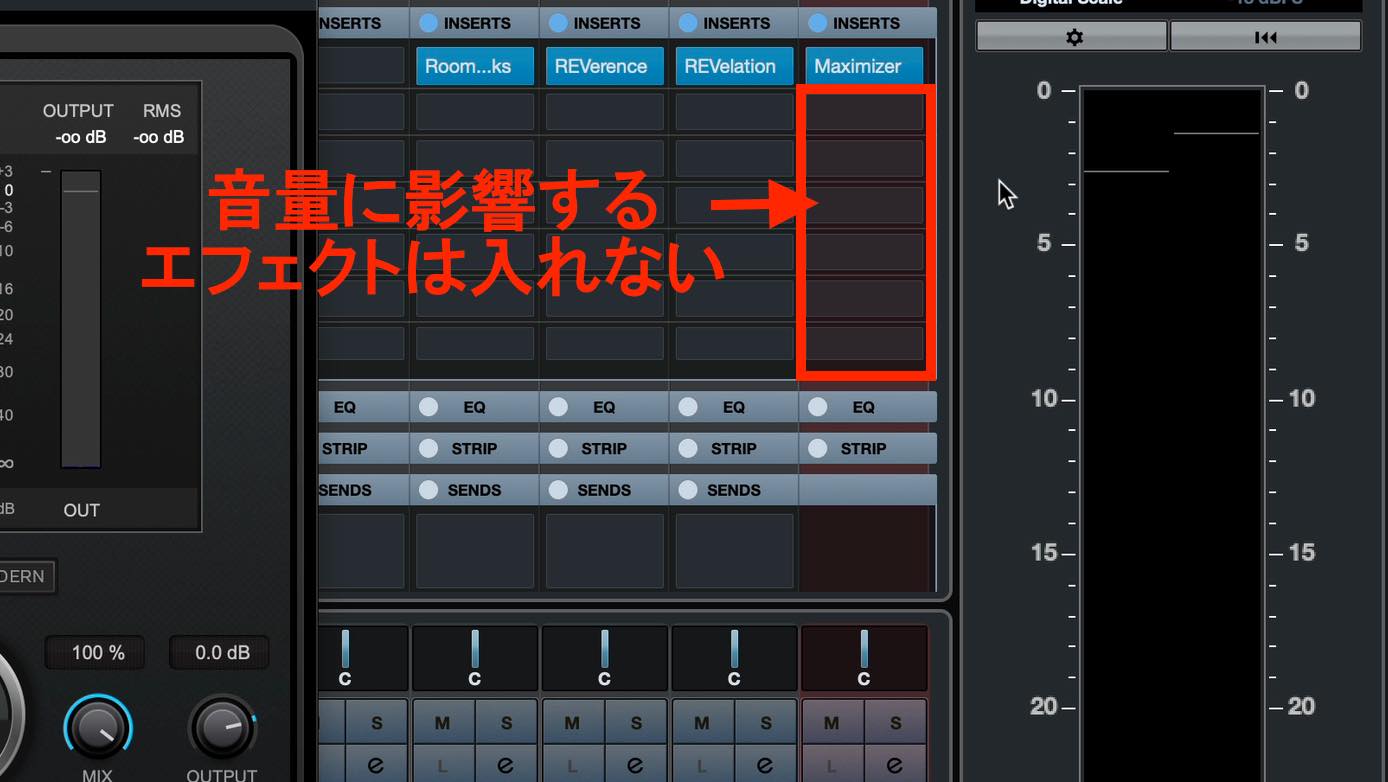
Do not place EQ, compression or other effects that change the level after Maximizer in this workflow.
Raising loudness with Maximizer
A mix with around 6 dB of headroom may sound much quieter than commercially released music if exported as it is.
We therefore raise the overall level while setting an upper limit, making the song sound louder.
First, use Output to set the limiter’s ceiling. It must not exceed 0 dBFS. The original tutorial suggests leaving about 0.1–0.3 dB of margin, or a ceiling of approximately −0.1 to −0.3 dBFS; this is the example’s setting, not a universal delivery specification.
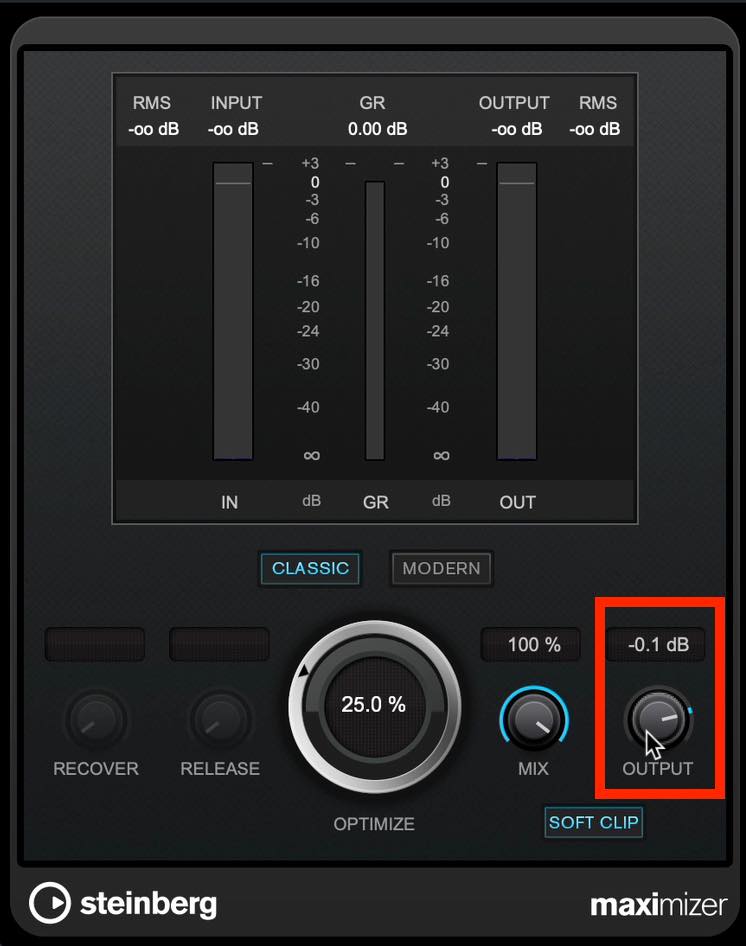
Once you have set the ceiling, increase Optimize to raise the overall loudness.
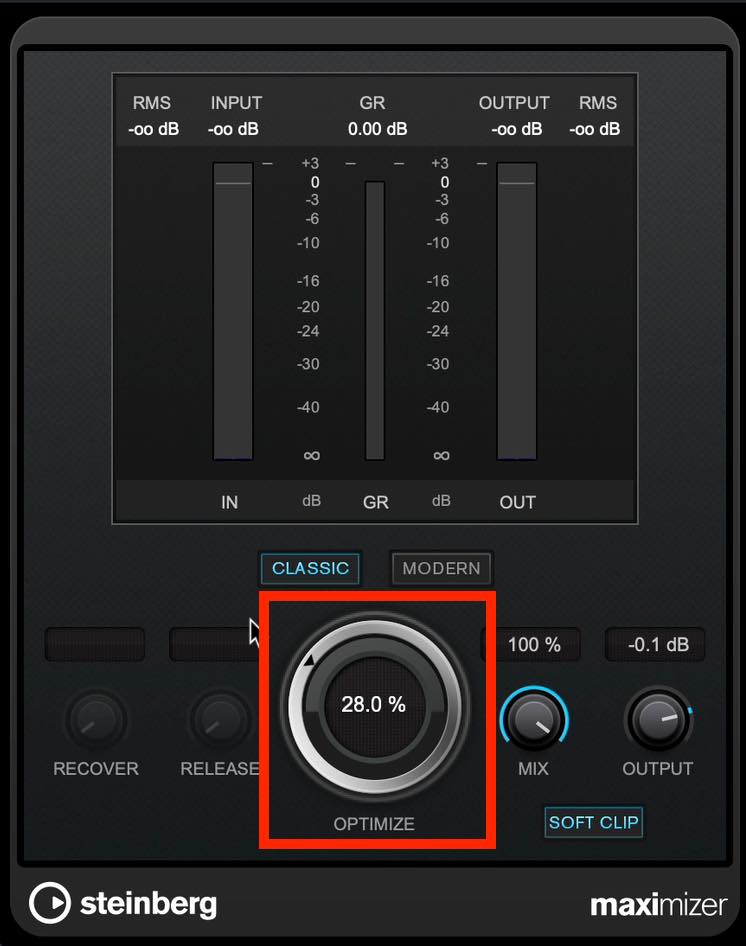
The sound gets louder as you increase it, but you cannot keep raising it without consequences.
Any level above the ceiling is forced down. Excessive limiting reduces the song’s dynamics and can leave the mix flat and lacking punch.
The gain-reduction meter, labeled GR, helps indicate how much of this processing is taking place.
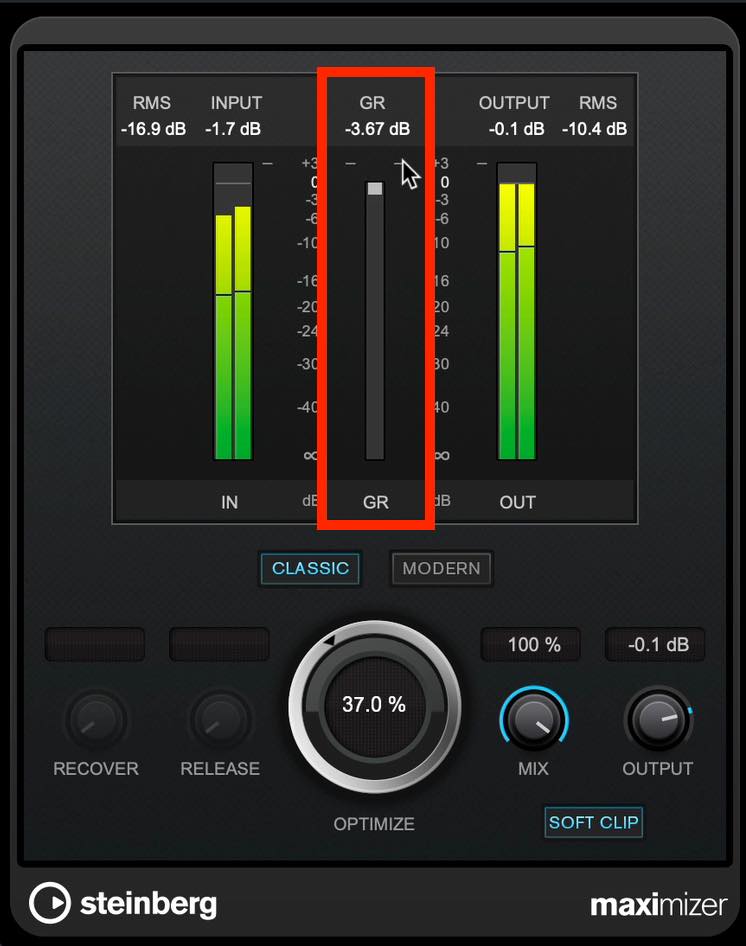
It shows how much the signal is being reduced when it exceeds the limit.
Some gain reduction is fine. The tutorial suggests around 3 dB where possible, and no more than roughly 6 dB as a cautious guideline. If it stays at about 10 dB of reduction continuously, for example, the author considers the loudness push excessive and the dynamics heavily compressed. These are listening guidelines, not absolute limits for every song.
Loudness indicators: RMS and loudness metering
Another useful reference is the RMS reading.
Unlike a peak meter, which captures even brief peaks, RMS indicates an average signal level and is often used as a reference when assessing perceived loudness.
RMS is shown inside Maximizer, but the meter in Cubase’s right zone makes it easy to see. “Maximum RMS” and “Maximum Peak” appear below the meter.
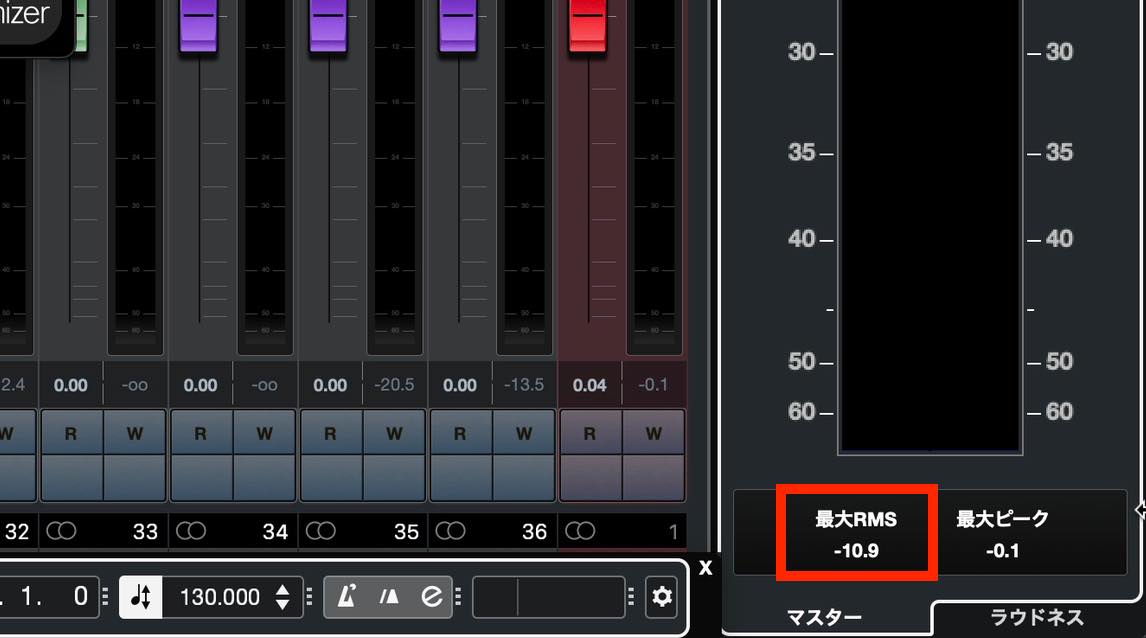
For a level comparable to commercial CDs, the original tutorial uses roughly −10 dB RMS as a guide.
Some genres use higher levels, but in many cases the drawbacks of pushing too far outweigh the benefits.
For distribution, another reference is loudness metering.
Switch the tab at the bottom from Master to Loudness.
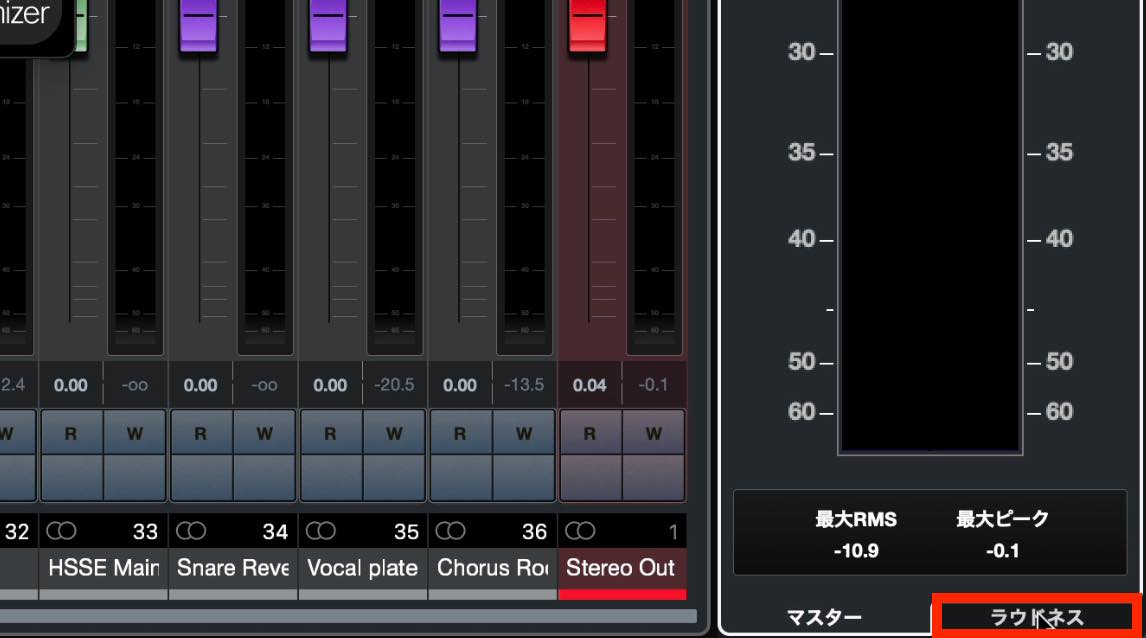
The loudness meter shown here appears.
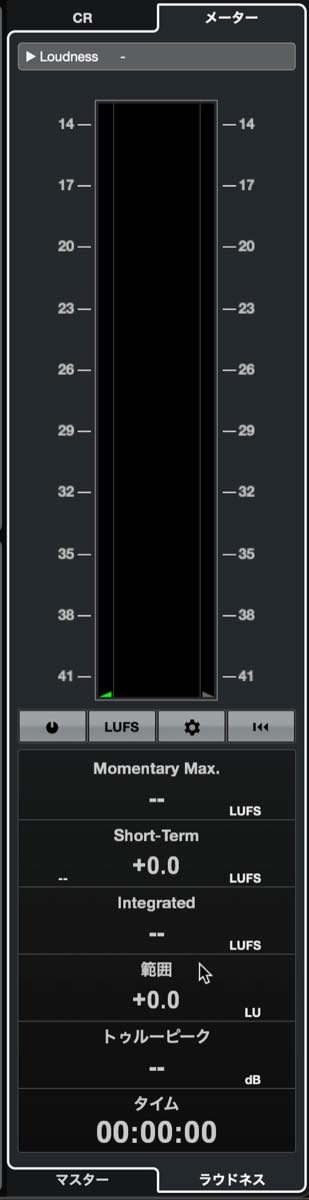
We will not cover loudness measurement in detail, but for this example, focus on Integrated.
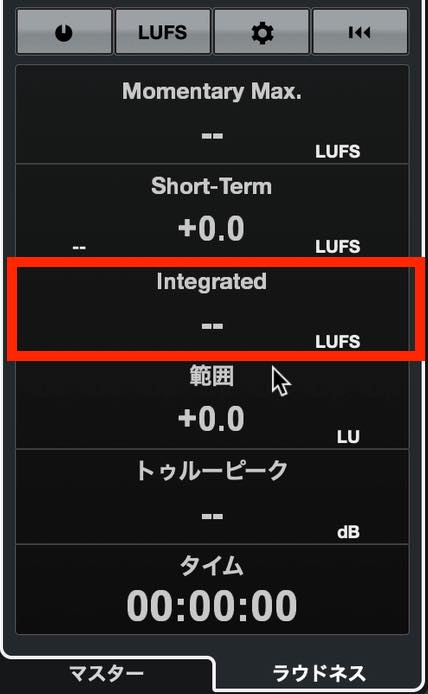
The original tutorial suggests −14 LUFS integrated for its YouTube and Spotify upload example. Treat this as the tutorial’s reference value, not a universal requirement or a claim about every platform’s current playback settings.
Turn metering on. If the adjacent unit display reads LU, switch it to LUFS.
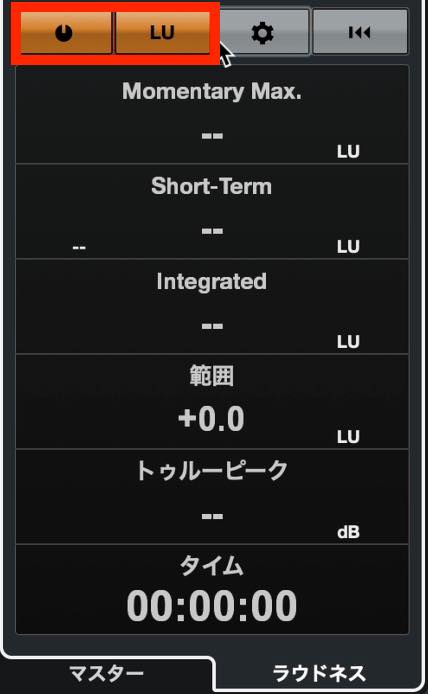
Values appear during playback. To measure integrated loudness accurately for the full song, play it from beginning to end.
A mix around −10 dB RMS will often measure louder than −14 LUFS. Lower Maximizer’s Optimize setting to adjust it for the example.
We have focused on loudness adjustment with a limiter or maximizer as part of master effects.
Beginners can use this as a starting point. If you would like to study mastering in greater depth, explore the linked articles below.
Related articles
7. Mastering a song: creating contemporary electronic music in Cubase Pro
Mastering is the final stage of completing an electronic track in Cubase Pro. This article introduces master-channel processing such as Frequency EQ and VintageCompressor…

WaveLab Tutorial 7: loudness normalization
Understanding loudness metering is important when using WaveLab’s mastering tools. Loudness measurement accounts for human hearing in ways that RMS metering alone…

Mastering with engineer and producer Ryuichi Kojima, Part 1: preparation
The first installment of engineer and producer Ryuichi Kojima’s mastering series explains that mastering involves the creator’s subjective decisions, with no single correct answer…

Clipping during mixing and mastering
Distortion can still occur when a limiter is used for mastering. Possible causes include a master fader away from unity and other effects placed after the limiter…
Improving sound quality when raising loudness with a limiter
A limiter is an important tool for increasing loudness, but its placement and settings strongly affect sound quality. This article discusses introducing it when the main instrumental sounds are about 80% complete…
61. Using dither to minimize sound-quality loss in Cubase
This article covers dithering in Cubase, including project bit-depth settings and applying UV22HR after mastering to minimize degradation…
Next time, we will explain how to export your finished song so that it can be heard in different playback environments.
Part 17 of our Cubase 11 beginner series explains master effects and loudness control on Stereo Out after mixing. Mixing and mastering are deep subjects, so please treat this explanation as a starting point.
Details: https://t.co/PttHM2Qv4L #DTM #Cubase
— SLEEP FREAKS (@SLEEPFREAKS_DTM) January 9, 2022
Frequently asked questions
Q1. What processing is performed with master effects?
Processing on Stereo Out affects the whole song. This tutorial focuses on loudness control using a limiter or maximizer. EQ and compression may also be used, but avoid extreme processing that substantially alters the mix balance.
Q2. What is the difference between a limiter and a maximizer?
A limiter specializes in restricting brief peaks to help prevent clipping. A maximizer combines that limiting function with control over the final loudness.
Q3. How should I use RMS and loudness readings?
The tutorial uses around −10 dB RMS as a reference for CD-style loudness and −14 LUFS integrated for its YouTube/Spotify distribution example. These are illustrative values from the original guide, not universal mastering or current platform requirements.
Q4. What should I do if gain reduction is very high?
If gain reduction substantially exceeds 6 dB, the tutorial warns that excessive loudness processing may be crushing the dynamics. Lower Maximizer’s Optimize setting or adjust the mix level, using roughly 3–6 dB of reduction as the tutorial’s guide and checking the sound by ear.
Q5. Can I insert other effects after Maximizer?
In this workflow, do not insert level-changing EQ or compression after Maximizer. It is the final loudness-limiting stage; subsequent level changes would undermine the ceiling you set.
NEW ARTICLES
Latest English Articles





























































































































