
Waves StudioRack is a free plug-in chain tool that lets you combine multiple Waves plug-ins and save them as presets. Its Parallel Split feature can divide a signal into as many as eight channels for parallel processing, making complex master-bus routing easier. MultiBand Split divides audio into up to five frequency bands, where you can insert different plug-ins in each band. This makes advanced processing such as multiband compression intuitive to build in your DAW. These features reduce the need to duplicate tracks or set up send routing, while giving you precise control over creative mix processing.
More Possibilities with Plug-in Chains
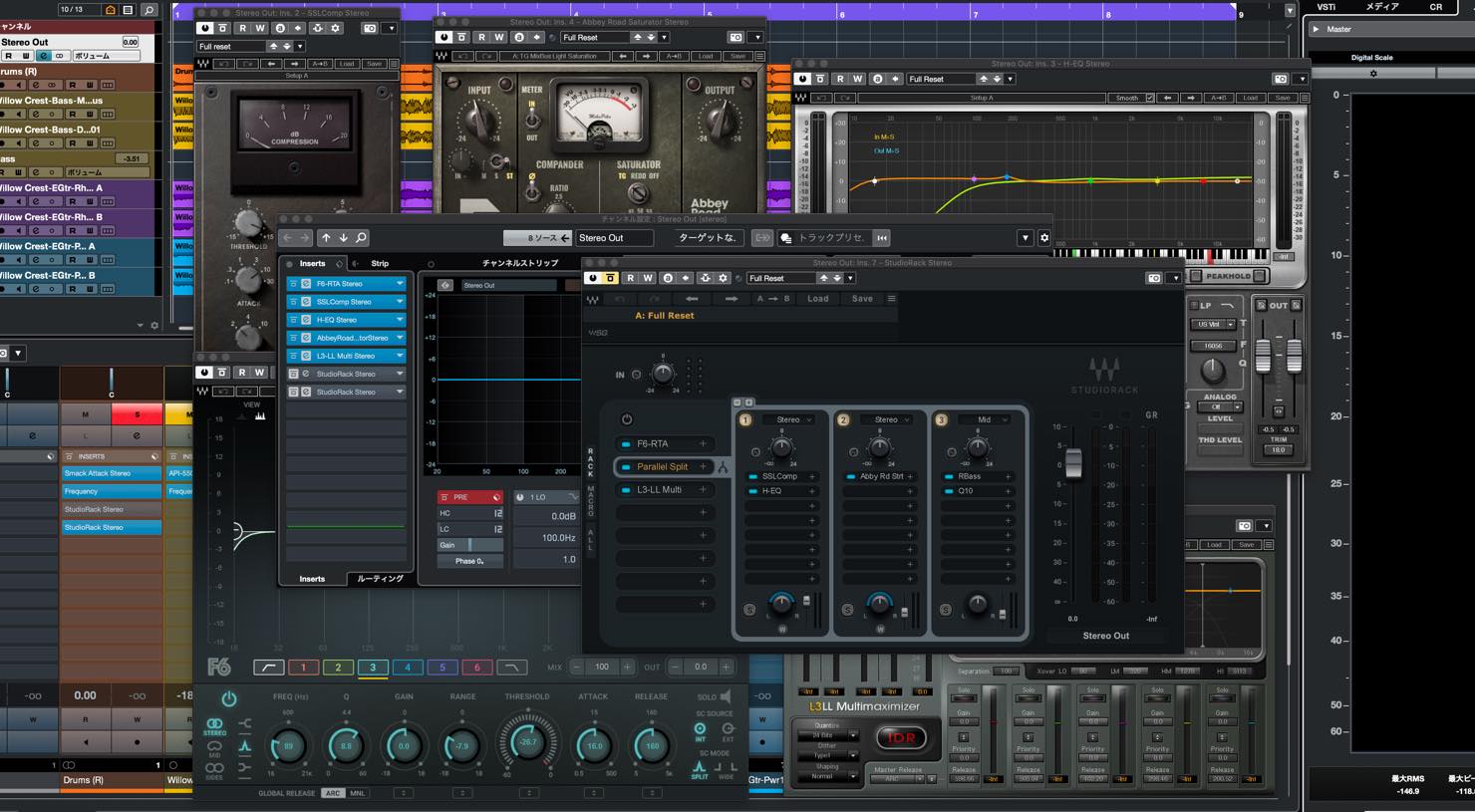
This time, we take a closer look at plug-in chains: combining multiple plug-ins, as many of us do every day. We will also explore creative ways to build chains with Waves StudioRack, a free plug-in.
Here is the outline for this article:
- 1What Is the Free Waves StudioRack Plug-in?
- 2Key Feature 1: Parallel Split
- 3Key Feature 2: MultiBand Split
- 4Other StudioRack Features
Let’s look at each feature in turn.
Waves StudioRack: Build Plug-in Chains with Ease — Video
▶ Download the plug-in (free)
• Waves StudioRack:https://bit.ly/3pCMwuB
What Is a Plug-in Chain?
As the name suggests, a plug-in chain is a series of plug-ins connected one after another.
In a typical DAW, the signal flows from top to bottom through the plug-in slots, so their order affects the sound.
If you have done some mixing, you may already have go-to chains for different types of tracks, such as vocals, guitar, or the master bus.
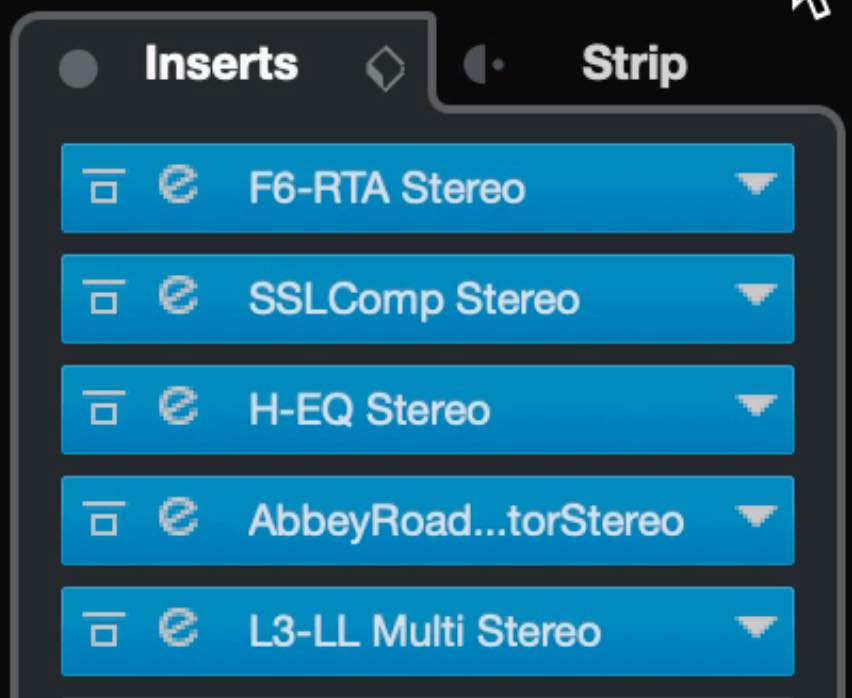
Here is an example of a master-bus plug-in chain. A dynamic EQ controls resonant build-up, a bus compressor adds cohesion, and an EQ handles M/S processing and fine adjustments. A touch of saturation follows, then the signal is maximized.
You may swap out plug-ins or adjust their parameters for each song. Still, if you often start with a similar sequence, saving the chain can be useful.
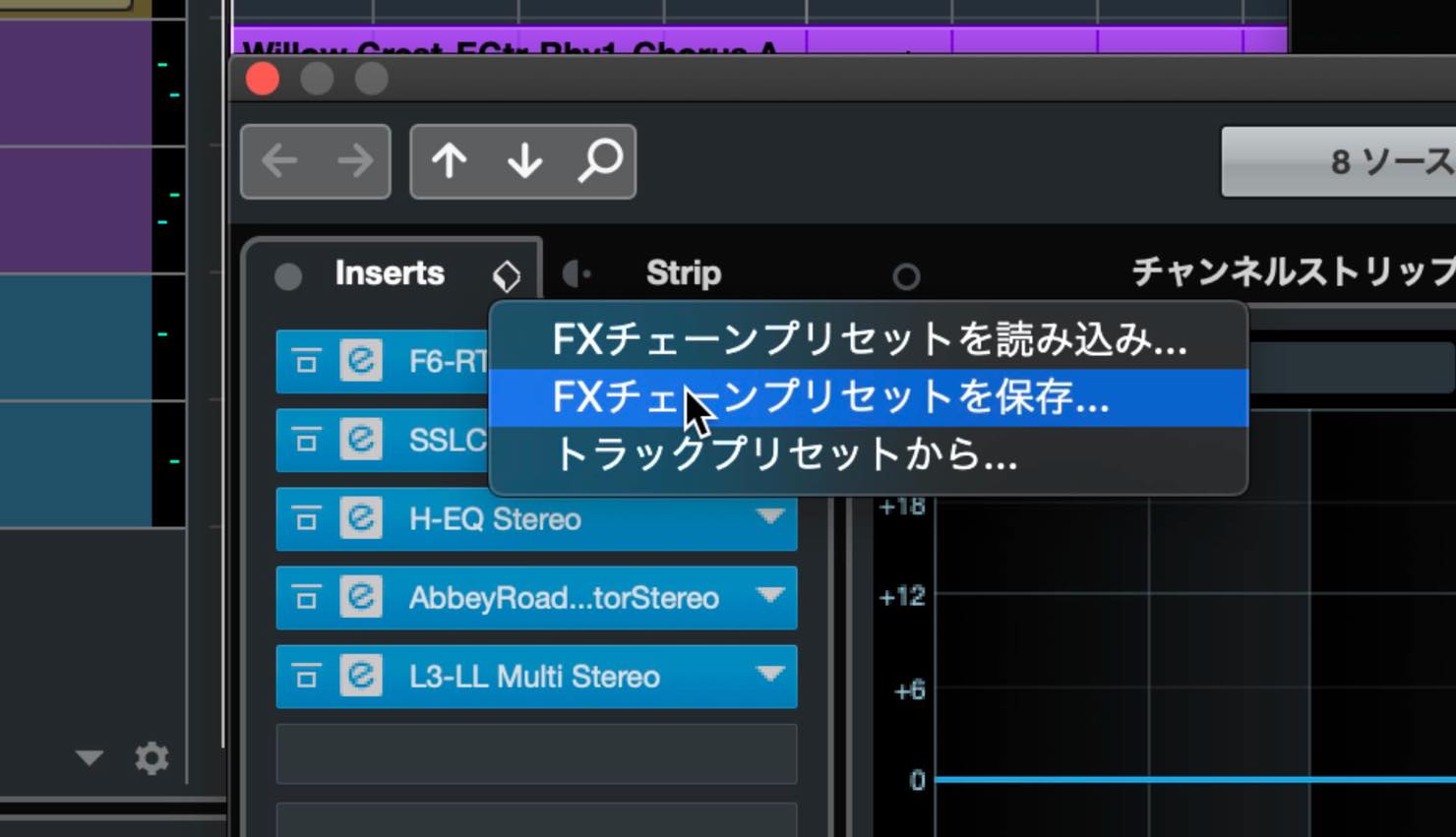
Many DAWs let you save plug-in chains as presets.
What Is the Free Waves StudioRack Plug-in?
Saving presets is useful, but we would also like to introduce StudioRack, a free plug-in chain tool from Waves.
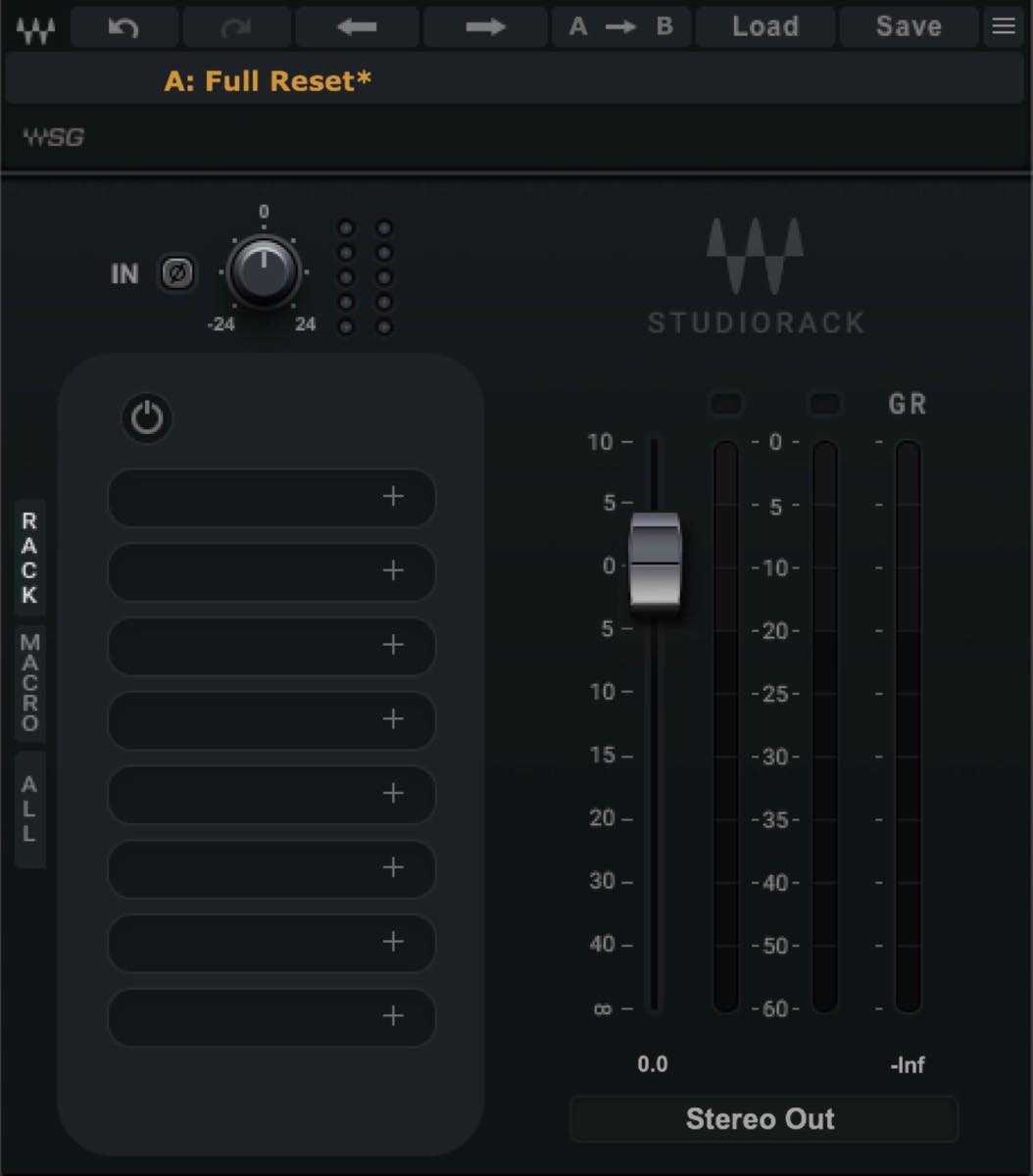
StudioRack lets you chain multiple Waves plug-ins and save the result as a preset. These presets can be used regardless of which DAW you work in.
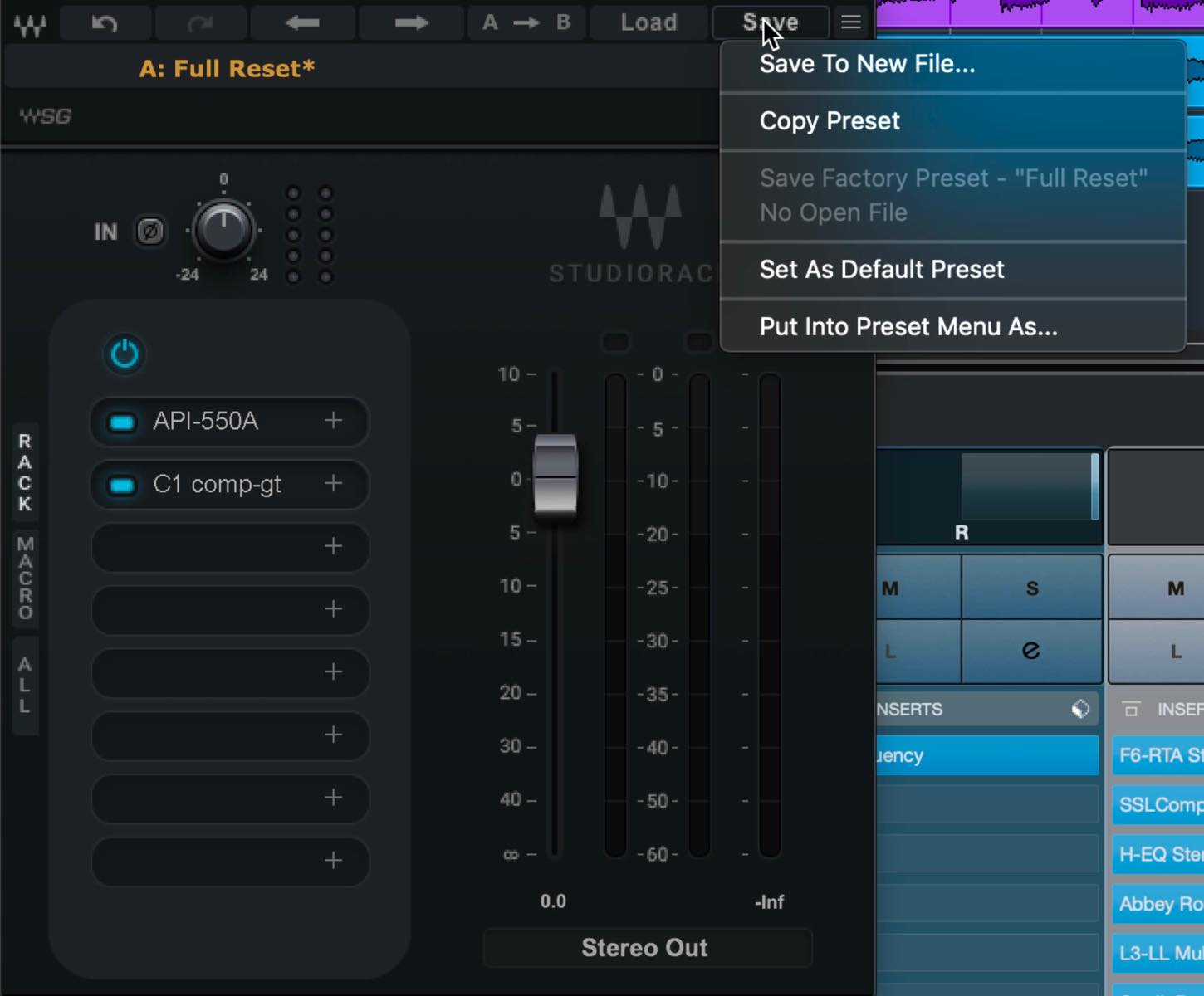
StudioRack offers more than preset management. It includes several useful tools that let you build creative chains in ways that would otherwise be difficult or impossible.
Key Feature 1: Parallel Split
One of StudioRack’s key features is Parallel Split.
As the name suggests, Parallel Split divides a signal into multiple paths, lets you process each path differently, and then mixes them together.
For parallel compression, select Parallel Split, use channel 1 for the main signal path, insert a compressor on channel 2 or higher, and then balance the levels of the channels.
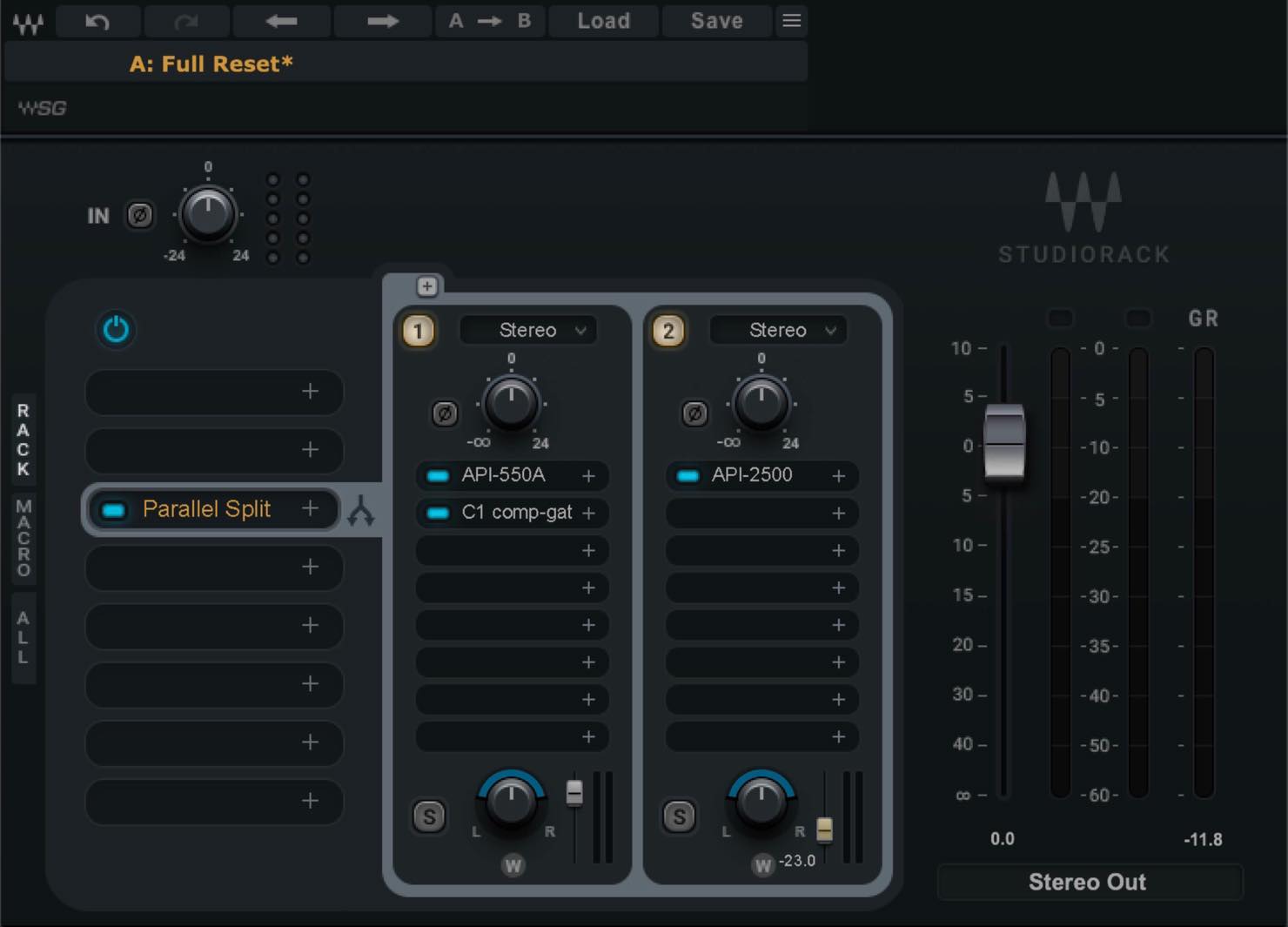
This is simple because you do not need to duplicate tracks or set up send routing. It also makes parallel processing on a master bus possible, where it can otherwise be difficult to set up.
Using the master-bus chain above as a starting point, we created an example with Parallel Split.
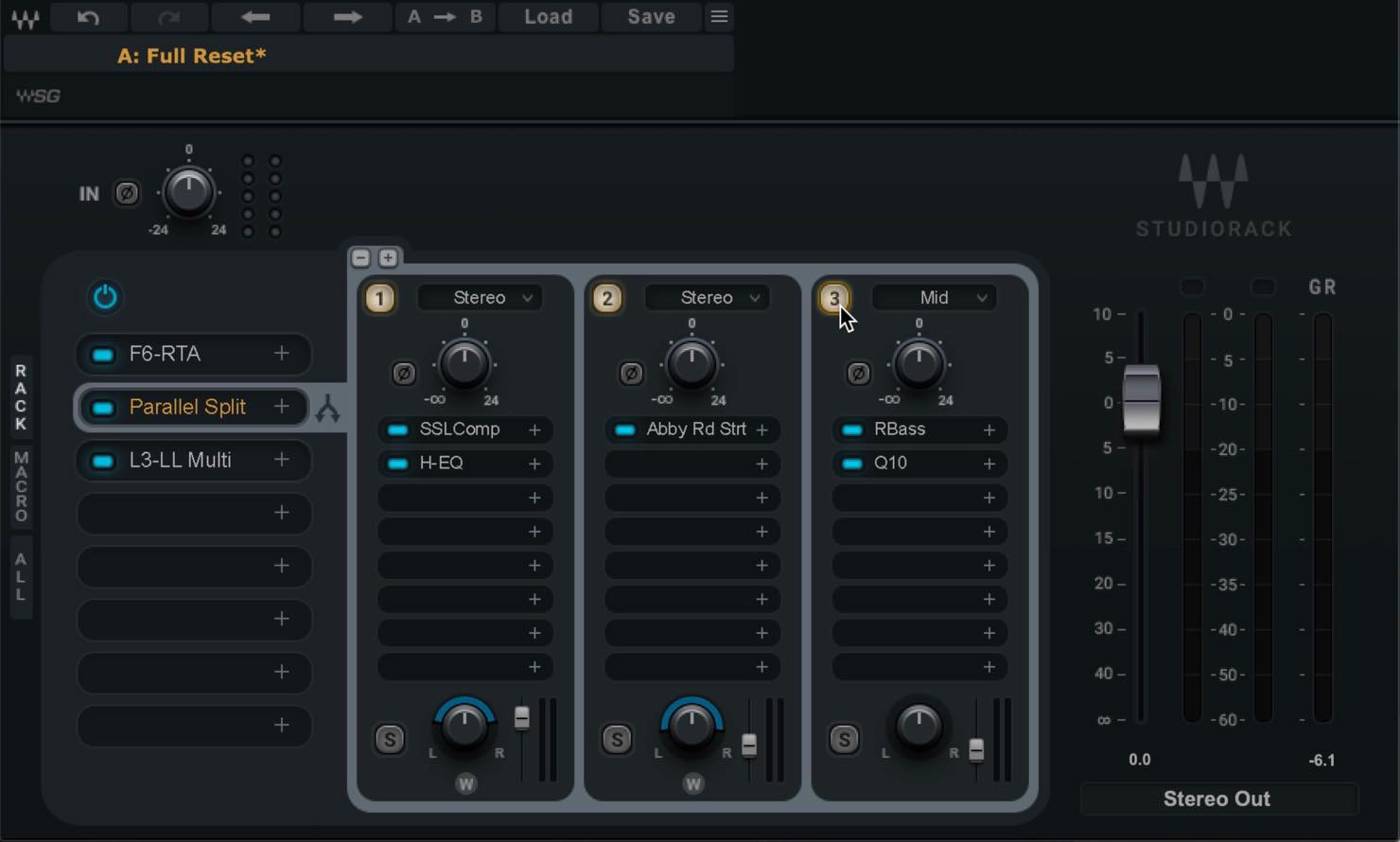
In the first stage of the chain, we insert a dynamic EQ, F6, to shape the overall sound.
In the second stage, we select Parallel Split and divide the signal into three channels.
For color, we insert Abbey Road Saturator on channel 2. With parallel effects, it helps to apply the effect more strongly than usual, then blend it gradually with the original signal.
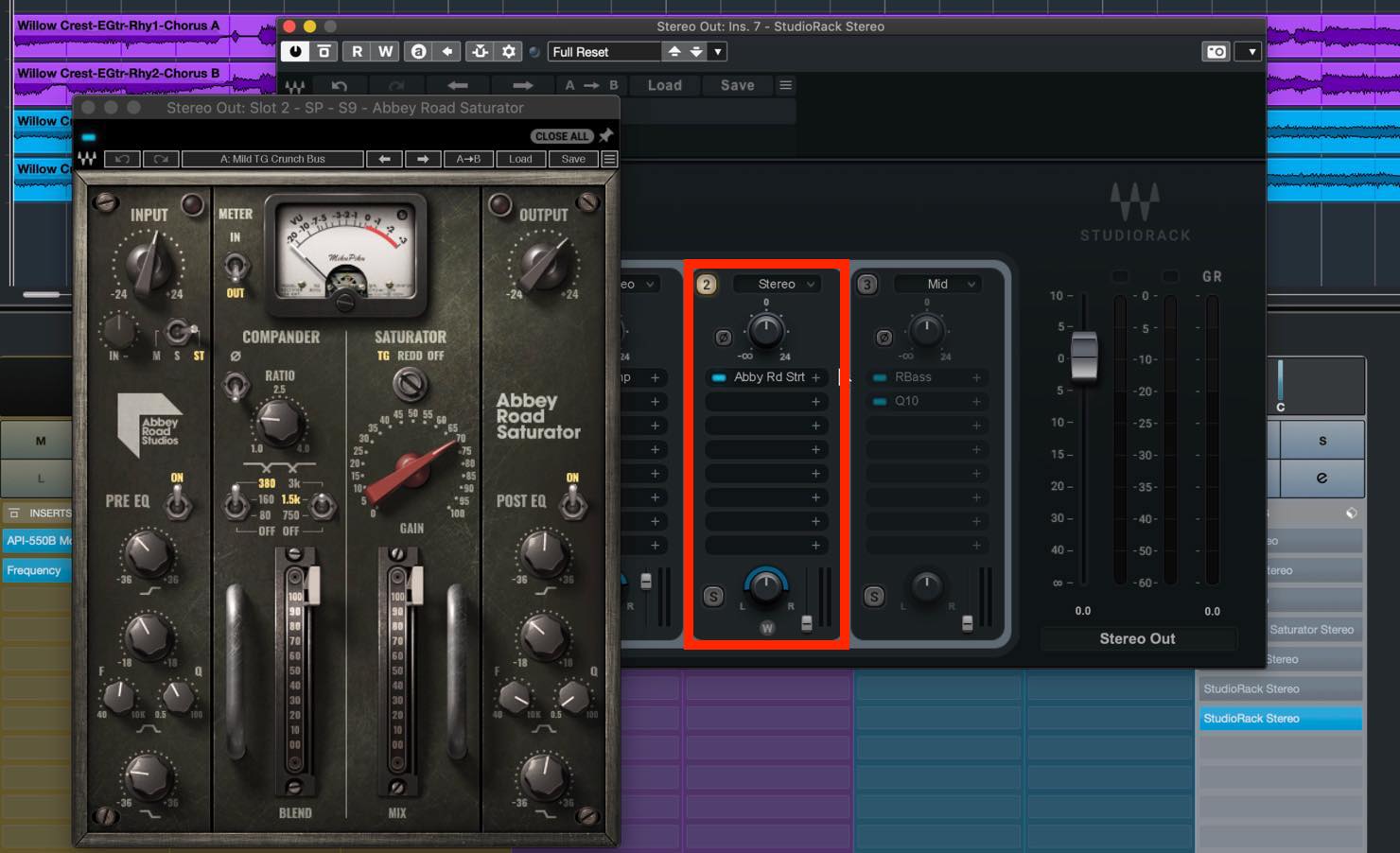
This adds a little warmth while bringing out clarity in the high frequencies.
Because you can add just the amount of effect you want without losing the character of the original signal, the result is easy to control.
Next, we use parallel channel 3 to add a little weight to the low end.
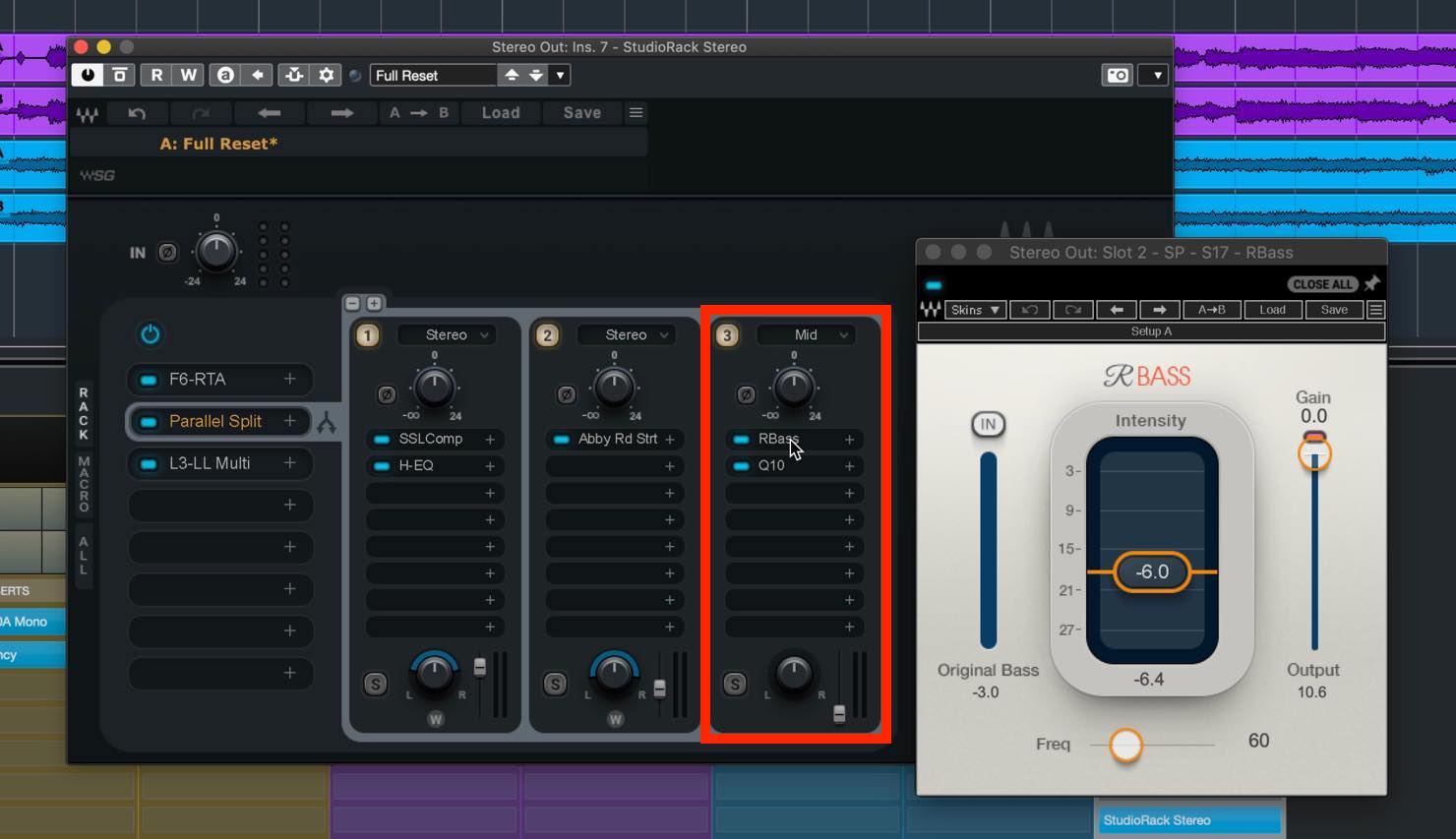
We use RBass. It could also work in a standard chain, but the key here is setting the channel mode to MID.
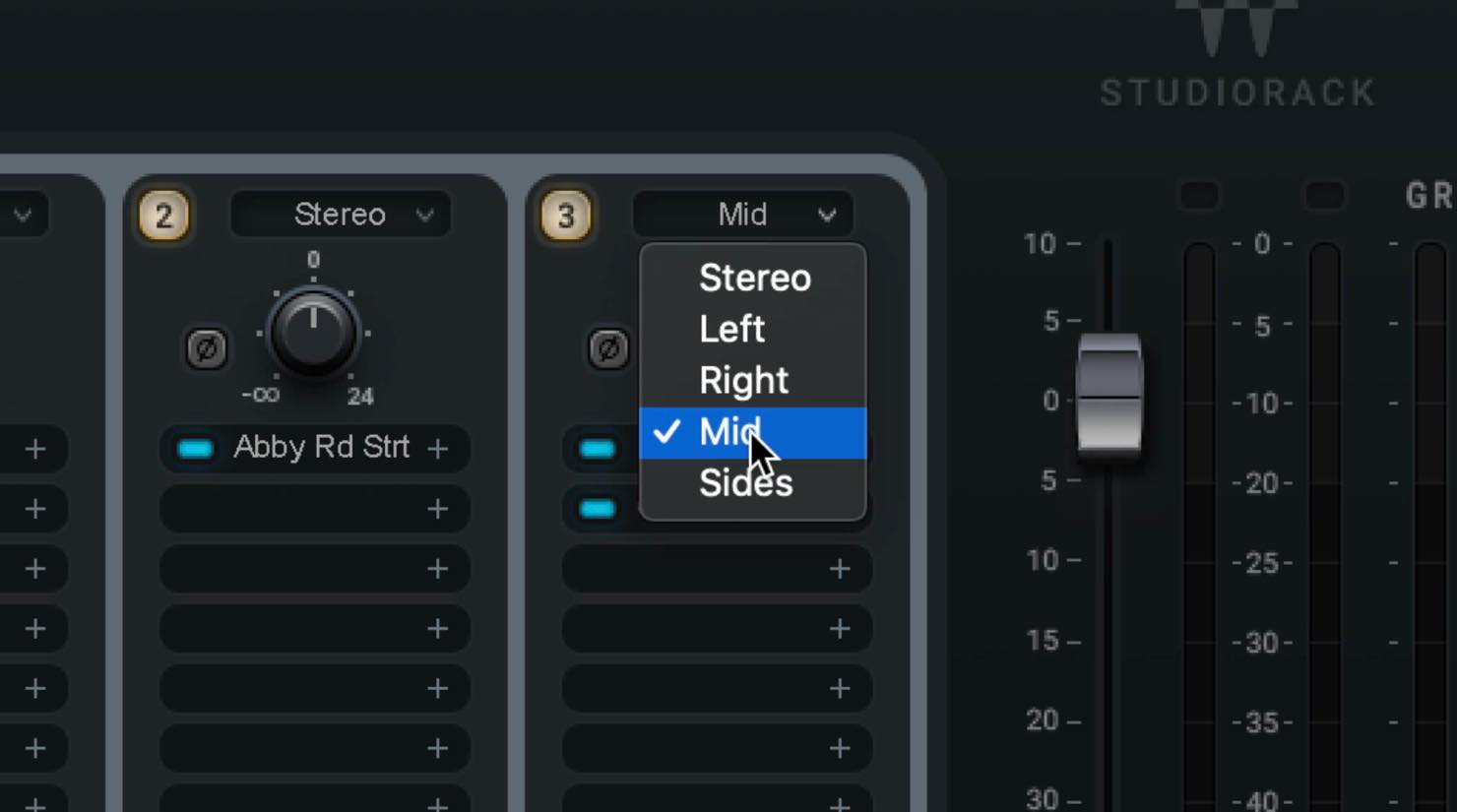
This limits RBass to center-panned sounds and helps avoid unnecessary low-frequency spread.
We blend this in gradually as well. To keep the effect focused on the low end, we cut the high frequencies with an EQ later in the chain.
At the right balance, it subtly reinforces the low end without becoming excessive, helping the bass and kick feel more solid. Another benefit is that it adds only what is needed, without unwanted side effects.
Parallel Split supports up to eight channels for parallel processing.
For another example of parallel processing, take a look at how tofubeats uses it. This article may also be helpful:
https://www.minet.jp/contents/article/production-mix-with-waves-tofubeats-3-mastering/
Key Feature 2: MultiBand Split
Next, let’s look at another key feature: MultiBand Split.
As the name suggests, StudioRack can divide audio into as many as five frequency bands, with the option to insert different plug-ins in each band.
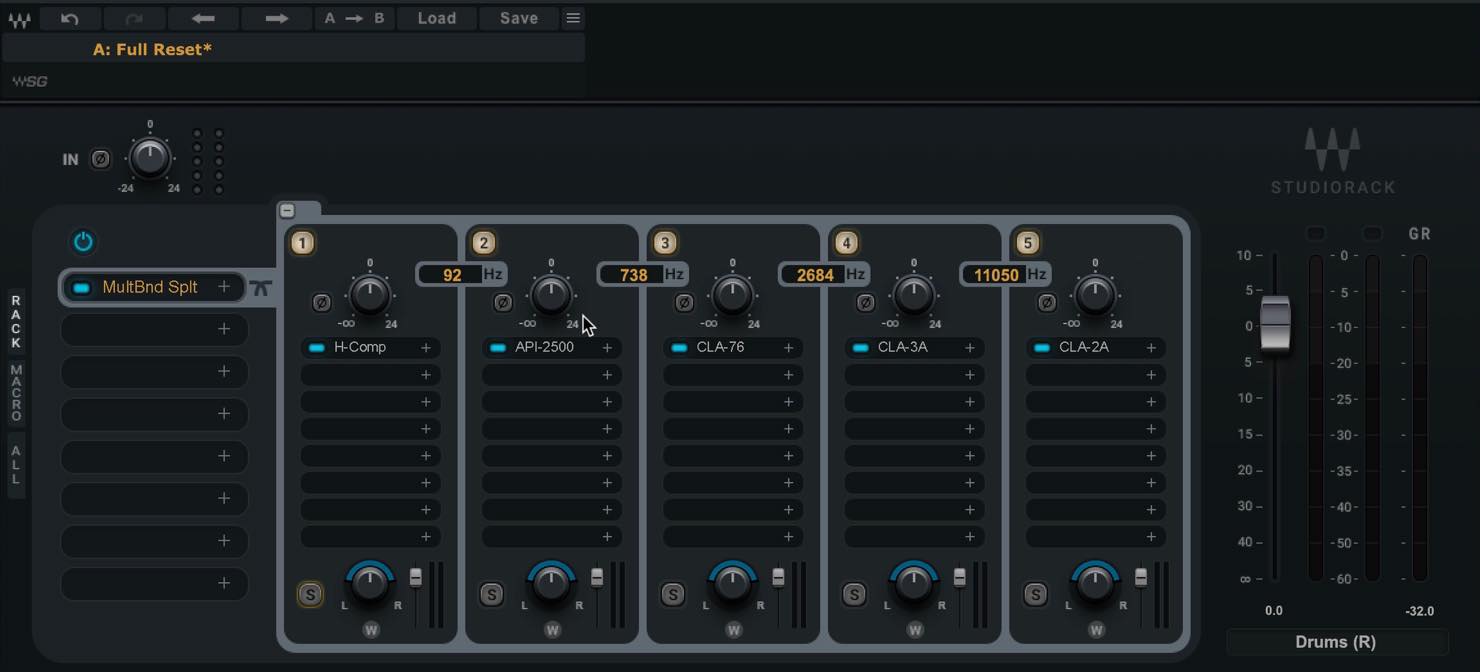
The bands are crossover-filtered, and you can freely set the crossover frequencies.
For a simple example, insert your preferred compressor on each band to build your own multiband compressor.
Each band also has a solo button and a stereo imager, among other useful controls.
With a feature this flexible, there is no single rule for how to use it.
As one idea, here is a drum-bus example. You could also apply this approach to drum stems or loop samples.
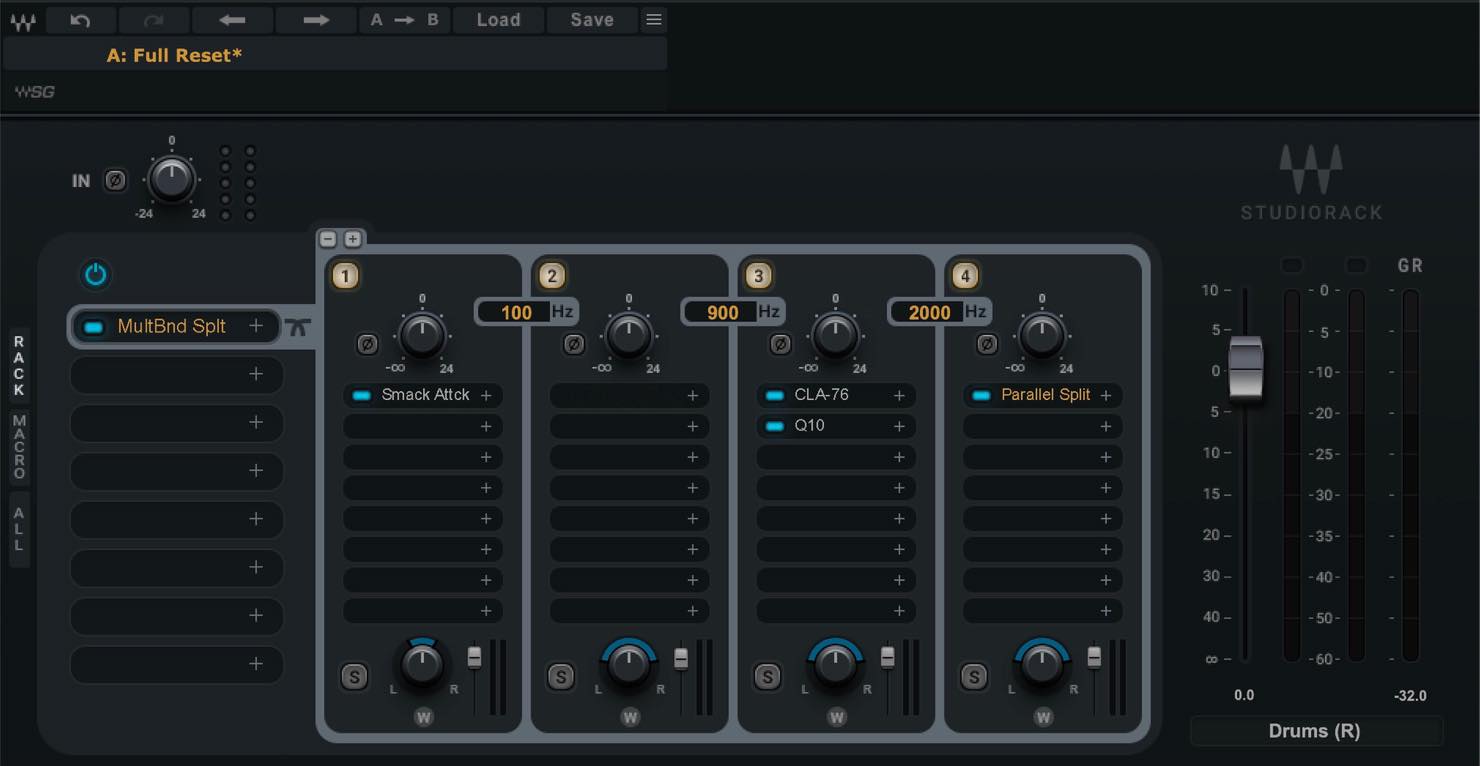
On band 1, below 100 Hz, we insert Smack Attack and reduce Sustain to tighten the kick.
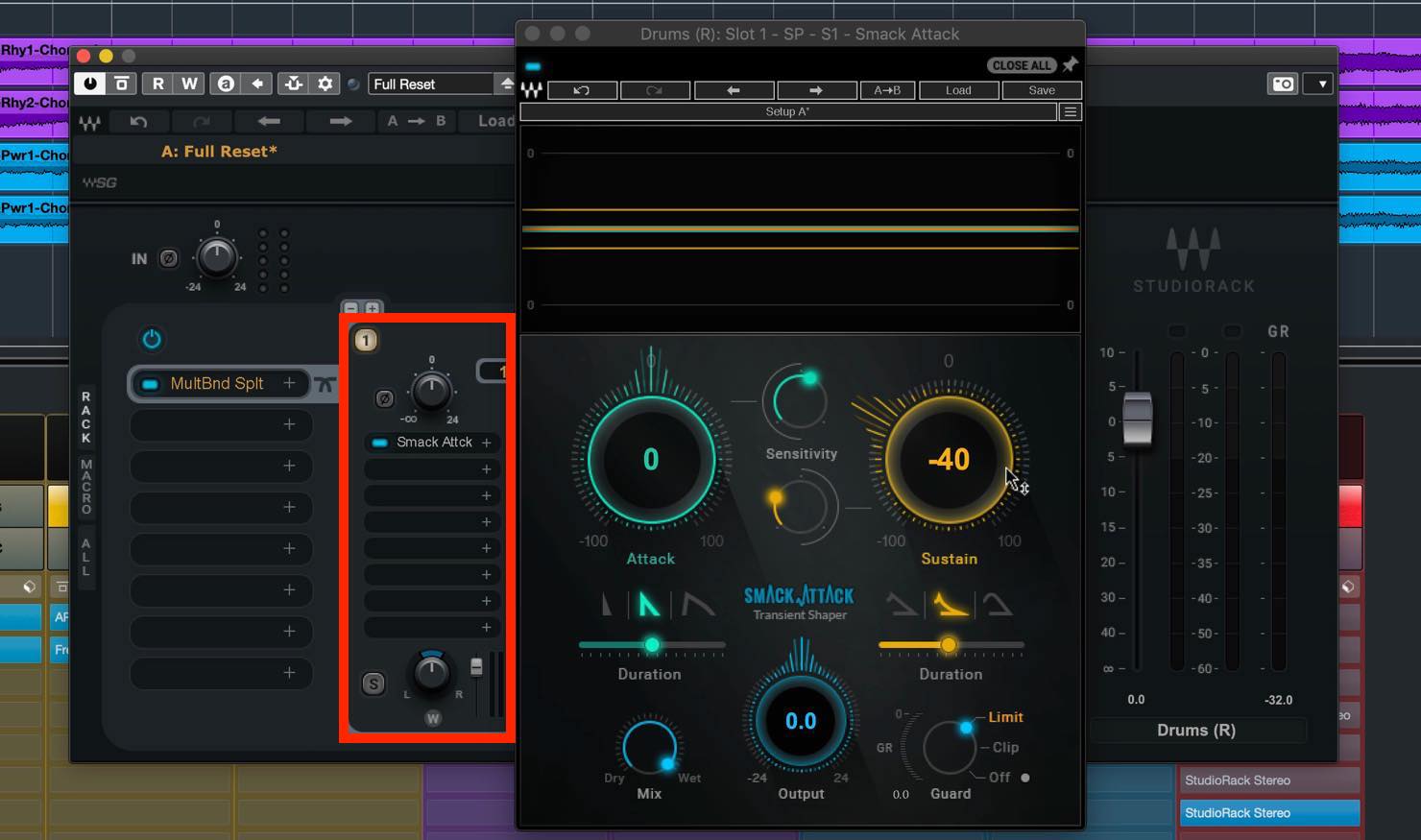
We also narrow the stereo image to keep the sound focused and tight.
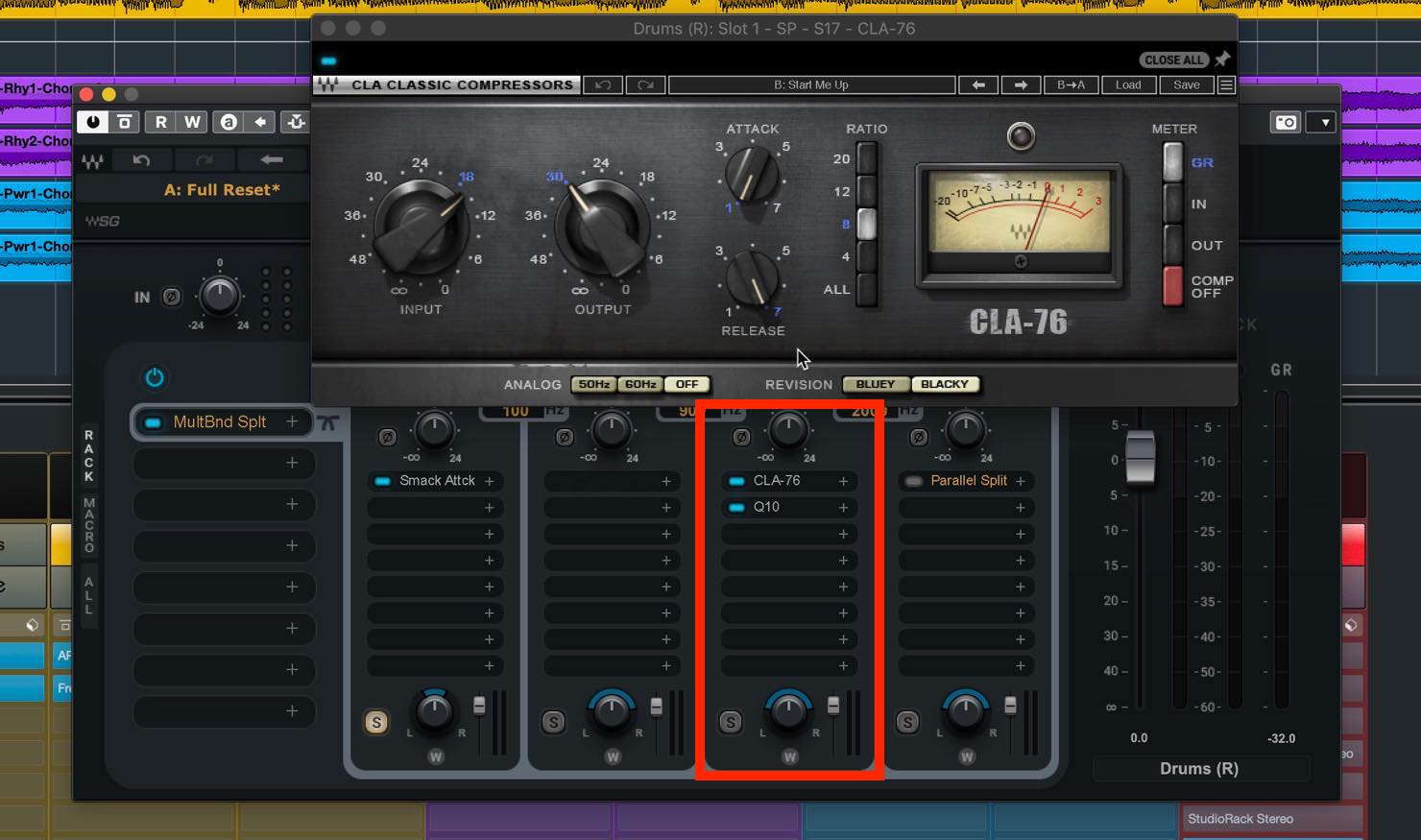
Next, on band 3, set to 900–2,000 Hz, we insert CLA-76 to bring out the punch of both the kick and snare. We use a familiar setting with a slower attack and faster release. The compression made the hi-hat’s midrange sound a little heavy, so we adjusted it with an EQ later in the chain.
Finally, on band 4, set above 2,000 Hz, we try something a little different: adding reverb only to the high frequencies while also using Parallel Split.
Looking inside the chain, we insert reverb on channel 2 and balance it against the original signal. In effect, this is similar to sending only the high frequencies to a reverb.
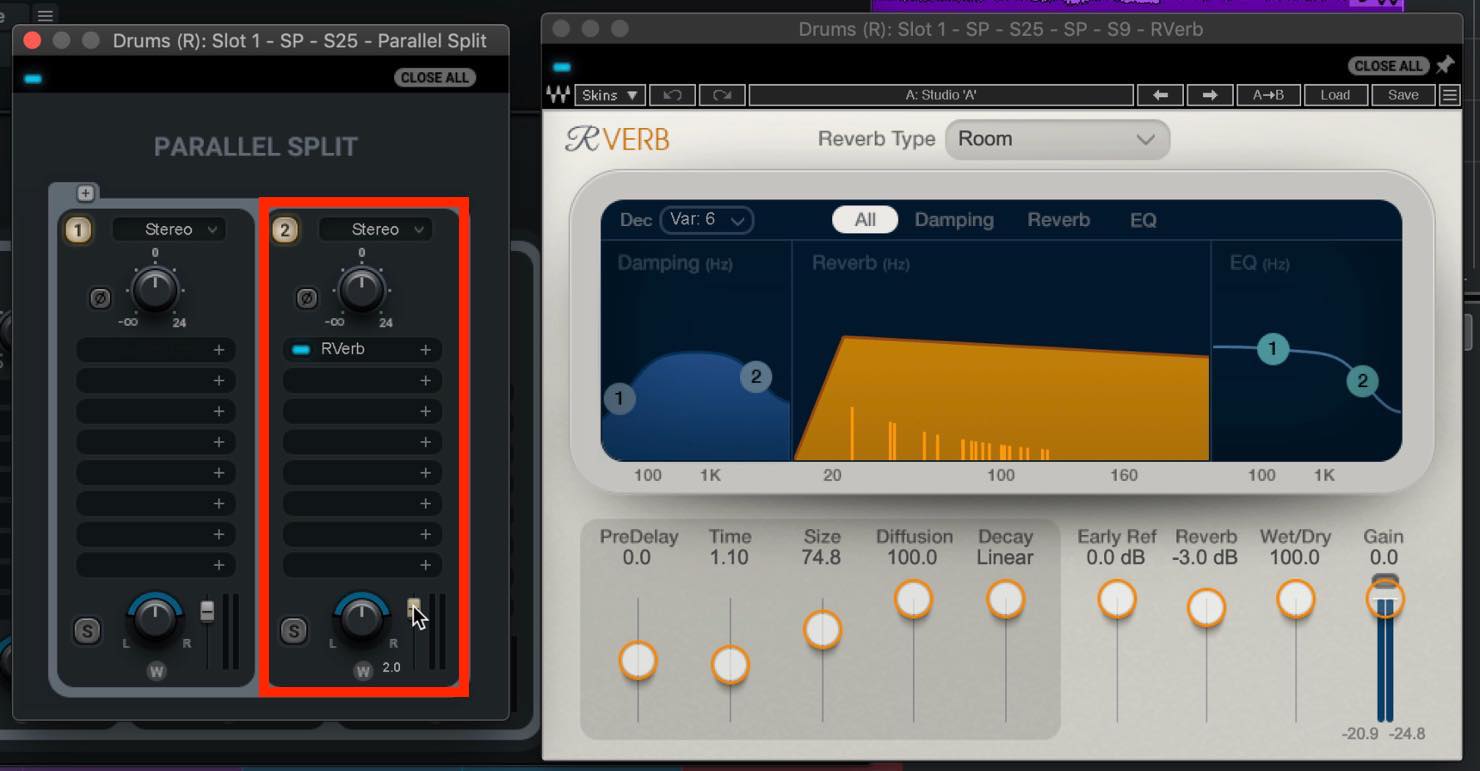
At first, we tried inserting the reverb normally, but its Mix control made it difficult to avoid blurring the sound. Using Parallel Split gave us more control.
We use the “Studio A” preset in RVerb. The fader is blended in fairly high at +2 dB, but the overall gain does not rise too much.
The hi-hat, which had felt a little detached, blends in more naturally and helps the mix feel cohesive.
It also adds the sense of space we wanted without making the low end bigger.
This may not create the most realistic reverb, but tools like this are fun to experiment with beyond the usual approaches.
Other StudioRack Features
In addition to the Split features covered above, StudioRack includes a Macro feature that lets you control multiple parameters at once.
It is simple to use: right-click the parameter you want to assign to a Macro, then select Macro.
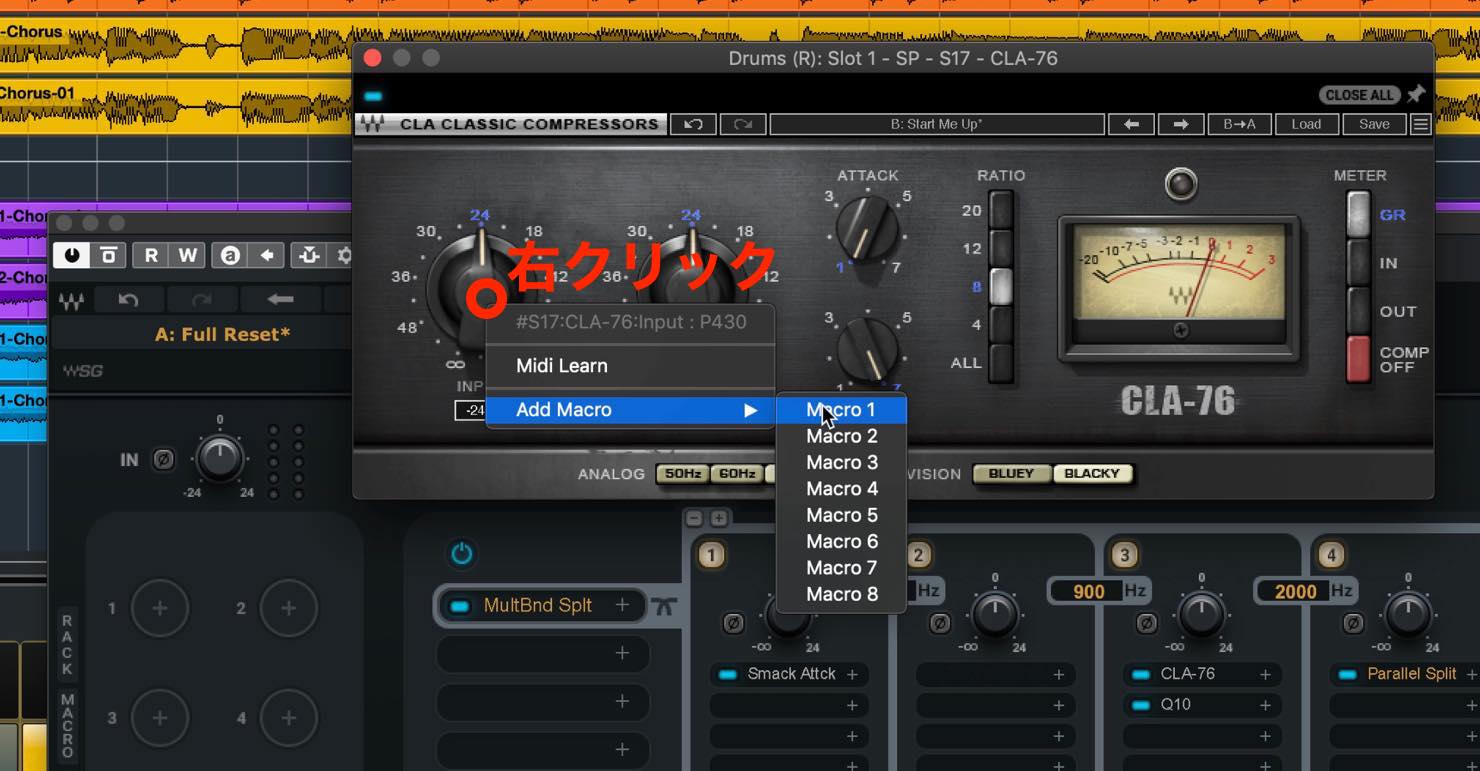
With CLA-76, you may often want to raise Input while lowering Output. Open the Edit controls and reverse the Output Control Range.
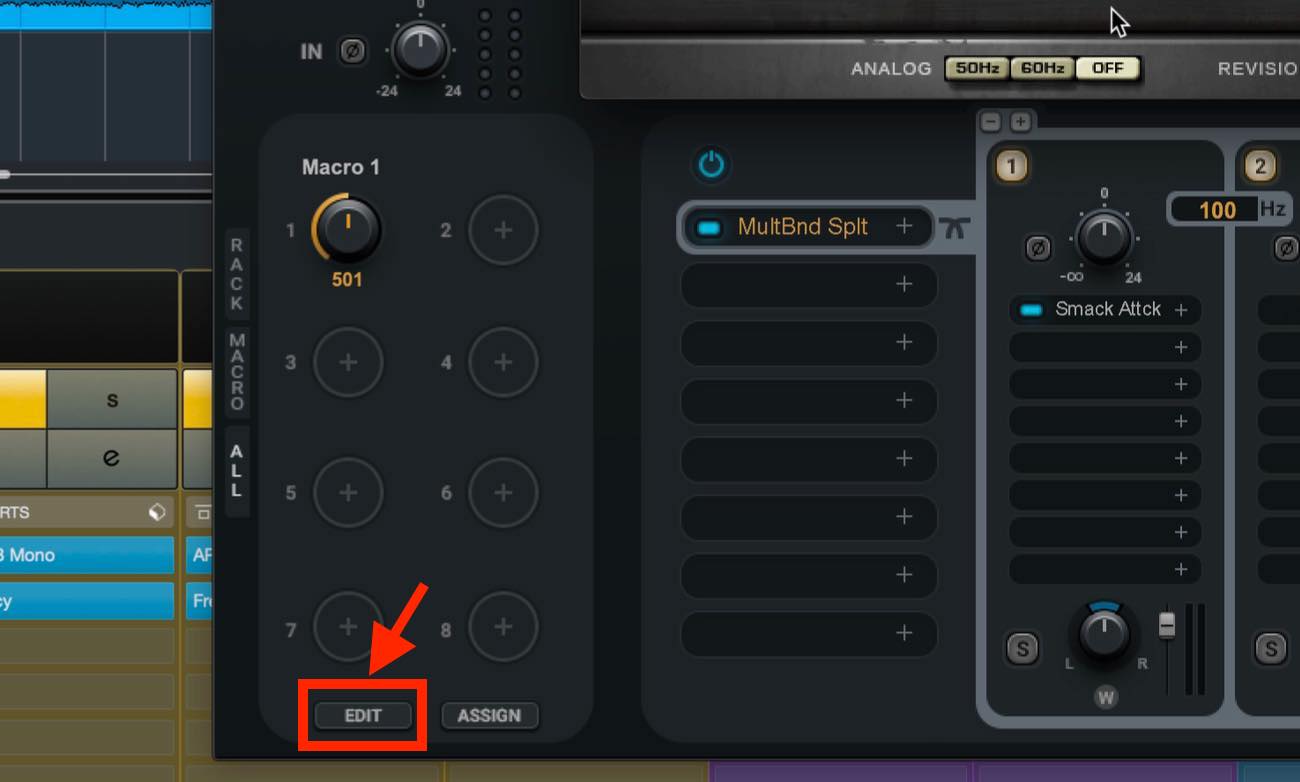
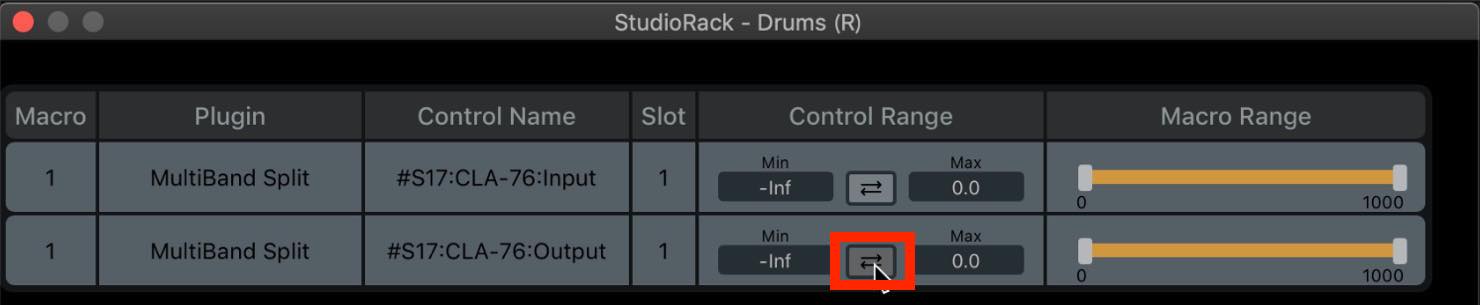
Now, turning the Macro to the right raises Input and lowers Output. Turning it to the left does the opposite.
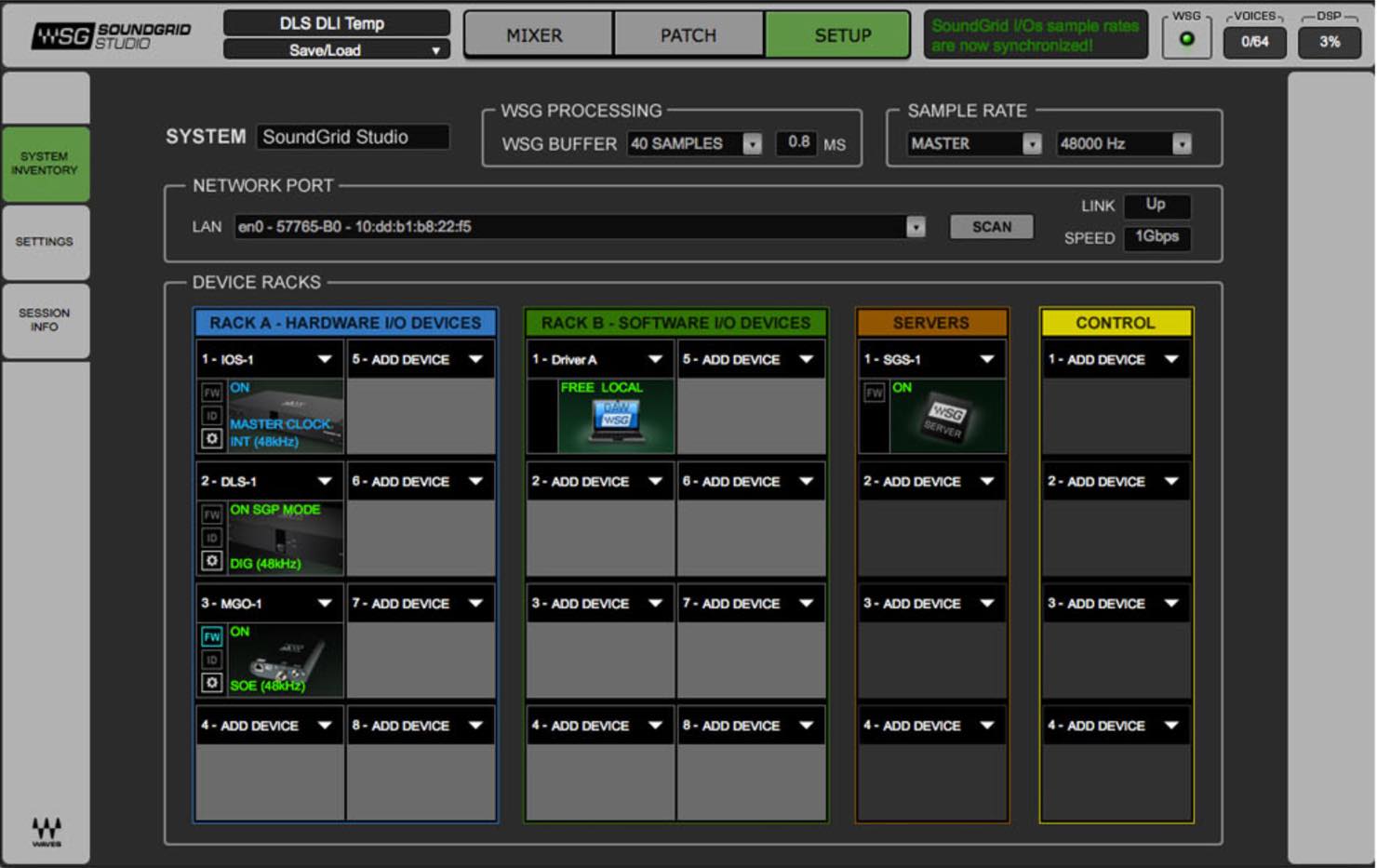
When used with Waves SoundGrid Studio, plug-in processing can also be moved from your computer’s CPU to a SoundGrid server.
In this article, we used Waves StudioRack to revisit the value of plug-in chains and explore some of their creative possibilities.
StudioRack itself is free, and you can insert any Waves plug-in you own. If you are interested, give it a try.
🆓 Explore the creative possibilities of plug-in chains with the free Waves StudioRack! ‼️
You can also use it with your Waves compressors to build your own multiband compressor. ✨
Learn more here:https://t.co/aHV190wUaG#DTM @WavesAudioLtd @minetjp pic.twitter.com/e4f4DXnQV2
— SLEEP FREAKS (@SLEEPFREAKS_DTM) February 6, 2021
Frequently Asked Questions
Q1. Is Waves StudioRack really free to use?
Yes. Waves offers StudioRack as a free plug-in that you can download and use. However, because it chains Waves plug-ins, you may also need the compatible Waves plug-ins you want to use.
Q2. How many channels can Parallel Split process at once?
Parallel Split can process up to eight channels in parallel, making complex parallel compression and layered processing possible.
Q3. Can I choose how many bands MultiBand Split uses?
StudioRack can split audio into up to five bands, and you can freely set the crossover frequencies between bands. You can also use fewer bands when that suits the task.
Q4. Can I use StudioRack presets in other DAWs?
Yes. One advantage of StudioRack presets is that you can use them regardless of which DAW you work in, making it possible to share presets across different DAWs.
NEW ARTICLES
Latest English Articles



























































